
鸿蒙开发基础篇+项目实战
语法和arkui组件
对象
1、写一个接口定义对象的数据类型
interface Goods {
	title:string
	price:number
}
2、写对象,数据类型写Goods
//属性名:属性值 → 构成键值对(之间使用逗号隔开)
let vase: Goods = {
	title:'创意花瓶',
	price:12.99
}
注意:对象中必须包含全部interface中的信息
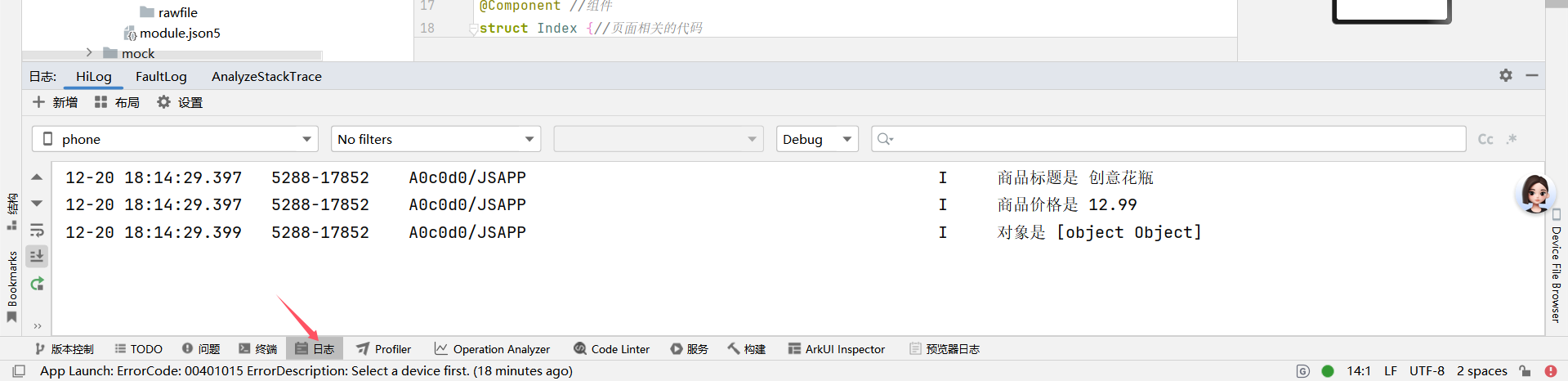
3、打印输出证明结果
console.log('商品标题是',vase.title)
console.log('商品价格是',vase.price)
console.log('对象是',vase)
函数
function  calc(r:number){
  return 2*3.14*r
}

let c1:number = calc(10)
console.log('圆的周长是',c1)

箭头函数
let sum = (num1:number,num2:number)=>{
    return num1+num2
}

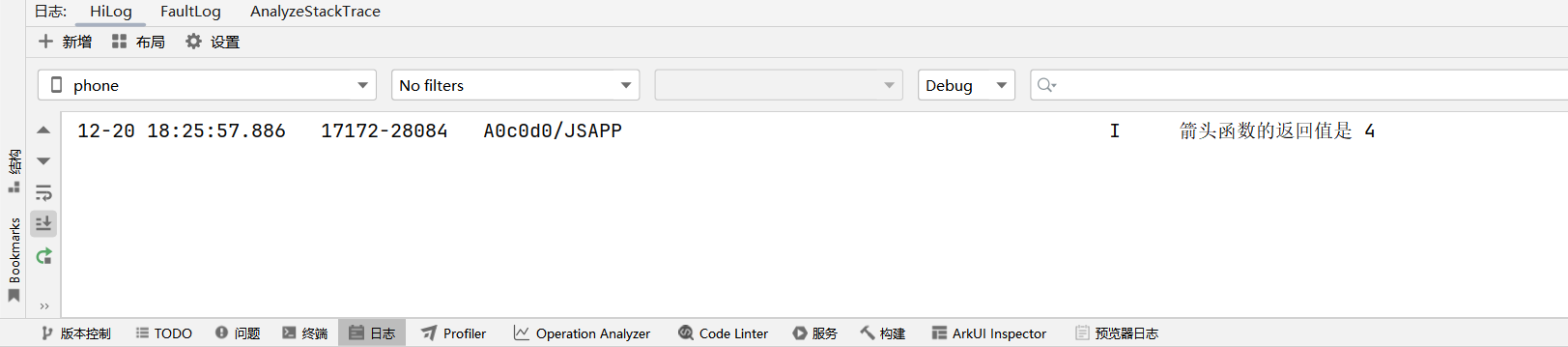
let c:number = sum(2,2)
console.log('箭头函数的返回值是',c)
组件基础语法
在arkui中眼睛能看到的就是组件
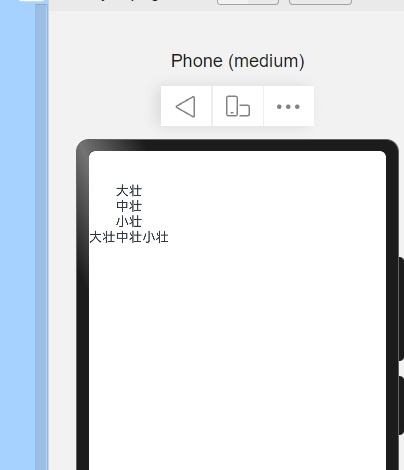
注意:build里面只能有一个唯一的根组件(要么是column组件,要么是row组件中包含其他容器组件)
@Entry
@Component //组件
struct Index {//页面相关的代码

  build() { //构建界面
    Column() {//容器组件
      Column() {
        Text('大壮') //内容组件
        Text('中壮') //内容组件
        Text('小壮') //内容组件
      }

      Row() {
        Text('大壮') //内容组件
        Text('中壮') //内容组件
        Text('小壮') //内容组件
      }
    }
  }
}
通用属性
@Entry
@Component //组件
struct Index {//页面相关的代码

  build() { //构建界面
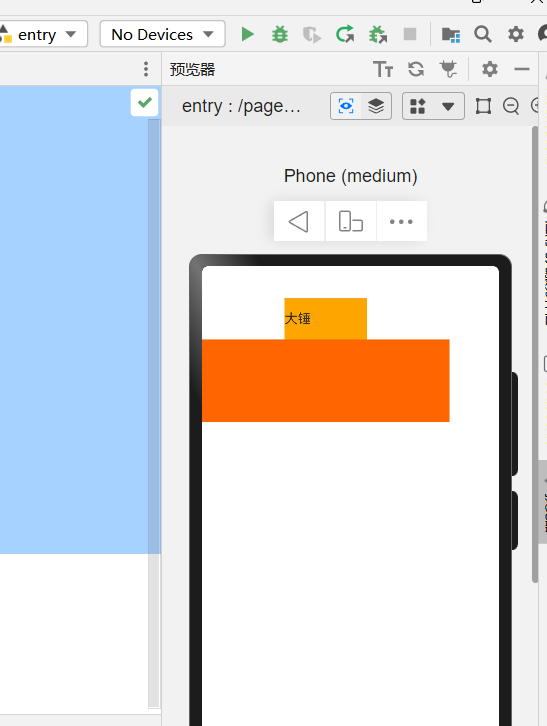
    Column() {
      Text('大锤')//内容组件设置属性
        .backgroundColor(Color.Orange)//设置内置背景色
        .width(100)//设置宽,单位vp
        .height(50)//设置搞:单位vp

      Row(){}//容器组件设置属性
      //满屏尺寸是360vp,也可以写.width(’100%‘)
      .width(300)
      .height(100)
      .backgroundColor('#ff6600')//以16进制设置背景色
    }
  }
}
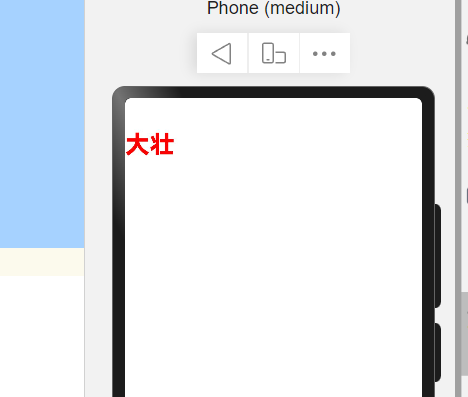
文本属性
@Entry
@Component //组件
struct Index {//页面相关的代码

  build() { //构建界面
    Column() {
      Text('大壮')
        .fontSize(30)//设置字体大小
        .fontColor(Color.Red)//设置字体颜色
        .fontWeight(800)//设置字体粗细
    }
  }
}
图像组件
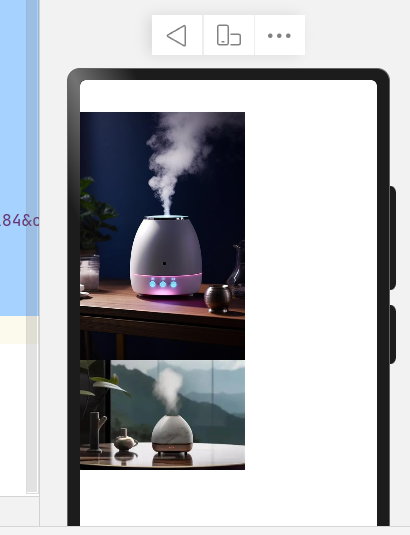
1、在media目录下存储一张你要展示的图片,本例题使用product.png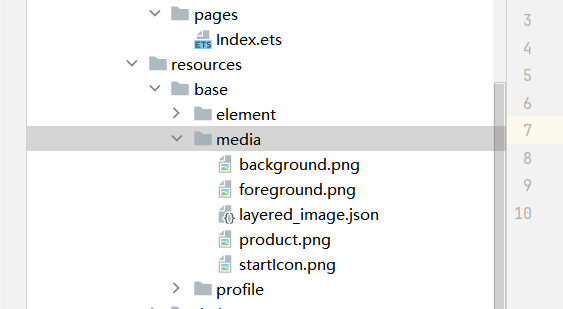
@Entry
@Component //组件
struct Index {//页面相关的代码

  build() { //构建界面
    Column() {
      //添加本地图片
      Image($r('app.media.product'))
        .width(200)
      //添加网络图片
      Image('https://tse1-mm.cn.bing.net/th/id/OIP-C.EtUoFHXxrZpTJuf0OPQfYAHaE8?w=276&h=184&c=7&r=0&o=7&cb=ucfimg2&dpr=1.4&pid=1.7&rm=3&ucfimg=1')
        .width(200)
    }
  }
}
内外边框
@Entry
@Component //组件
struct Index {//页面相关的代码

  build() { //构建界面
    Column() {
      Button('登录')
        .width('100%')
    }
    .backgroundColor('#DDDD')//设置容器组件的背景颜色(灰色)
    // .padding(10)//内边距全部设为相同的写法
    .padding({//内边距不同的写法
      left:10,//左边
      top:20,//上面
      right:30,//右边
      bottom:40//下面
    })
  }
}
}
图中显示的是内边距相同的写法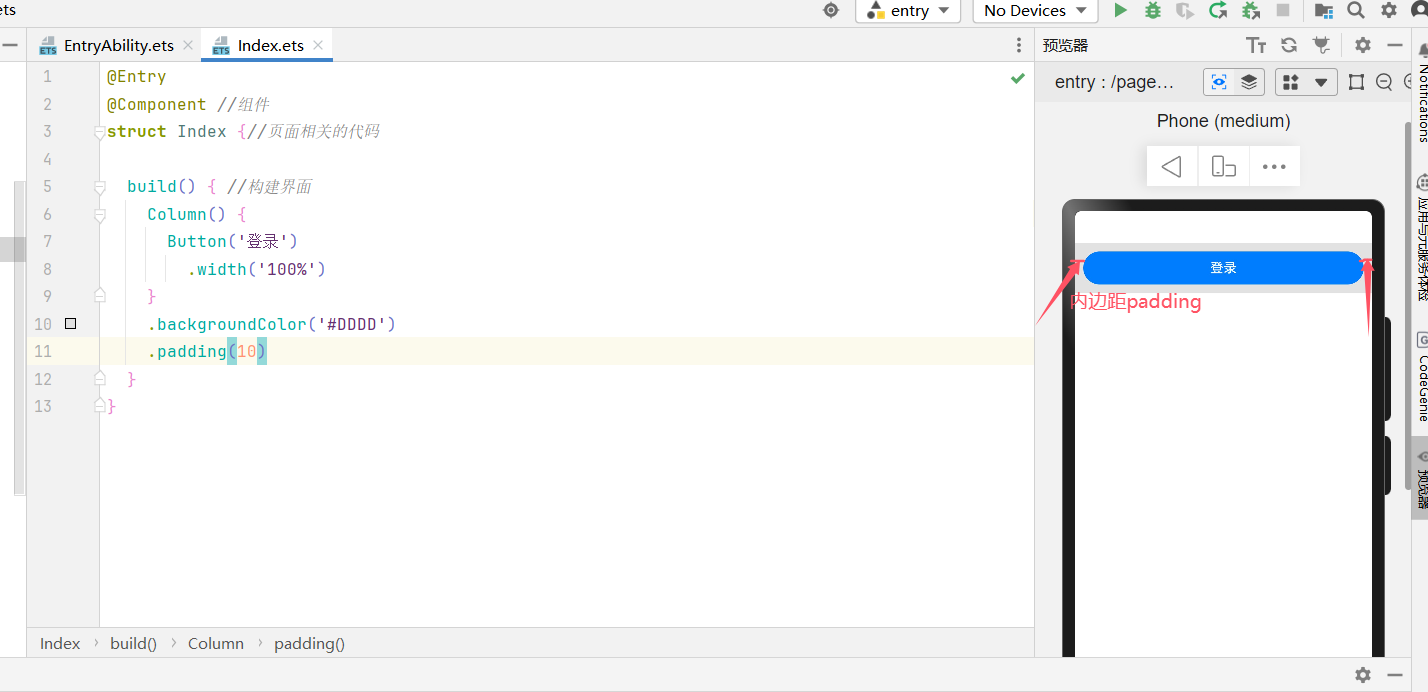
@Entry
@Component //组件
struct Index {//页面相关的代码

  build() { //构建界面
    Column() {
      Button('登录')
        .width('100%')
        .margin({bottom:20})//设置登录按钮的下边距为20
      Button('注册')
        .width('100%')
        .backgroundColor(Color.Gray)
    }
    .backgroundColor('#DDDD')//设置容器组件的背景颜色(灰色)
    // .padding(10)//内边距全部设为相同的写法
    .padding({//内边距不同的写法
      left:10,
      top:20,
      right:30,
      bottom:40
    })
  }
}
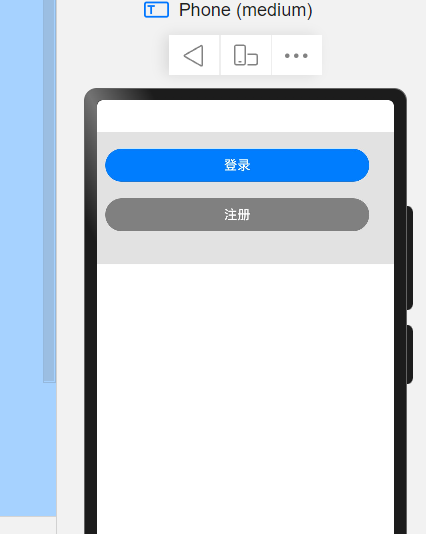
组件边框(border)
@Entry
@Component //组件
struct Index {//页面相关的代码

  build() { //构建界面
    Text('+状态')
      .width(100)
      .height(60)
      .backgroundColor(Color.Pink)
    //文本水平居中
      .textAlign(TextAlign.Center)
      .border({
        width: 3,//宽度为3
        color:Color.Brown,//边框颜色为深红色
        style:BorderStyle.Dashed,//虚线效果
        radius:10//圆角弧度
      })
  }
}
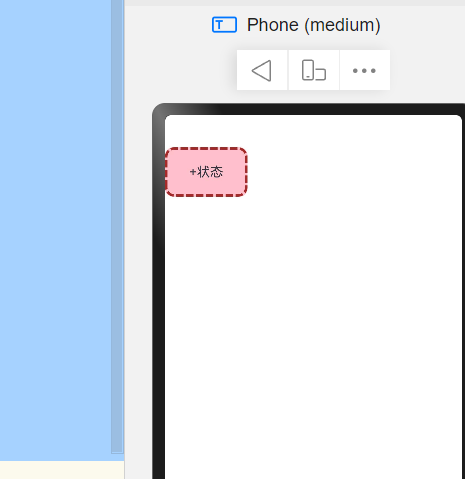
使用组件及属性方法布局歌曲列表
@Entry
@Component //组件
struct Index {//页面相关的代码

  build() { //构建界面
    Column(){
      Text('猜你喜欢')
        .fontColor('#fff')//设置字体颜色
        .width('100%')
        .margin({bottom:10})//添加外边距10
      List(){//支持滚动的组件
        ListItem(){
          Row(){
            //图
            Image($r('app.media.3'))
              .width(80)
              .border({radius:8})
              .margin({right:10})
            //字
            Column(){
                Text('奢香夫人')
                  .fontColor('#F3F3F3')
                  .width('100%')
                  .fontWeight(700)
                  .margin({bottom:15})
              Row(){
                  Text('vip')
                    .fontColor('#9A8E28')
                    .border({width:1 ,color:'#9A8E28',radius:12})
                    .padding({left:5,right:5,top:3,bottom:3})
                    .margin({right:10})
                  Text('凤凰传奇')
                    .fontColor('#696969')
              }
              .width('100%')
            }
            .layoutWeight(1)//占用剩下的所有
            Image($r('app.media.ic_more'))
              .width(24)
              .fillColor('#FEFEFE')
          }
          .width('100%')
          .height(80)
          // .backgroundColor(Color.Pink)
          .margin({bottom:10})
        }
      }
      .scrollBar(BarState.Off)//关闭滚动条
    }
    .width('100%')
    .height('100%')
    .backgroundColor('#131313')
    .padding({left:10,right:10})
    .expandSafeArea([SafeAreaType.SYSTEM],[SafeAreaEdge.TOP,SafeAreaEdge.BOTTOM])//扩充组件安全区
  }
}
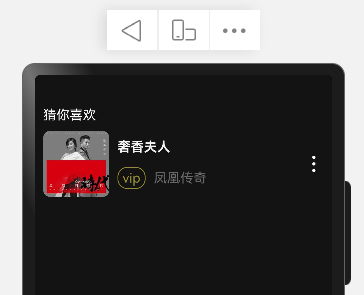
if分支语句
let score:number = 50
if (score >= 80){
  console.log('成绩评价为A')
}
else if (score > 70){
  console.log('成绩评价为B')
}
else if(score >= 60){
  console.log('成绩评价为C')
}
else {
  console.log('没及格,再接再励')
}

@Entry
@Component //组件
struct Index {//页面相关的代码
  build() { //构建界面

  }
}

条件表达式
let num1:number = 20
let num2:number = 30

let result:number = num1>num2?num1:num2
console.log('两者的较大值是 ',result)

@Entry
@Component //组件
struct Index {//页面相关的代码
  build() { //构建界面

  }
}

条件渲染
根据逻辑条件不同,渲染不同的UI内容
let num:number = 2
@Entry
@Component //组件
struct Index {//页面相关的代码
  build() { //构建界面
    Column(){
      if(num === 1){
        Text('文本1')
      }
      else if(num === 2)
      {
        Text('文本2')
      }
      else {
        Text('文本3')
      }
    }
    .padding(20)
  }
}
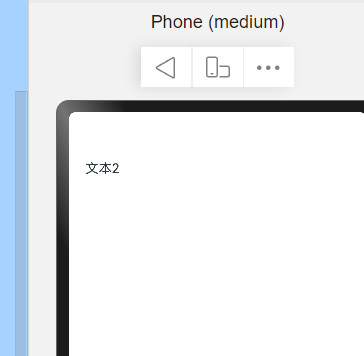
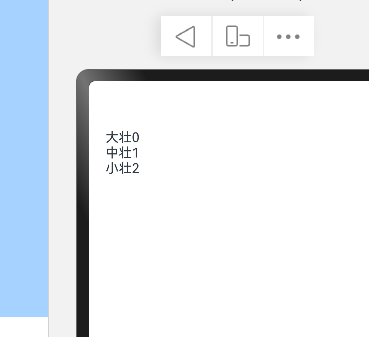
循环渲染
let names:string[] = ['大壮','中壮','小壮']

@Entry
@Component //组件
struct Index { //页面相关的代码
  build() { //构建界面
    Column() {
      ForEach(names,(item:string,index:number)=>{
        //字符串间的➕是数组拼接
        Text(item+index)
      })
    }
    .padding(20)
  }
}
状态管理(V2)
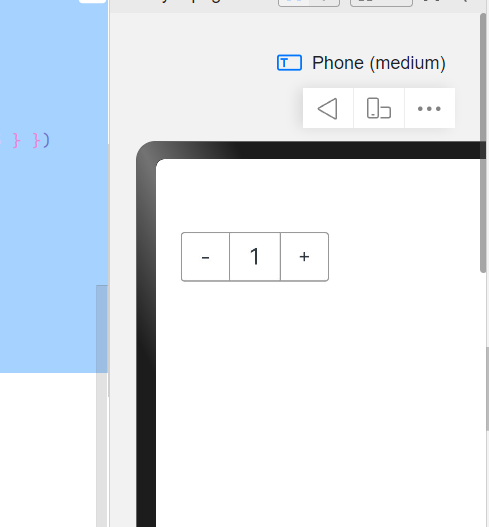
@Entry
@ComponentV2 //组件改为V2
struct Index { //页面相关的代码
  @Local num:number = 1//自定义一个状态的名字this.[对应状态的名字]
  build() { //构建界面
    Column() {
      Row() {
        Text('-')
          .width(40)
          .height(40)
          .border({ width: 1, color: '#999', radius: { topLeft: 3, bottomLeft: 3 } })
          .textAlign(TextAlign.Center)
          .onClick(()=>{
            if (this.num > 1) {
              this.num--
            }
          })

        Text(this.num.toString())
          .width(40)
          .height(40)
          .textAlign(TextAlign.Center)
          .border({ width: { top: 1, bottom: 1 }, color: '#999' })
          .fontSize(18)

        Text('+')
          .width(40)
          .height(40)
          .border({ width: 1, color: '#999', radius: { topRight: 3, bottomRight: 3 } })
          .textAlign(TextAlign.Center)
          .onClick(()=>{
            this.num++;
          })//点击事件
      }
    }
    .padding(20)
  }
}
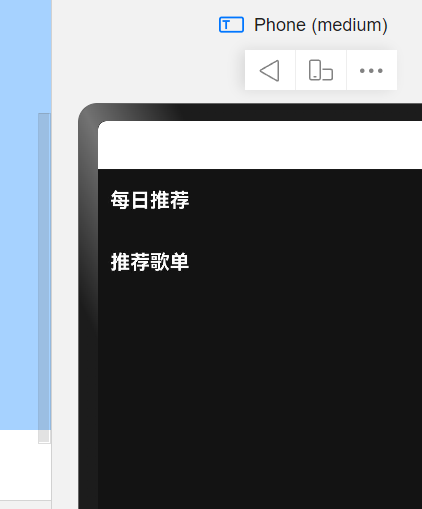
自定义构建函数
作用:封装重复使用的UI元素,提升复用性
@Entry
@ComponentV2 //组件
struct Index { //页面相关的代码
  @Builder //创建一个自定义构建函数
  titleBuilder(title:string){
    Row() {
      Text(title)
        .fontColor('#fff')
        .fontWeight(700)
        .layoutWeight(1)
      Image($r('app.media.ic_more'))
        .width(22)
        .fillColor('#fff')
    }
    .width('100%')
    .height(50)
  }
  build() { //构建界面
    Column() {
      this.titleBuilder('每日推荐')
      this.titleBuilder('推荐歌单')
    }
    .width('100%')
    .height('100%')
    .backgroundColor('#131313')
    .padding({left:10,right:10})
  }
}
歌单交互效果
interface SongItemType{
  img:string
  name:string
  author:string
}
@Entry
@ComponentV2 //组件
struct Index {//页面相关的代码
  @Local playIndex:number = -1
  songs: SongItemType[] = [
    {
      img: 'http://yjy-teach-oss.oss-cn-beijing.aliyuncs.com/HeimaCloudMusic/0.jpg',
      name: '直到世界的尽头',
      author: 'WANDS',
    },
    {
      img: 'http://yjy-teach-oss.oss-cn-beijing.aliyuncs.com/HeimaCloudMusic/1.jpg',
      name: '画',
      author: '赵磊',
    },
    {
      img: 'http://yjy-teach-oss.oss-cn-beijing.aliyuncs.com/HeimaCloudMusic/2.jpg',
      name: 'Sweet Dreams',
      author: 'TPaul Sax / Eurythmics',
    },
    {
      img: 'http://yjy-teach-oss.oss-cn-beijing.aliyuncs.com/HeimaCloudMusic/3.jpg',
      name: '奢香夫人',
      author: '凤凰传奇',
    },
    {
      img: 'http://yjy-teach-oss.oss-cn-beijing.aliyuncs.com/HeimaCloudMusic/4.jpg',
      name: '空心',
      author: '光泽',
    },
    {
      img: 'http://yjy-teach-oss.oss-cn-beijing.aliyuncs.com/HeimaCloudMusic/5.jpg',
      name: '反转地球',
      author: '潘玮柏',
    },
    {
      img: 'http://yjy-teach-oss.oss-cn-beijing.aliyuncs.com/HeimaCloudMusic/6.jpg',
      name: 'No.9',
      author: 'T-ara',
    },
    {
      img: 'http://yjy-teach-oss.oss-cn-beijing.aliyuncs.com/HeimaCloudMusic/7.jpg',
      name: '孤独',
      author: 'G.E.M.邓紫棋',
    },

    {
      img: 'http://yjy-teach-oss.oss-cn-beijing.aliyuncs.com/HeimaCloudMusic/8.jpg',
      name: 'Lose Control',
      author: 'Hedley',
    },
    {
      img: 'http://yjy-teach-oss.oss-cn-beijing.aliyuncs.com/HeimaCloudMusic/9.jpg',
      name: '倩女幽魂',
      author: '张国荣',
    },
    {
      img: 'http://yjy-teach-oss.oss-cn-beijing.aliyuncs.com/HeimaCloudMusic/10.jpg',
      name: '北京北京',
      author: '汪峰',
    },
    {
      img: 'http://yjy-teach-oss.oss-cn-beijing.aliyuncs.com/HeimaCloudMusic/11.jpg',
      name: '苦笑',
      author: '汪苏泷',
    },
    {
      img: 'http://yjy-teach-oss.oss-cn-beijing.aliyuncs.com/HeimaCloudMusic/12.jpg',
      name: '一生所爱',
      author: '卢冠廷 / 莫文蔚',
    },
    {
      img: 'http://yjy-teach-oss.oss-cn-beijing.aliyuncs.com/HeimaCloudMusic/13.jpg',
      name: '月半小夜曲',
      author: '李克勤',
    },
    {
      img: 'http://yjy-teach-oss.oss-cn-beijing.aliyuncs.com/HeimaCloudMusic/14.jpg',
      name: 'Rolling in the Deep',
      author: 'Adele',
    },
    {
      img: 'http://yjy-teach-oss.oss-cn-beijing.aliyuncs.com/HeimaCloudMusic/15.jpg',
      name: '海阔天空',
      author: 'Beyond',
    }
  ]

  build() { //构建界面
    Column(){
      Text('猜你喜欢')
        .fontColor('#fff')//设置字体颜色
        .width('100%')
        .margin({bottom:10})//添加外边距10
      List(){//支持滚动的组件
        ForEach(this.songs,(item:SongItemType,index:number)=>{
          ListItem(){
            Row(){
              //图
              Stack(){//层叠容器组件
                Image(item.img)
                  .width(80)
                  .border({radius:8})
                  .margin({right:10})
                if(this.playIndex === index) {
                  Image($r('app.media.wave'))
                    .width(24)
                }
              }

              //字
              Column(){
                Text(item.name)
                  .fontColor('#F3F3F3')
                  .width('100%')
                  .fontWeight(700)
                  .margin({bottom:15})
                Row(){
                  Text('vip')
                    .fontColor('#9A8E28')
                    .border({width:1 ,color:'#9A8E28',radius:12})
                    .padding({left:5,right:5,top:3,bottom:3})
                    .margin({right:10})
                  Text(item.author)
                    .fontColor('#696969')
                }
                .width('100%')
              }
              .layoutWeight(1)//占用剩下的所有
              Image($r('app.media.ic_more'))
                .width(24)
                .fillColor('#FEFEFE')
            }
            .width('100%')
            .height(80)
            // .backgroundColor(Color.Pink)
            .margin({bottom:10})
            .onClick(()=>{
              this.playIndex = index
            })
          }
        })
      }
      .scrollBar(BarState.Off)//关闭滚动条
    }
    .width('100%')
    .height('100%')
    .backgroundColor('#131313')
    .padding({left:10,right:10})
    .expandSafeArea([SafeAreaType.SYSTEM],[SafeAreaEdge.TOP,SafeAreaEdge.BOTTOM])//扩充组件安全区
  }
}
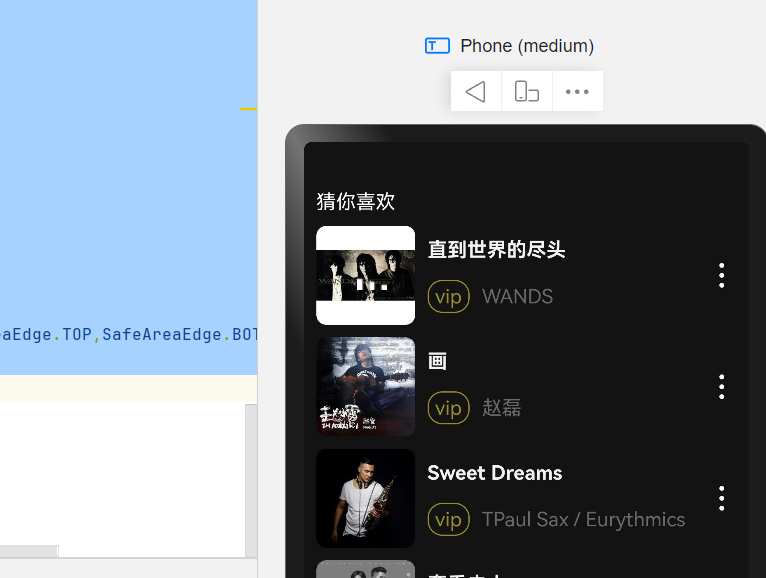
实现功能如下
1、动态切换播放状态动图
2、通过循环渲染数组内容
项目实战篇
修改软件图标
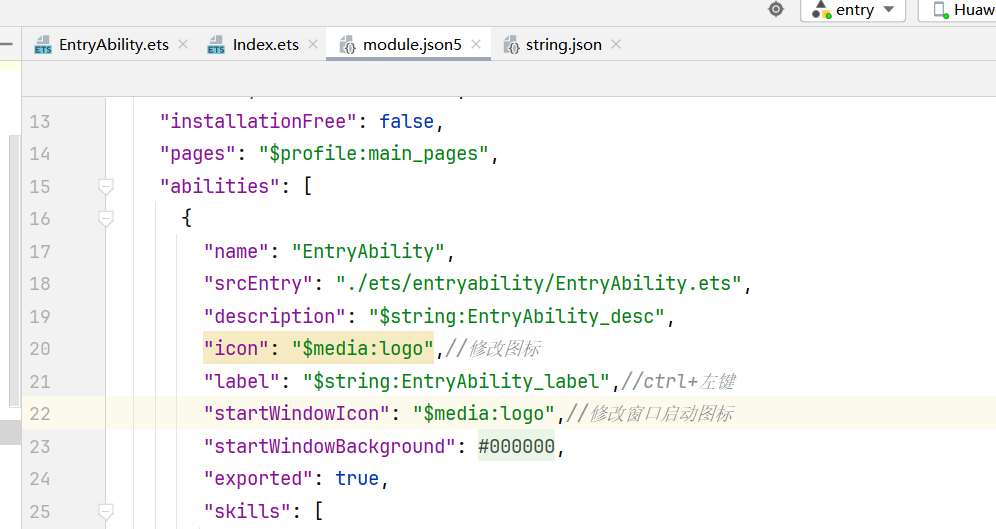
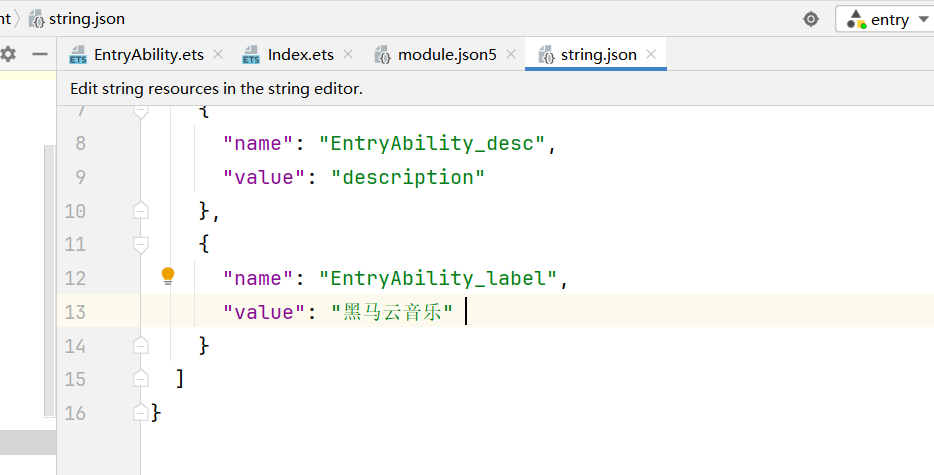
重启虚拟机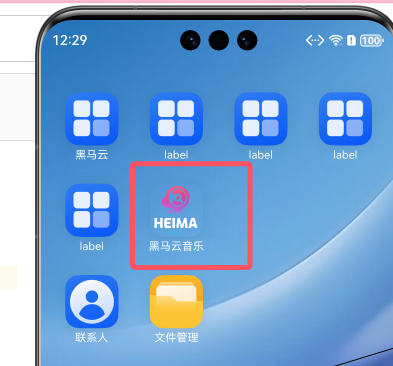
组件导航
- Layout.ets
//跳转页面的入口函数
@Builder
export function LayoutBuilder(){
  Layout()
}

@Component
struct Layout{
  //控制跳转的对象
  pathStack:NavPathStack = new NavPathStack()

  build() {
    NavDestination(){
      //写子页的内容
    }
    .title('布局页')//页面的标题
    .onReady((context:NavDestinationContext)=>{
      this.pathStack = context.pathStack
    })
  }
}
- Start.ets
//跳转页面的入口函数
@Builder
export function StartBuilder(){
  Start()
}

@Component
struct Start{
  //控制跳转的对象
  pathStack:NavPathStack = new NavPathStack()

  build() {
    NavDestination(){
    //写子页的内容
    }
    .title('广告页')//页面的标题
    .onReady((context:NavDestinationContext)=>{
      this.pathStack = context.pathStack
    })
  }
}
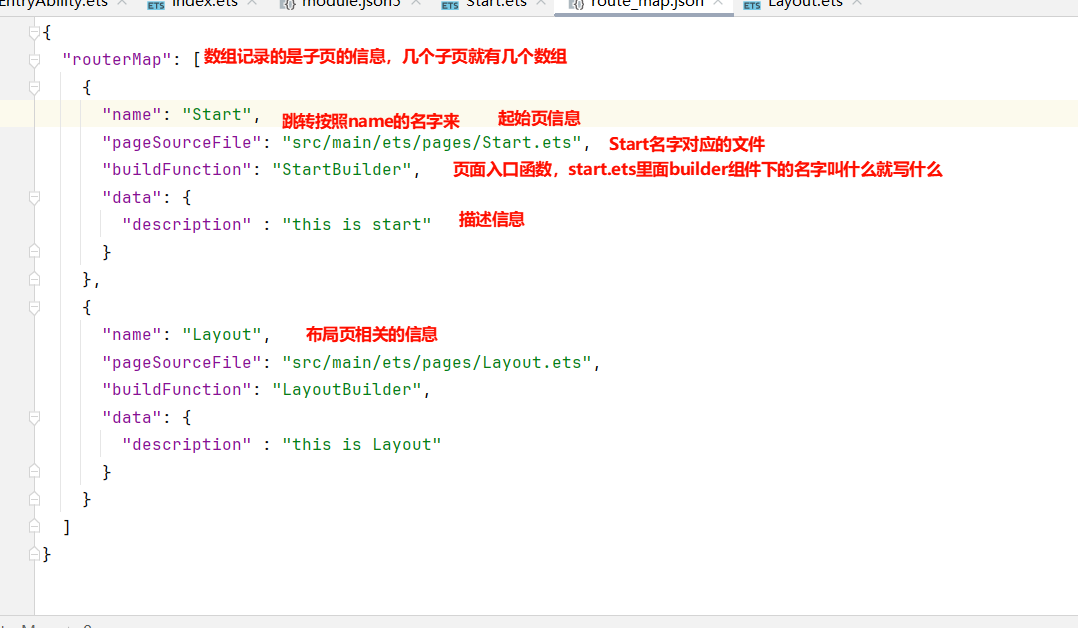
- profile/route_map.json
{
  "routerMap": [
    {
      "name": "Start",
      "pageSourceFile": "src/main/ets/pages/Start.ets",
      "buildFunction": "StartBuilder",
      "data": {
        "description" : "this is start"
      }
    },
    {
      "name": "Layout",
      "pageSourceFile": "src/main/ets/pages/Layout.ets",
      "buildFunction": "LayoutBuilder",
      "data": {
        "description" : "this is Layout"
      }
    }
  ]
}
- moudle.json5
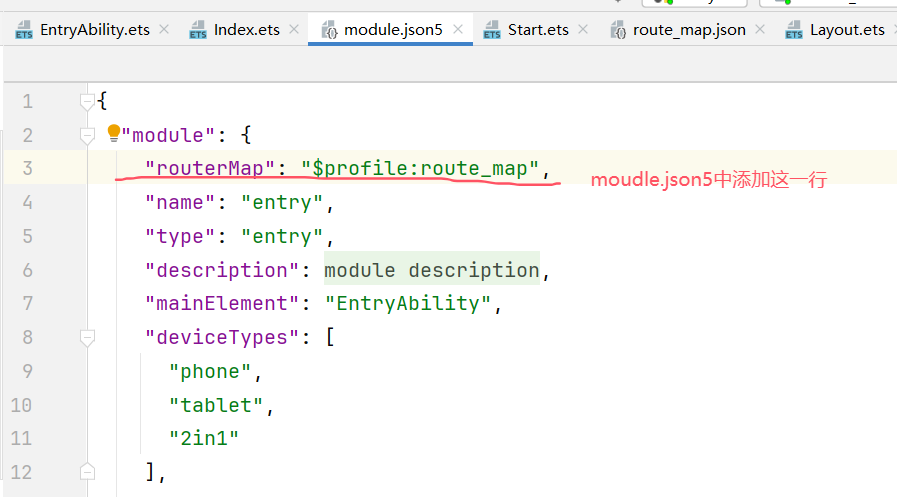
- index.ets
@Entry
@Component
struct Index {
  //控制跳转的对象.同一个navigation组件跳转的对象需要为同一个
  pathStack: NavPathStack = new NavPathStack()

  build() {
    Navigation(this.pathStack){
    }.onAppear(() => {
      this.pathStack.pushPathByName("Start",null,false)//使用route_map里面的name
    })
    .hideNavBar(true)  //不会把自己放到控制跳转的页面→点击返回时不会返回到这个导航页
  }
}
最终结果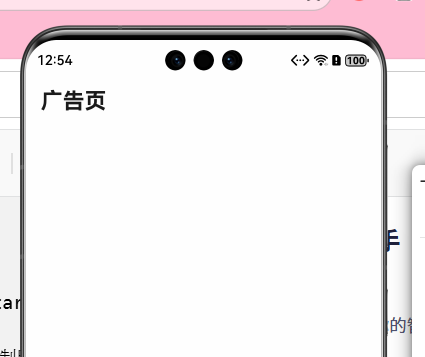
- start.ets
在广告页添加一个跳转到布局页的代码
//跳转页面的入口函数
@Builder
export function StartBuilder(){
  Start()
}

@Component
struct Start{
  //控制跳转的对象
  pathStack:NavPathStack = new NavPathStack()

  build() {
    NavDestination(){
    //写子页的内容
      Button('点击跳到布局页')
        .onClick(()=>{
          this.pathStack.pushPathByName("Layout",null,false)//pushPathByName支持返回
        })
    }
    .title('广告页')//页面的标题
    .onReady((context:NavDestinationContext)=>{
      this.pathStack = context.pathStack
    })
  }
}
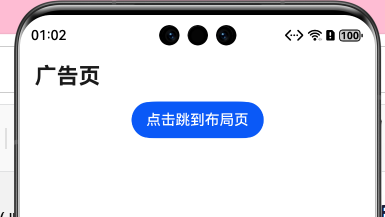
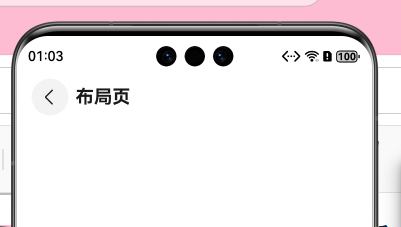
布局广告页
1、插入广告页
2、添加跳转标识,当点击跳转时,自动跳转至布局页
3、添加生命周期aboutToAppear,执行aboutToAppear,延迟3s后自动跳转至布局页
- start.ets
//跳转页面的入口函数
@Builder
export function StartBuilder(){
  Start()
}

@Component
struct Start{
  //控制跳转的对象
  pathStack:NavPathStack = new NavPathStack()
  //过3秒钟自动跳转到Layout → start页面一打开,计时3s后跳转
  aboutToAppear(): void {//生命周期
    setTimeout(() =>{
      this.pathStack.replacePathByName("Layout",null,false)
    },3000)//延时函数,以毫秒为单位 1000ms = 1s
  }
  build() {
    NavDestination(){
    //写子页的内容
    //   Button('点击跳到布局页')
    //     .onClick(()=>{
    //       this.pathStack.pushPathByName("Layout",null,false)//pushPathByName支持返回
    //     })
      Stack({alignContent:Alignment.TopEnd}){//默认居中对齐
        Image($r('app.media.ad'))
          .width('100%')
          .height('100%')
          .expandSafeArea([SafeAreaType.SYSTEM],[SafeAreaEdge.TOP,SafeAreaEdge.BOTTOM])//扩充组件安全区
        Button('跳过')
          .backgroundColor(Color.Grey)
          .margin(15)
          .onClick(()=>{
            this.pathStack.replacePathByName("Layout",null,false)//不支持返回的跳转replacePathByName
          })
      }
    }
    // .title('广告页')//页面的标题
    .onReady((context:NavDestinationContext)=>{
      this.pathStack = context.pathStack
    })
  }
}
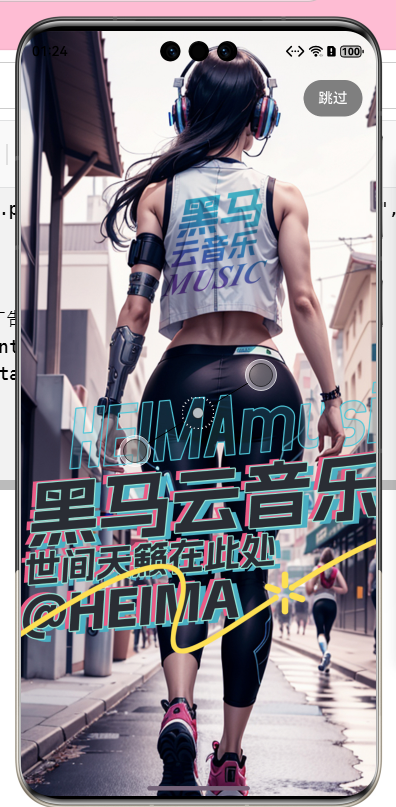
知识点:
1、replacePathByName不支持返回,pushPathByName支持返回
2、Stack层叠容器组件
布局页Layout,Tabs选项卡
interface TabClass{
  text:string
  icon:ResourceStr
}

//跳转页面的入口函数
@Builder
export function LayoutBuilder(){
  Layout()
}

@Component
struct Layout{

  //控制跳转的对象
  pathStack:NavPathStack = new NavPathStack()

  tabData:TabClass[] = [
    {text:'推荐',icon:$r('app.media.ic_recommend')},
    {text:'发现',icon:$r('app.media.ic_find')},
    {text:'动态',icon:$r('app.media.ic_moment')},
    {text:'我的',icon:$r('app.media.ic_mine')},
  ]
  @Builder tabBuilder(item:TabClass){
    Column({space:5}){
      Image(item.icon)
        .width(24)
        .fillColor('#63AAAA')
      Text(item.text)
        .fontSize(14)
        .fontColor('#63AAAA')
    }
  }
  build() {
    NavDestination(){
      //写子页的内容
      Tabs({barPosition:BarPosition.End}){//小括号里面可以填菜单的参数,调整位置
        ForEach(this.tabData,(item:TabClass,index:number)=>{
          TabContent(){
            Text('内容')
          }
          .tabBar(this.tabBuilder(item)) //自定义导航栏 → @Builder
          .backgroundColor('#131215')
          .expandSafeArea([SafeAreaType.SYSTEM],[SafeAreaEdge.TOP,SafeAreaEdge.BOTTOM])
        })
      }
      .backgroundColor('#3B3F42')
      .expandSafeArea([SafeAreaType.SYSTEM],[SafeAreaEdge.TOP,SafeAreaEdge.BOTTOM])
    }
    // .title('布局页')//页面的标题
    .onReady((context:NavDestinationContext)=>{
      this.pathStack = context.pathStack
    })
  }
}
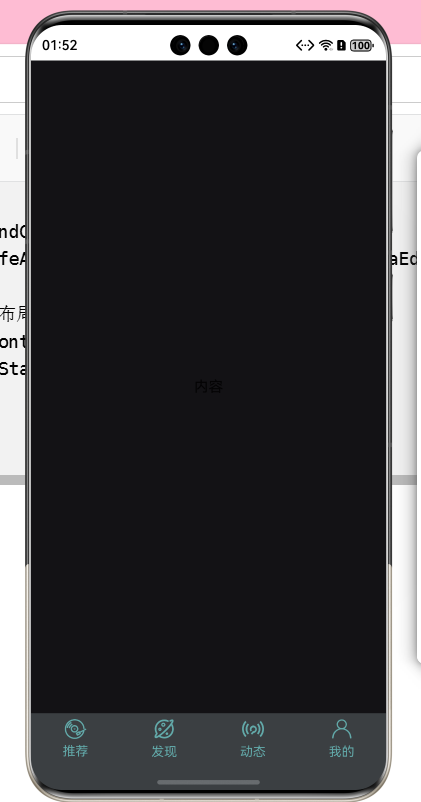
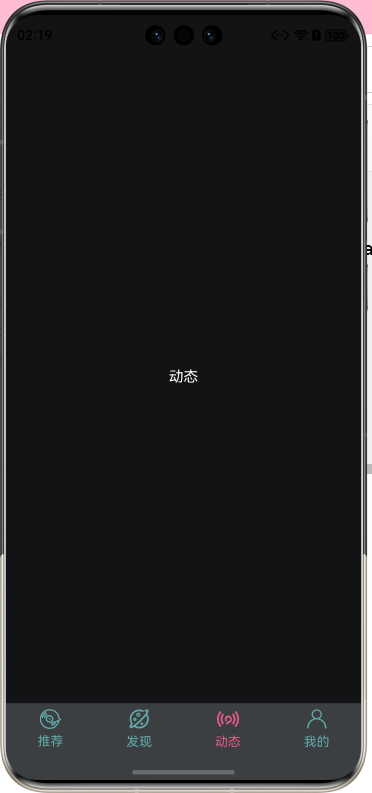
Tabs交互功能
1、点击图标颜色变化
2、页面内容切换
- Recommend.ets
@Component
//export:导出。别的组件才可以导入去使用它
export struct  Recommend{
  build() {
    Text('推荐')
      .fontColor('#fff')
  }
}
- Find.ets
@Component
export struct Find {
  build() {
    Text('发现')
      .fontColor('#fff')
  }
}
- Moment.ets
@Component
export struct Moment {
  build() {
    Text('动态')
      .fontColor('#fff')
  }
}
- Mine.ets
@Component
export struct Mine {
  build() {
    Text('我的')
      .fontColor('#fff')
  }
}
Layout.ets
//导入
import { Find } from "./Find"
import { Mine } from "./Mine"
import { Moment } from "./Moment"
import { Recommend } from "./Recommend"

interface TabClass{
  text:string
  icon:ResourceStr
}

//跳转页面的入口函数
@Builder
export function LayoutBuilder(){
  Layout()
}

@ComponentV2
struct Layout{
  @Local currentIndex: number = 0
  //控制跳转的对象
  pathStack:NavPathStack = new NavPathStack()

  tabData:TabClass[] = [
    {text:'推荐',icon:$r('app.media.ic_recommend')},
    {text:'发现',icon:$r('app.media.ic_find')},
    {text:'动态',icon:$r('app.media.ic_moment')},
    {text:'我的',icon:$r('app.media.ic_mine')},
  ]
  @Builder tabBuilder(item:TabClass,index:number){
    Column({space:5}){
      Image(item.icon)
        .width(24)
        .fillColor(this.currentIndex === index? '#E85A88': '#63AAAA')
      Text(item.text)
        .fontSize(14)
        .fontColor(this.currentIndex === index? '#E85A88': '#63AAAA')
    }
  }
  build() {
    NavDestination(){
      //写子页的内容
      Tabs({barPosition:BarPosition.End}){//小括号里面可以填菜单的参数,调整位置
        ForEach(this.tabData,(item:TabClass,index:number)=>{
          TabContent(){
            if (this.currentIndex === 0) {
              Recommend()
            }
            else if (this.currentIndex === 1){
              Find()
            }
            else if (this.currentIndex === 2){
              Moment()
            }
            else if (this.currentIndex ===3) {
              Mine()
            }
          }
          .tabBar(this.tabBuilder(item,index)) //自定义导航栏 → @Builder
          .backgroundColor('#131215')
          .expandSafeArea([SafeAreaType.SYSTEM],[SafeAreaEdge.TOP,SafeAreaEdge.BOTTOM])
        })
      }
      .backgroundColor('#3B3F42')
      .onChange((index:number)=>{
        this.currentIndex = index
      })
      .expandSafeArea([SafeAreaType.SYSTEM],[SafeAreaEdge.TOP,SafeAreaEdge.BOTTOM])
    }
    // .title('布局页')//页面的标题
    .onReady((context:NavDestinationContext)=>{
      this.pathStack = context.pathStack
    })
  }
}
布局搜索区域
- Recommend.ets
@Component
//export:导出。别的组件才可以导入去使用它
export struct  Recommend{
  build() {
    Column(){
      //搜索区域
      Row(){
        Image($r('app.media.ic_search'))
          .width(22)
          .fillColor('#777374')
        TextInput({placeholder:'只因你太美 🔥'})//placeholder提示信息
          .placeholderColor('#777374')//placeholderColor提示信息的颜色
          .padding({left:5})
          .fontColor('#999')
          .layoutWeight(1)
        Image($r('app.media.ic_code'))
          .width(20)
          .fillColor('#777374')
      }
      .width('100%')
      .backgroundColor('#2D2B29')
      .border({radius:20})
      .padding({left:8,right:8})
    }
    .width('100%')
    .height('100%')
    .padding({left:10,right:10,top:5,bottom:5})
  }
}

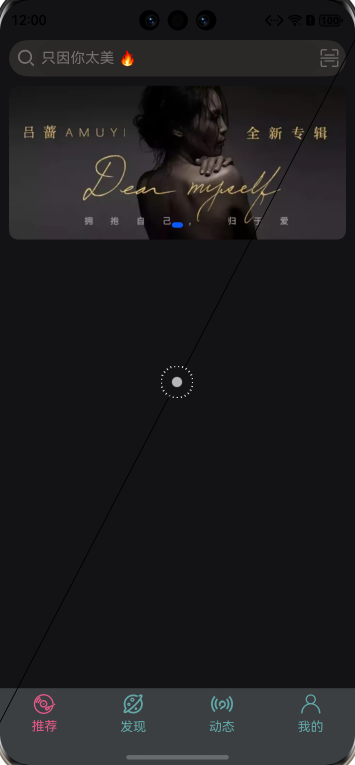
布局轮播图区域(Swiper)
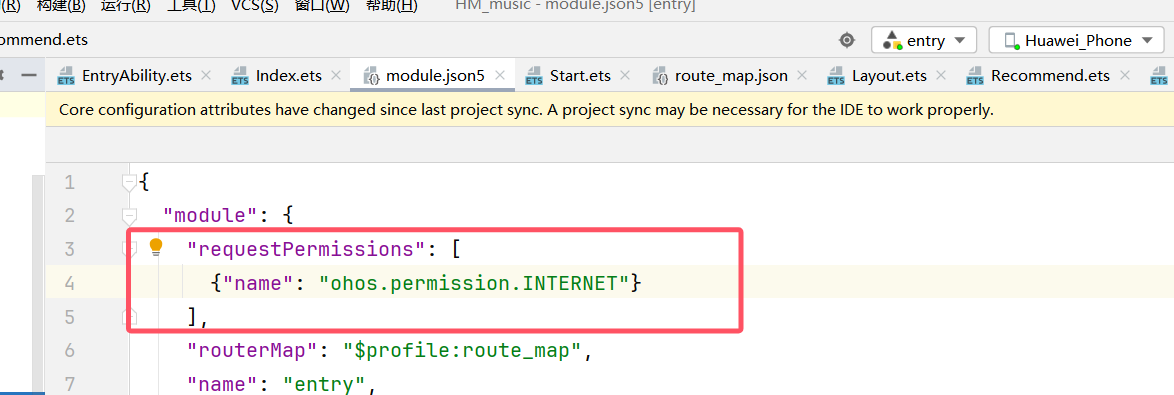
1、开通网络权限,参考以下链接
https://developer.huawei.com/consumer/cn/doc/harmonyos-guides/permissions-for-all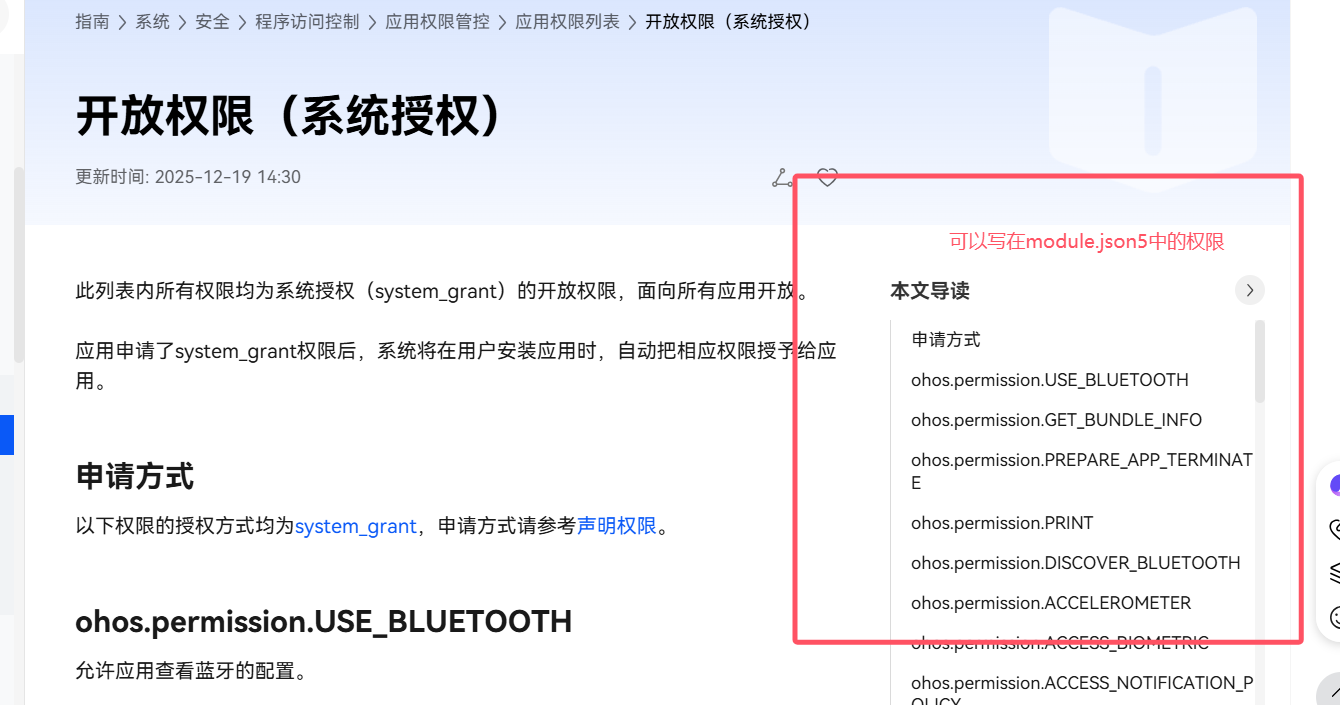
- module.json5
@Component
//export:导出。别的组件才可以导入去使用它
export struct  Recommend{
  //轮播图数据
  swiperList:string[]=[
    "http://yjy-teach-oss.oss-cn-beijing.aliyuncs.com/HeimaCloudMusic/banner1.png",
    "http://yjy-teach-oss.oss-cn-beijing.aliyuncs.com/HeimaCloudMusic/banner2.png",
    "http://yjy-teach-oss.oss-cn-beijing.aliyuncs.com/HeimaCloudMusic/banner3.png",
    "http://yjy-teach-oss.oss-cn-beijing.aliyuncs.com/HeimaCloudMusic/banner4.png",
    "http://yjy-teach-oss.oss-cn-beijing.aliyuncs.com/HeimaCloudMusic/banner5.png"
  ]
  build() {
    Column({space:10}){
      //搜索区域
      Row(){
        Image($r('app.media.ic_search'))
          .width(22)
          .fillColor('#777374')
        TextInput({placeholder:'只因你太美 🔥'})
          .placeholderColor('#777374')
          .padding({left:5})
          .fontColor('#999')
          .layoutWeight(1)
        Image($r('app.media.ic_code'))
          .width(20)
          .fillColor('#777374')
      }
      .width('100%')
      .backgroundColor('#2D2B29')
      .border({radius:20})
      .padding({left:8,right:8})
      //轮播图区域
      Swiper(){
        ForEach(this.swiperList,(item:string)=>{
          Image(item)
            .width('100%')
            .border({radius:10})
        })
      }
      .autoPlay(true)//自动播放
    }
    .width('100%')
    .height('100%')
    .padding({left:10,right:10,top:5,bottom:5})
  }
}
每日推荐区域
- recommend.ets
interface recommendDailyType{
  img:string//图片
  title:string//简介文字
  type:string//标题文字
  top:string//标题背景色
  bottom:string//简介背景色
}

@Component
//export:导出。别的组件才可以导入去使用它
export struct  Recommend{
  //轮播图数据
  swiperList:string[]=[
    "http://yjy-teach-oss.oss-cn-beijing.aliyuncs.com/HeimaCloudMusic/banner1.png",
    "http://yjy-teach-oss.oss-cn-beijing.aliyuncs.com/HeimaCloudMusic/banner2.png",
    "http://yjy-teach-oss.oss-cn-beijing.aliyuncs.com/HeimaCloudMusic/banner3.png",
    "http://yjy-teach-oss.oss-cn-beijing.aliyuncs.com/HeimaCloudMusic/banner4.png",
    "http://yjy-teach-oss.oss-cn-beijing.aliyuncs.com/HeimaCloudMusic/banner5.png"
  ]

  //每日推荐的数据
  dailyRecommend:recommendDailyType[] = [
    {
      img: 'http://yjy-teach-oss.oss-cn-beijing.aliyuncs.com/HeimaCloudMusic/recommend1.png',
      title: '每日推荐 | 今天从《不得不爱》听起 | 私人雷达',
      type: '每日推荐',
      top: '#660000',
      bottom: '#382e2f'
    },
    {
      img: 'http://yjy-teach-oss.oss-cn-beijing.aliyuncs.com/HeimaCloudMusic/recommend2.png',
      title: '从 [Nothing on Me] 开启无限漫游',
      type: '私人漫游',
      top: '#382e2f',
      bottom: '#a37862'
    },
    {
      img: 'http://yjy-teach-oss.oss-cn-beijing.aliyuncs.com/HeimaCloudMusic/recommend3.png',
      title: '每日推荐 | 今天从《不得不爱》听起 | 私人雷达',
      type: '华语流行',
      top: '#a37862',
      bottom: '#174847'
    },
    {
      img: 'http://yjy-teach-oss.oss-cn-beijing.aliyuncs.com/HeimaCloudMusic/recommend4.png',
      title: '每日推荐 | 今天从《不得不爱》听起 | 私人雷达',
      type: '私人雷达',
      top: '#174847',
      bottom: '#174847'
    }
  ]

  //标题
  @Builder titleBuilder(title: string) {
    Row() {
      Text(title)
        .fontColor('#fff')
        .fontWeight(700)
        .layoutWeight(1)
      Image($r('app.media.ic_more'))
        .width(22)
        .fillColor('#fff')
    }
    .width('100%')
    .height(40)
  }

  build() {
    Column({space:10}){
      //搜索区域
      Row(){
        Image($r('app.media.ic_search'))
          .width(22)
          .fillColor('#777374')
        TextInput({placeholder:'只因你太美 🔥'})
          .placeholderColor('#777374')
          .padding({left:5})
          .fontColor('#999')
          .layoutWeight(1)
        Image($r('app.media.ic_code'))
          .width(20)
          .fillColor('#777374')
      }
      .width('100%')
      .backgroundColor('#2D2B29')
      .border({radius:20})
      .padding({left:8,right:8})
      //轮播图区域
      Swiper(){
        ForEach(this.swiperList,(item:string)=>{
          Image(item)
            .width('100%')
            .border({radius:10})
        })
      }
      .autoPlay(true)//自动播放
      //每日推荐区域
      this.titleBuilder('每日推荐')
      List(){
        ForEach(this.dailyRecommend,(item:recommendDailyType) => {
          ListItem(){
            Column(){
              Text(item.type)
                .width('100%')
                .height(40)
                .backgroundColor(item.top)
                .padding({left:5})
                .fontSize(14)
                .fontSize('#fff')
              Image(item.img)
                .width('100%')
              Text(item.title)
                .width('100%')
                .backgroundColor(item.bottom)
                .padding(5)
                .fontSize(14)
                .fontColor('#fff')
                .maxLines(2)//显示的最大行数
                .textOverflow({overflow:TextOverflow.Ellipsis})//超过两行的显示省略号
            }
            .width('40%')
            // .height(200)
            // .backgroundColor(Color.Pink)
            .border({radius:10})
            .margin({right:10})
            .clip(true)//裁剪
          }
        })
      }
      .listDirection(Axis.Horizontal)//选择list的方向为水平

    }
    .width('100%')
    .height('100%')
    .padding({left:10,right:10,top:5,bottom:5})
  }
}
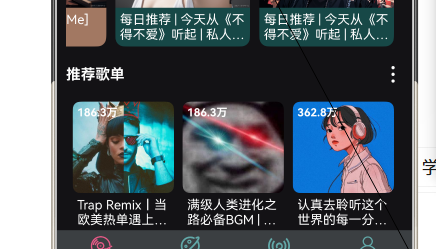
推荐歌单区域
      //推荐歌单区域
      this.titleBuilder('推荐歌单')
      List(){
        ForEach(this.recommendList,(item:recommendListType)=>{
          ListItem(){
            Column(){
              Stack({alignContent:Alignment.TopStart}){
                Image(item.img)
                  .width('100%')
                  .height(100)
                  .border({radius:8})
                Text(item.count)
                  .fontColor('#fff')
                  .fontSize(12)
                  .fontWeight(700)
                  .margin(5)
              }
              Text(item.title)
                .fontColor('#fff')
                .fontSize(14)
                .width('100%')
                .padding(5)
                .maxLines(2)
                .textOverflow({overflow:TextOverflow.Ellipsis})
            }
            .width('30%')
            // .height(200)
            // .backgroundColor(Color.Pink)
            .margin({right:10})
          }
        })
      }
      .listDirection(Axis.Horizontal)
发现歌单与播放页跳转功能
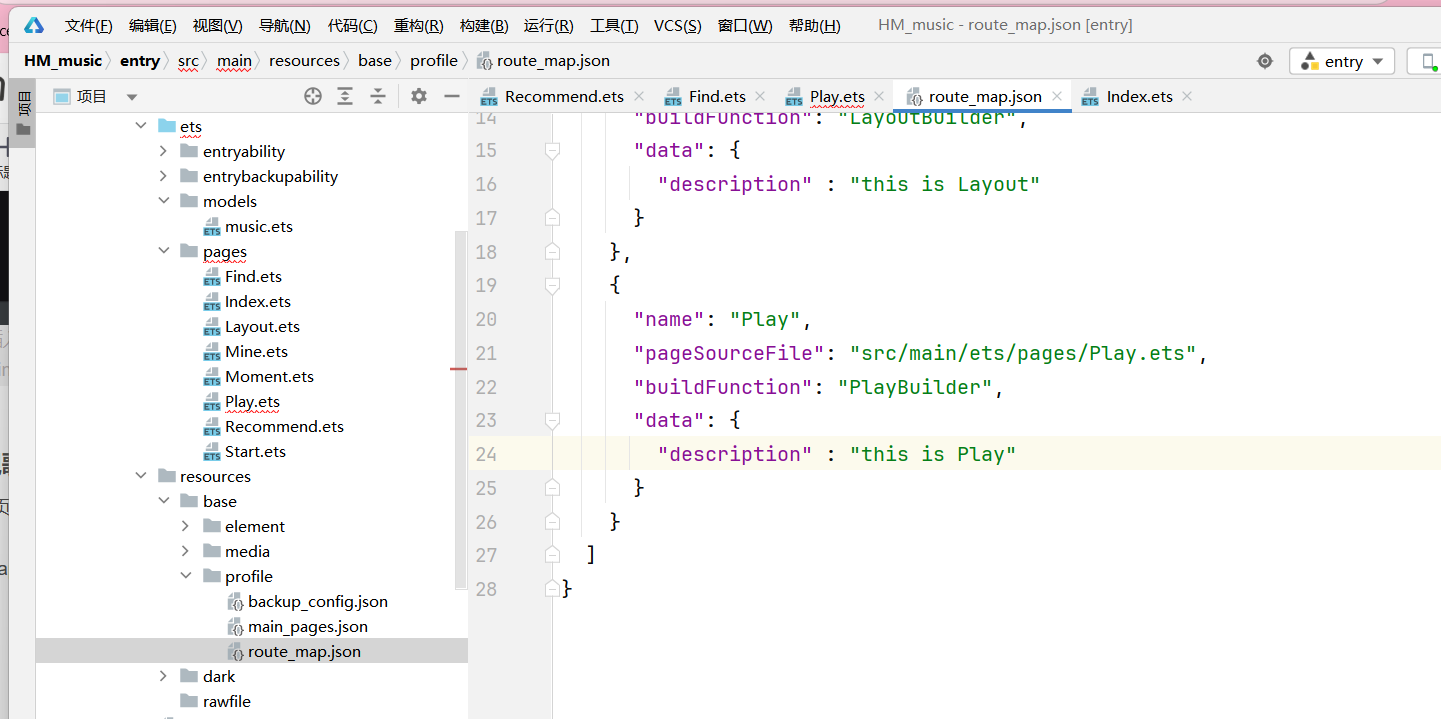
添加跳转页
- route_map.json
    {
      "name": "Play",
      "pageSourceFile": "src/main/ets/pages/Play.ets",
      "buildFunction": "PlayBuilder",
      "data": {
        "description" : "this is Play"
      }
    }
- Find.ets
import { SongItemType } from "../models/music"
import { AppStorageV2 } from "@kit.ArkUI"
import { playerManager } from "../utils/AvPlayerManager"
import { GlobalMusic } from "../models/globalMusic"

@ComponentV2
export struct Find {
  songs: SongItemType[] = [
    {
      img: 'http://yjy-teach-oss.oss-cn-beijing.aliyuncs.com/HeimaCloudMusic/0.jpg',
      name: '直到世界的尽头',
      author: 'WANDS',
      url: 'http://yjy-teach-oss.oss-cn-beijing.aliyuncs.com/HeimaCloudMusic/0.m4a',
      id: '0000'
    },
    {
      img: 'http://yjy-teach-oss.oss-cn-beijing.aliyuncs.com/HeimaCloudMusic/1.jpg',
      name: '画',
      author: '赵磊',
      url: 'http://yjy-teach-oss.oss-cn-beijing.aliyuncs.com/HeimaCloudMusic/1.mp3',
      id: '0001'
    },
    {
      img: 'http://yjy-teach-oss.oss-cn-beijing.aliyuncs.com/HeimaCloudMusic/2.jpg',
      name: 'Sweet Dreams',
      author: 'TPaul Sax / Eurythmics',
      url: 'http://yjy-teach-oss.oss-cn-beijing.aliyuncs.com/HeimaCloudMusic/2.mp3',
      id: '0002'
    },
    {
      img: 'http://yjy-teach-oss.oss-cn-beijing.aliyuncs.com/HeimaCloudMusic/3.jpg',
      name: '奢香夫人',
      author: '凤凰传奇',
      url: 'http://yjy-teach-oss.oss-cn-beijing.aliyuncs.com/HeimaCloudMusic/3.m4a',
      id: '0003'
    },
    {
      img: 'http://yjy-teach-oss.oss-cn-beijing.aliyuncs.com/HeimaCloudMusic/4.jpg',
      name: '空心',
      author: '光泽',
      url: 'http://yjy-teach-oss.oss-cn-beijing.aliyuncs.com/HeimaCloudMusic/4.mp3',
      id: '0004'
    },
    {
      img: 'http://yjy-teach-oss.oss-cn-beijing.aliyuncs.com/HeimaCloudMusic/5.jpg',
      name: '反转地球',
      author: '潘玮柏',
      url: 'http://yjy-teach-oss.oss-cn-beijing.aliyuncs.com/HeimaCloudMusic/5.mp3',
      id: '0005'
    },
    {
      img: 'http://yjy-teach-oss.oss-cn-beijing.aliyuncs.com/HeimaCloudMusic/6.jpg',
      name: 'No.9',
      author: 'T-ara',
      url: 'http://yjy-teach-oss.oss-cn-beijing.aliyuncs.com/HeimaCloudMusic/6.m4a',
      id: '0006'
    },
    {
      img: 'http://yjy-teach-oss.oss-cn-beijing.aliyuncs.com/HeimaCloudMusic/7.jpg',
      name: '孤独',
      author: 'G.E.M.邓紫棋',
      url: 'http://yjy-teach-oss.oss-cn-beijing.aliyuncs.com/HeimaCloudMusic/7.m4a',
      id: '0007'
    },

    {
      img: 'http://yjy-teach-oss.oss-cn-beijing.aliyuncs.com/HeimaCloudMusic/8.jpg',
      name: 'Lose Control',
      author: 'Hedley',
      url: 'http://yjy-teach-oss.oss-cn-beijing.aliyuncs.com/HeimaCloudMusic/8.m4a',
      id: '0008'
    },
    {
      img: 'http://yjy-teach-oss.oss-cn-beijing.aliyuncs.com/HeimaCloudMusic/9.jpg',
      name: '倩女幽魂',
      author: '张国荣',
      url: 'http://yjy-teach-oss.oss-cn-beijing.aliyuncs.com/HeimaCloudMusic/9.m4a',
      id: '0009'
    },
    {
      img: 'http://yjy-teach-oss.oss-cn-beijing.aliyuncs.com/HeimaCloudMusic/10.jpg',
      name: '北京北京',
      author: '汪峰',
      url: 'http://yjy-teach-oss.oss-cn-beijing.aliyuncs.com/HeimaCloudMusic/10.m4a',
      id: '0010'
    },
    {
      img: 'http://yjy-teach-oss.oss-cn-beijing.aliyuncs.com/HeimaCloudMusic/11.jpg',
      name: '苦笑',
      author: '汪苏泷',
      url: 'http://yjy-teach-oss.oss-cn-beijing.aliyuncs.com/HeimaCloudMusic/11.mp3',
      id: '0011'
    },
    {
      img: 'http://yjy-teach-oss.oss-cn-beijing.aliyuncs.com/HeimaCloudMusic/12.jpg',
      name: '一生所爱',
      author: '卢冠廷 / 莫文蔚',
      url: 'http://yjy-teach-oss.oss-cn-beijing.aliyuncs.com/HeimaCloudMusic/12.m4a',
      id: '0012'
    },
    {
      img: 'http://yjy-teach-oss.oss-cn-beijing.aliyuncs.com/HeimaCloudMusic/13.jpg',
      name: '月半小夜曲',
      author: '李克勤',
      url: 'http://yjy-teach-oss.oss-cn-beijing.aliyuncs.com/HeimaCloudMusic/13.mp3',
      id: '0013'
    },
    {
      img: 'http://yjy-teach-oss.oss-cn-beijing.aliyuncs.com/HeimaCloudMusic/14.jpg',
      name: 'Rolling in the Deep',
      author: 'Adele',
      url: 'http://yjy-teach-oss.oss-cn-beijing.aliyuncs.com/HeimaCloudMusic/14.m4a',
      id: '0014'
    },
    {
      img: 'http://yjy-teach-oss.oss-cn-beijing.aliyuncs.com/HeimaCloudMusic/15.jpg',
      name: '海阔天空',
      author: 'Beyond',
      url: 'http://yjy-teach-oss.oss-cn-beijing.aliyuncs.com/HeimaCloudMusic/15.m4a',
      id: '0015'
    }
  ]
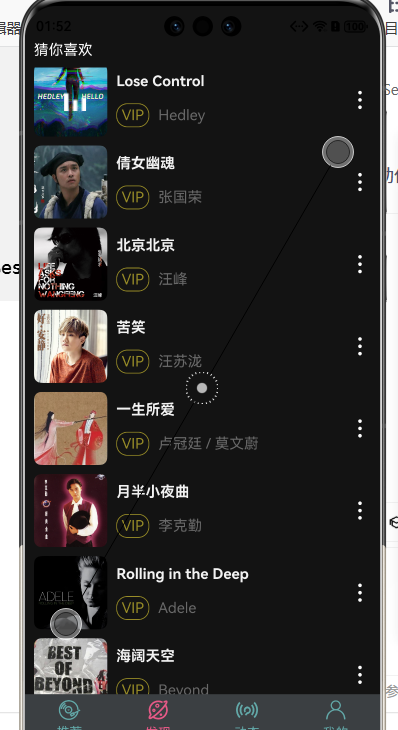
  pathStack : NavPathStack = AppStorageV2.connect(NavPathStack,'navStack',()=>new NavPathStack())!  //叹号 非空断言
  @Local
  playState:GlobalMusic = AppStorageV2.connect(GlobalMusic,'SONG_KEY',()=>new GlobalMusic())!


  build() {
    Column() {
      Text('猜你喜欢')
        .fontColor('#fff')
        .width('100%')
        .margin({ bottom: 10 })
      List() {
        ForEach(this.songs, (item: SongItemType, index: number) => {
          ListItem() {
            Row() {
              // 图
              Stack() {
                Image(item.img)
                  .width(80)
                  .border({ radius: 8 })
                  .margin({ right: 10 })
                //条件渲染
                if(this.playState.url === item.url && this.playState.isPlay ){
                  Image($r('app.media.wave'))
                    .width(24)
                }

              }

              // 字
              Column() {
                Text(item.name)
                  .fontColor('#F3F3F3')
                  .width('100%')
                  .fontWeight(700)
                  .margin({ bottom: 15 })
                Row() {
                  Text('VIP')
                    .fontColor('#9A8E28')
                    .border({ width: 1, color: '#9A8E28', radius: 12 })
                    .padding({
                      left: 5,
                      right: 5,
                      top: 3,
                      bottom: 3
                    })
                    .margin({ right: 10 })
                  Text(item.author)
                    .fontColor('#696969')
                }
                .width('100%')
              }
              .layoutWeight(1)

              // 更多
              Image($r('app.media.ic_more'))
                .width(24)
                .fillColor('#FEFEFE')
            }
            .width('100%')
            .height(80)
            // .backgroundColor(Color.Pink)
            .margin({ bottom: 10 })
            //绑定事件
            .onClick(()=>{
              this.pathStack.pushPathByName('Play',null,false)
              playerManager.singPlay(item)
            })

          }
        })
      }
      .scrollBar(BarState.Off)
    }
    .width('100%')
    .height('100%')
    .backgroundColor('#131313')
    .padding({ left: 10, right: 10 })
    // 扩充组件安全区域
    .expandSafeArea([SafeAreaType.SYSTEM], [SafeAreaEdge.TOP, SafeAreaEdge.BOTTOM])
  }
}
- Play.ets
import { GlobalMusic } from "../models/globalMusic"
import { SongItemType } from "../models/music"
import { AppStorageV2 } from "@kit.ArkUI"
import { playerManager } from "../utils/AvPlayerManager"
// 跳转页面入口函数
@Builder
export function PlayBuilder() {
Play()
}
@ComponentV2
struct Play {
@Local panelHeight: string = '0%'
@Local panelOpacity: number = 0
pathStack : NavPathStack = new NavPathStack();
songs: SongItemType[] = [
{
img: 'http://yjy-teach-oss.oss-cn-beijing.aliyuncs.com/HeimaCloudMusic/0.jpg',
name: '直到世界的尽头',
author: 'WANDS',
url: 'http://yjy-teach-oss.oss-cn-beijing.aliyuncs.com/HeimaCloudMusic/0.m4a',
id: '0000'
},
{
img: 'http://yjy-teach-oss.oss-cn-beijing.aliyuncs.com/HeimaCloudMusic/1.jpg',
name: '画',
author: '赵磊',
url: 'http://yjy-teach-oss.oss-cn-beijing.aliyuncs.com/HeimaCloudMusic/1.mp3',
id: '0001'
},
{
img: 'http://yjy-teach-oss.oss-cn-beijing.aliyuncs.com/HeimaCloudMusic/2.jpg',
name: 'Sweet Dreams',
author: 'TPaul Sax / Eurythmics',
url: 'http://yjy-teach-oss.oss-cn-beijing.aliyuncs.com/HeimaCloudMusic/2.mp3',
id: '0002'
},
{
img: 'http://yjy-teach-oss.oss-cn-beijing.aliyuncs.com/HeimaCloudMusic/3.jpg',
name: '奢香夫人',
author: '凤凰传奇',
url: 'http://yjy-teach-oss.oss-cn-beijing.aliyuncs.com/HeimaCloudMusic/3.m4a',
id: '0003'
},
{
img: 'http://yjy-teach-oss.oss-cn-beijing.aliyuncs.com/HeimaCloudMusic/4.jpg',
name: '空心',
author: '光泽',
url: 'http://yjy-teach-oss.oss-cn-beijing.aliyuncs.com/HeimaCloudMusic/4.mp3',
id: '0004'
},
{
img: 'http://yjy-teach-oss.oss-cn-beijing.aliyuncs.com/HeimaCloudMusic/5.jpg',
name: '反转地球',
author: '潘玮柏',
url: 'http://yjy-teach-oss.oss-cn-beijing.aliyuncs.com/HeimaCloudMusic/5.mp3',
id: '0005'
},
{
img: 'http://yjy-teach-oss.oss-cn-beijing.aliyuncs.com/HeimaCloudMusic/6.jpg',
name: 'No.9',
author: 'T-ara',
url: 'http://yjy-teach-oss.oss-cn-beijing.aliyuncs.com/HeimaCloudMusic/6.m4a',
id: '0006'
},
{
img: 'http://yjy-teach-oss.oss-cn-beijing.aliyuncs.com/HeimaCloudMusic/7.jpg',
name: '孤独',
author: 'G.E.M.邓紫棋',
url: 'http://yjy-teach-oss.oss-cn-beijing.aliyuncs.com/HeimaCloudMusic/7.m4a',
id: '0007'
},
{
img: 'http://yjy-teach-oss.oss-cn-beijing.aliyuncs.com/HeimaCloudMusic/8.jpg',
name: 'Lose Control',
author: 'Hedley',
url: 'http://yjy-teach-oss.oss-cn-beijing.aliyuncs.com/HeimaCloudMusic/8.m4a',
id: '0008'
},
{
img: 'http://yjy-teach-oss.oss-cn-beijing.aliyuncs.com/HeimaCloudMusic/9.jpg',
name: '倩女幽魂',
author: '张国荣',
url: 'http://yjy-teach-oss.oss-cn-beijing.aliyuncs.com/HeimaCloudMusic/9.m4a',
id: '0009'
},
{
img: 'http://yjy-teach-oss.oss-cn-beijing.aliyuncs.com/HeimaCloudMusic/10.jpg',
name: '北京北京',
author: '汪峰',
url: 'http://yjy-teach-oss.oss-cn-beijing.aliyuncs.com/HeimaCloudMusic/10.m4a',
id: '0010'
},
{
img: 'http://yjy-teach-oss.oss-cn-beijing.aliyuncs.com/HeimaCloudMusic/11.jpg',
name: '苦笑',
author: '汪苏泷',
url: 'http://yjy-teach-oss.oss-cn-beijing.aliyuncs.com/HeimaCloudMusic/11.mp3',
id: '0011'
},
{
img: 'http://yjy-teach-oss.oss-cn-beijing.aliyuncs.com/HeimaCloudMusic/12.jpg',
name: '一生所爱',
author: '卢冠廷 / 莫文蔚',
url: 'http://yjy-teach-oss.oss-cn-beijing.aliyuncs.com/HeimaCloudMusic/12.m4a',
id: '0012'
},
{
img: 'http://yjy-teach-oss.oss-cn-beijing.aliyuncs.com/HeimaCloudMusic/13.jpg',
name: '月半小夜曲',
author: '李克勤',
url: 'http://yjy-teach-oss.oss-cn-beijing.aliyuncs.com/HeimaCloudMusic/13.mp3',
id: '0013'
},
{
img: 'http://yjy-teach-oss.oss-cn-beijing.aliyuncs.com/HeimaCloudMusic/14.jpg',
name: 'Rolling in the Deep',
author: 'Adele',
url: 'http://yjy-teach-oss.oss-cn-beijing.aliyuncs.com/HeimaCloudMusic/14.m4a',
id: '0014'
},
{
img: 'http://yjy-teach-oss.oss-cn-beijing.aliyuncs.com/HeimaCloudMusic/15.jpg',
name: '海阔天空',
author: 'Beyond',
url: 'http://yjy-teach-oss.oss-cn-beijing.aliyuncs.com/HeimaCloudMusic/15.m4a',
id: '0015'
}
]
// 当前播放的歌曲
@Local
// playState:SongItemType = this.songs[0]
playState:GlobalMusic = AppStorageV2.connect(GlobalMusic,'SONG_KEY',()=>new GlobalMusic())!
@Builder
deleteButton(index: number) {
Button('删除')
.backgroundColor('#ec5c87')
.fontColor('#fff')
.width(80)
.height('100%')
.type(ButtonType.Normal)
//实现删除方法
.onClick(()=>{
playerManager.removeSong(index)
this.pathStack.pop() //回退到前一页
})
}
number2time(number: number) {
// 毫秒 → 秒 → 分+秒; 先判断是否大于1分钟
if (number > 60 * 1000) {
const s = Math.floor(number/1000%60)
const m = Math.floor(number/1000/60)
const second = s.toString().padStart(2, '0')
const minute = m.toString().padStart(2, '0')
return minute + ':' + second
} else {
const s = Math.floor(number/1000%60)
const second = s.toString().padStart(2, '0')
return '00:' + second
}
}
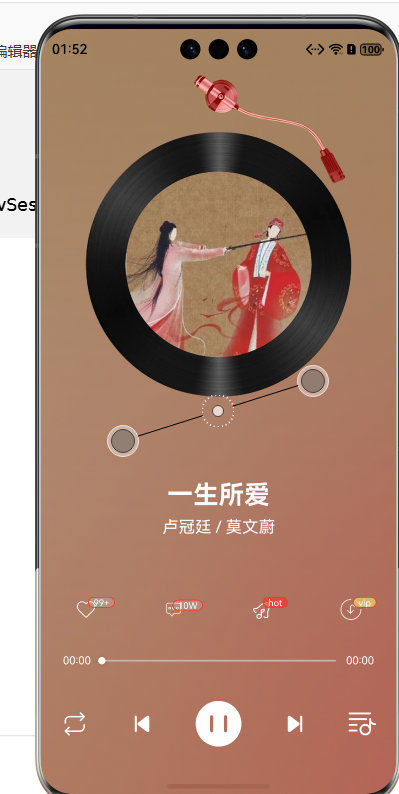
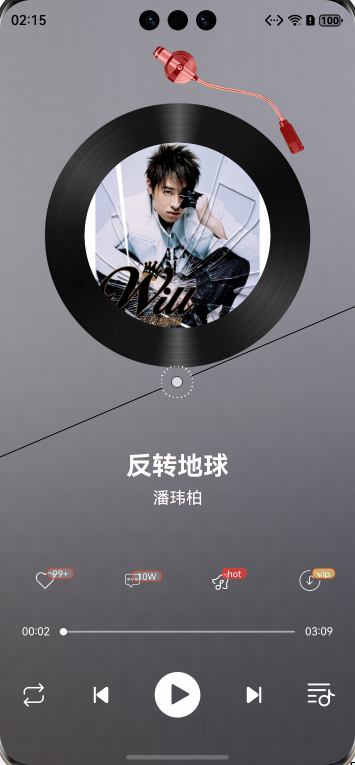
build() {
NavDestination() {
Stack({ alignContent: Alignment.Bottom }) {
// 播放
Stack() {
// 变色背景
Image(this.playState.img)
.width('100%')
.height('100%')
.blur(1000)
.expandSafeArea([SafeAreaType.SYSTEM], [SafeAreaEdge.TOP, SafeAreaEdge.BOTTOM])
// 内容
Column() {
// // 播放界面
Column() {
// 图片
Stack({ alignContent: Alignment.Top }) {
Row() {
Row() {
Image(this.playState.img)
.width('70%')
.borderRadius(400)
}
.backgroundImage($r('app.media.ic_cd'))
.backgroundImageSize(ImageSize.Cover)
.justifyContent(FlexAlign.Center)
.width('100%')
.borderRadius(400)
.clip(true)
.aspectRatio(1)
}
.margin({
top: 50
})
.width('90%')
.aspectRatio(1)
.justifyContent(FlexAlign.Center)
.padding(24)
// 唱针
Image($r('app.media.ic_stylus'))
.width(200)
.aspectRatio(1)
.rotate({
angle: -55,
centerX: 100,
centerY: 30
})
.animation({
duration: 500
})
}
// 歌曲信息
Stack() {
// 第一个
Column({ space: 8 }) {
Text(this.playState.name)
.fontSize(28)
.fontWeight(FontWeight.Bold)
.fontColor('#4bb0c4')
Text(this.playState.author)
.fontSize(18)
.fontColor('#4bb0c4')
}
.layoutWeight(1)
.justifyContent(FlexAlign.Center)
.zIndex(1)
// 第二个
Column({ space: 8 }) {
Text(this.playState.name)
.fontSize(28)
.fontWeight(FontWeight.Bold)
.fontColor('#ec5c87')
Text(this.playState.author)
.fontSize(18)
.fontColor('#ec5c87')
}
.layoutWeight(1)
.justifyContent(FlexAlign.Center)
.zIndex(2)
// 第三个
Column({ space: 8 }) {
Text(this.playState.name)
.fontSize(28)
.fontWeight(FontWeight.Bold)
.fontColor(Color.White)
Text(this.playState.author)
.fontSize(18)
.fontColor(Color.White)
}
.layoutWeight(1)
.justifyContent(FlexAlign.Center)
.zIndex(3)
}
.layoutWeight(1)
// 操作
Row() {
Badge({ value: '99+', style: { badgeSize: 12, badgeColor: '#45CCCCCC' } }) {
Image($r("app.media.ic_like"))
.fillColor(Color.White)
.width(24)
}
Badge({ value: '10W', style: { badgeSize: 12, badgeColor: '#45cccccc' } }) {
Image($r("app.media.ic_comment_o"))
.fillColor(Color.White)
.width(18)
}
Badge({ value: 'hot', style: { badgeSize: 12, badgeColor: '#a8ff3131' } }) {
Image($r("app.media.ic_bells_o"))
.fillColor(Color.White)
.width(24)
}
Badge({ value: 'vip', style: { badgeSize: 12, badgeColor: '#b7efd371' } }) {
Image($r("app.media.ic_download_o"))
.fillColor(Color.White)
.width(24)
}
}
.width('100%')
.justifyContent(FlexAlign.SpaceAround)
// 播放
Column() {
// 进度条
Row({ space: 4 }) {
Text(this.number2time(this.playState.time))
.fontSize(12)
.fontColor(Color.White)
Slider({
value: this.playState.time,
min: 0,
max: this.playState.duration
})
//监听事件
.onChange((value)=>{
playerManager.seekPlay(value)
})
.layoutWeight(1)
.blockColor(Color.White)
.selectedColor(Color.White)
.trackColor('#ccc5c5c5')
.trackThickness(2)
Text(this.number2time(this.playState.duration))
.fontSize(12)
.fontColor(Color.White)
}
.width('100%')
.padding(24)
// 切换
Row() {
//播放模式
if(this.playState.playModel === 'auto'){
Image($r('app.media.ic_auto'))
.fillColor(Color.White)
.width(30)
.onClick(()=>{
this.playState.playModel = 'random'
})
}else if(this.playState.playModel === 'random'){
Image($r('app.media.ic_random'))
.fillColor(Color.White)
.width(30)
.onClick(()=>{
this.playState.playModel = 'repeat'
})
}else if(this.playState.playModel === 'repeat'){
Image($r('app.media.ic_repeat'))
.fillColor(Color.White)
.width(30)
.onClick(()=>{
this.playState.playModel = 'auto'
})
}
//上一首
Image($r("app.media.ic_prev"))
.fillColor(Color.White)
.width(30)
.onClick(()=>{
playerManager.prePlay()
})
// 播放按钮
Image(this.playState.isPlay ? $r('app.media.ic_paused') : $r('app.media.ic_play'))
.fillColor(Color.White)
.width(50)
.onClick(()=>{
this.playState.isPlay ? playerManager.paused() : playerManager.singPlay(this.playState.playList[this.playState.playIndex])
})
// 下一首
Image($r('app.media.ic_next'))
.fillColor(Color.White)
.width(30)
.onClick(()=>{
playerManager.nextPlay()
})
// 播放列表
Image($r('app.media.ic_song_list'))
.fillColor(Color.White)
.width(30)
.onClick(() => {
this.panelHeight = '50%'
this.panelOpacity = 1
})
}
.width('100%')
.padding({
bottom: 24
})
.justifyContent(FlexAlign.SpaceAround)
}
.width('100%')
}
.layoutWeight(1)
.width('100%')
}
}
.width('100%')
.height('100%')
.backgroundColor(Color.Transparent)
// 列表
Column() {
Column() {
}
.width('100%')
.layoutWeight(1)
.onClick(() => {
this.panelHeight = '0%'
this.panelOpacity = 0
})
Column() {
Row() {
Row() {
Image($r("app.media.ic_play"))
.width(20)
.fillColor('#ff5186')
}
.width(50)
.aspectRatio(1)
.justifyContent(FlexAlign.Center)
Row({ space: 8 }) {
//注意反引号
Text(`播放列表 (${this.playState.playList.length})`)
.fontColor(Color.White)
.fontSize(14)
}
.layoutWeight(1)
Image($r('app.media.ic_close'))
.fillColor('#ffa49a9a')
.width(24)
.height(24)
.margin({ right: 16 })
.onClick(() => {
this.panelHeight = '0%'
this.panelOpacity = 0
})
}
.width('100%')
.backgroundColor('#ff353333')
.padding(8)
.border({
width: { bottom: 1 },
color: '#12ec5c87'
})
.borderRadius({
topLeft: 4,
topRight: 4
})
// 播放列表
List() {
ForEach(this.playState.playList, (item: SongItemType, index: number) => {
ListItem() {
Row() {
Row() {
Text((index + 1).toString())
.fontColor('#ffa49a9a')
}
.width(50)
.aspectRatio(1)
.justifyContent(FlexAlign.Center)
// 列表
Row({ space: 10 }) {
Column() {
Text(item.name)
.fontSize(14)
.fontColor('#ffa49a9a')
Text(item.author)
.fontSize(12)
.fontColor( Color.Gray)
}
.layoutWeight(1)
.alignItems(HorizontalAlign.Start)
.justifyContent(FlexAlign.Center)
}
.layoutWeight(1)
Image($r('app.media.ic_more'))
.width(24)
.height(24)
.margin({ right: 16 })
.fillColor(Color.Gray)
}
.alignItems(VerticalAlign.Center)
.onClick(()=>{
playerManager.singPlay(item)
})
}
.swipeAction({ //侧滑
end: this.deleteButton(index)
})
.border({
width: { bottom: 1 },
color: '#12ec5c87'
})
})
}
.layoutWeight(1)
.backgroundColor('#ff353333')
}
.height(400)
}
.height(this.panelHeight)
// .height('100%')
.animation({
duration: 300
})
.backgroundColor('#ff353333')
.opacity(this.panelOpacity)
.expandSafeArea([SafeAreaType.SYSTEM], [SafeAreaEdge.BOTTOM])
}
.width('100%')
.height('100%')
.backgroundColor(Color.Transparent)
}
.onReady((context: NavDestinationContext) => {
this.pathStack = context.pathStack
})
.hideTitleBar(true) // 隐藏标题栏
}
}
- model/globalMusic.ets
import { SongItemType } from "./music"

@ObservedV2
export  class GlobalMusic {
  @Trace img: string = ""  // 音乐封面
  @Trace name: string = ""  // 音乐名称
  @Trace author: string = ""  // 作者
  @Trace url: string = ""  // 当前播放链接
  @Trace time: number = 0  // 播放时间
  @Trace duration: number = 0  // 音乐的播放时长

  //歌曲列表
  @Trace playIndex:number = 0 //当前播放的索引
  @Trace playList:SongItemType[] = [] //播放列表

  //播放 暂停功能
  @Trace isPlay:boolean = false //状态

  //播放模式
  @Trace playModel: 'auto'|'random'|'repeat' = 'auto' //三种

  //重置数据方法
  reset(){
    this.img = ""
    this.name = ""
    this.author =""
    this.url = ""
    this.time = 0
    this.duration = 0
    this.playIndex = 0
    this.playList = []
    this.isPlay = false
    this.playModel = 'auto'
  }
}
- utils/AvPlayerManager.ets
import {media} from '@kit.MediaKit'
import { GlobalMusic } from '../models/globalMusic'
import { SongItemType } from '../models/music'
import { AppStorageV2 } from '@kit.ArkUI'
import { sessionManager } from './AvSessionManager'

/*
1. 后台长时任务管理
通过startBackgroundTask()方法使用backgroundTaskManager申请音频播放类型的长时任务,确保应用退至后台时仍能持续播放音乐。这里配置了WantAgent用于拉起指定Ability,并设置子模式为AUDIO_PLAYBACK[网页4]

2. 播放控制会话管理

通过avSession.createAVSession创建音频会话
注册播放/暂停/切歌/进度调节等事件监听,与播放器模块交互
使用setAVMetadata()设置歌曲元数据(标题、封面等)
通过setAVPlayBackState()同步播放状态(播放进度、播放/暂停状态)
3. 全局状态管理
采用ArkUI的AppStorageV2连接全局音乐状态GlobalMusic,实现播放状态跨组件同步

4. 系统交互

响应锁屏界面/通知栏的播放控制操作
与playerManager模块交互执行实际播放操作
该类的典型使用场景包括:
音乐类应用后台播放、车机系统音频控制、智能手表音乐控制等需要跨设备或系统界面交互的音频播放场景。
代码中通过backgroundTaskManager和avSession的配合,完整实现了鸿蒙后台音频播放的核心逻辑链[网页1][网页4]。
 */
//音乐管理工具类
class AvPlayerManager{
  //属性+方法
  //播放器
  player: media.AVPlayer | null = null
  //共享播放数据
  curSong:GlobalMusic = AppStorageV2.connect(GlobalMusic,'SONG_KEY',()=>new GlobalMusic())!
  //定义方法 创建播放器 + 监听播放器的状态
  async  init() {
    if(!this.player){
      this.player = await media.createAVPlayer()
    }
    //监听状态
    this.player.on('stateChange',(state)=>{
      if(state === 'initialized'){
        this.player?.prepare()
      }else if(state === 'prepared'){
        this.player?.play()
        this.curSong.isPlay = true
      }else if(state === 'completed'){
        this.nextPlay(true)
      }else if(state === 'released'){
        this.curSong.reset()
      }
    })

    //监听时间变化
    this.player.on('durationUpdate',(duration)=>{
      this.curSong.duration = duration
      sessionManager.setAVMetedata(this.curSong.playList[this.curSong.playIndex])
    })

    this.player.on('timeUpdate',(time)=>{
      this.curSong.time = time
      sessionManager.setAVPlayBackState()
    })
  }

  //播放歌曲 + 设置播放资源
  // singPlay(song:SongItemType){
  //   this.player!.url = song.url
  //   this.curSong.img = song.img
  // }
  singPlay(song:SongItemType){
    //申请长时任务
    sessionManager.startBackgroundTask()
    sessionManager.setAVPlayBackState()
    const inList  =  this.curSong.playList.some(item => item.id === song.id)
    if(inList){
      //在列表里
      //查看是否正在播放,true-->播放即可  false-->切换歌曲
      if(this.curSong.url === song.url){
        this.player?.play()
        this.curSong.isPlay = true
      }else{
        //设置新的索引->切歌
        this.curSong.playIndex = this.curSong.playList.findIndex(item => item.id === song.id)
        //切歌
        this.changeSong()
      }
    }else{
      //不在播放列表=> 添加到列表+切换歌曲
      this.curSong.playList.unshift(song)
      this.curSong.playIndex = 0
      //切换歌曲
      this.changeSong()
    }
  }

  //切歌
  async changeSong(){
    await this.player?.reset()
    this.curSong.duration = 0
    this.curSong.time = 0
    this.curSong.img = this.curSong.playList[this.curSong.playIndex].img
    this.curSong.name = this.curSong.playList[this.curSong.playIndex].name
    this.curSong.author = this.curSong.playList[this.curSong.playIndex].author
    this.curSong.url = this.curSong.playList[this.curSong.playIndex].url
    this.player!.url = this.curSong.url

  }

  //跳转进度
  seekPlay(value:number){
    this.player?.seek(value)
  }

  //暂停方法
  paused(){
    this.player?.pause()
    this.curSong.isPlay = false
    sessionManager.setAVPlayBackState()
  }
  //上一首:根据播放模式计算索引
  prePlay(){
    if(this.curSong.playModel === 'random'){
      this.curSong.playIndex = Math.floor(Math.random() * this.curSong.playList.length)
    }else {
      this.curSong.playIndex--
      if (this.curSong.playIndex < 0) {
        this.curSong.playIndex = this.curSong.playList.length - 1
      }
    }
    this.singPlay(this.curSong.playList[this.curSong.playIndex])
  }
  //下一首:根据播放模式计算索引
  nextPlay(autoNextPlay?:boolean){
    if(this.curSong.playModel === 'auto'){ //列表
      this.curSong.playIndex++
      if(this.curSong.playIndex >= this.curSong.playList.length){
        this.curSong.playIndex =  0
      }

    }else if(this.curSong.playModel === 'repeat' && autoNextPlay===true){  //重复
      this.curSong.playIndex = this.curSong.playIndex
    }else if(this.curSong.playModel === 'random'){ //随机
      this.curSong.playIndex = Math.floor(Math.random() * this.curSong.playList.length)  //向下取值

    }
    this.singPlay(this.curSong.playList[this.curSong.playIndex])
  }

  //列表移除歌曲
  removeSong(index:number){
    if(index === this.curSong.playIndex){
      //删除的是正在播放的
      if(this.curSong.playList.length>1){
        //列表里多首歌
        this.curSong.playList.splice(index,1)
        //若删除的在最后
        if(this.curSong.playIndex >= this.curSong.playList.length){
          this.curSong.playIndex = 0
        }
        this.singPlay(this.curSong.playList[this.curSong.playIndex])
      }else {
        //列表里只有一首歌
        //重置播放器
        this.player?.reset()
        //重置数据
        this.curSong.reset()
      }
    }else{
      //删除的是正在播放的
      if(index < this.curSong.playIndex){
        //要删除的在播放的前面
        this.curSong.playIndex--

      }else{
        this.curSong.playIndex++
      }
      this.curSong.playList.splice(index,1) //删除索引为 index 的  删一个
    }
  }

  //释放播放器 播放数据
  async release(){
    await this.player?.release()
  }

}


//导出对象
export const playerManager:AvPlayerManager = new AvPlayerManager()
- AvSessionManager.ets
import { avSession } from '@kit.AVSessionKit'
import { wantAgent } from '@kit.AbilityKit';
import { backgroundTaskManager } from '@kit.BackgroundTasksKit';
import { SongItemType } from '../models/music';
import { GlobalMusic } from '../models/globalMusic';
import App from '@system.app';
import { AppStorageV2 } from '@kit.ArkUI';
import { playerManager } from './AvPlayerManager';


//会话管理工具类
class AvSessionManager {
  session : avSession.AVSession | null = null
  playState:GlobalMusic = AppStorageV2.connect(GlobalMusic,'SONG_KEY',()=>new GlobalMusic())!

  async  init(content:Context){
    this.session = await avSession.createAVSession(content,'bgPlay','audio')
    this.registerEvent()
  }

  //申请长时任务
  async startBackgroundTask(){
    let wantAgentInfo: wantAgent.WantAgentInfo = {
      // 点击通知后,将要执行的动作列表
      // 添加需要被拉起应用的bundleName和abilityName
      wants: [
        {
          bundleName: "com.example.heima_music",
          abilityName: "EntryAbility"
        }
      ],
      // 指定点击通知栏消息后的动作是拉起ability
      actionType: wantAgent.OperationType.START_ABILITY,
      // 使用者自定义的一个私有值
      requestCode: 0,
      // 点击通知后,动作执行属性
      actionFlags: [wantAgent.WantAgentFlags.UPDATE_PRESENT_FLAG],
      // 车钥匙长时任务子类型。只有申请bluetoothInteraction类型的长时任务,车钥匙子类型才能生效。
      // 确保extraInfo参数中的Key值为backgroundTaskManager.BackgroundModeType.SUB_MODE,否则子类型不生效。
      // extraInfo: { [backgroundTaskManager.BackgroundModeType.SUB_MODE] : backgroundTaskManager.BackgroundSubMode.CAR_KEY }
    };
    const want = await wantAgent.getWantAgent(wantAgentInfo)
    await backgroundTaskManager.startBackgroundRunning(getContext(),backgroundTaskManager.BackgroundMode.AUDIO_PLAYBACK,want)
  }

  //设置元数据
  setAVMetedata(song:SongItemType){
    this.session?.setAVMetadata({
      assetId:song.id,
      title:song.name,
      mediaImage:song.img,
      artist:song.author,
      duration:this.playState.duration
    })
  }

  //设置播放状态
  setAVPlayBackState(){
    this.session?.setAVPlaybackState({
      state: this.playState.isPlay ? avSession.PlaybackState.PLAYBACK_STATE_PLAY : avSession.PlaybackState.PLAYBACK_STATE_PAUSE,
      speed:1,
      position:{
        elapsedTime:this.playState.time, //歌曲播放的时间
        updateTime:new Date().getTime() //获取时间
      },
      duration:this.playState.duration
    })
  }

  //注册事件
  registerEvent(){
    //注册播放
    this.session?.on('play',()=>{
      playerManager.singPlay(this.playState.playList[this.playState.playIndex])
    })

    this.session?.on('pause',()=>{
      playerManager.paused()
    })

    this.session?.on('playPrevious',()=>{
      playerManager.prePlay()
    })

    this.session?.on('playNext',()=>{
      playerManager.nextPlay()
    })

    this.session?.on('seek',(value:number)=>{
      playerManager.seekPlay(value)
    })

    //激活
    this.session?.activate()

  }

  //注销会话
  async destroy(){
    await this.session?.destroy()
  }

}

export  const sessionManager:AvSessionManager = new AvSessionManager()
基础播放功能
- utils/ AvPlayerManager.ets
import { media } from '@kit.MediaKit'
import { SongItemType } from '../models/music'

class AvPlayerManager{
  //属性+方法
  //播放器
  player:media.AVPlayer | null= null

  //定义一个方法 创建播放器 + 监听播放器的状态
  async init(){
    if (!this.player) {
      this.player = await media.createAVPlayer()
    }

    //状态监听
    this.player.on('stateChange',(state)=>{
      if (state === 'initialized') {
        this.player?.prepare()
      }
      //资源加载好
      else if (state === 'prepared'){
        this.player?.play()
      }
    })
  }

  //接收音频地址,设置播放资源
  singPlay(song:SongItemType){
    this.player!.url = song.url//如果player非空则进行赋值
  }
}

export  const playerManager:AvPlayerManager = new AvPlayerManager()
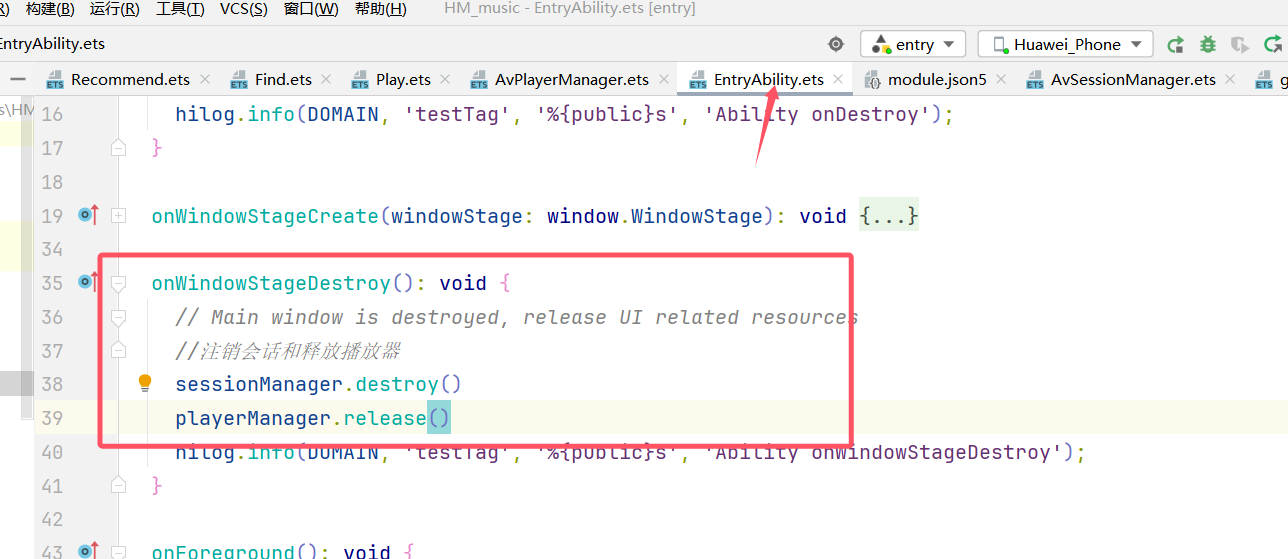
打开软件时,创建播放器,开始监听状态
- EntryAbility.ets
主要是改这个文件以及上面的init操作,其他的代码不用看了,之间复制粘贴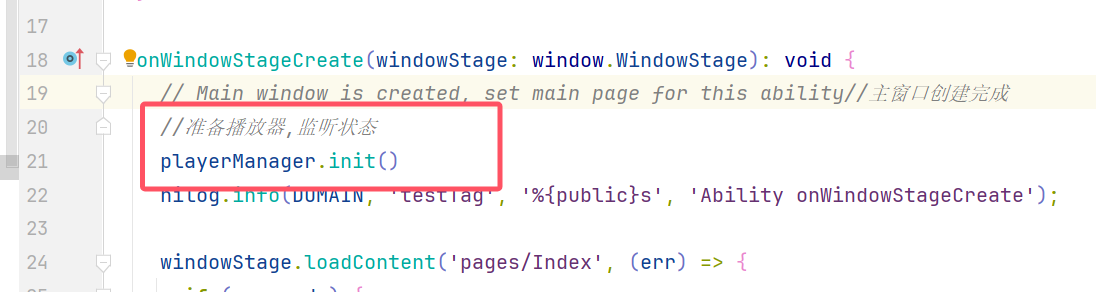
知识点
1、封装播放类
创建播放器 media.createAVPlayer
监听播放器状态(到prepare才能播放)this.player.on
播放歌曲→设置播放资源
2、export导出播放类
export const playerManager:AvPlayerManager = new AvPlayerManager()
3、打开软件就有播放器等着,使用(EntryAbility.ets),里面添加PlayerManager.init(),作用是创建播放器,监听播放器的状态
4、在需要的位置使用播放器,在本案例中为onclick点击事件的时候开始使用
共享播放数据
- globalMusic.ets
import { SongItemType } from "./music"

@ObservedV2
export  class GlobalMusic {
  @Trace img: string = ""  // 音乐封面
  @Trace name: string = ""  // 音乐名称
  @Trace author: string = ""  // 作者
  @Trace url: string = ""  // 当前播放链接
  @Trace time: number = 0  // 播放时间
  @Trace duration: number = 0  // 音乐的播放时长

  //歌曲列表
  @Trace playIndex:number = 0 //当前播放的索引
  @Trace playList:SongItemType[] = [] //播放列表

  //播放 暂停功能
  @Trace isPlay:boolean = false //状态

  //播放模式
  @Trace playModel: 'auto'|'random'|'repeat' = 'auto' //三种

  //重置数据方法
  reset(){
    this.img = ""
    this.name = ""
    this.author =""
    this.url = ""
    this.time = 0
    this.duration = 0
    this.playIndex = 0
    this.playList = []
    this.isPlay = false
    this.playModel = 'auto'
  }
}
- Play.ets
//共享播放数据
  playState:GlobalMusic = AppStorageV2.connect(GlobalMusic,'SONG_KEY',()=>new GlobalMusic())!
播控功能
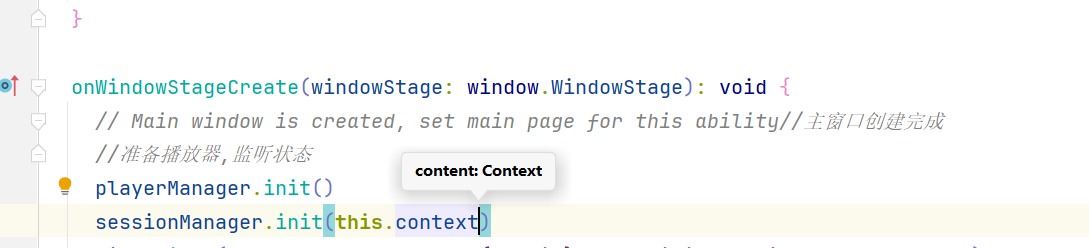
- module.json5中添加权限
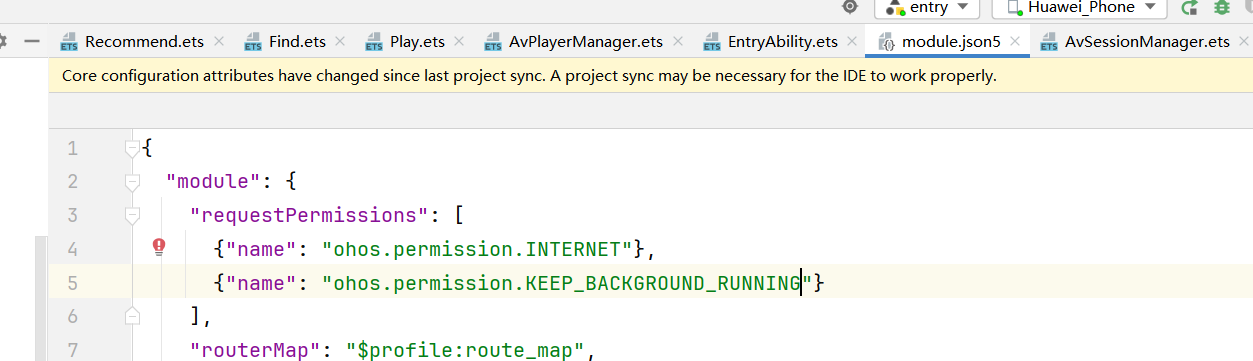
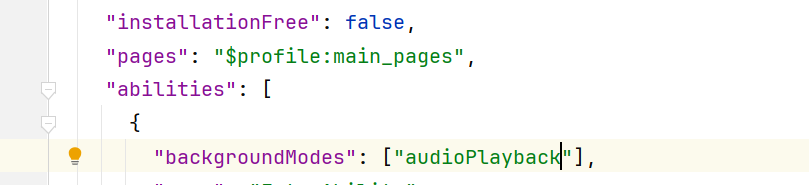
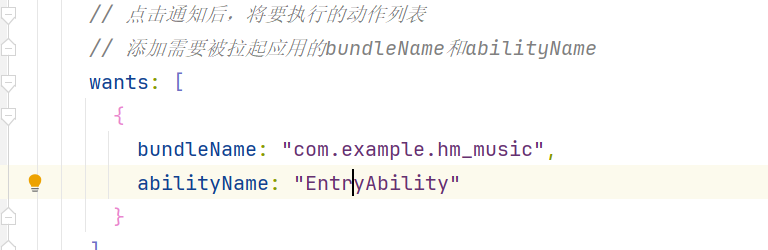
- AvSessionManager.ets

作为“人工智能6S店”的官方数字引擎,为AI开发者与企业提供一个覆盖软硬件全栈、一站式门户。
更多推荐
 3
3 0
0- 0


 已为社区贡献1条内容

所有评论(0)