
鸿蒙学习实战之路-属性字符串 StyledString 全攻略
如果系统提供的样式还不够用,咱们还可以自己定义Span,实现更复杂的效果。// 自定义Span类super();// 测量自定义Span的大小// 绘制自定义Span// 设置背景颜色red: 0,green: 74,blue: 175});// 绘制矩形背景});// 绘制文字red: 23,blue: 141});@Entry@Component// 创建带样式的属性字符串start: 0,l
鸿蒙学习实战之路-属性字符串StyledString全攻略
最近好多朋友问我:“西兰花啊,我想在鸿蒙里给文字搞各种花里胡哨的样式,比如不同颜色、大小、甚至图文混排,但是普通的Text组件好像不够用,该怎么办呀?” 害,这问题可问对人了!
今天这篇,我就手把手带你玩转鸿蒙的属性字符串(StyledString/MutableStyledString),从基础用法到高级技巧,全程干货,包你看完就能上手~
一、属性字符串是什么?
咱们先简单聊聊,属性字符串到底是啥?
简单来说,StyledString就是一种能在字符或段落级别设置文本样式的技术。想象一下,普通的Text组件就像一件单色T恤,而属性字符串就像给T恤绣上各种图案、加上不同颜色,让它变得丰富多彩~
在鸿蒙里,属性字符串分两种:
- StyledString:不可变的,一旦创建就不能修改样式
- MutableStyledString:可变的,可以随时动态修改样式
二、基础用法:创建并应用属性字符串
2.1 快速上手
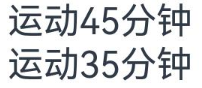
先来看个最简单的例子,如何创建并应用属性字符串:
@Entry
@Component
struct StyledStringBasicDemo {
  // 创建不可变属性字符串
  styledString: StyledString = new StyledString("运动45分钟");
  // 创建可变属性字符串
  mutableStyledString: MutableStyledString = new MutableStyledString("运动35分钟");
  // 创建文本控制器
  controller1: TextController = new TextController();
  controller2: TextController = new TextController();

  async onPageShow() {
    // 在生命周期onPageShow回调中绑定属性字符串
    this.controller1.setStyledString(this.styledString);
  }

  build() {
    Column() {
      // 显示属性字符串
      Text(undefined, { controller: this.controller1 })
      Text(undefined, { controller: this.controller2 })
        .onAppear(() => {
          // 在组件onAppear回调中绑定属性字符串
          this.controller2.setStyledString(this.mutableStyledString);
        })
    }
    .width('100%')
  }
}
🥦 西兰花警告
我有个朋友第一次用的时候,把setStyledString放在了aboutToAppear里,结果页面初始化时看不到效果!后来才知道,在API version 15之前,aboutToAppear阶段组件还没挂载到节点树,所以无法显示。
正确做法:推荐在onPageShow或者文本组件的onAppear回调中触发绑定,就像上面的例子一样~
三、文本样式:给文字穿花衣服
属性字符串提供了多种文本样式对象,咱们一个一个来看看~
3.1 字体样式(TextStyle)
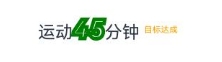
字体样式就像给文字穿衣服,可以设置粗细、大小、颜色、斜体等:
import { LengthMetrics } from '@kit.ArkUI';

@Entry
@Component
struct TextStyleDemo {
  // 创建字体样式
  textStyleAttrs: TextStyle =
    new TextStyle({
      fontWeight: FontWeight.Bolder,  // 字体粗细
      fontSize: LengthMetrics.vp(24),  // 字体大小
      fontStyle: FontStyle.Italic,  // 斜体
      strokeWidth: LengthMetrics.px(5),  // 描边宽度
      strokeColor: Color.Green  // 描边颜色
    });

  // 创建可变属性字符串,并应用样式
  mutableStyledString: MutableStyledString = new MutableStyledString("运动45分钟 目标达成", [
    {
      start: 2,  // 开始位置
      length: 2,  // 应用长度
      styledKey: StyledStringKey.FONT,  // 样式类型
      styledValue: this.textStyleAttrs  // 样式对象
    },
    {
      start: 7,  // 开始位置
      length: 4,  // 应用长度
      styledKey: StyledStringKey.FONT,  // 样式类型
      styledValue: new TextStyle({
        fontColor: Color.Orange,  // 字体颜色
        fontSize: LengthMetrics.vp(12),  // 字体大小
        SuperscriptStyle.SUPERSCRIPT  // 上标
      })
    }
  ]);

  controller: TextController = new TextController();

  async onPageShow() {
    this.controller.setStyledString(this.mutableStyledString);
  }

  build() {
    Column() {
      Text(undefined, { controller: this.controller })
        .margin({ top: 10 })
    }
    .width('100%')
  }
}
3.2 文本阴影(TextShadowStyle)
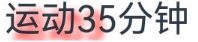
想让文字更有立体感?试试文本阴影:
@Entry
@Component
struct TextShadowDemo {
  mutableStyledString: MutableStyledString = new MutableStyledString("运动35分钟", [
    {
      start: 0,
      length: 3,
      styledKey: StyledStringKey.TEXT_SHADOW,
      styledValue: new TextShadowStyle({
        radius: 5,  // 阴影半径
        type: ShadowType.COLOR,  // 阴影类型
        color: Color.Red,  // 阴影颜色
        offsetX: 10,  // X轴偏移
        offsetY: 10   // Y轴偏移
      })
    }
  ]);

  controller: TextController = new TextController();

  async onPageShow() {
    this.controller.setStyledString(this.mutableStyledString);
  }

  build() {
    Column() {
      Text(undefined, { controller: this.controller })
    }
    .width('100%')
  }
}
3.3 文本装饰线(DecorationStyle)
需要给文字加下划线、删除线?装饰线样式来帮你:
@Entry
@Component
struct DecorationDemo {
  mutableStyledString: MutableStyledString = new MutableStyledString("运动35分钟", [
    {
      start: 0,
      length: 4,
      styledKey: StyledStringKey.DECORATION,
      styledValue: new DecorationStyle({
        type: TextDecorationType.LineThrough,  // 删除线
        color: Color.Red,  // 颜色
        thicknessScale: 3  // 粗细比例
      })
    },
    {
      start: 4,
      length: 2,
      styledKey: StyledStringKey.DECORATION,
      styledValue: new DecorationStyle(
        {
          type: TextDecorationType.Underline,  // 下划线
        },
        {
          // 开启多装饰线
          enableMultiType: true
        }
      )
    },
    {
      start: 4,
      length: 2,
      styledKey: StyledStringKey.DECORATION,
      styledValue: new DecorationStyle(
        {
          type: TextDecorationType.LineThrough,  // 再加上删除线
        },
        {
          // 开启多装饰线
          enableMultiType: true
        }
      )
    },
  ]);

  controller: TextController = new TextController();

  async onPageShow() {
    this.controller.setStyledString(this.mutableStyledString);
  }

  build() {
    Column() {
      Text(undefined, { controller: this.controller })
    }
    .width('100%')
  }
}

🥦 西兰花小贴士
如果要给同一部分文字加多种装饰线(比如同时加下划线和删除线),一定要记得设置enableMultiType: true,否则只会显示最后添加的那一种装饰线哦!
3.4 其他文本样式
除了上面的几种,还有:
- BaselineOffsetStyle:调整文本基线位置
- LineHeightStyle:设置行高
- LetterSpacingStyle:调整字符间距
这些用法都差不多,咱们就不一一举例了,有兴趣的朋友可以自己试试~
四、段落样式:让文本排版更专业
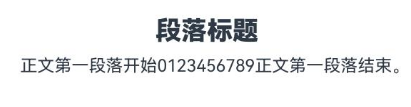
除了字符级别的样式,属性字符串还支持段落级别的样式设置,比如文本对齐、缩进、最大行数等。
4.1 段落样式基础
先来看个例子:
import { LengthMetrics} from '@kit.ArkUI';

@Entry
@Component
struct ParagraphStyleDemo {
  // 标题居中
  titleParagraphStyleAttr: ParagraphStyle = new ParagraphStyle({ textAlign: TextAlign.Center });
  // 段落首行缩进15vp
  paragraphStyleAttr1: ParagraphStyle = new ParagraphStyle({ textIndent: LengthMetrics.vp(15) });
  // 行高样式
  lineHeightStyle1: LineHeightStyle = new LineHeightStyle(new LengthMetrics(24));

  // 创建含段落样式的属性字符串
  paragraphStyledString1: MutableStyledString =
    new MutableStyledString("段落标题\n正文第一段落开始0123456789正文第一段落结束。", [
      {
        start: 0,
        length: 4,
        styledKey: StyledStringKey.PARAGRAPH_STYLE,
        styledValue: this.titleParagraphStyleAttr
      },
      {
        start: 0,
        length: 4,
        styledKey: StyledStringKey.LINE_HEIGHT,
        styledValue: new LineHeightStyle(new LengthMetrics(50))
      },
      {
        start: 0,
        length: 4,
        styledKey: StyledStringKey.FONT,
        styledValue: new TextStyle({ fontSize: LengthMetrics.vp(24), fontWeight: FontWeight.Bolder })
      },
      {
        start: 5,
        length: 3,
        styledKey: StyledStringKey.PARAGRAPH_STYLE,
        styledValue: this.paragraphStyleAttr1
      },
      {
        start: 5,
        length: 20,
        styledKey: StyledStringKey.LINE_HEIGHT,
        styledValue: this.lineHeightStyle1
      }
    ]);

  controller: TextController = new TextController();

  async onPageShow() {
    this.controller.setStyledString(this.paragraphStyledString1);
  }

  build() {
    Column() {
      Text(undefined, { controller: this.controller })
    }
    .width('100%')
  }
}
4.2 动态修改段落样式
刚才咱们说过,MutableStyledString是可变的,可以随时修改样式。比如,咱们可以点击按钮来替换段落样式:
import { LengthMetrics } from '@kit.ArkUI';

@Entry
@Component
struct DynamicParagraphStyleDemo {
  // 标题居中
  titleParagraphStyleAttr: ParagraphStyle = new ParagraphStyle({ textAlign: TextAlign.Center });
  // 段落首行缩进15vp
  paragraphStyleAttr1: ParagraphStyle = new ParagraphStyle({ textIndent: LengthMetrics.vp(15) });
  // 行高样式
  lineHeightStyle1: LineHeightStyle = new LineHeightStyle(new LengthMetrics(24));

  // 创建含段落样式的属性字符串
  paragraphStyledString1: MutableStyledString =
    new MutableStyledString("段落标题\n正文第一段落开始0123456789正文第一段落结束,通过replaceStyle清空原样式替换新样式。", [
      {
        start: 0,
        length: 4,
        styledKey: StyledStringKey.PARAGRAPH_STYLE,
        styledValue: this.titleParagraphStyleAttr
      },
      {
        start: 0,
        length: 4,
        styledKey: StyledStringKey.LINE_HEIGHT,
        styledValue: new LineHeightStyle(new LengthMetrics(50))
      },
      {
        start: 0,
        length: 4,
        styledKey: StyledStringKey.FONT,
        styledValue: new TextStyle({ fontSize: LengthMetrics.vp(24), fontWeight: FontWeight.Bolder })
      },
      {
        start: 5,
        length: 3,
        styledKey: StyledStringKey.PARAGRAPH_STYLE,
        styledValue: this.paragraphStyleAttr1
      },
      {
        start: 5,
        length: 20,
        styledKey: StyledStringKey.LINE_HEIGHT,
        styledValue: this.lineHeightStyle1
      }
    ]);

  // 新的段落样式:右对齐、最多1行、超出省略
  paragraphStyleAttr3: ParagraphStyle = new ParagraphStyle({
    textAlign: TextAlign.End,
    maxLines: 1,
    wordBreak: WordBreak.BREAK_ALL,
    overflow: TextOverflow.Ellipsis
  });

  controller: TextController = new TextController();

  async onPageShow() {
    this.controller.setStyledString(this.paragraphStyledString1);
  }

  build() {
    Column() {
      // 显示属性字符串
      Text(undefined, { controller: this.controller }).width(300)

      // 点击按钮替换样式
      Button('替换段落样式')
        .onClick(() => {
          this.paragraphStyledString1.replaceStyle({
            start: 5,
            length: 3,
            styledKey: StyledStringKey.PARAGRAPH_STYLE,
            styledValue: this.paragraphStyleAttr3
          });
          // 主动更新文本控制器
          this.controller.setStyledString(this.paragraphStyledString1);
        })
    }
    .width('100%')
  }
}

五、高级技巧:自定义样式和图文混排
5.1 自定义Span
如果系统提供的样式还不够用,咱们还可以自己定义Span,实现更复杂的效果。比如,画一个自定义的按钮样式:
import { LengthMetrics } from '@kit.ArkUI';
import { drawing } from '@kit.ArkGraphics2D';

// 自定义Span类
class MyCustomSpan extends CustomSpan {
  constructor(word: string, width: number, height: number, context: UIContext) {
    super();
    this.word = word;
    this.width = width;
    this.height = height;
    this.context = context;
  }

  // 测量自定义Span的大小
  onMeasure(measureInfo: CustomSpanMeasureInfo): CustomSpanMetrics {
    return { width: this.width, height: this.height };
  }

  // 绘制自定义Span
  onDraw(context: DrawContext, options: CustomSpanDrawInfo) {
    let canvas = context.canvas;
    const brush = new drawing.Brush();
    // 设置背景颜色
    brush.setColor({
      alpha: 255,
      red: 0,
      green: 74,
      blue: 175
    });
    const font = new drawing.Font();
    font.setSize(25);
    const textBlob = drawing.TextBlob.makeFromString(this.word, font, drawing.TextEncoding.TEXT_ENCODING_UTF8);

    // 绘制矩形背景
    canvas.attachBrush(brush);
    canvas.drawRect({
      left: options.x + 10,
      right: options.x + this.context.vp2px(this.width) - 10,
      top: options.lineTop + 10,
      bottom: options.lineBottom - 10
    });

    // 绘制文字
    brush.setColor({
      alpha: 255,
      red: 23,
      green: 169,
      blue: 141
    });
    canvas.attachBrush(brush);
    canvas.drawTextBlob(textBlob, options.x + 20, options.lineBottom - 15);
    canvas.detachBrush();
  }

  width: number = 160;
  word: string = "drawing";
  height: number = 10;
  context: UIContext;
}

@Entry
@Component
struct CustomSpanDemo {
  str: string =
    "Four score and seven years ago our fathers brought forth on this continent, a new nation, conceived in Liberty, and dedicated to the proposition that all men are created equal.";

  // 创建带样式的属性字符串
  mutableStrAllContent = new MutableStyledString(this.str, [
    {
      start: 0,
      length: 3,
      styledKey: StyledStringKey.FONT,
      styledValue: new TextStyle({ fontSize: LengthMetrics.px(40) })
    },
    {
      start: 3,
      length: 3,
      styledKey: StyledStringKey.FONT,
      styledValue: new TextStyle({ fontColor: Color.Brown })
    }
  ]);

  // 创建自定义Span
  customSpan1: MyCustomSpan = new MyCustomSpan("Hello", 120, 10, this.getUIContext());

  controller: TextController = new TextController();

  aboutToAppear() {
    // 将自定义Span插入到属性字符串开头
    this.mutableStrAllContent.insertStyledString(0, new StyledString(this.customSpan1));
  }

  build() {
    Column() {
      Text(undefined, { controller: this.controller })
        .width('100%')
        .onAppear(() => {
          this.controller.setStyledString(this.mutableStrAllContent);
        })
    }
    .width('100%')
  }
}
5.2 图文混排
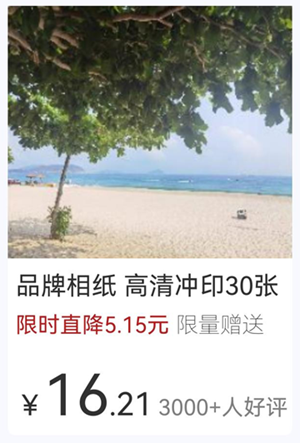
现在咱们来看看如何实现图文混排效果。鸿蒙提供了ImageAttachment类,可以把图片和文本放在同一个属性字符串里:
import { image } from '@kit.ImageKit';
import { LengthMetrics } from '@kit.ArkUI';

@Entry
@Component
struct ImageTextDemo {
  @State message: string = 'Hello World';
  // 图片像素图
  imagePixelMap: image.PixelMap | undefined = undefined;
  @State imagePixelMap3: image.PixelMap | undefined = undefined;
  // 基础属性字符串
  mutableStr: MutableStyledString = new MutableStyledString('123');
  controller: TextController = new TextController();

  // 带装饰线的属性字符串
  mutableStr2: MutableStyledString = new MutableStyledString('This is set decoration line style to the mutableStr2', [{
    start: 0,
    length: 15,
    styledKey: StyledStringKey.DECORATION,
    styledValue: new DecorationStyle({
      type: TextDecorationType.Overline,
      color: Color.Orange,
      style: TextDecorationStyle.DOUBLE
    })
  }]);

  async aboutToAppear() {
    console.info("aboutToAppear initial imagePixelMap");
    // 加载图片资源
    // $r('app.media.sea')需要替换为开发者所需的图像资源文件
    this.imagePixelMap = await this.getPixmapFromMedia($r('app.media.sea'));
  }

  // 从资源文件获取像素图
  private async getPixmapFromMedia(resource: Resource) {
    let uint8Array = await this.getUIContext().getHostContext()?.resourceManager?.getMediaContent(resource.id);
    let imageSource = image.createImageSource(uint8Array?.buffer?.slice(0, uint8Array?.buffer?.byteLength));
    let createPixelMap: image.PixelMap = await imageSource.createPixelMap({
      desiredPixelFormat: image.PixelMapFormat.RGBA_8888
    });
    await imageSource.release();
    return createPixelMap;
  }

  // 段落样式:左边距5vp
  leadingMarginValue: ParagraphStyle = new ParagraphStyle({ leadingMargin: LengthMetrics.vp(5)});
  // 行高样式
  lineHeightStyle1: LineHeightStyle= new LineHeightStyle(new LengthMetrics(24));
  // 加粗样式
  boldTextStyle: TextStyle = new TextStyle({ fontWeight: FontWeight.Bold });

  // 商品信息1
  paragraphStyledString1: MutableStyledString = new MutableStyledString("\n品牌相纸 高清冲印30张\n限时直降5.15元 限量增送", [
    {
      start: 0,
      length: 28,
      styledKey: StyledStringKey.PARAGRAPH_STYLE,
      styledValue: this.leadingMarginValue
    },
    {
      start: 14,
      length: 9,
      styledKey: StyledStringKey.FONT,
      styledValue: new TextStyle({ fontSize: LengthMetrics.vp(14), fontColor: '#B22222' })
    },
    {
      start: 24,
      length: 4,
      styledKey: StyledStringKey.FONT,
      styledValue: new TextStyle({ fontSize: LengthMetrics.vp(14), fontWeight: FontWeight.Lighter })
    },
    {
      start: 11,
      length: 4,
      styledKey: StyledStringKey.LINE_HEIGHT,
      styledValue: this.lineHeightStyle1
    }
  ]);

  // 商品信息2
  paragraphStyledString2: MutableStyledString = new MutableStyledString("\n¥16.21 3000+人好评", [
    {
      start: 0,
      length: 5,
      styledKey: StyledStringKey.PARAGRAPH_STYLE,
      styledValue: this.leadingMarginValue
    },
    {
      start: 0,
      length: 4,
      styledKey: StyledStringKey.LINE_HEIGHT,
      styledValue: new LineHeightStyle(new LengthMetrics(60))
    },
    {
      start: 0,
      length: 7,
      styledKey: StyledStringKey.FONT,
      styledValue: this.boldTextStyle
    },
    {
      start: 1,
      length: 1,
      styledKey: StyledStringKey.FONT,
      styledValue: new TextStyle({ fontSize: LengthMetrics.vp(18) })
    },
    {
      start: 2,
      length: 2,
      styledKey: StyledStringKey.FONT,
      styledValue: new TextStyle({ fontSize: LengthMetrics.vp(36) })
    },
    {
      start: 4,
      length: 3,
      styledKey: StyledStringKey.FONT,
      styledValue: new TextStyle({ fontColor: Color.Grey, fontSize: LengthMetrics.vp(14)})
    }
  ]);

  build() {
    Row() {
      Column({ space: 10 }) {
        Text(undefined, { controller: this.controller })
          .copyOption(CopyOptions.InApp)
          .draggable(true)
          .backgroundColor('#FFFFFF')
          .borderRadius(5)

        Button('点击查看商品卡片')
          .onClick(() => {
            if (this.imagePixelMap !== undefined) {
              // 创建图片附件
              this.mutableStr = new MutableStyledString(new ImageAttachment({
                value: this.imagePixelMap,
                size: { width: 180, height: 160 },
                verticalAlign: ImageSpanAlignment.BASELINE,
                objectFit: ImageFit.Fill
              }));
              // 拼接商品信息
              this.paragraphStyledString1.appendStyledString(this.paragraphStyledString2);
              this.mutableStr.appendStyledString(this.paragraphStyledString1);
              // 更新文本控制器
              this.controller.setStyledString(this.mutableStr);
            }
          })
      }
      .width('100%')
    }
    .height('100%')
    .backgroundColor('#F8F8FF')
  }
}
六、总结与注意事项
6.1 核心要点
-
两种属性字符串:
- StyledString:不可变,适合静态文本
- MutableStyledString:可变,适合动态文本
-
常用样式:
- 文本样式:TextStyle、TextShadowStyle、DecorationStyle
- 段落样式:ParagraphStyle
-
应用方式:
- 通过TextController的setStyledString方法绑定到Text组件
- 推荐在onPageShow或onAppear回调中绑定
-
高级功能:
- 动态修改样式:replaceStyle
- 自定义样式:CustomSpan
- 图文混排:ImageAttachment
🥦 西兰花警告
-
绑定时机:在API < 15时,不要在aboutToAppear中调用setStyledString,否则页面初始化时无法显示
-
多装饰线:添加多种装饰线时,一定要设置enableMultiType: true
-
图片和自定义Span:当属性字符串的构造函数入参为ImageAttachment或CustomSpan时,styles参数不生效,需要通过setStyle等方法设置样式
七、推荐资源
📚 推荐资料:
- 官方属性字符串文档:StyledString
- 官方Text组件文档:Text
好了,今天关于属性字符串的分享就到这里啦!从基础用法到高级技巧,相信你已经对StyledString有了全面的了解~
如果你觉得这篇文章对你有帮助,不妨点赞收藏,也欢迎在评论区留言交流你的学习心得和问题~
我是盐焗西兰花,
不教理论,只给你能跑的代码和避坑指南。
下期见!🥦

作为“人工智能6S店”的官方数字引擎,为AI开发者与企业提供一个覆盖软硬件全栈、一站式门户。
更多推荐
 15
15 0
0- 0


 已为社区贡献89条内容

所有评论(0)