
立方体转到九十度:用 kotlin-math 核对鸿蒙上的两种旋转
1. 先让立方体转起来
一个线框立方体,八个顶点、十二条边,已经够做一个小型图形数学实验。打开页面,立方体绕 Y 轴自动转动;按下暂停,它停在当前角度;再点“侧面 90°”,就可以把自由转动变成一个固定的问题:这一刻,各个点究竟应该在哪里?
这次接入的是 kotlin-math。它提供向量、矩阵、四元数和射线等 Kotlin 图形数学 API。示例把原库的共享源码编译到鸿蒙 Native,由它计算顶点,ArkTS Canvas 再连接投影后的坐标。页面同时保留“矩阵”和“四元数”两个按钮,用同一组顶点、同一组角度观察两种表示。
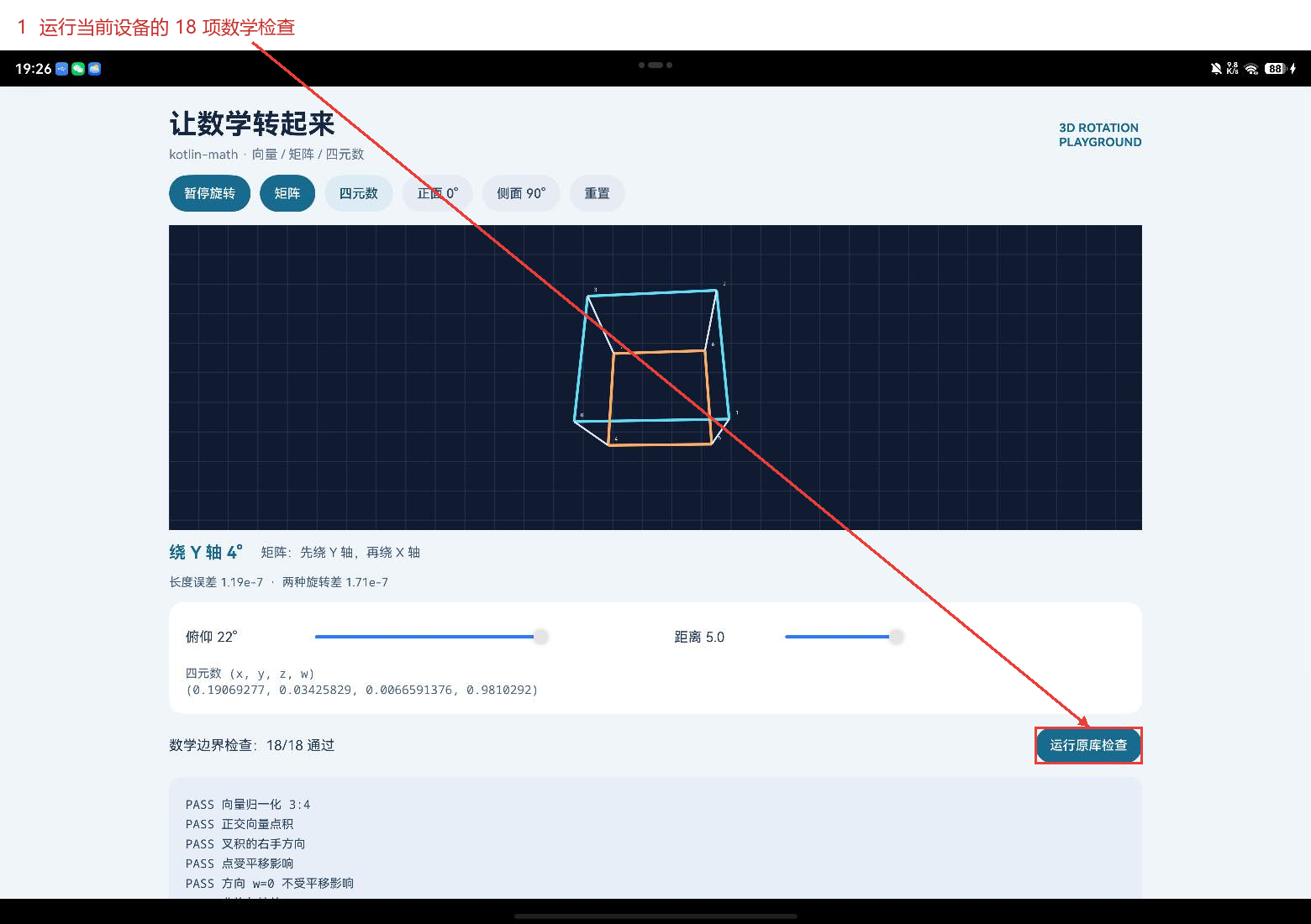
下面是在 MatePad Edge 真机上运行这份程序的连续画面。暂停、固定角度、切换计算方式和重置都在这个页面里完成。
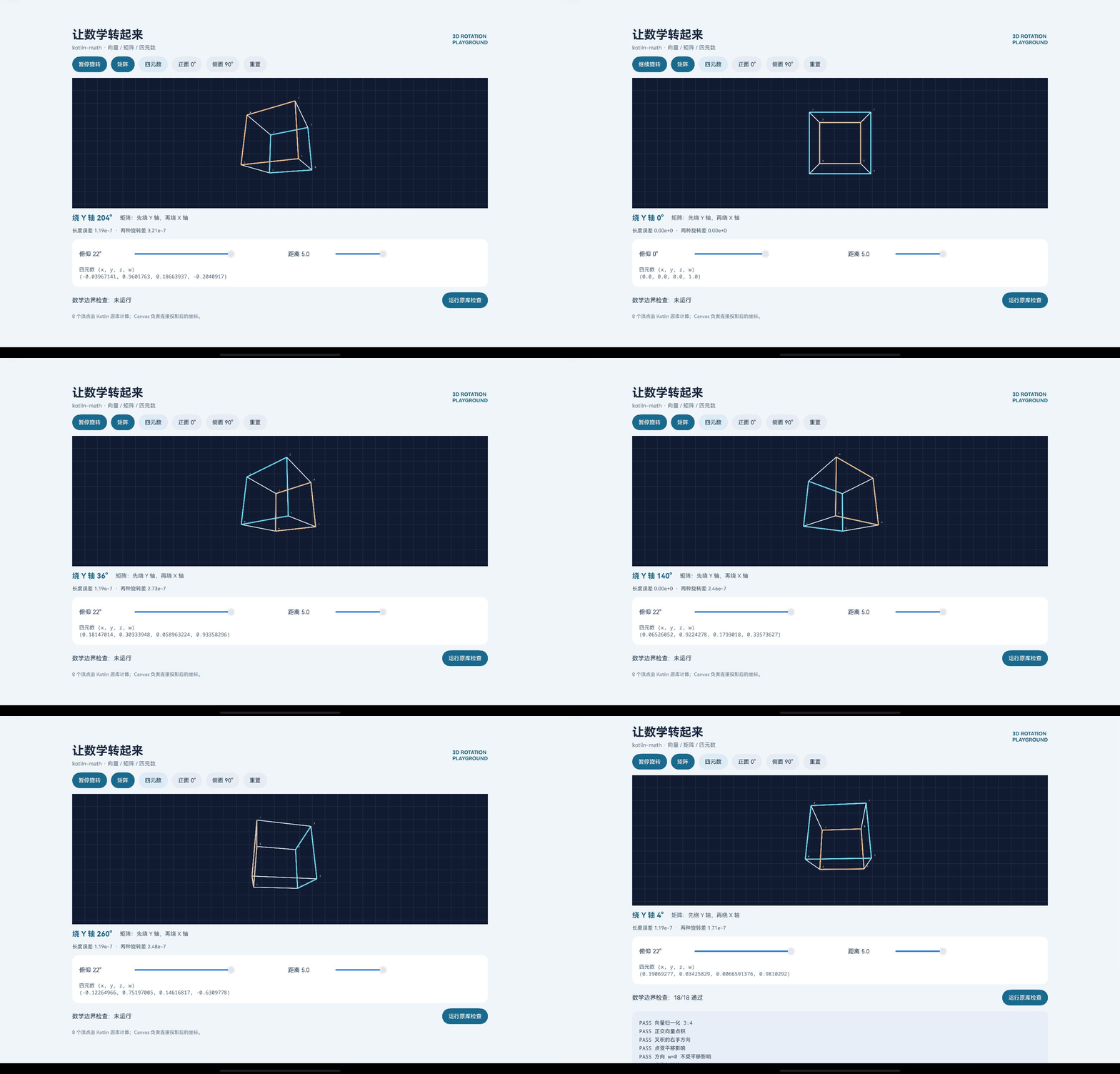
俯仰滑块用来调整绕 X 轴的角度,距离滑块改变观察距离。演示没有贴图、灯光和遮挡消除,背面的边也会画出来,因此它更像一张可以转动的几何草图。这样做方便看到八个顶点的关系,重点也落在数学结果上。
2. 九十度不能只靠看着像
最容易核对的输入,是从一个坐标轴指向另一个坐标轴。把向量 (1, 0, 0) 绕 Z 轴转九十度,原库矩阵应得到 (0, 1, 0);改成绕 Y 轴转九十度,四元数应得到 (0, 0, -1)。这些结果可以独立算出,不需要先相信画布上的形状。
这里的角度单位值得先说明:rotation(axis, angle) 和 Quaternion.fromAxisAngle(axis, angle) 接收的是度。把弧度值直接传进去,程序仍可能正常画图,但角度不会是预期的那个角度。脑子说会了,坐标说再算一遍。
这些预期值直接写在后面的 runChecks 中,每次在设备上调用原库计算,再与确定的坐标比较。
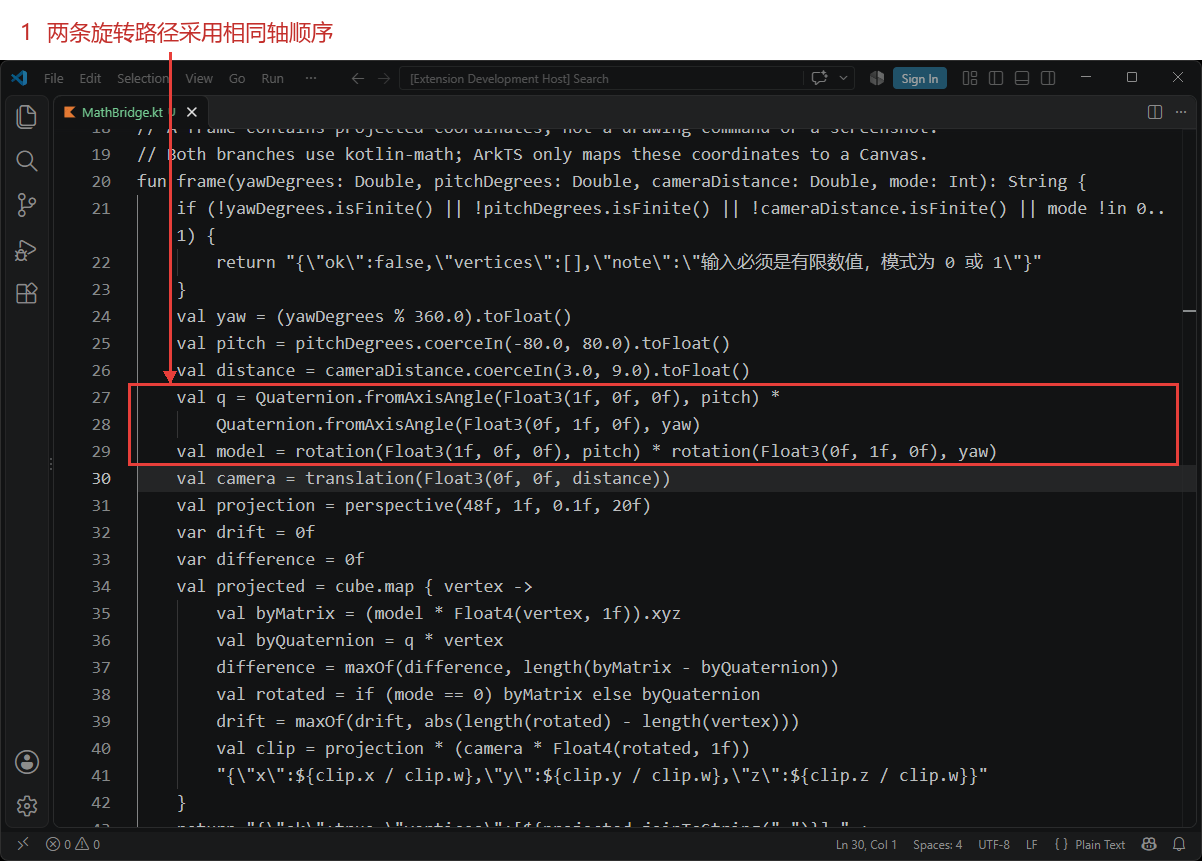
演示里还要叠加俯仰。矩阵写成 rotation(X, pitch) * rotation(Y, yaw),作用到顶点上时先绕 Y,再绕 X;四元数按同样的顺序写成 qX * qY。把两个因子换位,通常就会得到另一种朝向。原生检查专门保留了“旋转顺序不能交换”这一项,防止只改写法、没有同步理解计算顺序。
每帧同时计算矩阵结果和四元数结果,然后比较它们的距离。页面上的“两种旋转差”对应八个顶点中最大的差值;“长度误差”对应旋转前后向量长度的最大变化。这两个值让形状是否保持、两种计算是否对齐,都有一个数值可以查看。
在真机的九十度、俯仰零度这组操作记录中,长度误差显示为零,两种旋转差约为 8.43e-8。浮点计算不必强求每一位完全相等,所以检查函数使用 0.0001 的容差。这个值用于当前小范围坐标的验算,并不是给所有数量级都通用的精度保证。
完整的 Kotlin 演示入口如下。原始八个顶点固定在 [-1, 1],输入先做有限数判断,再把俯仰与距离限制到这份示例的范围。限制属于页面入口的约定,数学库本身并没有因此只能处理这些角度或距离。
package harmony

import dev.romainguy.kotlin.math.*
import kotlin.math.abs

private val cube = listOf(
    Float3(-1f, -1f, -1f), Float3(1f, -1f, -1f),
    Float3(1f, 1f, -1f), Float3(-1f, 1f, -1f),
    Float3(-1f, -1f, 1f), Float3(1f, -1f, 1f),
    Float3(1f, 1f, 1f), Float3(-1f, 1f, 1f)
)

private fun quote(text: String): String = "\"" + text.replace("\\", "\\\\")
    .replace("\"", "\\\"").replace("\n", "\\n") + "\""
private fun close(a: Float, b: Float, epsilon: Float = 0.0001f) = abs(a - b) < epsilon
private fun close(a: Float3, b: Float3) = close(a.x, b.x) && close(a.y, b.y) && close(a.z, b.z)

// A frame contains projected coordinates, not a drawing command or a screenshot.
// Both branches use kotlin-math; ArkTS only maps these coordinates to a Canvas.
fun frame(yawDegrees: Double, pitchDegrees: Double, cameraDistance: Double, mode: Int): String {
    if (!yawDegrees.isFinite() || !pitchDegrees.isFinite() || !cameraDistance.isFinite() || mode !in 0..1) {
        return "{\"ok\":false,\"vertices\":[],\"note\":\"输入必须是有限数值,模式为 0 或 1\"}"
    }
    val yaw = (yawDegrees % 360.0).toFloat()
    val pitch = pitchDegrees.coerceIn(-80.0, 80.0).toFloat()
    val distance = cameraDistance.coerceIn(3.0, 9.0).toFloat()
    val q = Quaternion.fromAxisAngle(Float3(1f, 0f, 0f), pitch) *
        Quaternion.fromAxisAngle(Float3(0f, 1f, 0f), yaw)
    val model = rotation(Float3(1f, 0f, 0f), pitch) * rotation(Float3(0f, 1f, 0f), yaw)
    val camera = translation(Float3(0f, 0f, distance))
    val projection = perspective(48f, 1f, 0.1f, 20f)
    var drift = 0f
    var difference = 0f
    val projected = cube.map { vertex ->
        val byMatrix = (model * Float4(vertex, 1f)).xyz
        val byQuaternion = q * vertex
        difference = maxOf(difference, length(byMatrix - byQuaternion))
        val rotated = if (mode == 0) byMatrix else byQuaternion
        drift = maxOf(drift, abs(length(rotated) - length(vertex)))
        val clip = projection * (camera * Float4(rotated, 1f))
        "{\"x\":${clip.x / clip.w},\"y\":${clip.y / clip.w},\"z\":${clip.z / clip.w}}"
    }
    return "{\"ok\":true,\"vertices\":[${projected.joinToString(",")}]," +
        "\"yaw\":$yaw,\"pitch\":$pitch,\"normError\":$drift,\"agreementError\":$difference," +
        "\"quaternion\":${quote("(${q.x}, ${q.y}, ${q.z}, ${q.w})")}," +
        "\"note\":${quote(if (mode == 0) "矩阵:先绕 Y 轴,再绕 X 轴" else "四元数:qX × qY,结果由原库投影")}}"
}

fun runChecks(): String {
    var passed = 0
    val results = mutableListOf<String>()
    fun verify(name: String, condition: Boolean) {
        if (condition) passed++
        results += (if (condition) "PASS " else "FAIL ") + name
    }
    verify("向量归一化 3:4", close(normalize(Float3(3f, 4f, 0f)), Float3(0.6f, 0.8f, 0f)))
    verify("正交向量点积", close(dot(Float3(1f, 0f, 0f), Float3(0f, 1f, 0f)), 0f))
    verify("叉积的右手方向", close(cross(Float3(1f, 0f, 0f), Float3(0f, 1f, 0f)), Float3(0f, 0f, 1f)))
    val t = translation(Float3(2f, -3f, 4f))
    verify("点受平移影响", close((t * Float4(1f, 2f, 3f, 1f)).xyz, Float3(3f, -1f, 7f)))
    verify("方向 w=0 不受平移影响", close((t * Float4(1f, 2f, 3f, 0f)).xyz, Float3(1f, 2f, 3f)))
    verify("非均匀缩放", close((scale(Float3(2f, 3f, 4f)) * Float4(1f, 2f, 3f, 1f)).xyz, Float3(2f, 6f, 12f)))
    verify("Z 轴 90 度矩阵", close((rotation(Float3(0f, 0f, 1f), 90f) * Float4(1f, 0f, 0f, 1f)).xyz, Float3(0f, 1f, 0f)))
    val composed = t * rotation(Float3(0f, 1f, 0f), 33f) * scale(Float3(2f, 3f, 4f))
    val input = Float4(0.3f, -0.7f, 1.2f, 1f)
    verify("组合矩阵逆变换", close((inverse(composed) * (composed * input)).xyz, input.xyz))
    val rx = rotation(Float3(1f, 0f, 0f), 90f)
    val ry = rotation(Float3(0f, 1f, 0f), 90f)
    verify("旋转顺序不能交换", !close((rx * ry * input).xyz, (ry * rx * input).xyz))
    val q = Quaternion.fromAxisAngle(Float3(0f, 1f, 0f), 90f)
    verify("四元数 Y 轴 90 度", close(q * Float3(1f, 0f, 0f), Float3(0f, 0f, -1f)))
    verify("矩阵与四元数一致", cube.all { close((ry * Float4(it, 1f)).xyz, q * it) })
    verify("四元数逆旋转", close(inverse(q) * (q * input.xyz), input.xyz))
    val half = slerp(Quaternion(), Quaternion.fromAxisAngle(Float3(0f, 1f, 0f), 120f), 0.5f)
    verify("slerp 半程为 60 度", close(half * Float3(1f, 0f, 0f), Float3(0.5f, 0f, -0.8660254f)))
    val fullTurn = Quaternion.fromAxisAngle(Float3(0f, 1f, 0f), 3600f)
    verify("多圈旋转保留向量长度", close(length(fullTurn * input.xyz), length(input.xyz)))
    verify("射线采样", close(pointAt(Ray(Float3(1f, 2f, 3f), Float3(0f, 0f, -1f)), 2f), Float3(1f, 2f, 1f)))
    verify("非有限输入被拒绝", frame(Double.NaN, 0.0, 5.0, 0).contains("\"ok\":false"))
    verify("错误模式被拒绝", frame(0.0, 0.0, 5.0, 2).contains("\"ok\":false"))
    verify("合法帧有八个顶点", frame(38.0, 22.0, 5.0, 1).split("\"x\":").size == 9)
    return "{\"passed\":$passed,\"total\":${results.size},\"detail\":${quote(results.joinToString("\n"))}}"
}
3. 三维点怎样落到二维画布
旋转完成以后,还有投影这一步。Kotlin 端组合平移和透视矩阵,把三维顶点变成裁剪坐标,再用 clip.x / clip.w、clip.y / clip.w 得到供画布使用的坐标。两种旋转模式共享后半段投影流程,所以切换按钮时比较的是旋转表示,观察位置没有一起变化。
ArkTS 拿到八个坐标后,只按预先给出的边索引连接。横坐标加到画布中心,纵坐标从中心减去:Canvas 的 y 轴向下,图形计算里的正 y 方向要在这一层换成屏幕位置。这个负号放在绘制映射里,不能反过来把它理解成旋转库改变了方向。
画布缩放系数取宽高较小值的一部分,窗口变大以后,线框仍围绕画布中心显示。这里是把一个固定比例的投影结果映射到画布,并没有按每个窗口的宽高比重新生成透视矩阵。若后续改成铺满宽屏的模型视图,就应把实际宽高比传到投影函数,而不是只拉伸最后的坐标。
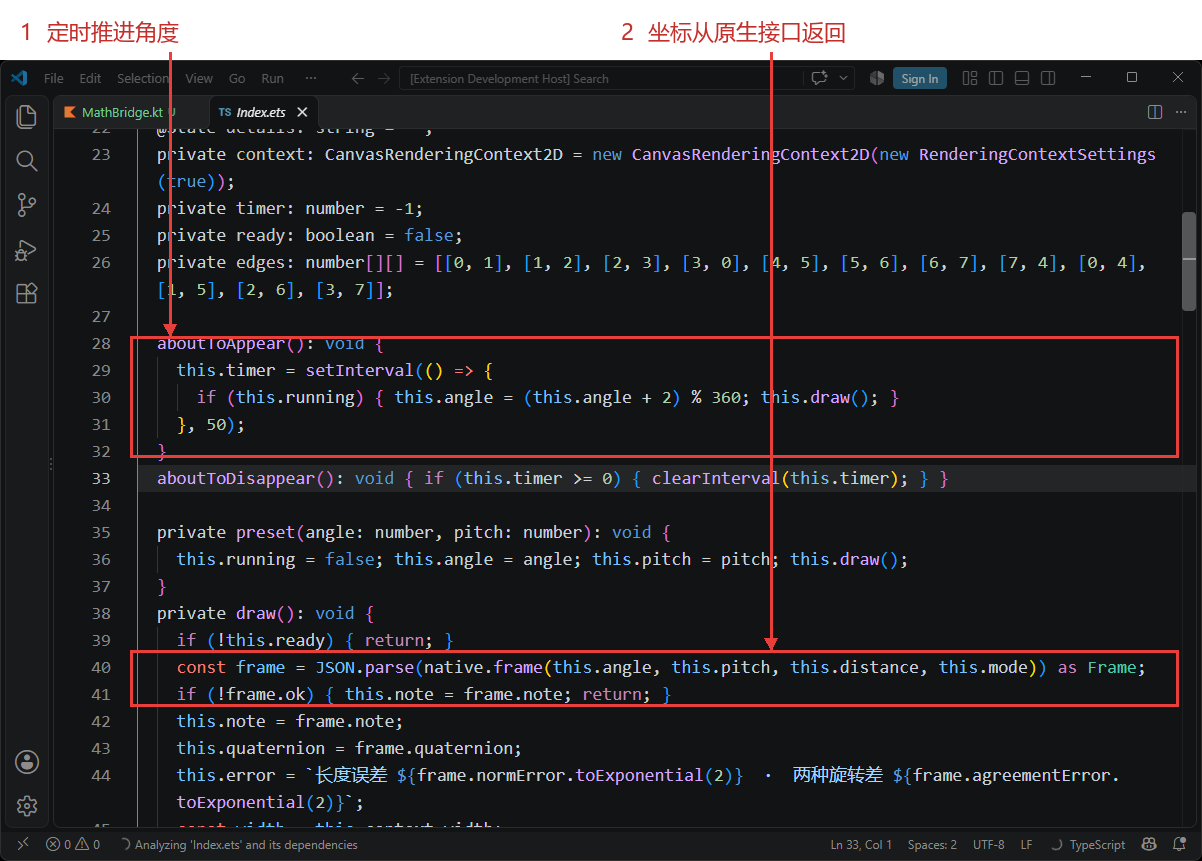
自动旋转每隔五十毫秒增加两度。暂停停止角度推进,“正面 0°”和“侧面 90°”同时把俯仰设为零并暂停,便于稳定比较;重置恢复默认角度、俯仰和距离,并继续自动旋转。矩阵与四元数切换保留当前这些输入。
import native from 'libentry.so';

interface Vertex { x: number; y: number; z: number; }
interface Frame {
  ok: boolean; vertices: Vertex[]; yaw: number; pitch: number;
  normError: number; agreementError: number; quaternion: string; note: string;
}
interface Checks { passed: number; total: number; detail: string; }

@Entry
@Component
struct Index {
  @State angle: number = 28;
  @State pitch: number = 22;
  @State distance: number = 5;
  @State mode: number = 0;
  @State running: boolean = true;
  @State note: string = '';
  @State quaternion: string = '';
  @State error: string = '';
  @State checkLabel: string = '数学边界检查:未运行';
  @State details: string = '';
  private context: CanvasRenderingContext2D = new CanvasRenderingContext2D(new RenderingContextSettings(true));
  private timer: number = -1;
  private ready: boolean = false;
  private edges: number[][] = [[0, 1], [1, 2], [2, 3], [3, 0], [4, 5], [5, 6], [6, 7], [7, 4], [0, 4], [1, 5], [2, 6], [3, 7]];

  aboutToAppear(): void {
    this.timer = setInterval(() => {
      if (this.running) { this.angle = (this.angle + 2) % 360; this.draw(); }
    }, 50);
  }
  aboutToDisappear(): void { if (this.timer >= 0) { clearInterval(this.timer); } }

  private preset(angle: number, pitch: number): void {
    this.running = false; this.angle = angle; this.pitch = pitch; this.draw();
  }
  private draw(): void {
    if (!this.ready) { return; }
    const frame = JSON.parse(native.frame(this.angle, this.pitch, this.distance, this.mode)) as Frame;
    if (!frame.ok) { this.note = frame.note; return; }
    this.note = frame.note;
    this.quaternion = frame.quaternion;
    this.error = `长度误差 ${frame.normError.toExponential(2)}  ·  两种旋转差 ${frame.agreementError.toExponential(2)}`;
    const width = this.context.width;
    const height = this.context.height;
    const radius = Math.min(width, height) * 0.42;
    this.context.fillStyle = '#101A31';
    this.context.fillRect(0, 0, width, height);
    this.context.strokeStyle = '#23304B';
    this.context.lineWidth = 1;
    for (let i: number = 0; i < width; i += 32) {
      this.context.beginPath(); this.context.moveTo(i, 0); this.context.lineTo(i, height); this.context.stroke();
    }
    for (let j: number = 0; j < height; j += 32) {
      this.context.beginPath(); this.context.moveTo(0, j); this.context.lineTo(width, j); this.context.stroke();
    }
    for (let edge: number = 0; edge < this.edges.length; edge++) {
      const a = frame.vertices[this.edges[edge][0]];
      const b = frame.vertices[this.edges[edge][1]];
      this.context.strokeStyle = edge < 4 ? '#60DDF4' : (edge < 8 ? '#FBAC65' : '#DEE8FB');
      this.context.lineWidth = edge < 8 ? 3 : 2;
      this.context.beginPath();
      this.context.moveTo(width / 2 + a.x * radius, height / 2 - a.y * radius);
      this.context.lineTo(width / 2 + b.x * radius, height / 2 - b.y * radius);
      this.context.stroke();
    }
    this.context.fillStyle = '#F7FAFF';
    this.context.font = '12px sans-serif';
    for (let k: number = 0; k < frame.vertices.length; k++) {
      const point = frame.vertices[k];
      this.context.fillText(`${k}`, width / 2 + point.x * radius + 7, height / 2 - point.y * radius - 5);
    }
  }

  build() {
    Scroll() {
      Column({ space: 14 }) {
        Row() {
          Column({ space: 7 }) {
            Text('让数学转起来').fontSize(30).fontWeight(FontWeight.Bold).fontColor('#162743')
            Text('kotlin-math · 向量 / 矩阵 / 四元数').fontSize(14).fontColor('#61738D')
          }.alignItems(HorizontalAlign.Start).layoutWeight(1)
          Text('3D ROTATION\nPLAYGROUND').fontSize(13).fontWeight(FontWeight.Bold).fontColor('#176A8E')
        }.width('100%')
        Row({ space: 10 }) {
          Button(this.running ? '暂停旋转' : '继续旋转').id('toggleRotation').fontSize(14)
            .backgroundColor('#176A8E').fontColor(Color.White).onClick(() => { this.running = !this.running; })
          Button('矩阵').id('matrixMode').fontSize(14)
            .backgroundColor(this.mode === 0 ? '#176A8E' : '#DDECF4').fontColor(this.mode === 0 ? Color.White : '#194C65')
            .onClick(() => { this.mode = 0; this.draw(); })
          Button('四元数').id('quaternionMode').fontSize(14)
            .backgroundColor(this.mode === 1 ? '#176A8E' : '#DDECF4').fontColor(this.mode === 1 ? Color.White : '#194C65')
            .onClick(() => { this.mode = 1; this.draw(); })
          Button('正面 0°').id('frontView').fontSize(14).backgroundColor('#E6EBF4').fontColor('#334A65')
            .onClick(() => this.preset(0, 0))
          Button('侧面 90°').id('sideView').fontSize(14).backgroundColor('#E6EBF4').fontColor('#334A65')
            .onClick(() => this.preset(90, 0))
          Button('重置').id('resetScene').fontSize(14).backgroundColor('#E6EBF4').fontColor('#334A65')
            .onClick(() => { this.angle = 28; this.pitch = 22; this.distance = 5; this.running = true; this.draw(); })
        }.width('100%')
        Canvas(this.context).width('100%').height(330).borderRadius(18)
          .onReady(() => { this.ready = true; this.draw(); })
          .onAreaChange(() => this.draw())
        Row({ space: 20 }) {
          Text(`绕 Y 轴 ${this.angle.toFixed(0)}°`).id('angleValue').fontSize(18).fontWeight(FontWeight.Bold).fontColor('#176A8E')
          Text(this.note).id('modeNote').fontSize(14).fontColor('#425B78')
        }.width('100%')
        Text(this.error).fontSize(13).fontColor('#425B78').width('100%')
        Column({ space: 10 }) {
          Row({ space: 20 }) {
            Text(`俯仰 ${this.pitch.toFixed(0)}°`).fontSize(15).fontColor('#253A55').width(110)
            Slider({ value: this.pitch, min: -60, max: 60, step: 1 }).id('pitchSlider').layoutWeight(1)
              .onChange((value: number) => { this.pitch = value; this.draw(); })
            Text(`距离 ${this.distance.toFixed(1)}`).fontSize(15).fontColor('#253A55').width(90)
            Slider({ value: this.distance, min: 3.5, max: 8, step: 0.1 }).id('distanceSlider').layoutWeight(1)
              .onChange((value: number) => { this.distance = value; this.draw(); })
          }.width('100%')
          Text(`四元数 (x, y, z, w)\n${this.quaternion}`).fontSize(13).fontFamily('monospace').fontColor('#48617B').width('100%')
        }.padding(18).width('100%').backgroundColor(Color.White).borderRadius(16)
        Row() {
          Text(this.checkLabel).id('checkResult').fontSize(15).fontColor('#253A55').layoutWeight(1)
          Button('运行原库检查').id('runChecks').fontSize(14).fontColor(Color.White).backgroundColor('#176A8E')
            .onClick(() => {
              const result = JSON.parse(native.runChecks()) as Checks;
              this.checkLabel = `数学边界检查:${result.passed}/${result.total} 通过`;
              this.details = result.detail;
            })
        }.width('100%')
        if (this.details.length > 0) {
          Text(this.details).fontSize(13).fontFamily('monospace').fontColor('#2A425E').lineHeight(21)
            .padding(18).width('100%').backgroundColor('#E7EEF7').borderRadius(14)
        }
        Text('8 个顶点由 Kotlin 原库计算;Canvas 负责连接投影后的坐标。')
          .fontSize(12).fontColor('#61738D').width('100%')
      }.padding(24).width('100%').constraintSize({ maxWidth: 1100 })
    }.width('100%').height('100%').backgroundColor('#F0F5FA')
  }
}
这个定时器间隔是交互演示的参数,没有据此测量帧率或延迟。每次只返回八个顶点,数据量很小;要处理大网格时,还需要重新设计批量接口和执行方式。退出页面时清理定时器,避免页面已经离开,仍继续请求下一帧。
4. 适配代码放在哪几层
环境安装直接参考 CPF-KMP-CMP 官方快速开始。本次使用 CPF OHOS Kotlin/Native 2.2.21-1.1.0,DevEco Studio 6.1.1.300,应用与两台设备的验证环境为 API 24。真机采用 arm64-v8a,模拟器采用 x86_64,两种 ABI 的库和生成头文件分别管理。
上游七个 commonMain Kotlin 文件保持原样。新增 harmony 配置鸿蒙目标,接入同一份共享源码和 MathBridge.kt。原仓库中的 example/harmony 放完整应用,既能查到库的入口,也能沿着页面调用找到桥接代码。
| 文件 | 本次增加的内容 | 原因 |
|
| ohosArm64、ohosX64 和共享源集 | 原平台目标没有包含鸿蒙 |
|
| CPF 插件仓库配置 | 解析 OHOS 扩展版 Kotlin 插件 |
|
| 两种目标的 KLIB、动态库与 C 头文件构建 | 复用原库源码生成实际 Native 产物 |
|
| 每帧计算、JSON 输出和十八项检查 | 把原库值类型接到示例调用边界 |
|
| 参数读取、结果转换和字符串释放 | 为 ArkTS 提供可调用的原生接口 |
|
| 输入、按钮、状态和线框绘制 | 展示设备上返回的坐标 |
plugins { kotlin("multiplatform") version "2.2.21-1.1.0" }

kotlin {
    listOf(ohosArm64(), ohosX64()).forEach { target ->
        target.binaries.sharedLib { baseName = "kotlinmath" }
    }
    sourceSets {
        commonMain { kotlin.srcDir("../src/commonMain/kotlin") }
        val ohosMain by creating {
            dependsOn(commonMain.get())
            kotlin.srcDir("src")
        }
        ohosArm64Main { dependsOn(ohosMain) }
        ohosX64Main { dependsOn(ohosMain) }
        commonTest {
            kotlin.srcDir("../src/commonTest/kotlin")
            dependencies { implementation(kotlin("test")) }
        }
    }
}
实际产物由命令行编译器先生成 KLIB,再链接 libkotlinmath.so 并生成 kotlinmath_api.h。示例的 CMake 按当前 ABI 选择匹配的库与头文件,构建 N-API 桥 libentry.so。Gradle 文件描述了源集和目标关系,本次已运行验证的是命令行 Native 构建及 DevEco HAP 构建,Gradle 发布流程尚未测试。
N-API 桥复制 Kotlin 返回的字符串,创建 ArkTS 字符串后调用生成接口的 DisposeString 释放原结果。这个动作与每帧调用成对出现;返回指针不需要保留到下一帧,也不能用 C 的 free 替代 Kotlin/Native 提供的释放接口。
#include "napi/native_api.h"
#include "kotlinmath_api.h"
#include <cmath>

static napi_value ReturnString(napi_env env, const char* text) {
    napi_value result;
    napi_create_string_utf8(env, text ? text : "", NAPI_AUTO_LENGTH, &result);
    if (text) kotlinmath_symbols()->DisposeString(text);
    return result;
}
static napi_value Frame(napi_env env, napi_callback_info info) {
    size_t argc = 4;
    napi_value args[4];
    napi_get_cb_info(env, info, &argc, args, nullptr, nullptr);
    double yaw = 0, pitch = 0, distance = 5;
    int32_t mode = 0;
    if (argc != 4 || napi_get_value_double(env, args[0], &yaw) != napi_ok ||
        napi_get_value_double(env, args[1], &pitch) != napi_ok ||
        napi_get_value_double(env, args[2], &distance) != napi_ok ||
        napi_get_value_int32(env, args[3], &mode) != napi_ok) {
        napi_throw_type_error(env, nullptr, "Expected yaw, pitch, distance and mode numbers");
        return nullptr;
    }
    return ReturnString(env, kotlinmath_symbols()->kotlin.root.harmony.frame(yaw, pitch, distance, mode));
}
static napi_value RunChecks(napi_env env, napi_callback_info info) {
    return ReturnString(env, kotlinmath_symbols()->kotlin.root.harmony.runChecks());
}
static napi_value Init(napi_env env, napi_value exports) {
    napi_property_descriptor methods[] = {
        {"frame", nullptr, Frame, nullptr, nullptr, nullptr, napi_default, nullptr},
        {"runChecks", nullptr, RunChecks, nullptr, nullptr, nullptr, napi_default, nullptr}
    };
    napi_define_properties(env, exports, 2, methods);
    return exports;
}
static napi_module module = {1, 0, nullptr, Init, "entry", nullptr, {0}};
extern "C" __attribute__((constructor)) void RegisterEntry() { napi_module_register(&module); }
5. 图形停下以后,还剩哪些答案
同一份最终构建在 MatePad Edge 真机和 x86_64 模拟器上分别完成安装、启动与交互检查。两端都核对了自动旋转、暂停、正面零度、侧面九十度、矩阵与四元数切换,以及重置后恢复转动。下面是模拟器里的实际操作。
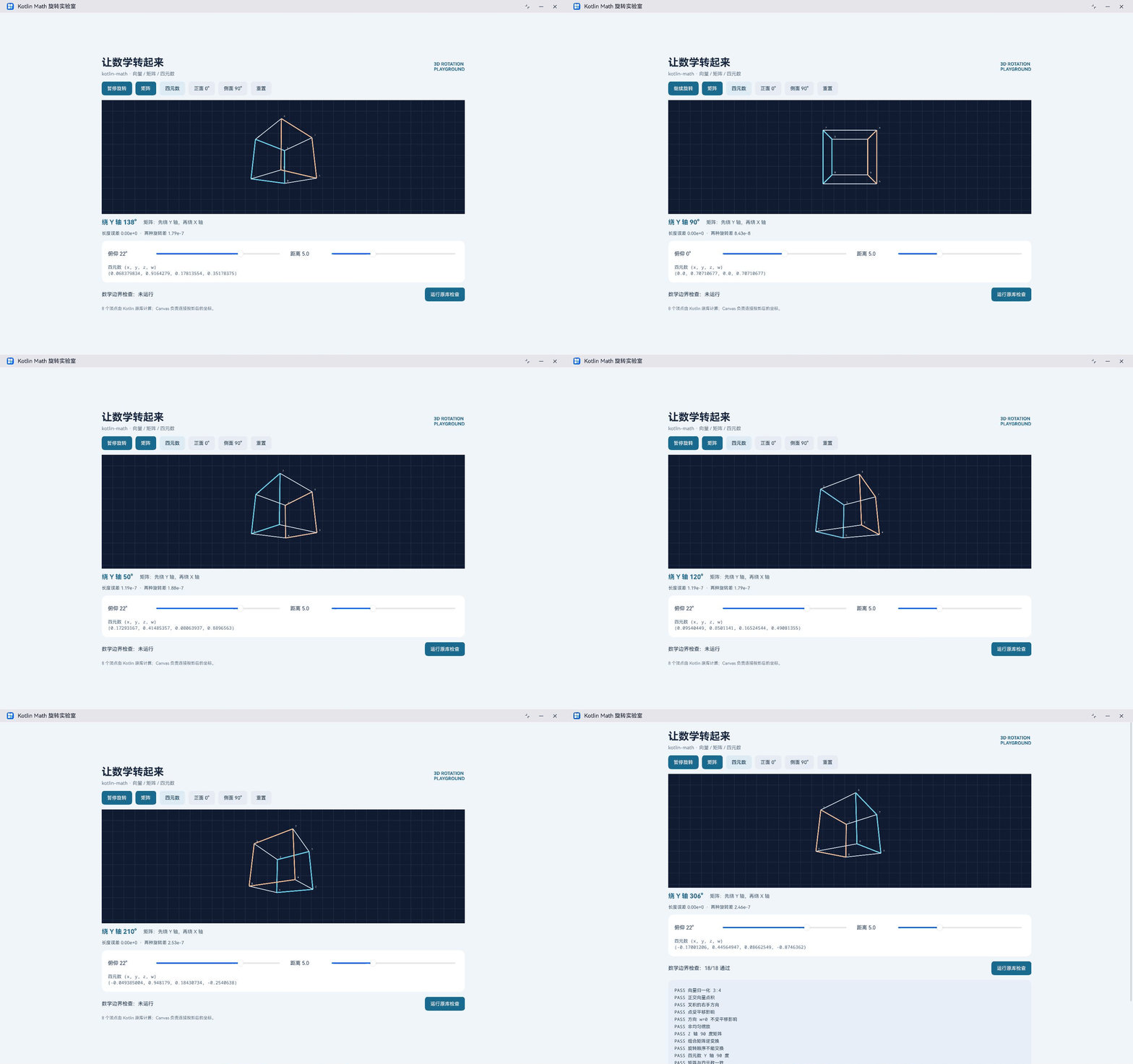
设备端的十八项检查在两端均通过。向量部分检查三比四的归一化、正交点积和叉积方向;矩阵部分区分齐次坐标中点与方向的平移行为,并检查非均匀缩放、固定角度和组合矩阵逆变换;四元数部分检查固定旋转、逆旋转、矩阵一致性与 slerp 的半程结果。其余项目覆盖射线采样、多圈旋转后的长度、无效模式和非有限参数。
这些检查覆盖了示例实际使用和演示的路径,不代表原库每个 API 都完成了系统测试。零向量归一化、退化矩阵以及大规模几何数据的耗时,并未在这份示例里逐项验证。后续扩展时,可以继续选择具有独立预期值的输入,先核对库返回的数字,再看图形表达是否正确。
这次旋转实验最有用的地方,是让一个“看起来转对了”的画面能够继续追到坐标、角度单位和乘法顺序。做相机控制、模型预览或空间交互时,这几项约定比再加一个旋转按钮更值得先写清楚。原库 API 与实现可查 kotlin-math 上游仓库,鸿蒙目标和工具链资料见 CPF-KMP-CMP。
项目源码:harmonyos-crossplatform-libs。本篇代码位于 libraries/kotlin-math,构建方法见该目录的 docs/BUILD.md。

作为“人工智能6S店”的官方数字引擎,为AI开发者与企业提供一个覆盖软硬件全栈、一站式门户。
更多推荐
 0
0 0
0- 0


 已为社区贡献28条内容

所有评论(0)