
常用命令藏得太深?怎么做一个快捷命令坞
·
桌面应用的功能越来越多,用户不应该为了执行一个动作在多级菜单里来回寻找。
界面可以先稳定下来,但真正决定功能是否成立的是命令条目、关键词索引、稳定选中ID、搜索文本和执行状态。把命令注册、关键词索引、键盘选择和执行反馈收进一个可扩展工作区。
命令先注册再参与搜索
这里先不碰颜色和间距。命令条目、关键词索引、稳定选中ID、搜索文本和执行状态如果没有确定,过滤后继续使用原数组索引,会让回车键执行另一条命令。
export interface WorkspaceItem {
  id: string
  title: string
  detail: string
  keywords: string[]
  updatedAt: number
}

export interface WorkspaceState {
  query: string
  selectedId: string
  draft: string
  saved: boolean
}

export class FeatureController {
  private items: WorkspaceItem[] = [
    { id: 'a', title: '快捷命令坞', detail: '当前工作区', keywords: ['workspace', 'current'], updatedAt: 3 },
    { id: 'b', title: '交互说明', detail: '实现记录', keywords: ['design', 'arkui'], updatedAt: 2 },
    { id: 'c', title: '导出结果', detail: '最近生成', keywords: ['output', 'result'], updatedAt: 1 }
回车执行稳定ID对应的动作
现在把实现键盘导航接到模型上。先收窄参数,再生成新的业务状态。
  ]
  private state: WorkspaceState = { query: '', selectedId: 'a', draft: '', saved: true }

  search(query: string): WorkspaceItem[] {
    this.state.query = query
    const keyword: string = query.trim().toLowerCase()
    if (keyword.length === 0) {
      return this.items.map((item: WorkspaceItem) => ({ id: item.id, title: item.title, detail: item.detail, keywords: item.keywords, updatedAt: item.updatedAt } as WorkspaceItem))
    }
    return this.items.filter((item: WorkspaceItem) => {
      const indexText: string = (item.title + ' ' + item.detail + ' ' + item.keywords.join(' ')).toLowerCase()
      return indexText.includes(keyword)
    })
  }

  select(id: string): WorkspaceItem | undefined {
    const target: WorkspaceItem | undefined = this.items.find((item: WorkspaceItem) => item.id === id)
    if (target) {
      this.state.selectedId = target.id
    }
实现键盘导航完成后,控制器把结果写回命令条目、关键词索引、稳定选中ID、搜索文本和执行状态,视图只接收本次动作产生的新状态。
键盘焦点与鼠标选择保持一致
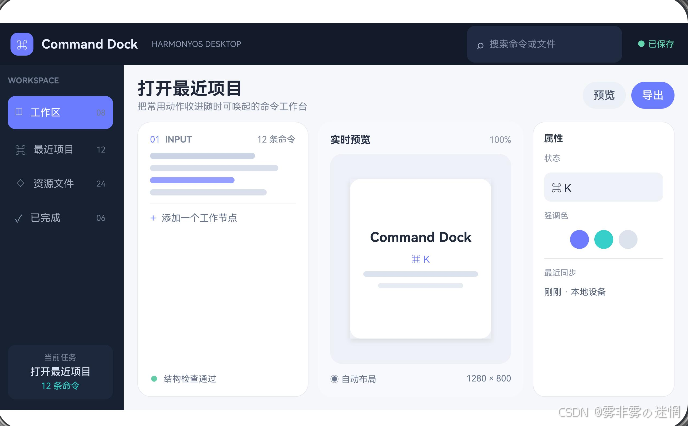
运行图中的数据来自与控制器一致的模型。左侧是工作区分类,中间显示搜索结果与预览,右侧保留属性和执行反馈。
import { FeatureController } from '../features/FeatureController'

interface NavItem { icon: string;
    label: string;
    count: string }

@Entry
@Component
struct Index {
  private featureController: FeatureController = new FeatureController()
  private nav: NavItem[] = [
    { icon: '◫', label: '工作区', count: '08' }, { icon: '⌘', label: '最近项目', count: '12' },
    { icon: '◇', label: '资源文件', count: '24' }, { icon: '✓', label: '已完成', count: '06' }
  ]

  build() {
    Column() {
      Row({ space: 12 }) {
        Stack() { Rect().width(34).height(34).radius(11).fill('#6E7BFF');
    Text('⌘').fontSize(16).fontColor(Color.White) }
        Text('Command Dock').fontSize(19).fontWeight(FontWeight.Bold).fontColor('#EAF0FF')
        Text('HARMONYOS DESKTOP').fontSize(12).fontColor('#8D99B3').margin({ left: 8 })
        Blank()
        Row({ space: 8 }) { Text('⌕').fontSize(18).fontColor('#A9B4CA');
    Text('搜索命令或文件').fontSize(14).fontColor('#7F8AA2') }.width(230).padding({ left: 14, right: 14, top: 9, bottom: 9 }).backgroundColor('#222B3F').borderRadius(12)
        Text('● 已保存').fontSize(13).fontColor('#65D6B0').margin({ left: 10 })
      }.width('100%').height(62).padding({ left: 20, right: 20 }).backgroundColor('#151B2A')

      Row() {
        Column({ space: 8 }) {
          Text('WORKSPACE').fontSize(12).fontWeight(FontWeight.Bold).fontColor('#6F7A91').width('100%').margin({ bottom: 8 })
          ForEach(this.nav, (item: NavItem, index: number) => {
            Row({ space: 11 }) { Text(item.icon).fontSize(16).fontColor(index === 0 ? Color.White : '#8390A8');
    Text(item.label).fontSize(15).fontColor(index === 0 ? Color.White : '#A7B0C1').layoutWeight(1);
    Text(item.count).fontSize(12).fontColor('#6F7A91') }.width('100%').padding(11).borderRadius(11).backgroundColor(index === 0 ? '#6E7BFF' : Color.Transparent)
          }, (item: NavItem) => item.label)
          Blank()
          Column({ space: 5 }) { Text('当前任务').fontSize(12).fontColor('#778298');
    Text('打开最近项目').fontSize(15).fontWeight(FontWeight.Medium).fontColor('#DDE5F5');
    Text('12 条命令').fontSize(13).fontColor('#36CFC9') }.width('100%').padding(12).borderRadius(12).backgroundColor('#20283A')
        }.width(188).height('100%').padding(16).backgroundColor('#1A2131')

        Column({ space: 14 }) {
          Row() { Column({ space: 3 }) { Text('打开最近项目').fontSize(26).fontWeight(FontWeight.Bold).fontColor('#20283A');
    Text('把常用动作收进随时可唤起的命令工作台').fontSize(14).fontColor('#7D8798') }.alignItems(HorizontalAlign.Start);
    Blank();
    Button('预览').backgroundColor('#EDF0F6').fontColor('#475269');
    Button('导出').backgroundColor('#6E7BFF').margin({ left: 8 }) }.width('100%')
          Row({ space: 14 }) {
            Column({ space: 12 }) {
              Row() { Text('01').fontSize(13).fontColor('#6E7BFF');
    Text('  INPUT').fontSize(13).fontWeight(FontWeight.Bold).fontColor('#7D8798');
    Blank();
    Text('12 条命令').fontSize(13).fontColor('#7D8798') }.width('100%')
              Column({ space: 9 }) { Rect().width('72%').height(9).radius(5).fill('#CBD4E5');
    Rect().width('88%').height(9).radius(5).fill('#D9E0EC');
    Rect().width('58%').height(9).radius(5).fill('#6E7BFF').opacity(0.72);
    Rect().width('80%').height(9).radius(5).fill('#D9E0EC') }.width('100%').alignItems(HorizontalAlign.Start)
              Divider().color('#E6E9EF')
              Row({ space: 8 }) { Text('+').fontSize(16).fontColor('#6E7BFF');
    Text('添加一个工作节点').fontSize(14).fontColor('#69758A') }.width('100%')
              Blank()
              Row({ space: 8 }) { Text('●').fontSize(12).fontColor('#64CDA8');
    Text('结构检查通过').fontSize(13).fontColor('#657086') }.width('100%')
            }.layoutWeight(1).height('100%').padding(18).borderRadius(20).backgroundColor(Color.White).border({ width: 1, color: '#E6EAF0' })

            Column({ space: 12 }) {
              Row() { Text('实时预览').fontSize(15).fontWeight(FontWeight.Bold).fontColor('#273044');
    Blank();
权限失败也要回到命令面板
页面离开、设备断开和输入无效分别产生不同结果,不能共用一个布尔值。
    return target
  }

  updateDraft(value: string): void {
    this.state.draft = value
    this.state.saved = false
  }

  save(): boolean {
    if (this.state.draft.trim().length === 0) {
      return false
    }
    this.state.saved = true
    return true
  }

  getState(): WorkspaceState {
    return { query: this.state.query, selectedId: this.state.selectedId, draft: this.state.draft, saved: this.state.saved }
  }
}
离开CommandDock页面时,当前命令条目、关键词索引、稳定选中ID、搜索文本和执行状态按会话归属收尾;再次进入后不会叠加旧任务。
CommandDock的桌面分层
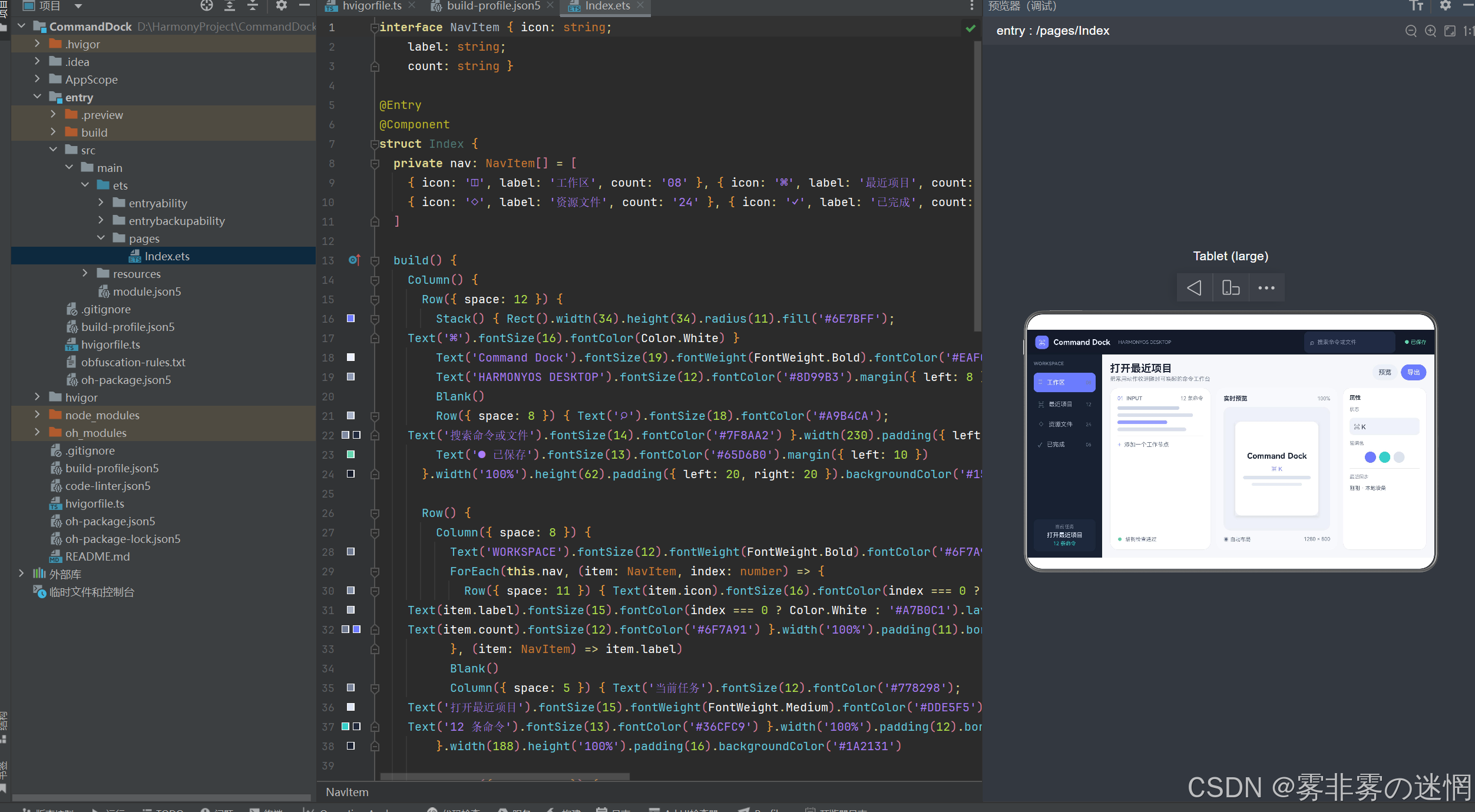
下面是CommandDock当前使用的目录。pages负责左侧是工作区分类,中间显示搜索结果与预览,右侧保留属性和执行反馈,features保存本文展示的业务链路。
CommandDock/
├─ entry/src/main/ets/
│  ├─ pages/Index.ets                 # 首屏与响应式布局
│  ├─ features/FeatureController.ets # 模型、动作和边界
│  ├─ entryability/EntryAbility.ets   # 页面入口与生命周期
│  └─ adapters/                       # 真机能力或数据源接口
├─ entry/src/main/resources/          # 颜色、文字和媒体资源
└─ build-profile.json5                # 工程构建配置
Index.ets只组合界面,FeatureController.ets处理命令条目、关键词索引、稳定选中ID、搜索文本和执行状态。如果后面接入真实设备或网络服务,只需增加适配器并把结果转换成控制器认识的状态。
CommandDock最终把建立命令注册表、实现键盘导航和补充失败和权限反馈连在同一条状态路径中。

作为“人工智能6S店”的官方数字引擎,为AI开发者与企业提供一个覆盖软硬件全栈、一站式门户。
更多推荐



 0
0 0
0- 0


 已为社区贡献3条内容

所有评论(0)