
Application TPC:OpenHarmony ArkTS 实战 用 @ohos/lottie 在鸿蒙原生应用中播放 Lottie 动画
Application TPC:OpenHarmony ArkTS 实战 用 @ohos/lottie 在鸿蒙原生应用中播放 Lottie 动画
欢迎加入 CPF-ApplicationTPC 原生库社区:https://atomgit.com/CPF-ApplicationTPC
库版本:@ohos/lottie v2.0.33 | 验证环境:DevEco Studio 26.0.0 Release | HarmonyOS 7.0.0(API 26) | 模拟器
一、背景与选型
Lottie 是 Airbnb 开源的动画格式与渲染引擎,设计师用 Adobe After Effects 导出 .json 文件,开发者直接渲染,不再手写逐帧动画代码。它已被 Android、iOS、Web 广泛支持,CPF-ApplicationTPC 社区也提供了 @ohos/lottie 供 OpenHarmony ArkTS 应用直接使用。
在做 OpenHarmony 原生应用时,如果直接用 ArkTS 的 animateTo 或属性动画实现复杂 UI 动效,工作量很大且难以与设计稿精确对齐。@ohos/lottie 让你用一个 JSON 文件就能还原设计师交付的矢量动画,同时提供播放控制、速度、方向、颜色叠加、帧跳转等完整 API,是 OpenHarmony 应用动效开发的首选方案。
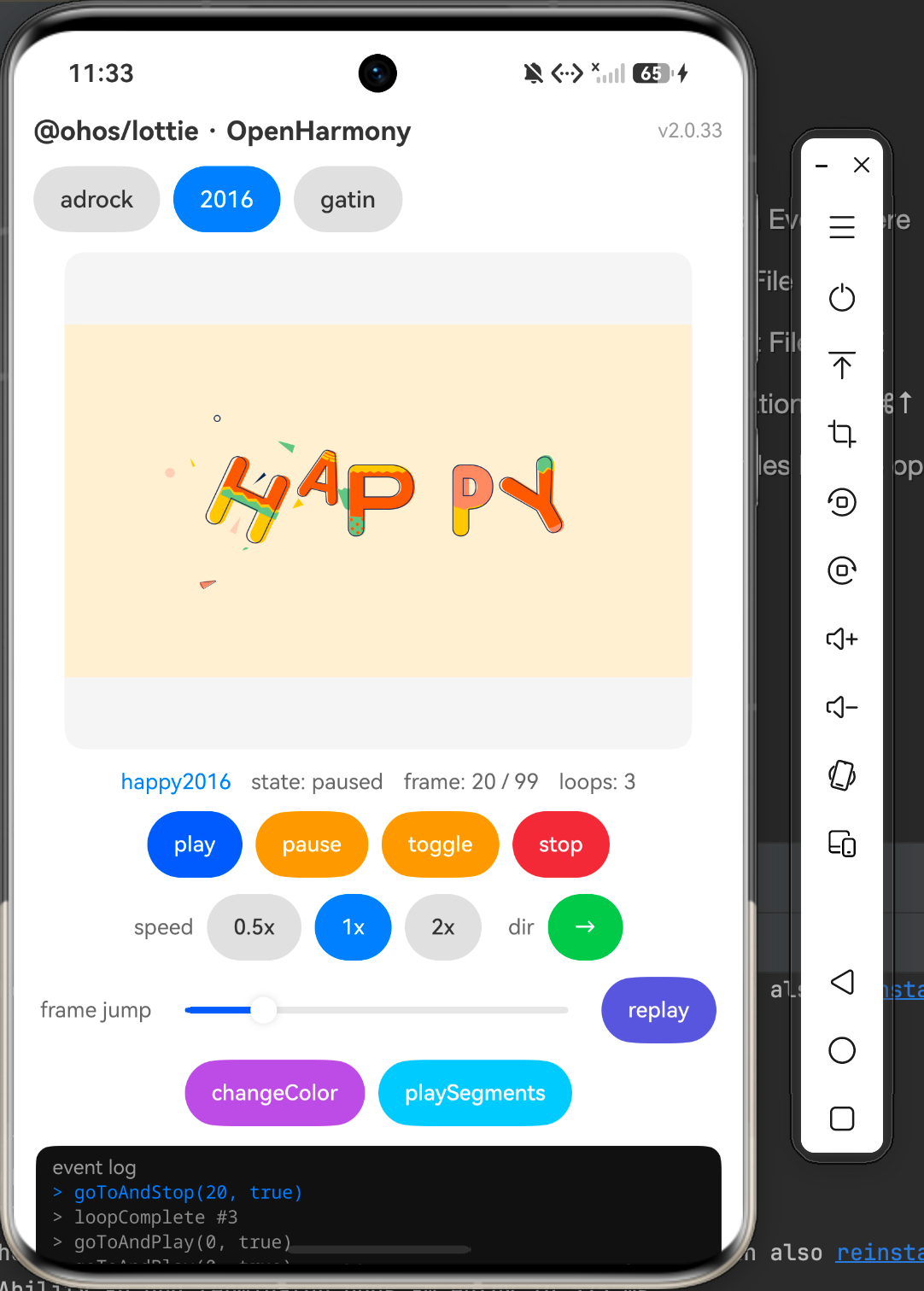
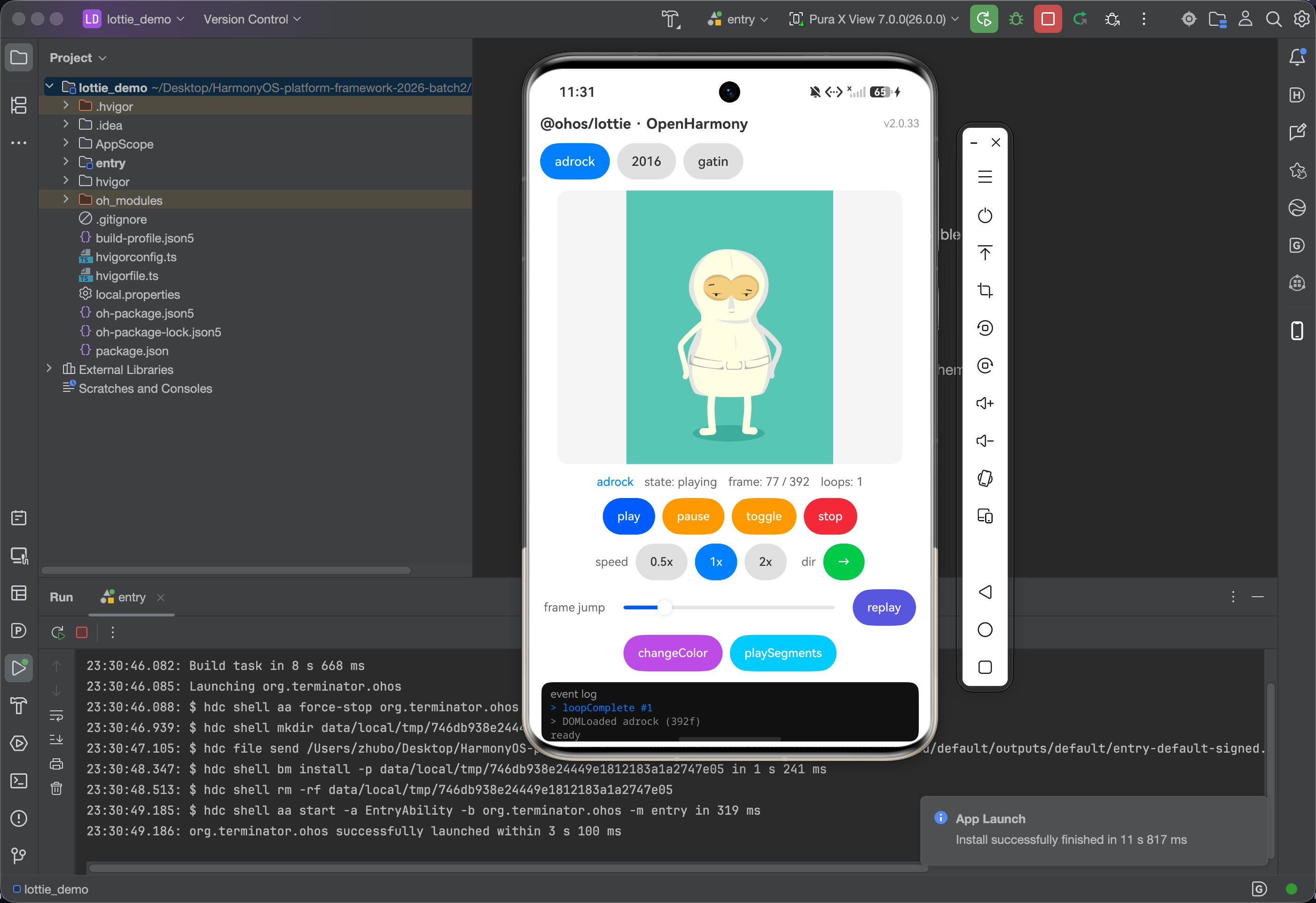
本文介绍如何在 ArkTS 工程里集成 @ohos/lottie,覆盖从依赖引入、Canvas 初始化、动画加载,到播放控制、setSpeed、setDirection、changeColor、playSegments、goToAndPlay 等核心 API 的完整用法,并给出在 OpenHarmony 模拟器上的实测效果截图。
二、环境搭建
DevEco Studio 及 SDK 版本配置参考官方指南,本文不展开:
- DevEco Studio 26.0.0 Release(SDK API 26)
- ohpm 包管理工具(DevEco 内置)
三、功能介绍
@ohos/lottie v2.0.33 基于 Canvas 渲染,核心能力如下:
| API | 作用 |
|---|---|
lottie.loadAnimation(config) | 加载并启动一个动画实例 |
animItem.play() / pause() / stop() | 基本播放控制 |
animItem.togglePause() | 暂停与继续的切换 |
animItem.setSpeed(v) | 设置播放速度(0.5x / 1x / 2x 等) |
animItem.setDirection(1 | -1) | 正向 / 反向播放 |
animItem.goToAndStop(frame, true) | 跳到指定帧并停止 |
animItem.goToAndPlay(frame, true) | 跳到指定帧并继续播放 |
animItem.playSegments([start, end], true) | 只播放帧区间内的片段 |
animItem.changeColor([r, g, b, a]) | 叠加颜色(色彩滤镜效果) |
animItem.getDuration(true) | 获取总帧数 |
animItem.addEventListener(event, cb) | 监听 DOMLoaded / enterFrame / loopComplete / complete |
lottie.destroy(name?) | 销毁动画实例,释放内存 |
四、集成步骤
4.1 安装依赖
在工程 entry/oh-package.json5 中添加依赖:
{
  "dependencies": {
    "@ohos/lottie": "2.0.33"
  }
}
然后在 DevEco Terminal 中执行:
ohpm install
安装成功后 oh_modules/@ohos/lottie 目录出现即可。
4.2 准备动画素材
将 Lottie JSON 文件放到 entry/src/main/ets/common/lottie/ 目录下,例如:
entry/src/main/ets/common/lottie/
  adrock.json      # 滚石动画(约 126 KB)
  happy2016.json   # 粒子动画(约 314 KB)
  gatin.json       # 图标动画(约 37 KB)
Lottie 官方社区 lottiefiles.com 有大量免费素材,Airbnb 的 lottie-web 仓库也附带了多个示例 JSON。
4.3 页面结构
@ohos/lottie 使用 CanvasRenderingContext2D 作为渲染容器,核心结构如下:
import lottie, { AnimationItem, AnimationDirection } from '@ohos/lottie';

@Entry
@Component
struct Index {
  private renderingSettings: RenderingContextSettings = new RenderingContextSettings(true);
  private canvasContext: CanvasRenderingContext2D = new CanvasRenderingContext2D(this.renderingSettings);
  private animateItem: AnimationItem | null = null;

  aboutToDisappear(): void {
    lottie.destroy(); // 页面销毁时释放所有动画,防止内存泄漏
  }

  build() {
    Column() {
      Canvas(this.canvasContext)
        .width('86%')
        .height(300)
        .backgroundColor('#F5F5F5')
        .borderRadius(12)
        .onReady(() => {
          // Canvas 就绪后再加载动画
          this.loadAnimation();
        })
    }
  }
}
注意两点:
RenderingContextSettings(true)开启抗锯齿,动画边缘更平滑。- 必须在
Canvas.onReady回调里调用loadAnimation,在此之前 Canvas 尚未完成初始化,直接调用会导致渲染失败。
4.4 加载动画
private loadAnimation(): void {
  this.animateItem = lottie.loadAnimation({
    container: this.canvasContext,  // Canvas 渲染上下文
    renderer: 'canvas',             // 固定值,OH 仅支持 canvas 渲染
    loop: true,                     // 是否循环
    autoplay: true,                 // 加载完成后自动播放
    name: 'myAnim',                 // 动画名称,用于 destroy 时精确释放
    contentMode: 'Contain',         // 保持宽高比居中显示
    path: 'common/lottie/adrock.json' // 相对于 ets/ 目录的路径
  });
}
path 字段相对于 entry/src/main/ets/ 目录,不需要加前缀 ./。
五、核心 API 用法
5.1 播放控制
// 播放
this.animateItem?.play();

// 暂停
this.animateItem?.pause();

// 暂停/继续切换(适合用一个按钮控制)
this.animateItem?.togglePause();

// 停止(回到第 0 帧)
this.animateItem?.stop();
5.2 速度与方向
// 设置 2 倍速
this.animateItem?.setSpeed(2);

// 反向播放(AnimationDirection = 1 | -1,不能直接用 number 类型)
let d: AnimationDirection = -1;
this.animateItem?.setDirection(d);
setDirection 的参数类型是 AnimationDirection(1 | -1 联合类型),直接传 number 会报 ArkTS 类型错误,需要先声明局部变量:
let d: AnimationDirection = 1;
if (reverseMode) {
  d = -1;
}
this.animateItem?.setDirection(d);
5.3 帧跳转
// 跳到第 30 帧并停止
this.animateItem?.goToAndStop(30, true);  // 第二个参数 true 表示按帧编号

// 跳到第 0 帧并播放(重播)
this.animateItem?.goToAndPlay(0, true);
与 Slider 组合可以实现拖拽预览效果:
Slider({ value: this.sliderValue, min: 0, max: 100 })
  .onChange((value: number, mode: SliderChangeMode) => {
    if (mode === SliderChangeMode.End && this.totalFrames > 0) {
      let frame = Math.floor(value / 100 * this.totalFrames);
      this.animateItem?.goToAndStop(frame, true);
    }
  })
5.4 片段播放
// 只播放前半段
let half = Math.floor(this.totalFrames / 2);
this.animateItem?.playSegments([0, half], true);
第二个参数 true 表示立即生效(false 则等当前循环结���再切换)。
5.5 颜色叠加
// 叠加一个粉色滤镜(r, g, b, alpha)
this.animateItem?.changeColor([255, 150, 203, 0.8]);
颜色叠加基于当前帧重绘,alpha 控制叠加强度,0 = 完全透明(不叠加),1 = 完全覆盖。恢复原色需要重新调用 loadAnimation。
5.6 事件监听
let item = this.animateItem;
if (item === null) return;

// 动画数据加载完成(可在此读取总帧数)
item.addEventListener('DOMLoaded', (): void => {
  this.totalFrames = Math.floor(item.getDuration(true));
  item.setSpeed(this.speedVal);
});

// 每帧回调(用于更新进度条)
item.addEventListener('enterFrame', (args: ESObject): void => {
  this.currentFrame = Math.floor(item.currentFrame);
});

// 每次循环结束
item.addEventListener('loopComplete', (): void => {
  this.loopCount++;
});

// 非循环动画���放结束
item.addEventListener('complete', (): void => {
  this.playState = 'complete';
});
DOMLoaded 是初始化的关键节点,在此之前调用 setSpeed、setDirection 可能无效,建议把这些初始化配置放在 DOMLoaded 回调里执行。
六、完整示例工程
将以上能力整合成一个可直接运行的演示页面,支持三个不同的 Lottie 动画切换,以及所有 API 的交互控制:
import lottie, { AnimationItem, AnimationDirection } from '@ohos/lottie';

interface AnimDef {
  name: string;
  path: string;
  label: string;
}

@Entry
@Component
struct Index {
  @State currentAnim: number = 0;
  @State playState: string = 'idle';
  @State frameText: string = '- / -';
  @State loopCount: number = 0;
  @State speedVal: number = 1;
  @State dirForward: boolean = true;
  @State totalFrames: number = 0;
  @State sliderValue: number = 0;
  @State colorTinted: boolean = false;
  @State logs: string[] = ['ready'];

  private anims: AnimDef[] = [
    { name: 'adrock',    path: 'common/lottie/adrock.json',    label: 'adrock' },
    { name: 'happy2016', path: 'common/lottie/happy2016.json', label: '2016'   },
    { name: 'gatin',     path: 'common/lottie/gatin.json',     label: 'gatin'  }
  ];
  private animateItem: AnimationItem | null = null;
  private renderingSettings: RenderingContextSettings = new RenderingContextSettings(true);
  private canvasContext: CanvasRenderingContext2D = new CanvasRenderingContext2D(this.renderingSettings);

  aboutToDisappear(): void {
    lottie.destroy();
  }

  private pushLog(s: string): void {
    let next: string[] = [`> ${s}`];
    for (let i = 0; i < this.logs.length && i < 7; i++) {
      next.push(this.logs[i]);
    }
    this.logs = next;
  }

  private loadCurrent(): void {
    let def = this.anims[this.currentAnim];
    lottie.destroy(def.name);
    this.animateItem = lottie.loadAnimation({
      container: this.canvasContext,
      renderer: 'canvas',
      loop: true,
      autoplay: true,
      name: def.name,
      contentMode: 'Contain',
      path: def.path
    });
    this.playState = 'loading';
    this.loopCount = 0;
    this.colorTinted = false;
    this.sliderValue = 0;
    let item = this.animateItem;
    if (item === null) return;

    item.addEventListener('DOMLoaded', (): void => {
      this.totalFrames = Math.floor(item.getDuration(true));
      this.frameText = `0 / ${this.totalFrames}`;
      this.playState = 'playing';
      this.pushLog(`DOMLoaded ${def.name} (${this.totalFrames}f)`);
      item.setSpeed(this.speedVal);
      let d: AnimationDirection = 1;
      if (!this.dirForward) { d = -1; }
      item.setDirection(d);
    });
    item.addEventListener('enterFrame', (_args: ESObject): void => {
      let frame = Math.floor(item.currentFrame);
      this.frameText = `${frame} / ${this.totalFrames}`;
      this.sliderValue = this.totalFrames > 0 ? Math.floor(frame / this.totalFrames * 100) : 0;
    });
    item.addEventListener('loopComplete', (): void => {
      this.loopCount++;
      this.pushLog(`loopComplete #${this.loopCount}`);
    });
    item.addEventListener('complete', (): void => {
      this.playState = 'complete';
      this.pushLog('complete');
    });
  }

  build() {
    Column() {
      // 标题
      Row() {
        Text('@ohos/lottie · OpenHarmony')
          .fontSize(16).fontWeight(FontWeight.Bold).fontColor('#333333').layoutWeight(1)
        Text('v2.0.33').fontSize(12).fontColor('#999999')
      }.width('100%').padding(12)

      // 动画切换
      Row({ space: 8 }) {
        ForEach(this.anims, (def: AnimDef, idx: number) => {
          Button(def.label)
            .fontSize(14)
            .backgroundColor(idx === this.currentAnim ? '#007DFF' : '#E0E0E0')
            .fontColor(idx === this.currentAnim ? '#FFFFFF' : '#333333')
            .onClick(() => {
              if (this.currentAnim === idx) return;
              this.currentAnim = idx;
              this.loadCurrent();
            })
        }, (def: AnimDef) => def.name)
      }.width('100%').padding({ left: 12, right: 12 })

      // Canvas 画布
      Column() {
        Canvas(this.canvasContext)
          .width('86%').height(300)
          .backgroundColor('#F5F5F5').borderRadius(12)
          .onReady(() => {
            this.canvasContext.imageSmoothingEnabled = true;
            this.canvasContext.imageSmoothingQuality = 'medium';
            this.loadCurrent();
          })
      }.width('100%').margin({ top: 12, bottom: 12 })

      // 状态行
      Row({ space: 12 }) {
        Text(this.anims[this.currentAnim].name).fontSize(13).fontColor('#007DFF')
        Text(`state: ${this.playState}`).fontSize(13).fontColor('#666666')
        Text(`frame: ${this.frameText}`).fontSize(13).fontColor('#666666')
        Text(`loops: ${this.loopCount}`).fontSize(13).fontColor('#666666')
      }.width('100%').justifyContent(FlexAlign.Center)

      // 播放控制
      Row({ space: 8 }) {
        Button('play').fontSize(13).onClick(() => {
          this.animateItem?.play(); this.playState = 'playing'; this.pushLog('play()');
        })
        Button('pause').fontSize(13).backgroundColor('#FF9F0A').onClick(() => {
          this.animateItem?.pause(); this.playState = 'paused'; this.pushLog('pause()');
        })
        Button('toggle').fontSize(13).backgroundColor('#FF9F0A').onClick(() => {
          this.animateItem?.togglePause();
          this.playState = this.playState === 'playing' ? 'paused' : 'playing';
          this.pushLog('togglePause()');
        })
        Button('stop').fontSize(13).backgroundColor('#E04040').onClick(() => {
          this.animateItem?.stop(); this.playState = 'stopped'; this.pushLog('stop()');
        })
      }.width('100%').justifyContent(FlexAlign.Center).margin({ top: 10 })

      // 速度与方向
      Row({ space: 8 }) {
        Text('speed').fontSize(13).fontColor('#666666')
        ForEach([0.5, 1, 2], (v: number) => {
          Button(`${v}x`)
            .fontSize(13)
            .backgroundColor(this.speedVal === v ? '#007DFF' : '#E0E0E0')
            .fontColor(this.speedVal === v ? '#FFFFFF' : '#333333')
            .onClick(() => {
              this.speedVal = v; this.animateItem?.setSpeed(v); this.pushLog(`setSpeed(${v})`);
            })
        }, (v: number) => v.toString())
        Text('dir').fontSize(13).fontColor('#666666').margin({ left: 8 })
        Button(this.dirForward ? '→' : '←')
          .fontSize(13).backgroundColor('#34C759')
          .onClick(() => {
            this.dirForward = !this.dirForward;
            let d: AnimationDirection = 1;
            if (!this.dirForward) { d = -1; }
            this.animateItem?.setDirection(d);
            this.pushLog(`setDirection(${d})`);
          })
      }.width('100%').justifyContent(FlexAlign.Center).margin({ top: 10 })

      // 帧跳转 Slider
      Row({ space: 10 }) {
        Text('frame jump').fontSize(13).fontColor('#666666')
        Slider({ value: this.sliderValue, min: 0, max: 100, style: SliderStyle.OutSet })
          .layoutWeight(1)
          .onChange((value: number, mode: SliderChangeMode) => {
            if (this.totalFrames <= 0 || this.animateItem === null) return;
            if (mode === SliderChangeMode.End) {
              let frame = Math.floor(value / 100 * this.totalFrames);
              this.animateItem.goToAndStop(frame, true);
              this.playState = 'paused';
              this.pushLog(`goToAndStop(${frame}, true)`);
            }
          })
        Button('replay').fontSize(13).backgroundColor('#5856D6').onClick(() => {
          this.animateItem?.goToAndPlay(0, true);
          this.playState = 'playing';
          this.pushLog('goToAndPlay(0, true)');
        })
      }.width('100%').padding({ left: 16, right: 16 }).margin({ top: 10 })

      // 变色 / 片段播放
      Row({ space: 8 }) {
        Button(this.colorTinted ? 'reset color' : 'changeColor')
          .fontSize(13)
          .backgroundColor(this.colorTinted ? '#8E8E93' : '#AF52DE')
          .onClick(() => {
            if (this.colorTinted) {
              this.loadCurrent(); this.pushLog('reload → color restored');
            } else {
              this.animateItem?.changeColor([255, 150, 203, 0.8]);
              this.colorTinted = true;
              this.pushLog('changeColor([255,150,203,0.8])');
            }
          })
        Button('playSegments')
          .fontSize(13).backgroundColor('#5AC8FA')
          .onClick(() => {
            let half = Math.floor(this.totalFrames / 2);
            this.animateItem?.playSegments([0, half], true);
            this.playState = 'playing';
            this.pushLog(`playSegments([0,${half}], true)`);
          })
      }.width('100%').justifyContent(FlexAlign.Center).margin({ top: 10 })

      // 事件日志
      Column() {
        Text('event log').fontSize(12).fontColor('#999999').width('100%').padding({ left: 10, top: 6 })
        ForEach(this.logs, (line: string, idx: number) => {
          Text(line)
            .fontSize(11)
            .fontColor(idx === 0 ? '#007DFF' : '#8A8A8A')
            .fontFamily('monospace')
            .width('100%')
            .padding({ left: 10 })
        }, (line: string, idx: number) => `${idx}-${line}`)
      }
      .width('94%').backgroundColor('#111111').borderRadius(10)
      .alignItems(HorizontalAlign.Start)
      .margin({ top: 12, bottom: 20 })
    }
    .width('100%').height('100%').backgroundColor('#FFFFFF')
  }
}
七、运行效果(模拟器实测)
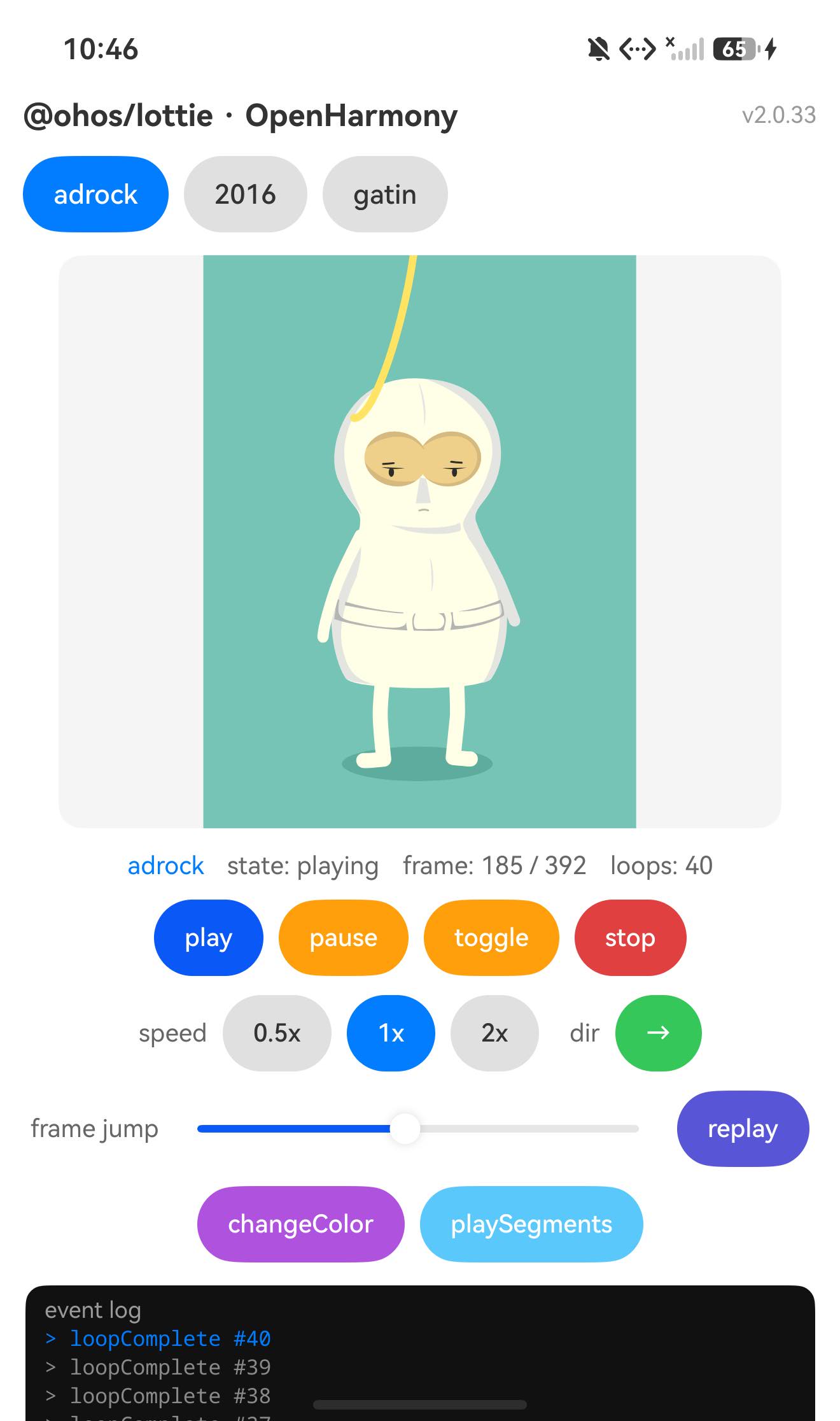
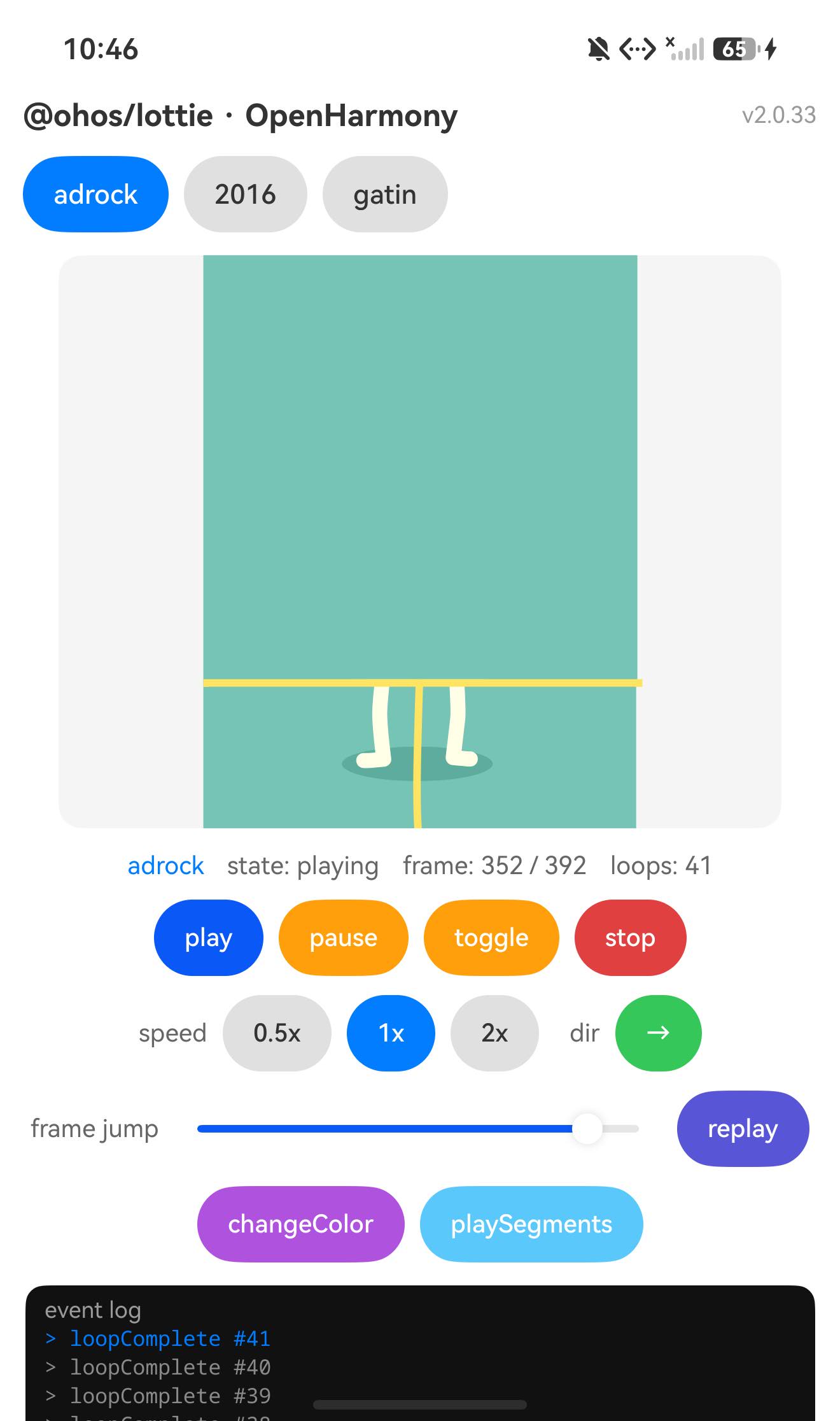
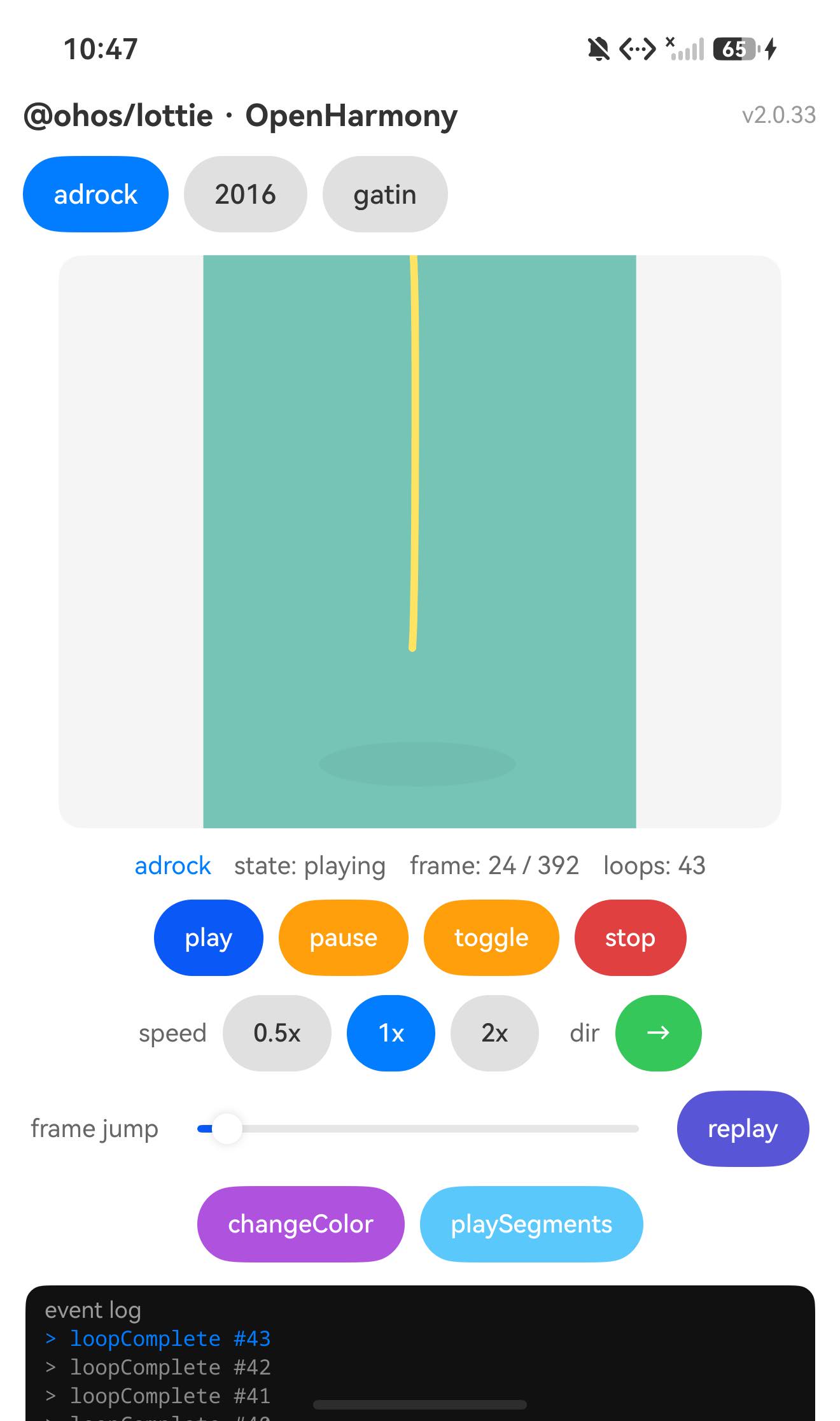
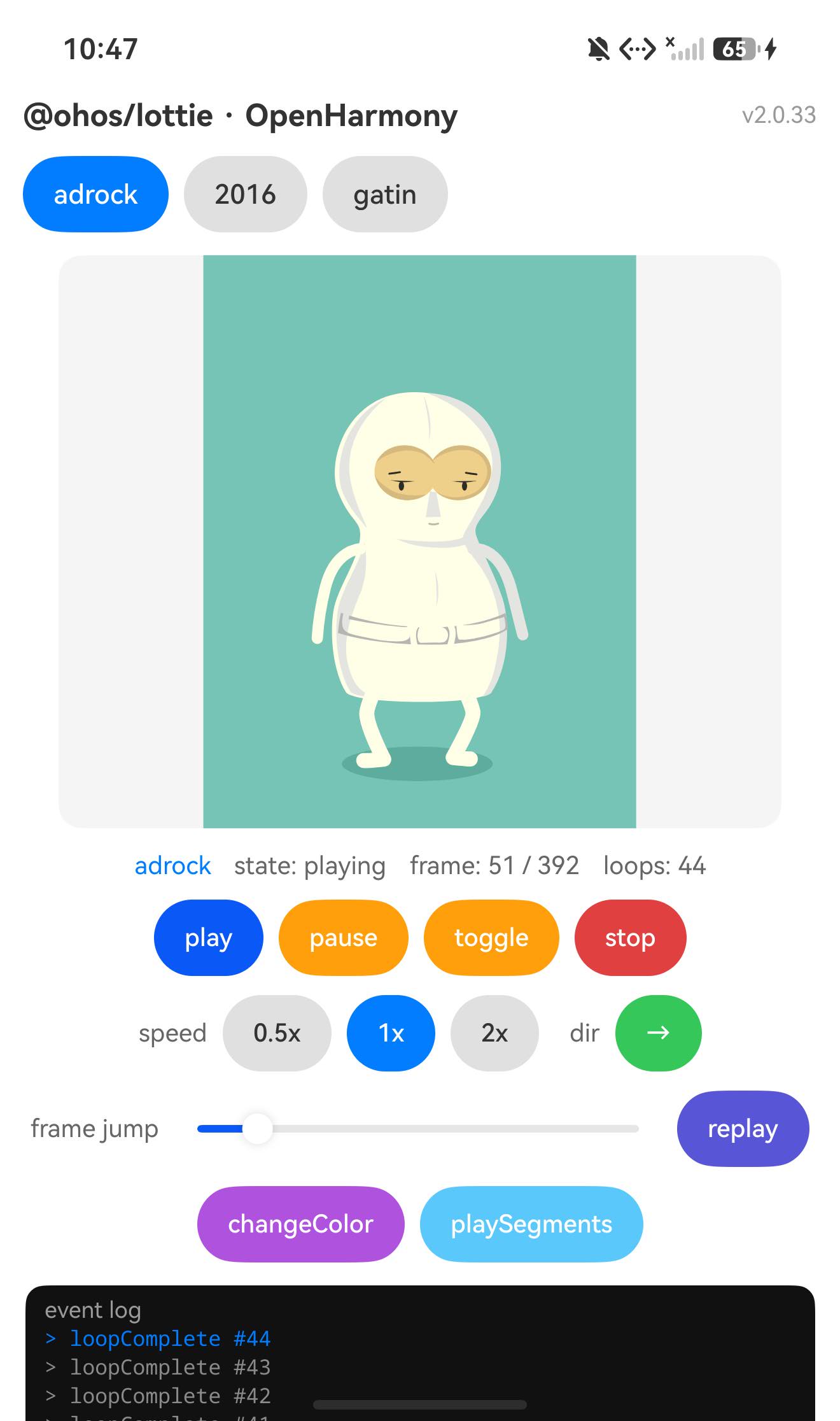
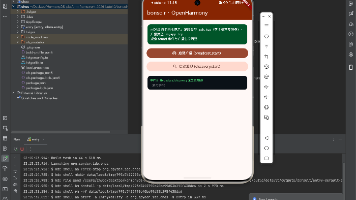
adrock 动画 — 自动播放
adrock.json 加载后自动开始播放。底部事件日志区显示 DOMLoaded adrock (总帧数f),状态栏实时更新当前帧号与循环次数。
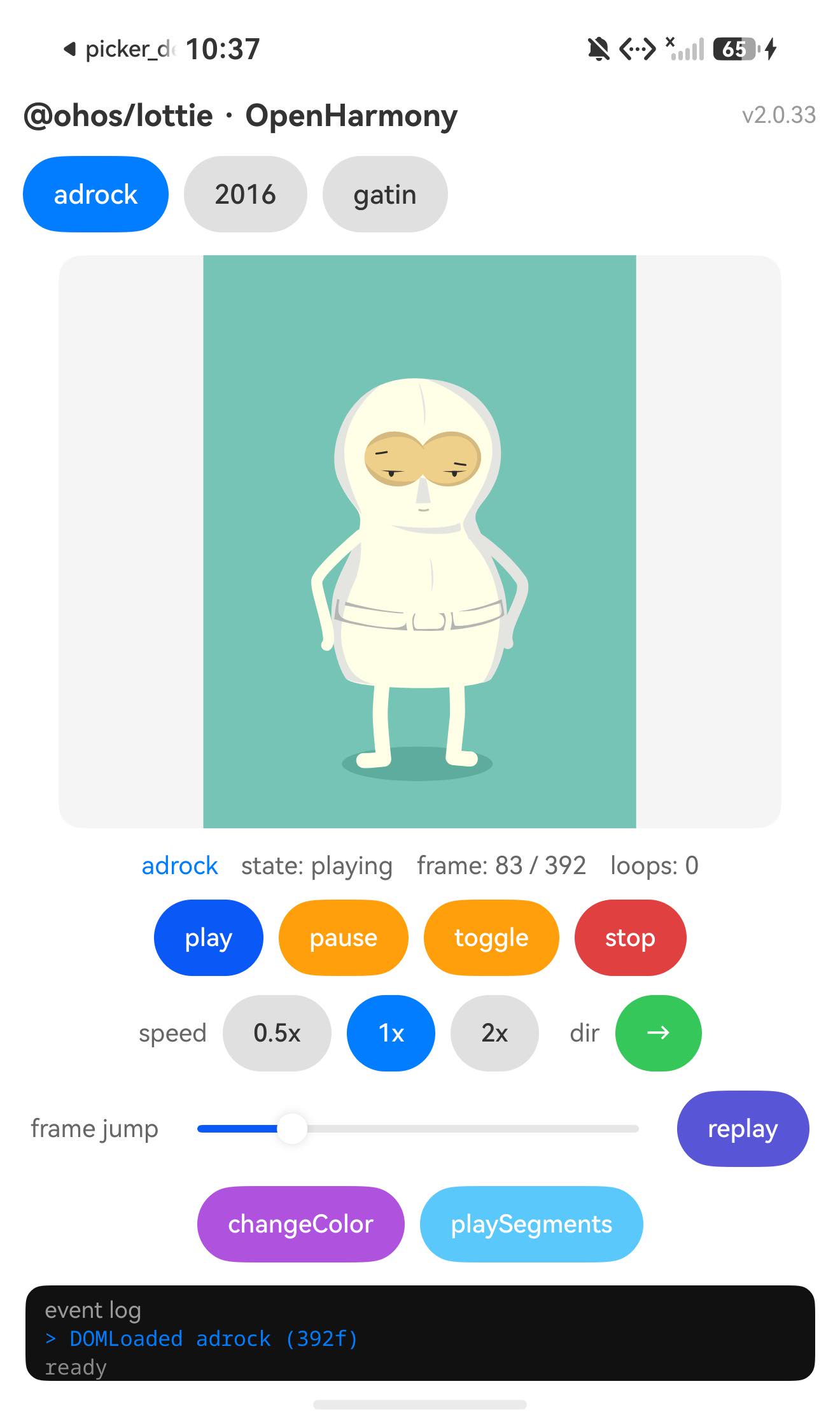
adrock 动画自动播放,状态行显示 state: playing,事件日志记录 DOMLoaded adrock 与每次 loopComplete 事件
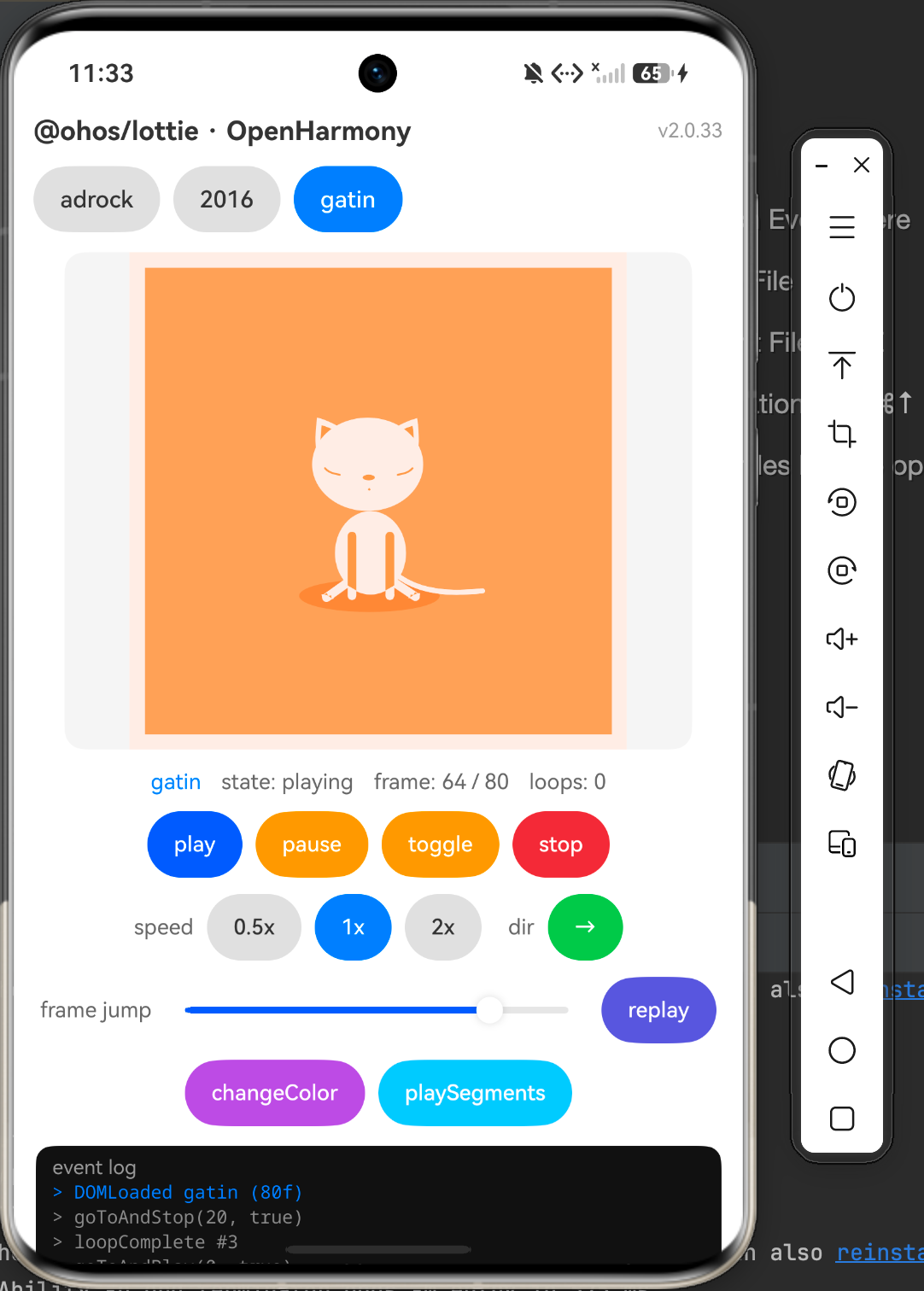
gatin 动画 — 切换动画
点击顶部 gatin 按钮后,原动画实例通过 lottie.destroy('gatin') 释放,新动画立即加载渲染。
切换到 gatin 动画,顶部按钮高亮变为蓝色,Canvas 渲染新动画内容,日志同步更新
速度调节 + 事件日志
点击 2x 速度按钮后调用 setSpeed(2),动画加速播放,日志区记录每一个操作调用。
speed 区域 2x 按钮高亮,日志区出现 > setSpeed(2) 及多条 loopComplete 记录,实时帧号持续更新
changeColor 颜色叠加
点击 changeColor 按钮后调用 changeColor([255, 150, 203, 0.8]),动画整体叠加粉色滤镜效果。
Canvas 中动画叠加粉色(RGBA 255,150,203,0.8),按钮文字变为 reset color,日志记录 changeColor 调用
pause 暂停 + 事件日志
点击 pause 后动画停在当前帧,日志记录 pause() 操作。
状态行 state: paused,帧号冻结,底部黑色日志区显示完整操作序列
八、常见问题
Q1:Canvas 加载后动画不渲染,画布一片空白?
99% 是在 onReady 回调之前调用了 loadAnimation。必须等 Canvas 的 onReady 触发后再初始化,否则 canvasContext 尚未与 Canvas 组件绑定。
Q2:切换动画后旧动画还在继续?
每次切换前要调用 lottie.destroy(name) 或 lottie.destroy() 销毁已有实例,否则多个动画实例会同时向同一个 Canvas 渲染。
Q3:setDirection 报 ArkTS 类型错误 Argument is not assignable to AnimationDirection?
不能直接把 number 类型变量传入,需要声明 let d: AnimationDirection = 1; 或 let d: AnimationDirection = -1; 再传入,利用 ArkTS 字面量类型缩窄。
Q4:aboutToDisappear 里不调用 lottie.destroy() 会怎样?
动画实例持续持有 Canvas 引用和定时器,页面销毁后不销毁会内存泄漏,长时间运行可能引起帧率下降。
Q5:changeColor 只叠加颜色,能否精确改某个图层的颜色?
changeColor 是全局颜色叠加,不区分图层。如果需要精确的图层颜色控制,需要在 After Effects 导出时为目标图层使用独立的颜色标记(lottie 的 segments 或 layerName 方案),然后结合 animItem.renderer 底层 API 操作,复杂度较高。
Q6:动画 JSON 文件能放到 resources/rawfile 而不是 ets/ 目录下吗?
当前 @ohos/lottie v2.0.33 的 path 字段解析相对于 ets/ 目录,将 JSON 放到 rawfile 需要通过 resourceManager.getRawFileContent 先读取再传给 loadAnimation 的 animationData 字段(替代 path),接口是支持的。
九、总结
@ohos/lottie v2.0.33 在 OpenHarmony ArkTS 工程里集成流程简洁:ohpm install 安装依赖,Canvas 的 onReady 回调中调用 loadAnimation,即可在鸿蒙设备上渲染 Lottie 动画。完整的播放控制(play/pause/stop/togglePause)、速度(setSpeed)、方向(setDirection)、帧跳转(goToAndStop/goToAndPlay)、片段播放(playSegments)、颜色叠加(changeColor)以及四类事件监听(DOMLoaded/enterFrame/loopComplete/complete)均已在模拟器上验证可用。
对于需要展示复杂矢量动效的 OpenHarmony 原生应用,@ohos/lottie 是目前最成熟的方案,设计师只需交付标准 Lottie JSON,开发侧无需任何手写逐帧逻辑。
参考资料
- CPF-ApplicationTPC 社区:https://atomgit.com/CPF-ApplicationTPC
- @ohos/lottie 包主页:https://ohpm.openharmony.cn/#/cn/detail/@ohos%2Flottie
- Lottie 官方动画素材库:https://lottiefiles.com
- AI 编程助手推荐(码道):https://developer.huaweicloud.com/codeartsco.html?source=dmzntgwatomgit1&sourcead=dmzntgwatomgiths

作为“人工智能6S店”的官方数字引擎,为AI开发者与企业提供一个覆盖软硬件全栈、一站式门户。
更多推荐


 0
0 0
0- 0



 已为社区贡献276条内容

所有评论(0)