
HarmonyOS鸿蒙实战应用7:随手账本——数据导出与分享
·
引言
记账的目的是分析和分享。本篇实现:将账单数据导出为 CSV 文件、一键分享给他人、生成数据报告。
一、导出为 CSV
CSV 格式通用性好,Excel 和 WPS 都能直接打开。
1.1 生成CSV数据
// utils/ExportUtil.ts
import fs from '@ohos.file.fs';
import { BillItem, BillType } from '../model/BillItem';

function billsToCSV(bills: BillItem[]): string {
  const header = '日期,类型,分类,金额,备注\n';
  const rows = bills
    .sort((a, b) => b.date.localeCompare(a.date))
    .map(b => {
      const type = b.type === BillType.EXPENSE ? '支出' : '收入';
      return `${b.date},${type},${b.category},${b.amount.toFixed(2)},"${b.note}"`;
    })
    .join('\n');

  return header + rows;
}
1.2 写入文件
async function exportToFile(context: Context, bills: BillItem[]): Promise<string> {
  const csvContent = billsToCSV(bills);

  // 生成文件名(包含日期)
  const now = new Date();
  const dateStr = `${now.getFullYear()}${String(now.getMonth()+1).padStart(2,'0')}${String(now.getDate()).padStart(2,'0')}`;
  const fileName = `随手账本_${dateStr}.csv`;

  // 写入沙箱
  const filePath = `${context.filesDir}/${fileName}`;
  let file: fs.File | null = null;
  try {
    file = fs.openSync(filePath, fs.OpenMode.CREATE | fs.OpenMode.WRITE_ONLY);
    fs.writeSync(file.fd, csvContent);
    return filePath;
  } finally {
    if (file) fs.closeSync(file);
  }
}
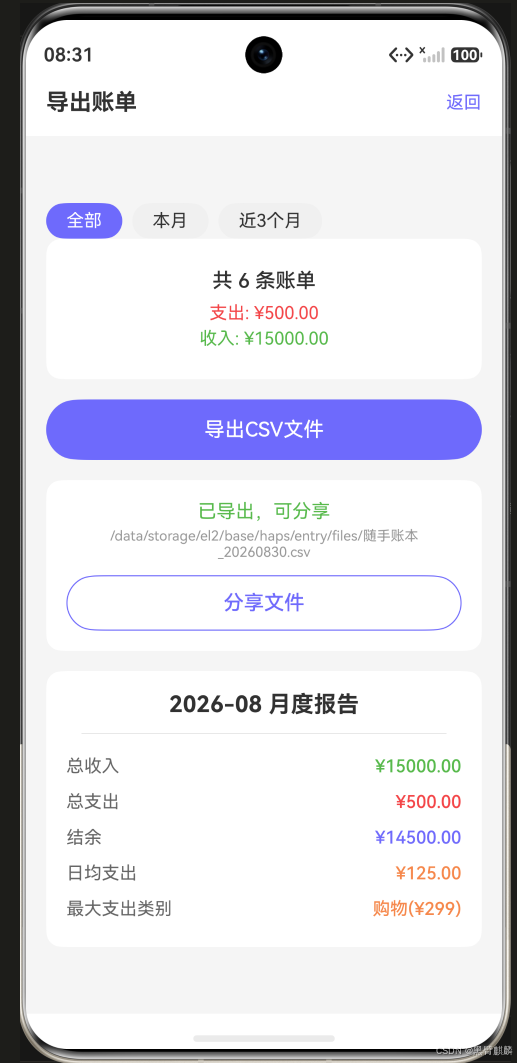
导出成功——文件写入沙箱 filesDir,页面显示完整路径与分享按钮:
二、导出页面
// pages/ExportPage.ets
@Entry
@Component
struct ExportPage {
  @State bills: BillItem[] = [];
  @State exporting: boolean = false;
  @State exportPath: string = '';
  @State dateRange: string = '全部';

  aboutToAppear() {
    this.loadBills();
  }

  build() {
    Column() {
      // 标题
      Text('导出账单')
        .fontSize(20)
        .fontWeight(FontWeight.Bold)
        .width('100%')
        .padding(16)

      // 导出范围
      Row() {
        this.DateRangeChip('全部')
        this.DateRangeChip('本月')
        this.DateRangeChip('近3个月')
      }
      .width('100%')
      .padding({ left: 16, right: 16 })

      // 导出信息
      Column() {
        Text(`共 ${this.bills.length} 条账单`)
          .fontSize(16)
        Text(`支出: ¥${this.getTotalExpense().toFixed(2)}`)
          .fontColor('#FF4444')
        Text(`收入: ¥${this.getTotalIncome().toFixed(2)}`)
          .fontColor('#44BB44')
      }
      .width('100%')
      .padding(24)
      .alignItems(HorizontalAlign.Center)

      // 导出按钮
      Button(this.exporting ? '导出中...' : '导出CSV文件')
        .width('90%')
        .height(48)
        .backgroundColor('#6C63FF')
        .fontColor(Color.White)
        .borderRadius(24)
        .enabled(!this.exporting)
        .onClick(() => this.doExport())

      // 导出成功提示
      if (this.exportPath) {
        Column() {
          Text('✅ 导出成功!')
            .fontSize(16)
            .fontColor('#44BB44')
          Text(this.exportPath)
            .fontSize(12)
            .fontColor('#999')
        }
        .padding(16)
      }
    }
    .width('100%')
    .height('100%')
    .backgroundColor('#F5F5F5')
  }

  private async doExport() {
    this.exporting = true;
    try {
      this.exportPath = await exportToFile(getContext(this), this.bills);
    } catch (e) {
      AlertDialog.show({ message: '导出失败: ' + e.message });
    }
    this.exporting = false;
  }
}
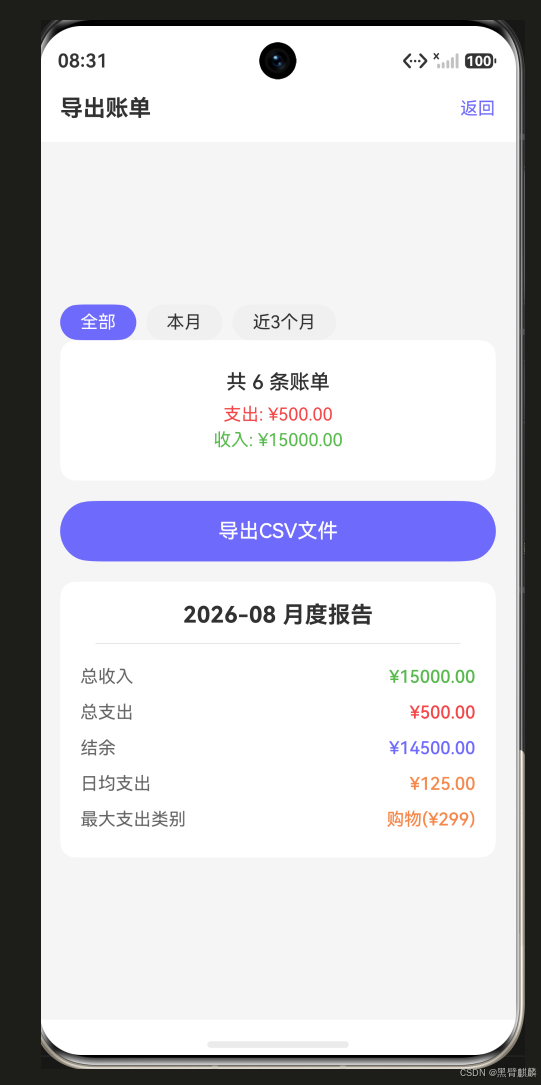
导出页实际效果——范围选择(全部/本月/近3个月)、数据统计与月度报告同屏展示:
三、分享文件
import { common } from '@kit.AbilityKit';

async function shareFile(context: Context, filePath: string) {
  const context2 = context as common.UIAbilityContext;

  await context2.startAbility({
    bundleName: 'com.huawei.hmos.share',
    abilityName: 'ShareAbility',
    parameters: {
      'shareType': 'file',
      'filePath': filePath,
      'title': '分享账单文件'
    }
  });
}

// 在导出页面中调用
Button('分享文件')
  .width('90%')
  .height(48)
  .backgroundColor(Color.White)
  .fontColor('#6C63FF')
  .borderColor('#6C63FF')
  .borderWidth(1)
  .borderRadius(24)
  .onClick(() => shareFile(getContext(this), this.exportPath))
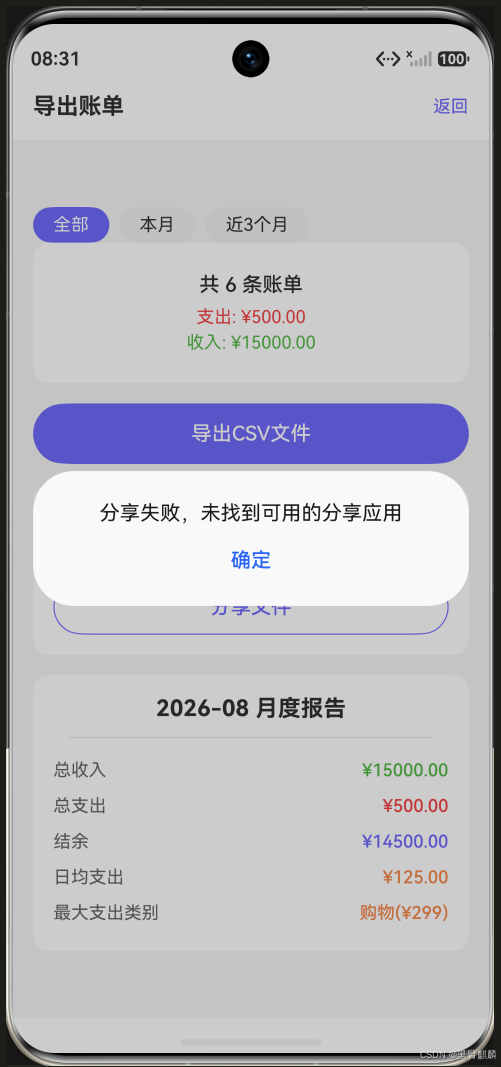
模拟器上没有可用的分享应用,点击"分享文件"会弹出失败提示——这是预期行为,真机上会拉起系统分享面板:
四、生成数据报告
除了CSV,还可以生成图文报告:
// utils/ReportUtil.ts
import { BillItem, BillType } from '../model/BillItem';

interface MonthReport {
  month: string;
  income: number;
  expense: number;
  categories: Record<string, number>;
  topExpense: string;
  dailyAvg: number;
}

function generateReport(bills: BillItem[], month: string): MonthReport {
  const monthBills = bills.filter(b => b.date.startsWith(month));
  const income = monthBills.filter(b => b.type === BillType.INCOME)
    .reduce((s, b) => s + b.amount, 0);
  const expense = monthBills.filter(b => b.type === BillType.EXPENSE)
    .reduce((s, b) => s + b.amount, 0);

  // 按分类汇总支出
  const categoryMap: Record<string, number> = {};
  for (const b of monthBills.filter(b => b.type === BillType.EXPENSE)) {
    categoryMap[b.category] = (categoryMap[b.category] || 0) + b.amount;
  }

  // 找出最大支出类别
  const topCategory = Object.entries(categoryMap)
    .sort((a, b) => b[1] - a[1])[0];

  // 计算日均支出
  const days = new Set(monthBills.filter(b => b.type === BillType.EXPENSE).map(b => b.date)).size;

  return {
    month,
    income,
    expense,
    categories: categoryMap,
    topExpense: topCategory ? `${topCategory[0]}($${topCategory[1].toFixed(0)})` : '无',
    dailyAvg: days > 0 ? expense / days : 0
  };
}
报告在页面中的展示:
@Builder
MonthReportView(report: MonthReport) {
  Column() {
    Text(`${report.month} 月度报告`)
      .fontSize(18)
      .fontWeight(FontWeight.Bold)

    Divider().margin(12)

    // 收支概况
    this.ReportRow('总收入', `¥${report.income.toFixed(2)}`, '#44BB44')
    this.ReportRow('总支出', `¥${report.expense.toFixed(2)}`, '#FF4444')
    this.ReportRow('结余', `¥${(report.income - report.expense).toFixed(2)}`, '#6C63FF')
    this.ReportRow('日均支出', `¥${report.dailyAvg.toFixed(2)}`, '#FF8844')
    this.ReportRow('最大支出类别', report.topExpense, '#FF8844')
  }
  .width('100%')
  .padding(16)
  .backgroundColor(Color.White)
  .borderRadius(12)
}
五、数据导入
导出有了,再补一个导入(从CSV恢复数据):
async function importFromCSV(context: Context, fileUri: string): Promise<number> {
  const content = fs.readTextSync(fileUri);
  const lines = content.split('\n')
    .filter(line => line.trim().length > 0);

  let imported = 0;
  for (let i = 1; i < lines.length; i++) { // 跳过表头
    const parts = lines[i].split(',');
    if (parts.length < 4) continue;

    try {
      const bill = {
        type: parts[1] === '收入' ? BillType.INCOME : BillType.EXPENSE,
        category: parts[2] as BillCategory,
        amount: parseFloat(parts[3]),
        note: parts[4]?.replace(/"/g, '') || '',
        date: parts[0]
      };
      persistentStore.add(bill);
      imported++;
    } catch (e) {
      console.error('导入失败行:', i + 1, e.message);
    }
  }
  return imported;
}
总结
本篇实现了:
- CSV导出:通用格式,Excel/WPS直接打开
- 文件分享:调用系统分享能力
- 月度报告:自动生成收支分析
- 数据导入:CSV反向恢复数据
下篇实现暗色模式与主题切换功能。

作为“人工智能6S店”的官方数字引擎,为AI开发者与企业提供一个覆盖软硬件全栈、一站式门户。
更多推荐



 0
0 0
0- 0


 已为社区贡献12条内容

所有评论(0)