
Harmony鸿蒙实战应用4:随手账本——编辑与删除账单
·
引言
有新增就要有编辑和删除。本篇实现:点击账单卡片进入编辑页、修改后保存、删除带二次确认。
一、编辑功能
1.1 编辑页面
编辑页与新增页共用布局,区别是编辑页预填已有数据:
// pages/EditBillPage.ets
import { BillItem, BillType, BillCategory } from '../model/BillItem';
import { billStore } from '../store/BillStore';
import router from '@ohos.router';

@Entry
@Component
struct EditBillPage {
  @State billId: string = '';
  @State billType: BillType = BillType.EXPENSE;
  @State amount: string = '';
  @State selectedCategory: BillCategory = BillCategory.FOOD;
  @State categories: BillCategory[] = ['餐饮', '交通', '购物', '娱乐', '住房', '其他'] as BillCategory[];
  @State note: string = '';
  @State billDate: string = '';

  aboutToAppear() {
    // 从路由参数获取账单ID
    const params = router.getParams() as Record<string, string>;
    const id = params['id'];

    // 查找账单并预填
    const bill = billStore.getById(id);
    if (bill) {
      this.billId = bill.id;
      this.billType = bill.type;
      this.amount = bill.amount.toString();
      this.selectedCategory = bill.category;
      this.note = bill.note;
      this.billDate = bill.date;
      this.loadCategories();
    }
  }

  private saveEdit() {
    const amountNum = parseFloat(this.amount);
    if (isNaN(amountNum) || amountNum <= 0) {
      AlertDialog.show({ message: '请输入有效金额' });
      return;
    }

    billStore.update(this.billId, {
      type: this.billType,
      category: this.selectedCategory,
      amount: amountNum,
      note: this.note,
      date: this.billDate
    });

    router.back();
  }

  // ... 其余 UI 与新增页相同
}
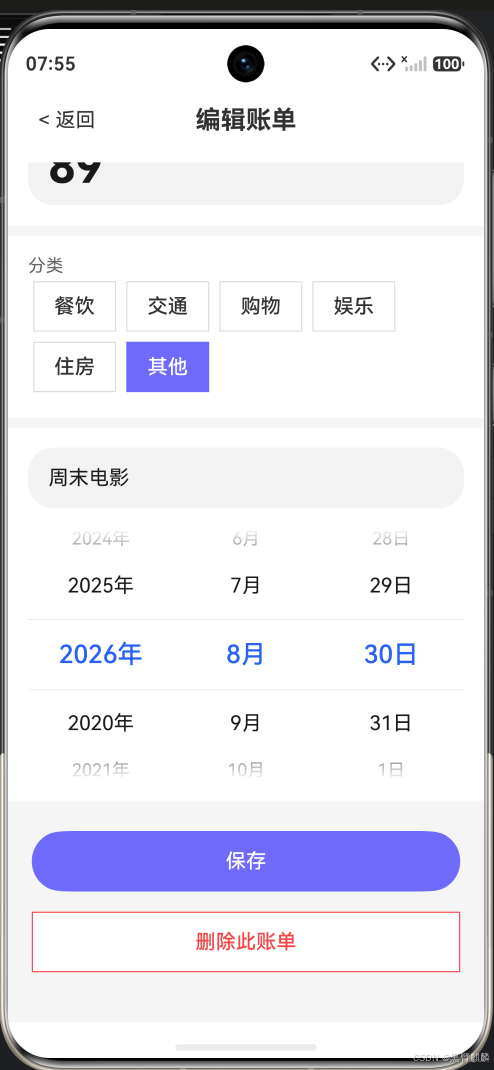
编辑页实际效果——路由传参后自动预填数据(金额/分类/备注/日期),底部提供保存与删除按钮:
1.2 路由传参
从首页点击卡片跳转到编辑页:
// 在 BillCard 组件中添加点击事件
@Builder
BillCard({ bill }: { bill: BillItem }) {
  Row() {
    // ...卡片内容
  }
  .onClick(() => {
    router.pushUrl({
      url: 'pages/EditBillPage',
      params: { id: bill.id }
    });
  })
}
1.3 BillStore 添加 getById 方法
// store/BillStore.ts 追加
getById(id: string): BillItem | undefined {
  return this.bills.find(b => b.id === id);
}
二、删除功能
2.1 删除按钮 + 二次确认
// 在编辑页底部添加删除按钮
@Builder
DeleteButton() {
  Button('删除此账单')
    .width('90%')
    .height(48)
    .backgroundColor(Color.White)
    .fontColor('#FF4444')
    .borderColor('#FF4444')
    .borderWidth(1)
    .borderRadius(24)
    .margin({ top: 16, bottom: 40 })
    .onClick(() => {
      this.showDeleteConfirm();
    })
}

private showDeleteConfirm() {
  AlertDialog.show({
    title: '确认删除',
    message: '删除后不可恢复,确定要删除此账单吗?',
    primaryButton: {
      value: '取消',
      action: () => {}
    },
    secondaryButton: {
      value: '确认删除',
      fontColor: '#FF4444',
      action: () => {
        billStore.delete(this.billId);
        router.back();
      }
    },
    cancel: () => {}
  });
}
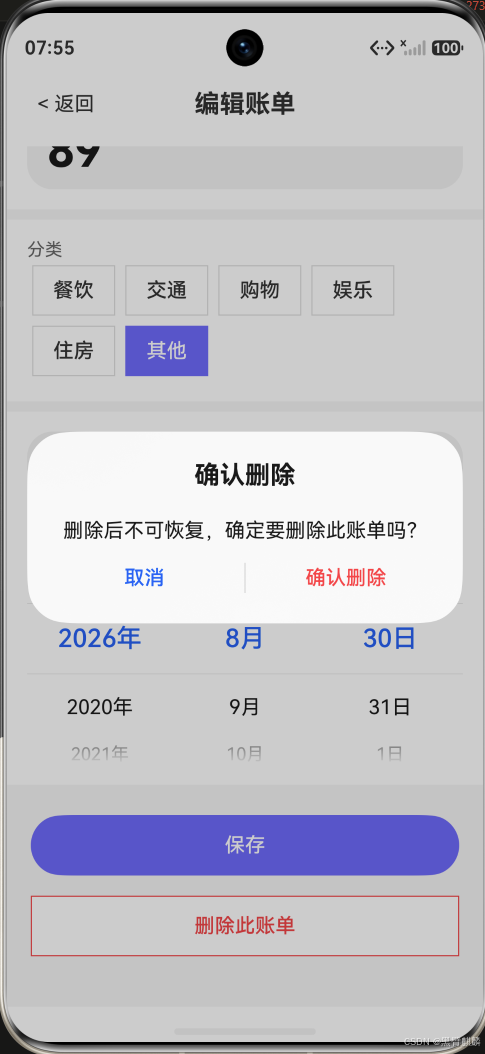
点击"删除此账单"弹出二次确认对话框,防止误操作:
2.2 滑动删除(列表页直接删除)
// 在首页列表中使用 SwipeAction 实现左滑删除
import { SwipeAction } from '@kit.ArkUI';

@Builder
SwipeableBillCard(item: BillItem) {
  SwipeAction({
    end: {
      builder: this.DeleteAction(item),
      offset: 80
    }
  }) {
    BillCard({ bill: item })
  }
}

@Builder
DeleteAction(item: BillItem) {
  Column() {
    Button('删除')
      .width(80)
      .height('100%')
      .backgroundColor('#FF4444')
      .fontColor(Color.White)
      .borderRadius(12)
      .margin({ left: 8 })
      .onClick(() => {
        AlertDialog.show({
          message: `删除「${item.note || item.category}」¥${item.amount}?`,
          primaryButton: {
            value: '取消',
            action: () => {}
          },
          secondaryButton: {
            value: '删除',
            fontColor: '#FF4444',
            action: () => {
              billStore.delete(item.id);
              this.monthBills = billStore.getAll()
                .filter(b => b.date.startsWith(this.currentMonth));
            }
          }
        });
      })
  }
  .width(80)
  .height('100%')
  .justifyContent(FlexAlign.Center)
}
三、撤销删除
删除后提供短暂撤销(类似 Gmail 的设计):
private deleteWithUndo(id: string) {
  // 先获取备份
  const bill = billStore.getById(id);
  if (!bill) return;

  // 执行删除
  billStore.delete(id);
  this.refreshList();

  // 显示撤销提示
  AlertDialog.show({
    title: '已删除',
    message: `「${bill.note || bill.category}」¥${bill.amount}`,
    primaryButton: {
      value: '撤销',
      action: () => {
        billStore.addBack(bill); // 恢复到删除前的状态
        this.refreshList();
      }
    },
    secondaryButton: {
      value: '确定',
      action: () => {}
    },
    cancel: () => {}
  });
}
需要在 BillStore 中添加恢复方法:
addBack(bill: BillItem): void {
  // 恢复到原来位置
  const idx = this.bills.findIndex(b => b.createTime < bill.createTime);
  if (idx === -1) {
    this.bills.push(bill);
  } else {
    this.bills.splice(idx, 0, bill);
  }
}
四、数据一致性保障
编辑或删除后,返回首页时数据需要刷新:
// HomePage.ets - 重新显示时刷新
aboutToAppear() {
  this.refreshData();
}

// 或者页面获取焦点时刷新
onPageShow() {
  this.refreshData();
}

private refreshData() {
  this.monthBills = billStore.getAll()
    .filter(b => b.date.startsWith(this.currentMonth));
  this.calculateTotals();
}
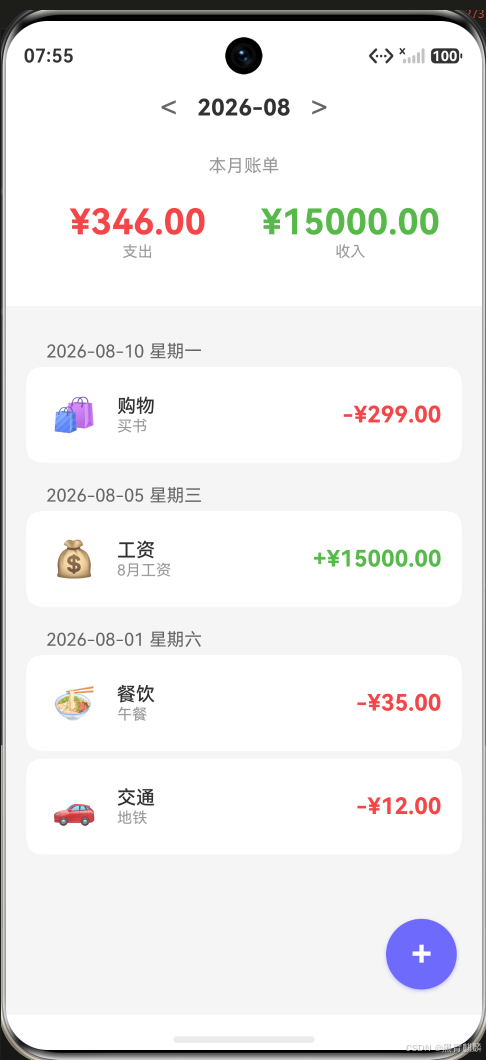
删除后的首页——返回时列表与汇总即时刷新(删除"娱乐 ¥88"和"其他 ¥89"后,支出从 ¥560 降为 ¥346):
总结
本篇实现了:
- 编辑:复用新增页UI,路由传参预填数据
- 删除:二次确认防误操作
- 滑动删除:列表页直接左滑
- 撤销删除:删除后提供短暂恢复
- 数据刷新:页面返回时自动同步
下篇实现搜索筛选与分类统计功能。

作为“人工智能6S店”的官方数字引擎,为AI开发者与企业提供一个覆盖软硬件全栈、一站式门户。
更多推荐


 0
0 0
0- 0


 已为社区贡献12条内容

所有评论(0)