
Harmony鸿蒙实战应用3:随手账本——新增账单与表单校验
·
鸿蒙实战:随手账本——新增账单与表单校验
引言
账本的核心功能就是记账。本篇实现新增账单页面:选择收支类型、分类、输入金额和备注,带完整的表单校验。
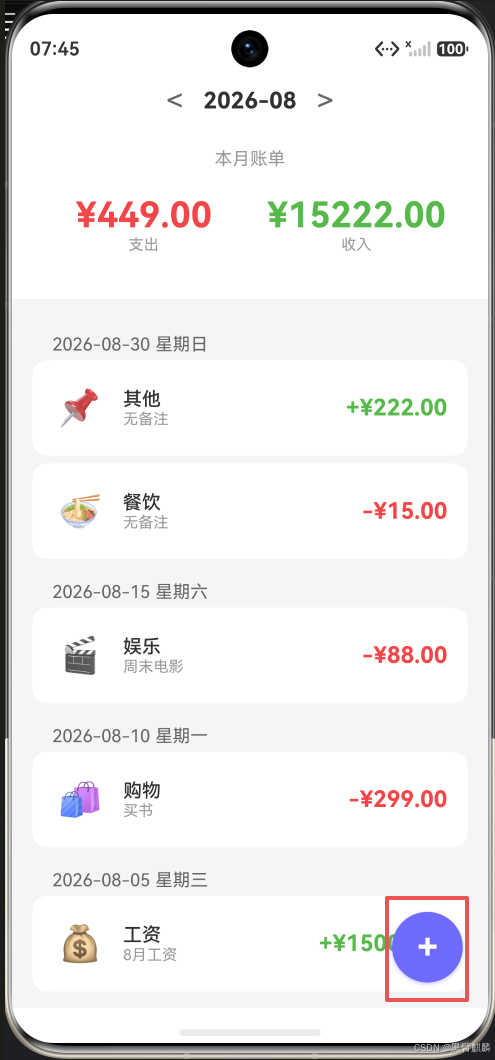
首页右下角新增悬浮"+"按钮,点击进入新增账单页:
一、新增页面布局
二、类型切换
@State billType: BillType = BillType.EXPENSE;

@Builder
TypeSwitcher() {
  Row() {
    // 支出按钮
    Button('支出')
      .type(this.billType === BillType.EXPENSE ? ButtonType.NORMAL : ButtonType.OUTLINE)
      .backgroundColor(this.billType === BillType.EXPENSE ? '#FF4444' : 'transparent')
      .fontColor(this.billType === BillType.EXPENSE ? Color.White : '#FF4444')
      .borderColor('#FF4444')
      .onClick(() => { this.billType = BillType.EXPENSE; this.loadCategories(); })

    // 收入按钮
    Button('收入')
      .type(this.billType === BillType.INCOME ? ButtonType.NORMAL : ButtonType.OUTLINE)
      .backgroundColor(this.billType === BillType.INCOME ? '#44BB44' : 'transparent')
      .fontColor(this.billType === BillType.INCOME ? Color.White : '#44BB44')
      .borderColor('#44BB44')
      .onClick(() => { this.billType = BillType.INCOME; this.loadCategories(); })
  }
  .width('100%')
  .justifyContent(FlexAlign.SpaceEvenly)
  .padding(16)
}
三、金额输入
@State amount: string = '';

@Builder
AmountInput() {
  Column() {
    Text('金额')
      .fontSize(14)
      .fontColor('#666')
      .width('100%')

    TextInput({ placeholder: '0.00', text: this.amount })
      .type(InputType.Number)
      .fontSize(36)
      .fontWeight(FontWeight.Bold)
      .height(60)
      .textAlign(TextAlign.Start)
      .onChange((val) => {
        // 限制最多两位小数
        const clean = val.replace(/[^\d.]/g, '');
        const parts = clean.split('.');
        if (parts.length > 2) return; // 多个小数点
        if (parts.length === 2 && parts[1].length > 2) return; // 超过两位小数
        this.amount = clean;
      })
  }
  .width('100%')
  .padding(16)
}
四、分类选择
@State categories: BillCategory[] = [];
@State selectedCategory: BillCategory = BillCategory.FOOD;

private loadCategories() {
  if (this.billType === BillType.EXPENSE) {
    this.categories = ['餐饮', '交通', '购物', '娱乐', '住房', '其他'] as BillCategory[];
  } else {
    this.categories = ['工资', '其他'] as BillCategory[];
  }
  this.selectedCategory = this.categories[0];
}

@Builder
CategorySelector() {
  Column() {
    Text('分类').fontSize(14).fontColor('#666').width('100%')
    Flex({ wrap: FlexWrap.Wrap }) {
      ForEach(this.categories, (cat: BillCategory) => {
        Button(this.getCategoryLabel(cat))
          .type(this.selectedCategory === cat ? ButtonType.NORMAL : ButtonType.OUTLINE)
          .backgroundColor(this.selectedCategory === cat ? '#6C63FF' : 'transparent')
          .fontColor(this.selectedCategory === cat ? Color.White : '#333')
          .borderColor('#DDD')
          .margin(4)
          .onClick(() => { this.selectedCategory = cat; })
      })
    }
    .width('100%')
  }
  .width('100%')
  .padding(16)
}
五、备注与日期
@State note: string = '';
@State billDate: string = this.getToday();

private getToday(): string {
  const d = new Date();
  return `${d.getFullYear()}-${String(d.getMonth()+1).padStart(2,'0')}-${String(d.getDate()).padStart(2,'0')}`;
}

@Builder
NoteAndDate() {
  Column() {
    // 备注
    TextInput({ placeholder: '添加备注...', text: this.note })
      .height(48)
      .onChange(val => this.note = val)
      .margin({ bottom: 16 })

    // 日期
    DatePicker({
      start: new Date('2020-01-01'),
      end: new Date(),
      selected: new Date(this.billDate)
    })
    .onChange((d) => {
      const y = d.getFullYear();
      const m = String(d.getMonth()+1).padStart(2,'0');
      const day = String(d.getDate()).padStart(2,'0');
      this.billDate = `${y}-${m}-${day}`;
    })
  }
  .width('100%')
  .padding(16)
}
六、表单校验与保存
private validateAndSave(): boolean {
  // 校验金额
  const amountNum = parseFloat(this.amount);
  if (!this.amount || isNaN(amountNum) || amountNum <= 0) {
    AlertDialog.show({ message: '请输入有效金额' });
    return false;
  }

  // 校验分类
  if (!this.selectedCategory) {
    AlertDialog.show({ message: '请选择分类' });
    return false;
  }

  // 保存
  const newBill: BillItemInput = {
    type: this.billType,
    category: this.selectedCategory,
    amount: parseFloat(this.amount),
    note: this.note,
    date: this.billDate
  };

  billStore.add(newBill);
  return true;
}

@Builder
SaveButton() {
  Button('保存')
    .width('90%')
    .height(48)
    .backgroundColor('#6C63FF')
    .fontColor(Color.White)
    .borderRadius(24)
    .margin({ top: 24 })
    .onClick(() => {
      if (this.validateAndSave()) {
        // 返回上一页
        router.back();
      }
    })
}
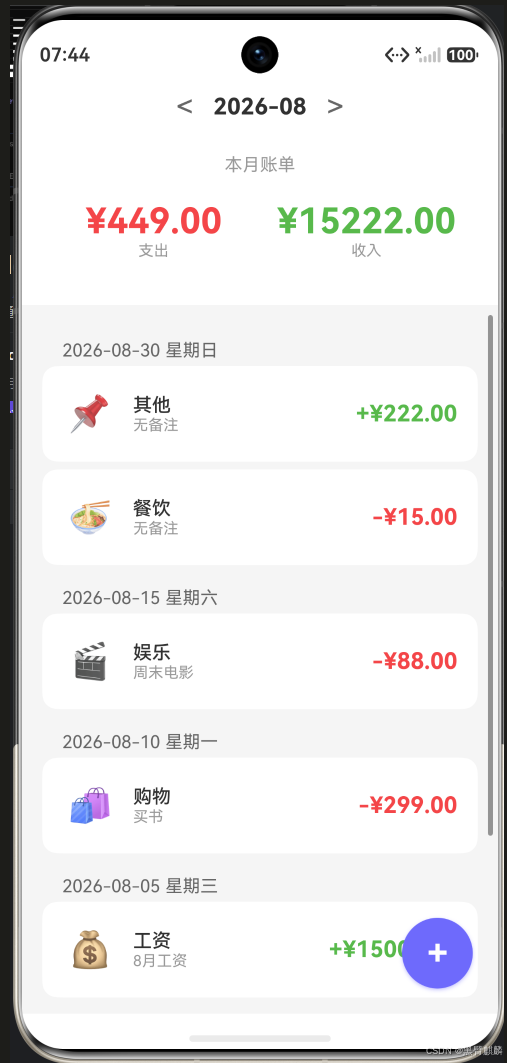
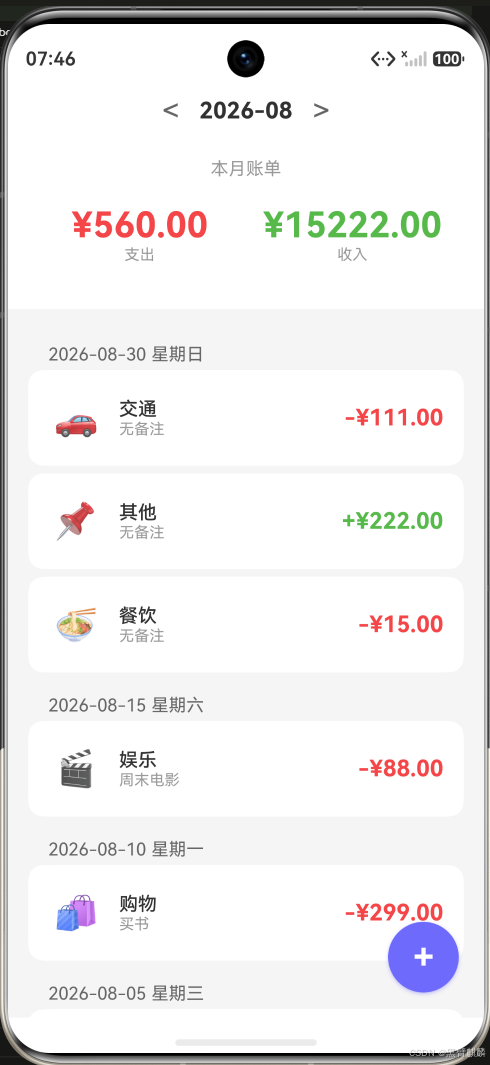
保存成功自动返回首页,列表与汇总即时刷新——新增"交通 ¥111"后,本月支出从 ¥449.00 变为 ¥560.00:
| 新增前 | 新增后 |
|---|---|
 |
|
 |
|
七、完整页面
// pages/AddBillPage.ets
import { BillItem, BillItemInput, BillType, BillCategory } from '../model/BillItem';
import { billStore } from '../store/BillStore';
import router from '@ohos.router';

@Entry
@Component
struct AddBillPage {
  @State billType: BillType = BillType.EXPENSE;
  @State amount: string = '';
  @State selectedCategory: BillCategory = BillCategory.FOOD;
  @State categories: BillCategory[] = ['餐饮', '交通', '购物', '娱乐', '住房', '其他'] as BillCategory[];
  @State note: string = '';
  @State billDate: string = '';

  aboutToAppear() {
    this.billDate = this.getToday();
  }

  build() {
    Column() {
      // 页面标题
      Row() {
        Button('< 返回')
          .type(ButtonType.NORMAL)
          .fontColor('#333')
          .onClick(() => router.back())
        Text('新增账单')
          .fontSize(20)
          .fontWeight(FontWeight.Bold)
          .layoutWeight(1)
          .textAlign(TextAlign.Center)
      }
      .width('100%')
      .padding(16)
      .backgroundColor(Color.White)

      Scroll() {
        Column() {
          this.TypeSwitcher()
          this.AmountInput()
          this.CategorySelector()
          this.NoteAndDate()
          this.SaveButton()
        }
        .width('100%')
      }
      .layoutWeight(1)
      .backgroundColor('#F5F5F5')
    }
    .width('100%')
    .height('100%')
  }

  // ... 上面的各个 Builder 方法
}
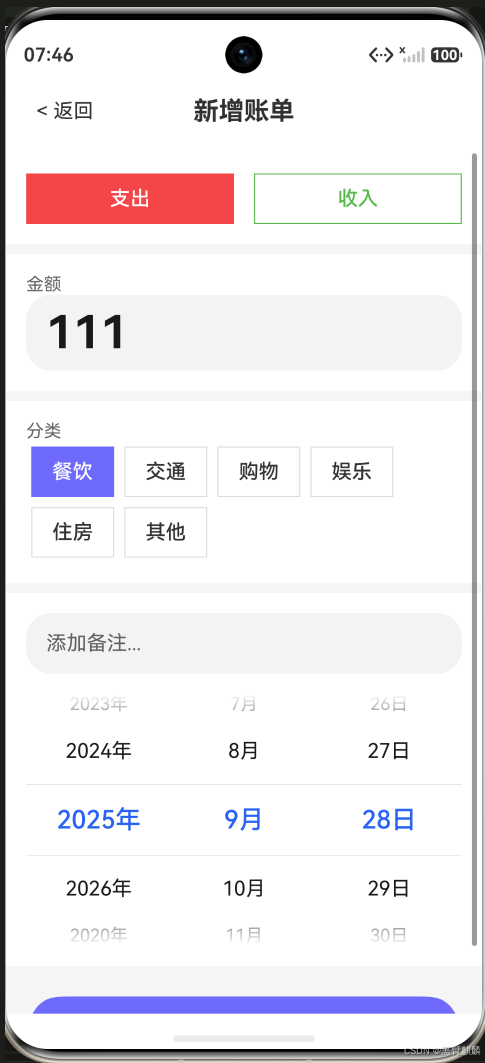
页面实际效果——类型切换(支出/收入)、金额输入、分类网格、备注与日期选择器:
表单校验规则总结
| 字段 | 规则 | 提示信息 |
|---|---|---|
| 金额 | 必填、>0、最多两位小数 | “请输入有效金额” |
| 分类 | 必选 | “请选择分类” |
| 备注 | 选填、最长50字 | - |
| 日期 | 默认今天、可选历史日期 | - |
总结
本篇完成了新增账单的完整功能:
- 类型切换:支出/收入双模式,分类联动
- 金额输入:限制格式,最多两位小数
- 分类选择:网格布局,支出6类/收入2类
- 表单校验:保存前逐项验证
- 页面跳转:保存后自动返回首页
下一篇实现账单的编辑与删除功能。

作为“人工智能6S店”的官方数字引擎,为AI开发者与企业提供一个覆盖软硬件全栈、一站式门户。
更多推荐



 0
0 0
0- 0


 已为社区贡献12条内容

所有评论(0)