
鸿蒙ArkTS手势交互:拖拽、缩放、旋转与组合手势
一、引言
手势交互是触屏应用的核心体验。通过单击、双击、长按、拖拽、缩放、旋转、滑动等手势,用户可以直观地操作应用。HarmonyOS ArkUI 提供了丰富的手势系统,支持单手势、组合手势、手势优先级控制等能力。
本文将以一个橙色活力风格的手势演示页面为主线,深入讲解 ArkUI 手势系统的核心概念和实战技巧,帮助读者掌握手势交互的开发技能。
二、手势系统概览
2.1 手势类型
ArkUI 支持多种基础手势:
| 手势 | 组件 | 说明 |
|---|---|---|
| 单击 | TapGesture | 轻触一下 |
| 双击 | TapGesture({ count: 2 }) | 连续点击两次 |
| 长按 | LongPressGesture | 按住不放 |
| 拖拽 | PanGesture | 按住移动 |
| 缩放 | PinchGesture | 双指捏合 |
| 旋转 | RotationGesture | 双指旋转 |
| 滑动 | SwipeGesture | 快速滑动 |
| 组合 | GestureGroup | 多个手势组合 |
2.2 手势绑定方式
// 方式一:gesture 绑定
Column()
  .gesture(
    TapGesture().onAction(() => {})
  )

// 方式二:priorityGesture 优先手势
Column()
  .priorityGesture(
    TapGesture().onAction(() => {})
  )

// 方式三:parallelGesture 并行手势
Column()
  .parallelGesture(
    TapGesture().onAction(() => {})
  )
代码说明:
gesture:普通手势绑定,与父组件手势可能存在竞争。priorityGesture:优先手势,优先于父组件手势响应。parallelGesture:并行手势,与父组件手势同时响应。
三、基础手势详解
3.1 TapGesture 单击
TapGesture()
  .onAction((event: GestureEvent) => {
    console.info('单击了');
  })
3.2 LongPressGesture 长按
LongPressGesture({ repeat: false, duration: 500 })
  .onAction(() => {
    console.info('长按触发');
  })
  .onActionEnd(() => {
    console.info('长按结束');
  })
代码说明:
repeat:是否重复触发。duration:长按触发时间(毫秒)。
3.3 PanGesture 拖拽
PanGesture({ fingers: 1, direction: PanDirection.All, distance: 5 })
  .onActionStart((event: GestureEvent) => {
    console.info('拖拽开始');
  })
  .onActionUpdate((event: GestureEvent) => {
    // event.offsetX / offsetY 是本次回调的位移增量
    this.offsetX += event.offsetX;
    this.offsetY += event.offsetY;
  })
  .onActionEnd(() => {
    console.info('拖拽结束');
  })
代码说明:
fingers:参与手势的手指数量。direction:拖拽方向(PanDirection.All允许所有方向)。distance:触发拖拽的最小移动距离。onActionUpdate中通过event.offsetX/offsetY获取位移增量。
3.4 PinchGesture 缩放
PinchGesture({ fingers: 2 })
  .onActionUpdate((event: GestureEvent) => {
    // event.scale 是缩放比例
    this.scale = event.scale;
  })
代码说明:
fingers:参与手势的手指数量。event.scale:缩放比例,1 表示原始大小。
3.5 RotationGesture 旋转
RotationGesture({ fingers: 2 })
  .onActionUpdate((event: GestureEvent) => {
    // event.angle 是旋转角度
    this.angle = event.angle;
  })
代码说明:
event.angle:旋转角度(度),正值顺时针,负值逆时针。
四、实战代码:手势交互演示页面
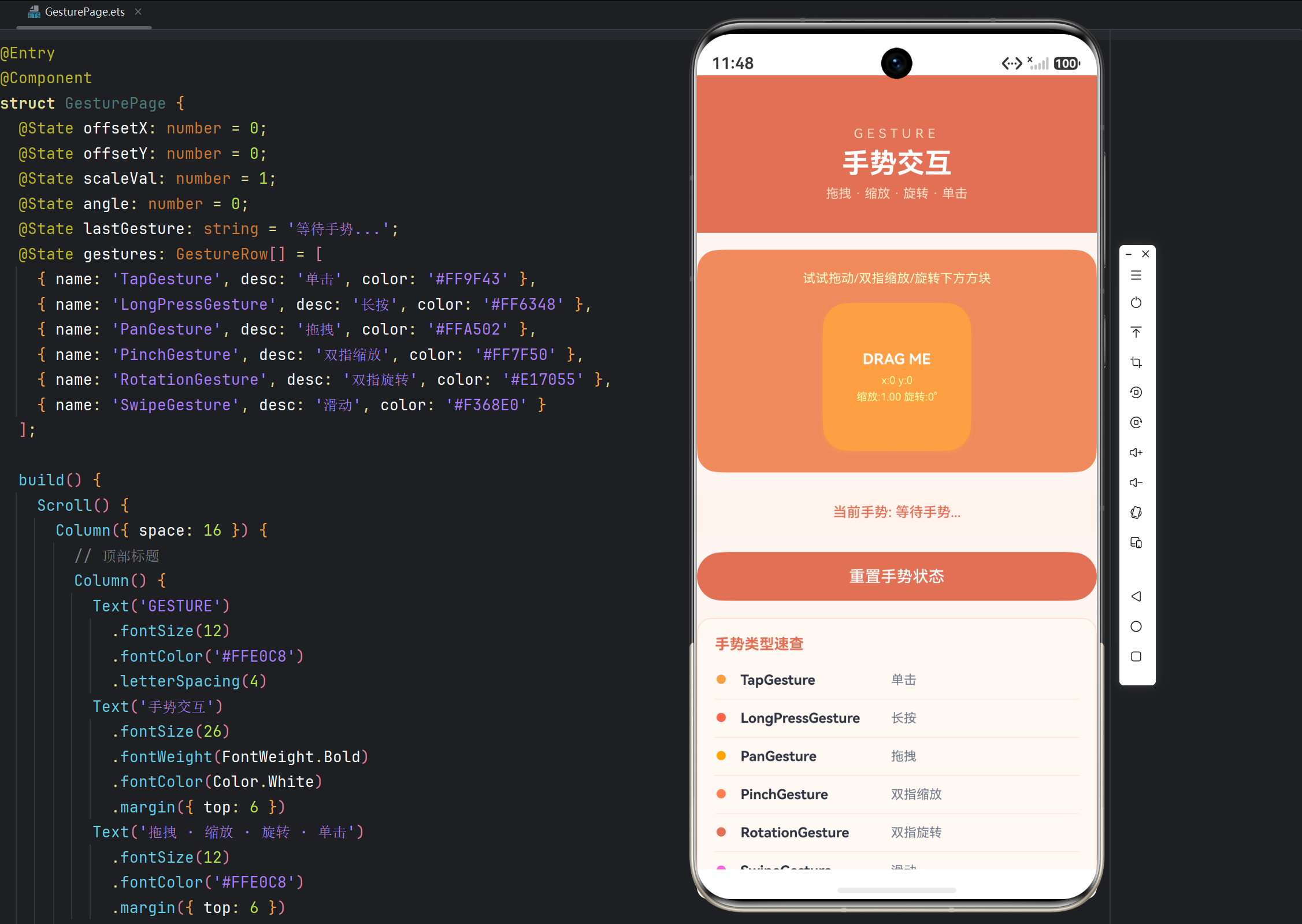
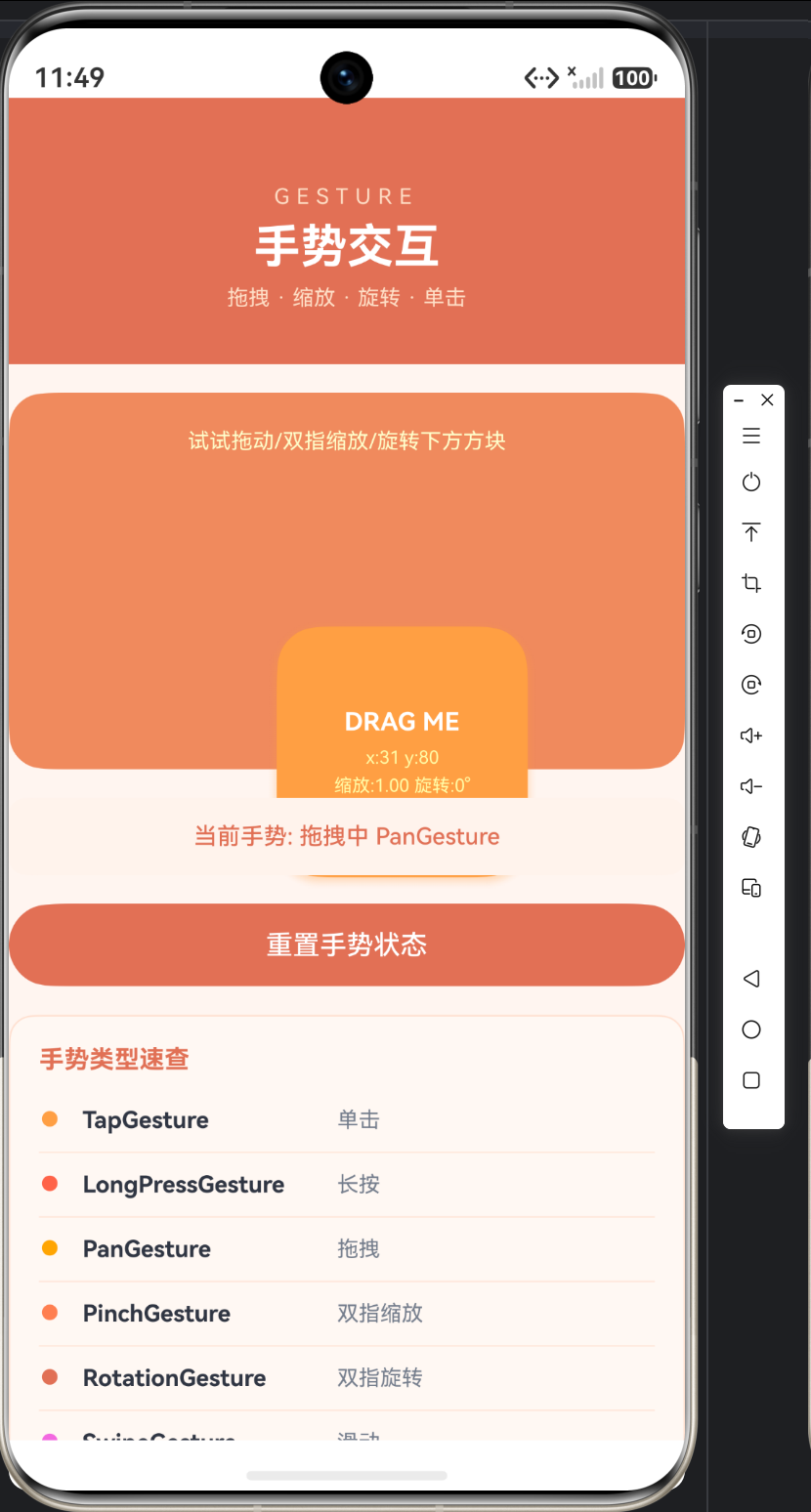
下面我们实现一个手势交互演示页面,包含可拖拽、缩放、旋转的交互方块。
4.1 定义数据结构
interface GestureRow {
  name: string;
  desc: string;
  color: string;
}
代码说明:
GestureRow 接口描述手势类型表格中的一行数据,包含手势名称、说明和标识颜色。
4.2 组件状态定义
@Entry
@Component
struct GesturePage {
  @State offsetX: number = 0;
  @State offsetY: number = 0;
  @State scale: number = 1;
  @State angle: number = 0;
  @State lastGesture: string = '等待手势...';
  @State gestures: GestureRow[] = [
    { name: 'TapGesture', desc: '单击', color: '#FF9F43' },
    { name: 'LongPressGesture', desc: '长按', color: '#FF6348' },
    { name: 'PanGesture', desc: '拖拽', color: '#FFA502' },
    { name: 'PinchGesture', desc: '双指缩放', color: '#FF7F50' },
    { name: 'RotationGesture', desc: '双指旋转', color: '#E17055' },
    { name: 'SwipeGesture', desc: '滑动', color: '#F368E0' }
  ];
代码说明:
@State offsetX/offsetY:拖拽位移。@State scale:缩放比例。@State angle:旋转角度。@State lastGesture:最近触发的手势描述。@State gestures:手势类型表格数据。
4.3 构建交互方块
build() {
  Scroll() {
    Column({ space: 16 }) {
      // 顶部标题
      Column() {
        Text('GESTURE')
          .fontSize(12)
          .fontColor('#FFE0C8')
          .letterSpacing(4)
        Text('手势交互')
          .fontSize(26)
          .fontWeight(FontWeight.Bold)
          .fontColor(Color.White)
          .margin({ top: 6 })
        Text('拖拽 · 缩放 · 旋转 · 单击')
          .fontSize(12)
          .fontColor('#FFE0C8')
          .margin({ top: 6 })
      }
      .width('100%')
      .padding({ top: 48, bottom: 30 })
      .backgroundColor('#E17055')

      // 交互区域
      Column() {
        Text('试试拖动/双指缩放/旋转下方方块')
          .fontSize(12)
          .fontColor('#FFFFFFCC')
          .margin({ bottom: 16 })
        // 可交互方块
        Column() {
          Text('DRAG ME')
            .fontSize(14)
            .fontWeight(FontWeight.Bold)
            .fontColor(Color.White)
          Text(`x:${this.offsetX.toFixed(0)} y:${this.offsetY.toFixed(0)}`)
            .fontSize(10)
            .fontColor('#FFFFFFAA')
            .margin({ top: 6 })
          Text(`缩放:${this.scale.toFixed(2)} 旋转:${this.angle.toFixed(0)}°`)
            .fontSize(10)
            .fontColor('#FFFFFFAA')
            .margin({ top: 4 })
        }
        .width(140)
        .height(140)
        .justifyContent(FlexAlign.Center)
        .backgroundColor('#FF9F43')
        .borderRadius(24)
        .shadow({ radius: 20, color: '#66FF9F43', offsetY: 6 })
        .translate({ x: this.offsetX, y: this.offsetY })
        .scale({ x: this.scale, y: this.scale })
        .rotate({ angle: this.angle })
        .gesture(
          GestureGroup(GestureMode.Exclusive,
            TapGesture()
              .onAction(() => {
                this.lastGesture = '单击手势 TapGesture';
              }),
            LongPressGesture()
              .onAction(() => {
                this.lastGesture = '长按手势 LongPressGesture';
              }),
            PanGesture()
              .onActionStart((event: GestureEvent) => {
                this.lastGesture = '拖拽开始 PanGesture';
              })
              .onActionUpdate((event: GestureEvent) => {
                this.offsetX += event.offsetX;
                this.offsetY += event.offsetY;
                this.lastGesture = '拖拽中 PanGesture';
              }),
            PinchGesture()
              .onActionUpdate((event: GestureEvent) => {
                this.scale = event.scale;
                this.lastGesture = '缩放中 PinchGesture';
              }),
            RotationGesture()
              .onActionUpdate((event: GestureEvent) => {
                this.angle = event.angle;
                this.lastGesture = '旋转中 RotationGesture';
              })
          )
        )
      }
      .width('100%')
      .padding(20)
      .backgroundColor('#F08A5D')
      .borderRadius(20)
代码说明:
可交互方块是手势演示的核心:
-
状态展示:方块内部实时显示当前位移、缩放和旋转值。
-
属性绑定:
.translate({ x: this.offsetX, y: this.offsetY }):位移。.scale({ x: this.scale, y: this.scale }):缩放。.rotate({ angle: this.angle }):旋转。- 当手势修改这些状态时,方块实时响应。
-
组合手势:使用
GestureGroup(GestureMode.Exclusive, ...)组合多个手势:GestureMode.Exclusive:互斥模式,同一时间只有一个手势生效。- 包含单击、长按、拖拽、缩放、旋转五种手势。
-
手势回调:
- TapGesture:更新"单击手势"提示。
- LongPressGesture:更新"长按手势"提示。
- PanGesture:
onActionUpdate中累加位移增量。 - PinchGesture:更新缩放比例。
- RotationGesture:更新旋转角度。
-
关键理解:
GestureMode.Exclusive确保手势之间不冲突。例如,拖拽时不会同时触发单击。
4.4 手势模式
ArkUI 的 GestureGroup 支持三种模式:
// 互斥模式:同一时间只有一个手势生效
GestureGroup(GestureMode.Exclusive, gesture1, gesture2)

// 并行模式:所有手势同时响应
GestureGroup(GestureMode.Parallel, gesture1, gesture2)

// 顺序模式:手势按顺序依次触发
GestureGroup(GestureMode.Sequence, gesture1, gesture2)
代码说明:
Exclusive:互斥,适合"单击 vs 双击 vs 长按"这类冲突手势。Parallel:并行,多个手势可同时识别。Sequence:顺序,如"先拖拽再单击"的组合。
4.5 重置按钮
Button('重置手势状态')
  .width('100%')
  .height(46)
  .fontSize(15)
  .fontColor(Color.White)
  .backgroundColor('#E17055')
  .borderRadius(23)
  .onClick(() => {
    this.offsetX = 0;
    this.offsetY = 0;
    this.scale = 1;
    this.angle = 0;
    this.lastGesture = '已重置';
  })
代码说明:
重置按钮将所有手势状态恢复初始值,方便重复演示。
4.6 手势类型表格
// 手势类型表格
Column() {
  Text('手势类型速查')
    .fontSize(14)
    .fontWeight(FontWeight.Bold)
    .fontColor('#E17055')
    .alignSelf(ItemAlign.Start)
    .margin({ bottom: 8 })
  ForEach(this.gestures, (row: GestureRow) => {
    Row({ space: 12 }) {
      Text('●')
        .fontSize(12)
        .fontColor(row.color)
      Text(row.name)
        .fontSize(13)
        .fontWeight(FontWeight.Bold)
        .fontColor('#2F3542')
        .width(130)
      Text(row.desc)
        .fontSize(12)
        .fontColor('#747D8C')
        .layoutWeight(1)
    }
    .width('100%')
    .padding({ top: 10, bottom: 10 })
    .border({ width: { bottom: 1 }, color: '#FFE8DC' })
  })
}
.width('100%')
.padding(16)
.backgroundColor('#FFF8F3')
.borderRadius(14)
.border({ width: 1, color: '#FFE0D0' })
代码说明:
手势类型速查表:
- 每行左侧是彩色圆点(●),中间是手势名称,右侧是说明。
- 圆点颜色与手势类型对应,形成视觉标识。
- 行间用浅橙色边框分隔,融入页面暖色风格。
五、高级手势技巧
5.1 双击手势
// 双击
TapGesture({ count: 2 })
  .onAction(() => {
    console.info('双击了');
  })
5.2 滑动手势
SwipeGesture({ direction: SwipeDirection.Horizontal })
  .onAction((event: GestureEvent) => {
    console.info('水平滑动');
  })
5.3 手势与滚动冲突
当组件嵌套在可滚动容器中时,手势可能与滚动冲突,使用 priorityGesture 优先处理:
Column()
  .priorityGesture(
    PanGesture()
      .onActionUpdate((event: GestureEvent) => {
        // 优先响应拖拽
      })
  )
5.4 手势事件对象
GestureEvent 对象包含丰富的信息:
.onActionUpdate((event: GestureEvent) => {
  event.offsetX;   // 位移增量 X
  event.offsetY;   // 位移增量 Y
  event.scale;     // 缩放比例
  event.angle;     // 旋转角度
  event.fingerList; // 手指列表
  event.timestamp; // 时间戳
})
六、最佳实践
6.1 手势冲突处理
- 使用
GestureMode.Exclusive避免冲突手势同时触发。 - 使用
priorityGesture解决与父组件的手势竞争。 - 使用
parallelGesture让手势并行响应。
6.2 状态重置
演示类页面应提供重置功能,方便用户重复操作。
6.3 性能考虑
手势回调中避免执行耗时操作,确保手势响应流畅。
6.4 可访问性
为手势操作提供视觉反馈(如高亮、位移),让用户明确感知操作结果。
七、常见问题
7.1 手势不响应
原因:手势被父组件拦截,或手势冲突。
解决:使用 priorityGesture 或调整手势模式。
7.2 拖拽与滚动冲突
原因:组件在 Scroll 内,拖拽被滚动拦截。
解决:使用 priorityGesture 优先处理拖拽。
7.3 缩放超出范围
原因:没有限制缩放比例范围。
解决:在回调中限制:
this.scale = Math.min(3, Math.max(0.5, event.scale));
八、总结
本文深入讲解了 HarmonyOS 手势交互技术,通过一个橙色活力风格的手势演示页面实战演示了拖拽、缩放、旋转、单击等核心手势。
核心要点回顾:
- 基础手势:TapGesture、LongPressGesture、PanGesture、PinchGesture、RotationGesture、SwipeGesture。
- 手势绑定:gesture、priorityGesture、parallelGesture。
- 组合手势:GestureGroup 支持 Exclusive、Parallel、Sequence 三种模式。
- GestureEvent 提供位移、缩放、角度等数据。
- 手势冲突处理:优先级和模式控制。
- 手势回调中避免耗时操作。
手势交互让应用更直观易用,掌握它能构建流畅自然的触控体验。下一篇我们将讲解 HarmonyOS 国际化与多语言。

作为“人工智能6S店”的官方数字引擎,为AI开发者与企业提供一个覆盖软硬件全栈、一站式门户。
更多推荐

 7
7 0
0- 0


 已为社区贡献31条内容

所有评论(0)