
鸿蒙定位SDK(HarmonyOS NEXT)——集成代码
·
开发指南
获取KEY
- 创建应用
进入控制台,创建一个新应用。如果您之前已经创建过应用,可直接跳过这个步骤。
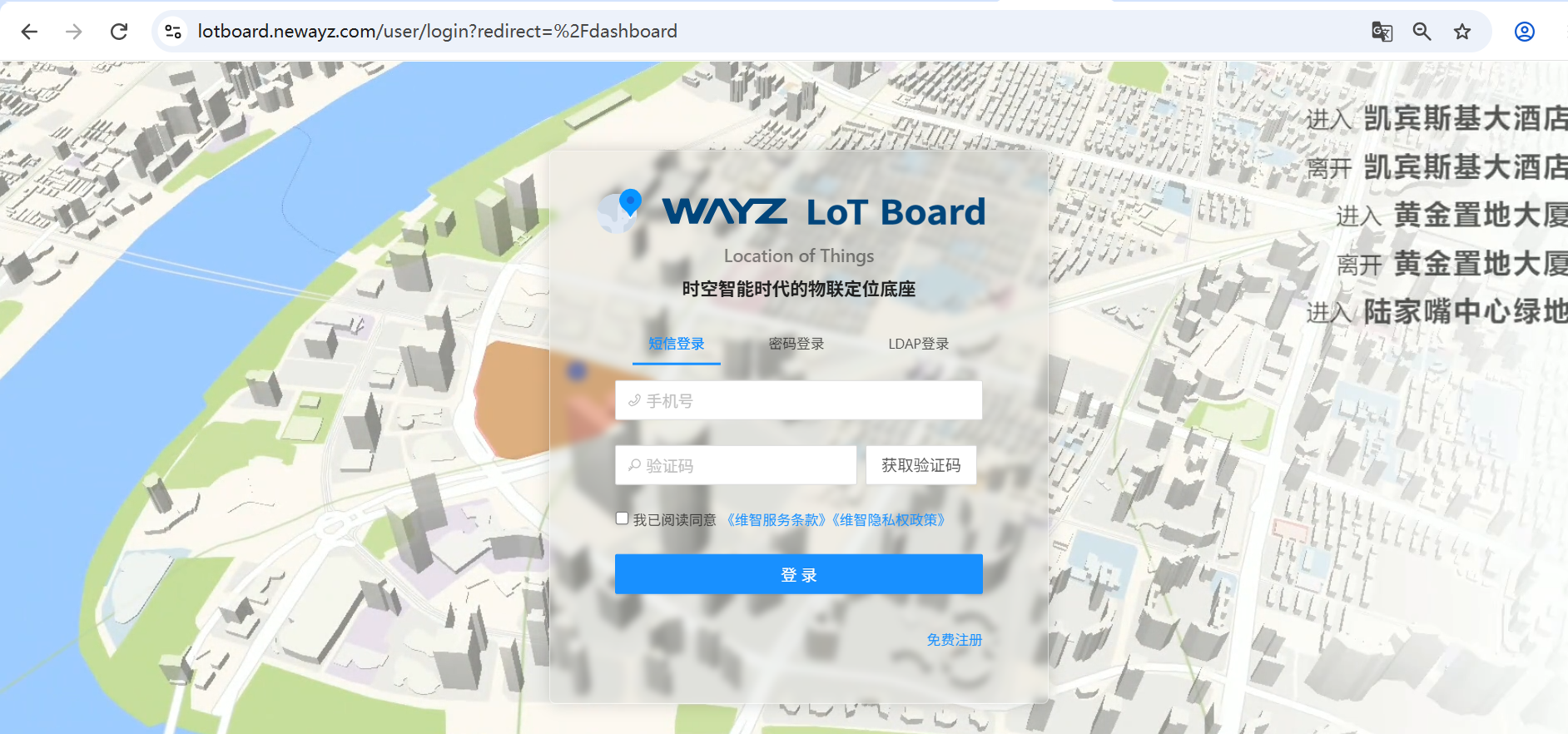
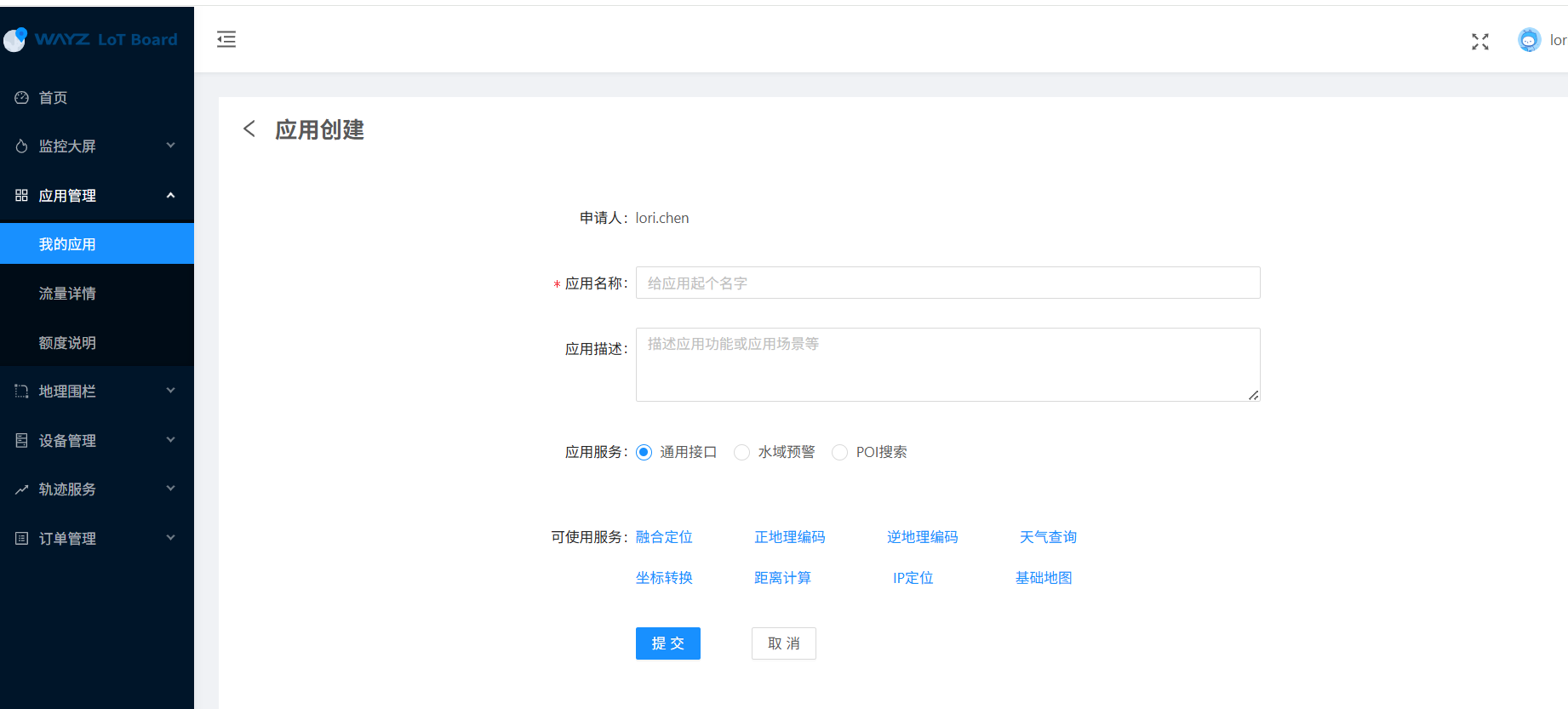
审核通过后,即可获取密钥 accessKey。
项目创建
工程配置
1. 打开/创建一个鸿蒙工程
使用 DevEco Studio 打开一个鸿蒙工程,或者新建一个鸿蒙工程
2. SDK 导入
(1)本地引用
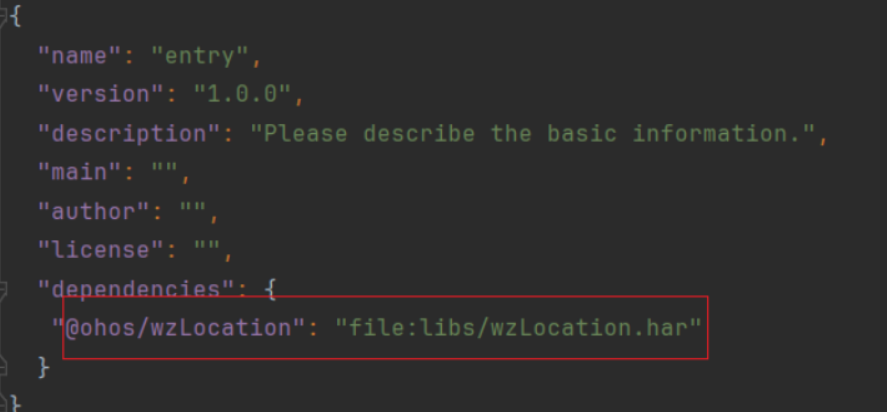
将从官网下载的 har文件放到您工程中 entry 的libs目录中,如下图所示
在entry目录下的oh-package.json5中引用,如下图所示
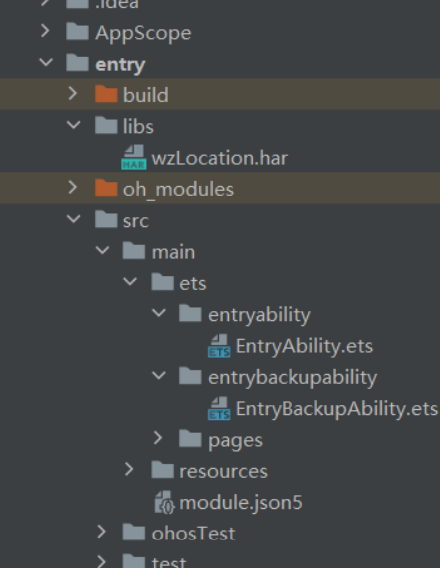
"@ohos/wzLocation": "file:libs/wzLocation.har"
3. 权限配置
在module.json5文件中配置 HarmonyOS NEXT 定位 SDK 所需的相关权限,确保 SDK 可以正常使用。配置如下:
"requestPermissions": [
     {
        "name": "ohos.permission.LOCATION",
        "reason": "允许应用在前台运行时获取位置信息",
     },
     {
        "name": "ohos.permission.LOCATION_IN_BACKGROUND",
        "reason": "允许应用在后台运行时获取位置信息",
     },
     {
        "name": "ohos.permission.APPROXIMATELY_LOCATION",
        "reason": "允许应用获取设备模糊位置信息",
     },
     {
        "name": "ohos.permission.APP_TRACKING_CONSENT",
        "reason": "允许应用获取设备唯一标识符",
     },
     {
        "name": "ohos.permission.GET_WIFI_INFO",
        "reason": "允许应用获取连接wifi信息",
     },
     {
        "name": "ohos.permission.GET_NETWORK_INFO",
        "reason": "允许应用获取网络信息",
     },
     {
        "name": "ohos.permission.INTERNET",
        "reason": "允许应用访问网络",
     },
     {
        "name": "ohos.permission.KEEP_BACKGROUND_RUNNING",
        "reason": "允许应用进行长时任务",
     }
]
4. AK 配置
this.wzLocation.initOption(官网申请accessKey, 设备ID, 定位频率);
获取位置信息
单次定位
维智 HarmonyOS NEXT 定位 sdk 提供单次定位的能力。具体使用方法如下:
wzLocation: WzLocation = new WzLocation();
// 定位接口回调
setLocationCallback() {
    this.wzLocation.setLocationCall({
        success: (location?: LocationRes) => {
            if (location) {
                console.log('定位成功:', location);
                this.locationResult = `定位成功: 纬度 ${location.location.position.point.latitude}, 经度 ${location.location.position.point.longitude}, 地址 ${location.location.address.name}`;
            } else {
                console.log('定位成功,但返回的位置信息为空');
                this.locationResult = '定位成功,但返回的位置信息为空';
            }
        },
        fail: (error: ErrorInfo) => {
            console.error('定位失败:' + error.msg);
            this.locationResult = `定位失败: ${error.msg}`;
        }
    });
}

// 初始化定位配置
initLocationOption(interval: number) {
    this.wzLocation.initOption(申请的accessKey, 设备ID, 持续定位时间--单位秒);
}

// 启动单次定位
this.initLocationOption(0);
this.setLocationCallback();
console.error('测试单次定位:-----》');
this.wzLocation.startLocation().then(() => {
    console.log('单次定位已启动');
});
后台定位(持续定位)
wzLocation: WzLocation = new WzLocation();
// 定位接口回调
setLocationCallback() {
    this.wzLocation.setLocationCall({
        success: (location?: LocationRes) => {
            if (location) {
                console.log('定位成功:', location);
                this.locationResult = `定位成功: 纬度 ${location.location.position.point.latitude}, 经度 ${location.location.position.point.longitude}, 地址 ${location.location.address.name}`;
            } else {
                console.log('定位成功,但返回的位置信息为空');
                this.locationResult = '定位成功,但返回的位置信息为空';
            }
        },
        fail: (error: ErrorInfo) => {
            console.error('定位失败:' + error.msg);
            this.locationResult = `定位失败: ${error.msg}`;
        }
    });
}

// 初始化定位配置
initLocationOption(interval: number) {
    this.wzLocation.initOption(申请的accessKey, 设备ID, 持续定位时间--单位秒);
}

// 启动持续定位
this.initLocationOption(5);
this.setLocationCallback();
console.error('测试连续定位-----》:');
this.wzLocation.startContinuousLocation();
获取地址
wzLocation: WzLocation = new WzLocation();
// 定位接口回调
setLocationCallback() {
    this.wzLocation.setLocationCall({
        success: (location?: LocationRes) => {
            if (location) {
                console.log('定位成功:', location);
                this.locationResult = `定位成功地址: ${location.location.address.name}`;
            } else {
                console.log('定位成功,但返回的位置信息为空');
                this.locationResult = '定位成功,但返回的位置信息为空';
            }
        },
        fail: (error: ErrorInfo) => {
            console.error('定位失败:' + error.msg);
            this.locationResult = `定位失败: ${error.msg}`;
        }
    });
}

// 获取地址信息接口
this.initLocationOption(0);
this.setLocationCallback();
this.getAddressFromWZ({latitude: 23.72398754219176,longitude: 113.10165074642399})
隐私合规
1. 定位的合规接口说明如下:
/**
 * 设置是否同意用户授权政策 必须在定位实例化之前调用
 *
 * @param isAgree 隐私权政策是否取得用户同意 true 是用户同意
 */
setAgreePrivacy(isAgree: boolean)
权限说明
权限配置:在 module.json5 文件中配置 HarmonyOS NEXT 定位 SDK 所需的相关权限,确保 SDK 可以正常使用。配置如下:
"requestPermissions": [
     {
        "name": "ohos.permission.LOCATION",
        "reason": "允许应用在前台运行时获取位置信息",
     },
     {
        "name": "ohos.permission.LOCATION_IN_BACKGROUND",
        "reason": "允许应用在后台运行时获取位置信息",
     },
     {
        "name": "ohos.permission.APPROXIMATELY_LOCATION",
        "reason": "允许应用获取设备模糊位置信息",
     },
     {
        "name": "ohos.permission.APP_TRACKING_CONSENT",
        "reason": "允许应用获取设备唯一标识符",
     },
     {
        "name": "ohos.permission.GET_WIFI_INFO",
        "reason": "允许应用获取连接wifi信息",
     },
     {
        "name": "ohos.permission.GET_NETWORK_INFO",
        "reason": "允许应用获取网络信息",
     },
     {
        "name": "ohos.permission.INTERNET",
        "reason": "允许应用访问网络",
     },
     {
        "name": "ohos.permission.KEEP_BACKGROUND_RUNNING",
        "reason": "允许应用进行长时任务",
     }
]
权限申请:在应用入口开始主动申请定位权限
let atManager = abilityAccessCtrl.createAtManager();
try {
  atManager.requestPermissionsFromUser(this.context,
    ['ohos.permission.LOCATION', 'ohos.permission.APPROXIMATELY_LOCATION'])
    .then((data) => {
      hilog.info(0x0000, TAG, `data: ${JSON.stringify(data)}`);
    })
    .catch((err: BusinessError) => {
      hilog.error(0x0000, TAG, `err: ${JSON.stringify(err)}`);
    })
} catch (err) {
  hilog.error(0x0000, TAG, `catch err->${JSON.stringify(err)}`);
}

作为“人工智能6S店”的官方数字引擎,为AI开发者与企业提供一个覆盖软硬件全栈、一站式门户。
更多推荐
 1
1 0
0- 0


 已为社区贡献1条内容

所有评论(0)