
幼儿园接送管理系统HarmonyOS ArkTS API 24深度解析,父子组件通信(@Link / @Prop / 回调函数)、@Builder 复用布局、条件渲染弹窗、ForEach 列表渲染
一、背景与意义
幼儿园作为学前教育的第一站,承担着幼儿看护、早期教育、安全健康管理等多重职责。在日常运营中,园方需要处理大量琐碎却至关重要的信息:每一名幼儿的基础档案、每日的接送记录、出勤与缺勤统计、家长通知的下发与回执,以及教师个人的工作台信息。这些信息如果完全依赖纸质台账或分散在多个独立的工具中,不仅效率低下,而且极易出现遗漏、错记、信息不同步等问题,尤其是在接送环节,一旦发生错接、漏接,后果不堪设想。

随着移动互联网和智能终端的普及,将幼儿园的日常管理流程数字化、在线化已经成为行业共识。一个设计良好的幼儿园管理系统,能够帮助教师在一个统一的界面中完成幼儿档案的增删改查、接送签到的实时记录、考勤状态的自动汇总、园所通知的精准下发等核心工作,从而把教师从繁重的文书劳动中解放出来,把更多精力投入到对孩子本身的关注上。
本文所要剖析的,正是一套面向幼儿园教师端使用场景的接送管理系统。该系统采用 ArkUI 声明式开发范式构建,以组件化、状态驱动为核心设计理念,将复杂的业务逻辑拆解为多个职责单一、可复用的自定义组件。整个应用围绕"幼儿管理、接送管理、考勤管理、通知中心、我的"五个主功能 Tab 展开,通过底部导航栏进行切换,每个 Tab 内部又包含了列表展示、筛选过滤、弹窗表单(新增/编辑/删除)等完整的 CRUD 交互闭环。
从技术学习的角度来看,这份代码是一个相当优秀的 ArkUI 综合实践案例。它涵盖了接口定义、可观察数据模型、配置常量驱动 UI、纯函数工具集、枚举状态管理、父子组件通信(@Link / @Prop / 回调函数)、@Builder 复用布局、条件渲染弹窗、ForEach 列表渲染、滚动容器、线性渐变、阴影、圆角等大量声明式 UI 的核心特性。通过对它的逐段拆解,读者不仅可以理解这个具体业务系统的实现细节,更能够建立起对 ArkUI 开发范式整体的方法论认知。
二、应用整体架构概览
在进入逐段代码分析之前,我们先用一个宏观的视角来俯瞰整个应用的架构分层。整套代码可以清晰地划分为六个层次:
第一层是类型契约层,由一组 interface 定义构成,它们为各个业务模块的配置项和数据展示项约定了字段结构,是整个应用的"数据形状说明书"。第二层是可观察数据模型层,使用 @Observed 装饰器修饰的 class,定义了幼儿、接送记录、考勤记录、通知条目四个核心业务实体,这些实体既是数据的载体,又具备被 UI 框架观测变化的能力。第三层是配置常量层,将每个模块的标题、分页大小、阈值等可调参数集中提取为常量对象,实现配置与逻辑的解耦。第四层是Mock 数据层,提供了 18 条幼儿、20 条接送、16 条考勤、15 条通知的示例数据,便于在没有后端的情况下完整跑通界面。第五层是纯函数工具层,一组不依赖组件状态、仅根据入参返回颜色或图标的全局函数,保证了视觉映射逻辑的可测试性和可复用性。第六层是组件层,包含一个主入口组件和三个业务 Tab 子组件,通过状态绑定和回调函数完成父子通信。
这种分层设计的好处是显而易见的:每一层都有明确的职责边界,修改某一层时不必担心波及其他层;类型契约和配置常量的提取,使得后续接入真实后端或调整业务规则时,改动范围被严格限定;纯函数与组件的分离,则让视觉规则可以在脱离 UI 环境的情况下被独立验证。
三、类型契约层:接口定义
应用的第一段代码是一组接口定义。在 ArkTS 中,interface 用于声明一个对象类型的结构契约,它不包含实现逻辑,仅规定字段名称和类型。下面是其中的幼儿模块配置接口。
interface ChildConfig {
  pageTitle: string
  pageSize: number
}

这段代码定义了名为 ChildConfig 的接口。它包含两个成员:pageTitle 是字符串类型,用于存储该模块在顶部标题栏中显示的中文标题;pageSize 是数字类型,表示列表分页时每页展示的数据条数。通过将这两个值抽象成接口,后续如果要把分页大小从 20 调整为 30,或者把标题从"幼儿管理"改为"幼儿档案",只需要修改对应的常量实例,而不必在组件代码中四处搜索硬编码的值。
接下来是接送模块的配置接口。
interface PickupConfig {
  pageTitle: string
  lateThreshold: number
}

PickupConfig 同样有 pageTitle 字段,此外增加了 lateThreshold(迟到阈值)。这个字段是一个数字,语义上表示"几点之后算作迟到"(例如 9 代表 9 点)。将业务阈值放进配置接口,意味着迟到判定规则是可配置的,不同园所可以根据自己的作息时间灵活调整,而不必改动判定逻辑本身。
考勤模块的配置接口则更加丰富。
interface AttendanceConfig {
  pageTitle: string
  lateMinutes: number
  earlyMinutes: number
}

AttendanceConfig 除了标题外,还定义了 lateMinutes 和 earlyMinutes 两个字段。从后续的常量赋值可以看到,它们分别被设为 830 和 1600,这是一种用纯数字编码时间的方式——830 代表 8:30,1600 代表 16:00。用整数编码时间虽然可读性不如字符串,但在比较运算时效率更高,也便于后续与采集到的实际时间戳做数值比对。这种设计提醒我们:配置项的类型选择应当服务于消费方的使用方式。
通知模块和个人中心的配置接口如下。
interface NoticeConfig {
  pageTitle: string
  pageSize: number
}

interface ProfileConfig {
  pageTitle: string
  teacherName: string
  className: string
}

NoticeConfig 与 ChildConfig 结构类似,包含标题和分页大小。ProfileConfig 则额外携带了 teacherName(教师姓名)和 className(班级名称),这两个值会在"我的"页面中展示当前登录教师的身份信息。把它们放进配置而非硬编码在组件里,便于后续接入多角色登录体系时快速扩展。
最后是两个用于数据展示的辅助接口。
interface StatItem {
  label: string
  value: string
  color: string
}

interface BarItem {
  day: string
  rate: number
}

StatItem 描述首页统计卡片中的一条数据项,包含标签、数值和颜色三个字段,是一个典型的"展示用"数据结构。BarItem 描述柱状图中一根柱子的数据,day 是星期标签,rate 是百分比数值。这两个接口本身不绑定任何业务实体,而是服务于具体的可视化组件,体现了"数据形状与展示需求对齐"的设计思路。
四、可观察数据模型层:@Observed 类
在类型契约之后,代码定义了四个带 @Observed 装饰器的类。@Observed 是 ArkUI 状态管理体系中的关键装饰器,被它修饰的类,其实例的属性变化能够被框架追踪,从而驱动依赖这些属性的 UI 自动刷新。这一点对于构建响应式界面至关重要。
首先是幼儿信息模型。
@Observed class ChildInfo {
  id: number = 0
  name: string = ''
  gender: string = ''
  age: number = 0
  className: string = ''
  parentName: string = ''
  parentPhone: string = ''
  allergy: string = ''
  emoji: string = ''

  constructor(id: number, name: string, gender: string, age: number, className: string,
    parentName: string, parentPhone: string, allergy: string, emoji: string) {
    this.id = id
    this.name = name
    this.gender = gender
    this.age = age
    this.className = className
    this.parentName = parentName
    this.parentPhone = parentPhone
    this.allergy = allergy
    this.emoji = emoji
  }
}

ChildInfo 类拥有九个字段。id 是唯一标识,用于列表的 key 和编辑/删除时定位;name 是幼儿昵称(如"豆豆");gender 存储性别(“男"或"女”),后续用于决定性别图标颜色;age 是年龄;className 是所在班级,是筛选过滤的核心依据;parentName 和 parentPhone 是家长联系信息,其中电话做了脱敏处理;allergy 是过敏信息,是幼儿园安全管理中的高优字段,UI 中会用醒目的红色标签突出显示非"无"的值;emoji 是一个 emoji 字符串,作为幼儿的"头像"使用,这是一种轻量化的视觉方案,无需引入图片资源即可实现个性化的头像区分。
值得注意的是,每个字段都赋予了默认值(如 0、'')。这在 ArkTS 中是一种防御性编程习惯,确保即便通过无参方式构造对象,字段也始终有确定的初始值,避免出现 undefined 导致的渲染异常。构造函数则逐一将入参赋给实例属性,使得创建对象时可以一行代码完成所有字段的初始化。
接下来是接送记录模型。
@Observed class PickupRecord {
  id: number = 0
  childName: string = ''
  pickerName: string = ''
  relation: string = ''
  time: string = ''
  status: string = ''
  emoji: string = ''

  constructor(id: number, childName: string, pickerName: string, relation: string,
    time: string, status: string, emoji: string) {
    this.id = id
    this.childName = childName
    this.pickerName = pickerName
    this.relation = relation
    this.time = time
    this.status = status
    this.emoji = emoji
  }
}

PickupRecord 模型精炼地描述了一次接送事件。childName 是被接送的幼儿姓名;pickerName 是实际来接送的人的姓名;relation 是接送人与幼儿的关系(妈妈、爸爸、爷爷、奶奶、外公等),这一字段对于安全核验非常重要——园方需要确认来人是否在家长授权的接送人名单内;time 是接送时间,字符串形式(如"08:35"或"待定");status 是状态(已签到、已签退、待接送、异常),是 UI 染色的核心依据;emoji 同样作为视觉标识。这里用 childName 而非 childId 关联幼儿,是一种"宽表"设计,牺牲了一定的规范化以换取展示层的便捷,在 Mock 数据场景下是合理的取舍。
考勤记录模型如下。
@Observed class AttendanceRecord {
  id: number = 0
  childName: string = ''
  className: string = ''
  date: string = ''
  arriveTime: string = ''
  leaveTime: string = ''
  status: string = ''
  emoji: string = ''

  constructor(id: number, childName: string, className: string, date: string,
    arriveTime: string, leaveTime: string, status: string, emoji: string) {
    this.id = id
    this.childName = childName
    this.className = className
    this.date = date
    this.arriveTime = arriveTime
    this.leaveTime = leaveTime
    this.status = status
    this.emoji = emoji
  }
}

AttendanceRecord 比 PickupRecord 多了 date(日期)、arriveTime(到园时间)、leaveTime(离园时间)三个时间维度字段,因为考勤需要同时记录入园和离园两个时间点。status 在考勤场景下取值为出勤、迟到、早退、请假。一个值得注意的细节是:当幼儿请假时,arriveTime 和 leaveTime 会被设为"00:00",UI 层会据此把时间显示为"–“而非"00:00”,这是一个典型的前端容错处理,避免给用户传递"零点入园"的歧义信息。
最后是通知条目模型。
@Observed class NoticeItem {
  id: number = 0
  title: string = ''
  type: string = ''
  content: string = ''
  date: string = ''
  important: boolean = false
  read: boolean = false

  constructor(id: number, title: string, type: string, content: string,
    date: string, important: boolean, read: boolean) {
    this.id = id
    this.title = title
    this.type = type
    this.content = content
    this.date = date
    this.important = important
    this.read = read
  }
}
NoticeItem 模型有七个字段。title 是通知标题;type 是通知类型(活动通知、安全提醒、饮食通知、放假通知),用于分类着色;content 是正文内容;date 是发布日期。两个布尔字段尤为关键:important 标记是否为重要通知(影响是否加红点或高亮显示),read 标记是否已读(影响未读计数的统计)。这两个字段使得通知中心可以支持"重要优先、未读突出"的展示策略,提升信息触达效率。值得注意的是,NoticeItem 没有 emoji 字段,因为通知本身不需要人格化的视觉标识,其视觉区分完全依赖 type 字段驱动的颜色映射。
五、配置常量层:配置对象实例化
接口定义好之后,代码为每个接口创建了一个常量实例。这一步看似简单,却是"配置驱动 UI"思想落地的基础。
const CHILD_CONFIG: ChildConfig = {
  pageTitle: '幼儿管理',
  pageSize: 20
}
CHILD_CONFIG 是一个 ChildConfig 类型的常量。标题设为"幼儿管理",分页大小设为 20。在主入口组件的 build 方法中,这个常量的 pageTitle 会被传给 headerBar 构建器,从而在顶部栏显示对应标题。如果未来产品需求要求修改标题文案,只需改动这一处。
const PICKUP_CONFIG: PickupConfig = {
  pageTitle: '接送管理',
  lateThreshold: 9
}
PICKUP_CONFIG 将迟到阈值设为 9,即上午 9 点之后签到视为迟到。这个阈值虽然在本例的 Mock 数据中没有被直接用于判定逻辑(Mock 数据已经预设了状态),但它为后续接入真实签到数据时的自动化判定预留了配置入口。
const ATTENDANCE_CONFIG: AttendanceConfig = {
  pageTitle: '考勤管理',
  lateMinutes: 830,
  earlyMinutes: 1600
}
ATTENDANCE_CONFIG 用 830 和 1600 两个整数分别表示 8:30 和 16:00。这两个阈值配合 lateMinutes(迟到判定)和 earlyMinutes(早退判定)的语义,构成了考勤自动判定的双时间锚点:到园时间晚于 8:30 记为迟到,离园时间早于 16:00 记为早退。
const NOTICE_CONFIG: NoticeConfig = {
  pageTitle: '通知中心',
  pageSize: 15
}

const PROFILE_CONFIG: ProfileConfig = {
  pageTitle: '我的',
  teacherName: '李老师',
  className: '小一班'
}
NOTICE_CONFIG 的分页大小设为 15,与 Mock 数据条数一致。PROFILE_CONFIG 则写死了当前教师为"李老师"、班级为"小一班",这是单用户 Mock 场景下的简化处理;在真实多用户系统中,这两个值应由登录态注入。
六、Mock 数据层:业务数据的示例填充
为了让界面在没有后端的情况下也能完整呈现,代码准备了四组 Mock 数据。我们先看幼儿数据。
const mockChildren: ChildInfo[] = [
  new ChildInfo(1, '豆豆', '男', 4, '小一班', '王芳', '138****6688', '花生', '🧒'),
  new ChildInfo(2, '朵朵', '女', 3, '小一班', '张丽', '139****2233', '无', '👧'),
  new ChildInfo(3, '阳阳', '男', 5, '中一班', '刘强', '137****5566', '鸡蛋', '👦'),
  // ... 共 18 条,覆盖托班、小一班、小二班、中一班、中二班、大一班
]
mockChildren 是一个 ChildInfo[] 类型的常量数组,通过连续调用构造函数创建 18 个幼儿对象。数据设计上覆盖了托班(3 岁)、小班(4 岁)、中班(5 岁)、大班(6 岁)四个年龄段,以及六个不同的班级,确保后续的班级筛选功能有足够的数据多样性来验证。过敏信息字段既有"花生"“鸡蛋”“牛奶”“海鲜”“芒果”“花粉”“蛋白”“草莓”“坚果"等多种过敏原,也有大量"无”,这样可以同时测试"有过敏"红色标签和"无过敏"绿色标签两种渲染分支。电话字段统一采用"138****6688"这种脱敏格式,既贴近真实产品的隐私保护规范,也避免了暴露虚构但看似真实的手机号。
接送数据如下。
const mockPickups: PickupRecord[] = [
  new PickupRecord(1, '豆豆', '王芳', '妈妈', '08:35', '已签到', '🧒'),
  new PickupRecord(2, '朵朵', '张丽', '妈妈', '08:20', '已签到', '👧'),
  // ... 共 20 条
  new PickupRecord(14, '波波', '韩冰', '妈妈', '待定', '待接送', '🧒'),
  new PickupRecord(17, '豪豪', '蒋亮', '爸爸', '待定', '异常', '👦'),
]
mockPickups 包含 20 条接送记录。数据刻意涵盖了"已签到"(上午入园)、“已签退”(下午离园)、“待接送”(尚未发生)、“异常”(出现问题)四种状态,使时间线列表能够展示不同颜色的状态圆点。时间字段有具体的"08:35"格式,也有"待定"这种非时间字符串,考验 UI 层对异常值的容错展示。关系字段涵盖了妈妈、爸爸、爷爷、奶奶、外公等多种亲属关系,验证了接送人多样性的展示。
考勤数据如下。
const mockAttendances: AttendanceRecord[] = [
  new AttendanceRecord(1, '豆豆', '小一班', '08-12', '08:35', '16:10', '出勤', '🧒'),
  new AttendanceRecord(3, '阳阳', '中一班', '08-12', '09:05', '16:15', '迟到', '👦'),
  new AttendanceRecord(4, '月月', '小一班', '08-12', '08:10', '15:30', '早退', '👧'),
  new AttendanceRecord(6, '糖糖', '托班', '08-12', '00:00', '00:00', '请假', '👧'),
  // ... 共 16 条
]
mockAttendances 有 16 条记录,日期统一为"08-12"(模拟同一天的全班考勤)。状态覆盖了出勤、迟到、早退、请假四种情况。其中请假记录的到园和离园时间均为"00:00",正如前文所述,这会被 UI 层特殊处理为"–"显示。日期字段采用"月-日"的简短格式,左侧的日历风格卡片会通过 split('-') 将其拆分为月份和日两部分分别展示。
通知数据如下。
const mockNotices: NoticeItem[] = [
  new NoticeItem(1, '亲子运动会通知', '活动通知', '本周六上午9点在幼儿园操场举办亲子运动会,请家长准时参加。', '08-10', true, false),
  new NoticeItem(2, '夏季防暑安全提醒', '安全提醒', '近期高温天气,请为孩子准备遮阳帽和水杯,注意防暑降温。', '08-09', true, false),
  // ... 共 15 条
  new NoticeItem(15, '毕业典礼通知', '活动通知', '大班毕业典礼定于7月30日上午10点举行。', '07-15', true, true),
]
mockNotices 包含 15 条通知,类型覆盖活动通知、安全提醒、饮食通知、放假通知四类。important 和 read 两个布尔字段的取值经过精心搭配:前两条为"重要且未读"(用于验证未读重要通知的高亮展示),中间若干条为"非重要已读"或"重要已读",最后一条为"重要已读"。这种数据分布能够全面验证通知中心在"重要标记"“已读未读”"类型着色"三个维度上的渲染正确性。
七、纯函数工具层:视觉映射逻辑
在 Mock 数据之后,代码定义了一组全局纯函数。这些函数的共同特点是:入参全部来自业务数据,返回值全部是 UI 所需的视觉属性(颜色、图标),函数内部不依赖任何组件状态,不产生副作用。这种"纯函数 + 数据驱动"的模式,使得视觉规则高度可测试、可复用。
第一个函数负责状态颜色映射。
function getStatusColor(status: string): string {
  if (status === '已签到' || status === '出勤') return '#66BB6A'
  if (status === '已签退' || status === '早退') return '#EC407A'
  if (status === '待接送' || status === '迟到') return '#FFCA28'
  return '#EF5350'
}
getStatusColor 接收一个状态字符串,返回对应的十六进制颜色值。它巧妙地将接送状态和考勤状态合并到了同一套颜色体系中:"已签到"和"出勤"都映射为绿色(正常),"已签退"和"早退"都映射为粉红色(已完成/异常离园),“待接送"和"迟到"都映射为黄色(待处理/警示),其余状态(如"异常”“请假”)映射为红色。这种"语义归并"的设计减少了颜色种类,让界面色彩更加统一,同时也体现了设计者对状态语义的抽象思考——不同业务模块中"语义相近"的状态共享同一种视觉语言。
第二个函数负责通知类型颜色映射。
function getNoticeTypeColor(type: string): string {
  if (type === '活动通知') return '#EC407A'
  if (type === '安全提醒') return '#EF5350'
  if (type === '饮食通知') return '#FFCA28'
  return '#66BB6A'
}
getNoticeTypeColor 将四种通知类型分别映射为粉红、红色、黄色、绿色。语义上,安全提醒用最警示的红色,饮食通知用暖黄色,活动通知用品牌粉红,放假通知(默认分支)用柔和的绿色。这种配色与通知内容的风险等级大致对应,帮助家长在扫视列表时快速识别通知的紧迫程度。
第三个函数负责性别颜色映射。
function getGenderColor(gender: string): string {
  if (gender === '男') return '#42A5F5'
  return '#EC407A'
}
getGenderColor 用蓝色表示男孩、粉红色表示女孩。这是一种符合大众认知的性别色彩约定。函数只有两个分支,简洁明了。
第四个函数负责班级边框颜色映射。
function getClassBorderColor(className: string): string {
  if (className === '小一班') return '#EC407A'
  if (className === '小二班') return '#FFCA28'
  if (className === '中一班') return '#66BB6A'
  if (className === '中二班') return '#42A5F5'
  if (className === '大一班') return '#AB47BC'
  return '#FF7043'
}
getClassBorderColor 为六个班级各分配一种边框颜色,幼儿卡片左侧的圆形头像会根据所在班级显示不同颜色的边框。这是一种"一眼可辨识"的视觉编码——教师即使不细看文字,也能通过头像边框颜色快速判断幼儿属于哪个班级,在快速翻阅列表时提升了信息获取效率。
第五个函数负责考勤图标映射。
function getAttendanceIcon(status: string): string {
  if (status === '出勤') return '✓'
  if (status === '请假') return '📝'
  if (status === '迟到') return '⏰'
  return '🏃'
}
getAttendanceIcon 将四种考勤状态映射为不同的图标字符:出勤用对勾,请假用便签,迟到用闹钟,早退用跑步的人。这些图标作为状态的视觉补充,与颜色标签形成"双重编码",既照顾了色觉障碍用户的可识别性,也让信息传达更生动。
最后是两个返回数据集合的函数。
function getStatsData(): StatItem[] {
  return [
    { label: '出勤率', value: '92%', color: '#66BB6A' },
    { label: '接送完成', value: '85%', color: '#EC407A' },
    { label: '待处理通知', value: '3', color: '#FFCA28' }
  ]
}

function getWeekBars(): BarItem[] {
  return [
    { day: '周一', rate: 95 },
    { day: '周二', rate: 90 },
    { day: '周三', rate: 88 },
    { day: '周四', rate: 92 },
    { day: '周五', rate: 96 }
  ]
}
getStatsData 返回三组统计指标数据,getWeekBars 返回一周五天的出勤率柱状图数据。这两个函数将"展示数据"也封装为纯函数返回,保持了对数据来源的统一管理。在真实系统中,它们会被替换为从后端拉取数据的异步方法,但返回的数据结构保持不变,从而不影响消费方组件。
八、Tab 索引枚举:状态机的骨架
enum TabIndex {
  Children = 0,
  Pickup = 1,
  Attendance = 2,
  Notice = 3,
  Profile = 4
}
TabIndex 是一个数字枚举,为五个主 Tab 各分配一个索引值。使用枚举而非裸数字(如 currentTab === 0)的好处在于语义清晰:currentTab === TabIndex.Children 比 currentTab === 0 可读性强得多,且在重构时只需修改枚举定义而无需全局搜索魔法数字。枚举值从 0 开始递增,与底部导航栏的子项顺序一一对应,是整个应用导航状态机的核心骨架。
九、主入口组件:KindergartenApp
主入口组件是整个应用的中枢。它由 @Entry 和 @Component 两个装饰器标记,@Entry 表示这是页面的根组件,@Component 表示这是一个自定义组件。我们先看它的状态声明。
9.1 状态变量声明
@Entry
@Component
struct KindergartenApp {
  @State currentTab: number = TabIndex.Children
  @State children: ChildInfo[] = mockChildren
  @State pickups: PickupRecord[] = mockPickups
  @State attendances: AttendanceRecord[] = mockAttendances
  @State notices: NoticeItem[] = mockNotices
@State 装饰的变量是组件的内部状态,当它们的值发生变化时,框架会自动重新渲染依赖这些状态的 UI 部分。currentTab 初始值为 TabIndex.Children,意味着应用启动后默认展示幼儿管理页。四个业务数据数组分别初始化为对应的 Mock 数据,作为整个应用的数据源真相(single source of truth)。
  @State showAddChildModal: boolean = false
  @State showEditChildModal: boolean = false
  @State showDeleteChildConfirm: boolean = false
  @State showAddPickupModal: boolean = false
  @State showEditPickupModal: boolean = false
  @State showEditAttendanceModal: boolean = false
  @State showAddNoticeModal: boolean = false
  @State showDeleteNoticeConfirm: boolean = false
这一组布尔状态变量控制着八个弹窗的显示与隐藏。每个弹窗对应一个布尔值,初始全部为 false(隐藏)。这种"一个弹窗一个开关"的设计虽然状态变量较多,但逻辑直观、互不干扰,便于独立控制。当某个弹窗需要显示时,将对应状态置为 true,关闭时置为 false。
  @State selectedChildIndex: number = 0
  @State selectedPickupIndex: number = 0
  @State selectedAttendanceIndex: number = 0
  @State selectedNoticeIndex: number = 0
  @State childClassFilter: string = '全部'
这组状态记录了"当前操作的数据索引"和"当前的筛选条件"。例如,当用户点击某条幼儿记录的"编辑"按钮时,该记录在数组中的下标会被存入 selectedChildIndex,随后编辑弹窗通过 this.children[this.selectedChildIndex] 读取到正确的数据并回填到表单中。childClassFilter 初始为"全部",表示不筛选班级,展示所有幼儿。
9.2 遮罩层构建器
  @Builder modalOverlay(onClose: () => void) {
    Column() {
      Column()
        .width('100%')
        .height('100%')
        .backgroundColor('rgba(0,0,0,0.5)')
        .onClick(() => { onClose() })
    }
    .width('100%')
    .height('100%')
    .position({ x: 0, y: 0 })
  }
@Builder 装饰器用于定义一个可复用的 UI 片段,类似其他框架中的"渲染函数"或"局部模板"。modalOverlay 是一个通用遮罩层构建器,它接收一个 onClose 回调函数作为参数。外层 Column 占满全屏并使用绝对定位(position),内层 Column 设置半透明黑色背景(rgba(0,0,0,0.5)),并绑定点击事件——点击遮罩区域即触发 onClose 回调关闭弹窗。这是一个典型的"模态弹窗遮罩"实现,通过参数化回调实现了复用,所有八个弹窗都共用这一个遮罩层。
9.3 新增幼儿弹窗构建器
  @Builder addChildModalContent() {
    Column() {
      Column() {
        Text('新增幼儿')
          .fontSize(20)
          .fontWeight(FontWeight.Bold)
          .fontColor('#333')
          .margin({ bottom: 20 })

        Text('请填写幼儿基本信息')
          .fontSize(14)
          .fontColor('#888')
          .margin({ bottom: 24 })
addChildModalContent 构建新增幼儿的弹窗内容。外层 Column 全屏居中,内层 Column 宽度为 85%、白色背景、24 的内边距、24 的圆角,构成卡片式弹窗主体。标题"新增幼儿"用 20 号粗体字,副标题"请填写幼儿基本信息"用 14 号灰色字,两者之间通过 margin 控制间距,形成清晰的标题层级。
        Column() {
          Text('姓名')
            .fontSize(14)
            .fontColor('#666')
            .margin({ bottom: 6 })
          TextInput({ placeholder: '请输入幼儿姓名' })
            .height(44)
            .borderRadius(12)
            .backgroundColor('#F5F5F5')
            .padding({ left: 12, right: 12 })
        }
        .width('100%')
        .alignItems(HorizontalAlign.Start)
        .margin({ bottom: 16 })
每个表单字段都采用"标签 + 输入框"的纵向布局结构。标签用 14 号灰色字,下方紧跟一个 TextInput。输入框高度统一为 44(符合移动端触控友好的最小高度要求),圆角 12,浅灰背景,左右内边距 12。整个字段容器左对齐(HorizontalAlign.Start),字段之间用 16 的下边距分隔。这种统一的字段样式保证了表单视觉的一致性。姓名、班级、家长电话三个字段结构完全一致,只是 placeholder 不同。
        Row() {
          Button('取消')
            .layoutWeight(1)
            .height(44)
            .borderRadius(22)
            .backgroundColor('#F5F5F5')
            .fontColor('#666')
            .onClick(() => { this.showAddChildModal = false })
          Column().width(12)
          Button('确认添加')
            .layoutWeight(1)
            .height(44)
            .borderRadius(22)
            .backgroundColor('#EC407A')
            .fontColor('#fff')
            .onClick(() => { this.showAddChildModal = false })
        }
        .width('100%')
底部是"取消"和"确认添加"两个按钮的横向布局。两个按钮都使用 layoutWeight(1) 等分宽度,中间用一个宽度为 12 的空 Column 作为间距。"取消"按钮用浅灰背景深灰文字,"确认添加"按钮用品牌粉红背景白色文字,形成主次分明的视觉对比。两个按钮的点击事件都是将 showAddChildModal 置为 false 以关闭弹窗(实际项目中确认按钮还应包含数据校验和提交逻辑)。
9.4 编辑幼儿弹窗构建器
  @Builder editChildModalContent() {
    Column() {
      Column() {
        Text('编辑幼儿信息')
          .fontSize(20)
          .fontWeight(FontWeight.Bold)
          .fontColor('#333')
          .margin({ bottom: 20 })

        Text(this.children[this.selectedChildIndex].name + ' 的信息')
          .fontSize(14)
          .fontColor('#888')
          .margin({ bottom: 24 })
编辑弹窗与新增弹窗结构高度相似,区别在于它会回填已有数据。副标题动态拼接了当前选中幼儿的姓名(如"豆豆 的信息"),通过 this.children[this.selectedChildIndex].name 读取。这种动态文案让用户清楚地知道当前正在编辑哪条记录,降低了误操作风险。
        Column() {
          Text('姓名')
            .fontSize(14)
            .fontColor('#666')
            .margin({ bottom: 6 })
          TextInput({ text: this.children[this.selectedChildIndex].name })
            .height(44)
            .borderRadius(12)
            .backgroundColor('#F5F5F5')
            .padding({ left: 12, right: 12 })
        }
编辑弹窗的 TextInput 使用 text 参数(而非 placeholder)来回填已有值。text: this.children[this.selectedChildIndex].name 将当前幼儿的姓名直接填入输入框,用户可以在原值基础上修改。编辑弹窗包含姓名、班级、过敏信息三个可编辑字段(相比新增弹窗少了家长电话,这是因为过敏信息是高频变更字段,而电话变更频率较低)。
9.5 删除确认弹窗构建器
  @Builder deleteChildModalContent() {
    Column() {
      Column() {
        Text('确认删除')
          .fontSize(20)
          .fontWeight(FontWeight.Bold)
          .fontColor('#333')
          .margin({ bottom: 16 })

        Text('确定要删除 ' + this.children[this.selectedChildIndex].name + ' 的信息吗?')
          .fontSize(14)
          .fontColor('#888')
          .textAlign(TextAlign.Center)
          .margin({ bottom: 24 })
删除确认弹窗比新增/编辑弹窗更简洁,只有标题和一条确认提示文案。提示文案动态拼接幼儿姓名(如"确定要删除 豆豆 的信息吗?"),并用 TextAlign.Center 居中对齐,视觉上更加聚焦。这种"二次确认"机制是防止误删除的标准做法。
        Row() {
          Button('取消')
            .layoutWeight(1)
            .height(44)
            .borderRadius(22)
            .backgroundColor('#F5F5F5')
            .fontColor('#666')
            .onClick(() => { this.showDeleteChildConfirm = false })
          Column().width(12)
          Button('删除')
            .layoutWeight(1)
            .height(44)
            .borderRadius(22)
            .backgroundColor('#EF5350')
            .fontColor('#fff')
            .onClick(() => { this.showDeleteChildConfirm = false })
        }
删除弹窗的"删除"按钮使用红色背景(#EF5350),与"取消"按钮形成强烈的色彩对比,用视觉警示提醒用户这是一个破坏性操作。这种"危险操作用红色"的设计规范在各类管理系统中已被广泛接受。
9.6 接送弹窗构建器
  @Builder addPickupModalContent() {
    // ... 标题"新增接送记录"
    // 幼儿姓名、接送人、接送时间三个字段
    // 取消/确认按钮
  }
新增接送弹窗包含幼儿姓名、接送人、接送时间三个字段。接送时间的 placeholder 为"如 08:30",给用户提供了格式提示。整体结构与新增幼儿弹窗一致,遵循统一的弹窗设计规范。
  @Builder editPickupModalContent() {
    // ... 标题"编辑接送记录",副标题动态拼接 childName + ' 的接送'
    // 接送人、接送时间两个字段回填
  }
编辑接送弹窗回填接送人和接送时间两个字段,副标题动态显示"XX 的接送"。
9.7 考勤编辑弹窗构建器
  @Builder editAttendanceModalContent() {
    // ... 标题"编辑考勤记录",副标题动态拼接 childName + ' 的考勤'
    // 到园时间、离园时间两个字段回填
  }
考勤编辑弹窗回填到园时间和离园时间两个字段。注意考勤模块只提供了编辑弹窗而没有新增弹窗,这是因为考勤记录通常由签到系统自动生成,教师端只需修正异常数据,无需手动新增。
9.8 通知弹窗构建器
  @Builder addNoticeModalContent() {
    // ... 标题"发布通知"
    // 标题字段、内容字段(内容输入框高度 80,比其他字段更高)
    // 取消/发布按钮
  }
发布通知弹窗的"内容"字段输入框高度设为 80(其他字段为 44),因为通知正文通常较长,需要更大的输入区域。这是一个体贴的细节设计。
  @Builder deleteNoticeModalContent() {
    // ... 标题"确认删除",提示"确定要删除这条通知吗?"
    // 取消/删除按钮(删除按钮红色)
  }
删除通知确认弹窗与删除幼儿确认弹窗结构一致,提示文案为"确定要删除这条通知吗?"。
9.9 顶部标题栏构建器
  @Builder headerBar(title: string) {
    Row() {
      Text(title)
        .fontSize(22)
        .fontWeight(FontWeight.Bold)
        .fontColor('#fff')
      Column().layoutWeight(1)
      Text('🏫')
        .fontSize(24)
    }
    .width('100%')
    .padding({ left: 20, right: 20, top: 50, bottom: 16 })
    .alignItems(VerticalAlign.Center)
    .linearGradient({
      direction: GradientDirection.Right,
      colors: [[0xEC407A, 0.0], [0xF06292, 0.5], [0xFFCA28, 1.0]]
    })
    .borderRadius({ bottomLeft: 24, bottomRight: 24 })
  }
headerBar 是一个参数化构建器,接收 title 字符串并渲染顶部标题栏。布局上,标题文字靠左,一个 layoutWeight(1) 的空 Column 撑开空间,右侧是学校 emoji 图标。padding 的 top 设为 50,是为了给状态栏留出安全距离。最亮眼的是 linearGradient 线性渐变背景:从左到右,0% 位置是粉红(#EC407A),50% 位置是浅粉红(#F06292),100% 位置是金黄(#FFCA28),形成一条温暖的渐变带。底部左右圆角 24,让标题栏与下方内容之间产生柔和的过渡。这个渐变标题栏是整个应用视觉风格的"招牌",五个 Tab 共用同一套标题栏,仅通过 title 参数区分。
9.10 底部导航栏构建器
  @Builder bottomTabBar() {
    Row() {
      Column() {
        Text('👶')
          .fontSize(22)
          .margin({ bottom: 2 })
        Text('幼儿')
          .fontSize(11)
          .fontColor(this.currentTab === TabIndex.Children ? '#EC407A' : '#999')
        if (this.currentTab === TabIndex.Children) {
          Column()
            .width(20)
            .height(3)
            .borderRadius(2)
            .backgroundColor('#EC407A')
            .margin({ top: 2 })
        }
      }
      .layoutWeight(1)
      .alignItems(HorizontalAlign.Center)
      .onClick(() => { this.currentTab = TabIndex.Children })
底部导航栏由五个结构相同的 Column 组成,每个 Column 占等分宽度(layoutWeight(1))。以"幼儿"Tab 为例:顶部是 emoji 图标(22 号字),下方是文字标签(11 号字)。文字颜色通过三元表达式动态判定——当前 Tab 为 Children 时显示品牌粉红,否则显示灰色。当当前 Tab 匹配时,文字下方还会渲染一个 20x3 的粉红色小圆角条作为选中指示器。onClick 事件将 currentTab 切换到对应值,触发整个页面的重新渲染。其余四个 Tab(接送🚗、考勤📋、通知📰、我的👤)的结构完全一致,只是图标、文字和目标 Tab 不同。整个导航栏高度 64,白色背景,顶部有 1 像素的浅灰边框作为分隔线。
9.11 build 方法:页面编排中枢
  build() {
    Column() {
      Stack() {
        Column() {
          if (this.currentTab === TabIndex.Children) {
            this.headerBar(CHILD_CONFIG.pageTitle)
            ChildrenTab({
              children: this.children,
              childClassFilter: this.childClassFilter,
              onClassFilterChange: (filter: string) => { this.childClassFilter = filter },
              onAdd: () => { this.showAddChildModal = true },
              onEdit: (index: number) => {
                this.selectedChildIndex = index
                this.showEditChildModal = true
              },
              onDelete: (index: number) => {
                this.selectedChildIndex = index
                this.showDeleteChildConfirm = true
              }
            })
          }
build 方法是组件的渲染入口。最外层是一个 Column,背景色为 #FCE4EC(极浅的粉红,营造温暖的幼儿园氛围)。内部是一个 Stack(层叠容器),用于将主内容和弹窗叠加在一起。
主内容层是一个 Column,通过一系列 if 条件判断 currentTab 的值来决定渲染哪个 Tab 的内容。以幼儿 Tab 为例:先调用 headerBar(CHILD_CONFIG.pageTitle) 渲染标题栏,然后渲染 ChildrenTab 子组件。子组件通过参数接收数据和回调:children 传入幼儿数组,childClassFilter 传入当前筛选条件,onClassFilterChange / onAdd / onEdit / onDelete 四个回调函数分别处理筛选变更、新增、编辑、删除事件。这种"数据向下、事件向上"的单向数据流,是 ArkUI 组件通信的推荐模式。
          if (this.currentTab === TabIndex.Pickup) {
            this.headerBar(PICKUP_CONFIG.pageTitle)
            PickupTab({
              pickups: this.pickups,
              onAdd: () => { this.showAddPickupModal = true },
              onEdit: (index: number) => {
                this.selectedPickupIndex = index
                this.showEditPickupModal = true
              }
            })
          }
接送 Tab 的渲染逻辑类似,传入 pickups 数据和 onAdd / onEdit 回调。注意接送模块没有 onDelete,因为接送记录一般只编辑不删除。
          if (this.currentTab === TabIndex.Attendance) {
            this.headerBar(ATTENDANCE_CONFIG.pageTitle)
            AttendanceTab({
              attendances: this.attendances,
              onEdit: (index: number) => {
                this.selectedAttendanceIndex = index
                this.showEditAttendanceModal = true
              }
            })
          }
考勤 Tab 只传入了 onEdit 回调,既没有新增也没有删除,符合考勤数据"自动生成、仅可修正"的业务特性。
          if (this.currentTab === TabIndex.Notice) {
            this.headerBar(NOTICE_CONFIG.pageTitle)
          }
          if (this.currentTab === TabIndex.Profile) {
            this.headerBar(PROFILE_CONFIG.pageTitle)
          }
          this.bottomTabBar()
        }
通知 Tab 和"我的"Tab 目前只渲染了标题栏,尚未实现具体内容(从代码完整性来看,这两个 Tab 的内容组件还在开发中或被省略)。底部导航栏在所有 Tab 之下统一渲染。
        if (this.showAddChildModal) {
          this.modalOverlay(() => { this.showAddChildModal = false })
          this.addChildModalContent()
        }
        if (this.showEditChildModal) {
          this.modalOverlay(() => { this.showEditChildModal = false })
          this.editChildModalContent()
        }
        // ... 其余六个弹窗的条件渲染
      }
    }
    .width('100%')
    .height('100%')
    .backgroundColor('#FCE4EC')
  }
在 Stack 的第二层,八个弹窗通过各自的布尔状态条件渲染。每个弹窗由"遮罩层 + 内容层"两部分组成,遮罩层传入关闭回调,内容层定义具体表单。由于它们在 Stack 中渲染,会自然叠加在主内容之上,形成模态效果。这种"条件渲染 + Stack 叠加"的实现弹窗的方式,是 ArkUI 中常见且简洁的方案。
十、幼儿 Tab 子组件:ChildrenTab
10.1 组件声明与通信契约
@Component
struct ChildrenTab {
  @Link children: ChildInfo[]
  @Prop childClassFilter: string
  onClassFilterChange: (filter: string) => void = () => {}
  onAdd: () => void = () => {}
  onEdit: (index: number) => void = () => {}
  onDelete: (index: number) => void = () => {}
ChildrenTab 是幼儿管理页的内容组件。@Link children 建立了与父组件的双向绑定——子组件对 children 数组的修改会同步回父组件,反之亦然。@Prop childClassFilter 是单向同步——父组件的值会同步到子组件,但子组件不能直接修改它。三个回调函数(onAdd、onEdit、onDelete)默认值为空函数,由父组件传入具体实现。这种"@Link 数据双向 + @Prop 数据单向 + 回调函数事件上报"的组合,是 ArkUI 父子组件通信的经典范式。
10.2 班级筛选标签构建器
  @Builder classFilterTag(label: string) {
    Text(label)
      .fontSize(13)
      .fontColor(this.childClassFilter === label ? '#fff' : '#666')
      .padding({ left: 14, right: 14, top: 6, bottom: 6 })
      .borderRadius(16)
      .backgroundColor(this.childClassFilter === label ? '#EC407A' : '#fff')
      .border({ width: 1, color: this.childClassFilter === label ? '#EC407A' : '#ddd' })
      .onClick(() => { this.onClassFilterChange(label) })
  }
classFilterTag 构建一个胶囊形的筛选标签。它的视觉状态完全由 this.childClassFilter === label 这个比较表达式驱动:选中时白字粉红填充粉红边框,未选中时灰字白底浅灰边框。点击时调用 onClassFilterChange(label) 将新筛选值上报给父组件。这是一个典型的"受控组件"实现——标签自身不持有状态,所有状态由父组件通过 @Prop 下发。
10.3 幼儿卡片构建器
  @Builder childCard(item: ChildInfo, index: number) {
    Row() {
      Column() {
        Text(item.emoji)
          .fontSize(32)
      }
      .width(64)
      .height(64)
      .borderRadius(32)
      .backgroundColor('#FFF3E0')
      .border({ width: 3, color: getClassBorderColor(item.className) })
      .justifyContent(FlexAlign.Center)
childCard 是幼儿列表中单条记录的卡片构建器,接收一个 ChildInfo 对象和它的索引。卡片采用横向布局,左侧是一个 64x64 的圆形头像区域,背景为浅橙色(#FFF3E0),边框宽度 3、颜色由 getClassBorderColor 根据班级动态决定。头像内容是 32 号字的 emoji。通过班级颜色边框,教师可以在列表中快速区分不同班级的幼儿。
      Column() {
        Row() {
          Text(item.name)
            .fontSize(18)
            .fontWeight(FontWeight.Bold)
            .fontColor('#333')
          Text(item.gender === '男' ? '♂' : '♀')
            .fontSize(14)
            .fontColor(getGenderColor(item.gender))
            .margin({ left: 6 })
          Column().layoutWeight(1)
          Text(item.className)
            .fontSize(12)
            .fontColor('#EC407A')
            .padding({ left: 8, right: 8, top: 3, bottom: 3 })
            .borderRadius(10)
            .backgroundColor('#FCE4EC')
        }
中间信息区第一行展示姓名(18 号粗体)、性别符号(颜色由 getGenderColor 决定)、班级标签(粉红文字浅粉底胶囊)。Column().layoutWeight(1) 在姓名和班级之间撑开弹性空间,使班级标签靠右对齐。
        Row() {
          Text('家长: ' + item.parentName)
            .fontSize(13)
            .fontColor('#888')
        }
        .width('100%')
        .margin({ top: 6 })

        Row() {
          Text('电话: ' + item.parentPhone)
            .fontSize(13)
            .fontColor('#888')
        }
        .width('100%')
        .margin({ top: 4 })
第二、三行分别展示家长姓名和电话(脱敏格式),用 13 号灰色字,行间距通过 margin 控制。
        Row() {
          Text('班级')
            .fontSize(11)
            .fontColor('#666')
            .padding({ left: 8, right: 8, top: 3, bottom: 3 })
            .borderRadius(10)
            .backgroundColor('#F5F5F5')
          Column().width(8)
          if (item.allergy !== '无') {
            Text('过敏: ' + item.allergy)
              .fontSize(11)
              .fontColor('#EF5350')
              .padding({ left: 8, right: 8, top: 3, bottom: 3 })
              .borderRadius(10)
              .backgroundColor('#FFEBEE')
          } else {
            Text('无过敏')
              .fontSize(11)
              .fontColor('#66BB6A')
              .padding({ left: 8, right: 8, top: 3, bottom: 3 })
              .borderRadius(10)
              .backgroundColor('#E8F5E9')
          }
          Column().width(8)
          Text(item.age + '岁')
            .fontSize(11)
            .fontColor('#FF8F00')
            .padding({ left: 8, right: 8, top: 3, bottom: 3 })
            .borderRadius(10)
            .backgroundColor('#FFF8E1')
        }
第四行是一组胶囊标签:班级(灰底)、过敏信息、年龄(黄底)。过敏信息这里用了条件渲染——如果 allergy !== '无',显示红色"过敏: XXX"标签(红字红底,醒目警示);否则显示绿色"无过敏"标签。这种差异化的视觉处理,确保有过敏史的幼儿在列表中一眼可见,是幼儿园安全管理的重要细节。
      Column() {
        Button('编辑')
          .height(28)
          .borderRadius(14)
          .fontSize(11)
          .backgroundColor('#FFCA28')
          .fontColor('#333')
          .onClick(() => { this.onEdit(index) })
        Button('删除')
          .height(28)
          .borderRadius(14)
          .fontSize(11)
          .backgroundColor('#EF5350')
          .fontColor('#fff')
          .margin({ top: 6 })
          .onClick(() => { this.onDelete(index) })
      }
右侧是"编辑"(黄色)和"删除"(红色)两个操作按钮,纵向排列。点击分别触发 onEdit(index) 和 onDelete(index) 回调,将当前卡片在数组中的索引上报给父组件。卡片整体有 14 的内边距、20 的圆角、粉红色的柔和阴影,视觉上轻盈而有层次。
10.4 build 方法:列表编排
  build() {
    Column() {
      Scroll() {
        Row() {
          this.classFilterTag('全部')
          Column().width(8)
          this.classFilterTag('小一班')
          Column().width(8)
          this.classFilterTag('小二班')
          Column().width(8)
          this.classFilterTag('中一班')
          Column().width(8)
          this.classFilterTag('中二班')
          Column().width(8)
          this.classFilterTag('大一班')
          Column().width(8)
          this.classFilterTag('托班')
        }
        .padding({ left: 16, right: 16 })
      }
      .scrollable(ScrollDirection.Horizontal)
      .scrollBar(BarState.Off)
      .height(40)
build 方法顶部是一个横向可滚动的筛选标签行。七个班级标签(全部 + 六个班级)横向排列,标签间用宽度 8 的空 Column 作间距。Scroll 设置为水平滚动(ScrollDirection.Horizontal),隐藏滚动条(BarState.Off),高度 40。当标签总宽度超出屏幕时可以左右滑动查看。
      Row() {
        Text('共 ' + this.children.length + ' 名幼儿')
          .fontSize(13)
          .fontColor('#888')
        Column().layoutWeight(1)
        Button('+ 新增幼儿')
          .height(34)
          .borderRadius(17)
          .fontSize(13)
          .backgroundColor('#EC407A')
          .fontColor('#fff')
          .onClick(() => { this.onAdd() })
      }
第二行左侧显示幼儿总数(动态拼接 this.children.length),右侧是"+ 新增幼儿"按钮,点击触发 onAdd 回调。
      Scroll() {
        Column() {
          ForEach(this.children, (item: ChildInfo, index: number) => {
            if (this.childClassFilter === '全部' || item.className === this.childClassFilter) {
              this.childCard(item, index)
              Column().height(12)
            }
          }, (item: ChildInfo) => item.id.toString())
        }
        .padding({ left: 16, right: 16, bottom: 16 })
      }
      .layoutWeight(1)
      .scrollBar(BarState.Off)
列表主体是一个纵向滚动的 Scroll,内部用 ForEach 遍历 children 数组。ForEach 的第三个参数是键值生成函数,这里用 item.id.toString() 作为 key,确保列表 diff 的高效性。遍历体内有一个条件判断:当筛选为"全部"或幼儿班级匹配当前筛选时,才渲染该卡片。这是一种"前端过滤"的实现方式,简单直接。卡片之间用高度 12 的空 Column 作为间距。
十一、接送 Tab 子组件:PickupTab
11.1 组件声明
@Component
struct PickupTab {
  @Link pickups: PickupRecord[]
  onAdd: () => void = () => {}
  onEdit: (index: number) => void = () => {}
PickupTab 通过 @Link 双向绑定接送数据数组,并提供新增和编辑两个回调。相比 ChildrenTab,它没有筛选功能,也没有删除回调。
11.2 状态圆点构建器
  @Builder statusDot(status: string) {
    Row() {
      Column() {
        Column()
          .width(10)
          .height(10)
          .borderRadius(5)
          .backgroundColor(getStatusColor(status))
      }
      .width(20)
      .height(20)
      .justifyContent(FlexAlign.Center)
      .border({ width: 2, color: getStatusColor(status) })
      .borderRadius(10)
      .backgroundColor('#fff')
    }
  }
statusDot 构建一个时间线节点圆点。外层是一个 20x20 的白色圆形(带状态颜色的 2 像素边框),内部居中一个 10x10 的实心圆(状态颜色填充)。圆点颜色完全由 getStatusColor(status) 决定,使得不同状态的记录在时间线上呈现不同颜色的节点。
11.3 接送卡片构建器
  @Builder pickupCard(item: PickupRecord, index: number) {
    Row() {
      Column() {
        this.statusDot(item.status)
        Column()
          .width(2)
          .layoutWeight(1)
          .backgroundColor('#FCE4EC')
          .margin({ top: 4 })
      }
      .width(28)
      .alignItems(HorizontalAlign.Center)
pickupCard 采用时间线风格布局。左侧是一个 28 宽的纵向容器,顶部是状态圆点,下方是一条 2 像素宽、layoutWeight(1) 撑满剩余高度的浅粉红竖线。这条竖线将多个卡片在视觉上串联成一条时间轴,是"时间线"UI 模式的标志性元素。
      Column() {
        Row() {
          Text(item.emoji)
            .fontSize(20)
            .margin({ right: 8 })
          Text(item.childName)
            .fontSize(16)
            .fontWeight(FontWeight.Bold)
            .fontColor('#333')
          Column().layoutWeight(1)
          Text(item.status)
            .fontSize(11)
            .fontColor('#fff')
            .padding({ left: 8, right: 8, top: 3, bottom: 3 })
            .borderRadius(10)
            .backgroundColor(getStatusColor(item.status))
        }
右侧卡片第一行展示幼儿 emoji、姓名、状态标签。状态标签是白字胶囊,背景色由 getStatusColor 决定,与左侧圆点颜色呼应,形成统一的色彩语言。
        Row() {
          Text('接送人: ' + item.pickerName)
            .fontSize(13)
            .fontColor('#666')
          Column().width(12)
          Text('关系: ' + item.relation)
            .fontSize(13)
            .fontColor('#888')
        }
        .width('100%')
        .margin({ top: 8 })

        Row() {
          Text('⏰ ' + item.time)
            .fontSize(13)
            .fontColor('#FF8F00')
          Column().layoutWeight(1)
          Button('编辑')
            .height(26)
            .borderRadius(13)
            .fontSize(11)
            .backgroundColor('#FFCA28')
            .fontColor('#333')
            .onClick(() => { this.onEdit(index) })
        }
第二行展示接送人姓名和关系。第三行左侧是闹钟图标加时间(橙色字),右侧是"编辑"按钮。卡片有 14 的内边距、16 的圆角、粉红阴影。
11.4 build 方法
  build() {
    Column() {
      Row() {
        Text('今日接送记录')
          .fontSize(16)
          .fontWeight(FontWeight.Bold)
          .fontColor('#333')
        Column().layoutWeight(1)
        Text('共 ' + this.pickups.length + ' 条')
          .fontSize(13)
          .fontColor('#888')
      }
顶部统计行显示"今日接送记录"标题和总条数。
      Row() {
        Button('+ 新增接送记录')
          .height(34)
          .borderRadius(17)
          .fontSize(13)
          .backgroundColor('#EC407A')
          .fontColor('#fff')
          .onClick(() => { this.onAdd() })
        Column().layoutWeight(1)
        Text('🚗 实时更新')
          .fontSize(12)
          .fontColor('#EC407A')
      }
第二行是新增按钮和"实时更新"提示文字。
      Scroll() {
        Column() {
          ForEach(this.pickups, (item: PickupRecord, index: number) => {
            this.pickupCard(item, index)
            Column().height(8)
          }, (item: PickupRecord) => item.id.toString())
        }
        .padding({ left: 16, right: 16, bottom: 16 })
      }
      .layoutWeight(1)
      .scrollBar(BarState.Off)
列表主体用 ForEach 遍历接送数组,渲染时间线卡片,卡片间距 8。
十二、考勤 Tab 子组件:AttendanceTab
12.1 组件声明
@Component
struct AttendanceTab {
  @Link attendances: AttendanceRecord[]
  onEdit: (index: number) => void = () => {}
AttendanceTab 只有一个 onEdit 回调,体现考勤"仅可修正"的业务特性。
12.2 考勤卡片构建器
  @Builder attendanceCard(item: AttendanceRecord, index: number) {
    Row() {
      Column() {
        Text(item.date.split('-')[0])
          .fontSize(11)
          .fontColor('#999')
        Text(item.date.split('-')[1])
          .fontSize(20)
          .fontWeight(FontWeight.Bold)
          .fontColor('#EC407A')
      }
      .width(56)
      .height(64)
      .borderRadius(12)
      .backgroundColor('#FCE4EC')
      .justifyContent(FlexAlign.Center)
      .alignItems(HorizontalAlign.Center)
attendanceCard 左侧是一个 56x64 的日历风格小卡片,浅粉红背景。它将日期字符串(如"08-12")用 split('-') 拆分为两部分:月份"08"用 11 号灰字显示在上方,日期"12"用 20 号粉红粗体字显示在下方,模拟日历撕页的视觉效果。这是一个巧妙的字符串处理与视觉设计的结合。
      Column() {
        Row() {
          Text(item.emoji)
            .fontSize(16)
            .margin({ right: 6 })
          Text(item.childName)
            .fontSize(15)
            .fontWeight(FontWeight.Bold)
            .fontColor('#333')
          Column().layoutWeight(1)
          Text(getAttendanceIcon(item.status))
            .fontSize(16)
        }
右侧信息区第一行展示幼儿 emoji、姓名、状态图标。状态图标由 getAttendanceIcon 返回(出勤对勾、请假便签、迟到闹钟、早退跑步)。
        Row() {
          Text('班级: ' + item.className)
            .fontSize(12)
            .fontColor('#888')
        }
        .width('100%')
        .margin({ top: 6 })

        Row() {
          Column() {
            Text('到园')
              .fontSize(10)
              .fontColor('#999')
            Text(item.arriveTime === '00:00' ? '--' : item.arriveTime)
              .fontSize(13)
              .fontColor('#66BB6A')
              .fontWeight(FontWeight.Medium)
          }
第二行展示班级。第三行是到园/离园时间双列展示。到园时间用绿色字,离园时间用粉红字。这里有一个关键的容错处理:item.arriveTime === '00:00' ? '--' : item.arriveTime,当时间为"00:00"(表示请假未到园)时,显示"–“而非"00:00”,避免用户误解为凌晨入园。离园时间同理。
          Column().layoutWeight(1)
          Text(item.status)
            .fontSize(11)
            .fontColor('#fff')
            .padding({ left: 8, right: 8, top: 3, bottom: 3 })
            .borderRadius(10)
            .backgroundColor(getStatusColor(item.status))
          Column().width(8)
          Button('编辑')
            .height(24)
            .borderRadius(12)
            .fontSize(10)
            .backgroundColor('#FFCA28')
            .fontColor('#333')
            .onClick(() => { this.onEdit(index) })
        }
第三行右侧是状态标签(颜色由 getStatusColor 决定)和"编辑"按钮。
12.3 build 方法:图例与列表
  build() {
    Column() {
      Row() {
        Text('今日考勤')
          .fontSize(16)
          .fontWeight(FontWeight.Bold)
          .fontColor('#333')
        Column().layoutWeight(1)
        Text('共 ' + this.attendances.length + ' 条')
          .fontSize(13)
          .fontColor('#888')
      }
顶部是"今日考勤"标题和总条数。
      Row() {
        Row() {
          Column()
            .width(8)
            .height(8)
            .borderRadius(4)
            .backgroundColor('#66BB6A')
          Text('出勤')
            .fontSize(11)
            .fontColor('#666')
            .margin({ left: 4 })
        }
        .alignItems(VerticalAlign.Center)
        Column().width(12)
        // ... 迟到(黄)、早退(粉红)、请假(红)三个图例
      }
第二行是颜色图例,用四个"小圆点 + 文字"的组合说明出勤(绿)、迟到(黄)、早退(粉红)、请假(红)四种状态对应的颜色。图例的存在让用户无需猜测颜色含义,提升了列表的可读性。
      Scroll() {
        Column() {
          ForEach(this.attendances, (item: AttendanceRecord, index: number) => {
            this.attendanceCard(item, index)
            Column().height(10)
          }, (item: AttendanceRecord) => item.id.toString())
        }
        .padding({ left: 16, right: 16, bottom: 16 })
      }
      .layoutWeight(1)
      .scrollBar(BarState.Off)
列表主体用 ForEach 遍历考勤数组,渲染日历风格卡片,间距 10。
十三、关键特性对比总结
下表对五大模块的关键特性进行了横向对比,便于快速把握各模块的设计差异。
| 维度 | 幼儿管理 | 接送管理 | 考勤管理 | 通知中心 | 我的 |
|---|---|---|---|---|---|
| 数据模型 | ChildInfo(9 字段) | PickupRecord(7 字段) | AttendanceRecord(8 字段) | NoticeItem(7 字段) | ProfileConfig |
| 数据条数 | 18 条 | 20 条 | 16 条 | 15 条 | 单条配置 |
| 新增功能 | 有(弹窗表单) | 有(弹窗表单) | 无(系统自动生成) | 有(弹窗表单) | 无 |
| 编辑功能 | 有(姓名/班级/过敏) | 有(接送人/时间) | 有(到园/离园时间) | 无 | 无 |
| 删除功能 | 有(二次确认) | 无 | 无 | 有(二次确认) | 无 |
| 筛选功能 | 有(按班级横向滚动标签) | 无 | 无 | 无 | 无 |
| 列表样式 | 圆形头像卡片 | 时间线节点卡片 | 日历撕页卡片 | 待实现 | 待实现 |
| 视觉编码 | 班级边框色 + 性别色 | 状态圆点色 | 状态图标 + 状态色 | 类型色 | 配置展示 |
| 特殊字段 | 过敏信息(红/绿标签) | 关系(安全核验) | 00:00 容错为 – | important / read 布尔 | 教师身份 |
| 父子通信 | @Link + @Prop + 4 回调 | @Link + 2 回调 | @Link + 1 回调 | 待定 | 待定 |
| 配置项 | 标题 + 分页大小 | 标题 + 迟到阈值 | 标题 + 迟到/早退阈值 | 标题 + 分页大小 | 标题 + 姓名 + 班级 |
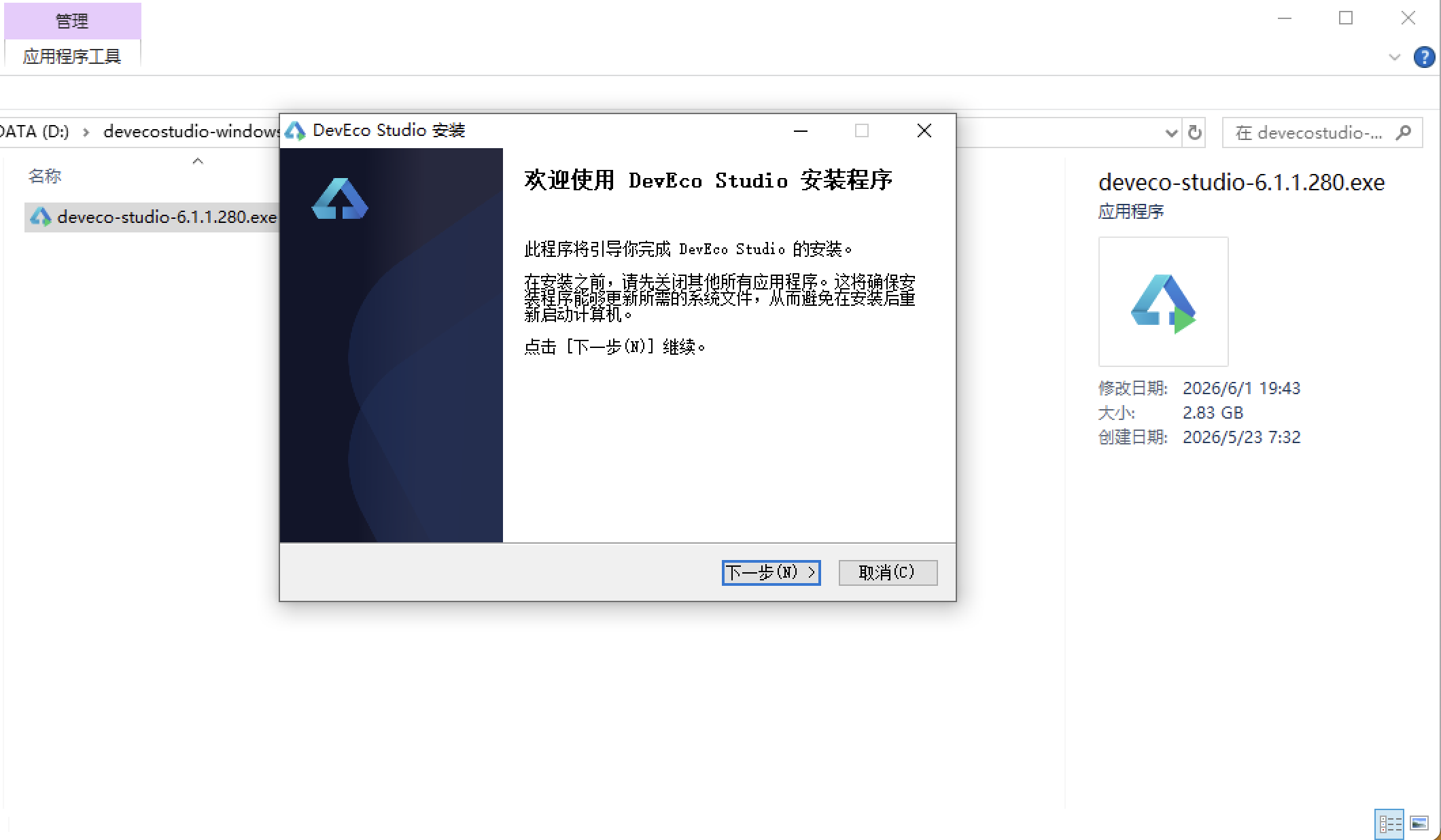
安装DevEco Studio程序
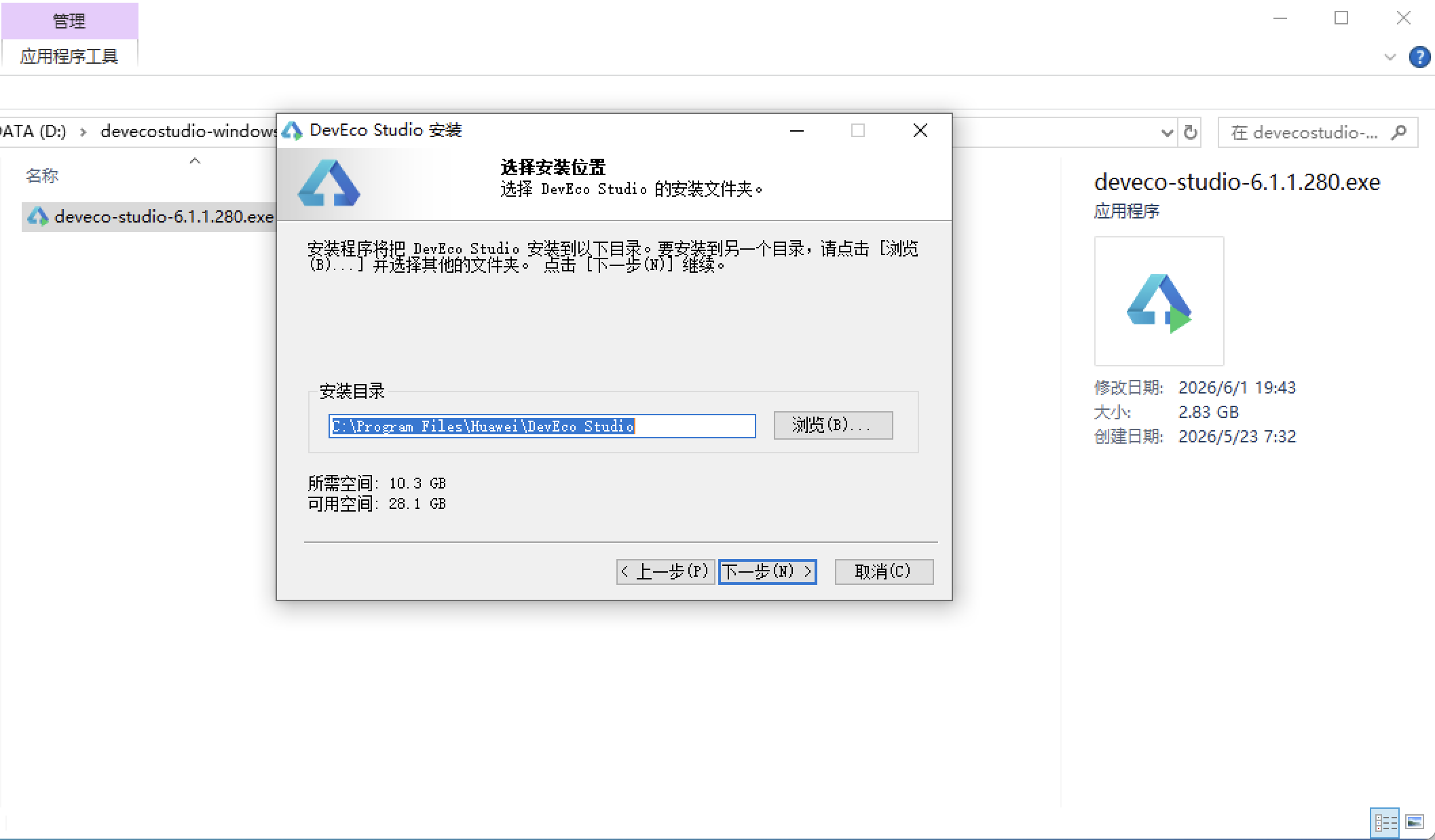
选择目标安装目录:
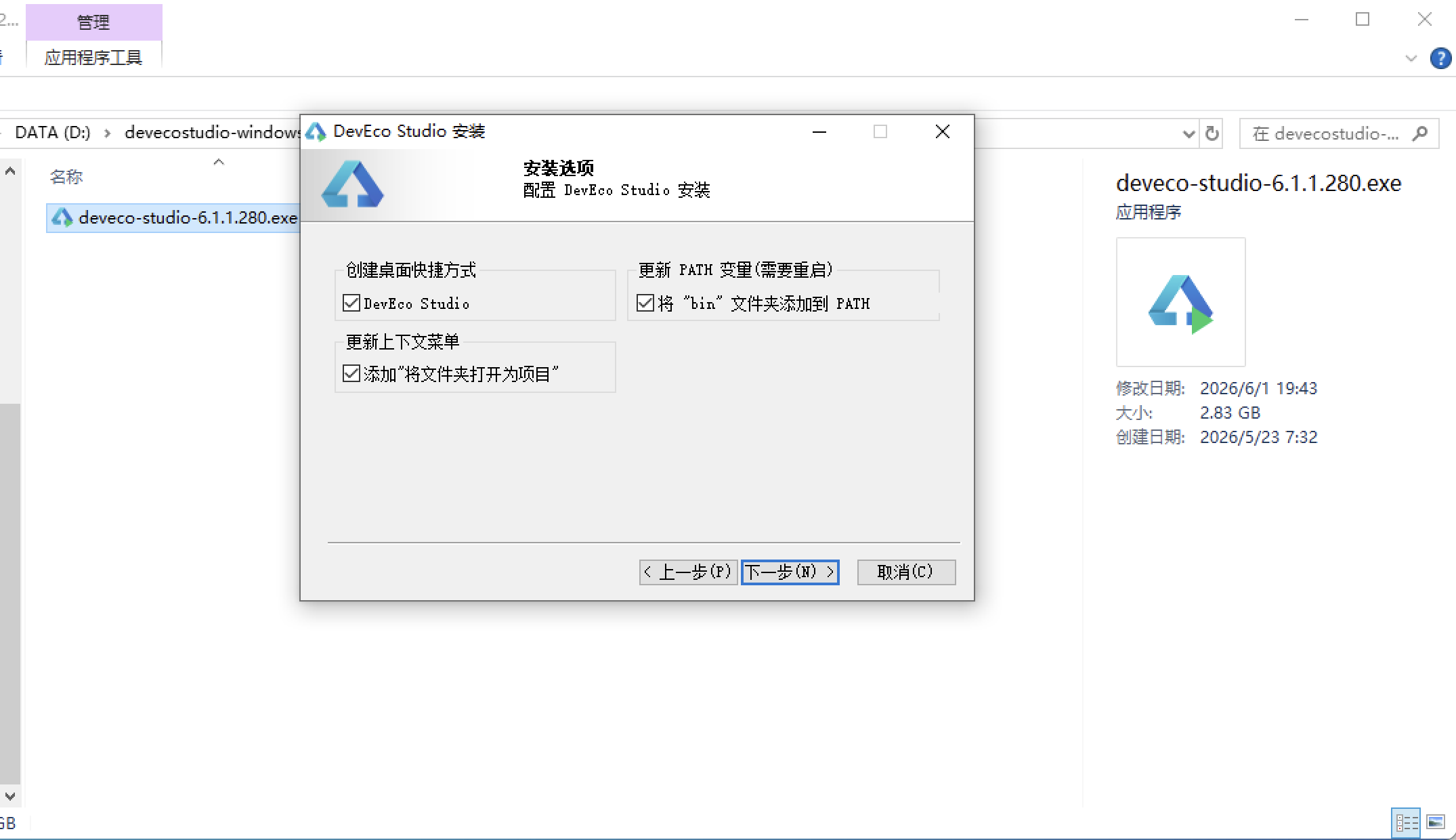
设置环境变量,但是需要重启一下:
新建一个空白模板:
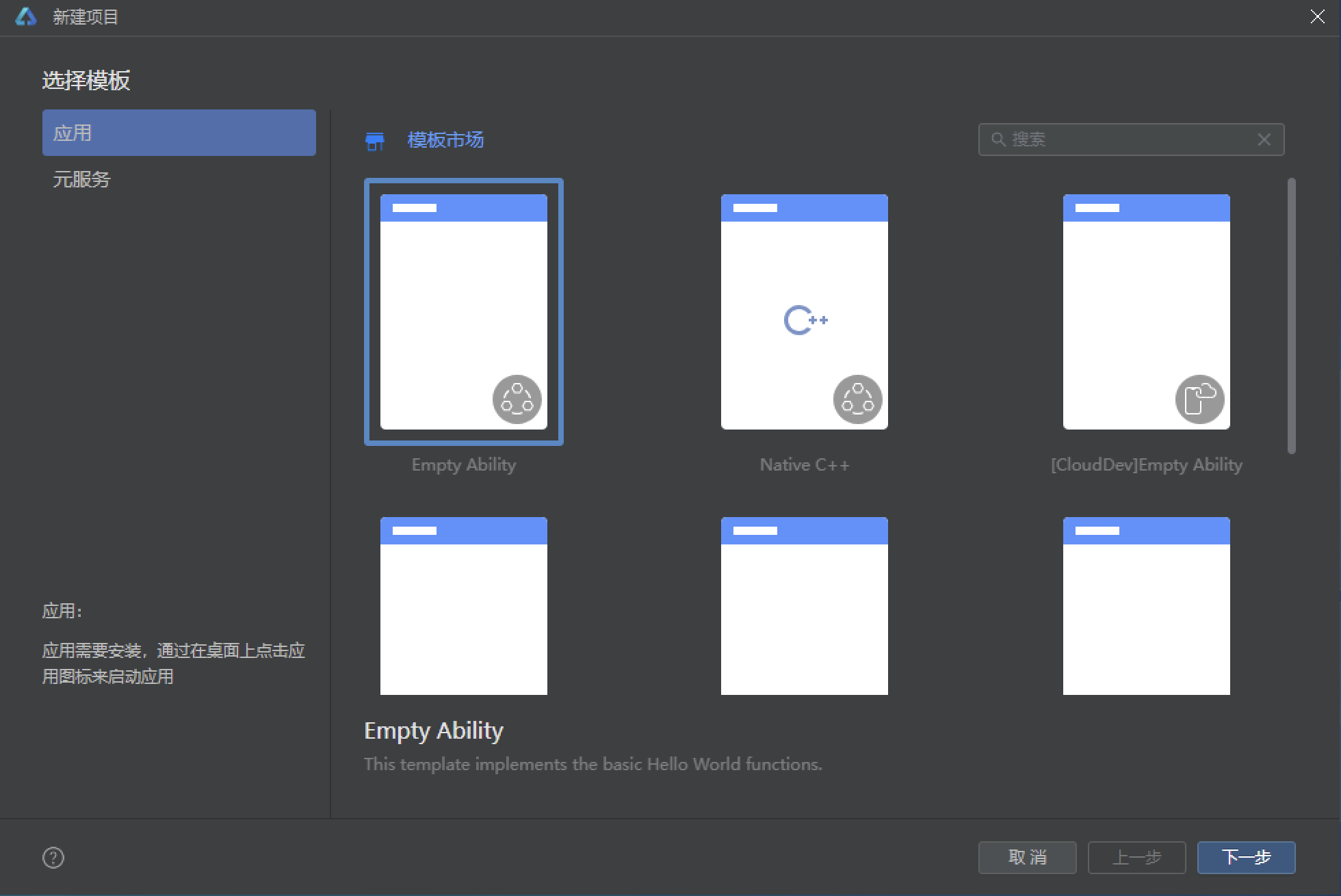
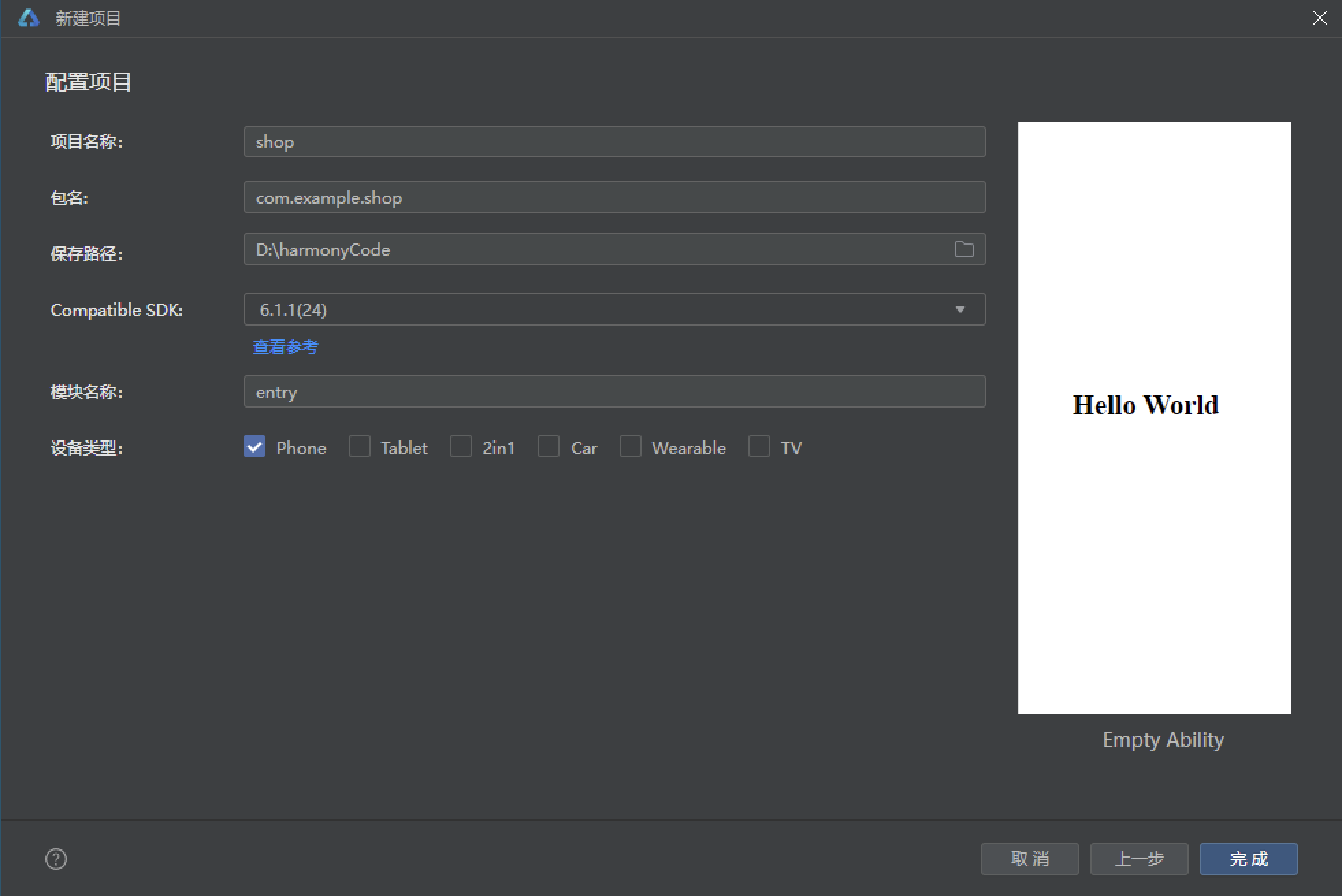
设置API为24的模板项目:
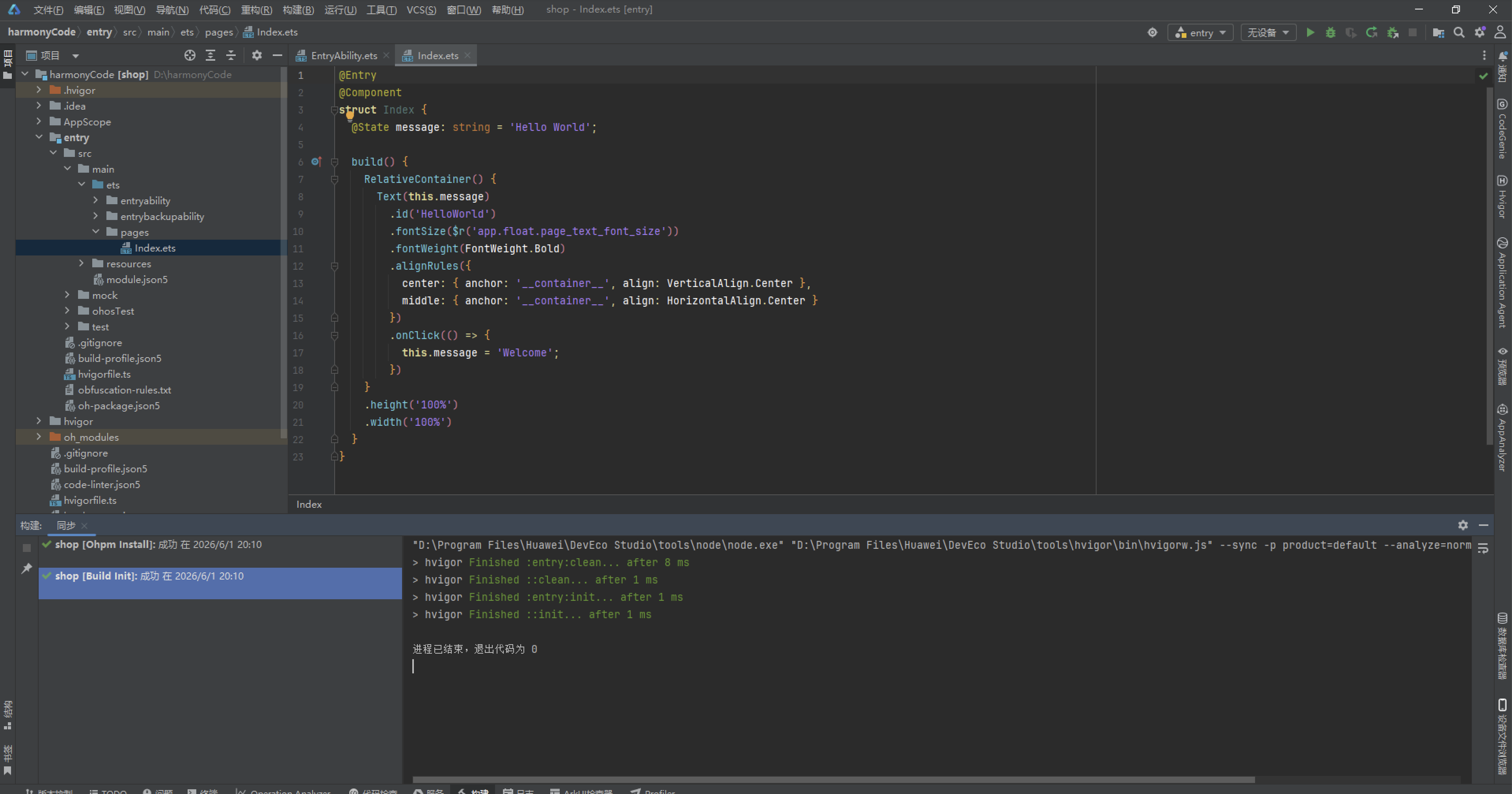
初始化项目,自动下载相关依赖:
完整代码:
// ============================================================
// 463.ets - 幼儿园接送管理系统
// ============================================================
// ---- 接口定义 ----
interface ChildConfig {
pageTitle: string
pageSize: number
}
interface PickupConfig {
pageTitle: string
lateThreshold: number
}
interface AttendanceConfig {
pageTitle: string
lateMinutes: number
earlyMinutes: number
}
interface NoticeConfig {
pageTitle: string
pageSize: number
}
interface ProfileConfig {
pageTitle: string
teacherName: string
className: string
}
interface StatItem {
label: string
value: string
color: string
}
interface BarItem {
day: string
rate: number
}
// ---- 数据模型 ----
@Observed class ChildInfo {
id: number = 0
name: string = ''
gender: string = ''
age: number = 0
className: string = ''
parentName: string = ''
parentPhone: string = ''
allergy: string = ''
emoji: string = ''
constructor(id: number, name: string, gender: string, age: number, className: string,
parentName: string, parentPhone: string, allergy: string, emoji: string) {
this.id = id
this.name = name
this.gender = gender
this.age = age
this.className = className
this.parentName = parentName
this.parentPhone = parentPhone
this.allergy = allergy
this.emoji = emoji
}
}
@Observed class PickupRecord {
id: number = 0
childName: string = ''
pickerName: string = ''
relation: string = ''
time: string = ''
status: string = ''
emoji: string = ''
constructor(id: number, childName: string, pickerName: string, relation: string,
time: string, status: string, emoji: string) {
this.id = id
this.childName = childName
this.pickerName = pickerName
this.relation = relation
this.time = time
this.status = status
this.emoji = emoji
}
}
@Observed class AttendanceRecord {
id: number = 0
childName: string = ''
className: string = ''
date: string = ''
arriveTime: string = ''
leaveTime: string = ''
status: string = ''
emoji: string = ''
constructor(id: number, childName: string, className: string, date: string,
arriveTime: string, leaveTime: string, status: string, emoji: string) {
this.id = id
this.childName = childName
this.className = className
this.date = date
this.arriveTime = arriveTime
this.leaveTime = leaveTime
this.status = status
this.emoji = emoji
}
}
@Observed class NoticeItem {
id: number = 0
title: string = ''
type: string = ''
content: string = ''
date: string = ''
important: boolean = false
read: boolean = false
constructor(id: number, title: string, type: string, content: string,
date: string, important: boolean, read: boolean) {
this.id = id
this.title = title
this.type = type
this.content = content
this.date = date
this.important = important
this.read = read
}
}
// ---- 配置常量 ----
const CHILD_CONFIG: ChildConfig = {
pageTitle: '幼儿管理',
pageSize: 20
}
const PICKUP_CONFIG: PickupConfig = {
pageTitle: '接送管理',
lateThreshold: 9
}
const ATTENDANCE_CONFIG: AttendanceConfig = {
pageTitle: '考勤管理',
lateMinutes: 830,
earlyMinutes: 1600
}
const NOTICE_CONFIG: NoticeConfig = {
pageTitle: '通知中心',
pageSize: 15
}
const PROFILE_CONFIG: ProfileConfig = {
pageTitle: '我的',
teacherName: '李老师',
className: '小一班'
}
// ---- 幼儿Mock数据 18条 ----
const mockChildren: ChildInfo[] = [
new ChildInfo(1, '豆豆', '男', 4, '小一班', '王芳', '138****6688', '花生', '🧒'),
new ChildInfo(2, '朵朵', '女', 3, '小一班', '张丽', '139****2233', '无', '👧'),
new ChildInfo(3, '阳阳', '男', 5, '中一班', '刘强', '137****5566', '鸡蛋', '👦'),
new ChildInfo(4, '月月', '女', 4, '小一班', '陈静', '136****8899', '牛奶', '👧'),
new ChildInfo(5, '虎虎', '男', 5, '中一班', '赵伟', '135****1122', '无', '🧒'),
new ChildInfo(6, '糖糖', '女', 3, '托班', '孙敏', '133****4455', '芒果', '👧'),
new ChildInfo(7, '果果', '男', 4, '小二班', '周杰', '132****7788', '无', '👦'),
new ChildInfo(8, '依依', '女', 5, '中二班', '吴琳', '131****9900', '海鲜', '👧'),
new ChildInfo(9, '壮壮', '男', 6, '大一班', '郑涛', '188****3344', '无', '🧒'),
new ChildInfo(10, '欣欣', '女', 4, '小二班', '王秀', '199****6677', '花粉', '👧'),
new ChildInfo(11, '乐乐', '男', 5, '中二班', '冯刚', '177****8899', '无', '👦'),
new ChildInfo(12, '甜甜', '女', 3, '托班', '陈红', '166****1122', '蛋白', '👧'),
new ChildInfo(13, '辰辰', '男', 6, '大一班', '褚明', '155****3344', '无', '🧒'),
new ChildInfo(14, '可可', '女', 4, '小一班', '卫国', '144****5566', '草莓', '👧'),
new ChildInfo(15, '豪豪', '男', 5, '中一班', '蒋亮', '133****7788', '无', '👦'),
new ChildInfo(16, '悦悦', '女', 6, '大一班', '沈悦', '122****9900', '坚果', '👧'),
new ChildInfo(17, '波波', '男', 3, '托班', '韩冰', '111****2233', '无', '🧒'),
new ChildInfo(18, '安安', '女', 5, '中二班', '杨雪', '188****4455', '无', '👧')
]
// ---- 接送Mock数据 20条 ----
const mockPickups: PickupRecord[] = [
new PickupRecord(1, '豆豆', '王芳', '妈妈', '08:35', '已签到', '🧒'),
new PickupRecord(2, '朵朵', '张丽', '妈妈', '08:20', '已签到', '👧'),
new PickupRecord(3, '阳阳', '刘强', '爸爸', '08:45', '已签到', '👦'),
new PickupRecord(4, '月月', '陈静', '妈妈', '08:10', '已签到', '👧'),
new PickupRecord(5, '虎虎', '赵伟', '爸爸', '09:05', '已签到', '🧒'),
new PickupRecord(6, '糖糖', '孙敏', '妈妈', '08:50', '已签到', '👧'),
new PickupRecord(7, '果果', '周杰', '爷爷', '08:30', '已签到', '👦'),
new PickupRecord(8, '依依', '吴琳', '妈妈', '08:25', '已签到', '👧'),
new PickupRecord(9, '壮壮', '郑涛', '爸爸', '08:40', '已签到', '🧒'),
new PickupRecord(10, '欣欣', '王秀', '奶奶', '08:55', '已签到', '👧'),
new PickupRecord(11, '乐乐', '冯刚', '爸爸', '15:30', '已签退', '👦'),
new PickupRecord(12, '甜甜', '陈红', '妈妈', '15:45', '已签退', '👧'),
new PickupRecord(13, '辰辰', '褚明', '爸爸', '15:20', '已签退', '🧒'),
new PickupRecord(14, '波波', '韩冰', '妈妈', '待定', '待接送', '🧒'),
new PickupRecord(15, '安安', '杨雪', '妈妈', '待定', '待接送', '👧'),
new PickupRecord(16, '可可', '卫国', '外公', '16:00', '已签退', '👧'),
new PickupRecord(17, '豪豪', '蒋亮', '爸爸', '待定', '异常', '👦'),
new PickupRecord(18, '悦悦', '沈悦', '妈妈', '15:50', '已签退', '👧'),
new PickupRecord(19, '豆豆', '王芳', '妈妈', '16:10', '已签退', '🧒'),
new PickupRecord(20, '朵朵', '张丽', '妈妈', '待定', '待接送', '👧')
]
// ---- 考勤Mock数据 16条 ----
const mockAttendances: AttendanceRecord[] = [
new AttendanceRecord(1, '豆豆', '小一班', '08-12', '08:35', '16:10', '出勤', '🧒'),
new AttendanceRecord(2, '朵朵', '小一班', '08-12', '08:20', '16:00', '出勤', '👧'),
new AttendanceRecord(3, '阳阳', '中一班', '08-12', '09:05', '16:15', '迟到', '👦'),
new AttendanceRecord(4, '月月', '小一班', '08-12', '08:10', '15:30', '早退', '👧'),
new AttendanceRecord(5, '虎虎', '中一班', '08-12', '08:40', '16:05', '出勤', '🧒'),
new AttendanceRecord(6, '糖糖', '托班', '08-12', '00:00', '00:00', '请假', '👧'),
new AttendanceRecord(7, '果果', '小二班', '08-12', '08:30', '16:20', '出勤', '👦'),
new AttendanceRecord(8, '依依', '中二班', '08-12', '08:25', '16:00', '出勤', '👧'),
new AttendanceRecord(9, '壮壮', '大一班', '08-12', '08:45', '16:10', '出勤', '🧒'),
new AttendanceRecord(10, '欣欣', '小二班', '08-12', '09:10', '16:05', '迟到', '👧'),
new AttendanceRecord(11, '乐乐', '中二班', '08-12', '08:35', '15:40', '早退', '👦'),
new AttendanceRecord(12, '甜甜', '托班', '08-12', '08:50', '16:00', '出勤', '👧'),
new AttendanceRecord(13, '辰辰', '大一班', '08-12', '08:20', '16:15', '出勤', '🧒'),
new AttendanceRecord(14, '可可', '小一班', '08-12', '00:00', '00:00', '请假', '👧'),
new AttendanceRecord(15, '豪豪', '中一班', '08-12', '08:55', '16:00', '出勤', '👦'),
new AttendanceRecord(16, '悦悦', '大一班', '08-12', '08:30', '16:05', '出勤', '👧')
]
// ---- 通知Mock数据 15条 ----
const mockNotices: NoticeItem[] = [
new NoticeItem(1, '亲子运动会通知', '活动通知', '本周六上午9点在幼儿园操场举办亲子运动会,请家长准时参加。', '08-10', true, false),
new NoticeItem(2, '夏季防暑安全提醒', '安全提醒', '近期高温天气,请为孩子准备遮阳帽和水杯,注意防暑降温。', '08-09', true, false),
new NoticeItem(3, '本周食谱公示', '饮食通知', '本周食谱已更新,请家长关注孩子饮食情况,如有过敏请及时告知。', '08-08', false, true),
new NoticeItem(4, '中秋节放假通知', '放假通知', '9月15日至17日放假调休,共3天。18日正常入园。', '08-07', true, true),
new NoticeItem(5, '疫苗接种提醒', '安全提醒', '请家长关注孩子疫苗接种时间,及时完成接种。', '08-06', false, true),
new NoticeItem(6, '手工课活动通知', '活动通知', '本周三下午开展亲子手工课,请准备废旧纸盒等材料。', '08-05', false, true),
new NoticeItem(7, '食品安全须知', '饮食通知', '请勿让孩子携带含过敏原的食物入园,确保饮食安全。', '08-04', false, true),
new NoticeItem(8, '消防演练通知', '安全提醒', '本周四上午进行消防演练,请配合老师做好安全教育。', '08-03', true, true),
new NoticeItem(9, '暑期放假通知', '放假通知', '8月1日至8月31日放暑假,9月1日开学。', '08-01', true, true),
new NoticeItem(10, '绘本阅读活动', '活动通知', '每周五下午开展绘本阅读活动,欢迎家长志愿者参与。', '07-30', false, true),
new NoticeItem(11, '体检通知', '安全提醒', '本周二统一进行幼儿体检,请按时送园。', '07-28', true, true),
new NoticeItem(12, '加餐调整通知', '饮食通知', '因天气炎热,下午加餐调整为水果和酸奶。', '07-25', false, true),
new NoticeItem(13, '国庆放假通知', '放假通知', '10月1日至7日放假,8日正常入园。', '07-20', true, true),
new NoticeItem(14, '户外活动提醒', '安全提醒', '天气良好时增加户外活动时间,请穿运动鞋。', '07-18', false, true),
new NoticeItem(15, '毕业典礼通知', '活动通知', '大班毕业典礼定于7月30日上午10点举行。', '07-15', true, true)
]
// ---- 全局纯函数 ----
function getStatusColor(status: string): string {
if (status === '已签到' || status === '出勤') return '#66BB6A'
if (status === '已签退' || status === '早退') return '#EC407A'
if (status === '待接送' || status === '迟到') return '#FFCA28'
return '#EF5350'
}
function getNoticeTypeColor(type: string): string {
if (type === '活动通知') return '#EC407A'
if (type === '安全提醒') return '#EF5350'
if (type === '饮食通知') return '#FFCA28'
return '#66BB6A'
}
function getGenderColor(gender: string): string {
if (gender === '男') return '#42A5F5'
return '#EC407A'
}
function getClassBorderColor(className: string): string {
if (className === '小一班') return '#EC407A'
if (className === '小二班') return '#FFCA28'
if (className === '中一班') return '#66BB6A'
if (className === '中二班') return '#42A5F5'
if (className === '大一班') return '#AB47BC'
return '#FF7043'
}
function getAttendanceIcon(status: string): string {
if (status === '出勤') return '✓'
if (status === '请假') return '📝'
if (status === '迟到') return '⏰'
return '🏃'
}
function getStatsData(): StatItem[] {
return [
{ label: '出勤率', value: '92%', color: '#66BB6A' },
{ label: '接送完成', value: '85%', color: '#EC407A' },
{ label: '待处理通知', value: '3', color: '#FFCA28' }
]
}
function getWeekBars(): BarItem[] {
return [
{ day: '周一', rate: 95 },
{ day: '周二', rate: 90 },
{ day: '周三', rate: 88 },
{ day: '周四', rate: 92 },
{ day: '周五', rate: 96 }
]
}
// ---- Tab索引枚举 ----
enum TabIndex {
Children = 0,
Pickup = 1,
Attendance = 2,
Notice = 3,
Profile = 4
}
// ---- 主入口 ----
@Entry
@Component
struct KindergartenApp {
@State currentTab: number = TabIndex.Children
@State children: ChildInfo[] = mockChildren
@State pickups: PickupRecord[] = mockPickups
@State attendances: AttendanceRecord[] = mockAttendances
@State notices: NoticeItem[] = mockNotices
@State showAddChildModal: boolean = false
@State showEditChildModal: boolean = false
@State showDeleteChildConfirm: boolean = false
@State showAddPickupModal: boolean = false
@State showEditPickupModal: boolean = false
@State showEditAttendanceModal: boolean = false
@State showAddNoticeModal: boolean = false
@State showDeleteNoticeConfirm: boolean = false
@State selectedChildIndex: number = 0
@State selectedPickupIndex: number = 0
@State selectedAttendanceIndex: number = 0
@State selectedNoticeIndex: number = 0
@State childClassFilter: string = '全部'
@Builder modalOverlay(onClose: () => void) {
Column() {
Column()
.width('100%')
.height('100%')
.backgroundColor('rgba(0,0,0,0.5)')
.onClick(() => { onClose() })
}
.width('100%')
.height('100%')
.position({ x: 0, y: 0 })
}
@Builder addChildModalContent() {
Column() {
Column() {
Text('新增幼儿')
.fontSize(20)
.fontWeight(FontWeight.Bold)
.fontColor('#333')
.margin({ bottom: 20 })
Text('请填写幼儿基本信息')
.fontSize(14)
.fontColor('#888')
.margin({ bottom: 24 })
Column() {
Text('姓名')
.fontSize(14)
.fontColor('#666')
.margin({ bottom: 6 })
TextInput({ placeholder: '请输入幼儿姓名' })
.height(44)
.borderRadius(12)
.backgroundColor('#F5F5F5')
.padding({ left: 12, right: 12 })
}
.width('100%')
.alignItems(HorizontalAlign.Start)
.margin({ bottom: 16 })
Column() {
Text('班级')
.fontSize(14)
.fontColor('#666')
.margin({ bottom: 6 })
TextInput({ placeholder: '请输入班级' })
.height(44)
.borderRadius(12)
.backgroundColor('#F5F5F5')
.padding({ left: 12, right: 12 })
}
.width('100%')
.alignItems(HorizontalAlign.Start)
.margin({ bottom: 16 })
Column() {
Text('家长电话')
.fontSize(14)
.fontColor('#666')
.margin({ bottom: 6 })
TextInput({ placeholder: '请输入家长电话' })
.height(44)
.borderRadius(12)
.backgroundColor('#F5F5F5')
.padding({ left: 12, right: 12 })
}
.width('100%')
.alignItems(HorizontalAlign.Start)
.margin({ bottom: 24 })
Row() {
Button('取消')
.layoutWeight(1)
.height(44)
.borderRadius(22)
.backgroundColor('#F5F5F5')
.fontColor('#666')
.onClick(() => { this.showAddChildModal = false })
Column().width(12)
Button('确认添加')
.layoutWeight(1)
.height(44)
.borderRadius(22)
.backgroundColor('#EC407A')
.fontColor('#fff')
.onClick(() => { this.showAddChildModal = false })
}
.width('100%')
}
.width('85%')
.padding(24)
.backgroundColor('#fff')
.borderRadius(24)
}
.width('100%')
.height('100%')
.justifyContent(FlexAlign.Center)
}
@Builder editChildModalContent() {
Column() {
Column() {
Text('编辑幼儿信息')
.fontSize(20)
.fontWeight(FontWeight.Bold)
.fontColor('#333')
.margin({ bottom: 20 })
Text(this.children[this.selectedChildIndex].name + ' 的信息')
.fontSize(14)
.fontColor('#888')
.margin({ bottom: 24 })
Column() {
Text('姓名')
.fontSize(14)
.fontColor('#666')
.margin({ bottom: 6 })
TextInput({ text: this.children[this.selectedChildIndex].name })
.height(44)
.borderRadius(12)
.backgroundColor('#F5F5F5')
.padding({ left: 12, right: 12 })
}
.width('100%')
.alignItems(HorizontalAlign.Start)
.margin({ bottom: 16 })
Column() {
Text('班级')
.fontSize(14)
.fontColor('#666')
.margin({ bottom: 6 })
TextInput({ text: this.children[this.selectedChildIndex].className })
.height(44)
.borderRadius(12)
.backgroundColor('#F5F5F5')
.padding({ left: 12, right: 12 })
}
.width('100%')
.alignItems(HorizontalAlign.Start)
.margin({ bottom: 16 })
Column() {
Text('过敏信息')
.fontSize(14)
.fontColor('#666')
.margin({ bottom: 6 })
TextInput({ text: this.children[this.selectedChildIndex].allergy })
.height(44)
.borderRadius(12)
.backgroundColor('#F5F5F5')
.padding({ left: 12, right: 12 })
}
.width('100%')
.alignItems(HorizontalAlign.Start)
.margin({ bottom: 24 })
Row() {
Button('取消')
.layoutWeight(1)
.height(44)
.borderRadius(22)
.backgroundColor('#F5F5F5')
.fontColor('#666')
.onClick(() => { this.showEditChildModal = false })
Column().width(12)
Button('保存')
.layoutWeight(1)
.height(44)
.borderRadius(22)
.backgroundColor('#EC407A')
.fontColor('#fff')
.onClick(() => { this.showEditChildModal = false })
}
.width('100%')
}
.width('85%')
.padding(24)
.backgroundColor('#fff')
.borderRadius(24)
}
.width('100%')
.height('100%')
.justifyContent(FlexAlign.Center)
}
@Builder deleteChildModalContent() {
Column() {
Column() {
Text('确认删除')
.fontSize(20)
.fontWeight(FontWeight.Bold)
.fontColor('#333')
.margin({ bottom: 16 })
Text('确定要删除 ' + this.children[this.selectedChildIndex].name + ' 的信息吗?')
.fontSize(14)
.fontColor('#888')
.textAlign(TextAlign.Center)
.margin({ bottom: 24 })
Row() {
Button('取消')
.layoutWeight(1)
.height(44)
.borderRadius(22)
.backgroundColor('#F5F5F5')
.fontColor('#666')
.onClick(() => { this.showDeleteChildConfirm = false })
Column().width(12)
Button('删除')
.layoutWeight(1)
.height(44)
.borderRadius(22)
.backgroundColor('#EF5350')
.fontColor('#fff')
.onClick(() => { this.showDeleteChildConfirm = false })
}
.width('100%')
}
.width('75%')
.padding(24)
.backgroundColor('#fff')
.borderRadius(24)
}
.width('100%')
.height('100%')
.justifyContent(FlexAlign.Center)
}
@Builder addPickupModalContent() {
Column() {
Column() {
Text('新增接送记录')
.fontSize(20)
.fontWeight(FontWeight.Bold)
.fontColor('#333')
.margin({ bottom: 20 })
Text('请填写接送信息')
.fontSize(14)
.fontColor('#888')
.margin({ bottom: 24 })
Column() {
Text('幼儿姓名')
.fontSize(14)
.fontColor('#666')
.margin({ bottom: 6 })
TextInput({ placeholder: '请输入幼儿姓名' })
.height(44)
.borderRadius(12)
.backgroundColor('#F5F5F5')
.padding({ left: 12, right: 12 })
}
.width('100%')
.alignItems(HorizontalAlign.Start)
.margin({ bottom: 16 })
Column() {
Text('接送人')
.fontSize(14)
.fontColor('#666')
.margin({ bottom: 6 })
TextInput({ placeholder: '请输入接送人姓名' })
.height(44)
.borderRadius(12)
.backgroundColor('#F5F5F5')
.padding({ left: 12, right: 12 })
}
.width('100%')
.alignItems(HorizontalAlign.Start)
.margin({ bottom: 16 })
Column() {
Text('接送时间')
.fontSize(14)
.fontColor('#666')
.margin({ bottom: 6 })
TextInput({ placeholder: '如 08:30' })
.height(44)
.borderRadius(12)
.backgroundColor('#F5F5F5')
.padding({ left: 12, right: 12 })
}
.width('100%')
.alignItems(HorizontalAlign.Start)
.margin({ bottom: 24 })
Row() {
Button('取消')
.layoutWeight(1)
.height(44)
.borderRadius(22)
.backgroundColor('#F5F5F5')
.fontColor('#666')
.onClick(() => { this.showAddPickupModal = false })
Column().width(12)
Button('确认')
.layoutWeight(1)
.height(44)
.borderRadius(22)
.backgroundColor('#EC407A')
.fontColor('#fff')
.onClick(() => { this.showAddPickupModal = false })
}
.width('100%')
}
.width('85%')
.padding(24)
.backgroundColor('#fff')
.borderRadius(24)
}
.width('100%')
.height('100%')
.justifyContent(FlexAlign.Center)
}
@Builder editPickupModalContent() {
Column() {
Column() {
Text('编辑接送记录')
.fontSize(20)
.fontWeight(FontWeight.Bold)
.fontColor('#333')
.margin({ bottom: 20 })
Text(this.pickups[this.selectedPickupIndex].childName + ' 的接送')
.fontSize(14)
.fontColor('#888')
.margin({ bottom: 24 })
Column() {
Text('接送人')
.fontSize(14)
.fontColor('#666')
.margin({ bottom: 6 })
TextInput({ text: this.pickups[this.selectedPickupIndex].pickerName })
.height(44)
.borderRadius(12)
.backgroundColor('#F5F5F5')
.padding({ left: 12, right: 12 })
}
.width('100%')
.alignItems(HorizontalAlign.Start)
.margin({ bottom: 16 })
Column() {
Text('接送时间')
.fontSize(14)
.fontColor('#666')
.margin({ bottom: 6 })
TextInput({ text: this.pickups[this.selectedPickupIndex].time })
.height(44)
.borderRadius(12)
.backgroundColor('#F5F5F5')
.padding({ left: 12, right: 12 })
}
.width('100%')
.alignItems(HorizontalAlign.Start)
.margin({ bottom: 24 })
Row() {
Button('取消')
.layoutWeight(1)
.height(44)
.borderRadius(22)
.backgroundColor('#F5F5F5')
.fontColor('#666')
.onClick(() => { this.showEditPickupModal = false })
Column().width(12)
Button('保存')
.layoutWeight(1)
.height(44)
.borderRadius(22)
.backgroundColor('#EC407A')
.fontColor('#fff')
.onClick(() => { this.showEditPickupModal = false })
}
.width('100%')
}
.width('85%')
.padding(24)
.backgroundColor('#fff')
.borderRadius(24)
}
.width('100%')
.height('100%')
.justifyContent(FlexAlign.Center)
}
@Builder editAttendanceModalContent() {
Column() {
Column() {
Text('编辑考勤记录')
.fontSize(20)
.fontWeight(FontWeight.Bold)
.fontColor('#333')
.margin({ bottom: 20 })
Text(this.attendances[this.selectedAttendanceIndex].childName + ' 的考勤')
.fontSize(14)
.fontColor('#888')
.margin({ bottom: 24 })
Column() {
Text('到园时间')
.fontSize(14)
.fontColor('#666')
.margin({ bottom: 6 })
TextInput({ text: this.attendances[this.selectedAttendanceIndex].arriveTime })
.height(44)
.borderRadius(12)
.backgroundColor('#F5F5F5')
.padding({ left: 12, right: 12 })
}
.width('100%')
.alignItems(HorizontalAlign.Start)
.margin({ bottom: 16 })
Column() {
Text('离园时间')
.fontSize(14)
.fontColor('#666')
.margin({ bottom: 6 })
TextInput({ text: this.attendances[this.selectedAttendanceIndex].leaveTime })
.height(44)
.borderRadius(12)
.backgroundColor('#F5F5F5')
.padding({ left: 12, right: 12 })
}
.width('100%')
.alignItems(HorizontalAlign.Start)
.margin({ bottom: 24 })
Row() {
Button('取消')
.layoutWeight(1)
.height(44)
.borderRadius(22)
.backgroundColor('#F5F5F5')
.fontColor('#666')
.onClick(() => { this.showEditAttendanceModal = false })
Column().width(12)
Button('保存')
.layoutWeight(1)
.height(44)
.borderRadius(22)
.backgroundColor('#EC407A')
.fontColor('#fff')
.onClick(() => { this.showEditAttendanceModal = false })
}
.width('100%')
}
.width('85%')
.padding(24)
.backgroundColor('#fff')
.borderRadius(24)
}
.width('100%')
.height('100%')
.justifyContent(FlexAlign.Center)
}
@Builder addNoticeModalContent() {
Column() {
Column() {
Text('发布通知')
.fontSize(20)
.fontWeight(FontWeight.Bold)
.fontColor('#333')
.margin({ bottom: 20 })
Text('请填写通知内容')
.fontSize(14)
.fontColor('#888')
.margin({ bottom: 24 })
Column() {
Text('标题')
.fontSize(14)
.fontColor('#666')
.margin({ bottom: 6 })
TextInput({ placeholder: '请输入通知标题' })
.height(44)
.borderRadius(12)
.backgroundColor('#F5F5F5')
.padding({ left: 12, right: 12 })
}
.width('100%')
.alignItems(HorizontalAlign.Start)
.margin({ bottom: 16 })
Column() {
Text('内容')
.fontSize(14)
.fontColor('#666')
.margin({ bottom: 6 })
TextInput({ placeholder: '请输入通知内容' })
.height(80)
.borderRadius(12)
.backgroundColor('#F5F5F5')
.padding({ left: 12, right: 12 })
}
.width('100%')
.alignItems(HorizontalAlign.Start)
.margin({ bottom: 24 })
Row() {
Button('取消')
.layoutWeight(1)
.height(44)
.borderRadius(22)
.backgroundColor('#F5F5F5')
.fontColor('#666')
.onClick(() => { this.showAddNoticeModal = false })
Column().width(12)
Button('发布')
.layoutWeight(1)
.height(44)
.borderRadius(22)
.backgroundColor('#EC407A')
.fontColor('#fff')
.onClick(() => { this.showAddNoticeModal = false })
}
.width('100%')
}
.width('85%')
.padding(24)
.backgroundColor('#fff')
.borderRadius(24)
}
.width('100%')
.height('100%')
.justifyContent(FlexAlign.Center)
}
@Builder deleteNoticeModalContent() {
Column() {
Column() {
Text('确认删除')
.fontSize(20)
.fontWeight(FontWeight.Bold)
.fontColor('#333')
.margin({ bottom: 16 })
Text('确定要删除这条通知吗?')
.fontSize(14)
.fontColor('#888')
.textAlign(TextAlign.Center)
.margin({ bottom: 24 })
Row() {
Button('取消')
.layoutWeight(1)
.height(44)
.borderRadius(22)
.backgroundColor('#F5F5F5')
.fontColor('#666')
.onClick(() => { this.showDeleteNoticeConfirm = false })
Column().width(12)
Button('删除')
.layoutWeight(1)
.height(44)
.borderRadius(22)
.backgroundColor('#EF5350')
.fontColor('#fff')
.onClick(() => { this.showDeleteNoticeConfirm = false })
}
.width('100%')
}
.width('75%')
.padding(24)
.backgroundColor('#fff')
.borderRadius(24)
}
.width('100%')
.height('100%')
.justifyContent(FlexAlign.Center)
}
@Builder headerBar(title: string) {
Row() {
Text(title)
.fontSize(22)
.fontWeight(FontWeight.Bold)
.fontColor('#fff')
Column().layoutWeight(1)
Text('🏫')
.fontSize(24)
}
.width('100%')
.padding({ left: 20, right: 20, top: 50, bottom: 16 })
.alignItems(VerticalAlign.Center)
.linearGradient({
direction: GradientDirection.Right,
colors: [[0xEC407A, 0.0], [0xF06292, 0.5], [0xFFCA28, 1.0]]
})
.borderRadius({ bottomLeft: 24, bottomRight: 24 })
}
@Builder bottomTabBar() {
Row() {
Column() {
Text('👶')
.fontSize(22)
.margin({ bottom: 2 })
Text('幼儿')
.fontSize(11)
.fontColor(this.currentTab === TabIndex.Children ? '#EC407A' : '#999')
if (this.currentTab === TabIndex.Children) {
Column()
.width(20)
.height(3)
.borderRadius(2)
.backgroundColor('#EC407A')
.margin({ top: 2 })
}
}
.layoutWeight(1)
.alignItems(HorizontalAlign.Center)
.onClick(() => { this.currentTab = TabIndex.Children })
Column() {
Text('🚗')
.fontSize(22)
.margin({ bottom: 2 })
Text('接送')
.fontSize(11)
.fontColor(this.currentTab === TabIndex.Pickup ? '#EC407A' : '#999')
if (this.currentTab === TabIndex.Pickup) {
Column()
.width(20)
.height(3)
.borderRadius(2)
.backgroundColor('#EC407A')
.margin({ top: 2 })
}
}
.layoutWeight(1)
.alignItems(HorizontalAlign.Center)
.onClick(() => { this.currentTab = TabIndex.Pickup })
Column() {
Text('📋')
.fontSize(22)
.margin({ bottom: 2 })
Text('考勤')
.fontSize(11)
.fontColor(this.currentTab === TabIndex.Attendance ? '#EC407A' : '#999')
if (this.currentTab === TabIndex.Attendance) {
Column()
.width(20)
.height(3)
.borderRadius(2)
.backgroundColor('#EC407A')
.margin({ top: 2 })
}
}
.layoutWeight(1)
.alignItems(HorizontalAlign.Center)
.onClick(() => { this.currentTab = TabIndex.Attendance })
Column() {
Text('📰')
.fontSize(22)
.margin({ bottom: 2 })
Text('通知')
.fontSize(11)
.fontColor(this.currentTab === TabIndex.Notice ? '#EC407A' : '#999')
if (this.currentTab === TabIndex.Notice) {
Column()
.width(20)
.height(3)
.borderRadius(2)
.backgroundColor('#EC407A')
.margin({ top: 2 })
}
}
.layoutWeight(1)
.alignItems(HorizontalAlign.Center)
.onClick(() => { this.currentTab = TabIndex.Notice })
Column() {
Text('👤')
.fontSize(22)
.margin({ bottom: 2 })
Text('我的')
.fontSize(11)
.fontColor(this.currentTab === TabIndex.Profile ? '#EC407A' : '#999')
if (this.currentTab === TabIndex.Profile) {
Column()
.width(20)
.height(3)
.borderRadius(2)
.backgroundColor('#EC407A')
.margin({ top: 2 })
}
}
.layoutWeight(1)
.alignItems(HorizontalAlign.Center)
.onClick(() => { this.currentTab = TabIndex.Profile })
}
.width('100%')
.height(64)
.backgroundColor('#fff')
.border({ width: 1, color: '#eee' })
}
build() {
Column() {
Stack() {
Column() {
if (this.currentTab === TabIndex.Children) {
this.headerBar(CHILD_CONFIG.pageTitle)
ChildrenTab({
children: this.children,
childClassFilter: this.childClassFilter,
onClassFilterChange: (filter: string) => { this.childClassFilter = filter },
onAdd: () => { this.showAddChildModal = true },
onEdit: (index: number) => {
this.selectedChildIndex = index
this.showEditChildModal = true
},
onDelete: (index: number) => {
this.selectedChildIndex = index
this.showDeleteChildConfirm = true
}
})
}
if (this.currentTab === TabIndex.Pickup) {
this.headerBar(PICKUP_CONFIG.pageTitle)
PickupTab({
pickups: this.pickups,
onAdd: () => { this.showAddPickupModal = true },
onEdit: (index: number) => {
this.selectedPickupIndex = index
this.showEditPickupModal = true
}
})
}
if (this.currentTab === TabIndex.Attendance) {
this.headerBar(ATTENDANCE_CONFIG.pageTitle)
AttendanceTab({
attendances: this.attendances,
onEdit: (index: number) => {
this.selectedAttendanceIndex = index
this.showEditAttendanceModal = true
}
})
}
if (this.currentTab === TabIndex.Notice) {
this.headerBar(NOTICE_CONFIG.pageTitle)
}
if (this.currentTab === TabIndex.Profile) {
this.headerBar(PROFILE_CONFIG.pageTitle)
}
this.bottomTabBar()
}
.width('100%')
.height('100%')
if (this.showAddChildModal) {
this.modalOverlay(() => { this.showAddChildModal = false })
this.addChildModalContent()
}
if (this.showEditChildModal) {
this.modalOverlay(() => { this.showEditChildModal = false })
this.editChildModalContent()
}
if (this.showDeleteChildConfirm) {
this.modalOverlay(() => { this.showDeleteChildConfirm = false })
this.deleteChildModalContent()
}
if (this.showAddPickupModal) {
this.modalOverlay(() => { this.showAddPickupModal = false })
this.addPickupModalContent()
}
if (this.showEditPickupModal) {
this.modalOverlay(() => { this.showEditPickupModal = false })
this.editPickupModalContent()
}
if (this.showEditAttendanceModal) {
this.modalOverlay(() => { this.showEditAttendanceModal = false })
this.editAttendanceModalContent()
}
if (this.showAddNoticeModal) {
this.modalOverlay(() => { this.showAddNoticeModal = false })
this.addNoticeModalContent()
}
if (this.showDeleteNoticeConfirm) {
this.modalOverlay(() => { this.showDeleteNoticeConfirm = false })
this.deleteNoticeModalContent()
}
}
.width('100%')
.height('100%')
}
.width('100%')
.height('100%')
.backgroundColor('#FCE4EC')
}
}
// ---- 幼儿Tab组件 ----
@Component
struct ChildrenTab {
@Link children: ChildInfo[]
@Prop childClassFilter: string
onClassFilterChange: (filter: string) => void = () => {}
onAdd: () => void = () => {}
onEdit: (index: number) => void = () => {}
onDelete: (index: number) => void = () => {}
@Builder classFilterTag(label: string) {
Text(label)
.fontSize(13)
.fontColor(this.childClassFilter === label ? '#fff' : '#666')
.padding({ left: 14, right: 14, top: 6, bottom: 6 })
.borderRadius(16)
.backgroundColor(this.childClassFilter === label ? '#EC407A' : '#fff')
.border({ width: 1, color: this.childClassFilter === label ? '#EC407A' : '#ddd' })
.onClick(() => { this.onClassFilterChange(label) })
}
@Builder childCard(item: ChildInfo, index: number) {
Row() {
// 左侧大圆形emoji头像
Column() {
Text(item.emoji)
.fontSize(32)
}
.width(64)
.height(64)
.borderRadius(32)
.backgroundColor('#FFF3E0')
.border({ width: 3, color: getClassBorderColor(item.className) })
.justifyContent(FlexAlign.Center)
Column() {
Row() {
Text(item.name)
.fontSize(18)
.fontWeight(FontWeight.Bold)
.fontColor('#333')
Text(item.gender === '男' ? '♂' : '♀')
.fontSize(14)
.fontColor(getGenderColor(item.gender))
.margin({ left: 6 })
Column().layoutWeight(1)
Text(item.className)
.fontSize(12)
.fontColor('#EC407A')
.padding({ left: 8, right: 8, top: 3, bottom: 3 })
.borderRadius(10)
.backgroundColor('#FCE4EC')
}
.width('100%')
.alignItems(VerticalAlign.Center)
Row() {
Text('家长: ' + item.parentName)
.fontSize(13)
.fontColor('#888')
}
.width('100%')
.margin({ top: 6 })
Row() {
Text('电话: ' + item.parentPhone)
.fontSize(13)
.fontColor('#888')
}
.width('100%')
.margin({ top: 4 })
Row() {
Text('班级')
.fontSize(11)
.fontColor('#666')
.padding({ left: 8, right: 8, top: 3, bottom: 3 })
.borderRadius(10)
.backgroundColor('#F5F5F5')
Column().width(8)
if (item.allergy !== '无') {
Text('过敏: ' + item.allergy)
.fontSize(11)
.fontColor('#EF5350')
.padding({ left: 8, right: 8, top: 3, bottom: 3 })
.borderRadius(10)
.backgroundColor('#FFEBEE')
} else {
Text('无过敏')
.fontSize(11)
.fontColor('#66BB6A')
.padding({ left: 8, right: 8, top: 3, bottom: 3 })
.borderRadius(10)
.backgroundColor('#E8F5E9')
}
Column().width(8)
Text(item.age + '岁')
.fontSize(11)
.fontColor('#FF8F00')
.padding({ left: 8, right: 8, top: 3, bottom: 3 })
.borderRadius(10)
.backgroundColor('#FFF8E1')
}
.width('100%')
.margin({ top: 8 })
.alignItems(VerticalAlign.Center)
}
.layoutWeight(1)
.alignItems(HorizontalAlign.Start)
.margin({ left: 12 })
Column() {
Button('编辑')
.height(28)
.borderRadius(14)
.fontSize(11)
.backgroundColor('#FFCA28')
.fontColor('#333')
.onClick(() => { this.onEdit(index) })
Button('删除')
.height(28)
.borderRadius(14)
.fontSize(11)
.backgroundColor('#EF5350')
.fontColor('#fff')
.margin({ top: 6 })
.onClick(() => { this.onDelete(index) })
}
.alignItems(HorizontalAlign.Center)
}
.width('100%')
.padding(14)
.backgroundColor('#fff')
.borderRadius(20)
.alignItems(VerticalAlign.Center)
.shadow({ radius: 8, color: 'rgba(236,64,122,0.1)', offsetX: 0, offsetY: 2 })
}
build() {
Column() {
// 筛选标签行
Scroll() {
Row() {
this.classFilterTag('全部')
Column().width(8)
this.classFilterTag('小一班')
Column().width(8)
this.classFilterTag('小二班')
Column().width(8)
this.classFilterTag('中一班')
Column().width(8)
this.classFilterTag('中二班')
Column().width(8)
this.classFilterTag('大一班')
Column().width(8)
this.classFilterTag('托班')
}
.padding({ left: 16, right: 16 })
}
.scrollable(ScrollDirection.Horizontal)
.scrollBar(BarState.Off)
.height(40)
// 新增按钮
Row() {
Text('共 ' + this.children.length + ' 名幼儿')
.fontSize(13)
.fontColor('#888')
Column().layoutWeight(1)
Button('+ 新增幼儿')
.height(34)
.borderRadius(17)
.fontSize(13)
.backgroundColor('#EC407A')
.fontColor('#fff')
.onClick(() => { this.onAdd() })
}
.width('100%')
.padding({ left: 16, right: 16, top: 8, bottom: 8 })
.alignItems(VerticalAlign.Center)
// 列表
Scroll() {
Column() {
ForEach(this.children, (item: ChildInfo, index: number) => {
if (this.childClassFilter === '全部' || item.className === this.childClassFilter) {
this.childCard(item, index)
Column().height(12)
}
}, (item: ChildInfo) => item.id.toString())
}
.padding({ left: 16, right: 16, bottom: 16 })
}
.layoutWeight(1)
.scrollBar(BarState.Off)
}
.width('100%')
.height('100%')
}
}
// ---- 接送Tab组件 ----
@Component
struct PickupTab {
@Link pickups: PickupRecord[]
onAdd: () => void = () => {}
onEdit: (index: number) => void = () => {}
@Builder statusDot(status: string) {
Row() {
Column() {
Column()
.width(10)
.height(10)
.borderRadius(5)
.backgroundColor(getStatusColor(status))
}
.width(20)
.height(20)
.justifyContent(FlexAlign.Center)
.border({ width: 2, color: getStatusColor(status) })
.borderRadius(10)
.backgroundColor('#fff')
}
}
@Builder pickupCard(item: PickupRecord, index: number) {
Row() {
// 左侧时间竖排 + 圆点
Column() {
this.statusDot(item.status)
Column()
.width(2)
.layoutWeight(1)
.backgroundColor('#FCE4EC')
.margin({ top: 4 })
}
.width(28)
.alignItems(HorizontalAlign.Center)
// 右侧卡片
Column() {
Row() {
Text(item.emoji)
.fontSize(20)
.margin({ right: 8 })
Text(item.childName)
.fontSize(16)
.fontWeight(FontWeight.Bold)
.fontColor('#333')
Column().layoutWeight(1)
Text(item.status)
.fontSize(11)
.fontColor('#fff')
.padding({ left: 8, right: 8, top: 3, bottom: 3 })
.borderRadius(10)
.backgroundColor(getStatusColor(item.status))
}
.width('100%')
.alignItems(VerticalAlign.Center)
Row() {
Text('接送人: ' + item.pickerName)
.fontSize(13)
.fontColor('#666')
Column().width(12)
Text('关系: ' + item.relation)
.fontSize(13)
.fontColor('#888')
}
.width('100%')
.margin({ top: 8 })
Row() {
Text('⏰ ' + item.time)
.fontSize(13)
.fontColor('#FF8F00')
Column().layoutWeight(1)
Button('编辑')
.height(26)
.borderRadius(13)
.fontSize(11)
.backgroundColor('#FFCA28')
.fontColor('#333')
.onClick(() => { this.onEdit(index) })
}
.width('100%')
.margin({ top: 8 })
.alignItems(VerticalAlign.Center)
}
.layoutWeight(1)
.padding(14)
.backgroundColor('#fff')
.borderRadius(16)
.shadow({ radius: 6, color: 'rgba(236,64,122,0.08)', offsetX: 0, offsetY: 2 })
}
.width('100%')
.alignItems(VerticalAlign.Top)
}
build() {
Column() {
// 统计行
Row() {
Text('今日接送记录')
.fontSize(16)
.fontWeight(FontWeight.Bold)
.fontColor('#333')
Column().layoutWeight(1)
Text('共 ' + this.pickups.length + ' 条')
.fontSize(13)
.fontColor('#888')
}
.width('100%')
.padding({ left: 16, right: 16, top: 8, bottom: 8 })
.alignItems(VerticalAlign.Center)
// 新增按钮
Row() {
Button('+ 新增接送记录')
.height(34)
.borderRadius(17)
.fontSize(13)
.backgroundColor('#EC407A')
.fontColor('#fff')
.onClick(() => { this.onAdd() })
Column().layoutWeight(1)
Text('🚗 实时更新')
.fontSize(12)
.fontColor('#EC407A')
}
.width('100%')
.padding({ left: 16, right: 16, bottom: 8 })
.alignItems(VerticalAlign.Center)
// 时间线列表
Scroll() {
Column() {
ForEach(this.pickups, (item: PickupRecord, index: number) => {
this.pickupCard(item, index)
Column().height(8)
}, (item: PickupRecord) => item.id.toString())
}
.padding({ left: 16, right: 16, bottom: 16 })
}
.layoutWeight(1)
.scrollBar(BarState.Off)
}
.width('100%')
.height('100%')
}
}
// ---- 考勤Tab组件 ----
@Component
struct AttendanceTab {
@Link attendances: AttendanceRecord[]
onEdit: (index: number) => void = () => {}
@Builder attendanceCard(item: AttendanceRecord, index: number) {
Row() {
// 左侧日历风格卡片
Column() {
Text(item.date.split('-')[0])
.fontSize(11)
.fontColor('#999')
Text(item.date.split('-')[1])
.fontSize(20)
.fontWeight(FontWeight.Bold)
.fontColor('#EC407A')
}
.width(56)
.height(64)
.borderRadius(12)
.backgroundColor('#FCE4EC')
.justifyContent(FlexAlign.Center)
.alignItems(HorizontalAlign.Center)
// 右侧信息
Column() {
Row() {
Text(item.emoji)
.fontSize(16)
.margin({ right: 6 })
Text(item.childName)
.fontSize(15)
.fontWeight(FontWeight.Bold)
.fontColor('#333')
Column().layoutWeight(1)
Text(getAttendanceIcon(item.status))
.fontSize(16)
}
.width('100%')
.alignItems(VerticalAlign.Center)
Row() {
Text('班级: ' + item.className)
.fontSize(12)
.fontColor('#888')
}
.width('100%')
.margin({ top: 6 })
Row() {
Column() {
Text('到园')
.fontSize(10)
.fontColor('#999')
Text(item.arriveTime === '00:00' ? '--' : item.arriveTime)
.fontSize(13)
.fontColor('#66BB6A')
.fontWeight(FontWeight.Medium)
}
.alignItems(HorizontalAlign.Center)
Column().width(16)
Column() {
Text('离园')
.fontSize(10)
.fontColor('#999')
Text(item.leaveTime === '00:00' ? '--' : item.leaveTime)
.fontSize(13)
.fontColor('#EC407A')
.fontWeight(FontWeight.Medium)
}
.alignItems(HorizontalAlign.Center)
Column().layoutWeight(1)
Text(item.status)
.fontSize(11)
.fontColor('#fff')
.padding({ left: 8, right: 8, top: 3, bottom: 3 })
.borderRadius(10)
.backgroundColor(getStatusColor(item.status))
Column().width(8)
Button('编辑')
.height(24)
.borderRadius(12)
.fontSize(10)
.backgroundColor('#FFCA28')
.fontColor('#333')
.onClick(() => { this.onEdit(index) })
}
.width('100%')
.margin({ top: 8 })
.alignItems(VerticalAlign.Center)
}
.layoutWeight(1)
.margin({ left: 12 })
.alignItems(HorizontalAlign.Start)
}
.width('100%')
.padding(14)
.backgroundColor('#fff')
.borderRadius(20)
.alignItems(VerticalAlign.Center)
.shadow({ radius: 6, color: 'rgba(236,64,122,0.08)', offsetX: 0, offsetY: 2 })
}
build() {
Column() {
// 统计行
Row() {
Text('今日考勤')
.fontSize(16)
.fontWeight(FontWeight.Bold)
.fontColor('#333')
Column().layoutWeight(1)
Text('共 ' + this.attendances.length + ' 条')
.fontSize(13)
.fontColor('#888')
}
.width('100%')
.padding({ left: 16, right: 16, top: 8, bottom: 8 })
.alignItems(VerticalAlign.Center)
// 图例
Row() {
Row() {
Column()
.width(8)
.height(8)
.borderRadius(4)
.backgroundColor('#66BB6A')
Text('出勤')
.fontSize(11)
.fontColor('#666')
.margin({ left: 4 })
}
.alignItems(VerticalAlign.Center)
Column().width(12)
Row() {
Column()
.width(8)
.height(8)
.borderRadius(4)
.backgroundColor('#FFCA28')
Text('迟到')
.fontSize(11)
.fontColor('#666')
.margin({ left: 4 })
}
.alignItems(VerticalAlign.Center)
Column().width(12)
Row() {
Column()
.width(8)
.height(8)
.borderRadius(4)
.backgroundColor('#EC407A')
Text('早退')
.fontSize(11)
.fontColor('#666')
.margin({ left: 4 })
}
.alignItems(VerticalAlign.Center)
Column().width(12)
Row() {
Column()
.width(8)
.height(8)
.borderRadius(4)
.backgroundColor('#EF5350')
Text('请假')
.fontSize(11)
.fontColor('#666')
.margin({ left: 4 })
}
.alignItems(VerticalAlign.Center)
}
.width('100%')
.padding({ left: 16, right: 16, bottom: 8 })
.alignItems(VerticalAlign.Center)
// 列表
Scroll() {
Column() {
ForEach(this.attendances, (item: AttendanceRecord, index: number) => {
this.attendanceCard(item, index)
Column().height(10)
}, (item: AttendanceRecord) => item.id.toString())
}
.padding({ left: 16, right: 16, bottom: 16 })
}
.layoutWeight(1)
.scrollBar(BarState.Off)
}
.width('100%')
.height('100%')
}
}
十四、详细总结
通过对这套幼儿园接送管理系统源码的逐段深度剖析,我们可以提炼出以下几个层面的核心收获。

在架构设计层面,这套代码展现了清晰的六层分层结构:类型契约层用 interface 约定数据形状,可观察数据模型层用 @Observed class 承载业务实体,配置常量层将可调参数集中管理,Mock 数据层提供可运行的示例数据,纯函数工具层封装视觉映射逻辑,组件层负责 UI 编排。这种分层使得每一层都可以独立演进——例如将 Mock 数据替换为真实接口调用时,只需改动数据层,而不影响组件层;又如调整迟到阈值时,只需改动配置常量,而不触碰判定逻辑。配置驱动 UI 的思想贯穿始终,五个模块的标题、阈值、分页大小全部提取为常量对象,为后续的产品化迭代预留了充分的灵活性。
在状态管理层面,代码示范了 ArkUI 状态管理体系的三件套:@State 管理组件内部状态(当前 Tab、弹窗开关、选中索引、筛选条件),@Link 建立父子双向数据绑定(业务数据数组),@Prop 实现父到子的单向数据同步(筛选条件)。配合回调函数实现子到父的事件上报,构成了完整的"数据向下流动、事件向上冒泡"单向数据流。八个弹窗各用一个布尔状态控制,四个选中索引各用一个数字状态记录,状态划分粒度细致且互不耦合,便于独立调试和维护。
在组件复用层面,@Builder 装饰器被大量用于抽取可复用的 UI 片段。通用的 modalOverlay 遮罩层通过参数化回调实现了八处复用;headerBar 通过参数化标题实现了五处复用;classFilterTag、childCard、statusDot、pickupCard、attendanceCard 等构建器则在各自组件内部实现了列表项的复用。这种"构建器即渲染函数"的模式,让 UI 的复用粒度可以灵活控制,既不必为每个小片段创建独立组件,又避免了代码的重复粘贴。
在视觉设计层面,代码展现了相当的用心。品牌粉红(#EC407A)与金黄(#FFCA28)的渐变标题栏奠定了温暖活泼的整体基调,契合幼儿园的场景气质。颜色系统经过语义化设计:绿色代表正常(出勤/已签到/无过敏),黄色代表待处理或警示(迟到/待接送/饮食通知),粉红代表品牌色或已完成(已签退/早退),红色代表危险或异常(请假/异常/安全提醒/过敏信息)。每个班级有独立的边框色,每种通知类型有独立的标签色,形成了多维度的视觉编码体系。考勤卡片巧妙地用 split('-') 将日期字符串拆分为日历撕页效果,接送卡片用时间线竖线串联记录,幼儿卡片用班级色边框快速区分类别——这些都是将业务语义转化为视觉语言的优秀实践。
在工程细节层面,代码也体现了诸多值得学习的习惯:所有数据模型字段都赋予默认值以防止 undefined 渲染异常;电话号码统一脱敏处理以保护隐私;考勤的"00:00"时间被容错展示为"–"以避免歧义;删除操作一律使用二次确认弹窗以防止误操作;危险操作按钮统一使用红色以形成视觉警示;ForEach 的键值生成函数使用 id 而非 index 以保证列表 diff 的正确性;滚动容器统一隐藏滚动条以保持视觉简洁。这些细节看似微小,但叠加起来显著提升了应用的健壮性和用户体验。
在可扩展性层面,代码为后续接入真实后端预留了清晰的改造路径。四个 Mock 数据常量可以直接替换为接口返回的异步数据;纯函数工具集可以保持不变;配置常量可以改为从服务端动态拉取;通知 Tab 和"我的" Tab 的内容组件可以按现有三个 Tab 的模式平行扩展。统计函数 getStatsData 和 getWeekBars 已经为首页数据看板预留了数据结构,后续可视化组件可以直接消费。
演示了从类型定义、数据建模、配置管理、工具函数到组件编排、状态通信、弹窗交互、列表渲染的声明式 UI 开发全流程,涵盖了实际项目中绝大多数常见的技术场景。对于希望系统学习 ArkUI 的开发者而言,逐行研读这份代码并理解其背后的设计决策,将是一条高效的学习路径。

作为“人工智能6S店”的官方数字引擎,为AI开发者与企业提供一个覆盖软硬件全栈、一站式门户。
更多推荐


 6
6 0
0- 0


 已为社区贡献84条内容

所有评论(0)