
基于HarmonyOS API 24咖啡店订单管理系统,如何用纯函数和查找表来管理颜色、图标等视觉元数据,实现视觉与逻辑的解耦,如何用 @Builder 来复用 UI 片段,保持代码的 DRY 原则
一、背景与意义
1.1 行业背景
在当今的新零售浪潮中,咖啡行业正经历着前所未有的数字化转型。从街边的独立咖啡馆到连锁品牌的遍地开花,咖啡消费已经从一种简单的饮品购买行为,演变为一种生活方式的象征。一家现代化的咖啡店,每天要面对成百上千笔订单、数十种饮品的精细化管理、不同等级会员的差异化服务,以及复杂的营收统计分析。传统的纸质记账和人工管理方式早已无法满足高效运营的需求。

一个优秀的咖啡店管理系统,不仅仅是一个"记录订单"的工具,它更是连接顾客、店员、饮品、营销和数据分析的中枢神经。店员需要快速查看当前待制作的订单队列;店长需要实时掌握今天的营收情况、热销饮品排名、各时段的订单高峰分布;营销人员需要了解会员的消费习惯和积分情况,以便推送精准的优惠活动。所有这些需求,都要求系统在信息架构上做到清晰分层,在交互体验上做到流畅自然,在数据呈现上做到一目了然。
1.2 技术背景
本文分析的系统基于 ArkTS 声明式开发范式构建。ArkTS 是在 TypeScript 基础上扩展而来的编程语言,专为鸿蒙生态下的应用开发而设计。它引入了一系列装饰器(如 @Entry、@Component、@State、@Builder、@Observed),使得开发者可以用接近声明式的方式来描述 UI 结构和状态驱动的行为。
这种开发范式最大的特点是"数据驱动视图"。开发者只需要关注状态的变更,UI 会自动根据状态的改变进行重新渲染。这极大地简化了命令式编程中手动操作 DOM 的繁琐步骤。同时,通过 @Builder 装饰器可以将复杂的 UI 片段封装为可复用的构建函数,通过 @Observed 装饰器可以让数据类具备可观察的能力,这些都是构建大型可维护应用的关键基石。
1.3 系统意义
本文分析的这套咖啡店管理系统,涵盖了订单管理、菜单管理、会员管理、数据统计和个人中心五大核心模块。它不仅是一个功能完整的业务系统,更是一个优秀的 ArkTS 架构设计范例。通过深入剖析这套代码,我们可以学习到:
- 如何用 TypeScript 接口和类型系统来约束复杂的数据结构。
- 如何用
@Observed类来建模业务实体。 - 如何用纯函数和查找表来管理颜色、图标等视觉元数据,实现视觉与逻辑的解耦。
- 如何用
@Builder来复用 UI 片段,保持代码的 DRY 原则。 - 如何用
Stack叠层布局来实现模态弹窗效果。 - 如何用声明式的方式手绘柱状图、进度条等数据可视化组件。
接下来,我们将逐段拆解这套代码,从类型定义到组件实现,进行全方位的深度分析。
二、类型定义层:接口约束与元数据建模
2.1 主题配色接口
系统的视觉设计首先从配色体系的类型定义开始。配色接口定义了整个应用使用到的所有颜色变量:
interface CoffeeColors {
  primary: string
  primaryLight: string
  accent: string,
  accentLight: string,
  bg: string
  cardBg: string
  textPrimary: string
  textSecondary: string
  textHint: string
  border: string
  success: string
  warning: string
  danger: string
  white: string
  caramel: string
}

逐行解释:
primary:主色调,用于导航栏渐变、主按钮背景、价格文字等关键视觉元素。在咖啡主题中,它被赋值为深棕色#5D4037,这是典型的咖啡豆烘焙色,能够第一时间唤起用户对咖啡的感官联想。primaryLight:主色的浅色变体,用于次要强调场景,值为#8D6E63。accent:强调色,用于积分数字、装饰性小圆点、选中状态指示等,值为#D7A86E,呈现焦糖金色,与咖啡主色形成温暖的层次感。accentLight:强调色的浅色变体,用于图标背景的圆形容器,值为#F0D9B5,是一种奶油色,非常柔和。bg:全局页面背景色,值为#FFF8E7,这是一种带有极淡暖黄调的米白色,模拟咖啡馆中温暖的灯光氛围。cardBg:卡片背景色,用于列表卡片、弹窗等容器的底色。textPrimary:主文字颜色,值为#3E2723,是一种极深的棕色,接近黑色但带有暖调,比纯黑更加柔和,长时间阅读不刺眼。textSecondary:次要文字颜色,用于订单号、顾客名等信息,值为#795548。textHint:提示文字颜色,用于时间戳、分隔符等最次要的信息,值为#BCAAA4。border:边框颜色,用于底部导航栏的分隔线等。success、warning、danger:语义化状态色,分别对应绿色、橙色和红色,用于"已完成"状态、"制作中"状态和"删除"操作按钮。white:纯白色。caramel:焦糖色,专门用于导航栏渐变的第二个色标。
这个接口的设计体现了"语义化命名"的思想。每个颜色变量不是按照色值来命名(如 brown1、brown2),而是按照它在界面中的用途来命名(如 textPrimary、accent)。这样做的好处是,当需要切换整套配色方案时,只需要修改色值而不需要改动组件代码。
2.2 订单状态元数据接口
interface OrderStatusMeta {
  label: string
  color: string
  bg: string
}

逐行解释:
label:状态的显示文本,如"待制作"、"制作中"等,直接渲染到界面上。color:状态标签的文字颜色,用于在订单卡片上形成醒目的视觉区分。bg:状态标签的背景颜色,通常是同色系的极浅版本,形成"浅底深字"的药丸标签效果。
这个接口将"状态"从一个简单的字符串扩展为了一个包含视觉信息的元数据对象。每个状态都自带它的颜色方案,这样在渲染时就不需要在组件里写大量的 if-else 来判断该用什么颜色。
2.3 饮品分类元数据接口
interface DrinkCategoryMeta {
  label: string
  icon: string
  color: string
}

逐行解释:
label:分类名称,如"咖啡"、“茶饮”、“冰沙”、“特调”。icon:分类对应的 Emoji 图标,如☕、🍵、🥤、🍹。使用 Emoji 而非图标字体或图片资源,是一种非常轻量的视觉方案,无需引入额外资源文件即可获得跨平台一致的显示效果。color:分类的主题色,用于在菜单卡片上为分类标签着色。
2.4 会员等级元数据接口
interface MemberLevelMeta {
  label: string
  color: string
  bg: string
  icon: string
}

逐行解释:
label:会员等级名称,如"普通"、“银卡”、“金卡”、“钻石”。color:等级标签的文字颜色。不同等级用不同的色系来区分,例如金卡用金黄色#FFB300,钻石用青色#26C6DA。bg:等级标签的背景色。icon:等级对应的奖牌 Emoji,普通用🥉(铜牌),银卡用🥈,金卡用🥇,钻石用💎。这种隐喻非常直观,用户一眼就能感受到等级的差异。
这三个元数据接口共同构成了系统的"视觉配置层"。它们将业务状态与视觉表现绑定在一起,但又通过接口定义保持了类型安全,避免了运行时因为找不到某个 key 而导致的 undefined 错误。
三、数据模型层:可观察的业务实体
3.1 订单数据模型
@Observed
export class OrderItem {
  id: number = 0
  orderNo: string = ''
  customerName: string = ''
  drinkName: string = ''
  cupSize: string = '中杯'
  temperature: string = '正常'
  extras: string = ''
  amount: number = 0
  status: string = '待制作'
  orderTime: string = ''
  note: string = ''
  constructor(id: number, orderNo: string, customerName: string, drinkName: string,
             cupSize: string, temperature: string, extras: string, amount: number,
             status: string, orderTime: string, note: string) {
    this.id = id; this.orderNo = orderNo; this.customerName = customerName
    this.drinkName = drinkName; this.cupSize = cupSize; this.temperature = temperature
    this.extras = extras; this.amount = amount; this.status = status
    this.orderTime = orderTime; this.note = note
  }
}

逐行解释:
@Observed:这是 ArkTS 提供的类装饰器。被它装饰的类,其实例的属性变更可以被框架观察到。当这些属性被@State或@Prop引用时,属性的变化会自动触发关联的 UI 重新渲染。这使得数据模型天然具备"响应式"能力。export class OrderItem:使用export关键字导出,意味着这个类可以在其他文件中被引入复用。id: number = 0:订单的唯一标识符,初始化为 0。给出默认值是良好的实践,可以避免在未完全初始化时出现 undefined。orderNo: string = '':订单号,格式如C0812-001,用于在界面上展示和搜索匹配。customerName: string = '':顾客姓名。drinkName: string = '':饮品名称,如"燕麦拿铁"、"生椰拿铁"等。cupSize: string = '中杯':杯型,默认为"中杯"。这一默认值体现了业务常识——大多数顾客会选择中杯。temperature: string = '正常':温度偏好,如"热饮"、“少冰”、"去冰"等。extras: string = '':加料信息,如"额外浓缩"、"加奶油"等。amount: number = 0:订单金额,以元为单位。status: string = '待制作':订单状态,默认为"待制作",符合新订单创建后的初始状态。orderTime: string = '':下单时间,格式为HH:MM。note: string = '':顾客备注,如"少糖"、"半糖"等。constructor:构造函数接收全部 11 个参数,并在函数体内依次赋值。多个赋值语句写在同一行用分号分隔,这是一种紧凑的写法,在数据量较大的模型类中比较常见。
3.2 菜单数据模型
@Observed
export class MenuItem_ {
  id: number = 0
  name: string = ''
  category: string = ''
  price: number = 0
  description: string = ''
  soldOut: boolean = false
  sales: number = 0
  emoji: string = ''
  constructor(id: number, name: string, category: string, price: number,
             description: string, soldOut: boolean, sales: number, emoji: string) {
    this.id = id; this.name = name; this.category = category; this.price = price
    this.description = description; this.soldOut = soldOut; this.sales = sales; this.emoji = emoji
  }
}

逐行解释:
@Observed:同样使用可观察装饰器,使菜单项的属性变更(如售罄状态切换)能被 UI 感知。export class MenuItem_:类名后缀了下划线_。这是因为MenuItem可能与框架内置的某些类型存在命名冲突,加下划线是一种规避手段。id: number = 0:菜单项的唯一标识。name: string = '':饮品名称。category: string = '':所属分类,取值来自前面定义的DRINK_CATEGORY(咖啡/茶饮/冰沙/特调)。price: number = 0:单价。description: string = '':饮品描述,如"椰乳与浓缩咖啡的完美融合",用于在卡片上展示给用户。soldOut: boolean = false:是否售罄。这是一个布尔标志位,默认为false(未售罄)。当某饮品库存耗尽时,店主可以将其设为true,界面会显示"已售罄"的红色标签。sales: number = 0:累计销量,用于在菜单卡片上展示受欢迎程度。emoji: string = '':饮品对应的 Emoji 图标,如生椰拿铁用🥥,燕麦拿铁用🌾。这些图标使菜单更加生动。
3.3 会员数据模型
@Observed
export class MemberItem {
  id: number = 0
  name: string = ''
  phone: string = ''
  level: string = '普通'
  points: number = 0
  totalSpent: number = 0
  joinDate: string = ''
  avatar: string = ''
  constructor(id: number, name: string, phone: string, level: string, points: number,
             totalSpent: number, joinDate: string, avatar: string) {
    this.id = id; this.name = name; this.phone = phone; this.level = level
    this.points = points; this.totalSpent = totalSpent; this.joinDate = joinDate; this.avatar = avatar
  }
}

逐行解释:
id: number = 0:会员唯一标识。name: string = '':会员姓名。phone: string = '':手机号,数据中以脱敏形式存储,如138****6688,保护用户隐私。level: string = '普通':会员等级,默认为"普通",取值来自MEMBER_LEVEL(普通/银卡/金卡/钻石)。points: number = 0:当前积分。totalSpent: number = 0:累计消费总额,以元为单位。joinDate: string = '':注册日期,格式为YYYY-MM-DD。avatar: string = '':头像,这里使用 Emoji(如👨、👩)作为头像,是一种非常轻量的方案,免去了图片资源管理的复杂性。constructor:构造函数接收 8 个参数,完成全部属性的初始化。
这三个数据模型类的共同特点是:都使用了 @Observed 装饰器,都有完整的类型标注和默认值,都通过构造函数完成初始化。它们构成了整个应用的数据基石。
四、配色与状态配置:视觉元数据的集中管理
4.1 全局配色常量
const COLORS: CoffeeColors = {
  primary: '#5D4037',
  primaryLight: '#8D6E63',
  accent: '#D7A86E',
  accentLight: '#F0D9B5',
  bg: '#FFF8E7',
  cardBg: '#FFFFFF',
  textPrimary: '#3E2723',
  textSecondary: '#795548',
  textHint: '#BCAA4',
  border: '#EFEBE9',
  success: '#66BB6A',
  warning: '#FFA726',
  danger: '#EF5350',
  white: '#FFFFFF',
  caramel: '#A1887F'
}

逐行解释:
- 整个
COLORS常量是CoffeeColors接口的具体实现。通过将所有颜色集中在一个常量对象中,任何组件都可以通过COLORS.primary这样的方式来引用颜色,而不需要在每个组件里硬编码十六进制色值。 primary: '#5D4037':这是一种来自 Material Design 色板的"Brown 700"色值,深沉而温暖。accent: '#D7A86E':这是一种手工调配的焦糖金,介于金色和棕色之间,带有食欲感。bg: '#FFF8E7':背景色非常接近象牙白,带有极轻微的暖黄调,模拟咖啡馆柔光灯下的纸张质感。textPrimary: '#3E2723':这是"Brown 900",几乎是纯黑但保留了棕调,比#000000更有品质感。success: '#66BB6A'、warning: '#FFA726'、danger: '#EF5350':这三个语义色都选用了 Material Design 的中等饱和度版本,避免了过于刺眼的纯绿、纯橙、纯红。caramel: '#A1887F':这是一种"Brown 400",用于导航栏渐变的第二色标,和primary搭配形成由深到浅的自然过渡。
4.2 订单状态配置表
const ORDER_STATUS: Record<string, OrderStatusMeta> = {
  '待制作': { label: '待制作', color: '#FF7043', bg: '#FBE9E7' },
  '制作中': { label: '制作中', color: '#FFA726', bg: '#FFF3E0' },
  '已完成': { label: '已完成', color: '#66BB6A', bg: '#E8F5E9' },
  '已取餐': { label: '已取餐', color: '#42A5F5', bg: '#E3F2FD' }
}

逐行解释:
Record<string, OrderStatusMeta>:TypeScript 的工具类型,表示一个键为字符串、值为OrderStatusMeta的字典对象。'待制作':使用橙红色#FF7043文字搭配极浅橙#FBE9E7背景。橙红色带有紧迫感,提示店员"这单还没开始做"。'制作中':使用纯橙色#FFA726搭配浅橙#FFF3E0背景。橙色表示"正在进行中",是经典的"进行时"色彩。'已完成':使用绿色#66BB6A搭配浅绿#E8F5E9背景。绿色代表完成和成功。'已取餐':使用蓝色#42A5F5搭配浅蓝#E3F2FD背景。蓝色表示"已交付完成",是一个冷静的终结状态。
四个状态的颜色从暖到冷排列:橙红 -> 橙 -> 绿 -> 蓝,恰好对应了订单从"刚创建"到"彻底结束"的生命周期变化,用户在浏览订单列表时,可以通过颜色的冷暖直观感知订单的进展程度。
4.3 饮品分类配置表
const DRINK_CATEGORY: Record<string, DrinkCategoryMeta> = {
  '咖啡': { label: '咖啡', icon: '☕', color: '#5D4037' },
  '茶饮': { label: '茶饮', icon: '🍵', color: '#66BB6A' },
  '冰沙': { label: '冰沙', icon: '🥤', color: '#26C6DA' },
  '特调': { label: '特调', icon: '🍹', color: '#AB47BC' }
}

逐行解释:
'咖啡':图标☕是热咖啡杯,颜色用深棕,与品牌主色一致。'茶饮':图标🍵是茶碗,颜色用绿色,代表自然清新。'冰沙':图标🥤是饮料杯,颜色用青色#26C6DA,传达冰凉感。'特调':图标🍹是鸡尾酒杯,颜色用紫色#AB47BC,代表创意和特别。
4.4 会员等级配置表
const MEMBER_LEVEL: Record<string, MemberLevelMeta> = {
  '普通': { label: '普通', color: '#795548', bg: '#EFEBE9', icon: '🥉' },
  '银卡': { label: '银卡', color: '#78909C', bg: '#ECEFF1', icon: '🥈' },
  '金卡': { label: '金卡', color: '#FFB300', bg: '#FFF8E1', icon: '🥇' },
  '钻石': { label: '钻石', color: '#26C6DA', bg: '#E0F7FA', icon: '💎' }
}
逐行解释:
'普通':使用棕色文字搭配浅灰背景,图标用铜牌🥉,传达"入门级"的感觉。'银卡':使用蓝灰色#78909C搭配极浅灰背景,图标用银牌🥈。'金卡':使用金黄色#FFB300搭配暖白背景,图标用金牌🥇,金色是会员体系中最具吸引力的颜色。'钻石':使用青色#26C6DA搭配极浅青背景,图标用钻石💎,代表最高等级的尊贵。
这四个等级的配色从朴素的棕色,逐渐过渡到闪亮的金色和钻石青色,形成了一条清晰的"尊贵感递增"视觉路径。
五、全局纯函数:视觉查找逻辑的封装
5.1 状态颜色查询函数
function getStatusColor(status: string): string {
  const meta = ORDER_STATUS[status]
  return meta ? meta.color : '#795548'
}

function getStatusBg(status: string): string {
  const meta = ORDER_STATUS[status]
  return meta ? meta.bg : '#EFEBE9'
}
逐行解释:
getStatusColor:接收一个状态字符串,从ORDER_STATUS字典中查找对应的元数据。如果找到则返回其color属性,如果没找到(比如传入了一个未知状态),则返回一个兜底的棕色#795548。getStatusBg:同理,返回状态对应的背景色,兜底返回浅灰#EFEBE9。- 这两个函数使用了三元运算符
meta ? meta.color : fallback,这是一种简洁的空值保护写法。如果ORDER_STATUS[status]返回undefined(即字典中没有这个 key),三元表达式的条件为 falsy,就会返回兜底值。
这种"查询函数 + 兜底值"的模式,确保了即使数据出现异常,界面也不会因为 undefined.color 而崩溃。
5.2 分类查询函数
function getCategoryIcon(cat: string): string {
  const meta = DRINK_CATEGORY[cat]
  return meta ? meta.icon : '☕'
}

function getCategoryColor(cat: string): string {
  const meta = DRINK_CATEGORY[cat]
  return meta ? meta.color : '#5D4037'
}
逐行解释:
getCategoryIcon:根据分类名返回对应的 Emoji 图标,兜底返回☕(咖啡杯),因为咖啡是这家店的主营品类,作为默认图标最合理。getCategoryColor:根据分类名返回主题色,兜底返回深棕#5D4037。
5.3 会员等级查询函数
function getLevelIcon(level: string): string {
  const meta = MEMBER_LEVEL[level]
  return meta ? meta.icon : '🥉'
}

function getLevelColor(level: string): string {
  const meta = MEMBER_LEVEL[level]
  return meta ? meta.color : '#795548'
}

function getLevelBg(level: string): string {
  const meta = MEMBER_LEVEL[level]
  return meta ? meta.bg : '#EFEBE9'
}
逐行解释:
- 这三个函数分别返回会员等级的图标、文字色和背景色。
- 三个函数的兜底值分别是
🥉(铜牌)、#795548(棕色)和#EFEBE9(浅灰),对应"普通"会员的视觉表现。也就是说,如果传入了未知的等级,系统会把它当作普通会员来显示,这是一种安全的降级策略。
5.4 饮品 Emoji 推断函数
function getDrinkEmoji(name: string): string {
  if (name.includes('拿铁') || name.includes('咖啡')) return '☕'
  if (name.includes('茶') || name.includes('茗')) return '🍵'
  if (name.includes('冰沙') || name.includes('冰')) return '🥤'
  if (name.includes('特调') || name.includes('鸡尾')) return '🍹'
  if (name.includes('可可') || name.includes('巧克力')) return '🍫'
  if (name.includes('奶')) return '🥛'
  return '☕'
}
逐行解释:
- 这个函数是所有纯函数中最有趣的一个。它不依赖任何查找表,而是通过字符串包含(
includes)来判断饮品名称中是否包含特定的关键词,从而推断出合适的 Emoji。 - 第一行:如果名称中包含"拿铁"或"咖啡",返回咖啡杯
☕。覆盖了"燕麦拿铁"、"美式咖啡"等。 - 第二行:如果包含"茶"或"茗",返回茶碗
🍵。覆盖了"抹茶拿铁"(注意:抹茶拿铁虽然名字里有"拿铁",但第一行已经先匹配了,所以会被判定为咖啡杯——这是一个潜在的小瑕疵,但也说明了includes匹配的优先级很重要)。 - 第三行:如果包含"冰沙"或"冰",返回饮料杯
🥤。注意"冰美式"也会匹配到这里,因为"冰"是通配条件。 - 第四行:如果包含"特调"或"鸡尾",返回鸡尾酒杯
🍹。 - 第五行:如果包含"可可"或"巧克力",返回巧克力
🍫。 - 第六行:如果包含"奶",返回牛奶杯
🥛。 - 最后一行:兜底返回
☕。
这个函数的妙处在于,它让订单卡片上的图标能够根据饮品名称自动适配,而不需要在数据模型中手动为每个订单指定图标。
六、静态数据:模拟业务数据集
6.1 订单数据集
const ORDER_DATA: OrderItem[] = [
  new OrderItem(1, 'C0812-001', '张明', '燕麦拿铁', '大杯', '少冰', '额外浓缩', 32, '制作中', '09:15', '少糖'),
  new OrderItem(2, 'C0812-002', '李娜', '生椰拿铁', '中杯', '去冰', '无', 28, '已完成', '09:20', ''),
  // ... 共 20 条订单数据
  new OrderItem(20, 'C0812-020', '韩雪', '桂花拿铁', '大杯', '热饮', '无', 34, '待制作', '10:50', '')
]
逐行解释:
ORDER_DATA是一个OrderItem数组,包含了 20 条模拟订单数据。- 每条数据通过
new OrderItem(...)构造,按照构造函数的参数顺序依次传入 id、订单号、顾客名、饮品名、杯型、温度、加料、金额、状态、时间、备注。 - 订单号采用
C0812-XXX的格式,C 代表 Coffee,0812 可能代表日期 8 月 12 日,后三位是流水号。 - 数据中涵盖了各种状态(待制作、制作中、已完成、已取餐),各种杯型(大杯、中杯),各种温度(少冰、去冰、热饮、正常冰),以及丰富的饮品类型。这种多样性确保了界面在各种数据组合下都能正确展示。
6.2 菜单数据集
const MENU_DATA: MenuItem_[] = [
  new MenuItem_(1, '生椰拿铁', '咖啡', 32, '椰乳与浓缩咖啡的完美融合', false, 156, '🥥'),
  new MenuItem_(2, '燕麦拿铁', '咖啡', 32, '燕麦奶基底丝滑拿铁', false, 132, '🌾'),
  // ... 共 18 条菜单数据
  new MenuItem_(18, '玫瑰拿铁', '特调', 36, '玫瑰花瓣特调拿铁', false, 41, '🌹')
]
逐行解释:
MENU_DATA包含 18 条菜单数据,覆盖了咖啡、茶饮、冰沙、特调四个分类。- 每条数据包含了饮品的完整信息:名称、分类、价格、描述、是否售罄、销量和 Emoji。
- 注意第 6 条"摩卡咖啡"的
soldOut为true,第 15 条"芒果冰沙"也是true,这意味着这两款饮品在界面上会显示"已售罄"的红色标签。 - 销量数据(如生椰拿铁 156 杯)用于在菜单卡片上展示受欢迎程度,数字越大说明越畅销。
6.3 会员数据集
const MEMBER_DATA: MemberItem[] = [
  new MemberItem(1, '张明', '138****6688', '金卡', 3200, 8600, '2024-03-15', '👨'),
  new MemberItem(2, '李娜', '139****2233', '银卡', 1800, 4500, '2024-06-20', '👩'),
  // ... 共 16 条会员数据
  new MemberItem(16, '罗静', '131****6699', '钻石', 4800, 12800, '2023-09-14', '👩')
]
逐行解释:
MEMBER_DATA包含 16 条会员数据,涵盖了全部四个等级(普通、银卡、金卡、钻石)。- 手机号采用脱敏格式,中间四位用星号替代,这是隐私保护的标准做法。
- 数据中钻石会员的消费总额高达 12800 元,而普通会员仅几百元,差距悬殊,真实地反映了会员分层的数据分布。
6.4 统计数据集
const WEEK_ORDERS: number[] = [128, 145, 132, 168, 195, 210, 156]
const WEEK_LABELS: string[] = ['周一', '周二', '周三', '周四', '周五', '周六', '周日']
const CATEGORY_SALES: Record<string, number> = { '咖啡': 68, '茶饮': 18, '冰沙': 9, '特调': 5 }
const TIME_SLOT_ORDERS: Record<string, number> = {
  '早安(7-10点)': 86,
  '午间(10-14点)': 64,
  '下午(14-18点)': 72,
  '晚间(18-21点)': 38
}
逐行解释:
WEEK_ORDERS:一周七天的订单量数组。可以看到周末(周六 210、周日 156)明显高于工作日,符合咖啡店的典型客流规律。周五的 195 也较高,可能是周末前的聚会效应。WEEK_LABELS:对应的星期标签,与WEEK_ORDERS通过数组索引一一对应。CATEGORY_SALES:各品类的销售占比(百分比),咖啡占 68% 是绝对主力,茶饮 18%,冰沙和特调各占个位数。TIME_SLOT_ORDERS:四个时段的订单量。早安时段(7-10 点)最高达 86 单,符合上班族早咖啡的习惯;晚间最低仅 38 单。
这些统计数据将在"统计"Tab 中以柱状图、进度条和列表的形式可视化呈现。
七、Tab 枚举:模块导航的数字化定义
enum CoffeeTab {
  ORDER = 0,
  MENU = 1,
  MEMBER = 2,
  STATS = 3,
  MINE = 4
}
逐行解释:
enum CoffeeTab:定义了一个枚举类型,用于标识底部导航栏的五个 Tab 页面。ORDER = 0:订单页,是应用启动后的默认页面。MENU = 1:菜单页,管理饮品列表。MEMBER = 2:会员页,管理会员信息。STATS = 3:统计页,展示数据可视化。MINE = 4:我的页,展示个人信息和设置。
使用枚举而非魔法数字(如直接用 0、1、2)是编程的最佳实践。枚举名称自解释,使代码可读性大幅提升。在后续的 if (this.activeTab === CoffeeTab.ORDER) 判断中,语义非常清晰。
八、主组件:应用框架与导航骨架
8.1 组件声明与状态定义
@Entry
@Component
struct CoffeeShopApp {
  @State activeTab: number = CoffeeTab.ORDER
逐行解释:
@Entry:标记这是一个入口组件,即应用的根页面。每个应用只有一个入口组件。@Component:声明这是一个自定义组件,可以被其他组件引用或在页面中使用。struct CoffeeShopApp:使用struct而非class来定义组件,这是 ArkTS 声明式 UI 的语法特点。struct是值类型,但在 ArkTS 中被扩展为支持状态管理。@State activeTab: number = CoffeeTab.ORDER:@State装饰器声明了一个响应式状态变量。当activeTab的值发生变化时,所有引用了它的 UI 都会自动重新渲染。初始值为CoffeeTab.ORDER(即 0),表示应用启动后默认显示订单页。
8.2 底部导航项构建器
@Builder
bottomTabItem(tabIndex: number, icon: string, label: string) {
  Column() {
    Text(icon)
      .fontSize(22)
    Text(label)
      .fontSize(11)
      .fontColor(this.activeTab === tabIndex ? COLORS.primary : COLORS.textHint)
      .margin({ top: 2 })
    if (this.activeTab === tabIndex) {
      Circle({ width: 4, height: 4 })
        .fill(COLORS.accent)
        .margin({ top: 2 })
    }
  }
  .layoutWeight(1)
  .height(56)
  .justifyContent(FlexAlign.Center)
  .onClick(() => { this.activeTab = tabIndex })
}
逐行解释:
@Builder:装饰器,声明这是一个 UI 构建函数。构建函数可以将重复的 UI 片段封装起来,通过参数化的方式复用。与组件不同,构建函数不会创建独立的状态作用域,它直接在调用者的上下文中渲染。bottomTabItem(tabIndex, icon, label):接收三个参数——Tab 索引、图标 Emoji 和标签文本。Column() { ... }:垂直布局容器,内部子元素从上到下排列。Text(icon).fontSize(22):渲染图标 Emoji,字号 22,较大且醒目。Text(label).fontSize(11).fontColor(...):渲染标签文字,字号 11。字体颜色通过三元表达式判断:如果当前激活的 Tab 等于这个 Tab 的索引,使用主色COLORS.primary(深棕),否则使用提示色COLORS.textHint(浅灰)。.margin({ top: 2 }):标签与图标之间的间距。if (this.activeTab === tabIndex):条件渲染。只有当前激活的 Tab 才会渲染下方的小圆点指示器。Circle({ width: 4, height: 4 }).fill(COLORS.accent):绘制一个 4x4 像素的圆形,填充焦糖金色,作为激活状态的视觉指示。.layoutWeight(1):让这个导航项在水平方向上均分剩余空间,5 个 Tab 各占 1/5 宽度。.height(56):导航项高度 56 像素。.justifyContent(FlexAlign.Center):子元素垂直居中对齐。.onClick(() => { this.activeTab = tabIndex }):点击时将activeTab设置为当前 Tab 的索引,触发状态变更和 UI 重渲染。
8.3 内容区域构建器
@Builder
contentArea() {
  if (this.activeTab === CoffeeTab.ORDER) {
    OrderTabContent()
  }
  if (this.activeTab === CoffeeTab.MENU) {
    MenuTabContent()
  }
  if (this.activeTab === CoffeeTab.MEMBER) {
    MemberTabContent()
  }
  if (this.activeTab === CoffeeTab.STATS) {
    StatsTabContent()
  }
  if (this.activeTab === CoffeeTab.MINE) {
    MineTabContent()
  }
}
逐行解释:
- 这个构建器负责根据
activeTab的当前值,条件性地渲染对应的 Tab 内容组件。 - 每个
if语句独立判断,当条件为真时渲染对应的子组件。由于activeTab同一时刻只有一个值,实际上只会渲染一个 Tab 的内容。 OrderTabContent()、MenuTabContent()等:直接调用子组件的构造函数来渲染。这些子组件的完整实现将在后文逐一分析。- 注意这里使用了五个独立的
if而非if-else if-else链。在 ArkTS 中,这两种写法在效果上是等价的,因为条件互斥。但使用独立if的写法在某些框架版本中可能有更好的条件渲染支持。
8.4 主组件的 build 方法
build() {
  Column() {
    Column() {
      Row() {
        Text('☕ Coffee Life')
          .fontSize(22)
          .fontWeight(FontWeight.Bold)
          .fontColor(COLORS.white)
        Text('咖啡生活馆')
          .fontSize(13)
          .fontColor(COLORS.accentLight)
          .margin({ left: 6 })
      }
      .width('100%')
      .padding({ left: 16, right: 16, top: 12, bottom: 12 })
      .justifyContent(FlexAlign.Center)
    }
    .width('100%')
    .linearGradient({
      angle: 135,
      colors: [[COLORS.primary, 0], [COLORS.caramel, 1]]
    })

    Column() {
      this.contentArea()
    }
    .layoutWeight(1)
    .width('100%')

    Row() {
      this.bottomTabItem(CoffeeTab.ORDER, '☕', '订单')
      this.bottomTabItem(CoffeeTab.MENU, '📋', '菜单')
      this.bottomTabItem(CoffeeTab.MEMBER, '🎁', '会员')
      this.bottomTabItem(CoffeeTab.STATS, '📊', '统计')
      this.bottomTabItem(CoffeeTab.MINE, '👤', '我的')
    }
    .width('100%')
    .height(56)
    .backgroundColor(COLORS.white)
    .border({ width: 1, color: COLORS.border })
  }
  .width('100%')
  .height('100%')
  .backgroundColor(COLORS.bg)
}
逐行解释:
build():每个组件必须实现的核心方法,定义了组件的 UI 结构。- 最外层
Column():垂直布局,将整个页面分为三个部分——顶部标题栏、中间内容区、底部导航栏。 - 顶部标题栏
Column():- 内部
Row()水平排列品牌名称"☕ Coffee Life"和副标题"咖啡生活馆"。 - 品牌名字号 22,粗体,白色。
- 副标题字号 13,颜色为
accentLight(奶油色),与品牌名形成主次关系。 .padding({ left: 16, right: 16, top: 12, bottom: 12 }):四周内边距,水平 16、垂直 12。.justifyContent(FlexAlign.Center):内容水平居中。.linearGradient({ angle: 135, colors: [[COLORS.primary, 0], [COLORS.caramel, 1]] }):135 度角的线性渐变,从primary(深棕)到caramel(焦糖棕),营造出温暖的品牌色调。
- 内部
- 中间内容区
Column():- 调用
this.contentArea()渲染当前激活的 Tab 内容。 .layoutWeight(1):占据所有剩余高度,是弹性布局的核心。标题栏和导航栏有固定高度,内容区自动填充中间区域。
- 调用
- 底部导航栏
Row():- 水平排列 5 个导航项,分别对应订单、菜单、会员、统计、我的。
- 每个导航项通过
this.bottomTabItem(...)构建器生成,传入 Tab 索引、图标和标签。 .height(56):导航栏高度 56 像素。.backgroundColor(COLORS.white):白色背景。.border({ width: 1, color: COLORS.border }):顶部 1 像素的浅色边框,与内容区形成视觉分隔。
- 最外层
.backgroundColor(COLORS.bg):整个页面的背景色为温暖的米白色。
这个主组件的 build 方法展现了经典的"三明治"布局结构:顶部品牌栏 + 中间弹性内容区 + 底部固定导航栏。这是移动端应用最常见的信息架构之一。
九、订单管理 Tab:核心业务流的完整实现
9.1 组件声明与状态定义
@Component
struct OrderTabContent {
  @State searchKey: string = ''
  @State filterStatus: string = '全部'
  @State showAddModal: boolean = false
  @State showEditModal: boolean = false
  @State showDeleteConfirm: boolean = false
  @State selectedOrder: OrderItem | null = null
  @State orders: OrderItem[] = ORDER_DATA
  filterTags: string[] = ['全部', '待制作', '制作中', '已完成', '已取餐']
逐行解释:
@Component struct OrderTabContent:声明订单 Tab 的内容组件。注意它没有@Entry,因为它是被主组件引用的子组件。@State searchKey: string = '':搜索关键词状态。当用户在搜索框输入文字时,这个值会实时更新。@State filterStatus: string = '全部':当前选中的过滤标签,默认为"全部",表示不进行状态过滤。@State showAddModal: boolean = false:控制"新增订单"弹窗是否显示的布尔状态。@State showEditModal: boolean = false:控制"编辑订单"弹窗是否显示。@State showDeleteConfirm: boolean = false:控制"删除确认"弹窗是否显示。@State selectedOrder: OrderItem | null = null:当前选中的订单,类型为OrderItem | null,即可以是订单对象或 null。当用户点击某个订单卡片时,将订单赋值给这个状态,然后打开编辑弹窗。@State orders: OrderItem[] = ORDER_DATA:订单列表数据,初始化为前面定义的ORDER_DATA常量。filterTags: string[]:过滤标签数组。注意这个变量没有@State装饰器,因为它是一个不会改变的常量数组,不需要响应式更新。
9.2 模态遮罩层构建器
@Builder
modalOverlay(onClose: () => void) {
  Column()
    .width('100%')
    .height('100%')
    .backgroundColor('rgba(62, 39, 35, 0.6)')
    .onClick(() => { onClose() })
}
逐行解释:
modalOverlay(onClose: () => void):接收一个回调函数作为参数。这个回调将在用户点击遮罩层时被调用,用于关闭弹窗。Column():一个空的列容器,仅用于占据全屏空间。.width('100%').height('100%'):遮罩层铺满整个屏幕。.backgroundColor('rgba(62, 39, 35, 0.6)'):半透明深棕色背景。RGB 值(62, 39, 35)对应textPrimary色值,alpha 透明度为 0.6,形成一种深色磨砂玻璃效果,让底层内容可见但不可交互。.onClick(() => { onClose() }):点击遮罩层时触发关闭回调。这是模态弹窗的标准交互——点击遮罩区域即可关闭。
这个构建器是所有弹窗的基础组件,通过参数化的回调函数实现了高度的复用性。三个不同的弹窗(新增、编辑、删除确认)都共用同一个遮罩层实现。
9.3 搜索栏构建器
@Builder
searchBar() {
  Row() {
    Text('🔍')
      .fontSize(16)
      .margin({ right: 6 })
    TextInput({ text: this.searchKey, placeholder: '搜索订单号或顾客名...' })
      .fontSize(14)
      .backgroundColor('transparent')
      .layoutWeight(1)
      .onChange((val: string) => { this.searchKey = val })
  }
  .width('92%')
  .height(42)
  .backgroundColor(COLORS.white)
  .borderRadius(21)
  .padding({ left: 14, right: 14 })
  .margin({ top: 10, bottom: 8 })
  .shadow({ radius: 8, color: 'rgba(93, 64, 55, 0.1)', offsetX: 0, offsetY: 2 })
}
逐行解释:
Row():水平布局容器,用于将搜索图标和输入框横向排列。Text('🔍').fontSize(16).margin({ right: 6 }):放大镜 Emoji 作为搜索图标,字号 16,右侧间距 6 像素。TextInput({ text: this.searchKey, placeholder: '...' }):文本输入框。text参数绑定到searchKey状态,placeholder是占位提示文字。.backgroundColor('transparent'):输入框背景透明,使其融入搜索栏的白色背景。.layoutWeight(1):输入框占据搜索栏内的所有剩余宽度。.onChange((val: string) => { this.searchKey = val }):当输入框内容变化时,更新searchKey状态。.width('92%'):搜索栏宽度占父容器的 92%,两侧各留 4% 的边距。.height(42):搜索栏高度 42 像素。.backgroundColor(COLORS.white):白色背景。.borderRadius(21):圆角半径 21 像素(恰好是高度的一半),形成完全的胶囊形状。.padding({ left: 14, right: 14 }):左右内边距 14 像素。.margin({ top: 10, bottom: 8 }):搜索栏与上方标题栏和下方过滤标签之间的间距。.shadow({ radius: 8, color: 'rgba(93, 64, 55, 0.1)', offsetX: 0, offsetY: 2 }):柔和的投影效果,半径 8,向下偏移 2 像素,使用主色的 10% 透明度,营造出卡片悬浮于背景之上的层次感。
9.4 过滤标签栏构建器
@Builder
filterTagRow() {
  Scroll() {
    Row() {
      ForEach(this.filterTags, (tag: string) => {
        Text(tag)
          .fontSize(13)
          .fontColor(this.filterStatus === tag ? COLORS.white : COLORS.textSecondary)
          .backgroundColor(this.filterStatus === tag ? COLORS.primary : COLORS.white)
          .borderRadius(16)
          .padding({ left: 14, right: 14, top: 6, bottom: 6 })
          .margin({ right: 8 })
          .onClick(() => { this.filterStatus = tag })
      })
    }
    .padding({ left: 16, right: 16 })
  }
  .scrollable(ScrollDirection.Horizontal)
  .scrollBar(BarState.Off)
  .width('100%')
  .height(36)
  .margin({ bottom: 6 })
}
逐行解释:
Scroll():可滚动容器,包裹内部的Row,使其在标签过多时可以横向滚动。ForEach(this.filterTags, (tag: string) => { ... }):遍历filterTags数组,为每个标签生成一个Text组件。.fontColor(this.filterStatus === tag ? COLORS.white : COLORS.textSecondary):如果当前标签是被选中的(filterStatus等于tag),文字颜色为白色;否则为次要文字色。.backgroundColor(this.filterStatus === tag ? COLORS.primary : COLORS.white):选中标签背景为主色(深棕),未选中为白色。形成"深底白字"和"白底深字"的对比效果。.borderRadius(16):圆角 16 像素,形成胶囊标签。.padding({ left: 14, right: 14, top: 6, bottom: 6 }):标签内边距,水平 14、垂直 6。.margin({ right: 8 }):标签之间的右间距 8 像素。.onClick(() => { this.filterStatus = tag }):点击标签时更新过滤状态。.scrollable(ScrollDirection.Horizontal):设置为横向滚动。.scrollBar(BarState.Off):隐藏滚动条,保持界面简洁。
9.5 订单卡片构建器
@Builder
orderItemCard(order: OrderItem) {
  Row() {
    Column() {
      Text(getDrinkEmoji(order.drinkName))
        .fontSize(28)
    }
    .width(52)
    .height(52)
    .borderRadius(26)
    .backgroundColor(COLORS.accentLight)
    .justifyContent(FlexAlign.Center)
    .alignItems(HorizontalAlign.Center)

    Column() {
      Row() {
        Text(order.orderNo)
          .fontSize(12)
          .fontColor(COLORS.textSecondary)
        Column().layoutWeight(1)
        Text(order.status)
          .fontSize(11)
          .fontColor(getStatusColor(order.status))
          .backgroundColor(getStatusBg(order.status))
          .borderRadius(10)
          .padding({ left: 8, right: 8, top: 2, bottom: 2 })
      }
      .width('100%')

      Text(order.drinkName + ' ' + order.cupSize)
        .fontSize(15)
        .fontWeight(FontWeight.Bold)
        .fontColor(COLORS.textPrimary)
        .margin({ top: 4 })

      Row() {
        Text(order.customerName)
          .fontSize(12)
          .fontColor(COLORS.textSecondary)
        Text('·')
          .fontSize(12)
          .fontColor(COLORS.textHint)
          .margin({ left: 4, right: 4 })
        Text(order.temperature)
          .fontSize(12)
          .fontColor(COLORS.textSecondary)
        if (order.extras !== '无' && order.extras !== '') {
          Text('·')
            .fontSize(12)
            .fontColor(COLORS.textHint)
            .margin({ left: 4, right: 4 })
          Text(order.extras)
            .fontSize(12)
            .fontColor(COLORS.accent)
        }
      }
      .margin({ top: 2 })

      Row() {
        Text('¥' + order.amount.toFixed(0))
          .fontSize(18)
          .fontWeight(FontWeight.Bold)
          .fontColor(COLORS.primary)
        Column().layoutWeight(1)
        Text(order.orderTime)
          .fontSize(11)
          .fontColor(COLORS.textHint)
      }
      .width('100%')
      .margin({ top: 4 })
    }
    .layoutWeight(1)
    .margin({ left: 12 })
    .alignItems(HorizontalAlign.Start)
  }
  .width('92%')
  .backgroundColor(COLORS.white)
  .borderRadius(16)
  .padding(14)
  .margin({ bottom: 8 })
  .shadow({ radius: 6, color: 'rgba(93, 64, 55, 0.08)', offsetX: 0, offsetY: 2 })
  .onClick(() => {
    this.selectedOrder = order
    this.showEditModal = true
  })
}
逐行解释:
这是整个订单 Tab 中最复杂、信息量最大的构建器,它渲染单个订单的完整卡片。
order: OrderItem:接收一个订单对象作为参数。- 最外层
Row():水平布局,左侧是饮品图标圆形容器,右侧是订单信息列。 - 左侧图标容器
Column():Text(getDrinkEmoji(order.drinkName)).fontSize(28):通过前面定义的getDrinkEmoji函数自动推断饮品图标,字号 28。.width(52).height(52).borderRadius(26):52x52 像素的圆形容器(圆角半径等于宽度的一半)。.backgroundColor(COLORS.accentLight):奶油色背景。.justifyContent(FlexAlign.Center).alignItems(HorizontalAlign.Center):图标在容器内水平和垂直居中。
- 右侧信息列
Column():- 第一行
Row():Text(order.orderNo):订单号,字号 12,次要文字色。Column().layoutWeight(1):弹性占位,将状态标签推到右侧。Text(order.status):状态标签。通过getStatusColor和getStatusBg函数动态获取颜色,使每个状态的视觉表现与其语义一致。圆角 10,小内边距。
Text(order.drinkName + ' ' + order.cupSize):饮品名称和杯型拼接显示,如"燕麦拿铁 大杯"。字号 15,粗体,主文字色。- 第三行
Row():顾客名、温度、加料信息的行内展示。- 顾客名和温度用次要文字色,中间用点号"·"分隔(提示色)。
if (order.extras !== '无' && order.extras !== ''):条件渲染,只有当加料信息不为"无"且不为空时,才显示加料。加料文字用强调色COLORS.accent,使其在视觉上更加突出。
- 第四行
Row():Text('¥' + order.amount.toFixed(0)):金额显示,toFixed(0)将数字格式化为整数(无小数位),字号 18,粗体,主色。Text(order.orderTime):下单时间,字号 11,提示色。
- 第一行
.width('92%'):卡片宽度占父容器的 92%。.backgroundColor(COLORS.white).borderRadius(16).padding(14):白色背景,圆角 16,内边距 14。.shadow({ radius: 6, color: 'rgba(93, 64, 55, 0.08)', offsetY: 2 }):柔和投影。.onClick(() => { this.selectedOrder = order; this.showEditModal = true }):点击卡片时,将当前订单存入selectedOrder,并打开编辑弹窗。
9.6 新增订单弹窗
@Builder
addModalContent() {
  Column() {
    Text('新增订单')
      .fontSize(18)
      .fontWeight(FontWeight.Bold)
      .fontColor(COLORS.textPrimary)
      .margin({ bottom: 16 })

    TextInput({ placeholder: '顾客姓名' })
      .fontSize(14)
      .backgroundColor(COLORS.bg)
      .borderRadius(10)
      .margin({ bottom: 10 })

    TextInput({ placeholder: '饮品名称' })
      .fontSize(14)
      .backgroundColor(COLORS.bg)
      .borderRadius(10)
      .margin({ bottom: 10 })

    Row() {
      TextInput({ placeholder: '杯型' })
        .fontSize(14)
        .backgroundColor(COLORS.bg)
        .borderRadius(10)
        .layoutWeight(1)
      TextInput({ placeholder: '温度' })
        .fontSize(14)
        .backgroundColor(COLORS.bg)
        .borderRadius(10)
        .layoutWeight(1)
        .margin({ left: 8 })
    }
    .margin({ bottom: 10 })

    TextInput({ placeholder: '加料' })
      .fontSize(14)
      .backgroundColor(COLORS.bg)
      .borderRadius(10)
      .margin({ bottom: 10 })

    TextInput({ placeholder: '金额' })
      .fontSize(14)
      .backgroundColor(COLORS.bg)
      .borderRadius(10)
      .margin({ bottom: 10 })
      .type(InputType.Number)

    TextInput({ placeholder: '备注' })
      .fontSize(14)
      .backgroundColor(COLORS.bg)
      .borderRadius(10)
      .margin({ bottom: 16 })

    Row() {
      Button('取消')
        .fontSize(14)
        .fontColor(COLORS.textSecondary)
        .backgroundColor(COLORS.bg)
        .borderRadius(20)
        .layoutWeight(1)
        .onClick(() => { this.showAddModal = false })
      Button('确认下单')
        .fontSize(14)
        .fontColor(COLORS.white)
        .backgroundColor(COLORS.primary)
        .borderRadius(20)
        .layoutWeight(1)
        .margin({ left: 10 })
        .onClick(() => { this.showAddModal = false })
    }
    .width('100%')
  }
  .width('85%')
  .backgroundColor(COLORS.white)
  .borderRadius(20)
  .padding(24)
  .constraintSize({ maxHeight: '80%' })
}
逐行解释:
Text('新增订单'):弹窗标题,字号 18,粗体。- 接下来是 6 个输入框,分别对应顾客姓名、饮品名称、杯型、温度、加料、金额和备注。
- 每个输入框使用
COLORS.bg(米白色)作为背景色,与弹窗的白色背景形成微妙的层次对比。 .borderRadius(10):输入框圆角 10 像素。.margin({ bottom: 10 }):输入框之间的垂直间距。- 杯型和温度被放在一个
Row()中并排显示,各占layoutWeight(1)的一半宽度,中间用.margin({ left: 8 })间隔。这种双列布局节省了垂直空间。 - 金额输入框使用
.type(InputType.Number),限制只能输入数字。 - 最后的按钮行包含"取消"和"确认下单"两个按钮。"取消"使用浅色风格(米白背景 + 次要文字色),"确认下单"使用主色风格(深棕背景 + 白色文字)。两个按钮各占一半宽度,圆角 20 形成胶囊按钮。
- 每个输入框使用
.width('85%'):弹窗宽度占屏幕的 85%。.constraintSize({ maxHeight: '80%' }):限制弹窗最大高度不超过屏幕的 80%,防止内容过多时溢出屏幕。这是一种安全措施。
9.7 编辑订单弹窗
@Builder
editModalContent() {
  Column() {
    Text('编辑订单')
      .fontSize(18)
      .fontWeight(FontWeight.Bold)
      .fontColor(COLORS.textPrimary)
      .margin({ bottom: 16 })

    if (this.selectedOrder) {
      Text('订单号: ' + this.selectedOrder.orderNo)
        .fontSize(13)
        .fontColor(COLORS.textSecondary)
        .margin({ bottom: 8 })

      TextInput({ text: this.selectedOrder.customerName, placeholder: '顾客姓名' })
        .fontSize(14)
        .backgroundColor(COLORS.bg)
        .borderRadius(10)
        .margin({ bottom: 10 })

      // ... 其他输入框结构类似

      Row() {
        Button('删除')
          .fontSize(14)
          .fontColor(COLORS.white)
          .backgroundColor(COLORS.danger)
          .borderRadius(20)
          .onClick(() => {
            this.showEditModal = false
            this.showDeleteConfirm = true
          })
        Column().layoutWeight(1)
        Button('取消')
          .fontSize(14)
          .fontColor(COLORS.textSecondary)
          .backgroundColor(COLORS.bg)
          .borderRadius(20)
          .onClick(() => { this.showEditModal = false })
        Button('保存')
          .fontSize(14)
          .fontColor(COLORS.white)
          .backgroundColor(COLORS.primary)
          .borderRadius(20)
          .margin({ left: 10 })
          .onClick(() => { this.showEditModal = false })
      }
      .width('100%')
    }
  }
  .width('85%')
  .backgroundColor(COLORS.white)
  .borderRadius(20)
  .padding(24)
  .constraintSize({ maxHeight: '80%' })
}
逐行解释:
- 编辑弹窗与新增弹窗的结构类似,但有关键区别:
if (this.selectedOrder):所有输入字段都在条件判断内部。只有当selectedOrder不为 null 时才渲染表单。这是一种空值保护,防止在订单未选中时访问其属性导致崩溃。Text('订单号: ' + this.selectedOrder.orderNo):显示当前编辑的订单号(只读),让用户明确正在编辑哪条订单。- 每个输入框的
text参数绑定到this.selectedOrder的对应属性,使表单预填充当前订单的数据。例如TextInput({ text: this.selectedOrder.customerName, ... })将顾客姓名预填到输入框中。 - 按钮行与新增弹窗不同,包含三个按钮:
- “删除”:红色(
COLORS.danger)按钮,点击后先关闭编辑弹窗,再打开删除确认弹窗。这种"先关后开"的弹窗切换模式保证了同一时间只有一个弹窗可见。 Column().layoutWeight(1):弹性占位,将"取消"和"保存"按钮推到右侧。- “取消”:浅色风格按钮,关闭弹窗。
- “保存”:主色风格按钮,关闭弹窗(模拟保存操作)。
- “删除”:红色(
9.8 删除确认弹窗
@Builder
deleteModalContent() {
  Column() {
    Text('⚠️ 确认删除')
      .fontSize(18)
      .fontWeight(FontWeight.Bold)
      .fontColor(COLORS.danger)
      .margin({ bottom: 12 })

    Text('确定要删除这个订单吗?此操作不可撤销。')
      .fontSize(14)
      .fontColor(COLORS.textSecondary)
      .textAlign(TextAlign.Center)
      .margin({ bottom: 20 })

    Row() {
      Button('取消')
        .fontSize(14)
        .fontColor(COLORS.textSecondary)
        .backgroundColor(COLORS.bg)
        .borderRadius(20)
        .layoutWeight(1)
        .onClick(() => { this.showDeleteConfirm = false })
      Button('确认删除')
        .fontSize(14)
        .fontColor(COLORS.white)
        .backgroundColor(COLORS.danger)
        .borderRadius(20)
        .layoutWeight(1)
        .margin({ left: 10 })
        .onClick(() => { this.showDeleteConfirm = false })
    }
    .width('100%')
  }
  .width('75%')
  .backgroundColor(COLORS.white)
  .borderRadius(20)
  .padding(24)
}
逐行解释:
Text('⚠️ 确认删除'):标题带有警告 Emoji 和红色文字,传达危险操作的视觉信号。Text('确定要删除这个订单吗?此操作不可撤销。'):确认提示文本,居中对齐,明确告知用户操作不可撤销。- 两个按钮:“取消”(浅色)和"确认删除"(红色),各占一半宽度。
.width('75%'):删除确认弹窗比新增/编辑弹窗更窄(75% vs 85%),因为内容更少,窄一些显得更聚焦。
9.9 订单 Tab 的 build 方法
build() {
  Stack() {
    Column() {
      this.searchBar()
      this.filterTagRow()

      Scroll() {
        Column() {
          ForEach(this.orders, (order: OrderItem) => {
            this.orderItemCard(order)
          })
        }
        .width('100%')
        .padding({ bottom: 20 })
      }
      .layoutWeight(1)
      .scrollBar(BarState.Off)

      Row() {
        Button('+ 新增订单')
          .fontSize(14)
          .fontColor(COLORS.white)
          .backgroundColor(COLORS.primary)
          .borderRadius(22)
          .height(44)
          .layoutWeight(1)
          .onClick(() => { this.showAddModal = true })
      }
      .width('92%')
      .padding({ bottom: 8 })
    }
    .width('100%')
    .height('100%')

    if (this.showAddModal) {
      this.modalOverlay(() => { this.showAddModal = false })
      Column() {
        this.addModalContent()
      }
      .width('100%')
      .height('100%')
      .justifyContent(FlexAlign.Center)
      .alignItems(HorizontalAlign.Center)
    }
    if (this.showEditModal) {
      this.modalOverlay(() => { this.showEditModal = false })
      Column() {
        this.editModalContent()
      }
      .width('100%')
      .height('100%')
      .justifyContent(FlexAlign.Center)
      .alignItems(HorizontalAlign.Center)
    }
    if (this.showDeleteConfirm) {
      this.modalOverlay(() => { this.showDeleteConfirm = false })
      Column() {
        this.deleteModalContent()
      }
      .width('100%')
      .height('100%')
      .justifyContent(FlexAlign.Center)
      .alignItems(HorizontalAlign.Center)
    }
  }
  .width('100%')
  .height('100%')
}
逐行解释:
Stack():堆叠布局容器。Stack的特点是子元素会叠放在一起,后渲染的子元素覆盖在先渲染的子元素之上。这是实现模态弹窗的关键——弹窗层需要覆盖在内容层之上。- 第一层
Column():基础内容层,包含搜索栏、过滤标签栏、订单列表和底部新增按钮。this.searchBar()和this.filterTagRow():依次渲染搜索栏和过滤标签。Scroll() { Column() { ForEach(...) } }:可滚动的订单列表。ForEach遍历orders数组,为每个订单渲染一个卡片。.layoutWeight(1):列表区域占据剩余高度。Button('+ 新增订单'):底部新增按钮,主色背景,白色文字,胶囊形状。
- 弹窗层:三个
if条件块,分别对应新增、编辑、删除确认弹窗。- 每个弹窗块先渲染
modalOverlay(遮罩层),再渲染一个全屏的Column居中容器,里面放置弹窗内容。 .justifyContent(FlexAlign.Center).alignItems(HorizontalAlign.Center):弹窗内容在屏幕中央水平和垂直居中。- 由于
Stack的堆叠特性,后渲染的弹窗层会自然覆盖在内容层之上,形成模态效果。
- 每个弹窗块先渲染
十、菜单管理 Tab:饮品列表的分类与维护
10.1 组件声明与状态定义
@Component
struct MenuTabContent {
  @State searchKey: string = ''
  @State showAddModal: boolean = false
  @State showEditModal: boolean = false
  @State showDeleteConfirm: boolean = false
  @State selectedItem: MenuItem_ | null = null
  @State menuList: MenuItem_[] = MENU_DATA
  categories: string[] = ['全部', '咖啡', '茶饮', '冰沙', '特调']
逐行解释:
- 菜单 Tab 的状态结构与订单 Tab 高度相似,体现了统一的交互模式。
@State searchKey: string = '':这里searchKey的用途与订单 Tab 不同——它用作分类筛选器,而不是文本搜索。当用户点击"咖啡"分类标签时,searchKey被设为'咖啡'。@State selectedItem: MenuItem_ | null = null:当前选中的菜单项,用于编辑弹窗的预填充。@State menuList: MenuItem_[] = MENU_DATA:菜单数据列表。categories: string[]:分类标签数组,比订单的filterTags多了一个"全部"选项和饮品分类名称。
10.2 分类标签栏
@Builder
categoryBar() {
  Scroll() {
    Row() {
      ForEach(this.categories, (cat: string) => {
        Text(cat)
          .fontSize(13)
          .fontColor(this.searchKey === cat ? COLORS.white : COLORS.textSecondary)
          .backgroundColor(this.searchKey === cat ? COLORS.primary : COLORS.white)
          .borderRadius(16)
          .padding({ left: 14, right: 14, top: 6, bottom: 6 })
          .margin({ right: 8 })
          .onClick(() => { this.searchKey = cat })
      })
    }
    .padding({ left: 16, right: 16 })
  }
  .scrollable(ScrollDirection.Horizontal)
  .scrollBar(BarState.Off)
  .width('100%')
  .height(36)
  .margin({ top: 10, bottom: 6 })
}
逐行解释:
- 这个构建器与订单 Tab 的
filterTagRow几乎完全相同,只是变量名和标签内容不同。 - 选中状态通过
this.searchKey === cat判断,选中标签使用主色背景,未选中使用白色背景。 - 点击标签时将
searchKey设置为对应的分类名,实现分类筛选。
10.3 菜单项卡片
@Builder
menuItemCard(item: MenuItem_) {
  Row() {
    Column() {
      Text(item.emoji)
        .fontSize(32)
    }
    .width(60)
    .height(60)
    .borderRadius(16)
    .backgroundColor(COLORS.accentLight)
    .justifyContent(FlexAlign.Center)
    .alignItems(HorizontalAlign.Center)

    Column() {
      Row() {
        Text(item.name)
          .fontSize(16)
          .fontWeight(FontWeight.Bold)
          .fontColor(COLORS.textPrimary)
        Column().layoutWeight(1)
        Text('¥' + item.price)
          .fontSize(18)
          .fontWeight(FontWeight.Bold)
          .fontColor(COLORS.primary)
      }
      .width('100%')

      Text(item.description)
        .fontSize(12)
        .fontColor(COLORS.textSecondary)
        .margin({ top: 4 })

      Row() {
        Text(getCategoryIcon(item.category))
          .fontSize(11)
          .fontColor(getCategoryColor(item.category))
          .backgroundColor(COLORS.bg)
          .borderRadius(8)
          .padding({ left: 6, right: 6, top: 2, bottom: 2 })
        Text('销量 ' + item.sales)
          .fontSize(11)
          .fontColor(COLORS.textHint)
          .margin({ left: 8 })
        Column().layoutWeight(1)
        if (item.soldOut) {
          Text('已售罄')
            .fontSize(11)
            .fontColor(COLORS.danger)
            .backgroundColor('#FFEBEE')
            .borderRadius(8)
            .padding({ left: 6, right: 6, top: 2, bottom: 2 })
        }
      }
      .width('100%')
      .margin({ top: 6 })
    }
    .layoutWeight(1)
    .margin({ left: 12 })
    .alignItems(HorizontalAlign.Start)
  }
  .width('92%')
  .backgroundColor(COLORS.white)
  .borderRadius(16)
  .padding(14)
  .margin({ bottom: 8 })
  .shadow({ radius: 6, color: 'rgba(93, 64, 55, 0.08)', offsetX: 0, offsetY: 2 })
  .onClick(() => {
    this.selectedItem = item
    this.showEditModal = true
  })
}
逐行解释:
菜单卡片的结构与订单卡片类似,但信息布局有所不同:
- 左侧图标容器使用
item.emoji(直接从数据中获取,而非通过函数推断),字号 32,容器尺寸 60x60,圆角 16(方角而非圆形)。 - 右侧信息列:
- 第一行:饮品名称(左)和价格(右)。价格用主色粗体大字显示,是菜单中最醒目的信息。
- 第二行:饮品描述,字号 12,次要文字色。这行文字帮助用户了解饮品的特点。
- 第三行:分类标签、销量和售罄标签。
- 分类标签通过
getCategoryIcon和getCategoryColor函数动态获取图标和颜色,背景为页面背景色COLORS.bg,形成浅色药丸标签。 - 销量文字"销量 156"用提示色显示,低调地传达受欢迎程度。
if (item.soldOut):条件渲染售罄标签。红色文字配浅红背景#FFEBEE,明确提示该饮品不可点。
- 分类标签通过
- 点击卡片打开编辑弹窗。
10.4 菜单的弹窗系统
菜单 Tab 同样拥有新增、编辑和删除确认三个弹窗,结构与订单 Tab 的弹窗高度一致:
- 新增菜单弹窗:包含饮品名称、分类、价格(数字输入)、描述四个输入字段,以及"取消"和"确认添加"两个按钮。
- 编辑菜单弹窗:预填充选中菜单项的数据,按钮行包含"删除"、"取消"和"保存"三个按钮,与编辑订单弹窗的按钮布局完全一致。
- 删除确认弹窗:提示"确定要从菜单中移除此饮品吗?",包含"取消"和"确认删除"两个按钮。
这三个弹窗的实现模式与订单 Tab 完全对应,这里不再赘述代码细节,但需要指出的是,这种跨模块的交互一致性是优秀应用设计的重要特征。用户在订单页学会了如何新增、编辑、删除,到菜单页时无需重新学习操作方式。
10.5 菜单 Tab 的 build 方法
build() {
  Stack() {
    Column() {
      this.categoryBar()

      Scroll() {
        Column() {
          ForEach(this.menuList, (item: MenuItem_) => {
            this.menuItemCard(item)
          })
        }
        .width('100%')
        .padding({ bottom: 20 })
      }
      .layoutWeight(1)
      .scrollBar(BarState.Off)

      Row() {
        Button('+ 新增饮品')
          .fontSize(14)
          .fontColor(COLORS.white)
          .backgroundColor(COLORS.primary)
          .borderRadius(22)
          .height(44)
          .layoutWeight(1)
          .onClick(() => { this.showAddModal = true })
      }
      .width('92%')
      .padding({ bottom: 8 })
    }
    .width('100%')
    .height('100%')

    // 弹窗层代码与订单 Tab 结构完全一致
    if (this.showAddModal) { ... }
    if (this.showEditModal) { ... }
    if (this.showDeleteConfirm) { ... }
  }
  .width('100%')
  .height('100%')
}
逐行解释:
- 与订单 Tab 的
build方法结构完全对应:Stack堆叠布局,底层是Column(分类栏 + 滚动列表 + 新增按钮),上层是条件渲染的弹窗。 - 唯一的区别是:菜单 Tab 没有搜索栏,只有分类标签栏。这反映了菜单管理的业务特点——用户更关注按分类浏览而非文本搜索。
十一、会员管理 Tab:客户关系管理的简洁实现
11.1 组件声明与状态定义
@Component
struct MemberTabContent {
  @State showEditModal: boolean = false
  @State showDeleteConfirm: boolean = false
  @State selectedMember: MemberItem | null = null
  @State members: MemberItem[] = MEMBER_DATA
逐行解释:
- 会员 Tab 的状态比订单和菜单 Tab 更简洁,没有搜索和过滤状态,也没有新增弹窗。
@State selectedMember: MemberItem | null = null:当前选中的会员。@State members: MemberItem[] = MEMBER_DATA:会员数据列表。- 没有
showAddModal:会员通常通过消费行为自动注册,不需要手动新增,因此省略了新增功能。
11.2 会员卡片
@Builder
memberCard(member: MemberItem) {
  Row() {
    Column() {
      Text(member.avatar)
        .fontSize(32)
    }
    .width(56)
    .height(56)
    .borderRadius(28)
    .backgroundColor(getLevelBg(member.level))
    .justifyContent(FlexAlign.Center)
    .alignItems(HorizontalAlign.Center)

    Column() {
      Row() {
        Text(member.name)
          .fontSize(16)
          .fontWeight(FontWeight.Bold)
          .fontColor(COLORS.textPrimary)
        Text(getLevelIcon(member.level))
          .fontSize(14)
          .margin({ left: 6 })
        Column().layoutWeight(1)
        Text(member.level)
          .fontSize(11)
          .fontColor(getLevelColor(member.level))
          .backgroundColor(getLevelBg(member.level))
          .borderRadius(10)
          .padding({ left: 8, right: 8, top: 2, bottom: 2 })
      }
      .width('100%')

      Text(member.phone)
        .fontSize(13)
        .fontColor(COLORS.textSecondary)
        .margin({ top: 4 })

      Row() {
        Column() {
          Text(member.points.toString())
            .fontSize(16)
            .fontWeight(FontWeight.Bold)
            .fontColor(COLORS.accent)
          Text('积分')
            .fontSize(11)
            .fontColor(COLORS.textHint)
        }
        .alignItems(HorizontalAlign.Center)

        Column() {
          Text('¥' + member.totalSpent.toString())
            .fontSize(16)
            .fontWeight(FontWeight.Bold)
            .fontColor(COLORS.primary)
          Text('消费总额')
            .fontSize(11)
            .fontColor(COLORS.textHint)
        }
        .alignItems(HorizontalAlign.Center)
        .margin({ left: 20 })

        Column() {
          Text(member.joinDate)
            .fontSize(13)
            .fontColor(COLORS.textSecondary)
          Text('注册日期')
            .fontSize(11)
            .fontColor(COLORS.textHint)
        }
        .alignItems(HorizontalAlign.Start)
        .margin({ left: 20 })
      }
      .width('100%')
      .margin({ top: 8 })
    }
    .layoutWeight(1)
    .margin({ left: 12 })
    .alignItems(HorizontalAlign.Start)
  }
  .width('92%')
  .backgroundColor(COLORS.white)
  .borderRadius(16)
  .padding(14)
  .margin({ bottom: 8 })
  .shadow({ radius: 6, color: 'rgba(93, 64, 55, 0.08)', offsetX: 0, offsetY: 2 })
  .onClick(() => {
    this.selectedMember = member
    this.showEditModal = true
  })
}
逐行解释:
会员卡片是所有卡片中信息密度最高的一个:
- 左侧头像容器
Column():Text(member.avatar):显示 Emoji 头像,字号 32。.backgroundColor(getLevelBg(member.level)):头像背景色根据会员等级动态变化。金卡会员的头像背景是暖金色,钻石会员是浅青色。这种视觉差异化让店员一眼就能识别会员等级。- 圆形容器(56x56,圆角 28)。
- 右侧信息列:
- 第一行:会员姓名(粗体)+ 等级图标 + 弹性占位 + 等级标签。
Text(getLevelIcon(member.level)):等级奖牌 Emoji,紧跟在姓名后面,如"张明 🥇"。- 等级标签的颜色通过
getLevelColor和getLevelBg动态获取。
- 第二行:手机号(脱敏显示)。
- 第三行
Row():三列数据展示——积分、消费总额、注册日期。- 积分用强调色
COLORS.accent(焦糖金)显示,突出会员价值。 - 消费总额用主色
COLORS.primary显示。 - 注册日期用次要文字色,作为参考信息。
- 三列之间用
.margin({ left: 20 })间隔。 - 每列下方有小字标签(“积分”、“消费总额”、“注册日期”),形成"大数字 + 小标签"的数据卡片效果。
- 积分用强调色
- 第一行:会员姓名(粗体)+ 等级图标 + 弹性占位 + 等级标签。
11.3 会员编辑与删除弹窗
会员 Tab 的编辑弹窗包含姓名、电话、等级和积分四个输入字段。删除确认弹窗提示"确定要删除此会员信息吗?"。这两个弹窗的结构与订单/菜单 Tab 的对应弹窗完全一致,只是字段不同。
11.4 会员 Tab 的 build 方法
build() {
  Stack() {
    Column() {
      Scroll() {
        Column() {
          ForEach(this.members, (member: MemberItem) => {
            this.memberCard(member)
          })
        }
        .width('100%')
        .padding({ top: 10, bottom: 20 })
      }
      .layoutWeight(1)
      .scrollBar(BarState.Off)
    }
    .width('100%')
    .height('100%')

    if (this.showEditModal) { ... }
    if (this.showDeleteConfirm) { ... }
  }
  .width('100%')
  .height('100%')
}
逐行解释:
- 会员 Tab 的
build方法是最简洁的——没有搜索栏、没有过滤标签、没有底部新增按钮。只有一个可滚动的会员列表和两个弹窗(编辑、删除)。 .padding({ top: 10, bottom: 20 }):列表顶部留 10 像素间距,底部留 20 像素,确保首尾卡片不会紧贴边缘。
十二、数据统计 Tab:声明式数据可视化
12.1 柱状图条目构建器
@Component
struct StatsTabContent {
  maxOrder: number = 210

  @Builder
  barChartItem(label: string, value: number, maxValue: number) {
    Column() {
      Column()
        .width(28)
        .height(value / maxValue * 140)
        .borderRadius({ topLeft: 4, topRight: 4 })
        .linearGradient({
          angle: 180,
          colors: [[COLORS.accent, 0], [COLORS.primary, 1]]
        })
      Text(value.toString())
        .fontSize(10)
        .fontColor(COLORS.textSecondary)
        .margin({ top: 4 })
      Text(label)
        .fontSize(10)
        .fontColor(COLORS.textHint)
        .margin({ top: 2 })
    }
    .layoutWeight(1)
    .alignItems(HorizontalAlign.Center)
  }
逐行解释:
maxOrder: number = 210:本周最高订单量,用作柱状图的比例基准。注意这个变量没有@State装饰器,因为它是一个固定常量。barChartItem(label, value, maxValue):接收标签、数值和最大值三个参数。Column():垂直布局,从上到下依次是柱子、数值、标签。Column()(柱子):.width(28):柱子宽度 28 像素。.height(value / maxValue * 140):柱子高度按比例计算。例如,如果 value=210、maxValue=210,则高度为 140 像素(满高度);如果 value=128,则高度约为 85 像素。这是一种纯声明式的数据可视化方法,不需要任何图表库。.borderRadius({ topLeft: 4, topRight: 4 }):仅顶部两角圆角,底部保持直角,模拟真实柱状图的外观。.linearGradient({ angle: 180, colors: [[COLORS.accent, 0], [COLORS.primary, 1]] }):180 度(从上到下)的线性渐变,从焦糖金(顶部)到深棕(底部),形成有质感的柱子效果。
Text(value.toString()):数值标签,显示在柱子下方。Text(label):星期标签,显示在最底部。.layoutWeight(1):每个柱子在水平方向均分宽度。7 个柱子各占 1/7 宽度。
12.2 分类占比进度条构建器
@Builder
categoryBar(name: string, percent: number, color: string) {
  Column() {
    Row() {
      Text(name)
        .fontSize(13)
        .fontColor(COLORS.textPrimary)
      Column().layoutWeight(1)
      Text(percent + '%')
        .fontSize(13)
        .fontWeight(FontWeight.Bold)
        .fontColor(color)
    }
    .width('100%')
    .margin({ bottom: 6 })

    Row() {
      Column()
        .width(percent + '%')
        .height(12)
        .borderRadius(6)
        .backgroundColor(color)
      Column().layoutWeight(1)
    }
    .width('100%')
    .backgroundColor(COLORS.border)
    .borderRadius(6)
    .height(12)
  }
  .width('100%')
  .margin({ bottom: 12 })
}
逐行解释:
categoryBar(name, percent, color):接收分类名、百分比和颜色三个参数。- 第一行
Row():分类名(左)和百分比(右)。百分比使用传入的color着色并加粗,不同分类用不同颜色,视觉区分明显。 - 第二行
Row():进度条。- 外层
Row的背景色为COLORS.border(浅灰),圆角 6,高度 12,形成进度条的轨道。 - 内层第一个
Column的宽度为percent + '%',背景色为传入的color,形成进度条的填充部分。 - 第二个
Column().layoutWeight(1)占据剩余空间,但背景透明,使轨道底色可见。
- 外层
- 例如,咖啡占比 68%,则填充柱宽度为 68%,剩余 32% 显示灰色轨道。
12.3 时段统计卡片构建器
@Builder
timeSlotCard(slot: string, count: number) {
  Row() {
    Text(slot)
      .fontSize(13)
      .fontColor(COLORS.textSecondary)
    Column().layoutWeight(1)
    Text(count.toString())
      .fontSize(18)
      .fontWeight(FontWeight.Bold)
      .fontColor(COLORS.primary)
    Text('单')
      .fontSize(12)
      .fontColor(COLORS.textHint)
      .margin({ left: 4 })
  }
  .width('100%')
  .padding(12)
  .backgroundColor(COLORS.bg)
  .borderRadius(12)
  .margin({ bottom: 8 })
}
逐行解释:
timeSlotCard(slot, count):接收时段名和订单数两个参数。- 时段名在左侧,订单数在右侧。订单数用 18 号粗体主色显示,"单"字用小号提示色跟在数字后面。
- 卡片背景为页面背景色
COLORS.bg,比白色卡片更柔和,形成视觉层级的变化。 - 这是一种简洁的数据列表项,适合展示"标签-数值"的键值对信息。
12.4 统计 Tab 的 build 方法
build() {
  Scroll() {
    Column() {
      Text('📊 今日营收')
        .fontSize(16)
        .fontWeight(FontWeight.Bold)
        .fontColor(COLORS.textPrimary)
        .margin({ top: 14, bottom: 8 })

      Row() {
        Column() {
          Text('¥6,840')
            .fontSize(28)
            .fontWeight(FontWeight.Bold)
            .fontColor(COLORS.primary)
          Text('今日总收入')
            .fontSize(12)
            .fontColor(COLORS.textSecondary)
            .margin({ top: 4 })
        }
        .alignItems(HorizontalAlign.Start)
        .layoutWeight(1)

        Column() {
          Text('186')
            .fontSize(28)
            .fontWeight(FontWeight.Bold)
            .fontColor(COLORS.accent)
          Text('今日订单')
            .fontSize(12)
            .fontColor(COLORS.textSecondary)
            .margin({ top: 4 })
        }
        .alignItems(HorizontalAlign.Start)
      }
      .width('92%')
      .padding(16)
      .backgroundColor(COLORS.white)
      .borderRadius(16)
      .shadow({ radius: 6, color: 'rgba(93, 64, 55, 0.08)', offsetX: 0, offsetY: 2 })

      Text('📈 一周订单趋势')
        .fontSize(15)
        .fontWeight(FontWeight.Bold)
        .fontColor(COLORS.textPrimary)
        .margin({ top: 20, bottom: 10, left: 16 })
        .alignSelf(ItemAlign.Start)

      Row() {
        this.barChartItem(WEEK_LABELS[0], WEEK_ORDERS[0], this.maxOrder)
        this.barChartItem(WEEK_LABELS[1], WEEK_ORDERS[1], this.maxOrder)
        this.barChartItem(WEEK_LABELS[2], WEEK_ORDERS[2], this.maxOrder)
        this.barChartItem(WEEK_LABELS[3], WEEK_ORDERS[3], this.maxOrder)
        this.barChartItem(WEEK_LABELS[4], WEEK_ORDERS[4], this.maxOrder)
        this.barChartItem(WEEK_LABELS[5], WEEK_ORDERS[5], this.maxOrder)
        this.barChartItem(WEEK_LABELS[6], WEEK_ORDERS[6], this.maxOrder)
      }
      .width('92%')
      .height(200)
      .padding(16)
      .backgroundColor(COLORS.white)
      .borderRadius(16)
      .alignItems(VerticalAlign.Bottom)
      .shadow({ radius: 6, color: 'rgba(93, 64, 55, 0.08)', offsetX: 0, offsetY: 2 })

      // 分类占比和时段统计部分代码结构类似
    }
    .width('100%')
    .alignItems(HorizontalAlign.Center)
  }
  .layoutWeight(1)
  .scrollBar(BarState.Off)
  .width('100%')
}
逐行解释:
统计 Tab 的 build 方法是所有 Tab 中最长的一个,因为它需要渲染多个数据可视化模块:
- 营收总览卡片:
- 左侧"今日总收入"
¥6,840,主色粗体 28 号字。 - 右侧"今日订单"
186,强调色粗体 28 号字。 - 两列各占
layoutWeight(1)一半宽度。
- 左侧"今日总收入"
- 一周订单趋势柱状图:
Row()水平排列 7 个barChartItem,分别对应周一到周日。.height(200):图表区域高度 200 像素。.alignItems(VerticalAlign.Bottom):柱子从底部对齐向上生长,这是柱状图的标准对齐方式。
- 饮品分类占比:
- 调用 4 次
categoryBar,分别渲染咖啡(68%,深棕)、茶饮(18%,绿色)、冰沙(9%,青色)、特调(5%,紫色)的进度条。
- 调用 4 次
- 时段订单统计:
- 调用 4 次
timeSlotCard,分别渲染四个时段的订单量。
- 调用 4 次
- 最外层
Scroll():整个统计页可垂直滚动,确保在小屏幕设备上也能查看所有数据。 .alignItems(HorizontalAlign.Center):内容水平居中对齐,使所有卡片的左右间距一致。
十三、个人中心 Tab:设置与个人信息
13.1 组件声明与状态定义
@Component
struct MineTabContent {
  @State notifications: boolean = true
  @State autoAccept: boolean = false
逐行解释:
@State notifications: boolean = true:通知开关状态,默认开启。@State autoAccept: boolean = false:自动接单开关,默认关闭。- 这两个状态虽然定义了,但在当前代码的
build方法中并未直接绑定到 Toggle 组件。它们可能是为未来功能扩展预留的状态。
13.2 设置行构建器
@Builder
settingRow(icon: string, label: string, value: string) {
  Row() {
    Text(icon)
      .fontSize(20)
      .margin({ right: 12 })
    Text(label)
      .fontSize(15)
      .fontColor(COLORS.textPrimary)
    Column().layoutWeight(1)
    Text(value)
      .fontSize(13)
      .fontColor(COLORS.textHint)
    Text('›')
      .fontSize(18)
      .fontColor(COLORS.textHint)
      .margin({ left: 6 })
  }
  .width('92%')
  .height(52)
  .backgroundColor(COLORS.white)
  .borderRadius(12)
  .padding({ left: 14, right: 14 })
  .margin({ bottom: 6 })
}
逐行解释:
settingRow(icon, label, value):接收图标、标签和值三个参数。Row():水平布局,从左到右依次是图标、标签、弹性占位、值、箭头。Text(icon).fontSize(20).margin({ right: 12 }):Emoji 图标,字号 20,右侧间距 12。Text(label).fontSize(15).fontColor(COLORS.textPrimary):设置项名称,主文字色。Column().layoutWeight(1):弹性占位,将值和箭头推到右侧。Text(value).fontSize(13).fontColor(COLORS.textHint):设置项的当前值,如"已开启"、“已连接”,提示色。Text('›').fontSize(18).fontColor(COLORS.textHint):右箭头符号,暗示该项可以点击进入下一级页面。.height(52):行高 52 像素,适合手指点击的舒适尺寸。.borderRadius(12):圆角 12 像素。.margin({ bottom: 6 }):行间距 6 像素。
13.3 个人中心 Tab 的 build 方法
build() {
Scroll() {
Column() {
Column() {
Column() {
Text('👨💼')
.fontSize(48)
}
.width(80)
.height(80)
.borderRadius(40)
.backgroundColor(COLORS.accentLight)
.justifyContent(FlexAlign.Center)
.alignItems(HorizontalAlign.Center)
Text('陈店长')
.fontSize(20)
.fontWeight(FontWeight.Bold)
.fontColor(COLORS.textPrimary)
.margin({ top: 10 })
Text('Coffee Life 咖啡生活馆 · 朝阳店')
.fontSize(13)
.fontColor(COLORS.textSecondary)
.margin({ top: 4 })
}
.width('92%')
.padding(24)
.backgroundColor(COLORS.white)
.borderRadius(20)
.alignItems(HorizontalAlign.Center)
.margin({ top: 14 })
.shadow({ radius: 6, color: 'rgba(93, 64, 55, 0.08)', offsetX: 0, offsetY: 2 })
Row() {
Column() {
Text('186')
.fontSize(24)
.fontWeight(FontWeight.Bold)
.fontColor(COLORS.primary)
Text('今日订单')
.fontSize(12)
.fontColor(COLORS.textSecondary)
}
.alignItems(HorizontalAlign.Center)
.layoutWeight(1)
Column() {
Text('¥6,840')
.fontSize(24)
.fontWeight(FontWeight.Bold)
.fontColor(COLORS.accent)
Text('今日营收')
.fontSize(12)
.fontColor(COLORS.textSecondary)
}
.alignItems(HorizontalAlign.Center)
.layoutWeight(1)
Column() {
Text('12')
.fontSize(24)
.fontWeight(FontWeight.Bold)
.fontColor(COLORS.success)
Text('新增会员')
.fontSize(12)
.fontColor(COLORS.textSecondary)
}
.alignItems(HorizontalAlign.Center)
.layoutWeight(1)
}
.width('92%')
.padding(16)
.backgroundColor(COLORS.white)
.borderRadius(16)
.margin({ top: 10 })
.shadow({ radius: 6, color: 'rgba(93, 64, 55, 0.08)', offsetX: 0, offsetY: 2 })
Text('⚙️ 快捷设置')
.fontSize(15)
.fontWeight(FontWeight.Bold)
.fontColor(COLORS.textPrimary)
.margin({ top: 20, bottom: 8, left: 16 })
.alignSelf(ItemAlign.Start)
this.settingRow('🔔', '订单提醒', '已开启')
this.settingRow('📱', '蓝牙打印机', '已连接')
this.settingRow('🕐', '营业时间', '07:00-22:00')
this.settingRow('📍', '门店地址', '朝阳区')
this.settingRow('💳', '支付方式', '微信/支付宝')
this.settingRow('📦', '库存管理', '查看')
this.settingRow('📋', '员工管理', '3人')
this.settingRow('🎁', '营销活动', '进行中')
}
.width('100%')
.alignItems(HorizontalAlign.Center)
.padding({ bottom: 20 })
}
.layoutWeight(1)
.scrollBar(BarState.Off)
.width('100%')
}
逐行解释:
个人中心页分为三个主要区块:
- 个人信息卡片:
- 80x80 的圆形头像容器,背景为奶油色
accentLight,内含👨💼Emoji(商务人士),字号 48。 - 姓名"陈店长",20 号粗体。
- 门店信息"Coffee Life 咖啡生活馆 · 朝阳店",13 号次要文字色。
- 卡片圆角 20,内边距 24,居中对齐。
- 80x80 的圆形头像容器,背景为奶油色
- 数据概览栏:
- 三列数据:今日订单(186,主色)、今日营收(¥6,840,强调色)、新增会员(12,成功色绿色)。
- 每列各占
layoutWeight(1)三分之一宽度。 - 每列上方是大号粗体数字,下方是小号标签。
- 快捷设置列表:
- 标题"⚙️ 快捷设置",左对齐(通过
.alignSelf(ItemAlign.Start)实现)。 - 8 个设置行,涵盖订单提醒、蓝牙打印机、营业时间、门店地址、支付方式、库存管理、员工管理、营销活动。
- 每行通过
this.settingRow(icon, label, value)构建,传入对应的 Emoji、名称和当前值。
- 标题"⚙️ 快捷设置",左对齐(通过
十四、五大模块关键特性对比
| 特性维度 | 订单管理 | 菜单管理 | 会员管理 | 数据统计 | 个人中心 |
|---|---|---|---|---|---|
| 核心功能 | 订单的增删改查 | 饮品的增删改查 | 会员的编辑与删除 | 数据可视化展示 | 个人信息与设置 |
| 数据模型 | OrderItem | MenuItem_ | MemberItem | 静态常量数据 | 静态文本 |
| 搜索功能 | 有(文本搜索) | 无(分类筛选代替) | 无 | 不适用 | 不适用 |
| 过滤功能 | 有(按状态过滤) | 有(按分类过滤) | 无 | 不适用 | 不适用 |
| 新增弹窗 | 有 | 有 | 无 | 不适用 | 不适用 |
| 编辑弹窗 | 有 | 有 | 有 | 不适用 | 不适用 |
| 删除确认 | 有 | 有 | 有 | 不适用 | 不适用 |
| 卡片信息密度 | 中等 | 中等 | 高 | 不适用 | 不适用 |
| 可视化组件 | 无 | 无 | 无 | 柱状图、进度条、数据卡 | 数据概览栏 |
| 滚动方式 | 列表纵向滚动 | 列表纵向滚动 | 列表纵向滚动 | 整页纵向滚动 | 整页纵向滚动 |
| 布局容器 | Stack(弹窗层叠) | Stack(弹窗层叠) | Stack(弹窗层叠) | Scroll(纯滚动) | Scroll(纯滚动) |
| 状态变量数 | 7 个 | 6 个 | 4 个 | 1 个 | 2 个 |
| 交互复杂度 | 高 | 高 | 中 | 低 | 低 |
| 业务优先级 | 最高(核心流程) | 高(商品管理) | 中(客户关系) | 中(决策支持) | 低(辅助功能) |
十五、总结
15.1 架构设计总结
这套咖啡店订单管理系统在架构上展现了清晰的分层设计。最底层是类型定义层,通过四个接口(CoffeeColors、OrderStatusMeta、DrinkCategoryMeta、MemberLevelMeta)约束了所有数据的结构。其上是数据模型层,三个 @Observed 类(OrderItem、MenuItem_、MemberItem)为业务实体建模。再往上是配置层,通过 COLORS、ORDER_STATUS、DRINK_CATEGORY、MEMBER_LEVEL 四个常量对象集中管理所有视觉元数据。纯函数层提供了安全的数据查询接口,每个函数都带有兜底返回值。最顶层是组件层,由一个入口组件和五个子组件构成完整的页面体系。
这种分层设计的核心优势在于"关注点分离"。颜色配置不需要关心组件结构,组件代码不需要硬编码色值,数据查询函数不需要知道 UI 如何渲染。每一层都可以独立修改而不影响其他层。例如,如果要将整套配色从"深棕奶油色系"切换为"墨绿素雅色系",只需要修改 COLORS 常量的色值,所有组件的视觉表现会自动更新。
15.2 状态管理总结
系统使用了 ArkTS 的三种核心装饰器来管理状态。@State 用于组件内部的响应式状态,当状态值变化时自动触发 UI 重渲染。@Observed 用于数据类,使其属性变更可被观察。@Builder 用于封装可复用的 UI 片段。这三个装饰器的配合使用,使得整个应用无需手动操作 DOM,完全通过状态驱动视图。
五个 Tab 组件共声明了 20 个 @State 变量,其中订单 Tab 最多(7 个),反映了其业务复杂度最高。状态管理的核心模式是:通过布尔状态变量控制弹窗的显示与隐藏,通过选中对象状态变量传递编辑/删除操作的目标数据。
15.3 交互设计总结
系统在交互设计上保持了高度的一致性。所有卡片都使用圆角 16、白色背景、柔和投影的视觉风格,形成统一的卡片化设计语言。所有弹窗都通过 Stack 堆叠布局实现模态效果,点击遮罩层可关闭。所有新增和编辑表单都使用米白色背景的输入框和胶囊形按钮。所有删除操作都需要二次确认,防止误操作。
搜索和过滤功能在订单 Tab 和菜单 Tab 中的实现方式完全对应——横向可滚动的标签栏,选中标签高亮显示。这种一致性降低了用户的学习成本。
安装DevEco Studio程序
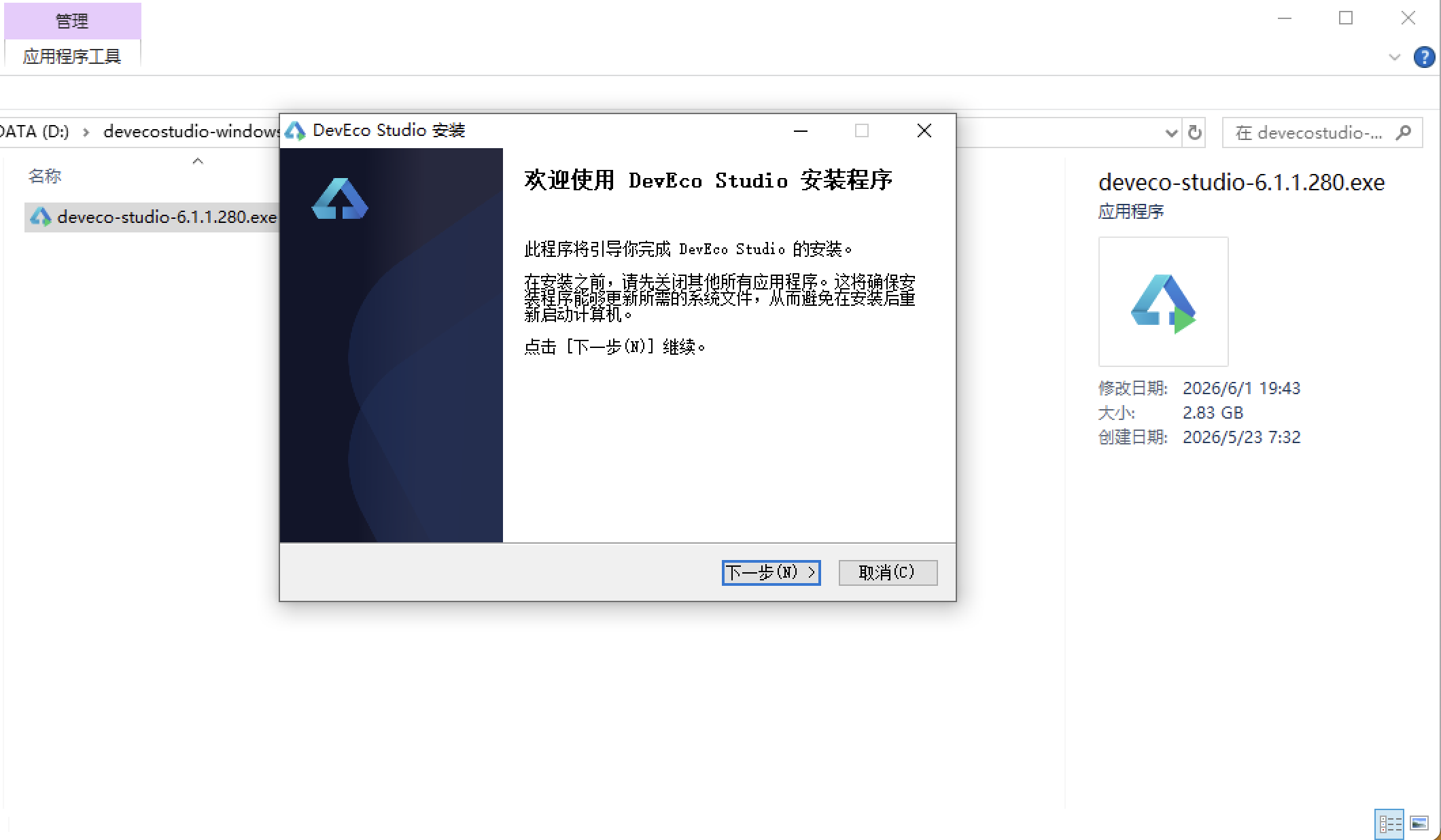
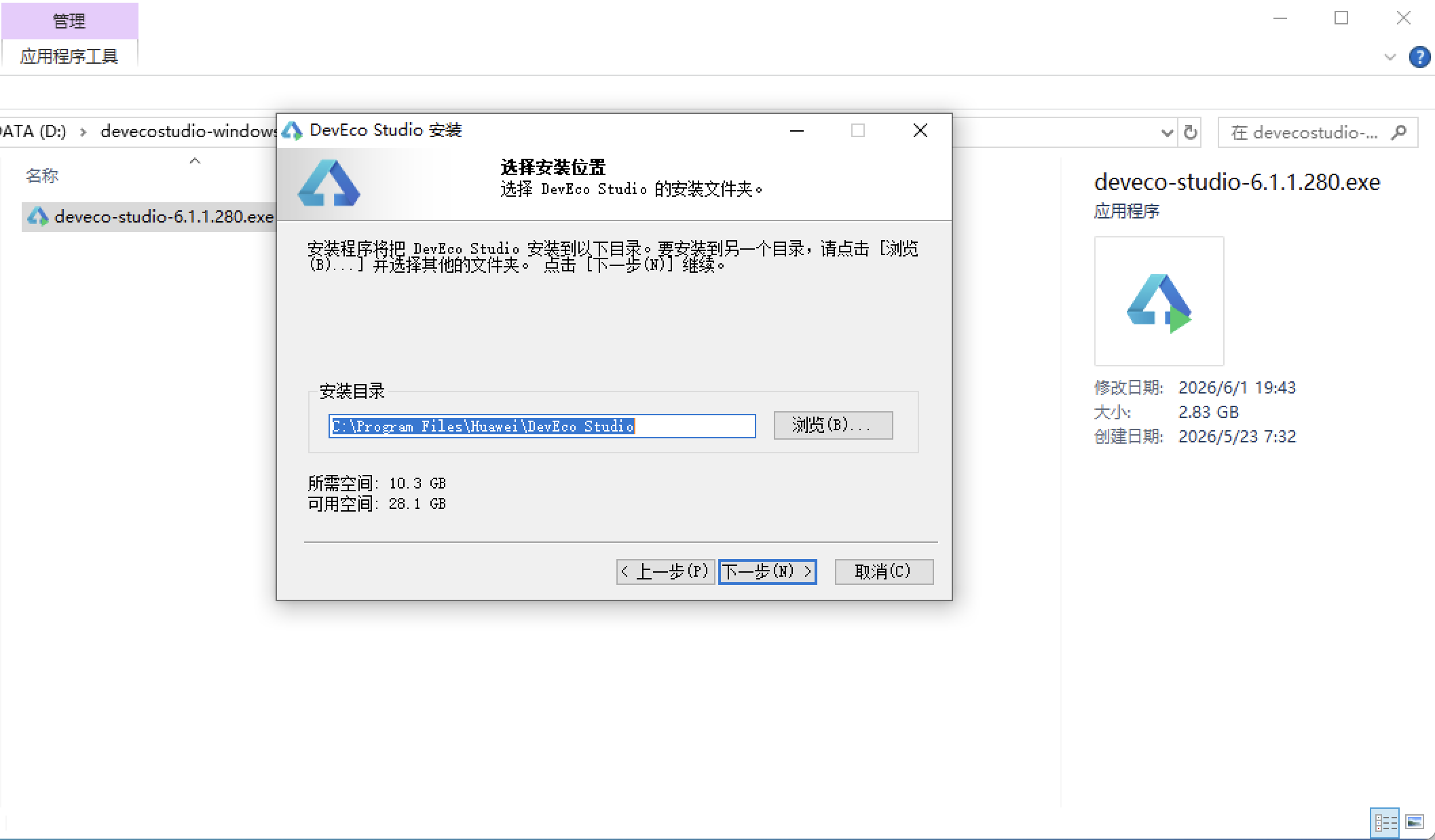
选择目标安装目录:
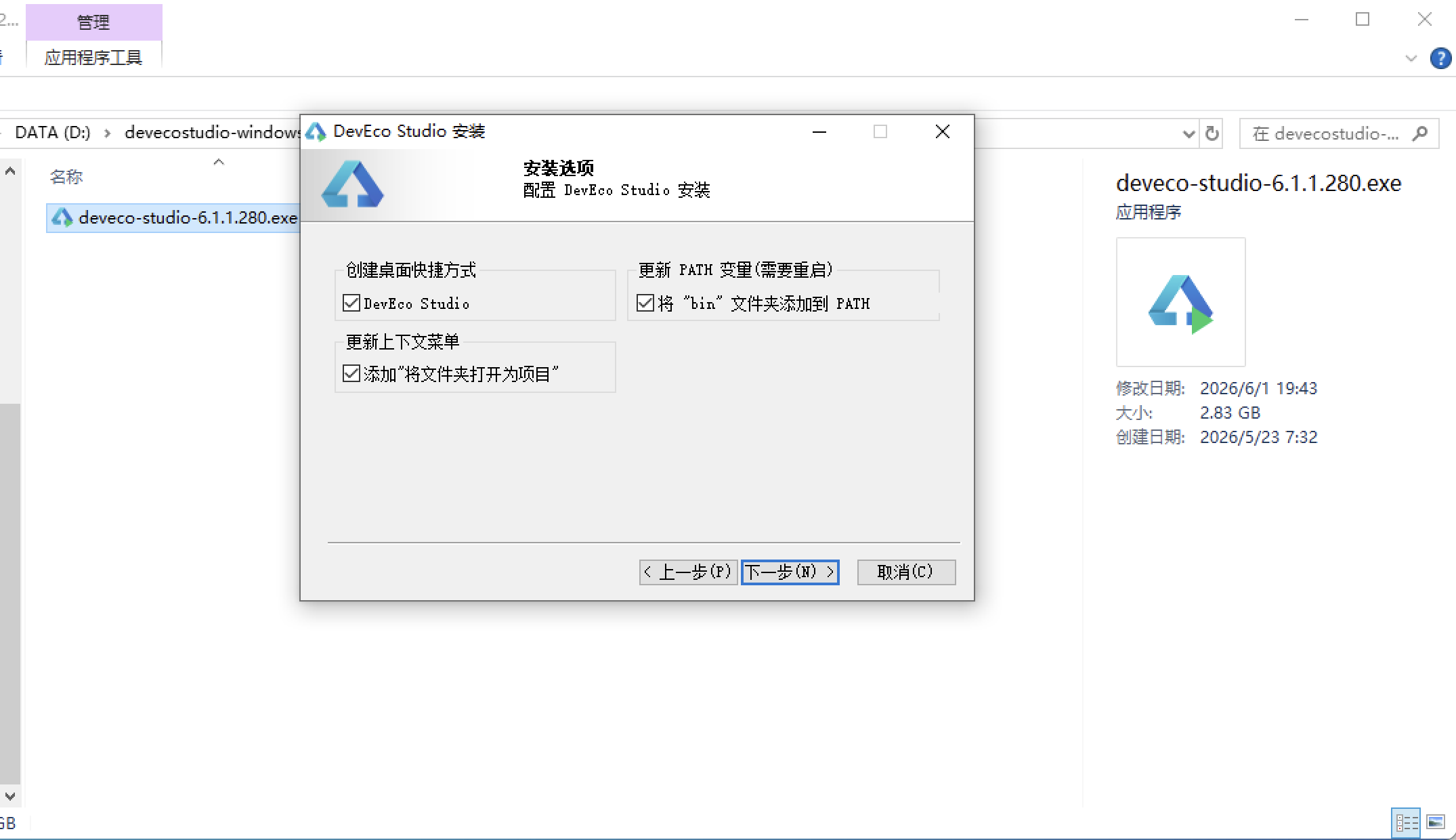
设置环境变量,但是需要重启一下:
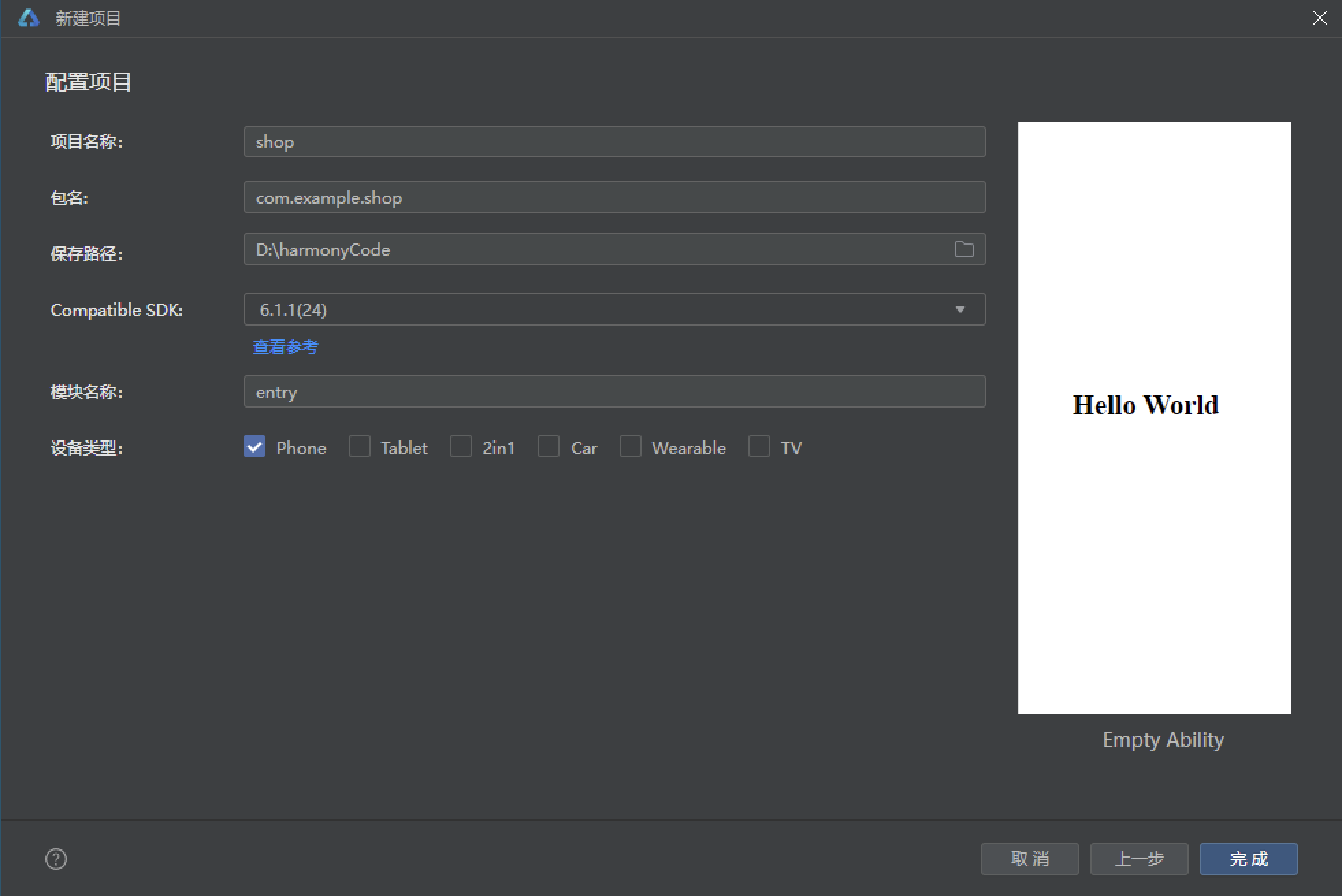
新建一个空白模板:
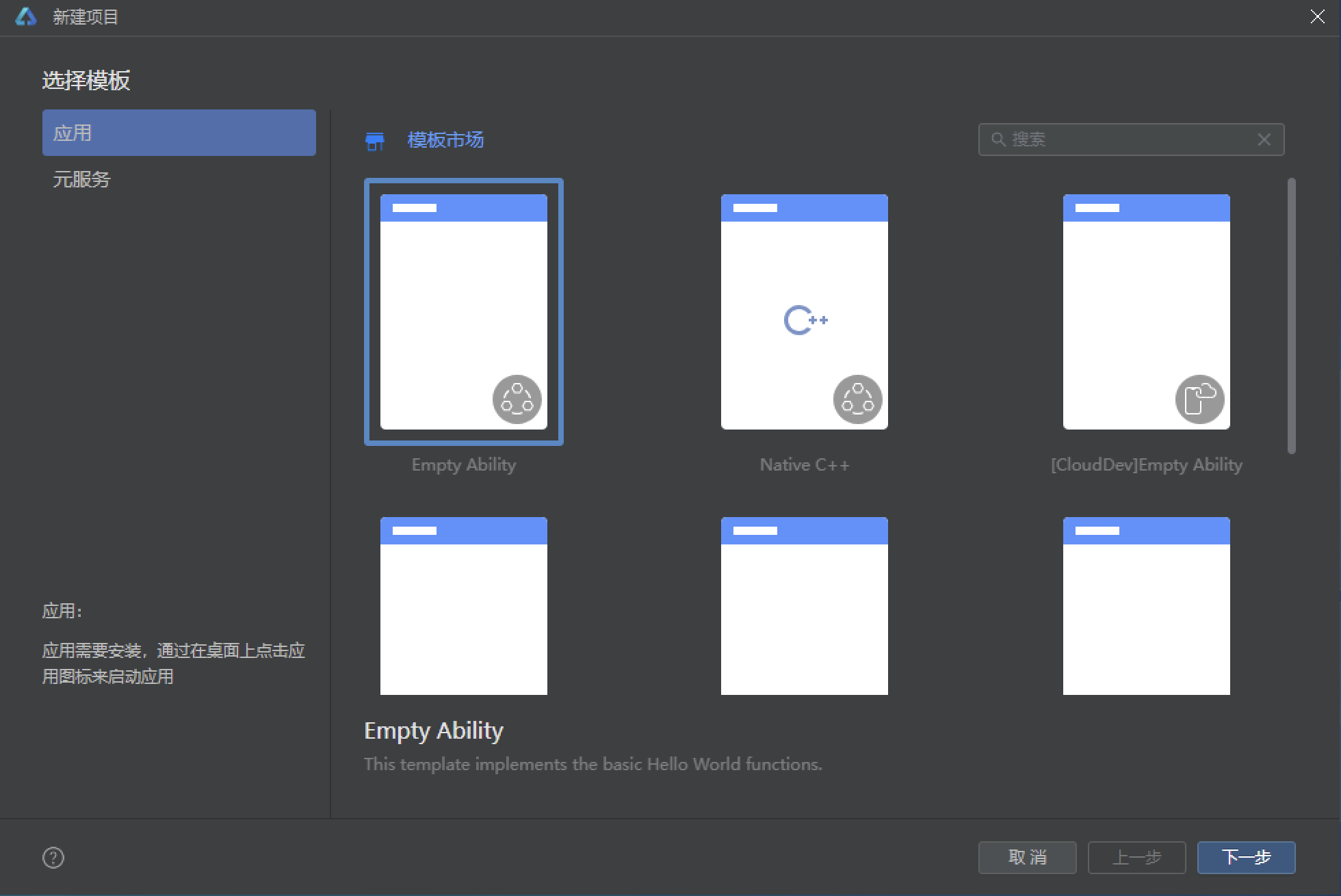
设置API为24的模板项目:
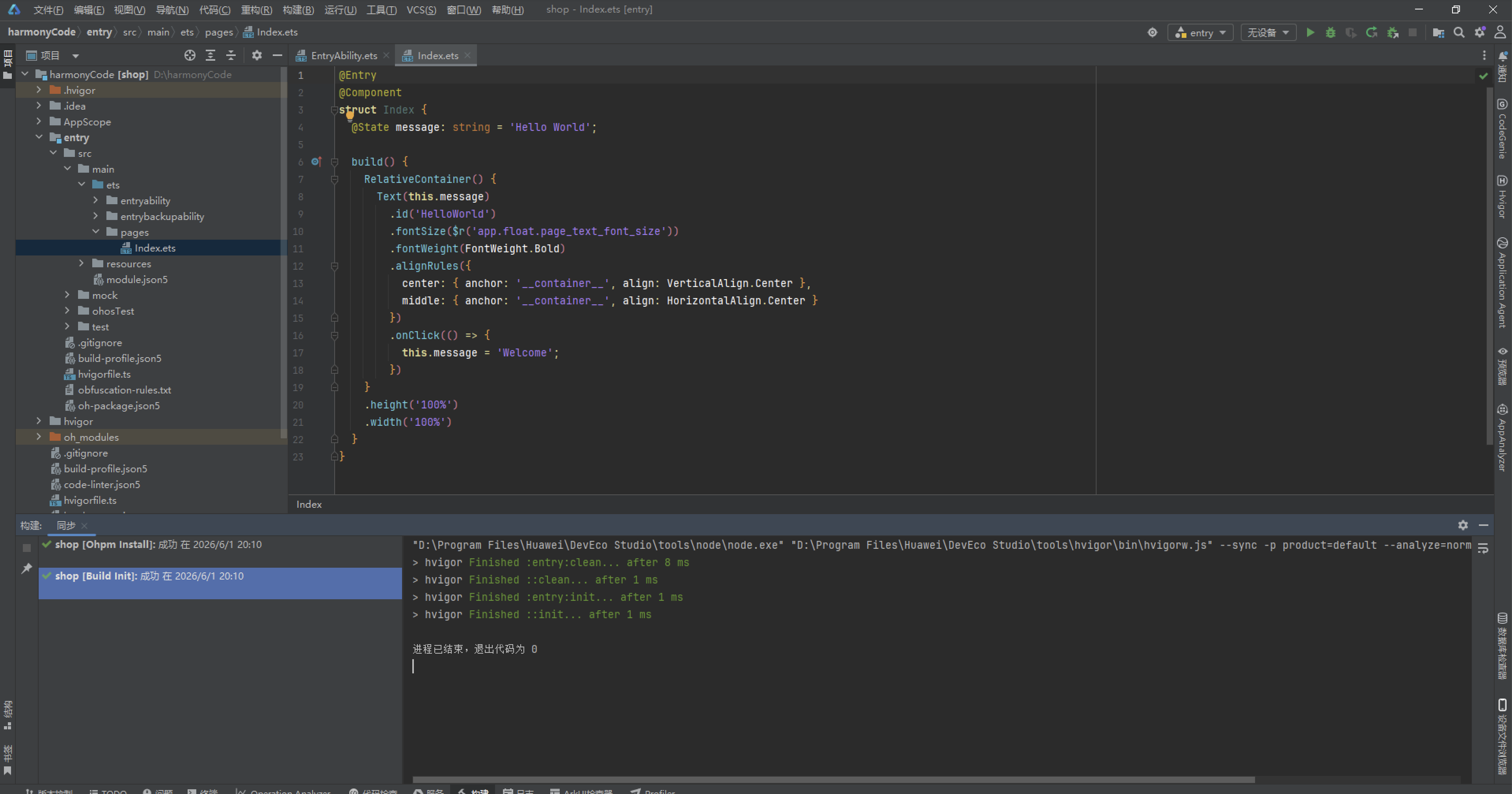
初始化项目,自动下载相关依赖:
完整代码:
// ============ 咖啡店订单管理系统 ============
// 配色:深棕奶油色系
interface CoffeeColors {
primary: string
primaryLight: string
accent: string,
accentLight: string,
bg: string
cardBg: string
textPrimary: string
textSecondary: string
textHint: string
border: string
success: string
warning: string
danger: string
white: string
caramel: string
}
interface OrderStatusMeta {
label: string
color: string
bg: string
}
interface DrinkCategoryMeta {
label: string
icon: string
color: string
}
interface MemberLevelMeta {
label: string
color: string
bg: string
icon: string
}
// ============ 订单数据模型 ============
@Observed
export class OrderItem {
id: number = 0
orderNo: string = ''
customerName: string = ''
drinkName: string = ''
cupSize: string = '中杯'
temperature: string = '正常'
extras: string = ''
amount: number = 0
status: string = '待制作'
orderTime: string = ''
note: string = ''
constructor(id: number, orderNo: string, customerName: string, drinkName: string, cupSize: string, temperature: string, extras: string, amount: number, status: string, orderTime: string, note: string) {
this.id = id; this.orderNo = orderNo; this.customerName = customerName
this.drinkName = drinkName; this.cupSize = cupSize; this.temperature = temperature
this.extras = extras; this.amount = amount; this.status = status
this.orderTime = orderTime; this.note = note
}
}
// ============ 菜单数据模型 ============
@Observed
export class MenuItem_ {
id: number = 0
name: string = ''
category: string = ''
price: number = 0
description: string = ''
soldOut: boolean = false
sales: number = 0
emoji: string = ''
constructor(id: number, name: string, category: string, price: number, description: string, soldOut: boolean, sales: number, emoji: string) {
this.id = id; this.name = name; this.category = category; this.price = price
this.description = description; this.soldOut = soldOut; this.sales = sales; this.emoji = emoji
}
}
// ============ 会员数据模型 ============
@Observed
export class MemberItem {
id: number = 0
name: string = ''
phone: string = ''
level: string = '普通'
points: number = 0
totalSpent: number = 0
joinDate: string = ''
avatar: string = ''
constructor(id: number, name: string, phone: string, level: string, points: number, totalSpent: number, joinDate: string, avatar: string) {
this.id = id; this.name = name; this.phone = phone; this.level = level
this.points = points; this.totalSpent = totalSpent; this.joinDate = joinDate; this.avatar = avatar
}
}
// ============ 配色 ============
const COLORS: CoffeeColors = {
primary: '#5D4037',
primaryLight: '#8D6E63',
accent: '#D7A86E',
accentLight: '#F0D9B5',
bg: '#FFF8E7',
cardBg: '#FFFFFF',
textPrimary: '#3E2723',
textSecondary: '#795548',
textHint: '#BCAAA4',
border: '#EFEBE9',
success: '#66BB6A',
warning: '#FFA726',
danger: '#EF5350',
white: '#FFFFFF',
caramel: '#A1887F'
}
// ============ 状态配置 ============
const ORDER_STATUS: Record<string, OrderStatusMeta> = {
'待制作': { label: '待制作', color: '#FF7043', bg: '#FBE9E7' },
'制作中': { label: '制作中', color: '#FFA726', bg: '#FFF3E0' },
'已完成': { label: '已完成', color: '#66BB6A', bg: '#E8F5E9' },
'已取餐': { label: '已取餐', color: '#42A5F5', bg: '#E3F2FD' }
}
const DRINK_CATEGORY: Record<string, DrinkCategoryMeta> = {
'咖啡': { label: '咖啡', icon: '☕', color: '#5D4037' },
'茶饮': { label: '茶饮', icon: '🍵', color: '#66BB6A' },
'冰沙': { label: '冰沙', icon: '🥤', color: '#26C6DA' },
'特调': { label: '特调', icon: '🍹', color: '#AB47BC' }
}
const MEMBER_LEVEL: Record<string, MemberLevelMeta> = {
'普通': { label: '普通', color: '#795548', bg: '#EFEBE9', icon: '🥉' },
'银卡': { label: '银卡', color: '#78909C', bg: '#ECEFF1', icon: '🥈' },
'金卡': { label: '金卡', color: '#FFB300', bg: '#FFF8E1', icon: '🥇' },
'钻石': { label: '钻石', color: '#26C6DA', bg: '#E0F7FA', icon: '💎' }
}
// ============ 全局纯函数 ============
function getStatusColor(status: string): string {
const meta = ORDER_STATUS[status]
return meta ? meta.color : '#795548'
}
function getStatusBg(status: string): string {
const meta = ORDER_STATUS[status]
return meta ? meta.bg : '#EFEBE9'
}
function getCategoryIcon(cat: string): string {
const meta = DRINK_CATEGORY[cat]
return meta ? meta.icon : '☕'
}
function getCategoryColor(cat: string): string {
const meta = DRINK_CATEGORY[cat]
return meta ? meta.color : '#5D4037'
}
function getLevelIcon(level: string): string {
const meta = MEMBER_LEVEL[level]
return meta ? meta.icon : '🥉'
}
function getLevelColor(level: string): string {
const meta = MEMBER_LEVEL[level]
return meta ? meta.color : '#795548'
}
function getLevelBg(level: string): string {
const meta = MEMBER_LEVEL[level]
return meta ? meta.bg : '#EFEBE9'
}
function getDrinkEmoji(name: string): string {
if (name.includes('拿铁') || name.includes('咖啡')) return '☕'
if (name.includes('茶') || name.includes('茗')) return '🍵'
if (name.includes('冰沙') || name.includes('冰')) return '🥤'
if (name.includes('特调') || name.includes('鸡尾')) return '🍹'
if (name.includes('可可') || name.includes('巧克力')) return '🍫'
if (name.includes('奶')) return '🥛'
return '☕'
}
// ============ 订单数据 ============
const ORDER_DATA: OrderItem[] = [
new OrderItem(1, 'C0812-001', '张明', '燕麦拿铁', '大杯', '少冰', '额外浓缩', 32, '制作中', '09:15', '少糖'),
new OrderItem(2, 'C0812-002', '李娜', '生椰拿铁', '中杯', '去冰', '无', 28, '已完成', '09:20', ''),
new OrderItem(3, 'C0812-003', '王浩', '美式咖啡', '大杯', '热饮', '双份浓缩', 25, '已取餐', '09:25', ''),
new OrderItem(4, 'C0812-004', '陈静', '抹茶拿铁', '中杯', '热饮', '无', 30, '待制作', '09:30', '半糖'),
new OrderItem(5, 'C0812-005', '刘洋', '焦糖玛奇朵', '大杯', '少冰', '加奶油', 35, '制作中', '09:35', ''),
new OrderItem(6, 'C0812-006', '赵雪', '冰摇桃桃乌龙', '大杯', '少冰', '无', 28, '已完成', '09:40', ''),
new OrderItem(7, 'C0812-007', '孙磊', '卡布奇诺', '中杯', '热饮', '无', 30, '已取餐', '09:45', ''),
new OrderItem(8, 'C0812-008', '周婷', '摩卡咖啡', '大杯', '热饮', '加巧克力', 33, '待制作', '09:50', '少糖'),
new OrderItem(9, 'C0812-009', '吴鹏', '冷萃咖啡', '大杯', '去冰', '无', 30, '制作中', '09:55', ''),
new OrderItem(10, 'C0812-010', '郑芳', '桂花乌龙拿铁', '中杯', '热饮', '无', 32, '已完成', '10:00', ''),
new OrderItem(11, 'C0812-011', '黄强', '燕麦拿铁', '大杯', '热饮', '额外浓缩', 32, '已取餐', '10:05', ''),
new OrderItem(12, 'C0812-012', '林小雨', '草莓冰沙', '大杯', '正常冰', '加奶油', 36, '待制作', '10:10', ''),
new OrderItem(13, 'C0812-013', '何伟', '美式咖啡', '中杯', '热饮', '无', 22, '制作中', '10:15', ''),
new OrderItem(14, 'C0812-014', '马丽', '生椰拿铁', '大杯', '少冰', '无', 30, '已完成', '10:20', ''),
new OrderItem(15, 'C0812-015', '高峰', '焦糖玛奇朵', '中杯', '热饮', '加奶油', 33, '已取餐', '10:25', '半糖'),
new OrderItem(16, 'C0812-016', '罗静', '抹茶星冰乐', '大杯', '正常冰', '无', 38, '待制作', '10:30', ''),
new OrderItem(17, 'C0812-017', '宋杰', '冰美式', '大杯', '去冰', '无', 25, '制作中', '10:35', ''),
new OrderItem(18, 'C0812-018', '邓琳', '榛果拿铁', '大杯', '热饮', '无', 32, '已完成', '10:40', '少糖'),
new OrderItem(19, 'C0812-019', '谢宇', '冷萃咖啡', '中杯', '少冰', '加柠檬', 28, '已取餐', '10:45', ''),
new OrderItem(20, 'C0812-020', '韩雪', '桂花拿铁', '大杯', '热饮', '无', 34, '待制作', '10:50', '')
]
// ============ 菜单数据 ============
const MENU_DATA: MenuItem_[] = [
new MenuItem_(1, '生椰拿铁', '咖啡', 32, '椰乳与浓缩咖啡的完美融合', false, 156, '🥥'),
new MenuItem_(2, '燕麦拿铁', '咖啡', 32, '燕麦奶基底丝滑拿铁', false, 132, '🌾'),
new MenuItem_(3, '美式咖啡', '咖啡', 25, '经典醇厚美式', false, 98, '☕'),
new MenuItem_(4, '焦糖玛奇朵', '咖啡', 35, '焦糖与浓缩的甜蜜邂逅', false, 87, '🍯'),
new MenuItem_(5, '卡布奇诺', '咖啡', 30, '经典意式奶泡咖啡', false, 76, '☕'),
new MenuItem_(6, '摩卡咖啡', '咖啡', 33, '巧克力与咖啡的醇香', true, 65, '🍫'),
new MenuItem_(7, '冷萃咖啡', '咖啡', 30, '12小时低温冷萃', false, 89, '🧊'),
new MenuItem_(8, '榛果拿铁', '咖啡', 32, '榛果香浓拿铁', false, 72, '🌰'),
new MenuItem_(9, '桂花乌龙拿铁', '茶饮', 32, '桂花香与乌龙茶拿铁', false, 68, '🌸'),
new MenuItem_(10, '冰摇桃桃乌龙', '茶饮', 28, '蜜桃果香乌龙茶', false, 95, '🍑'),
new MenuItem_(11, '抹茶拿铁', '茶饮', 30, '宇治抹茶鲜奶拿铁', false, 112, '🍵'),
new MenuItem_(12, '茉莉花茶', '茶饮', 22, '清香茉莉花茶', false, 45, '🦋'),
new MenuItem_(13, '草莓冰沙', '冰沙', 36, '新鲜草莓冰沙', false, 78, '🍓'),
new MenuItem_(14, '抹茶星冰乐', '冰沙', 38, '抹茶风味星冰乐', false, 56, '🟢'),
new MenuItem_(15, '芒果冰沙', '冰沙', 36, '热带芒果冰沙', true, 43, '🥭'),
new MenuItem_(16, '蓝莓特调', '特调', 40, '蓝莓气泡特调饮品', false, 34, '🫐'),
new MenuItem_(17, '桂花特调', '特调', 38, '桂花蜜特调咖啡', false, 28, '🌼'),
new MenuItem_(18, '玫瑰拿铁', '特调', 36, '玫瑰花瓣特调拿铁', false, 41, '🌹')
]
// ============ 会员数据 ============
const MEMBER_DATA: MemberItem[] = [
new MemberItem(1, '张明', '138****6688', '金卡', 3200, 8600, '2024-03-15', '👨'),
new MemberItem(2, '李娜', '139****2233', '银卡', 1800, 4500, '2024-06-20', '👩'),
new MemberItem(3, '王浩', '137****5566', '钻石', 5600, 15200, '2023-11-08', '👨'),
new MemberItem(4, '陈静', '135****8899', '金卡', 2800, 7200, '2024-01-12', '👩'),
new MemberItem(5, '刘洋', '136****4477', '普通', 320, 800, '2025-05-03', '👨'),
new MemberItem(6, '赵雪', '133****1122', '银卡', 1500, 3800, '2024-08-25', '👩'),
new MemberItem(7, '孙磊', '131****9988', '金卡', 3100, 8100, '2024-02-18', '👨'),
new MemberItem(8, '周婷', '132****3344', '普通', 180, 450, '2025-06-10', '👩'),
new MemberItem(9, '吴鹏', '134****6677', '银卡', 2100, 5300, '2024-04-22', '👨'),
new MemberItem(10, '郑芳', '138****5544', '金卡', 2900, 7500, '2024-03-30', '👩'),
new MemberItem(11, '黄强', '139****8866', '普通', 250, 620, '2025-07-01', '👨'),
new MemberItem(12, '林小雨', '137****2233', '银卡', 1700, 4200, '2024-07-15', '👩'),
new MemberItem(13, '何伟', '135****4488', '普通', 380, 950, '2025-04-18', '👨'),
new MemberItem(14, '马丽', '136****7711', '金卡', 3400, 9100, '2023-12-05', '👩'),
new MemberItem(15, '高峰', '133****2255', '银卡', 1900, 4800, '2024-05-20', '👨'),
new MemberItem(16, '罗静', '131****6699', '钻石', 4800, 12800, '2023-09-14', '👩')
]
// ============ 统计数据 ============
const WEEK_ORDERS: number[] = [128, 145, 132, 168, 195, 210, 156]
const WEEK_LABELS: string[] = ['周一', '周二', '周三', '周四', '周五', '周六', '周日']
const CATEGORY_SALES: Record<string, number> = { '咖啡': 68, '茶饮': 18, '冰沙': 9, '特调': 5 }
const TIME_SLOT_ORDERS: Record<string, number> = { '早安(7-10点)': 86, '午间(10-14点)': 64, '下午(14-18点)': 72, '晚间(18-21点)': 38 }
// ============ Tab枚举 ============
enum CoffeeTab {
ORDER = 0,
MENU = 1,
MEMBER = 2,
STATS = 3,
MINE = 4
}
// ============ 主组件 ============
@Entry
@Component
struct CoffeeShopApp {
@State activeTab: number = CoffeeTab.ORDER
@Builder
bottomTabItem(tabIndex: number, icon: string, label: string) {
Column() {
Text(icon)
.fontSize(22)
Text(label)
.fontSize(11)
.fontColor(this.activeTab === tabIndex ? COLORS.primary : COLORS.textHint)
.margin({ top: 2 })
if (this.activeTab === tabIndex) {
Circle({ width: 4, height: 4 })
.fill(COLORS.accent)
.margin({ top: 2 })
}
}
.layoutWeight(1)
.height(56)
.justifyContent(FlexAlign.Center)
.onClick(() => { this.activeTab = tabIndex })
}
@Builder
contentArea() {
if (this.activeTab === CoffeeTab.ORDER) {
OrderTabContent()
}
if (this.activeTab === CoffeeTab.MENU) {
MenuTabContent()
}
if (this.activeTab === CoffeeTab.MEMBER) {
MemberTabContent()
}
if (this.activeTab === CoffeeTab.STATS) {
StatsTabContent()
}
if (this.activeTab === CoffeeTab.MINE) {
MineTabContent()
}
}
build() {
Column() {
Column() {
Row() {
Text('☕ Coffee Life')
.fontSize(22)
.fontWeight(FontWeight.Bold)
.fontColor(COLORS.white)
Text('咖啡生活馆')
.fontSize(13)
.fontColor(COLORS.accentLight)
.margin({ left: 6 })
}
.width('100%')
.padding({ left: 16, right: 16, top: 12, bottom: 12 })
.justifyContent(FlexAlign.Center)
}
.width('100%')
.linearGradient({
angle: 135,
colors: [[COLORS.primary, 0], [COLORS.caramel, 1]]
})
Column() {
this.contentArea()
}
.layoutWeight(1)
.width('100%')
Row() {
this.bottomTabItem(CoffeeTab.ORDER, '☕', '订单')
this.bottomTabItem(CoffeeTab.MENU, '📋', '菜单')
this.bottomTabItem(CoffeeTab.MEMBER, '🎁', '会员')
this.bottomTabItem(CoffeeTab.STATS, '📊', '统计')
this.bottomTabItem(CoffeeTab.MINE, '👤', '我的')
}
.width('100%')
.height(56)
.backgroundColor(COLORS.white)
.border({ width: 1, color: COLORS.border })
}
.width('100%')
.height('100%')
.backgroundColor(COLORS.bg)
}
}
// ============ 订单Tab ============
@Component
struct OrderTabContent {
@State searchKey: string = ''
@State filterStatus: string = '全部'
@State showAddModal: boolean = false
@State showEditModal: boolean = false
@State showDeleteConfirm: boolean = false
@State selectedOrder: OrderItem | null = null
@State orders: OrderItem[] = ORDER_DATA
filterTags: string[] = ['全部', '待制作', '制作中', '已完成', '已取餐']
@Builder
modalOverlay(onClose: () => void) {
Column()
.width('100%')
.height('100%')
.backgroundColor('rgba(62, 39, 35, 0.6)')
.onClick(() => { onClose() })
}
@Builder
searchBar() {
Row() {
Text('🔍')
.fontSize(16)
.margin({ right: 6 })
TextInput({ text: this.searchKey, placeholder: '搜索订单号或顾客名...' })
.fontSize(14)
.backgroundColor('transparent')
.layoutWeight(1)
.onChange((val: string) => { this.searchKey = val })
}
.width('92%')
.height(42)
.backgroundColor(COLORS.white)
.borderRadius(21)
.padding({ left: 14, right: 14 })
.margin({ top: 10, bottom: 8 })
.shadow({ radius: 8, color: 'rgba(93, 64, 55, 0.1)', offsetX: 0, offsetY: 2 })
}
@Builder
filterTagRow() {
Scroll() {
Row() {
ForEach(this.filterTags, (tag: string) => {
Text(tag)
.fontSize(13)
.fontColor(this.filterStatus === tag ? COLORS.white : COLORS.textSecondary)
.backgroundColor(this.filterStatus === tag ? COLORS.primary : COLORS.white)
.borderRadius(16)
.padding({ left: 14, right: 14, top: 6, bottom: 6 })
.margin({ right: 8 })
.onClick(() => { this.filterStatus = tag })
})
}
.padding({ left: 16, right: 16 })
}
.scrollable(ScrollDirection.Horizontal)
.scrollBar(BarState.Off)
.width('100%')
.height(36)
.margin({ bottom: 6 })
}
@Builder
orderItemCard(order: OrderItem) {
Row() {
Column() {
Text(getDrinkEmoji(order.drinkName))
.fontSize(28)
}
.width(52)
.height(52)
.borderRadius(26)
.backgroundColor(COLORS.accentLight)
.justifyContent(FlexAlign.Center)
.alignItems(HorizontalAlign.Center)
Column() {
Row() {
Text(order.orderNo)
.fontSize(12)
.fontColor(COLORS.textSecondary)
Column().layoutWeight(1)
Text(order.status)
.fontSize(11)
.fontColor(getStatusColor(order.status))
.backgroundColor(getStatusBg(order.status))
.borderRadius(10)
.padding({ left: 8, right: 8, top: 2, bottom: 2 })
}
.width('100%')
Text(order.drinkName + ' ' + order.cupSize)
.fontSize(15)
.fontWeight(FontWeight.Bold)
.fontColor(COLORS.textPrimary)
.margin({ top: 4 })
Row() {
Text(order.customerName)
.fontSize(12)
.fontColor(COLORS.textSecondary)
Text('·')
.fontSize(12)
.fontColor(COLORS.textHint)
.margin({ left: 4, right: 4 })
Text(order.temperature)
.fontSize(12)
.fontColor(COLORS.textSecondary)
if (order.extras !== '无' && order.extras !== '') {
Text('·')
.fontSize(12)
.fontColor(COLORS.textHint)
.margin({ left: 4, right: 4 })
Text(order.extras)
.fontSize(12)
.fontColor(COLORS.accent)
}
}
.margin({ top: 2 })
Row() {
Text('¥' + order.amount.toFixed(0))
.fontSize(18)
.fontWeight(FontWeight.Bold)
.fontColor(COLORS.primary)
Column().layoutWeight(1)
Text(order.orderTime)
.fontSize(11)
.fontColor(COLORS.textHint)
}
.width('100%')
.margin({ top: 4 })
}
.layoutWeight(1)
.margin({ left: 12 })
.alignItems(HorizontalAlign.Start)
}
.width('92%')
.backgroundColor(COLORS.white)
.borderRadius(16)
.padding(14)
.margin({ bottom: 8 })
.shadow({ radius: 6, color: 'rgba(93, 64, 55, 0.08)', offsetX: 0, offsetY: 2 })
.onClick(() => {
this.selectedOrder = order
this.showEditModal = true
})
}
@Builder
addModalContent() {
Column() {
Text('新增订单')
.fontSize(18)
.fontWeight(FontWeight.Bold)
.fontColor(COLORS.textPrimary)
.margin({ bottom: 16 })
TextInput({ placeholder: '顾客姓名' })
.fontSize(14)
.backgroundColor(COLORS.bg)
.borderRadius(10)
.margin({ bottom: 10 })
TextInput({ placeholder: '饮品名称' })
.fontSize(14)
.backgroundColor(COLORS.bg)
.borderRadius(10)
.margin({ bottom: 10 })
Row() {
TextInput({ placeholder: '杯型' })
.fontSize(14)
.backgroundColor(COLORS.bg)
.borderRadius(10)
.layoutWeight(1)
TextInput({ placeholder: '温度' })
.fontSize(14)
.backgroundColor(COLORS.bg)
.borderRadius(10)
.layoutWeight(1)
.margin({ left: 8 })
}
.margin({ bottom: 10 })
TextInput({ placeholder: '加料' })
.fontSize(14)
.backgroundColor(COLORS.bg)
.borderRadius(10)
.margin({ bottom: 10 })
TextInput({ placeholder: '金额' })
.fontSize(14)
.backgroundColor(COLORS.bg)
.borderRadius(10)
.margin({ bottom: 10 })
.type(InputType.Number)
TextInput({ placeholder: '备注' })
.fontSize(14)
.backgroundColor(COLORS.bg)
.borderRadius(10)
.margin({ bottom: 16 })
Row() {
Button('取消')
.fontSize(14)
.fontColor(COLORS.textSecondary)
.backgroundColor(COLORS.bg)
.borderRadius(20)
.layoutWeight(1)
.onClick(() => { this.showAddModal = false })
Button('确认下单')
.fontSize(14)
.fontColor(COLORS.white)
.backgroundColor(COLORS.primary)
.borderRadius(20)
.layoutWeight(1)
.margin({ left: 10 })
.onClick(() => { this.showAddModal = false })
}
.width('100%')
}
.width('85%')
.backgroundColor(COLORS.white)
.borderRadius(20)
.padding(24)
.constraintSize({ maxHeight: '80%' })
}
@Builder
editModalContent() {
Column() {
Text('编辑订单')
.fontSize(18)
.fontWeight(FontWeight.Bold)
.fontColor(COLORS.textPrimary)
.margin({ bottom: 16 })
if (this.selectedOrder) {
Text('订单号: ' + this.selectedOrder.orderNo)
.fontSize(13)
.fontColor(COLORS.textSecondary)
.margin({ bottom: 8 })
TextInput({ text: this.selectedOrder.customerName, placeholder: '顾客姓名' })
.fontSize(14)
.backgroundColor(COLORS.bg)
.borderRadius(10)
.margin({ bottom: 10 })
TextInput({ text: this.selectedOrder.drinkName, placeholder: '饮品名称' })
.fontSize(14)
.backgroundColor(COLORS.bg)
.borderRadius(10)
.margin({ bottom: 10 })
Row() {
TextInput({ text: this.selectedOrder.cupSize, placeholder: '杯型' })
.fontSize(14)
.backgroundColor(COLORS.bg)
.borderRadius(10)
.layoutWeight(1)
TextInput({ text: this.selectedOrder.temperature, placeholder: '温度' })
.fontSize(14)
.backgroundColor(COLORS.bg)
.borderRadius(10)
.layoutWeight(1)
.margin({ left: 8 })
}
.margin({ bottom: 10 })
TextInput({ text: this.selectedOrder.extras, placeholder: '加料' })
.fontSize(14)
.backgroundColor(COLORS.bg)
.borderRadius(10)
.margin({ bottom: 10 })
TextInput({ text: this.selectedOrder.amount.toString(), placeholder: '金额' })
.fontSize(14)
.backgroundColor(COLORS.bg)
.borderRadius(10)
.margin({ bottom: 10 })
.type(InputType.Number)
}
Row() {
Button('删除')
.fontSize(14)
.fontColor(COLORS.white)
.backgroundColor(COLORS.danger)
.borderRadius(20)
.onClick(() => {
this.showEditModal = false
this.showDeleteConfirm = true
})
Column().layoutWeight(1)
Button('取消')
.fontSize(14)
.fontColor(COLORS.textSecondary)
.backgroundColor(COLORS.bg)
.borderRadius(20)
.onClick(() => { this.showEditModal = false })
Button('保存')
.fontSize(14)
.fontColor(COLORS.white)
.backgroundColor(COLORS.primary)
.borderRadius(20)
.margin({ left: 10 })
.onClick(() => { this.showEditModal = false })
}
.width('100%')
}
.width('85%')
.backgroundColor(COLORS.white)
.borderRadius(20)
.padding(24)
.constraintSize({ maxHeight: '80%' })
}
@Builder
deleteModalContent() {
Column() {
Text('⚠️ 确认删除')
.fontSize(18)
.fontWeight(FontWeight.Bold)
.fontColor(COLORS.danger)
.margin({ bottom: 12 })
Text('确定要删除这个订单吗?此操作不可撤销。')
.fontSize(14)
.fontColor(COLORS.textSecondary)
.textAlign(TextAlign.Center)
.margin({ bottom: 20 })
Row() {
Button('取消')
.fontSize(14)
.fontColor(COLORS.textSecondary)
.backgroundColor(COLORS.bg)
.borderRadius(20)
.layoutWeight(1)
.onClick(() => { this.showDeleteConfirm = false })
Button('确认删除')
.fontSize(14)
.fontColor(COLORS.white)
.backgroundColor(COLORS.danger)
.borderRadius(20)
.layoutWeight(1)
.margin({ left: 10 })
.onClick(() => { this.showDeleteConfirm = false })
}
.width('100%')
}
.width('75%')
.backgroundColor(COLORS.white)
.borderRadius(20)
.padding(24)
}
build() {
Stack() {
Column() {
this.searchBar()
this.filterTagRow()
Scroll() {
Column() {
ForEach(this.orders, (order: OrderItem) => {
this.orderItemCard(order)
})
}
.width('100%')
.padding({ bottom: 20 })
}
.layoutWeight(1)
.scrollBar(BarState.Off)
Row() {
Button('+ 新增订单')
.fontSize(14)
.fontColor(COLORS.white)
.backgroundColor(COLORS.primary)
.borderRadius(22)
.height(44)
.layoutWeight(1)
.onClick(() => { this.showAddModal = true })
}
.width('92%')
.padding({ bottom: 8 })
}
.width('100%')
.height('100%')
if (this.showAddModal) {
this.modalOverlay(() => { this.showAddModal = false })
Column() {
this.addModalContent()
}
.width('100%')
.height('100%')
.justifyContent(FlexAlign.Center)
.alignItems(HorizontalAlign.Center)
}
if (this.showEditModal) {
this.modalOverlay(() => { this.showEditModal = false })
Column() {
this.editModalContent()
}
.width('100%')
.height('100%')
.justifyContent(FlexAlign.Center)
.alignItems(HorizontalAlign.Center)
}
if (this.showDeleteConfirm) {
this.modalOverlay(() => { this.showDeleteConfirm = false })
Column() {
this.deleteModalContent()
}
.width('100%')
.height('100%')
.justifyContent(FlexAlign.Center)
.alignItems(HorizontalAlign.Center)
}
}
.width('100%')
.height('100%')
}
}
// ============ 菜单Tab ============
@Component
struct MenuTabContent {
@State searchKey: string = ''
@State showAddModal: boolean = false
@State showEditModal: boolean = false
@State showDeleteConfirm: boolean = false
@State selectedItem: MenuItem_ | null = null
@State menuList: MenuItem_[] = MENU_DATA
categories: string[] = ['全部', '咖啡', '茶饮', '冰沙', '特调']
@Builder
modalOverlay(onClose: () => void) {
Column()
.width('100%')
.height('100%')
.backgroundColor('rgba(62, 39, 35, 0.6)')
.onClick(() => { onClose() })
}
@Builder
categoryBar() {
Scroll() {
Row() {
ForEach(this.categories, (cat: string) => {
Text(cat)
.fontSize(13)
.fontColor(this.searchKey === cat ? COLORS.white : COLORS.textSecondary)
.backgroundColor(this.searchKey === cat ? COLORS.primary : COLORS.white)
.borderRadius(16)
.padding({ left: 14, right: 14, top: 6, bottom: 6 })
.margin({ right: 8 })
.onClick(() => { this.searchKey = cat })
})
}
.padding({ left: 16, right: 16 })
}
.scrollable(ScrollDirection.Horizontal)
.scrollBar(BarState.Off)
.width('100%')
.height(36)
.margin({ top: 10, bottom: 6 })
}
@Builder
menuItemCard(item: MenuItem_) {
Row() {
Column() {
Text(item.emoji)
.fontSize(32)
}
.width(60)
.height(60)
.borderRadius(16)
.backgroundColor(COLORS.accentLight)
.justifyContent(FlexAlign.Center)
.alignItems(HorizontalAlign.Center)
Column() {
Row() {
Text(item.name)
.fontSize(16)
.fontWeight(FontWeight.Bold)
.fontColor(COLORS.textPrimary)
Column().layoutWeight(1)
Text('¥' + item.price)
.fontSize(18)
.fontWeight(FontWeight.Bold)
.fontColor(COLORS.primary)
}
.width('100%')
Text(item.description)
.fontSize(12)
.fontColor(COLORS.textSecondary)
.margin({ top: 4 })
Row() {
Text(getCategoryIcon(item.category))
.fontSize(11)
.fontColor(getCategoryColor(item.category))
.backgroundColor(COLORS.bg)
.borderRadius(8)
.padding({ left: 6, right: 6, top: 2, bottom: 2 })
Text('销量 ' + item.sales)
.fontSize(11)
.fontColor(COLORS.textHint)
.margin({ left: 8 })
Column().layoutWeight(1)
if (item.soldOut) {
Text('已售罄')
.fontSize(11)
.fontColor(COLORS.danger)
.backgroundColor('#FFEBEE')
.borderRadius(8)
.padding({ left: 6, right: 6, top: 2, bottom: 2 })
}
}
.width('100%')
.margin({ top: 6 })
}
.layoutWeight(1)
.margin({ left: 12 })
.alignItems(HorizontalAlign.Start)
}
.width('92%')
.backgroundColor(COLORS.white)
.borderRadius(16)
.padding(14)
.margin({ bottom: 8 })
.shadow({ radius: 6, color: 'rgba(93, 64, 55, 0.08)', offsetX: 0, offsetY: 2 })
.onClick(() => {
this.selectedItem = item
this.showEditModal = true
})
}
@Builder
addMenuItemModal() {
Column() {
Text('新增菜单')
.fontSize(18)
.fontWeight(FontWeight.Bold)
.fontColor(COLORS.textPrimary)
.margin({ bottom: 16 })
TextInput({ placeholder: '饮品名称' })
.fontSize(14)
.backgroundColor(COLORS.bg)
.borderRadius(10)
.margin({ bottom: 10 })
TextInput({ placeholder: '分类' })
.fontSize(14)
.backgroundColor(COLORS.bg)
.borderRadius(10)
.margin({ bottom: 10 })
TextInput({ placeholder: '价格' })
.fontSize(14)
.backgroundColor(COLORS.bg)
.borderRadius(10)
.margin({ bottom: 10 })
.type(InputType.Number)
TextInput({ placeholder: '描述' })
.fontSize(14)
.backgroundColor(COLORS.bg)
.borderRadius(10)
.margin({ bottom: 16 })
Row() {
Button('取消')
.fontSize(14)
.fontColor(COLORS.textSecondary)
.backgroundColor(COLORS.bg)
.borderRadius(20)
.layoutWeight(1)
.onClick(() => { this.showAddModal = false })
Button('确认添加')
.fontSize(14)
.fontColor(COLORS.white)
.backgroundColor(COLORS.primary)
.borderRadius(20)
.layoutWeight(1)
.margin({ left: 10 })
.onClick(() => { this.showAddModal = false })
}
.width('100%')
}
.width('85%')
.backgroundColor(COLORS.white)
.borderRadius(20)
.padding(24)
}
@Builder
editMenuItemModal() {
Column() {
Text('编辑菜单')
.fontSize(18)
.fontWeight(FontWeight.Bold)
.fontColor(COLORS.textPrimary)
.margin({ bottom: 16 })
if (this.selectedItem) {
TextInput({ text: this.selectedItem.name, placeholder: '饮品名称' })
.fontSize(14)
.backgroundColor(COLORS.bg)
.borderRadius(10)
.margin({ bottom: 10 })
TextInput({ text: this.selectedItem.category, placeholder: '分类' })
.fontSize(14)
.backgroundColor(COLORS.bg)
.borderRadius(10)
.margin({ bottom: 10 })
TextInput({ text: this.selectedItem.price.toString(), placeholder: '价格' })
.fontSize(14)
.backgroundColor(COLORS.bg)
.borderRadius(10)
.margin({ bottom: 10 })
.type(InputType.Number)
TextInput({ text: this.selectedItem.description, placeholder: '描述' })
.fontSize(14)
.backgroundColor(COLORS.bg)
.borderRadius(10)
.margin({ bottom: 16 })
}
Row() {
Button('删除')
.fontSize(14)
.fontColor(COLORS.white)
.backgroundColor(COLORS.danger)
.borderRadius(20)
.onClick(() => {
this.showEditModal = false
this.showDeleteConfirm = true
})
Column().layoutWeight(1)
Button('取消')
.fontSize(14)
.fontColor(COLORS.textSecondary)
.backgroundColor(COLORS.bg)
.borderRadius(20)
.onClick(() => { this.showEditModal = false })
Button('保存')
.fontSize(14)
.fontColor(COLORS.white)
.backgroundColor(COLORS.primary)
.borderRadius(20)
.margin({ left: 10 })
.onClick(() => { this.showEditModal = false })
}
.width('100%')
}
.width('85%')
.backgroundColor(COLORS.white)
.borderRadius(20)
.padding(24)
}
@Builder
deleteConfirmModal() {
Column() {
Text('⚠️ 确认删除')
.fontSize(18)
.fontWeight(FontWeight.Bold)
.fontColor(COLORS.danger)
.margin({ bottom: 12 })
Text('确定要从菜单中移除此饮品吗?')
.fontSize(14)
.fontColor(COLORS.textSecondary)
.textAlign(TextAlign.Center)
.margin({ bottom: 20 })
Row() {
Button('取消')
.fontSize(14)
.fontColor(COLORS.textSecondary)
.backgroundColor(COLORS.bg)
.borderRadius(20)
.layoutWeight(1)
.onClick(() => { this.showDeleteConfirm = false })
Button('确认删除')
.fontSize(14)
.fontColor(COLORS.white)
.backgroundColor(COLORS.danger)
.borderRadius(20)
.layoutWeight(1)
.margin({ left: 10 })
.onClick(() => { this.showDeleteConfirm = false })
}
.width('100%')
}
.width('75%')
.backgroundColor(COLORS.white)
.borderRadius(20)
.padding(24)
}
build() {
Stack() {
Column() {
this.categoryBar()
Scroll() {
Column() {
ForEach(this.menuList, (item: MenuItem_) => {
this.menuItemCard(item)
})
}
.width('100%')
.padding({ bottom: 20 })
}
.layoutWeight(1)
.scrollBar(BarState.Off)
Row() {
Button('+ 新增饮品')
.fontSize(14)
.fontColor(COLORS.white)
.backgroundColor(COLORS.primary)
.borderRadius(22)
.height(44)
.layoutWeight(1)
.onClick(() => { this.showAddModal = true })
}
.width('92%')
.padding({ bottom: 8 })
}
.width('100%')
.height('100%')
if (this.showAddModal) {
this.modalOverlay(() => { this.showAddModal = false })
Column() {
this.addMenuItemModal()
}
.width('100%')
.height('100%')
.justifyContent(FlexAlign.Center)
.alignItems(HorizontalAlign.Center)
}
if (this.showEditModal) {
this.modalOverlay(() => { this.showEditModal = false })
Column() {
this.editMenuItemModal()
}
.width('100%')
.height('100%')
.justifyContent(FlexAlign.Center)
.alignItems(HorizontalAlign.Center)
}
if (this.showDeleteConfirm) {
this.modalOverlay(() => { this.showDeleteConfirm = false })
Column() {
this.deleteConfirmModal()
}
.width('100%')
.height('100%')
.justifyContent(FlexAlign.Center)
.alignItems(HorizontalAlign.Center)
}
}
.width('100%')
.height('100%')
}
}
// ============ 会员Tab ============
@Component
struct MemberTabContent {
@State showEditModal: boolean = false
@State showDeleteConfirm: boolean = false
@State selectedMember: MemberItem | null = null
@State members: MemberItem[] = MEMBER_DATA
@Builder
modalOverlay(onClose: () => void) {
Column()
.width('100%')
.height('100%')
.backgroundColor('rgba(62, 39, 35, 0.6)')
.onClick(() => { onClose() })
}
@Builder
memberCard(member: MemberItem) {
Row() {
Column() {
Text(member.avatar)
.fontSize(32)
}
.width(56)
.height(56)
.borderRadius(28)
.backgroundColor(getLevelBg(member.level))
.justifyContent(FlexAlign.Center)
.alignItems(HorizontalAlign.Center)
Column() {
Row() {
Text(member.name)
.fontSize(16)
.fontWeight(FontWeight.Bold)
.fontColor(COLORS.textPrimary)
Text(getLevelIcon(member.level))
.fontSize(14)
.margin({ left: 6 })
Column().layoutWeight(1)
Text(member.level)
.fontSize(11)
.fontColor(getLevelColor(member.level))
.backgroundColor(getLevelBg(member.level))
.borderRadius(10)
.padding({ left: 8, right: 8, top: 2, bottom: 2 })
}
.width('100%')
Text(member.phone)
.fontSize(13)
.fontColor(COLORS.textSecondary)
.margin({ top: 4 })
Row() {
Column() {
Text(member.points.toString())
.fontSize(16)
.fontWeight(FontWeight.Bold)
.fontColor(COLORS.accent)
Text('积分')
.fontSize(11)
.fontColor(COLORS.textHint)
}
.alignItems(HorizontalAlign.Center)
Column() {
Text('¥' + member.totalSpent.toString())
.fontSize(16)
.fontWeight(FontWeight.Bold)
.fontColor(COLORS.primary)
Text('消费总额')
.fontSize(11)
.fontColor(COLORS.textHint)
}
.alignItems(HorizontalAlign.Center)
.margin({ left: 20 })
Column() {
Text(member.joinDate)
.fontSize(13)
.fontColor(COLORS.textSecondary)
Text('注册日期')
.fontSize(11)
.fontColor(COLORS.textHint)
}
.alignItems(HorizontalAlign.Start)
.margin({ left: 20 })
}
.width('100%')
.margin({ top: 8 })
}
.layoutWeight(1)
.margin({ left: 12 })
.alignItems(HorizontalAlign.Start)
}
.width('92%')
.backgroundColor(COLORS.white)
.borderRadius(16)
.padding(14)
.margin({ bottom: 8 })
.shadow({ radius: 6, color: 'rgba(93, 64, 55, 0.08)', offsetX: 0, offsetY: 2 })
.onClick(() => {
this.selectedMember = member
this.showEditModal = true
})
}
@Builder
editMemberModal() {
Column() {
Text('编辑会员')
.fontSize(18)
.fontWeight(FontWeight.Bold)
.fontColor(COLORS.textPrimary)
.margin({ bottom: 16 })
if (this.selectedMember) {
TextInput({ text: this.selectedMember.name, placeholder: '姓名' })
.fontSize(14)
.backgroundColor(COLORS.bg)
.borderRadius(10)
.margin({ bottom: 10 })
TextInput({ text: this.selectedMember.phone, placeholder: '电话' })
.fontSize(14)
.backgroundColor(COLORS.bg)
.borderRadius(10)
.margin({ bottom: 10 })
TextInput({ text: this.selectedMember.level, placeholder: '等级' })
.fontSize(14)
.backgroundColor(COLORS.bg)
.borderRadius(10)
.margin({ bottom: 10 })
TextInput({ text: this.selectedMember.points.toString(), placeholder: '积分' })
.fontSize(14)
.backgroundColor(COLORS.bg)
.borderRadius(10)
.margin({ bottom: 16 })
.type(InputType.Number)
}
Row() {
Button('删除')
.fontSize(14)
.fontColor(COLORS.white)
.backgroundColor(COLORS.danger)
.borderRadius(20)
.onClick(() => {
this.showEditModal = false
this.showDeleteConfirm = true
})
Column().layoutWeight(1)
Button('取消')
.fontSize(14)
.fontColor(COLORS.textSecondary)
.backgroundColor(COLORS.bg)
.borderRadius(20)
.onClick(() => { this.showEditModal = false })
Button('保存')
.fontSize(14)
.fontColor(COLORS.white)
.backgroundColor(COLORS.primary)
.borderRadius(20)
.margin({ left: 10 })
.onClick(() => { this.showEditModal = false })
}
.width('100%')
}
.width('85%')
.backgroundColor(COLORS.white)
.borderRadius(20)
.padding(24)
}
@Builder
deleteConfirmModal() {
Column() {
Text('⚠️ 确认删除')
.fontSize(18)
.fontWeight(FontWeight.Bold)
.fontColor(COLORS.danger)
.margin({ bottom: 12 })
Text('确定要删除此会员信息吗?')
.fontSize(14)
.fontColor(COLORS.textSecondary)
.textAlign(TextAlign.Center)
.margin({ bottom: 20 })
Row() {
Button('取消')
.fontSize(14)
.fontColor(COLORS.textSecondary)
.backgroundColor(COLORS.bg)
.borderRadius(20)
.layoutWeight(1)
.onClick(() => { this.showDeleteConfirm = false })
Button('确认删除')
.fontSize(14)
.fontColor(COLORS.white)
.backgroundColor(COLORS.danger)
.borderRadius(20)
.layoutWeight(1)
.margin({ left: 10 })
.onClick(() => { this.showDeleteConfirm = false })
}
.width('100%')
}
.width('75%')
.backgroundColor(COLORS.white)
.borderRadius(20)
.padding(24)
}
build() {
Stack() {
Column() {
Scroll() {
Column() {
ForEach(this.members, (member: MemberItem) => {
this.memberCard(member)
})
}
.width('100%')
.padding({ top: 10, bottom: 20 })
}
.layoutWeight(1)
.scrollBar(BarState.Off)
}
.width('100%')
.height('100%')
if (this.showEditModal) {
this.modalOverlay(() => { this.showEditModal = false })
Column() {
this.editMemberModal()
}
.width('100%')
.height('100%')
.justifyContent(FlexAlign.Center)
.alignItems(HorizontalAlign.Center)
}
if (this.showDeleteConfirm) {
this.modalOverlay(() => { this.showDeleteConfirm = false })
Column() {
this.deleteConfirmModal()
}
.width('100%')
.height('100%')
.justifyContent(FlexAlign.Center)
.alignItems(HorizontalAlign.Center)
}
}
.width('100%')
.height('100%')
}
}
// ============ 统计Tab ============
@Component
struct StatsTabContent {
maxOrder: number = 210
@Builder
barChartItem(label: string, value: number, maxValue: number) {
Column() {
Column()
.width(28)
.height(value / maxValue * 140)
.borderRadius({ topLeft: 4, topRight: 4 })
.linearGradient({
angle: 180,
colors: [[COLORS.accent, 0], [COLORS.primary, 1]]
})
Text(value.toString())
.fontSize(10)
.fontColor(COLORS.textSecondary)
.margin({ top: 4 })
Text(label)
.fontSize(10)
.fontColor(COLORS.textHint)
.margin({ top: 2 })
}
.layoutWeight(1)
.alignItems(HorizontalAlign.Center)
}
@Builder
categoryBar(name: string, percent: number, color: string) {
Column() {
Row() {
Text(name)
.fontSize(13)
.fontColor(COLORS.textPrimary)
Column().layoutWeight(1)
Text(percent + '%')
.fontSize(13)
.fontWeight(FontWeight.Bold)
.fontColor(color)
}
.width('100%')
.margin({ bottom: 6 })
Row() {
Column()
.width(percent + '%')
.height(12)
.borderRadius(6)
.backgroundColor(color)
Column().layoutWeight(1)
}
.width('100%')
.backgroundColor(COLORS.border)
.borderRadius(6)
.height(12)
}
.width('100%')
.margin({ bottom: 12 })
}
@Builder
timeSlotCard(slot: string, count: number) {
Row() {
Text(slot)
.fontSize(13)
.fontColor(COLORS.textSecondary)
Column().layoutWeight(1)
Text(count.toString())
.fontSize(18)
.fontWeight(FontWeight.Bold)
.fontColor(COLORS.primary)
Text('单')
.fontSize(12)
.fontColor(COLORS.textHint)
.margin({ left: 4 })
}
.width('100%')
.padding(12)
.backgroundColor(COLORS.bg)
.borderRadius(12)
.margin({ bottom: 8 })
}
build() {
Scroll() {
Column() {
Text('📊 今日营收')
.fontSize(16)
.fontWeight(FontWeight.Bold)
.fontColor(COLORS.textPrimary)
.margin({ top: 14, bottom: 8 })
Row() {
Column() {
Text('¥6,840')
.fontSize(28)
.fontWeight(FontWeight.Bold)
.fontColor(COLORS.primary)
Text('今日总收入')
.fontSize(12)
.fontColor(COLORS.textSecondary)
.margin({ top: 4 })
}
.alignItems(HorizontalAlign.Start)
.layoutWeight(1)
Column() {
Text('186')
.fontSize(28)
.fontWeight(FontWeight.Bold)
.fontColor(COLORS.accent)
Text('今日订单')
.fontSize(12)
.fontColor(COLORS.textSecondary)
.margin({ top: 4 })
}
.alignItems(HorizontalAlign.Start)
}
.width('92%')
.padding(16)
.backgroundColor(COLORS.white)
.borderRadius(16)
.shadow({ radius: 6, color: 'rgba(93, 64, 55, 0.08)', offsetX: 0, offsetY: 2 })
Text('📈 一周订单趋势')
.fontSize(15)
.fontWeight(FontWeight.Bold)
.fontColor(COLORS.textPrimary)
.margin({ top: 20, bottom: 10, left: 16 })
.alignSelf(ItemAlign.Start)
Row() {
this.barChartItem(WEEK_LABELS[0], WEEK_ORDERS[0], this.maxOrder)
this.barChartItem(WEEK_LABELS[1], WEEK_ORDERS[1], this.maxOrder)
this.barChartItem(WEEK_LABELS[2], WEEK_ORDERS[2], this.maxOrder)
this.barChartItem(WEEK_LABELS[3], WEEK_ORDERS[3], this.maxOrder)
this.barChartItem(WEEK_LABELS[4], WEEK_ORDERS[4], this.maxOrder)
this.barChartItem(WEEK_LABELS[5], WEEK_ORDERS[5], this.maxOrder)
this.barChartItem(WEEK_LABELS[6], WEEK_ORDERS[6], this.maxOrder)
}
.width('92%')
.height(200)
.padding(16)
.backgroundColor(COLORS.white)
.borderRadius(16)
.alignItems(VerticalAlign.Bottom)
.shadow({ radius: 6, color: 'rgba(93, 64, 55, 0.08)', offsetX: 0, offsetY: 2 })
Text('🥤 饮品分类占比')
.fontSize(15)
.fontWeight(FontWeight.Bold)
.fontColor(COLORS.textPrimary)
.margin({ top: 20, bottom: 10, left: 16 })
.alignSelf(ItemAlign.Start)
Column() {
this.categoryBar('咖啡', 68, COLORS.primary)
this.categoryBar('茶饮', 18, COLORS.success)
this.categoryBar('冰沙', 9, '#26C6DA')
this.categoryBar('特调', 5, '#AB47BC')
}
.width('92%')
.padding(16)
.backgroundColor(COLORS.white)
.borderRadius(16)
.shadow({ radius: 6, color: 'rgba(93, 64, 55, 0.08)', offsetX: 0, offsetY: 2 })
Text('⏰ 时段订单统计')
.fontSize(15)
.fontWeight(FontWeight.Bold)
.fontColor(COLORS.textPrimary)
.margin({ top: 20, bottom: 10, left: 16 })
.alignSelf(ItemAlign.Start)
Column() {
this.timeSlotCard('早安 (7-10点)', 86)
this.timeSlotCard('午间 (10-14点)', 64)
this.timeSlotCard('下午 (14-18点)', 72)
this.timeSlotCard('晚间 (18-21点)', 38)
}
.width('92%')
.padding(16)
.backgroundColor(COLORS.white)
.borderRadius(16)
.margin({ bottom: 20 })
.shadow({ radius: 6, color: 'rgba(93, 64, 55, 0.08)', offsetX: 0, offsetY: 2 })
}
.width('100%')
.alignItems(HorizontalAlign.Center)
}
.layoutWeight(1)
.scrollBar(BarState.Off)
.width('100%')
}
}
// ============ 我的Tab ============
@Component
struct MineTabContent {
@State notifications: boolean = true
@State autoAccept: boolean = false
@Builder
settingRow(icon: string, label: string, value: string) {
Row() {
Text(icon)
.fontSize(20)
.margin({ right: 12 })
Text(label)
.fontSize(15)
.fontColor(COLORS.textPrimary)
Column().layoutWeight(1)
Text(value)
.fontSize(13)
.fontColor(COLORS.textHint)
Text('›')
.fontSize(18)
.fontColor(COLORS.textHint)
.margin({ left: 6 })
}
.width('92%')
.height(52)
.backgroundColor(COLORS.white)
.borderRadius(12)
.padding({ left: 14, right: 14 })
.margin({ bottom: 6 })
}
build() {
Scroll() {
Column() {
Column() {
Column() {
Text('👨💼')
.fontSize(48)
}
.width(80)
.height(80)
.borderRadius(40)
.backgroundColor(COLORS.accentLight)
.justifyContent(FlexAlign.Center)
.alignItems(HorizontalAlign.Center)
Text('陈店长')
.fontSize(20)
.fontWeight(FontWeight.Bold)
.fontColor(COLORS.textPrimary)
.margin({ top: 10 })
Text('Coffee Life 咖啡生活馆 · 朝阳店')
.fontSize(13)
.fontColor(COLORS.textSecondary)
.margin({ top: 4 })
}
.width('92%')
.padding(24)
.backgroundColor(COLORS.white)
.borderRadius(20)
.alignItems(HorizontalAlign.Center)
.margin({ top: 14 })
.shadow({ radius: 6, color: 'rgba(93, 64, 55, 0.08)', offsetX: 0, offsetY: 2 })
Row() {
Column() {
Text('186')
.fontSize(24)
.fontWeight(FontWeight.Bold)
.fontColor(COLORS.primary)
Text('今日订单')
.fontSize(12)
.fontColor(COLORS.textSecondary)
}
.alignItems(HorizontalAlign.Center)
.layoutWeight(1)
Column() {
Text('¥6,840')
.fontSize(24)
.fontWeight(FontWeight.Bold)
.fontColor(COLORS.accent)
Text('今日营收')
.fontSize(12)
.fontColor(COLORS.textSecondary)
}
.alignItems(HorizontalAlign.Center)
.layoutWeight(1)
Column() {
Text('12')
.fontSize(24)
.fontWeight(FontWeight.Bold)
.fontColor(COLORS.success)
Text('新增会员')
.fontSize(12)
.fontColor(COLORS.textSecondary)
}
.alignItems(HorizontalAlign.Center)
.layoutWeight(1)
}
.width('92%')
.padding(16)
.backgroundColor(COLORS.white)
.borderRadius(16)
.margin({ top: 10 })
.shadow({ radius: 6, color: 'rgba(93, 64, 55, 0.08)', offsetX: 0, offsetY: 2 })
Text('⚙️ 快捷设置')
.fontSize(15)
.fontWeight(FontWeight.Bold)
.fontColor(COLORS.textPrimary)
.margin({ top: 20, bottom: 8, left: 16 })
.alignSelf(ItemAlign.Start)
this.settingRow('🔔', '订单提醒', '已开启')
this.settingRow('📱', '蓝牙打印机', '已连接')
this.settingRow('🕐', '营业时间', '07:00-22:00')
this.settingRow('📍', '门店地址', '朝阳区')
this.settingRow('💳', '支付方式', '微信/支付宝')
this.settingRow('📦', '库存管理', '查看')
this.settingRow('📋', '员工管理', '3人')
this.settingRow('🎁', '营销活动', '进行中')
}
.width('100%')
.alignItems(HorizontalAlign.Center)
.padding({ bottom: 20 })
}
.layoutWeight(1)
.scrollBar(BarState.Off)
.width('100%')
}
}
15.4 数据可视化总结
统计 Tab 展示了纯声明式 UI 在数据可视化方面的能力。柱状图通过 Column 的高度按比例计算和线性渐变填充来实现,无需引入任何第三方图表库。进度条通过两个 Column 的宽度百分比来实现。数据卡片通过"大号粗体数字 + 小号标签"的布局来呈现。这些可视化组件虽然简单,但完全满足了咖啡店日常运营的数据查看需求。
15.5 可扩展性分析

这套代码具有良好的可扩展性。如果要新增一种订单状态,只需在 ORDER_STATUS 字典中添加一个条目,所有引用 getStatusColor 和 getStatusBg 的地方会自动适配。如果要新增一个饮品分类,只需在 DRINK_CATEGORY 中添加条目。如果要新增一个 Tab 页面,只需在 CoffeeTab 枚举中添加一个值,在主组件的底部导航栏和内容区各添加一行代码。如果要接入真实后端 API,只需将 ORDER_DATA、MENU_DATA、MEMBER_DATA 等静态常量替换为异步请求的结果即可。

作为“人工智能6S店”的官方数字引擎,为AI开发者与企业提供一个覆盖软硬件全栈、一站式门户。
更多推荐


 5
5 0
0- 0


 已为社区贡献84条内容

所有评论(0)