
鸿蒙Flutter 高级UI组件与动画:Hero共享元素动画详解
·
概述
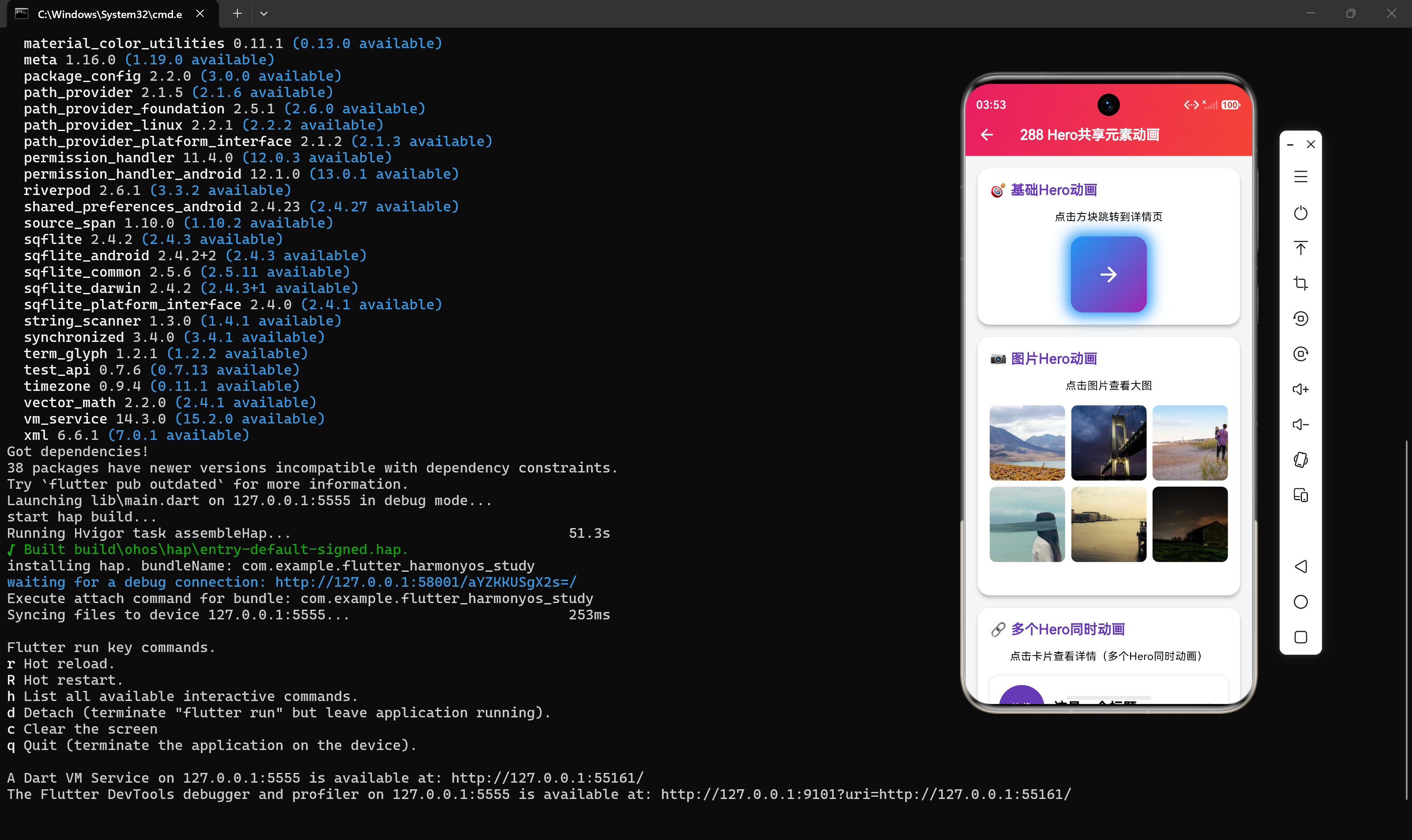
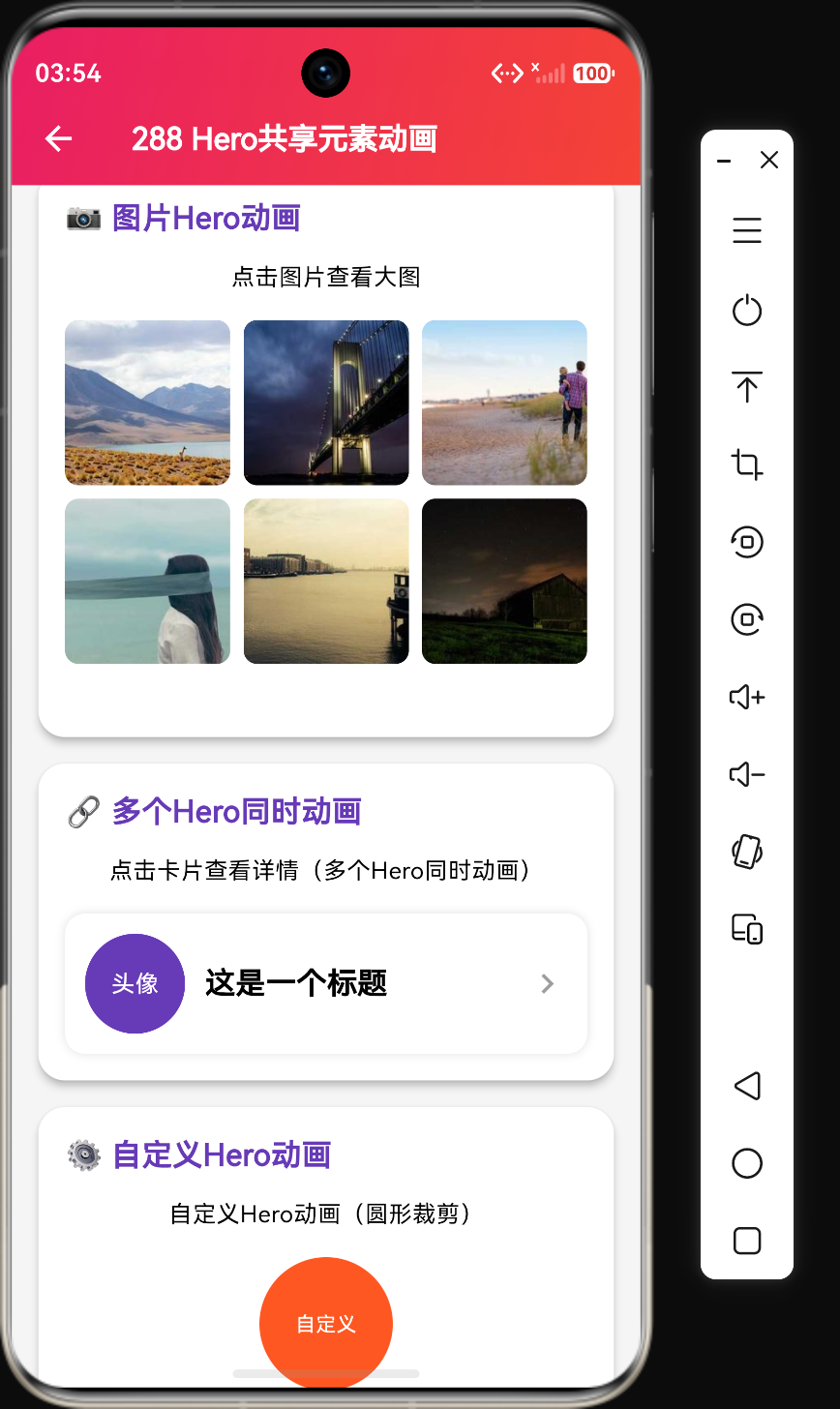
在 Flutter 开发中,页面之间的过渡动画是提升用户体验的重要手段。Hero 动画是一种特殊的过渡动画,它可以让同一个元素在不同页面之间平滑过渡,创造出连贯的视觉效果。本章将详细介绍 Hero 动画的使用方法和各种实际应用场景。
Hero 动画核心概念
什么是 Hero 动画
Hero 动画是 Flutter 中的一种页面过渡动画,它允许我们将一个组件从一个页面"飞"到另一个页面。这个组件在源页面和目标页面中都需要有相同的 tag,Flutter 会自动处理过渡效果。
工作原理:
- 在源页面中,用 Hero 组件包裹需要过渡的元素
- 在目标页面中,用相同 tag 的 Hero 组件包裹对应的元素
- 当导航时,Flutter 会自动创建过渡动画
- 动画完成后,目标页面的元素显示在最终位置
基本用法
// 源页面
Hero(
  tag: 'hero-tag',
  child: Image.network('https://picsum.photos/200/200'),
)

// 目标页面
Hero(
  tag: 'hero-tag',
  child: Image.network('https://picsum.photos/400/400'),
)
关键参数:
- tag: Hero 标签,必须在源页面和目标页面中相同
- child: 需要过渡的子组件
- createRectTween: 自定义过渡路径
- flightShuttleBuilder: 自定义过渡期间的组件
实际应用场景
场景一:图片详情页过渡
class HeroImagePage extends StatelessWidget {
const HeroImagePage({super.key});
Widget build(BuildContext context) {
return Scaffold(
appBar: AppBar(title: const Text('图片列表')),
body: GridView.builder(
gridDelegate: const SliverGridDelegateWithFixedCrossAxisCount(
crossAxisCount: 2,
),
itemCount: 10,
itemBuilder: (context, index) {
String imageUrl = 'https://picsum.photos/300/300?random=$index';
return GestureDetector(
onTap: () {
Navigator.push(
context,
MaterialPageRoute(
builder: (context) => ImageDetailPage(imageUrl: imageUrl, index: index),
),
);
},
child: Hero(
tag: 'image-$index',
child: Image.network(imageUrl, fit: BoxFit.cover),
),
);
},
),
);
}
}
class ImageDetailPage extends StatelessWidget {
final String imageUrl;
final int index;
const ImageDetailPage({super.key, required this.imageUrl, required this.index});
Widget build(BuildContext context) {
return Scaffold(
backgroundColor: Colors.black,
body: Center(
child: Hero(
tag: 'image-$index',
child: Image.network(imageUrl),
),
),
);
}
}
图片过渡要点:
- 使用唯一的 tag 标识每个图片
- 源页面显示缩略图,目标页面显示大图
- 自动实现缩放和平移过渡
场景二:卡片详情页过渡
class HeroCardPage extends StatelessWidget {
const HeroCardPage({super.key});
Widget build(BuildContext context) {
return Scaffold(
appBar: AppBar(title: const Text('卡片列表')),
body: ListView.builder(
itemCount: 5,
itemBuilder: (context, index) {
return GestureDetector(
onTap: () {
Navigator.push(
context,
MaterialPageRoute(
builder: (context) => CardDetailPage(index: index),
),
);
},
child: Card(
margin: const EdgeInsets.all(16),
child: Hero(
tag: 'card-$index',
child: ListTile(
leading: const Icon(Icons.star),
title: Text('卡片 $index'),
subtitle: const Text('点击查看详情'),
),
),
),
);
},
),
);
}
}
class CardDetailPage extends StatelessWidget {
final int index;
const CardDetailPage({super.key, required this.index});
Widget build(BuildContext context) {
return Scaffold(
appBar: AppBar(title: Text('卡片详情 $index')),
body: Center(
child: Hero(
tag: 'card-$index',
child: Container(
width: 300,
height: 200,
decoration: BoxDecoration(
color: Colors.blue,
borderRadius: BorderRadius.circular(16),
),
child: const Center(
child: Text(
'详情内容',
style: TextStyle(color: Colors.white, fontSize: 24),
),
),
),
),
),
);
}
}
卡片过渡要点:
- Hero 包裹整个 ListTile
- 目标页面显示更大的卡片
- 实现卡片展开效果
场景三:多个 Hero 同时过渡
class MultiHeroPage extends StatelessWidget {
const MultiHeroPage({super.key});
Widget build(BuildContext context) {
return Scaffold(
appBar: AppBar(title: const Text('多元素过渡')),
body: Center(
child: GestureDetector(
onTap: () {
Navigator.push(
context,
MaterialPageRoute(builder: (context) => const MultiHeroDetailPage()),
);
},
child: Row(
mainAxisAlignment: MainAxisAlignment.center,
children: const [
Hero(
tag: 'icon-hero',
child: Icon(Icons.favorite, size: 40, color: Colors.red),
),
SizedBox(width: 20),
Hero(
tag: 'text-hero',
child: Text('点击过渡', style: TextStyle(fontSize: 24)),
),
],
),
),
),
);
}
}
class MultiHeroDetailPage extends StatelessWidget {
const MultiHeroDetailPage({super.key});
Widget build(BuildContext context) {
return Scaffold(
appBar: AppBar(title: const Text('多元素详情')),
body: Column(
mainAxisAlignment: MainAxisAlignment.center,
children: const [
Hero(
tag: 'icon-hero',
child: Icon(Icons.favorite, size: 100, color: Colors.red),
),
SizedBox(height: 40),
Hero(
tag: 'text-hero',
child: Text('详情内容', style: TextStyle(fontSize: 36)),
),
],
),
);
}
}
多元素过渡要点:
- 多个 Hero 组件可以同时过渡
- 每个 Hero 有独立的 tag
- 各自独立动画
自定义 Hero 动画
自定义过渡路径
Hero(
tag: 'custom-hero',
createRectTween: (begin, end) {
return CustomRectTween(begin: begin!, end: end!);
},
child: const Icon(Icons.star),
)
class CustomRectTween extends RectTween {
CustomRectTween({required super.begin, required super.end});
Rect lerp(double t) {
double easedT = Curves.easeInOut.transform(t);
return Rect.fromLTRB(
lerpDouble(begin!.left, end!.left, easedT)!,
lerpDouble(begin!.top, end!.top, easedT)!,
lerpDouble(begin!.right, end!.right, easedT)!,
lerpDouble(begin!.bottom, end!.bottom, easedT)!,
);
}
}
自定义路径要点:
- 创建自定义 RectTween
- 使用 Curves 控制动画曲线
- 实现自定义的插值逻辑
自定义过渡组件
Hero(
  tag: 'custom-shuttle',
  flightShuttleBuilder: (
    flightContext,
    animation,
    flightDirection,
    fromHeroContext,
    toHeroContext,
  ) {
    return RotationTransition(
      turns: animation,
      child: const Icon(Icons.star),
    );
  },
  child: const Icon(Icons.star),
)
自定义过渡要点:
- flightShuttleBuilder 控制过渡期间的组件
- animation 参数控制动画进度
- flightDirection 指示过渡方向
Hero 动画与 PageRouteBuilder
自定义页面路由
Navigator.push(
  context,
  PageRouteBuilder(
    pageBuilder: (context, animation, secondaryAnimation) {
      return const DetailPage();
    },
    transitionsBuilder: (context, animation, secondaryAnimation, child) {
      return FadeTransition(
        opacity: animation,
        child: child,
      );
    },
  ),
);
自定义路由要点:
- 使用 PageRouteBuilder 创建自定义路由
- pageBuilder 创建目标页面
- transitionsBuilder 创建过渡动画
Hero 与自定义路由结合
Navigator.push(
  context,
  PageRouteBuilder(
    pageBuilder: (context, animation, secondaryAnimation) {
      return const DetailPage();
    },
    transitionsBuilder: (context, animation, secondaryAnimation, child) {
      return Hero(
        tag: 'shared-hero',
        child: child,
      );
    },
  ),
);
结合要点:
- 在 transitionsBuilder 中使用 Hero
- 实现更复杂的过渡效果
性能优化建议
避免复杂的 Hero 子组件
// 不好的做法:复杂子组件
Hero(
  tag: 'complex-hero',
  child: Container(
    child: Column(
      children: [
        Image.network(...),
        Text(...),
        Icon(...),
      ],
    ),
  ),
)

// 好的做法:简单子组件
Hero(
  tag: 'simple-hero',
  child: Image.network(...),
)
使用 RepaintBoundary
Hero(
  tag: 'repaint-hero',
  child: RepaintBoundary(
    child: Image.network(...),
  ),
)
限制 Hero 数量
// 不好的做法:过多 Hero
GridView.builder(
  itemBuilder: (context, index) => Hero(
    tag: 'item-$index',
    child: ItemWidget(),
  ),
)

// 好的做法:只在需要时使用
GridView.builder(
  itemBuilder: (context, index) => ItemWidget(),
)
总结
Hero 动画是 Flutter 中实现页面间共享元素过渡的核心组件,通过它我们可以:
- 实现图片过渡:从缩略图到大图的平滑过渡
- 实现卡片过渡:卡片展开效果
- 多元素同时过渡:多个元素独立动画
- 自定义过渡效果:自定义路径和组件
掌握 Hero 动画的使用,能够让我们创建出更加流畅和连贯的页面过渡效果。
参考资料

作为“人工智能6S店”的官方数字引擎,为AI开发者与企业提供一个覆盖软硬件全栈、一站式门户。
更多推荐


 0
0 0
0- 0


 已为社区贡献67条内容

所有评论(0)