
HarmonyOS ArkTS + WebView 嵌入高德地图 JSAPI 完整实践
·
前言
最近在做鸿蒙端项目,需要在鸿蒙 ArkTS 页面内嵌高德地图,实现跨页面传点位、动态添加自定义标记。 踩了大量坑:WebView 资源路径问题、高德密钥安全配置、@Watch监听全局存储、ArkTS 与 HTML 双向通信、自定义 Marker 图标加载失败、打包内存报错等,整理一份可直接复刻的完整方案。
技术栈:HarmonyOS ArkTS(API12) + WebView + 高德地图 JS API 2.0 场景:底部 Tab 导航,【儿童】页面承载地图,其他 Tab 页面选中点位后,自动在地图新增红色地标标记。
1.项目结构
entry
├── .preview
├── build
└── src
    └── main
        ├── ets
        │   ├── Children
        │   │   └── Children.ets  ————儿童页面
        │   ├── common
        │   ├── Cooperate
        │   ├── entryability
        │   ├── entrybackupability
        │   ├── Home
        │   ├── Main
        │   ├── Nav
        │   │   └── Nav.ets       ————导航栏页面
        │   └── pages
        ├── resources
        │   ├── base
        │   ├── dark
        │   └── rawfile
        │       ├── map.html      ————配置高德API
        │       └── red.png       ————红点照片
        └── module.json5          ————模块配置文件(网络权限在此配置)
2.网络配置(最下面)
{
  "module": {
    "name": "entry",
    "type": "entry",
    "description": "$string:module_desc",
    "mainElement": "EntryAbility",
    "deviceTypes": [
      "phone",
      "tablet",
      "2in1",
      "car",
      "wearable",
      "tv"
    ],
    "deliveryWithInstall": true,
    "installationFree": false,
    "pages": "$profile:main_pages",
    "abilities": [
      {
        "name": "EntryAbility",
        "srcEntry": "./ets/entryability/EntryAbility.ets",
        "description": "$string:EntryAbility_desc",
        "icon": "$media:layered_image",
        "label": "$string:EntryAbility_label",
        "startWindowIcon": "$media:startIcon",
        "startWindowBackground": "$color:start_window_background",
        "exported": true,
        "skills": [
          {
            "entities": [
              "entity.system.home"
            ],
            "actions": [
              "ohos.want.action.home"
            ]
          }
        ]
      }
    ],
    "extensionAbilities": [
      {
        "name": "EntryBackupAbility",
        "srcEntry": "./ets/entrybackupability/EntryBackupAbility.ets",
        "type": "backup",
        "exported": false,
        "metadata": [
          {
            "name": "ohos.extension.backup",
            "resource": "$profile:backup_config"
          }
        ],
      }
    ],

   //配置网络
    "requestPermissions":[
  {
    "name": "ohos.permission.INTERNET"
  }
  ]
  }
}
3.导航栏Nav页面(仅以Children举例)
import { PopoverDialog } from '@kit.ArkUI'
import Children from '../Children/Children'

// 定义导航项接口
interface TabItem {
  title: string;
  selectedImg: Resource;
  normalImg: Resource;
  component: () => void; // 明确函数返回类型

}
@Preview
@Entry
@Component
struct TabContainer {
  @State currentIndex: number = 0;
  private tabsController: TabsController = new TabsController();

  // 底部导航配置(明确函数返回类型)
  private tabItems: TabItem[] = [
    {
      title: '儿童',
      selectedImg: $r('app.media.children_fill_select'),
      normalImg: $r('app.media.children_fill_normal'),
      component: (): void => { Children() }

    }
  ];

  // 导航项构建器
  @Builder TabBuilder(title: string, targetIndex: number, selectedImg: Resource, normalImg: Resource) {
    Column() {
      Image(this.currentIndex === targetIndex ? selectedImg : normalImg)
        .size({ width: 24, height: 24 })

      Text(title)
        .fontColor(this.currentIndex === targetIndex ? '#ffff0000' : '#ff000000')
        .fontSize(12)
        .margin({ top: 2 })
    }
    .width('100%')
    .height(56)
    .justifyContent(FlexAlign.Center)
    .onClick(() => {
      this.currentIndex = targetIndex;
      this.tabsController.changeIndex(targetIndex);
    })
  }

  build() {
    Column() {
      Tabs({
        index: this.currentIndex,
        barPosition: BarPosition.End,
        controller: this.tabsController
      }) {
        ForEach(this.tabItems, (item: TabItem, index: number) => {
          TabContent() {
            // 根据索引渲染对应的组件
            if (index === 0) { Children() }

          }
          .tabBar(this.TabBuilder(item.title, index, item.selectedImg, item.normalImg))
        }, (item: TabItem) => item.title)
      }
      .onChange((index: number) => {
        this.currentIndex = index;
      })
      .barHeight(56)
      .width('100%')
    }
    .width('100%')
    .height('100%')

  }
}
4.Children页面
import webview from '@ohos.web.webview';
const KEY_CHILD_POINT = "selectedChildPoint";
interface ChildPoint {
  lon: number;
  lat: number;
  name: string;
}

@Entry
@Component
export default struct Children {
  webCtrl: webview.WebviewController = new webview.WebviewController();

  @StorageLink(KEY_CHILD_POINT)
  @Watch("onPointChange")
  pointData: ChildPoint | null = null;

  onPointChange() {
    if (!this.pointData) return;
    const lon = this.pointData.lon;
    const lat = this.pointData.lat;
    const name = this.pointData.name;

    if (!isNaN(lon) && !isNaN(lat) && name) {
      setTimeout(() => {
        const jsCode = `addChildMarker(${lon}, ${lat}, ${JSON.stringify(name)})`;
        this.webCtrl.runJavaScript(jsCode);
      }, 1200);
    }
  }

  build() {
    Column() {
      Web({
        src: $rawfile("map.html"),
        controller: this.webCtrl
      })
        .width("100%")
        .height("60%")
        .javaScriptAccess(true)
        .domStorageAccess(true)
      Text('儿童具体信息')
        .width('100%')
        .height(300)
        .backgroundColor("#fffad9d9")
    }
    .width("100%")
    .height("100%")
  }
}
5.map.html页面
<!DOCTYPE html>
<html lang="zh-CN">
<head>
    <meta charset="UTF-8">
    <meta name="viewport" content="width=device-width, initial-scale=1.0">
    <title>地图</title>
    <!-- 高德JS加载器 -->
    <script src="https://webapi.amap.com/loader.js"></script>
    <style>
        html, body {
            margin: 0;
            padding: 0;
            height: 100%;
        }
        #amap-container {
            width: 100%;
            height: 100%;
        }
    </style>
</head>
<body>
<div id="amap-container"></div>
<script>
    // ✅ 安全密钥
    window._AMapSecurityConfig = {
        securityJsCode: '填入你自己的安全密钥',
    }

    // ✅ 预留点位(测试用)
    const pointList = [
        { lng: 117.014719, lat: 36.678676, title: "点位1" },
        { lng: 117.03, lat: 36.68, title: "点位2" },
        { lng: 116.99, lat: 36.67, title: "点位3" },
        { lng: 117.02, lat: 36.69, title: "点位4" }
    ]

    let map = null;
    let isMapReady = false; // 标记地图是否初始化完成

    // ✅ 全局函数:供 ArkTS 调用添加标记
    window.addChildMarker = function(lon, lat, name) {
        if (!isMapReady) {
            console.warn('地图尚未初始化完成,稍后重试');
            setTimeout(() => {
                window.addChildMarker(lon, lat, name);
            }, 500);
            return;
        }
        if (map) {
            new AMap.Marker({
                position: [lon, lat],
                title: name,
                icon:"rawfile://red.png",
                map: map
            });
            map.setCenter([lon, lat]);
        }
    }

    // ✅ 加载地图API
    AMapLoader.load({
        key: '填入高德平台申请的web端key',
        version: '2.0',
        plugins: ['AMap.Scale', 'AMap.ToolBar', 'AMap.Geolocation'],
    })
    .then((AMap) => {
        // ✅ 初始化地图
        map = new AMap.Map('amap-container', {
            zoom: 14,
            center: [117.019, 36.675], // 默认中心点(可后续动态设置)
            viewMode: '3D',
            pitch: 60,
        });

        // ✅ 标记地图已就绪
        isMapReady = true;

        // ✅ 批量添加红色标记点(高德默认图标)
        pointList.forEach(point => {
            new AMap.Marker({
                position: [point.lng, point.lat],
                title: point.title,
                map: map
            });
        });

        // ✅ 定位控件
        const geolocation = new AMap.Geolocation({
            enableHighAccuracy: true,
            timeout: 10000,
            maximumAge: 0,
            convert: true,
            showButton: true,
            buttonPosition: 'LB',
            buttonOffset: new AMap.Pixel(10, 20),
            showMarker: true,
            showCircle: true,
            panToLocation: true,
            zoomToAccuracy: true,
        });
        map.addControl(geolocation);

        geolocation.getCurrentPosition((status, result) => {
            console.log('定位状态:', status, result);
            if (status === 'complete') {
                console.log('定位成功,经纬度:', result.position.lng, result.position.lat);
                console.log('地址:', result.formattedAddress);
            } else {
                console.log('模拟器无法获取真实GPS定位');
            }
        });

        console.info('✅ 地图初始化完成!');
    })
    .catch((err) => {
        console.error('❌ 地图加载失败:', err);
    });
</script>
</body>
</html>
6.效果图
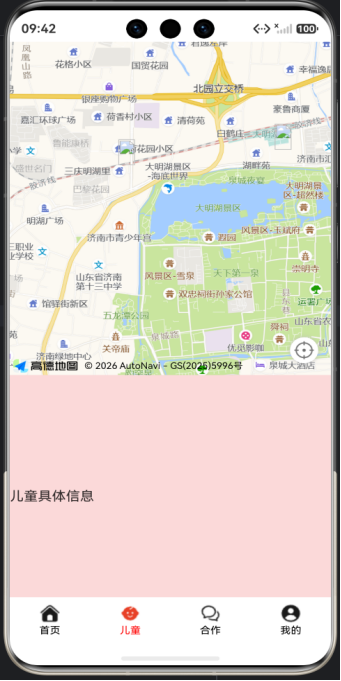
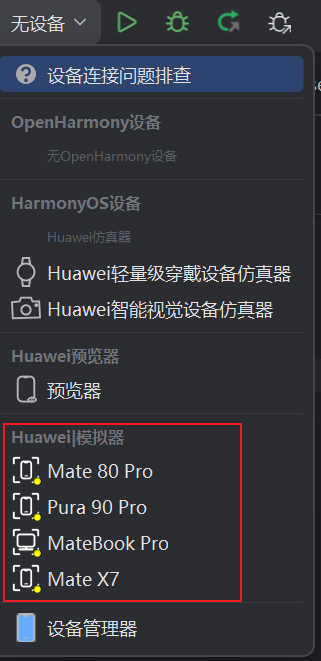
注:打开项目需要用手机模拟器,用预览器打开地图不会出现

作为“人工智能6S店”的官方数字引擎,为AI开发者与企业提供一个覆盖软硬件全栈、一站式门户。
更多推荐

 13
13 0
0- 0


 已为社区贡献1条内容

所有评论(0)