
AnimationController动画基础_Flutter在鸿蒙平台实现流畅UI动画
作者:付文龙(红目香薰)
仓库地址:https://gitcode.com/feng8403000/FlutterfromBeginnertoAdvancedForHarmonyOS.git
联系邮箱:372699828@qq.com
概述
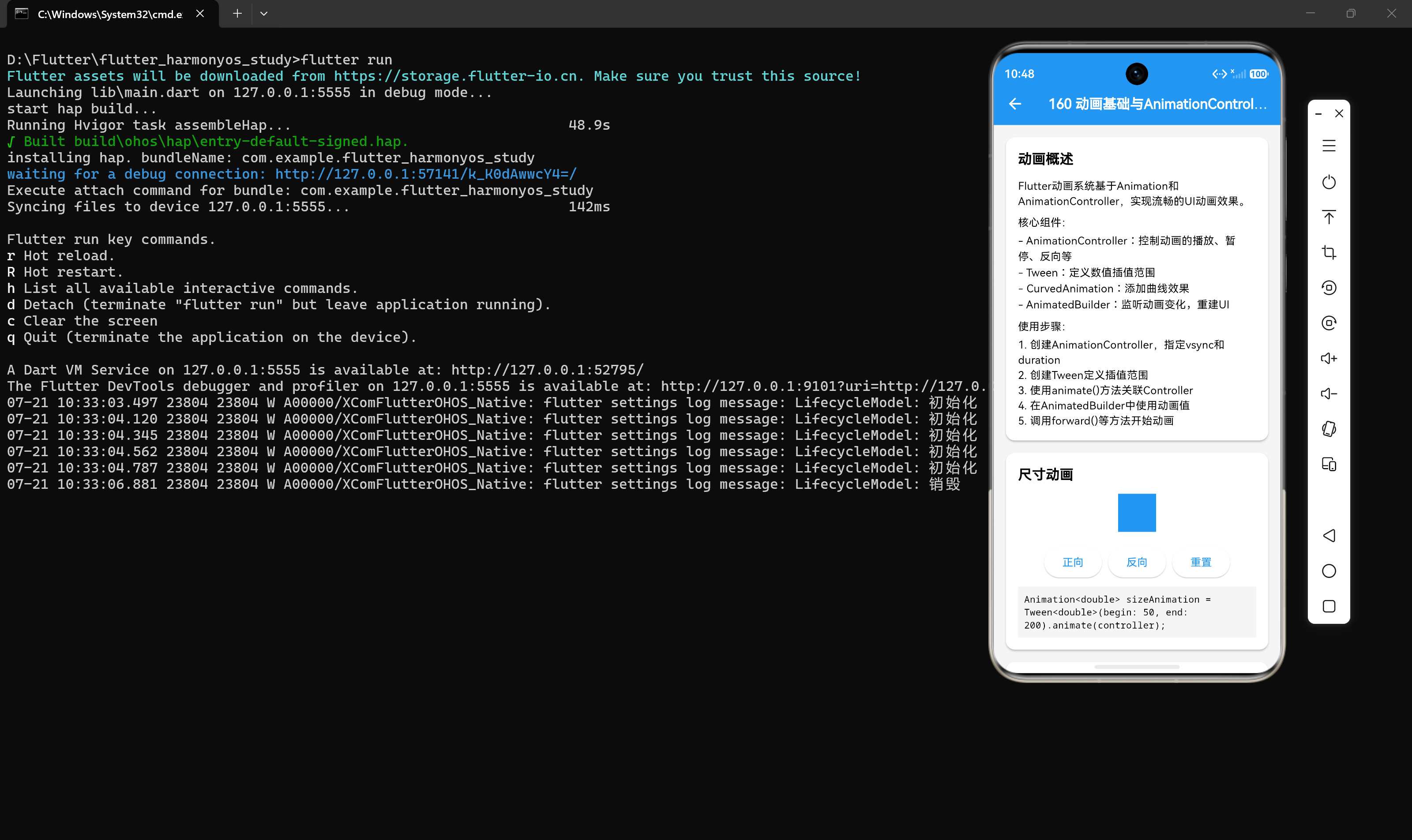
Flutter动画系统是一个强大的动画框架,它基于Animation和AnimationController实现流畅的UI动画效果。Flutter动画系统的核心特点:
- 声明式动画:通过状态驱动动画,无需手动管理帧更新
- 高性能:基于GPU渲染,60fps流畅动画
- 灵活:支持各种动画类型和曲线
- 组合性:可以组合多个动画实现复杂效果
动画的重要性
- 用户体验提升:动画使界面更加生动和流畅
- 交互反馈:提供视觉反馈,增强用户操作感知
- 引导用户:通过动画引导用户注意力
- 品牌个性:独特的动画风格可以体现品牌特色
核心概念
Animation
Animation是Flutter动画的核心抽象类,它代表一个随时间变化的值。动画的值可以是任意类型:double、Color、Offset等。
AnimationController
AnimationController是Animation的子类,用于控制动画的播放、暂停、反向、重复等操作。
Tween
Tween用于定义数值的插值范围,将动画的进度值(0-1)映射到实际的数值范围。
CurvedAnimation
CurvedAnimation用于添加曲线效果,使动画更加自然。
AnimatedBuilder
AnimatedBuilder是一个Widget,用于监听动画变化并重建UI。
实现步骤
第一步:创建AnimationController
首先创建一个AnimationController,需要指定vsync和duration。
class AnimationDemo extends StatefulWidget {
const AnimationDemo({super.key});
State<AnimationDemo> createState() => _AnimationDemoState();
}
class _AnimationDemoState extends State<AnimationDemo>
with SingleTickerProviderStateMixin {
late AnimationController _controller;
void initState() {
super.initState();
_controller = AnimationController(
vsync: this,
duration: const Duration(seconds: 2),
);
}
void dispose() {
_controller.dispose();
super.dispose();
}
Widget build(BuildContext context) {
return Scaffold(
body: Center(
child: AnimatedBuilder(
animation: _controller,
builder: (context, child) {
return Container(
width: _controller.value * 300,
height: _controller.value * 300,
color: Colors.blue,
);
},
),
),
floatingActionButton: FloatingActionButton(
onPressed: () => _controller.forward(),
child: const Icon(Icons.play_arrow),
),
);
}
}
第二步:使用Tween插值
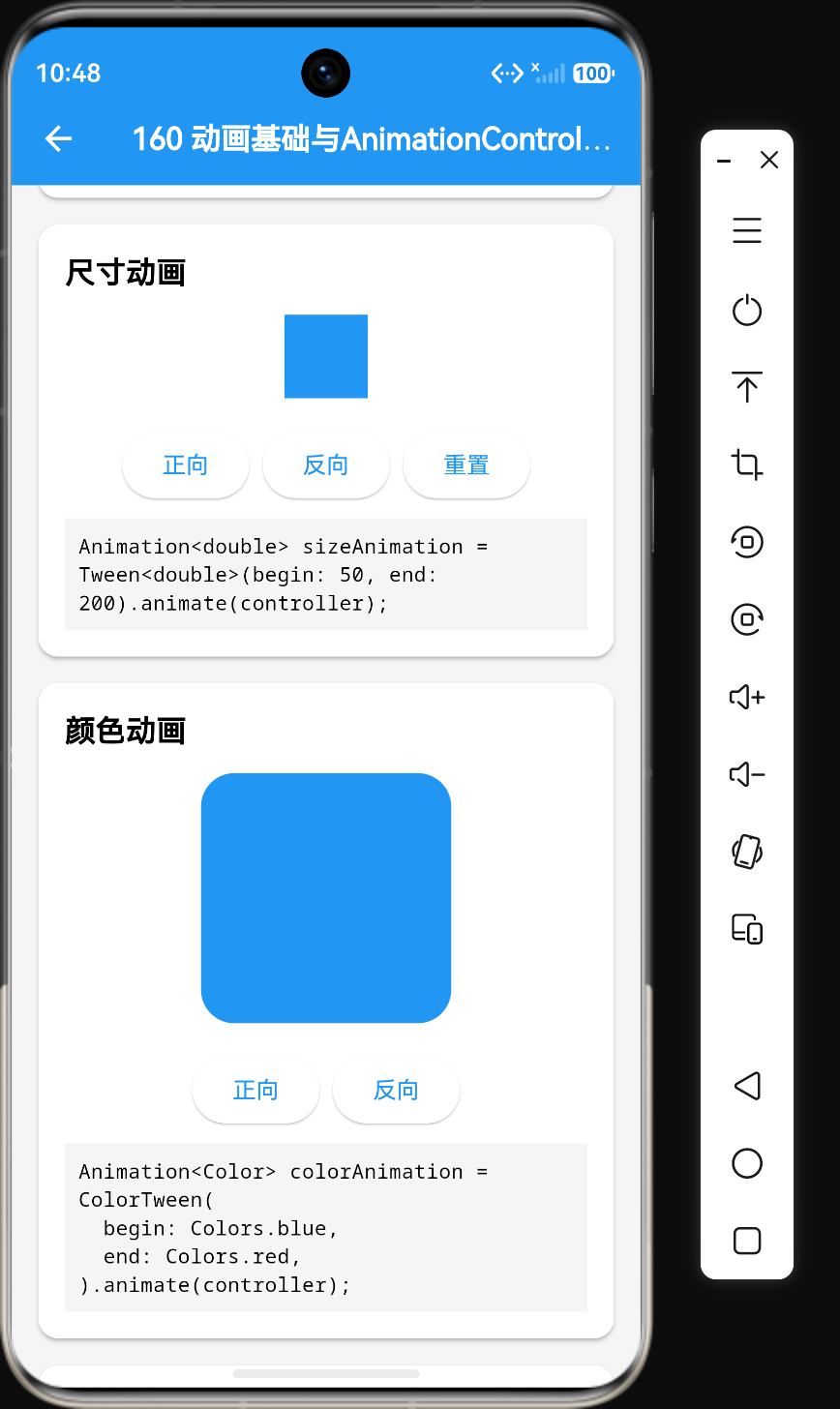
使用Tween定义数值的插值范围。
// 数值插值
Animation<double> sizeAnimation = Tween<double>(begin: 0, end: 300).animate(_controller);

// 颜色插值
Animation<Color> colorAnimation = ColorTween(
  begin: Colors.blue,
  end: Colors.red,
).animate(_controller);

// 边框插值
Animation<BorderRadius> borderRadiusAnimation = BorderRadiusTween(
  begin: BorderRadius.circular(0),
  end: BorderRadius.circular(50),
).animate(_controller);

// 位置插值
Animation<Offset> offsetAnimation = Tween<Offset>(
  begin: const Offset(0, 0),
  end: const Offset(100, 100),
).animate(_controller);
第三步:使用CurvedAnimation
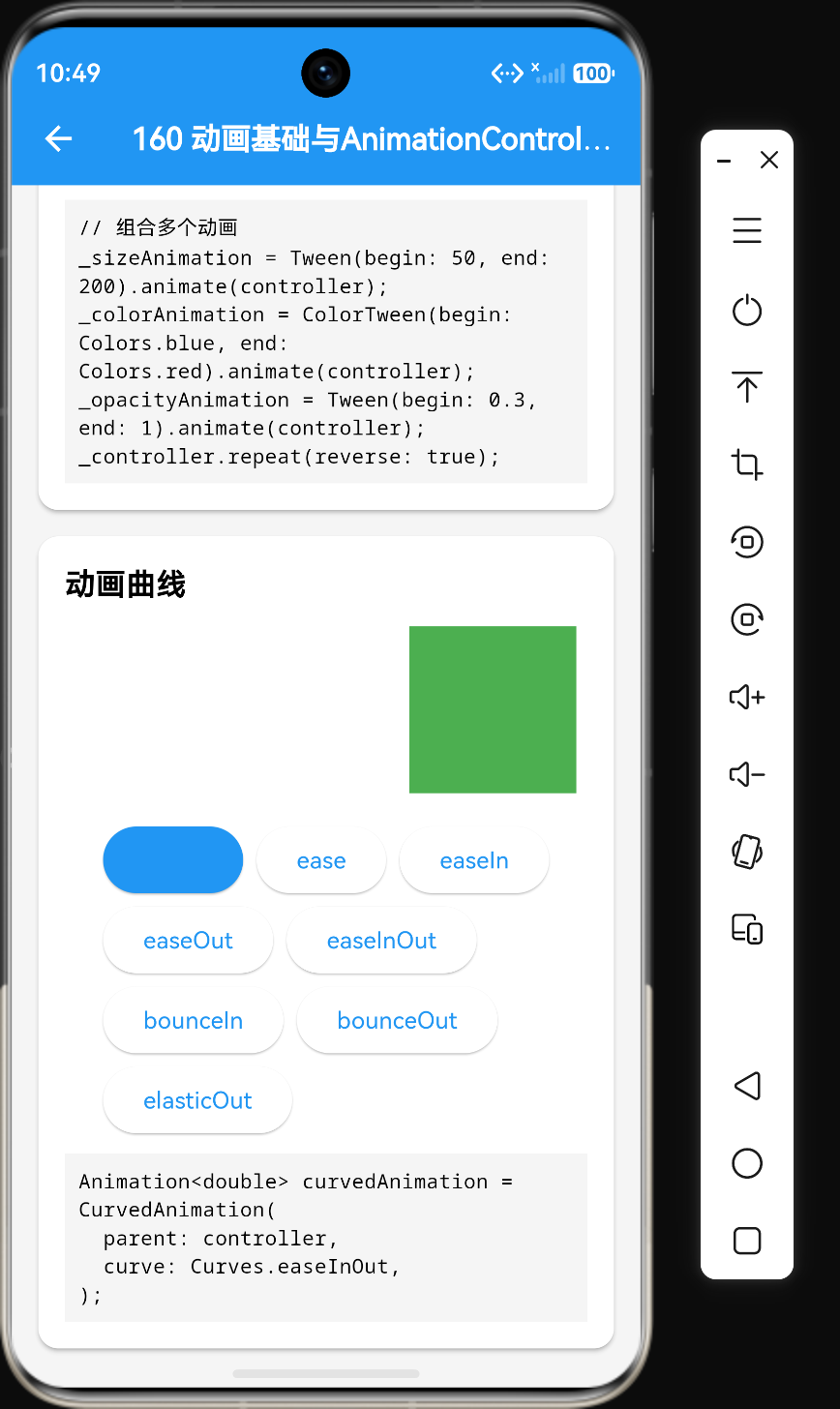
使用CurvedAnimation添加曲线效果。
Animation<double> curvedAnimation = CurvedAnimation(
  parent: _controller,
  curve: Curves.easeInOut,
);

Animation<double> sizeAnimation = Tween<double>(begin: 0, end: 300).animate(curvedAnimation);
第四步:在AnimatedBuilder中使用动画
AnimatedBuilder(
  animation: _animation,
  builder: (context, child) {
    return Container(
      width: _animation.value,
      height: _animation.value,
      color: Colors.blue,
    );
  },
)
AnimationController方法
基本控制方法
_controller.forward();      // 正向播放(从0到1)
_controller.reverse();      // 反向播放(从1到0)
_controller.reset();        // 重置到初始状态(值为0)
_controller.repeat();       // 重复播放
_controller.stop();         // 停止播放
_controller.animateTo(0.5); // 动画到指定值(0-1)
_controller.animateBack(0.5); // 反向动画到指定值
属性设置
_controller.duration = const Duration(seconds: 1);  // 设置动画时长
_controller.reverseDuration = const Duration(seconds: 1);  // 设置反向时长
_controller.value = 0.5;  // 设置当前值
_controller.lowerBound = 0;  // 设置下限
_controller.upperBound = 1;  // 设置上限
_controller.isAnimating;  // 是否正在播放
_controller.status;  // 当前状态
动画状态
AnimationStatus.dismissed;   // 动画在起始位置(值为0)
AnimationStatus.forward;     // 动画正向播放中
AnimationStatus.reverse;     // 动画反向播放中
AnimationStatus.completed;   // 动画在结束位置(值为1)
监听动画
监听值变化
_controller.addListener(() {
  setState(() {});
});
监听状态变化
_controller.addStatusListener((status) {
  if (status == AnimationStatus.completed) {
    _controller.reverse();
  } else if (status == AnimationStatus.dismissed) {
    _controller.forward();
  }
});
常用曲线
Flutter提供了多种内置曲线,使动画更加自然。
| 曲线名称 | 效果 | 适用场景 |
|---|---|---|
Curves.linear |
线性变化 | 匀速动画 |
Curves.ease |
缓入 | 开始缓慢,然后加速 |
Curves.easeIn |
缓入 | 开始缓慢 |
Curves.easeOut |
缓出 | 结束缓慢 |
Curves.easeInOut |
缓入缓出 | 开始和结束都缓慢 |
Curves.bounceIn |
弹跳进入 | 弹跳效果 |
Curves.bounceOut |
弹跳退出 | 弹跳效果 |
Curves.elasticIn |
弹性进入 | 弹性效果 |
Curves.elasticOut |
弹性退出 | 弹性效果 |
Curves.fastOutSlowIn |
快速开始,缓慢结束 | Material Design标准 |
组合动画
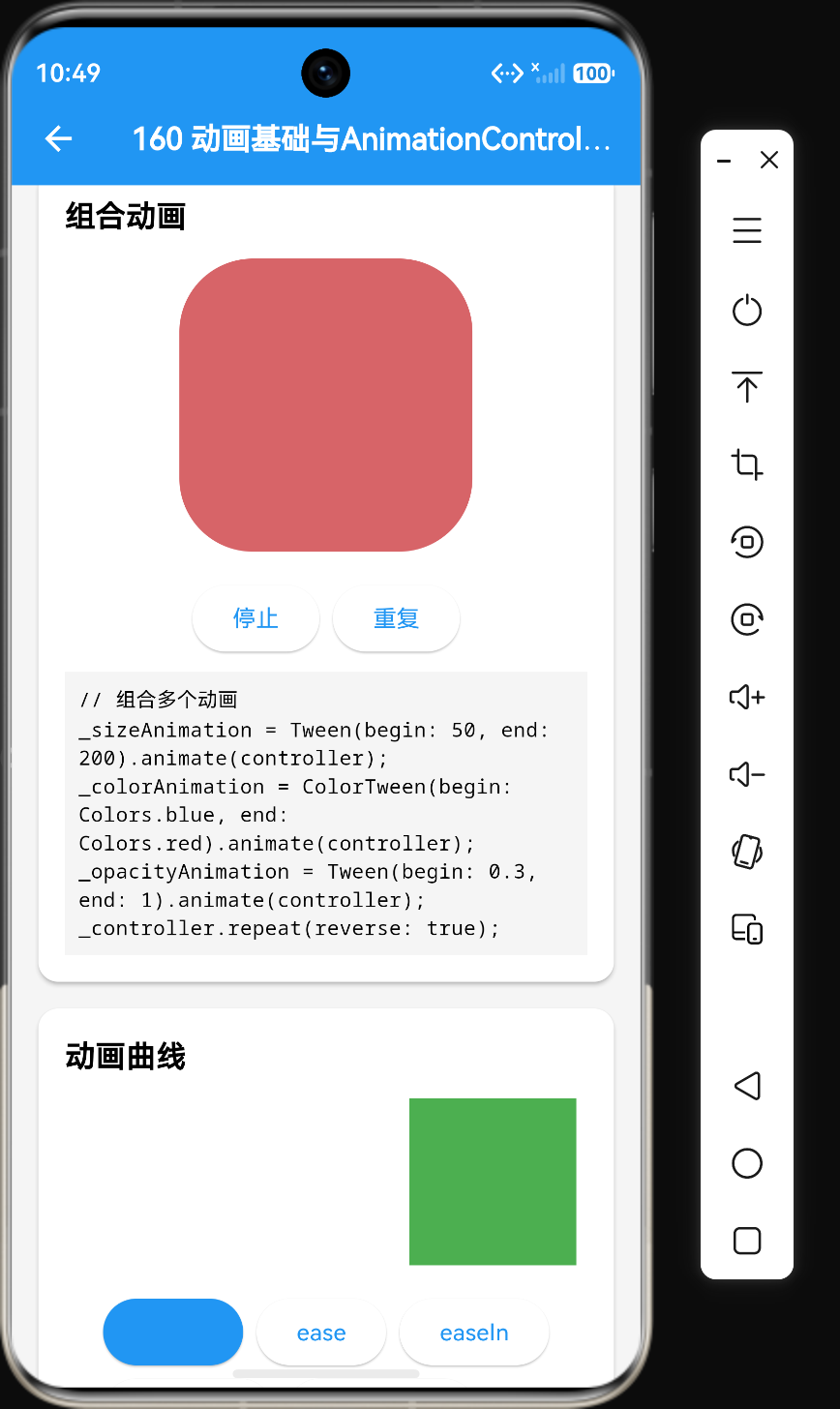
多个动画同步
class ComboAnimation extends StatefulWidget {
const ComboAnimation({super.key});
State<ComboAnimation> createState() => _ComboAnimationState();
}
class _ComboAnimationState extends State<ComboAnimation>
with SingleTickerProviderStateMixin {
late AnimationController _controller;
late Animation<double> _sizeAnimation;
late Animation<Color> _colorAnimation;
late Animation<double> _opacityAnimation;
void initState() {
super.initState();
_controller = AnimationController(
vsync: this,
duration: const Duration(seconds: 2),
);
_sizeAnimation = Tween<double>(begin: 50, end: 200).animate(_controller);
_colorAnimation = ColorTween(begin: Colors.blue, end: Colors.red).animate(_controller);
_opacityAnimation = Tween<double>(begin: 0.3, end: 1).animate(_controller);
_controller.repeat(reverse: true);
}
void dispose() {
_controller.dispose();
super.dispose();
}
Widget build(BuildContext context) {
return AnimatedBuilder(
animation: _controller,
builder: (context, child) {
return Opacity(
opacity: _opacityAnimation.value,
child: Container(
width: _sizeAnimation.value,
height: _sizeAnimation.value,
color: _colorAnimation.value,
borderRadius: BorderRadius.circular(_sizeAnimation.value / 4),
),
);
},
);
}
}
动画延迟
Animation<double> delayedAnimation = Tween<double>(begin: 0, end: 100).animate(
  CurvedAnimation(
    parent: _controller,
    curve: const Interval(0.5, 1.0),
  ),
);
动画性能优化
使用AnimatedBuilder
AnimatedBuilder只会重建builder中的内容,不会重建整个Widget树。
AnimatedBuilder(
  animation: _animation,
  builder: (context, child) {
    return Container(
      width: _animation.value,
      height: _animation.value,
      child: child,
    );
  },
  child: const Text('Hello'),
)
使用AnimatedWidget
AnimatedWidget是一个抽象类,可以继承它创建自定义动画Widget。
class AnimatedContainer extends AnimatedWidget {
const AnimatedContainer({
super.key,
required Animation<double> animation,
}) : super(listenable: animation);
Widget build(BuildContext context) {
final animation = listenable as Animation<double>;
return Container(
width: animation.value,
height: animation.value,
color: Colors.blue,
);
}
}
使用AnimatedOpacity、AnimatedContainer等
Flutter提供了许多预定义的动画Widget。
AnimatedOpacity(
  opacity: _opacity,
  duration: const Duration(seconds: 1),
  child: const Text('Hello'),
)

AnimatedContainer(
  width: _width,
  height: _height,
  color: _color,
  duration: const Duration(seconds: 1),
)

AnimatedPositioned(
  left: _left,
  top: _top,
  duration: const Duration(seconds: 1),
  child: const Text('Hello'),
)
Hero动画
Hero动画用于页面间的共享元素过渡。
// 源页面
Hero(
  tag: 'image',
  child: Image.network('https://example.com/image.jpg'),
)

// 目标页面
Hero(
  tag: 'image',
  child: Image.network('https://example.com/image.jpg'),
)
自定义曲线
创建自定义曲线
class CustomCurve extends Curve {
double transform(double t) {
return t * t;
}
}
Animation<double> customAnimation = CurvedAnimation(
parent: _controller,
curve: CustomCurve(),
);
使用曲线组合
Animation<double> combinedAnimation = CurvedAnimation(
  parent: _controller,
  curve: Curves.easeIn.flipped,
);
完整示例
弹跳按钮动画
import 'package:flutter/material.dart';
void main() {
runApp(const MaterialApp(home: BounceButtonDemo()));
}
class BounceButtonDemo extends StatefulWidget {
const BounceButtonDemo({super.key});
State<BounceButtonDemo> createState() => _BounceButtonDemoState();
}
class _BounceButtonDemoState extends State<BounceButtonDemo>
with SingleTickerProviderStateMixin {
late AnimationController _controller;
late Animation<double> _scaleAnimation;
late Animation<double> _opacityAnimation;
void initState() {
super.initState();
_controller = AnimationController(
vsync: this,
duration: const Duration(milliseconds: 500),
);
_scaleAnimation = Tween<double>(begin: 1, end: 0.8).animate(
CurvedAnimation(
parent: _controller,
curve: Curves.bounceIn,
),
);
_opacityAnimation = Tween<double>(begin: 1, end: 0.5).animate(_controller);
}
void dispose() {
_controller.dispose();
super.dispose();
}
void _onPressed() {
_controller.forward().then((_) {
_controller.reverse();
});
}
Widget build(BuildContext context) {
return Scaffold(
appBar: AppBar(title: const Text("弹跳按钮动画")),
body: Center(
child: AnimatedBuilder(
animation: _controller,
builder: (context, child) {
return Transform.scale(
scale: _scaleAnimation.value,
child: Opacity(
opacity: _opacityAnimation.value,
child: ElevatedButton(
onPressed: _onPressed,
style: ElevatedButton.styleFrom(
padding: const EdgeInsets.symmetric(horizontal: 40, vertical: 16),
textStyle: const TextStyle(fontSize: 20),
),
child: const Text("点击弹跳"),
),
),
);
},
),
),
);
}
}
最佳实践
1. 使用SingleTickerProviderStateMixin
SingleTickerProviderStateMixin提供vsync,确保动画在Widget可见时才运行。
class _MyWidgetState extends State<MyWidget>
    with SingleTickerProviderStateMixin {
  late AnimationController _controller;
}
2. 在dispose中释放资源
void dispose() {
_controller.dispose();
super.dispose();
}
3. 使用AnimatedBuilder避免不必要的重建
AnimatedBuilder(
  animation: _animation,
  builder: (context, child) {
    return Container(width: _animation.value);
  },
  child: const Text('不变的内容'),
)
4. 优先使用预定义的动画Widget
AnimatedOpacity(...)
AnimatedContainer(...)
AnimatedPositioned(...)
5. 使用曲线使动画更自然
CurvedAnimation(
  parent: _controller,
  curve: Curves.easeInOut,
)
6. 组合多个动画时使用同一个Controller
_sizeAnimation = Tween(begin: 50, end: 200).animate(_controller);
_colorAnimation = ColorTween(begin: Colors.blue, end: Colors.red).animate(_controller);
总结
Flutter动画系统是一个强大而灵活的动画框架,通过AnimationController、Tween、CurvedAnimation和AnimatedBuilder等组件,可以实现各种复杂的动画效果。
核心要点:
- 使用
AnimationController控制动画的播放、暂停、反向等 - 使用
Tween定义数值的插值范围 - 使用
CurvedAnimation添加曲线效果 - 使用
AnimatedBuilder监听动画变化并重建UI - 在
dispose中释放AnimationController资源
通过合理使用Flutter动画系统,可以创建出流畅、自然的用户界面,提升用户体验。

作为“人工智能6S店”的官方数字引擎,为AI开发者与企业提供一个覆盖软硬件全栈、一站式门户。
更多推荐
 0
0 0
0- 0


 已为社区贡献134条内容

所有评论(0)