
鸿蒙原生ArkTS布局方式之Spring弹性动画布局完全指南
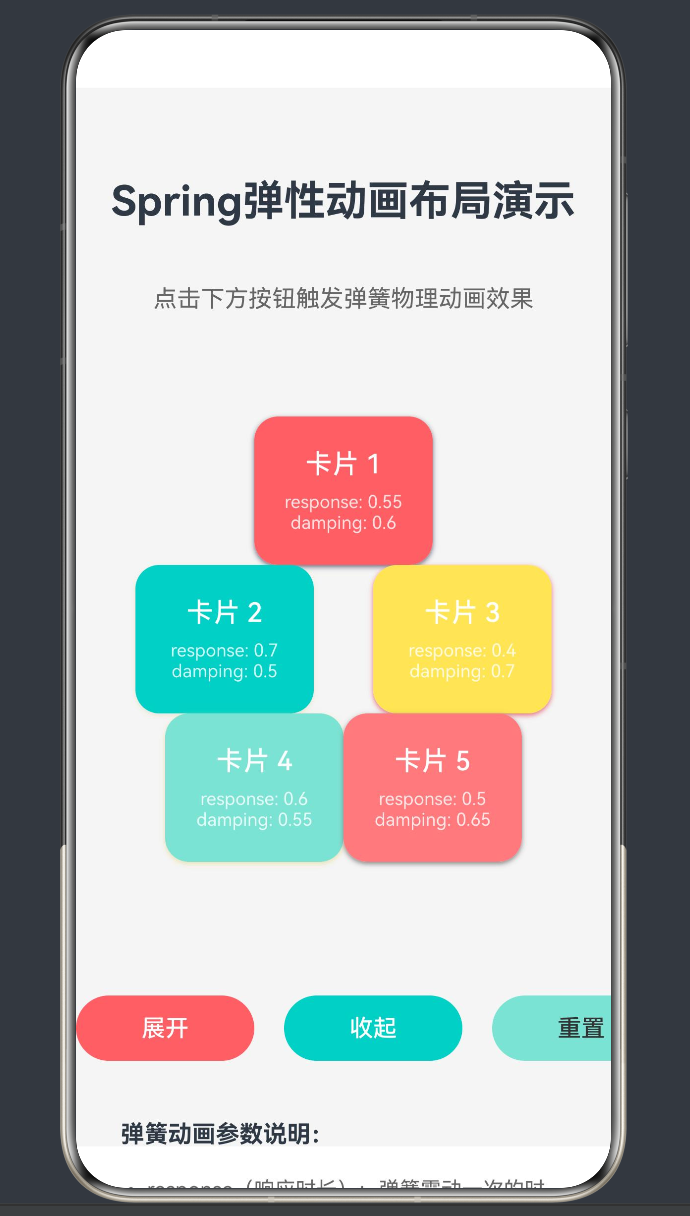
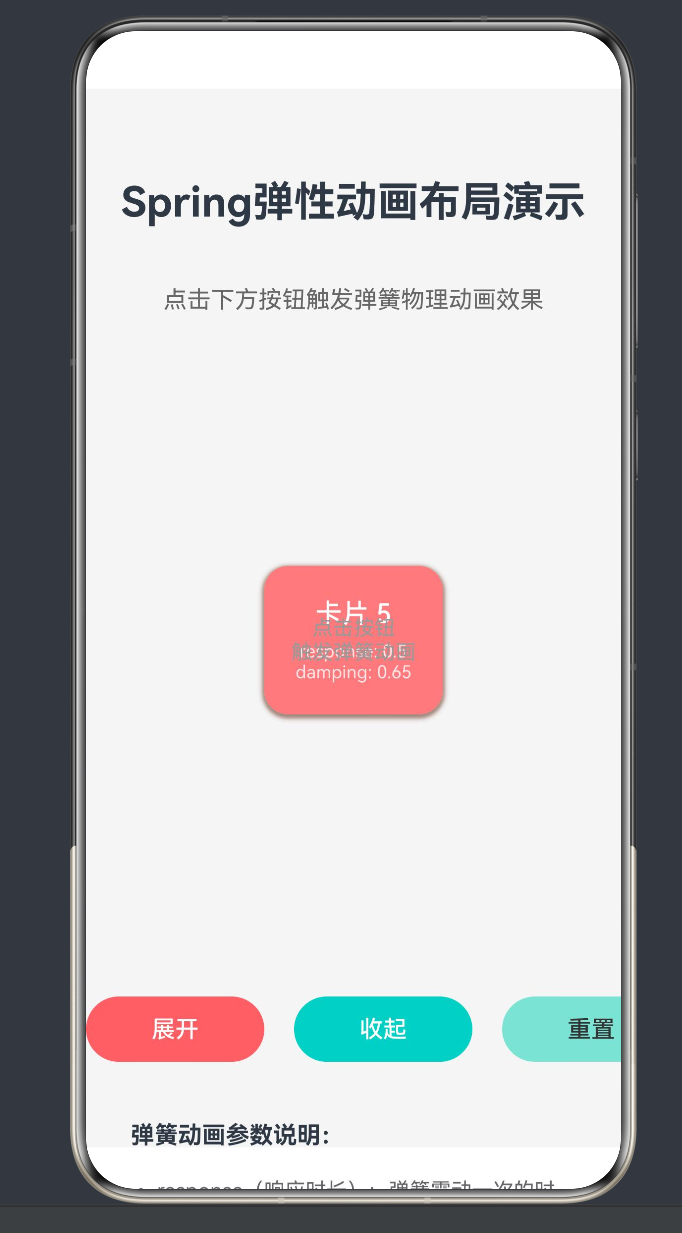
项目演示
目录
- 引言:为什么需要弹簧动画
- 物理基础:弹簧振子模型
- HarmonyOS弹簧曲线API详解(API 24)
- Spring弹性动画布局核心技术
- 完整实战案例:弹性卡片布局
- 进阶应用:复杂场景下的弹簧动画
- 性能优化与最佳实践
- 常见问题与解决方案
- 总结与展望
1. 引言:为什么需要弹簧动画
1.1 传统动画的局限性
在移动应用开发中,动画是提升用户体验的关键要素。传统的动画曲线(如线性、贝塞尔曲线)虽然能够实现平滑的过渡效果,但它们缺乏真实世界的物理感。
传统动画的问题在于:
- 机械感:动画严格按照预设的时间曲线执行,缺乏自然的弹性
- 僵硬感:到达终点时速度突然变为零,显得突兀
- 无惯性:无法模拟物体的惯性运动
1.2 弹簧动画的优势
弹簧动画基于物理模拟,能够创造出更加自然流畅的动效:
| 特性 | 传统动画 | 弹簧动画 |
|---|---|---|
| 运动规律 | 时间驱动 | 物理驱动 |
| 终点行为 | 戛然而止 | 自然回弹 |
| 惯性效果 | 无 | 有 |
| 速度变化 | 预设曲线 | 动态计算 |
1.3 HarmonyOS Spring动画的演进
HarmonyOS从API 7开始引入弹簧曲线,经过多个版本的迭代,在API 24中已经形成了一套完整的弹簧动画体系:
- API 7-8:基础弹簧曲线接口
- API 9:引入springMotion、springCurve、responsiveSpringMotion
- API 10:新增interpolatingSpring、customCurve
- API 24:完善的弹簧动画生态,支持复杂物理参数配置
2. 物理基础:弹簧振子模型
2.1 阻尼弹簧系统原理
弹簧动画的核心是阻尼弹簧振子模型,其运动方程为:
m * x'' + c * x' + k * x = 0
其中:
m:质量(mass)c:阻尼系数(damping)k:刚度系数(stiffness)x:位移
2.2 三种阻尼状态
根据阻尼系数的不同,弹簧系统呈现三种状态:
2.2.1 欠阻尼(c < 2√(mk))
当阻尼较小时,物体会在平衡点附近来回震荡,振幅逐渐减小:
x(t) = e^(-ζω₀t) * (A * cos(ωd * t) + B * sin(ωd * t))
其中:
ζ:阻尼比(damping ratio)ω₀:自然角频率ωd:阻尼角频率
2.2.2 临界阻尼(c = 2√(mk))
阻尼刚好使物体不产生震荡,以最快速度回到平衡点:
x(t) = (A + B * t) * e^(-ω₀t)
2.2.3 过阻尼(c > 2√(mk))
阻尼过大,物体缓慢回到平衡点,不产生震荡:
x(t) = A * e^(-r₁t) + B * e^(-r₂t)
2.3 弹簧动画参数映射
HarmonyOS将物理参数抽象为更易理解的动画参数:
| 物理参数 | 动画参数 | 含义 |
|---|---|---|
| 质量 m | mass | 影响惯性,值越大动画越慢 |
| 刚度 k | stiffness / response | 影响回弹速度,值越大回弹越快 |
| 阻尼系数 c | damping / dampingFraction | 影响震荡衰减,值越大震荡越少 |
3. HarmonyOS弹簧曲线API详解(API 24)
3.1 导入方式
在API 24中,弹簧曲线模块的导入方式为:
import { curves } from '@kit.ArkUI';
3.2 四种弹簧曲线接口
HarmonyOS提供了四种弹簧曲线接口,适用于不同场景:
3.2.1 springMotion(推荐)
function springMotion(response?: number, dampingFraction?: number, overlapDuration?: number): ICurve;
参数说明:
| 参数 | 类型 | 默认值 | 说明 |
|---|---|---|---|
| response | number | 0.55 | 响应时长(秒),弹簧震动一次的大致时间,值越小越硬 |
| dampingFraction | number | 0.825 | 阻尼系数,0-1震荡,1不震荡 |
| overlapDuration | number | 0 | 新旧动画参数过渡时间 |
使用场景:
- 一般弹簧动画场景
- 离手后的回弹动画
- 需要速度继承的场景
示例代码:
.animation({
  curve: curves.springMotion(0.55, 0.6),
  playMode: PlayMode.Normal
})
3.2.2 responsiveSpringMotion
function responsiveSpringMotion(response?: number, dampingFraction?: number, overlapDuration?: number): ICurve;
参数说明:
| 参数 | 类型 | 默认值 | 说明 |
|---|---|---|---|
| response | number | 0.15 | 响应时长,比springMotion更小,响应更快 |
| dampingFraction | number | 0.825 | 阻尼系数 |
| overlapDuration | number | 0 | 新旧动画参数过渡时间 |
使用场景:
- 手势跟随动画
- 需要低延迟响应的交互
- 拖拽操作的跟手效果
示例代码:
.gesture(
  PanGesture({ direction: PanDirection.Horizontal })
    .onActionUpdate((event) => {
      animateTo({ curve: curves.responsiveSpringMotion(0.3, 1.0) }, () => {
        this.offsetX = event.offsetX;
      });
    })
    .onActionEnd(() => {
      animateTo({ curve: curves.springMotion(0.4, 0.6) }, () => {
        this.offsetX = 0;
      });
    })
)
3.2.3 interpolatingSpring
function interpolatingSpring(velocity: number, mass: number, stiffness: number, damping: number): ICurve;
参数说明:
| 参数 | 类型 | 必填 | 说明 |
|---|---|---|---|
| velocity | number | 是 | 归一化初速度(速度/位移) |
| mass | number | 是 | 质量,影响惯性 |
| stiffness | number | 是 | 刚度,影响弹性强度 |
| damping | number | 是 | 阻尼,影响衰减速度 |
使用场景:
- 需要指定初速度的场景
- 复杂物理模拟
- 继承外部速度的动画
注意事项:
- 不适合起点和终点相同的场景
- velocity为归一化速度,需计算得出
示例代码:
.animation({
  curve: curves.interpolatingSpring(0, 1, 100, 10),
  playMode: PlayMode.Normal
})
3.2.4 springCurve(不推荐)
function springCurve(velocity: number, mass: number, stiffness: number, damping: number): ICurve;
参数说明:
与interpolatingSpring参数相同,但会将物理时长映射到指定的duration,破坏物理规律。
使用场景:
- 需要强制控制动画时长的场景
注意事项:
- 不推荐使用,会破坏弹簧动画的物理真实性
3.3 ICurve接口
所有弹簧曲线接口都返回ICurve对象,用于动画配置:
interface ICurve {
  // 曲线插值计算
  interpolate(value: number): number;
}
3.4 弹簧动画的速度继承机制
springMotion和responsiveSpringMotion支持速度继承:
场景:当前正在运行springMotion动画A
创建新动画B时:
  1. 停止当前动画A
  2. 继承当前属性值作为B的初始值
  3. 继承当前速度作为B的初速度
这使得连续动画能够无缝衔接,避免速度突变。
4. Spring弹性动画布局核心技术
4.1 布局容器选择
Spring弹性动画布局通常需要以下容器:
4.1.1 Stack容器(推荐)
Stack提供绝对定位能力,适合卡片的自由布局:
Stack({ alignContent: Alignment.Center }) {
  // 子组件可以自由定位
}
4.1.2 RelativeContainer容器
RelativeContainer支持相对定位,适合复杂的相对布局场景:
RelativeContainer() {
  Text('内容')
    .alignRules({
      center: { anchor: '__container__', align: VerticalAlign.Center },
      middle: { anchor: '__container__', align: HorizontalAlign.Center }
    })
}
4.2 可动画属性
以下属性支持弹簧动画:
| 属性类别 | 属性名称 | 说明 |
|---|---|---|
| 位置 | translate | 平移变换 |
| 缩放 | scale | 缩放变换 |
| 旋转 | rotate | 旋转变换 |
| 透明度 | opacity | 透明度变化 |
| 尺寸 | width, height | 尺寸变化 |
| 圆角 | borderRadius | 圆角变化 |
4.3 两种动画触发方式
4.3.1 属性动画(animation)
声明式属性动画,自动识别属性变化并添加动画:
Stack() {
  // 内容
}
.translate({ x: this.offsetX, y: this.offsetY })
.animation({
  curve: curves.springMotion(0.55, 0.6),
  playMode: PlayMode.Normal
})
特点:
- 声明式写法,代码简洁
- 属性改变时自动触发动画
- 适用于隐式动画场景
4.3.2 显式动画(animateTo)
命令式显式动画,通过闭包控制动画:
Button('触发动画')
  .onClick(() => {
    animateTo({ curve: curves.springMotion(0.55, 0.6) }, () => {
      this.offsetX = 100;
      this.offsetY = 50;
    });
  })
特点:
- 命令式写法,精确控制
- 支持多个属性同时动画
- 支持嵌套动画
4.4 动画参数配置
4.4.1 基础配置
animation({
  curve: curves.springMotion(0.55, 0.6),  // 弹簧曲线
  playMode: PlayMode.Normal,              // 播放模式
  iterations: 1,                          // 重复次数
  delay: 0,                               // 延迟时间
  direction: AnimationDirection.Normal    // 动画方向
})
4.4.2 播放模式
| 模式 | 说明 |
|---|---|
| PlayMode.Normal | 正向播放 |
| PlayMode.Reverse | 反向播放 |
| PlayMode.Alternate | 交替播放 |
| PlayMode.AlternateReverse | 交替反向播放 |
4.4.3 重要注意事项
弹簧动画的duration不生效:
// 注意:当curve为springMotion/responsiveSpringMotion/interpolatingSpring时
// duration参数会被忽略,动画时长由物理参数自动计算
.animation({
  curve: curves.springMotion(0.55, 0.6),
  duration: 1000  // 此参数不生效
})
5. 完整实战案例:弹性卡片布局
5.1 需求分析
本案例实现一个弹性卡片布局,包含以下功能:
- 5张卡片以弹簧动画方式展开/收起
- 每张卡片具有不同的弹簧参数
- 支持展开、收起、重置操作
5.2 项目结构
entry/src/main/ets/
├── pages/
│   └── Index.ets          # 主页面
└── model/
    └── CardItem.ets       # 卡片数据模型
5.3 数据模型定义
// model/CardItem.ets
export interface CardItem {
  id: number;
  x: number;           // 目标X位置
  y: number;           // 目标Y位置
  color: string;       // 卡片颜色
  response: number;    // 响应时长
  dampingFraction: number;  // 阻尼系数
}
5.4 主页面实现
// pages/Index.ets
import { curves } from '@kit.ArkUI';
import { CardItem } from '../model/CardItem';

@Entry
@Component
struct SpringAnimationDemo {
  @State isExpanded: boolean = false;

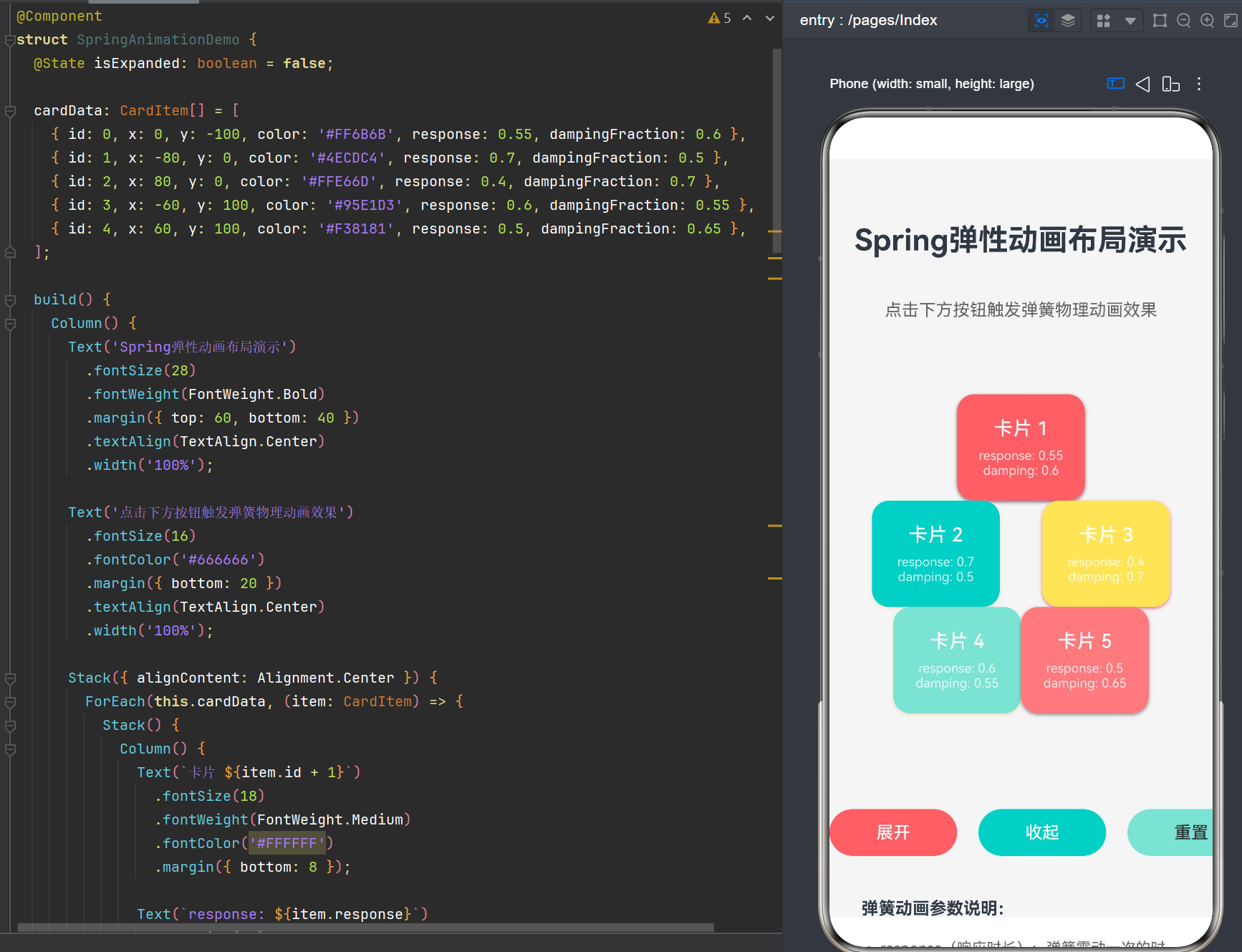
  cardData: CardItem[] = [
    { id: 0, x: 0, y: -100, color: '#FF6B6B', response: 0.55, dampingFraction: 0.6 },
    { id: 1, x: -80, y: 0, color: '#4ECDC4', response: 0.7, dampingFraction: 0.5 },
    { id: 2, x: 80, y: 0, color: '#FFE66D', response: 0.4, dampingFraction: 0.7 },
    { id: 3, x: -60, y: 100, color: '#95E1D3', response: 0.6, dampingFraction: 0.55 },
    { id: 4, x: 60, y: 100, color: '#F38181', response: 0.5, dampingFraction: 0.65 },
  ];

  build() {
    Column() {
      Text('Spring弹性动画布局演示')
        .fontSize(28)
        .fontWeight(FontWeight.Bold)
        .margin({ top: 60, bottom: 40 })
        .textAlign(TextAlign.Center)
        .width('100%');

      Text('点击下方按钮触发弹簧物理动画效果')
        .fontSize(16)
        .fontColor('#666666')
        .margin({ bottom: 20 })
        .textAlign(TextAlign.Center)
        .width('100%');

      Stack({ alignContent: Alignment.Center }) {
        ForEach(this.cardData, (item: CardItem) => {
          Stack() {
            Column() {
              Text(`卡片 ${item.id + 1}`)
                .fontSize(18)
                .fontWeight(FontWeight.Medium)
                .fontColor('#FFFFFF')
                .margin({ bottom: 8 });

              Text(`response: ${item.response}`)
                .fontSize(12)
                .fontColor('#FFFFFF')
                .opacity(0.8);
              Text(`damping: ${item.dampingFraction}`)
                .fontSize(12)
                .fontColor('#FFFFFF')
                .opacity(0.8);
            }
            .width(120)
            .height(100)
            .justifyContent(FlexAlign.Center)
            .borderRadius(16)
            .backgroundColor(item.color)
            .shadow({
              radius: 8,
              color: item.color + '80',
              offsetY: 4
            });
          }
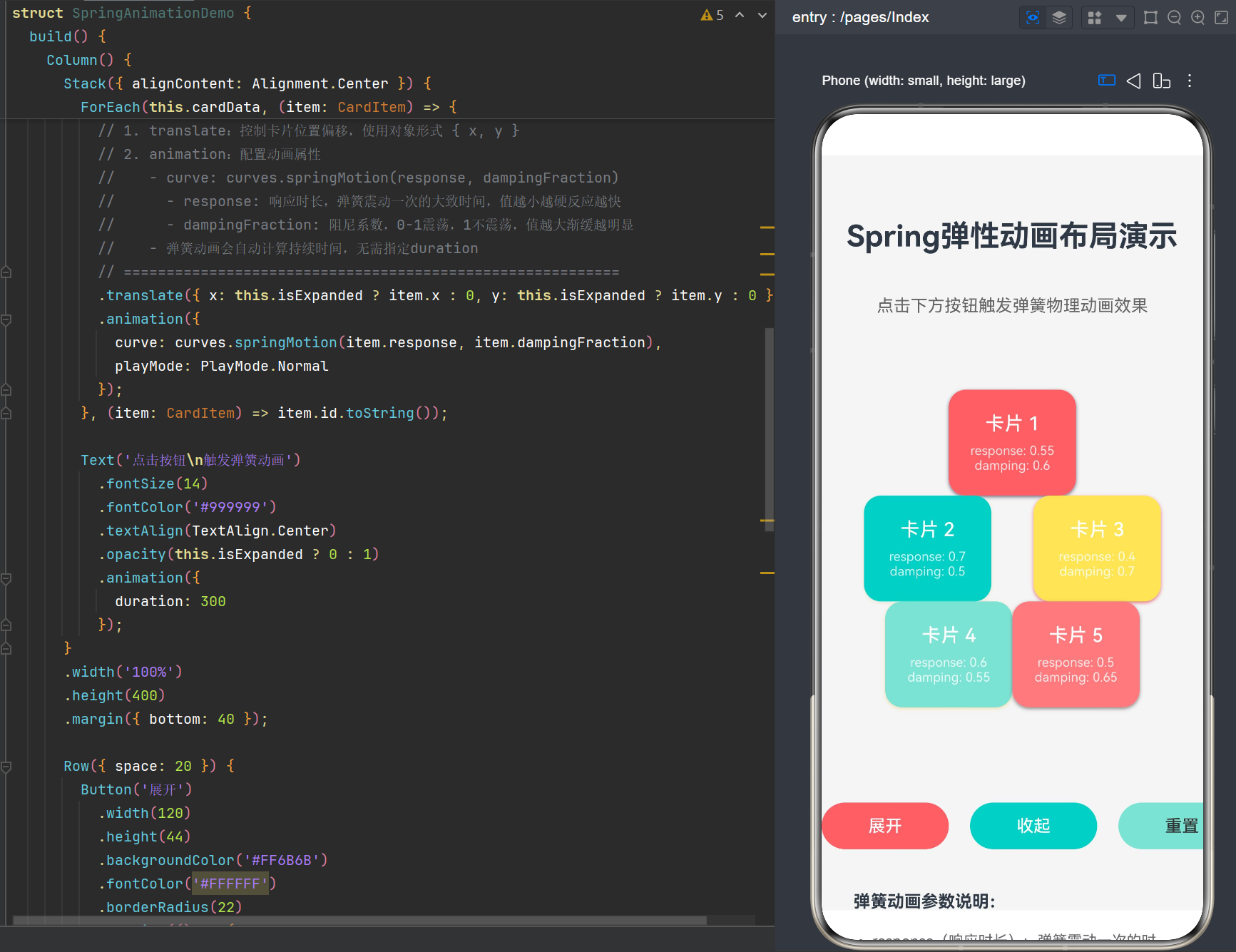
          .translate({ x: this.isExpanded ? item.x : 0, y: this.isExpanded ? item.y : 0 })
          .animation({
            curve: curves.springMotion(item.response, item.dampingFraction),
            playMode: PlayMode.Normal
          });
        }, (item: CardItem) => item.id.toString());

        Text('点击按钮\n触发弹簧动画')
          .fontSize(14)
          .fontColor('#999999')
          .textAlign(TextAlign.Center)
          .opacity(this.isExpanded ? 0 : 1)
          .animation({
            duration: 300
          });
      }
      .width('100%')
      .height(400)
      .margin({ bottom: 40 });

      Row({ space: 20 }) {
        Button('展开')
          .width(120)
          .height(44)
          .backgroundColor('#FF6B6B')
          .fontColor('#FFFFFF')
          .borderRadius(22)
          .onClick(() => {
            this.isExpanded = true;
          });

        Button('收起')
          .width(120)
          .height(44)
          .backgroundColor('#4ECDC4')
          .fontColor('#FFFFFF')
          .borderRadius(22)
          .onClick(() => {
            this.isExpanded = false;
          });

        Button('重置')
          .width(120)
          .height(44)
          .backgroundColor('#95E1D3')
          .fontColor('#333333')
          .borderRadius(22)
          .onClick(() => {
            animateTo({ duration: 0 }, () => {
              this.isExpanded = false;
            });
          });
      }
      .justifyContent(FlexAlign.Center)
      .width('100%');

      Column({ space: 12 }) {
        Text('弹簧动画参数说明:')
          .fontSize(16)
          .fontWeight(FontWeight.Bold)
          .margin({ top: 40, bottom: 8 });

        Text('• response(响应时长):弹簧震动一次的时间,值越小越硬,反应越快')
          .fontSize(14)
          .fontColor('#666666');

        Text('• dampingFraction(阻尼系数):控制回弹次数,0-1震荡,1不震荡')
          .fontSize(14)
          .fontColor('#666666');

        Text('• 弹簧动画会自动计算最佳时长,无需手动指定duration')
          .fontSize(14)
          .fontColor('#666666');

        Text('• 使用curves.springMotion实现真实的物理弹簧效果')
          .fontSize(14)
          .fontColor('#666666');
      }
      .width('100%')
      .padding({ left: 30, right: 30 })
      .alignItems(HorizontalAlign.Start);
    }
    .width('100%')
    .height('100%')
    .backgroundColor('#F5F5F5');
  }
}
5.5 运行效果分析
5.5.1 展开动画
点击"展开"按钮时:
isExpanded状态变为true- 每张卡片的
translate属性从{ x: 0, y: 0 }变为各自的目标位置 - 由于配置了
curves.springMotion,卡片以弹簧物理效果运动 - 不同卡片的
response和dampingFraction参数不同,导致运动效果各异
5.5.2 收起动画
点击"收起"按钮时:
isExpanded状态变为false- 卡片反向运动回中心位置
- 同样遵循弹簧物理规律
5.5.3 重置功能
点击"重置"按钮时:
- 使用
animateTo({ duration: 0 })强制无动画过渡 - 卡片立即回到初始状态
6. 进阶应用:复杂场景下的弹簧动画
6.1 手势跟随动画
实现拖拽时的跟手效果和离手后的回弹效果:
@Component
struct DraggableCard {
  @State offsetX: number = 0;
  @State offsetY: number = 0;
  @State startX: number = 0;
  @State startY: number = 0;

  build() {
    Stack() {
      Text('可拖拽卡片')
        .fontSize(18)
        .fontColor('#FFFFFF')
    }
    .width(120)
    .height(80)
    .backgroundColor('#FF6B6B')
    .borderRadius(16)
    .translate({ x: this.offsetX, y: this.offsetY })
    .gesture(
      PanGesture()
        .onActionStart((event) => {
          this.startX = this.offsetX;
          this.startY = this.offsetY;
        })
        .onActionUpdate((event) => {
          animateTo({ curve: curves.responsiveSpringMotion(0.3, 1.0) }, () => {
            this.offsetX = this.startX + event.offsetX;
            this.offsetY = this.startY + event.offsetY;
          });
        })
        .onActionEnd(() => {
          animateTo({ curve: curves.springMotion(0.4, 0.6) }, () => {
            this.offsetX = 0;
            this.offsetY = 0;
          });
        })
    );
  }
}
6.2 级联弹簧动画
实现多个元素依次触发的弹簧动画:
@Component
struct CascadeAnimation {
  @State items: number[] = [0, 1, 2, 3, 4];
  @State expanded: boolean = false;
  @State delays: number[] = [0, 100, 200, 300, 400];

  build() {
    Column({ space: 10 }) {
      Button('级联展开')
        .onClick(() => {
          this.expanded = !this.expanded;
        });

      ForEach(this.items, (item: number, index: number) => {
        Stack() {
          Text(`元素 ${item + 1}`)
            .fontSize(16)
            .fontColor('#FFFFFF')
        }
        .width(200)
        .height(50)
        .backgroundColor('#4ECDC4')
        .borderRadius(8)
        .translate({ x: this.expanded ? 0 : 100, y: 0 })
        .opacity(this.expanded ? 1 : 0)
        .animation({
          curve: curves.springMotion(0.5, 0.6),
          delay: this.delays[index],
          playMode: PlayMode.Normal
        });
      }, (item: number) => item.toString());
    }
    .padding(20);
  }
}
6.3 弹性缩放动画
实现点击时的弹性缩放效果:
@Component
struct ElasticButton {
  @State scaleValue: number = 1;

  build() {
    Button('弹性按钮')
      .width(150)
      .height(50)
      .backgroundColor('#FF6B6B')
      .fontColor('#FFFFFF')
      .borderRadius(25)
      .scale({ x: this.scaleValue, y: this.scaleValue })
      .animation({
        curve: curves.springMotion(0.3, 0.7),
        playMode: PlayMode.Normal
      })
      .onTouch((event: TouchEvent) => {
        if (event.type === TouchType.Down) {
          this.scaleValue = 0.9;
        } else if (event.type === TouchType.Up || event.type === TouchType.Cancel) {
          this.scaleValue = 1;
        }
      });
  }
}
6.4 综合案例:弹性列表项
实现列表项的弹性入场和删除动画:
@Component
struct ElasticListItem {
  @Prop item: string;
  @Prop index: number;
  @State visible: boolean = false;
  @State translateX: number = 100;
  @State opacity: number = 0;

  aboutToAppear() {
    setTimeout(() => {
      animateTo({ curve: curves.springMotion(0.5, 0.6) }, () => {
        this.visible = true;
        this.translateX = 0;
        this.opacity = 1;
      });
    }, this.index * 100);
  }

  delete() {
    animateTo({ curve: curves.springMotion(0.4, 0.5) }, () => {
      this.translateX = -100;
      this.opacity = 0;
    });
  }

  build() {
    Row() {
      Text(this.item)
        .fontSize(16)
        .layoutWeight(1);
      Button('删除')
        .width(60)
        .height(30)
        .backgroundColor('#FF6B6B')
        .fontColor('#FFFFFF')
        .borderRadius(15)
        .fontSize(12)
        .onClick(() => {
          this.delete();
        });
    }
    .width('100%')
    .height(60)
    .padding({ left: 16, right: 16 })
    .backgroundColor('#FFFFFF')
    .borderRadius(8)
    .translate({ x: this.translateX, y: 0 })
    .opacity(this.opacity)
    .animation({
      curve: curves.springMotion(0.5, 0.6),
      playMode: PlayMode.Normal
    });
  }
}
7. 性能优化与最佳实践
7.1 性能优化策略
7.1.1 避免过度动画
- 不要在短时间内触发大量弹簧动画
- 限制同时进行的动画数量
- 使用
tempo参数调整动画速度
7.1.2 使用硬件加速
弹簧动画会自动使用GPU加速,但需要注意:
// 避免使用会触发软件渲染的属性
// 推荐:translate, scale, rotate, opacity
// 避免:width, height, margin, padding(会触发布局重排)
7.1.3 动画复用
将常用的弹簧曲线配置封装为常量:
const SpringConfigs = {
  gentle: curves.springMotion(0.6, 0.8),
  normal: curves.springMotion(0.5, 0.6),
  bouncy: curves.springMotion(0.4, 0.4),
  responsive: curves.responsiveSpringMotion(0.2, 1.0)
};

// 使用
.animation({ curve: SpringConfigs.normal })
7.2 最佳实践
7.2.1 参数选择原则
| 场景 | response推荐值 | dampingFraction推荐值 |
|---|---|---|
| 轻微回弹 | 0.6-0.7 | 0.7-0.8 |
| 标准回弹 | 0.5-0.6 | 0.5-0.7 |
| 强烈回弹 | 0.3-0.4 | 0.3-0.5 |
| 手势跟随 | 0.15-0.3 | 0.8-1.0 |
7.2.2 一致性原则
- 同一类交互使用相同的弹簧参数
- 保持整个应用的动效风格统一
- 避免过度使用不同的弹簧参数
7.2.3 可访问性考虑
- 提供关闭动画的选项
- 避免过于强烈的动画影响用户体验
- 确保动画不会导致视觉疲劳
8. 常见问题与解决方案
8.1 编译错误:Curve未导出
错误信息:
'"@kit.ArkUI"' has no exported member named 'Curve'. Did you mean 'curves'?
解决方案:
// 错误写法
import { Curve } from '@kit.ArkUI';
curve: Curve.spring(1, 100);

// 正确写法
import { curves } from '@kit.ArkUI';
curve: curves.springMotion(0.5, 0.6);
8.2 编译错误:translateX不存在
错误信息:
Property 'translateX' does not exist on type 'StackAttribute'. Did you mean 'translate'?
解决方案:
// 错误写法
.translateX(100)
.translateY(50)

// 正确写法
.translate({ x: 100, y: 50 })
8.3 弹簧动画不生效
可能原因:
- 状态变量未使用
@State装饰器 - 属性变化未触发组件刷新
- duration参数覆盖了弹簧计算
解决方案:
// 确保使用@State装饰器
@State offsetX: number = 0;

// 确保属性变化正确
.translate({ x: this.offsetX, y: 0 })

// 弹簧动画不指定duration
.animation({
  curve: curves.springMotion(0.5, 0.6)
})
8.4 动画过于剧烈或不够明显
解决方案:
// 调整response参数控制响应速度
curve: curves.springMotion(0.5, 0.6)

// 调整dampingFraction控制震荡
curve: curves.springMotion(0.5, 0.8)
8.5 动画冲突
问题描述:
多个动画同时作用于同一属性,导致动画效果异常。
解决方案:
animateTo({ curve: curves.springMotion(0.5, 0.6) }, () => {
  this.offsetX = 100;
  this.offsetY = 50;
  this.scaleValue = 1.2;
});
9. 总结与展望
9.1 核心要点回顾
- 弹簧动画基于物理模拟:使用阻尼弹簧振子模型,创造自然流畅的动效
- 四种弹簧曲线接口:springMotion、responsiveSpringMotion、interpolatingSpring、springCurve
- 关键参数:response控制响应速度,dampingFraction控制震荡衰减
- 速度继承机制:springMotion和responsiveSpringMotion支持无缝动画衔接
- 布局方式:推荐使用Stack容器配合translate属性实现弹性布局
9.2 实践建议
- 优先使用springMotion:适合大多数场景,参数直观
- 手势场景使用responsiveSpringMotion:提供低延迟跟随体验
- 需要初速度时使用interpolatingSpring:适合复杂物理模拟
- 避免使用springCurve:会破坏物理真实性
9.3 未来发展方向
随着HarmonyOS的持续演进,弹簧动画将支持更多高级特性:
- 3D弹簧动画:支持三维空间的弹簧运动
- 物理引擎集成:与系统级物理引擎深度整合
- AI驱动的动效:根据用户行为智能调整动画参数
- 跨设备同步动画:支持多设备间的弹簧动画同步
9.4 参考资料
附录:常用弹簧参数配置表
| 效果名称 | response | dampingFraction | 适用场景 |
|---|---|---|---|
| iOS默认 | 0.55 | 0.825 | 通用过渡动画 |
| 轻微回弹 | 0.6 | 0.75 | 按钮点击反馈 |
| 标准回弹 | 0.5 | 0.6 | 卡片展开/收起 |
| 强烈回弹 | 0.4 | 0.4 | 强调性动画 |
| 快速响应 | 0.3 | 0.8 | 手势跟随 |
| 无震荡 | 0.5 | 1.0 | 平滑过渡 |
版本历史:
| 版本 | 日期 | 更新内容 |
|---|---|---|
| v1.0 | 2026-07-17 | 初始版本,涵盖基础弹簧动画布局 |

作为“人工智能6S店”的官方数字引擎,为AI开发者与企业提供一个覆盖软硬件全栈、一站式门户。
更多推荐



 9
9 0
0- 0


 已为社区贡献42条内容

所有评论(0)