
鸿蒙Flutter 点击事件处理:Flutter按钮与组件的交互实现
作者:高红朋(小雨下雨的雨)
仓库地址:https://gitcode.com/feng8403000/FlutterfromBeginnertoAdvancedForHarmonyOS.git
联系邮箱:372699828@qq.com
引言
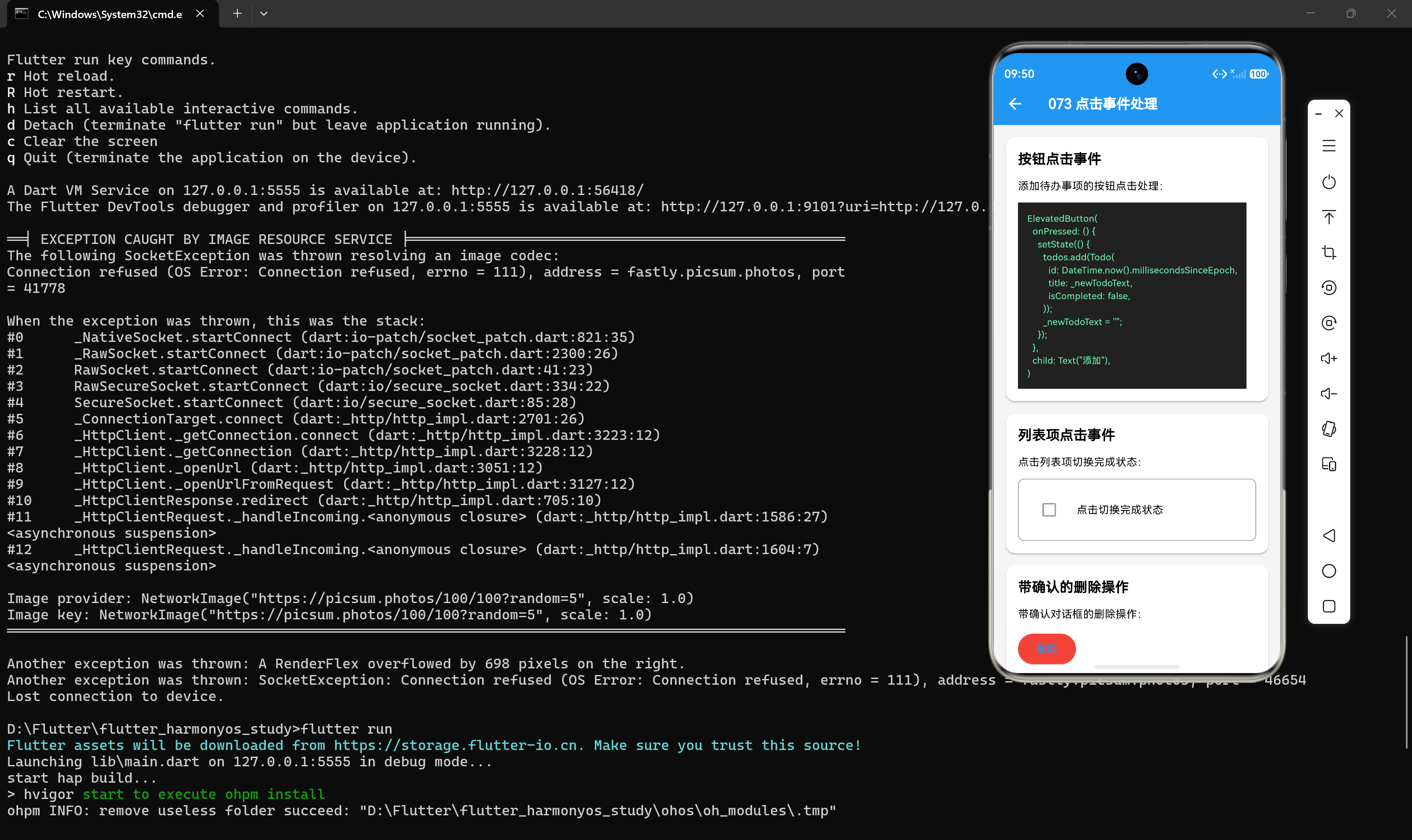
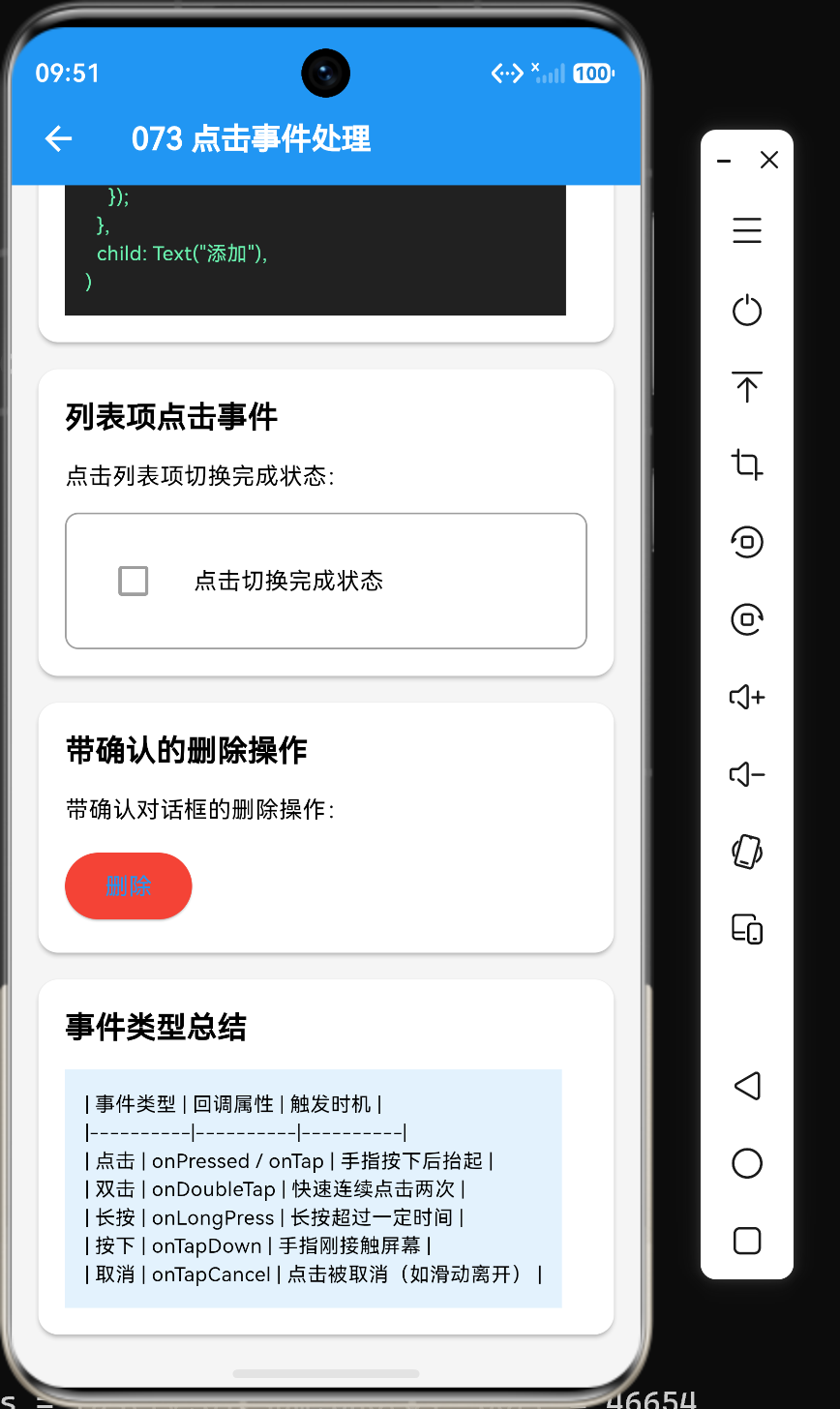
在Flutter应用开发中,点击事件是最基础也是最重要的用户交互方式。无论是按钮点击、列表项选择还是卡片操作,都离不开点击事件的处理。本文将深入探讨Flutter中点击事件的处理机制,包括按钮点击、列表项点击、对话框交互等常见场景,并提供完整的代码示例和最佳实践。
一、点击事件基础
1.1 点击事件的概念
点击事件是指用户通过触摸或鼠标点击组件时触发的交互行为。在Flutter中,点击事件通过回调函数实现,当用户点击组件时,框架会调用相应的回调函数。
1.2 点击事件的生命周期
一个完整的点击事件包含以下阶段:
用户按下手指 → onTapDown回调
    ↓
用户保持按下状态 → onLongPress回调(如果长按)
    ↓
用户抬起手指 → onTapUp回调
    ↓
完成点击 → onTap回调
如果用户在按下后滑动离开组件,则会触发onTapCancel回调。
1.3 点击事件的回调参数
点击事件的回调通常接收一个TapDownDetails或TapUpDetails参数:
GestureDetector(
  onTapDown: (details) {
    print('按下位置:${details.localPosition}');
    print('全局位置:${details.globalPosition}');
    print('设备像素比:${details.devicePixelRatio}');
  },
  onTapUp: (details) {
    print('抬起位置:${details.localPosition}');
  },
  child: const Text('点击测试'),
)
参数说明:
| 参数 | 类型 | 说明 |
|---|---|---|
| localPosition | Offset | 相对于组件的位置 |
| globalPosition | Offset | 相对于屏幕的位置 |
| devicePixelRatio | double | 设备像素比 |
二、按钮点击事件
2.1 基础按钮点击
ElevatedButton(
  onPressed: () {
    print('按钮被点击');
  },
  child: const Text('点击按钮'),
)
2.2 带参数的点击处理
class TodoButton extends StatelessWidget {
final String todoId;
final void Function(String) onTap;
const TodoButton({
super.key,
required this.todoId,
required this.onTap,
});
Widget build(BuildContext context) {
return ElevatedButton(
onPressed: () => onTap(todoId),
child: const Text('处理待办'),
);
}
}
2.3 异步点击处理
ElevatedButton(
  onPressed: () async {
    print('开始处理...');
    await Future.delayed(const Duration(seconds: 2));
    print('处理完成');
  },
  child: const Text('异步操作'),
)
2.4 带加载状态的点击处理
class AsyncButton extends StatefulWidget {
final Future<void> Function() onPressed;
const AsyncButton({super.key, required this.onPressed});
State<AsyncButton> createState() => _AsyncButtonState();
}
class _AsyncButtonState extends State<AsyncButton> {
bool _isLoading = false;
Widget build(BuildContext context) {
return ElevatedButton(
onPressed: _isLoading ? null : _handlePress,
child: _isLoading
? const CircularProgressIndicator(size: 20)
: const Text('执行操作'),
);
}
Future<void> _handlePress() async {
setState(() {
_isLoading = true;
});
try {
await widget.onPressed();
} finally {
setState(() {
_isLoading = false;
});
}
}
}
三、列表项点击事件
3.1 ListTile点击
ListTile(
  title: const Text('待办事项'),
  subtitle: const Text('描述内容'),
  leading: const Icon(Icons.check_circle),
  trailing: const Icon(Icons.arrow_forward),
  onTap: () {
    print('列表项被点击');
  },
  onLongPress: () {
    print('列表项被长按');
  },
)
3.2 ListView.builder点击
class TodoListView extends StatelessWidget {
final List<String> todos;
final void Function(int) onTap;
final void Function(int) onLongPress;
const TodoListView({
super.key,
required this.todos,
required this.onTap,
required this.onLongPress,
});
Widget build(BuildContext context) {
return ListView.builder(
itemCount: todos.length,
itemBuilder: (context, index) {
return ListTile(
title: Text(todos[index]),
onTap: () => onTap(index),
onLongPress: () => onLongPress(index),
);
},
);
}
}
3.3 带状态的列表项点击
class StatefulTodoList extends StatefulWidget {
const StatefulTodoList({super.key});
State<StatefulTodoList> createState() => _StatefulTodoListState();
}
class _StatefulTodoListState extends State<StatefulTodoList> {
final List<String> _todos = ['待办1', '待办2', '待办3'];
final List<bool> _selected = [false, false, false];
void _toggleSelection(int index) {
setState(() {
_selected[index] = !_selected[index];
});
}
Widget build(BuildContext context) {
return ListView.builder(
itemCount: _todos.length,
itemBuilder: (context, index) {
return ListTile(
title: Text(_todos[index]),
selected: _selected[index],
selectedTileColor: Colors.blue[100],
onTap: () => _toggleSelection(index),
);
},
);
}
}
四、卡片点击事件
4.1 基础卡片点击
Card(
  child: InkWell(
    onTap: () {
      print('卡片被点击');
    },
    borderRadius: BorderRadius.circular(8),
    child: const Padding(
      padding: EdgeInsets.all(16),
      child: Column(
        children: [
          Text('卡片标题'),
          Text('卡片内容'),
        ],
      ),
    ),
  ),
)
4.2 带图标的卡片点击
Card(
  elevation: 4,
  child: InkWell(
    onTap: () {
      print('带图标卡片被点击');
    },
    onLongPress: () {
      print('带图标卡片被长按');
    },
    borderRadius: BorderRadius.circular(8),
    child: Padding(
      padding: const EdgeInsets.all(16),
      child: Row(
        children: [
          const Icon(Icons.task, size: 48),
          const SizedBox(width: 16),
          Expanded(
            child: Column(
              crossAxisAlignment: CrossAxisAlignment.start,
              children: const [
                Text('任务标题', style: TextStyle(fontSize: 18)),
                Text('任务描述'),
              ],
            ),
          ),
          const Icon(Icons.arrow_forward),
        ],
      ),
    ),
  ),
)
4.3 卡片内多个点击区域
Card(
  child: Padding(
    padding: const EdgeInsets.all(16),
    child: Column(
      children: [
        const Text('卡片标题'),
        const SizedBox(height: 12),
        Row(
          children: [
            Expanded(
              child: InkWell(
                onTap: () => print('操作1'),
                child: const Padding(
                  padding: EdgeInsets.all(8),
                  child: Text('操作1'),
                ),
              ),
            ),
            Expanded(
              child: InkWell(
                onTap: () => print('操作2'),
                child: const Padding(
                  padding: EdgeInsets.all(8),
                  child: Text('操作2'),
                ),
              ),
            ),
            Expanded(
              child: InkWell(
                onTap: () => print('操作3'),
                child: const Padding(
                  padding: EdgeInsets.all(8),
                  child: Text('操作3'),
                ),
              ),
            ),
          ],
        ),
      ],
    ),
  ),
)
五、对话框交互
5.1 确认对话框
ElevatedButton(
  onPressed: () {
    showDialog(
      context: context,
      builder: (context) => AlertDialog(
        title: const Text('确认操作'),
        content: const Text('确定要执行此操作吗?'),
        actions: [
          TextButton(
            onPressed: () => Navigator.pop(context),
            child: const Text('取消'),
          ),
          ElevatedButton(
            onPressed: () {
              Navigator.pop(context);
              print('操作已确认');
            },
            child: const Text('确认'),
          ),
        ],
      ),
    );
  },
  child: const Text('显示确认对话框'),
)
5.2 输入对话框
ElevatedButton(
  onPressed: () {
    showDialog(
      context: context,
      builder: (context) {
        final TextEditingController controller = TextEditingController();
        return AlertDialog(
          title: const Text('输入内容'),
          content: TextField(
            controller: controller,
            decoration: const InputDecoration(hintText: '请输入'),
            autofocus: true,
          ),
          actions: [
            TextButton(
              onPressed: () => Navigator.pop(context),
              child: const Text('取消'),
            ),
            ElevatedButton(
              onPressed: () {
                Navigator.pop(context, controller.text);
              },
              child: const Text('确定'),
            ),
          ],
        );
      },
    ).then((value) {
      if (value != null) {
        print('输入内容:$value');
      }
    });
  },
  child: const Text('显示输入对话框'),
)
5.3 底部弹出框
ElevatedButton(
  onPressed: () {
    showModalBottomSheet(
      context: context,
      builder: (context) => const SizedBox(
        height: 200,
        child: Center(
          child: Text('底部弹出框内容'),
        ),
      ),
    );
  },
  child: const Text('显示底部弹出框'),
)
六、点击事件的状态管理
6.1 组件内状态管理
class ToggleButton extends StatefulWidget {
const ToggleButton({super.key});
State<ToggleButton> createState() => _ToggleButtonState();
}
class _ToggleButtonState extends State<ToggleButton> {
bool _isOn = false;
void _toggle() {
setState(() {
_isOn = !_isOn;
});
}
Widget build(BuildContext context) {
return ElevatedButton(
onPressed: _toggle,
style: ElevatedButton.styleFrom(
backgroundColor: _isOn ? Colors.green : Colors.grey,
),
child: Text(_isOn ? '开启' : '关闭'),
);
}
}
6.2 父组件状态管理
class ParentWidget extends StatefulWidget {
const ParentWidget({super.key});
State<ParentWidget> createState() => _ParentWidgetState();
}
class _ParentWidgetState extends State<ParentWidget> {
int _count = 0;
void _increment() {
setState(() {
_count++;
});
}
void _decrement() {
setState(() {
_count--;
});
}
Widget build(BuildContext context) {
return Column(
children: [
Text('计数:$_count'),
Row(
children: [
ElevatedButton(onPressed: _decrement, child: const Text('-')),
ElevatedButton(onPressed: _increment, child: const Text('+')),
],
),
],
);
}
}
6.3 回调函数传递
class ChildButton extends StatelessWidget {
final void Function() onPressed;
const ChildButton({super.key, required this.onPressed});
Widget build(BuildContext context) {
return ElevatedButton(
onPressed: onPressed,
child: const Text('子组件按钮'),
);
}
}
// 使用
ChildButton(
onPressed: () {
print('父组件处理点击');
},
)
七、点击事件的高级用法
7.1 点击防抖
class DebounceButton extends StatefulWidget {
final void Function() onPressed;
final Duration delay;
const DebounceButton({
super.key,
required this.onPressed,
this.delay = const Duration(milliseconds: 300),
});
State<DebounceButton> createState() => _DebounceButtonState();
}
class _DebounceButtonState extends State<DebounceButton> {
bool _isDebouncing = false;
Widget build(BuildContext context) {
return ElevatedButton(
onPressed: _isDebouncing ? null : _handlePress,
child: const Text('防抖按钮'),
);
}
void _handlePress() {
setState(() {
_isDebouncing = true;
});
widget.onPressed();
Future.delayed(widget.delay, () {
if (mounted) {
setState(() {
_isDebouncing = false;
});
}
});
}
}
7.2 点击节流
class ThrottleButton extends StatefulWidget {
final void Function() onPressed;
final Duration duration;
const ThrottleButton({
super.key,
required this.onPressed,
this.duration = const Duration(seconds: 1),
});
State<ThrottleButton> createState() => _ThrottleButtonState();
}
class _ThrottleButtonState extends State<ThrottleButton> {
DateTime? _lastPressed;
Widget build(BuildContext context) {
return ElevatedButton(
onPressed: _handlePress,
child: const Text('节流按钮'),
);
}
void _handlePress() {
final now = DateTime.now();
if (_lastPressed == null ||
now.difference(_lastPressed!) >= widget.duration) {
_lastPressed = now;
widget.onPressed();
}
}
}
7.3 点击计数
class ClickCounter extends StatefulWidget {
const ClickCounter({super.key});
State<ClickCounter> createState() => _ClickCounterState();
}
class _ClickCounterState extends State<ClickCounter> {
int _clickCount = 0;
DateTime? _lastClickTime;
int _consecutiveClicks = 0;
void _handleClick() {
setState(() {
_clickCount++;
final now = DateTime.now();
if (_lastClickTime != null &&
now.difference(_lastClickTime!) < const Duration(milliseconds: 300)) {
_consecutiveClicks++;
} else {
_consecutiveClicks = 1;
}
_lastClickTime = now;
});
if (_consecutiveClicks >= 3) {
ScaffoldMessenger.of(context).showSnackBar(
const SnackBar(content: Text('三连击!')),
);
setState(() {
_consecutiveClicks = 0;
});
}
}
Widget build(BuildContext context) {
return Column(
children: [
ElevatedButton(
onPressed: _handleClick,
child: const Text('点击计数'),
),
Text('总点击数:$_clickCount'),
Text('连续点击:$_consecutiveClicks'),
],
);
}
}
7.4 点击区域检测
class ClickAreaDetector extends StatefulWidget {
const ClickAreaDetector({super.key});
State<ClickAreaDetector> createState() => _ClickAreaDetectorState();
}
class _ClickAreaDetectorState extends State<ClickAreaDetector> {
String _message = '点击下方区域';
void _handleTapDown(TapDownDetails details) {
setState(() {
_message = '按下位置:(${details.localPosition.dx.toStringAsFixed(0)}, ${details.localPosition.dy.toStringAsFixed(0)})';
});
}
void _handleTapUp(TapUpDetails details) {
setState(() {
_message = '抬起位置:(${details.localPosition.dx.toStringAsFixed(0)}, ${details.localPosition.dy.toStringAsFixed(0)})';
});
}
Widget build(BuildContext context) {
return Column(
children: [
Text(_message),
const SizedBox(height: 20),
GestureDetector(
onTapDown: _handleTapDown,
onTapUp: _handleTapUp,
child: Container(
width: 300,
height: 200,
color: Colors.blue[100],
child: const Center(child: Text('点击区域')),
),
),
],
);
}
}
八、实战示例:待办事项管理
8.1 完整代码示例
import 'package:flutter/material.dart';
class TodoManager extends StatefulWidget {
const TodoManager({super.key});
State<TodoManager> createState() => _TodoManagerState();
}
class _TodoManagerState extends State<TodoManager> {
final List<String> _todos = [
'完成项目文档',
'代码审查',
'团队会议',
'修复Bug',
];
final List<bool> _completed = [false, true, false, false];
final TextEditingController _controller = TextEditingController();
void _addTodo() {
  final text = _controller.text.trim();
  if (text.isNotEmpty) {
    setState(() {
      _todos.add(text);
      _completed.add(false);
    });
    _controller.clear();
  }
}
void _toggleTodo(int index) {
  setState(() {
    _completed[index] = !_completed[index];
  });
}
void _deleteTodo(int index) {
  setState(() {
    _todos.removeAt(index);
    _completed.removeAt(index);
  });
}
void _editTodo(int index) {
  _controller.text = _todos[index];
  showDialog(
    context: context,
    builder: (context) => AlertDialog(
      title: const Text('编辑待办'),
      content: TextField(
        controller: _controller,
        autofocus: true,
      ),
      actions: [
        TextButton(
          onPressed: () => Navigator.pop(context),
          child: const Text('取消'),
        ),
        ElevatedButton(
          onPressed: () {
            final text = _controller.text.trim();
            if (text.isNotEmpty) {
              setState(() {
                _todos[index] = text;
              });
            }
            Navigator.pop(context);
          },
          child: const Text('保存'),
        ),
      ],
    ),
  );
}
void dispose() {
_controller.dispose();
super.dispose();
}
Widget build(BuildContext context) {
return Scaffold(
appBar: AppBar(title: const Text('待办事项管理')),
body: Column(
children: [
Padding(
padding: const EdgeInsets.all(16),
child: Row(
children: [
Expanded(
child: TextField(
controller: _controller,
decoration: const InputDecoration(
hintText: '输入待办内容',
border: OutlineInputBorder(),
),
onSubmitted: (_) => _addTodo(),
),
),
const SizedBox(width: 8),
ElevatedButton(
onPressed: _addTodo,
child: const Text('添加'),
),
],
),
),
Expanded(
child: _todos.isEmpty
? const Center(child: Text('暂无待办事项'))
: ListView.builder(
itemCount: _todos.length,
itemBuilder: (context, index) {
return Card(
margin: const EdgeInsets.symmetric(
horizontal: 16,
vertical: 8,
),
child: InkWell(
onTap: () => _toggleTodo(index),
onLongPress: () => _editTodo(index),
borderRadius: BorderRadius.circular(8),
child: Padding(
padding: const EdgeInsets.all(16),
child: Row(
children: [
Icon(
_completed[index]
? Icons.check_circle
: Icons.circle_outlined,
color: _completed[index]
? Colors.green
: Colors.grey,
),
const SizedBox(width: 12),
Expanded(
child: Text(
_todos[index],
style: TextStyle(
decoration: _completed[index]
? TextDecoration.lineThrough
: TextDecoration.none,
color: _completed[index]
? Colors.grey
: Colors.black,
),
),
),
GestureDetector(
onTap: () => _deleteTodo(index),
child: const Icon(Icons.delete, color: Colors.red),
),
],
),
),
),
);
},
),
),
],
),
);
}
}
8.2 代码解析
添加待办:
void _addTodo() {
final text = _controller.text.trim();
if (text.isNotEmpty) {
setState(() {
_todos.add(text);
_completed.add(false);
});
_controller.clear();
}
}
切换完成状态:
void _toggleTodo(int index) {
setState(() {
_completed[index] = !_completed[index];
});
}
删除待办:
void _deleteTodo(int index) {
setState(() {
_todos.removeAt(index);
_completed.removeAt(index);
});
}
编辑待办:
void _editTodo(int index) {
_controller.text = _todos[index];
showDialog(
context: context,
builder: (context) => AlertDialog(
title: const Text('编辑待办'),
content: TextField(
controller: _controller,
autofocus: true,
),
actions: [
TextButton(
onPressed: () => Navigator.pop(context),
child: const Text('取消'),
),
ElevatedButton(
onPressed: () {
final text = _controller.text.trim();
if (text.isNotEmpty) {
setState(() {
_todos[index] = text;
});
}
Navigator.pop(context);
},
child: const Text('保存'),
),
],
),
);
}
8.3 交互流程
点击添加按钮 → _addTodo() → 添加新待办
点击列表项 → _toggleTodo() → 切换完成状态
长按列表项 → _editTodo() → 显示编辑对话框
点击删除图标 → _deleteTodo() → 删除待办
九、性能优化与最佳实践
9.1 避免在点击回调中执行耗时操作
// 不推荐:在回调中执行耗时操作
ElevatedButton(
  onPressed: () {
    // 耗时操作会阻塞UI
    final result = _heavyComputation();
    print(result);
  },
  child: const Text('按钮'),
)

// 推荐:使用异步操作
ElevatedButton(
  onPressed: () async {
    final result = await Future(() => _heavyComputation());
    print(result);
  },
  child: const Text('按钮'),
)
9.2 使用const构造函数
// 推荐:使用const构造函数
const ElevatedButton(
  onPressed: _handleTap,
  child: const Text('静态按钮'),
)
9.3 避免重复创建回调函数
// 不推荐:每次build都创建新的回调
ElevatedButton(
  onPressed: () {
    print('点击');
  },
  child: const Text('按钮'),
)

// 推荐:提取为方法
void _handleTap() {
  print('点击');
}

ElevatedButton(
  onPressed: _handleTap,
  child: const Text('按钮'),
)
9.4 合理处理异步操作的状态
class AsyncOperationButton extends StatefulWidget {
const AsyncOperationButton({super.key});
State<AsyncOperationButton> createState() => _AsyncOperationButtonState();
}
class _AsyncOperationButtonState extends State<AsyncOperationButton> {
bool _isLoading = false;
bool _hasError = false;
Future<void> _handlePress() async {
setState(() {
_isLoading = true;
_hasError = false;
});
try {
await _performOperation();
} catch (e) {
setState(() {
_hasError = true;
});
} finally {
setState(() {
_isLoading = false;
});
}
}
Widget build(BuildContext context) {
return ElevatedButton(
onPressed: _isLoading ? null : _handlePress,
child: _isLoading
? const CircularProgressIndicator(size: 20)
: _hasError
? const Text('重试')
: const Text('执行操作'),
);
}
}
9.5 提供清晰的视觉反馈
ElevatedButton(
  style: ElevatedButton.styleFrom(
    backgroundColor: Colors.blue,
    foregroundColor: Colors.white,
    padding: const EdgeInsets.symmetric(horizontal: 24, vertical: 12),
  ),
  onPressed: () {},
  child: const Text('视觉反馈按钮'),
)
十、常见问题与解决方案
10.1 问题1:按钮点击没有反应
问题描述:点击按钮后没有触发任何操作。
解决方案:检查onPressed是否为null:
// 错误:onPressed为null
ElevatedButton(
  onPressed: null,
  child: const Text('按钮'),
)

// 正确:提供回调函数
ElevatedButton(
  onPressed: () {
    print('点击');
  },
  child: const Text('按钮'),
)
10.2 问题2:点击事件传递问题
问题描述:嵌套组件的点击事件没有正确传递。
解决方案:检查behavior属性:
GestureDetector(
  behavior: HitTestBehavior.opaque,
  onTap: () {},
  child: const Text('点击'),
)
10.3 问题3:异步操作期间按钮可以重复点击
问题描述:在异步操作期间,按钮仍然可以被点击。
解决方案:在异步操作期间禁用按钮:
ElevatedButton(
  onPressed: _isLoading ? null : _handlePress,
  child: _isLoading
      ? const CircularProgressIndicator(size: 20)
      : const Text('执行操作'),
)
10.4 问题4:点击位置不正确
问题描述:获取的点击位置与实际位置不符。
解决方案:区分localPosition和globalPosition:
GestureDetector(
  onTapDown: (details) {
    print('相对于组件:${details.localPosition}');
    print('相对于屏幕:${details.globalPosition}');
  },
  child: const Container(),
)
10.5 问题5:长按和点击冲突
问题描述:长按和点击事件同时触发。
解决方案:Flutter会自动处理,长按优先:
GestureDetector(
  onTap: () => print('点击'),
  onLongPress: () => print('长按'),
  child: const Text('点击或长按'),
)
十一、总结
通过本文的学习,我们掌握了以下核心知识点:
- 点击事件是Flutter中最基础的用户交互方式
- 按钮点击通过
onPressed回调实现 - 列表项点击通过
onTap和onLongPress回调实现 - 卡片点击通常使用
InkWell实现,带有涟漪效果 - 对话框交互通过
showDialog和showModalBottomSheet实现 - 状态管理是处理点击事件的关键,使用
setState更新UI - 点击防抖和节流可以防止重复操作
- 异步操作需要合理处理加载状态
在实际开发中,合理处理点击事件是构建良好用户体验的基础。理解点击事件的生命周期和回调机制,能够帮助我们创建出交互流畅、响应及时的应用。
参考资料
- Flutter官方文档:https://docs.flutter.dev/
- Flutter手势系统指南:https://docs.flutter.dev/development/ui/interactive/gestures
- Material Design按钮指南:https://m3.material.io/components/buttons/overview

作为“人工智能6S店”的官方数字引擎,为AI开发者与企业提供一个覆盖软硬件全栈、一站式门户。
更多推荐
 1
1 0
0- 0


 已为社区贡献39条内容

所有评论(0)