
鸿蒙Flutter 图文混排技巧
·
作者:高红朋(小雨下雨的雨)
仓库地址:https://gitcode.com/feng8403000/FlutterfromBeginnertoAdvancedForHarmonyOS.git
联系邮箱:372699828@qq.com
概述
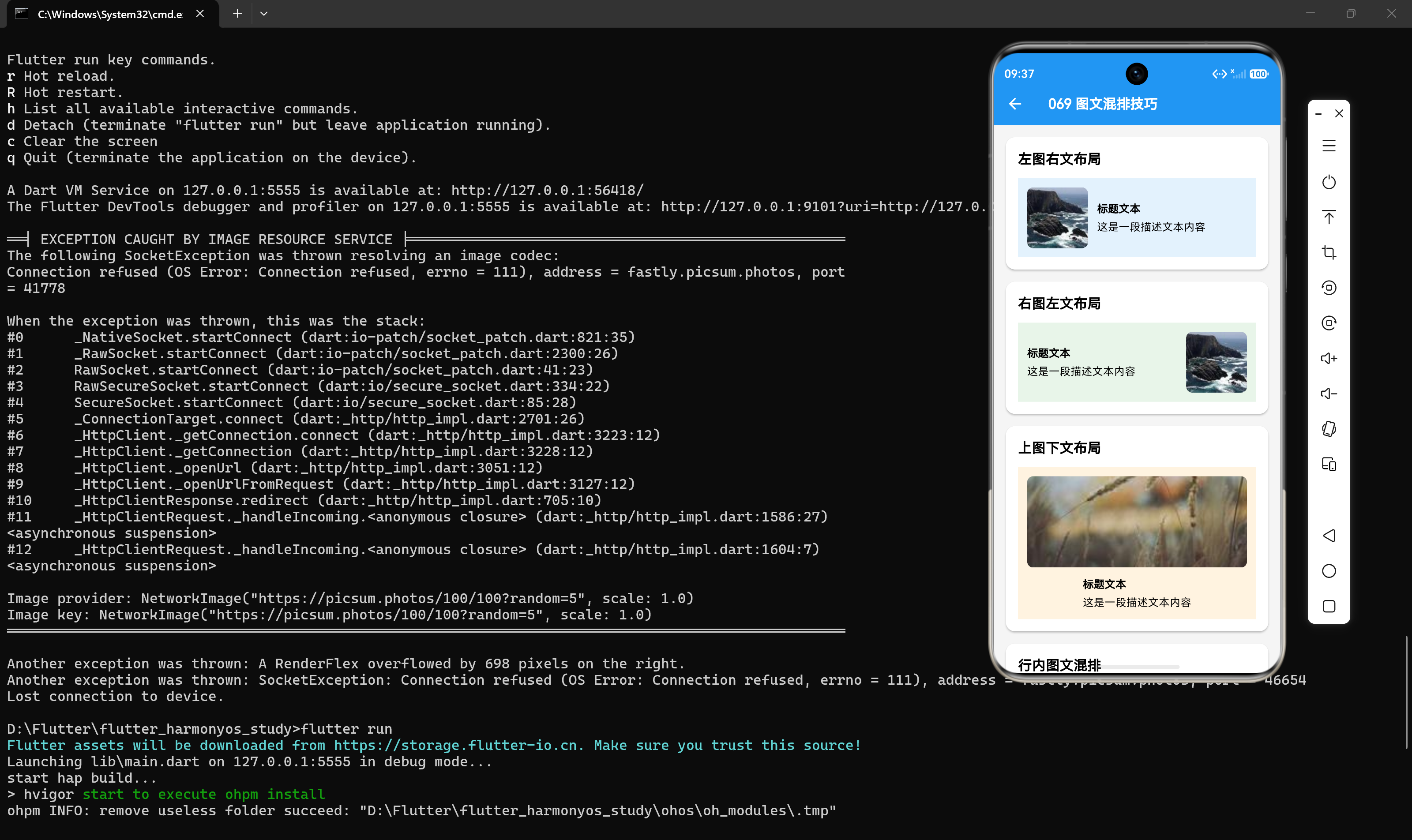
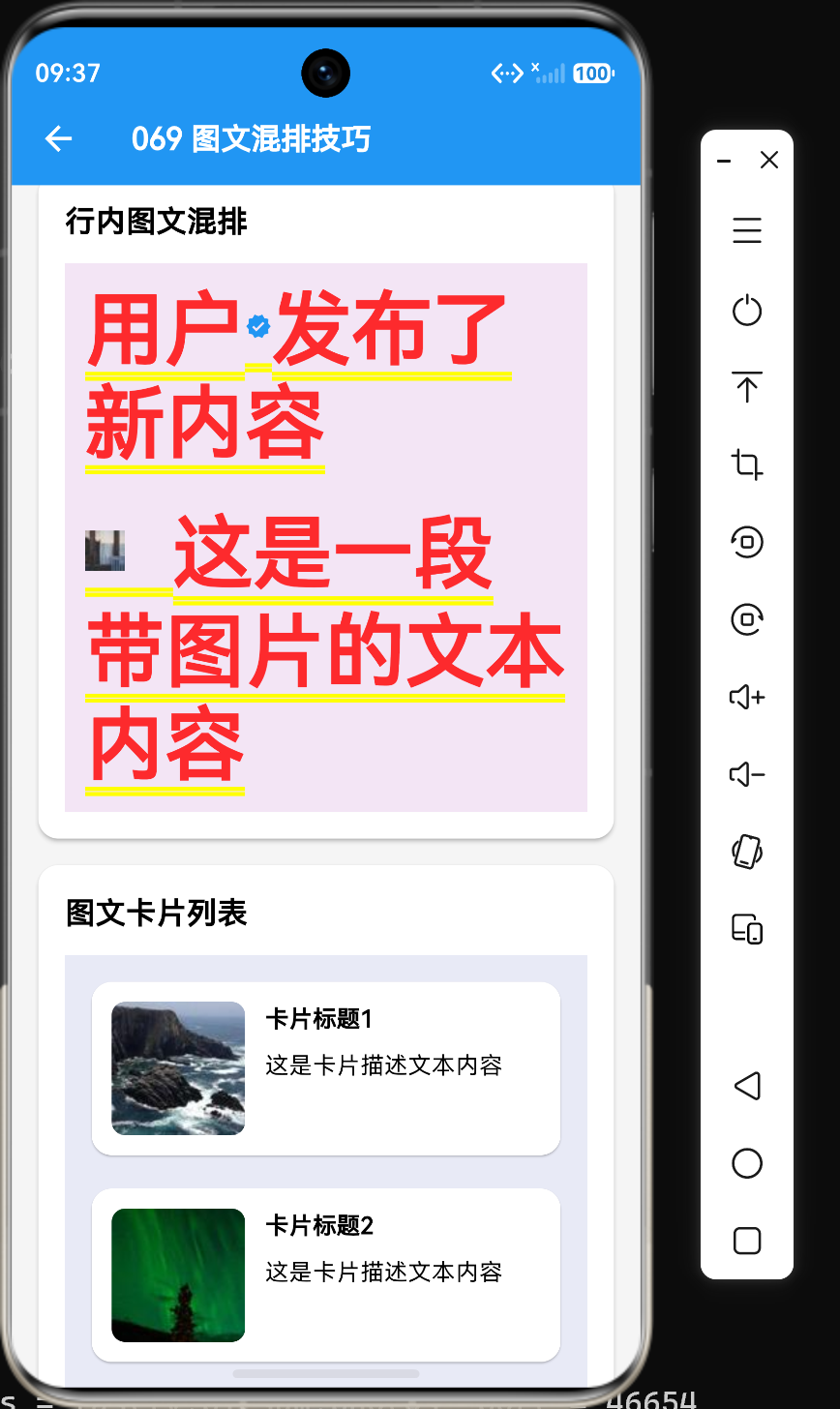
图文混排是UI设计中常见的布局方式,它能够将文字和图片有机地结合在一起,提供更丰富的视觉体验。Flutter提供了多种实现图文混排的方式,包括Row、Column、Stack、RichText等组件。
使用Row实现水平混排
基础用法
Row(
  children: [
    Image.network(
      "https://example.com/image.jpg",
      width: 50,
      height: 50,
    ),
    const SizedBox(width: 10),
    const Text("这是一段文本内容"),
  ],
);
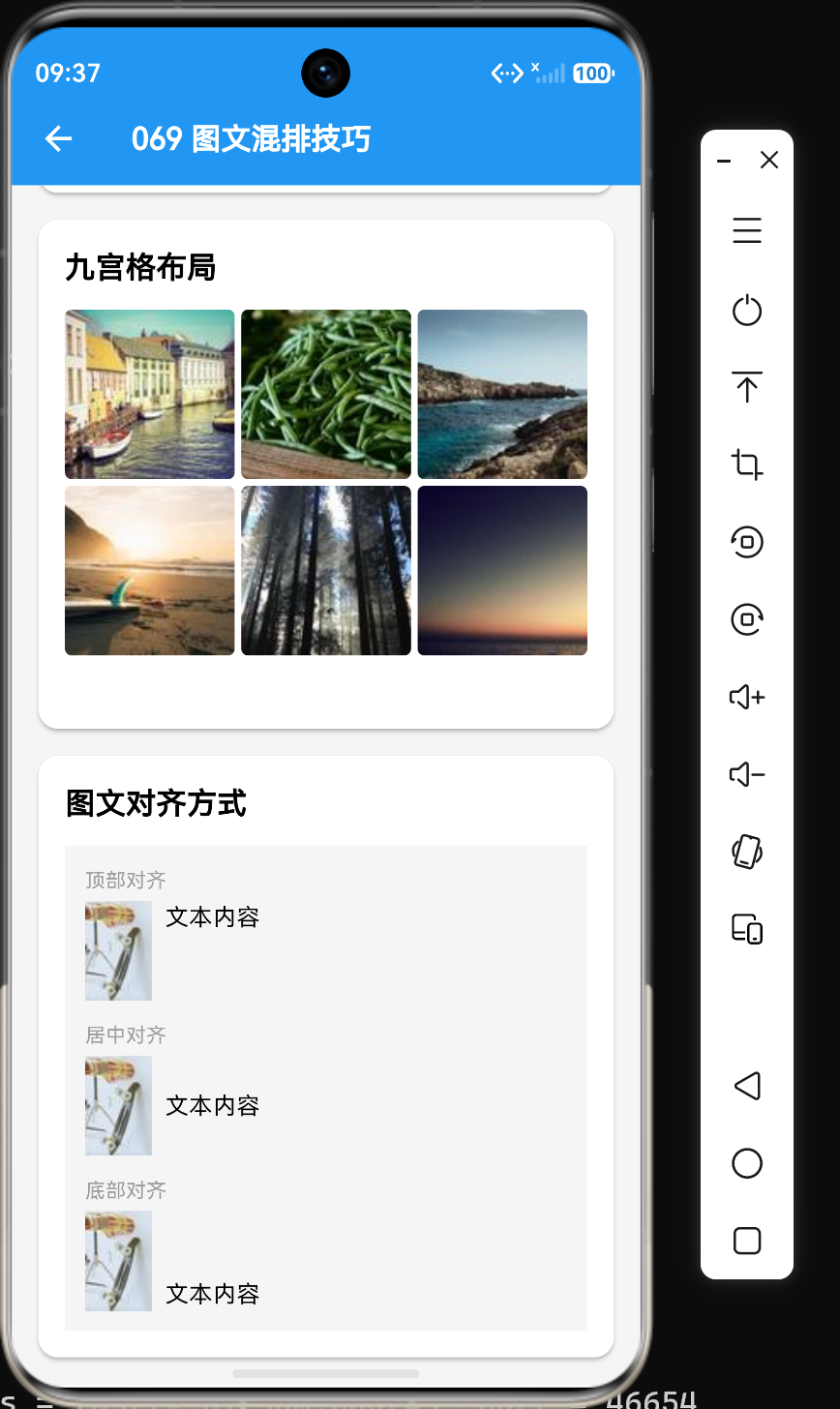
对齐方式
Row(
  crossAxisAlignment: CrossAxisAlignment.center,
  children: [
    Image.network(
      "https://example.com/image.jpg",
      width: 50,
      height: 50,
    ),
    const SizedBox(width: 10),
    const Text("垂直居中对齐"),
  ],
);
多个元素混排
Row(
  children: [
    const Icon(Icons.star, color: Colors.yellow),
    const SizedBox(width: 5),
    const Text("4.5"),
    const SizedBox(width: 10),
    const Icon(Icons.comment),
    const SizedBox(width: 5),
    const Text("128"),
  ],
);
使用Column实现垂直混排
基础用法
Column(
  children: [
    Image.network(
      "https://example.com/image.jpg",
      width: 100,
      height: 100,
    ),
    const SizedBox(height: 10),
    const Text("图片下方的文本"),
  ],
);
对齐方式
Column(
  crossAxisAlignment: CrossAxisAlignment.start,
  children: [
    Image.network(
      "https://example.com/image.jpg",
      width: 100,
      height: 100,
    ),
    const SizedBox(height: 10),
    const Text("左对齐的文本"),
  ],
);
使用Stack实现层叠混排
基础用法
Stack(
  children: [
    Image.network(
      "https://example.com/image.jpg",
      width: 200,
      height: 150,
      fit: BoxFit.cover,
    ),
    const Positioned(
      bottom: 10,
      left: 10,
      child: Text(
        "图片上的文本",
        style: TextStyle(color: Colors.white),
      ),
    ),
  ],
);
渐变背景
Stack(
  children: [
    Image.network(
      "https://example.com/image.jpg",
      width: 200,
      height: 150,
      fit: BoxFit.cover,
    ),
    Container(
      width: 200,
      height: 150,
      decoration: BoxDecoration(
        gradient: LinearGradient(
          begin: Alignment.topCenter,
          end: Alignment.bottomCenter,
          colors: [
            Colors.transparent,
            Colors.black.withOpacity(0.5),
          ],
        ),
      ),
    ),
    const Positioned(
      bottom: 10,
      left: 10,
      child: Text(
        "渐变背景上的文本",
        style: TextStyle(color: Colors.white, fontSize: 16),
      ),
    ),
  ],
);
角标效果
Stack(
  children: [
    Image.network(
      "https://example.com/image.jpg",
      width: 100,
      height: 100,
      fit: BoxFit.cover,
    ),
    const Positioned(
      top: 0,
      right: 0,
      child: Icon(Icons.favorite, color: Colors.red, size: 24),
    ),
  ],
);
使用RichText实现行内混排
基础用法
RichText(
  text: const TextSpan(
    text: "这是一段包含",
    style: TextStyle(color: Colors.black, fontSize: 16),
    children: [
      WidgetSpan(
        child: Icon(Icons.favorite, color: Colors.red, size: 16),
      ),
      TextSpan(text: "图标的文本"),
    ],
  ),
);
多个图标混排
RichText(
  text: const TextSpan(
    text: "评分:",
    style: TextStyle(color: Colors.black, fontSize: 16),
    children: [
      WidgetSpan(child: Icon(Icons.star, color: Colors.yellow, size: 16)),
      WidgetSpan(child: Icon(Icons.star, color: Colors.yellow, size: 16)),
      WidgetSpan(child: Icon(Icons.star, color: Colors.yellow, size: 16)),
      WidgetSpan(child: Icon(Icons.star, color: Colors.yellow, size: 16)),
      WidgetSpan(child: Icon(Icons.star, color: Colors.grey, size: 16)),
      TextSpan(text: " 4.0"),
    ],
  ),
);
图片混排
RichText(
  text: const TextSpan(
    text: "用户",
    style: TextStyle(color: Colors.black, fontSize: 16),
    children: [
      WidgetSpan(
        child: CircleAvatar(
          backgroundImage: NetworkImage("https://example.com/avatar.jpg"),
          radius: 10,
        ),
      ),
      TextSpan(text: "发表了一条动态"),
    ],
  ),
);
使用Wrap实现自动换行混排
基础用法
Wrap(
  spacing: 8,
  children: [
    const Chip(label: Text("标签1")),
    const Chip(label: Text("标签2")),
    const Chip(label: Text("标签3")),
    const Chip(label: Text("标签4")),
    const Chip(label: Text("标签5")),
  ],
);
图文标签
Wrap(
  spacing: 8,
  children: [
    Chip(
      avatar: const Icon(Icons.star, size: 16),
      label: const Text("热门"),
    ),
    Chip(
      avatar: const Icon(Icons.new_releases, size: 16),
      label: const Text("最新"),
    ),
    Chip(
      avatar: const Icon(Icons.fire, size: 16),
      label: const Text("推荐"),
    ),
  ],
);
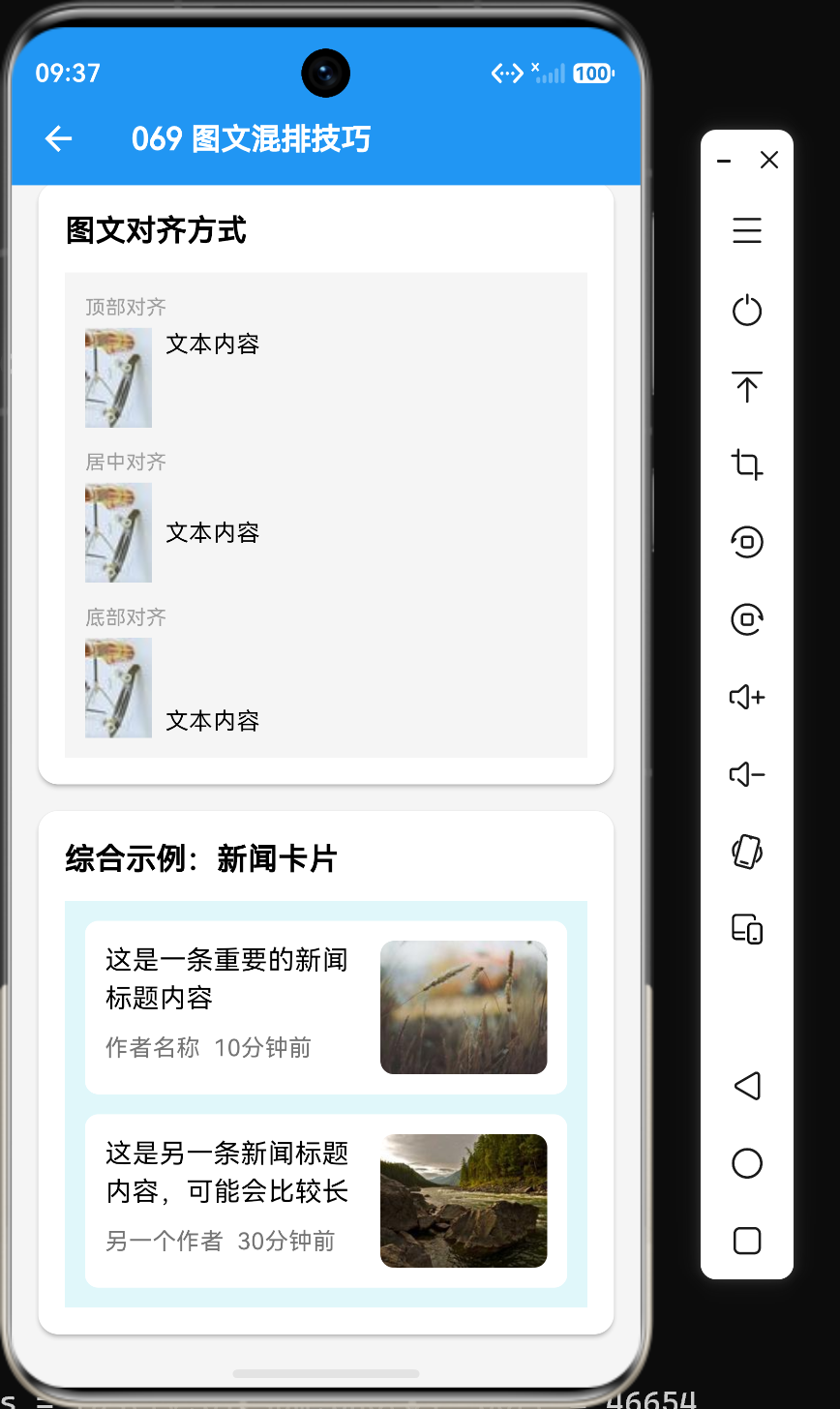
实际应用示例
用户信息卡片
Card(
  child: Padding(
    padding: const EdgeInsets.all(16),
    child: Row(
      children: [
        ClipOval(
          child: Image.network(
            "https://example.com/avatar.jpg",
            width: 60,
            height: 60,
            fit: BoxFit.cover,
          ),
        ),
        const SizedBox(width: 16),
        Column(
          crossAxisAlignment: CrossAxisAlignment.start,
          children: const [
            Text(
              "用户名",
              style: TextStyle(fontSize: 18, fontWeight: FontWeight.bold),
            ),
            SizedBox(height: 4),
            Text(
              "用户描述信息",
              style: TextStyle(fontSize: 14, color: Colors.grey),
            ),
          ],
        ),
      ],
    ),
  ),
);
商品列表项
ListTile(
  leading: Image.network(
    "https://example.com/product.jpg",
    width: 80,
    height: 80,
    fit: BoxFit.cover,
  ),
  title: const Text(
    "商品名称,可能会比较长,需要限制显示行数。",
    maxLines: 2,
    overflow: TextOverflow.ellipsis,
  ),
  subtitle: Column(
    crossAxisAlignment: CrossAxisAlignment.start,
    children: const [
      SizedBox(height: 4),
      Text("¥99.00", style: TextStyle(color: Colors.red, fontSize: 16)),
      SizedBox(height: 4),
      Text("已售 1280", style: TextStyle(color: Colors.grey, fontSize: 12)),
    ],
  ),
);
文章摘要
Card(
  child: Padding(
    padding: const EdgeInsets.all(16),
    child: Row(
      crossAxisAlignment: CrossAxisAlignment.start,
      children: [
        Image.network(
          "https://example.com/article.jpg",
          width: 120,
          height: 80,
          fit: BoxFit.cover,
        ),
        const SizedBox(width: 16),
        Expanded(
          child: Column(
            crossAxisAlignment: CrossAxisAlignment.start,
            children: const [
              Text(
                "文章标题,可能会比较长,需要限制显示行数。",
                maxLines: 2,
                overflow: TextOverflow.ellipsis,
                style: TextStyle(fontSize: 16, fontWeight: FontWeight.bold),
              ),
              SizedBox(height: 8),
              Text(
                "文章摘要内容,用于展示文章的主要内容,限制显示两行。",
                maxLines: 2,
                overflow: TextOverflow.ellipsis,
                style: TextStyle(fontSize: 14, color: Colors.grey),
              ),
            ],
          ),
        ),
      ],
    ),
  ),
);
评论列表项
Row(
  crossAxisAlignment: CrossAxisAlignment.start,
  children: [
    ClipOval(
      child: Image.network(
        "https://example.com/avatar.jpg",
        width: 40,
        height: 40,
        fit: BoxFit.cover,
      ),
    ),
    const SizedBox(width: 12),
    Expanded(
      child: Column(
        crossAxisAlignment: CrossAxisAlignment.start,
        children: [
          Row(
            children: const [
              Text("用户名", style: TextStyle(fontWeight: FontWeight.bold)),
              SizedBox(width: 8),
              Text("2小时前", style: TextStyle(color: Colors.grey, fontSize: 12)),
            ],
          ),
          const SizedBox(height: 4),
          const Text("评论内容,可能会比较长,需要自动换行。"),
        ],
      ),
    ),
  ],
);
带标签的图片
Stack(
  children: [
    Image.network(
      "https://example.com/image.jpg",
      width: 200,
      height: 150,
      fit: BoxFit.cover,
    ),
    const Positioned(
      top: 8,
      left: 8,
      child: Chip(
        label: Text("热门"),
        backgroundColor: Colors.red,
        labelStyle: TextStyle(color: Colors.white, fontSize: 12),
      ),
    ),
    const Positioned(
      bottom: 8,
      right: 8,
      child: Chip(
        label: Text("99+"),
        backgroundColor: Colors.black.withOpacity(0.7),
        labelStyle: TextStyle(color: Colors.white, fontSize: 12),
      ),
    ),
  ],
);
图文混合列表
ListView.builder(
  itemCount: 10,
  itemBuilder: (context, index) {
    if (index % 2 == 0) {
      return ListTile(
        leading: Image.network(
          "https://example.com/image.jpg",
          width: 50,
          height: 50,
          fit: BoxFit.cover,
        ),
        title: const Text("列表项标题"),
        subtitle: const Text("列表项描述"),
      );
    } else {
      return const ListTile(
        leading: Icon(Icons.file),
        title: Text("纯文本列表项"),
        subtitle: Text("纯文本描述"),
      );
    }
  },
);
性能优化建议
避免过度嵌套
// 不好的做法:嵌套过深
Row(
  children: [
    Column(
      children: [
        Row(
          children: [
            // ... 更多嵌套
          ],
        ),
      ],
    ),
  ],
);

// 好的做法:简化结构
Row(
  children: [
    Image.network("..."),
    const SizedBox(width: 10),
    const Text("文本"),
  ],
);
使用const修饰常量组件
// 好的做法:使用const修饰
Row(
  children: const [
    Icon(Icons.star),
    SizedBox(width: 5),
    Text("4.5"),
  ],
);
合理使用Expanded
Row(
  children: [
    Image.network("..."),
    const SizedBox(width: 10),
    Expanded(
      child: const Text("长文本内容"),
    ),
  ],
);
常见问题
图片和文本不对齐怎么办?
使用crossAxisAlignment属性调整对齐方式。
Row(
  crossAxisAlignment: CrossAxisAlignment.center,
  children: [
    Image.network("..."),
    const Text("文本"),
  ],
);
如何实现文字环绕图片?
Flutter没有直接的文字环绕功能,可以使用RichText配合WidgetSpan实现简单的行内混排。
如何在图片上叠加文字?
使用Stack组件。
Stack(
  children: [
    Image.network("..."),
    const Positioned(
      bottom: 10,
      left: 10,
      child: Text("叠加文字"),
    ),
  ],
);
如何实现自动换行的标签列表?
使用Wrap组件。
Wrap(
  spacing: 8,
  children: const [
    Chip(label: Text("标签1")),
    Chip(label: Text("标签2")),
    // ...
  ],
);
总结
图文混排是Flutter UI开发中的常见需求,掌握各种混排方式可以创建更丰富的界面。以下是一些关键点:
- Row:水平排列,适合图片在左、文本在右的布局
- Column:垂直排列,适合图片在上、文本在下的布局
- Stack:层叠排列,适合图片上叠加文字或角标的布局
- RichText:行内混排,适合文本中嵌入图标或小图片
- Wrap:自动换行排列,适合标签列表等布局
掌握这些组件的用法对于创建专业的Flutter应用至关重要。
参考资料:

作为“人工智能6S店”的官方数字引擎,为AI开发者与企业提供一个覆盖软硬件全栈、一站式门户。
更多推荐


 21
21 0
0- 0


 已为社区贡献39条内容

所有评论(0)