
鸿蒙Flutter 字体资源导入
·
概述
在Flutter应用中,默认使用系统字体。当需要使用特定字体时,需要将字体文件导入到项目中。字体资源的导入涉及到资源配置、字体声明和样式应用等多个步骤。
字体资源配置
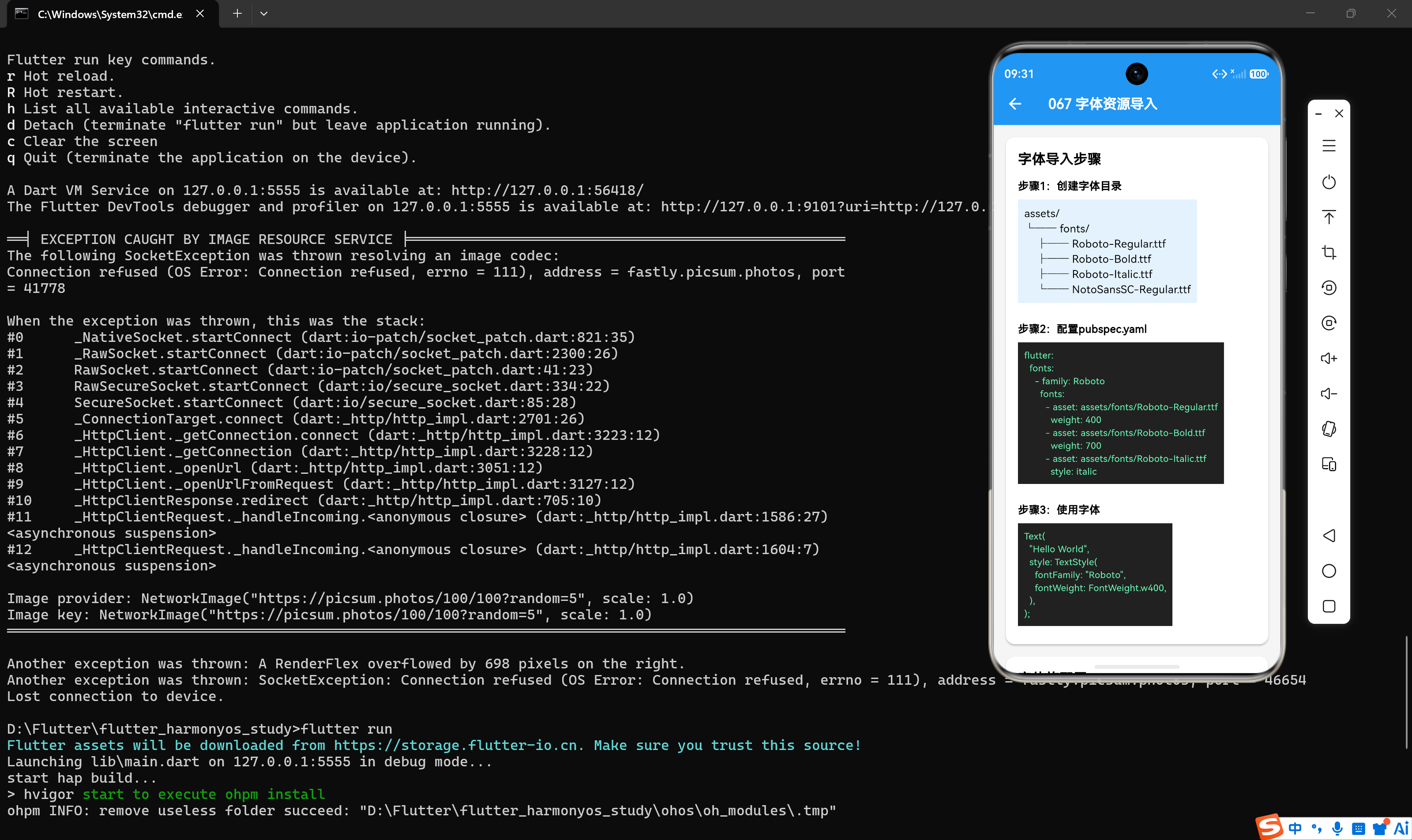
创建字体目录
首先,在项目根目录创建字体资源目录:
assets/
  fonts/
    Roboto/
      Roboto-Regular.ttf
      Roboto-Bold.ttf
      Roboto-Italic.ttf
    NotoSansSC/
      NotoSansSC-Regular.ttf
      NotoSansSC-Bold.ttf
在pubspec.yaml中配置
flutter:
  fonts:
    - family: Roboto
      fonts:
        - asset: assets/fonts/Roboto/Roboto-Regular.ttf
          weight: 400
        - asset: assets/fonts/Roboto/Roboto-Bold.ttf
          weight: 700
        - asset: assets/fonts/Roboto/Roboto-Italic.ttf
          style: italic
    - family: Noto Sans SC
      fonts:
        - asset: assets/fonts/NotoSansSC/NotoSansSC-Regular.ttf
          weight: 400
        - asset: assets/fonts/NotoSansSC/NotoSansSC-Bold.ttf
          weight: 700
配置说明
| 属性 | 说明 |
|---|---|
| family | 字体族名称,用于TextStyle中引用 |
| asset | 字体文件路径 |
| weight | 字重,对应FontWeight |
| style | 字体样式,normal或italic |
执行资源加载
配置完成后,执行以下命令加载资源:
flutter pub get
使用自定义字体
基础用法
Text(
  "使用自定义字体",
  style: TextStyle(
    fontFamily: 'Roboto',
    fontSize: 18,
  ),
);
指定字重
Text(
  "粗体文本",
  style: TextStyle(
    fontFamily: 'Roboto',
    fontWeight: FontWeight.bold,
    fontSize: 18,
  ),
);
指定字体样式
Text(
  "斜体文本",
  style: TextStyle(
    fontFamily: 'Roboto',
    fontStyle: FontStyle.italic,
    fontSize: 18,
  ),
);
中文字体
Text(
  "这是一段中文文本",
  style: TextStyle(
    fontFamily: 'Noto Sans SC',
    fontSize: 18,
  ),
);
字体族配置详解
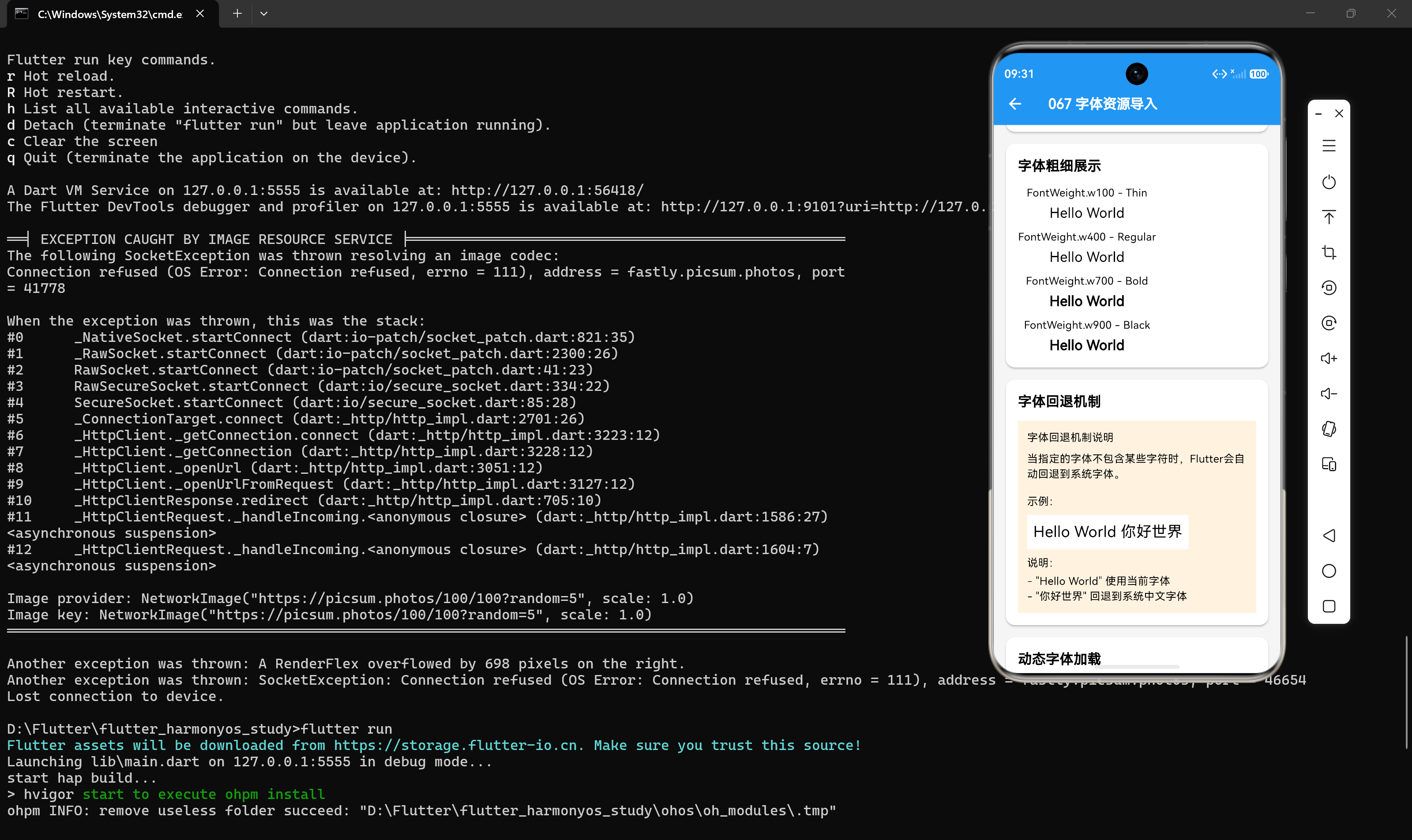
多字重字体
flutter:
  fonts:
    - family: Roboto
      fonts:
        - asset: assets/fonts/Roboto/Roboto-Thin.ttf
          weight: 100
        - asset: assets/fonts/Roboto/Roboto-Light.ttf
          weight: 300
        - asset: assets/fonts/Roboto/Roboto-Regular.ttf
          weight: 400
        - asset: assets/fonts/Roboto/Roboto-Medium.ttf
          weight: 500
        - asset: assets/fonts/Roboto/Roboto-Bold.ttf
          weight: 700
        - asset: assets/fonts/Roboto/Roboto-Black.ttf
          weight: 900
多样式字体
flutter:
  fonts:
    - family: Roboto
      fonts:
        - asset: assets/fonts/Roboto/Roboto-Regular.ttf
        - asset: assets/fonts/Roboto/Roboto-Italic.ttf
          style: italic
        - asset: assets/fonts/Roboto/Roboto-Bold.ttf
          weight: 700
        - asset: assets/fonts/Roboto/Roboto-BoldItalic.ttf
          weight: 700
          style: italic
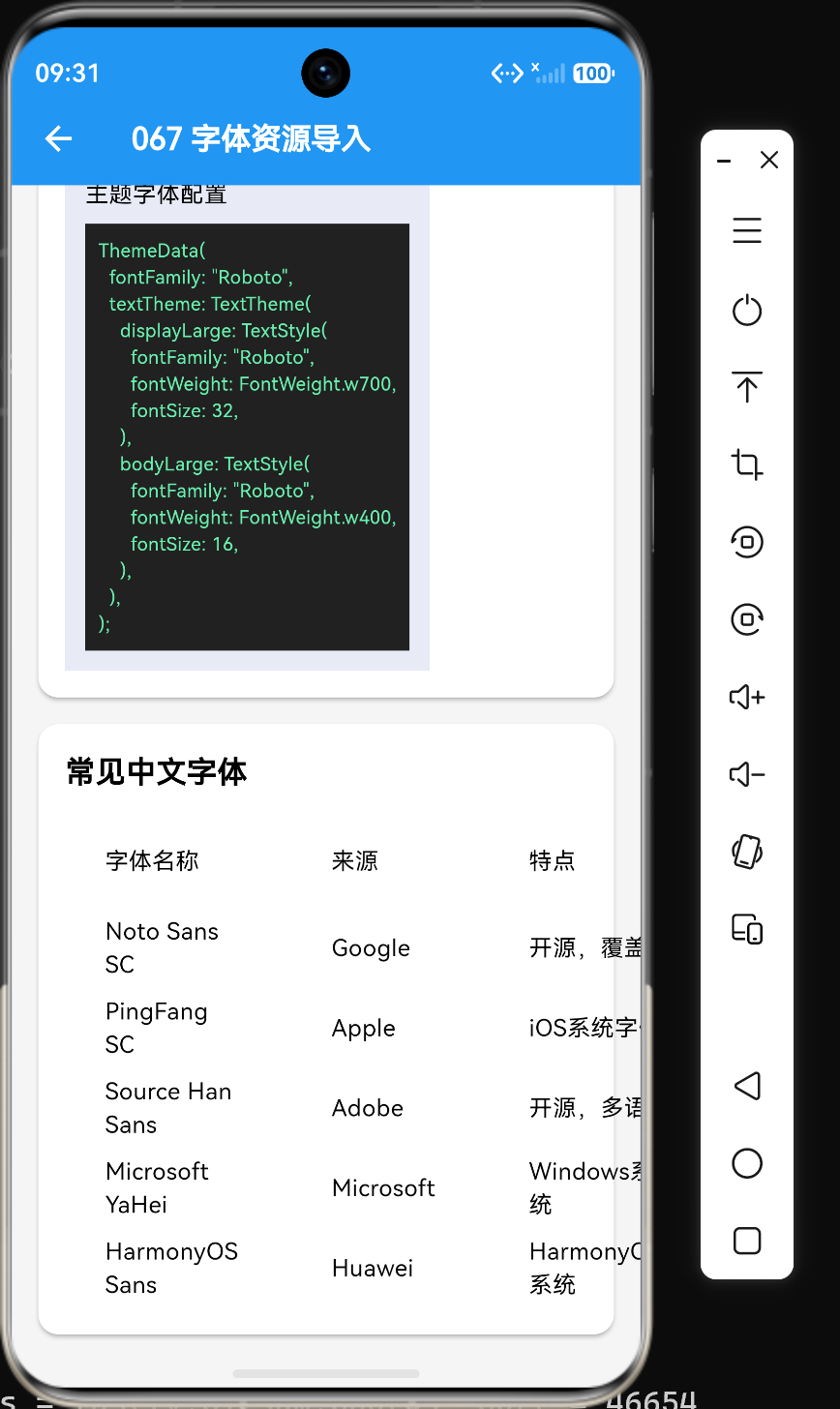
在主题中配置字体
全局字体配置
MaterialApp(
  title: 'Flutter App',
  theme: ThemeData(
    fontFamily: 'Roboto',
    textTheme: const TextTheme(
      headline1: TextStyle(fontSize: 32),
      headline2: TextStyle(fontSize: 28),
      bodyText1: TextStyle(fontSize: 16),
      bodyText2: TextStyle(fontSize: 14),
    ),
  ),
  home: const MyHomePage(),
);
特定组件字体配置
Theme(
  data: ThemeData(fontFamily: 'Noto Sans SC'),
  child: const Text("中文文本"),
);
自定义字体类
创建字体常量类
class AppFonts {
  static const String roboto = 'Roboto';
  static const String notoSansSC = 'Noto Sans SC';

  static const TextStyle robotoRegular = TextStyle(
    fontFamily: roboto,
    fontWeight: FontWeight.normal,
  );

  static const TextStyle robotoBold = TextStyle(
    fontFamily: roboto,
    fontWeight: FontWeight.bold,
  );

  static const TextStyle notoSansSCRegular = TextStyle(
    fontFamily: notoSansSC,
    fontWeight: FontWeight.normal,
  );

  static const TextStyle notoSansSCBold = TextStyle(
    fontFamily: notoSansSC,
    fontWeight: FontWeight.bold,
  );
}
使用字体常量
Text(
  "使用字体常量",
  style: AppFonts.robotoBold.copyWith(fontSize: 18),
);
字体回退机制
字体族回退列表
Text(
  "混合文本 Hello World",
  style: TextStyle(
    fontFamily: 'Roboto',
    fontFamilyFallback: ['Noto Sans SC', 'PingFang SC'],
    fontSize: 16,
  ),
);
回退机制说明
当主字体不支持某些字符时(如Roboto不支持中文),Flutter会自动尝试使用回退列表中的字体。
动态加载字体
使用FontLoader加载字体
Future<void> loadFont() async {
  final fontLoader = FontLoader('CustomFont');
  fontLoader.addFont(rootBundle.load('assets/fonts/CustomFont.ttf'));
  await fontLoader.load();
}
在应用启动时加载
void main() async {
  WidgetsFlutterBinding.ensureInitialized();
  await loadFont();
  runApp(const MyApp());
}
实际应用示例
标题字体
Text(
  "应用标题",
  style: TextStyle(
    fontFamily: 'Roboto',
    fontWeight: FontWeight.bold,
    fontSize: 24,
  ),
);
正文字体
Text(
  "这是一段正文内容,用于展示主要的文本信息。",
  style: TextStyle(
    fontFamily: 'Noto Sans SC',
    fontSize: 16,
    height: 1.6,
  ),
);
按钮文字
TextButton(
  onPressed: () {},
  child: Text(
    "点击按钮",
    style: TextStyle(
      fontFamily: 'Roboto',
      fontWeight: FontWeight.w500,
      fontSize: 16,
    ),
  ),
);
价格显示
Text(
  "¥99.00",
  style: TextStyle(
    fontFamily: 'Roboto',
    fontWeight: FontWeight.bold,
    fontSize: 24,
    color: Colors.red,
  ),
);
多语言文本
Text(
  "Hello 你好 こんにちは",
  style: TextStyle(
    fontFamily: 'Roboto',
    fontFamilyFallback: ['Noto Sans SC', 'Noto Sans JP'],
    fontSize: 16,
  ),
);
性能优化建议
使用子集字体
为了减小包体积,可以使用字体子集化工具(如Font Squirrel)提取只需要的字符。
避免过多字体族
每个字体族都会增加包体积,尽量使用回退机制代替导入多个字体。
缓存字体样式
class AppStyles {
  static const TextStyle titleStyle = TextStyle(
    fontFamily: 'Roboto',
    fontWeight: FontWeight.bold,
    fontSize: 20,
  );

  static const TextStyle bodyStyle = TextStyle(
    fontFamily: 'Noto Sans SC',
    fontSize: 16,
  );
}
按需加载
对于不常用的字体,可以使用动态加载的方式,在需要时再加载。
常见问题
字体不显示怎么办?
检查以下几点:
- 文件路径是否正确
- 是否在pubspec.yaml中配置了fonts
- 是否执行了
flutter pub get - fontFamily名称是否正确
如何确认字体是否加载成功?
void checkFonts() {
  final fonts = PaintingBinding.instance.systemFonts;
  print(fonts);
}
如何减小字体文件大小?
- 使用字体子集化工具
- 只导入需要的字重和样式
- 使用Web字体格式(如WOFF2)
字体字重不生效怎么办?
确保在pubspec.yaml中为每个字重配置了对应的字体文件。
flutter:
  fonts:
    - family: Roboto
      fonts:
        - asset: assets/fonts/Roboto-Regular.ttf
          weight: 400
        - asset: assets/fonts/Roboto-Bold.ttf
          weight: 700
总结
字体资源导入是Flutter应用开发中的重要环节,正确配置字体可以提升应用的视觉效果和用户体验。以下是一些关键点:
- 资源配置:在pubspec.yaml中配置字体文件
- 字体使用:通过TextStyle的fontFamily属性引用
- 字重和样式:可以为同一字体族配置多个字重和样式
- 主题配置:可以在ThemeData中全局配置字体
- 回退机制:使用fontFamilyFallback处理多语言文本
- 性能优化:使用子集字体、缓存样式、按需加载
掌握字体资源导入的方法对于创建专业的Flutter应用至关重要。
参考资料:
- Flutter官方文档:Using custom fonts
- Flutter官方文档:TextStyle

作为“人工智能6S店”的官方数字引擎,为AI开发者与企业提供一个覆盖软硬件全栈、一站式门户。
更多推荐
 13
13 0
0- 0


 已为社区贡献39条内容

所有评论(0)