
基于鸿蒙os开发跑步管理系统(九)-个人中心与首次启动
个人中心与首次启动
个人中心页面
页面布局
┌─────────────────────────┐
│  个人中心                 │
├─────────────────────────┤
│  基本信息卡片              │
│  体重: 70 kg             │
│  身高: 170 cm            │
│  年龄: 30 岁             │
│  性别: 男                │
│  每日步数目标: 10000      │
│  每日热量目标: 2200 kcal  │
├─────────────────────────┤
│  健康指标卡片              │
│  BMI: 24.2 (正常)        │
│  最大心率: 190 bpm        │
├─────────────────────────┤
│  [编辑资料]  [重置资料]    │
└────────────────────────┘
个人中心截图
BMI 分类
| BMI 范围 | 分类 | 颜色含义 |
|---|---|---|
| < 18.5 | 偏瘦 | 体重不足 |
| 18.5 - 24 | 正常 | 健康范围 |
| 24 - 28 | 偏胖 | 轻度超重 |
| >= 28 | 肥胖 | 需要减重 |
操作按钮
| 按钮 | 功能 | 说明 |
|---|---|---|
| 编辑资料 | 跳转 ProfileSetup | 复用资料设置页面 |
| 重置资料 | 清除所有用户数据 | 调用 PreferencesService.clearProfile() |
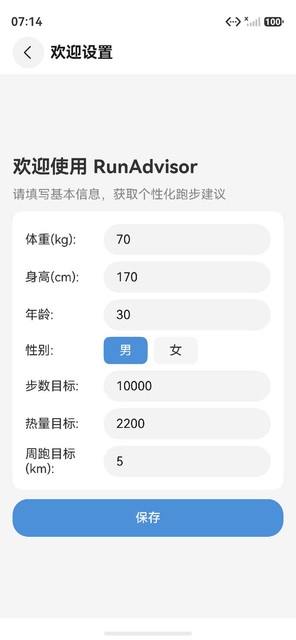
资料设置页面 (ProfileSetup)
页面布局
┌─────────────────────────┐
│  欢迎使用 RunAdvisor      │  ← 首次启动标题
│  请填写基本信息...        │  ← 首次启动提示
├─────────────────────────┤
│  体重(kg): [70  ]        │
│  身高(cm): [170 ]        │
│  年龄:     [30  ]        │
│  性别:     [男] [女]      │
│  步数目标: [10000]        │
│  热量目标: [2200 ]        │
│  周跑目标: [5   ]         │
├─────────────────────────┤
│  [保存]                   │
└─────────────────────────┘
首次启动引导截图

性别选择
使用 Row + 圆角背景实现点击切换 (非 Radio 组件):
Row() {
  Text('男')
    .fontColor(this.setupGender === 'male' ? '#FFF' : '#333')
}
.backgroundColor(this.setupGender === 'male' ? '#4A90D9' : '#F5F5F5')
.borderRadius(8)
.onClick(() => { this.setupGender = 'male'; })
Radio 组件的点击事件会被 Scroll 容器吞没,因此改用 Row 方案。
保存流程
private saveProfileSetup(): void {
  const p = UserProfile.create(weight, height, age, gender, stepGoal, calorieGoal, runGoal);
  prefs.saveProfile(p);
  this.profile = p;
  this.isFirstLaunch = false;
  this.navStack.clear();  // 清空导航栈回到首页
}
页面复用
ProfileSetupPage 同时用于:
- 首次启动引导 (isFirstLaunch = true)
- 编辑资料 (isFirstLaunch = false)
标题根据 isFirstLaunch 动态切换:
- 首次: “欢迎使用 RunAdvisor”
- 编辑: “编辑个人资料”
首次启动引导机制
检测逻辑
aboutToAppear(): void {
  const prefs = PreferencesService.getInstance();
  this.profile = prefs.getProfile();
  this.isFirstLaunch = !prefs.isProfileSet();
  if (this.isFirstLaunch) {
    setTimeout(() => {
      this.navStack.pushPath({ name: 'ProfileSetup' });
    }, 800);
  }
}
流程时序
应用启动
  └── aboutToAppear()
      ├── loadProfile()
      ├── isProfileSet() → false
      └── setTimeout(800ms)
          └── navStack.pushPath('ProfileSetup')
              └── 用户填写资料 → 保存
                  └── navStack.clear() → 回到首页
800ms 延迟确保首页 UI 先渲染完成,避免导航栈混乱。
详细说明见 11-首次启动引导功能。
UserProfile 数据模型
模型定义
UserProfile 是贯穿应用的核心数据模型,存储用户的身体信息和健身目标:
class UserProfile {
  weight: number = 70;
  height: number = 170;
  age: number = 30;
  gender: string = 'male';
  dailyStepGoal: number = 10000;
  dailyCalorieGoal: number = 2200;
  weeklyRunGoal: number = 5;

  static create(weight: number, height: number, age: number,
    gender: string, stepGoal: number, calorieGoal: number,
    runGoal: number): UserProfile {
    const p: UserProfile = new UserProfile();
    p.weight = weight;
    p.height = height;
    p.age = age;
    p.gender = gender;
    p.dailyStepGoal = stepGoal;
    p.dailyCalorieGoal = calorieGoal;
    p.weeklyRunGoal = runGoal;
    return p;
  }
}
UserProfile 使用静态工厂方法 create() 而非构造函数,原因是 ArkTS 严格模式对构造函数参数有限制,工厂方法可以更灵活地处理默认值。默认值(体重70kg、身高170cm、年龄30岁、男性)对应中国成年男性的中位数统计数据。
BMI 计算
BMI(身体质量指数)在个人中心页面实时计算并显示:
getBMI(): number {
  const heightM: number = this.profile.height / 100;
  if (heightM <= 0) return 0;
  return this.profile.weight / (heightM * heightM);
}

getBMICategory(): string {
  const bmi: number = this.getBMI();
  if (bmi < 18.5) return '偏瘦';
  if (bmi < 24) return '正常';
  if (bmi < 28) return '偏胖';
  return '肥胖';
}
BMI 分类采用中国标准而非 WHO 标准。WHO 标准的正常范围为 18.5-24.9,而中国标准为 18.5-24,因为亚洲人体型在相同 BMI 下脂肪比例更高,需要更严格的分类标准。
最大心率估算
最大心率使用 Fox 公式估算:
getMaxHeartRate(): number {
  return 220 - this.profile.age;
}
Fox 公式(220 - 年龄)是最广泛使用的最大心率估算公式,虽然个体差异可达 10-15 bpm,但对于跑步建议的强度区间划分已足够精确。更精确的公式如 Tanaka(208 - 0.7*年龄)在老年群体中更准确,但本应用面向普通跑步者,Fox 公式的简洁性更实用。
个人中心页面详解
页面布局结构
个人中心页面采用 Column 垂直布局,包含两个信息卡片和操作按钮区域:
Column
 ├── 标题区 "个人中心"
 ├── 基本信息卡片 (Column + 阴影)
 │    ├── 体重 / 身高 / 年龄 / 性别
 │    ├── 每日步数目标
 │    └── 每日热量目标
 ├── 健康指标卡片 (Column + 阴影)
 │    ├── BMI 值 + 分类
 │    └── 最大心率
 └── 操作按钮区 (Row)
      ├── 编辑资料 Button
      └── 重置资料 Button
卡片使用 .shadow({ radius: 8, color: '#1A000000', offsetY: 2 }) 增加层次感,背景色为白色 #FFFFFF,外层 Column 背景为浅灰 #F5F5F5,形成视觉分层。
健康指标显示
BMI 显示包含数值和分类文字,分类文字带有颜色编码:
Row() {
  Text('BMI: ')
  Text(this.getBMI().toFixed(1))
    .fontWeight(FontWeight.Bold)
  Text(' (' + this.getBMICategory() + ')')
    .fontColor(this.getBMIColor())
}
getBMIColor() 根据 BMI 分类返回对应颜色:
getBMIColor(): string {
  const bmi: number = this.getBMI();
  if (bmi < 18.5) return '#2196F3';
  if (bmi < 24) return '#4CAF50';
  if (bmi < 28) return '#FF9800';
  return '#F44336';
}
偏瘦为蓝色(提示需增重)、正常为绿色(健康)、偏胖为橙色(需注意)、肥胖为红色(需减重),颜色语义清晰直观。
编辑资料按钮
点击"编辑资料"跳转到 ProfileSetup 页面,复用首次启动的资料设置表单:
Button('编辑资料')
  .backgroundColor('#4A90D9')
  .onClick(() => {
    this.setupWeight = this.profile.weight.toString();
    this.setupHeight = this.profile.height.toString();
    this.setupAge = this.profile.age.toString();
    this.setupGender = this.profile.gender;
    this.setupStepGoal = this.profile.dailyStepGoal.toString();
    this.setupCalorieGoal = this.profile.dailyCalorieGoal.toString();
    this.setupRunGoal = this.profile.weeklyRunGoal.toString();
    this.isFirstLaunch = false;
    this.navStack.pushPath({ name: 'ProfileSetup' });
  })
编辑模式下,先将当前 profile 值回填到表单状态变量,确保用户看到的是已有数据而非默认值。isFirstLaunch 设为 false 使页面标题显示"编辑个人资料"而非欢迎文字。
重置资料按钮
重置资料执行两个操作:清除 Preferences 持久化数据,重置内存中的 profile 状态:
Button('重置资料')
  .backgroundColor('#F44336')
  .onClick(() => {
    const prefs: PreferencesService = PreferencesService.getInstance();
    prefs.clearProfile();
    this.profile = new UserProfile();
    this.isFirstLaunch = true;
  })
重置后 profile 恢复为默认值(new UserProfile()),但首页 UI 不会自动跳转到引导页面。这是有意为之的设计决策:重置是用户的主动操作,不应打断用户当前的浏览流程。用户可通过点击"编辑资料"按钮重新进入设置页面。
PreferencesService 用户资料存储
存储结构
用户资料以 JSON 字符串形式存储在 HarmonyOS Preferences 中:
saveProfile(profile: UserProfile): void {
  const store: preferences.Preferences = this.ensureStore();
  const profileJson: string = JSON.stringify(profile);
  store.putSync(Constants.PROFILE_KEY, profileJson);
  store.putSync(Constants.PROFILE_SET_KEY, true);
  store.flushSync();
}
存储涉及两个键值对:
user_profile→ UserProfile 的 JSON 序列化字符串is_profile_set→ boolean 值 true
两个键同步写入并立即 flush,确保数据持久化的原子性。is_profile_set 独立于 profile JSON 存储,避免反序列化失败时无法判断是否已设置。
读取与反序列化
getProfile(): UserProfile {
  try {
    const store: preferences.Preferences = this.ensureStore();
    const json: string = store.getSync(Constants.PROFILE_KEY, '') as string;
    if (json) {
      const obj: Record<string, Object> = JSON.parse(json) as Record<string, Object>;
      const p: UserProfile = new UserProfile();
      p.weight = obj.weight as number;
      p.height = obj.height as number;
      p.age = obj.age as number;
      p.gender = obj.gender as string;
      p.dailyStepGoal = obj.dailyStepGoal as number;
      p.dailyCalorieGoal = obj.dailyCalorieGoal as number;
      p.weeklyRunGoal = obj.weeklyRunGoal as number;
      return p;
    }
  } catch (e) {}
  return new UserProfile();
}
反序列化采用逐字段赋值而非 Object.assign,原因有两个:
- ArkTS 严格模式限制动态属性赋值
- 显式类型转换确保数据类型正确,避免 JSON.parse 后 number 变为 string 的问题
清除资料
clearProfile(): void {
  const store: preferences.Preferences = this.ensureStore();
  store.deleteSync(Constants.PROFILE_KEY);
  store.deleteSync(Constants.PROFILE_SET_KEY);
  store.flushSync();
}
清除操作删除 profile JSON 和 is_profile_set 两个键,flushSync 确保立即持久化。下次调用 isProfileSet() 将返回 false,触发首次启动引导流程。
首页截图
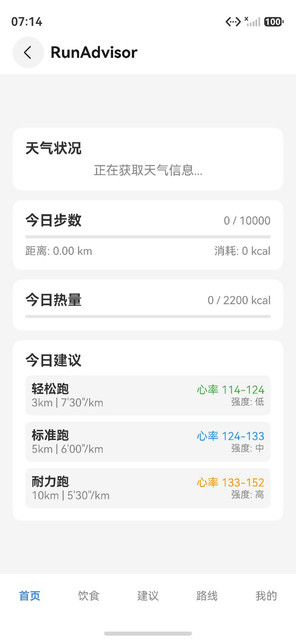
首次启动与首页的交互
首页数据依赖 Profile
首页的多个数据项依赖于用户 Profile:
| 数据项 | 依赖字段 | 用途 |
|---|---|---|
| 步数进度 | dailyStepGoal | 计算完成百分比 |
| 热量进度 | dailyCalorieGoal | 计算完成百分比 |
| 跑步建议 | weight, age, gender, weeklyRunGoal | 生成个性化建议 |
| BMI 显示 | weight, height | 计算并展示健康指标 |
| 天气建议 | dailyStepGoal | 结合天气给出运动建议 |
首次启动时 Profile 为默认值,首页仍然可以正常展示,但数据缺乏个性化。资料设置完成后,首页数据会基于真实 Profile 重新计算。
设置完成后首页通过 @State profile 的变更自动刷新 UI。navStack.clear() 清空导航栈,用户无法通过返回键回到设置页面,确保引导流程不可逆。
性别选择组件详解
实现方案
性别选择使用 Row 容器 + 条件背景色方案,而非 ArkUI 原生的 Radio 组件:
Row() {
  Text('男')
    .fontColor(this.setupGender === 'male' ? '#FFFFFF' : '#333333')
    .fontSize(14)
    .padding({ left: 20, right: 20, top: 8, bottom: 8 })
}
.backgroundColor(this.setupGender === 'male' ? '#4A90D9' : '#F5F5F5')
.borderRadius(8)
.onClick(() => { this.setupGender = 'male'; })

Row() {
  Text('女')
    .fontColor(this.setupGender === 'female' ? '#FFFFFF' : '#333333')
    .fontSize(14)
    .padding({ left: 20, right: 20, top: 8, bottom: 8 })
}
.backgroundColor(this.setupGender === 'female' ? '#4A90D9' : '#F5F5F5')
.borderRadius(8)
.onClick(() => { this.setupGender = 'female'; })
为什么不使用 Radio 组件
开发初期曾尝试使用 Radio 组件实现性别选择,但遇到以下问题:
- Radio 组件的 onClick 事件在 Scroll 容器中被吞没,无法触发选择
- Radio 的默认样式与应用设计风格不一致
- Radio 的选中状态在嵌套布局中可能出现同步问题
Row 方案虽然代码量稍多,但提供了完全的样式控制和可靠的点击响应。选中状态通过 @State setupGender 驱动背景色和字体色的变化,符合 ArkUI 的状态驱动 UI 范式。
输入验证详解
必填字段验证
保存时对体重、身高、年龄三个字段进行严格的数值验证:
const weight: number = parseInt(this.setupWeight);
const height: number = parseInt(this.setupHeight);
const age: number = parseInt(this.setupAge);

if (isNaN(weight) || isNaN(height) || isNaN(age)) {
  return;
}
使用 parseInt 而非 parseFloat,因为身高体重年龄在跑步场景下整数精度已足够。验证失败时静默返回,不显示错误提示,这是当前版本的简化处理,后续版本可增加错误提示组件。
可选字段默认值
步数目标、热量目标、周跑目标为可选字段,验证失败时使用默认值:
const stepGoal: number = parseInt(this.setupStepGoal);
const calorieGoal: number = parseInt(this.setupCalorieGoal);
const runGoal: number = parseInt(this.setupRunGoal);

const p: UserProfile = UserProfile.create(
  weight, height, age, this.setupGender,
  isNaN(stepGoal) ? Constants.DEFAULT_DAILY_GOAL : stepGoal,
  isNaN(calorieGoal) ? Constants.DEFAULT_CALORIE_GOAL : calorieGoal,
  isNaN(runGoal) ? Constants.DEFAULT_RUN_GOAL : runGoal
);
默认值定义在 Constants 类中:DEFAULT_DAILY_GOAL = 10000(步)、DEFAULT_CALORIE_GOAL = 2200(千卡)、DEFAULT_RUN_GOAL = 5(次/周)。这些默认值对应健康成年人的推荐运动量。
使用场景
场景一:新用户首次设置
用户首次安装应用,打开后被自动引导至资料设置页面。填写体重 65kg、身高 175cm、年龄 25岁后,首页立即显示 BMI 21.2(正常),步数目标基于默认值 10000 步。跑步建议页面根据年轻男性体质生成高强度训练方案。
场景二:体重变化后更新资料
用户经过两个月锻炼体重从 80kg 降至 72kg,进入个人中心点击"编辑资料",更新体重数据。保存后 BMI 从 27.7(偏胖)变为 24.5(接近正常),跑步建议自动调整为适合正常体重的训练方案。
场景三:重置并重新配置
用户将应用借给朋友试用,点击"重置资料"清除个人数据,朋友进入编辑资料填写自己的信息。所有个性化数据(步数目标、热量目标、跑步建议)基于新 Profile 重新计算。

作为“人工智能6S店”的官方数字引擎,为AI开发者与企业提供一个覆盖软硬件全栈、一站式门户。
更多推荐
 4
4 0
0- 0


 已为社区贡献10条内容

所有评论(0)