
鸿蒙应用开发实战【43】— 首页HomePage整体架构设计
·
鸿蒙应用开发实战【43】— 首页HomePage整体架构设计
本文是「号码助手全栈开发系列」第 43 篇,持续更新中…
开源社区:https://openharmonycrossplatform.csdn.net
前言
HomePage 是号码助手最核心的页面,承载了统计概览、应用列表、筛选搜索、批量操作、悬浮按钮等多项功能。页面逻辑复杂,状态管理丰富——单文件 667 行,是整个项目最长的组件。本篇先梳理整体架构设计。
本篇涵盖:首页五大区域划分、五种 UI 状态、核心数据模型、@State 状态一览、onPageShow 数据刷新、导航封装、getFilteredRows 筛选流水线。
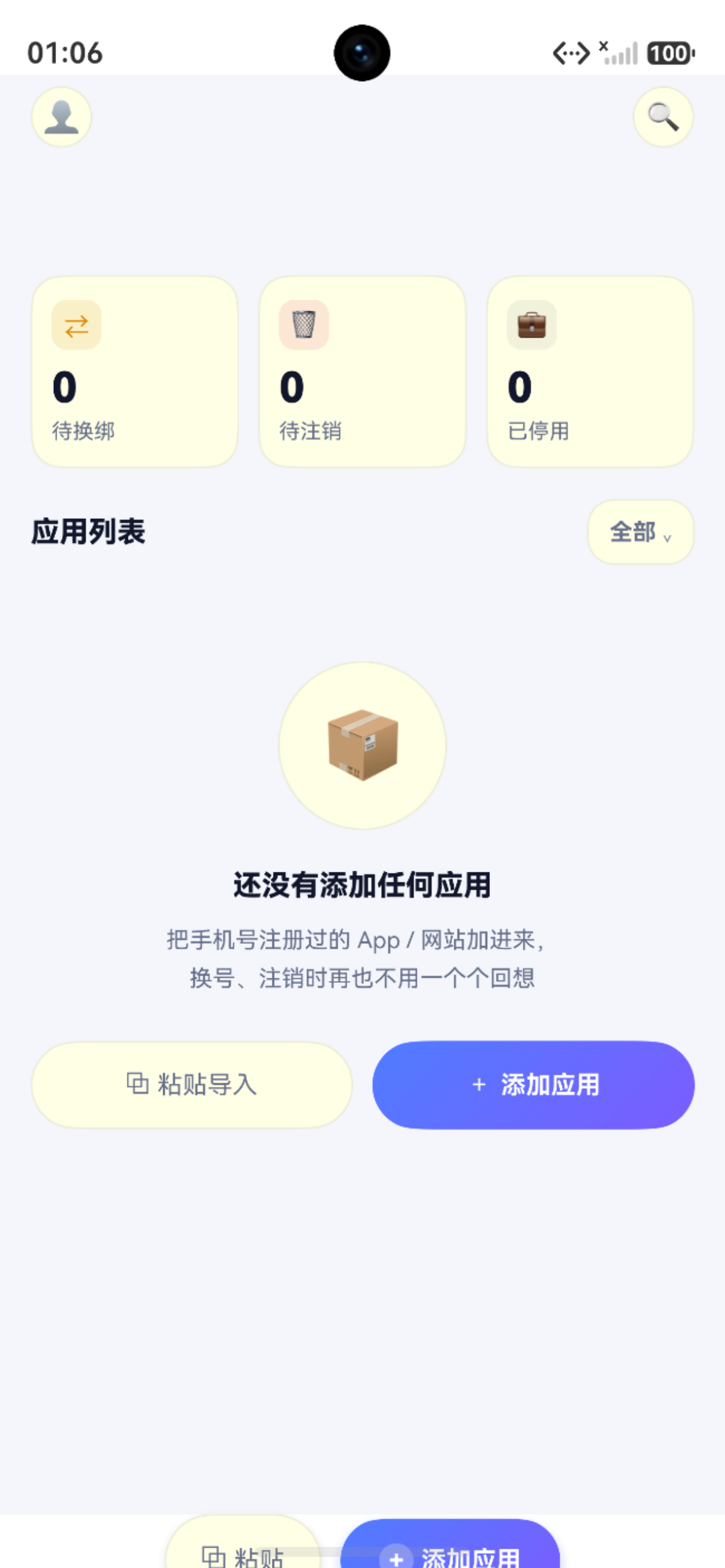
一、首页五大区域
┌──────────────────────┐
│     标题栏/选择栏       │ ← 区域1:标题/搜索/批量模式
├──────────────────────┤
│  待换绑  待注销  已停用  │ ← 区域2:统计卡片
│    3      1      0   │     (StatCard × 3)
├──────────────────────┤
│  应用列表    全部⌄    │ ← 区域3:标题+筛选按钮
├──────────────────────┤
│                      │
│   ┌──┐ 微信          │ ← 区域4:列表内容
│   │W │ APP   卡1     │     四种状态之一
│   └──┘ 使用中        │
│                      │
├──────────────────────┤
│   [+添加应用] [⧉粘贴] │ ← 区域5:FAB 悬浮按钮
└──────────────────────┘
二、五种 UI 状态
首页内容区根据数据状态呈现不同视图:
// 状态1: loading(首次加载)
if (this.loading) {
  LoadingProgress()  // 居中旋转
}
// 状态2: 空列表(新用户)
else if (this.rows.length === 0) {
  // 空状态引导:粘贴导入 + 添加应用
}
// 状态3: 批量选择模式
else if (this.selectMode) {
  // 可选列表 + 底部操作栏
}
// 状态4: 筛选结果为空
else if (this.getFilteredRows().length === 0) {
  // "筛选结果为空" 引导
}
// 状态5: 正常列表
else {
  Scroll + ForEach(AppListItem)
}
三、核心数据模型
3.1 AppRow 联合模型
首页需要展示应用的名称、分类、绑定卡号和状态,这些字段分散在 app_bindings 和 cards 两张表中:
interface AppRow {
  binding: AppBindingEntity  // 应用绑定数据
  cardLabel: string          // 卡号名称(从 cards 表 JOIN)
}
3.2 @State 状态一览
| @State 变量 | 类型 | 用途 |
|---|---|---|
| pendingSwitch | number | 待换绑应用数量 |
| pendingCancel | number | 待注销应用数量 |
| disabledCount | number | 已停用应用数量 |
| rows | AppRow[] | 应用列表数据 |
| cards | CardEntity[] | 全部卡号 |
| loading | boolean | 加载状态 |
| showFilter | boolean | 筛选面板显隐 |
| selectMode | boolean | 批量选择模式 |
| selectedIds | number[] | 选中的 binding ID |
@State pendingSwitch: number = 0      // 待换绑数量
@State pendingCancel: number = 0      // 待注销数量
@State disabledCount: number = 0      // 已停用数量
@State rows: AppRow[] = []            // 应用列表
@State cards: CardEntity[] = []       // 全部卡号(供筛选使用)
@State loading: boolean = true        // 加载状态
@State showFilter: boolean = false    // 筛选面板弹出
@State filterCatIdx: number = 0       // 分类筛选索引
@State filterCardIdx: number = 0      // 卡号筛选索引
@State filterStatIdx: number = 0      // 状态筛选索引
@State selectMode: boolean = false    // 批量选择模式
@State selectedIds: number[] = []     // 选中的 binding ID 列表
四、数据加载
4.1 onPageShow 自动刷新
使用 onPageShow 生命周期钩子——每次页面显示(包括从子页面返回)都重新加载数据:
onPageShow(): void {
  this.loadData()
}
4.2 loadData 完整流程
private async loadData(): Promise<void> {
  // 仅首次无数据时展示全屏 loading,避免从子页面返回时闪烁
  if (this.rows.length === 0) {
    this.loading = true
  }
  try {
    // 1. 加载全部卡号(供筛选 + 卡号标签映射)
    this.cards = await CardDao.listAll()
    const cardLabelMap = new Map<number, string>()
    for (const c of this.cards) {
      cardLabelMap.set(c.id ?? 0, c.label)
    }

    // 2. 统计各状态数量
    const counts = await AppBindingDao.countByStatus()
    this.pendingSwitch = counts.find(c => c.status === '待换绑')?.count ?? 0
    this.pendingCancel = counts.find(c => c.status === '待注销')?.count ?? 0
    this.disabledCount = counts.find(c => c.status === '已停用')?.count ?? 0

    // 3. 加载全部应用绑定 + 组装 AppRow
    const bindings = await AppBindingDao.listAll()
    this.rows = bindings.map(b => ({
      binding: b,
      cardLabel: cardLabelMap.get(b.card_id) ?? ''
    }))
  } catch (e) {
    hilog.error(0x0000, 'App', 'HomePage loadData failed: %{public}s', JSON.stringify(e))
  } finally {
    this.loading = false
  }
}
加载优化:首次加载显示全屏 loading;从子页面 router.back() 返回时,已有数据不显示 loading,避免列表闪现。
4.3 统计查询时序
┌──────────────────┐
│  CardDao.listAll  │ ← 并行执行
│  AppBindingDao    │
│   .countByStatus  │
│  AppBindingDao    │
│   .listAll        │
└────────┬─────────┘
         ↓
   组装 AppRow
         ↓
   this.loading = false
五、导航封装
HomePage 封装了一个统一的导航方法:
private navigate(url: string, params?: Object): void {
  try {
    router.pushUrl({ url, params }, router.RouterMode.Standard, (err: Error) => {
      if (err) {
        hilog.error(0x0000, 'App', '[HomePage] pushUrl error: %{public}s', JSON.stringify(err))
        promptAction.showToast({ message: `页面打开失败:${err.message ?? ''}` })
      }
    })
  } catch (e) {
    hilog.error(0x0000, 'App', '[HomePage] navigate sync error: %{public}s', JSON.stringify(e))
    promptAction.showToast({ message: '页面打开失败,请重试' })
  }
}
为什么不用 this.getUIContext().getRouter().pushUrl()?
router.pushUrl在某些时机可能同步抛异常或被 promise rejection 静默吞掉- 双重捕获(try/catch + callback)确保任何异常都能被记录
- callback 模式兼容 HarmonyOS 的异步路由
六、筛选流水线
private getFilteredRows(): AppRow[] {
  return this.rows.filter(r => {
    const catOk = this.filterCatIdx === 0
      || r.binding.category === CATEGORIES[this.filterCatIdx]
    const cardOk = this.filterCardIdx === 0
      || r.cardLabel === this.cards[this.filterCardIdx - 1]?.label
    const statOk = this.filterStatIdx === 0
      || r.binding.status === STATUS_FILTERS[this.filterStatIdx]
    return catOk && cardOk && statOk
  })
}
“idx === 0” 表示全部,不做过滤。这种模式比 nullable string 更简洁。
活跃筛选数量统计:
private activeFilterCount(): number {
  let n = 0
  if (this.filterCatIdx !== 0) n++
  if (this.filterCardIdx !== 0) n++
  if (this.filterStatIdx !== 0) n++
  return n
}
七、页面完整结构
build() {
  Column() {
    // 区域1:标题栏(正常模式 / 选择模式)
    if (this.selectMode) { /* 批量模式标题 */ }
    else { /* 正常标题 + 搜索入口 */ }

    // 区域2:统计卡片(固定在上方)
    Row({ space: 10 }) {
      this.StatCard('↔', this.pendingSwitch, '待换绑', ...)
      this.StatCard('×', this.pendingCancel, '待注销', ...)
      this.StatCard('–', this.disabledCount, '已停用', ...)
    }

    // 区域3:应用列表标题 + 筛选入口
    Row() { Text('应用列表') ... Text('全部⌄') ... .bindPopup(...) }

    // 区域4:内容区(五种状态)
    if (this.loading) { /* loading */ }
    else if (this.rows.length === 0) { /* 空状态 */ }
    else if (this.selectMode) { /* 选择模式 */ }
    else if (this.getFilteredRows().length === 0) { /* 空结果 */ }
    else { /* 正常列表 */ }

    // 区域5:FAB(overlay 方式绘制)
      .overlay(this.FabOverlay(), { align: Alignment.BottomEnd })
  }
}
小结
| 要点 | 说明 |
|---|---|
| 区域划分 | 5 块:标题栏/统计卡/筛选/列表/FAB |
| UI 状态 | 5 种:loading/空/选择/空筛选/正常 |
| 数据模型 | AppRow = binding + cardLabel |
| 数据加载 | onPageShow 触发,首次 loading |
| 导航封装 | try/catch + callback 双重保护 |
| 筛选机制 | 三个 idx 控制,0=全部,流水线过滤 |
后续 4 篇文章深入首页的每个子模块:
- 44:统计卡片 countByStatus 数据驱动
- 45:筛选面板与搜索联动
- 46:批量操作多选状态变更与删除
- 47:FAB 悬浮按钮条件渲染与导航
如果这篇文章对你有帮助,欢迎点赞👍、收藏⭐、关注🔔,你的支持是我持续创作的动力!
相关资源:
- openHarmony 跨平台社区:https://openharmonycrossplatform.csdn.net
- HarmonyOS 官方文档:https://developer.huawei.com/consumer/cn/doc/
- HarmonyOS ArkUI组件参考:https://developer.huawei.com/consumer/cn/doc/harmonyos-references/arkui-ts
- HarmonyOS router API:https://developer.huawei.com/consumer/cn/doc/harmonyos-references/router

作为“人工智能6S店”的官方数字引擎,为AI开发者与企业提供一个覆盖软硬件全栈、一站式门户。
更多推荐
 0
0 0
0- 0


 已为社区贡献7条内容

所有评论(0)