
鸿蒙应用开发实战【05】— 首页开发实战:数据驱动 UI 与多态状态管理
·
鸿蒙应用开发实战【05】— 首页开发实战:数据驱动 UI 与多态状态管理
前言
欢迎加入开源鸿蒙跨平台社区:https://openharmonycrossplatform.csdn.net
首页(HomePage)是号码助手最核心、最复杂的页面。它不仅要展示数据,还需要处理加载/空/列表三种状态,实现多维筛选、多选批量操作、FAB 悬浮按钮等多个复杂交互。本篇将深入剖析首页的架构设计和核心实现,展示如何用 ArkUI 的 @State 驱动复杂 UI。
本篇涵盖:onPageShow 数据加载、多态 UI 切换、StatCard 统计卡片、筛选 PopoverBuilder、批量选择模式、FAB overlay、navigate 封装、子组件导航陷阱。
一、首页功能清单
1.1 首页功能全景
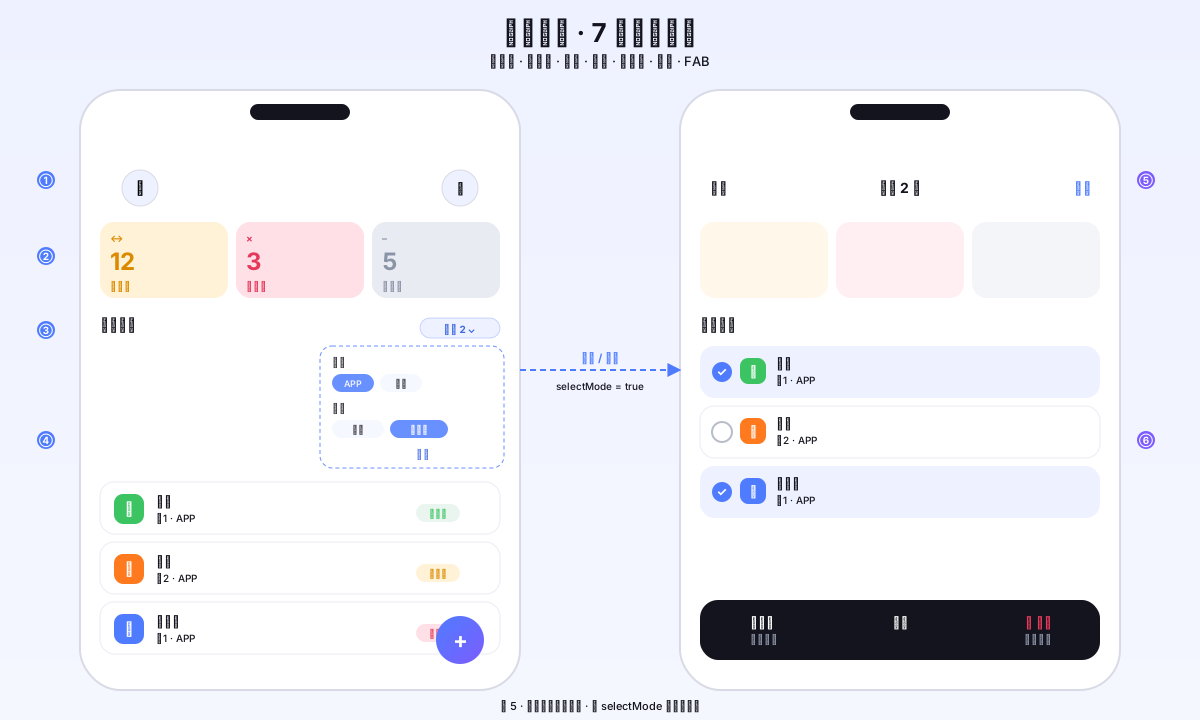
图1:首页全功能截图 — 展示统计卡、应用列表、筛选弹窗、FAB 按钮
首页包含以下功能模块:
- 标题栏:左侧用户头像按钮、右侧搜索按钮
- 统计卡片区:展示待换绑/待注销/已停用的数量
- 应用列表区:展示所有绑定,支持多维筛选
- 空状态引导:无数据时的新用户引导 UI
- 批量操作模式:长按或勾选,批量修改状态/删除
- FAB 悬浮按钮:添加应用 + 粘贴导入(仅列表非空时显示)
- 筛选弹出面板:按分类/卡号/状态三维筛选
1.2 状态变量清单
| 状态变量 | 类型 | 作用 |
|---|---|---|
| loading | boolean | 控制加载 spinner 显示 |
| rows | AppRow[] | 应用绑定列表数据 |
| cards | CardEntity[] | 所有卡号(用于筛选选项) |
| pendingSwitch | number | 待换绑数量 |
| pendingCancel | number | 待注销数量 |
| disabledCount | number | 已停用数量 |
| showFilter | boolean | 筛选弹出面板显示状态 |
| filterCatIdx | number | 分类筛选选中索引 |
| filterCardIdx | number | 卡号筛选选中索引 |
| filterStatIdx | number | 状态筛选选中索引 |
| selectMode | boolean | 是否处于批量选择模式 |
| selectedIds | number[] | 已选中的绑定 ID 列表 |
二、数据加载:onPageShow 模式
2.1 为什么用 onPageShow 而不是 aboutToAppear
// ❌ aboutToAppear 只在组件首次挂载时触发,从详情页返回不会刷新
aboutToAppear(): void {
  this.loadData()    // 第二次进页面不会触发!
}

// ✅ onPageShow 每次页面出现都触发(首次进入 + 从子页面返回)
onPageShow(): void {
  this.loadData()    // 每次显示都刷新,保证数据最新
}
对于首页这类需要每次显示都刷新的页面(用户可能在子页面添加了新数据),onPageShow 是正确选择。
2.2 loadData 完整实现
private async loadData(): Promise<void> {
  // 首次加载显示 spinner,增量刷新不显示(避免闪烁)
  if (this.rows.length === 0) {
    this.loading = true
  }
  try {
    // 并行加载卡号列表和统计数据,减少等待时间
    this.cards = await CardDao.listAll()

    // 构建 cardId → label 的映射表(避免后续 N+1 查询)
    const cardLabelMap = new Map<number, string>()
    for (const c of this.cards) {
      cardLabelMap.set(c.id ?? 0, c.label)
    }

    // 加载统计数据
    const counts: StatusCount[] = await AppBindingDao.countByStatus()
    this.pendingSwitch = counts.find(
      (c: StatusCount) => c.status === '待换绑')?.count ?? 0
    this.pendingCancel = counts.find(
      (c: StatusCount) => c.status === '待注销')?.count ?? 0
    this.disabledCount = counts.find(
      (c: StatusCount) => c.status === '已停用')?.count ?? 0

    // 加载绑定列表,关联卡号标签
    const bindings = await AppBindingDao.listAll()
    this.rows = bindings.map((b: AppBindingEntity): AppRow => {
      return { binding: b, cardLabel: cardLabelMap.get(b.card_id) ?? '' }
    })
  } catch (e) {
    console.error('[HomePage] loadData failed:', JSON.stringify(e))
    // 不弹 toast,首页加载失败时静默处理(显示空状态即可)
  } finally {
    this.loading = false
  }
}
三、多态 UI 切换
3.1 四种内容状态
build() {
  Column() {
    // 标题栏(固定)
    this.TitleBar()

    // 统计卡片(固定,不随列表滚动)
    this.StatsRow()

    // 分区标题 + 筛选按钮(固定)
    this.SectionHeader()

    // ── 内容区:四种状态互斥显示 ──
    if (this.loading) {
      // ① 加载中
      this.LoadingView()
    } else if (this.rows.length === 0) {
      // ② 空状态(新用户引导)
      this.EmptyView()
    } else if (this.selectMode) {
      // ③ 批量选择模式
      this.SelectableList()
    } else if (this.getFilteredRows().length === 0) {
      // ④ 筛选无结果
      this.FilterEmptyView()
    } else {
      // ⑤ 正常列表
      this.NormalList()
    }

    // 批量操作底栏(仅批量模式时显示)
    if (this.selectMode && this.rows.length > 0) {
      this.BatchBar()
    }
  }
  .width('100%')
  .height('100%')
  .backgroundColor(AppColors.BG)
  // FAB 通过 .overlay() 叠加在内容之上
  .overlay(this.FabOverlay(), { align: Alignment.BottomEnd })
}
3.2 空状态引导 UI
@Builder
private EmptyView() {
  Column() {
    Blank()
    // 图标
    Column() {
      Text('📦').fontSize(34)
    }
    .width(88).height(88).borderRadius(44)
    .backgroundColor(AppColors.CARD_B)
    .border({ width: 1, color: AppColors.LINE, radius: 44 })
    .justifyContent(FlexAlign.Center)
    .margin({ bottom: 20 })

    // 引导文案
    Text('还没有添加任何应用')
      .fontSize(15).fontWeight(AppFonts.WEIGHT_BOLD).fontColor(AppColors.TEXT)
      .margin({ bottom: 8 })
    Text('把手机号注册过的 App / 网站加进来,\n换号、注销时再也不用一个个回想')
      .fontSize(12).fontColor(AppColors.TEXT_2)
      .textAlign(TextAlign.Center).lineHeight(20)

    Blank()

    // 操作按钮组
    Row({ space: 10 }) {
      // 粘贴导入按钮
      Row({ space: 4 }) {
        Text('⧉').fontSize(13).fontColor(AppColors.TEXT_2)
        Text('粘贴导入').fontSize(13).fontColor(AppColors.TEXT_2)
      }
      .layoutWeight(1).height(46)
      .justifyContent(FlexAlign.Center)
      .backgroundColor(AppColors.CARD_B)
      .border({ width: 1, color: AppColors.LINE, radius: 24 })
      .onClick(() => { this.navigate('pages/PasteImportPage') })

      // 添加应用按钮(渐变背景)
      Row({ space: 4 }) {
        Text('+').fontSize(14).fontColor('#FFFFFF').fontWeight(AppFonts.WEIGHT_SEMIBOLD)
        Text('添加应用').fontSize(13).fontWeight(AppFonts.WEIGHT_SEMIBOLD).fontColor('#FFFFFF')
      }
      .layoutWeight(1).height(46)
      .justifyContent(FlexAlign.Center).borderRadius(24)
      .linearGradient({ angle: 135, colors: [[AppColors.PRIMARY, 0], [AppColors.PRIMARY_2, 1]] })
      .shadow({ radius: 22, color: '#524F7CFF', offsetY: 10 })
      .onClick(() => {
        if (this.cards.length === 0) {
          promptAction.showToast({ message: '请先添加卡号' })
          this.navigate('pages/CardManagePage')
          return
        }
        this.navigate('pages/AddAppPage')
      })
    }
    .width('100%')
    .padding({ left: 16, right: 16 })
    .margin({ bottom: 32 })
  }
  .width('100%').layoutWeight(1)
  .alignItems(HorizontalAlign.Center)
}
四、统计卡片组件
4.1 StatCard @Builder 实现
@Builder
private StatCard(
  icon: string,
  num: number,
  label: string,
  bg: string,
  fg: string,
  status: string
) {
  Column() {
    // 图标容器
    Column() {
      Text(icon)
        .fontSize(14)
        .fontColor(fg)
        .fontWeight(FontWeight.Bold)
    }
    .width(26).height(26).borderRadius(8)
    .backgroundColor(bg)
    .justifyContent(FlexAlign.Center)
    .margin({ bottom: 10 })

    // 数字(大字号,触目)
    Text(`${num}`)
      .fontSize(22).fontWeight(AppFonts.WEIGHT_BOLD)
      .fontColor(AppColors.TEXT).lineHeight(22)
      .margin({ bottom: 4 })

    // 标签文字
    Text(label).fontSize(11).fontColor(AppColors.TEXT_2)
  }
  .layoutWeight(1)
  .padding({ top: 12, bottom: 12, left: 10, right: 10 })
  .alignItems(HorizontalAlign.Start)
  .backgroundColor(AppColors.CARD_B)
  .border({ width: 1, color: AppColors.LINE, radius: 16 })
  // 点击跳转到对应状态列表
  .onClick(() => {
    const params: StatusRouteParams = { status: status }
    this.navigate('pages/StatusListPage', params)
  })
}
4.2 使用符号字符代替 Emoji
// ❌ Emoji 有内置颜色,fontColor 无效
this.StatCard('🗑', ...)   // 🗑 不响应 fontColor
this.StatCard('💼', ...)   // 💼 始终显示黄色

// ✅ 使用纯 Unicode 符号,fontColor 正常生效
this.StatCard('↔', this.pendingSwitch, '待换绑', AppColors.WARN_BG, AppColors.WARN, '待换绑')
this.StatCard('×', this.pendingCancel, '待注销', AppColors.DANGER_BG, AppColors.DANGER, '待注销')
this.StatCard('–', this.disabledCount, '已停用', AppColors.MUTED_BG, AppColors.MUTED, '已停用')
五、筛选系统实现
5.1 筛选条件计算
/** 返回筛选后的列表 */
private getFilteredRows(): AppRow[] {
  return this.rows.filter((r: AppRow) => {
    // 三个维度独立过滤,都满足才保留
    const catOk = this.filterCatIdx === 0 ||
      r.binding.category === CATEGORIES[this.filterCatIdx]
    const cardOk = this.filterCardIdx === 0 ||
      r.cardLabel === this.cards[this.filterCardIdx - 1]?.label
    const statOk = this.filterStatIdx === 0 ||
      r.binding.status === STATUS_FILTERS[this.filterStatIdx]
    return catOk && cardOk && statOk
  })
}

/** 已激活的筛选条件数量(用于显示"已选 N"徽标) */
private activeFilterCount(): number {
  let n = 0
  if (this.filterCatIdx !== 0) n++
  if (this.filterCardIdx !== 0) n++
  if (this.filterStatIdx !== 0) n++
  return n
}
5.2 筛选弹出面板(bindPopup)
// 筛选按钮触发 bindPopup
Row({ space: 3 }) {
  Text(this.activeFilterCount() > 0 ? `已选 ${this.activeFilterCount()}` : '全部')
    .fontSize(12)
    .fontColor(this.activeFilterCount() > 0 ? '#3E68E0' : AppColors.TEXT_2)
  Text('⌄').fontSize(10)
}
.padding({ left: 11, right: 11, top: 6, bottom: 6 })
.backgroundColor(this.activeFilterCount() > 0 ? AppColors.PRIMARY_BG : AppColors.CARD_B)
.border({ width: 1, color: AppColors.LINE, radius: 14 })
.bindPopup(this.showFilter, {
  builder: this.FilterPopoverBuilder,  // @Builder 方法作为弹出内容
  placement: Placement.Bottom,
  popupColor: '#FFFFFF',
  onStateChange: (e) => {
    if (!e.isVisible) { this.showFilter = false }
  }
})
.onClick(() => { this.showFilter = !this.showFilter })
六、navigate 方法封装(导航安全保障)
6.1 为什么要封装 navigate
在开发过程中发现:this.getUIContext().getRouter().pushUrl() 在某些时机会静默失败:
this.getUIContext()可能同步抛出异常pushUrl()返回 Promise,但不加.catch()时 rejection 被吞掉
这导致用户点击按钮毫无反应——最难排查的 Bug 之一。
/**
 * 统一导航方法:用 router 模块直接导航 + try/catch 兜底
 * 避免 this.getUIContext().getRouter().pushUrl() 的静默失败问题
 */
private navigate(url: string, params?: Object): void {
  try {
    router.pushUrl(
      { url, params },
      router.RouterMode.Standard,
      (err: Error) => {
        if (err) {
          console.error('[HomePage] pushUrl error:', JSON.stringify(err))
          promptAction.showToast({ message: `页面打开失败:${err.message ?? ''}` })
        }
      }
    )
  } catch (e) {
    console.error('[HomePage] navigate sync error:', JSON.stringify(e))
    promptAction.showToast({ message: '页面打开失败,请重试' })
  }
}
6.2 所有导航调用统一使用 navigate
// 用户头像 → MePage
.onClick(() => { this.navigate('pages/MePage') })

// 搜索按钮 → SearchPage
.onClick(() => { this.navigate('pages/SearchPage') })

// 统计卡片 → StatusListPage(携带参数)
.onClick(() => {
  const params: StatusRouteParams = { status: status }
  this.navigate('pages/StatusListPage', params)
})

// FAB 添加应用(先判断有无卡号)
.onClick(() => {
  if (this.cards.length === 0) {
    promptAction.showToast({ message: '请先添加卡号' })
    this.navigate('pages/CardManagePage')
    return
  }
  this.navigate('pages/AddAppPage')
})
七、FAB 悬浮按钮设计
7.1 .overlay() 实现悬浮效果
Column() {
  // ... 正常内容
}
.width('100%')
.height('100%')
// overlay 将 FabOverlay 叠加在内容层之上,不占用布局空间
.overlay(this.FabOverlay(), { align: Alignment.BottomEnd })
7.2 FAB 条件渲染
@Builder
private FabOverlay() {
  // 仅在有列表且非批量模式时显示(空状态已有内嵌按钮)
  if (!this.selectMode && this.rows.length > 0) {
    Row({ space: 10 }) {
      // 粘贴导入按钮(半透明白色)
      Row({ space: 4 }) {
        Text('⧉').fontSize(14).fontColor(AppColors.TEXT_2)
        Text('粘贴').fontSize(13).fontColor(AppColors.TEXT_2)
      }
      .padding({ left: 18, right: 18, top: 13, bottom: 13 })
      .backgroundColor(AppColors.CARD_B)
      .border({ width: 1, color: AppColors.LINE, radius: 24 })
      .shadow({ radius: 16, color: '#1814141E', offsetY: 6 })
      .onClick(() => { this.navigate('pages/PasteImportPage') })

      // 添加应用按钮(渐变主色)
      Row({ space: 4 }) {
        Column() {
          Text('+').fontSize(13).fontColor('#FFFFFF').fontWeight(800)
        }
        .width(18).height(18).borderRadius(9)
        .backgroundColor('rgba(255,255,255,0.25)')
        .justifyContent(FlexAlign.Center)
        Text('添加应用').fontSize(13).fontWeight(AppFonts.WEIGHT_SEMIBOLD).fontColor('#FFFFFF')
      }
      .padding({ left: 20, right: 20, top: 13, bottom: 13 })
      .borderRadius(24)
      .linearGradient({ angle: 135, colors: [[AppColors.PRIMARY, 0], [AppColors.PRIMARY_2, 1]] })
      .shadow({ radius: 22, color: '#524F7CFF', offsetY: 10 })
      .onClick(() => {
        if (this.cards.length === 0) {
          promptAction.showToast({ message: '请先添加卡号' })
          this.navigate('pages/CardManagePage')
          return
        }
        this.navigate('pages/AddAppPage')
      })
    }
    .margin({ right: 16, bottom: 24 })
  }
}
关键设计:
rows.length > 0条件确保 FAB 只在有列表时显示,空状态已经有内嵌按钮,避免按钮重复显示。
八、批量操作模式
8.1 批量选择状态机
// 进入批量模式
private enterSelectMode(): void {
  this.selectMode = true
  this.selectedIds = []
}

// 退出批量模式
private exitSelectMode(): void {
  this.selectMode = false
  this.selectedIds = []
}

// 切换单条选中状态
private toggleSelect(id: number): void {
  if (this.selectedIds.includes(id)) {
    this.selectedIds = this.selectedIds.filter((i: number) => i !== id)
  } else {
    this.selectedIds = this.selectedIds.concat([id])
  }
}

// 全选/取消全选
private toggleSelectAll(): void {
  const filtered = this.getFilteredRows()
  const allIds = filtered.map((r: AppRow) => r.binding.id ?? 0).filter((id: number) => id > 0)
  this.selectedIds = this.selectedIds.length === allIds.length ? [] : allIds
}
8.2 批量状态变更
private async batchChangeStatus(): Promise<void> {
  if (this.selectedIds.length === 0) {
    promptAction.showToast({ message: '请先选择应用' })
    return
  }
  // ActionMenu 让用户选择目标状态
  interface StatusBtn { text: string; color: string | Resource }
  const STATUS_OPTS: string[] = ['使用中', '待换绑', '待注销', '已停用']
  const buttons: StatusBtn[] = STATUS_OPTS.map((s: string): StatusBtn => {
    return { text: s, color: AppColors.TEXT }
  })
  const result = await promptAction.showActionMenu({
    title: '批量更改状态',
    buttons: buttons as [StatusBtn, StatusBtn?, StatusBtn?, StatusBtn?]
  })
  const newStatus = STATUS_OPTS[result.index] as BindingStatus
  await AppBindingDao.batchUpdateStatus(this.selectedIds, newStatus, Date.now())
  promptAction.showToast({ message: `已更新 ${this.selectedIds.length} 个应用` })
  this.selectMode = false
  this.selectedIds = []
  this.loadData()   // 刷新列表
}
九、本篇小结
本篇完成了首页最核心的技术点解析:
| 知识点 | 关键实现 |
|---|---|
| 数据加载 | onPageShow + async loadData + try/finally |
| 多态 UI | if/else 多分支,5 种状态互斥显示 |
| 统计卡片 | @Builder StatCard + 符号代替 Emoji |
| 筛选系统 | getFilteredRows + bindPopup + 三维过滤 |
| 导航封装 | navigate() + router 直接调用 + try/catch |
| FAB 设计 | .overlay() + 条件渲染 + 渐变背景 |
| 批量操作 | selectMode 状态机 + toggleSelect + ActionMenu |
最重要的经验:所有导航调用都应通过
navigate()封装,确保任何情况下都有可见的错误反馈,不出现"点击毫无反应"的黑洞 Bug。
十、参考资料
本系列相关文章:
- 鸿蒙应用开发实战【23】— 三态 UI:loading/error/正常内容
- 鸿蒙应用开发实战【17】— bindPopup 气泡弹出详解
- 鸿蒙应用开发实战【47】— 首页 FAB 悬浮按钮详解
- 鸿蒙应用开发实战【74】— 子组件 router 导航陷阱
官方文档:
如果这篇文章对你有帮助,欢迎点赞👍、收藏⭐、关注🔔,你的支持是我持续创作的动力!
相关资源:

作为“人工智能6S店”的官方数字引擎,为AI开发者与企业提供一个覆盖软硬件全栈、一站式门户。
更多推荐


 0
0 0
0- 0


 已为社区贡献19条内容

所有评论(0)