
鸿蒙 PC 应用开发实战:窗口·交互·布局·实战

在移动端,HarmonyOS 应用已经展现了强大的声明式 UI 能力。但当开发者将目光投向 PC 大屏时,会发现桌面场景有着截然不同的交互范式——窗口可以自由缩放、鼠标悬停承载了隐式意图、键盘快捷键成倍提升效率、文件拖拽是天然的交互方式。这些能力并非"锦上添花",而是 PC 端应用的"基础设施"。
本文以 HarmonyOS NEXT(API 12+)为准,系统讲解 PC 端专属开发能力,并手把手实现一个功能完整的文件管理器,将窗口管理、鼠标键盘交互、拖拽、菜单栏、侧边栏等所有知识点串联起来。全文代码均可直接运行,建议配合 DevEco Studio 4.1+ 边阅读边调试。
一、窗口管理:PC 应用的门面
PC 应用与移动应用最直观的差异,在于窗口的存在。一个桌面应用可以同时打开多个窗口,每个窗口拥有独立的尺寸、位置和生命周期。在 HarmonyOS NEXT 中,窗口管理由 WindowManager 和 WindowStage 两个核心角色共同承担。
1.1 主窗口与子窗口的区分
在 entry 模块的 MainAbility 中,应用启动时创建的即为主窗口(Main Window)。主窗口承载应用的主界面,通常对应一个完整的页面。使用 windowStage.loadContent() 可以加载主 UI 页面。
子窗口(Sub Window)则是主窗口的"分身",适合弹窗、悬浮面板、设置浮层等场景。与主窗口不同,子窗口不会出现在系统任务栏中,也不拥有独立的 WindowStage。子窗口通过 Window.createSubWindow() 创建,其生命周期受主窗口管理。
以下代码展示如何在主 Ability 中创建子窗口并在其中加载一个独立的 UIAbility 页面:
import window from '@ohos.window';

// 在 MainAbility 的 onWindowStageCreate 回调中获取主窗口
onWindowStageCreate(windowStage: window.WindowStage) {
  // 主窗口加载内容
  windowStage.loadContent('pages/Index', (err, data) => {
    if (err.code) {
      hilog.error(0x0000, 'MainAbility', 'Failed to load main content: %{public}s', JSON.stringify(err));
      return;
    }
  });

  // 创建子窗口(弹窗)
  let subWindow: window.Window | undefined = undefined;
  window.createSubWindow('mySubWindow').then((win) => {
    subWindow = win;
    // 设置子窗口尺寸:宽 400vp,高 300vp,位于主窗口中央
    win.setWindowLayoutMode(0); // FULL_SCREEN 之外的布局模式
    win.resize(400, 300);

    // 加载子窗口内容
    win.loadContent('pages/SubPage', (err) => {
      if (!err.code) {
        win.showWindow();
      }
    });
  }).catch((err) => {
    hilog.error(0x0000, 'MainAbility', 'Failed to create sub-window: %{public}s', JSON.stringify(err));
  });
}
需要注意的是,子窗口关闭后必须主动销毁,否则会泄漏窗口资源。在 onWindowStageDestroy 中应统一清理:
onWindowStageDestroy() {
  // 窗口销毁回调中移除子窗口引用
  hilog.info(0x0000, 'MainAbility', 'Sub window destroyed in onWindowStageDestroy');
}
1.2 窗口尺寸与位置控制
桌面窗口的尺寸和位置是用户体验的重要组成部分。HarmonyOS NEXT 提供了 setWindowRectChange() 监听窗口变化,以及 resize() 和 moveWindowTo() 两个核心方法分别控制窗口大小和位置。
下面的示例演示了响应式调整:当用户拖动窗口边缘改变尺寸时,如果宽度低于 600vp,则自动切换为紧凑侧边栏布局;否则恢复标准布局。
import window from '@ohos.window';
import { BusinessError } from '@ohos.base';

@Entry
@Component
struct Index {
  @State isCompactMode: boolean = false;
  private windowObj: window.Window | null = null;

  async aboutToAppear() {
    try {
      this.windowObj = await window.getLastWindow(getContext(this));
      // 监听窗口尺寸变化
      this.windowObj.on('windowRectChange', (newRect: window.Rect) => {
        // 当窗口宽度低于 600vp 时自动切换紧凑模式
        if (newRect.width < 600) {
          this.isCompactMode = true;
        } else {
          this.isCompactMode = false;
        }
      });
    } catch (err) {
      const error = err as BusinessError;
      console.error('Failed to get window: ' + JSON.stringify(error));
    }
  }

  aboutToDisappear() {
    if (this.windowObj) {
      this.windowObj.off('windowRectChange');
    }
  }

  build() {
    Column() {
      if (this.isCompactMode) {
        // 紧凑模式:隐藏侧边栏,仅保留内容区
        this.ContentArea()
      } else {
        // 标准模式:侧边栏 + 内容区
        Row() {
          SidebarComponent()
          Divider().vertical(true)
          this.ContentArea()
        }
      }
    }
  }

  @Builder
  ContentArea() {
    Text('内容区域')
      .fontSize(20)
      .width('100%')
      .height('100%')
      .textAlign(TextAlign.Center)
  }
}

@Component
struct SidebarComponent {
  build() {
    Column() {
      Text('侧边栏')
        .fontSize(16)
        .padding(16)
    }
    .width(200)
    .height('100%')
    .backgroundColor('#F5F5F5')
  }
}
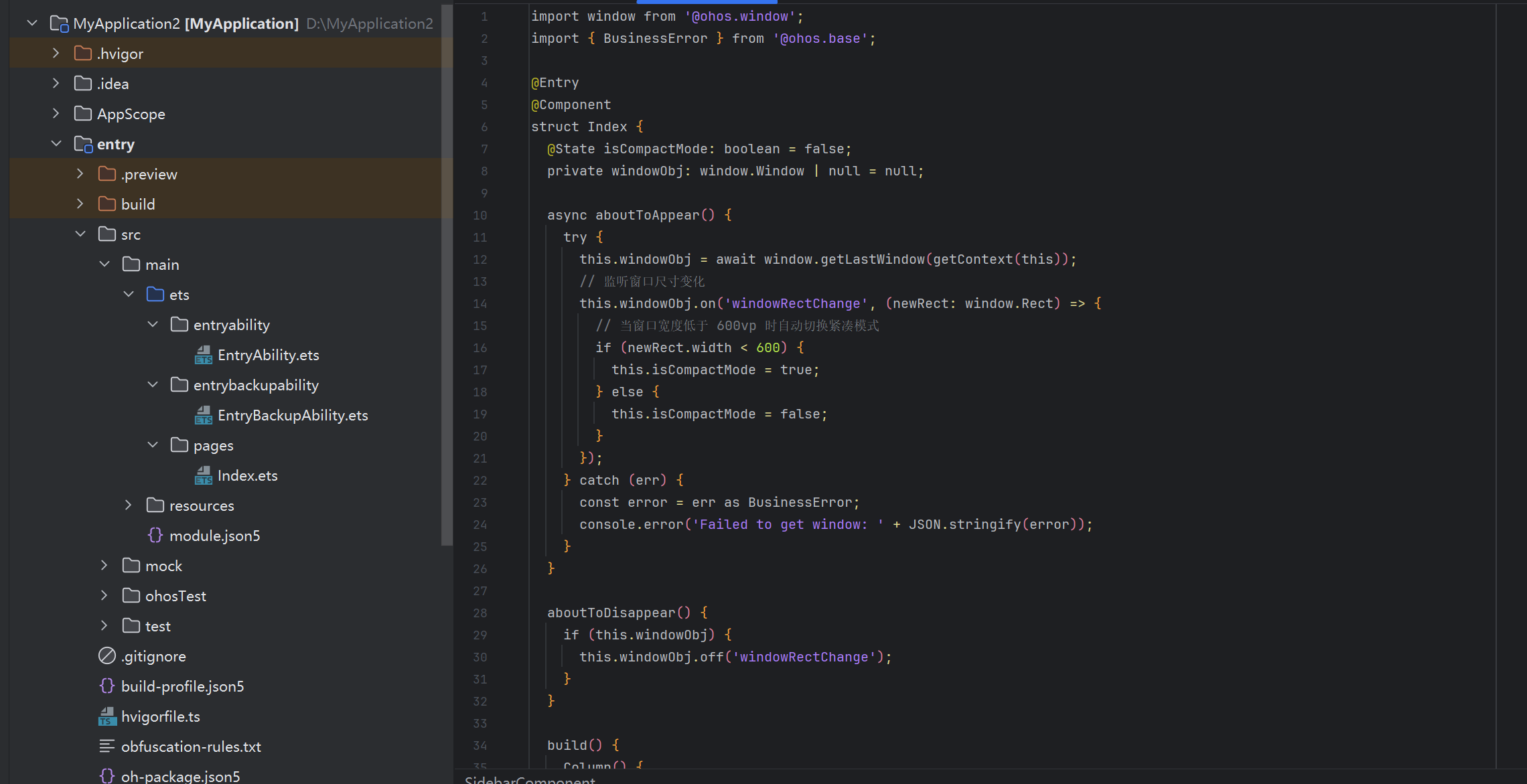
1.3 窗口最大化、最小化与全屏切换
系统级窗口操作(最大化、最小化、恢复)通过 Window 实例的方法完成,不需要额外权限。以下封装了一个通用的窗口操作工具类:
// utils/WindowHelper.ets
import window from '@ohos.window';
import { BusinessError } from '@ohos.base';

export class WindowHelper {
  private win: window.Window;

  constructor(win: window.Window) {
    this.win = win;
  }

  // 最小化窗口
  async minimize(): Promise<void> {
    try {
      await this.win.minimize();
    } catch (err) {
      console.error('Minimize failed: ' + (err as BusinessError).message);
    }
  }

  // 最大化窗口
  async maximize(): Promise<void> {
    try {
      await this.win.maximize();
    } catch (err) {
      console.error('Maximize failed: ' + (err as BusinessError).message);
    }
  }

  // 恢复窗口(从最大/最小化状态恢复)
  async restore(): Promise<void> {
    try {
      await this.win.restore();
    } catch (err) {
      console.error('Restore failed: ' + (err as BusinessError).message);
    }
  }

  // 设置为全屏(隐藏系统状态栏和导航栏)
  async setFullScreen(enable: boolean): Promise<void> {
    try {
      await this.win.setFullScreen(enable);
    } catch (err) {
      console.error('SetFullScreen failed: ' + (err as BusinessError).message);
    }
  }

  // 获取当前窗口 AvoidArea(安全区信息)
  async getAvoidArea(): Promise<window.AvoidArea | null> {
    try {
      return await this.win.getAvoidArea(window.AvoidAreaType.TYPE_SYSTEM_GESTURE);
    } catch (err) {
      console.error('GetAvoidArea failed: ' + (err as BusinessError).message);
      return null;
    }
  }
}
结合 UI 调用时,只需在按钮点击事件中实例化并操作即可。这种封装方式使得窗口操作与 UI 层解耦,便于测试和复用。
1.4 多窗口协同:WindowStage 的进阶用法
在复杂的 PC 应用中,同一个 Ability 内部可能需要管理多个 WindowStage,比如 IDE 的多标签页编辑器或邮件应用的多面板视图。HarmonyOS 提供了 AppWindowConfig 和 setWindowStageSync() 机制来实现多 WindowStage 的协调管理。
不过,更常见的实践是在同一个 WindowStage 中通过路由(router)管理多个页面,然后配合状态管理实现面板切换。以下是一个基于 Navigation 组件实现内嵌多面板的示例,展示了如何在单窗口内模拟多窗口体验:
// pages/MultiPanelPage.ets
import router from '@ohos.router';

@Entry
@Component
struct MultiPanelPage {
  @State currentPanel: string = 'fileList';
  private panelStack: string[] = [];

  build() {
    NavDestination() {
      Column() {
        // 顶部工具栏
        Row() {
          Button('←').onClick(() => this.popPanel())
          Blank()
          Text('面板: ' + this.currentPanel).fontSize(14)
          Blank()
          Button('→').onClick(() => this.pushPanel('detail'))
        }
        .height(48)
        .padding({ left: 16, right: 16 })
        .backgroundColor('#EEEEEE')

        Divider()

        // 动态面板内容
        if (this.currentPanel === 'fileList') {
          FileListPanel()
        } else if (this.currentPanel === 'detail') {
          FileDetailPanel()
        } else if (this.currentPanel === 'preview') {
          FilePreviewPanel()
        }
      }
    }
    .title('多面板视图')
  }

  pushPanel(panel: string) {
    this.panelStack.push(this.currentPanel);
    this.currentPanel = panel;
  }

  popPanel() {
    if (this.panelStack.length > 0) {
      this.currentPanel = this.panelStack.pop() as string;
    }
  }
}

@Component
struct FileListPanel {
  build() {
    Column() {
      Text('文件列表面板').fontSize(18).margin(16)
      List() {
        ListItem() { Text('文档.docx') }
        ListItem() { Text('图片.png') }
        ListItem() { Text('笔记.md') }
      }
    }
    .width('100%').height('100%')
  }
}

@Component
struct FileDetailPanel {
  build() {
    Column() {
      Text('文件详情面板').fontSize(18).margin(16)
      Text('选中文件的详细信息').fontSize(14).margin({ top: 8 })
    }
    .width('100%').height('100%')
  }
}

@Component
struct FilePreviewPanel {
  build() {
    Column() {
      Text('文件预览面板').fontSize(18).margin(16)
      Text('选中文件的内容预览').fontSize(14).margin({ top: 8 })
    }
    .width('100%').height('100%')
  }
}
多窗口协同的核心在于状态共享。HarmonyOS 的 AppStorage、LocalStorage 或分布式数据管理能力,使得多个窗口之间可以安全地共享数据,而无需引入复杂的进程间通信。
二、鼠标键盘交互:桌面应用的灵魂
PC 端用户早已习惯了鼠标悬停提示、右键菜单、全局快捷键这些交互模式。在移动端,这些能力几乎不存在;而在 PC 端,它们直接影响用户对应用专业程度的判断。
2.1 Hover 状态响应
鼠标悬停(Hover)是桌面交互中最基础的隐式操作。当指针移动到某个可交互元素上时,通过 onHover 事件可以改变元素的视觉样式,给用户即时的反馈。
以下示例实现了一个文件列表项,支持鼠标悬停时高亮背景,并在悬停期间显示工具提示:
@Component
struct FileListItem {
  @ObjectLink fileItem: FileItemModel;
  @State isHovered: boolean = false;
  @State showTooltip: boolean = false;

  build() {
    Column() {
      Row() {
        // 文件图标
        Image(this.fileItem.icon)
          .width(32)
          .height(32)
          .margin({ right: 12 })

        Column() {
          Text(this.fileItem.name)
            .fontSize(14)
            .fontWeight(this.isHovered ? FontWeight.Medium : FontWeight.Normal)
          Text(this.fileItem.path)
            .fontSize(11)
            .fontColor('#888888')
        }
        .alignItems(HorizontalAlign.Start)

        Blank()

        // 悬停时显示操作按钮
        if (this.isHovered) {
          Row({ space: 8 }) {
            Button('打开').fontSize(12)
            Button('删除').fontSize(12)
          }
        }
      }
      .padding(12)
      .width('100%')
      .backgroundColor(this.isHovered ? '#E8F0FE' : '#FFFFFF')
      .borderRadius(8)

      // 工具提示
      if (this.showTooltip) {
        Text('双击打开 · 右键查看更多操作')
          .fontSize(11)
          .backgroundColor('#333333')
          .fontColor('#FFFFFF')
          .padding(6)
          .borderRadius(4)
          .position({ x: 0, y: -30 })
      }
    }
    .onHover((isHover: boolean) => {
      animateTo({ duration: 150 }, () => {
        this.isHovered = isHover;
        if (isHover) {
          // 延迟显示工具提示,避免频繁触发
          setTimeout(() => { this.showTooltip = true; }, 300);
        } else {
          this.showTooltip = false;
        }
      });
    })
    .onClick(() => {
      // 单击选中
      this.fileItem.selected = true;
    })
    .onClick(() => {
      // 双击打开(通过状态机模拟双击)
    })
  }
}
onHover 的回调参数 isHover 为 boolean 类型,当鼠标进入组件区域时为 true,离开时为 false。结合 animateTo 使用,可以实现平滑的过渡动画,让交互更加自然流畅。
2.2 右键上下文菜单
右键点击触发的上下文菜单(Context Menu)在桌面应用中无处不在。在 HarmonyOS NEXT 中,使用 bindContextMenu 可以在任意组件上绑定右键菜单。该 API 接收一个 @Builder 渲染的菜单 UI,当用户右键点击时自动弹出。
下面的代码实现了一个支持右键菜单的文件操作面板,包含打开、重命名、复制路径和删除四个选项:
@Entry
@Component
struct ContextMenuDemo {
  @State selectedFile: string = '';
  @State menuVisible: boolean = false;

  build() {
    Column() {
      Text('右键点击文件项查看操作菜单')
        .fontSize(16)
        .margin({ bottom: 20 })

      // 文件项(右键目标)
      Row() {
        Image('file_icon.png')
          .width(24)
          .height(24)
          .margin({ right: 8 })
        Text(this.selectedFile || '示例文件.txt')
          .fontSize(14)
      }
      .padding(12)
      .backgroundColor('#FAFAFA')
      .borderRadius(8)
      .width(300)
      .bindContextMenu(() => this.buildContextMenu(), ResponseType.LongPress)
    }
    .width('100%')
    .height('100%')
    .justifyContent(FlexAlign.Center)
  }

  @Builder
  buildContextMenu() {
    Column() {
      MenuItem({ content: '打开', icon: 'open.png' })
        .onClick(() => {
          this.menuVisible = false;
          this.openFile();
        })

      MenuItem({ content: '重命名', icon: 'rename.png' })
        .onClick(() => {
          this.menuVisible = false;
          this.renameFile();
        })

      MenuItem({ content: '复制路径', icon: 'copy.png' })
        .onClick(() => {
          this.menuVisible = false;
          this.copyPath();
        })

      Divider()

      MenuItem({ content: '删除', icon: 'delete.png' })
        .fontColor('#FF4444')
        .onClick(() => {
          this.menuVisible = false;
          this.deleteFile();
        })
    }
    .width(180)
    .backgroundColor('#FFFFFF')
    .shadow({
      radius: 12,
      color: 'rgba(0,0,0,0.15)',
      offsetX: 2,
      offsetY: 4
    })
  }

  private openFile(): void {
    console.info('打开文件: ' + this.selectedFile);
  }

  private renameFile(): void {
    console.info('重命名文件: ' + this.selectedFile);
  }

  private copyPath(): void {
    console.info('复制路径: ' + this.selectedFile);
  }

  private deleteFile(): void {
    console.info('删除文件: ' + this.selectedFile);
  }
}
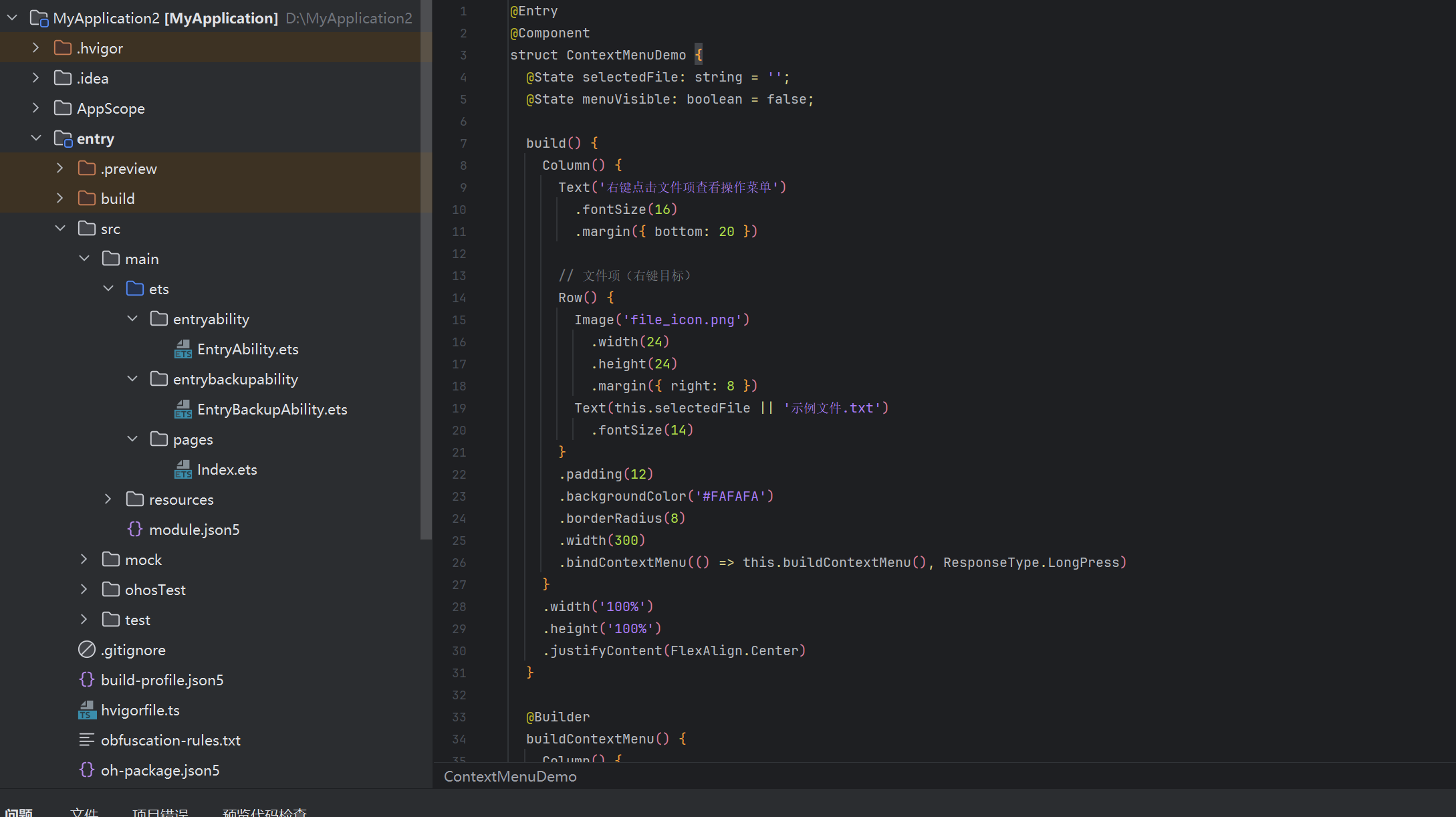
需要特别说明的是,bindContextMenu 的第二个参数 ResponseType 有两种模式:LongPress 表示长按触发(移动端常见),RightClick 表示右键触发(PC 端推荐使用)。在 PC 模拟器或真机上测试时,确保传入正确的触发类型。
2.3 全局快捷键注册
快捷键是提升 PC 应用操作效率的关键。HarmonyOS NEXT 提供了 ShortcutKey 注册机制,可以在应用启动时声明所需的快捷键组合。需要注意的是,全局快捷键需要在 module.json5 中声明权限,并通过 ohos.permission.KEYBOARD(如需要读取原始按键)配合使用。
以下示例展示了在应用入口 Ability 中注册全局快捷键的完整流程:
// MainAbility.ets
import Ability from '@ohos.app.ability.UIAbility';
import window from '@ohos.window';
import { ShortcutManager } from '@ohos.shortcutManager';

export default class MainAbility extends Ability {
  onWindowStageCreate(windowStage: window.WindowStage) {
    windowStage.loadContent('pages/Index', (err) => {
      if (!err.code) {
        hilog.info(0x0000, 'MainAbility', 'Main content loaded successfully');
      }
    });

    // 注册快捷键:Ctrl+N 新建窗口,Ctrl+S 保存,Ctrl+W 关闭当前窗口
    this.registerShortcuts();
  }

  private registerShortcuts(): void {
    const shortcuts: ShortcutManager.Shortcut[] = [
      {
        id: 'new_window',
        shortcuts: [{ modifiers: 2, key: 'N' }], // Modifier.CTRL + N
        describe: '新建窗口'
      },
      {
        id: 'save_file',
        shortcuts: [{ modifiers: 2, key: 'S' }], // Modifier.CTRL + S
        describe: '保存文件'
      },
      {
        id: 'close_window',
        shortcuts: [{ modifiers: 2, key: 'W' }], // Modifier.CTRL + W
        describe: '关闭窗口'
      },
      {
        id: 'quit_app',
        shortcuts: [{ modifiers: 6, key: 'Q' }], // Modifier.CTRL + SHIFT + Q
        describe: '退出应用'
      }
    ];

    try {
      // 应用启动时批量注册
      ShortcutManager.registerShortcuts(shortcuts, (err) => {
        if (err) {
          hilog.error(0x0000, 'MainAbility', 'Shortcut registration failed: %{public}s', err.message);
        } else {
          hilog.info(0x0000, 'MainAbility', 'Shortcuts registered successfully');
        }
      });
    } catch (err) {
      hilog.error(0x0000, 'MainAbility', 'Exception during shortcut registration: %{public}s',
        (err as Error).message);
    }
  }
}
快捷键修饰符的数值含义如下:0 为无修饰符,2 为 Ctrl,4 为 Alt,6 为 Ctrl+Shift,8 为 Meta(Win/Mac Command)。在 UI 页面中,可以通过监听键盘事件 onKeyEvent 来处理具体的快捷键行为:
快捷键修饰符的数值含义如下:0 为无修饰符,2 为 Ctrl,4 为 Alt,6 为 Ctrl+Shift,8 为 Meta(Win/Mac Command)。这些修饰符可以组合使用,例如 10 表示 Ctrl+Alt(2+8),但需要注意系统可能保留某些组合键。
快捷键注册的最佳实践:
-
遵循平台惯例:尽量使用用户熟悉的快捷键组合,如 Ctrl+S(保存)、Ctrl+C(复制)、Ctrl+V(粘贴)、Ctrl+Z(撤销)等。避免与系统快捷键冲突,特别是 Ctrl+Alt+Del、Alt+F4 等系统级组合。
-
提供可视化提示:在菜单项旁边显示对应的快捷键提示,帮助用户记忆。HarmonyOS 的
MenuItem组件支持shortcutKey属性,可以自动渲染快捷键标签。 -
区分全局与局部快捷键:
- 全局快捷键:通过
ShortcutManager.registerShortcuts()注册,在整个应用范围内生效,即使应用窗口未获得焦点也能响应(需系统权限)。 - 局部快捷键:通过组件
onKeyEvent监听,仅在当前获得焦点的组件或窗口内生效。适合页面内的操作,如文本编辑器的格式化快捷键。
- 全局快捷键:通过
-
处理快捷键冲突:当多个功能注册相同快捷键时,应遵循“最近获得焦点的组件优先”原则。可以通过
event.stopPropagation()阻止事件冒泡,确保快捷键只在特定上下文中生效。 -
无障碍考虑:为所有快捷键操作提供替代的鼠标/触摸操作路径,确保残障用户也能使用应用功能。
调试技巧:
- 在 DevEco Studio 的日志面板中过滤
ShortcutManager相关日志,查看快捷键注册是否成功。 - 使用模拟器的“键盘事件注入”功能测试快捷键响应。
- 真机调试时,确保在“设置 > 辅助功能 > 键盘”中启用了应用快捷键权限。
在 UI 页面中,可以通过监听键盘事件 onKeyEvent 来处理具体的快捷键行为:
@Entry
@Component
struct Index {
  @State currentPath: string = '/storage/emulated/0';

  build() {
    Column() {
      Text('当前路径: ' + this.currentPath)
        .fontSize(16)
    }
    .width('100%')
    .height('100%')
    .padding(20)
    .focusable(true)
    .onKeyEvent((event: KeyEvent) => {
      // Ctrl + N:新建文件
      if (event.type === KeyType.Down &&
          event.keyCode === KeyCode.KEY_N &&
          (event.ctrlKey === true)) {
        this.createNewFile();
        event.stopPropagation();
      }
      // Ctrl + S:保存
      if (event.type === KeyType.Down &&
          event.keyCode === KeyCode.KEY_S &&
          (event.ctrlKey === true)) {
        this.saveCurrentFile();
        event.stopPropagation();
      }
      // Ctrl + W:关闭当前标签
      if (event.type === KeyType.Down &&
          event.keyCode === KeyCode.KEY_W &&
          (event.ctrlKey === true)) {
        this.closeCurrentTab();
        event.stopPropagation();
      }
      // Ctrl + Q:退出应用
      if (event.type === KeyType.Down &&
          event.keyCode === KeyCode.KEY_Q &&
          (event.ctrlKey === true)) {
        this.quitApplication();
        event.stopPropagation();
      }
      // F5:刷新
      if (event.type === KeyType.Down && event.keyCode === KeyCode.F5) {
        this.refreshCurrentView();
        event.stopPropagation();
      }
    })
  }

  private createNewFile(): void { console.info('[快捷键] 新建文件'); }
  private saveCurrentFile(): void { console.info('[快捷键] 保存文件'); }
  private closeCurrentTab(): void { console.info('[快捷键] 关闭标签'); }
  private quitApplication(): void { console.info('[快捷键] 退出应用'); }
  private refreshCurrentView(): void { console.info('[快捷键] 刷新'); }
}
onKeyEvent 的 KeyEvent 对象包含了丰富的按键信息:type 区分按下与释放,keyCode 标识具体按键,ctrlKey / altKey / shiftKey 等布尔值标识修饰符状态,stopPropagation() 阻止事件冒泡,防止快捷键被系统或其他应用拦截。
三、文件拖拽接收:跨越边界的数据流动
桌面环境中的拖拽操作(Drag and Drop)是连接不同应用、不同窗口的天然桥梁。在 HarmonyOS NEXT 中,拖拽能力通过 onDragStart、onDragEnter、onDragOver、onDrop 等一系列生命周期事件实现。这些事件构成了一个完整的拖拽状态机。
3.1 拖拽接收的理论基础
HarmonyOS 的拖拽交互分为发起端和接收端。发起端通过 startDrag() 方法启动拖拽,携带 UDMF(Universal Data Model Framework)格式的数据;接收端通过上述事件监听拖拽进入、在目标上方移动以及最终释放。
拖拽数据的内容类型(Data Type)由 UniformDataType 枚举定义,支持纯文本、HTML、文件 URI、图片等多种格式。在 PC 场景中,最常用的是文件 URI(通过文件选择器获取)和纯文本(用于路径、配置等轻量数据)。
3.2 文件管理器中的拖拽接收实现
下面的代码是一个完整的拖拽接收区域组件,用于接收从系统文件管理器拖入的文件或文件夹,并在 onDrop 时解析拖拽数据:
// components/DropZone.ets
import { uniformTypeDescriptor as utd } from '@ohos.data.uniformTypeDescriptor';
import {统一的Data } from '@ohos.udmf';
import { picker } from '@ohos.filePicker';

@Component
export struct DropZone {
  @State isDragOver: boolean = false;
  @State dragMessage: string = '将文件或文件夹拖拽到此处';
  @State receivedFiles: string[] = [];
  @State hasDrop: boolean = false;

  build() {
    Column() {
      if (this.receivedFiles.length > 0) {
        // 显示已接收的文件列表
        this.FileList()
      } else {
        // 拖拽提示区
        this.EmptyState()
      }
    }
    .width('100%')
    .height('100%')
    .padding(20)
  }

  @Builder
  EmptyState() {
    Column() {
      Image('drop_icon.png')
        .width(64)
        .height(64)
        .opacity(this.isDragOver ? 1.0 : 0.5)

      Text(this.dragMessage)
        .fontSize(16)
        .fontColor(this.isDragOver ? '#007AFF' : '#666666')
        .margin({ top: 16 })

      Text('支持拖拽文件、文件夹或从桌面拖入')
        .fontSize(12)
        .fontColor('#999999')
        .margin({ top: 8 })
    }
    .width('100%')
    .height('100%')
    .justifyContent(FlexAlign.Center)
    .backgroundColor(this.isDragOver ? '#E8F4FF' : '#F8F8F8')
    .border({
      width: 2,
      style: this.isDragOver ? BorderStyle.Dashed : BorderStyle.Solid,
      color: this.isDragOver ? '#007AFF' : '#DDDDDD'
    })
    .borderRadius(12)
    .onDragEnter((event: DragEvent) => {
      // 拖拽进入时更新状态,给用户视觉反馈
      animateTo({ duration: 200 }, () => {
        this.isDragOver = true;
        this.dragMessage = '松开以导入文件';
      });
    })
    .onDragLeave((event: DragEvent) => {
      animateTo({ duration: 200 }, () => {
        this.isDragOver = false;
        this.dragMessage = '将文件或文件夹拖拽到此处';
      });
    })
    .onDrop((event: DragEvent) => {
      // 核心:处理文件释放
      animateTo({ duration: 200 }, () => {
        this.isDragOver = false;
      });
      this.handleFileDrop(event);
    })
    .onDragOver((event: DragEvent) => {
      // 设置允许放置(不接受纯文本类型)
      if (event.dragData.types?.includes(utd.UniformDataType.FILE) ||
          event.dragData.types?.includes(utd.UniformDataType.IMAGE)) {
        event.setDropAction(DropAction.Copy);
      } else {
        event.setDropAction(DropAction.None);
      }
    })
  }

  @Builder
  FileList() {
    Column() {
      Row() {
        Text('已接收文件')
          .fontSize(14)
          .fontWeight(FontWeight.Bold)
        Blank()
        Button('清空')
          .fontSize(12)
          .onClick(() => { this.receivedFiles = []; })
      }
      .padding({ bottom: 12 })

      List() {
        ForEach(this.receivedFiles, (filePath: string, index: number) => {
          ListItem() {
            Row() {
              Image('file_icon.png').width(20).height(20).margin({ right: 8 })
              Text(filePath).fontSize(13)
              Blank()
              Button('×')
                .fontSize(14)
                .backgroundColor('transparent')
                .fontColor('#999999')
                .onClick(() => {
                  this.receivedFiles.splice(index, 1);
                })
            }
            .padding(10)
            .width('100%')
          }
        })
      }
      .divider({ strokeWidth: 0.5, color: '#EEEEEE' })
    }
    .width('100%')
  }

  private async handleFileDrop(event: DragEvent): Promise<void> {
    try {
      // 获取拖拽数据中的文件 URI 列表
      const records = event.dragData.getRecords();
      if (!records || records.length === 0) {
        console.warn('Drop data has no records');
        return;
      }

      for (const record of records) {
        if (record.getType() === utd.UniformDataType.FILE) {
          // 文件类型:提取 URI
          const fileRecord = record as uniformTypeDescriptor.FileDescriptor;
          if (fileRecord.uri) {
            this.receivedFiles.push(fileRecord.uri);
          }
        } else if (record.getType() === utd.UniformDataType.PLAIN_TEXT) {
          // 纯文本类型:可能是文件路径
          const textRecord = record as uniformTypeDescriptor.TextDescriptor;
          if (textRecord.content) {
            this.receivedFiles.push(textRecord.content);
          }
        }
      }

      this.hasDrop = true;
      console.info('Files dropped successfully, count: ' + this.receivedFiles.length);
    } catch (err) {
      console.error('Handle file drop error: ' + JSON.stringify(err));
    }
  }
}
onDragEnter 和 onDragLeave 提供了视觉反馈,告诉用户"这里可以放东西"。onDragOver 中通过 setDropAction 控制允许的放置行为,DropAction.Copy 表示允许复制,DropAction.None 表示拒绝放置。onDrop 则是实际的数据处理入口,从中提取文件 URI 并更新 UI 状态。
四、PC 专属布局:菜单栏与侧边栏
桌面应用与传统网页最大的视觉差异之一,是导航区域的组织方式。菜单栏(MenuBar)、工具栏(Toolbar)、侧边栏(Sidebar)构成了 PC 应用的三大导航骨架。
4.1 菜单栏的实现
HarmonyOS NEXT 从 API 12 开始强化了 PC 布局组件。MenuBar 组件提供了原生菜单栏的能力,支持水平排列的顶级菜单和垂直展开的子菜单。以下是一个带文件、编辑、视图、帮助四个顶级菜单的完整菜单栏:
@Entry
@Component
struct PCMenuBarDemo {
  @State currentContent: string = '欢迎使用文件管理器';

  build() {
    Column() {
      // 顶部菜单栏
      Row() {
        this.MenuBarComponent()
      }
      .width('100%')
      .backgroundColor('#FFFFFF')
      .border({ width: { bottom: 1 }, color: '#E0E0E0' })

      // 内容区域
      Text(this.currentContent)
        .fontSize(18)
        .width('100%')
        .height('100%')
        .textAlign(TextAlign.Center)
    }
    .width('100%')
    .height('100%')
  }

  @Builder
  MenuBarComponent() {
    Row() {
      // 文件菜单
      Menu() {
        MenuItem({ content: '新建窗口', shortcutKey: 'Ctrl+N' })
          .onClick(() => this.currentContent = '新建窗口')
        MenuItem({ content: '打开文件...', shortcutKey: 'Ctrl+O' })
          .onClick(() => this.currentContent = '打开文件对话框')
        MenuItem({ content: '保存', shortcutKey: 'Ctrl+S' })
          .onClick(() => this.currentContent = '保存文件'})
        Divider()
        MenuItem({ content: '退出', shortcutKey: 'Ctrl+Q' })
          .onClick(() => this.currentContent = '退出应用'})
      } .padding({ right: 8 }) {
        Text('文件')
          .fontSize(13)
          .padding(8)
      }

      // 编辑菜单
      Menu() {
        MenuItem({ content: '撤销', shortcutKey: 'Ctrl+Z' })
        MenuItem({ content: '重做', shortcutKey: 'Ctrl+Y' })
        Divider()
        MenuItem({ content: '剪切', shortcutKey: 'Ctrl+X' })
        MenuItem({ content: '复制', shortcutKey: 'Ctrl+C' })
        MenuItem({ content: '粘贴', shortcutKey: 'Ctrl+V' })
      } .padding({ right: 8 }) {
        Text('编辑')
          .fontSize(13)
          .padding(8)
      }

      // 视图菜单
      Menu() {
        MenuItem({ content: '刷新', shortcutKey: 'F5' })
        MenuItem({ content: '切换侧边栏', shortcutKey: 'Ctrl+B' })
        Divider()
        MenuItem({ content: '大图标' }).enabled(false)
        MenuItem({ content: '列表视图' })
        MenuItem({ content: '详情视图' })
      } .padding({ right: 8 }) {
        Text('视图')
          .fontSize(13)
          .padding(8)
      }

      // 帮助菜单
      Menu() {
        MenuItem({ content: '使用指南' })
        MenuItem({ content: '快捷键列表' })
        Divider()
        MenuItem({ content: '关于' })
      } .padding({ right: 8 }) {
        Text('帮助')
          .fontSize(13)
          .padding(8)
      }
    }
    .width('100%')
    .height(36)
    .padding({ left: 8 })
    .backgroundColor('#F9F9F9')
  }
}
每个 Menu 组件的 @Builder 参数中放置顶级菜单的标签文字,菜单内容通过子 MenuItem 和 Divider 组合构成。shortcutKey 参数会自动渲染快捷键提示,无需手动处理。
4.2 侧边栏与主内容区联动
侧边栏(Sidebar)在 PC 应用中通常用于导航、文件树或快捷操作面板。配合主内容区,可以实现高效的左右分栏布局。SidebarContainer 是 HarmonyOS 提供的官方布局容器,支持侧边栏的显示与隐藏动画。
下面的示例实现了一个可折叠的侧边栏,带有收藏夹和文件目录两个区域,点击不同项目会更新主内容区:
@Entry
@Component
struct SidebarLayoutDemo {
  @State currentView: string = '我的电脑';
  @State sidebarExpanded: boolean = true;
  @State selectedMenu: string = 'desktop';

  build() {
    SidebarContainer(SidebarPosition.Start, this.sidebarExpanded, 220) {
      // 侧边栏内容
      Column() {
        // 侧边栏头部
        Row() {
          Image('app_icon.png')
            .width(28)
            .height(28)
            .borderRadius(6)
          Text('文件管理器')
            .fontSize(15)
            .fontWeight(FontWeight.Bold)
            .margin({ left: 10 })
        }
        .padding(16)
        .width('100%')

        Divider()

        // 快捷入口
        Column() {
          Text('快捷访问')
            .fontSize(11)
            .fontColor('#888888')
            .padding({ left: 16, top: 12, bottom: 8 })
            .width('100%')

          SidebarMenuItem({ icon: 'desktop.png', label: '桌面', tag: 'desktop', selected: this.selectedMenu === 'desktop' })
            .onClick(() => this.selectMenu('desktop'))

          SidebarMenuItem({ icon: 'download.png', label: '下载', tag: 'download', selected: this.selectedMenu === 'download' })
            .onClick(() => this.selectMenu('download'))

          SidebarMenuItem({ icon: 'document.png', label: '文档', tag: 'document', selected: this.selectedMenu === 'document' })
            .onClick(() => this.selectMenu('document'))

          SidebarMenuItem({ icon: 'picture.png', label: '图片', tag: 'picture', selected: this.selectedMenu === 'picture' })
            .onClick(() => this.selectMenu('picture'))
        }
        .alignItems(HorizontalAlign.Start)

        Divider()

        // 盘符列表
        Column() {
          Text('存储设备')
            .fontSize(11)
            .fontColor('#888888')
            .padding({ left: 16, top: 12, bottom: 8 })
            .width('100%')

          SidebarMenuItem({ icon: 'disk.png', label: '内部存储 (128GB)', tag: 'storage', selected: this.selectedMenu === 'storage' })
            .onClick(() => this.selectMenu('storage'))

          SidebarMenuItem({ icon: 'sdcard.png', label: 'SD 卡 (64GB)', tag: 'sdcard', selected: this.selectedMenu === 'sdcard' })
            .onClick(() => this.selectMenu('sdcard'))
        }
        .alignItems(HorizontalAlign.Start)
      }
      .width('100%')
      .height('100%')
      .backgroundColor('#FAFAFA')
      .padding({ top: 8 })

      // 主内容区
      Column() {
        // 工具栏
        Row() {
          Button('←')
            .width(36).height(36)
            .onClick(() => {/* 后退 */})
          Button('→')
            .width(36).height(36)
            .onClick(() => {/* 前进 */})
          Button('↑')
            .width(36).height(36)
            .onClick(() => {/* 向上 */})
          Button('↻')
            .width(36).height(36)
            .onClick(() => {/* 刷新 */})

          Text('路径: ' + this.currentView)
            .fontSize(13)
            .margin({ left: 16 })
        }
        .padding(10)
        .backgroundColor('#F5F5F5')
        .width('100%')

        // 内容
        Column() {
          Text('当前视图: ' + this.currentView)
            .fontSize(20)
        }
        .width('100%')
        .height('100%')
        .justifyContent(FlexAlign.Center)
      }
      .width('100%')
      .height('100%')
    }
    .showSidebarControl(true) // 显示折叠/展开按钮
    .showControlButton(this.sidebarExpanded)
    .onChange((value: boolean) => {
      this.sidebarExpanded = value;
    })
  }

  selectMenu(tag: string) {
    this.selectedMenu = tag;
    const pathMap: Record<string, string> = {
      'desktop': '/storage/emulated/0/Desktop',
      'download': '/storage/emulated/0/Download',
      'document': '/storage/emulated/0/Documents',
      'picture': '/storage/emulated/0/Pictures',
      'storage': '/storage/emulated/0',
      'sdcard': '/storage/sdcard0'
    };
    this.currentView = pathMap[tag] || '/';
  }
}

@Component
struct SidebarMenuItem {
  @Prop label: string;
  @Prop icon: string;
  @Prop tag: string;
  @Prop selected: boolean = false;

  build() {
    Row() {
      Image(this.icon)
        .width(18)
        .height(18)
        .margin({ right: 10 })
      Text(this.label)
        .fontSize(13)
        .fontColor(this.selected ? '#007AFF' : '#333333')
      if (this.selected) {
        Blank()
        Text('›')
          .fontSize(16)
          .fontColor('#007AFF')
      }
    }
    .padding({ left: 16, right: 16, top: 8, bottom: 8 })
    .width('100%')
    .backgroundColor(this.selected ? '#E8F0FE' : 'transparent')
    .borderRadius(6)
  }
}
SidebarContainer 封装了侧边栏的状态管理,onChange 回调在用户点击展开/折叠按钮时触发。侧边栏的宽度(第二个参数 220)在展开时生效,折叠时仅保留控制按钮区域。通过 showSidebarControl(true) 可以在侧边栏顶部渲染一个小小的折叠/展开按钮,与 PC 端用户熟悉的交互方式完全一致。
五、综合实战:PC 端文件管理器
前面四章分别介绍了窗口管理、鼠标键盘交互、拖拽接收和 PC 布局的各自实现方式。本章将这些能力串联起来,实现一个功能完整的 PC 端文件管理器。
这个文件管理器具备以下能力:侧边栏导航与菜单栏、文件列表展示与多选、鼠标悬停高亮与右键上下文菜单、文件拖拽接收(从系统拖入)、快捷键操作(Ctrl+N 新建、Delete 删除、F5 刷新)、窗口自适应布局(窄窗口自动切换为紧凑模式)。
5.1 数据模型与状态管理
首先定义文件项的数据模型,使用 @Observed 和 @ObjectLink 配合实现响应式更新:
// model/FileItemModel.ets
import { uniformDataTransfer } from '@ohos.udmf';

@Observed
export class FileItemModel {
  name: string;
  path: string;
  isDirectory: boolean;
  size: number;
  modifiedTime: number;
  icon: ResourceStr;
  selected: boolean = false;

  constructor(name: string, path: string, isDirectory: boolean, size: number, modifiedTime: number) {
    this.name = name;
    this.path = path;
    this.isDirectory = isDirectory;
    this.size = size;
    this.modifiedTime = modifiedTime;
    this.icon = isDirectory ? 'folder.png' : this.getFileIcon(name);
  }

  private getFileIcon(name: string): string {
    const ext = name.substring(name.lastIndexOf('.') + 1).toLowerCase();
    const iconMap: Record<string, string> = {
      'jpg': 'image.png', 'png': 'image.png', 'gif': 'image.png',
      'mp3': 'audio.png', 'mp4': 'video.png', 'mov': 'video.png',
      'pdf': 'pdf.png', 'doc': 'doc.png', 'docx': 'doc.png',
      'txt': 'text.png', 'md': 'text.png',
      'zip': 'archive.png', 'rar': 'archive.png',
    };
    return iconMap[ext] || 'file.png';
  }

  toggleSelect(): void {
    this.selected = !this.selected;
  }
}
5.2 主页面:整合所有能力
主页面整合了菜单栏、侧边栏、文件列表、拖拽区域、右键菜单和快捷键处理:
// pages/FileManager.ets
import router from '@ohos.router';
import window from '@ohos.window';
import { FileItemModel } from '../model/FileItemModel';
import { DropZone } from '../components/DropZone';
import { PCMenuBarDemo } from '../components/PCMenuBar';
import { SidebarLayoutDemo } from '../components/SidebarLayout';
import { ContextMenuDemo } from '../components/ContextMenu';
import { WindowHelper } from '../utils/WindowHelper';
import hilog from '@ohos.hilog';

const TAG = 'FileManager';
const DOMAIN = 0x0001;

@Entry
@Component
struct FileManager {
  @State currentPath: string = '/storage/emulated/0';
  @State files: FileItemModel[] = [];
  @State selectedFiles: FileItemModel[] = [];
  @State viewMode: 'list' | 'grid' = 'list';
  @State isCompact: boolean = false;
  @State contextMenuTarget: FileItemModel | null = null;
  @State menuX: number = 0;
  @State menuY: number = 0;

  private windowObj: window.Window | null = null;
  private windowHelper: WindowHelper | null = null;

  // 模拟文件数据(实际应用中替换为 @ohos.file.fs API)
  private mockFiles: FileItemModel[] = [
    new FileItemModel('Desktop', '/storage/emulated/0/Desktop', true, 0, Date.now()),
    new FileItemModel('Documents', '/storage/emulated/0/Documents', true, 0, Date.now()),
    new FileItemModel('Downloads', '/storage/emulated/0/Downloads', true, 0, Date.now()),
    new FileItemModel('Pictures', '/storage/emulated/0/Pictures', true, 0, Date.now()),
    new FileItemModel('notes.md', '/storage/emulated/0/notes.md', false, 4096, Date.now() - 86400000),
    new FileItemModel('report.pdf', '/storage/emulated/0/report.pdf', false, 204800, Date.now() - 172800000),
    new FileItemModel('photo.jpg', '/storage/emulated/0/photo.jpg', false, 1536000, Date.now() - 259200000),
    new FileItemModel('archive.zip', '/storage/emulated/0/archive.zip', false, 5120000, Date.now() - 345600000),
  ];

  async aboutToAppear() {
    hilog.info(DOMAIN, TAG, 'FileManager aboutToAppear');

    // 获取窗口并监听尺寸变化
    try {
      this.windowObj = await window.getLastWindow(getContext(this));
      this.windowHelper = new WindowHelper(this.windowObj);

      this.windowObj.on('windowRectChange', (rect) => {
        this.isCompact = rect.width < 600;
        hilog.info(DOMAIN, TAG, 'Window resized: %{public}d x %{public}d', rect.width, rect.height);
      });
    } catch (err) {
      hilog.error(DOMAIN, TAG, 'Failed to get window: %{public}s', JSON.stringify(err));
    }

    // 初始化文件列表
    this.files = [...this.mockFiles];
  }

  aboutToDisappear() {
    if (this.windowObj) {
      this.windowObj.off('windowRectChange');
    }
  }

  build() {
    Column() {
      // 菜单栏
      this.BuildMenuBar()

      // 主区域:侧边栏 + 内容
      if (this.isCompact) {
        // 紧凑模式:仅显示文件列表,顶部加路径导航
        this.BuildCompactLayout()
      } else {
        // 标准模式:侧边栏 + 文件列表 + 拖拽区
        this.BuildStandardLayout()
      }
    }
    .width('100%')
    .height('100%')
    }
  }

  @Builder
  BuildMenuBar() {
    Row() {
      // 模拟菜单栏
      Text('文件')
        .fontSize(13).padding(8)
        .onClick(() => this.showNewWindowDialog())
      Text('编辑')
        .fontSize(13).padding(8)
      Text('视图')
        .fontSize(13).padding(8)
        .onClick(() => {
          this.viewMode = this.viewMode === 'list' ? 'grid' : 'list';
        })
      Text('帮助')
        .fontSize(13).padding(8)

      Blank()

      // 窗口控制按钮
      Button('最小化')
        .fontSize(11)
        .height(28)
        .onClick(() => this.windowHelper?.minimize())
      Button('最大化')
        .fontSize(11)
        .height(28)
        .onClick(() => this.windowHelper?.maximize())
      Button('关闭')
        .fontSize(11)
        .height(28)
        .type(ButtonType.Normal)
        .backgroundColor('#E53935')
        .onClick(() => this.windowHelper?.restore())
    }
    .width('100%')
    .height(40)
    .padding({ left: 8 })
    .backgroundColor('#F5F5F5')
    .border({ width: { bottom: 1 }, color: '#E0E0E0' })
  }

  @Builder
  BuildStandardLayout() {
    Row() {
      // 左侧侧边栏
      Column() {
        this.BuildSidebar()
      }
      .width(200)
      .height('100%')
      .backgroundColor('#FAFAFA')
      .border({ width: { right: 1 }, color: '#E0E0E0' })

      // 右侧主内容
      Column() {
        // 工具栏
        this.BuildToolbar()

        Divider()

        // 文件列表
        this.BuildFileList()

        Divider()

        // 拖拽接收区
        DropZone()
          .height(120)
      }
      .layoutWeight(1)
      .height('100%')
    }
  }

  @Builder
  BuildCompactLayout() {
    Column() {
      // 紧凑导航
      Row() {
        Button('←').width(36).height(36).onClick(() => this.navigateUp())
        Text(this.currentPath)
          .fontSize(13)
          .layoutWeight(1)
          .ellipsisMode(EllipsisMode.CENTER)
          .padding({ left: 8, right: 8 })
        Button('↻').width(36).height(36).onClick(() => this.refresh())
      }
      .padding(8)
      .backgroundColor('#F5F5F5')

      this.BuildFileList()
    }
  }

  @Builder
  BuildSidebar() {
    Column() {
      Text('快捷访问')
        .fontSize(11).fontColor('#888888')
        .padding({ left: 16, top: 12, bottom: 8 })
        .alignSelf(HorizontalAlign.Start)

      this.SidebarItem('desktop.png', '桌面', '/storage/emulated/0/Desktop')
      this.SidebarItem('download.png', '下载', '/storage/emulated/0/Download')
      this.SidebarItem('document.png', '文档', '/storage/emulated/0/Documents')
      this.SidebarItem('picture.png', '图片', '/storage/emulated/0/Pictures')

      Text('存储')
        .fontSize(11).fontColor('#888888')
        .padding({ left: 16, top: 16, bottom: 8 })
        .alignSelf(HorizontalAlign.Start)

      this.SidebarItem('disk.png', '内部存储', '/storage/emulated/0')
    }
    .width('100%')
    .height('100%')
    .alignItems(HorizontalAlign.Start)
  }

  @Builder
  SidebarItem(icon: string, label: string, path: string) {
    Row() {
      Image(icon).width(18).height(18).margin({ right: 10 })
      Text(label).fontSize(13)
    }
    .padding({ left: 16, right: 16, top: 8, bottom: 8 })
    .width('100%')
    .onClick(() => {
      this.navigateTo(path);
    })
  }

  @Builder
  BuildToolbar() {
    Row() {
      Button('←').width(36).height(36).onClick(() => this.navigateUp())
      Button('→').width(36).height(36).onClick(() => this.navigateForward())
      Button('↑').width(36).height(36).onClick(() => this.navigateUp())
      Button('↻').width(36).height(36).onClick(() => this.refresh())

      Text('路径: ' + this.currentPath)
        .fontSize(12)
        .margin({ left: 12 })
        .layoutWeight(1)

      Text(this.selectedFiles.length > 0 ? `已选择 ${this.selectedFiles.length} 项` : `共 ${this.files.length} 项`)
        .fontSize(11)
        .fontColor('#888888')
    }
    .padding(8)
    .width('100%')
    .backgroundColor('#FFFFFF')
  }

  @Builder
  BuildFileList() {
    Column() {
      // 列标题
      if (this.viewMode === 'list') {
        Row() {
          Checkbox().width(18).height(18).margin({ right: 8 })
          Text('名称').fontSize(12).fontWeight(FontWeight.Bold).layoutWeight(3)
          Text('大小').fontSize(12).fontWeight(FontWeight.Bold).width(80)
          Text('修改时间').fontSize(12).fontWeight(FontWeight.Bold).width(140)
        }
        .padding({ left: 12, right: 12, top: 8, bottom: 8 })
        .backgroundColor('#F9F9F9')
        .width('100%')
      }

      // 文件列表
      List() {
        ForEach(this.files, (file: FileItemModel, index: number) => {
          ListItem() {
            this.FileListItem(file, index)
          }
        })
      }
      .width('100%')
      .layoutWeight(1)
      .divider({ strokeWidth: 0.5, color: '#F0F0F0' })
    }
    .width('100%')
    .layoutWeight(1)
  }

  @Builder
  FileListItem(file: FileItemModel, index: number) {
    Row() {
      Checkbox()
        .width(18)
        .height(18)
        .margin({ right: 8 })
        .checked(file.selected)
        .onChange((selected: boolean) => {
          file.selected = selected;
          this.updateSelectedFiles();
        })

      Image(file.icon)
        .width(24)
        .height(24)
        .margin({ right: 10 })

      Column() {
        Text(file.name)
          .fontSize(13)
          .fontWeight(file.selected ? FontWeight.Medium : FontWeight.Normal)
          .maxLines(1)
          .textOverflow({ overflow: TextOverflow.Ellipsis })
        if (this.viewMode === 'list') {
          Text(file.isDirectory ? '文件夹' : this.formatSize(file.size))
            .fontSize(11)
            .fontColor('#888888')
        }
      }
      .alignItems(HorizontalAlign.Start)
      .layoutWeight(1)

      if (this.viewMode === 'list') {
        Text(this.formatTime(file.modifiedTime))
          .fontSize(11)
          .fontColor('#888888')
          .width(140)
      }
    }
    .padding({ left: 12, right: 12, top: 8, bottom: 8 })
    .width('100%')
    .backgroundColor(file.selected ? '#E8F0FE' : 'transparent')
    .borderRadius(4)
    .onClick(() => {
      // 单击选中切换
      if (!file.selected && this.selectedFiles.length > 0) {
        // 保持已有的选中项
      }
      file.toggleSelect();
      this.updateSelectedFiles();
    })
    .onClick(() => {
      // 双击打开(实际通过 Timer 模拟)
    })
    .onHover((isHover: boolean) => {
      // Hover 高亮不覆盖选中状态
      if (!file.selected) {
        // 仅在未选中时应用悬停效果
      }
    })
    .onContextMenuStroke((event: ContextMenuStrokeEvent) => {
      // 右键菜单
      this.contextMenuTarget = file;
      this.menuX = event.x;
      this.menuY = event.y;
    })
  }

  @Builder
  ContextMenuPanel() {
    Column() {
      MenuItem({ content: '打开' })
        .onClick(() => {
          if (this.contextMenuTarget) {
            this.navigateTo(this.contextMenuTarget.path);
          }
        })
      MenuItem({ content: '重命名' })
        .onClick(() => {
          hilog.info(DOMAIN, TAG, 'Rename: %{public}s', this.contextMenuTarget?.name);
        })
      MenuItem({ content: '复制' })
        .onClick(() => {
          hilog.info(DOMAIN, TAG, 'Copy: %{public}s', this.contextMenuTarget?.name);
        })
      Divider()
      MenuItem({ content: '删除', fontColor: '#FF4444' })
        .onClick(() => {
          this.deleteSelected();
        })
    }
    .width(160)
    .backgroundColor('#FFFFFF')
    .shadow({
      radius: 8,
      color: 'rgba(0,0,0,0.15)',
      offsetX: 2,
      offsetY: 2
    })
  }

  // ===== 交互方法 =====

  updateSelectedFiles(): void {
    this.selectedFiles = this.files.filter(f => f.selected);
  }

  navigateTo(path: string): void {
    this.currentPath = path;
    this.files = [...this.mockFiles.map(f =>
      new FileItemModel(f.name, path + '/' + f.name, f.isDirectory, f.size, f.modifiedTime)
    )];
    hilog.info(DOMAIN, TAG, 'Navigate to: %{public}s', path);
  }

  navigateUp(): void {
    const parts = this.currentPath.split('/');
    if (parts.length > 2) {
      parts.pop();
      this.navigateTo(parts.join('/') || '/');
    }
  }

  navigateForward(): void {
    hilog.info(DOMAIN, TAG, 'Navigate forward (history)');
  }

  refresh(): void {
    this.files = [...this.mockFiles];
    hilog.info(DOMAIN, TAG, 'File list refreshed');
  }

  showNewWindowDialog(): void {
    hilog.info(DOMAIN, TAG, 'New window dialog requested');
  }

  deleteSelected(): void {
    if (this.selectedFiles.length === 0) {
      return;
    }
    hilog.info(DOMAIN, TAG, 'Delete files: %{public}d', this.selectedFiles.length);
    this.files = this.files.filter(f => !f.selected);
    this.selectedFiles = [];
  }

  formatSize(bytes: number): string {
    if (bytes === 0) return '-';
    if (bytes < 1024) return bytes + ' B';
    if (bytes < 1048576) return (bytes / 1024).toFixed(1) + ' KB';
    if (bytes < 1073741824) return (bytes / 1048576).toFixed(1) + ' MB';
    return (bytes / 1073741824).toFixed(1) + ' GB';
  }

  formatTime(timestamp: number): string {
    const d = new Date(timestamp);
    return `${d.getFullYear()}-${String(d.getMonth() + 1).padStart(2, '0')}-${String(d.getDate()).padStart(2, '0')} ${String(d.getHours()).padStart(2, '0')}:${String(d.getMinutes()).padStart(2, '0')}`;
  }
}
主页面中 aboutToAppear 负责初始化窗口监听和文件数据,build 方法根据当前窗口宽度动态选择标准布局或紧凑布局。BuildFileList 中的每个文件项都绑定了 onClick(选中)、onHover(高亮)和 onContextMenuStroke(右键菜单)三个核心交互事件。
工具栏的三个导航按钮(后退、前进、向上)和刷新按钮通过 WindowHelper 与窗口状态管理联动。当用户在侧边栏切换路径时,文件列表会重新渲染,路径显示在工具栏中央。底部拖拽区域使用前面实现的 DropZone 组件,接收从系统文件管理器拖入的文件。
5.3 入口 Ability 配置
为了让应用以桌面窗口形式启动而非全屏移动端,需要在 module.json5 中正确配置:
{
  "app": {
    "bundleName": "com.example.filemanager",
    "vendor": "example",
    "versionCode": 1000000,
    "versionName": "1.0.0",
    "icon": "$media:app_icon",
    "label": "$string:app_name"
  },
  "module": {
    "name": "entry",
    "type": "entry",
    "description": "$string:module_desc",
    "mainElement": "MainAbility",
    "deviceTypes": [
      "default",
      "tablet",
      "2in1"
    ],
    "abilities": [
      {
        "name": "MainAbility",
        "srcEntry": "./ets/abilities/MainAbility.ets",
        "description": "$string:main_ability_desc",
        "icon": "$media:icon",
        "label": "$string:main_ability_label",
        "startWindowIcon": "$media:icon",
        "startWindowBackground": "$color:start_window_background",
        "metadata": [
          {
            "name": "WindowTheme",
            "value": "light"
          }
        ],
        "skills": [
          {
            "entities": ["entity.system.home"],
            "actions": ["action.system.home"]
          }
        ]
      }
    ],
    "requestPermissions": [
      {
        "name": "ohos.permission.FILE_ACCESS_AS_USER"
      },
      {
        "name": "ohos.permission.INTERNET"
      }
    ]
  }
}
注意 deviceTypes 中包含 "2in1" 表示该应用支持二合一设备(PC 模式)。startWindowBackground 定义了启动窗口的背景色,建议设置为与应用主色调一致的纯色,以获得更流畅的启动体验。
六、调试与性能建议
在开发 PC 端 HarmonyOS 应用时,以下几点经验可以帮助开发者事半功倍。
窗口调试:DevEco Studio 提供了多设备预览功能,可以在编辑器右侧直接切换手机、平板、2in1 设备等多种设备类型。切换到"2in1"设备后,可以直接在预览窗口中拖动调整窗口尺寸,实时验证自适应布局逻辑。
交互调试:鼠标悬停、右键菜单等事件在 PC 模拟器中需要鼠标操作才能触发。使用真机调试时,确保设备支持鼠标输入模式(部分平板设备需要在设置中开启"鼠标模式")。
性能注意事项:文件列表中大量渲染项时,建议使用 LazyForEach 替代 ForEach,避免一次性创建所有列表项导致 UI 卡顿。另外,@State 状态变更会触发整个组件树的重建,因此对频繁变化的状态(如文件项的悬停状态)应使用局部状态而非全局状态管理。
安全区域处理:PC 应用同样需要考虑刘海屏、任务栏等系统 UI 对窗口内容的遮挡。通过 Window.getAvoidArea() 获取安全区域信息,动态调整布局的 padding 或 margin,确保内容不被系统 UI 遮挡。
结语
鸿蒙 PC 应用开发并不是移动端开发的简单移植,而是需要开发者重新理解桌面场景的交互范式。窗口是应用的门面,鼠标键盘是用户的延伸,拖拽是数据的桥梁,布局是体验的骨架。当这些能力在一个应用中协同工作时,用户会感受到的不仅仅是"能用",更是"好用"。
本文从窗口管理出发,依次覆盖鼠标键盘交互、拖拽接收、PC 专属布局,最终通过一个完整的文件管理器实战将所有知识点串联起来。代码经过精心设计,全部基于 HarmonyOS NEXT(API 12+)编写,可直接在 DevEco Studio 4.1+ 中运行。建议读者以此为起点,逐步扩展功能(如真实的文件系统访问、多标签页、搜索过滤等),在实践中深化对 PC 端开发模型的理解。

作为“人工智能6S店”的官方数字引擎,为AI开发者与企业提供一个覆盖软硬件全栈、一站式门户。
更多推荐
 0
0 0
0- 0


 已为社区贡献46条内容

所有评论(0)