
鸿蒙设备管理:7变量协议栈全解析
文章目录
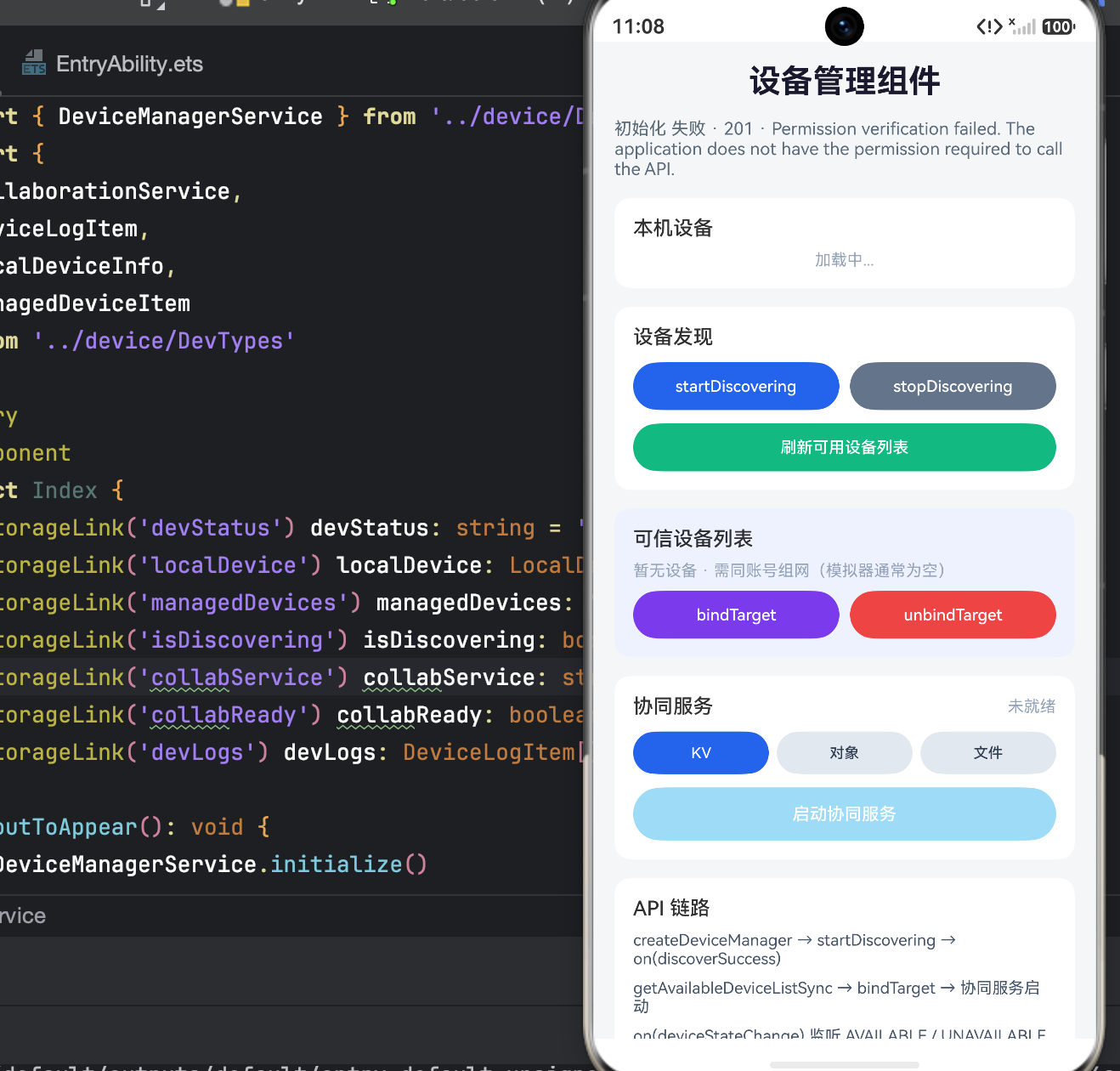
一、状态变量设计:7 个变量的"设备协议栈"
| 变量 | 类型 | 角色 | 数据流向 |
|---|---|---|---|
devStatus |
string | 全局状态描述 | Service → UI |
localDevice |
LocalDeviceInfo | null | 本机设备信息 | 系统 → Service → UI |
managedDevices |
ManagedDeviceItem[] | 已管理设备列表 | 系统 → Service → UI |
isDiscovering |
boolean | 发现状态开关 | UI ↔ Service |
collabService |
string | 当前选择的协同服务类型 | UI ↔ Service |
collabReady |
boolean | 协同服务就绪状态 | Service → UI |
devLogs |
DeviceLogItem[] | 操作审计日志 | Service → UI |
关键设计决策
localDevice 使用联合类型 LocalDeviceInfo | null
@StorageLink('localDevice') localDevice: LocalDeviceInfo | null = null
这是整个 Demo 中唯一使用联合类型的状态变量。它的设计意图非常精确:
null= 尚未初始化(DeviceManagerService.initialize()还未返回)LocalDeviceInfo= 初始化完成,包含deviceName、deviceType、networkId、deviceId
在 LocalPanel 中,条件渲染直接基于 null 判断:
if (this.localDevice === null) {
  Text('加载中...')
} else {
  Text(`${this.localDevice.deviceName} · ${this.localDevice.deviceType}`)
}
这与 HMDFS 页面中用空字符串 '' 表示"未填充"形成了设计上的对比:
| 场景 | HMDFS 页面 | 设备管理页面 |
|---|---|---|
| 未初始化 | dfsLocalPath: string = '' |
localDevice: LocalDeviceInfo | null = null |
| 判断方式 | this.dfsLocalPath.length > 0 |
this.localDevice === null |
| 语义 | “路径为空” | “对象不存在” |
null 比空字符串更严格——它表达的不是"值为空",而是"值尚未产生"。对于结构化的设备信息对象来说,null 是更准确的初始状态。
collabService 使用枚举字符串驱动三态按钮组
@StorageLink('collabService') collabService: string = ''
默认值为空字符串 '',表示"未选择任何协同服务"。三个按钮通过同一个变量互斥:
Button('KV')
  .backgroundColor(this.collabService === CollaborationService.KV_SYNC ? '#2563EB' : '#E2E8F0')
Button('对象')
  .backgroundColor(this.collabService === CollaborationService.DIST_OBJECT ? '#2563EB' : '#E2E8F0')
Button('文件')
  .backgroundColor(this.collabService === CollaborationService.DFS_FILE ? '#2563EB' : '#E2E8F0')
这里有一个精妙的双重视觉编码:
- 选中态:蓝色背景
#2563EB+ 白色文字Color.White - 未选中态:灰色背景
#E2E8F0+ 深色文字#334155
.fontColor(this.collabService === CollaborationService.KV_SYNC ? Color.White : '#334155')
背景色和文字色同时切换,确保在任何对比度下都清晰可读。这与 HMDFS 页面中安全等级按钮(始终使用固定背景色)形成了设计差异——安全等级的按钮颜色编码的是"等级含义"(绿=标准,红=高敏),而协同服务按钮的颜色编码的是"选中状态"。
isDiscovering 与 collabReady 的双重门控
@StorageLink('isDiscovering') isDiscovering: boolean = false
@StorageLink('collabReady') collabReady: boolean = false
这两个布尔变量分别控制两个不同的操作门控:
isDiscovering:控制"开始发现"按钮的enabled状态——发现进行中时禁用,防止重复触发collabReady:控制"启动协同服务"按钮的enabled状态——服务未就绪时禁用,防止无效启动
这种双门控设计确保了操作流程的严格顺序:
初始化 → 发现设备 → 绑定设备 → 协同服务就绪 → 启动协同
二、LocalPanel:本机设备的"身份证"
if (this.localDevice === null) {
  Text('加载中...')
} else {
  Text(`${this.localDevice.deviceName} · ${this.localDevice.deviceType}`)
  Text(`networkId: ${this.localDevice.networkId.slice(0, 16)}`)
  Text(`deviceId: ${this.localDevice.deviceId.slice(0, 16)}`)
}
为什么展示两个 ID
鸿蒙为每个设备分配了两个不同用途的标识符:
| ID | 用途 | 生命周期 |
|---|---|---|
networkId |
分布式组网中的网络标识,用于设备发现和通信 | 随组网状态变化 |
deviceId |
设备全局唯一标识,用于持久化绑定 | 设备出厂后不变 |
在 LocalPanel 中同时展示两者,让开发者理解它们的存在和区别。截取前 16 位是为了在有限的 UI 空间内保持可读性。
与 HMDFS 页面的对比
HMDFS 页面的 DevicePanel 只展示了 networkId(截取 12 位),而这里展示了 networkId + deviceId(各截取 16 位)。这种差异是有意为之的:
- 设备管理页面是"基础设施层",需要完整展示设备的身份信息
- HMDFS 页面是"业务层",只关心设备在网络中的位置(
networkId)
三、DiscoveryPanel:设备发现的"开关控制"
发现状态的双态按钮
Button(this.isDiscovering ? '发现中...' : 'startDiscovering')
  .enabled(!this.isDiscovering)
  .onClick(() => {
    DeviceManagerService.startDiscovering()
  })
这个按钮同时承担了三个角色:
- 操作入口:点击触发
startDiscovering() - 状态指示器:文本从"startDiscovering"变为"发现中…"
- 防重复触发:通过
.enabled(!this.isDiscovering)在发现进行中禁用自身
而"stopDiscovering"按钮没有 enabled 约束:
Button('stopDiscovering')
  .onClick(() => {
    DeviceManagerService.stopDiscovering()
  })
这意味着即使当前没有在发现,也可以点击"停止"——这是一种幂等设计,停止一个未启动的发现操作不会报错,只是静默忽略。
"刷新可用设备列表"的独立按钮
Button('刷新可用设备列表')
  .backgroundColor('#10B981')  // 绿色,区别于发现按钮的蓝色
  .onClick(() => {
    DeviceManagerService.refreshAvailableDevices()
  })
这里将"发现"和"刷新"拆分为两个独立操作,对应鸿蒙 deviceManager 的两个不同 API:
startDiscovering():启动持续的设备发现(异步,通过回调返回结果)refreshAvailableDevices():同步获取当前已发现的设备列表(getAvailableDeviceListSync)
绿色按钮与蓝色按钮的视觉区分,暗示了它们的操作性质不同——蓝色是"启动/停止"类操作,绿色是"查询/刷新"类操作。
四、DeviceListPanel:可信设备列表与绑定操作
设备卡片的三层信息
ForEach(this.managedDevices, (item: ManagedDeviceItem) => {
  Column({ space: 4 }) {
    Row({ space: 8 }) {
      Text(item.deviceName)           // 第一层:设备名称
      Text(item.selected ? '已选' : '选择')  // 选中态
    }
    Text(`${item.deviceType} · ${item.state} · ${item.source}`)  // 第二层:元数据
  }
})
每个设备卡片展示三层信息:
| 层级 | 内容 | 来源 |
|---|---|---|
| 第一层 | deviceName |
用户可读的设备名 |
| 第二层 | deviceType |
设备类型(手机/平板/穿戴等) |
| 第二层 | state |
设备状态(ONLINE/OFFLINE) |
| 第二层 | source |
设备来源(LOCAL/REMOTE) |
与 HMDFS 页面的设备列表相比,这里多了 state 和 source 两个字段——因为设备管理页面需要展示更完整的设备状态信息,而 HMDFS 页面只关心"设备是否可用于文件流转"。
bindTarget / unbindTarget 的操作语义
Row({ space: 8 }) {
  Button('bindTarget')    // 紫色 #7C3AED
  Button('unbindTarget')  // 红色 #EF4444
}
bindTarget 是鸿蒙设备管理中的核心操作——它将一个已发现的设备标记为"可信绑定设备",后续的分布式操作(文件同步、数据协同等)只能与已绑定的设备进行。
颜色编码的语义:
| 操作 | 颜色 | 语义 |
|---|---|---|
| bindTarget | 紫色 #7C3AED |
建立信任关系(建设性操作) |
| unbindTarget | 红色 #EF4444 |
解除信任关系(破坏性操作) |
这与 HMDFS 页面中 connectDfs(蓝色)/ disconnectDfs(红色)的配色逻辑一致——破坏性操作始终用红色。
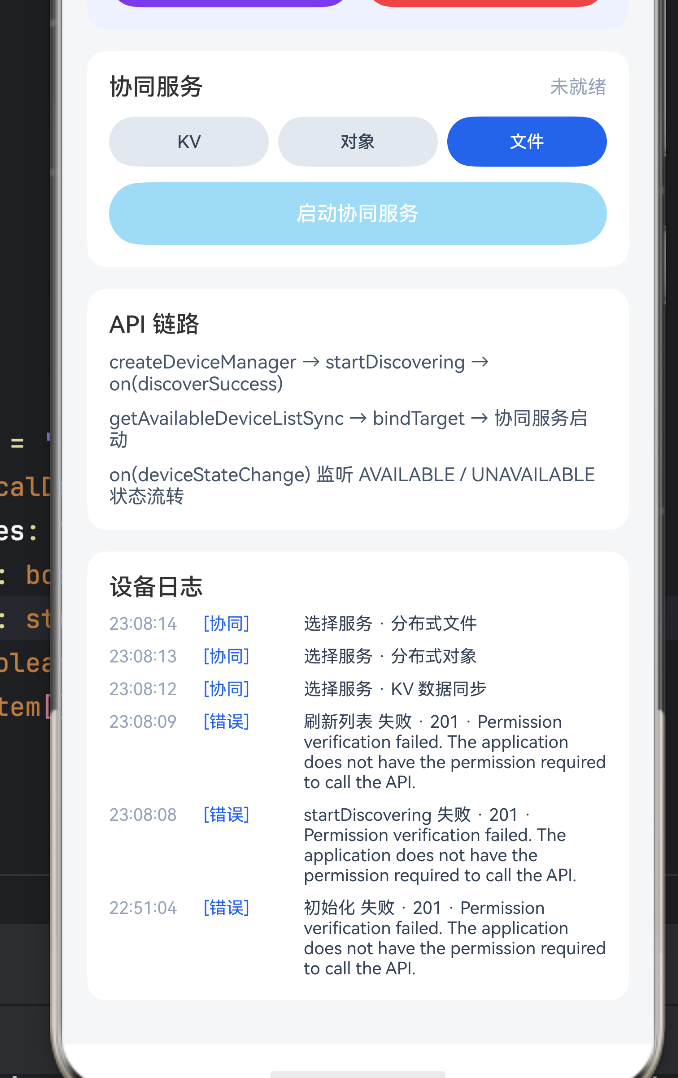
五、CollabPanel:协同服务的"三通道选择器"
这是整个页面中架构意义最大的面板。它决定了后续分布式操作使用哪种底层通道。
三种协同服务
Button('KV')     // CollaborationService.KV_SYNC
Button('对象')   // CollaborationService.DIST_OBJECT
Button('文件')   // CollaborationService.DFS_FILE
| 服务 | 枚举值 | 对应 API | 适用场景 |
|---|---|---|---|
| KV | KV_SYNC |
distributedKVStore |
键值对数据同步(配置、状态) |
| 对象 | DIST_OBJECT |
distributedObject |
跨设备对象状态共享 |
| 文件 | DFS_FILE |
distributedFile |
大文件跨设备传输 |
这三种服务对应鸿蒙分布式能力的三个层级:
KV 同步(轻量)→ 对象协同(中量)→ 文件流转(重量)
启动按钮的门控逻辑
Button('启动协同服务')
  .enabled(this.collabReady)
  .onClick(() => {
    DeviceManagerService.launchCollaboration()
  })
collabReady 是 Service 层计算出的复合状态——它可能依赖于:
- 本机信息已加载(
localDevice !== null) - 至少有一个已绑定的设备
- 已选择协同服务类型(
collabService !== '')
只有三个条件同时满足时,collabReady 才为 true,"启动协同服务"按钮才可点击。这种多条件聚合为一个布尔值的设计,将复杂的业务规则封装在 Service 层,UI 层只需关心一个变量。
六、ApiPanel:API 链路的"文档化"
Text('createDeviceManager → startDiscovering → on(discoverSuccess)')
Text('getAvailableDeviceListSync → bindTarget → 协同服务启动')
Text('on(deviceStateChange) 监听 AVAILABLE / UNAVAILABLE 状态流转')
三行文本描述了设备管理的完整 API 调用链路,分为三个阶段:
阶段一:初始化与发现
createDeviceManager → startDiscovering → on(discoverSuccess)
createDeviceManager:创建设备管理器实例startDiscovering:启动设备发现on(discoverSuccess):注册发现成功回调
阶段二:获取与绑定
getAvailableDeviceListSync → bindTarget → 协同服务启动
getAvailableDeviceListSync:同步获取已发现设备列表bindTarget:绑定目标设备为可信设备- 协同服务启动:基于绑定设备启动选定的协同通道
阶段三:状态监听
on(deviceStateChange) 监听 AVAILABLE / UNAVAILABLE 状态流转
on(deviceStateChange):注册设备状态变化监听- 监听
AVAILABLE(上线)和UNAVAILABLE(离线)状态
这三行文本与 CollabPanel 中的 collabReady 门控形成呼应——只有阶段一和阶段二完成后,阶段三的协同服务才能启动。
七、与 HMDFS 页面的架构关系
这个页面和之前的 HMDFS 页面构成了**"基础设施 → 业务应用"的上下游关系**:
设备管理页面(本页面)
  ├── 设备发现 → 提供 networkId
  ├── 设备绑定 → 提供可信设备
  └── 协同服务 → 提供通信通道
        │
        ▼
HMDFS 页面(上游业务)
  ├── connectDfs → 消费可信设备 + 通信通道
  ├── 文件发布 → 消费分布式文件系统
  └── 安全授权 → 消费安全标签系统
具体对应关系:
| 设备管理页面 | HMDFS 页面 | 关系 |
|---|---|---|
startDiscovering |
refreshTrustedDevices |
前者发现设备,后者获取已发现的设备 |
bindTarget |
selectDevice |
前者建立信任,后者选择操作目标 |
collabService = DFS_FILE |
connectDfs |
前者选择文件通道,后者建立连接 |
collabReady |
dfsTrustedDevices.length > 0 |
前者是全局就绪,后者是设备列表就绪 |
八、与 WantFlow 页面的架构对比
| 维度 | WantFlow(服务流转) | 设备管理(本页面) |
|---|---|---|
| 状态变量数 | 8 | 7 |
| 面板数 | 6 | 6 |
| 联合类型 | 无 | LocalDeviceInfo | null |
| 枚举使用 | 无 | CollaborationService(三态) |
| 门控机制 | 无 | 双重门控(isDiscovering + collabReady) |
| 设备交互 | 无 | 发现 + 绑定 + 状态监听 |
| 操作顺序约束 | 弱 | 强(初始化 → 发现 → 绑定 → 启动) |
| 幂等设计 | 无 | stopDiscovering 可重复调用 |
| 空状态处理 | 双重判断 | null 判断 |
九、潜在风险与优化建议
1. collabService 默认值为空字符串,缺少"未选择"的视觉反馈
@StorageLink('collabService') collabService: string = ''
当 collabService 为空时,三个按钮都处于未选中态(灰色),但没有任何文本提示用户"请先选择一种协同服务"。
建议:在按钮组下方增加条件文本:
if (this.collabService === '') {
  Text('请选择一种协同服务')
    .fontSize(11)
    .fontColor('#F59E0B')
}
2. 设备列表缺少状态筛选
ForEach(this.managedDevices, (item: ManagedDeviceItem) => { ... })
当前展示所有已管理设备,包括可能已经离线的设备。在设备较多时,离线设备会干扰操作。
建议:增加状态筛选或排序,将 state === 'AVAILABLE' 的设备排在前面:
// Service 层排序
this.managedDevices.sort((a, b) => {
  if (a.state === 'AVAILABLE' && b.state !== 'AVAILABLE') return -1
  if (a.state !== 'AVAILABLE' && b.state === 'AVAILABLE') return 1
  return 0
})
3. startDiscovering 缺少超时机制
Button(this.isDiscovering ? '发现中...' : 'startDiscovering')
  .enabled(!this.isDiscovering)
如果网络环境异常,isDiscovering 可能长时间保持 true,用户只能手动点击"stopDiscovering"。
建议:在 Service 层增加超时自动停止机制(如 30 秒),并在 UI 上展示倒计时:
Text(this.isDiscovering ? `发现中... (${this.discoverCountdown}s)` : 'startDiscovering')
4. ApiPanel 的文本过长,小屏设备可能溢出
Text('createDeviceManager → startDiscovering → on(discoverSuccess)')
这行文本在窄屏设备上可能超出屏幕宽度。
建议:增加 .maxLines(2) 和 .textOverflow({ overflow: TextOverflow.Ellipsis }),或者将每个 API 调用拆分为独立的 Text 组件:
Row({ space: 4 }) {
  Text('createDeviceManager').fontSize(11).fontColor('#2563EB')
  Text('→').fontSize(11).fontColor('#94A3B8')
  Text('startDiscovering').fontSize(11).fontColor('#2563EB')
  Text('→').fontSize(11).fontColor('#94A3B8')
  Text('on(discoverSuccess)').fontSize(11).fontColor('#2563EB')
}
.width('100%')
5. localDevice 的 networkId 和 deviceId 截取长度不一致
Text(`networkId: ${this.localDevice.networkId.slice(0, 16)}`)
Text(`deviceId: ${this.localDevice.deviceId.slice(0, 16)}`)
这里截取 16 位,而 HMDFS 页面的 DevicePanel 中截取 12 位。虽然功能上不影响,但跨页面的不一致可能让开发者困惑。
建议:统一截取策略,或在类型定义中提供一个 shortId 计算属性:
interface LocalDeviceInfo {
  networkId: string
  deviceId: string
  // 计算属性
  get shortNetworkId(): string { return this.networkId.slice(0, 16) }
}
完整代码
import { DeviceManagerService } from '../device/DeviceManagerService'
import {
CollaborationService,
DeviceLogItem,
LocalDeviceInfo,
ManagedDeviceItem
} from '../device/DevTypes'
struct Index {
('devStatus') devStatus: string = ''
('localDevice') localDevice: LocalDeviceInfo | null = null
('managedDevices') managedDevices: ManagedDeviceItem[] = []
('isDiscovering') isDiscovering: boolean = false
('collabService') collabService: string = ''
('collabReady') collabReady: boolean = false
('devLogs') devLogs: DeviceLogItem[] = []
aboutToAppear(): void {
DeviceManagerService.initialize()
}
build() {
Scroll() {
Column({ space: 14 }) {
Text('设备管理组件')
.fontSize(24)
.fontWeight(FontWeight.Bold)
.fontColor('#1A1A2E')
Text(this.devStatus)
.fontSize(13)
.fontColor('#5C6B7A')
.width('100%')
this.LocalPanel()
this.DiscoveryPanel()
this.DeviceListPanel()
this.CollabPanel()
this.ApiPanel()
this.LogPanel()
}
.width('100%')
.padding({ left: 16, right: 16, top: 16, bottom: 28 })
}
.width('100%')
.height('100%')
.backgroundColor('#F4F6F8')
.scrollBar(BarState.Off)
}
LocalPanel() {
Column({ space: 8 }) {
Text('本机设备')
.fontSize(15)
.fontWeight(FontWeight.Medium)
.width('100%')
if (this.localDevice === null) {
Text('加载中...')
.fontSize(12)
.fontColor('#94A3B8')
} else {
Text(`${this.localDevice.deviceName} · ${this.localDevice.deviceType}`)
.fontSize(13)
.fontColor('#334155')
.width('100%')
Text(`networkId: ${this.localDevice.networkId.slice(0, 16)}`)
.fontSize(11)
.fontColor('#94A3B8')
.width('100%')
Text(`deviceId: ${this.localDevice.deviceId.slice(0, 16)}`)
.fontSize(11)
.fontColor('#94A3B8')
.width('100%')
}
}
.width('100%')
.padding(14)
.backgroundColor(Color.White)
.borderRadius(12)
}
DiscoveryPanel() {
Column({ space: 10 }) {
Text('设备发现')
.fontSize(15)
.fontWeight(FontWeight.Medium)
.width('100%')
Row({ space: 8 }) {
Button(this.isDiscovering ? '发现中...' : 'startDiscovering')
.type(ButtonType.Capsule)
.fontSize(12)
.height(36)
.layoutWeight(1)
.backgroundColor('#2563EB')
.enabled(!this.isDiscovering)
.onClick(() => {
DeviceManagerService.startDiscovering()
})
Button('stopDiscovering')
.type(ButtonType.Capsule)
.fontSize(12)
.height(36)
.layoutWeight(1)
.backgroundColor('#64748B')
.onClick(() => {
DeviceManagerService.stopDiscovering()
})
}
.width('100%')
Button('刷新可用设备列表')
.type(ButtonType.Capsule)
.fontSize(12)
.height(36)
.width('100%')
.backgroundColor('#10B981')
.onClick(() => {
DeviceManagerService.refreshAvailableDevices()
})
}
.width('100%')
.padding(14)
.backgroundColor(Color.White)
.borderRadius(12)
}
DeviceListPanel() {
Column({ space: 8 }) {
Text('可信设备列表')
.fontSize(15)
.fontWeight(FontWeight.Medium)
.width('100%')
if (this.managedDevices.length === 0) {
Text('暂无设备 · 需同账号组网(模拟器通常为空)')
.fontSize(12)
.fontColor('#94A3B8')
.width('100%')
} else {
ForEach(this.managedDevices, (item: ManagedDeviceItem) => {
Column({ space: 4 }) {
Row({ space: 8 }) {
Text(item.deviceName)
.fontSize(13)
.fontColor('#334155')
.layoutWeight(1)
Text(item.selected ? '已选' : '选择')
.fontSize(11)
.fontColor(item.selected ? '#2563EB' : '#64748B')
}
.width('100%')
Text(`${item.deviceType} · ${item.state} · ${item.source}`)
.fontSize(11)
.fontColor('#94A3B8')
.width('100%')
}
.width('100%')
.padding(10)
.backgroundColor(item.selected ? '#EFF6FF' : '#F8FAFC')
.borderRadius(8)
.onClick(() => {
DeviceManagerService.selectDevice(item.key)
})
}, (item: ManagedDeviceItem) => item.key)
}
Row({ space: 8 }) {
Button('bindTarget')
.type(ButtonType.Capsule)
.fontSize(12)
.height(36)
.layoutWeight(1)
.backgroundColor('#7C3AED')
.onClick(() => {
DeviceManagerService.bindSelectedDevice()
})
Button('unbindTarget')
.type(ButtonType.Capsule)
.fontSize(12)
.height(36)
.layoutWeight(1)
.backgroundColor('#EF4444')
.onClick(() => {
DeviceManagerService.unbindSelectedDevice()
})
}
.width('100%')
}
.width('100%')
.padding(14)
.backgroundColor('#EEF2FF')
.borderRadius(12)
}
CollabPanel() {
Column({ space: 10 }) {
Row() {
Text('协同服务')
.fontSize(15)
.fontWeight(FontWeight.Medium)
.layoutWeight(1)
Text(this.collabReady ? '就绪' : '未就绪')
.fontSize(12)
.fontColor(this.collabReady ? '#10B981' : '#94A3B8')
}
.width('100%')
Row({ space: 6 }) {
Button('KV')
.type(ButtonType.Capsule)
.fontSize(11)
.height(32)
.layoutWeight(1)
.backgroundColor(this.collabService === CollaborationService.KV_SYNC ? '#2563EB' : '#E2E8F0')
.fontColor(this.collabService === CollaborationService.KV_SYNC ? Color.White : '#334155')
.onClick(() => {
DeviceManagerService.setCollaborationService(CollaborationService.KV_SYNC)
})
Button('对象')
.type(ButtonType.Capsule)
.fontSize(11)
.height(32)
.layoutWeight(1)
.backgroundColor(this.collabService === CollaborationService.DIST_OBJECT ? '#2563EB' : '#E2E8F0')
.fontColor(this.collabService === CollaborationService.DIST_OBJECT ? Color.White : '#334155')
.onClick(() => {
DeviceManagerService.setCollaborationService(CollaborationService.DIST_OBJECT)
})
Button('文件')
.type(ButtonType.Capsule)
.fontSize(11)
.height(32)
.layoutWeight(1)
.backgroundColor(this.collabService === CollaborationService.DFS_FILE ? '#2563EB' : '#E2E8F0')
.fontColor(this.collabService === CollaborationService.DFS_FILE ? Color.White : '#334155')
.onClick(() => {
DeviceManagerService.setCollaborationService(CollaborationService.DFS_FILE)
})
}
.width('100%')
Button('启动协同服务')
.type(ButtonType.Capsule)
.fontSize(13)
.height(40)
.width('100%')
.backgroundColor('#0EA5E9')
.enabled(this.collabReady)
.onClick(() => {
DeviceManagerService.launchCollaboration()
})
}
.width('100%')
.padding(14)
.backgroundColor(Color.White)
.borderRadius(12)
}
ApiPanel() {
Column({ space: 8 }) {
Text('API 链路')
.fontSize(15)
.fontWeight(FontWeight.Medium)
.width('100%')
Text('createDeviceManager → startDiscovering → on(discoverSuccess)')
.fontSize(12)
.fontColor('#475569')
.width('100%')
Text('getAvailableDeviceListSync → bindTarget → 协同服务启动')
.fontSize(12)
.fontColor('#475569')
.width('100%')
Text('on(deviceStateChange) 监听 AVAILABLE / UNAVAILABLE 状态流转')
.fontSize(12)
.fontColor('#475569')
.width('100%')
}
.width('100%')
.padding(14)
.backgroundColor(Color.White)
.borderRadius(12)
}
LogPanel() {
Column({ space: 8 }) {
Text('设备日志')
.fontSize(15)
.fontWeight(FontWeight.Medium)
.width('100%')
if (this.devLogs.length === 0) {
Text('暂无记录')
.fontSize(12)
.fontColor('#94A3B8')
} else {
ForEach(this.devLogs, (item: DeviceLogItem) => {
Row({ space: 8 }) {
Text(item.time)
.fontSize(11)
.fontColor('#94A3B8')
.width(52)
Text(`[${item.layer}]`)
.fontSize(11)
.fontColor('#2563EB')
.width(56)
Text(item.message)
.fontSize(11)
.fontColor('#334155')
.layoutWeight(1)
}
.width('100%')
.alignItems(VerticalAlign.Top)
}, (item: DeviceLogItem) => item.id)
}
}
.width('100%')
.padding(14)
.backgroundColor(Color.White)
.borderRadius(12)
}
}
十、总结
这个页面是整套 Demo 的**“地基”**,它的核心价值在于:
- 设备身份管理:通过
LocalDeviceInfo建立本机的分布式身份 - 设备发现与绑定:通过
startDiscovering→bindTarget建立可信设备网络 - 协同通道选择:通过 KV / 对象 / 文件三种服务类型,为上层业务提供不同的分布式能力
- 操作门控:通过
isDiscovering和collabReady双重门控,确保操作流程的严格顺序 - API 链路文档化:通过
ApiPanel将隐性的调用顺序显性化
从架构演进的角度看,这个页面与 HMDFS 页面构成了**“能力提供者 → 能力消费者”**的关系。设备管理页面负责"发现和连接设备",HMDFS 页面负责"在已连接的设备间流转文件"。两者通过 @StorageLink 共享的 AppStorage 实现状态同步,形成了松耦合但紧密协作的架构。
如果把整套 Demo 比作一栋建筑:
- 设备管理页面 = 地基 + 承重墙(设备发现、绑定、通道建立)
- HMDFS 页面 = 楼层(基于地基的分布式文件流转)
- WantFlow 页面 = 楼层(基于地基的跨应用服务通信)
没有这个页面的"地基",上层的分布式能力都无法运作。

作为“人工智能6S店”的官方数字引擎,为AI开发者与企业提供一个覆盖软硬件全栈、一站式门户。
更多推荐
 9
9 0
0- 0


 已为社区贡献32条内容

所有评论(0)