
鸿蒙原生 ArkTS 布局方式之 Gesture 基础:TapGesture / LongPressGesture / PanGesture 实战
一、引言
手势交互是移动端应用最核心的用户输入方式。HarmonyOS NEXT 的 ArkUI 框架提供了完整的手势系统(Gesture),支持以声明式方式为组件绑定各种手势识别与响应逻辑。
三种基础手势:
| 手势 | 类名 | 触发条件 | 典型场景 |
|---|---|---|---|
| 点击 | TapGesture |
轻触后抬起 | 按钮、双击点赞 |
| 长按 | LongPressGesture |
按住超过指定时长 | 弹出菜单 |
| 拖拽 | PanGesture |
按住并平移 | 滑动列表、拖拽排序 |
二、核心原理
2.1 手势绑定方式
| 方式 | 方法 | 说明 |
|---|---|---|
| 普通手势 | .gesture() |
绑定一个手势,后绑定的覆盖先绑定的 |
| 多手势 | 多次 .gesture() |
绑定多个,并行识别 |
| 优先手势 | .priorityGesture() |
优先识别,可阻断父组件手势 |
| 并行手势 | .parallelGesture() |
并行识别,不阻断父组件 |
2.2 手势生命周期
onActionStart(手势开始识别)
    ↓
onActionUpdate(连续手势持续触发,如 PanGesture)
    ↓
onActionEnd(正常结束)/ onActionCancel(被打断取消)
2.3 GestureEvent 关键属性
event.fingerList[0].localX/Y  // 触摸点相对组件的坐标
event.offsetX/Y               // 偏移增量(PanGesture)
event.timestamp               // 时间戳
三、环境
MyApplication/
└── entry/src/main/
    ├── ets/pages/GestureDemo.ets
    └── resources/base/profile/main_pages.json
四、6 个实战场景
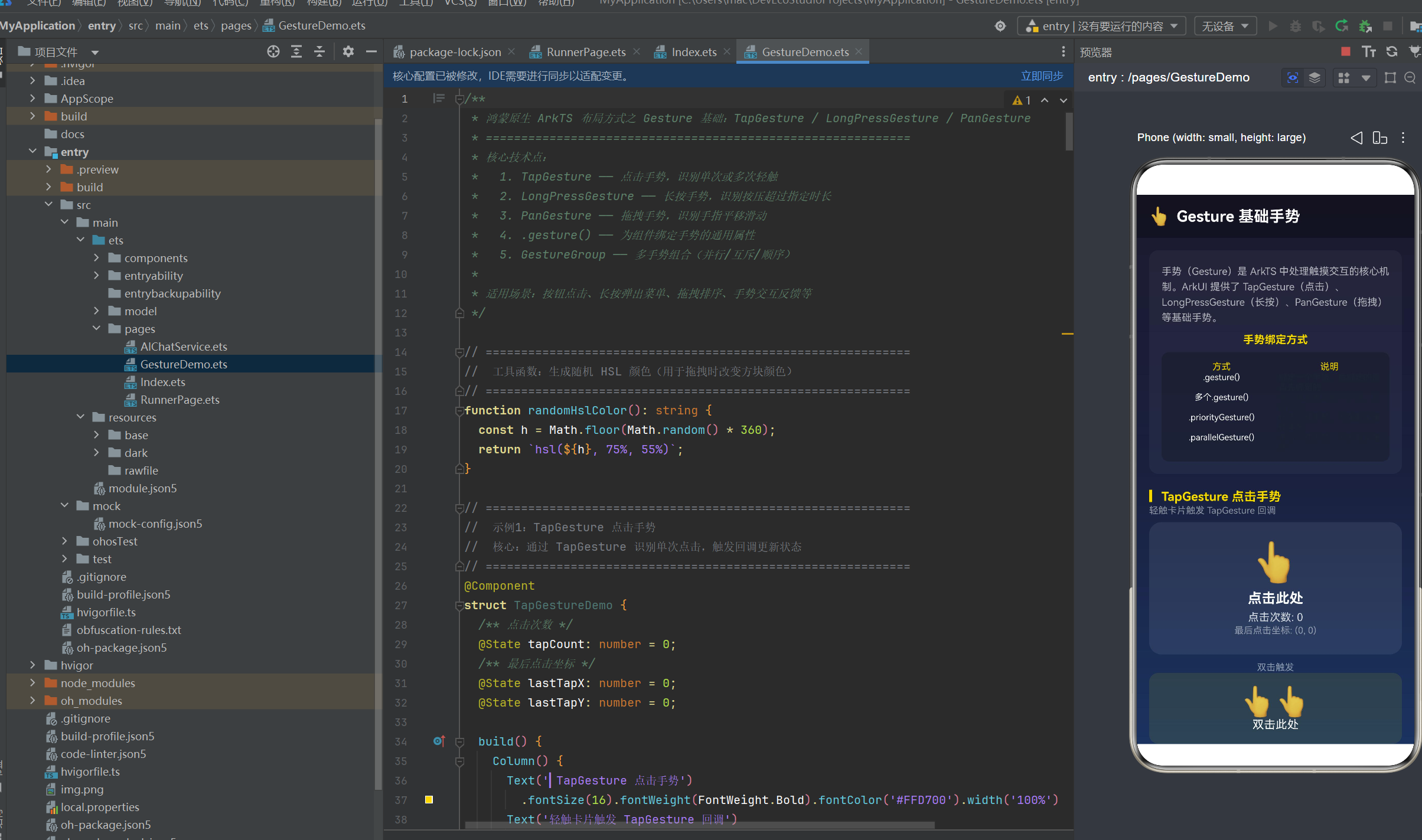
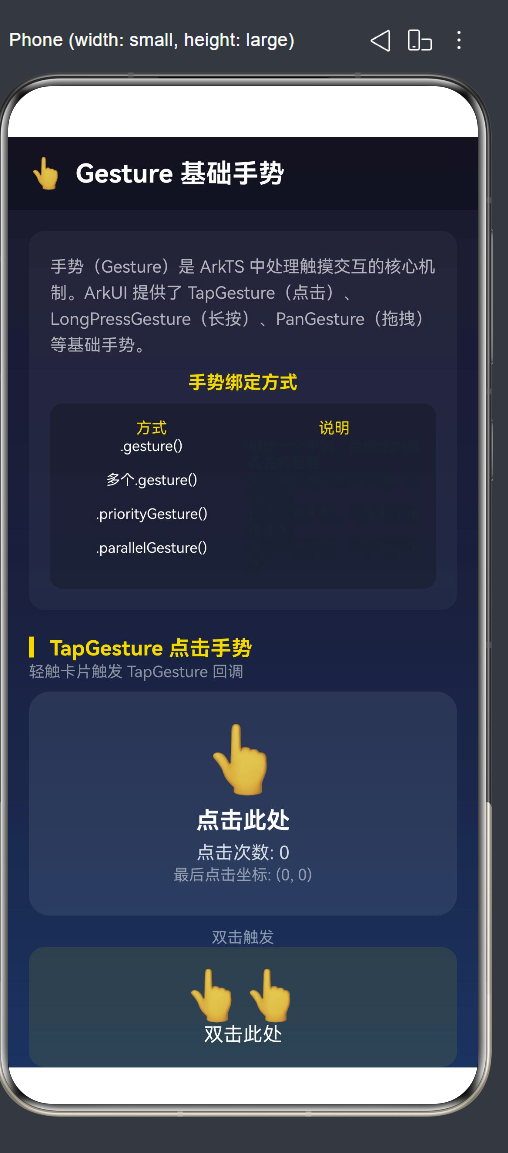
4.1 TapGesture 点击手势
count 参数控制点击次数:1=单击,2=双击。
@Component
struct TapGestureDemo {
  @State tapCount: number = 0;
  @State lastTapX: number = 0;
  @State lastTapY: number = 0;

  build() {
    Column() {
      // 单击区域
      Column() {
        Text('👆').fontSize(48)
        Text('点击此处').fontSize(18)
        Text('次数: ' + this.tapCount)
        Text('坐标: (' + this.lastTapX + ', ' + this.lastTapY + ')')
      }
      .width('100%').padding(24)
      .backgroundColor('rgba(255,255,255,0.08)').borderRadius(16)
      .alignItems(HorizontalAlign.Center)
      .gesture(
        TapGesture({ count: 1 })
          .onAction((event: GestureEvent) => {
            this.tapCount++;
            this.lastTapX = Math.round(event.fingerList[0].localX);
            this.lastTapY = Math.round(event.fingerList[0].localY);
          })
      )

      // 双击区域
      Column() { Text('👆👆 双击此处').fontSize(15) }
        .padding(16).borderRadius(12)
        .backgroundColor('rgba(255,215,0,0.1)')
        .alignItems(HorizontalAlign.Center)
        .gesture(
          TapGesture({ count: 2 })
            .onAction(() => { this.tapCount += 2; })
        )
    }
  }
}
要点:
count:1单击,手指抬起立即触发onActioncount:2双击,系统等待第二次点击,超时未发生则不触发event.fingerList[0].localX/Y获取相对组件的点击坐标(vp)
4.2 LongPressGesture 长按手势
duration 控制触发长按的最小时长(ms)。
@Component
struct LongPressGestureDemo {
  @State isLongPressed: boolean = false;
  @State pressDuration: number = 0;
  private readonly minPress: number = 500;

  build() {
    Column() {
      Column() {
        Text(this.isLongPressed ? '🟢 已触发!' : '🔴 按住我 500ms')
          .fontSize(16)
          .fontColor(this.isLongPressed ? '#4CAF50' : Color.White)
        Text('时长: ' + this.pressDuration + 'ms')
      }
      .padding(24).borderRadius(16)
      .backgroundColor(this.isLongPressed
        ? 'rgba(76,175,80,0.15)' : 'rgba(255,255,255,0.08)')
      .alignItems(HorizontalAlign.Center)
      .gesture(
        LongPressGesture({ fingers: 1, repeat: false, duration: this.minPress })
          .onAction((event: GestureEvent) => {
            this.isLongPressed = true;
            this.pressDuration = event.timestamp;
          })
          .onActionEnd(() => { this.isLongPressed = false; })
      )
    }
  }
}
要点:
onAction在按住达到duration时触发onActionEnd在手指抬起时触发,适合重置状态repeat: true可让长按每隔duration重复触发
4.3 PanGesture 拖拽手势
direction 控制方向,distance 控制最小触发距离(防误触)。
@Component
struct PanGestureDemo {
  @State offsetX: number = 0;
  @State offsetY: number = 0;
  @State boxColor: string = '#5C8AFF';
  @State dragStatus: string = '等待拖拽';

  build() {
    Column() {
      Stack() {
        Column() { Text('⬡').fontSize(28) }
          .width(64).height(64)
          .backgroundColor(this.boxColor).borderRadius(14)
          .shadow({ radius: 8, color: 'rgba(0,0,0,0.3)' })
          .gesture(
            PanGesture({ fingers: 1, direction: PanDirection.All, distance: 5 })
              .onActionStart(() => {
                this.dragStatus = '🔄 拖拽中';
                this.boxColor = randomColor();
              })
              .onActionUpdate((event: GestureEvent) => {
                // event.offsetX/Y 是本次增量,需累加
                this.offsetX += event.offsetX;
                this.offsetY += event.offsetY;
              })
              .onActionEnd(() => { this.dragStatus = '✅ 结束'; })
              .onActionCancel(() => { this.dragStatus = '❌ 取消'; })
          )
          .translate({ x: this.offsetX, y: this.offsetY })
      }
      .width('100%').height(200).borderRadius(16).clip(true)

      Text(this.dragStatus).fontSize(13).margin({ top: 4 })
      Button('重置').onClick(() => { this.offsetX = 0; this.offsetY = 0; })
    }
  }
}
function randomColor(): string {
  return `hsl(${Math.floor(Math.random() * 360)}, 75%, 55%)`;
}
| 回调 | 时机 | 用途 |
|---|---|---|
onActionStart |
手指移动达到 distance | 初始化拖拽状态 |
onActionUpdate |
手指持续移动 | 更新位置(event.offsetX/Y 为增量) |
onActionEnd |
手指抬起 | 保存结果 |
onActionCancel |
手势被更高优先级打断 | 清理状态 |
要点:event.offsetX 是相对于上一次回调的增量,需用 this.offsetX += event.offsetX 累加,再配合 .translate() 应用偏移。
4.4 多手势组合
同一组件可绑定多个手势——多次调用 .gesture()。
.gesture(
  TapGesture({ count: 1 })
    .onAction(() => { /* 点击响应 */ })
)
.gesture(
  LongPressGesture({ fingers: 1, repeat: false, duration: 400 })
    .onAction(() => { /* 长按响应 */ })
)
多手势识别规则:
- TapGesture + LongPressGesture → 并行,点击触发 Tap,长按触发 LongPress
- TapGesture + PanGesture → 并行,轻触触发 Tap,滑动触发 Pan
- LongPressGesture + PanGesture → 互斥,达到 duration 后不再响应 Pan
4.5 手势参数对比
三个并排卡片展示单击/双击/长按的参数差异。
Row({ space: 10 }) {
  // 单击 count:1
  Column() { Text('👆 单击我') }
    .backgroundColor('rgba(21,101,192,0.3)').borderRadius(12)
    .gesture(TapGesture({ count: 1 }).onAction(() => { /* 单击 */ }))

  // 双击 count:2
  Column() { Text('👆👆 双击我') }
    .backgroundColor('rgba(233,30,99,0.3)').borderRadius(12)
    .gesture(TapGesture({ count: 2 }).onAction(() => { /* 双击 */ }))

  // 长按 800ms
  Column() { Text('⏱️ 长按我') }
    .backgroundColor('rgba(255,152,0,0.3)').borderRadius(12)
    .gesture(LongPressGesture({ duration: 800 }).onAction(() => { /* 长按 */ }))
}
| 手势 | 关键参数 | 示例 |
|---|---|---|
| TapGesture | count |
1(单击)/ 2(双击) |
| LongPressGesture | duration |
500ms / 800ms |
| PanGesture | direction, distance |
All / 5vp |
4.6 边界限制拖拽
通过 Math.max/Math.min 约束偏移量,结合 animateTo 实现松手回弹。
@Component
struct BoundedPanGestureDemo {
  @State panX: number = 0;
  @State panY: number = 0;
  private readonly maxOffset: number = (200 - 50) / 2; // (容器 - 方块) / 2

  build() {
    Stack() {
      Stack() {
        Column() { Text('⬡').fontSize(28) }
          .width(50).height(50).backgroundColor('#FFD700').borderRadius(12)
          .translate({ x: this.panX, y: this.panY })
          .gesture(
            PanGesture({ fingers: 1, direction: PanDirection.All, distance: 3 })
              .onActionUpdate((event: GestureEvent) => {
                let newX = this.panX + event.offsetX;
                let newY = this.panY + event.offsetY;
                // 限制在 [-maxOffset, maxOffset] 范围内
                newX = Math.max(-this.maxOffset, Math.min(this.maxOffset, newX));
                newY = Math.max(-this.maxOffset, Math.min(this.maxOffset, newY));
                this.panX = newX;
                this.panY = newY;
              })
              .onActionEnd(() => {
                // 弹性回中
                animateTo({ duration: 200, curve: Curve.Friction }, () => {
                  this.panX = 0;
                  this.panY = 0;
                });
              })
          )
      }
      .width(200).height(200).borderRadius(16)
      .backgroundColor('rgba(156,39,176,0.2)').clip(true)
    }
  }
}
边界限制公式:Math.max(-max, Math.min(max, newValue)) 将值限制在 [-max, max] 内。
回弹动画:animateTo({ duration: 200, curve: Curve.Friction }, () => { this.panX = 0; }),Curve.Friction 摩擦力曲线模拟真实减速回弹。
五、主页面整合
@Entry
@Component
struct GestureDemo {
  build() {
    Column() {
      Row() { Text('👆 Gesture 基础手势').fontSize(20) }
        .width('100%').height(56).backgroundColor('rgba(0,0,0,0.3)')

      Scroll() {
        Column() {
          TapGestureDemo()
          LongPressGestureDemo()
          PanGestureDemo()
          GestureGroupDemo()
          GestureParamsDemo()
          BoundedPanGestureDemo()

          Column() {
            Text('📖 要点总结').fontSize(16).fontColor('#FFD700')

            Text('1. TapGesture:count 控制次数(1=单击/2=双击),onAction 获取坐标。')

            Text('2. LongPressGesture:duration 控制时长,onAction 触发长按,onActionEnd 处理抬起。')

            Text('3. PanGesture:direction/ distance 控制方向与灵敏度。onActionUpdate 获取偏移增量。')

            Text('4. 多手势:多次 .gesture() 并行绑定。')

            Text('5. 回调:onActionStart / onActionUpdate / onActionEnd / onActionCancel。')

            Text('6. 边界:onActionUpdate 中用 Math.max/min 约束偏移,animateTo 实现回弹。')
          }
          .width('100%').padding(20)
          .backgroundColor('rgba(0,0,0,0.25)').borderRadius(16)
        }.width('100%').padding(16)
      }.layoutWeight(1)
    }.width('100%').height('100%')
    .linearGradient({
      direction: GradientDirection.Bottom,
      colors: [['#1a1a2e', 0], ['#16213e', 0.5], ['#0f3460', 1]]
    })
  }
}
六、进阶技巧
6.1 手势冲突
父子组件都绑定了手势时,子组件手势优先响应。可通过以下方式调整:
// 父组件抢优先权
.parentGesture(PanGesture().onActionUpdate(() => {}))
// 子组件声明并行
.parallelGesture(TapGesture().onAction(() => {}))
6.2 手势与动画组合
.onActionEnd(() => {
  if (Math.abs(this.offsetX) > 100) {
    animateTo({ duration: 300 }, () => { this.offsetX = 300; });
  } else {
    animateTo({ duration: 200, curve: Curve.Friction }, () => { this.offsetX = 0; });
  }
})
6.3 视觉反馈建议
| 状态 | 反馈 |
|---|---|
| 点击按下 | 缩放 0.95 + 背景加深 |
| 长按触发 | 背景变色 |
| 拖拽中 | 放大 + 阴影增强 |
七、常见问题
Q1:双击时单击的 onAction 会触发吗?
A:不会。系统等待约 300ms 确认是否二次点击,双击只触发 count:2 回调。
Q2:如何同时支持点击和长按?
A:多次 .gesture() 分别绑定 TapGesture 和 LongPressGesture,两者并行识别。
Q3:PanGesture 的 distance 设多大?
A:推荐 5~10vp。太小易误触,太大响应迟钝。
Q4:event.offsetX 和 translate 的关系?
A:offsetX 是增量,需累加后用 translate({ x: 累计值 }) 应用。
Q5:怎么松手回弹?
A:onActionEnd 中调用 animateTo({ duration:200, curve:Curve.Friction }, () => { 归零 })。
八、总结
| 场景 | 技术 | 交互 |
|---|---|---|
| 1 | TapGesture 单击/双击 + 坐标获取 | ✅ |
| 2 | LongPressGesture 时长控制 | ✅ |
| 3 | PanGesture 四回调完整演示 | ✅ |
| 4 | 多手势组合(点击+长按) | ✅ |
| 5 | 单击/双击/长按参数对比 | ✅ |
| 6 | 边界限制 + 松手回弹 | ✅ |
核心要点:
TapGesture({count})         → onAction → 点击坐标
LongPressGesture({duration}) → onAction / onActionEnd → 长按
PanGesture({direction,dist}) → 四回调 → 拖拽
多次 .gesture()             → 多手势共存
Math.max/min               → 边界限制
animateTo                  → 松手回弹
掌握这三种基础手势的绑定与回调,是构建流畅、自然交互体验的第一步。

作为“人工智能6S店”的官方数字引擎,为AI开发者与企业提供一个覆盖软硬件全栈、一站式门户。
更多推荐

 1
1 0
0- 0


 已为社区贡献48条内容

所有评论(0)