
完整代码逐行详解(ArkTS 鸿蒙页面路由跳转)
·
完整代码逐行详解(ArkTS 鸿蒙页面路由跳转)
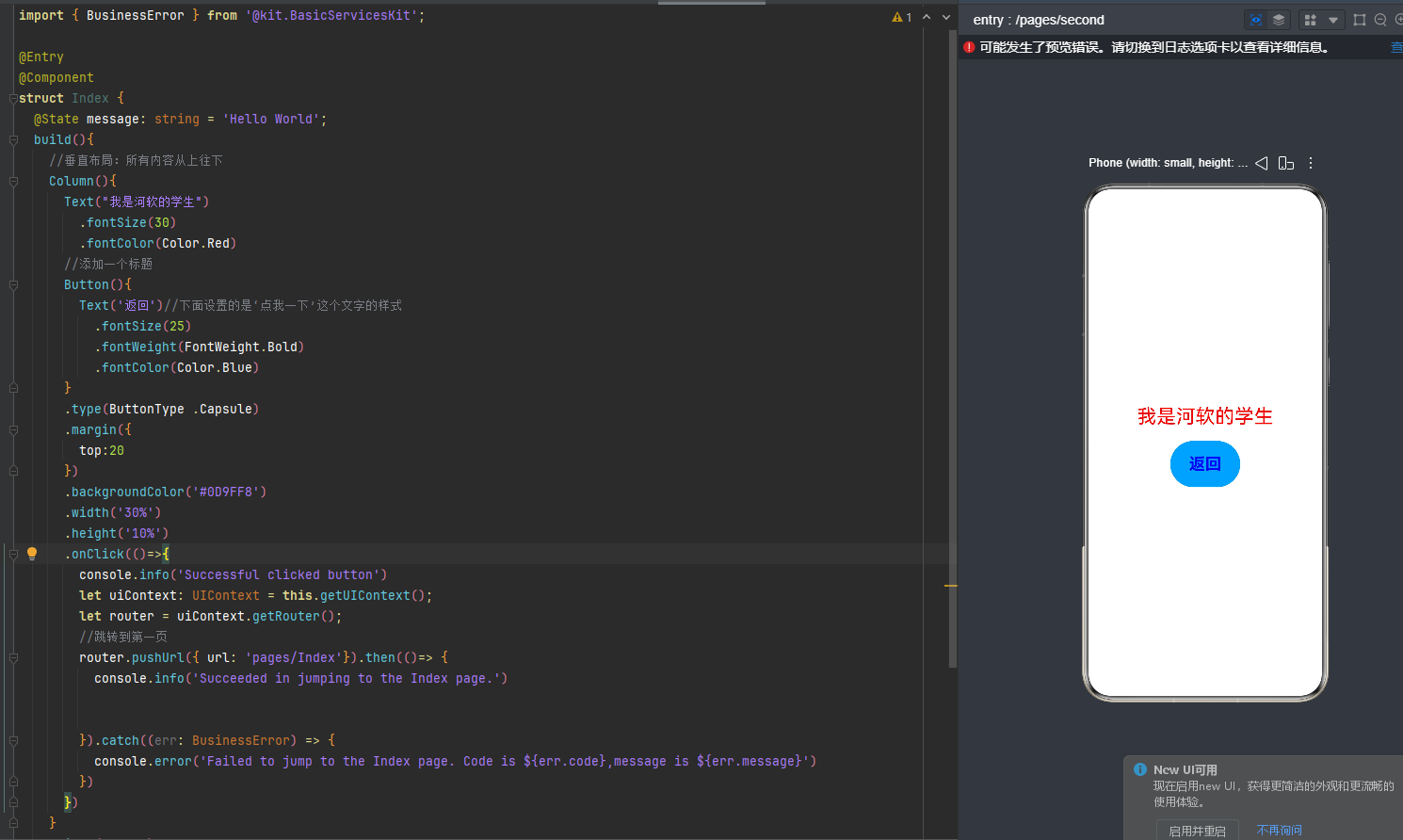
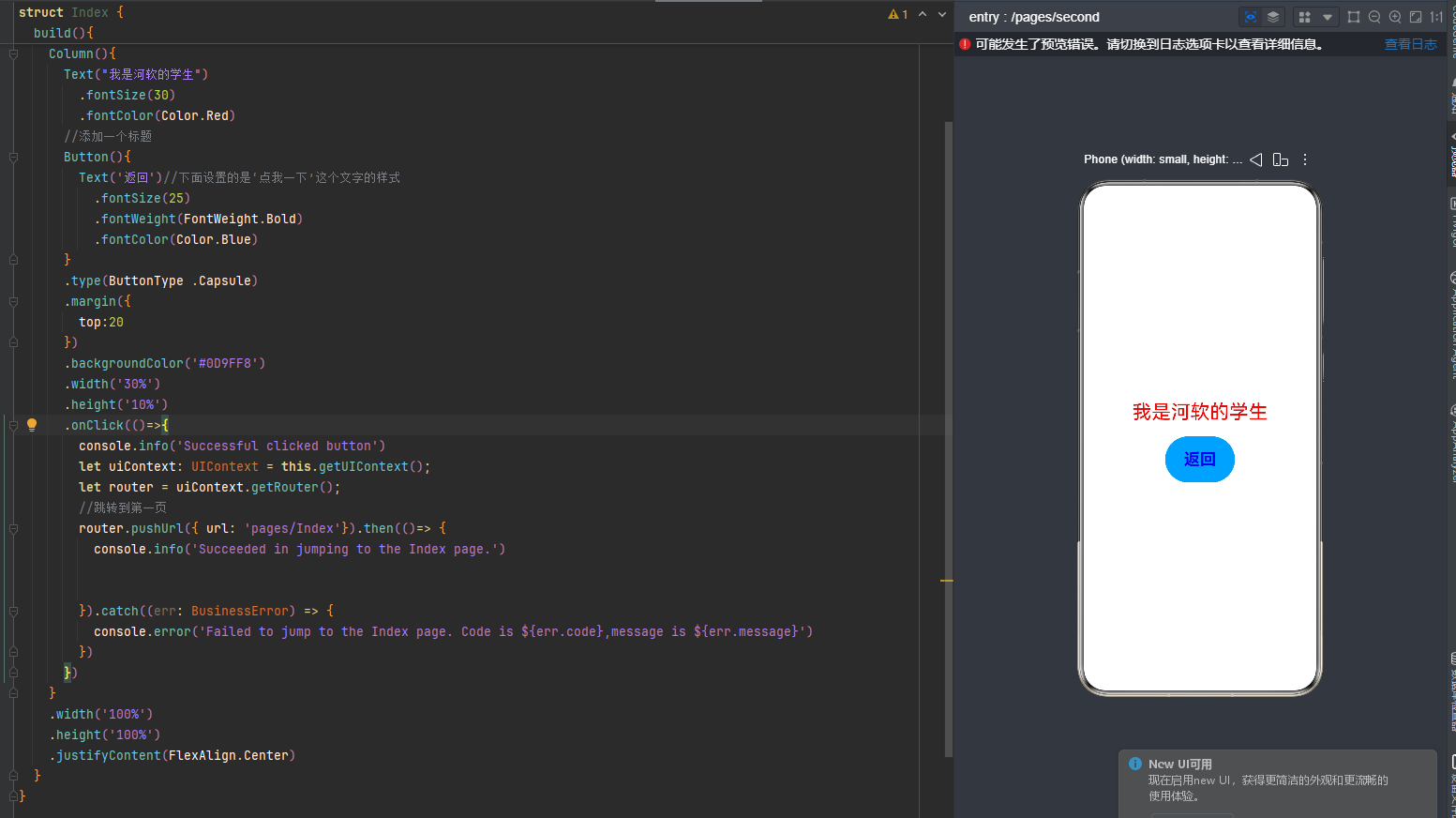
一、完整可运行代码(整合两张截图补全缺失导入 / 装饰器)
// 导入错误类型
import { BusinessError } from '@ohos.base';
// 导入路由模块
import router from '@ohos.router';

// 页面入口装饰器:标记为可独立访问的页面
@Entry
// 自定义组件装饰器
@Component
struct Index {
  // 响应式状态变量(截图中存在,本页面未使用)
  @State message: string = 'Hello World';

  build() {
    // 根布局:垂直排列Column
    Column() {
      // 文本组件
      Text("我是河软的学生")
        .fontSize(30)          // 字号30
        .fontColor(Color.Red)  // 文字红色

      // 按钮组件(嵌套Text自定义按钮内文字样式)
      Button() {
        Text('返回')
          .fontSize(25)
          .fontWeight(FontWeight.Bold) // 文字加粗
          .fontColor(Color.Blue)        // 按钮内文字蓝色
      }
      // 按钮样式属性
      .type(ButtonType.Capsule)          // 胶囊圆角按钮,两端半圆
      .margin({ top: 20 })               // 按钮顶部外边距20,和上方文本拉开距离
      .backgroundColor('#0D9FF8')       // 按钮背景浅蓝色
      .width('30%')                      // 宽度占屏幕30%
      .height('10%')                     // 高度占屏幕10%
      // 按钮点击事件
      .onClick(() => {
        console.info('Successful clicked button');
        // 1. 获取当前页面UI上下文
        let uiContext: UIContext = this.getUIContext();
        // 2. 从上下文获取路由实例
        let router = uiContext.getRouter();
        // 3. 页面入栈跳转
        router.pushUrl({ url: 'pages/Index' })
          .then(() => {
            // 跳转成功回调
            console.info('Succeeded in jumping to the Index page.');
          })
          .catch((err: BusinessError) => {
            // 跳转失败捕获异常,打印错误码与信息
            console.error(`Failed to jump to the Index page. Code is ${err.code},message is ${err.message}`);
          });
      })
    }
    // 根布局铺满全屏
    .width('100%')
    .height('100%')
    // 垂直方向居中所有子组件
    .justifyContent(FlexAlign.Center)
  }
}
二、分模块详细拆解
1. 头部导入与装饰器
import { BusinessError } from '@ohos.base';
import router from '@ohos.router';

@Entry
@Component
struct Index {
  @State message: string = 'Hello World';
- 导入语句
BusinessError:路由跳转失败时的统一错误对象,用于捕获异常信息;router:系统路由模块,负责页面之间的跳转。
- 装饰器
@Entry:标识当前文件是独立页面,编译后可通过路由地址访问;缺少该装饰器会直接预览报错;@Component:声明这是一个自定义 ArkUI 组件,必须搭配build()方法渲染 UI;
- @State 变量
@State message:响应式状态变量,变量修改会自动刷新页面 UI;本页面代码未使用该变量,是模板自带预留代码。
2. 根布局 Column(垂直弹性布局)
Column(){
  // 内部Text、Button组件
}
.width('100%')
.height('100%')
.justifyContent(FlexAlign.Center)
Column:垂直布局容器,内部所有组件从上到下依次排列;.width('100%') .height('100%'):让布局占满手机整个屏幕;.justifyContent(FlexAlign.Center):垂直方向居中,文本 + 按钮整体在屏幕中间显示,对应右侧预览效果。
3. Text 文本组件
Text("我是河软的学生")
  .fontSize(30)
  .fontColor(Color.Red)
Text("内容"):基础文字展示组件;.fontSize(30):设置文字字号为 30;.fontColor(Color.Red):文字颜色设为红色。
4. Button 按钮(嵌套自定义文字样式)
Button(){
  Text('返回')
    .fontSize(25)
    .fontWeight(FontWeight.Bold)
    .fontColor(Color.Blue)
}
.type(ButtonType.Capsule)
.margin({ top:20 })
.backgroundColor('#0D9FF8')
.width('30%')
.height('10%')
- 嵌套 Text 写法优势 普通
Button("返回")无法单独控制文字粗细、字号;Button{ Text() }可以自由定制按钮内部文字样式。.fontSize(25):按钮内文字大小 25;.fontWeight(FontWeight.Bold):文字加粗;.fontColor(Color.Blue):按钮内文字蓝色。
- 按钮外观属性
.type(ButtonType.Capsule):胶囊按钮,左右两端完全圆角;.margin({top:20}):按钮距离上方文本,顶部外边距 20;.backgroundColor('#0D9FF8'):按钮背景浅蓝色;.width('30%'):按钮宽度为屏幕宽度 30%;.height('10%'):高度为屏幕高度 10%。
5. onClick 点击事件 + 页面路由跳转(核心功能)
.onClick(()=>{
  console.info('Successful clicked button');
  let uiContext: UIContext = this.getUIContext();
  let router = uiContext.getRouter();
  router.pushUrl({ url: 'pages/Index' })
    .then(() => {
      console.info('Succeeded in jumping to the Index page.');
    })
    .catch((err: BusinessError) => {
      console.error(`Failed to jump to the Index page. Code is ${err.code},message is ${err.message}`);
    });
})
逐行逻辑:
console.info():控制台打印普通日志,用于调试,点击按钮后在日志窗口可见;this.getUIContext():获取当前页面 UI 上下文,是新版 HarmonyOS 推荐的路由获取方式;uiContext.getRouter():从上下文拿到路由管理器,控制页面跳转;router.pushUrl({url:'pages/Index'})pushUrl:入栈跳转,新页面压入路由栈,可通过返回键回到当前 second 页面;url:目标页面路径,对应项目pages/Index.ets首页;
.then():Promise 成功回调,跳转完成后打印成功日志;.catch():捕获跳转异常(页面不存在、路径写错等),打印错误码与错误描述,方便排错。
三、页面运行效果
- 全屏白色背景,红色文字「我是河软的学生」、浅蓝色胶囊按钮垂直居中;
- 按钮内蓝色加粗 “返回” 文字,按钮和上方文字间隔 20 像素;
- 点击按钮:跳转到
pages/Index首页,控制台输出成功日志; - 若路径写错 / Index 页面不存在,控制台打印红色错误日志。
四、预览报错提示(截图右上角:可能发生了预览错误)
常见报错原因
- 缺少导入语句:漏写
import router from '@ohos.router'或BusinessError导入; - 路由路径错误:目标页面
pages/Index不存在,或路径大小写不匹配; - 缺少装饰器:漏写
@Entry/@Component; - 预览器缓存:关闭预览窗口重新打开,或重启 DevEco Studio。
补充知识点:两种跳转 API 区别
pushUrl():入栈跳转,保留当前页面栈,可返回;本代码使用;replaceUrl():替换当前页面,销毁 second 页面,无法返回。

作为“人工智能6S店”的官方数字引擎,为AI开发者与企业提供一个覆盖软硬件全栈、一站式门户。
更多推荐
 1
1 0
0- 0


 已为社区贡献7条内容

所有评论(0)