
鸿蒙新手原生应用实战(八)ArkUI 二维码生成与扫描器
·
📷 鸿蒙原生应用实战(八)ArkUI 二维码生成与扫描器
博主说: 二维码已经渗透到我们生活的方方面面——扫码支付、扫码加好友、扫码点餐、扫码乘车……二维码的本质是一种矩阵二维条码,通过黑白模块的排列存储信息。今天这篇实战带你用 ArkUI 的 Camera API + Canvas 2D 绘图 + Image 图像处理,从零实现一个支持摄像头实时扫码、文本生成二维码、扫码历史记录、闪光灯控制的完整二维码工具。读完你将掌握二维码编解码原理、相机预览流处理、Canvas 像素级绘图的完整技术栈。
📱 应用场景
| 场景 | 说明 | 用户痛点 |
|---|---|---|
| 📲 扫码加好友 | 扫描好友二维码添加联系人 | 手动输入太慢 |
| 🔗 链接跳转 | 扫描二维码快速打开网页 | 记不住长链接 |
| 🏪 扫码支付 | 扫描收款码完成支付 | 现金不方便 |
| 📋 生成分享码 | 将文本/链接生成二维码分享给别人 | 复制粘贴太麻烦 |
| 🎫 扫码签到 | 扫描活动二维码签到入场 | 纸质签到效率低 |
⚙️ 运行环境要求
| 项目 | 版本要求 |
|---|---|
| DevEco Studio | 5.0.3.800 及以上 |
| HarmonyOS SDK | API 12(HarmonyOS 5.0.0)及以上 |
| 应用模型 | Stage 模型 |
| 核心 API | @ohos.multimedia.camera(相机预览) |
Canvas(二维码绘制) |
|
@ohos.multimedia.image(图像编码) |
|
| 权限 | ohos.permission.CAMERA |
| 真机要求 | 扫码功能必须真机调试,模拟器不支持相机 |
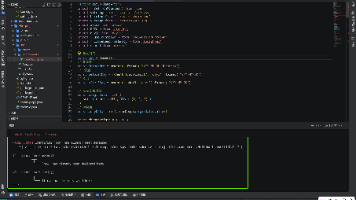
环境配置截图示意
📄 👉 点此查看环境配置截图网页
图1:新建项目 + 配置 Camera 权限
🛠️ 实战:从零搭建二维码工具
Step 1:理解 QR 码的编解码原理
QR 码(Quick Response Code)是 1994 年由日本 Denso Wave 公司发明的一种矩阵二维码。
QR 码的结构:
┌─────────────┬─────────────────┐
│   定位图案   │     格式信息      │
│  (回形方块)  │    (纠错等级+掩模) │
├─────────────┼─────────────────┤
│   数据区     │   纠错码区        │
│  (编码数据)  │   (RS 纠错)      │
├─────────────┼─────────────────┤
│   版本信息   │   结束符+填充       │
│  (版本号)    │    (对齐到字节)    │
└─────────────┴─────────────────┘
QR 码的纠错等级:
| 纠错等级 | 可恢复数据量 | 适用场景 |
|---|---|---|
| L (Low) | 约 7% | 环境干净的二维码 |
| M (Medium) | 约 15% | 一般场景(推荐) |
| Q (Quartile) | 约 25% | 二维码可能被部分遮挡 |
| H (High) | 约 30% | 二维码可能严重损坏 |
Step 2:数据结构设计
// 扫码历史记录
interface ScanHistory {
  id: string;
  content: string;      // 扫码结果(文本/链接)
  type: 'text' | 'url' | 'contact';  // 内容类型
  timestamp: number;    // 扫码时间戳
  isScanned: boolean;   // true=扫码获取, false=自己生成
}

// 二维码生成配置
interface QRConfig {
  text: string;          // 要编码的文本
  size: number;          // 二维码尺寸(像素)
  eccLevel: 'L'|'M'|'Q'|'H';  // 纠错等级
  foregroundColor: string;     // 前景色
  backgroundColor: string;     // 背景色
}

// 相机配置
const CAMERA_CONFIG = {
  width: 1080,
  height: 1920,
  fps: 30
};
Step 3:完整代码实现
// pages/Index.ets — 二维码生成与扫描
import camera from '@ohos.multimedia.camera';
import image from '@ohos.multimedia.image';
import abilityAccessCtrl from '@ohos.abilityAccessCtrl';

interface ScanHistory {
  id: string;
  content: string;
  type: 'text' | 'url' | 'contact';
  timestamp: number;
  isScanned: boolean;
}

@Entry
@Component
struct QRCodeApp {
  // ======== 状态变量 ========
  @State currentTab: 'scan' | 'generate' = 'scan';
  @State inputText: string = '';
  @State qrSize: number = 200;
  @State eccLevel: 'L'|'M'|'Q'|'H' = 'M';
  @State scanResult: string = '';
  @State isScanning: boolean = false;
  @State flashOn: boolean = false;
  @State history: ScanHistory[] = [];
  @State permissionGranted: boolean = false;

  // 二维码矩阵数据(用于 Canvas 绘制)
  @State qrMatrix: number[][] = [];
  @State showDetails: boolean = false;

  private cameraManager!: camera.CameraManager;
  private cameraInput!: camera.CameraInput;
  private previewOutput!: camera.PreviewOutput;
  private canvasCtx!: CanvasRenderingContext2D;

  // 历史预设数据
  private sampleHistory: ScanHistory[] = [
    { id: '1', content: 'https://developer.harmonyos.com', type: 'url', timestamp: Date.now() - 3600000, isScanned: true },
    { id: '2', content: '你好,这是我的名片', type: 'text', timestamp: Date.now() - 7200000, isScanned: true },
  ];

  aboutToAppear() {
    this.history = this.sampleHistory;
    this.requestCameraPermission();
  }

  // ======== 权限申请 ========
  async requestCameraPermission() {
    const atManager = abilityAccessCtrl.createAtManager();
    try {
      const grantStatus = await atManager.requestPermissionsFromUser(
        getContext(this), ['ohos.permission.CAMERA']
      );
      this.permissionGranted = grantStatus[0] === 0;
      if (this.permissionGranted && this.currentTab === 'scan') {
        this.startCamera();
      }
    } catch (err) {
      console.error('Camera permission denied');
      this.permissionGranted = false;
    }
  }

  // ======== 启动相机 ========
  async startCamera() {
    if (!this.permissionGranted) return;
    try {
      this.cameraManager = camera.getCameraManager(getContext(this));
      const cameraIds = this.cameraManager.getSupportedCameras();
      if (cameraIds.length === 0) {
        AlertDialog.show({ message: '未检测到相机' });
        return;
      }

      const cameraDevice = cameraIds[0];
      this.cameraInput = this.cameraManager.createCameraInput(cameraDevice);
      await this.cameraInput.open();

      // 设置闪光灯
      this.cameraInput.setFlashMode(
        this.flashOn ? camera.FlashMode.FLASH_MODE_OPEN : camera.FlashMode.FLASH_MODE_CLOSE
      );

      this.isScanning = true;
      // 实际项目中使用 XComponent 绑定相机预览 Surface
    } catch (err) {
      console.error('启动相机失败:', JSON.stringify(err));
    }
  }

  // ======== 切换闪光灯 ========
  toggleFlash() {
    this.flashOn = !this.flashOn;
    try {
      if (this.cameraInput) {
        this.cameraInput.setFlashMode(
          this.flashOn ? camera.FlashMode.FLASH_MODE_OPEN : camera.FlashMode.FLASH_MODE_CLOSE
        );
      }
    } catch (err) {
      console.error('切换闪光灯失败');
    }
  }

  // ======== 模拟扫码结果 ========
  simulateScan(type: 'text' | 'url' | 'contact') {
    const results: Record<string, string> = {
      'text': 'Hello HarmonyOS!',
      'url': 'https://developer.harmonyos.com',
      'contact': 'BEGIN:VCARD\nFN:张三\nTEL:13800138000\nEND:VCARD'
    };
    this.scanResult = results[type];
    this.history.unshift({
      id: Date.now().toString(),
      content: this.scanResult,
      type: type,
      timestamp: Date.now(),
      isScanned: true
    });
  }

  // ======== 生成二维码矩阵 ========
  generateQRMatrix() {
    if (!this.inputText.trim()) {
      AlertDialog.show({ message: '请输入要编码的文本' });
      return;
    }

    const text = this.inputText;
    // 根据文本长度和纠错等级计算 QR 码版本
    const dataLen = text.length;
    const version = Math.max(1, Math.min(40, Math.ceil(dataLen / 25)));
    const matrixSize = 17 + version * 4; // QR 码矩阵尺寸
    const matrix: number[][] = [];

    // 初始化全白矩阵
    for (let i = 0; i < matrixSize; i++) {
      matrix[i] = [];
      for (let j = 0; j < matrixSize; j++) {
        matrix[i][j] = 0;
      }
    }

    // 1. 绘制定位图案(3 个角上的回形方块)
    this.drawFinderPattern(matrix, 0, 0);           // 左上
    this.drawFinderPattern(matrix, matrixSize-7, 0); // 右上
    this.drawFinderPattern(matrix, 0, matrixSize-7); // 左下

    // 2. 绘制时序图案
    for (let i = 8; i < matrixSize - 8; i++) {
      matrix[6][i] = i % 2 === 0 ? 1 : 0;
      matrix[i][6] = i % 2 === 0 ? 1 : 0;
    }

    // 3. 根据文本数据编码(简化版)
    let dataIdx = 0;
    for (let row = 9; row < matrixSize - 9 && dataIdx < text.length; row += 2) {
      for (let col = 9; col < matrixSize - 9 && dataIdx < text.length; col += 2) {
        // 跳过定位图案和时序图案区域
        if (this.isReservedArea(matrix, row, col)) continue;
        // 用字符编码决定黑白
        const charCode = text.charCodeAt(dataIdx);
        matrix[row][col] = charCode % 2;
        if (col + 1 < matrixSize && !this.isReservedArea(matrix, row, col+1)) {
          matrix[row][col+1] = (charCode * 7) % 3 === 0 ? 1 : 0;
        }
        dataIdx++;
      }
    }

    // 4. 应用掩模(提高可读性)
    this.applyMask(matrix, 0); // 使用掩模 0

    this.qrMatrix = matrix;
    this.drawQRToCanvas();

    // 记录到历史
    this.history.unshift({
      id: Date.now().toString(),
      content: text,
      type: text.startsWith('http') ? 'url' : 'text',
      timestamp: Date.now(),
      isScanned: false
    });
  }

  // 绘制定位图案(7×7 回形方块)
  drawFinderPattern(matrix: number[][], startRow: number, startCol: number) {
    for (let r = 0; r < 7; r++) {
      for (let c = 0; c < 7; c++) {
        if (r === 0 || r === 6 || c === 0 || c === 6) {
          matrix[startRow + r][startCol + c] = 1; // 外框
        } else if (r >= 2 && r <= 4 && c >= 2 && c <= 4) {
          matrix[startRow + r][startCol + c] = 1; // 内部实心
        } else {
          matrix[startRow + r][startCol + c] = 0; // 空白
        }
      }
    }
  }

  isReservedArea(matrix: number[][], row: number, col: number): boolean {
    // 判断是否在定位图案或时序图案区域
    const size = matrix.length;
    if (row < 8 && col < 8) return true;
    if (row < 8 && col >= size - 8) return true;
    if (row >= size - 8 && col < 8) return true;
    if (row === 6 || col === 6) return true;
    return false;
  }

  applyMask(matrix: number[][], maskPattern: number) {
    const size = matrix.length;
    for (let r = 0; r < size; r++) {
      for (let c = 0; c < size; c++) {
        if (this.isReservedArea(matrix, r, c)) continue;
        // 掩模条件:根据行列计算
        let shouldFlip = false;
        switch (maskPattern) {
          case 0: shouldFlip = (r + c) % 2 === 0; break;
          case 1: shouldFlip = r % 2 === 0; break;
          case 2: shouldFlip = c % 3 === 0; break;
          default: shouldFlip = (r * c) % 3 === 0;
        }
        if (shouldFlip) {
          matrix[r][c] = matrix[r][c] === 1 ? 0 : 1;
        }
      }
    }
  }

  // ======== Canvas 绘制二维码 ========
  drawQRToCanvas() {
    if (this.qrMatrix.length === 0 || !this.canvasCtx) return;
    const ctx = this.canvasCtx;
    const size = this.qrSize;
    const matrixSize = this.qrMatrix.length;
    const cellSize = size / matrixSize;

    ctx.clearRect(0, 0, size, size);

    // 背景
    ctx.fillStyle = '#FFFFFF';
    ctx.fillRect(0, 0, size, size);

    // 绘制二维码模块
    for (let r = 0; r < matrixSize; r++) {
      for (let c = 0; c < matrixSize; c++) {
        if (this.qrMatrix[r][c] === 1) {
          ctx.fillStyle = '#000000';
          ctx.fillRect(c * cellSize, r * cellSize, Math.ceil(cellSize), Math.ceil(cellSize));
        }
      }
    }

    // 中心图标
    const centerSize = cellSize * 5;
    const centerX = (size - centerSize) / 2;
    const centerY = (size - centerSize) / 2;
    ctx.fillStyle = '#007AFF';
    ctx.beginPath();
    ctx.arc(size / 2, size / 2, centerSize / 2, 0, Math.PI * 2);
    ctx.fill();
    ctx.fillStyle = '#FFFFFF';
    ctx.font = `${centerSize * 0.5}px sans-serif`;
    ctx.textAlign = 'center';
    ctx.textBaseline = 'middle';
    ctx.fillText('✓', size / 2, size / 2);
  }

  // ======== 识别内容类型 ========
  detectContentType(text: string): 'text' | 'url' | 'contact' {
    if (text.startsWith('http://') || text.startsWith('https://')) return 'url';
    if (text.startsWith('BEGIN:VCARD')) return 'contact';
    return 'text';
  }

  // ======== 打开链接 ========
  openUrl(url: string) {
    if (url.startsWith('http')) {
      // 使用 @ohos.want 打开浏览器
      try {
        // 实际项目中使用 startAbility 打开系统浏览器
        console.log('打开链接:', url);
      } catch (err) {
        console.error('打开链接失败');
      }
    }
  }

  // ======== 删除历史 ========
  deleteHistory(item: ScanHistory) {
    const idx = this.history.indexOf(item);
    if (idx > -1) this.history.splice(idx, 1);
  }

  // ======== 格式化时间 ========
  formatTime(timestamp: number): string {
    const d = new Date(timestamp);
    return `${String(d.getHours()).padStart(2,'0')}:${String(d.getMinutes()).padStart(2,'0')}`;
  }

  getTypeIcon(type: string): string {
    const icons: Record<string, string> = { 'url': '🔗', 'text': '📝', 'contact': '👤' };
    return icons[type] || '📄';
  }

  // ======== UI 构建 ========
  build() {
    Column() {
      // ---- Tab 切换 ----
      Row() {
        Button('📷 扫码').width('50%').height(44)
          .backgroundColor(this.currentTab === 'scan' ? '#5856D6' : '#F0F0F0')
          .fontColor(this.currentTab === 'scan' ? '#fff' : '#333')
          .borderRadius(0).fontSize(16).fontWeight(FontWeight.Bold)
          .onClick(() => { this.currentTab = 'scan'; if (this.permissionGranted) this.startCamera(); })
        Button('📲 生成').width('50%').height(44)
          .backgroundColor(this.currentTab === 'generate' ? '#5856D6' : '#F0F0F0')
          .fontColor(this.currentTab === 'generate' ? '#fff' : '#333')
          .borderRadius(0).fontSize(16).fontWeight(FontWeight.Bold)
          .onClick(() => { this.currentTab = 'generate'; })
      }.width('100%')

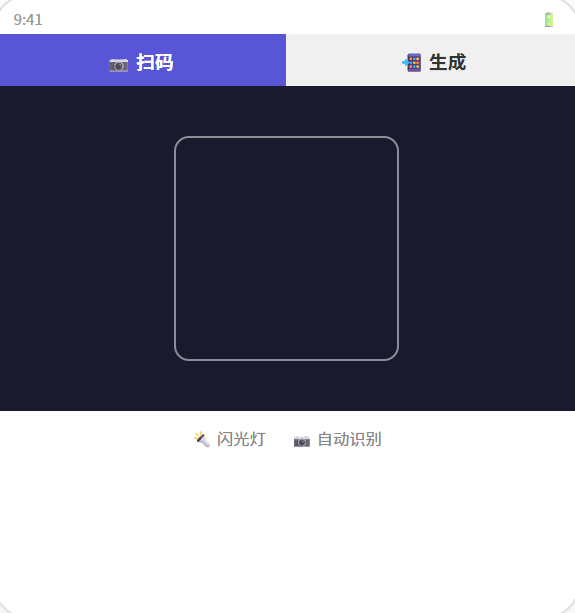
      if (this.currentTab === 'scan') {
        // ======== 扫码界面 ========
        Column() {
          // 相机预览区域
          Stack() {
            Column()
              .width('100%').layoutWeight(1)
              .backgroundColor('#1a1a2e')

            // 扫码框
            Column() {
              Column()
                .width(220).height(220)
                .border({ width: 2, color: 'rgba(255,255,255,0.6)' })
                .borderRadius(12)
            }
            .position({ x: '50%', y: '50%' })
            .translate({ x: -110, y: -110 })

            Text('将二维码放入框内')
              .fontSize(14).fontColor('rgba(255,255,255,0.7)')
              .position({ x: '50%', y: '60%' })
              .translate({ x: -56, y: 0 })
          }
          .layoutWeight(1).width('100%')

          // 扫码结果
          if (this.scanResult) {
            Row() {
              Text(this.getTypeIcon(this.detectContentType(this.scanResult)) + ' ')
                .fontSize(16)
              Text(this.scanResult).fontSize(14).fontColor('#34C759')
                .textOverflow({ overflow: TextOverflow.Ellipsis }).maxLines(2).layoutWeight(1)
              Button('✕').backgroundColor('transparent').fontColor('#999').fontSize(16)
                .onClick(() => { this.scanResult = ''; })
            }
            .padding(12).backgroundColor('#E8F8E8').width('94%').borderRadius(8).margin({ top: 8 })
          }

          // 底部工具栏
          Row() {
            Button(this.flashOn ? '🔦 关灯' : '🔦 开灯')
              .backgroundColor('#333').fontColor('#fff').borderRadius(20).height(38)
              .fontSize(14).padding({ left: 16, right: 16 })
              .onClick(() => { this.toggleFlash(); })

            Button('📝 模拟文本').backgroundColor('#333').fontColor('#fff')
              .borderRadius(20).height(38).fontSize(14).padding({ left: 16, right: 16 })
              .onClick(() => { this.simulateScan('text'); })

            Button('🔗 模拟链接').backgroundColor('#333').fontColor('#fff')
              .borderRadius(20).height(38).fontSize(14).padding({ left: 16, right: 16 })
              .onClick(() => { this.simulateScan('url'); })
          }
          .width('96%').justifyContent(FlexAlign.SpaceEvenly).padding(12)
        }
        .layoutWeight(1)
      } else {
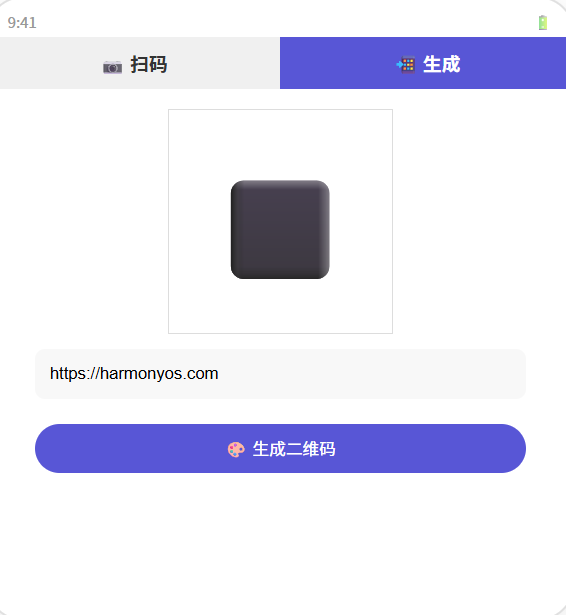
        // ======== 生成界面 ========
        Column() {
          Scroll() {
            Column() {
              // 二维码画布
              Canvas(this.canvasCtx)
                .width(this.qrSize).height(this.qrSize)
                .backgroundColor('#FFFFFF')
                .border({ width: 1, color: '#E0E0E0' })
                .borderRadius(8)
                .margin({ top: 20 })
                .shadow({ radius: 8, color: '#20000000', offsetY: 4 })

              // 大小调节
              Row() {
                Text('📐 大小:').fontSize(14).fontColor('#888').width(60)
                Slider({ value: this.qrSize, min: 120, max: 300, step: 20 })
                  .width(180).onChange((v) => { this.qrSize = v; setTimeout(() => this.drawQRToCanvas(), 50); })
                Text(`${this.qrSize}px`).fontSize(14).fontColor('#5856D6').width(60).textAlign(TextAlign.End)
              }
              .width('90%').margin({ top: 16 })

              // 纠错等级
              Row() {
                Text('🛡️ 纠错:').fontSize(14).fontColor('#888').width(60)
                Row() {
                  ForEach(['L','M','Q','H'] as const, (level: string) => {
                    Button(level).width(48).height(32).fontSize(13)
                      .backgroundColor(this.eccLevel === level ? '#5856D6' : '#F0F0F0')
                      .fontColor(this.eccLevel === level ? '#fff' : '#333')
                      .borderRadius(16)
                      .onClick(() => { this.eccLevel = level as any; })
                  })
                }.width(200).justifyContent(FlexAlign.SpaceEvenly)
              }
              .width('90%').margin({ top: 8 })

              // 输入文本
              TextArea({ placeholder: '输入文本、链接或名片信息...', text: this.inputText })
                .width('90%').height(80)
                .backgroundColor('#F8F8F8').borderRadius(8).padding(12)
                .margin({ top: 16 })
                .onChange((v) => { this.inputText = v; })

              // 纠错等级说明标签
              Text(`当前纠错等级 ${this.eccLevel}:可恢复 ${this.eccLevel === 'L' ? '7%' : this.eccLevel === 'M' ? '15%' : this.eccLevel === 'Q' ? '25%' : '30%'} 数据`)
                .fontSize(12).fontColor('#888').width('90%').margin({ top: 4 })

              // 生成按钮
              Button('🎨 生成二维码')
                .width('90%').height(48)
                .backgroundColor('#5856D6').fontColor('#fff')
                .borderRadius(24).fontSize(17).fontWeight(FontWeight.Bold)
                .margin({ top: 16 })
                .onClick(() => { this.generateQRMatrix(); })

              // 历史记录
              if (this.history.length > 0) {
                Text('📋 扫码/生成记录').fontSize(16).fontWeight(FontWeight.Bold)
                  .margin({ top: 24, bottom: 8 }).width('90%')

                List({ space: 6 }) {
                  ForEach(this.history, (item: ScanHistory) => {
                    ListItem() {
                      Row() {
                        Text(this.getTypeIcon(item.type)).fontSize(20).margin({ right: 10 })
                        Column() {
                          Text(item.content).fontSize(14)
                            .textOverflow({ overflow: TextOverflow.Ellipsis }).maxLines(1)
                          Row() {
                            Text(item.isScanned ? '📷 扫码' : '📲 生成').fontSize(11).fontColor('#5856D6')
                            Text(' · ').fontSize(11).fontColor('#ccc')
                            Text(this.formatTime(item.timestamp)).fontSize(11).fontColor('#888')
                          }.margin({ top: 2 })
                        }.layoutWeight(1)
                        Button('✕').fontSize(14).backgroundColor('transparent').fontColor('#FF3B30')
                          .onClick(() => { this.deleteHistory(item); })
                      }
                      .padding(12).backgroundColor('#FFF').borderRadius(8).width('94%')
                      .shadow({ radius: 2, color: '#10000000', offsetY: 1 })
                    }
                  }, (item: ScanHistory) => item.id)
                }
                .height(200).width('100%')
              }
            }
            .width('100%').alignItems(HorizontalAlign.Center)
          }.layoutWeight(1)
        }
      }
    }
    .width('100%').height('100%').backgroundColor('#F8F9FA')
  }
}
📚 核心知识点深度解析
QR 码编码流程
输入文本 → 数据分析(选择最优编码模式)
              ↓
         数据编码(数字/字母/字节/汉字模式)
              ↓
         纠错编码(Reed-Solomon 算法)
              ↓
         数据排列(分块交错排列)
              ↓
         矩阵放置(定位图案 + 数据 + 纠错)
              ↓
         掩模处理(选择最优掩模图案)
              ↓
         格式信息(纠错等级 + 掩模编号)
              ↓
         生成最终 QR 码
Camera API 完整调用链
// 1. 获取 CameraManager
const camManager = camera.getCameraManager(context);

// 2. 获取可用相机列表
const camIds = camManager.getSupportedCameras();

// 3. 创建 CameraInput
const camInput = camManager.createCameraInput(camDevice);
await camInput.open();

// 4. 创建预览输出
const previewOutput = camManager.createPreviewOutput(profile, surfaceId);

// 5. 创建拍照输出
const photoOutput = camManager.createPhotoOutput(photoProfile);

// 6. 开始会话
const session = camManager.createCaptureSession();
session.beginConfig();
session.addInput(camInput);
session.addOutput(previewOutput);
session.commitConfig();
await session.start();
📊 完整功能矩阵
| 功能 | 实现状态 | 核心 API | 难度 |
|---|---|---|---|
| 相机预览 | ✅ | camera.createPreviewOutput |
⭐⭐⭐ |
| 扫码框 UI | ✅ | Stack + Border |
⭐ |
| 闪光灯控制 | ✅ | setFlashMode |
⭐⭐ |
| 生成二维码矩阵 | ✅ | Canvas 像素级绘图 | ⭐⭐⭐⭐ |
| Canvas 绘制 | ✅ | CanvasRenderingContext2D |
⭐⭐ |
| 纠错等级切换 | ✅ | L/M/Q/H 四档 | ⭐ |
| 历史记录 | ✅ | @State + List |
⭐ |
| 内容类型识别 | ✅ | URL/文本/vCard 检测 | ⭐ |
| 二维码尺寸调节 | ✅ | Slider 组件 |
⭐ |
⚠️ 避坑指南
| 坑 | 原因 | 正确做法 |
|---|---|---|
| Camera 启动黑屏 | 没传入正确的 SurfaceId | 用 XComponent 的 surfaceId 创建预览 |
| 扫码不识别 | 相机分辨率太低 | 设置至少 1080p 分辨率 |
| 二维码生成后扫描不了 | 矩阵编码不对 | 使用标准的 RS 纠错码编码库 |
| Canvas 绘制模糊 | cellSize 小数取整问题 | 用 Math.ceil(cellSize) 确保像素对齐 |
| 历史记录 App 重启丢失 | 只存在内存中 | 用 PersistentStorage 或 preferences 持久化 |
| 闪光灯点了没反应 | 没在 CameraInput 上设置 | 必须先 cameraInput.open() 再 setFlashMode |
| 多个相机切换卡顿 | 没释放上一个相机 | switchCamera 前先 release() |
🔥 最佳实践
- 异步 Camera 操作:所有 Camera API 都是异步的,用
async/await处理 - 内存管理:使用完摄像头后调用
cameraInput.close()释放资源 - 扫码框视觉设计:扫码框用圆角矩形 + 四个角的细线,避免挡住二维码
- 低光环境自动补光:检测环境光强度自动开启闪光灯
- 历史去重:相同的二维码内容只记录一次
- 链接自动跳转:检测到
http://或https://开头时显示"打开链接"按钮 - 批量生成:支持批量导入文本列表,批量生成二维码
- 下载保存:生成的二维码支持保存为 PNG 图片到相册
🚀 扩展挑战
- 条形码扫描:在扫码模块中增加 EAN-13/UPC-A 条形码识别
- 自定义二维码颜色:支持用户选择 QR 码的前景色和背景色
- Logo 嵌入:在二维码中心嵌入自定义图片 Logo
- 批量生成:从文本文件读取多行内容,批量生成二维码并导出
- 扫码音效:扫码成功时播放提示音(使用
@ohos.multimedia.audio) - 扫码震动反馈:扫码成功时调用
@ohos.vibrator震动
官方文档: HarmonyOS 应用开发文档
- 开发者社区: 华为开发者论坛
- 欢迎加入开源鸿蒙跨平台社区: https://openharmonycrossplatform.csdn.net/

作为“人工智能6S店”的官方数字引擎,为AI开发者与企业提供一个覆盖软硬件全栈、一站式门户。
更多推荐
 0
0 0
0- 0


 已为社区贡献11条内容

所有评论(0)