
鸿蒙零基础学ArkUI开发备忘录17
·
📝 零基础学 ArkUI17:手把手教你开发一个备忘录 App
📱 应用场景
备忘录是我们手机里最常用的工具之一——“明天 10 点开会记得带材料”“记得买牛奶”“郭哥的生日 3 月 15 号”……我们要开发的备忘录 App 会实现:
- 创建笔记(标题 + 内容 + 时间戳)
- 查看笔记列表(卡片式展示,按时间排序)
- 编辑已有笔记
- 滑动删除笔记
- 搜索笔记(按标题 / 内容关键字)
- 数据本地持久化(关闭 App 不丢失)
⚙️ 运行环境要求
| 项目 | 版本要求 |
|---|---|
| 操作系统 | Windows 10/11、macOS 13+ 或 Ubuntu 22.04+ |
| DevEco Studio | 5.0.3.800 及以上 |
| HarmonyOS SDK | API 12(HarmonyOS 5.0.0)及以上 |
| 应用模型 | Stage 模型 |
| 开发语言 | ArkTS |
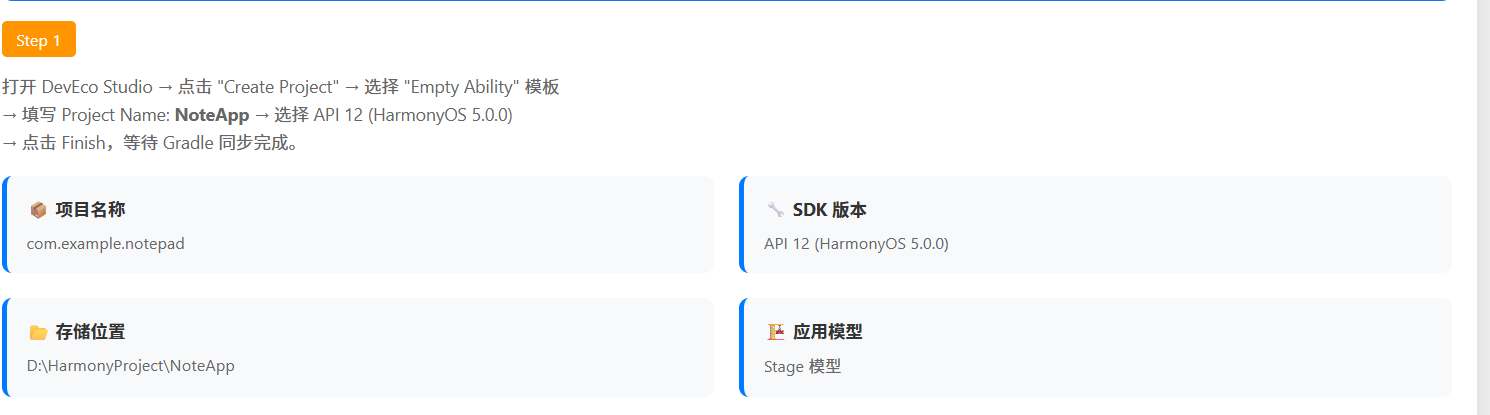
环境配置截图示意
图1:新建 Empty Ability 项目,选择 API 12
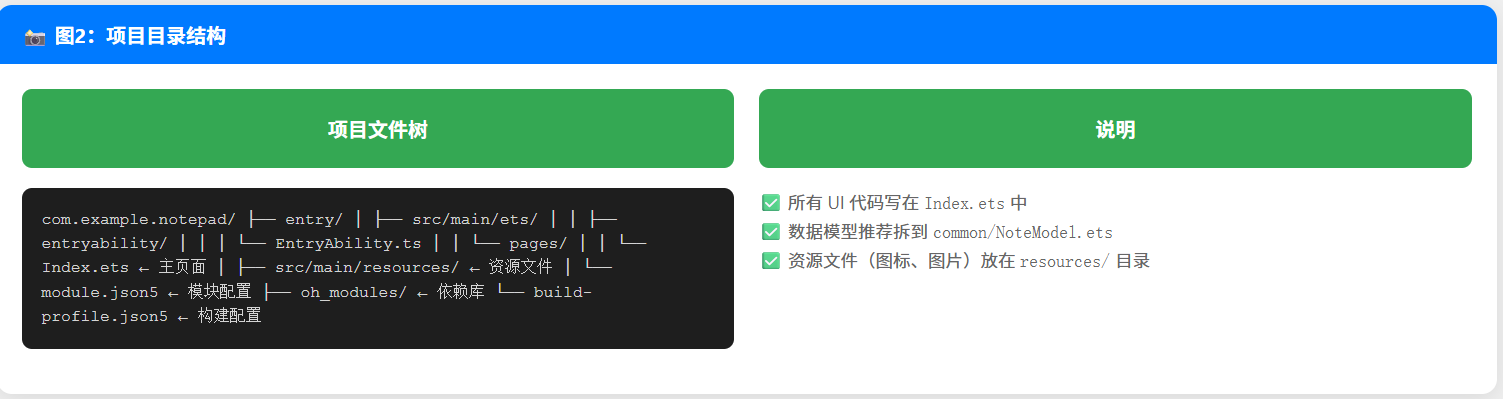
图2:项目创建完成后的标准目录结构
—
🛠️ 实战:从零搭建备忘录
Step 1:理解「数据驱动 UI」的编程思维
写备忘录应用之前,我们先要建立两个关键认知:
1. 状态驱动视图
数据(@State) → UI 渲染 ← 用户操作(触发数据变更)
     ↑                                    |
     └──────────────── 自动刷新 ────────────┘
你修改数据,UI 自动变——你不用去操作 DOM 或视图对象。
2. 本地持久化
内存数据在 App 关闭后会消失,所以我们需要把笔记存到磁盘上。HarmonyOS 提供了 preferences(首选项)API 来存储键值对数据——对简单的文本类数据非常方便。
Step 2:项目结构
com.example.notepad/
├── entry/src/main/ets/
│   ├── entryability/
│   │   └── EntryAbility.ts
│   ├── pages/
│   │   └── Index.ets          ← 主页面(所有逻辑都在这里)
│   └── common/
│       └── NoteModel.ets      ← 笔记数据模型(推荐拆出来)
Step 3:定义笔记数据模型
新建 common/NoteModel.ets:
// common/NoteModel.ets — 笔记的数据模型
export class Note {
  id: string;
  title: string;
  content: string;
  createTime: string;   // ISO 格式时间戳,如 "2025-03-15 10:30:00"
  isFavorite: boolean;

  constructor(title: string, content: string) {
    this.id = Date.now().toString();           // 用时间戳作为唯一 ID
    this.title = title;
    this.content = content;
    this.createTime = this.getNowStr();
    this.isFavorite = false;
  }

  getNowStr(): string {
    const d = new Date();
    const pad = (n: number) => n.toString().padStart(2, '0');
    return `${d.getFullYear()}-${pad(d.getMonth()+1)}-${pad(d.getDate())} ${pad(d.getHours())}:${pad(d.getMinutes())}:${pad(d.getSeconds())}`;
  }
}
💡 为什么用 Date.now() 做 ID? 简单且保证唯一性——同一毫秒不会创建两个笔记。正式项目建议用 UUID。
Step 4:编写主页面 — 从布局开始
打开 pages/Index.ets,我们先写出整体的页面骨架:
// pages/Index.ets — 备忘录主页面
import { Note } from '../common/NoteModel';

// 数据持久化工具
import preferences from '@ohos.data.preferences';

@Entry
@Component
struct NoteApp {
  // ======== 状态变量 ========
  @State notes: Note[] = [];           // 所有笔记
  @State searchText: string = '';      // 搜索关键字
  @State showCreate: boolean = false;  // 是否显示新建面板
  @State currentNote: Note | null = null; // 当前编辑的笔记

  // 新建笔记的临时数据
  @State editTitle: string = '';
  @State editContent: string = '';

  private pref!: preferences.Preferences; // 持久化对象

  // ======== 生命周期 ========
  aboutToAppear() {
    this.loadData();
  }

  async loadData() {
    // 获取持久化实例
    const context = getContext(this);
    this.pref = await preferences.getPreferences(context, 'note_store');
    // 读取已保存的笔记 JSON 字符串
    const json = this.pref.get('notes', '[]');
    const arr: any[] = JSON.parse(json);
    this.notes = arr.map((item: any) => Object.assign(new Note('', ''), item));
  }

  async saveData() {
    await this.pref.put('notes', JSON.stringify(this.notes));
    await this.pref.flush();
  }

  // 添加 / 更新笔记
  async handleSave() {
    if (!this.editTitle.trim()) {
      return; // 标题不能为空
    }
    if (this.currentNote) {
      // 编辑模式:更新已有笔记
      this.currentNote.title = this.editTitle;
      this.currentNote.content = this.editContent;
    } else {
      // 新建模式
      const note = new Note(this.editTitle, this.editContent);
      this.notes.unshift(note); // 新笔记插到最前面
    }
    await this.saveData();
    // 重置编辑状态
    this.showCreate = false;
    this.currentNote = null;
    this.editTitle = '';
    this.editContent = '';
  }

  // 编辑笔记
  startEdit(note: Note) {
    this.currentNote = note;
    this.editTitle = note.title;
    this.editContent = note.content;
    this.showCreate = true;
  }

  // 删除笔记
  async deleteNote(note: Note) {
    const idx = this.notes.indexOf(note);
    if (idx > -1) {
      this.notes.splice(idx, 1);
      await this.saveData();
    }
  }

  // 切换收藏
  async toggleFavorite(note: Note) {
    note.isFavorite = !note.isFavorite;
    await this.saveData();
  }

  // ======== 计算属性:搜索过滤后的笔记 ========
  get filteredNotes(): Note[] {
    if (!this.searchText.trim()) {
      return this.notes;
    }
    const kw = this.searchText.toLowerCase();
    return this.notes.filter(n =>
      n.title.toLowerCase().includes(kw) ||
      n.content.toLowerCase().includes(kw)
    );
  }

  // ======== UI 构建 ========
  build() {
    Column() {
      // ---- 顶部标题栏 ----
      Row() {
        Text('📝 备忘录')
          .fontSize(24)
          .fontWeight(FontWeight.Bold)
          .layoutWeight(1)
        Button({ type: ButtonType.Circle }) {
          Image($r('app.media.ic_add'))
            .width(24).height(24)
        }
        .width(44).height(44)
        .backgroundColor('#007AFF')
        .onClick(() => {
          this.currentNote = null;
          this.editTitle = '';
          this.editContent = '';
          this.showCreate = true;
        })
      }
      .width('100%')
      .padding({ top: 12, bottom: 8, left: 16, right: 16 })

      // ---- 搜索框 ----
      TextInput({ placeholder: '🔍 搜索笔记...', text: this.searchText })
        .width('92%')
        .height(40)
        .backgroundColor('#F0F0F0')
        .borderRadius(20)
        .padding({ left: 16 })
        .onChange((val: string) => { this.searchText = val; })

      // ---- 笔记列表 OR 空状态 ----
      if (this.filteredNotes.length === 0) {
        Column() {
          Text('📄 还没有笔记')
            .fontSize(18)
            .fontColor('#999')
          Text('点击右上角 + 创建你的第一条笔记')
            .fontSize(14)
            .fontColor('#bbb')
            .margin({ top: 8 })
        }
        .layoutWeight(1)
        .justifyContent(FlexAlign.Center)
      } else {
        List() {
          ForEach(this.filteredNotes, (note: Note) => {
            ListItem() {
              this.NoteCard({ note: note })
            }
            .swipeAction({ end: this.DeleteButton(note) })
          }, (note: Note) => note.id)
        }
        .layoutWeight(1)
        .width('100%')
      }
    }
    .width('100%')
    .height('100%')
    .backgroundColor('#F2F2F7')

    // ---- 新建/编辑弹窗 ----
    .bindSheet(this.showCreate, this.CreateSheet())
  }

  // ======== @Builder:可复用的 UI 片段 ========

  @Builder
  NoteCard({ note }: { note: Note }) {
    Column() {
      Row() {
        Text(note.title)
          .fontSize(17)
          .fontWeight(FontWeight.Bold)
          .textOverflow({ overflow: TextOverflow.Ellipsis })
          .maxLines(1)
          .layoutWeight(1)
        Text(note.createTime)
          .fontSize(12)
          .fontColor('#999')
      }
      .width('100%')

      if (note.content) {
        Text(note.content)
          .fontSize(15)
          .fontColor('#555')
          .lineHeight(22)
          .maxLines(3)
          .textOverflow({ overflow: TextOverflow.Ellipsis })
          .width('100%')
          .margin({ top: 6 })
      }
    }
    .width('92%')
    .padding(16)
    .backgroundColor('#FFFFFF')
    .borderRadius(12)
    .margin({ top: 8 })
    .shadow({ radius: 4, color: '#20000000', offsetX: 0, offsetY: 2 })
    .onClick(() => { this.startEdit(note); })
  }

  @Builder
  DeleteButton(note: Note) {
    Button('删除')
      .backgroundColor('#FF3B30')
      .fontColor('#fff')
      .borderRadius(8)
      .width(80)
      .height('80%')
      .onClick(() => { this.deleteNote(note); })
  }

  @Builder
  CreateSheet() {
    Column() {
      Text(this.currentNote ? '编辑笔记' : '新建笔记')
        .fontSize(20)
        .fontWeight(FontWeight.Bold)
        .margin({ bottom: 16 })

      TextInput({ placeholder: '笔记标题', text: this.editTitle })
        .width('100%')
        .height(44)
        .backgroundColor('#F8F8F8')
        .borderRadius(8)
        .padding({ left: 12 })
        .onChange((val: string) => { this.editTitle = val; })

      TextArea({ placeholder: '开始记录...', text: this.editContent })
        .width('100%')
        .height(200)
        .backgroundColor('#F8F8F8')
        .borderRadius(8)
        .padding(12)
        .margin({ top: 12 })
        .onChange((val: string) => { this.editContent = val; })

      Row() {
        Button('取消')
          .backgroundColor('#E5E5EA')
          .fontColor('#333')
          .borderRadius(8)
          .width('45%')
          .onClick(() => {
            this.showCreate = false;
            this.currentNote = null;
          })

        Button('保存')
          .backgroundColor('#007AFF')
          .fontColor('#fff')
          .borderRadius(8)
          .width('45%')
          .onClick(() => { this.handleSave(); })
      }
      .width('100%')
      .justifyContent(FlexAlign.SpaceBetween)
      .margin({ top: 20 })
    }
    .padding(24)
    .width('100%')
  }
}
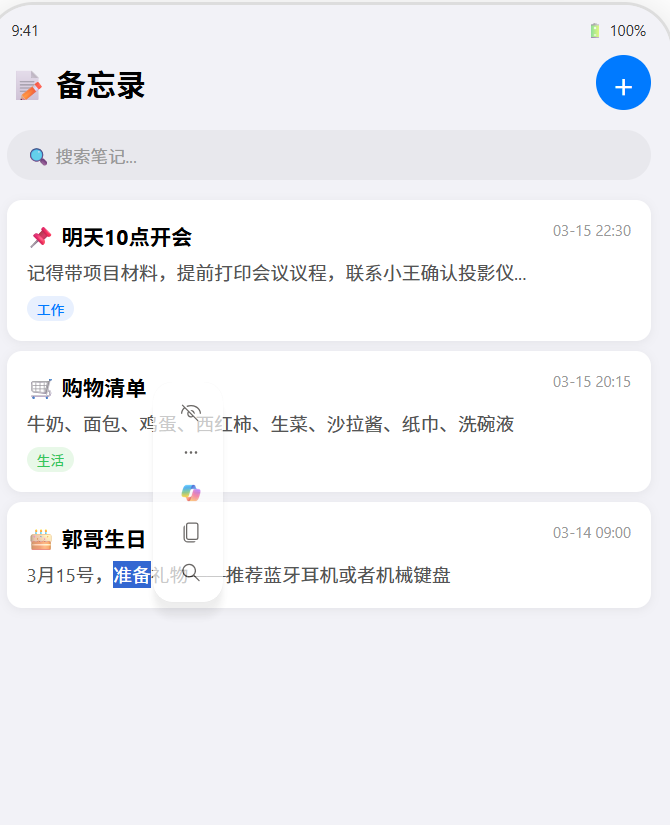
运行结果示意图:
📚 核心知识点深度解析
1. @State — 状态驱动的响应式编程
@State 是 ArkUI 响应式系统的基石。当 @State 变量变化时,框架自动重新渲染依赖该变量的 UI 部分。
@State notes: Note[] = [];
// 当你执行 this.notes.push(newNote) 时,List 自动刷新
原理: ArkUI 在编译阶段对
@State变量建立依赖图。渲染时记录哪些组件读取了该状态;状态变更时只重绘相关组件——不是全量刷新。
2. @Builder — 复用 UI 片段
@Builder 让你把一段 UI 封装成函数,避免重复代码:
@Builder
NoteCard({ note }: { note: Note }) {
  // ... 一张笔记卡片的 UI 定义
}

// 在 ListItem 中引用:
ListItem() {
  this.NoteCard({ note: note })
}
3. bindSheet — 底部弹窗
bindSheet 是 ArkUI 提供的底部弹出面板组件,非常适合新建 / 编辑表单:
.bindSheet(this.showCreate, this.CreateSheet())
// 第一个参数是 bool 控制显示/隐藏
// 第二个参数是 @Builder 定义的面板内容
4. JSON 序列化与持久化
// 存:把对象数组转成 JSON 字符串
await pref.put('notes', JSON.stringify(this.notes));

// 取:把 JSON 字符串解析回对象数组
const json = pref.get('notes', '[]');
const arr = JSON.parse(json);
// 注意:JSON.parse 不会自动调用 constructor,需手动恢复原型
this.notes = arr.map(item => Object.assign(new Note('', ''), item));
⚠️ 避坑指南
| 坑 | 原因 | 正确做法 |
|---|---|---|
| 笔记数据 App 重启丢失 | 只存在内存中 | 必须用 preferences 或数据库持久化 |
| JSON.parse 后方法丢失 | JSON 只管数据不管原型链 | 用 Object.assign(new Note(), raw) 恢复 |
| ForEach 循环不刷新 | 缺少 key 属性 |
ForEach(arr, fn, item => item.id) 写第三个参数 |
| TextArea 文本换行不对 | 忘了设置 maxLines 或 lineHeight |
显式设置 lineHeight(22) 和 maxLines(N) |
| 编辑时原数据被改 | 直接修改了 this.notes 中的对象 |
深拷贝一份再编辑,或直接用对象引用(简单场景) |
🔥 最佳实践
- 尽早持久化:每次增删改后马上调用
saveData(),不要等用户退出 - 搜索防抖优化:高频输入时全文搜索可能卡顿,简单场景用
onChange实时过滤即可 - 卡片圆角 + 阴影:
borderRadius(12) + shadow()让列表更有质感 - 空状态引导:不要只显示白屏——空状态提示 + + 按钮引导用户创建第一条笔记
- 类型安全:用
export class Note而非any[],IDE 能给你更好的代码补全 - 异步初始化:
aboutToAppear中不要用sync操作,所有 IO 都用async/await
🚀 扩展挑战
学有余力的同学可以试试以下进阶功能:
- 富文本编辑:支持加粗、列表、图片插入(使用
RichEditor组件) - 标签分类:给笔记打标签,按标签过滤(
@State tags: string[]) - 暗黑模式适配:使用
@Styles定义主题变量,根据系统主题切换 - 数据导出:支持导出为 TXT / Markdown 文件(使用
fileIoAPI) - 搜索高亮:搜索结果中匹配的关键字用不同颜色显示
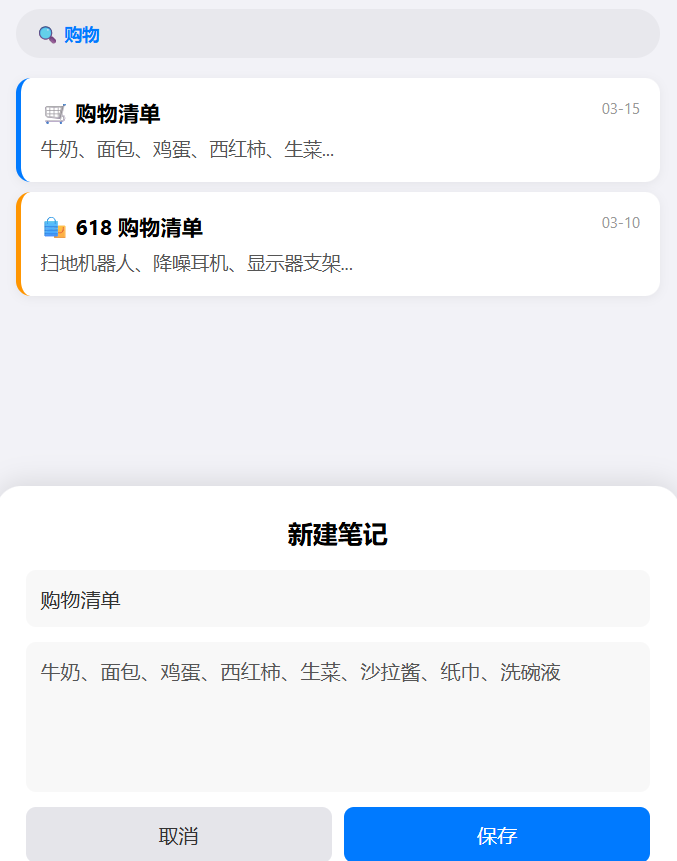
运行结果完整截图:
官方文档: HarmonyOS 应用开发文档
- 开发者社区: 华为开发者论坛
- 欢迎加入开源鸿蒙跨平台社区: https://openharmonycrossplatform.csdn.net/

作为“人工智能6S店”的官方数字引擎,为AI开发者与企业提供一个覆盖软硬件全栈、一站式门户。
更多推荐
 0
0 0
0- 0


 已为社区贡献5条内容

所有评论(0)