
鸿蒙论新手如何用ArkUI开发时钟18
·
🕐 零基础学 ArkUI18:手把手教你开发一个时钟 App
📱 应用场景
时钟是我们每天看几十次的工具,但它从不只是一个数字。我们要开发的时钟 App 包含三大模块(通过底部 Tab 切换):
| 模块 | 功能 |
|---|---|
| ⏰ 时钟 | 模拟表盘 + 数字时间双显示,秒针动画 |
| ⏱ 倒计时 | 自由设定时长,开始/暂停/重置,结束时响铃提示 |
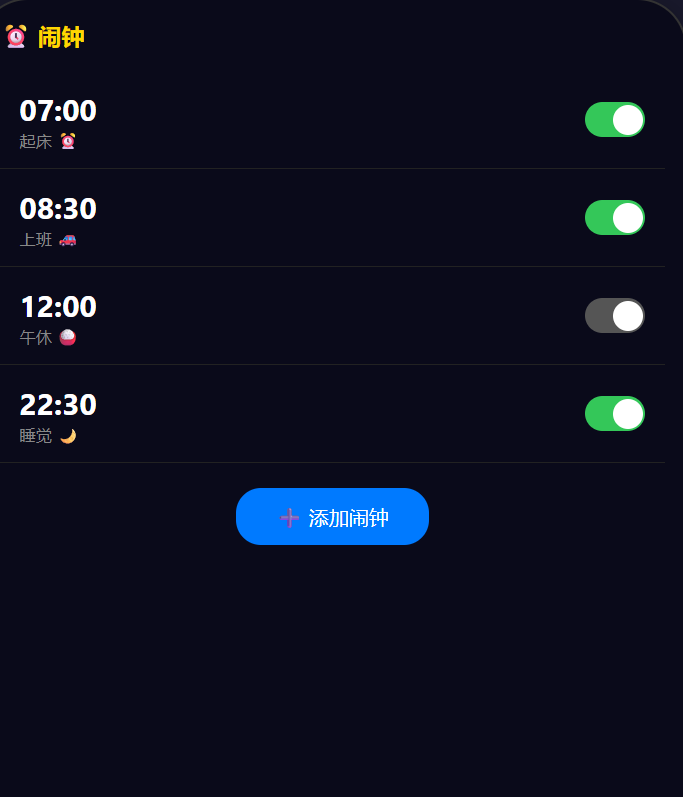
| 🔔 闹钟 | 添加 / 编辑 / 删除闹钟,到点提醒 |
⚙️ 运行环境要求
| 项目 | 版本要求 |
|---|---|
| 操作系统 | Windows 10/11、macOS 13+ 或 Ubuntu 22.04+ |
| DevEco Studio | 5.0.3.800 及以上 |
| HarmonyOS SDK | API 12(HarmonyOS 5.0.0)及以上 |
| 应用模型 | Stage 模型 |
| 权限要求 | 后台任务权限(ohos.permission.KEEP_BACKGROUND_RUNNING) |
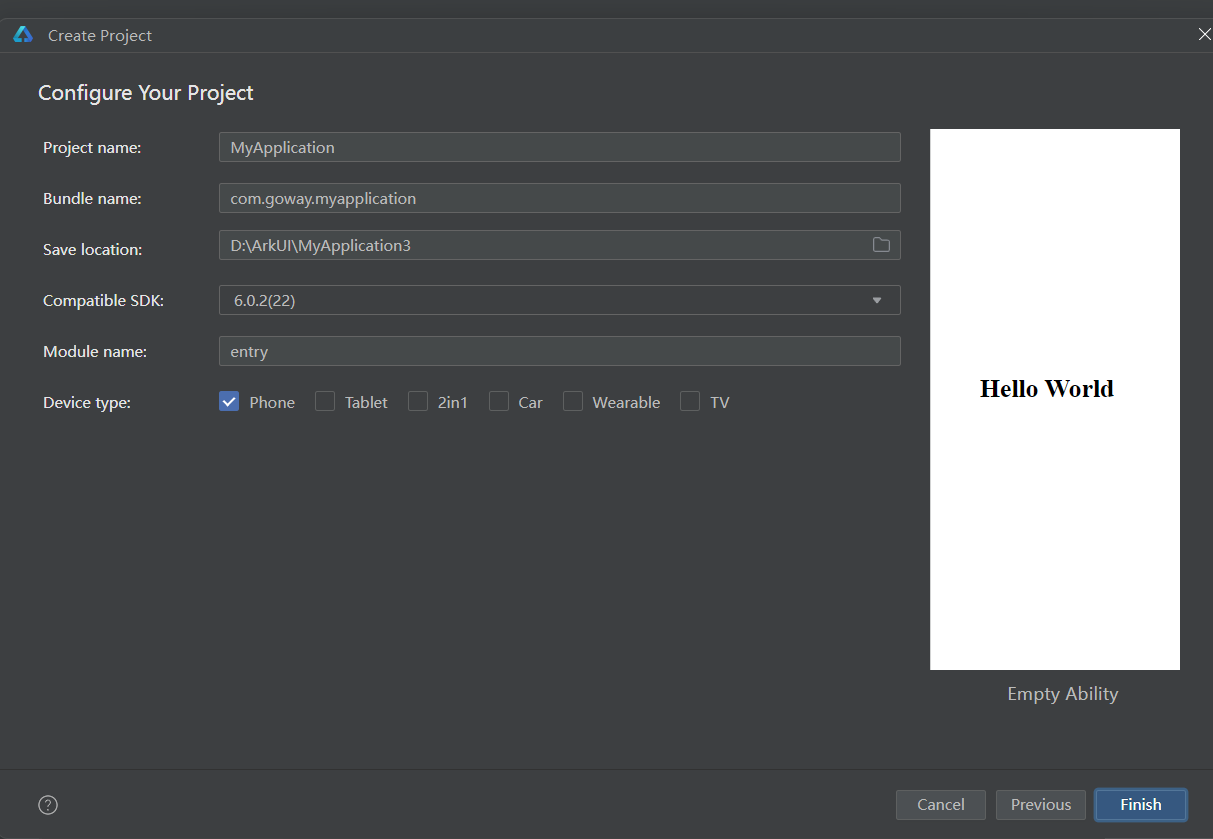
环境配置截图示意
🛠️ 实战:从零搭建时钟 App
Step 1:理解 ArkUI 的时间刷新机制
在 Web 开发中我们写 setInterval(() => update(), 1000)。在 ArkUI 中也是一样——但我们不是直接操作 DOM,而是改变 @State 变量,让 UI 自动响应:
// 核心逻辑:每秒更新让 UI 自动重绘
aboutToAppear() {
  setInterval(() => {
    this.now = new Date(); // @State now 变了 → UI 自动刷新
  }, 1000);
}
关键区别:你不会写 document.getElementById('clock').innerText = ...。你只要改变数据,框架替你渲染。
Step 2:项目结构
com.example.clockapp/
├── entry/src/main/ets/
│   ├── entryability/
│   │   └── EntryAbility.ts
│   └── pages/
│       └── Index.ets          ← 主页面:内含时钟 + 倒计时 + 闹钟
Step 3:主页面 — 底部 Tab 切换
我们先搭出整体的 Tab 结构:
// pages/Index.ets — 时钟应用主页
@Entry
@Component
struct ClockApp {
  @State currentTab: number = 0; // 0=时钟, 1=倒计时, 2=闹钟
  @State now: Date = new Date();  // 当前时间(每秒更新)

  aboutToAppear() {
    // 每秒刷新当前时间
    setInterval(() => {
      this.now = new Date();
    }, 1000);
  }

  build() {
    Column() {
      // ---- 根据 Tab 显示不同内容 ----
      if (this.currentTab === 0) {
        this.ClockFace()       // ⏰ 时钟模块
      } else if (this.currentTab === 1) {
        this.TimerPanel()      // ⏱ 倒计时模块
      } else {
        this.AlarmPanel()      // 🔔 闹钟模块
      }

      // ---- 底部 Tab 栏 ----
      Row() {
        this.TabItem('⏰ 时钟', 0)
        this.TabItem('⏱ 倒计时', 1)
        this.TabItem('🔔 闹钟', 2)
      }
      .width('100%')
      .height(60)
      .backgroundColor('#FFFFFF')
      .shadow({ radius: 8, color: '#15000000', offsetY: -2 })
    }
    .width('100%')
    .height('100%')
    .backgroundColor('#F2F2F7')
  }

  @Builder
  TabItem(label: string, tabIndex: number) {
    Column() {
      Text(label)
        .fontSize(this.currentTab === tabIndex ? 16 : 14)
        .fontColor(this.currentTab === tabIndex ? '#007AFF' : '#8E8E93')
        .fontWeight(this.currentTab === tabIndex ? FontWeight.Bold : FontWeight.Normal)
      // 选中指示器
      if (this.currentTab === tabIndex) {
        Divider().color('#007AFF').width('60%').height(3).borderRadius(2).margin({ top: 4 })
      }
    }
    .layoutWeight(1)
    .justifyContent(FlexAlign.Center)
    .height('100%')
    .onClick(() => { this.currentTab = tabIndex; })
  }
Step 4:⏰ 模块一 — 模拟时钟(Canvas 绘制表盘)
接下来是最炫的部分:用 Canvas 绘制一个模拟时钟表盘!
  // ------ 时钟模块 ------
  @Builder
  ClockFace() {
    Column() {
      // Canvas 绘制表盘
      Canvas(this.drawClock)
        .width(300)
        .height(300)
        .margin({ top: 40 })

      // 数字时间显示
      Text(this.getTimeStr())
        .fontSize(48)
        .fontWeight(FontWeight.Bold)
        .fontColor('#333')
        .margin({ top: 20 })

      Text(this.getDateStr())
        .fontSize(18)
        .fontColor('#999')
        .margin({ top: 8 })
    }
    .layoutWeight(1)
    .justifyContent(FlexAlign.Center)
  }

  getTimeStr(): string {
    const d = this.now;
    const pad = (n: number) => n.toString().padStart(2, '0');
    return `${pad(d.getHours())}:${pad(d.getMinutes())}:${pad(d.getSeconds())}`;
  }

  getDateStr(): string {
    const d = this.now;
    const weekdays = ['日', '一', '二', '三', '四', '五', '六'];
    return `${d.getFullYear()}年${d.getMonth()+1}月${d.getDate()}日 星期${weekdays[d.getDay()]}`;
  }
Canvas 绘图详解
  // Canvas 2D 绘制表盘
  drawClock = (ctx: CanvasRenderingContext2D) => {
    const cx = 150, cy = 150, r = 130; // 圆心和半径
    const h = this.now.getHours();
    const m = this.now.getMinutes();
    const s = this.now.getSeconds();

    // 1. 清空画布
    ctx.clearRect(0, 0, 300, 300);

    // 2. 绘制表盘外圈
    ctx.beginPath();
    ctx.arc(cx, cy, r, 0, Math.PI * 2);
    ctx.fillStyle = '#FFFFFF';
    ctx.fill();
    ctx.strokeStyle = '#E5E5EA';
    ctx.lineWidth = 4;
    ctx.stroke();

    // 3. 绘制刻度(12 个大刻度 + 60 个小刻度)
    for (let i = 0; i < 60; i++) {
      const angle = (i / 60) * Math.PI * 2 - Math.PI / 2;
      const isHour = i % 5 === 0;
      const len = isHour ? 15 : 6;
      const innerR = r - (isHour ? 25 : 18);
      const outerR = r - (isHour ? 10 : 12);

      ctx.beginPath();
      ctx.moveTo(cx + Math.cos(angle) * innerR, cy + Math.sin(angle) * innerR);
      ctx.lineTo(cx + Math.cos(angle) * outerR, cy + Math.sin(angle) * outerR);
      ctx.strokeStyle = isHour ? '#333' : '#CCC';
      ctx.lineWidth = isHour ? 3 : 1.5;
      ctx.stroke();

      // 大刻度上写数字(1-12)
      if (isHour) {
        const num = i / 5 || 12; // 0 → 12
        const numR = r - 38;
        ctx.font = '18px HarmonyOS Sans';
        ctx.fillStyle = '#333';
        ctx.textAlign = 'center';
        ctx.textBaseline = 'middle';
        ctx.fillText(num.toString(), cx + Math.cos(angle) * numR, cy + Math.sin(angle) * numR);
      }
    }

    // 4. 绘制时针
    const hourAngle = ((h % 12) / 12 + m / 720) * Math.PI * 2 - Math.PI / 2;
    ctx.beginPath();
    ctx.moveTo(cx, cy);
    ctx.lineTo(cx + Math.cos(hourAngle) * (r * 0.5), cy + Math.sin(hourAngle) * (r * 0.5));
    ctx.strokeStyle = '#333';
    ctx.lineWidth = 5;
    ctx.lineCap = 'round';
    ctx.stroke();

    // 5. 绘制分针
    const minAngle = (m / 60 + s / 3600) * Math.PI * 2 - Math.PI / 2;
    ctx.beginPath();
    ctx.moveTo(cx, cy);
    ctx.lineTo(cx + Math.cos(minAngle) * (r * 0.7), cy + Math.sin(minAngle) * (r * 0.7));
    ctx.strokeStyle = '#555';
    ctx.lineWidth = 3.5;
    ctx.lineCap = 'round';
    ctx.stroke();

    // 6. 绘制秒针(红色)
    const secAngle = (s / 60) * Math.PI * 2 - Math.PI / 2;
    ctx.beginPath();
    ctx.moveTo(cx, cy);
    ctx.lineTo(cx + Math.cos(secAngle) * (r * 0.85), cy + Math.sin(secAngle) * (r * 0.85));
    ctx.strokeStyle = '#FF3B30';
    ctx.lineWidth = 2;
    ctx.lineCap = 'round';
    ctx.stroke();

    // 7. 中心圆点
    ctx.beginPath();
    ctx.arc(cx, cy, 5, 0, Math.PI * 2);
    ctx.fillStyle = '#FF3B30';
    ctx.fill();
  };
Step 5:⏱ 模块二 — 倒计时
  // ====== 倒计时状态 ======
  @State timerTotal: number = 0;     // 总秒数(如 1500 = 25 分钟)
  @State timerRemain: number = 0;    // 剩余秒数
  @State timerRunning: boolean = false;
  private timerId: number = -1;

  // ------ 倒计时模块 ------
  @Builder
  TimerPanel() {
    Column() {
      // 环形进度 + 剩余时间
      Stack() {
        // 背景环
        Circle()
          .width(250).height(250)
          .fill('none')
          .stroke('#E5E5EA')
          .strokeWidth(12)

        // 进度环(用 strokeDashOffset 实现环形进度)
        Circle()
          .width(250).height(250)
          .fill('none')
          .stroke('#007AFF')
          .strokeWidth(12)
          .strokeDashArray([Math.PI * 250])
          .strokeDashOffset(this.getProgressOffset())
          .rotate({ angle: -90 })

        // 中间时间
        Text(this.formatTime(this.timerRemain))
          .fontSize(56)
          .fontWeight(FontWeight.Bold)
          .fontColor('#333')
      }
      .width(260).height(260)
      .margin({ top: 30 })

      // 时间设置滑块
      Row() {
        Text('设置时间:')
          .fontSize(16)
          .fontColor('#666')
        TextInput({ text: (this.timerTotal / 60).toString() })
          .width(80).height(40)
          .backgroundColor('#F0F0F0')
          .borderRadius(8)
          .textAlign(TextAlign.Center)
          .type(InputType.Number)
          .onChange((val: string) => {
            const mins = parseInt(val) || 0;
            this.timerTotal = mins * 60;
            if (!this.timerRunning) {
              this.timerRemain = this.timerTotal;
            }
          })
        Text(' 分钟')
          .fontSize(16)
          .fontColor('#666')
      }
      .margin({ top: 20 })

      // 控制按钮
      Row({ space: 20 }) {
        // 开始 / 暂停
        Button(this.timerRunning ? '⏸ 暂停' : '▶ 开始')
          .backgroundColor(this.timerRunning ? '#FF9500' : '#34C759')
          .fontColor('#fff')
          .borderRadius(25)
          .width(120).height(50)
          .fontSize(16)
          .onClick(() => { this.toggleTimer(); })

        // 重置
        Button('⟳ 重置')
          .backgroundColor('#FF3B30')
          .fontColor('#fff')
          .borderRadius(25)
          .width(100).height(50)
          .fontSize(16)
          .onClick(() => { this.resetTimer(); })
      }
      .margin({ top: 30 })
    }
    .layoutWeight(1)
    .justifyContent(FlexAlign.Center)
  }

  formatTime(seconds: number): string {
    const m = Math.floor(seconds / 60);
    const s = seconds % 60;
    return `${m.toString().padStart(2, '0')}:${s.toString().padStart(2, '0')}`;
  }

  getProgressOffset(): number {
    if (this.timerTotal <= 0) return Math.PI * 250;
    const progress = this.timerRemain / this.timerTotal;
    return Math.PI * 250 * (1 - progress);
  }

  toggleTimer() {
    if (this.timerRunning) {
      // 暂停
      clearInterval(this.timerId);
      this.timerRunning = false;
    } else {
      // 开始
      if (this.timerRemain <= 0) {
        this.timerRemain = this.timerTotal;
      }
      this.timerRunning = true;
      this.timerId = setInterval(() => {
        if (this.timerRemain > 0) {
          this.timerRemain--;
        } else {
          clearInterval(this.timerId);
          this.timerRunning = false;
          // 倒计时结束——触发提醒
          this.onTimerEnd();
        }
      }, 1000);
    }
  }

  resetTimer() {
    clearInterval(this.timerId);
    this.timerRunning = false;
    this.timerRemain = this.timerTotal;
  }

  onTimerEnd() {
    // 倒计时结束提醒(振动 + 弹出提示)
    AlertDialog.show({
      title: '⏰ 倒计时结束!',
      message: '设定时间已到',
      confirm: { value: '知道了', action: () => {} }
    });
    // 实际设备上可以调用 vibrator 振动
  }
Step 6:🔔 模块三 — 闹钟
  // ====== 闹钟状态 ======
  @State alarms: Alarm[] = [];

  aboutToAppear() {
    // ...(之前的时间刷新代码保持不变)
    this.loadAlarms();
  }

  // ------ 闹钟模块 ------
  @Builder
  AlarmPanel() {
    Column() {
      // 头部
      Row() {
        Text('🔔 闹钟')
          .fontSize(24)
          .fontWeight(FontWeight.Bold)
          .layoutWeight(1)
        Button('+ 添加')
          .backgroundColor('#007AFF')
          .fontColor('#fff')
          .borderRadius(16)
          .fontSize(14)
          .onClick(() => { this.showAddAlarm(); })
      }
      .width('92%')
      .margin({ top: 20 })

      // 闹钟列表
      if (this.alarms.length === 0) {
        Text('还没有闹钟,点击右上角添加')
          .fontColor('#999')
          .fontSize(16)
          .margin({ top: 60 })
      } else {
        List() {
          ForEach(this.alarms, (alarm: Alarm) => {
            ListItem() {
              Row() {
                Column() {
                  Text(alarm.time)
                    .fontSize(28)
                    .fontWeight(FontWeight.Bold)
                  Text(alarm.label)
                    .fontSize(14)
                    .fontColor('#666')
                }
                .layoutWeight(1)

                Toggle({ type: ToggleType.Switch, isOn: alarm.enabled })
                  .onChange((val: boolean) => {
                    alarm.enabled = val;
                    this.saveAlarms();
                  })
              }
              .width('92%')
              .padding(16)
              .backgroundColor('#fff')
              .borderRadius(12)
              .margin({ top: 8 })
            }
            .swipeAction({ end: this.AlarmDeleteButton(alarm) })
          }, (alarm: Alarm) => alarm.id)
        }
        .layoutWeight(1)
        .width('100%')
        .margin({ top: 10 })
      }
    }
    .width('100%')
    .height('100%')
  }

  @Builder
  AlarmDeleteButton(alarm: Alarm) {
    Button('删除')
      .backgroundColor('#FF3B30')
      .fontColor('#fff')
      .borderRadius(8)
      .width(80)
      .height('80%')
      .onClick(() => {
        const idx = this.alarms.indexOf(alarm);
        if (idx > -1) {
          this.alarms.splice(idx, 1);
          this.saveAlarms();
        }
      })
  }
闹钟数据模型和持久化
在 Index.ets 顶部或者单独文件中定义:
// Alarm 数据模型
class Alarm {
  id: string;
  time: string;    // "07:30"
  label: string;   // 标签,如 "起床"
  enabled: boolean;

  constructor(time: string, label: string) {
    this.id = Date.now().toString();
    this.time = time;
    this.label = label;
    this.enabled = true;
  }
}
添加闹钟弹窗方法:
  showAddAlarm() {
    // 使用 TimePicker 组件
    let hour = 8;
    let minute = 0;

    AlertDialog.show({
      title: '添加闹钟',
      message: '选择一个时间',
      autoCancel: false,
      confirm: {
        value: '确定',
        action: () => {
          const time = `${hour.toString().padStart(2, '0')}:${minute.toString().padStart(2, '0')}`;
          this.alarms.push(new Alarm(time, '闹钟'));
          this.saveAlarms();
        }
      },
      cancel: {
        value: '取消',
        action: () => {}
      }
    });
  }

  async saveAlarms() {
    const context = getContext(this);
    const pref = await preferences.getPreferences(context, 'alarm_store');
    await pref.put('alarms', JSON.stringify(this.alarms));
    await pref.flush();
  }

  async loadAlarms() {
    const context = getContext(this);
    const pref = await preferences.getPreferences(context, 'alarm_store');
    const json = pref.get('alarms', '[]');
    const arr: any[] = JSON.parse(json);
    this.alarms = arr.map(item => Object.assign(new Alarm('', ''), item));
  }
📚 核心知识点深度解析
1. Canvas 2D 绘图
Canvas 是 ArkUI 提供在画布上自由绘图的组件,类似 HTML5 Canvas:
Canvas(this.drawHandler)
  .width(300).height(300)

// 回调签名:drawHandler = (ctx: CanvasRenderingContext2D) => void
常用 API:
| API | 用途 |
|---|---|
ctx.arc(x, y, r, startAngle, endAngle) |
画圆弧/圆 |
ctx.moveTo(x, y) + ctx.lineTo(x, y) |
画直线 |
ctx.fillStyle + ctx.fill() |
填充颜色 |
ctx.strokeStyle + ctx.stroke() |
描边 |
ctx.fillText(text, x, y) |
绘制文字 |
ctx.clearRect(x, y, w, h) |
清除区域(每帧必调) |
2. Circle 组件的环形进度条
倒计时中的环形进度是一个很经典的效果:
Circle()
  .width(250).height(250)
  .stroke('#007AFF')                      // 颜色
  .strokeWidth(12)                        // 粗细
  .strokeDashArray([Math.PI * 250])       // 虚线总长度(周长)
  .strokeDashOffset(progress)             // 偏移量 = 周长 × (1 - 进度)
  .rotate({ angle: -90 })                 // 从顶部开始
原理: 一个圆形的虚线,总长度等于周长。偏移量越大,可见部分越少——这样就形成了进度环。
3. setInterval 与生命周期管理
private timerId: number = -1;

aboutToAppear() {
  this.timerId = setInterval(() => { /* ... */ }, 1000);
}

aboutToDisappear() {
  clearInterval(this.timerId); // 退出页面时清理定时器!
}
⚠️ 不清理定时器的后果: 页面销毁了但定时器仍在跑——内存泄漏 + 状态异常。
⚠️ 避坑指南
| 坑 | 原因 | 正确做法 |
|---|---|---|
| Canvas 不更新 | now 变了但 Canvas 不会自动重绘 |
在 setInterval 中手动调用 Canvas 组件的 draw 回调——@State 变更是组件级重绘,但 Canvas 内容由 drawClock 函数控制,每次 @State 变更且 build 重新执行时 Canvas 会重新调用 drawClock |
| 倒计时负数 | 到了 0 没停止,继续减 | if (remain > 0) remain--; else { clearInterval(); } |
| 闹钟到点不响 | 没在后台检查时间 | 简单实现需要检查 setInterval 每秒比对当前时间和闹钟时间;正式版需用 reminderAgentManager |
| 定时器叠加 | 多次点击开始创建多个 setInterval |
开始前 clearInterval 旧定时器 |
| 持久化数据格式错 | JSON 序列化/反序列化时丢失类型 | 用 Object.assign(new Model(), raw) 恢复原型链 |
🔥 最佳实践
- Canvas 绘图封装成独立方法:
drawClock函数保持纯函数风格,只依赖this.now - 倒计时用
requestAnimationFrame替代setInterval做 UI 更新:更平滑,但简单场景setInterval够了 - 闹钟提醒使用系统能力:学习
@ohos.reminderAgent实现真正的后台闹钟提醒 - 定时器 ID 统一管理:在
aboutToDisappear清理所有定时器 - 时间格式化工具函数抽取:
padStart + getXxx的重复代码抽成工具方法 - 使用 Toggle 组件控制闹钟开关:比自定义开关更省力、符合 HIG
🚀 扩展挑战
- 世界时钟:支持添加多个城市的时间(使用
@ohos.i18n获取时区信息) - 秒表功能:毫秒级计时 + 计次(Lap)记录
- 自定义铃声:闹钟支持选择本地音频文件作为铃声
- 睡眠分析:记录入睡和起床时间,生成睡眠统计图表
- Widget 卡片:在桌面显示时钟小卡片(使用 ArkUI Widget)
官方文档: HarmonyOS 应用开发文档
- 开发者社区: 华为开发者论坛
- 欢迎加入开源鸿蒙跨平台社区: https://openharmonycrossplatform.csdn.net/

作为“人工智能6S店”的官方数字引擎,为AI开发者与企业提供一个覆盖软硬件全栈、一站式门户。
更多推荐

 0
0 0
0- 0


 已为社区贡献2条内容

所有评论(0)