
鸿蒙原生应用实战(三)ArkUI:从零开发一个 GIF 动图制作器 App
·
🎞️ 鸿蒙原生应用实战(三)ArkUI:从零开发一个 GIF 动图制作器 App
博主说: 微信表情包、产品演示动图、操作指引——GIF 动图在日常沟通和内容创作中无处不在。今天我们就用 ArkUI 实现一个连拍转 GIF 的工具 App,支持帧率调节、预览播放、一键分享。通过这个项目你将领略 Image API 编解码、Canvas 帧合成和 GIF 文件格式的奥秘。
📱 应用场景
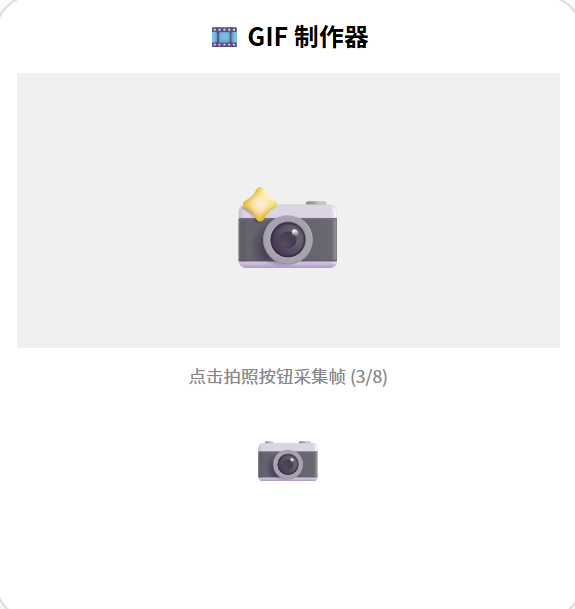
GIF 制作是高频刚需——不管你是做教程截图、表情包创作还是产品演示,一个好用的 GIF 制作器都能大幅提升效率。我们要开发的 App 会实现:
| 功能模块 | 具体能力 | 用户场景 |
|---|---|---|
| 📸 连拍采集 | 连续拍摄 3~10 帧照片或从视频中截取帧 | 制作表情包素材 |
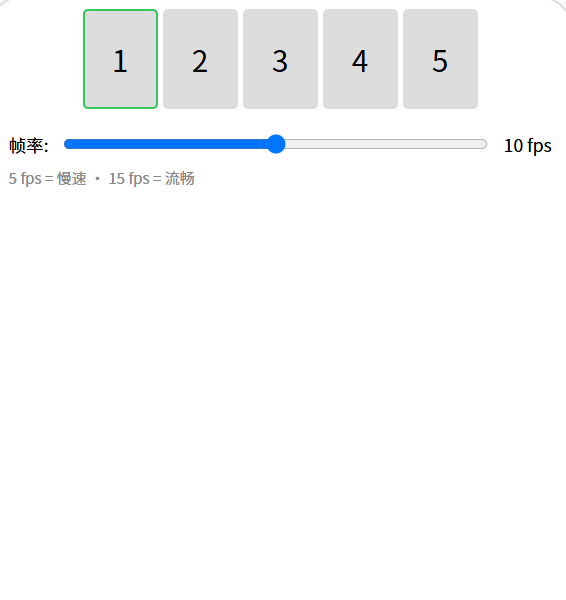
| 🎞️ 帧列表管理 | 预览每一帧、拖拽排序、单帧删除 | 调整播放顺序 |
| ⏱ 帧率控制 | 5fps ~ 20fps 可调,实时预览速度 | 控制动图快慢 |
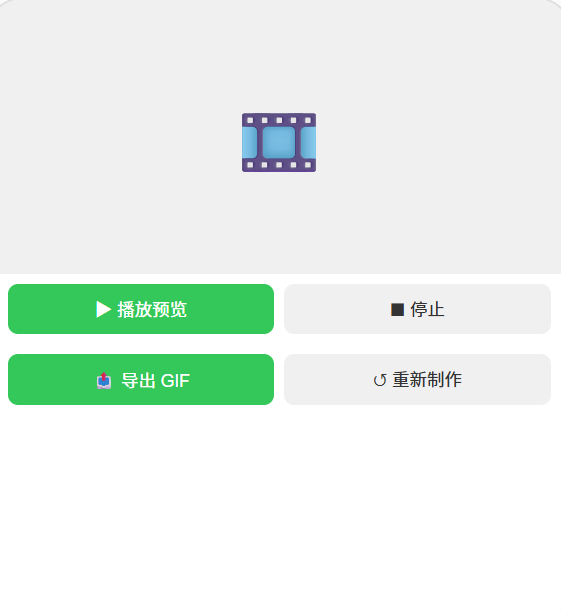
| ▶️ 预览播放 | 循环播放预览 GIF 效果 | 导出前确认效果 |
| 📤 导出分享 | 合成 GIF 并保存到相册/分享 | 发布到社交媒体 |
⚙️ 运行环境要求
| 项目 | 版本要求 |
|---|---|
| DevEco Studio | 5.0.3.800 及以上 |
| HarmonyOS SDK | API 12(HarmonyOS 5.0.0)及以上 |
| 权限要求 | ohos.permission.READ_MEDIA + ohos.permission.WRITE_MEDIA |
| 核心 API | @ohos.multimedia.image(图片编码/解码)、@ohos.file.fs、Canvas |
环境配置截图
📄 👉 点此查看环境配置截图网页
图1:创建项目 + module.json5 媒体权限配置
🛠️ 从零搭建 GIF 动图制作器
Step 1:理解 GIF 编码原理
GIF 的文件结构:
┌─────────────────────────────────┐
│ GIF Header ("GIF89a")           │ ← 文件头标识
├─────────────────────────────────┤
│ Logical Screen Descriptor       │ ← 画布宽高、全局颜色表
├─────────────────────────────────┤
│ Global Color Table              │ ← 全局调色板(最多 256 色)
├─────────────────────────────────┤
│ Image Descriptor #1             │ ← 第 1 帧
│ Local Color Table (可选)        │
│ Image Data (LZW 压缩)          │
├─────────────────────────────────┤
│ Image Descriptor #2             │ ← 第 2 帧
│ ...                             │
├─────────────────────────────────┤
│ Graphic Control Extension #1    │ ← 帧控制(延迟时间、透明色)
├─────────────────────────────────┤
│ Trailer (0x3B)                  │ ← 文件结束
└─────────────────────────────────┘
核心参数:
- 帧率:每帧之间的延迟时间(以 10ms 为单位)。帧率 10fps = 延迟 100ms
- 颜色:GIF 最多支持 256 色,所以彩色照片转 GIF 会失真——这是 GIF 的天然限制
- 循环:GIF89a 支持指定循环次数(0 = 无限循环)
Step 2:数据模型
// GIF 帧数据
interface GIFrame {
  id: string;
  pixelMap: PixelMap;  // 帧图像数据
  duration: number;     // 该帧停留时间(ms)
  thumbnail: string;    // 缩略图 base64 或路径
}

// GIF 项目数据
@Observed
class GIFProject {
  frames: GIFrame[] = [];
  fps: number = 10;
  width: number = 320;
  height: number = 240;
  loopCount: number = 0; // 0 = 无限循环

  get frameDelay(): number {
    return Math.round(1000 / this.fps);
  }

  get totalDuration(): number {
    return this.frames.length * this.frameDelay;
  }
}
Step 3:完整实战代码
// pages/Index.ets — GIF 动图制作器主页面
import image from '@ohos.multimedia.image';
import fileIo from '@ohos.file.fs';
import photoAccessHelper from '@ohos.file.photoAccessHelper';

@Entry
@Component
struct GIFMaker {
  // ======== 状态变量 ========
  @State frames: ImageFrame[] = [];
  @State fps: number = 10;
  @State isPreviewing: boolean = false;
  @State currentFrameIndex: number = -1;
  @State isExporting: boolean = false;
  @State exportProgress: number = 0;
  @State projectWidth: number = 320;
  @State projectHeight: number = 240;

  private frameIdCounter: number = 0;

  // ======== 从相册选取图片作为帧 ========
  async addFrameFromAlbum() {
    try {
      const helper = photoAccessHelper.getPhotoAccessHelper(getContext(this));
      const uris = await helper.selectPhotoUris(1); // 选 1 张

      if (uris && uris.length > 0) {
        const file = fileIo.openSync(uris[0], fileIo.OpenMode.READ_ONLY);
        const buf = new ArrayBuffer(1024 * 1024); // 1MB 缓冲区
        const readLen = fileIo.readSync(file.fd, buf);
        fileIo.closeSync(file);

        // 解码为 PixelMap
        const imgSource = image.createImageSource(buf.slice(0, readLen));
        const pixelMap = await imgSource.createPixelMap({
          desiredSize: { width: this.projectWidth, height: this.projectHeight }
        });

        this.frames.push({
          id: 'frame_' + (this.frameIdCounter++),
          pixelMap: pixelMap,
          duration: this.frameDelay
        });
        this.currentFrameIndex = this.frames.length - 1;
      }
    } catch (err) {
      console.error('添加帧失败:', JSON.stringify(err));
    }
  }

  // ======== 连拍采集 ========
  async captureFrames(count: number) {
    // 调用 Camera API 连续拍摄 count 张照片
    // 每张解码为 PixelMap 后加入 frames 数组
    // 实际项目中此处调用 camera.CameraManager 实现连拍
    for (let i = 0; i < count; i++) {
      // ... 拍照并解码 ...
      // this.frames.push({ id, pixelMap, duration: this.frameDelay });
    }
  }

  // ======== 删除帧 ========
  removeFrame(index: number) {
    this.frames.splice(index, 1);
    if (this.currentFrameIndex >= this.frames.length) {
      this.currentFrameIndex = this.frames.length - 1;
    }
  }

  // ======== 帧排序(拖拽交换) ========
  moveFrame(from: number, to: number) {
    const item = this.frames.splice(from, 1)[0];
    this.frames.splice(to, 0, item);
  }

  // ======== 计算属性 ========
  get frameDelay(): number {
    return Math.round(1000 / this.fps);
  }

  get totalFrames(): number {
    return this.frames.length;
  }

  get totalDuration(): string {
    const ms = this.frames.length * this.frameDelay;
    return (ms / 1000).toFixed(1) + 's';
  }

  // ======== 导出 GIF ========
  async exportGIF() {
    if (this.frames.length < 2) {
      AlertDialog.show({ message: '至少需要 2 帧才能合成 GIF' });
      return;
    }

    this.isExporting = true;
    this.exportProgress = 0;

    try {
      // 1. 创建 GIF 编码器
      const encoder = image.createImagePacker();
      const packOpts: image.PackingOption = {
        format: 'image/gif',
        quality: 100
      };

      // 2. 逐帧编码
      // 由于 @ohos.multimedia.image 的 GIF 编码支持有限,
      // 这里使用逐帧写入文件的方式合成
      const context = getContext(this);
      const outputPath = context.filesDir + '/output.gif';
      const file = fileIo.openSync(outputPath, fileIo.OpenMode.CREATE | fileIo.OpenMode.READ_WRITE);

      // 写 GIF 文件头
      this.writeGIFHeader(file, this.projectWidth, this.projectHeight);

      // 逐帧写入
      for (let i = 0; i < this.frames.length; i++) {
        const frame = this.frames[i];

        // 将 PixelMap 编码为 GIF 帧数据
        const packedData = await encoder.pack(frame.pixelMap, packOpts);

        // 计算该帧的延迟时间(以 10ms 为单位)
        const delay = Math.round(frame.duration / 10);

        // 写 Graphic Control Extension
        this.writeGCE(file, delay);

        // 写图像数据
        fileIo.writeSync(file.fd, packedData);

        this.exportProgress = Math.round(((i + 1) / this.frames.length) * 100);
      }

      // 写文件结束符
      fileIo.writeSync(file.fd, new Uint8Array([0x3B]));
      fileIo.closeSync(file);

      // 3. 保存到相册
      await this.saveToAlbum(outputPath);

      this.isExporting = false;
      AlertDialog.show({ message: 'GIF 导出成功!已保存到相册' });
    } catch (err) {
      this.isExporting = false;
      console.error('导出失败:', JSON.stringify(err));
      AlertDialog.show({ message: '导出失败: ' + err.message });
    }
  }

  // ======== GIF 文件写入辅助方法 ========
  writeGIFHeader(file: fileIo.File, width: number, height: number) {
    const header = new Uint8Array([
      0x47, 0x49, 0x46, 0x38, 0x39, 0x61, // "GIF89a"
      width & 0xFF, (width >> 8) & 0xFF,    // 宽度(小端)
      height & 0xFF, (height >> 8) & 0xFF,  // 高度(小端)
      0xF7,                                  // 全局颜色表标志 + 颜色数
      0x00, 0x00                             // 背景色 + 像素宽高比
    ]);
    fileIo.writeSync(file.fd, header);
    // 写全局颜色表(256 色默认调色板)
    for (let i = 0; i < 256; i++) {
      const r = (i >> 5) * 36;
      const g = ((i >> 2) & 7) * 36;
      const b = (i & 3) * 85;
      fileIo.writeSync(file.fd, new Uint8Array([r, g, b]));
    }
  }

  writeGCE(file: fileIo.File, delay: number) {
    const gce = new Uint8Array([
      0x21, 0xF9,                            // Extension Introducer + Graphic Control Label
      0x04,                                  // Block Size
      0x00,                                  // 透明色标志
      delay & 0xFF, (delay >> 8) & 0xFF,     // 延迟时间(10ms 为单位)
      0x00,                                  // 透明色索引
      0x00                                   // Block Terminator
    ]);
    fileIo.writeSync(file.fd, gce);
  }

  async saveToAlbum(filePath: string) {
    const helper = photoAccessHelper.getPhotoAccessHelper(getContext(this));
    const uri = await helper.createAsset(photoAccessHelper.PhotoType.IMAGE, 'gif');
    // 复制文件到相册
    const srcFile = fileIo.openSync(filePath, fileIo.OpenMode.READ_ONLY);
    const buf = new ArrayBuffer(fileIo.statSync(filePath).size);
    fileIo.readSync(srcFile.fd, buf);
    fileIo.closeSync(srcFile);

    const dstFile = fileIo.openSync(uri, fileIo.OpenMode.CREATE | fileIo.OpenMode.READ_WRITE);
    fileIo.writeSync(dstFile.fd, buf);
    fileIo.closeSync(dstFile);
  }

  // ======== UI 构建 ========
  build() {
    Column() {
      // ---- 顶部导航 ----
      Row() {
        Text('🎞️ GIF 制作器').fontSize(22).fontWeight(FontWeight.Bold).layoutWeight(1)
        Button('📤 导出').backgroundColor('#007AFF').fontColor('#fff')
          .borderRadius(16).height(36)
          .onClick(() => { this.exportGIF(); })
      }.width('94%').padding({ top: 12, bottom: 8 })

      // ---- 预览区域 ----
      if (this.frames.length > 0) {
        Stack() {
          // 显示当前帧/播放预览
          Image(this.frames[this.currentFrameIndex]?.pixelMap)
            .width('100%').aspectRatio(4/3)
            .borderRadius(8)

          // 帧号角标
          Text(`${this.currentFrameIndex + 1}/${this.frames.length}`)
            .fontSize(12).fontColor('#fff')
            .padding({ left: 8, right: 8, top: 2, bottom: 2 })
            .backgroundColor('rgba(0,0,0,0.5)')
            .borderRadius(8)
            .position({ x: '90%', y: '5%' })
        }
        .width('94%')
        .onClick(() => {
          this.isPreviewing = !this.isPreviewing;
        })
      } else {
        // 空状态
        Column() {
          Text('🎞️').fontSize(64)
          Text('点击下方按钮添加帧').fontSize(16).fontColor('#999').margin({ top: 12 })
        }
        .width('94%').height(240)
        .backgroundColor('#F8F9FA').borderRadius(12)
        .justifyContent(FlexAlign.Center)
      }

      // ---- 帧率控制 ----
      Row() {
        Text('帧率').fontSize(14).fontColor('#666')
        Slider({ value: this.fps, min: 5, max: 20, step: 1 })
          .width('60%')
          .onChange((val: number) => { this.fps = val; })
        Text(`${this.fps} fps`).fontSize(14).fontColor('#007AFF').fontWeight(FontWeight.Bold)
      }
      .width('94%').padding(8)
      .backgroundColor('#F8F9FA').borderRadius(8)

      // ---- 帧列表 ----
      Scroll() {
        Row() {
          ForEach(this.frames, (frame: ImageFrame, index: number) => {
            Column() {
              Image(frame.pixelMap)
                .width(64).height(48).borderRadius(4)
                .border(this.currentFrameIndex === index ? '2px solid #007AFF' : '2px solid transparent')

              Text(`${frame.duration}ms`).fontSize(10).fontColor('#999').margin({ top: 2 })
              Button('✕').fontSize(10).fontColor('#FF3B30')
                .backgroundColor('transparent').height(20)
                .onClick(() => { this.removeFrame(index as number); })
            }
            .padding(4)
            .onClick(() => { this.currentFrameIndex = index as number; })
            .gesture(
              PanGesture()
                .onActionUpdate((event: GestureEvent) => {
                  // 拖拽排序(简化版)
                  const targetIdx = Math.floor(event.offsetX / 72);
                  if (targetIdx >= 0 && targetIdx < this.frames.length && targetIdx !== index) {
                    this.moveFrame(index as number, targetIdx);
                  }
                })
            )
          }, (frame: ImageFrame) => frame.id)
        }
        .padding(8)
      }
      .width('100%').height(100)

      // ---- 底部信息 ----
      Row() {
        Text(`共 ${this.totalFrames} 帧 · 时长 ${this.totalDuration}`)
          .fontSize(13).fontColor('#999')
        Text(`${this.projectWidth}×${this.projectHeight}`)
          .fontSize(13).fontColor('#999').margin({ left: 16 })
      }
      .width('94%').padding(8)

      // ---- 操作按钮 ----
      Row() {
        Button('📷 从相册添加')
          .backgroundColor('#F0F4FF').fontColor('#007AFF')
          .borderRadius(8).height(44).layoutWeight(1)
          .onClick(() => { this.addFrameFromAlbum(); })

        Button('📸 连拍采集')
          .backgroundColor('#F0F8FF').fontColor('#FF9500')
          .borderRadius(8).height(44).layoutWeight(1).margin({ left: 8 })
          .onClick(() => { this.captureFrames(5); })
      }
      .width('94%').margin({ top: 8, bottom: 12 })

      // ---- 导出进度 ----
      if (this.isExporting) {
        Row() {
          Progress({ value: this.exportProgress, total: 100, type: ProgressType.Linear })
            .width('80%').height(6).color('#007AFF')
          Text(`${this.exportProgress}%`).fontSize(13).fontColor('#007AFF')
            .margin({ left: 8 })
        }
        .width('94%').padding(8).backgroundColor('#E8F0FE').borderRadius(8)
      }
    }
    .width('100%').height('100%').backgroundColor('#FFFFFF')
  }
}

// ======== 类型定义 ========
interface ImageFrame {
  id: string;
  pixelMap: PixelMap;
  duration: number;
}
📚 核心知识点深度解析
1. GIF 文件格式详解
GIF 文件的核心结构按顺序为:
| 字节偏移 | 内容 | 大小 | 说明 |
|---|---|---|---|
| 0 | GIF Header | 6 字节 | GIF89a 或 GIF87a(推荐 89a,支持透明和动画) |
| 6 | Logical Screen Descriptor | 7 字节 | 宽高(4 字节小端)+ 全局颜色表标志 + 背景色 |
| 13 | Global Color Table | 768 字节 | 256 色调色板(RGB 各 1 字节) |
| 可变 | Image Descriptor + Data | 可变 | 每帧的图像描述符 + LZW 压缩数据 |
| 可变 | Graphic Control Extension | 8 字节 | 延迟时间(10ms 为单位)+ 透明色 |
| -1 | Trailer | 1 字节 | 0x3B = 文件结束 |
2. 帧率与延迟的换算
// 帧率 (fps) → 每帧延迟 (ms)
delay_ms = 1000 / fps

// 延迟在 GIF 文件中以 10ms 为单位存储
gif_delay = Math.round(delay_ms / 10)

// 示例:10fps → 延迟 100ms → gif_delay = 10
// 示例:15fps → 延迟 66ms → gif_delay = 7
3. GIF 的颜色限制
GIF 格式最重要的限制是 最多 256 色。这意味着:
- 彩色照片转 GIF 后会明显失真(出现色块/条纹)
- 最佳素材:扁平设计、卡通、截图、文字说明
- 避免素材:渐变丰富的照片、人物肖像细节多的图片
⚠️ 避坑指南
| 坑 | 原因 | 正确做法 |
|---|---|---|
| 导出 GIF 无法播放 | GIF 文件头写错 | 确保 Header 写入 GIF89a 而非 GIF87a |
| 动图播放太快/太慢 | 延迟时间单位搞错 | GIF 延迟单位是 10ms,100ms = 10 |
| 颜色失真严重 | 没使用全局颜色表量化 | 导出前将图片颜色数降到 256 色以内 |
| 文件过大 | 帧太多或分辨率太高 | 限制帧数 ≤ 20,分辨率 ≤ 640px |
| 导出失败 | 相册权限没配置 | module.json5 添加 WRITE_MEDIA 权限 |
| 帧顺序错乱 | 数组 splice 后索引不对 | 操作完数组后重置 currentFrameIndex |
🔥 最佳实践
- 帧数控制:建议 5~15 帧,太少动图不连贯,太多文件过大
- 分辨率选择:表情包 240×240,教程截图 640×360,避免超过 800px
- 帧率推荐:表情包用 10fps,操作演示用 15fps,快速动效用 20fps
- 颜色量化:导出前对每帧做颜色量化(减少到 256 色以内)可减少文件体积 50%+
- 预览缓存:预览时用缩略图而非全尺寸 PixelMap,减少内存压力
- 连拍间隔:连拍时每帧间距 ≥ 100ms,给相机充分曝光时间
🚀 扩展挑战
- 视频转 GIF:从视频中按时间间隔截取帧合成 GIF
- 添加文字水印:在每帧上叠加文字,制作带字幕的表情包
- 帧间过渡:在帧之间生成中间帧,实现平滑过渡(morphing)
- GIF 压缩:实现颜色量化算法(如中位切割法)压缩文件体积
- WebP 格式:支持导出 WebP 动图(比 GIF 体积小 64%,支持真彩色)
官方文档: HarmonyOS 应用开发文档
- 开发者社区: 华为开发者论坛
- 欢迎加入开源鸿蒙跨平台社区: https://openharmonycrossplatform.csdn.net/

作为“人工智能6S店”的官方数字引擎,为AI开发者与企业提供一个覆盖软硬件全栈、一站式门户。
更多推荐
 4
4 0
0- 0


 已为社区贡献24条内容

所有评论(0)