
HarmonyOS NEXT 计时器应用开发全攻略
计时器/秒表是移动应用开发的"Hello World+"级项目——它涵盖了定时器管理、状态控制、时间格式化、UI 动态渲染等核心能力,同时场景贴近生活,成果可视化强。本教程基于 HarmonyOS NEXT API 23,使用 ArkTS 声明式 UI 开发,从 0 到 1 实现一个功能完善、体验优秀的计时器应用,帮你快速掌握鸿蒙开发核心技能。
📋 项目全景图
- 应用价值与场景
-
核心定位:高精度计时工具(支持分钟/秒/百分秒显示)
-
高频场景:
-
运动健身:跑步、游泳等运动计时
-
烹饪场景:精准控制食材加热时间
-
学习工作:番茄工作法、任务耗时统计
-
实验科研:科学实验高精度计时
-
日常场景:游戏计时、活动倒计时
-
- 核心功能特性
✅ 基础控制:开始/暂停/重置(状态联动 UI 变化)
✅ 计次记录:多时间点存储、历史记录展示
✅ 高精度显示:00:00.00 格式(支持百分秒)
✅ 视觉反馈:运行状态颜色指示、斑马纹列表
✅ 性能优化:定时器防泄漏、重复点击防护
- 最终效果预览
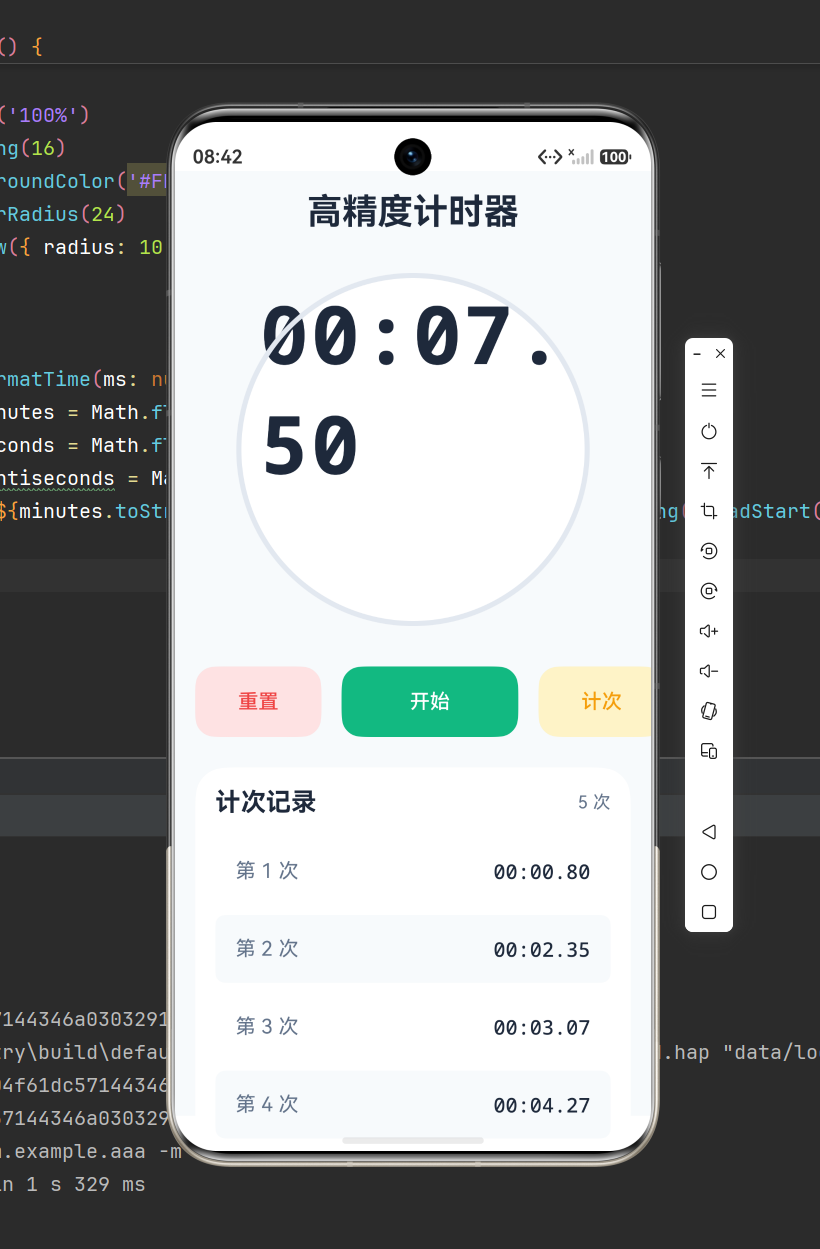
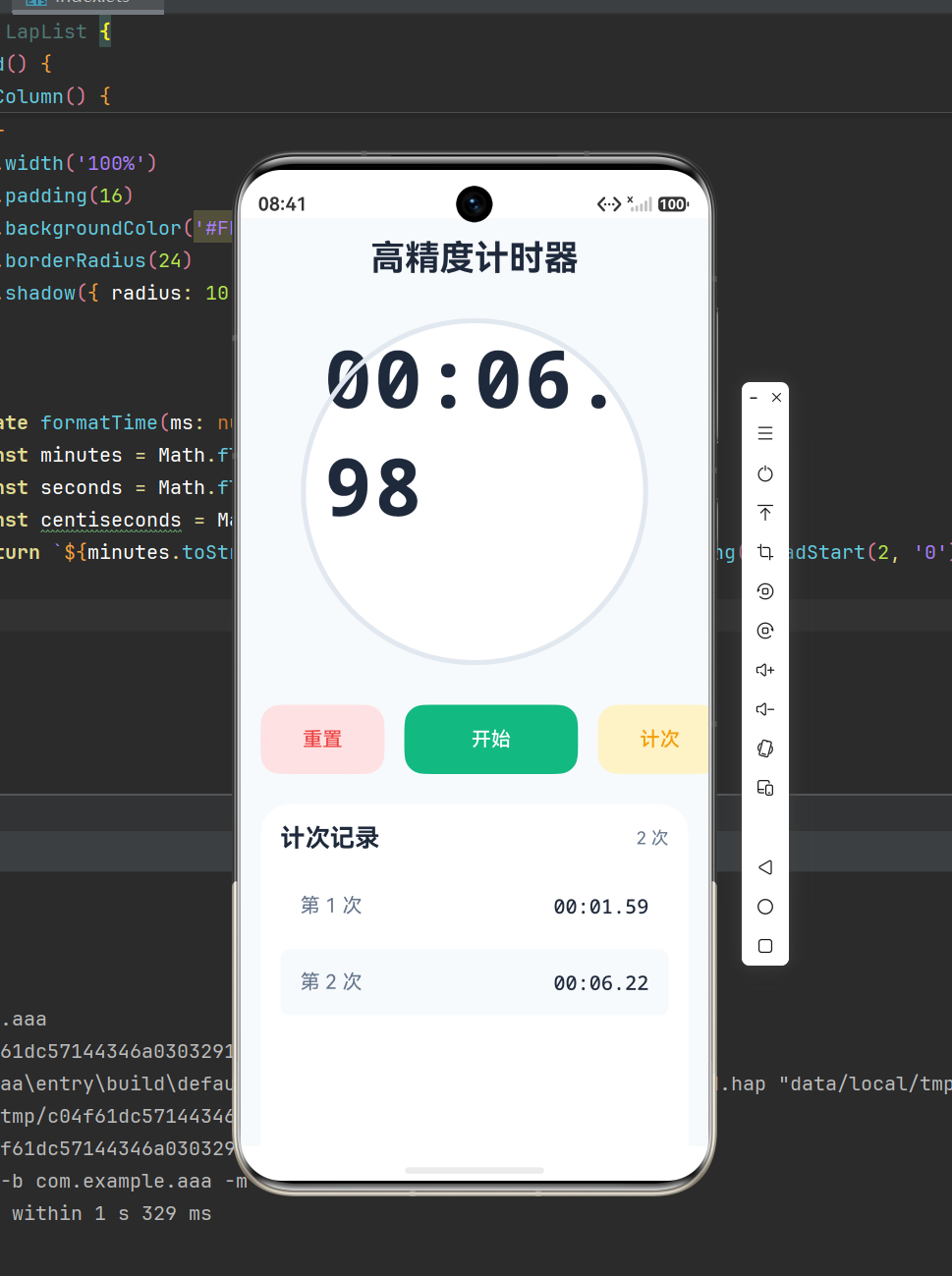
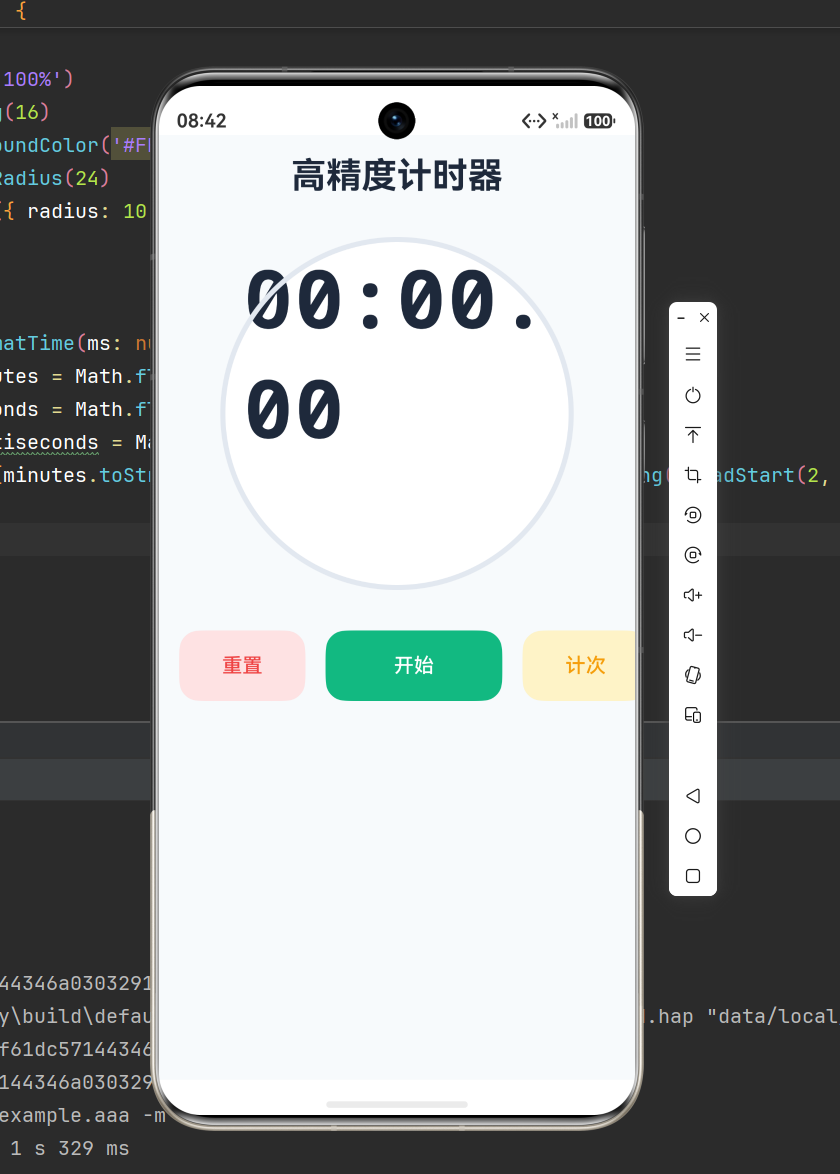
-
顶部:应用标题区
-
中间:圆形计时器(状态色边框+等宽数字)
-
底部:功能按钮区(重置+开始/暂停+计次)+ 计次列表(斑马纹样式)
🛠️ 开发环境搭建(超详细步骤)
- 环境要求
-
DevEco Studio:4.1 及以上版本
-
HarmonyOS SDK:API 23 及以上
-
运行设备:鸿蒙模拟器(API 23)或实体设备
- 项目创建(两种方式)
方式一:从零创建(推荐)
-
打开 DevEco Studio → 点击「Create HarmonyOS Project」
-
模板选择「Empty Ability」→ 点击「Next」
-
项目配置:
-
Project Name:TimerApp(必须英文)
-
Bundle Name:com.example.timerapp(自定义唯一标识)
-
Save Location:选择本地目录
-
Compile SDK:API 23
-
Model:Stage 模型(默认)
- 点击「Finish」,等待项目同步完成
方式二:模板导入
-
下载鸿蒙官方空项目模板(https://developer.harmonyos.com/)
-
解压后重命名为「TimerApp」
-
修改 app.json5 中 bundleName 为自定义标识
-
用 DevEco Studio 打开项目 → 同步依赖
-
项目结构解析(核心文件)
TimerApp/
├── AppScope/ # 应用全局配置
│ ├── app.json5 # 应用名称、图标等配置
│ └── resources/ # 应用图标、颜色等资源
├── entry/ # 主模块(核心代码区)
│ └── src/main/
│ ├── ets/
│ │ ├── entryability/ # 入口能力(生命周期管理)
│ │ └── pages/
│ │ └── Index.ets # 计时器主页面(重点开发文件)
│ └── resources/ # 页面级资源
└── build-profile.json5 # 构建配置(无需修改)
🔍 核心知识点精讲(原理+实战)
- 定时器核心:setInterval/clearInterval 深度应用
作用:实现时间周期性更新,是计时器的核心动力
原理:通过固定间隔(10ms)触发回调,累计时间戳并更新 UI
// 核心代码(Index.ets 中定义)
@State time: number = 0;       // 累计时间(毫秒)
@State timer: number = 0;      // 定时器ID(用于后续清除)
@State isRunning: boolean = false; // 运行状态标识

// 开始计时(优化版:防止重复创建定时器)
startTimer(): void {
  if (this.isRunning) return; // 防重复点击
  this.isRunning = true;
  // 每10ms更新一次(百分秒精度)
  this.timer = setInterval(() => {
    this.time += 10; // 时间累加
  }, 10);
}

// 暂停计时(必须清除定时器)
stopTimer(): void {
  this.isRunning = false;
  clearInterval(this.timer); // 停止定时器
}

// 关键优化:组件销毁时清除定时器(防内存泄漏)
aboutToDisappear(): void {
  this.stopTimer();
}
避坑指南:
-
❌ 禁止直接多次调用 startTimer() → 会创建多个定时器导致时间加速
-
✅ 解决方案:开始前先调用 stopTimer(),或加状态判断
-
❌ 忘记在组件销毁时清除 → 导致内存泄漏
-
✅ 解决方案:在 aboutToDisappear() 生命周期中调用 stopTimer()
- 时间格式化:毫秒 → 00:00.00 格式转换
核心需求:将累计毫秒数转换为「分钟:秒.百分秒」格式
关键技术:Math.floor(向下取整)+ padStart(补零)
// 时间格式化工具函数(核心算法)
formatTime(ms: number): string {
  // 1. 计算分钟:总毫秒数 / 60000(1分钟=60000ms)
  const minutes = Math.floor(ms / 60000);
  // 2. 计算秒:剩余毫秒数 % 60000 后 / 1000
  const seconds = Math.floor((ms % 60000) / 1000);
  // 3. 计算百分秒:剩余毫秒数 % 1000 后 / 10(10ms=1百分秒)
  const centiseconds = Math.floor((ms % 1000) / 10);

  // 补零:确保每个部分都是两位数(padStart 目标长度2,补零)
  const formattedMin = minutes.toString().padStart(2, '0');
  const formattedSec = seconds.toString().padStart(2, '0');
  const formattedCen = centiseconds.toString().padStart(2, '0');

  return `${formattedMin}:${formattedSec}.${formattedCen}`;
}
示例验证:
-
125450ms → 2分钟(120000ms)+ 5秒(5000ms)+ 45百分秒(450ms)→ 02:05.45
-
3678ms → 0分钟 + 3秒 + 67百分秒 → 00:03.67
- 动态 UI 渲染:状态联动视觉效果
核心逻辑:根据 isRunning 状态,动态改变按钮文本、颜色、边框样式
// 1. 开始/暂停按钮(文本+颜色动态切换)
Button(this.isRunning ? '暂停' : '开始')
  .backgroundColor(this.isRunning ? '#F59E0B' : '#10B981') // 运行时橙色,暂停时绿色
  .fontColor('#FFFFFF')
  .onClick(() => {
    this.isRunning ? this.stopTimer() : this.startTimer();
  })

// 2. 计时器圆形边框(状态色切换+动画过渡)
Column() {
  Text(this.formatTime(this.time))
    .fontFamily('monospace') // 等宽字体:数字对齐不抖动
}
.border({
  width: 4,
  color: this.isRunning ? '#10B981' : '#E2E8F0' // 运行时绿色边框,暂停时灰色
})
.animation({ duration: 300, curve: Curve.EaseInOut }) // 平滑过渡动画
用户体验优化:
-
等宽字体(monospace):确保数字变化时宽度不变,避免 UI 抖动
-
动画过渡:边框颜色变化时添加 300ms 动画,视觉更流畅
- 计次记录:数组操作 + 斑马纹列表
核心功能:记录多个时间点,以列表形式展示,支持奇偶行不同样式
@State laps: number[] = []; // 存储计次时间的数组

// 1. 计次按钮点击事件(仅运行时可计次)
Button('计次')
  .onClick(() => {
    if (this.isRunning) {
      this.laps.push(this.time); // 新增计次时间到数组末尾
    }
  })

// 2. 计次列表展示(斑马纹样式)
@Builder LapList() {
  if (this.laps.length > 0) { // 数组非空时显示列表
    List() {
      ForEach(
        this.laps,
        (lapTime: number, index: number) => {
          ListItem() {
            Row() {
              Text(`第 ${index + 1} 次`)
              Blank() // 占满剩余空间,实现左右对齐
              Text(this.formatTime(lapTime))
                .fontFamily('monospace')
            }
            .backgroundColor(index % 2 === 0 ? '#FFFFFF' : '#F8FAFC') // 斑马纹
            .padding(16)
          }
        },
        (index: number) => index.toString() // 唯一标识(必传)
      )
    }
  } else {
    // 空状态提示(优化用户体验)
    Text('暂无计次记录')
      .fontColor('#94A3B8')
      .padding(20)
  }
}
数组操作技巧:
-
push():添加元素到数组末尾(计次记录按时间顺序排列)
-
空数组判断:通过 laps.length > 0 控制列表显示/隐藏
-
斑马纹实现:利用 index % 2 判断奇偶行,设置不同背景色
📝 完整源码(可直接复制运行)
@Entry
@Component
struct TimerApp {
  // 状态变量定义
  @State time: number = 0;           // 累计时间(毫秒)
  @State isRunning: boolean = false; // 运行状态标识
  @State timer: number = 0;          // 定时器ID
  @State laps: number[] = [];        // 计次记录数组

  build() {
    Column() {
      // 1. 头部标题区
      HeaderSection()

      // 2. 计时器显示区(圆形)
      TimerDisplay({
        time: this.time,
        isRunning: this.isRunning
      })

      // 3. 控制按钮区
      ControlButtons({
        isRunning: this.isRunning,
        onStart: () => this.startTimer(),
        onStop: () => this.stopTimer(),
        onReset: () => this.resetTimer(),
        onLap: () => this.recordLap()
      })

      // 4. 计次列表区
      LapList({ laps: this.laps })
    }
    .padding(16)
    .width('100%')
    .height('100%')
    .backgroundColor('#F8FAFC')
  }

  // 定时器核心方法
  private startTimer(): void {
    if (this.isRunning) return;
    this.isRunning = true;
    this.timer = setInterval(() => {
      this.time += 10;
    }, 10);
  }

  private stopTimer(): void {
    this.isRunning = false;
    clearInterval(this.timer);
  }

  private resetTimer(): void {
    this.stopTimer();
    this.time = 0;
    this.laps = [];
  }

  private recordLap(): void {
    if (this.isRunning) {
      this.laps.push(this.time);
    }
  }

  // 组件销毁时清除定时器(防泄漏)
  aboutToDisappear(): void {
    this.stopTimer();
  }

  // 时间格式化工具函数
  private formatTime(ms: number): string {
    const minutes = Math.floor(ms / 60000);
    const seconds = Math.floor((ms % 60000) / 1000);
    const centiseconds = Math.floor((ms % 1000) / 10);

    return `${minutes.toString().padStart(2, '0')}:${seconds.toString().padStart(2, '0')}.${centiseconds.toString().padStart(2, '0')}`;
  }
}

// 头部组件(抽离复用)
@Component
struct HeaderSection {
  build() {
    Text('高精度计时器')
      .fontSize(28)
      .fontWeight(FontWeight.Bold)
      .fontColor('#1E293B')
      .width('100%')
      .padding({ bottom: 32 })
      .textAlign(TextAlign.Center)
  }
}

// 计时器显示组件(抽离复用)
@Component
struct TimerDisplay {
  private time: number;
  private isRunning: boolean;

  build() {
    Column() {
      Text(this.formatTime(this.time))
        .fontSize(64)
        .fontWeight(FontWeight.Bold)
        .fontColor('#1E293B')
        .fontFamily('monospace')
        .letterSpacing(2)

      if (this.isRunning) {
        Text('计时中...')
          .fontSize(14)
          .fontColor('#10B981')
          .margin({ top: 8 })
      }
    }
    .alignItems(HorizontalAlign.Center)
    .width(280)
    .height(280)
    .borderRadius(140) // 圆形
    .backgroundColor('#FFFFFF')
    .border({
      width: 4,
      color: this.isRunning ? '#10B981' : '#E2E8F0'
    })
    .shadow({ radius: 10, color: '#00000010' }) // 阴影增强视觉
    .margin({ bottom: 32 })
    .animation({ duration: 300, curve: Curve.EaseInOut })
  }

  // 格式化方法(组件内复用)
  private formatTime(ms: number): string {
    const minutes = Math.floor(ms / 60000);
    const seconds = Math.floor((ms % 60000) / 1000);
    const centiseconds = Math.floor((ms % 1000) / 10);

    return `${minutes.toString().padStart(2, '0')}:${seconds.toString().padStart(2, '0')}.${centiseconds.toString().padStart(2, '0')}`;
  }
}

// 控制按钮组件(抽离复用)
@Component
struct ControlButtons {
  private isRunning: boolean;
  private onStart: () => void;
  private onStop: () => void;
  private onReset: () => void;
  private onLap: () => void;

  build() {
    Row() {
      // 重置按钮
      Button('重置')
        .width(100)
        .height(56)
        .fontSize(16)
        .fontWeight(FontWeight.Medium)
        .backgroundColor('#FEE2E2')
        .fontColor('#EF4444')
        .borderRadius(16)
        .shadow({ radius: 4, color: '#00000008' })
        .onClick(() => this.onReset())

      // 开始/暂停按钮
      Button(this.isRunning ? '暂停' : '开始')
        .width(140)
        .height(56)
        .fontSize(16)
        .fontWeight(FontWeight.Medium)
        .backgroundColor(this.isRunning ? '#F59E0B' : '#10B981')
        .fontColor('#FFFFFF')
        .borderRadius(16)
        .margin({ left: 16, right: 16 })
        .shadow({ radius: 4, color: '#00000008' })
        .onClick(() => this.isRunning ? this.onStop() : this.onStart())

      // 计次按钮
      Button('计次')
        .width(100)
        .height(56)
        .fontSize(16)
        .fontWeight(FontWeight.Medium)
        .backgroundColor('#FEF3C7')
        .fontColor('#F59E0B')
        .borderRadius(16)
        .shadow({ radius: 4, color: '#00000008' })
        .onClick(() => this.onLap())
    }
    .width('100%')
    .margin({ bottom: 24 })
  }
}

// 计次列表组件(抽离复用)
@Component
struct LapList {
  private laps: number[];

  build() {
    if (this.laps.length > 0) {
      Column() {
        // 列表头部
        Row() {
          Text('计次记录')
            .fontSize(20)
            .fontWeight(FontWeight.Bold)
            .fontColor('#1E293B')

          Blank()

          Text(`${this.laps.length} 次`)
            .fontSize(14)
            .fontColor('#64748B')
        }
        .width('100%')
        .margin({ bottom: 16 })

        // 列表内容
        List() {
          ForEach(
            this.laps,
            (lapTime: number, index: number) => {
              ListItem() {
                Row() {
                  Text(`第 ${index + 1} 次`)
                    .fontSize(16)
                    .fontColor('#64748B')

                  Blank()

                  Text(this.formatTime(lapTime))
                    .fontSize(16)
                    .fontWeight(FontWeight.Medium)
                    .fontColor('#1E293B')
                    .fontFamily('monospace')
                }
                .width('100%')
                .padding(16)
                .backgroundColor(index % 2 === 0 ? '#FFFFFF' : '#F8FAFC')
                .borderRadius(8)
                .shadow({ radius: 2, color: '#00000005' })
              }
              .margin({ bottom: 8 })
            },
            (index: number) => index.toString()
          )
        }
        .layoutWeight(1) // 占满剩余空间
        .width('100%')
      }
      .width('100%')
      .padding(16)
      .backgroundColor('#FFFFFF')
      .borderRadius(24)
      .shadow({ radius: 10, color: '#00000005' })
    }
  }

  // 格式化方法(组件内复用)
  private formatTime(ms: number): string {
    const minutes = Math.floor(ms / 60000);
    const seconds = Math.floor((ms % 60000) / 1000);
    const centiseconds = Math.floor((ms % 1000) / 10);

    return `${minutes.toString().padStart(2, '0')}:${seconds.toString().padStart(2, '0')}.${centiseconds.toString().padStart(2, '0')}`;
  }
}
🚨 常见问题与解决方案(避坑指南)
问题 1:定时器精度不准,时间偏慢/偏快
原因:setInterval 存在最小延迟限制,且受主线程阻塞影响
解决方案:基于系统时间戳计算真实时间差
// 优化版 startTimer(高精度计时)
private startTimer(): void {
  if (this.isRunning) return;
  this.isRunning = true;
  const startTime = Date.now() - this.time; // 兼容暂停后继续计时
  this.timer = setInterval(() => {
    this.time = Date.now() - startTime; // 基于系统时间计算,无累积误差
  }, 10);
}
问题 2:快速点击开始按钮,导致多个定时器同时运行
原因:未做防重复点击处理,多次调用 startTimer() 创建多个定时器
解决方案:
-
加状态判断:if (this.isRunning) return;
-
开始前先清除旧定时器:clearInterval(this.timer);
问题 3:组件销毁后,定时器仍在运行(内存泄漏)
原因:未在组件生命周期销毁时清除定时器
解决方案:在 aboutToDisappear() 中调用 stopTimer()
aboutToDisappear(): void {
this.stopTimer(); // 组件销毁时强制停止定时器
}
问题 4:计次列表文字对齐混乱
原因:使用非等宽字体,不同数字宽度不同
解决方案:为时间文本设置等宽字体 fontFamily(‘monospace’)
🚀 扩展功能(进阶学习)
学会基础版本后,可尝试添加以下功能,提升应用价值:
-
倒计时功能:支持用户输入目标时间,反向计时
-
数据持久化:用 Preferences 存储计次记录,重启应用不丢失
-
声音提醒:计时结束/计次时播放提示音
-
多计时器管理:支持创建多个独立计时器(如同时记录多个任务)
-
导出功能:将计次记录导出为 CSV/图片格式
-
悬浮窗模式:支持应用后台运行时,悬浮窗显示计时状态
📚 知识点总结(核心技能图谱)
通过本项目,你已掌握 HarmonyOS NEXT 开发的核心技能:
知识点
应用场景
关键API/方法
定时器管理
周期性任务(计时)
setInterval/clearInterval
状态管理
UI 与数据联动
@State 装饰器
时间格式化
毫秒转人类可读格式
Math.floor/padStart
声明式 UI 开发
页面布局与组件封装
Column/Row/Button/List
组件化开发
代码复用与维护
@Component 组件抽离
生命周期管理
资源释放(防内存泄漏)
aboutToDisappear()
数组操作
数据存储与展示
push/ForEach
动态样式渲染
状态联动视觉效果
三元表达式/条件渲染
💡 开发建议
-
组件化思想:将页面拆分为多个独立组件(如 Header、TimerDisplay),提高复用性和维护性
-
性能优化:避免在定时器回调中做复杂计算,尽量只更新状态变量
-
用户体验:添加加载状态、空状态提示、动画过渡,让应用更流畅友好
-
代码规范:命名统一(如驼峰命名法)、注释清晰,便于后续维护

作为“人工智能6S店”的官方数字引擎,为AI开发者与企业提供一个覆盖软硬件全栈、一站式门户。
 6
6 0
0- 0


 已为社区贡献9条内容

所有评论(0)