
# [特殊字符] HarmonyOS NEXT ArkTS — ColumnEnd 垂直排列布局详解
·
一、概念
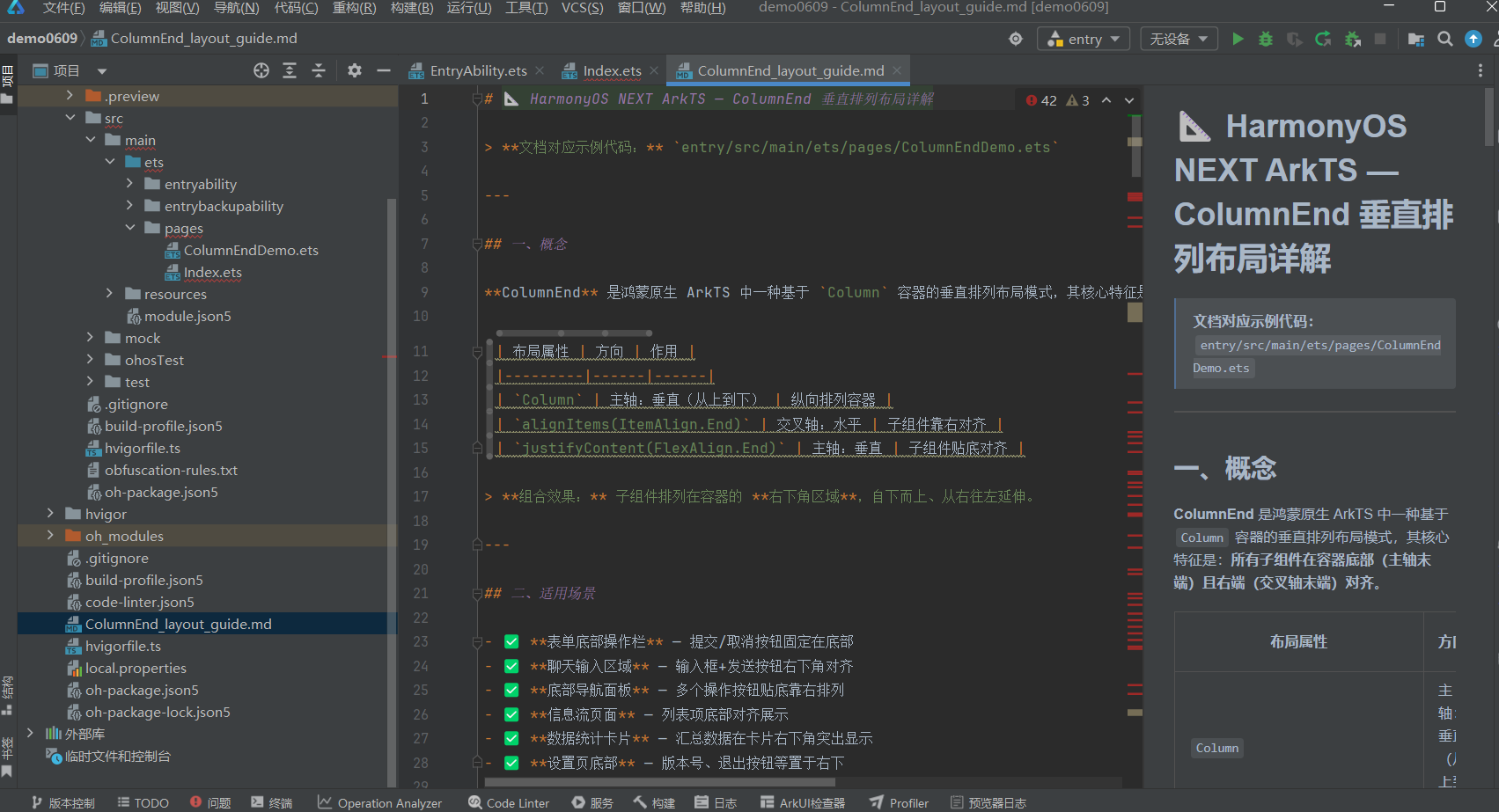
ColumnEnd 是鸿蒙原生 ArkTS 中一种基于 Column 容器的垂直排列布局模式,其核心特征是:所有子组件在容器底部(主轴末端)且右端(交叉轴末端)对齐。
| 布局属性 | 方向 | 作用 |
|---|---|---|
Column |
主轴:垂直(从上到下) | 纵向排列容器 |
alignItems(ItemAlign.End) |
交叉轴:水平 | 子组件靠右对齐 |
justifyContent(FlexAlign.End) |
主轴:垂直 | 子组件贴底对齐 |
组合效果: 子组件排列在容器的 右下角区域,自下而上、从右往左延伸。
二、适用场景
- ✅ 表单底部操作栏 — 提交/取消按钮固定在底部
- ✅ 聊天输入区域 — 输入框+发送按钮右下角对齐
- ✅ 底部导航面板 — 多个操作按钮贴底靠右排列
- ✅ 信息流页面 — 列表项底部对齐展示
- ✅ 数据统计卡片 — 汇总数据在卡片右下角突出显示
- ✅ 设置页底部 — 版本号、退出按钮等置于右下
三、核心代码结构
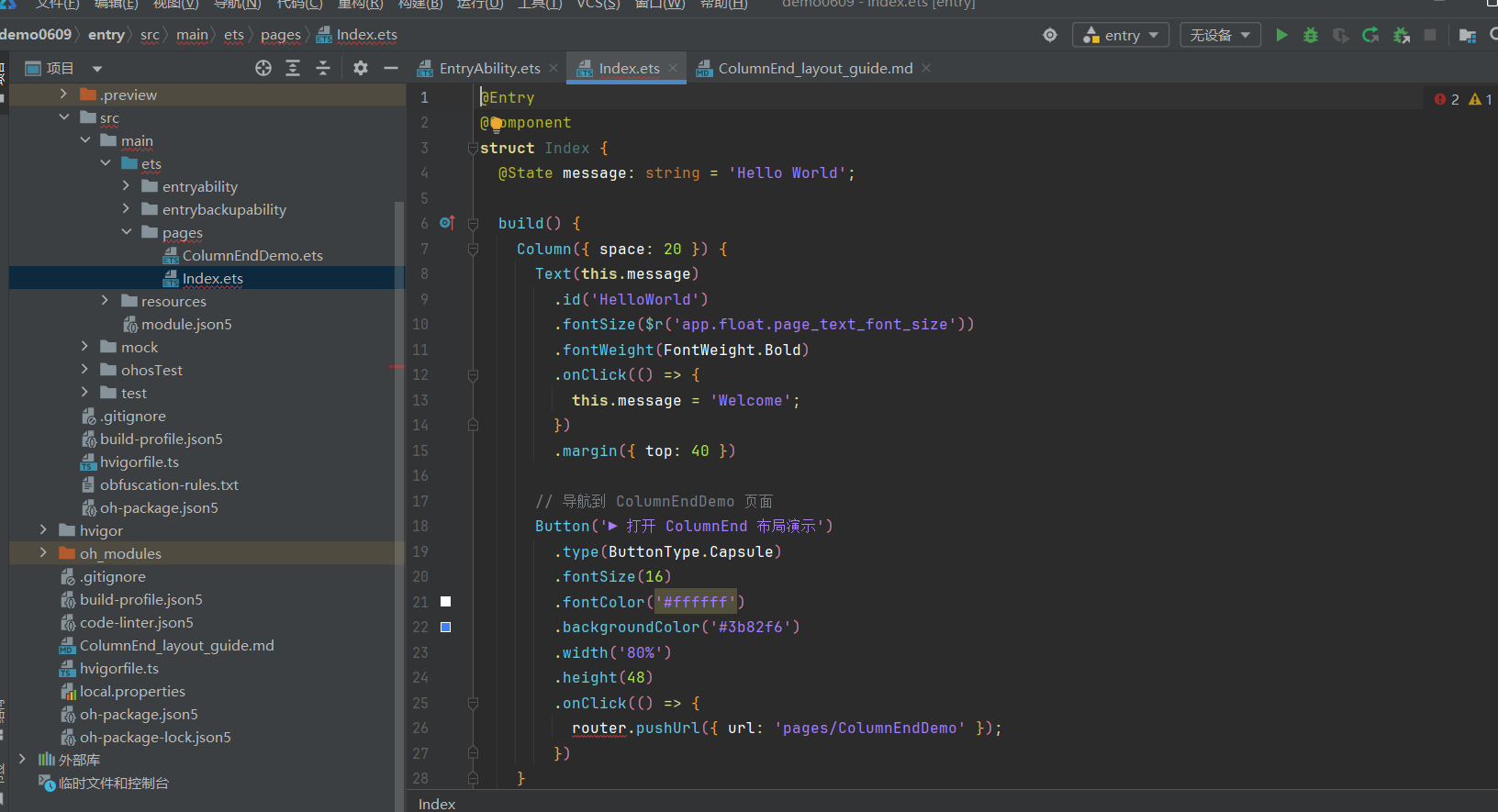
@Entry
@Component
struct MyColumnEndDemo {
  build() {
    Column() {
      // ── 子组件 1 ──
      Text('顶部文字').fontSize(16)

      // ── 子组件 2 ──
      TextInput({ placeholder: '输入...' }).width(280)

      // ── 子组件 3 ──
      Row({ space: 12 }) {
        Button('取消')
        Button('确认')
      }
    }
    // ★★★ 核心布局属性 ★★★
    .alignItems(ItemAlign.End)      // 交叉轴 → 右端对齐
    .justifyContent(FlexAlign.End)  // 主轴   → 底部对齐
    .width('100%')
    .height(220)                     // 需要固定高度以体现「贴底」效果
    .padding(16)
    .backgroundColor('#f8fafc')
    .border({ width: 1, color: '#e2e8f0' })
    .borderRadius(12)
  }
}
四、布局原理解析
4.1 Column 容器的两根轴
        ←── 交叉轴 (水平) ──→
    ┌─────────────────────────┐
    │                         │
    │    ①  文字标签          │  主
    │                         │  轴
    │    ②  [输入框      ]    │  ↓
    │                         │  垂
    │    ③  [取消] [提交]     │  直
    └─────────────────────────┘
4.2 属性作用拆解
| 属性 | 方向 | 值 | 效果说明 |
|---|---|---|---|
alignItems |
交叉轴(水平) | ItemAlign.End |
所有子组件在水平方向上靠右对齐 |
ItemAlign.Start |
(对比)靠左对齐 | ||
ItemAlign.Center |
(对比)居中对齐 | ||
justifyContent |
主轴(垂直) | FlexAlign.End |
所有子组件在垂直方向上贴底排列 |
FlexAlign.Start |
(对比)贴顶排列 | ||
FlexAlign.Center |
(对比)垂直居中 | ||
FlexAlign.SpaceBetween |
(对比)均匀分布,首尾贴边 | ||
FlexAlign.SpaceAround |
(对比)均匀分布,两端半间距 |
4.3 视觉对比
justifyContent(FlexAlign.Start)    justifyContent(FlexAlign.Center)    justifyContent(FlexAlign.End)
┌───────────────────┐              ┌───────────────────┐              ┌───────────────────┐
│ 文字标签           │              │                   │              │                   │
│ [输入框        ]   │              │   文字标签         │              │                   │
│ [取消] [提交]      │              │  [输入框       ]   │              │   文字标签         │
│                   │              │  [取消] [提交]     │              │  [输入框       ]   │
│                   │              │                   │              │  [取消] [提交]     │
└───────────────────┘              └───────────────────┘              └───────────────────┘
     贴顶排列                             垂直居中                           贴底排列
五、五种场景示例
5.1 表单底部按钮栏
Column() {
  Text('输入内容')
    .fontSize(16).fontColor('#ffffff')
    .backgroundColor('#3b82f6')
    .padding({ left: 16, right: 16, top: 8, bottom: 8 })
    .borderRadius(6)

  TextInput({ placeholder: '请输入信息...' })
    .width(280).height(40)
    .backgroundColor('#ffffff')
    .border({ width: 1, color: '#cbd5e1' })
    .borderRadius(6)

  Row({ space: 12 }) {
    Button('取消').type(ButtonType.Normal)
    Button('提交').type(ButtonType.Normal)
  }
}
.alignItems(ItemAlign.End)
.justifyContent(FlexAlign.End)
.width('100%').height(220).padding(16)
5.2 纵向列表底部对齐
Column() {
  ForEach(this.messageList, (item: string, index: number) => {
    Row() {
      Circle().width(8).height(8).fill(colors[index])
      Text(item).fontSize(15).fontColor('#1e293b').margin({ left: 10 })
    }
    .padding({ top: 10, bottom: 10, left: 16, right: 16 })
    .width('100%').borderRadius(8).backgroundColor('#ffffff')
  })
}
.justifyContent(FlexAlign.End)
.alignItems(ItemAlign.End)
.width('100%').height(240).padding(12)
5.3 数据统计卡片 — 底部汇总
Column({ space: 8 }) {
  Row() {
    Text('本月访问量').fontSize(14).fontColor('#64748b')
    Text('').layoutWeight(1)   // 弹性占位,撑开左右
    Text('128,456').fontSize(14).fontColor('#1e293b').fontWeight(FontWeight.Bold)
  }.width('100%')

  Row() {
    Text('本月订单数').fontSize(14).fontColor('#64748b')
    Text('').layoutWeight(1)
    Text('3,842').fontSize(14).fontColor('#1e293b').fontWeight(FontWeight.Bold)
  }.width('100%')

  Divider().width('100%').color('#e2e8f0')

  Row() {
    Text('合计').fontSize(16).fontColor('#1e293b').fontWeight(FontWeight.Bold)
    Text('').layoutWeight(1)
    Text('132,298').fontSize(20).fontColor('#3b82f6').fontWeight(FontWeight.Bold)
  }.width('100%')
}
.justifyContent(FlexAlign.End)
.alignItems(ItemAlign.End)
.width('100%').height(180).padding(16)
5.4 聊天输入栏(生产场景)
Column() {
  Text('消息输入区域')
    .fontSize(13).fontColor('#94a3b8')
    .textAlign(TextAlign.End).width('100%')

  Row({ space: 8 }) {
    TextInput({ placeholder: '输入消息...' })
      .layoutWeight(1).height(40)
      .backgroundColor('#ffffff')
      .border({ width: 1, color: '#cbd5e1' })
      .borderRadius(20)

    Button('发送')
      .fontColor('#ffffff').backgroundColor('#3b82f6')
      .borderRadius(20).width(70).height(40)
  }
  .width('100%').alignItems(VerticalAlign.Center)
}
.justifyContent(FlexAlign.End)
.alignItems(ItemAlign.End)
.width('100%').height(160).padding({ left: 16, right: 16, top: 12, bottom: 12 })
5.5 布局参数对比表
Column() {
  // 表头
  Row() {
    Text('属性').fontWeight(FontWeight.Bold).width(90)
    Text('作用').fontWeight(FontWeight.Bold).layoutWeight(1)
  }.width('100%').padding({ bottom: 8 })
   .border({ bottom: { width: 1, color: '#e2e8f0' } })

  // 数据行:alignItems
  Row() {
    Text('alignItems').fontColor('#3b82f6').width(90)
    Text('交叉轴(水平)右端对齐 → 所有子组件靠右').layoutWeight(1)
  }.width('100%').padding({ top: 8, bottom: 8 })

  // 数据行:justifyContent
  Row() {
    Text('justifyContent').fontColor('#8b5cf6').width(90)
    Text('主轴(垂直)底部对齐 → 所有子组件贴底').layoutWeight(1)
  }.width('100%').padding({ top: 8, bottom: 8 })

  // 数据行:效果
  Row() {
    Text('效果').fontColor('#10b981').width(90)
    Text('ColumnEnd = 贴底 + 靠右的垂直排列').layoutWeight(1)
  }.width('100%').padding({ top: 8 })
}
.justifyContent(FlexAlign.End)
.alignItems(ItemAlign.End)
.width('100%').padding(16)
六、重要注意事项
⚠️ 必须设定容器高度
Column 使用 justifyContent(FlexAlign.End) 时,必须显式设置固定高度(如 height(220)),否则容器高度由子组件撑起,无法体现「底部对齐」效果:
// ❌ 错误:不设高度,容器与子组件等高,贴底无效果
Column() { /* ... */ }
  .justifyContent(FlexAlign.End)

// ✅ 正确:固定高度才能看到子组件贴底排列
Column() { /* ... */ }
  .height(220)
  .justifyContent(FlexAlign.End)
⚠️ alignItems 与 justifyContent 的方向区分
| 容易混淆的属性 | 作用轴 | Column 中的效果 |
|---|---|---|
alignItems |
交叉轴(水平) | 靠左 / 居中 / 靠右 |
justifyContent |
主轴(垂直) | 贴顶 / 居中 / 贴底 / 均匀分布 |
⚠️ 嵌套子组件的宽度
当使用 alignItems(ItemAlign.End) 时,子组件的宽度默认由其内容决定(不会自动撑满父容器)。若需要子组件占满宽度,需显式设置 .width('100%')。
七、完整示例文件结构
entry/src/main/ets/pages/
  ├── Index.ets          ← 首页(入口,含导航按钮)
  └── ColumnEndDemo.ets  ← ColumnEnd 布局演示页面(5个场景)

entry/src/main/resources/base/profile/
  └── main_pages.json    ← 页面路由配置
八、参考资源

作为“人工智能6S店”的官方数字引擎,为AI开发者与企业提供一个覆盖软硬件全栈、一站式门户。
更多推荐
 1
1 0
0- 0


 已为社区贡献3条内容

所有评论(0)