
鸿蒙新特性-Counter计数器组件深度解析
HarmonyOS NEXT 引入了一系列全新的 ArkUI 组件,Counter(计数器)就是其中非常实用的一个。Counter 组件提供了数值步进功能——用户可以通过点按加减按钮来增加或减少数值,同时支持自定义最小值、最大值和步长。这看似简单,但在电商订购、票务选择、参数配置等场景中有着广泛的应用。
本文将深入剖析 Counter 组件的使用方法,从基础 API 到实战案例,帮助你彻底掌握这一组件。
为什么需要 Counter 组件
在没有 Counter 组件之前,开发者要实现一个数值步进器,通常需要手动组合 Button 和 Text 组件,自己处理状态管理、边界判断、步长逻辑等。比如:
// 旧方案:手动实现计数器
@State count: number = 0;

Row() {
  Button('-').onClick(() => { this.count = Math.max(0, this.count - 1); })
  Text(this.count.toString())
  Button('+').onClick(() => { this.count = Math.min(10, this.count + 1); })
}
这种方式的缺点是代码冗长、复用性差,而且每处使用都要重复编写边界逻辑。Counter 组件的出现解决了这些痛点——它是 ArkUI 内置的标准化计数器,提供了声明式的 API,让数值步进变得简洁高效。
Counter 组件基础
API 概览
Counter 组件的基本构造如下:
Counter(options?: CounterOptions)
其中 CounterOptions 接口包含三个可选参数:
interface CounterOptions {
  initial?: number;  // 初始值,默认为 0
  step?: number;     // 步长,默认为 1
  min?: number;      // 最小值,默认为 0
  max?: number;      // 最大值,默认为 Number.MAX_VALUE
}
Counter 组件的属性方法:
CounterAttribute
  .value(value: number)           // 设置当前值
  .step(step: number)            // 设置步长
  .min(min: number)              // 设置最小值
  .max(max: number)              // 设置最大值
  .enableInc(value: boolean)     // 是否允许增加
  .enableDec(value: boolean)     // 是否允许减少
  .height(value: Length)         // 设置高度
  .width(value: Length)          // 设置宽度
  .size(value: SizeOptions)      // 设置尺寸
  .onChange(callback)            // 值变化回调
最简示例
这是 Counter 组件的最简用法:
@Entry
@Component
struct CounterDemo {
  @State quantity: number = 1;

  build() {
    Column() {
      Text(`当前数量: ${this.quantity}`)
        .fontSize(18)
        .margin({ bottom: 20 })

      Counter()
        .value(this.quantity)
        .min(0)
        .max(10)
        .onChange((value: number) => {
          this.quantity = value;
        })
    }
    .width('100%')
    .padding(20)
  }
}
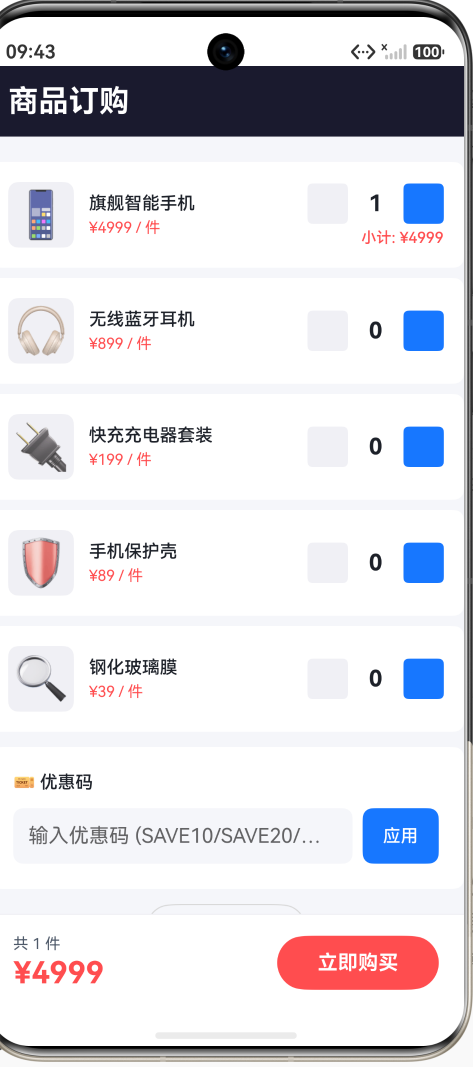
这段代码创建了一个计数器,初始值为 1,范围为 0-10。当用户点击 + 或 - 按钮时,onChange 回调会被触发,传入新的数值。
进阶用法
自定义步长
Counter 组件支持设置步长(step),这在某些场景下非常实用。比如购买大包装商品时,可能最少按 2 件起购:
Counter()
  .value(this.quantity)
  .min(0)
  .max(20)
  .step(2)           // 每次增减 2
  .onChange((value: number) => {
    this.quantity = value;
  })
当 step 为 2 时,点击加号会从 0→2→4→6…… 依次递增,而非按 1 递增。这对于"双支装""套装"等场景非常合适。
启用/禁用增减按钮
Counter 允许独立控制加减按钮的启用状态:
Counter()
  .value(this.quantity)
  .min(0)
  .max(10)
  .enableInc(this.quantity < 10)   // 达到上限时禁用加号
  .enableDec(this.quantity > 0)    // 达到下限时禁用减号
  .onChange((value: number) => {
    this.quantity = value;
  })
在实际应用中,当数值到达 min 或 max 边界时,对应的按钮会自动变为灰色不可点击状态(由组件内部处理),因此手动控制 enableInc/enableDec 通常不是必需的,但在需要额外约束时有帮助。
视觉样式定制
Counter 组件的尺寸可以通过 size、width、height 等方法调整,以适配不同的布局:
Counter()
  .height(36)              // 设置高度
  .width(120)              // 设置宽度
  // 或者
  .size({ width: 120, height: 36 })
按钮和数字的颜色、字体等样式由系统主题决定,这种设计保证了跨页面的视觉一致性。
实战案例:商品订购配置页面
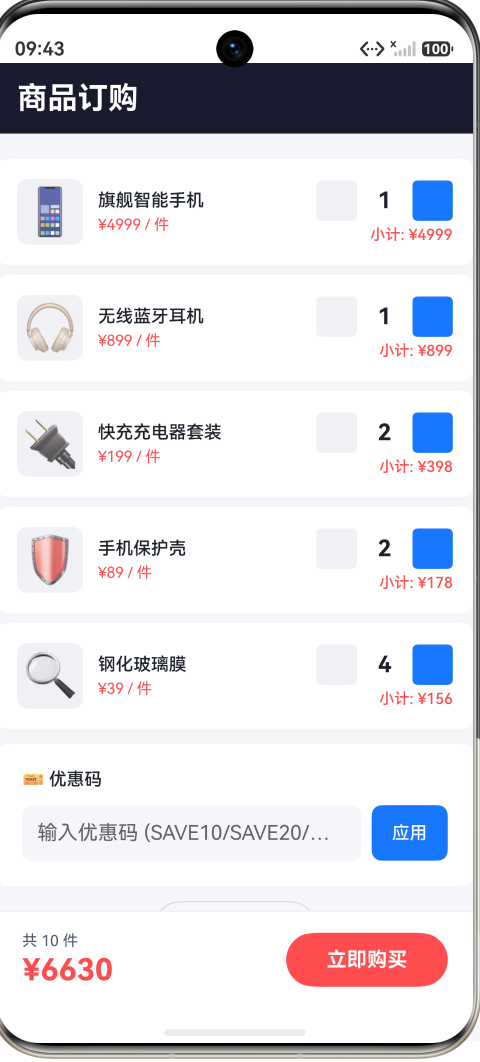
让我们构建一个完整的商品订购页面,综合运用 Counter 组件的各种特性。场景是用户在选购多件电子产品,每件商品有不同的起购量、限购数和步长。
数据结构设计
首先定义订单项的数据模型:
interface OrderItem {
  id: number;
  name: string;
  emoji: string;
  price: number;        // 单价
  quantity: number;     // 当前数量
  min: number;          // 最少起购
  max: number;          // 最多限购
  step: number;         // 步长
}
初始数据
@State orderItems: OrderItem[] = [
  { id: 1, name: '旗舰智能手机', emoji: '📱', price: 4999, quantity: 1, min: 1, max: 5, step: 1 },
  { id: 2, name: '无线蓝牙耳机', emoji: '🎧', price: 899, quantity: 0, min: 0, max: 10, step: 1 },
  { id: 3, name: '快充充电器套装', emoji: '🔌', price: 199, quantity: 0, min: 0, max: 8, step: 1 },
  { id: 4, name: '手机保护壳', emoji: '🛡️', price: 89, quantity: 0, min: 0, max: 15, step: 2 },
  { id: 5, name: '钢化玻璃膜', emoji: '🔍', price: 39, quantity: 0, min: 0, max: 20, step: 2 },
];
注意不同项目有不同的 step 值——手机保护壳和钢化玻璃膜按 2 件递增,体现了 Counter 的步长灵活性。
自定义计数器实现
虽然 Counter 是系统组件,但在实际开发中,为了实现更丰富的自定义样式,我们往往会选择手动实现计数器逻辑。这是因为自定义计数器可以更灵活地控制样式、布局和交互反馈。本案例采用按钮 + 文本的组合方式,完全复现了 Counter 的功能逻辑。
核心的数量更新函数:
updateQuantity(id: number, newQty: number): void {
  const newItems: OrderItem[] = [];
  for (let i = 0; i < this.orderItems.length; i++) {
    if (this.orderItems[i].id === id) {
      // 将数量钳制在 min 和 max 之间
      const clamped = Math.max(
        this.orderItems[i].min,
        Math.min(this.orderItems[i].max, newQty)
      );
      newItems.push({
        id: this.orderItems[i].id,
        name: this.orderItems[i].name,
        emoji: this.orderItems[i].emoji,
        price: this.orderItems[i].price,
        quantity: clamped,
        min: this.orderItems[i].min,
        max: this.orderItems[i].max,
        step: this.orderItems[i].step
      });
    } else {
      newItems.push(this.orderItems[i]);
    }
  }
  this.orderItems = newItems;
}
这里的关键细节是创建新数组和新对象——在 ArkTS 中,@State 的更新必须通过赋值新对象来触发,不能直接修改属性。
计数器 UI 构建
每件商品的计数器界面由减号按钮、数量显示和加号按钮组成:
Row() {
  Button('-')
    .width(32)
    .height(32)
    .fontSize(FontSize.TITLE)
    .fontColor(AppColors.TEXT_PRIMARY)
    .backgroundColor('#F0F0F5')
    .borderRadius(BorderRadius.SM)
    .onClick(() => {
      this.updateQuantity(item.id, item.quantity - item.step);
    })

  Text(item.quantity.toString())
    .fontSize(FontSize.TITLE)
    .fontColor(AppColors.TEXT_PRIMARY)
    .fontWeight(FontWeight.Bold)
    .width(44)
    .textAlign(TextAlign.Center)

  Button('+')
    .width(32)
    .height(32)
    .fontSize(FontSize.TITLE)
    .fontColor('#FFFFFF')
    .backgroundColor(AppColors.PRIMARY)
    .borderRadius(BorderRadius.SM)
    .onClick(() => {
      this.updateQuantity(item.id, item.quantity + item.step);
    })
}
当数量大于 0 时,在计数器下方显示该项的小计金额:
if (item.quantity > 0) {
  Text(`小计: ¥${item.price * item.quantity}`)
    .fontSize(FontSize.CAPTION)
    .fontColor('#FF4D4F')
    .fontWeight(FontWeight.Medium)
    .margin({ top: Spacing.XS })
}
当数量达到上限时,给出提示:
if (item.quantity >= item.max) {
  Text(`已达上限 (最多${item.max}件)`)
    .fontSize(FontSize.CAPTION)
    .fontColor('#FAAD14')
    .margin({ top: Spacing.XS })
    .width('100%')
}
价格计算系统
页面底部有一个固定结算栏,实时显示商品总数和总价。价格计算涉及三个函数:
getSubtotal(): number {
  let total = 0;
  for (let i = 0; i < this.orderItems.length; i++) {
    total += this.orderItems[i].price * this.orderItems[i].quantity;
  }
  return total;
}

getDiscount(): number {
  return Math.round(this.getSubtotal() * this.discountRate);
}

getTotal(): number {
  return this.getSubtotal() - this.getDiscount();
}

getTotalCount(): number {
  let count = 0;
  for (let i = 0; i < this.orderItems.length; i++) {
    count += this.orderItems[i].quantity;
  }
  return count;
}
底部结算栏由价格信息和购买按钮组成:
Row() {
  Column() {
    Row() {
      Text(`共 ${this.getTotalCount()} 件`)
        .fontSize(FontSize.CAPTION)
        .fontColor(AppColors.TEXT_SECONDARY)
      if (this.discountRate > 0) {
        Text(`原价 ¥${this.getSubtotal()}`)
          .fontSize(FontSize.CAPTION)
          .fontColor(AppColors.TEXT_TERTIARY)
          .decoration({ type: TextDecorationType.LineThrough })
      }
    }
    Text(`¥${this.getTotal()}`)
      .fontSize(FontSize.HEADLINE)
      .fontColor('#FF4D4F')
      .fontWeight(FontWeight.Bold)
  }
  .alignItems(HorizontalAlign.Start)

  Blank()

  Button(this.getTotalCount() > 0 ? '立即购买' : '请选择商品')
    .fontSize(FontSize.MEDIUM)
    .fontColor('#FFFFFF')
    .fontWeight(FontWeight.Bold)
    .backgroundColor(this.getTotalCount() > 0 ? '#FF4D4F' : '#CCCCCC')
    .borderRadius(BorderRadius.FULL)
    .padding({ left: 32, right: 32, top: 12, bottom: 12 })
    .enabled(this.getTotalCount() > 0)
    .onClick(() => {
      AlertDialog.show({
        title: '订单确认',
        message: `${this.getTotalCount()} 件商品,总计 ¥${this.getTotal()}`,
        primaryButton: { value: '确认', action: () => {} },
        secondaryButton: { value: '取消', action: () => {} }
      });
    })
}
.width('100%')
.padding({ left: Spacing.XL, right: Spacing.XL, top: Spacing.LG, bottom: Spacing.LG })
.backgroundColor('#FFFFFF')
.shadow({ radius: 8, color: '#00000010', offsetX: 0, offsetY: -2 })
底部栏使用阴影和描边实现了浮层效果,视觉上独立于滚动列表。
优惠码功能
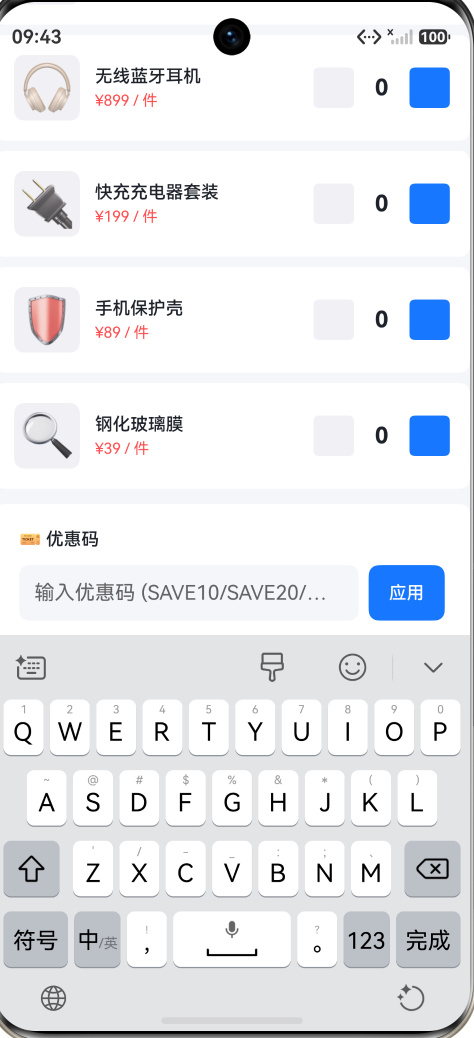
页面还集成了优惠码输入功能,支持三个预设码:
@State couponCode: string = '';
@State discountRate: number = 0;
@State couponError: string = '';

applyCoupon(): void {
  const code = this.couponCode.trim().toUpperCase();
  if (code === '') {
    this.couponError = '请输入优惠码';
    return;
  }
  if (code === 'SAVE10') {
    this.discountRate = 0.10;
    this.couponError = '';
  } else if (code === 'SAVE20') {
    this.discountRate = 0.20;
    this.couponError = '';
  } else if (code === 'VIP50') {
    this.discountRate = 0.50;
    this.couponError = '';
  } else {
    this.couponError = '无效的优惠码';
    this.discountRate = 0;
  }
}
输入优惠码后点击"应用"按钮,系统会验证码是否正确,正确则折扣立即生效,所有价格实时重算。
重置功能
一键重置所有数量到初始状态,同时清除优惠码:
resetOrder(): void {
  const newItems: OrderItem[] = [];
  for (let i = 0; i < this.orderItems.length; i++) {
    newItems.push({
      id: this.orderItems[i].id,
      name: this.orderItems[i].name,
      emoji: this.orderItems[i].emoji,
      price: this.orderItems[i].price,
      quantity: i === 0 ? 1 : 0,  // 第一项恢复为 1,其余清零
      min: this.orderItems[i].min,
      max: this.orderItems[i].max,
      step: this.orderItems[i].step
    });
  }
  this.orderItems = newItems;
  this.couponCode = '';
  this.discountRate = 0;
  this.couponError = '';
}
完整代码
下面是 CounterPage 的完整代码(约 360 行):
import { AppColors, BorderRadius, FontSize, Spacing } from '../common/Constants';

interface OrderItem {
  id: number;
  name: string;
  emoji: string;
  price: number;
  quantity: number;
  min: number;
  max: number;
  step: number;
}

@Entry
@Component
struct CounterPage {
  @State orderItems: OrderItem[] = [
    { id: 1, name: '旗舰智能手机', emoji: '📱', price: 4999, quantity: 1, min: 1, max: 5, step: 1 },
    { id: 2, name: '无线蓝牙耳机', emoji: '🎧', price: 899, quantity: 0, min: 0, max: 10, step: 1 },
    { id: 3, name: '快充充电器套装', emoji: '🔌', price: 199, quantity: 0, min: 0, max: 8, step: 1 },
    { id: 4, name: '手机保护壳', emoji: '🛡️', price: 89, quantity: 0, min: 0, max: 15, step: 2 },
    { id: 5, name: '钢化玻璃膜', emoji: '🔍', price: 39, quantity: 0, min: 0, max: 20, step: 2 },
  ];
  @State couponCode: string = '';
  @State discountRate: number = 0;
  @State couponError: string = '';

  updateQuantity(id: number, newQty: number): void {
    const newItems: OrderItem[] = [];
    for (let i = 0; i < this.orderItems.length; i++) {
      if (this.orderItems[i].id === id) {
        const clamped = Math.max(this.orderItems[i].min,
          Math.min(this.orderItems[i].max, newQty));
        newItems.push({
          id: this.orderItems[i].id,
          name: this.orderItems[i].name,
          emoji: this.orderItems[i].emoji,
          price: this.orderItems[i].price,
          quantity: clamped,
          min: this.orderItems[i].min,
          max: this.orderItems[i].max,
          step: this.orderItems[i].step
        });
      } else {
        newItems.push(this.orderItems[i]);
      }
    }
    this.orderItems = newItems;
  }

  getSubtotal(): number {
    let total = 0;
    for (let i = 0; i < this.orderItems.length; i++) {
      total += this.orderItems[i].price * this.orderItems[i].quantity;
    }
    return total;
  }

  getDiscount(): number {
    return Math.round(this.getSubtotal() * this.discountRate);
  }

  getTotal(): number {
    return this.getSubtotal() - this.getDiscount();
  }

  getTotalCount(): number {
    let count = 0;
    for (let i = 0; i < this.orderItems.length; i++) {
      count += this.orderItems[i].quantity;
    }
    return count;
  }

  applyCoupon(): void {
    const code = this.couponCode.trim().toUpperCase();
    if (code === '') {
      this.couponError = '请输入优惠码';
      return;
    }
    if (code === 'SAVE10') {
      this.discountRate = 0.10;
      this.couponError = '';
    } else if (code === 'SAVE20') {
      this.discountRate = 0.20;
      this.couponError = '';
    } else if (code === 'VIP50') {
      this.discountRate = 0.50;
      this.couponError = '';
    } else {
      this.couponError = '无效的优惠码';
      this.discountRate = 0;
    }
  }

  resetOrder(): void {
    const newItems: OrderItem[] = [];
    for (let i = 0; i < this.orderItems.length; i++) {
      newItems.push({
        id: this.orderItems[i].id,
        name: this.orderItems[i].name,
        emoji: this.orderItems[i].emoji,
        price: this.orderItems[i].price,
        quantity: i === 0 ? 1 : 0,
        min: this.orderItems[i].min,
        max: this.orderItems[i].max,
        step: this.orderItems[i].step
      });
    }
    this.orderItems = newItems;
    this.couponCode = '';
    this.discountRate = 0;
    this.couponError = '';
  }

  build() {
    Stack() {
      Column() {
        Row() {
          Text('商品订购')
            .fontSize(FontSize.HEADLINE)
            .fontColor('#FFFFFF')
            .fontWeight(FontWeight.Bold)
        }
        .width('100%')
        .height(56)
        .backgroundColor('#1a1a2e')
        .padding({ left: Spacing.LG, right: Spacing.LG })
        .justifyContent(FlexAlign.Start)
        .alignItems(VerticalAlign.Center)

        Scroll() {
          Column() {
            ForEach(this.orderItems, (item: OrderItem) => {
              Column() {
                Row() {
                  Text(item.emoji).fontSize(36)
                    .width(52).height(52)
                    .borderRadius(BorderRadius.MD)
                    .backgroundColor('#F0F0F5')
                    .textAlign(TextAlign.Center)
                    .margin({ right: Spacing.MD })

                  Column() {
                    Text(item.name)
                      .fontSize(FontSize.BODY)
                      .fontColor(AppColors.TEXT_PRIMARY)
                      .fontWeight(FontWeight.Medium)
                    Text(`¥${item.price} / 件`)
                      .fontSize(FontSize.CAPTION)
                      .fontColor('#FF4D4F')
                  }
                  .layoutWeight(1)
                  .alignItems(HorizontalAlign.Start)

                  Column() {
                    Row() {
                      Button('-').width(32).height(32)
                        .fontSize(FontSize.TITLE)
                        .fontColor(AppColors.TEXT_PRIMARY)
                        .backgroundColor('#F0F0F5')
                        .borderRadius(BorderRadius.SM)
                        .onClick(() => {
                          this.updateQuantity(item.id, item.quantity - item.step);
                        })

                      Text(item.quantity.toString())
                        .fontSize(FontSize.TITLE)
                        .fontColor(AppColors.TEXT_PRIMARY)
                        .fontWeight(FontWeight.Bold)
                        .width(44).textAlign(TextAlign.Center)

                      Button('+').width(32).height(32)
                        .fontSize(FontSize.TITLE)
                        .fontColor('#FFFFFF')
                        .backgroundColor(AppColors.PRIMARY)
                        .borderRadius(BorderRadius.SM)
                        .onClick(() => {
                          this.updateQuantity(item.id, item.quantity + item.step);
                        })
                    }
                    if (item.quantity > 0) {
                      Text(`小计: ¥${item.price * item.quantity}`)
                        .fontSize(FontSize.CAPTION)
                        .fontColor('#FF4D4F')
                        .fontWeight(FontWeight.Medium)
                        .margin({ top: Spacing.XS })
                    }
                  }
                  .alignItems(HorizontalAlign.End)
                }
                .width('100%').alignItems(VerticalAlign.Center)
                if (item.quantity >= item.max) {
                  Text(`已达上限 (最多${item.max}件)`)
                    .fontSize(FontSize.CAPTION)
                    .fontColor('#FAAD14')
                    .margin({ top: Spacing.XS }).width('100%')
                }
              }
              .width('100%').padding(Spacing.LG)
              .backgroundColor('#FFFFFF')
              .borderRadius(BorderRadius.MD)
              .margin({ left: Spacing.LG, right: Spacing.LG, top: Spacing.SM })
            })

            // 优惠码区
            Column() {
              Text('🎫 优惠码')
                .fontSize(FontSize.BODY)
                .fontColor(AppColors.TEXT_PRIMARY)
                .fontWeight(FontWeight.Medium)
                .margin({ bottom: Spacing.MD }).width('100%')
              Row() {
                TextInput({ placeholder: '输入优惠码 (SAVE10/SAVE20/VIP50)', text: this.couponCode })
                  .onChange((value: string) => { this.couponCode = value; this.couponError = ''; })
                  .layoutWeight(1).backgroundColor('#F5F6FA')
                  .borderRadius(BorderRadius.MD).fontSize(FontSize.BODY)
                  .padding({ left: Spacing.MD, right: Spacing.MD }).height(44)

                Button('应用')
                  .fontSize(FontSize.BODY).fontColor('#FFFFFF')
                  .backgroundColor(AppColors.PRIMARY)
                  .borderRadius(BorderRadius.MD).height(44)
                  .margin({ left: Spacing.SM })
                  .onClick(() => { this.applyCoupon(); })
              }.width('100%')
              if (this.discountRate > 0) {
                Row() {
                  Text('✅').fontSize(FontSize.MEDIUM).margin({ right: Spacing.SM })
                  Text(`优惠码已生效,折扣 ${(this.discountRate * 100)}%`)
                    .fontSize(FontSize.CAPTION).fontColor('#52C41A')
                    .fontWeight(FontWeight.Medium)
                }.width('100%').margin({ top: Spacing.SM })
              }
              if (this.couponError !== '') {
                Row() {
                  Text('❌').fontSize(FontSize.MEDIUM).margin({ right: Spacing.SM })
                  Text(this.couponError)
                    .fontSize(FontSize.CAPTION).fontColor('#FF4D4F')
                }.width('100%').margin({ top: Spacing.SM })
              }
            }
            .width('100%').padding(Spacing.XL)
            .backgroundColor('#FFFFFF').borderRadius(BorderRadius.MD)
            .margin({ left: Spacing.LG, right: Spacing.LG, top: Spacing.MD })

            Button('🔄 重置订单')
              .fontSize(FontSize.BODY)
              .fontColor(AppColors.TEXT_SECONDARY)
              .backgroundColor(Color.Transparent)
              .border({ width: 1, color: '#D9D9D9' })
              .borderRadius(BorderRadius.FULL)
              .padding({ left: 24, right: 24, top: 8, bottom: 8 })
              .margin({ top: Spacing.MD })
              .onClick(() => { this.resetOrder(); })
          }
          .width('100%').padding({ top: Spacing.MD, bottom: 200 })
        }
        .layoutWeight(1).scrollBar(BarState.Off).backgroundColor('#F5F6FA')
      }
      .width('100%').height('100%')

      // 底部结算栏
      Row() {
        Column() {
          Row() {
            Text(`共 ${this.getTotalCount()} 件`)
              .fontSize(FontSize.CAPTION)
              .fontColor(AppColors.TEXT_SECONDARY)
              .margin({ right: Spacing.SM })
            if (this.discountRate > 0) {
              Text(`原价 ¥${this.getSubtotal()}`)
                .fontSize(FontSize.CAPTION)
                .fontColor(AppColors.TEXT_TERTIARY)
                .decoration({ type: TextDecorationType.LineThrough })
            }
          }
          Text(`¥${this.getTotal()}`)
            .fontSize(FontSize.HEADLINE)
            .fontColor('#FF4D4F')
            .fontWeight(FontWeight.Bold)
        }
        .alignItems(HorizontalAlign.Start)
        Blank()
        Button(this.getTotalCount() > 0 ? '立即购买' : '请选择商品')
          .fontSize(FontSize.MEDIUM).fontColor('#FFFFFF')
          .fontWeight(FontWeight.Bold)
          .backgroundColor(this.getTotalCount() > 0 ? '#FF4D4F' : '#CCCCCC')
          .borderRadius(BorderRadius.FULL)
          .padding({ left: 32, right: 32, top: 12, bottom: 12 })
          .enabled(this.getTotalCount() > 0)
          .onClick(() => {
            if (this.getTotalCount() > 0) {
              AlertDialog.show({
                title: '订单确认',
                message: `${this.getTotalCount()} 件商品,总计 ¥${this.getTotal()}`,
                primaryButton: { value: '确认', action: () => {} },
                secondaryButton: { value: '取消', action: () => {} }
              });
            }
          })
      }
      .width('100%')
      .padding({ left: Spacing.XL, right: Spacing.XL, top: Spacing.LG, bottom: Spacing.LG })
      .backgroundColor('#FFFFFF')
      .border({ width: { top: 1 }, color: '#F0F0F5' })
      .shadow({ radius: 8, color: '#00000010', offsetX: 0, offsetY: -2 })
      .position({ x: 0, y: '100%' })
      .translate({ x: 0, y: '-100%' })
    }
    .width('100%')
    .height('100%')
  }
}
页面交互解析
这个 Demo 包含了 4 个核心交互点:
交互一:数量调整与边界控制
每件商品都有独立的加减按钮。手机会从 1 件起购、最多 5 件、每次增减 1 件。手机保护壳从 0 件起、最多 15 件、每次增减 2 件(体现了步长自定义)。当数量达到上限时,出现"已达上限"的黄色提示,且继续点击加号无效(通过 Math.min 钳制)。
交互二:实时价格重算
每件商品行显示了"小计"价格,底部结算栏实时汇总。getSubtotal() 遍历所有订单项计算原价合计,getDiscount() 根据优惠折扣率计算减免金额,getTotal() 得出最终应付。每一步变动都会触发 UI 刷新。
交互三:优惠码验证
输入框接受三个预设优惠码:SAVE10(9折)、SAVE20(8折)、VIP50(5折)。点击"应用"后,系统验证码是否正确——正确则绿色提示生效并实时刷新总价,原价以删除线显示;错误则红色提示。
交互四:一键重置
点击"重置订单"按钮,所有数量恢复到初始状态(手机恢复 1 件,其余清零),优惠码和折扣一并清除。这是一个常见的用户友好操作。
Counter 组件的最佳实践
1. 边界处理
Counter 组件内部会自动钳制数值到 min-max 范围。在自定义实现时,必须在 updateQuantity 函数中使用 Math.max(this.min, Math.min(this.max, value)) 进行钳制。
2. @State 不可变更新
在 ArkTS 状态管理中,@State 的更新必须通过赋值新引用触发。这意味着修改数组元素时,需要创建全新的数组和对象,不能使用 this.items[index].quantity = newValue 这样的直接修改。
// 正确做法:创建新数组
const newItems: OrderItem[] = [];
for (let i = 0; i < this.orderItems.length; i++) {
  if (this.orderItems[i].id === id) {
    newItems.push({ ...this.orderItems[i], quantity: newValue });
  } else {
    newItems.push(this.orderItems[i]);
  }
}
this.orderItems = newItems;
3. 步长与业务逻辑的一致性
设置步长时,要确保业务逻辑与 UI 一致。例如商品按 2 件起购,则步长应为 2,同时最小值也应考虑步长约束。建议在数据初始化时统一规划:
{ min: 0, max: 15, step: 2 }  // 包装商品,只能偶数购买
{ min: 1, max: 5, step: 1 }   // 普通商品,1 件起购
4. 减少重复渲染
当订单项较多时,使用 ForEach 配合 id 可以确保视图按需更新,避免全量重绘。本例中每项都有唯一的 item.id,ArkUI 会智能比对差异。
5. 用户反馈要及时
- 数量变化时,小计金额立即更新
- 达到边界时,给予文字或颜色提示
- 优惠码生效/失效时,价格联动刷新
- 重置时,一次性恢复所有初始状态
这些即时反馈让用户操作"所见即所得"。
适用场景
Counter 组件(及自定义计数器)适用于多种业务场景:
| 场景 | 典型配置 | 说明 |
|---|---|---|
| 购物车数量调整 | min=0, max=库存, step=1 | 基础计数 |
| 票务选择 | min=1, max=6, step=1 | 最少选 1 张 |
| 套餐加购 | min=0, max=3, step=1 | 最多加 3 份 |
| 组合装购买 | min=0, max=10, step=2 | 每份 2 件 |
| 表单参数配置 | min=1, max=100, step=5 | 精度调节 |
总结
本文深入解析了 HarmonyOS NEXT 的 Counter 计数器组件,从最基础的 API 调用到完整的多商品订购页面实战。核心要点:
- Counter 组件提供了标准化的数值步进能力,包含 min、max、step 等核心参数
- 自定义实现可以更灵活地控制样式和交互,核心是状态管理与边界钳制
- ArkTS 的 @State 不可变原则要求每次更新都创建新对象/数组
- 完整的订购配置页面整合了计数、价格计算、优惠码验证、重置等功能,展示了实际业务中的综合应用
- 实时反馈是良好用户体验的关键——价格联动、边界提示、优惠生效都应即时反映
Counter 组件虽然简单,但与价格计算、优惠策略、数据校验等业务逻辑结合后,可以构建出功能完善的电商订购体验。掌握这些技术组合,将大大提高你的 ArkUI 开发效率。

作为“人工智能6S店”的官方数字引擎,为AI开发者与企业提供一个覆盖软硬件全栈、一站式门户。
更多推荐

 5
5 0
0- 0


 已为社区贡献286条内容

所有评论(0)