
鸿蒙PC平台 Gnote 笔记应用适配实战:从 Linux 到 鸿蒙PC 的 Electron 迁移
Gnote是一款Linux桌面轻量级笔记应用,现通过Electron+鸿蒙架构实现跨平台迁移。项目采用Electron核心功能(HTML/CSS/JS)与鸿蒙壳工程(ArkTS WebView)结合的方案,保留富文本编辑、标签管理、搜索等核心功能。技术架构上,利用Electron的跨平台特性和鸿蒙WebView桥接,既保证代码复用性又解决Native兼容问题。关键实现包括:动态窗口布局(占据80%
项目简介
Gnote 是 Linux 桌面环境的一款轻量级笔记应用,支持富文本编辑、标签分类、搜索等功能。本项目将其从 Linux GTK 应用迁移到鸿蒙平台,采用 Electron 核心功能 + 鸿蒙壳工程 的架构模式。
欢迎加入开源鸿蒙PC社区:https://harmonypc.csdn.net/
欢迎在PC社区平台申请新建项目:https://atomgit.com/OpenHarmonyPCDeveloper
AtomGit 仓库地址:https://atomgit.com/weixin_62765017/ohos_gnote_electron
核心功能
- 📝 富文本编辑(粗体/斜体/下划线/删除线)
- 🎨 字体颜色和背景高亮
- 📑 多级标题(H1-H4)
- 📋 有序/无序列表
- 💬 引用块和分割线
- ↔️ 文本对齐(左/中/右)
- 🏷️ 标签管理
- 🔍 笔记搜索
- 💾 自动保存(2秒防抖)
- ⌨️ 完整快捷键支持
一、技术架构
1.1 原始架构(Linux GTK)
Gnote (C/GTK)
├── 文本编辑:GtkTextView
├── UI 渲染:GTK+ 3.0
├── 数据存储:SQLite
└── 配置管理:GSettings
1.2 目标架构(鸿蒙 Electron)
鸿蒙壳工程 (ArkTS)
└── web_engine 模块 (XComponent WebView)
    └── Electron 应用 (HTML/CSS/JavaScript)
        ├── main.js - Electron 主进程
        ├── renderer.js - 渲染进程(核心逻辑)
        ├── index.html - UI 界面
        └── styles/gnote.css - 样式文件
1.3 架构优势
- 跨平台:Electron 代码可在 Windows/macOS/Linux 复用
- 快速开发:Web 技术栈,开发效率高
- 易于维护:UI 和业务逻辑分离
- 鸿蒙兼容:通过 WebView 桥接,避开 Native 兼容问题
二、环境准备
2.1 开发环境要求
- 操作系统:Windows 10
- 开发工具:DevEco Studio(鸿蒙官方 IDE)
- HarmonyOS SDK:API 15
- Node.js:v24+(Electron 依赖)
2.2 项目结构
ohos_hap/
├── electron-apps/
│   └── gnote/                  # Electron 笔记应用源码
│       ├── main.js             # 主进程(窗口管理、IPC)
│       ├── renderer.js         # 渲染进程(UI 交互逻辑)
│       ├── index.html          # 界面结构
│       ├── package.json        # 项目配置
│       └── styles/
│           └── gnote.css       # 样式文件
├── web_engine/                 # 鸿蒙 web_engine 模块
│   └── src/main/resources/
│       └── resfile/resources/app/  # 部署目录
│           ├── main.js
│           ├── renderer.js
│           ├── index.html
│           └── styles/gnote.css
└── build-profile.json5         # 鸿蒙构建配置
三、核心适配流程
3.1 第一步:创建 Electron 主进程
文件:electron-apps/gnote/main.js
// Gnote Notes App - Electron 主进程
const { app, BrowserWindow, ipcMain, dialog, screen } = require('electron');
const path = require('path');
const fs = require('fs');

let mainWindow = null;
let notesDir = null;

// 初始化笔记目录
function initNotesDir() {
  try {
    notesDir = path.join(app.getPath('userData'), 'notes');

    // 确保笔记目录存在
    if (!fs.existsSync(notesDir)) {
      fs.mkdirSync(notesDir, { recursive: true });
      console.log('Gnote: Notes directory created:', notesDir);
    } else {
      console.log('Gnote: Notes directory exists:', notesDir);
    }

    return true;
  } catch (error) {
    console.error('Gnote: Failed to init notes directory:', error);
    return false;
  }
}

function createWindow() {
  console.log('Gnote: Creating window...');

  // 获取屏幕尺寸
  const primaryDisplay = screen.getPrimaryDisplay();
  const { width: screenWidth, height: screenHeight } = primaryDisplay.workAreaSize;

  // 窗口配置:占据80%屏幕宽度,85%屏幕高度
  const windowWidth = Math.floor(screenWidth * 0.8);
  const windowHeight = Math.floor(screenHeight * 0.85);

  mainWindow = new BrowserWindow({
    width: windowWidth,
    height: windowHeight,
    x: Math.floor((screenWidth - windowWidth) / 2),  // 水平居中
    y: Math.floor((screenHeight - windowHeight) / 2), // 垂直居中
    frame: true,
    transparent: false,
    hasShadow: true,
    resizable: true,
    focusable: true,
    webPreferences: {
      nodeIntegration: true,
      contextIsolation: false,
      backgroundThrottling: false
    }
  });

  console.log('Gnote: Loading index.html from:', path.join(__dirname, 'index.html'));
  mainWindow.loadFile(path.join(__dirname, 'index.html'));

  console.log('Gnote: Window created with size:', windowWidth, 'x', windowHeight);

  mainWindow.on('closed', () => {
    console.log('Gnote: Window closed');
    mainWindow = null;
  });

  mainWindow.webContents.on('did-finish-load', () => {
    console.log('Gnote: Page loaded successfully');
  });

  mainWindow.webContents.on('did-fail-load', (event, errorCode, errorDescription) => {
    console.error('Gnote: Page failed to load:', errorCode, errorDescription);
  });

  setupIpcHandlers();
}

app.whenReady().then(() => {
  // 初始化笔记目录
  if (!initNotesDir()) {
    console.error('Gnote: Failed to initialize notes directory');
    app.quit();
    return;
  }

  createWindow();
  console.log('Gnote Notes App 已启动');
});

app.on('window-all-closed', () => {
  if (process.platform !== 'darwin') {
    app.quit();
  }
});

app.on('activate', () => {
  if (BrowserWindow.getAllWindows().length === 0) {
    createWindow();
  }
});
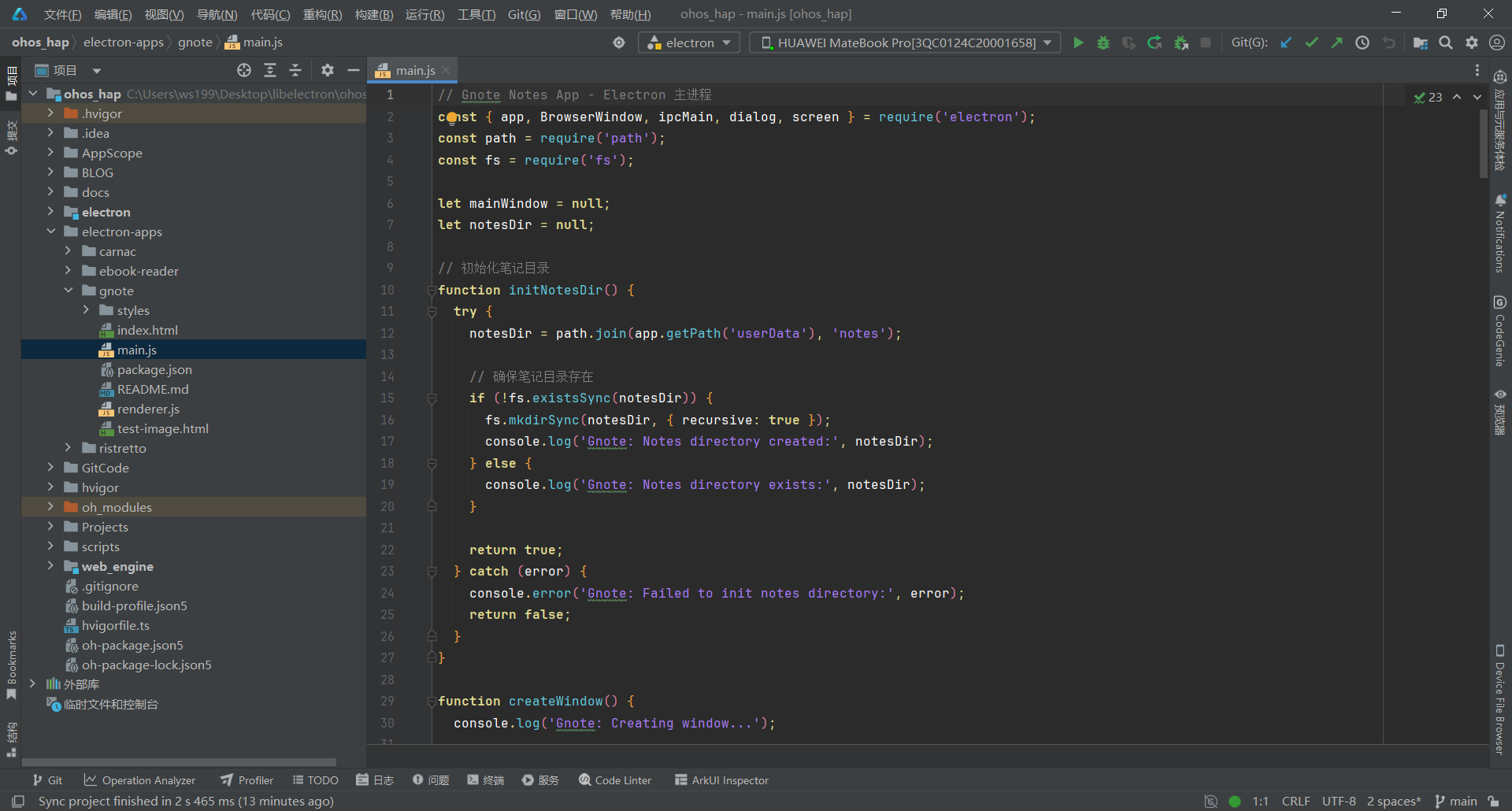
关键要点:
- 使用 screen.getPrimaryDisplay() 获取屏幕尺寸,动态计算窗口大小
- 窗口占据 80% 屏幕宽度和 85% 屏幕高度,并自动居中
- 使用 initNotesDir() 函数预先初始化笔记目录,带错误处理
- 设置 backgroundThrottling: false 保证后台自动保存性能
- 添加详细的 console.log 用于调试和日志追踪
3.2 第二步:实现笔记数据存储
文件:electron-apps/gnote/main.js
function setupIpcHandlers() {
  console.log('Gnote: Setting up IPC handlers');

  // 获取所有笔记列表
  ipcMain.handle('get-notes-list', async () => {
    try {
      if (!fs.existsSync(notesDir)) {
        return [];
      }

      const files = fs.readdirSync(notesDir);
      const notes = [];

      for (const file of files) {
        if (file.endsWith('.json')) {
          const filePath = path.join(notesDir, file);
          const content = fs.readFileSync(filePath, 'utf8');
          const note = JSON.parse(content);
          notes.push({
            id: note.id,
            title: note.title,
            content: note.content || '',  // 添加内容字段用于预览
            updatedAt: note.updatedAt,
            tags: note.tags || []
          });
        }
      }

      // 按更新时间倒序排序
      notes.sort((a, b) => new Date(b.updatedAt) - new Date(a.updatedAt));
      return notes;
    } catch (error) {
      console.error('Gnote: Failed to get notes list:', error);
      return [];
    }
  });

  // 保存笔记
  ipcMain.handle('save-note', async (event, note) => {
    try {
      const noteData = {
        id: note.id || Date.now().toString(),
        title: note.title || '无标题笔记',
        content: note.content || '',
        tags: note.tags || [],
        createdAt: note.createdAt || new Date().toISOString(),
        updatedAt: new Date().toISOString()
      };

      const filePath = path.join(notesDir, `${noteData.id}.json`);
      fs.writeFileSync(filePath, JSON.stringify(noteData, null, 2), 'utf8');

      console.log('Gnote: Note saved:', noteData.id);
      return { success: true, note: noteData };
    } catch (error) {
      console.error('Gnote: Failed to save note:', error);
      return { success: false, error: error.message };
    }
  });

  // 保存图片文件(用于大图片优化)
  ipcMain.handle('save-image', async (event, noteId, imageData) => {
    try {
      const imagesDir = path.join(notesDir, noteId, 'images');

      // 确保图片目录存在
      if (!fs.existsSync(imagesDir)) {
        fs.mkdirSync(imagesDir, { recursive: true });
      }

      // 生成唯一文件名
      const timestamp = Date.now();
      const ext = imageData.type === 'image/png' ? 'png' : 'jpg';
      const fileName = `${timestamp}.${ext}`;
      const filePath = path.join(imagesDir, fileName);

      // 提取 Base64 数据
      const base64Data = imageData.base64.split(',')[1];
      const buffer = Buffer.from(base64Data, 'base64');

      // 写入文件
      fs.writeFileSync(filePath, buffer);

      console.log('Gnote: Image saved:', fileName);
      return { success: true, path: fileName };
    } catch (error) {
      console.error('Gnote: Failed to save image:', error);
      return { success: false, error: error.message };
    }
  });

  // 加载笔记内容
  ipcMain.handle('load-note', async (event, noteId) => {
    try {
      const filePath = path.join(notesDir, `${noteId}.json`);
      if (!fs.existsSync(filePath)) {
        return null;
      }

      const content = fs.readFileSync(filePath, 'utf8');
      return JSON.parse(content);
    } catch (error) {
      console.error('Gnote: Failed to load note:', error);
      return null;
    }
  });

  // 删除笔记
  ipcMain.handle('delete-note', async (event, noteId) => {
    try {
      const filePath = path.join(notesDir, `${noteId}.json`);
      if (fs.existsSync(filePath)) {
        fs.unlinkSync(filePath);
      }

      // 清理图片目录(如果存在)
      const imagesDir = path.join(notesDir, noteId);
      if (fs.existsSync(imagesDir)) {
        fs.rmSync(imagesDir, { recursive: true, force: true });
        console.log('Gnote: Images directory cleaned:', noteId);
      }

      console.log('Gnote: Note deleted:', noteId);
      return { success: true };
    } catch (error) {
      console.error('Gnote: Failed to delete note:', error);
      return { success: false, error: error.message };
    }
  });

  // 搜索笔记
  ipcMain.handle('search-notes', async (event, query) => {
    try {
      if (!fs.existsSync(notesDir)) {
        return [];
      }

      const files = fs.readdirSync(notesDir);
      const allNotes = [];

      for (const file of files) {
        if (file.endsWith('.json')) {
          const filePath = path.join(notesDir, file);
          const content = fs.readFileSync(filePath, 'utf8');
          const note = JSON.parse(content);
          allNotes.push({
            id: note.id,
            title: note.title,
            content: note.content || '',
            updatedAt: note.updatedAt,
            tags: note.tags || []
          });
        }
      }

      const lowerQuery = query.toLowerCase();
      return allNotes.filter(note =>
        note.title.toLowerCase().includes(lowerQuery) ||
        note.content.toLowerCase().includes(lowerQuery) ||
        note.tags.some(tag => tag.toLowerCase().includes(lowerQuery))
      );
    } catch (error) {
      console.error('Gnote: Failed to search notes:', error);
      return [];
    }
  });
}
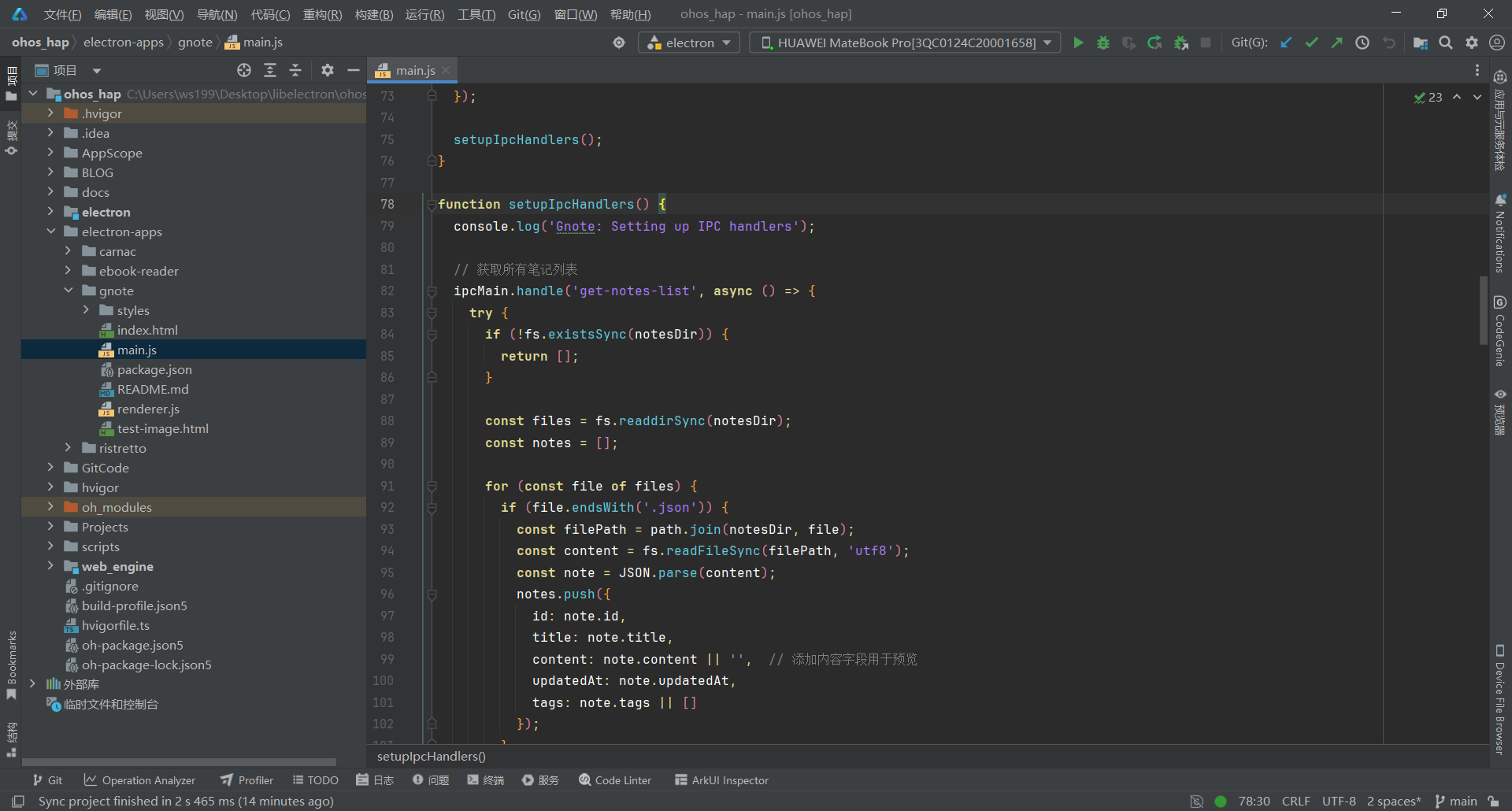
关键要点:
- 使用 JSON 文件存储,每个笔记一个文件
- 笔记目录由 initNotesDir() 预先创建,IPC 中不再重复创建
- get-notes-list 返回 content 字段用于列表预览
- 新增 save-image 处理图片文件存储(避免大 Base64 导致 JSON 臃肿)
- 新增 load-note 单独加载单个笔记
- 新增 search-notes 实现全文搜索(标题、内容、标签三维度)
- 删除笔记时自动清理关联的图片目录
- 笔记按更新时间倒序排列
3.3 第三步:设计笔记列表 UI
文件:electron-apps/gnote/index.html
<!DOCTYPE html>
<html lang="zh-CN">
<head>
  <meta charset="UTF-8">
  <meta http-equiv="Content-Security-Policy" content="default-src 'self'; script-src 'self' 'unsafe-inline'; style-src 'self' 'unsafe-inline';">
  <title>Gnote 笔记</title>
  <link rel="stylesheet" href="styles/gnote.css">
</head>
<body>
  <!-- 主容器 -->
  <div id="app-container" class="app-container">
    <!-- 左侧边栏 - 笔记列表 -->
    <div id="sidebar" class="sidebar">
      <!-- 搜索框 -->
      <div class="search-box">
        <input type="text" id="search-input" class="search-input" placeholder="搜索笔记...">
      </div>

      <!-- 新建笔记按钮 -->
      <button id="btn-new-note" class="btn-new-note" title="Ctrl+N">
        <span>➕</span> 新建笔记
      </button>

      <!-- 笔记列表 -->
      <div id="notes-list" class="notes-list">
        <!-- 笔记项会动态插入这里 -->
      </div>
    </div>

    <!-- 右侧主内容区 - 笔记编辑 -->
    <div id="main-content" class="main-content">
      <!-- 笔记标题 -->
      <input type="text" id="note-title" class="note-title" placeholder="笔记标题">

      <!-- 标签栏 -->
      <div class="tags-bar">
        <div id="tags-container" class="tags-container"></div>
        <input type="text" id="tag-input" class="tag-input" placeholder="添加标签...">
        <button id="btn-delete" class="btn-delete-note" title="删除笔记 (Ctrl+Delete)">🗑️ 删除</button>
      </div>

      <!-- 编辑工具栏 -->
      <div class="toolbar">
        <!-- 撤销/重做 -->
        <button id="btn-undo" class="toolbar-btn" title="撤销 (Ctrl+Z)">↶</button>
        <button id="btn-redo" class="toolbar-btn" title="重做 (Ctrl+Y)">↷</button>
        <div class="toolbar-separator"></div>

        <!-- 文本格式 -->
        <button id="btn-bold" class="toolbar-btn" title="粗体 (Ctrl+B)" style="font-weight: bold;">B</button>
        <button id="btn-italic" class="toolbar-btn" title="斜体 (Ctrl+I)" style="font-style: italic;">I</button>
        <button id="btn-underline" class="toolbar-btn" title="下划线 (Ctrl+U)" style="text-decoration: underline;">U</button>
        <button id="btn-strikethrough" class="toolbar-btn" title="删除线" style="text-decoration: line-through;">S</button>
        <div class="toolbar-separator"></div>

        <!-- 颜色选择器容器 -->
        <div class="color-picker-container">
          <span class="color-picker-label">字色</span>
          <input type="color" id="text-color-picker" class="color-picker" value="#000000" title="字体颜色 (Ctrl+K)">
          <span class="color-picker-label" style="margin-left: 4px;">背景</span>
          <input type="color" id="bg-color-picker" class="color-picker" value="#ffff00" title="背景颜色">
        </div>
        <div class="toolbar-separator"></div>

        <!-- 标题 -->
        <button id="btn-h1" class="toolbar-btn" title="一级标题 (Ctrl+1)" style="font-size: 18px; font-weight: bold;">H1</button>
        <button id="btn-h2" class="toolbar-btn" title="二级标题 (Ctrl+2)" style="font-size: 17px; font-weight: bold;">H2</button>
        <button id="btn-h3" class="toolbar-btn" title="三级标题 (Ctrl+3)" style="font-size: 16px; font-weight: bold;">H3</button>
        <button id="btn-h4" class="toolbar-btn" title="四级标题 (Ctrl+4)" style="font-size: 15px; font-weight: bold;">H4</button>
        <div class="toolbar-separator"></div>

        <!-- 字体大小 -->
        <button id="btn-font-decrease" class="toolbar-btn" title="减小字号 (Ctrl+[)" style="font-size: 13px;">A-</button>
        <button id="btn-font-increase" class="toolbar-btn" title="增大字号 (Ctrl+])" style="font-size: 15px;">A+</button>
        <div class="toolbar-separator"></div>

        <!-- 列表 -->
        <button id="btn-unordered-list" class="toolbar-btn" title="无序列表" style="font-size: 18px;">•</button>
        <button id="btn-ordered-list" class="toolbar-btn" title="有序列表" style="font-size: 14px; font-weight: bold;">1.</button>
        <div class="toolbar-separator"></div>

        <!-- 引用和分割线 -->
        <button id="btn-quote" class="toolbar-btn" title="引用" style="font-style: italic;">"</button>
        <button id="btn-hr" class="toolbar-btn" title="分割线">—</button>
        <div class="toolbar-separator"></div>

        <!-- 对齐方式 -->
        <button id="btn-align-left" class="toolbar-btn" title="左对齐">☰</button>
        <button id="btn-align-center" class="toolbar-btn" title="居中对齐">☷</button>
        <button id="btn-align-right" class="toolbar-btn" title="右对齐">☶</button>
        <div class="toolbar-separator"></div>

        <!-- 清除格式 -->
        <button id="btn-clear-format" class="toolbar-btn" title="清除格式 (Ctrl+Shift+R)" style="font-weight: bold;">✕</button>
      </div>

      <!-- 笔记内容编辑器 -->
      <div id="note-content" class="note-content" contenteditable="true" placeholder="开始输入笔记内容..."></div>

      <!-- 状态栏 -->
      <div class="statusbar">
        <span id="word-count">0 字</span>
        <span id="last-saved">未保存</span>
        <span id="shortcut-hints" class="shortcut-hints">Ctrl+S 保存 | Ctrl+N 新建 | Ctrl+Z/Y 撤销/重做 | Ctrl+1/2/3/4 标题 | Ctrl+K 颜色 | Ctrl+[/] 字号 | Ctrl+F 搜索</span>
      </div>
    </div>
  </div>

  <script src="renderer.js"></script>
</body>
</html>
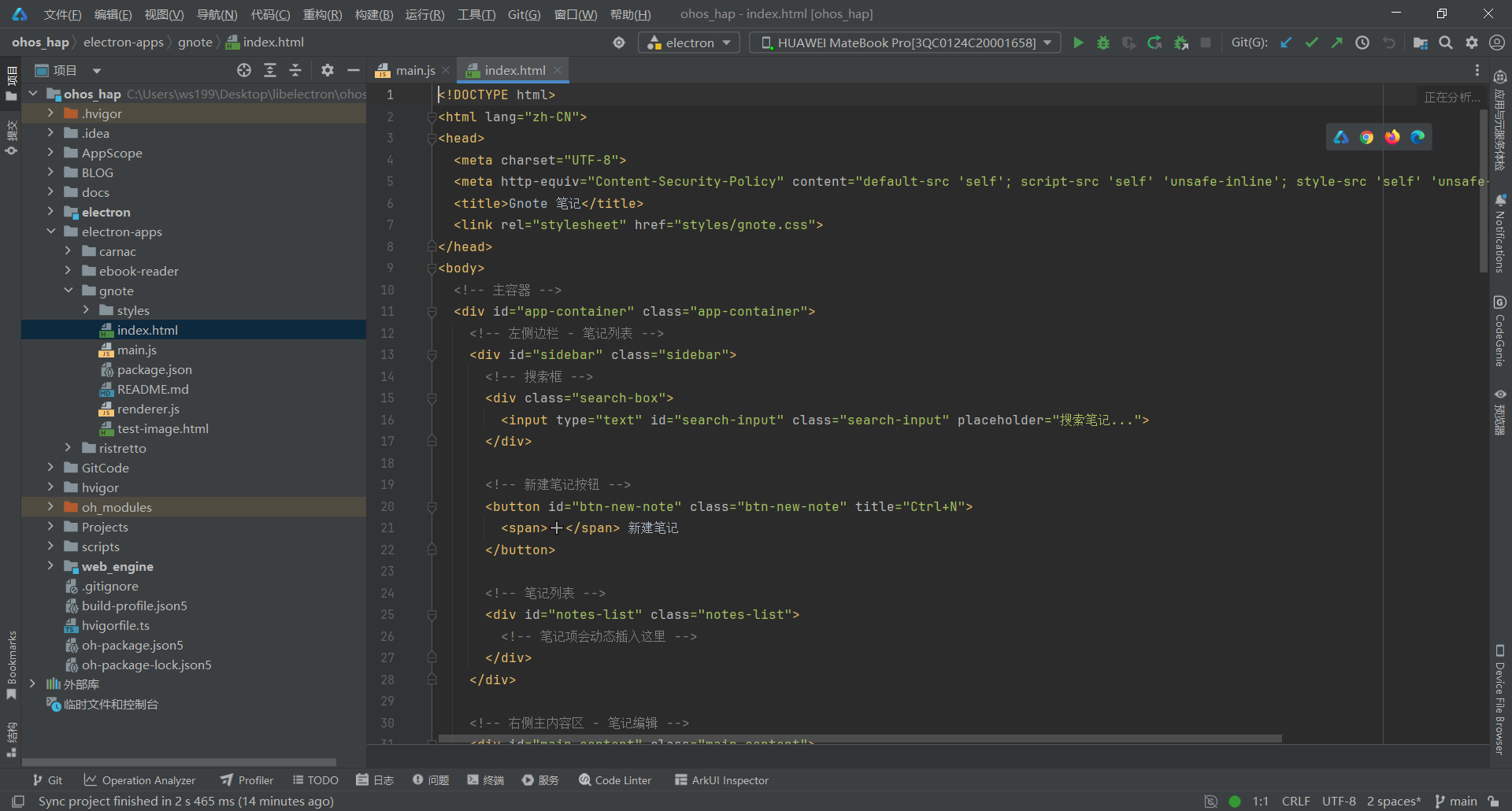
关键要点:
- 使用语义化 HTML 结构,添加完整的注释说明
- 按钮使用 ➕ emoji 图标而非简单的 + 号
- 工具栏按钮添加内联样式(字体大小、字重)增强视觉效果
- 状态栏快捷键提示更完整,包含所有主要快捷键
- 使用 contenteditable=“true” 实现富文本编辑
3.4 第四步:实现事件监听
文件:electron-apps/gnote/renderer.js
// Gnote Notes App - 渲染进程
const { ipcRenderer } = require('electron');

// ===== 状态管理 =====
let currentNoteId = null;
let allNotes = [];
let autoSaveTimer = null;

// ===== 初始化 =====
document.addEventListener('DOMContentLoaded', () => {
  console.log('Gnote: DOM loaded');

  try {
    setupEventListeners();
    loadNotesList().then(() => {
      // 如果没有笔记,自动创建示例笔记
      if (allNotes.length === 0) {
        createSampleNote();
      }
    });
    console.log('Gnote Notes App initialized successfully');
  } catch (error) {
    console.error('Gnote: Initialization error:', error);
    alert('应用初始化失败:' + error.message);
  }
});

// ===== 事件监听 =====
function setupEventListeners() {
  // 新建笔记
  document.getElementById('btn-new-note').addEventListener('click', createNewNote);

  // 搜索
  document.getElementById('search-input').addEventListener('input', debounceSearch);

  // 笔记标题和内容变化
  document.getElementById('note-title').addEventListener('input', handleNoteChange);
  document.getElementById('note-content').addEventListener('input', handleNoteChange);

  // 标签输入
  document.getElementById('tag-input').addEventListener('keydown', handleTagInput);

  // 工具栏按钮
  // 撤销/重做
  document.getElementById('btn-undo').addEventListener('click', () => execCommand('undo'));
  document.getElementById('btn-redo').addEventListener('click', () => execCommand('redo'));

  // 文本格式
  document.getElementById('btn-bold').addEventListener('click', () => execCommand('bold'));
  document.getElementById('btn-italic').addEventListener('click', () => execCommand('italic'));
  document.getElementById('btn-underline').addEventListener('click', () => execCommand('underline'));
  document.getElementById('btn-strikethrough').addEventListener('click', () => execCommand('strikeThrough'));

  // 字体颜色
  document.getElementById('text-color-picker').addEventListener('input', (e) => {
    document.execCommand('foreColor', false, e.target.value);
  });

  // 背景颜色
  document.getElementById('bg-color-picker').addEventListener('input', (e) => {
    document.execCommand('hiliteColor', false, e.target.value);
  });

  // 多级标题
  document.getElementById('btn-h1').addEventListener('click', () => formatHeading(1));
  document.getElementById('btn-h2').addEventListener('click', () => formatHeading(2));
  document.getElementById('btn-h3').addEventListener('click', () => formatHeading(3));
  document.getElementById('btn-h4').addEventListener('click', () => formatHeading(4));

  // 字体大小
  document.getElementById('btn-font-decrease').addEventListener('click', () => changeFontSize(-1));
  document.getElementById('btn-font-increase').addEventListener('click', () => changeFontSize(1));

  // 列表功能
  document.getElementById('btn-unordered-list').addEventListener('click', () => execCommand('insertUnorderedList'));
  document.getElementById('btn-ordered-list').addEventListener('click', () => execCommand('insertOrderedList'));

  // 引用和分割线
  document.getElementById('btn-quote').addEventListener('click', insertQuote);
  document.getElementById('btn-hr').addEventListener('click', () => execCommand('insertHorizontalRule'));

  // 对齐方式
  document.getElementById('btn-align-left').addEventListener('click', () => execCommand('justifyLeft'));
  document.getElementById('btn-align-center').addEventListener('click', () => execCommand('justifyCenter'));
  document.getElementById('btn-align-right').addEventListener('click', () => execCommand('justifyRight'));

  // 清除格式
  document.getElementById('btn-clear-format').addEventListener('click', clearFormat);

  // 删除笔记
  document.getElementById('btn-delete').addEventListener('click', deleteCurrentNote);

  // 键盘快捷键
  document.addEventListener('keydown', handleKeyboardShortcuts);
}

// 搜索防抖
let searchTimer = null;
function debounceSearch(event) {
  if (searchTimer) clearTimeout(searchTimer);
  searchTimer = setTimeout(() => handleSearch(event), 300);
}
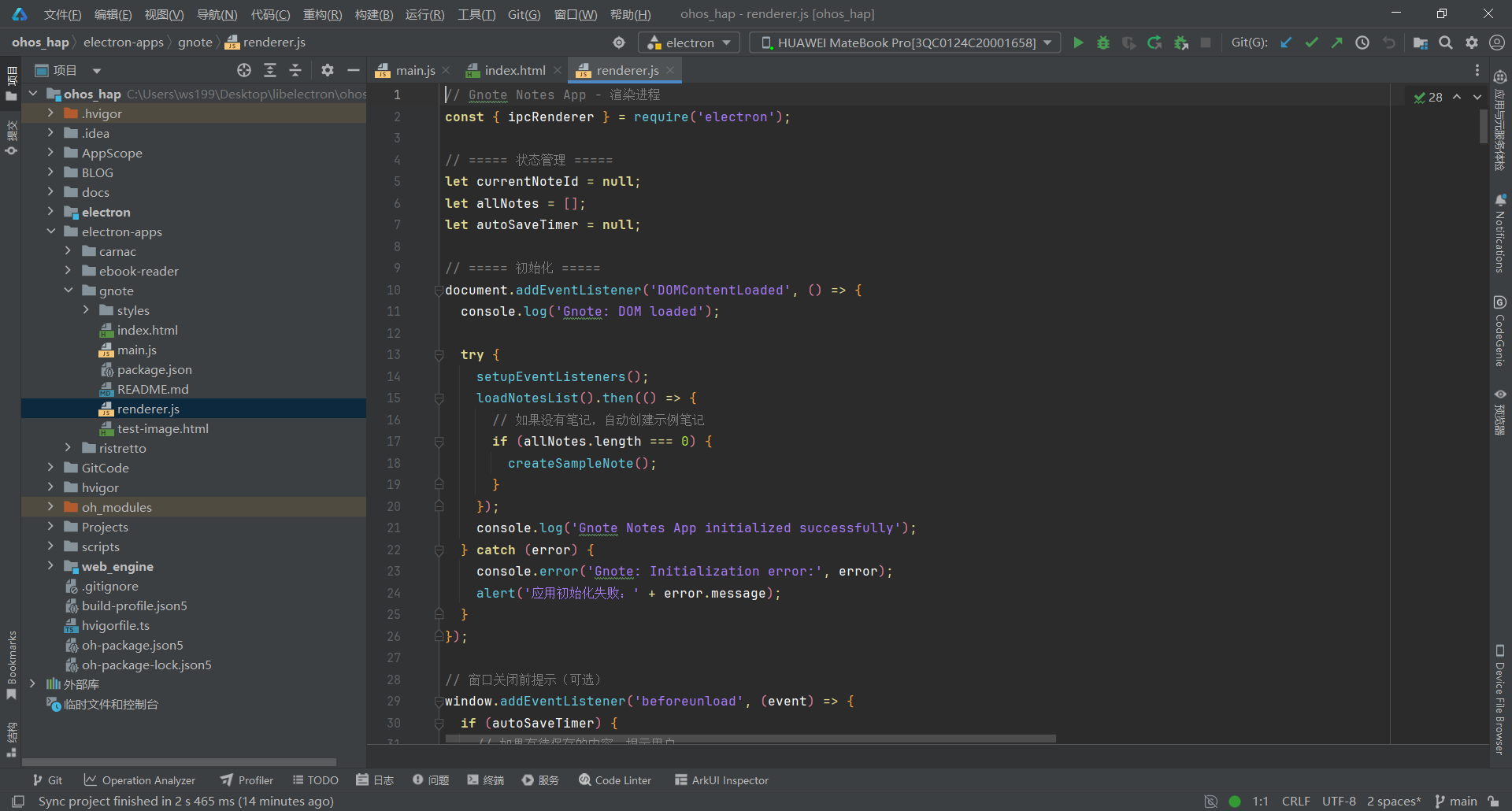
关键要点:
- 使用 allNotes 数组缓存所有笔记,避免频繁 IPC 通信
- 初始化时检查是否有笔记,无笔记时自动创建示例笔记
- 添加 try-catch 保护初始化流程,避免白屏
- 搜索使用 300ms 防抖,比自动保存更短
3.5 第五步:实现笔记列表与标签管理
文件:electron-apps/gnote/renderer.js
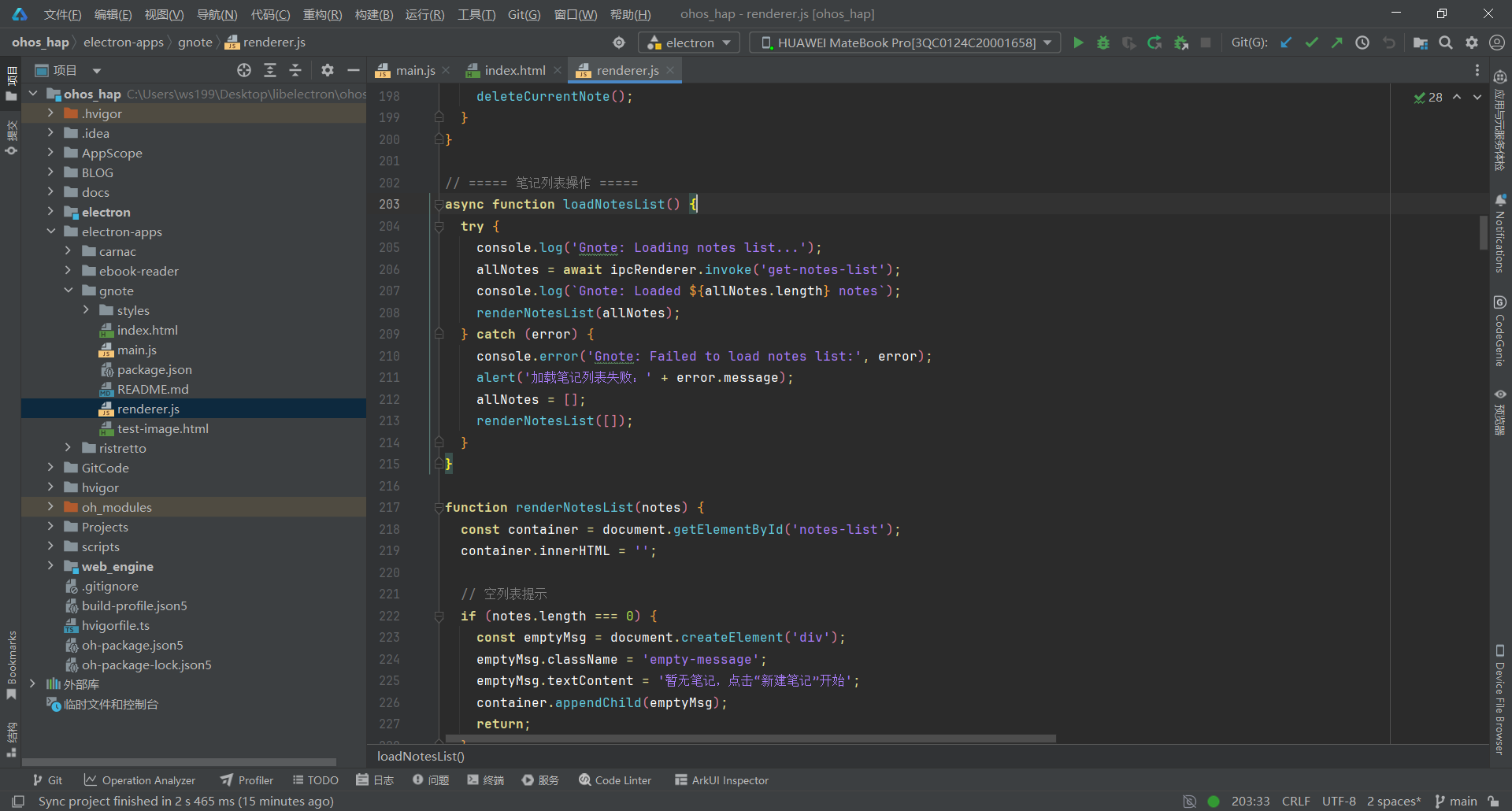
// ===== 笔记列表操作 =====
async function loadNotesList() {
  try {
    console.log('Gnote: Loading notes list...');
    allNotes = await ipcRenderer.invoke('get-notes-list');
    console.log(`Gnote: Loaded ${allNotes.length} notes`);
    renderNotesList(allNotes);
  } catch (error) {
    console.error('Gnote: Failed to load notes list:', error);
    alert('加载笔记列表失败:' + error.message);
    allNotes = [];
    renderNotesList([]);
  }
}

function renderNotesList(notes) {
  const container = document.getElementById('notes-list');
  container.innerHTML = '';

  // 空列表提示
  if (notes.length === 0) {
    const emptyMsg = document.createElement('div');
    emptyMsg.className = 'empty-message';
    emptyMsg.textContent = '暂无笔记,点击“新建笔记”开始';
    container.appendChild(emptyMsg);
    return;
  }

  notes.forEach(note => {
    const noteElement = createNoteElement(note);
    container.appendChild(noteElement);
  });
}

function createNoteElement(note) {
  const div = document.createElement('div');
  div.className = 'note-item';
  div.setAttribute('data-active', note.id === currentNoteId ? 'true' : 'false');

  // 标题
  const title = document.createElement('div');
  title.className = 'note-item-title';
  title.textContent = note.title || '无标题笔记';

  // 预览(提取纯文本前 50 个字符)
  const preview = document.createElement('div');
  preview.className = 'note-item-preview';
  const tempDiv = document.createElement('div');
  tempDiv.innerHTML = note.content || '';
  const plainText = tempDiv.textContent || tempDiv.innerText || '';
  preview.textContent = plainText.substring(0, 50) || '点击开始编辑...';

  // 元信息
  const meta = document.createElement('div');
  meta.className = 'note-item-meta';
  const date = new Date(note.updatedAt).toLocaleDateString('zh-CN');
  meta.innerHTML = `<span>${date}</span>`;
  if (note.tags && note.tags.length > 0) {
    meta.innerHTML += `<span>${note.tags.length} 个标签</span>`;
  }

  div.appendChild(title);
  div.appendChild(preview);
  div.appendChild(meta);

  // 点击加载笔记
  div.addEventListener('click', () => loadNote(note.id));

  return div;
}

// ===== 标签管理 =====
function handleTagInput(event) {
  if (event.key === 'Enter') {
    const input = document.getElementById('tag-input');
    const tag = input.value.trim();

    if (tag) {
      addTag(tag);
      input.value = '';
    }
  }
}

function addTag(tag) {
  const tags = getCurrentTags();
  if (!tags.includes(tag)) {
    tags.push(tag);
    renderTags(tags);
    handleNoteChange();
  }
}

function removeTag(tag) {
  const tags = getCurrentTags().filter(t => t !== tag);
  renderTags(tags);
  handleNoteChange();
}

// 将 removeTag 暴露到全局作用域(供 onclick 使用)
window.removeTag = removeTag;

function renderTags(tags) {
  const container = document.getElementById('tags-container');
  container.innerHTML = '';

  tags.forEach(tag => {
    const tagElement = document.createElement('span');
    tagElement.className = 'tag';

    const tagText = document.createTextNode(tag);
    const removeBtn = document.createElement('span');
    removeBtn.className = 'tag-remove';
    removeBtn.textContent = '×';
    removeBtn.onclick = () => removeTag(tag);

    tagElement.appendChild(tagText);
    tagElement.appendChild(removeBtn);
    container.appendChild(tagElement);
  });
}

function getCurrentTags() {
  const container = document.getElementById('tags-container');
  const tags = [];
  container.querySelectorAll('.tag').forEach(el => {
    const text = el.textContent.replace('×', '').trim();
    tags.push(text);
  });
  return tags;
}

// ===== 搜索功能 =====
async function handleSearch(event) {
  const query = event.target.value.trim();

  if (!query) {
    renderNotesList(allNotes);
    return;
  }

  try {
    const results = await ipcRenderer.invoke('search-notes', query);
    console.log(`Gnote: Search "${query}" found ${results.length} notes`);
    renderNotesList(results);
  } catch (error) {
    console.error('Gnote: Search failed:', error);
    alert('搜索失败:' + error.message);
  }
}
3.5 第五步:实现多级标题
文件:electron-apps/gnote/renderer.js
// 创建多级标题
function formatHeading(level) {
  const editor = document.getElementById('note-content');
  editor.focus();

  const selection = window.getSelection();
  if (selection.rangeCount > 0) {
    const range = selection.getRangeAt(0);
    const selectedText = selection.toString();

    // 创建对应级别的标题
    const heading = document.createElement(`h${level}`);

    // 设置标题样式
    const styles = {
      1: { fontSize: '18px', fontWeight: '700', margin: '16px 0 8px 0', color: '#24292e', borderBottom: '2px solid #0366d6', paddingBottom: '6px' },
      2: { fontSize: '17px', fontWeight: '600', margin: '14px 0 7px 0', color: '#24292e', borderBottom: '1px solid #0366d6', paddingBottom: '5px' },
      3: { fontSize: '16px', fontWeight: '600', margin: '12px 0 6px 0', color: '#24292e', borderBottom: '1px solid #e1e4e8', paddingBottom: '4px' },
      4: { fontSize: '15px', fontWeight: '600', margin: '10px 0 5px 0', color: '#24292e' }
    };

    const style = styles[level];
    if (style) {
      Object.assign(heading.style, style);
    }

    heading.textContent = selectedText || `标题 ${level}`;

    // 插入到光标位置
    range.deleteContents();
    range.insertNode(heading);

    // 在标题后添加空行
    const spacer = document.createElement('p');
    spacer.innerHTML = '<br>';
    heading.parentNode.insertBefore(spacer, heading.nextSibling);

    // 移动光标到标题后面
    range.setStartAfter(spacer);
    range.collapse(true);
    selection.removeAllRanges();
    selection.addRange(range);
  }
}
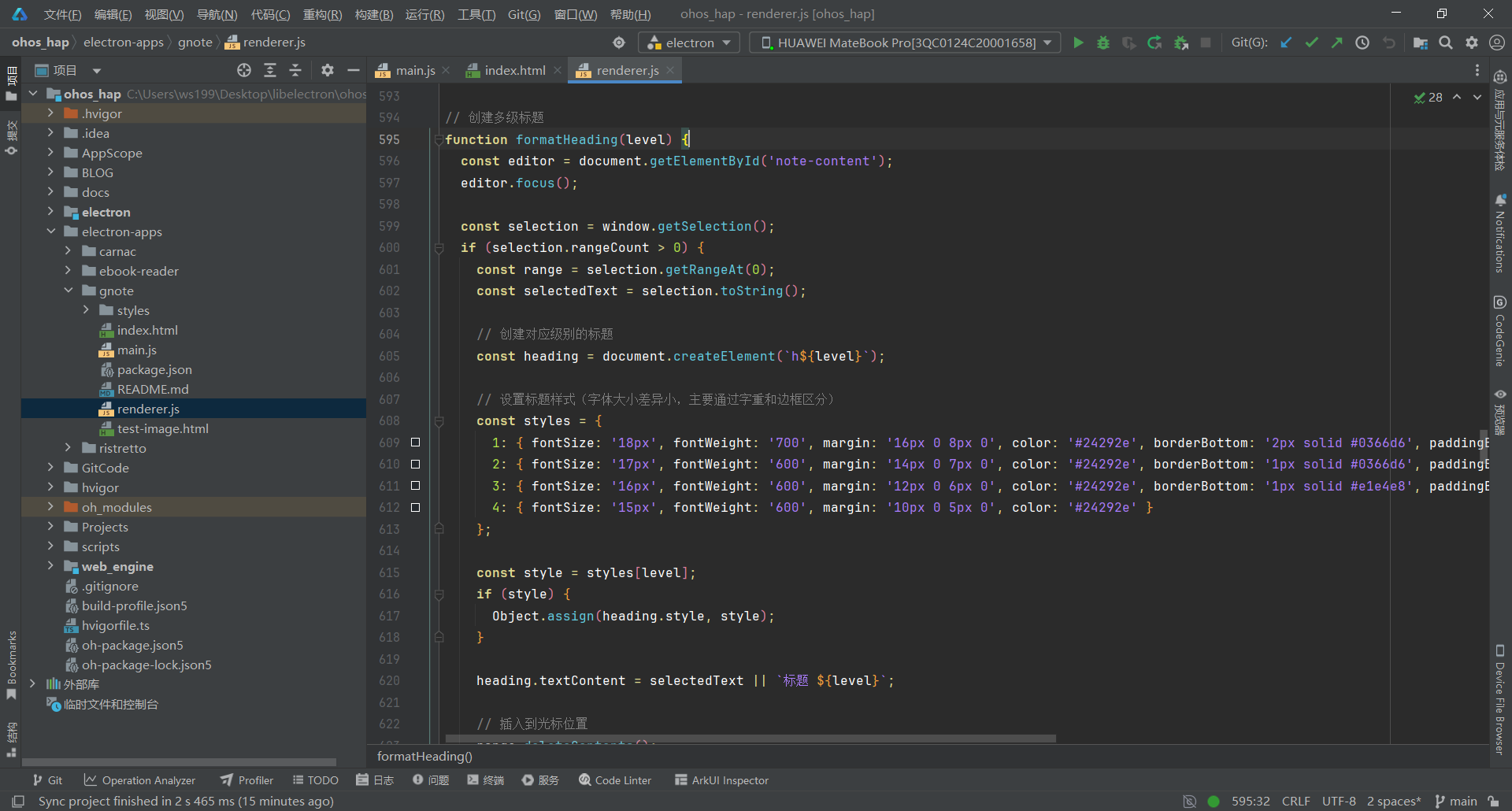
关键要点:
- 标题通过动态创建 h1-h4 元素实现
- H1 使用 700 字重和 2px 蓝色边框
- H2-H4 使用 600 字重,边框逐渐变浅
- 插入标题后自动在后面添加空行
3.6 第六步:实现自动保存
文件:electron-apps/gnote/renderer.js
// 处理笔记内容变化
function handleNoteChange() {
  if (!currentNoteId) return;

  // 更新字数统计
  updateWordCount();

  // 更新状态栏
  document.getElementById('last-saved').textContent = '编辑中...';

  // 清除之前的定时器
  if (autoSaveTimer) {
    clearTimeout(autoSaveTimer);
  }

  // 设置新的自动保存定时器(2秒后保存)
  autoSaveTimer = setTimeout(() => {
    saveNote();
  }, 2000);
}

// 保存笔记
async function saveNote() {
  if (!currentNoteId) return;

  try {
    const title = document.getElementById('note-title').value;
    const content = document.getElementById('note-content').innerHTML;

    const result = await ipcRenderer.invoke('save-note', {
      id: currentNoteId,
      title: title,
      content: content,
      tags: currentTags
    });

    if (result && result.success) {
      const now = new Date().toLocaleTimeString('zh-CN', { hour: '2-digit', minute: '2-digit' });
      document.getElementById('last-saved').textContent = `已保存 ${now}`;

      // 更新左侧列表
      await loadNotesList();
    }
  } catch (error) {
    console.error('Gnote: Failed to save note:', error);
  }
}

// 更新字数统计
function updateWordCount() {
  const content = document.getElementById('note-content').innerText || '';
  const count = content.replace(/\s/g, '').length;
  document.getElementById('word-count').textContent = `${count} 字`;
}
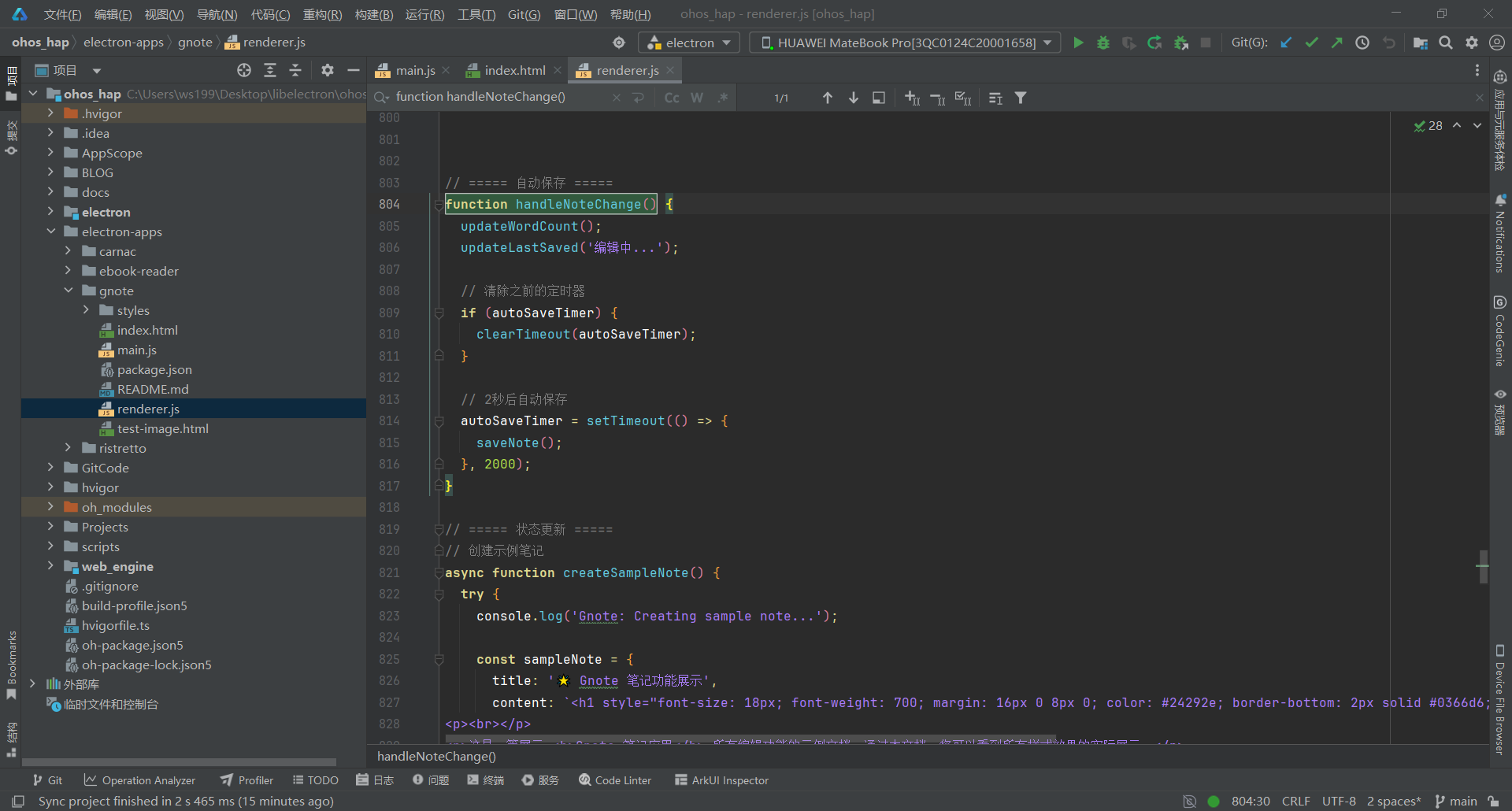
关键要点:
- 使用防抖技术,1 秒无操作后自动保存
- 保存时同时更新左侧笔记列表
- 状态栏实时显示保存状态和时间
- 字数统计去除空白字符
3.7 第七步:实现键盘快捷键
文件:electron-apps/gnote/renderer.js
// 键盘快捷键处理
function handleKeyboardShortcuts(event) {
  // Ctrl + S: 保存
  if ((event.ctrlKey || event.metaKey) && event.key === 's') {
    event.preventDefault();
    saveNote();
  }
  // Ctrl + N: 新建笔记
  if ((event.ctrlKey || event.metaKey) && event.key === 'n') {
    event.preventDefault();
    createNewNote();
  }
  // Ctrl + F: 聚焦搜索框
  if ((event.ctrlKey || event.metaKey) && event.key === 'f') {
    event.preventDefault();
    document.getElementById('search-input').focus();
  }
  // Ctrl + B: 粗体
  if ((event.ctrlKey || event.metaKey) && event.key === 'b') {
    event.preventDefault();
    execCommand('bold');
  }
  // Ctrl + I: 斜体
  if ((event.ctrlKey || event.metaKey) && event.key === 'i') {
    event.preventDefault();
    execCommand('italic');
  }
  // Ctrl + U: 下划线
  if ((event.ctrlKey || event.metaKey) && event.key === 'u') {
    event.preventDefault();
    execCommand('underline');
  }
  // Ctrl + K: 打开颜色选择器
  if ((event.ctrlKey || event.metaKey) && event.key === 'k') {
    event.preventDefault();
    document.getElementById('text-color-picker').click();
  }
  // Ctrl + [: 减小字体
  if ((event.ctrlKey || event.metaKey) && event.key === '[') {
    event.preventDefault();
    changeFontSize(-1);
  }
  // Ctrl + ]: 增大字体
  if ((event.ctrlKey || event.metaKey) && event.key === ']') {
    event.preventDefault();
    changeFontSize(1);
  }
  // Ctrl + 1/2/3/4: 标题
  if (event.ctrlKey && !event.shiftKey && !event.altKey) {
    if (event.key === '1') { event.preventDefault(); formatHeading(1); }
    else if (event.key === '2') { event.preventDefault(); formatHeading(2); }
    else if (event.key === '3') { event.preventDefault(); formatHeading(3); }
    else if (event.key === '4') { event.preventDefault(); formatHeading(4); }
  }
  // Ctrl + Shift + R: 清除格式
  if ((event.ctrlKey || event.metaKey) && event.shiftKey && event.key === 'R') {
    event.preventDefault();
    clearFormat();
  }
  // Ctrl + Delete: 删除当前笔记
  if (event.key === 'Delete' && currentNoteId && event.ctrlKey) {
    event.preventDefault();
    deleteCurrentNote();
  }
}
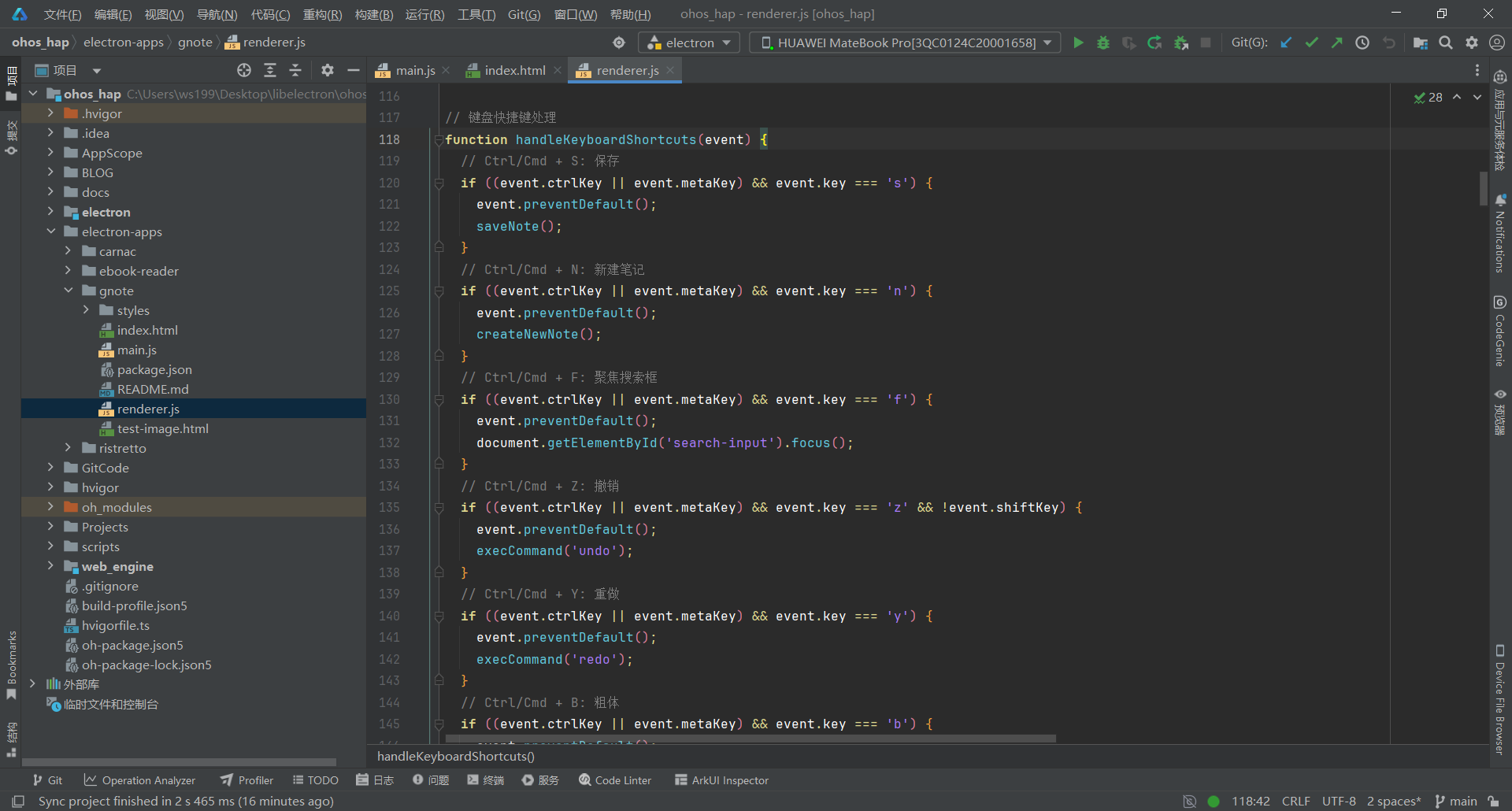
关键要点:
- 使用 event.preventDefault() 阻止默认行为
- Ctrl+1/2/3/4 对应四级标题,易于记忆
- 支持 Ctrl 和 Cmd(macOS)两种修饰键
- Ctrl+Delete 删除笔记需要二次确认
3.8 第八步:编写样式文件
文件:electron-apps/gnote/styles/gnote.css
/* 全局样式 */
* {
  margin: 0;
  padding: 0;
  box-sizing: border-box;
}

body {
  font-family: -apple-system, BlinkMacSystemFont, "Segoe UI", Roboto, sans-serif;
  height: 100vh;
  overflow: hidden;
}

.app-container {
  display: flex;
  height: 100vh;
}

/* 左侧边栏 */
.sidebar {
  width: 300px;
  background: #f8f9fa;
  border-right: 1px solid #e0e0e0;
  display: flex;
  flex-direction: column;
  overflow: hidden;
}

.search-box {
  padding: 12px;
  border-bottom: 1px solid #e0e0e0;
}

.search-input {
  width: 100%;
  padding: 8px 12px;
  border: 1px solid #e0e0e0;
  border-radius: 4px;
  font-size: 13px;
}

.btn-new-note {
  margin: 8px 12px;
  padding: 8px;
  background: #4a90e2;
  color: white;
  border: none;
  border-radius: 4px;
  cursor: pointer;
  font-size: 14px;
}

/* 笔记列表项 */
.note-item {
  padding: 12px;
  margin: 4px 8px;
  background: #ffffff;
  border-radius: 4px;
  cursor: pointer;
  transition: background 0.2s;
  border: 2px solid transparent;
}

.note-item:hover {
  background: #f0f0f0;
}

.note-item.active {
  background: #e8f0fe;
  border-color: #4a90e2;
}

/* 工具栏 */
.toolbar {
  padding: 10px 20px;
  background: linear-gradient(to bottom, #ffffff 0%, #fafafa 100%);
  border-bottom: 1px solid #e0e0e0;
  display: flex;
  align-items: center;
  gap: 8px;
  flex-wrap: wrap;
}

.toolbar-btn {
  padding: 6px 12px;
  background: #ffffff;
  border: 1px solid #e0e0e0;
  border-radius: 4px;
  cursor: pointer;
  font-size: 14px;
  transition: all 0.2s;
  min-width: 32px;
  display: flex;
  align-items: center;
  justify-content: center;
}

.toolbar-btn:hover {
  background: #f5f5f5;
  border-color: #4a90e2;
  transform: translateY(-1px);
}

.toolbar-separator {
  width: 1px;
  height: 24px;
  background: #e0e0e0;
  margin: 0 4px;
}

/* 编辑器 */
.note-content {
  flex: 1;
  padding: 20px;
  overflow-y: auto;
  outline: none;
  font-size: 15px;
  line-height: 1.8;
}

/* 状态栏 */
.statusbar {
  display: flex;
  justify-content: space-between;
  align-items: center;
  padding: 6px 12px;
  background: #4a90e2;
  color: #ffffff;
  font-size: 12px;
}

/* 滚动条样式 - 鸿蒙平台兼容 */
.notes-list,
.note-content {
  scrollbar-width: thin;
  scrollbar-color: #c0c0c0 #f0f0f0;
}
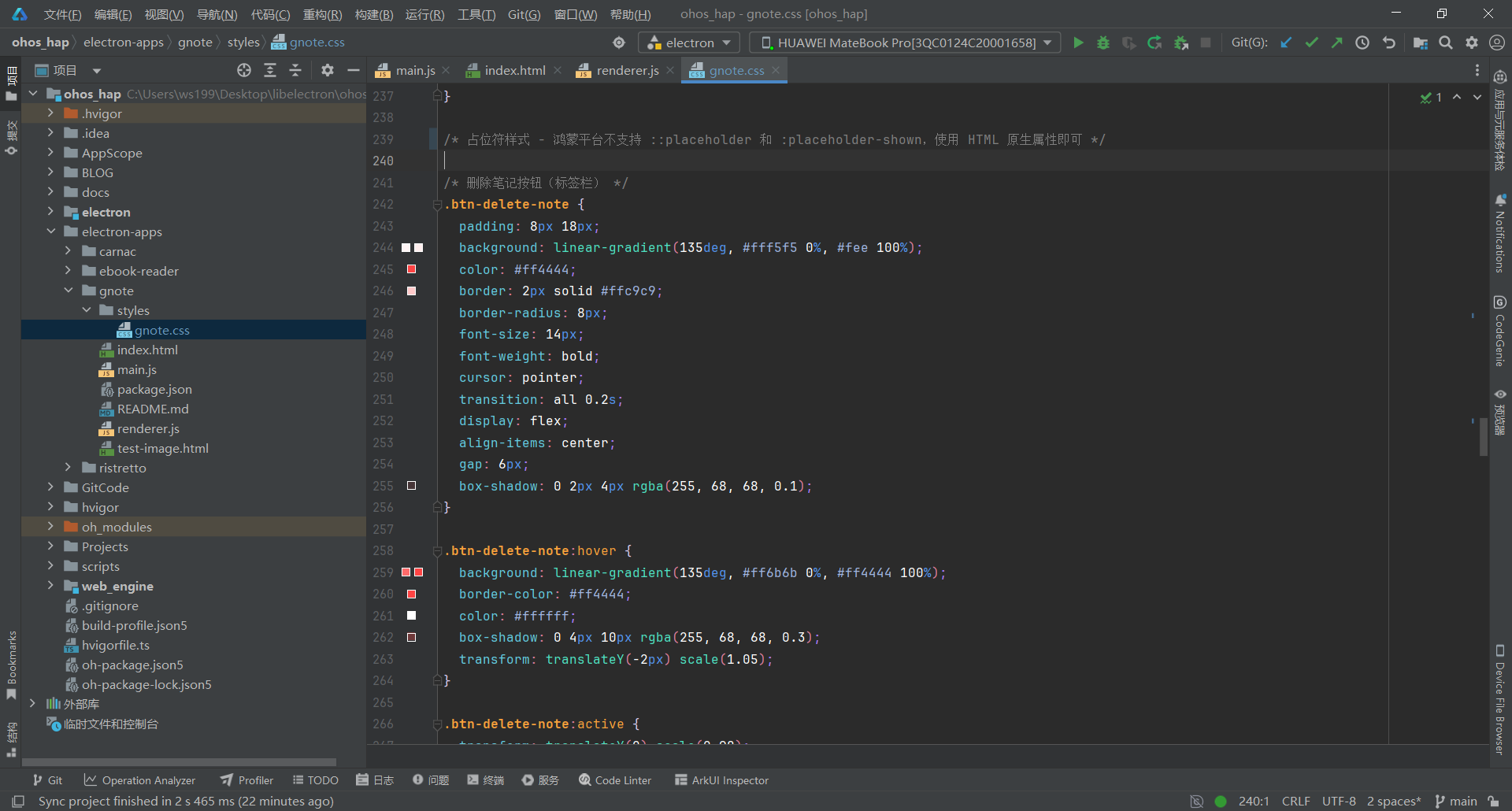
关键要点:
- 避免使用 -webkit-scrollbar 伪元素(鸿蒙不支持)
- 使用 Flexbox 实现响应式布局
- 工具栏渐变背景增加层次感
- 按钮悬停时蓝色边框 + 上移动效
四、部署到鸿蒙平台
4.1 文件同步
使用 PowerShell 脚本将 Electron 应用文件同步到鸿蒙项目:
# 同步 main.js
Copy-Item "electron-apps\gnote\main.js" `
  -Destination "web_engine\src\main\resources\resfile\resources\app\main.js" `
  -Force

# 同步 renderer.js
Copy-Item "electron-apps\gnote\renderer.js" `
  -Destination "web_engine\src\main\resources\resfile\resources\app\renderer.js" `
  -Force

# 同步 index.html
Copy-Item "electron-apps\gnote\index.html" `
  -Destination "web_engine\src\main\resources\resfile\resources\app\index.html" `
  -Force

# 同步 gnote.css
Copy-Item "electron-apps\gnote\styles\gnote.css" `
  -Destination "web_engine\src\main\resources\resfile\resources\app\styles\gnote.css" `
  -Force
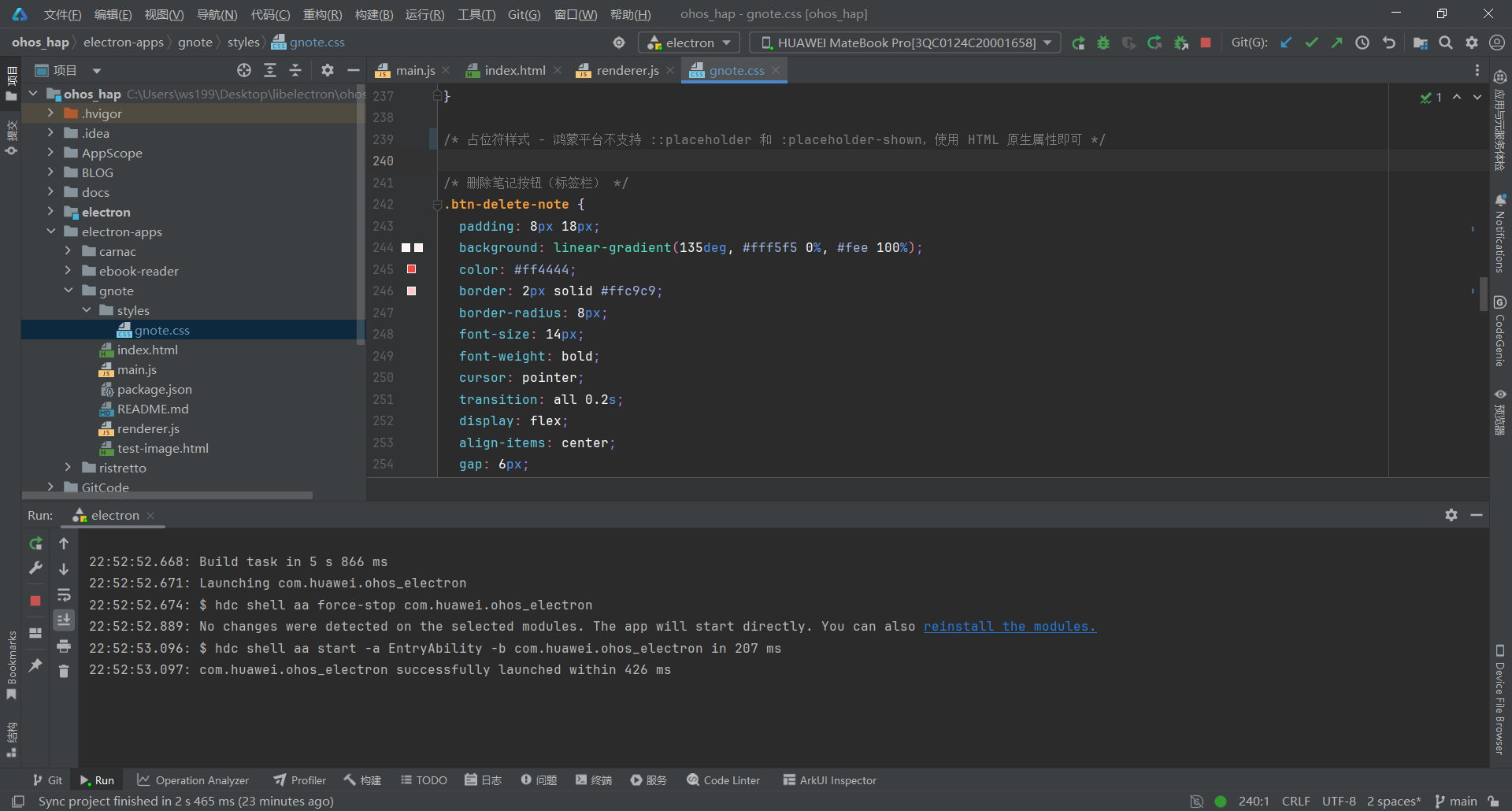
4.2 构建 HAP 包
在 DevEco Studio 中:
- 打开项目根目录
- 点击 Build > Build Hap(s)/APP(s)
- 选择 Build Hap(s)
- 等待构建完成
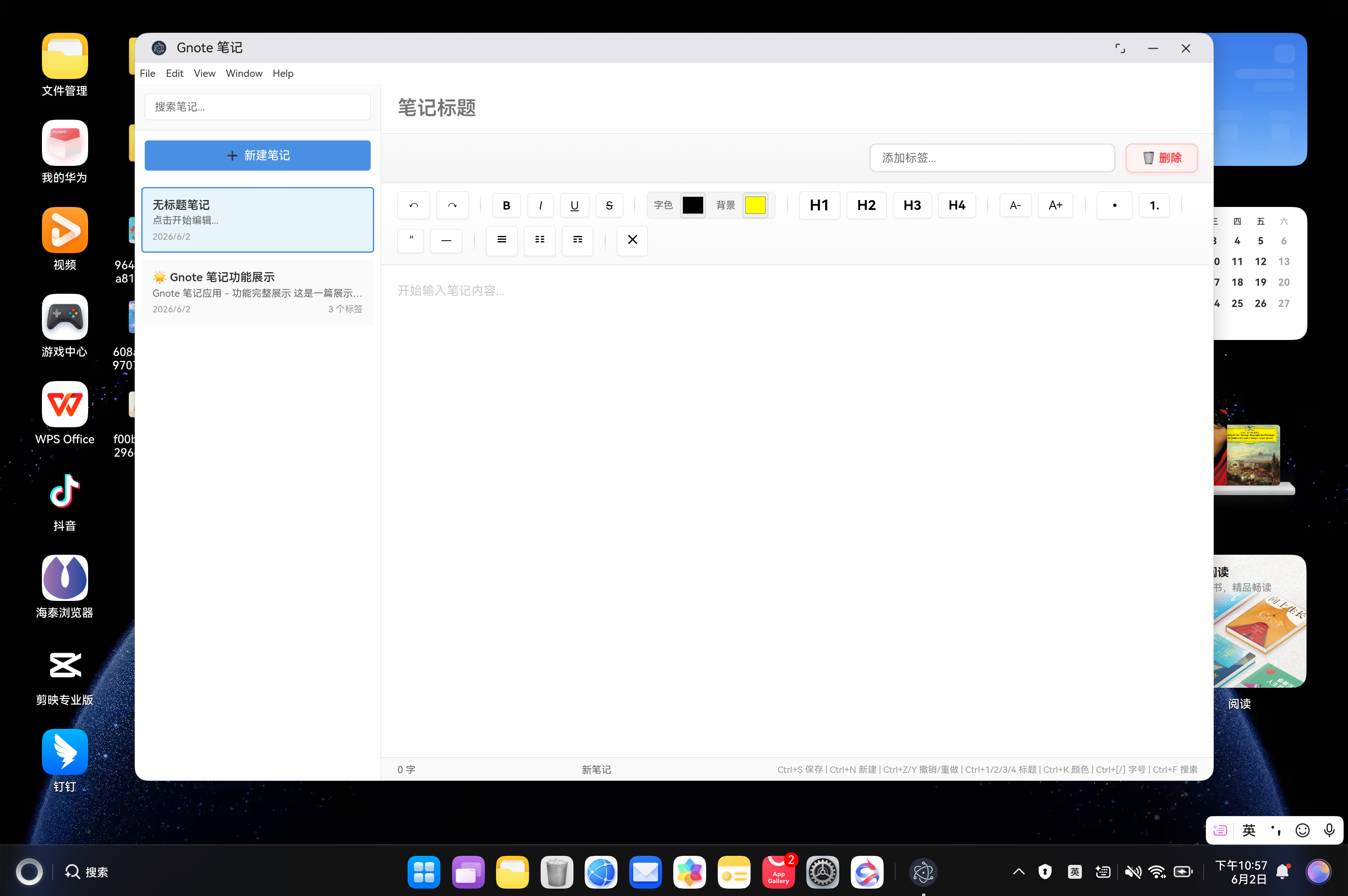
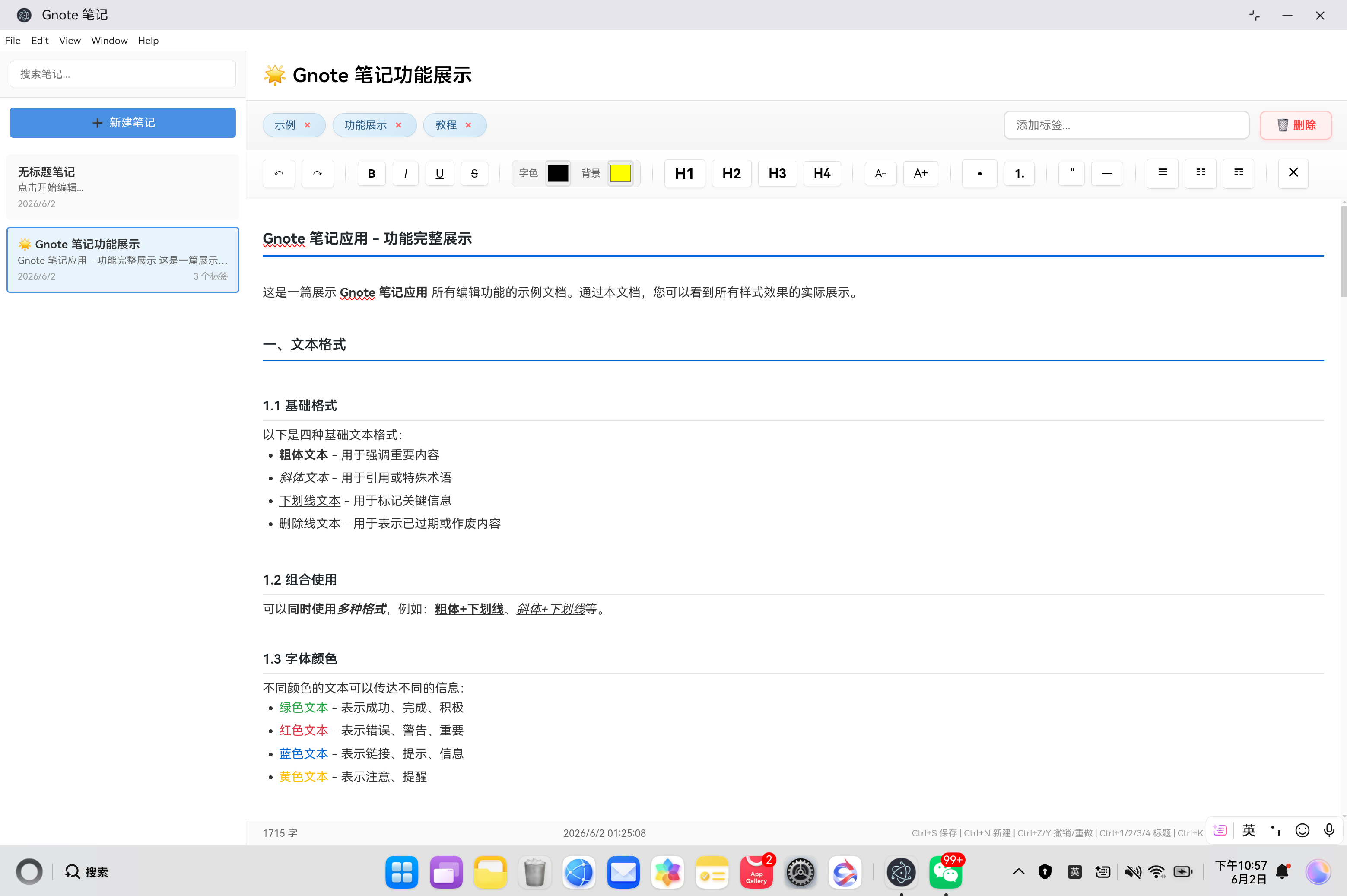
4.3 真机测试
- 连接鸿蒙设备(或启动模拟器)
- 点击 Run > Run ‘entry’
- 安装完成后,应用会自动启动
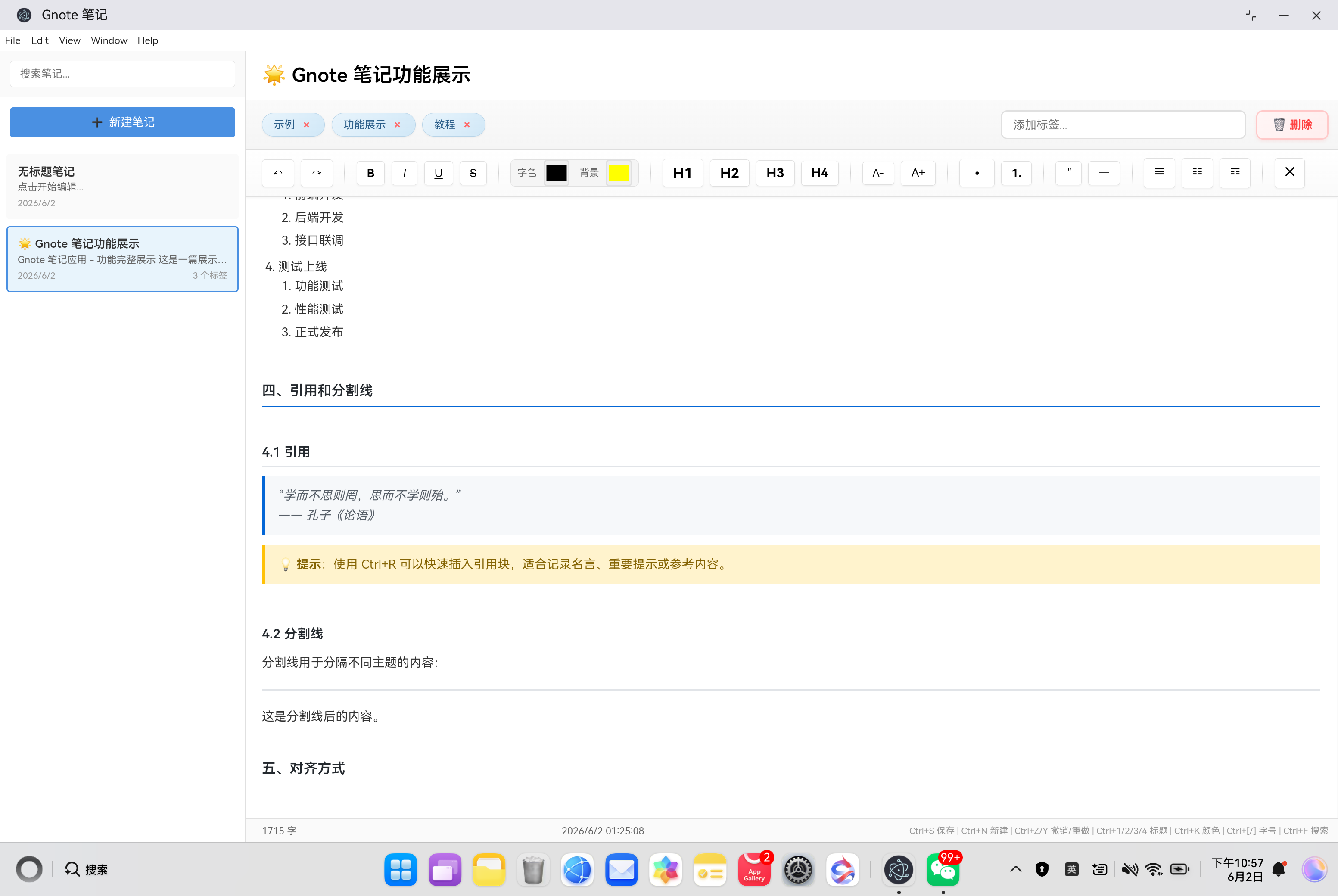
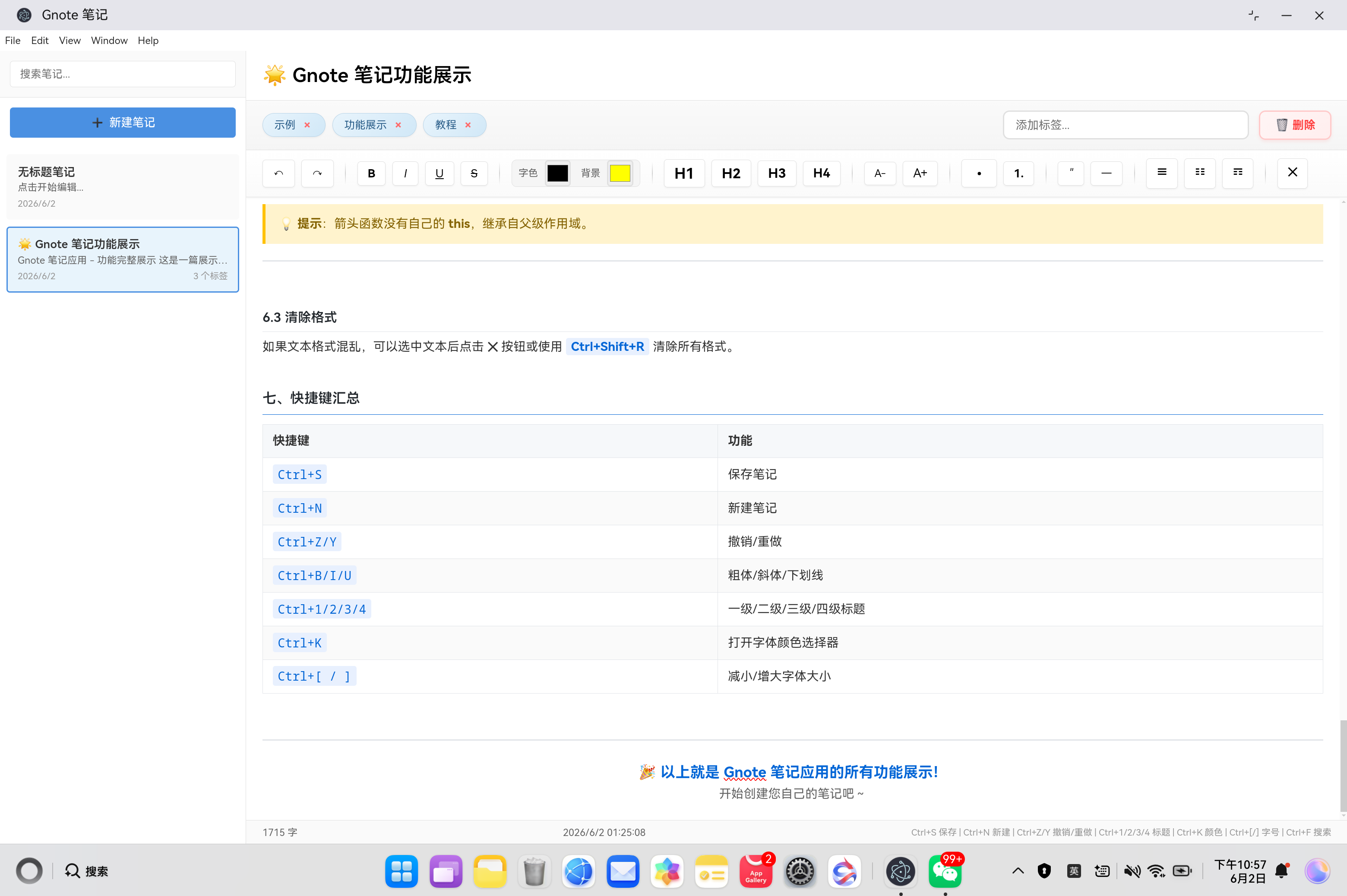
- 创建一条笔记,测试编辑和保存功能
五、常见问题 FAQ
Q1:富文本内容保存后格式丢失?
问题现象:编辑了粗体、颜色等格式,重新打开后格式消失
根本原因:保存时使用了 innerText 而非 innerHTML
解决方案:
// 正确方式:保存 HTML 格式
const content = document.getElementById('note-content').innerHTML;

// 错误方式:丢失格式
const content = document.getElementById('note-content').innerText;
注意事项:
- 保存使用 innerHTML 保留格式
- 加载时也使用 innerHTML 恢复格式
- 字数统计使用 innerText 去除标签
Q2:工具栏按钮执行命令后编辑器失焦?
问题现象:点击工具栏按钮后,光标从编辑器消失
根本原因:按钮点击事件夺取了焦点
解决方案:
function execCommand(command, value = null) {
  document.execCommand(command, false, value);
  // 重新聚焦编辑器
  document.getElementById('note-content').focus();
}
关键点:
- 每次执行命令后调用 focus() 恢复焦点
- 编辑器必须先有选区才能正确应用格式
Q3:自动保存导致编辑卡顿?
问题现象:快速输入时页面有明显延迟
根本原因:每次输入都触发保存请求
解决方案:
let autoSaveTimer = null;

function handleNoteChange() {
  // 清除之前的定时器
  if (autoSaveTimer) {
    clearTimeout(autoSaveTimer);
  }

  // 1秒防抖:停止输入1秒后才保存
  autoSaveTimer = setTimeout(() => {
    saveNote();
  }, 1000);
}
关键点:
- 使用防抖技术,1 秒无操作后才保存
- 每次输入时重置定时器
- 避免频繁 IPC 通信造成性能问题
Q4:多级标题样式在鸿蒙平台显示异常?
问题现象:标题字体大小差异过大或边框不显示
解决方案:
const styles = {
  1: { fontSize: '18px', fontWeight: '700', borderBottom: '2px solid #0366d6' },
  2: { fontSize: '17px', fontWeight: '600', borderBottom: '1px solid #0366d6' },
  3: { fontSize: '16px', fontWeight: '600', borderBottom: '1px solid #e1e4e8' },
  4: { fontSize: '15px', fontWeight: '600' }
};
关键点:
- 字体大小差异控制在 1px,主要通过边框区分层级
- 使用 Object.assign 内联样式,避免 CSS 类选择器兼容问题
- 边框颜色从蓝色到灰色递减
Q5:键盘快捷键与系统冲突?
问题现象:Ctrl+N 打开了新窗口而非新建笔记
根本原因:Electron 默认快捷键行为未被阻止
解决方案:
if ((event.ctrlKey || event.metaKey) && event.key === 'n') {
  event.preventDefault();  // 阻止默认行为
  createNewNote();
}
注意事项:
- 必须在 handler 最前面调用 event.preventDefault()
- 在鸿蒙平台需要确保 focusable 为 true
- 事件监听需要在 DOMContentLoaded 后注册
Q6:笔记数据目录不存在导致保存失败?
问题现象:首次使用时保存笔记报错 ENOENT
解决方案:
ipcMain.handle('get-notes-list', async () => {
  // 自动创建目录
  if (!fs.existsSync(notesDir)) {
    fs.mkdirSync(notesDir, { recursive: true });
    return [];
  }
  // ...
});
关键点:
- 使用 recursive: true 递归创建目录
- 在读取和保存操作前都检查目录是否存在
- 使用 try-catch 包裹所有文件操作
Q7:搜索功能响应缓慢?
问题现象:输入搜索关键词后,列表刷新有明显延迟
解决方案:
let searchTimer = null;

function debounceSearch() {
  if (searchTimer) clearTimeout(searchTimer);

  searchTimer = setTimeout(() => {
    const keyword = document.getElementById('search-input').value.trim();
    filterNotes(keyword);
  }, 300);  // 300ms 防抖
}
关键点:
- 搜索使用 300ms 防抖,比自动保存更短
- 在客户端过滤已加载的笔记列表
- 匹配标题和标签两个维度
Q8:鸿蒙平台构建失败?
问题现象:hvigor 构建时报错,无法找到文件
根本原因:文件未同步到鸿蒙项目或路径错误
解决方案:
# 1. 确认源文件存在
Test-Path "electron-apps\gnote\main.js"

# 2. 同步文件
Copy-Item "electron-apps\gnote\*.js" `
  -Destination "web_engine\src\main\resources\resfile\resources\app\" `
  -Force

Copy-Item "electron-apps\gnote\*.html" `
  -Destination "web_engine\src\main\resources\resfile\resources\app\" `
  -Force

# 3. 验证同步结果
Get-ChildItem "web_engine\src\main\resources\resfile\resources\app\"
注意事项:
- 每次修改后都需要同步文件
- 检查 build-profile.json5 配置
- 确保 module.json5 中声明了文件读写权限

作为“人工智能6S店”的官方数字引擎,为AI开发者与企业提供一个覆盖软硬件全栈、一站式门户。
更多推荐


 58
58 0
0- 0


 已为社区贡献6条内容

所有评论(0)