
30分钟上手HarmonyOS开发:手把手教你做一款记账APP
本文提供了一个30分钟快速入门HarmonyOS开发的教程,手把手教你开发一个记账应用。主要内容包括: 环境准备:使用DevEco Studio开发工具和华为手机/模拟器 项目创建:详细介绍了创建Empty Ability项目的步骤和项目结构 ArkTS基础:讲解了鸿蒙开发语言ArkTS的基本语法和常用组件 数据结构设计:定义了记账应用所需的分类数据和交易记录接口 数据存储方案:使用Prefere
30分钟上手HarmonyOS开发:手把手教你做一款记账APP
零基础也能看懂的鸿蒙开发入门教程,从创建项目到运行调试,全流程实录。
写在前面
之前写过一些鸿蒙开发的文章,有同学反馈"太深了"。这次换个方式,用最简单的语言,一步步带你完成一个记账应用。不需要你有任何移动开发经验,只要会写 JavaScript 就行。
准备工具:
- DevEco Studio(华为官方IDE,类似 Android Studio)
- 一台华为手机或模拟器
- 一杯咖啡☕
一、创建项目
1.1 打开 DevEco Studio
点击 File → New → Create Project,选择 Empty Ability:
1.2 填写项目信息
Project name: MyFinance
Bundle name: com.example.myfinance
Compile SDK: API 23
Model: Stage
点击 Finish,项目创建完成。
1.3 项目结构一览
MyFinance/
├── AppScope/              # 应用全局配置
│   └── app.json5
├── entry/                 # 主模块
│   ├── src/main/
│   │   ├── ets/          # ArkTS 代码
│   │   │   ├── entryability/
│   │   │   │   └── EntryAbility.ets
│   │   │   └── pages/
│   │   │       └── Index.ets
│   │   └── resources/    # 资源文件
│   └── build-profile.json5
└── build-profile.json5
重点记住:
ets/目录放代码resources/目录放图片、字符串等资源
二、认识 ArkTS
2.1 什么是 ArkTS?
ArkTS 是华为基于 TypeScript 扩展的语言,专门用于鸿蒙开发。如果你会 Vue 或 React,上手很快。
一个最简单的页面:
@Entry
@Component
struct HelloPage {
  build() {
    Column() {
      Text('你好,鸿蒙!')
        .fontSize(24)
    }
  }
}
解释:
@Entry:页面入口标记@Component:组件标记build():UI 构建函数,类似 React 的 render
2.2 常用组件
| 组件 | 作用 | 示例 |
|---|---|---|
| Column | 纵向布局 | Column() { Text('上') Text('下') } |
| Row | 横向布局 | Row() { Text('左') Text('右') } |
| Text | 文本 | Text('标题').fontSize(20) |
| Button | 按钮 | Button('点我').onClick(() => {}) |
| Image | 图片 | Image($r('app.media.icon')) |
| List | 列表 | List() { ForEach(...) } |
2.3 状态变量
类似 Vue 的 data,用 @State 标记:
@Entry
@Component
struct Counter {
  @State count: number = 0;  // 状态变量

  build() {
    Column() {
      Text(`点击次数: ${this.count}`)
      Button('+1')
        .onClick(() => {
          this.count++;  // 修改后自动刷新UI
        })
    }
  }
}
三、设计数据结构
3.1 分类数据
记账需要分类(餐饮、交通等),定义一个接口:
// models/FinanceModels.ets

export interface Category {
  id: string;        // 分类ID
  name: string;      // 名称
  icon: string;      // 图标(emoji)
  color: string;     // 颜色
  type: string;      // 'expense' 或 'income'
}
3.2 交易记录
export interface Transaction {
  id: string;
  type: string;          // 'expense' 或 'income'
  categoryId: string;    // 关联的分类
  amount: number;        // 金额
  date: string;          // 日期
  note: string;          // 备注
  timestamp: number;     // 时间戳
}
3.3 预置分类数据
export const PRESET_CATEGORIES: Category[] = [
  { id: 'food', name: '餐饮', icon: '🍜', color: '#FF6B6B', type: 'expense' },
  { id: 'transport', name: '交通', icon: '🚌', color: '#4ECDC4', type: 'expense' },
  { id: 'shopping', name: '购物', icon: '🛍', color: '#FFB347', type: 'expense' },
  { id: 'entertainment', name: '娱乐', icon: '🎮', color: '#A78BFA', type: 'expense' },
  { id: 'housing', name: '居住', icon: '🏠', color: '#60A5FA', type: 'expense' },
  { id: 'communication', name: '通讯', icon: '📱', color: '#F472B6', type: 'expense' },
  { id: 'health', name: '健康', icon: '❤️', color: '#34D399', type: 'expense' },
  { id: 'education', name: '教育', icon: '📚', color: '#FB923C', type: 'expense' },
  { id: 'other', name: '其他', icon: '🎁', color: '#94A3B8', type: 'expense' },
  { id: 'salary', name: '工资', icon: '💼', color: '#10B981', type: 'income' },
  { id: 'investment', name: '理财', icon: '📈', color: '#F59E0B', type: 'income' },
];
四、数据存储
4.1 为什么用 Preferences?
HarmonyOS 提供三种存储方式:
| 方案 | 适合场景 | 学习成本 |
|---|---|---|
| Preferences | 键值对,小数据 | ⭐ |
| 关系型数据库 | 复杂查询 | ⭐⭐⭐ |
| 分布式数据 | 多设备同步 | ⭐⭐⭐⭐ |
记账数据量不大,用 Preferences 就够了。
4.2 封装数据库类
// data/FinanceDatabase.ets

import { preferences } from '@kit.ArkData';
import { Transaction } from '../models/FinanceModels';

export class FinanceDatabase {
  private store: preferences.Preferences | null = null;
  private cache: Transaction[] = [];

  // 初始化
  async init(context: Context) {
    this.store = await preferences.getPreferences(context, 'finance_db');
    await this.loadData();
  }

  // 加载数据
  private async loadData() {
    const json = await this.store.get('transactions', '[]');
    this.cache = JSON.parse(json as string);
  }

  // 保存数据
  private async saveData() {
    const json = JSON.stringify(this.cache);
    await this.store.put('transactions', json);
    await this.store.flush();  // 重要:写入磁盘
  }

  // 新增
  async add(tx: Transaction) {
    this.cache.push(tx);
    await this.saveData();
  }

  // 删除
  async delete(id: string) {
    this.cache = this.cache.filter(t => t.id !== id);
    await this.saveData();
  }

  // 获取某月数据
  getByMonth(year: number, month: number): Transaction[] {
    const prefix = `${year}-${month.toString().padStart(2, '0')}`;
    return this.cache.filter(t => t.date.startsWith(prefix));
  }
}

export const db = new FinanceDatabase();
要点:
- 用
cache数组缓存数据,避免频繁读磁盘 - 修改后必须调用
flush()才会真正保存
五、主界面:三个 Tab
5.1 Tabs 组件
// pages/Index.ets

import { db } from '../data/FinanceDatabase';
import { HomePage } from './HomePage';
import { StatisticsPage } from './StatisticsPage';
import { SettingsPage } from './SettingsPage';

@Entry
@Component
struct Index {
  @State tabIndex: number = 0;

  aboutToAppear() {
    db.init(getContext(this));
  }

  build() {
    Tabs({ index: this.tabIndex, barPosition: BarPosition.End }) {
      TabContent() {
        HomePage()
      }.tabBar('首页')

      TabContent() {
        StatisticsPage()
      }.tabBar('统计')

      TabContent() {
        SettingsPage()
      }.tabBar('设置')
    }
    .width('100%')
    .height('100%')
  }
}
5.2 自定义 Tab 样式
@Builder
tabBar(index: number, icon: string, label: string) {
  Column() {
    Text(icon).fontSize(22)
    Text(label)
      .fontSize(10)
      .fontColor(this.tabIndex === index ? '#007DFF' : '#999')
  }
  .padding({ top: 6, bottom: 8 })
}
六、首页:收支卡片 + 流水列表
6.1 渐变背景卡片
// pages/HomePage.ets

@Component
export struct HomePage {
  @State transactions: Transaction[] = [];

  build() {
    Column() {
      // 总览卡片
      Column() {
        Text('2024年6月')
          .fontColor('rgba(255,255,255,0.8)')

        Text('¥5200.00')
          .fontSize(36)
          .fontColor('#FFF')
          .fontWeight(FontWeight.Bold)

        Row() {
          Column() {
            Text('收入').fontSize(12).fontColor('rgba(255,255,255,0.7)')
            Text('¥8000').fontSize(16).fontColor('#FFF')
          }
          Divider().vertical(true).color('rgba(255,255,255,0.2)')
          Column() {
            Text('支出').fontSize(12).fontColor('rgba(255,255,255,0.7)')
            Text('¥2800').fontSize(16).fontColor('#FFF')
          }
        }
      }
      .width('90%')
      .padding(20)
      .borderRadius(20)
      .linearGradient({
        colors: [['#007DFF', 0], ['#00B4D8', 1]]
      })

      // 流水列表
      List() {
        ForEach(this.transactions, (item: Transaction) => {
          ListItem() {
            this.transactionItem(item)
          }
        }, (item: Transaction) => item.id)
      }
      .layoutWeight(1)
    }
  }
}
6.2 流水项组件
@Builder
transactionItem(tx: Transaction) {
  Row() {
    // 分类图标
    Circle()
      .width(44)
      .height(44)
      .fill('#FF6B6B')
    Text('🍜')
      .position({ x: 12, y: 12 })

    // 信息
    Column() {
      Text('餐饮').fontSize(16)
      Text(tx.note).fontSize(13).fontColor('#999')
    }
    .alignItems(HorizontalAlign.Start)
    .margin({ left: 12 })
    .layoutWeight(1)

    // 金额
    Text('-¥' + tx.amount.toFixed(2))
      .fontSize(16)
      .fontColor('#333')
  }
  .padding(16)
}
七、添加记账:底部弹窗
7.1 绑定半模态弹窗
@State showAdd: boolean = false;

Column() {
  // ...页面内容
}
.bindSheet($$this.showAdd, this.addSheet(), {
  height: SheetSize.LARGE,
  backgroundColor: '#FFF'
})
7.2 表单内容
@Builder
addSheet() {
  Column() {
    Row() {
      Text('新增记账').fontSize(20)
      Blank()
      Text('取消')
        .fontColor('#999')
        .onClick(() => { this.showAdd = false; })
    }
    .width('100%')
    .padding({ bottom: 16 })

    // 支出/收入切换
    Row() {
      Button('支出')
        .backgroundColor(this.type === 'expense' ? '#007DFF' : '#F5F5F5')
        .onClick(() => { this.type = 'expense'; })

      Button('收入')
        .backgroundColor(this.type === 'income' ? '#007DFF' : '#F5F5F5')
        .onClick(() => { this.type = 'income'; })
    }

    // 金额输入
    Row() {
      Text('¥').fontSize(32)
      TextInput({ placeholder: '0.00' })
        .type(InputType.Number)
        .layoutWeight(1)
    }
    .margin({ top: 20 })

    // 分类选择
    Grid() {
      ForEach(this.getCategories(), (cat: Category) => {
        GridItem() {
          Column() {
            Circle().width(44).height(44).fill(cat.color)
            Text(cat.icon).fontSize(20).position({ x: 12, y: 12 })
            Text(cat.name).fontSize(12).margin({ top: 4 })
          }
        }
      })
    }
    .columnsTemplate('1fr 1fr 1fr 1fr 1fr')
    .height(180)

    Button('保存')
      .width('100%')
      .height(50)
      .margin({ top: 20 })
      .onClick(() => {
        this.saveTransaction();
      })
  }
  .padding(24)
}
八、统计页:饼图
8.1 Canvas 绑定
// components/PieChart.ets

@Component
export struct PieChart {
  data: Map<string, number> = new Map();
  total: number = 0;

  private ctx: CanvasRenderingContext2D = new CanvasRenderingContext2D();

  build() {
    Canvas(this.ctx)
      .width('100%')
      .height(280)
      .onReady(() => {
        this.draw();
      })
  }

  draw() {
    const cx = this.ctx.width / 2;
    const cy = this.ctx.height / 2;
    const r = Math.min(cx, cy) * 0.7;

    // 无数据
    if (this.total === 0) {
      this.ctx.arc(cx, cy, r, 0, Math.PI * 2);
      this.ctx.fillStyle = '#F0F0F0';
      this.ctx.fill();
      return;
    }

    // 绘制扇形
    let start = -Math.PI / 2;
    this.data.forEach((value, key) => {
      const angle = (value / this.total) * Math.PI * 2;

      this.ctx.beginPath();
      this.ctx.moveTo(cx, cy);
      this.ctx.arc(cx, cy, r, start, start + angle);
      this.ctx.fillStyle = this.getColor(key);
      this.ctx.fill();

      start += angle;
    });

    // 中心圆
    this.ctx.beginPath();
    this.ctx.arc(cx, cy, r * 0.5, 0, Math.PI * 2);
    this.ctx.fillStyle = '#FFF';
    this.ctx.fill();
  }

  getColor(id: string): string {
    const colors: Record<string, string> = {
      'food': '#FF6B6B',
      'transport': '#4ECDC4',
      'shopping': '#FFB347',
      // ...
    };
    return colors[id] || '#94A3B8';
  }
}
8.2 使用组件
// pages/StatisticsPage.ets

@Component
export struct StatisticsPage {
  @State expenseMap: Map<string, number> = new Map();
  @State totalExpense: number = 0;

  build() {
    Column() {
      Text('支出分类占比')
        .fontSize(18)
        .fontWeight(FontWeight.Bold)

      PieChart({
        data: this.expenseMap,
        total: this.totalExpense
      })
      .padding(20)
    }
  }
}
九、设置页
9.1 预算设置
// pages/SettingsPage.ets

@Component
export struct SettingsPage {
  @State budget: number = 5000;
  @State showBudgetDialog: boolean = false;

  build() {
    List() {
      ListItem() {
        Row() {
          Text('月度预算')
          Blank()
          Text(`¥${this.budget}`).fontColor('#007DFF')
        }
        .padding(16)
        .onClick(() => { this.showBudgetDialog = true; })
      }
    }
    .bindContentCover($$this.showBudgetDialog, this.budgetDialog())
  }

  @Builder
  budgetDialog() {
    Column() {
      Text('设置预算').fontSize(18)
      TextInput({ text: this.budget.toString() })
        .type(InputType.Number)
      Row() {
        Button('取消').onClick(() => { this.showBudgetDialog = false; })
        Button('确定').onClick(() => { /* 保存 */ })
      }
    }
    .padding(24)
  }
}
十、运行调试
10.1 连接设备
- 手机开启开发者模式:设置 → 关于手机 → 连续点击版本号 7 次
- 开启 USB 调试:设置 → 开发者选项 → USB 调试
- 用数据线连接电脑
10.2 运行项目
点击 DevEco Studio 顶部的绿色三角形 ▶️,选择你的设备,等待安装完成。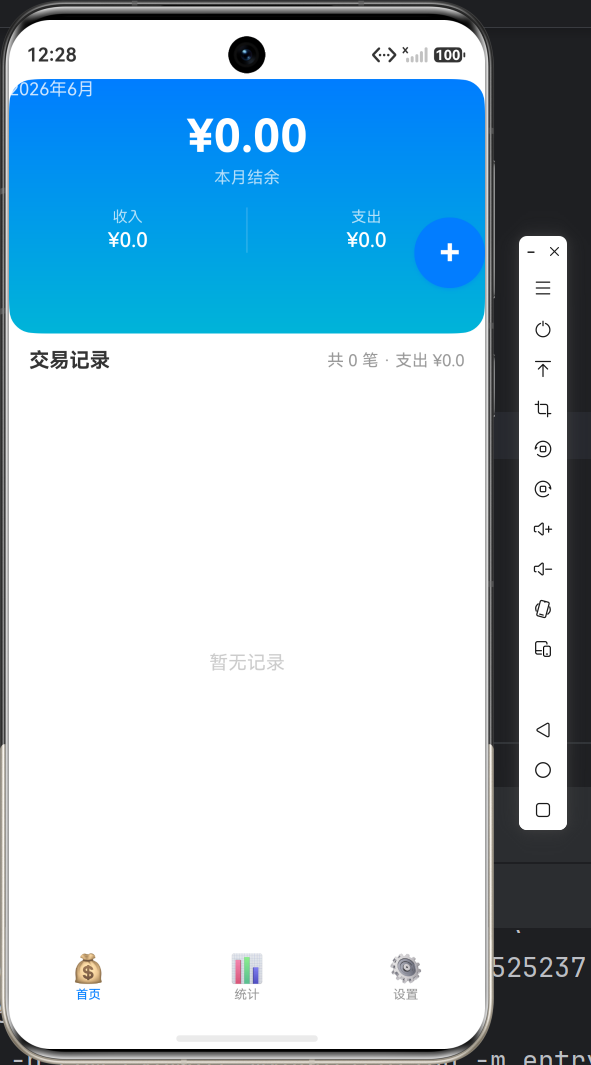
10.3 查看日志
底部 Log 面板可以看到应用日志:
console.info('测试日志');
十一、常见问题
Q1:Canvas 绘制不出来?
A:必须在 onReady() 里绘制,此时 Canvas 尺寸才有效:
Canvas(this.ctx)
  .onReady(() => {
    this.draw();  // 这里才能绘制
  })
Q2:List 滚动卡顿?
A:ForEach 必须提供 key 函数:
ForEach(this.list, (item) => {
  // ...
}, (item) => item.id)  // 必须有!
Q3:数据保存后重启消失?
A:Preferences 必须调用 flush():
await store.put('key', value);
await store.flush();  // 必须!
Q4:修改数组元素 UI 不更新?
A:重新赋值触发更新:
this.list.push(newItem);
this.list = [...this.list];  // 触发更新
Q5:如何真机调试?
A:
- 手机开启开发者模式和 USB 调试
- 连接电脑后选择"文件传输"模式
- DevEco Studio 会自动识别设备
十二、项目源码
**核心文件**:
- `ets/models/FinanceModels.ets`:数据模型
- `ets/data/FinanceDatabase.ets`:数据存储
- `ets/pages/Index.ets`:主入口
- `ets/pages/HomePage.ets`:首页
- `ets/pages/StatisticsPage.ets`:统计页
- `ets/pages/SettingsPage.ets`:设置页
- `ets/components/PieChart.ets`:饼图组件

---

## 十三、下一步

学会了基础开发,可以继续深入:

1. **数据持久化进阶**:尝试关系型数据库
2. **网络请求**:接入记账 API
3. **多设备适配**:手机、平板、手表
4. **动画效果**:让应用更流畅
5. **发布上架**:华为应用市场

---

## 总结

30 分钟,我们从零完成了一个记账应用:

✅ 创建项目
✅ 设计数据结构
✅ 实现数据存储
✅ 三 Tab 导航
✅ 收支卡片 + 流水列表
✅ 底部弹窗记账
✅ Canvas 饼图统计
✅ 预算设置

HarmonyOS 开发其实不难,关键在于:
- 熟悉 ArkTS 语法(类似 TypeScript)
- 掌握常用组件(Column、Row、List、Canvas)
- 理解状态管理(@State、@Prop)

有问题欢迎评论区留言,我会一一解答!

---

**技术栈**:HarmonyOS NEXT + ArkTS
**开发工具**:DevEco Studio 5.0+

作为“人工智能6S店”的官方数字引擎,为AI开发者与企业提供一个覆盖软硬件全栈、一站式门户。
更多推荐
 2
2 0
0- 0


 已为社区贡献8条内容

所有评论(0)