
鸿蒙原生记账APP开发实录:从需求到上线的完整踩坑指南
鸿蒙记账APP开发指南:从需求到上线的完整实践 本文详细记录了使用HarmonyOS NEXT和ArkTS开发一款原生记账应用的完整过程。文章从需求分析入手,规划了记账、查账、分析三大核心功能模块,采用三Tab架构组织页面。技术实现上展示了分层架构设计,包括数据模型层、持久化层、UI组件层和页面层,重点介绍了Preferences轻量存储方案的应用与注意事项。开发过程中遇到的典型问题如数据持久化时
鸿蒙原生记账APP开发实录:从需求到上线的完整踩坑指南
一款完整的个人财务记账应用,涵盖数据存储、图表绘制、响应式UI等核心技能,适合HarmonyOS开发者进阶学习。
写在前面
记账类应用是移动开发中的经典练手项目,麻雀虽小五脏俱全——涉及数据持久化、列表渲染、图表绘制、弹窗交互等常见场景。本文记录了我使用 HarmonyOS NEXT + ArkTS 从零开发一款记账 APP 的完整过程,包括遇到的坑和解决方案。
开发环境:
- DevEco Studio 5.0+
- HarmonyOS SDK API 23
- hvigor 构建工具
一、需求分析与功能设计
1.1 核心功能
作为一个记账应用,核心功能无非三个:记账、查账、分析。
记账 → 查账 → 分析
  ↓       ↓       ↓
 新增   流水列表  统计图表
 编辑   按月筛选  分类占比
 删除   搜索      趋势分析
1.2 页面规划
采用经典的三 Tab 架构:
| Tab | 页面 | 功能 |
|---|---|---|
| 首页 | HomePage | 月度总览卡片 + 交易流水列表 |
| 统计 | StatisticsPage | 饼图 + 分类排行 |
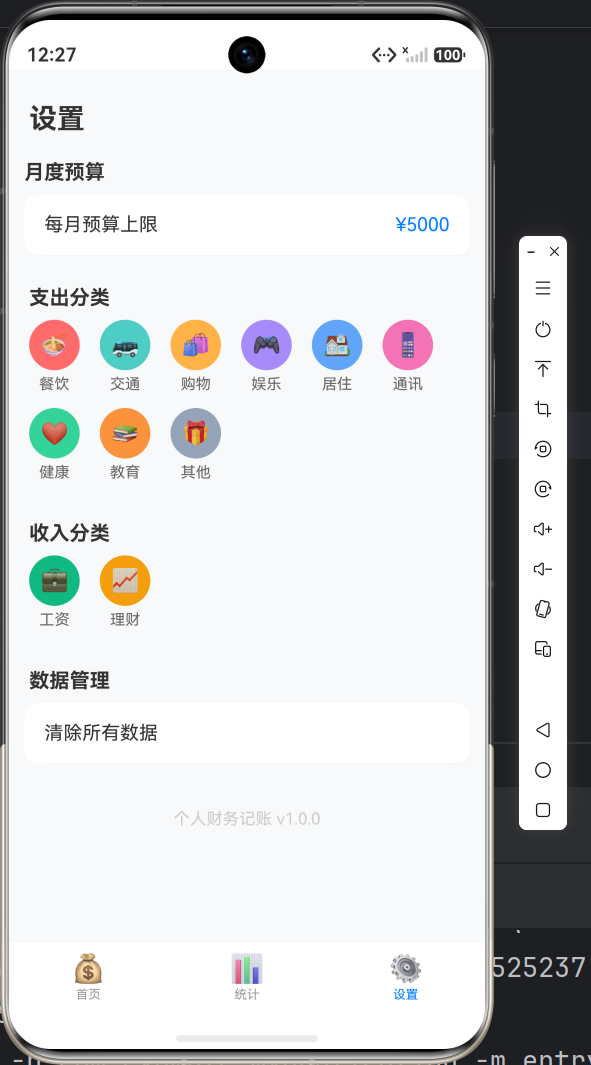
| 设置 | SettingsPage | 预算设置 + 数据管理 |
二、项目结构设计
2.1 目录组织
按照职责分离原则,将代码分为四个层次:
entry/src/main/ets/
├── models/              # 数据模型层
│   └── FinanceModels.ets
├── data/                # 数据访问层
│   └── FinanceDatabase.ets
├── components/          # UI组件层
│   ├── TransactionItem.ets
│   ├── AddTransactionContent.ets
│   └── PieChart.ets
└── pages/               # 页面层
    ├── Index.ets
    ├── HomePage.ets
    ├── StatisticsPage.ets
    └── SettingsPage.ets
分层优势:
- 数据模型与业务逻辑解耦
- 组件可复用,便于维护
- 符合单一职责原则
三、数据模型设计
3.1 核心实体
定义两个核心实体:Category(分类)和 Transaction(交易)。
// 分类实体
export interface Category {
  id: string;                              // 分类ID,如 'food'
  name: string;                            // 显示名称,如 '餐饮'
  icon: string;                            // emoji图标,如 '🍜'
  color: string;                           // 主题色,如 '#FF6B6B'
  type: 'expense' | 'income';              // 支出/收入
}

// 交易记录
export interface Transaction {
  id: string;                              // 唯一标识
  type: 'expense' | 'income';              // 类型
  categoryId: string;                      // 关联分类
  amount: number;                          // 金额
  date: string;                            // 日期 YYYY-MM-DD
  note: string;                            // 备注
  timestamp: number;                       // 时间戳(用于排序)
}
3.2 预置分类数据
内置 11 个常用分类,覆盖日常场景:
export const PRESET_CATEGORIES: Category[] = [
  // === 支出分类 ===
  { id: 'food', name: '餐饮', icon: '🍜', color: '#FF6B6B', type: 'expense' },
  { id: 'transport', name: '交通', icon: '🚌', color: '#4ECDC4', type: 'expense' },
  { id: 'shopping', name: '购物', icon: '🛍', color: '#FFB347', type: 'expense' },
  { id: 'entertainment', name: '娱乐', icon: '🎮', color: '#A78BFA', type: 'expense' },
  { id: 'housing', name: '居住', icon: '🏠', color: '#60A5FA', type: 'expense' },
  { id: 'communication', name: '通讯', icon: '📱', color: '#F472B6', type: 'expense' },
  { id: 'health', name: '健康', icon: '❤️', color: '#34D399', type: 'expense' },
  { id: 'education', name: '教育', icon: '📚', color: '#FB923C', type: 'expense' },
  { id: 'other', name: '其他', icon: '🎁', color: '#94A3B8', type: 'expense' },

  // === 收入分类 ===
  { id: 'salary', name: '工资', icon: '💼', color: '#10B981', type: 'income' },
  { id: 'investment', name: '理财', icon: '📈', color: '#F59E0B', type: 'income' },
];
四、数据持久化方案
4.1 为什么选择 Preferences?
HarmonyOS 提供了三种数据存储方案:
| 方案 | 适用场景 | 特点 |
|---|---|---|
| Preferences | 轻量级键值对 | 简单快速,适合配置和小数据 |
| RDB | 关系型数据库 | 结构化查询,适合复杂场景 |
| Distributed Data | 分布式数据 | 多设备同步 |
记账应用数据量不大,Preferences 足够使用。将交易数组序列化为 JSON 字符串存储即可。
4.2 数据库封装类
import { preferences } from '@kit.ArkData';

export class FinanceDatabase {
  private store_: preferences.Preferences | null = null;
  private cache_: Transaction[] = [];      // 内存缓存
  private loaded_: boolean = false;

  // 初始化
  async init(context: Context): Promise<void> {
    if (this.store_ !== null) return;

    this.store_ = await preferences.getPreferences(context, 'finance_store');
    await this.loadFromStore();
  }

  // 加载数据到内存
  private async loadFromStore(): Promise<void> {
    const raw = await this.store_.get('transactions', '[]');
    this.cache_ = JSON.parse(raw as string) as Transaction[];
    this.loaded_ = true;
  }

  // 保存数据到磁盘
  private async saveToStore(): Promise<void> {
    const jsonStr = JSON.stringify(this.cache_);
    await this.store_.put('transactions', jsonStr);
    await this.store_.flush();  // 关键:立即写入磁盘
  }
}
踩坑记录:
- 必须调用
flush()才会真正写入磁盘,否则应用退出数据丢失 - 使用内存缓存避免频繁读取磁盘,提升性能
4.3 增删查接口实现
export class FinanceDatabase {
  // 获取某月交易记录
  getTransactionsByMonth(year: number, month: number): Transaction[] {
    const prefix = `${year}-${month.toString().padStart(2, '0')}`;
    return this.getAllTransactions()
      .filter(tx => tx.date.startsWith(prefix));
  }

  // 新增交易
  async addTransaction(tx: Transaction): Promise<void> {
    this.cache_.push(tx);
    await this.saveToStore();
  }

  // 删除交易
  async deleteTransaction(id: string): Promise<void> {
    const idx = this.cache_.findIndex(tx => tx.id === id);
    if (idx !== -1) {
      this.cache_.splice(idx, 1);
      await this.saveToStore();
    }
  }

  // 计算月支出
  getMonthExpense(transactions: Transaction[]): number {
    return transactions
      .filter(tx => tx.type === 'expense')
      .reduce((sum, tx) => sum + tx.amount, 0);
  }
}
五、主入口:三 Tab 导航
5.1 Tabs 组件使用
HarmonyOS 的 Tabs 组件可以快速实现底部导航:
@Entry
@Component
struct Index {
  @State private currentTabIndex: number = 0;
  @State private refreshKey: number = 0;  // 数据刷新触发器

  aboutToAppear(): void {
    financeDB.init(getContext(this));
  }

  build() {
    Column() {
      Tabs({ index: this.currentTabIndex, barPosition: BarPosition.End }) {
        TabContent() {
          HomePage({ refreshKey: this.refreshKey, onDataChanged: () => { this.refreshKey++; } })
        }.tabBar(this.buildTabBar(0, '首页', '💰'))

        TabContent() {
          StatisticsPage({ refreshKey: this.refreshKey })
        }.tabBar(this.buildTabBar(1, '统计', '📊'))

        TabContent() {
          SettingsPage({ refreshKey: this.refreshKey, onDataReset: () => { this.refreshKey++; } })
        }.tabBar(this.buildTabBar(2, '设置', '⚙️'))
      }
      .width('100%')
      .height('100%')
      .onChange((index: number) => {
        this.currentTabIndex = index;
        this.refreshKey++;  // 切页时刷新
      })
    }
  }

  @Builder
  buildTabBar(index: number, label: string, icon: string) {
    Column() {
      Text(icon).fontSize(22)
      Text(label)
        .fontSize(10)
        .fontColor(this.currentTabIndex === index ? '#007DFF' : '#999999')
    }
  }
}
关键点:
barPosition: BarPosition.End:Tab 栏放在底部refreshKey:通过修改这个值触发子页面刷新
5.2 跨页面数据同步
使用 @Prop + @Watch 组合:
// 父组件传递
HomePage({ refreshKey: this.refreshKey })

// 子组件监听
@Component
export struct HomePage {
  @Prop @Watch('onRefreshKeyChange') refreshKey: number = 0;

  onRefreshKeyChange(): void {
    this.refreshData();  // refreshKey 变化时自动调用
  }
}
六、首页:月度总览与交易流水
6.1 渐变卡片实现
使用 linearGradient 创建蓝绿渐变背景:
Column() {
  Text(`${this.currentYear}年${this.currentMonth}月`)
    .fontSize(14)
    .fontColor('rgba(255,255,255,0.8)')

  Text(`¥${balance.toFixed(2)}`)
    .fontSize(36)
    .fontWeight(FontWeight.Bold)
    .fontColor('#FFFFFF')

  // 收入/支出分割展示
  Row() {
    Column() {
      Text('收入').fontSize(12)
      Text(`¥${income.toFixed(1)}`).fontSize(16)
    }
    Divider().vertical(true).color('rgba(255,255,255,0.2)')
    Column() {
      Text('支出').fontSize(12)
      Text(`¥${expense.toFixed(1)}`).fontSize(16)
    }
  }

  // 悬浮添加按钮
  Stack() {
    Button() { Text('+').fontSize(28) }
      .width(56)
      .height(56)
      .backgroundColor('#007DFF')
      .borderRadius(28)
      .shadow({ radius: 8, color: 'rgba(0,125,255,0.4)', offsetY: 4 })
  }
  .margin({ top: -28 })
}
.linearGradient({
  direction: GradientDirection.Bottom,
  colors: [['#007DFF', 0], ['#00B4D8', 1]]
})
.borderRadius(20)
6.2 交易列表渲染
使用 ForEach 高性能渲染:
Scroll() {
  Column() {
    ForEach(this.transactions, (tx: Transaction) => {
      TransactionItem({
        tx: tx,
        onDelete: (id: string) => { this.handleDelete(id); }
      })
    }, (tx: Transaction) => tx.id)  // 必须提供key函数
  }
}
.layoutWeight(1)
踩坑:ForEach 必须提供 key 函数,否则列表更新可能出现异常。
6.3 长按删除实现
@Component
export struct TransactionItem {
  tx: Transaction;
  onDelete?: (id: string) => void;

  build() {
    Row() {
      // 分类图标
      Stack() {
        Circle().width(44).height(44).fill(this.getCategoryColor())
        Text(this.getCategoryIcon()).fontSize(20)
      }

      // 信息
      Column() {
        Text(this.getCategoryName()).fontSize(16)
        if (this.tx.note !== '') {
          Text(this.tx.note).fontSize(13).fontColor('#999999')
        }
      }

      // 金额
      Text(formatAmount(this.tx.amount, this.tx.type))
        .fontColor(this.tx.type === 'income' ? '#10B981' : '#333333')
    }
    .gesture(
      GestureGroup(GestureMode.Exclusive,
        LongPressGesture().onAction(() => {
          this.onDelete?.(this.tx.id);
        })
      )
    )
  }
}
七、新增记账:半模态弹窗
7.1 bindSheet 使用
HarmonyOS 提供了半模态弹窗能力,非常适合表单场景:
@Component
export struct HomePage {
  @State private showAddSheet: boolean = false;

  build() {
    Column() {
      // ... 页面内容
    }
    .bindSheet($$this.showAddSheet, () => {
      this.addSheetBuilder()  // 弹窗内容
    }, {
      height: SheetSize.LARGE,
      backgroundColor: '#FFFFFF'
    })
  }
}
优势:
- 半屏弹出,不离开当前页面
- 支持手势下拉关闭
- 适合简单表单输入
7.2 表单组件实现
@Component
export struct AddTransactionContent {
  onAdd?: (result: AddSheetResult) => void;
  onCancel?: () => void;

  @State private selectedType: 'expense' | 'income' = 'expense';
  @State private selectedCategoryId: string = 'food';
  @State private amountText: string = '';
  @State private noteText: string = '';

  build() {
    Column() {
      // 顶部栏
      Row() {
        Text('新增记账').fontSize(20)
        Blank()
        Button('取消').onClick(() => this.onCancel?.())
      }

      // 支出/收入切换
      Row() {
        this.buildTypeButton('expense', '支出')
        this.buildTypeButton('income', '收入')
      }
      .backgroundColor('#F5F5F5')
      .borderRadius(22)

      // 金额输入
      Row() {
        Text('¥').fontSize(32)
        TextInput({ text: $$this.amountText, placeholder: '0.00' })
          .type(InputType.Number)
          .layoutWeight(1)
      }

      // 分类网格
      Grid() {
        ForEach(this.getFilteredCategories(), (cat: Category) => {
          GridItem() {
            Column() {
              Stack() {
                Circle().width(44).height(44).fill(cat.color)
                Text(cat.icon).fontSize(20)
              }
              Text(cat.name).fontSize(12)
            }
            .onClick(() => { this.selectedCategoryId = cat.id; })
          }
        }, (cat: Category) => cat.id)
      }
      .columnsTemplate('1fr 1fr 1fr 1fr 1fr')  // 5列网格

      Button('保存')
        .width('100%')
        .height(50)
        .onClick(() => this.handleSave())
    }
    .padding(24)
  }

  private handleSave(): void {
    const amount = parseFloat(this.amountText);
    if (isNaN(amount) || amount <= 0) return;

    const tx: Transaction = {
      id: generateId(),
      type: this.selectedType,
      categoryId: this.selectedCategoryId,
      amount: amount,
      date: getTodayDate(),
      note: this.noteText,
      timestamp: Date.now()
    };
    this.onAdd?.({ tx });
  }
}
八、统计页:Canvas 饼图绘制
8.1 Canvas 基础绑定
@Component
export struct PieChart {
  data: Map<string, number> = new Map();  // 分类ID → 金额
  total: number = 0;

  private canvasCtx: CanvasRenderingContext2D = new CanvasRenderingContext2D();

  build() {
    Column() {
      Canvas(this.canvasCtx)
        .width('100%')
        .aspectRatio(1)
        .constraintSize({ maxHeight: 280 })
        .onReady(() => {
          this.drawChart();  // onReady 中 canvas 尺寸才有效
        })

      // 图例
      Flex({ wrap: FlexWrap.Wrap }) {
        ForEach(this.getLegendItems(), (item: SliceData) => {
          Row() {
            Circle().width(10).height(10).fill(item.color)
            Text(item.label).fontSize(12)
          }
        })
      }
    }
  }
}
踩坑:Canvas 绑定必须在 onReady 回调中进行,此时 ctx.width/height 才是有效值。
8.2 饼图绘制算法
private drawChart(): void {
  const ctx = this.canvasCtx;
  const radius = Math.min(ctx.width, ctx.height) * 0.38;
  const centerX = ctx.width / 2;
  const centerY = ctx.height / 2;

  // 无数据时绘制空圆
  if (this.total <= 0) {
    ctx.beginPath();
    ctx.arc(centerX, centerY, radius, 0, Math.PI * 2);
    ctx.fillStyle = '#F0F0F0';
    ctx.fill();
    ctx.fillStyle = '#BBBBBB';
    ctx.fillText('暂无数据', centerX, centerY + 5);
    return;
  }

  const slices = this.getLegendItems();
  let startAngle = -Math.PI / 2;  // 从12点方向开始

  for (const slice of slices) {
    const sliceAngle = slice.ratio * Math.PI * 2;

    // 绘制扇形
    ctx.beginPath();
    ctx.moveTo(centerX, centerY);
    ctx.arc(centerX, centerY, radius, startAngle, startAngle + sliceAngle);
    ctx.closePath();
    ctx.fillStyle = slice.color;
    ctx.fill();

    // 绘制百分比标签
    if (slice.ratio > 0.05) {
      const midAngle = startAngle + sliceAngle / 2;
      const labelX = centerX + Math.cos(midAngle) * radius * 0.65;
      const labelY = centerY + Math.sin(midAngle) * radius * 0.65;
      ctx.fillStyle = '#FFFFFF';
      ctx.fillText(`${(slice.ratio * 100).toFixed(0)}%`, labelX, labelY);
    }

    startAngle += sliceAngle;
  }

  // 中心圆(环形效果)
  ctx.beginPath();
  ctx.arc(centerX, centerY, radius * 0.45, 0, Math.PI * 2);
  ctx.fillStyle = '#FFFFFF';
  ctx.fill();

  // 中心文字
  ctx.fillStyle = '#333333';
  ctx.fillText(`¥${this.total.toFixed(0)}`, centerX, centerY - 4);
  ctx.fillStyle = '#999999';
  ctx.fillText('总支出', centerX, centerY + 16);
}
关键技术:
startAngle = -Math.PI / 2:从 12 点方向开始绘制arc(x, y, r, start, end):绘制圆弧- 中心绘制小圆形成环形效果
8.3 分类排行列表
使用进度条直观展示占比:
@Builder
buildCategoryList() {
  Column() {
    ForEach(this.getSortedCategoryExpenses(), (item: CategoryExpenseItem) => {
      Row() {
        Stack() {
          Circle().width(36).height(36).fill(item.color)
          Text(item.icon).fontSize(16)
        }

        Column() {
          Text(item.name).fontSize(15)
          Text(`${(item.ratio * 100).toFixed(1)}%`).fontSize(12).fontColor('#AAAAAA')
        }
        .layoutWeight(1)

        Text(`¥${item.amount.toFixed(1)}`).fontSize(15)

        // 进度条
        Row()
          .width(Math.max(item.ratio * 80, 4))
          .height(6)
          .backgroundColor(item.color)
          .borderRadius(3)
      }
      .backgroundColor('#FFFFFF')
    })
  }
}
九、设置页:预算与数据管理
9.1 预算设置弹窗
使用 bindContentCover 实现全屏弹窗:
@State private showBudgetInput: boolean = false;

build() {
  Scroll() {
    Column() {
      Row() {
        Text('每月预算上限')
        Blank()
        Text(`¥${this.monthlyBudget.toFixed(0)}`).fontColor('#007DFF')
      }
      .onClick(() => { this.showBudgetInput = true; })
    }
  }
  .bindContentCover($$this.showBudgetInput, () => {
    this.budgetDialogBuilder()
  })
}
9.2 数据清除确认
二次确认防止误操作:
@State private showResetConfirm: boolean = false;

@Builder
resetConfirmBuilder() {
  Column() {
    Text('确认清除').fontSize(18)
    Text('所有交易数据将被永久删除,此操作不可恢复。')
      .fontColor('#666666')

    Row() {
      Button('取消').onClick(() => { this.showResetConfirm = false; })
      Button('确认清除')
        .backgroundColor('#FF6B6B')
        .onClick(() => {
          financeDB.clearAll().then(() => {
            this.showResetConfirm = false;
            this.onDataReset?.();
          });
        })
    }
  }
  .padding(24)
}
十、踩坑总结
10.1 Canvas 绑定时机
问题:在 build() 中直接调用 drawChart() 导致 ctx.width 为 0。
解决:在 onReady() 回调中绘制,此时 Canvas 已完成布局。
Canvas(this.canvasCtx)
  .onReady(() => {
    this.drawChart();  // 正确时机
  })
10.2 ForEach key 函数
问题:列表更新时出现数据错乱。
解决:必须提供唯一 key 函数:
ForEach(this.transactions, (tx: Transaction) => {
  TransactionItem({ tx: tx })
}, (tx: Transaction) => tx.id)  // key 函数
10.3 数据持久化
问题:应用退出后数据丢失。
解决:必须调用 flush() 才会写入磁盘:
await this.store_.put('transactions', jsonStr);
await this.store_.flush();  // 必须!
10.4 @Builder 中的变量声明
问题:@Builder 方法中使用 const 声明变量报错。
解决:将变量计算移到 @Builder 外部,或使用内联表达式。
10.5 响应式数组更新
问题:修改数组元素后 UI 不更新。
解决:重新赋值整个数组触发响应式更新:
this.transactions = [...this.transactions]; // 触发更新
十一、项目配置要点
11.1 app.json5
{
  "app": {
    "bundleName": "com.example.finance",
    "versionCode": 1000000,
    "versionName": "1.0.0",
    "icon": "$media:layered_image",
    "label": "$string:app_name"
  }
}
11.2 module.json5
{
  "module": {
    "name": "entry",
    "type": "entry",
    "deviceTypes": ["phone"],
    "pages": "$profile:main_pages",
    "abilities": [{
      "name": "EntryAbility",
      "exported": true,
      "skills": [{
        "actions": ["ohos.want.action.home"],
        "entities": ["entity.system.home"]
      }]
    }]
  }
}
十二、运行效果
十三、后续优化方向
当前版本已具备基础功能,后续可扩展:
- 数据导出:CSV/Excel 格式导出
- 账单识别:OCR 识别票据自动记账
- 多账户:现金、银行卡、支付宝等
- 预算提醒:支出超预算推送通知
- 云同步:多设备数据同步
- 趋势图表:折线图展示月度趋势
总结
这个项目涵盖了 HarmonyOS 开发的核心技能:
| 技能点 | 应用场景 |
|---|---|
| Tabs | 底部导航 |
| Preferences | 数据持久化 |
| Canvas | 饼图绘制 |
| bindSheet | 半模态弹窗 |
| @Prop/@Watch | 跨组件通信 |
| ForEach | 列表渲染 |
| Gesture | 长按删除 |
完整代码已在文中呈现,可直接复制运行。遇到问题欢迎评论区交流!
技术栈:HarmonyOS NEXT + ArkTS + Canvas 2D + Preferences

作为“人工智能6S店”的官方数字引擎,为AI开发者与企业提供一个覆盖软硬件全栈、一站式门户。
更多推荐

 0
0 0
0- 0


 已为社区贡献5条内容

所有评论(0)