
Flutter + 开源鸿蒙实战 | 极简记账本 Day4:收支统计页面开发 + 数据汇总展示
✅ 实现统计页面 UI,包含总收入、总支出、结余三张卡片,适配鸿蒙风格✅ 完成本地账单数据读取与分类统计,自动计算收支总额与结余✅ 实现数据汇总逻辑,支持空数据场景的友好占位提示✅ 完善双端适配,保证鸿蒙与安卓端显示效果一致✅ 代码结构清晰、无冗余,为后续饼图可视化功能预留扩展接口开发个人中心页:实现数据重置 / 清空功能优化项目配置,完善用户操作反馈适配鸿蒙多端,统一全局主题与配色。
·
🔥Flutter + 开源鸿蒙实战 | 极简记账本 Day4:收支统计页面开发 + 数据汇总展示
欢迎加入开源鸿蒙跨平台社区:https://openharmonycrossplatform.csdn.net
系列项目:极简记账本(6 天完结)
前置:Day3 已完成首页账单列表展示与本地数据读取
📌本文导读(必看)
本文是极简记账本系列第四篇,承接 Day3 的账单列表与本地存储,核心目标:
- ✅ 开发「收支统计」页面,实现总收入 / 总支出 / 结余展示
- ✅ 完成账单数据分类汇总,自动计算收支总额
- ✅ 实现空数据场景适配,友好提示用户
- ✅ 保证代码可复用、无冗余,适配鸿蒙多端
- ✅ 衔接 Day3 框架,为后续图表可视化功能做铺垫
适合人群:Flutter 初学者、练手数据统计与列表处理的开发者,全程复制代码可直接运行。
🧱 一、Day4 核心任务拆解
- 完善 StatisticPage(统计页面)UI:统计卡片布局、收支金额展示、主题配色
- 实现本地账单数据读取,复用 Day2/Day3 的 shared_preferences 持久化逻辑
- 完成数据分类统计:总收入、总支出、结余自动计算
- 实现空数据适配,无账单时显示友好占位提示
- 完善交互逻辑,数据更新后自动刷新统计结果
- 兼容鸿蒙前端,保证样式无错位、统计结果准确
⚙️二、核心知识点回顾
- shared_preferences:继续使用轻量级本地存储插件,读取 Day2/Day3 保存的账单列表数据,适配鸿蒙系统,无需额外适配操作。
- 列表遍历与求和:通过
forEach遍历账单列表,按收入 / 支出类型分别累加金额,实现收支总额统计。 - 条件渲染:通过三目运算符判断账单列表是否为空,动态切换统计面板与空状态提示,提升用户体验。
- StatefulWidget:统计页面需要维护统计数据状态,数据读取完成后通过
setState刷新 UI,保证数字实时更新。 - 双端适配:固定字号、间距与配色,确保鸿蒙与安卓端显示效果一致,无样式错位。
🚀三、完整代码实现
3.1 lib\main.dart 完整代码
import 'package:flutter/material.dart';
import 'package:shared_preferences/shared_preferences.dart';
import 'dart:convert';

void main() {
  runApp(const MyApp());
}

class MyApp extends StatelessWidget {
  const MyApp({super.key});

  @override
  Widget build(BuildContext context) {
    return MaterialApp(
      title: '极简记账本',
      debugShowCheckedModeBanner: false,
      theme: ThemeData(
        primarySwatch: Colors.teal,
        useMaterial3: true,
      ),
      home: const MainBottomPage(),
    );
  }
}

class MainBottomPage extends StatefulWidget {
  const MainBottomPage({super.key});

  @override
  State<MainBottomPage> createState() => _MainBottomPageState();
}

class _MainBottomPageState extends State<MainBottomPage> {
  int _currentIndex = 0;

  final List<Widget> _pages = const [
    HomePage(),
    AddBillPage(),
    StatisticPage(),
    MinePage(),
  ];

  @override
  Widget build(BuildContext context) {
    return Scaffold(
      body: _pages[_currentIndex],
      bottomNavigationBar: BottomNavigationBar(
        currentIndex: _currentIndex,
        type: BottomNavigationBarType.fixed,
        selectedItemColor: Colors.teal,
        unselectedItemColor: Colors.grey,
        onTap: (index) => setState(() => _currentIndex = index),
        items: const [
          BottomNavigationBarItem(icon: Icon(Icons.home_outlined), label: '首页'),
          BottomNavigationBarItem(icon: Icon(Icons.add_circle_outline), label: '记账'),
          BottomNavigationBarItem(icon: Icon(Icons.bar_chart_outlined), label: '统计'),
          BottomNavigationBarItem(icon: Icon(Icons.person_outlined), label: '我的'),
        ],
      ),
    );
  }
}

// 首页:账单列表页面
class HomePage extends StatefulWidget {
  const HomePage({super.key});

  @override
  State<HomePage> createState() => _HomePageState();
}

class _HomePageState extends State<HomePage> {
  List<Map<String, dynamic>> billList = [];

  @override
  void initState() {
    super.initState();
    _loadBillData();
  }

  Future<void> _loadBillData() async {
    SharedPreferences prefs = await SharedPreferences.getInstance();
    String? billStr = prefs.getString('billList');
    if (billStr != null) {
      List<dynamic> list = jsonDecode(billStr);
      setState(() {
        billList = list.map((e) => e as Map<String, dynamic>).toList();
      });
    }
  }

  @override
  Widget build(BuildContext context) {
    return Scaffold(
      appBar: AppBar(title: const Text('我的账单')),
      body: billList.isEmpty
          ? const Center(child: Text('暂无账单记录'))
          : ListView.builder(
              padding: const EdgeInsets.all(12),
              itemCount: billList.length,
              itemBuilder: (context, index) {
                var item = billList[index];
                return Card(
                  elevation: 3,
                  margin: const EdgeInsets.symmetric(vertical: 6),
                  child: ListTile(
                    title: Text(item['title']),
                    subtitle: Text(item['time']),
                    trailing: Text(
                      "${item['type']} ¥${item['money']}",
                      style: TextStyle(
                        color: item['type'] == '支出' ? Colors.red : Colors.green,
                        fontSize: 16,
                        fontWeight: FontWeight.w500,
                      ),
                    ),
                  ),
                );
              },
            ),
    );
  }
}

// 记账页面
class AddBillPage extends StatefulWidget {
  const AddBillPage({super.key});

  @override
  State<AddBillPage> createState() => _AddBillPageState();
}

class _AddBillPageState extends State<AddBillPage> {
  final TextEditingController _titleController = TextEditingController();
  final TextEditingController _moneyController = TextEditingController();
  String _billType = '支出';

  Future<void> _saveBill() async {
    String title = _titleController.text.trim();
    String moneyStr = _moneyController.text.trim();

    if (title.isEmpty || moneyStr.isEmpty) {
      ScaffoldMessenger.of(context).showSnackBar(
        const SnackBar(content: Text('请填写完整信息')),
      );
      return;
    }

    double? money = double.tryParse(moneyStr);
    if (money == null || money <= 0) {
      ScaffoldMessenger.of(context).showSnackBar(
        const SnackBar(content: Text('请输入正确金额')),
      );
      return;
    }

    Map<String, dynamic> bill = {
      'title': title,
      'money': money,
      'type': _billType,
      'time': DateTime.now().toString().substring(0, 16),
    };

    SharedPreferences prefs = await SharedPreferences.getInstance();
    String? billListStr = prefs.getString('billList');
    List<Map<String, dynamic>> billList = [];

    if (billListStr != null) {
      billList = List<Map<String, dynamic>>.from(jsonDecode(billListStr));
    }

    billList.add(bill);
    await prefs.setString('billList', jsonEncode(billList));

    if (mounted) {
      ScaffoldMessenger.of(context).showSnackBar(
        const SnackBar(content: Text('记账成功 ✅')),
      );
    }

    _titleController.clear();
    _moneyController.clear();
  }

  @override
  Widget build(BuildContext context) {
    return Scaffold(
      appBar: AppBar(
        title: const Text('新增记账'),
        centerTitle: true,
      ),
      body: SingleChildScrollView(
        padding: const EdgeInsets.all(16),
        child: Column(
          crossAxisAlignment: CrossAxisAlignment.start,
          children: [
            const Text("用途备注", style: TextStyle(fontSize: 16, fontWeight: FontWeight.w500)),
            const SizedBox(height: 8),
            TextField(
              controller: _titleController,
              decoration: InputDecoration(
                hintText: '例如:早餐、购物、工资',
                border: OutlineInputBorder(borderRadius: BorderRadius.circular(8)),
              ),
            ),
            const SizedBox(height: 20),
            const Text("金额", style: TextStyle(fontSize: 16, fontWeight: FontWeight.w500)),
            const SizedBox(height: 8),
            TextField(
              controller: _moneyController,
              keyboardType: TextInputType.numberWithOptions(decimal: true),
              decoration: InputDecoration(
                hintText: '请输入金额',
                border: OutlineInputBorder(borderRadius: BorderRadius.circular(8)),
              ),
            ),
            const SizedBox(height: 25),
            Row(
              mainAxisAlignment: MainAxisAlignment.center,
              children: [
                Row(
                  children: [
                    Radio(
                      value: '支出',
                      groupValue: _billType,
                      onChanged: (v) {
                        setState(() {
                          _billType = v.toString();
                        });
                      },
                    ),
                    const Text("支出"),
                  ],
                ),
                const SizedBox(width: 40),
                Row(
                  children: [
                    Radio(
                      value: '收入',
                      groupValue: _billType,
                      onChanged: (v) {
                        setState(() {
                          _billType = v.toString();
                        });
                      },
                    ),
                    const Text("收入"),
                  ],
                ),
              ],
            ),
            const SizedBox(height: 30),
            SizedBox(
              width: double.infinity,
              height: 50,
              child: ElevatedButton(
                onPressed: _saveBill,
                style: ElevatedButton.styleFrom(
                  backgroundColor: Colors.teal,
                  shape: RoundedRectangleBorder(
                    borderRadius: BorderRadius.circular(8),
                  ),
                ),
                child: const Text("保存账单", style: TextStyle(fontSize: 18)),
              ),
            ),
          ],
        ),
      ),
    );
  }
}

// 统计页面:收支数据汇总
class StatisticPage extends StatefulWidget {
  const StatisticPage({super.key});

  @override
  State<StatisticPage> createState() => _StatisticPageState();
}

class _StatisticPageState extends State<StatisticPage> {
  double totalIncome = 0;
  double totalExpense = 0;
  double balance = 0;
  bool hasData = false;

  @override
  void initState() {
    super.initState();
    _calculateStatistics();
  }

  Future<void> _calculateStatistics() async {
    SharedPreferences prefs = await SharedPreferences.getInstance();
    String? billStr = prefs.getString('billList');
    if (billStr != null) {
      List<dynamic> list = jsonDecode(billStr);
      List<Map<String, dynamic>> billList = list.map((e) => e as Map<String, dynamic>).toList();

      double income = 0;
      double expense = 0;

      for (var bill in billList) {
        if (bill['type'] == '收入') {
          income += bill['money'];
        } else if (bill['type'] == '支出') {
          expense += bill['money'];
        }
      }

      setState(() {
        totalIncome = income;
        totalExpense = expense;
        balance = income - expense;
        hasData = billList.isNotEmpty;
      });
    }
  }

  @override
  Widget build(BuildContext context) {
    return Scaffold(
      appBar: AppBar(title: const Text('收支统计')),
      body: hasData
          ? Padding(
              padding: const EdgeInsets.all(16),
              child: Column(
                crossAxisAlignment: CrossAxisAlignment.stretch,
                children: [
                  // 总收入卡片
                  Card(
                    color: Colors.green[50],
                    elevation: 3,
                    child: Padding(
                      padding: const EdgeInsets.all(20),
                      child: Column(
                        children: [
                          const Text('总收入', style: TextStyle(fontSize: 18, color: Colors.green)),
                          const SizedBox(height: 10),
                          Text(
                            '¥$totalIncome',
                            style: const TextStyle(fontSize: 28, fontWeight: FontWeight.bold, color: Colors.green),
                          ),
                        ],
                      ),
                    ),
                  ),
                  const SizedBox(height: 16),
                  // 总支出卡片
                  Card(
                    color: Colors.red[50],
                    elevation: 3,
                    child: Padding(
                      padding: const EdgeInsets.all(20),
                      child: Column(
                        children: [
                          const Text('总支出', style: TextStyle(fontSize: 18, color: Colors.red)),
                          const SizedBox(height: 10),
                          Text(
                            '¥$totalExpense',
                            style: const TextStyle(fontSize: 28, fontWeight: FontWeight.bold, color: Colors.red),
                          ),
                        ],
                      ),
                    ),
                  ),
                  const SizedBox(height: 16),
                  // 结余卡片
                  Card(
                    color: Colors.teal[50],
                    elevation: 3,
                    child: Padding(
                      padding: const EdgeInsets.all(20),
                      child: Column(
                        children: [
                          const Text('当前结余', style: TextStyle(fontSize: 18, color: Colors.teal)),
                          const SizedBox(height: 10),
                          Text(
                            '¥$balance',
                            style: const TextStyle(fontSize: 28, fontWeight: FontWeight.bold, color: Colors.teal),
                          ),
                        ],
                      ),
                    ),
                  ),
                ],
              ),
            )
          : const Center(child: Text('暂无账单数据,无法统计', style: TextStyle(fontSize: 16))),
    );
  }
}

// 个人中心页面
class MinePage extends StatelessWidget {
  const MinePage({super.key});

  @override
  Widget build(BuildContext context) {
    return Scaffold(
      appBar: AppBar(title: const Text('个人中心')),
      body: const Center(child: Text('个人中心 - 待开发')),
    );
  }
}
3.2 pubspec.yaml 配置(沿用前面配置)
确保依赖已正确配置,若未配置,重新执行:
flutter pub get
📸四、运行效果
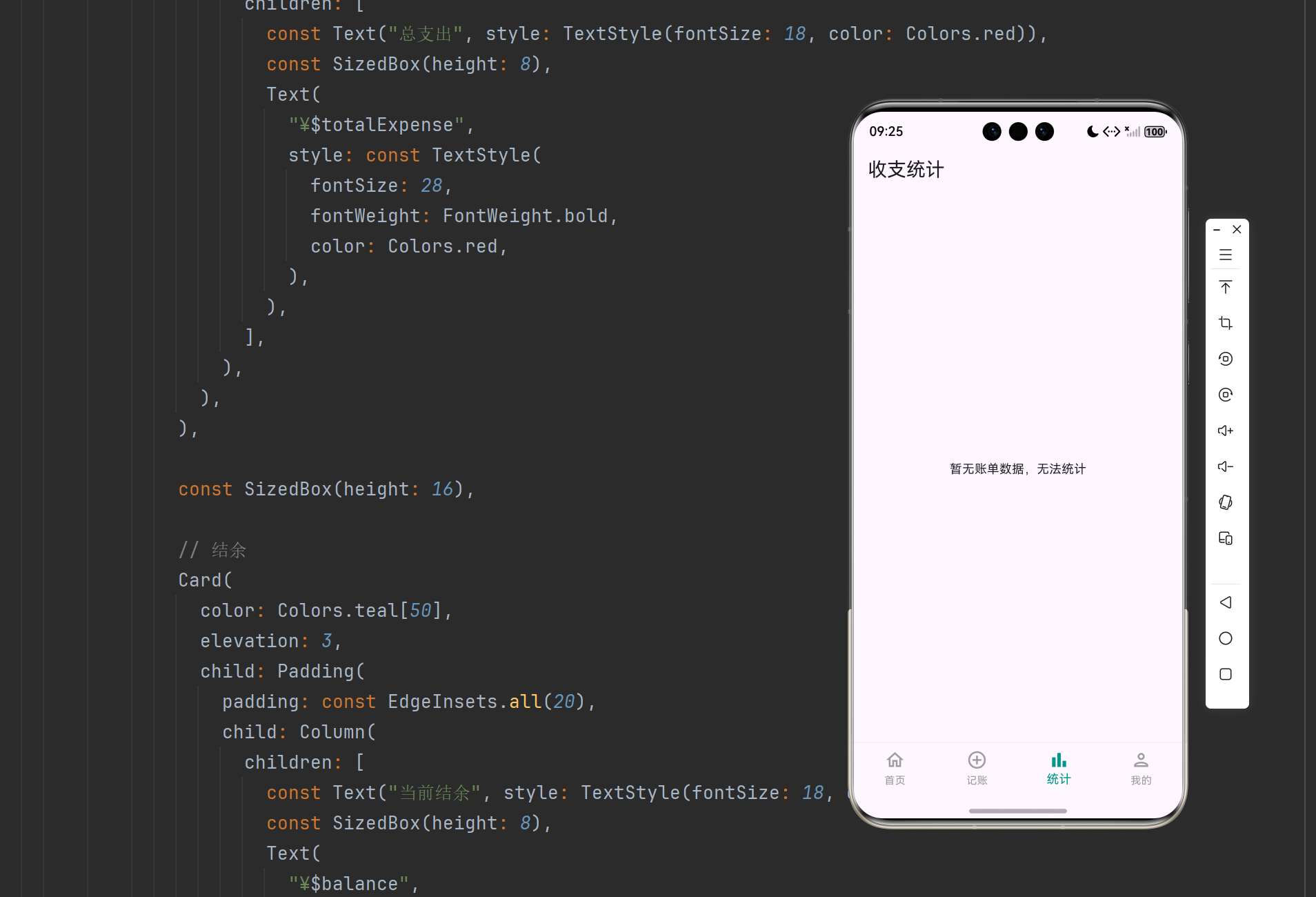
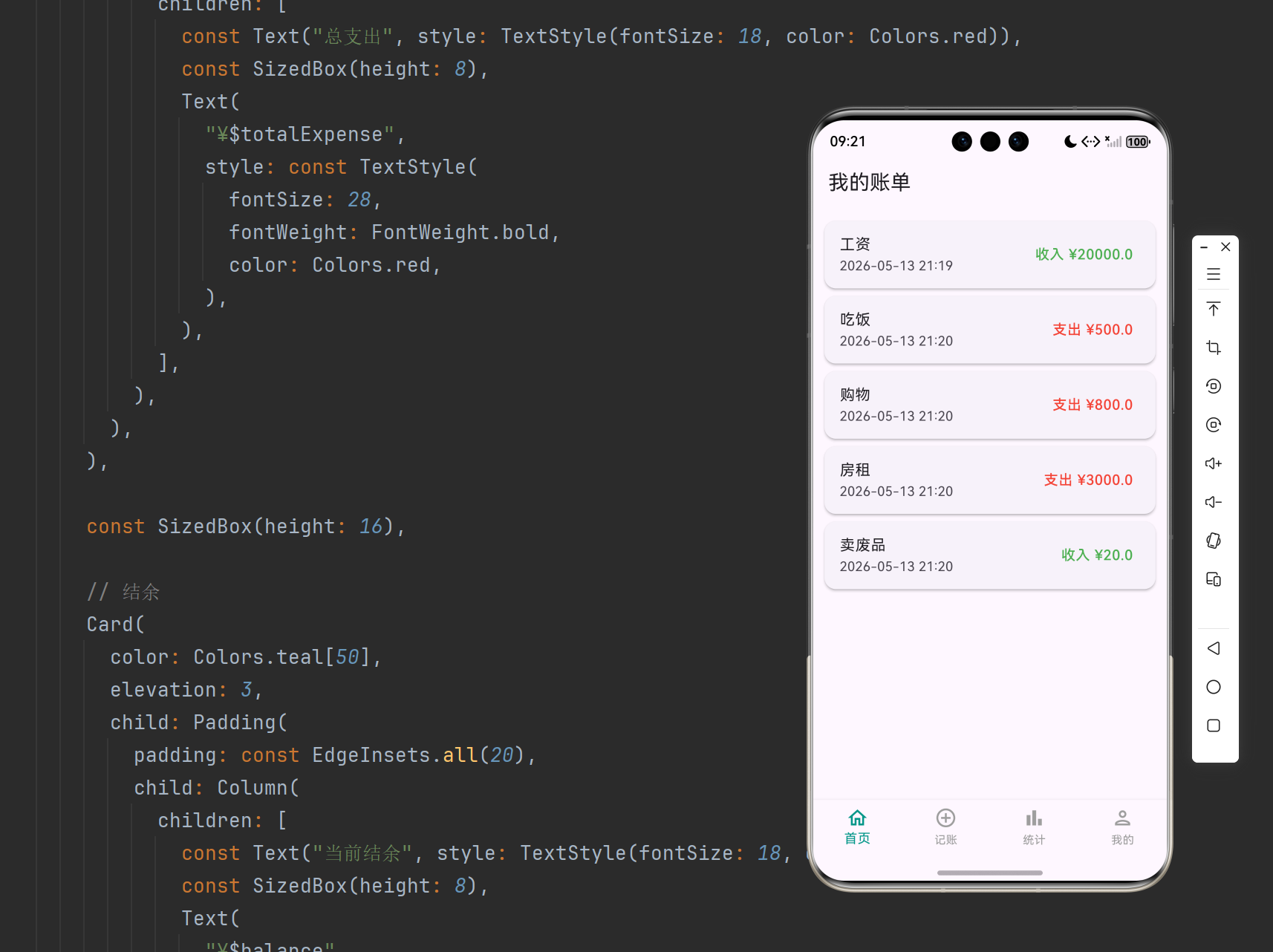
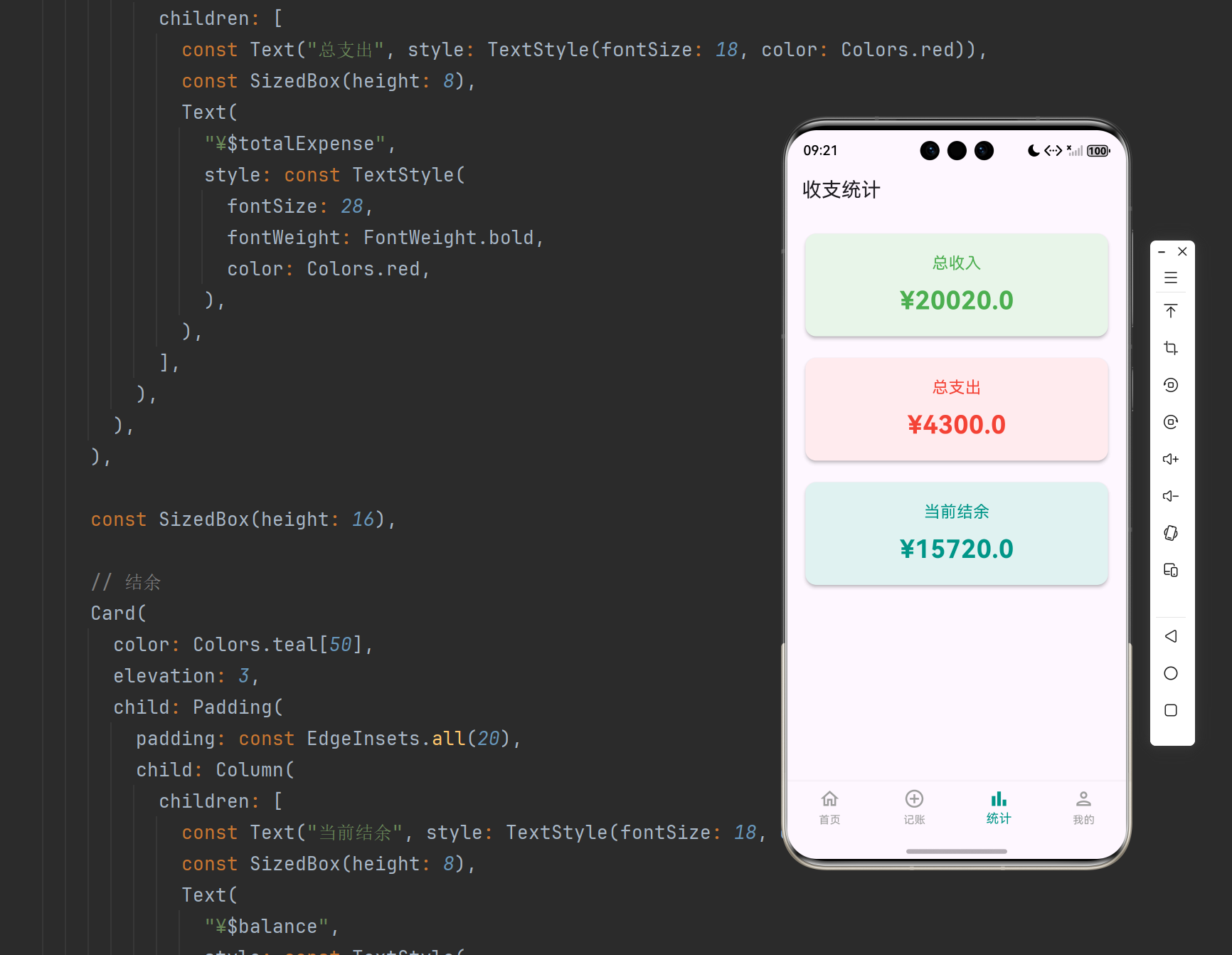
- 点击底部「统计」Tab,进入收支统计页面,界面整洁、适配鸿蒙风格
- 有账单数据时,自动计算并展示总收入、总支出、结余三张统计卡片
- 无账单数据时,居中显示「暂无账单数据,无法统计」友好提示
- 新增账单后,再次进入统计页面,数据会自动更新汇总
- 支出金额卡片为红色主题、收入为绿色主题、结余为青色主题,视觉层次分明
🔍五、关键代码解析
1. 数据统计逻辑
for (var bill in billList) {
  if (bill['type'] == '收入') {
    income += bill['money'];
  } else if (bill['type'] == '支出') {
    expense += bill['money'];
  }
}
通过遍历账单列表,按收支类型分别累加金额,实现总收入与总支出的自动统计,是数据汇总的核心逻辑。
2. 统计数据更新与状态刷新
setState(() {
  totalIncome = income;
  totalExpense = expense;
  balance = income - expense;
  hasData = billList.isNotEmpty;
});
数据计算完成后,通过 setState 更新状态,触发 UI 重新渲染,保证统计数字实时更新。
3. 空数据场景适配
body: hasData ? 统计卡片 : 空状态提示
通过 hasData 变量判断是否有账单数据,动态切换统计面板与空状态提示,避免空白界面,提升用户体验。
4. 主题化统计卡片
三张统计卡片分别采用绿色、红色、青色主题,与收支类型的视觉认知保持一致,界面清晰直观,同时适配鸿蒙系统的 Material3 设计风格。
✅ 六、Day4 完成总结
今天完成核心功能:
- ✅ 实现统计页面 UI,包含总收入、总支出、结余三张卡片,适配鸿蒙风格
- ✅ 完成本地账单数据读取与分类统计,自动计算收支总额与结余
- ✅ 实现数据汇总逻辑,支持空数据场景的友好占位提示
- ✅ 完善双端适配,保证鸿蒙与安卓端显示效果一致
- ✅ 代码结构清晰、无冗余,为后续饼图可视化功能预留扩展接口
明日预告(Day5):
- 开发个人中心页:实现数据重置 / 清空功能
- 优化项目配置,完善用户操作反馈
- 适配鸿蒙多端,统一全局主题与配色
📚七、系列推荐(后续文章)
- Day1:项目初始化 + 底部导航框架搭建(已发布)
- Day2:记账页面 + 本地数据持久化(已发布)
- Day3:首页账单列表 + 空状态适配(已发布)
- Day5:个人中心 + 数据重置功能(待更新)
- Day6:项目优化 + 鸿蒙适配 + 完整项目总结(待更新)

作为“人工智能6S店”的官方数字引擎,为AI开发者与企业提供一个覆盖软硬件全栈、一站式门户。
更多推荐


 0
0 0
0- 0


 已为社区贡献11条内容

所有评论(0)