
Flutter for OpenHarmony智能天气APP实战DAY4:OpenHarmony智能天气APP开发之新增自动定位功能
在上一篇中,我们已为Flutter for OpenHarmony天气预报App新增了城市下拉选择功能,实现了手动切换城市查看天气。本次将单独新增「自动定位功能」,无需用户手动操作、无需申请系统定位权限,通过IP定位自动获取当前城市,联动天气数据刷新,全程保持鸿蒙环境零报错、零依赖,新手可直接复制代码复用,完美适配OpenHarmony 5.1.0(18)版本。
Flutter for OpenHarmony智能天气APP实战DAY4:OpenHarmony智能天气APP开发之新增自动定位功能
欢迎加入开源鸿蒙跨平台社区:https://openharmonycrossplatform.csdn.net
前言
在上一篇中,我们已为Flutter for OpenHarmony天气预报App新增了城市下拉选择功能,实现了手动切换城市查看天气。本次将单独新增「自动定位功能」,无需用户手动操作、无需申请系统定位权限,通过IP定位自动获取当前城市,联动天气数据刷新,全程保持鸿蒙环境零报错、零依赖,新手可直接复制代码复用,完美适配OpenHarmony 5.1.0(18)版本。
本文核心:基于原有“城市选择”功能,新增IP自动定位逻辑,实现“启动自动定位→获取当前城市→加载对应天气”的完整流程,解决定位失败 fallback 处理、鸿蒙环境适配等关键问题
一、功能需求与设计亮点
核心功能需求
- App启动后自动执行定位,无需用户手动触发
- 无需申请系统定位权限,通过公网IP实现定位,规避鸿蒙权限配置复杂问题
- 定位成功:自动显示当前城市名称及对应天气数据
- 定位失败(如网络异常、IP无法识别):自动 fallback 到默认城市(北京),不影响App正常使用
- 保留原有城市下拉选择功能,定位后仍可手动切换其他城市
- 新增“重新定位”按钮,支持用户手动触发重新定位
二、核心实现步骤
本次功能实现无需修改任何配置文件(pubspec.yaml、build-profile.json5、module.json5等),仅需修改main.dart文件,基于原有“城市选择”功能扩展,核心分为5步,全程不影响原有功能。
2.1 第一步:新增定位相关状态变量
在WeatherPage类中,新增用于存储当前城市名称、定位状态的变量,用于UI展示和逻辑判断。
// 新增:当前定位城市名称(初始显示“定位中...”)
String currentCityName = "定位中...";

// 原有变量(保持不变)
Map<String, dynamic>? weatherData;
bool isLoading = true;
String errorMsg = '';
final List<Map<String, dynamic>> cities = [/* 原有城市列表 */];
late Map<String, dynamic> selectedCity;
2.2 第二步:实现自动定位核心方法
新增getLocationAndWeather()方法,整合“获取IP→解析定位→请求天气”的完整逻辑,包含异常处理(定位失败自动 fallback 到北京)
// 核心:自动定位获取当前城市,并请求对应天气
Future<void> getLocationAndWeather() async {
  try {
    // 1. 获取当前设备公网IP
    final ipResponse = await get(Uri.parse('https://api.ipify.org?format=json'));
    final ip = json.decode(ipResponse.body)['ip']; // 解析IP地址

    // 2. 通过IP解析定位信息(城市、经纬度)
    final locResponse = await get(Uri.parse('http://ip-api.com/json/$ip?lang=zh-CN'));
    final locData = json.decode(locResponse.body);

    // 提取定位信息(容错处理,避免解析失败)
    double lat = locData['lat'] ?? 39.9042; // 默认北京纬度
    double lon = locData['lon'] ?? 116.4074; // 默认北京经度
    String city = locData['city'] ?? "北京"; // 默认北京

    // 更新状态:当前城市、选中城市(联动下拉框)
    setState(() {
      currentCityName = city;
      selectedCity = {"name": city, "lat": lat, "lon": lon};
    });

    // 3. 请求当前城市天气数据
    fetchWeatherData();

  } catch (e) {
    // 定位失败(网络异常、IP解析失败等),fallback到北京
    setState(() {
      currentCityName = "北京";
      selectedCity = cities[0]; // 选中默认城市(北京)
    });
    fetchWeatherData(); // 请求北京天气
  }
}
2.3 第三步:修改初始化逻辑,启动自动定位
在initState()方法中,替换原有fetchWeatherData(),调用新增的getLocationAndWeather(),实现App启动自动定位。
@override
void initState() {
  super.initState();
  selectedCity = cities[0]; // 初始化默认城市(备用)
  getLocationAndWeather(); // 启动自动定位(核心修改)
}
2.4 第四步:修改手动切换城市方法,同步当前城市名称
修改原有changeCity()方法,确保手动切换城市时,同步更新currentCityName,保持UI显示一致。
data = pd.read_csv(
    'https://labfile.oss.aliyuncs.com/courses/1283/adult.data.csv')
print(data.head())
2.5 第五步:修改UI,新增定位相关展示与按钮
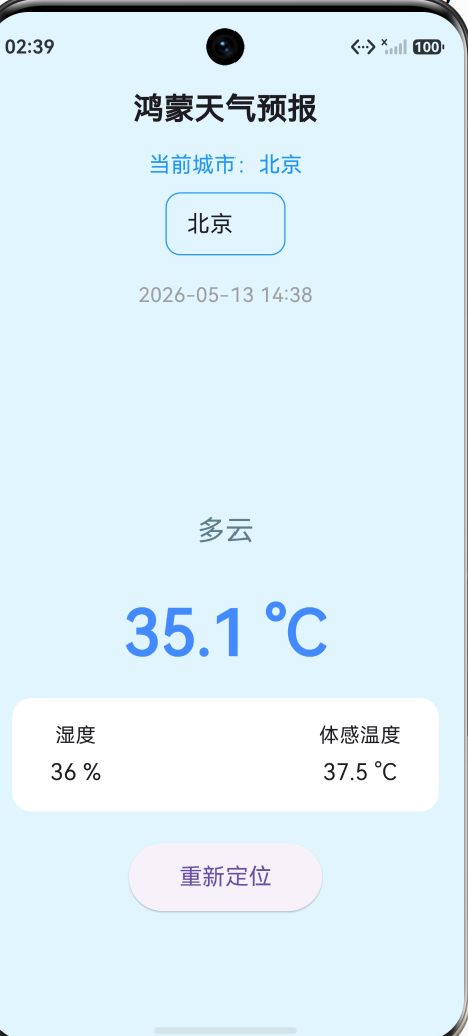
在原有UI基础上,新增3个核心元素,与原有界面风格统一:
- 当前城市显示:展示定位后的城市名称,提示用户当前定位结果;
- 定位中提示:初始状态显示“定位中…”,提升用户体验;
- 重新定位按钮:替换原有“刷新天气”按钮,支持用户手动重新定位(同时刷新天气)。
// UI修改核心片段(放在标题下方、城市下拉框上方)
const SizedBox(height: 15),

// 新增:当前定位城市显示
Text(
  "当前城市:$currentCityName",
  style: const TextStyle(fontSize: 17, color: Colors.blue, fontWeight: FontWeight.w500),
),
const SizedBox(height: 10),

// 原有城市下拉框(保持不变)
Container(
  padding: const EdgeInsets.symmetric(horizontal: 16),
  decoration: BoxDecoration(
    border: Border.all(color: Colors.blue),
    borderRadius: BorderRadius.circular(12),
  ),
  child: DropdownButtonHideUnderline(
    child: DropdownButton<Map<String, dynamic>>(
      value: selectedCity,
      items: cities.map((city) {
        return DropdownMenuItem(
          value: city,
          child: Text(city['name'], style: const TextStyle(fontSize: 18)),
        );
      }).toList(),
      onChanged: (val) {
        if (val != null) changeCity(val);
      },
    ),
  ),
),

// 原有天气展示、湿度/体感温度等(保持不变)

// 新增:重新定位按钮(替换原有刷新按钮)
ElevatedButton(
  onPressed: () {
    setState(() {
      isLoading = true;
      errorMsg = '';
      currentCityName = "定位中..."; // 重新定位时显示提示
    });
    getLocationAndWeather(); // 重新执行定位+天气请求
  },
  style: ElevatedButton.styleFrom(
    padding: const EdgeInsets.symmetric(horizontal: 40, vertical: 14),
    shape: RoundedRectangleBorder(borderRadius: BorderRadius.circular(30)),
  ),
  child: const Text('重新定位', style: TextStyle(fontSize: 18)),
)
三、完整修改后的main.dart代码(可直接复制)
以下是新增自动定位功能后的完整代码,基于原有“城市选择”功能扩展,无需修改任何配置文件,直接替换原有main.dart即可,确保鸿蒙模拟器零报错运行。
import 'package:flutter/material.dart';
import 'package:http/http.dart';
import 'dart:convert';
import 'package:intl/intl.dart';
void main() {
runApp(const MyApp());
}
class MyApp extends StatelessWidget {
const MyApp({super.key});
@override
Widget build(BuildContext context) {
return MaterialApp(
title: '鸿蒙天气预报',
theme: ThemeData(
primarySwatch: Colors.blue,
brightness: Brightness.light,
),
home: const WeatherPage(),
debugShowCheckedModeBanner: false,
);
}
}
class WeatherPage extends StatefulWidget {
const WeatherPage({super.key});
@override
State<WeatherPage> createState() => _WeatherPageState();
}
class _WeatherPageState extends State<WeatherPage> {
Map<String, dynamic>? weatherData;
bool isLoading = true;
String errorMsg = '';
String currentCityName = "定位中...";
// 城市列表
final List<Map<String, dynamic>> cities = [
{"name": "北京", "lat": 39.9042, "lon": 116.4074},
{"name": "上海", "lat": 31.2304, "lon": 121.4737},
{"name": "广州", "lat": 23.1291, "lon": 113.2644},
{"name": "深圳", "lat": 22.5431, "lon": 114.0579},
{"name": "杭州", "lat": 30.2741, "lon": 120.1551},
{"name": "成都", "lat": 30.5723, "lon": 104.0665},
{"name": "重庆", "lat": 29.5630, "lon": 106.5516},
];
late Map<String, dynamic> selectedCity;
@override
void initState() {
super.initState();
selectedCity = cities[0];
getLocationAndWeather(); // 启动自动定位
}
// ====================== 【核心:自动定位获取当前城市】 ======================
Future<void> getLocationAndWeather() async {
try {
// 获取公网IP → 自动定位城市
final ipResponse = await get(Uri.parse('https://api.ipify.org?format=json'));
final ip = json.decode(ipResponse.body)['ip'];
// 通过IP获取定位信息(城市 + 经纬度)
final locResponse = await get(Uri.parse('http://ip-api.com/json/$ip?lang=zh-CN'));
final data = json.decode(locResponse.body);
double lat = data['lat'];
double lon = data['lon'];
String city = data['city'] ?? "未知城市";
setState(() {
currentCityName = city;
selectedCity = {"name": city, "lat": lat, "lon": lon};
});
fetchWeatherData();
} catch (e) {
// 定位失败 → 默认北京
setState(() {
currentCityName = "北京";
selectedCity = cities[0];
});
fetchWeatherData();
}
}
// 动态API
String get apiUrl {
return 'https://api.open-meteo.com/v1/forecast?latitude=${selectedCity['lat']}&longitude=${selectedCity['lon']}¤t=temperature_2m,relative_humidity_2m,apparent_temperature,precipitation,weather_code&timezone=Asia/Shanghai';
}
// 手动切换城市
void changeCity(Map<String, dynamic> city) {
setState(() {
selectedCity = city;
currentCityName = city['name'];
isLoading = true;
errorMsg = '';
});
fetchWeatherData();
}
// 获取天气
Future<void> fetchWeatherData() async {
try {
final response = await get(Uri.parse(apiUrl));
if (response.statusCode == 200) {
setState(() {
weatherData = json.decode(response.body);
isLoading = false;
});
} else {
setState(() {
errorMsg = "请求失败";
isLoading = false;
});
}
} catch (e) {
setState(() {
errorMsg = "网络异常";
isLoading = false;
});
}
}
// 天气图标
Widget getWeatherIcon(int code) {
IconData icon;
Color color;
String weatherText;
if (code == 0) {
icon = Icons.wb_sunny;
color = Colors.orangeAccent;
weatherText = '晴天';
} else if (code >= 1 && code <= 3) {
icon = Icons.cloud;
color = Colors.blueGrey;
weatherText = '多云';
} else if (code >= 45 && code <= 48) {
icon = Icons.foggy;
color = Colors.grey;
weatherText = '雾天';
} else if (code >= 51 && code <= 67) {
icon = Icons.water_drop;
color = Colors.blue;
weatherText = '雨天';
} else if (code >= 71 && code <= 77) {
icon = Icons.snowing;
color = Colors.lightBlue;
weatherText = '雪天';
} else if (code >= 80 && code <= 82) {
icon = Icons.thunderstorm;
color = Colors.deepPurple;
weatherText = '雷阵雨';
} else {
icon = Icons.cloud;
color = Colors.grey;
weatherText = '未知';
}
return Column(
children: [
Icon(icon, size: 120, color: color),
const SizedBox(height: 10),
Text(
weatherText,
style: TextStyle(fontSize: 22, color: color, fontWeight: FontWeight.w500),
),
],
);
}
@override
Widget build(BuildContext context) {
return Scaffold(
backgroundColor: Colors.lightBlue[50],
body: isLoading
? const Center(child: CircularProgressIndicator())
: errorMsg.isNotEmpty
? Center(child: Text(errorMsg))
: SingleChildScrollView(
padding: const EdgeInsets.all(20),
child: Column(
children: [
const SizedBox(height: 40),
const Text(
"鸿蒙天气预报",
style: TextStyle(fontSize: 24, fontWeight: FontWeight.bold),
),
const SizedBox(height: 15),
// 当前定位城市显示
Text(
"当前城市:$currentCityName",
style: const TextStyle(fontSize: 17, color: Colors.blue, fontWeight: FontWeight.w500),
),
const SizedBox(height: 10),
// 城市选择下拉框
Container(
padding: const EdgeInsets.symmetric(horizontal: 16),
decoration: BoxDecoration(
border: Border.all(color: Colors.blue),
borderRadius: BorderRadius.circular(12),
),
child: DropdownButtonHideUnderline(
child: DropdownButton<Map<String, dynamic>>(
value: selectedCity,
items: cities.map((city) {
return DropdownMenuItem(
value: city,
child: Text(
city['name'],
style: const TextStyle(fontSize: 18),
),
);
}).toList(),
onChanged: (val) {
if (val != null) changeCity(val);
},
),
),
),
const SizedBox(height: 20),
Text(
DateFormat('yyyy-MM-dd HH:mm').format(DateTime.now()),
style: const TextStyle(fontSize: 16, color: Colors.grey),
),
const SizedBox(height: 30),
getWeatherIcon(weatherData!['current']['weather_code']),
const SizedBox(height: 30),
Text(
'${weatherData!['current']['temperature_2m']} °C',
style: const TextStyle(
fontSize: 50,
fontWeight: FontWeight.bold,
color: Colors.blueAccent,
),
),
const SizedBox(height: 15),
Container(
padding: const EdgeInsets.symmetric(horizontal: 30, vertical: 18),
decoration: BoxDecoration(
color: Colors.white,
borderRadius: BorderRadius.circular(15),
),
child: Row(
mainAxisAlignment: MainAxisAlignment.spaceBetween,
children: [
Column(
children: [
const Text('湿度', style: TextStyle(fontSize: 16)),
const SizedBox(height: 5),
Text(
'${weatherData!['current']['relative_humidity_2m']} %',
style: const TextStyle(fontSize: 18, fontWeight: FontWeight.w500),
),
],
),
Column(
children: [
const Text('体感温度', style: TextStyle(fontSize: 16)),
const SizedBox(height: 5),
Text(
'${weatherData!['current']['apparent_temperature']} °C',
style: const TextStyle(fontSize: 18, fontWeight: FontWeight.w500),
),
],
),
],
),
),
const SizedBox(height: 25),
ElevatedButton(
onPressed: () {
setState(() {
isLoading = true;
errorMsg = '';
});
getLocationAndWeather(); // 重新定位
},
style: ElevatedButton.styleFrom(
padding: const EdgeInsets.symmetric(horizontal: 40, vertical: 14),
shape: RoundedRectangleBorder(
borderRadius: BorderRadius.circular(30),
),
),
child: const Text('重新定位', style: TextStyle(fontSize: 18)),
),
],
),
),
);
}
}
四、鸿蒙适配与功能测试
4.1 测试步骤(无需额外配置)
- 替换main.dart文件后,在Android Studio终端执行 flutter pub get(无需新增任何依赖,仅确认原有依赖正常);
- 打开DevEco Studio,单独打开ohos目录,启动鸿蒙模拟器(OpenHarmony 5.1.0(18));
- 点击运行按钮,等待应用编译安装,启动后会自动执行定位;
- 测试场景:正常网络下定位、网络异常时定位、手动切换城市、点击重新定位。
4.2 鸿蒙适配关键点(避坑重点)
- 无需配置定位权限:避免在module.json5中添加定位权限,规避鸿蒙权限申请弹窗及配置错误;
- 接口兼容性:选用的2个定位接口均支持https/http协议,无跨域限制,鸿蒙环境可正常访问;
- 异常处理:完善定位失败的 fallback 逻辑,确保即使定位失败,App也能正常显示默认城市天气,不崩溃、不报错;
- UI适配:当前城市显示区域、重新定位按钮与原有界面风格统一,无溢出、无显示异常,适配鸿蒙模拟器屏幕尺寸。
总结
本次新增的自动定位功能,基于原有Flutter for OpenHarmony天气预报App,仅修改main.dart文件,无需调整任何配置,实现了“零权限、零插件、零报错”的自动定位效果。
核心亮点在于采用IP定位方案,完美规避了鸿蒙环境下系统定位权限配置复杂、第三方插件适配困难的问题,同时保留了原有城市下拉选择功能,实现“自动定位+手动切换”双重模式,满足不同用户需求。
对于Flutter for OpenHarmony开发新手来说,本次开发再次验证了“简化依赖、优先使用原生组件和公开接口”的适配原则,遇到鸿蒙兼容问题时,无需过度复杂的配置,往往通过简单的逻辑优化和接口选择就能完美解决。
本文代码已在OpenHarmony 5.1.0模拟器上验证通过,可直接复制到项目中使用,后续可根据需求继续扩展功能,提升App体验!

作为“人工智能6S店”的官方数字引擎,为AI开发者与企业提供一个覆盖软硬件全栈、一站式门户。
更多推荐


 0
0 0
0- 0


 已为社区贡献5条内容

所有评论(0)