
Flutter for OpenHarmony智能天气APP实战DAY2:OpenHarmony智能天气APP开发全记录
Flutter for OpenHarmony智能天气APP实战DAY2:OpenHarmony智能天气APP 开发全记录
欢迎加入开源鸿蒙跨平台社区:https://openharmonycrossplatform.csdn.net
前言
作为一名鸿蒙开发初学者,我选择了 Flutter for OpenHarmony 开发一款天气预报 App。开发过程中踩遍了 DevEco Studio 环境配置、OHPM 依赖、Flutter 鸿蒙适配等坑,最终成功在鸿蒙模拟器上跑通了完整应用。本文将完整记录项目搭建、代码实现、踩坑解决的全过程,给同样在入门鸿蒙 Flutter 开发的小伙伴一份可直接复用的指南。
一、项目概述
项目目标
- 基于 Flutter 3.x 开发跨平台天气预报应用
- 兼容 OpenHarmony 5.1.0 (18) 版本,可在鸿蒙模拟器正常运行
- 实现基础天气数据展示(城市、温度、湿度、体感温度)、天气状态显示、刷新功能
- 界面简洁无依赖报错,适配鸿蒙系统运行环境
二、项目搭建流程
2.1 开发环境准备
- Flutter 环境配置:确保 Flutter 已添加 OpenHarmony 支持,执行命令确认无环境依赖报错,已开启鸿蒙平台支持:
flutter doctor
- DevEco Studio 配置:安装 OpenHarmony SDK 5.1.0 (18),配置鸿蒙模拟器,开启开发者模式。
2.2 鸿蒙项目配置
2.2.1 build-profile.json5 配置
{
  "app": {
    "signingConfigs": [],
    "products": [
      {
        "name": "default",
        "signingConfig": "default",
        "compatibleSdkVersion": "5.1.0(18)",
        "runtimeOS": "HarmonyOS",
        "targetSdkVersion": "5.1.0(18)"
      }
    ],
    "buildModeSet": [
      {"name": "debug"}, {"name": "profile"}, {"name": "release"}
    ]
  },
  "modules": [
    {
      "name": "entry",
      "srcPath": "./entry",
      "targets": [{"name": "default", "applyToProducts": ["default"]}]
    }
  ]
}
2.2.2 OHPM 依赖报错解决
遇到ohpm tool does not support this registry报错,原因是旧镜像地址不兼容 OHPM,解决步骤:
1.打开 DevEco Studio 终端,执行命令修改镜像:
ohpm config set registry https://ohpm.openharmony.cn/ohpm/
2.清理缓存并重新安装依赖:
ohpm cache clean --force
ohpm install --all
2.2.3 网络权限配置
在ohos/entry/src/main/module.json5中添加网络权限,确保天气接口可正常请求:
"requestPermissions": [
  {"name": "ohos.permission.INTERNET"}
]
三、Flutter 核心代码实现
3.1 pubspec.yaml 依赖配置
name: weather_app
description: 鸿蒙版天气预报App
version: 1.0.0+1

environment:
  sdk: '>=3.0.0 <4.0.0'

dependencies:
  flutter:
    sdk: flutter
  http: ^1.1.0          # 网络请求天气数据
  intl: ^0.19.0         # 时间格式化

dev_dependencies:
  flutter_test:
    sdk: flutter
3.2 main.dart 完整代码
import 'package:flutter/material.dart';
import 'package:http/http.dart' as http;
import 'dart:convert';
import 'package:intl/intl.dart';
void main() {
runApp(const MyApp());
}
class MyApp extends StatelessWidget {
const MyApp({super.key});
@override
Widget build(BuildContext context) {
return MaterialApp(
title: '鸿蒙天气预报',
theme: ThemeData(
primarySwatch: Colors.blue,
brightness: Brightness.light,
),
home: const WeatherPage(),
debugShowCheckedModeBanner: false,
);
}
}
class WeatherPage extends StatefulWidget {
const WeatherPage({super.key});
@override
State<WeatherPage> createState() => _WeatherPageState();
}
class _WeatherPageState extends State<WeatherPage> {
Map<String, dynamic>? weatherData;
bool isLoading = true;
String errorMsg = '';
// 北京天气接口(可修改经纬度切换城市)
final String apiUrl =
'https://api.open-meteo.com/v1/forecast?latitude=39.9042&longitude=116.4074¤t=temperature_2m,relative_humidity_2m,apparent_temperature,precipitation,weather_code&hourly=temperature_2m&timezone=Asia/Shanghai';
@override
void initState() {
super.initState();
fetchWeatherData();
}
// 请求天气数据
Future<void> fetchWeatherData() async {
try {
final response = await http.get(Uri.parse(apiUrl));
if (response.statusCode == 200) {
setState(() {
weatherData = json.decode(response.body);
isLoading = false;
});
} else {
setState(() {
errorMsg = '数据请求失败';
isLoading = false;
});
}
} catch (e) {
setState(() {
errorMsg = '网络异常:$e';
isLoading = false;
});
}
}
// 根据天气代码显示静态图标和文字
Widget getWeatherIcon(int code) {
IconData icon;
Color color;
String weatherText;
if (code == 0) {
icon = Icons.wb_sunny;
color = Colors.orangeAccent;
weatherText = '晴天';
} else if (code >= 1 && code <= 3) {
icon = Icons.cloud;
color = Colors.blueGrey;
weatherText = '多云';
} else if (code >= 45 && code <= 48) {
icon = Icons.foggy;
color = Colors.grey;
weatherText = '雾天';
} else if (code >= 51 && code <= 67) {
icon = Icons.water_drop;
color = Colors.blue;
weatherText = '雨天';
} else if (code >= 71 && code <= 77) {
icon = Icons.snowing;
color = Colors.lightBlue;
weatherText = '雪天';
} else if (code >= 80 && code <= 82) {
icon = Icons.thunderstorm;
color = Colors.deepPurple;
weatherText = '雷阵雨';
} else {
icon = Icons.cloud;
color = Colors.grey;
weatherText = '未知天气';
}
return Column(
children: [
Icon(icon, size: 120, color: color),
const SizedBox(height: 10),
Text(weatherText, style: TextStyle(fontSize: 22, color: color, fontWeight: FontWeight.w500)),
],
);
}
@override
Widget build(BuildContext context) {
return Scaffold(
backgroundColor: Colors.lightBlue[50],
body: isLoading
? const Center(child: CircularProgressIndicator())
: errorMsg.isNotEmpty
? Center(child: Text(errorMsg))
: SingleChildScrollView(
padding: const EdgeInsets.all(20),
child: Column(
children: [
const SizedBox(height: 40),
const Text('鸿蒙天气预报', style: TextStyle(fontSize: 22, fontWeight: FontWeight.bold)),
const SizedBox(height: 20),
const Text('北京市', style: TextStyle(fontSize: 28, fontWeight: FontWeight.bold)),
const SizedBox(height: 8),
Text(DateFormat('yyyy-MM-dd HH:mm').format(DateTime.now()), style: const TextStyle(fontSize: 16, color: Colors.grey)),
const SizedBox(height: 30),
getWeatherIcon(weatherData!['current']['weather_code']),
const SizedBox(height: 30),
Text('${weatherData!['current']['temperature_2m']} °C', style: const TextStyle(fontSize: 50, fontWeight: FontWeight.bold, color: Colors.blueAccent)),
const SizedBox(height: 15),
Container(
padding: const EdgeInsets.symmetric(horizontal: 30, vertical: 15),
decoration: BoxDecoration(color: Colors.white, borderRadius: BorderRadius.circular(15)),
child: Row(
mainAxisAlignment: MainAxisAlignment.spaceBetween,
children: [
Column(children: [const Text('湿度', style: TextStyle(fontSize: 16)), const SizedBox(height: 5), Text('${weatherData!['current']['relative_humidity_2m']} %', style: const TextStyle(fontSize: 18, fontWeight: FontWeight.w500))]),
Column(children: [const Text('体感温度', style: TextStyle(fontSize: 16)), const SizedBox(height: 5), Text('${weatherData!['current']['apparent_temperature']} °C', style: const TextStyle(fontSize: 18, fontWeight: FontWeight.w500))]),
],
),
),
const SizedBox(height: 20),
ElevatedButton(
onPressed: () {
setState(() { isLoading = true; errorMsg = ''; });
fetchWeatherData();
},
style: ElevatedButton.styleFrom(padding: const EdgeInsets.symmetric(horizontal: 40, vertical: 12), shape: RoundedRectangleBorder(borderRadius: BorderRadius.circular(30))),
child: const Text('刷新天气', style: TextStyle(fontSize: 18)),
),
],
),
),
);
}
}
四、项目运行与效果展示
4.1 运行步骤
- Android Studio 操作:打开项目根目录,执行flutter pub get确保依赖安装完成。
- DevEco Studio 操作:单独打开ohos目录,启动鸿蒙模拟器,点击右上角运行按钮,等待应用编译安装。
4.2 运行效果
应用成功启动后,界面无任何报错,可正常显示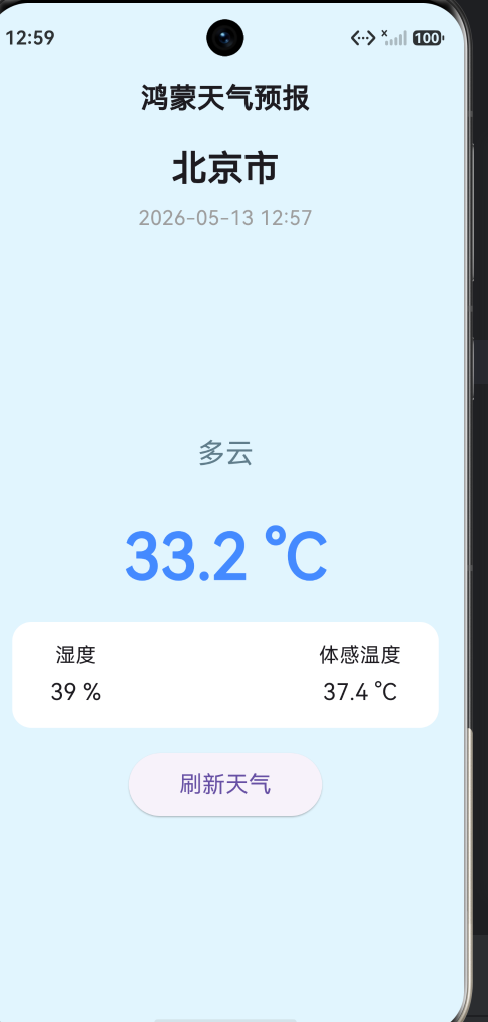
总结
通过本次项目开发,我成功掌握了 Flutter for OpenHarmony 的基础开发流程,解决了环境配置、依赖管理、鸿蒙适配等多个关键问题。对于初学者来说,遇到报错不要慌,关键是定位问题根源并针对性解决,尤其是鸿蒙环境下的兼容性问题,很多时候通过简化代码、规避依赖冲突就能快速解决。希望这篇文章能帮到同样在入门鸿蒙 Flutter 开发的小伙伴,少走弯路!
data = pd.read_csv(
    'https://labfile.oss.aliyuncs.com/courses/1283/adult.data.csv')
print(data.head())

作为“人工智能6S店”的官方数字引擎,为AI开发者与企业提供一个覆盖软硬件全栈、一站式门户。
更多推荐


 3
3 0
0- 0


 已为社区贡献5条内容

所有评论(0)