
【flutter for open harmony】第三方库Flutter 鸿蒙版 搜索功能 实战指南(适配 1.0.0)✨
搜索功能是现代应用中最常见的功能之一,无论是电商应用的商品搜索、社交应用的内容搜索,还是工具应用的数据过滤,都离不开搜索功能。本文将介绍如何在Flutter鸿蒙应用中实现一个支持实时搜索、关键词高亮的搜索组件。本文详细介绍了如何在Flutter鸿蒙应用中实现一个功能完善的搜索组件。通过合理的架构设计和清晰的代码实现,我们成功创建了一个支持实时搜索、关键词高亮、空结果提示的实用组件。该组件可以广泛应
Flutter实战:开源鸿蒙搜索功能组件
Flutter 三方库 cached_network_image 的鸿蒙化适配与实战指南
欢迎加入开源鸿蒙跨平台社区: https://openharmonycrossplatform.csdn.net
本文详细介绍如何在Flutter鸿蒙应用中实现一个功能完善的搜索功能,支持实时搜索、关键词高亮显示和空结果提示。
一、前言
搜索功能是现代应用中最常见的功能之一,无论是电商应用的商品搜索、社交应用的内容搜索,还是工具应用的数据过滤,都离不开搜索功能。本文将介绍如何在Flutter鸿蒙应用中实现一个支持实时搜索、关键词高亮的搜索组件。
二、效果展示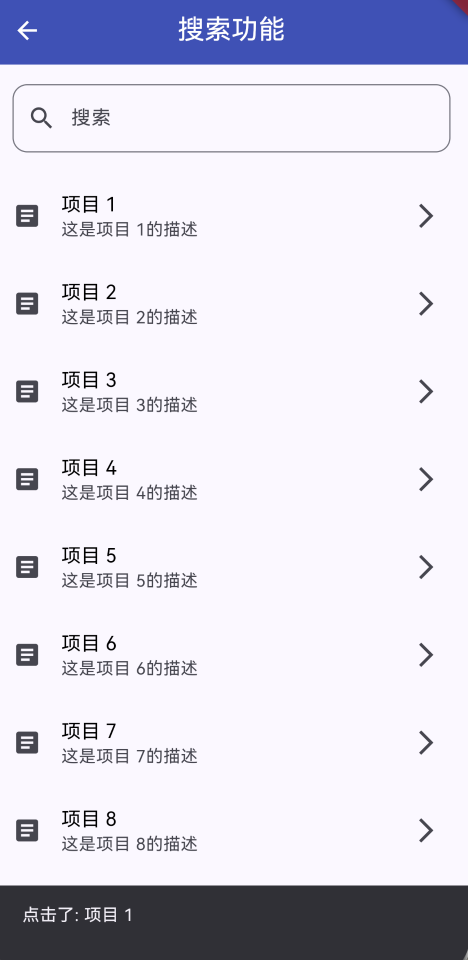
2.1 功能特性
| 功能 | 描述 |
|---|---|
| 实时搜索 | 输入即时过滤结果 |
| 关键词高亮 | 搜索关键词黄色高亮显示 |
| 清除按钮 | 一键清除搜索内容 |
| 空结果提示 | 无匹配结果时显示提示 |
| 列表交互 | 点击列表项显示详情 |
三、项目背景与目标
3.1 项目背景
在信息爆炸的时代,用户需要快速找到所需内容。一个优秀的搜索功能可以帮助用户在海量数据中快速定位目标,提升用户体验和应用效率。
3.2 项目目标
- 实现实时搜索过滤功能
- 支持关键词高亮显示
- 提供友好的用户界面
- 支持鸿蒙平台运行
四、技术架构设计
4.1 整体架构
┌─────────────────────────────────────┐
│           UI Layer (Widgets)         │
│  ┌──────────┐  ┌──────────┐         │
│  │ TextField│  │ ListView │         │
│  └──────────┘  └──────────┘         │
├─────────────────────────────────────┤
│        State Management              │
│  ┌──────────────────────────────┐   │
│  │    StatefulWidget + State    │   │
│  └──────────────────────────────┘   │
├─────────────────────────────────────┤
│         Business Logic              │
│  ┌────────────┐  ┌───────────────┐  │
│  │   Filter   │  │  Highlight    │  │
│  │   Logic    │  │   Text        │  │
│  └────────────┘  └───────────────┘  │
└─────────────────────────────────────┘
4.2 核心数据结构
final TextEditingController _searchController = TextEditingController();
final List<String> _allItems = List.generate(50, (index) => '项目 ${index + 1}');
List<String> _filteredItems = [];
五、详细实现
5.1 Flutter端实现
import 'package:flutter/material.dart';
class SearchFunctionPage extends StatefulWidget {
const SearchFunctionPage({super.key});
State<SearchFunctionPage> createState() => _SearchFunctionPageState();
}
class _SearchFunctionPageState extends State<SearchFunctionPage> {
final TextEditingController _searchController = TextEditingController();
final List<String> _allItems = List.generate(50, (index) => '项目 ${index + 1}');
List<String> _filteredItems = [];
void initState() {
super.initState();
_filteredItems = _allItems;
}
void _filterItems(String query) {
  setState(() {
    if (query.isEmpty) {
      _filteredItems = _allItems;
    } else {
      _filteredItems = _allItems
          .where((item) => item.toLowerCase().contains(query.toLowerCase()))
          .toList();
    }
  });
}
void dispose() {
_searchController.dispose();
super.dispose();
}
Widget build(BuildContext context) {
return Scaffold(
appBar: AppBar(
title: const Text('搜索功能'),
centerTitle: true,
backgroundColor: Colors.indigo,
foregroundColor: Colors.white,
),
body: Column(
children: [
Padding(
padding: const EdgeInsets.all(16),
child: TextField(
controller: _searchController,
decoration: InputDecoration(
labelText: '搜索',
hintText: '输入关键词搜索',
prefixIcon: const Icon(Icons.search),
border: OutlineInputBorder(
borderRadius: BorderRadius.circular(12),
),
suffixIcon: _searchController.text.isNotEmpty
? IconButton(
icon: const Icon(Icons.clear),
onPressed: () {
_searchController.clear();
_filterItems('');
},
)
: null,
),
onChanged: _filterItems,
),
),
Expanded(
child: _filteredItems.isEmpty
? const Center(
child: Text(
'没有找到匹配的项目',
style: TextStyle(fontSize: 16, color: Colors.grey),
),
)
: ListView.builder(
itemCount: _filteredItems.length,
itemBuilder: (context, index) {
final item = _filteredItems[index];
final query = _searchController.text.toLowerCase();
return ListTile(
leading: const Icon(Icons.article),
title: RichText(
text: TextSpan(
children: _highlightText(item, query),
style: const TextStyle(color: Colors.black, fontSize: 16),
),
),
subtitle: Text('这是${item}的描述'),
trailing: const Icon(Icons.arrow_forward_ios),
onTap: () {
ScaffoldMessenger.of(context).showSnackBar(
SnackBar(content: Text('点击了: $item')),
);
},
);
},
),
),
],
),
);
}
List<TextSpan> _highlightText(String text, String query) {
  if (query.isEmpty) {
    return [TextSpan(text: text)];
  }

  final lowerText = text.toLowerCase();
  final startIndex = lowerText.indexOf(query);

  if (startIndex == -1) {
    return [TextSpan(text: text)];
  }

  final endIndex = startIndex + query.length;

  return [
    TextSpan(text: text.substring(0, startIndex)),
    TextSpan(
      text: text.substring(startIndex, endIndex),
      style: const TextStyle(
        color: Colors.indigo,
        fontWeight: FontWeight.bold,
        backgroundColor: Color(0xFFFFEB3B),
      ),
    ),
    TextSpan(text: text.substring(endIndex)),
  ];
}
}
5.2 UI界面实现
UI界面采用Material Design 3设计风格,主要包含以下组件:
- 搜索框:使用TextField组件,带有搜索图标和清除按钮
- 结果列表:使用ListView.builder展示搜索结果
- 高亮文本:使用RichText和TextSpan实现关键词高亮
六、核心功能解析
6.1 实时搜索过滤
使用where方法过滤列表:
void _filterItems(String query) {
setState(() {
if (query.isEmpty) {
_filteredItems = _allItems;
} else {
_filteredItems = _allItems
.where((item) => item.toLowerCase().contains(query.toLowerCase()))
.toList();
}
});
}
6.2 关键词高亮算法
使用RichText和TextSpan实现关键词高亮:
List<TextSpan> _highlightText(String text, String query) {
if (query.isEmpty) {
return [TextSpan(text: text)];
}
final lowerText = text.toLowerCase();
final startIndex = lowerText.indexOf(query);
if (startIndex == -1) {
return [TextSpan(text: text)];
}
final endIndex = startIndex + query.length;
return [
TextSpan(text: text.substring(0, startIndex)),
TextSpan(
text: text.substring(startIndex, endIndex),
style: const TextStyle(
color: Colors.indigo,
fontWeight: FontWeight.bold,
backgroundColor: Color(0xFFFFEB3B),
),
),
TextSpan(text: text.substring(endIndex)),
];
}
6.3 空结果处理
当没有匹配结果时显示提示:
_filteredItems.isEmpty
    ? const Center(
        child: Text(
          '没有找到匹配的项目',
          style: TextStyle(fontSize: 16, color: Colors.grey),
        ),
      )
    : ListView.builder(...)
七、实际应用场景
7.1 电商应用
在电商应用中搜索商品,支持商品名称、描述等字段的搜索。
7.2 社交应用
在社交应用中搜索好友、帖子、话题等内容。
7.3 内容管理
在内容管理系统中搜索文章、文档等资源。
7.4 通讯录
在通讯录应用中搜索联系人。
八、优化建议
8.1 性能优化
- 使用防抖处理频繁搜索
- 对大数据量使用分页加载
- 添加搜索缓存机制
8.2 功能扩展
- 支持模糊搜索
- 添加搜索历史
- 支持多字段搜索
- 添加搜索建议
8.3 用户体验优化
- 添加搜索动画效果
- 支持语音搜索
- 添加搜索结果排序
- 支持搜索结果分类
九、常见问题与解决方案
9.1 性能问题
问题:大数据量搜索可能导致界面卡顿
解决方案:使用防抖处理,限制搜索频率;使用后台线程处理大数据
9.2 高亮问题
问题:多次出现的关键词只高亮第一个
解决方案:使用循环处理所有匹配的关键词
9.3 大小写问题
问题:搜索结果大小写不一致
解决方案:使用toLowerCase()统一转换为小写进行比较
十、总结
本文详细介绍了如何在Flutter鸿蒙应用中实现一个功能完善的搜索组件。通过合理的架构设计和清晰的代码实现,我们成功创建了一个支持实时搜索、关键词高亮、空结果提示的实用组件。该组件可以广泛应用于电商、社交、内容管理等场景,为用户提供便捷的搜索服务。
十一、参考资料

作为“人工智能6S店”的官方数字引擎,为AI开发者与企业提供一个覆盖软硬件全栈、一站式门户。
更多推荐
 1
1 0
0- 0


 已为社区贡献6条内容

所有评论(0)