
基于 Flutter 三方库 shared_preferences 实现鸿蒙 6.0 上的链接收藏夹
本文介绍了如何在鸿蒙6.0上使用Flutter和shared_preferences三方库开发一个轻量级链接收藏应用"LinkBox"。主要内容包括: 环境准备:安装DevEco Studio、配置鸿蒙版Flutter SDK、创建模拟器 项目创建:使用Flutter命令创建鸿蒙项目结构 引入适配鸿蒙的shared_preferences库进行数据持久化 项目结构设计:划分模型
基于 Flutter 三方库 shared_preferences 实现鸿蒙 6.0 上的链接收藏夹
欢迎加入开源鸿蒙跨平台社区: https://openharmonycrossplatform.csdn.net
项目简介
在日常开发和学习中,我们经常会遇到想收藏的优质链接——一篇技术博客、一个开源仓库、一段教程视频。浏览器的收藏夹往往淹没在海量书签里,不够轻量。本文将带你从零开始,在鸿蒙 6.0 上使用 Flutter + shared\_preferences 三方库打造一个极简链接收藏夹 “LinkBox”,支持新增链接、一键复制、搜索过滤和持久化存储,界面采用时下流行的“毛玻璃拟态”设计。
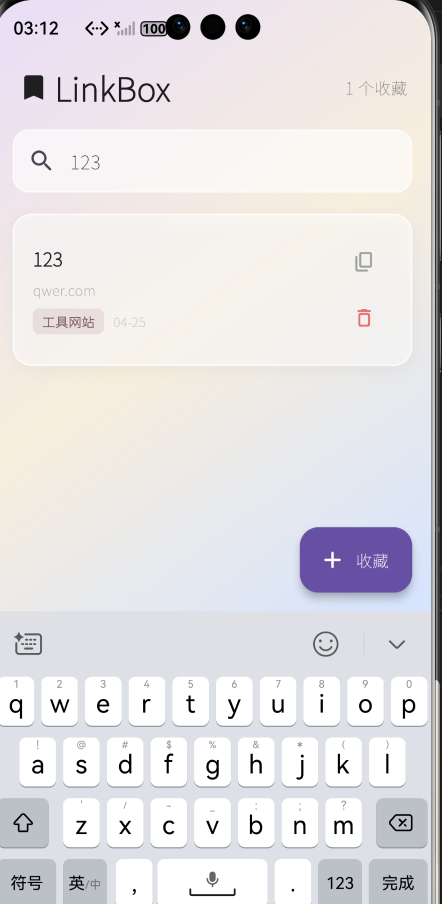
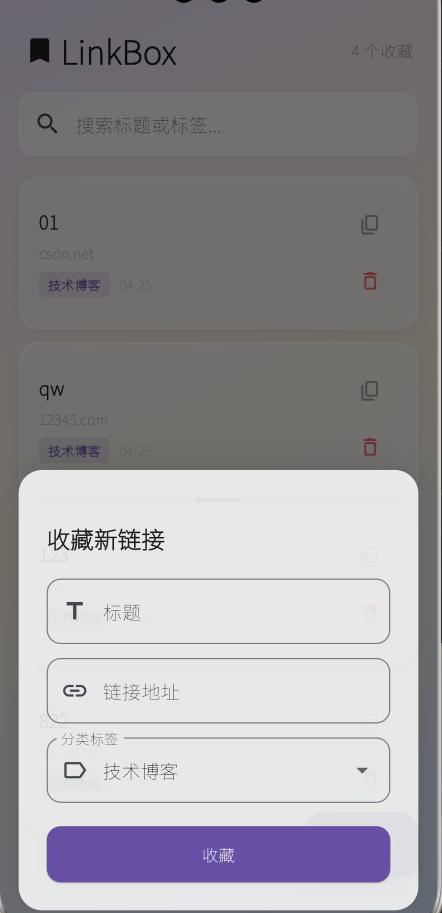
项目最终效果:毛玻璃风格卡片列表,点击右下角按钮添加收藏;搜索栏实时过滤;左滑删除;重启应用后数据不丢失。
一、环境准备
1.1 安装 DevEco Studio
前往华为开发者官网下载最新版 DevEco Studio(6.0.2+),安装时务必勾选 HarmonyOS SDK 并选择 API 12+ 版本。
安装完成后,打开 DevEco Studio → Settings → Appearance & Behavior → System Settings → HarmonyOS SDK,确认 SDK 路径配置正确且组件安装完整。
1.2 安装 Flutter for OpenHarmony
鸿蒙平台需要使用 OpenHarmony SIG 社区维护的 Flutter 特别分支,推荐稳定版本 3.27.x-ohos 系列。
在任何工作目录下执行:
git clone https://gitcode.com/openharmony-sig/flutter_flutter.git
cd flutter_flutter
git checkout -b oh-3.27.5-ohos-1.0.1 origin/oh-3.27.5-ohos-1.0.1
为避免与系统中已有的标准 Flutter 冲突,建议将鸿蒙版 Flutter 可执行文件重命名为 hflutter,或使用 FVM(Flutter Version Management)管理多版本。
1.3 配置环境变量
将以下路径加入系统环境变量(路径根据你的实际安装位置调整):
# Flutter SDK(替换为你的实际克隆路径)
export FLUTTER_HOME=~/flutter_flutter
export PATH=$PATH:$FLUTTER_HOME/bin

# DevEco Studio 工具链 (macOS 示例)
export TOOL_HOME=/Applications/DevEco-Studio.app/Contents
export PATH=$PATH:$TOOL_HOME/tools/ohpm/bin
export PATH=$PATH:$TOOL_HOME/tools/hvigor/bin
export PATH=$PATH:$TOOL_HOME/tools/node/bin

# 国内镜像加速(可选)
export PUB_HOSTED_URL=https://pub.flutter-io.cn
export FLUTTER_STORAGE_BASE_URL=https://storage.flutter-io.cn
配置完成后执行 flutter doctor \-v,确保 HarmonyOS toolchain 条目显示为 √。
1.4 创建鸿蒙模拟器
打开 DevEco Studio,进入 Device Manager,创建一个 API 12 或 API 18 版本的鸿蒙模拟器。经社区验证,API 18 版本模拟器稳定性最佳,建议选用。
二、创建项目
进入你存放项目的目录(例如 \~/harmonyos\_projects),执行创建命令:
cd ~/harmonyos_projects
flutter create --platforms ohos --org com.linkbox link_box
-
\-\-platforms ohos:仅生成鸿蒙平台目录,不污染 Android/iOS 目录 -
\-\-org com\.linkbox:应用包名 -
link\_box:项目名称(小写+下划线)
创建成功后,目录结构如下:
link_box/
├── lib/                     # Dart 代码主目录
│   └── main.dart
├── ohos/                    # 鸿蒙宿主工程
├── pubspec.yaml
└── ...
*link\_box/*之后所有操作均以项目根目录 为基准。
验证运行(非常重要)
先用 DevEco Studio 打开项目中的 ohos 目录,完成自动签名配置(见下文 6.1 节),然后启动模拟器,在项目根目录运行:
cd link_box
flutter run
如果屏幕出现默认的计数器 Demo 页面,说明环境配置成功。
三、引入三方库 shared_preferences
在鸿蒙平台上,shared\_preferences 官方 pub.dev 版本尚不支持,需要通过 Git 方式引入 OpenHarmony TPC 社区适配版。
打开项目根目录下的 pubspec\.yaml,在 dependencies 中添加:
dependencies:
  flutter:
    sdk: flutter
  shared_preferences:
    git:
      url: "https://gitcode.com/openharmony-tpc/flutter_packages.git"
      path: "packages/shared_preferences/shared_preferences"
保存文件后,在项目根目录执行依赖拉取:
flutter pub get
看到 Got dependencies\! 即表示成功。如果遇到网络错误,可尝试配置国内镜像或手动将仓库 clone 到本地后改用 path: 引入。
验证三方库可用性
我们可先修改 lib/main\.dart 写一段最小验证代码,确保 shared\_preferences 能正常读写数据。创建如下测试页面:
import 'package:flutter/material.dart';
import 'package:shared_preferences/shared_preferences.dart';
void main() {
runApp(const MaterialApp(home: TestPage()));
}
class TestPage extends StatefulWidget {
const TestPage({super.key});
State<TestPage> createState() => _TestPageState();
}
class _TestPageState extends State<TestPage> {
int _counter = 0;
void initState() {
super.initState();
_loadCounter();
}
Future<void> _loadCounter() async {
final prefs = await SharedPreferences.getInstance();
setState(() {
_counter = prefs.getInt('counter') ?? 0;
});
}
Future<void> _incrementCounter() async {
final prefs = await SharedPreferences.getInstance();
setState(() {
_counter++;
});
await prefs.setInt('counter', _counter);
}
Widget build(BuildContext context) {
return Scaffold(
appBar: AppBar(title: const Text('SharedPreferences 验证')),
body: Center(
child: Text('计数: $_counter', style: const TextStyle(fontSize: 32)),
),
floatingActionButton: FloatingActionButton(
onPressed: _incrementCounter,
child: const Icon(Icons.add),
),
);
}
}
运行后点击按钮自增计数,然后杀掉应用重新打开——如果计数保持,说明 shared\_preferences 在鸿蒙上工作正常。验证无误后,**main\.dart**将 内容清除,准备正式编码。
四、项目代码结构
在 lib/ 下创建三个子文件夹:
cd lib
mkdir models services pages
cd ..
最终代码文件如下:
lib/
├── main.dart                 # 应用入口
├── models/
│   └── link_item.dart        # 链接数据模型
├── services/
│   └── storage_service.dart  # 数据持久化服务层
└── pages/
    └── home_page.dart        # 主页(收藏列表)
五、数据模型与存储服务
5.1 数据模型 (lib/models/link\_item\.dart)
/// 链接收藏项的数据模型
class LinkItem {
  final String title;
  final String url;
  final String tag;
  final DateTime createdAt;

  LinkItem({
    required this.title,
    required this.url,
    required this.tag,
    required this.createdAt,
  });

  // 序列化为 JSON
  Map<String, dynamic> toJson() => {
        'title': title,
        'url': url,
        'tag': tag,
        'createdAt': createdAt.toIso8601String(),
      };

  // 从 JSON 反序列化
  factory LinkItem.fromJson(Map<String, dynamic> json) => LinkItem(
        title: json['title'],
        url: json['url'],
        tag: json['tag'],
        createdAt: DateTime.parse(json['createdAt']),
      );
}
5.2 存储服务层 (lib/services/storage\_service\.dart)
import 'dart:convert';
import 'package:shared_preferences/shared_preferences.dart';
import '../models/link_item.dart';

/// 链接存储服务,统一管理 shared_preferences 读写
class StorageService {
  static const _key = 'link_list';   // 存储键名

  // 保存链接列表
  static Future<void> saveLinks(List<LinkItem> items) async {
    final prefs = await SharedPreferences.getInstance();
    final jsonList = items.map((e) => e.toJson()).toList();
    await prefs.setString(_key, jsonEncode(jsonList));
  }

  // 读取链接列表
  static Future<List<LinkItem>> loadLinks() async {
    final prefs = await SharedPreferences.getInstance();
    final String? jsonString = prefs.getString(_key);
    if (jsonString == null || jsonString.isEmpty) return [];
    final List<dynamic> jsonList = jsonDecode(jsonString);
    return jsonList.map((e) => LinkItem.fromJson(e)).toList();
  }

  // 清空所有收藏
  static Future<void> clearAll() async {
    final prefs = await SharedPreferences.getInstance();
    await prefs.remove(_key);
  }
}
将存储逻辑封装成独立服务,主页代码只需调用
saveLinks\(\)/loadLinks\(\),完全不关心底层实现。如果未来需要迁移到 SQLite,只修改本层即可,业务代码零变动。
六、主界面编写
主界面是本项目的核心,位于 lib/pages/home\_page\.dart。它包含:
-
毛玻璃风格的卡片列表
-
搜索过滤
-
底部弹窗(添加/编辑链接)
-
左滑删除、一键复制
完整代码如下(可直接复制到 lib/pages/home\_page\.dart):
import 'package:flutter/material.dart';
import 'package:flutter/services.dart'; // Clipboard 需要
import '../models/link_item.dart';
import '../services/storage_service.dart';
class HomePage extends StatefulWidget {
const HomePage({super.key});
State<HomePage> createState() => _HomePageState();
}
class _HomePageState extends State<HomePage> {
List<LinkItem> _allLinks = [];
List<LinkItem> _filteredLinks = [];
final TextEditingController _searchController = TextEditingController();
// 预定义标签
final List<String> _tags = ['技术博客', '开源项目', '工具网站', '视频教程', '其他'];
void initState() {
super.initState();
_loadData();
}
// 从本地加载数据
Future<void> _loadData() async {
final links = await StorageService.loadLinks();
setState(() {
_allLinks = links;
_filteredLinks = links;
});
}
// 搜索过滤
void _filterLinks(String keyword) {
setState(() {
if (keyword.isEmpty) {
_filteredLinks = _allLinks;
} else {
_filteredLinks = _allLinks
.where((link) =>
link.title.toLowerCase().contains(keyword.toLowerCase()) ||
link.tag.toLowerCase().contains(keyword.toLowerCase()))
.toList();
}
});
}
// 展示添加/编辑链接的底部弹窗
void _showLinkDialog({int? existingIndex}) {
final titleController = TextEditingController();
final urlController = TextEditingController();
String selectedTag = _tags.first;
if (existingIndex != null) {
final item = _filteredLinks[existingIndex];
titleController.text = item.title;
urlController.text = item.url;
selectedTag = item.tag;
}
showModalBottomSheet(
context: context,
isScrollControlled: true,
backgroundColor: Colors.transparent,
builder: (context) {
return StatefulBuilder(
builder: (context, setSheetState) {
return Container(
margin: const EdgeInsets.all(16),
decoration: BoxDecoration(
color: Colors.white.withOpacity(0.85),
borderRadius: BorderRadius.circular(20),
boxShadow: [
BoxShadow(
color: Colors.black.withOpacity(0.1),
blurRadius: 20,
offset: const Offset(0, -4),
),
],
),
padding: EdgeInsets.only(
left: 24,
right: 24,
top: 24,
bottom: MediaQuery.of(context).viewInsets.bottom + 24,
),
child: Column(
mainAxisSize: MainAxisSize.min,
crossAxisAlignment: CrossAxisAlignment.start,
children: [
Center(
child: Container(
width: 40,
height: 4,
decoration: BoxDecoration(
color: Colors.grey[300],
borderRadius: BorderRadius.circular(2),
),
),
),
const SizedBox(height: 16),
Text(
existingIndex != null ? '编辑链接' : '收藏新链接',
style: const TextStyle(
fontSize: 20,
fontWeight: FontWeight.bold,
),
),
const SizedBox(height: 20),
// 标题输入框
TextField(
controller: titleController,
decoration: InputDecoration(
labelText: '标题',
hintText: '例如:Flutter 官方文档',
prefixIcon: const Icon(Icons.title),
border: OutlineInputBorder(
borderRadius: BorderRadius.circular(12),
),
),
),
const SizedBox(height: 12),
// URL 输入框
TextField(
controller: urlController,
decoration: InputDecoration(
labelText: '链接地址',
hintText: 'https://...',
prefixIcon: const Icon(Icons.link),
border: OutlineInputBorder(
borderRadius: BorderRadius.circular(12),
),
),
),
const SizedBox(height: 12),
// 标签选择器
DropdownButtonFormField<String>(
value: selectedTag,
decoration: InputDecoration(
labelText: '分类标签',
prefixIcon: const Icon(Icons.label_outline),
border: OutlineInputBorder(
borderRadius: BorderRadius.circular(12),
),
),
items: _tags.map((tag) {
return DropdownMenuItem(value: tag, child: Text(tag));
}).toList(),
onChanged: (value) {
if (value != null) {
setSheetState(() => selectedTag = value);
}
},
),
const SizedBox(height: 20),
// 保存按钮
SizedBox(
width: double.infinity,
height: 48,
child: ElevatedButton(
style: ElevatedButton.styleFrom(
backgroundColor: const Color(0xFF6750A4),
foregroundColor: Colors.white,
shape: RoundedRectangleBorder(
borderRadius: BorderRadius.circular(12),
),
),
onPressed: () async {
final title = titleController.text.trim();
final url = urlController.text.trim();
if (title.isEmpty || url.isEmpty) return;
final newLink = LinkItem(
title: title,
url: url,
tag: selectedTag,
createdAt: DateTime.now(),
);
if (existingIndex != null) {
_allLinks[_allLinks.indexOf(_filteredLinks[existingIndex])] = newLink;
} else {
_allLinks.insert(0, newLink);
}
await StorageService.saveLinks(_allLinks);
_filterLinks(_searchController.text);
if (context.mounted) Navigator.pop(context);
},
child: Text(existingIndex != null ? '保存修改' : '收藏'),
),
),
],
),
);
},
);
},
);
}
// 复制链接到剪贴板
void _copyToClipboard(String url) {
Clipboard.setData(ClipboardData(text: url));
ScaffoldMessenger.of(context).showSnackBar(
SnackBar(
content: const Text('链接已复制到剪贴板'),
duration: const Duration(seconds: 1),
behavior: SnackBarBehavior.floating,
shape: RoundedRectangleBorder(borderRadius: BorderRadius.circular(8)),
),
);
}
// 删除链接
Future<void> _deleteLink(int index) async {
final item = _filteredLinks[index];
_allLinks.remove(item);
await StorageService.saveLinks(_allLinks);
_filterLinks(_searchController.text);
}
// 确认删除对话框
void _confirmDelete(int index) {
showDialog(
context: context,
builder: (context) => AlertDialog(
shape: RoundedRectangleBorder(borderRadius: BorderRadius.circular(16)),
title: const Text('确认删除'),
content: const Text('删除后无法恢复,确定要删除这条收藏吗?'),
actions: [
TextButton(
onPressed: () => Navigator.pop(context),
child: const Text('取消'),
),
TextButton(
onPressed: () {
_deleteLink(index);
Navigator.pop(context);
},
child: const Text('删除', style: TextStyle(color: Colors.red)),
),
],
),
);
}
// 标签颜色
Color _tagColor(String tag) {
const palette = [
Color(0xFF6750A4),
Color(0xFF625B71),
Color(0xFF7D5260),
Color(0xFF1B6C56),
Color(0xFF8B5000),
];
return palette[_tags.indexOf(tag) % palette.length];
}
// 日期格式
String _formatDate(DateTime date) {
return '${date.month.toString().padLeft(2, '0')}-${date.day.toString().padLeft(2, '0')}';
}
Widget build(BuildContext context) {
return Scaffold(
body: Container(
decoration: const BoxDecoration(
gradient: LinearGradient(
begin: Alignment.topLeft,
end: Alignment.bottomRight,
colors: [
Color(0xFFE8DEF8),
Color(0xFFF7EEDD),
Color(0xFFD6E4FF),
],
),
),
child: SafeArea(
child: Column(
children: [
// 顶部标题栏
Padding(
padding: const EdgeInsets.fromLTRB(20, 16, 20, 8),
child: Row(
mainAxisAlignment: MainAxisAlignment.spaceBetween,
children: [
const Text(
'📦 LinkBox',
style: TextStyle(
fontSize: 28,
fontWeight: FontWeight.bold,
),
),
Text(
'${_filteredLinks.length} 个收藏',
style: TextStyle(fontSize: 14, color: Colors.grey[600]),
),
],
),
),
// 搜索栏
Padding(
padding: const EdgeInsets.symmetric(horizontal: 16, vertical: 8),
child: Container(
decoration: BoxDecoration(
color: Colors.white.withOpacity(0.6),
borderRadius: BorderRadius.circular(14),
border: Border.all(color: Colors.white.withOpacity(0.8), width: 1),
),
child: TextField(
controller: _searchController,
onChanged: _filterLinks,
decoration: const InputDecoration(
hintText: '搜索标题或标签...',
prefixIcon: Icon(Icons.search_rounded),
border: InputBorder.none,
contentPadding: EdgeInsets.symmetric(vertical: 14),
),
),
),
),
// 链接列表
Expanded(
child: _filteredLinks.isEmpty
? Center(
child: Column(
mainAxisSize: MainAxisSize.min,
children: [
Icon(Icons.bookmark_border, size: 64, color: Colors.grey[400]),
const SizedBox(height: 12),
Text(
_allLinks.isEmpty ? '还没有收藏链接' : '没有找到匹配的链接',
style: TextStyle(fontSize: 16, color: Colors.grey[500]),
),
],
),
)
: ListView.builder(
padding: const EdgeInsets.symmetric(horizontal: 16, vertical: 4),
itemCount: _filteredLinks.length,
itemBuilder: (context, index) {
final link = _filteredLinks[index];
return _buildLinkCard(link, index);
},
),
),
],
),
),
),
floatingActionButton: FloatingActionButton.extended(
onPressed: () => _showLinkDialog(),
backgroundColor: const Color(0xFF6750A4),
foregroundColor: Colors.white,
icon: const Icon(Icons.add_rounded),
label: const Text('收藏'),
),
);
}
// 毛玻璃卡片构建
Widget _buildLinkCard(LinkItem link, int index) {
return Dismissible(
key: Key(link.url + link.createdAt.toString()),
direction: DismissDirection.endToStart,
background: Container(
alignment: Alignment.centerRight,
padding: const EdgeInsets.only(right: 20),
margin: const EdgeInsets.symmetric(vertical: 6),
decoration: BoxDecoration(
color: Colors.red.withOpacity(0.7),
borderRadius: BorderRadius.circular(16),
),
child: const Icon(Icons.delete_outline, color: Colors.white),
),
onDismissed: (_) => _deleteLink(index),
child: GestureDetector(
onTap: () => _showLinkDialog(existingIndex: index),
child: Container(
margin: const EdgeInsets.symmetric(vertical: 6),
padding: const EdgeInsets.all(16),
decoration: BoxDecoration(
color: Colors.white.withOpacity(0.55),
borderRadius: BorderRadius.circular(16),
border: Border.all(
color: Colors.white.withOpacity(0.8),
width: 1.2,
),
boxShadow: [
BoxShadow(
color: Colors.black.withOpacity(0.04),
blurRadius: 10,
offset: const Offset(0, 4),
),
],
),
child: Row(
children: [
Expanded(
child: Column(
crossAxisAlignment: CrossAxisAlignment.start,
children: [
Text(
link.title,
style: const TextStyle(
fontSize: 16,
fontWeight: FontWeight.w600,
),
maxLines: 1,
overflow: TextOverflow.ellipsis,
),
const SizedBox(height: 6),
Text(
link.url,
style: TextStyle(fontSize: 12, color: Colors.grey[500]),
maxLines: 1,
overflow: TextOverflow.ellipsis,
),
const SizedBox(height: 8),
Row(
children: [
Container(
padding: const EdgeInsets.symmetric(horizontal: 8, vertical: 3),
decoration: BoxDecoration(
color: _tagColor(link.tag).withOpacity(0.12),
borderRadius: BorderRadius.circular(6),
),
child: Text(
link.tag,
style: TextStyle(
fontSize: 11,
color: _tagColor(link.tag),
fontWeight: FontWeight.w600,
),
),
),
const SizedBox(width: 8),
Text(
_formatDate(link.createdAt),
style: TextStyle(fontSize: 11, color: Colors.grey[400]),
),
],
),
],
),
),
Column(
children: [
IconButton(
icon: const Icon(Icons.copy_rounded, size: 20),
color: Colors.grey[500],
onPressed: () => _copyToClipboard(link.url),
tooltip: '复制链接',
),
IconButton(
icon: const Icon(Icons.delete_outline_rounded, size: 20),
color: Colors.red[300],
onPressed: () => _confirmDelete(index),
tooltip: '删除',
),
],
),
],
),
),
),
);
}
}
七、应用入口 (lib/main\.dart)
确保入口文件正确设置 Material 3 主题,不强制指定西文字体以避免中文乱码。
import 'package:flutter/material.dart';
import 'pages/home_page.dart';
void main() {
WidgetsFlutterBinding.ensureInitialized();
runApp(const LinkBoxApp());
}
class LinkBoxApp extends StatelessWidget {
const LinkBoxApp({super.key});
Widget build(BuildContext context) {
return MaterialApp(
title: 'LinkBox',
debugShowCheckedModeBanner: false,
theme: ThemeData(
useMaterial3: true,
colorSchemeSeed: const Color(0xFF6750A4),
// 不设置 fontFamily,使用系统默认字体(天然支持中文)
),
home: const HomePage(),
);
}
}
八、配置签名与运行
8.1 在 DevEco Studio 中配置自动签名
-
启动鸿蒙模拟器(建议 API 18)。
-
用 DevEco Studio 打开项目中的
ohos目录。 -
点击 File > Project Structure → Signing Configs,勾选 Automatically generate signature。
-
如果报错
Unable to create the profile due to a lack of a device,通常是因为模拟器未启动。确保模拟器已启动,DevEco Studio 右上角设备列表中能看到模拟器名称,再重试签名。
若模拟器已启动但仍无法签名,尝试执行hdc kill \&\& hdc start \-r重启调试桥接服务,然后刷新签名界面。
如果依然失败,可尝试创建 API 18 的模拟器或检查系统时间是否正确。
8.2 运行项目
在项目根目录 link\_box/ 下执行:
flutter run
等待构建完成,应用将自动安装到模拟器并启动。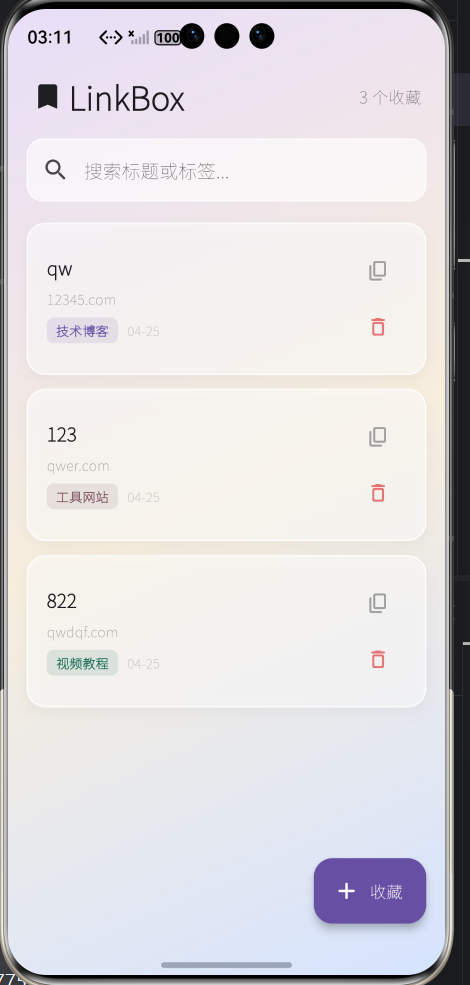
九、功能验证
按照以下清单逐项验证 LinkBox 的各项功能:
| 测试项 | 操作 | 预期结果 |
|---|---|---|
| 添加链接 | 点击右下角“收藏”按钮,填写信息后保存 | 卡片出现在列表顶部 |
| 持久化存储 | 杀进程后重新打开应用 | 链接仍在列表中 |
| 搜索过滤 | 在搜索栏输入标题或标签关键词 | 列表实时过滤 |
| 一键复制 | 点击卡片右侧复制图标 | 弹出“链接已复制到剪贴板”提示 |
| 编辑链接 | 点击卡片,在弹窗中修改信息后保存 | 卡片内容更新 |
| 左滑删除 | 左滑卡片 | 弹出确认对话框,确认后删除 |
| 空状态 | 删除所有收藏 | 显示“还没有收藏链接”占位提示 |
十、常见问题与解决
**flutter pub get**1. 失败
首先检查网络能否访问 gitcode\.com。可尝试配置国内镜像或手动 clone 仓库后改用本地路径依赖。
2. 应用启动白屏或闪退
通常是因为 SDK 版本不匹配。建议使用 API 18 模拟器,并在项目根目录执行 flutter clean 后重新构建。
3. 收藏后杀进程数据丢失
确认 shared\_preferences 是通过 Git 方式引入的鸿蒙适配版,而不是 pub.dev 上的官方版。
4. 界面中文显示为乱码
检查 main\.dart 中是否指定了不含中文字符的 fontFamily,例如 Roboto。删除该属性,让系统使用默认中文字体即可恢复。
5. 签名报错 “Unable to create the profile due to a lack of a device”
确保模拟器已启动并在 DevEco Studio 中可见。必要时重启 hdc 服务:hdc kill \&\& hdc start \-r。若仍无效,尝试重启 DevEco Studio 或更换为 API 18 模拟器。
十一、总结与拓展
本文从环境搭建到最终运行,完整展示了在鸿蒙 6.0 上使用 Flutter + shared\_preferences 三方库开发链接收藏夹的全过程。项目采用“毛玻璃拟态”设计,核心代码约 300 行,结构清晰,易于拓展。
在此基础上,你可以继续添加更多实用功能:
-
分类筛选:在顶部添加标签 Tab,按分类快速过滤
-
链接有效性检测:引入
http三方库,收藏时自动检查 URL 可访问性 -
深色模式:适配 Material 3 的暗色主题
-
导出/导入:支持将收藏列表导出为 JSON 文件或从文件批量导入
-
云端同步:对接鸿蒙云侧服务,实现多设备同步
希望本文能帮你迈出 Flutter × 鸿蒙跨端开发的第一步,祝开发顺利!

作为“人工智能6S店”的官方数字引擎,为AI开发者与企业提供一个覆盖软硬件全栈、一站式门户。
更多推荐

 2
2 0
0- 0


 已为社区贡献6条内容

所有评论(0)