
鸿蒙6.0应用开发——实现长截图功能
【高心星出品】
实现长截图功能
概述
在移动应用中,标准的截图方法仅能捕捉当前屏幕显示的内容,对于超出屏幕可视区域的长页面或文档而言,这种方式显得不够便捷。当用户截图分享和保存(如聊天记录、网页文章、活动海报等)的内容较长的时候,需要用户多次截图来保证内容完整性。为了解决这一问题,本文将介绍长截图功能,使用户能够一键截取整个页面的长图,更轻松地分享和保存信息。
长截图功能适用于支持滚动的UI组件,比如List组件、Scroll组件、Web组件等。本文将以List组件和Web组件为例来介绍长截图功能的开发,分别通过控制器Scroller和WebviewController,结合UIContext的getComponentSnapshot().get()方法,实现长截图功能。
实现原理
List组件和Web组件实现长截图功能的原理相同,均可以通过模拟用户滚动行为,然后使用getComponentSnapshot().get()方法逐步截取不同位置的画面,将这些画面通过拼接得到长截图。Web组件通过WebviewController的相关API控制组件滚动,List组件通过Scroller的相关API控制组件滚动。
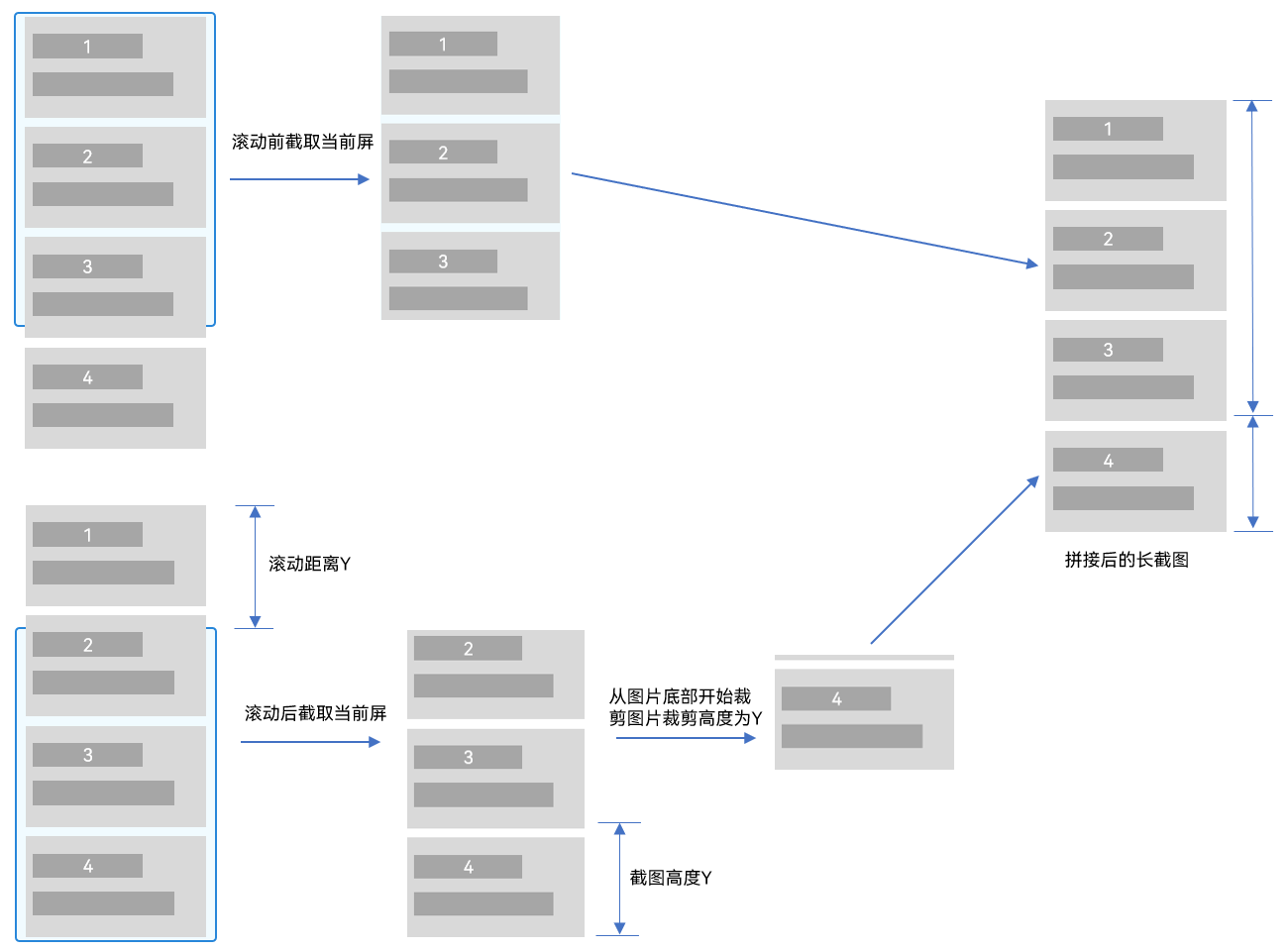
长截图拼接原理如下,将每次滚动新进入屏幕的内容裁剪后,拼接到之前的屏幕截图,依次类推。
图1 长截图拼接原理图
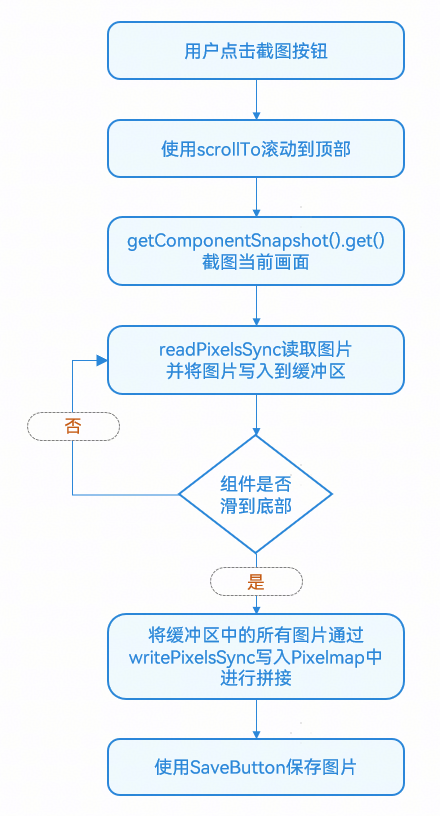
长截图主要流程如下:
图2 滚动长截图流程
在长截图的拼接过程中,所有截图会被暂时缓存到内存中。对于无限滚动或数据量较大的场景,应当限制单张截图的高度,以防止过高的内存占用影响应用性能。
滚动组件长截图
List、Scroll、Grid、WaterFlow等滚动组件均是通过Scroller来控制组件滚动,本章将以List组件为例来介绍滚动组件长截图的实现。下面介绍了滚动组件两种常见的长截图场景,一键截图和滚动截图。
一键截图
场景描述
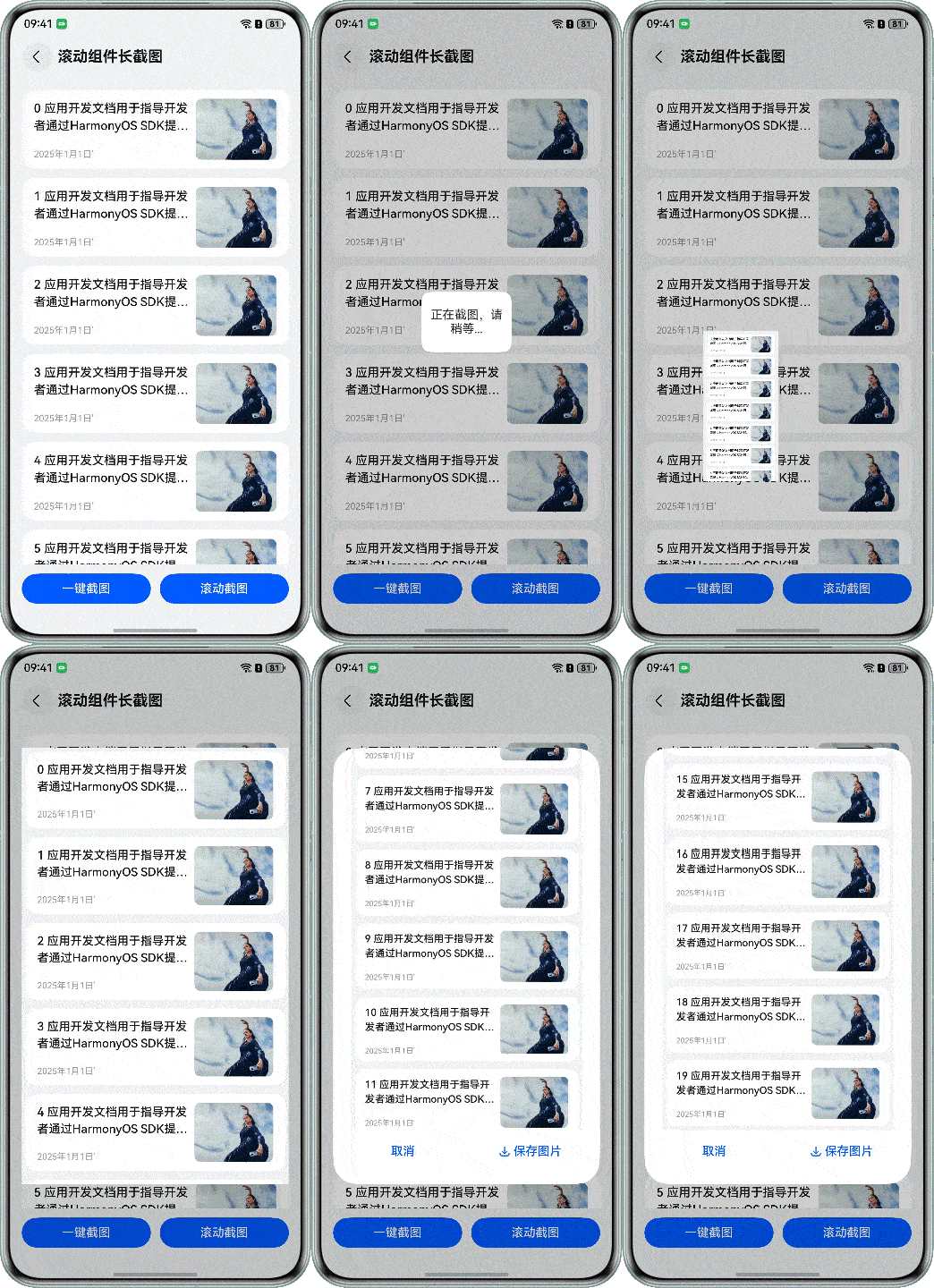
一键截图将组件数据从顶部截取到底部,在截图过程中用户看不到界面的滚动,实现无感知滚动截图。这种方案一般用于分享截图、保存数据量较少的场景。
实现效果
点击“一键截图”,会生成整个列表的长截图。
开发流程
-
给List绑定滚动控制器,添加监听事件。
1.1 为List滚动组件绑定Scroller控制器,以控制其滚动行为,并给List组件绑定自定义的id。
1.2 通过onDidScroll()方法实时监听并获取滚动偏移量,确保截图拼接位置的准确性。
1.3 同时,利用onAreaChange()事件获取List组件的尺寸,以便精确计算截图区域的大小。
// src/main/ets/view/ScrollSnapshot.ets
@Component
export struct ScrollSnapshot {
  // Scroll controller
  private scroller: Scroller = new Scroller();
  private listComponentWidth: number = 0;
  private listComponentHeight: number = 0;
  // The current offset of the List component
  private curYOffset: number = 0;
  private scrollHeight: number = 0;
  // ...
  build() {
    // ...
        Stack() {
          // ...
          List({
            space: 12,
            scroller: this.scroller
          })
          // ...
          .id(LIST_ID)
          .onDidScroll(() => {
            this.curYOffset = this.scroller.currentOffset().yOffset;
          })
          .onAreaChange((oldValue, newValue) => {
            this.listComponentWidth = newValue.width as number;
            this.listComponentHeight = newValue.height as number;
            this.scrollHeight = this.listComponentHeight;
          })
          .onClick(() => {
            // Click on the list to stop scrolling
            if (!this.isEnableScroll) {
              this.scroller.scrollBy(0, 0);
              this.isClickStop = true;
            }
          })
        }
        .width('100%')
        .layoutWeight(1)
        .padding({
          left: 16,
          right: 16,
          top: 16
        })
        .bindContentCover($$this.isShowPreview, this.previewWindowComponent(),
          {
            modalTransition: ModalTransition.NONE,
            onWillDismiss: (action: DismissContentCoverAction) => {
              if (action.reason === DismissReason.PRESS_BACK) {
                Logger.info('BindContentCover dismiss reason is back pressed');
              }
            }
          })

        Row({ space: 12 }) {
          Button($r('app.string.one_click_snapshot'))
            .layoutWeight(1)
            .onClick(() => {
              this.onceSnapshot();
            })
          Button($r('app.string.scroll_snapshot'))
            .layoutWeight(1)
            .onClick(() => {
              // Prevent users from clicking the button during the screenshot process,
              // and the method is repeatedly called, resulting in an exception
              if (this.scrollYOffsets.length === 0) {
                this.scrollSnapshot();
              }
            })
        }
        .width('100%')
        .padding({
          left: 16,
          right: 16,
          bottom: (AppStorage.get<number>('naviIndicatorHeight') ?? 0) + 16,
          top: 12
        })
      }
    }
    .title($r('app.string.title_scroll_snapshot'))
    .backgroundColor($r('sys.color.background_secondary'))
  }
}
代码逻辑走读:
- 组件初始化:
- 定义了
ScrollSnapshot组件,并初始化了滚动控制器scroller,当前滚动偏移量curYOffset,列表组件的宽度和高度,以及滚动高度scrollHeight。
- 定义了
- 组件构建:
- 使用
Stack布局包含一个List组件,设置了滚动控制器为scroller,并监听滚动事件和区域变化事件。 - 在
List组件上绑定了点击事件,当点击列表时,如果滚动功能被禁用,则停止滚动,并设置点击标志。
- 使用
- 布局和样式设置:
- 设置了
Stack的宽度、布局权重、内边距和内容覆盖绑定。 - 使用
Row布局包含两个按钮,分别用于触发一次快照和连续快照,并设置了按钮的布局权重和内边距。
- 设置了
- 快照功能:
- 提供了一种防止用户在快照过程中重复点击按钮的功能,通过检查
scrollYOffsets数组的长度来决定是否触发快照。
- 提供了一种防止用户在快照过程中重复点击按钮的功能,通过检查
- 标题和背景颜色:
- 设置了组件的标题和背景颜色。
- 组件初始化:
-
给List添加遮罩图,初始化滚动位置。
“一键截图”功能确保在滚动截图过程中用户不会察觉到页面的滚动。通过截取当前屏幕生成遮罩图覆盖列表,并记录此时的滚动偏移量(yOffsetBefore),便于后续完成滚动截图之后,恢复到之前记录的偏移量,使用户无感知页面变化。
为保证截图的完整性,设置完遮罩图后,同样利用scrollTo()方法将列表暂时滚至顶部,确保截图从最顶端开始。
// src/main/ets/view/ScrollSnapshot.ets @Component export struct ScrollSnapshot { // Scroll controller private scroller: Scroller = new Scroller(); private listComponentWidth: number = 0; private listComponentHeight: number = 0; // The current offset of the List component private curYOffset: number = 0; private scrollHeight: number = 0; // The component is overwritten during the screenshot process @State componentMaskImage: PixelMap | undefined = undefined; // The location of the component before backing up the screenshot private yOffsetBefore: number = 0; // ... /** * One-click screenshot */ async onceSnapshot() { await this.beforeSnapshot(); await this.snapAndMerge(); await this.afterSnapshot(); // ... } /** * Scroll through the screenshots */ async scrollSnapshot() { // The settings list cannot be manually scrolled during the screenshot process // to avoid interference with the screenshot this.isEnableScroll = false; // Saves the current location of the component for recovery this.yOffsetBefore = this.curYOffset; // Set the prompt pop-up to be centered await this.scrollSnapAndMerge(); // Open the prompt pop-up window this.isShowPreview = true; // Initial variable after stitching await this.afterGeneratorImage(); this.isEnableScroll = true; this.isClickStop = false; } /** * One click screenshot loop traversal screenshot and merge */ async snapAndMerge() { try { this.scrollYOffsets.push(this.curYOffset); // Call the component screenshot interface to obtain the current screenshot const pixelMap = await this.getUIContext().getComponentSnapshot().get(LIST_ID); // Gets the number of bytes per line of image pixels. let area: image.PositionArea = await ImageUtils.getSnapshotArea(this.getUIContext(), pixelMap, this.scrollYOffsets, this.listComponentWidth, this.listComponentHeight); this.areaArray.push(area); // Determine whether the bottom has been reached during the loop process if (!this.scroller.isAtEnd()) { CommonUtils.scrollAnimation(this.scroller, 200, this.scrollHeight); await CommonUtils.sleep(200) await this.snapAndMerge(); } else { this.mergedImage = await ImageUtils.mergeImage(this.getUIContext(), this.areaArray, this.scrollYOffsets[this.scrollYOffsets.length - 1],this.listComponentHeight); } } catch (err) { let error = err as BusinessError; Logger.error(TAG, `snapAndMerge err, errCode: ${error.code}, error message: ${error.message}`); } } /** * Rolling screenshots, looping through screenshots, and merge them */ async scrollSnapAndMerge() { try { // Record an array of scrolls this.scrollYOffsets.push(this.curYOffset - this.yOffsetBefore); // Call the API for taking screenshots to obtain the current screenshots const pixelMap = await this.getUIContext().getComponentSnapshot().get(LIST_ID); // Gets the number of bytes per line of image pixels. let area: image.PositionArea = await ImageUtils.getSnapshotArea(this.getUIContext(), pixelMap, this.scrollYOffsets, this.listComponentWidth, this.listComponentHeight) this.areaArray.push(area); // During the loop, it is determined whether the bottom is reached, and the user does not stop taking screenshots if (!this.scroller.isAtEnd() && !this.isClickStop) { // Scroll to the next page without scrolling to the end CommonUtils.scrollAnimation(this.scroller, 1000, this.scrollHeight); await CommonUtils.sleep(1500); await this.scrollSnapAndMerge(); } else { // After scrolling to the bottom, the buffer obtained by each round of scrolling is spliced // to generate a long screenshot this.mergedImage = await ImageUtils.mergeImage(this.getUIContext(), this.areaArray, this.scrollYOffsets[this.scrollYOffsets.length - 1], this.listComponentHeight); } } catch (err) { let error = err as BusinessError; Logger.error(TAG, `scrollSnapAndMerge err, errCode: ${error.code}, error message: ${error.message}`); } } async beforeSnapshot() { try { this.yOffsetBefore = this.curYOffset; // Take a screenshot of the loaded List component as a cover image for the List component this.componentMaskImage = await this.getUIContext().getComponentSnapshot().get(LIST_ID); this.scroller.scrollTo({ xOffset: 0, yOffset: 0, animation: { duration: 200 } }); // ... await CommonUtils.sleep(200); } catch (err) { let error = err as BusinessError; Logger.error(TAG, `beforeSnapshot err, errCode: ${error.code}, error message: ${error.message}`); } } async afterSnapshot() { this.scroller.scrollTo({ xOffset: 0, yOffset: this.yOffsetBefore, animation: { duration: 200 } }); await CommonUtils.sleep(200); } async afterGeneratorImage() { // Delay for transition animation await CommonUtils.sleep(200); this.componentMaskImage = undefined; this.scrollYOffsets.length = 0; this.areaArray.length = 0; } @Builder previewWindowComponent() { Column() { SnapshotPreview({ mergedImage: $mergedImage, isShowPreview: $isShowPreview }) } } build() { // ... Stack() { // The masking layer of the screenshot process prevents users from noticing the screen swiping quickly // and improves the user experience if (this.componentMaskImage) { Image(this.componentMaskImage) // ... } List({ space: 12, scroller: this.scroller }) // ... .id(LIST_ID) .onDidScroll(() => { this.curYOffset = this.scroller.currentOffset().yOffset; }) .onAreaChange((oldValue, newValue) => { this.listComponentWidth = newValue.width as number; this.listComponentHeight = newValue.height as number; this.scrollHeight = this.listComponentHeight; }) .onClick(() => { // Click on the list to stop scrolling if (!this.isEnableScroll) { this.scroller.scrollBy(0, 0); this.isClickStop = true; } }) } .width('100%') .layoutWeight(1) .padding({ left: 16, right: 16, top: 16 }) .bindContentCover($$this.isShowPreview, this.previewWindowComponent(), { modalTransition: ModalTransition.NONE, onWillDismiss: (action: DismissContentCoverAction) => { if (action.reason === DismissReason.PRESS_BACK) { Logger.info('BindContentCover dismiss reason is back pressed'); } } }) Row({ space: 12 }) { Button($r('app.string.one_click_snapshot')) .layoutWeight(1) .onClick(() => { this.onceSnapshot(); }) Button($r('app.string.scroll_snapshot')) .layoutWeight(1) .onClick(() => { // Prevent users from clicking the button during the screenshot process, // and the method is repeatedly called, resulting in an exception if (this.scrollYOffsets.length === 0) { this.scrollSnapshot(); } }) } .width('100%') .padding({ left: 16, right: 16, bottom: (AppStorage.get<number>('naviIndicatorHeight') ?? 0) + 16, top: 12 }) } } .title($r('app.string.title_scroll_snapshot')) .backgroundColor($r('sys.color.background_secondary')) } } -
循环滚动截图,裁剪和缓存截图数据。
3.1 记录每次滚动的位置到数组scrollYOffsets中,并使用componentSnapshot.get(LIST_ID) 方法获取当前画面的截图。
3.2 如果非首次截图,则使用crop方法截取从底部滚动进来的区域,然后调用pixmap.readPixelsSync(area)方法将截图数据读取到缓冲区域area中,并将area通过集合进行保存,用于后续截图拼接。
3.3 如果页面没有滚动到底部,继续滚动,继续递归调用snapAndMerge()方法进行截图;如果到达底部,则调用mergeImage()方法拼接所有收集到的图像片段,生成完整的长截图;同时还需限制截图的高度,以防过大的截图占用过多内存,影响应用性能,例如这里设置截长截图高度不超过5000。
/**
 * One click screenshot loop traversal screenshot and merge
 */
async snapAndMerge() {
  try {
    this.scrollYOffsets.push(this.curYOffset);
    // Call the component screenshot interface to obtain the current screenshot
    const pixelMap = await this.getUIContext().getComponentSnapshot().get(LIST_ID);
    // Gets the number of bytes per line of image pixels.
    let area: image.PositionArea =
      await ImageUtils.getSnapshotArea(this.getUIContext(), pixelMap, this.scrollYOffsets, this.listComponentWidth,
        this.listComponentHeight);
    this.areaArray.push(area);
    // Determine whether the bottom has been reached during the loop process
    if (!this.scroller.isAtEnd()) {
      CommonUtils.scrollAnimation(this.scroller, 200, this.scrollHeight);
      await CommonUtils.sleep(200)
      await this.snapAndMerge();
    } else {
      this.mergedImage =
        await ImageUtils.mergeImage(this.getUIContext(), this.areaArray,
          this.scrollYOffsets[this.scrollYOffsets.length - 1],this.listComponentHeight);
    }
  } catch (err) {
    let error = err as BusinessError;
    Logger.error(TAG, `snapAndMerge err, errCode: ${error.code}, error message: ${error.message}`);
  }
}
代码逻辑走读:
- 保存当前滚动位置:在循环开始前,将当前的滚动偏移量保存到
scrollYOffsets数组中。 - 获取组件截图:调用
getUIContext().getComponentSnapshot().get(LIST_ID)获取当前列表组件的截图,返回的为pixelMap对象。 - 计算截图区域:使用
ImageUtils.getSnapshotArea计算截图的区域信息,并将其存储在areaArray数组中。 - 判断是否滚动到底部:在循环过程中,使用
scroller.isAtEnd()判断是否已经滚动到列表底部。 - 滚动动画与递归调用:如果未到达底部,执行滚动动画并等待200毫秒后递归调用
snapAndMerge继续截图和合并。 - 合并截图:当滚动到底部时,调用
ImageUtils.mergeImage将所有截图合并为一个完整图像,并存储在mergedImage中。 - 异常处理:在过程中捕获并记录可能出现的异常,包括错误代码和错误信息。
/**
 * Read the screenshot PixelMap object into the buffer area
 * @param {PixelMap} pixelMap - Screenshot PixelMap
 * @param {number[]} scrollYOffsets - Component scrolls an array of y-axis offsets
 * @param {number} listWidth - List component width
 * @param {number} listHeight - List component height
 * @returns {image.PositionArea} Picture buffer area
 */
static async getSnapshotArea(uiContext: UIContext, pixelMap: PixelMap, scrollYOffsets: number[], listWidth: number,
  listHeight: number): Promise<image.PositionArea> {
  // Gets the number of bytes per line of image pixels.
  let stride = pixelMap.getBytesNumberPerRow();
  // Get the total number of bytes of image pixels.
  let bytesNumber = pixelMap.getPixelBytesNumber();
  let buffer: ArrayBuffer = new ArrayBuffer(bytesNumber);
  //     Region size, read based on region.   PositionArea represents the data within the specified area of the image.
  let len = scrollYOffsets.length;

  // Except for the first screenshot, you don't need to crop it, and you need to crop the new parts
  if (scrollYOffsets.length >= 2) {
    // Realistic roll distance
    let realScrollHeight = scrollYOffsets[len-1] - scrollYOffsets[len-2];
    if (listHeight - realScrollHeight > 0) {
      let cropRegion: image.Region = {
        x: 0,
        y: uiContext.vp2px(listHeight - realScrollHeight),
        size: {
          height: uiContext.vp2px(realScrollHeight),
          width: uiContext.vp2px(listWidth)
        }
      };
      // Crop roll area
      await pixelMap.crop(cropRegion);
    }
  }

  let area: image.PositionArea = {
    pixels: buffer,
    offset: 0,
    stride: stride,
    region: {
      size: {
        width: 0,
        height: 0
      },
      x: 0,
      y: 0
    }
  }

  try {
    let imgInfo = pixelMap.getImageInfoSync();
    // Region size, read based on region. PositionArea represents the data within the specified area of the image.
    area = {
      pixels: buffer,
      offset: 0,
      stride: stride,
      region: {
        size: {
          width: imgInfo.size.width,
          height: imgInfo.size.height
        },
        x: 0,
        y: 0
      }
    }
    // Write data to a specified area
    pixelMap.readPixelsSync(area);
  } catch (err) {
    let error = err as BusinessError;
    Logger.error(TAG, `getSnapshotArea err, code: ${error.code}, message: ${error.message}`);
  }
  return area;
}
代码逻辑走读:
- 获取图像像素的字节数和总字节数:
- 通过
pixelMap.getBytesNumberPerRow()获取每行图像像素的字节数。 - 通过
pixelMap.getPixelBytesNumber()获取图像的总像素字节数。
- 通过
- 创建缓冲区:
- 使用
ArrayBuffer创建一个与图像像素字节数大小相同的缓冲区。
- 使用
- 处理滚动偏移量:
- 检查滚动偏移量的长度,如果长度大于等于2,表示有滚动操作。
- 计算实际滚动高度,并根据滚动高度裁剪图像区域。
- 初始化图像区域信息:
- 初始化图像区域信息,包括缓冲区、偏移量、步幅和区域大小。
- 读取图像数据:
- 尝试同步获取图像信息,并更新图像区域信息。
- 使用
pixelMap.readPixelsSync(area)将图像数据写入缓冲区。
- 错误处理:
- 如果在读取图像数据时发生错误,捕获并记录错误信息。
- 返回图像区域信息:
- 返回包含图像像素数据和区域信息的对象。
- 保存当前滚动位置:在循环开始前,将当前的滚动偏移量保存到
-
拼接截图片段。
使用image.createPixelMapSync()方法创建长截图longPixelMap,并遍历之前保存的图像片段数据 (this.areaArray),构建image.PositionArea对象area,然后调用longPixelMap.writePixelsSync(area) 方法将这些片段逐个写入到正确的位置,从而拼接成一个完整的长截图。
/**
 * Merge image area array into long screenshots
 * @param {image.PositionArea[]} areaArray - screenshot area
 * @param {number} lastOffsetY - The offset Y of the last screenshot
 * @param {number} listWidth - List component width
 * @param {number} listHeight - List component height
 * @returns {PixelMap} Long image after merge
 */
static async mergeImage(uiContext: UIContext, areaArray: image.PositionArea[], lastOffsetY: number,
  listHeight: number): Promise<PixelMap> {
  // Create a long screenshot PixelMap
  let opts: image.InitializationOptions = {
    editable: true,
    pixelFormat: 4,
    size: {
      // You need to ensure that the width of the PixelMap is greater than the width of the area
      width:  ImageUtils.getMaxAreaWidth(areaArray),
      height: uiContext.vp2px(lastOffsetY + listHeight)
    }
  };
  let longPixelMap = image.createPixelMapSync(opts);
  let imgPosition: number = 0;

  for (let i = 0; i < areaArray.length; i++) {
    let readArea = areaArray[i];
    let area: image.PositionArea = {
      pixels: readArea.pixels,
      offset: 0,
      stride: readArea.stride,
      region: {
        size: {
          width: readArea.region.size.width,
          height: readArea.region.size.height
        },
        x: 0,
        y: imgPosition
      }
    }
    imgPosition += readArea.region.size.height;
    try {
      longPixelMap.writePixelsSync(area);
    } catch (err) {
      let error = err as BusinessError;
      Logger.error(TAG, `writePixelsSync err, code: ${error.code}, message: ${error.message}`);
    }
  }
  return longPixelMap;
}
代码逻辑走读:
- 参数解析:
uiContext: 用户界面上下文,提供视图转换所需的上下文信息。areaArray: 图像区域数组,每个区域包含像素、偏移、步幅和区域尺寸。lastOffsetY: 上一个截图的Y轴偏移量。listHeight: 列表组件的高度。
- 创建长截图
PixelMap:- 使用
image.createPixelMapSync创建一个可编辑的PixelMap,尺寸为最大区域宽度和(上一个截图的Y轴偏移量 + 列表高度)。
- 使用
- 遍历图像区域数组:
- 对于每个图像区域,调整其区域的Y轴偏移量,使其相对于长截图的位置正确。
- 使用
longPixelMap.writePixelsSync将调整后的区域写入到长截图的相应位置。
- 错误处理:
- 如果在写入像素时发生错误,捕获异常并记录错误信息。
- 返回结果:
- 返回合并后的长截图
PixelMap。
- 返回合并后的长截图
- 参数解析:
-
恢复到截图前的状态,滚动到截图前的位置。
async afterSnapshot() {
  this.scroller.scrollTo({
    xOffset: 0,
    yOffset: this.yOffsetBefore,
    animation: {
      duration: 200
    }
  });
  await CommonUtils.sleep(200);
}
代码逻辑走读:
- 定义了一个异步函数
afterSnapshot,用于处理一些视图滚动和延时操作。 - 在函数内部,首先调用this.scroller.scrollTo方法,该方法用于将滚动视图滚动到指定位置:
xOffset: 0表示水平方向滚动到起始位置。yOffset: this.yOffsetBefore表示垂直方向滚动到yOffsetBefore属性指定的位置。animation: { duration: 200 }表示滚动过程中带有动画效果,动画持续时间为200毫秒。
- 接着使用
await CommonUtils.sleep(200);等待200毫秒,可能是为了确保滚动动画完成后再进行下一步操作。 - 整个过程是异步的,确保在滚动和延时操作完成后再继续执行后续代码。
- 定义了一个异步函数
-
使用安全控件SaveButton保存截图相册。
通过安全控件SaveButton结合photoAccessHelper模块保存截图到相册。
SaveButton({
  icon: SaveIconStyle.FULL_FILLED,
  text: SaveDescription.SAVE_IMAGE,
  buttonType: ButtonType.Capsule
})
// ...
  .onClick((event, result) => {
    this.saveSnapshot(result);
  })
代码逻辑走读:
- 定义保存按钮:使用SaveButton组件来创建一个保存按钮,按钮上显示一个完全填充的保存图标和保存图片的描述文本,按钮类型为胶囊形状。
- 设置按钮点击事件:为按钮设置一个点击事件监听器,当按钮被点击时,会调用传入的回调函数。
- 事件处理函数:在点击事件的回调函数中,调用this.saveSnapshot(result)方法,将当前的快照保存下来。
/**
 * Save the picture to the album
 * @param {SaveButtonOnClickResult} result - The security control returns the result
 */
async saveSnapshot(result: SaveButtonOnClickResult): Promise<void> {
  try {
    if (result === SaveButtonOnClickResult.SUCCESS) {
      const helper = photoAccessHelper.getPhotoAccessHelper(this.context);
      const uri = await helper.createAsset(photoAccessHelper.PhotoType.IMAGE, 'png');
      // Open the file with a URI to write content continuously
      const file = await fileIo.open(uri, fileIo.OpenMode.READ_WRITE | fileIo.OpenMode.CREATE);
      const imagePackerApi: image.ImagePacker = image.createImagePacker();
      const packOpts: image.PackingOption = {
        format: 'image/png',
        quality: 100,
      };
      imagePackerApi.packToData(this.mergedImage, packOpts).then((data) => {
        fileIo.writeSync(file.fd, data);
        fileIo.closeSync(file.fd);
        Logger.info(TAG, `Succeeded in packToFile`);
        this.getUIContext().getPromptAction().showToast({
          message: $r('app.string.save_album_success'),
          duration: 1800
        })
      }).catch((error: BusinessError) => {
        Logger.error(TAG, `Failed to packToFile. Error code is ${error.code}, message is ${error.message}`);
      });
    }
    // ...
  } catch (err) {
    let error = err as BusinessError;
    Logger.error(TAG, `saveSnapshot err, errCode: ${error.code}, error message: ${error.message}`);
  }
}
代码逻辑走读:
- 检查结果:代码首先检查传入的
result参数是否等于SaveButtonOnClickResult.SUCCESS,以确认安全控制是否成功。 - 获取照片访问助手:如果结果成功,代码通过
photoAccessHelper.getPhotoAccessHelper(this.context)获取照片访问助手。 - 创建图像资源:使用照片访问助手的
createAsset方法创建一个图像资源,格式为PNG。 - 打开文件:通过
fileIo.open方法以读写模式打开文件,如果文件不存在则创建。 - 打包图像:使用
image.createImagePacker创建一个图像打包器,并设置打包选项,包括格式和质量。 - 写入文件:将打包后的图像数据写入文件,并关闭文件。
- 显示提示消息:如果保存成功,使用
getUIContext().getPromptAction().showToast显示一个提示消息。 - 错误处理:在整个过程中,如果发生错误,代码会捕获异常并记录错误信息。
滚动截图
场景描述
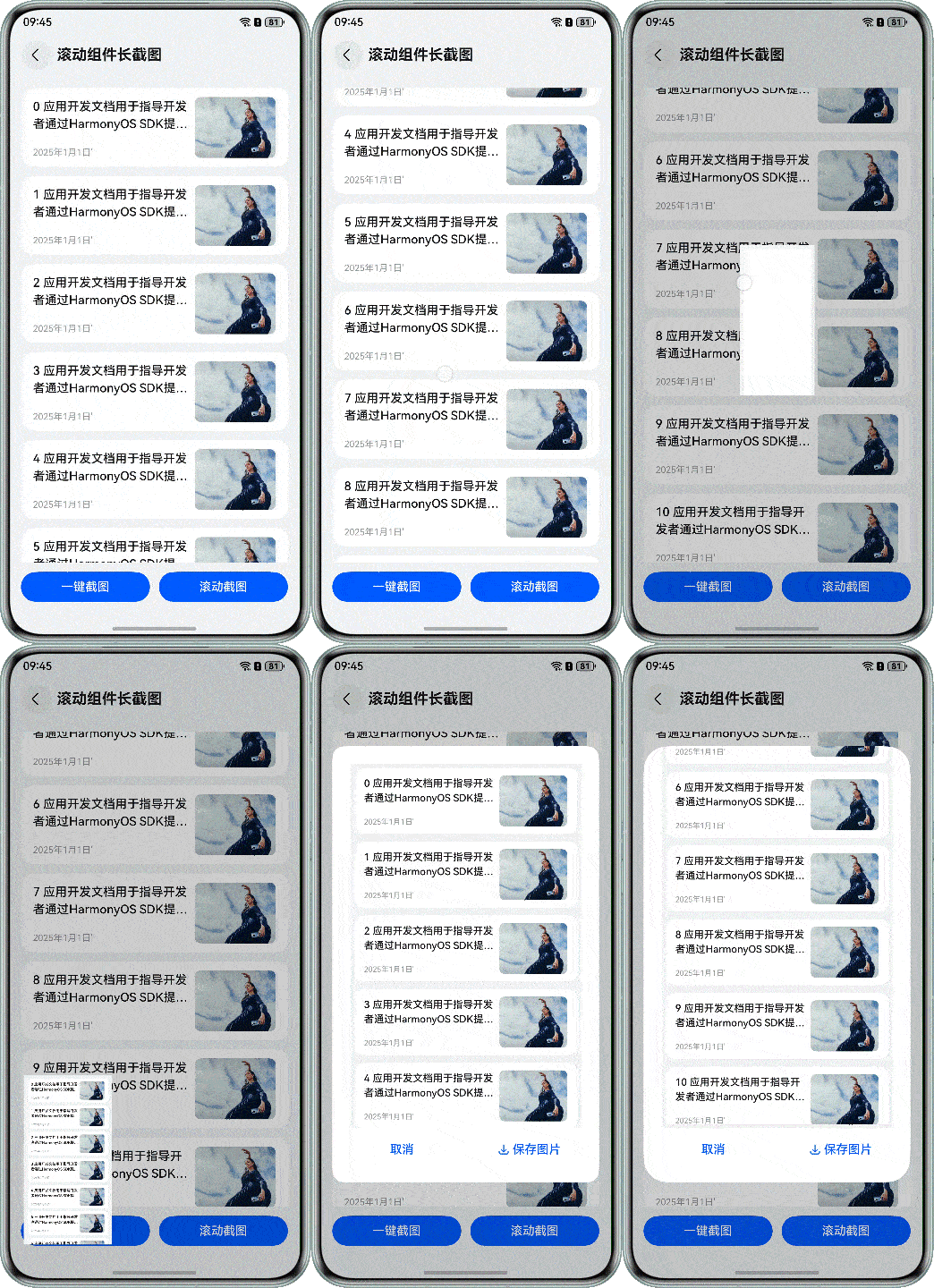
此方案允许用户控制长截图的起止位置,增加了使用的灵活性。它适用于大数据量场景,方便用户选择性保存滚动组件中的特定数据。
实现效果
点击“滚动截图”按钮后,列表将自动滚动。点击列表中的任意条目时,滚动会立即停止,并开始截取从滚动开始到停止这段时间内的数据截图。
功能实现
“滚动截图”功能的实现流程与前述的“一键截图”一样,因此这里不再重复详述整个过程,而仅聚焦于其中的几个关键差异点,例如滚动的控制和偏移量的记录,分别如下面1和2所描述。
-
在截图滚动的过程中,为了防止用户手动滚动对截图产生干扰,应禁用列表的手动滚动功能。可以通过设置List组件的enableScrollInteraction属性来控制是否允许手动滚动。
当准备开始截图时,将isEnableScroll设置为false以禁用滚动交互。而当用户点击列表项以确定截图结束位置时,使用scroller.scrollBy(0, 0)方法确保列表立即停止滑动。
// src/main/ets/view/ScrollSnapshot.ets
@Component
export struct ScrollSnapshot {
  // Scroll controller
  private scroller: Scroller = new Scroller();
  private listComponentWidth: number = 0;
  private listComponentHeight: number = 0;
  // The current offset of the List component
  private curYOffset: number = 0;
  private scrollHeight: number = 0;
  // The component is overwritten during the screenshot process
  @State componentMaskImage: PixelMap | undefined = undefined;
  // The location of the component before backing up the screenshot
  private yOffsetBefore: number = 0;
  // is click to stop scroll
  private isClickStop: boolean = false;
  @State isEnableScroll: boolean = true;
  // ...
  /**
   * Scroll through the screenshots
   */
  async scrollSnapshot() {
    // The settings list cannot be manually scrolled during the screenshot process
    // to avoid interference with the screenshot
    this.isEnableScroll = false;
    // Saves the current location of the component for recovery
    this.yOffsetBefore = this.curYOffset;
    // Set the prompt pop-up to be centered
    await this.scrollSnapAndMerge();
    // ...
    this.isEnableScroll = true;
    this.isClickStop = false;
  }

  /**
   * One click screenshot loop traversal screenshot and merge
   */
  async snapAndMerge() {
    try {
      this.scrollYOffsets.push(this.curYOffset);
      // Call the component screenshot interface to obtain the current screenshot
      const pixelMap = await this.getUIContext().getComponentSnapshot().get(LIST_ID);
      // Gets the number of bytes per line of image pixels.
      let area: image.PositionArea =
        await ImageUtils.getSnapshotArea(this.getUIContext(), pixelMap, this.scrollYOffsets, this.listComponentWidth,
          this.listComponentHeight);
      this.areaArray.push(area);
      // Determine whether the bottom has been reached during the loop process
      if (!this.scroller.isAtEnd()) {
        CommonUtils.scrollAnimation(this.scroller, 200, this.scrollHeight);
        await CommonUtils.sleep(200)
        await this.snapAndMerge();
      } else {
        this.mergedImage =
          await ImageUtils.mergeImage(this.getUIContext(), this.areaArray,
            this.scrollYOffsets[this.scrollYOffsets.length - 1],this.listComponentHeight);
      }
    } catch (err) {
      let error = err as BusinessError;
      Logger.error(TAG, `snapAndMerge err, errCode: ${error.code}, error message: ${error.message}`);
    }
  }


  /**
   * Rolling screenshots, looping through screenshots, and merge them
   */
  async scrollSnapAndMerge() {
    try {
      // Record an array of scrolls
      this.scrollYOffsets.push(this.curYOffset - this.yOffsetBefore);
      // Call the API for taking screenshots to obtain the current screenshots
      const pixelMap = await this.getUIContext().getComponentSnapshot().get(LIST_ID);
      // Gets the number of bytes per line of image pixels.
      let area: image.PositionArea =
        await ImageUtils.getSnapshotArea(this.getUIContext(), pixelMap, this.scrollYOffsets, this.listComponentWidth,
          this.listComponentHeight)
      this.areaArray.push(area);

      // During the loop, it is determined whether the bottom is reached, and the user does not stop taking screenshots
      if (!this.scroller.isAtEnd() && !this.isClickStop) {
        // Scroll to the next page without scrolling to the end
        CommonUtils.scrollAnimation(this.scroller, 1000, this.scrollHeight);
        await CommonUtils.sleep(1500);
        await this.scrollSnapAndMerge();
      } else {
        // After scrolling to the bottom, the buffer obtained by each round of scrolling is spliced
        // to generate a long screenshot
        this.mergedImage =
          await ImageUtils.mergeImage(this.getUIContext(), this.areaArray,
            this.scrollYOffsets[this.scrollYOffsets.length - 1], this.listComponentHeight);
      }
    } catch (err) {
      let error = err as BusinessError;
      Logger.error(TAG, `scrollSnapAndMerge err, errCode: ${error.code}, error message: ${error.message}`);
    }
  }


  async beforeSnapshot() {
    try {
      this.yOffsetBefore = this.curYOffset;
      // Take a screenshot of the loaded List component as a cover image for the List component
      this.componentMaskImage = await this.getUIContext().getComponentSnapshot().get(LIST_ID);
      this.scroller.scrollTo({
        xOffset: 0,
        yOffset: 0,
        animation:
        {
          duration: 200
        }
      });
      this.isShowPreview = true;
      // Delay ensures that the scroll has reached the top
      await CommonUtils.sleep(200);
    } catch (err) {
      let error = err as BusinessError;
      Logger.error(TAG, `beforeSnapshot err, errCode: ${error.code}, error message: ${error.message}`);
    }
  }

  async afterSnapshot() {
    this.scroller.scrollTo({
      xOffset: 0,
      yOffset: this.yOffsetBefore,
      animation: {
        duration: 200
      }
    });
    await CommonUtils.sleep(200);
  }


  async afterGeneratorImage() {
    // Delay for transition animation
    await CommonUtils.sleep(200);
    this.componentMaskImage = undefined;
    this.scrollYOffsets.length = 0;
    this.areaArray.length = 0;
  }

  @Builder
  previewWindowComponent() {
    Column() {
      SnapshotPreview({
        mergedImage: $mergedImage,
        isShowPreview: $isShowPreview
      })
    }
  }

  build() {
    // ...
          List({
            space: 12,
            scroller: this.scroller
          })
          // ...
          .id(LIST_ID)
          .onDidScroll(() => {
            this.curYOffset = this.scroller.currentOffset().yOffset;
          })
          .onAreaChange((oldValue, newValue) => {
            this.listComponentWidth = newValue.width as number;
            this.listComponentHeight = newValue.height as number;
            this.scrollHeight = this.listComponentHeight;
          })
          .onClick(() => {
            // Click on the list to stop scrolling
            if (!this.isEnableScroll) {
              this.scroller.scrollBy(0, 0);
              this.isClickStop = true;
            }
          })
        }
        .width('100%')
        .layoutWeight(1)
        .padding({
          left: 16,
          right: 16,
          top: 16
        })
        .bindContentCover($$this.isShowPreview, this.previewWindowComponent(),
          {
            modalTransition: ModalTransition.NONE,
            onWillDismiss: (action: DismissContentCoverAction) => {
              if (action.reason === DismissReason.PRESS_BACK) {
                Logger.info('BindContentCover dismiss reason is back pressed');
              }
            }
          })

        Row({ space: 12 }) {
          Button($r('app.string.one_click_snapshot'))
            .layoutWeight(1)
            .onClick(() => {
              this.onceSnapshot();
            })
          Button($r('app.string.scroll_snapshot'))
            .layoutWeight(1)
            .onClick(() => {
              // Prevent users from clicking the button during the screenshot process,
              // and the method is repeatedly called, resulting in an exception
              if (this.scrollYOffsets.length === 0) {
                this.scrollSnapshot();
              }
            })
        }
        .width('100%')
        .padding({
          left: 16,
          right: 16,
          bottom: (AppStorage.get<number>('naviIndicatorHeight') ?? 0) + 16,
          top: 12
        })
      }
    }
    .title($r('app.string.title_scroll_snapshot'))
    .backgroundColor($r('sys.color.background_secondary'))
  }
}
代码逻辑走读:
- 组件初始化:
- 初始化滚动控制器
scroller,列表组件的宽度和高度,当前滚动偏移量curYOffset,滚动高度scrollHeight,组件遮罩图片componentMaskImage,滚动前的偏移量yOffsetBefore,滚动停止标志isClickStop和滚动启用标志isEnableScroll。
- 初始化滚动控制器
- 滚动快照功能:
scrollSnapshot方法用于开始滚动快照过程,禁用手动滚动,保存当前组件位置,调用scrollSnapAndMerge方法进行快照和合并,恢复滚动启用标志和停止滚动标志。
- 单次快照和合并:
snapAndMerge方法用于一次性快照并合并,记录滚动偏移量,获取当前快照,计算图片区域,判断是否滚动到底部,继续快照或合并图片。
- 滚动快照和合并:
scrollSnapAndMerge方法用于滚动快照并合并,记录滚动偏移量,获取当前快照,计算图片区域,判断是否滚动到底部或用户停止快照,继续滚动快照或合并图片。
- 快照前处理:
beforeSnapshot方法用于快照前处理,保存当前滚动偏移量,获取快照作为组件遮罩图片,滚动到顶部并显示预览。
- 快照后处理:
afterSnapshot方法用于快照后恢复滚动位置。
- 生成图片后处理:
afterGeneratorImage方法用于生成图片后清理状态。
- 预览窗口组件:
previewWindowComponent方法用于显示合并后的图片预览。
- 组件构建:
build方法构建组件,设置列表的滚动事件处理和点击事件处理,绑定预览窗口组件,设置按钮点击事件。
- 组件初始化:
-
“滚动截图”功能依据当前坐标启动截图过程,因此在记录滚动偏移量时,通过 this.curYOffset - this.yOffsetBefore 来计算相对于初始位置的变化。
/**
 * Rolling screenshots, looping through screenshots, and merge them
 */
async scrollSnapAndMerge() {
  try {
    // Record an array of scrolls
    this.scrollYOffsets.push(this.curYOffset - this.yOffsetBefore);
    // Call the API for taking screenshots to obtain the current screenshots
    const pixelMap = await this.getUIContext().getComponentSnapshot().get(LIST_ID);
    // Gets the number of bytes per line of image pixels.
    let area: image.PositionArea =
      await ImageUtils.getSnapshotArea(this.getUIContext(), pixelMap, this.scrollYOffsets, this.listComponentWidth,
        this.listComponentHeight)
    this.areaArray.push(area);

    // During the loop, it is determined whether the bottom is reached, and the user does not stop taking screenshots
    if (!this.scroller.isAtEnd() && !this.isClickStop) {
      // Scroll to the next page without scrolling to the end
      CommonUtils.scrollAnimation(this.scroller, 1000, this.scrollHeight);
      await CommonUtils.sleep(1500);
      await this.scrollSnapAndMerge();
    } else {
      // After scrolling to the bottom, the buffer obtained by each round of scrolling is spliced
      // to generate a long screenshot
      this.mergedImage =
        await ImageUtils.mergeImage(this.getUIContext(), this.areaArray,
          this.scrollYOffsets[this.scrollYOffsets.length - 1], this.listComponentHeight);
    }
  } catch (err) {
    let error = err as BusinessError;
    Logger.error(TAG, `scrollSnapAndMerge err, errCode: ${error.code}, error message: ${error.message}`);
  }
}
代码逻辑走读:
- 记录滚动偏移量:
- 在
try块开始时,将当前滚动偏移量(curYOffset - yOffsetBefore)推入scrollYOffsets数组中,用于记录每次滚动的偏移量。
- 在
- 获取屏幕截图:
- 调用
getUIContext().getComponentSnapshot().get(LIST_ID)方法获取当前屏幕截图,并将其存储在pixelMap变量中。
- 调用
- 计算图像区域:
- 使用
ImageUtils.getSnapshotArea方法计算每个屏幕截图的图像区域,并将结果推入areaArray数组中。
- 使用
- 判断是否滚动到底部:
- 在循环中,通过
scroller.isAtEnd()和isClickStop判断是否已滚动到底部或用户停止滚动。 - 如果未到底且未停止,则调用
CommonUtils.scrollAnimation方法进行平滑滚动,并等待1.5秒后递归调用scrollSnapAndMerge。 - 如果已到底或已停止,则调用
ImageUtils.mergeImage方法将所有截图合并成一个长截图,并存储在mergedImage中。
- 在循环中,通过
- 异常处理:
- 如果过程中发生异常,捕获错误并记录日志,包含错误代码和错误信息。
- 记录滚动偏移量:
-
与“一键截图”不同,“滚动截图”在执行过程中不使用遮罩层,用户能够直接看到列表的滚动效果。为了确保流畅的视觉体验,在调用 scroller.scrollTo 进行滚动时,添加了动画效果,使得滚动更加自然和顺滑。
static scrollAnimation(scroller: Scroller, duration: number, scrollHeight: number): void {
  scroller.scrollTo({
    xOffset: 0,
    yOffset: (scroller.currentOffset().yOffset + scrollHeight),
    animation: {
      duration: duration,
      curve: Curve.Smooth,
      canOverScroll: false
    }
  });
}
代码逻辑走读:
-
函数定义:定义了一个名为
scrollAnimation的静态函数,接受三个参数:scroller(类型为Scroller)、duration(类型为number)和scrollHeight(类型为number)。 -
滚动操作:
调用scroller.scrollTo方法,设置滚动的目标位置。
xOffset设置为 0,表示滚动时保持水平位置不变。yOffset设置为当前偏移量加上scrollHeight,表示滚动的垂直距离。
-
动画配置:
在scrollTo方法中,配置滚动动画的参数。
duration设置为传入的参数duration,表示动画的持续时间。curve设置为Curve.Smooth,表示动画的曲线为平滑型。
或已停止,则调用ImageUtils.mergeImage方法将所有截图合并成一个长截图,并存储在mergedImage中。
-
异常处理:
- 如果过程中发生异常,捕获错误并记录日志,包含错误代码和错误信息。
-
-
与“一键截图”不同,“滚动截图”在执行过程中不使用遮罩层,用户能够直接看到列表的滚动效果。为了确保流畅的视觉体验,在调用 scroller.scrollTo 进行滚动时,添加了动画效果,使得滚动更加自然和顺滑。
static scrollAnimation(scroller: Scroller, duration: number, scrollHeight: number): void {
  scroller.scrollTo({
    xOffset: 0,
    yOffset: (scroller.currentOffset().yOffset + scrollHeight),
    animation: {
      duration: duration,
      curve: Curve.Smooth,
      canOverScroll: false
    }
  });
}
代码逻辑走读:
-
函数定义:定义了一个名为
scrollAnimation的静态函数,接受三个参数:scroller(类型为Scroller)、duration(类型为number)和scrollHeight(类型为number)。 -
滚动操作:
调用scroller.scrollTo方法,设置滚动的目标位置。
xOffset设置为 0,表示滚动时保持水平位置不变。yOffset设置为当前偏移量加上scrollHeight,表示滚动的垂直距离。
-
动画配置:
在scrollTo方法中,配置滚动动画的参数。
duration设置为传入的参数duration,表示动画的持续时间。curve设置为Curve.Smooth,表示动画的曲线为平滑型。canOverScroll设置为false,表示不允许超滚动。
-

作为“人工智能6S店”的官方数字引擎,为AI开发者与企业提供一个覆盖软硬件全栈、一站式门户。
更多推荐



 66
66 0
0- 0


 已为社区贡献68条内容

所有评论(0)