
《从零构建 OpenHarmony 兼容应用:Dio 网络请求集成指南》
·
Flutter 三方库 cached_network_image 的鸿蒙化适配与实战指南
欢迎加入开源鸿蒙跨平台社区:https://openharmonycrossplatform.csdn.net
一、引言
前言
本文将介绍基于 Flutter for OpenHarmony 的应用开发全流程,涵盖开发环境配置、依赖安装、多语言国际化实现以及在 DevEco 虚拟机上的部署运行。
项目概述
本项目是一个跨平台数据清单管理应用,包含两个主要模块:
| 模块 | 技术栈 | 功能 |
|---|---|---|
| Flask 后端 | Python + Flask-Babel | 多语言国际化 API 服务 |
| Flutter 前端 | Dart + Dio | 数据清单展示与网络请求 |
开发环境
| 组件 | 版本/路径 |
|---|---|
| Flutter SDK | 3.27.5-ohos-1.0.4 |
| DevEco Studio | D:\deveco\DevEco Studio\sdk |
| OpenHarmony | 6.0.0.47 (API 20) |
| Python | 3.14.4 |
| Flask | 3.1.3 |
| Flask-Babel | 4.0.0 |
第一部分:Flask 多语言国际化服务
项目结构
flask_app/
├── app/
│   ├── __init__.py           # 应用工厂
│   ├── routes.py             # 路由定义
│   └── translations/         # 翻译文件目录
│       ├── zh_CN/LC_MESSAGES/messages.po
│       ├── en_US/LC_MESSAGES/messages.po
│       └── ja_JP/LC_MESSAGES/messages.po
├── config.py                 # 配置文件
├── compile_messages.py       # 编译脚本
└── run.py                    # 启动文件
核心代码
1. 应用工厂(app/init.py)
Flask-Babel 4.0 使用 locale_selector 参数配置语言选择器:
from flask import Flask, request, session
from flask_babel import Babel, gettext as _, ngettext

def get_locale():
    # 优先使用用户会话中保存的语言
    if 'language' in session:
        return session['language']

    # 回退到浏览器 Accept-Language 头
    return request.accept_languages.best_match(
        ['zh_CN', 'en_US', 'ja_JP']
    ) or 'zh_CN'

def create_app(config_name='default'):
    app = Flask(__name__)
    app.config.from_object(f'config.{config_name.capitalize()}Config')

    # 初始化 Babel,传入语言选择器
    babel = Babel(app, locale_selector=get_locale)

    from app.routes import main_bp
    app.register_blueprint(main_bp)

    return app
2. 配置文件(config.py)
class Config:
    LANGUAGES = ['en', 'zh', 'ja']
    BABEL_DEFAULT_LOCALE = 'zh'
    BABEL_TRANSLATION_DIRECTORIES = 'app/translations'
    SECRET_KEY = 'your-secret-key'
    SUPPORTED_LOCALES = ['zh_CN', 'en_US', 'ja_JP']

class DevelopmentConfig(Config):
    DEBUG = True
3. 编译翻译文件(compile_messages.py)
import os
from babel.messages.mofile import write_mo
from babel.messages.pofile import read_po

def compile_messages():
    base_path = 'app/translations'
    for locale in ['zh_CN', 'en_US', 'ja_JP']:
        po_file = os.path.join(base_path, locale, 'LC_MESSAGES', 'messages.po')
        mo_file = po_file.replace('.po', '.mo')

        if os.path.exists(po_file):
            with open(po_file, 'rb') as f:
                catalog = read_po(f)
            with open(mo_file, 'wb') as f:
                write_mo(f, catalog)
            print(f'Compiled: {po_file} -> {mo_file}')

if __name__ == '__main__':
    compile_messages()
4. 翻译文件示例(messages.po)
中文翻译:
msgid ""
msgstr ""
"Content-Type: text/plain; charset=UTF-8\n"
"Language: zh_CN\n"

msgid "Welcome"
msgstr "欢迎"

msgid "Data List"
msgstr "数据清单"

msgid "Language"
msgstr "语言"

msgid "Settings"
msgstr "设置"
安装与运行
# 安装依赖
python -m pip install Flask Flask-Babel Babel pytz

# 编译翻译文件
python compile_messages.py

# 启动服务
python run.py
运行效果:
 * Serving Flask app 'app'
 * Debug mode: on
 * Running on http://127.0.0.1:5000
 * Running on http://192.168.0.140:5000
第二部分:Flutter 数据清单应用
项目结构
lib/
├── main.dart                 # 应用入口
├── models/
│   └── data_item.dart       # 数据模型
│   └── models.dart          # 导出文件
├── services/
│   └── api_service.dart     # API 服务层
│   └── services.dart        # 导出文件
└── pages/
    └── data_list_page.dart  # 列表页面
    └── pages.dart           # 导出文件
依赖配置
dependencies:
  flutter:
    sdk: flutter
  cupertino_icons: ^1.0.8
  dio: ^5.4.0
  flutter_localizations:
    sdk: flutter
  intl: ^0.19.0
核心代码
1. 数据模型(models/data_item.dart)
class DataItem {
  final int id;
  final String name;
  final String description;
  final String category;
  final double price;
  final int quantity;
  final String imageUrl;
  final DateTime createTime;

  DataItem({
    required this.id,
    required this.name,
    required this.description,
    required this.category,
    required this.price,
    required this.quantity,
    required this.imageUrl,
    required this.createTime,
  });

  factory DataItem.fromJson(Map<String, dynamic> json) {
    return DataItem(
      id: json['id'] ?? 0,
      name: json['name'] ?? '',
      description: json['description'] ?? '',
      category: json['category'] ?? '',
      price: (json['price'] ?? 0).toDouble(),
      quantity: json['quantity'] ?? 0,
      imageUrl: json['imageUrl'] ?? '',
      createTime: json['createTime'] != null
          ? DateTime.parse(json['createTime'])
          : DateTime.now(),
    );
  }

  Map<String, dynamic> toJson() {
    return {
      'id': id,
      'name': name,
      'description': description,
      'category': category,
      'price': price,
      'quantity': quantity,
      'imageUrl': imageUrl,
      'createTime': createTime.toIso8601String(),
    };
  }
}
2. API 服务层(services/api_service.dart)
import 'package:dio/dio.dart';
import '../models/data_item.dart';

class ApiService {
  static const String baseUrl = 'https://jsonplaceholder.typicode.com';

  late final Dio _dio;

  ApiService() {
    _dio = Dio(BaseOptions(
      baseUrl: baseUrl,
      connectTimeout: const Duration(seconds: 10),
      receiveTimeout: const Duration(seconds: 10),
      headers: {
        'Content-Type': 'application/json',
        'Accept': 'application/json',
      },
    ));

    _dio.interceptors.add(LogInterceptor(
      requestBody: true,
      responseBody: true,
    ));
  }

  Future<List<DataItem>> getDataItems() async {
    try {
      final response = await _dio.get('/posts');

      if (response.statusCode == 200) {
        final List<dynamic> data = response.data;
        return data.asMap().entries.map((entry) {
          final Map<String, dynamic> item = entry.value;
          return DataItem(
            id: item['id'] ?? 0,
            name: '物品 ${item['id']}',
            description: item['title'] ?? '',
            category: _getCategoryFromId(item['id'] ?? 0),
            price: (item['id'] ?? 0) * 10.0,
            quantity: (item['id'] ?? 0) % 100,
            imageUrl: 'https://picsum.photos/seed/${item['id']}/200/200',
            createTime: DateTime.now().subtract(
              Duration(days: (item['id'] ?? 0) % 30),
            ),
          );
        }).toList();
      }
      throw DioException(
        requestOptions: response.requestOptions,
        message: 'Failed to load data',
      );
    } on DioException catch (e) {
      throw _handleError(e);
    }
  }

  String _getCategoryFromId(int id) {
    final categories = ['电子产品', '服装', '食品', '家居', '运动'];
    return categories[id % categories.length];
  }

  Exception _handleError(DioException e) {
    switch (e.type) {
      case DioExceptionType.connectionTimeout:
      case DioExceptionType.sendTimeout:
      case DioExceptionType.receiveTimeout:
        return Exception('连接超时,请检查网络');
      case DioExceptionType.badResponse:
        return Exception('服务器错误: ${e.response?.statusCode}');
      case DioExceptionType.cancel:
        return Exception('请求取消');
      default:
        return Exception('网络错误: ${e.message}');
    }
  }
}
3. 数据列表页面(pages/data_list_page.dart)
import 'package:flutter/material.dart';
import '../models/data_item.dart';
import '../services/api_service.dart';
class DataListPage extends StatefulWidget {
const DataListPage({super.key});
State<DataListPage> createState() => _DataListPageState();
}
class _DataListPageState extends State<DataListPage> {
final ApiService _apiService = ApiService();
List<DataItem> _items = [];
bool _isLoading = true;
String? _error;
String _selectedCategory = '全部';
final List<String> _categories = ['全部', '电子产品', '服装', '食品', '家居', '运动'];
void initState() {
super.initState();
_loadData();
}
Future<void> _loadData() async {
setState(() {
_isLoading = true;
_error = null;
});
try {
final items = await _apiService.getDataItems();
setState(() {
_items = items;
_isLoading = false;
});
} catch (e) {
setState(() {
_error = e.toString();
_isLoading = false;
});
}
}
List<DataItem> get _filteredItems {
if (_selectedCategory == '全部') {
return _items;
}
return _items.where((item) => item.category == _selectedCategory).toList();
}
Widget build(BuildContext context) {
return Scaffold(
appBar: AppBar(
title: const Text('数据清单'),
backgroundColor: Theme.of(context).colorScheme.inversePrimary,
actions: [
IconButton(
icon: const Icon(Icons.refresh),
onPressed: _loadData,
tooltip: '刷新',
),
],
),
body: Column(
children: [
_buildCategoryFilter(),
Expanded(child: _buildContent()),
],
),
);
}
Widget _buildCategoryFilter() {
return Container(
height: 50,
padding: const EdgeInsets.symmetric(vertical: 8),
child: ListView.builder(
scrollDirection: Axis.horizontal,
padding: const EdgeInsets.symmetric(horizontal: 16),
itemCount: _categories.length,
itemBuilder: (context, index) {
final category = _categories[index];
final isSelected = category == _selectedCategory;
return Padding(
padding: const EdgeInsets.only(right: 8),
child: FilterChip(
label: Text(category),
selected: isSelected,
onSelected: (selected) {
setState(() {
_selectedCategory = category;
});
},
selectedColor: Theme.of(context).colorScheme.primaryContainer,
),
);
},
),
);
}
Widget _buildContent() {
if (_isLoading) {
return const Center(child: CircularProgressIndicator());
}
if (_error != null) {
return Center(
child: Column(
mainAxisAlignment: MainAxisAlignment.center,
children: [
Icon(Icons.error_outline, size: 64, color: Colors.red[300]),
const SizedBox(height: 16),
Text(_error!, style: const TextStyle(color: Colors.red)),
const SizedBox(height: 16),
ElevatedButton(
onPressed: _loadData,
child: const Text('重试'),
),
],
),
);
}
if (_filteredItems.isEmpty) {
return const Center(
child: Column(
mainAxisAlignment: MainAxisAlignment.center,
children: [
Icon(Icons.inventory_2_outlined, size: 64, color: Colors.grey),
SizedBox(height: 16),
Text('暂无数据'),
],
),
);
}
return RefreshIndicator(
onRefresh: _loadData,
child: ListView.builder(
padding: const EdgeInsets.all(16),
itemCount: _filteredItems.length,
itemBuilder: (context, index) {
return _buildItemCard(_filteredItems[index]);
},
),
);
}
Widget _buildItemCard(DataItem item) {
return Card(
margin: const EdgeInsets.only(bottom: 12),
elevation: 2,
child: InkWell(
onTap: () => _showItemDetail(item),
borderRadius: BorderRadius.circular(12),
child: Padding(
padding: const EdgeInsets.all(12),
child: Row(
children: [
ClipRRect(
borderRadius: BorderRadius.circular(8),
child: Image.network(
item.imageUrl,
width: 80,
height: 80,
fit: BoxFit.cover,
errorBuilder: (context, error, stackTrace) {
return Container(
width: 80,
height: 80,
color: Colors.grey[200],
child: const Icon(Icons.image, color: Colors.grey),
);
},
),
),
const SizedBox(width: 12),
Expanded(
child: Column(
crossAxisAlignment: CrossAxisAlignment.start,
children: [
Text(
item.name,
style: const TextStyle(fontSize: 16, fontWeight: FontWeight.bold),
maxLines: 1,
overflow: TextOverflow.ellipsis,
),
const SizedBox(height: 4),
Text(
item.description,
style: TextStyle(fontSize: 12, color: Colors.grey[600]),
maxLines: 2,
overflow: TextOverflow.ellipsis,
),
const SizedBox(height: 8),
Row(
children: [
Container(
padding: const EdgeInsets.symmetric(horizontal: 8, vertical: 2),
decoration: BoxDecoration(
color: Theme.of(context).colorScheme.primaryContainer,
borderRadius: BorderRadius.circular(12),
),
child: Text(item.category, style: const TextStyle(fontSize: 10)),
),
const Spacer(),
Text(
'¥${item.price.toStringAsFixed(2)}',
style: TextStyle(fontSize: 16, fontWeight: FontWeight.bold, color: Colors.red[700]),
),
],
),
],
),
),
const Icon(Icons.chevron_right, color: Colors.grey),
],
),
),
),
);
}
void _showItemDetail(DataItem item) {
showModalBottomSheet(
context: context,
isScrollControlled: true,
shape: const RoundedRectangleBorder(
borderRadius: BorderRadius.vertical(top: Radius.circular(20)),
),
builder: (context) => DraggableScrollableSheet(
initialChildSize: 0.6,
minChildSize: 0.4,
maxChildSize: 0.9,
expand: false,
builder: (context, scrollController) {
return SingleChildScrollView(
controller: scrollController,
padding: const EdgeInsets.all(20),
child: Column(
crossAxisAlignment: CrossAxisAlignment.start,
children: [
Center(
child: Container(width: 40, height: 4, decoration: BoxDecoration(color: Colors.grey[300], borderRadius: BorderRadius.circular(2))),
),
const SizedBox(height: 20),
ClipRRect(
borderRadius: BorderRadius.circular(12),
child: Image.network(item.imageUrl, width: double.infinity, height: 200, fit: BoxFit.cover),
),
const SizedBox(height: 20),
Text(item.name, style: const TextStyle(fontSize: 24, fontWeight: FontWeight.bold)),
const SizedBox(height: 8),
Row(
children: [
Container(
padding: const EdgeInsets.symmetric(horizontal: 12, vertical: 4),
decoration: BoxDecoration(
color: Theme.of(context).colorScheme.primaryContainer,
borderRadius: BorderRadius.circular(16),
),
child: Text(item.category),
),
const SizedBox(width: 12),
Text('库存: ${item.quantity}', style: TextStyle(color: Colors.grey[600])),
],
),
const SizedBox(height: 16),
Text(item.description, style: TextStyle(fontSize: 14, color: Colors.grey[700], height: 1.5)),
const SizedBox(height: 24),
Row(
mainAxisAlignment: MainAxisAlignment.spaceBetween,
children: [
Text('¥${item.price.toStringAsFixed(2)}', style: TextStyle(fontSize: 28, fontWeight: FontWeight.bold, color: Colors.red[700])),
ElevatedButton.icon(
onPressed: () {
Navigator.pop(context);
ScaffoldMessenger.of(context).showSnackBar(
SnackBar(content: Text('已添加到购物车: ${item.name}'), behavior: SnackBarBehavior.floating),
);
},
icon: const Icon(Icons.add_shopping_cart),
label: const Text('加入清单'),
),
],
),
],
),
);
},
),
);
}
}
4. 应用入口(main.dart)
import 'package:flutter/material.dart';
import 'pages/data_list_page.dart';
void main() {
runApp(const MyApp());
}
class MyApp extends StatelessWidget {
const MyApp({super.key});
Widget build(BuildContext context) {
return MaterialApp(
title: '数据清单',
theme: ThemeData(
colorScheme: ColorScheme.fromSeed(seedColor: Colors.deepPurple),
useMaterial3: true,
),
home: const DataListPage(),
);
}
}
第三部分:在 DevEco 虚拟机上运行
环境要求
Flutter for OpenHarmony 构建需要以下工具:
| 工具 | 说明 |
|---|---|
| Node.js | npm 包管理器(用于 hvigor 插件) |
| ohpm | OpenHarmony 包管理器 |
| hvigor | 构建工具 |
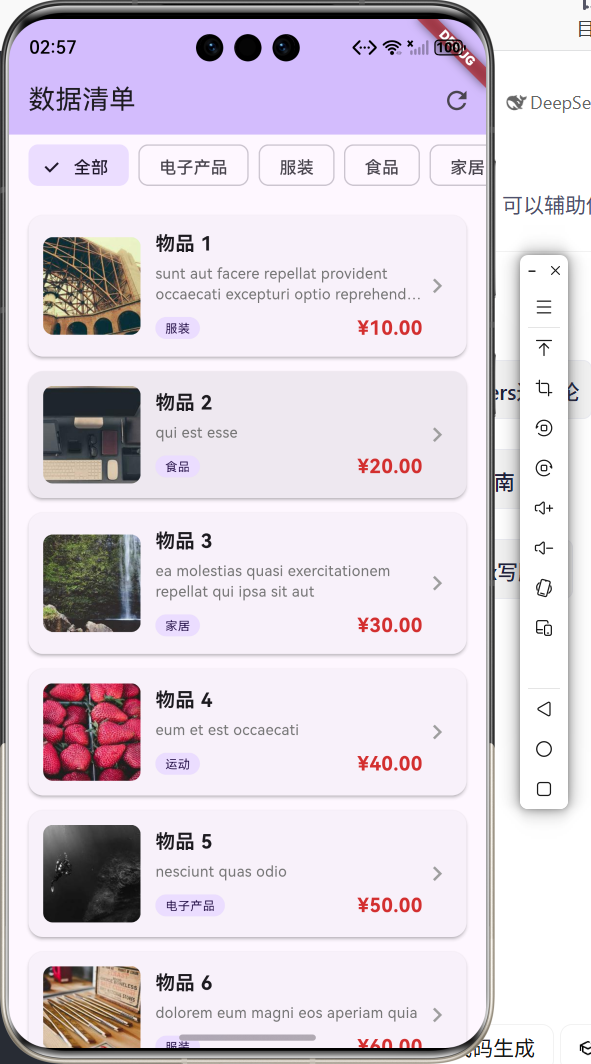
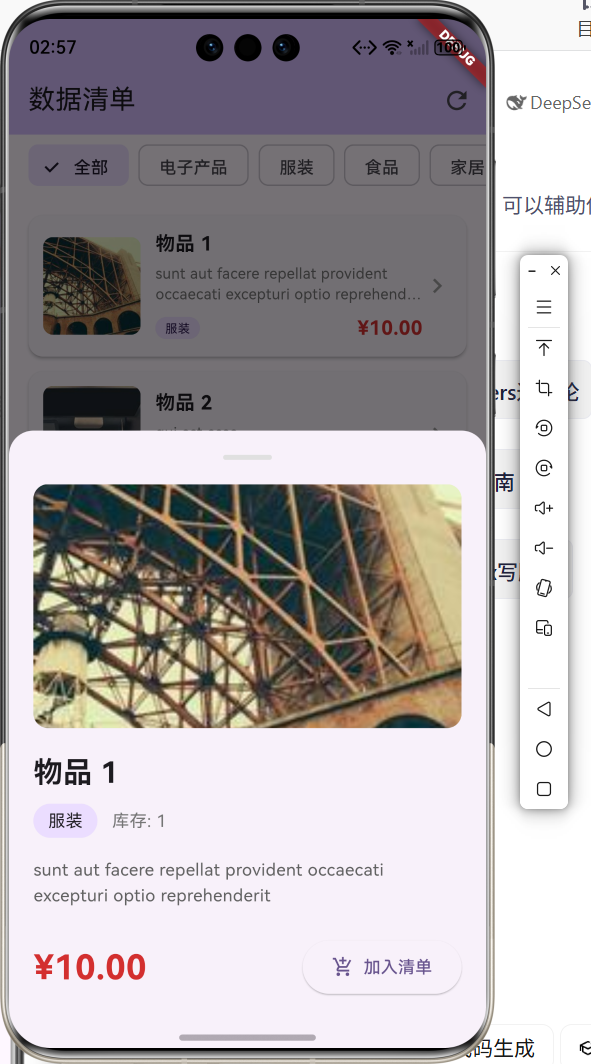
常见问题解决
问题1:npm 未找到
ProcessException: Failed to find "npm" in the search path.
解决方案:安装 Node.js
winget install OpenJS.NodeJS.LTS
安装后需要关闭并重新打开终端使环境变量生效。
问题2:ohpm 未找到
Ohpm is missing, please configure "ohpm" to the environment variable PATH.
解决方案:在 DevEco Studio 中配置 ohpm 路径到系统 PATH。
运行命令
# 获取依赖
cd d:\my_test_app
flutter pub get

# 列出可用设备
flutter devices

# 运行到设备
flutter run -d 127.0.0.1:5555
可用设备列表
Found 3 connected devices:
  127.0.0.1:5555 (mobile)  ohos-x64   Ohos OpenHarmony-6.0.0.47 (API 20)
  Windows (desktop)         windows    Microsoft Windows
  Edge (web)               edge       Microsoft Edge
功能总结
| 功能模块 | 实现详情 |
|---|---|
| 数据模型 | DataItem 类,支持 JSON 序列化 |
| 网络请求 | Dio 库封装,支持超时处理和错误捕获 |
| 分类筛选 | FilterChip 组件,支持 6 个分类 |
| 下拉刷新 | RefreshIndicator 组件 |
| 详情弹窗 | ModalBottomSheet + DraggableScrollableSheet |
| 图片加载 | Image.network 支持加载状态和错误处理 |
| 国际化 | Flask-Babel 支持中英日三种语言 |
总结
本文详细介绍了:
- Flask 多语言国际化服务:使用 Flask-Babel 4.0 实现后端国际化
- Flutter 数据清单应用:使用 Dio 实现网络请求和列表展示
- 鸿蒙设备部署:在 DevEco 虚拟机上运行 Flutter 应用
通过本项目的学习,可以掌握 Flutter 跨平台开发的核心技能,为开发更复杂的应用奠定基础。

作为“人工智能6S店”的官方数字引擎,为AI开发者与企业提供一个覆盖软硬件全栈、一站式门户。
更多推荐


 7
7 0
0- 0


 已为社区贡献2条内容

所有评论(0)