
Electron开源框架下鸿蒙PC应用开发与所欲各类问题解决——英语单词记忆卡实战开发
通过本项目的开发,我们成功在鸿蒙平台上实现了一款功能完整、界面美观的英语单词记忆卡应用。项目使用了 HTML5 + CSS3 + JavaScript 技术栈,运行在 Electron (HarmonyOS 真机) 上,支持中文界面和中文菜单栏。本项目的开发过程中,我们遇到了一些挑战,如卡片翻转动画、单词分类功能、本地存储管理和响应式设计,但通过合理的设计和实现,我们成功解决了这些问题。未来,我们
欢迎加入开源鸿蒙PC社区:
https://harmonypc.csdn.net/
仓库源码地址:
https://atomgit.com/feng8403000/Electron_Environment_CET_4flashcards
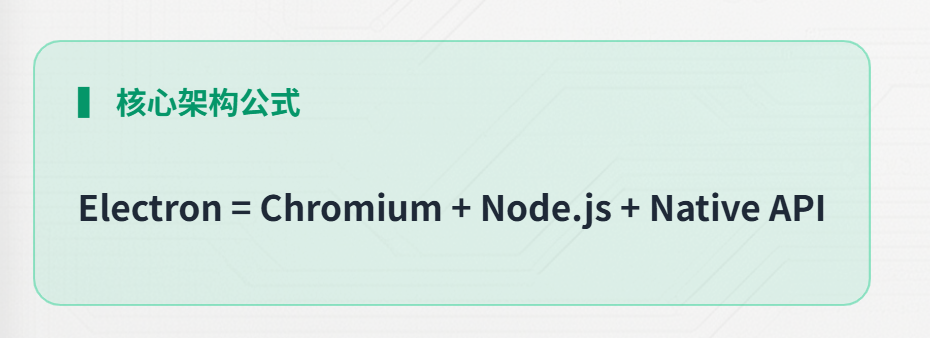
Electron 就是前端圈的【桌面开发万金油】,开源免费还贼香 !靠 Chromium 撑界面、Node.js 管系统能力,用 HTML/CSS/JS 就能把网页直接改成桌面应用,Windows、Mac、Linux 通吃不挑环境 。现在咱要搞波大的 ——把 Electron 的跨平台版图延伸到 HarmonyOS,让开发者不用重构代码,直接把 Electron 应用跑鸿蒙上,彻底解决多端适配的重复造轮子痛点 。
前言
距离考英语四级不远了,我们写一个英语四级单词背诵的应用,正好也对整个Electron框架有一个具体的了解,希望整个过程中能给大家带来一定的价值,欢迎点赞、收藏、评论哈。
一、Electron框架下载与基础运行
我这里分为下载,虚拟机运行错误说明,还有真机实测三块,希望能给大家避坑。
1.1 Electron官方下载地址
官方地址,我这里添加了超链接,点开就能过去,但是需要登录一下华为的账号:
https://devcloud.cn-north-4.huaweicloud.com/codehub/project/b19f5ea8ffd4492ea8c06ca2ebf3f858/codehub/2821214/home?ref=electron34-release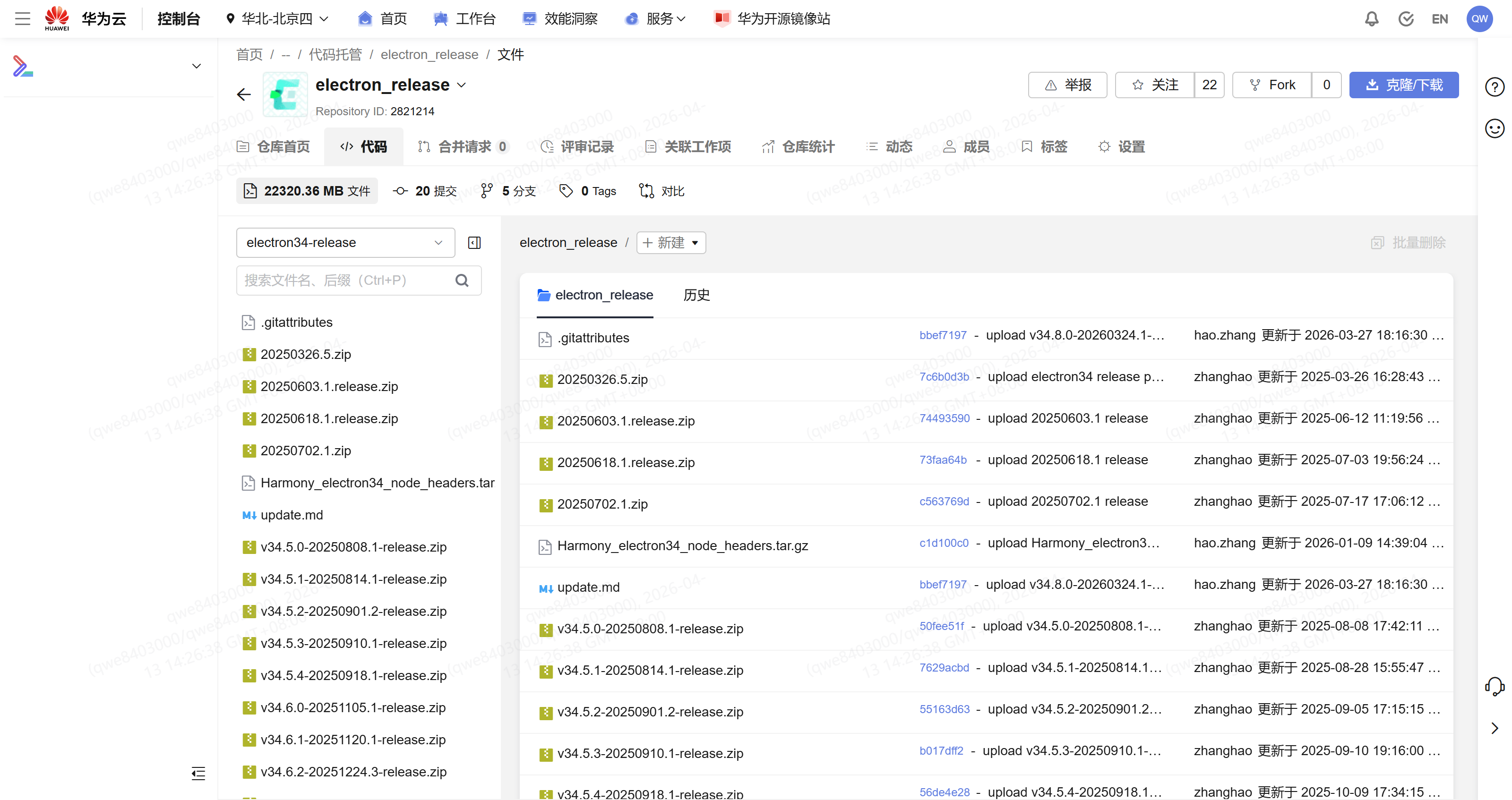
用最新的版本就行哈。
解压后的基础内容如下: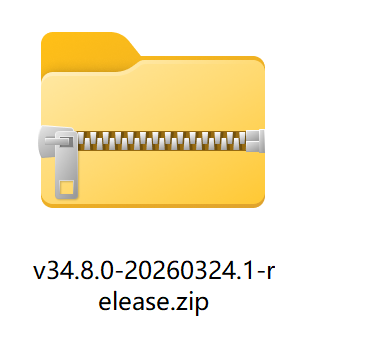
全部解压缩: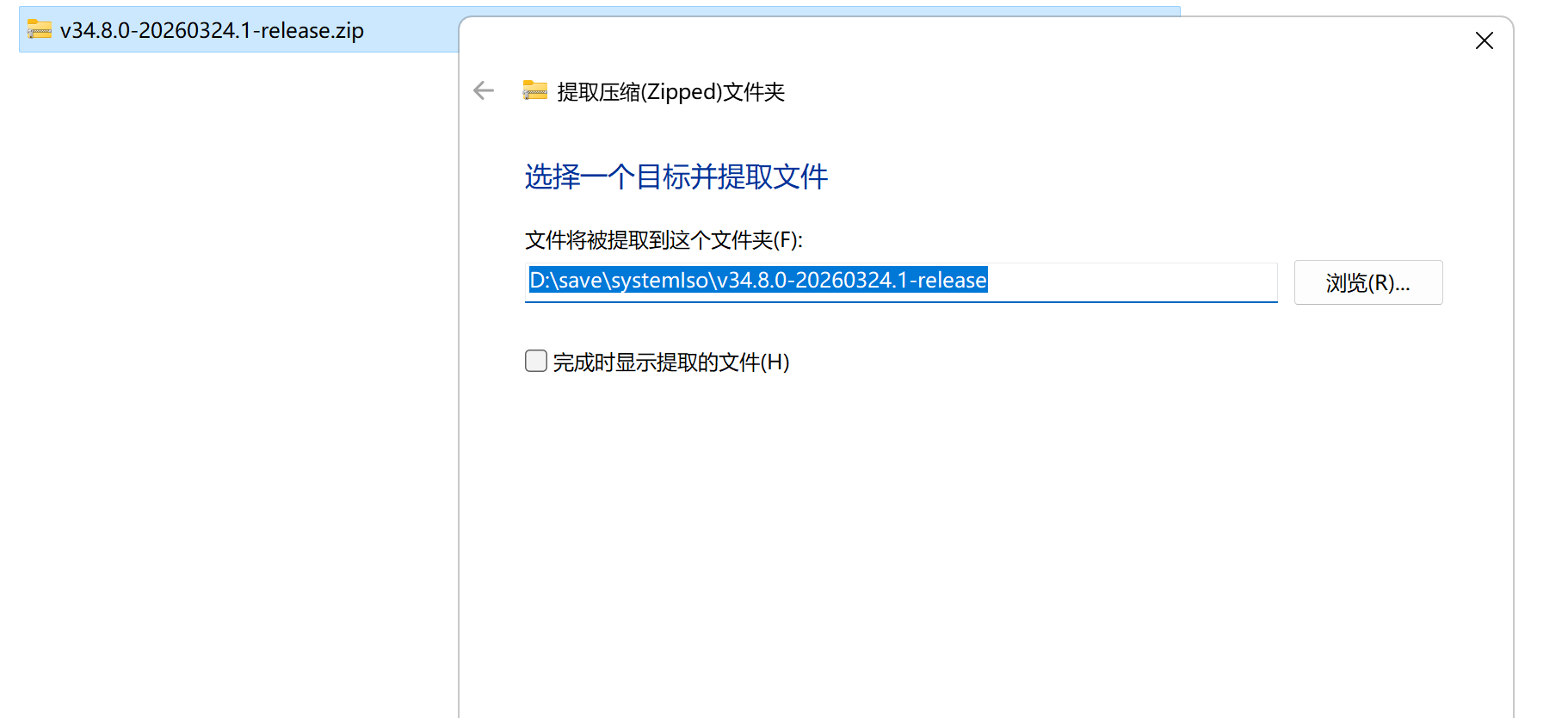
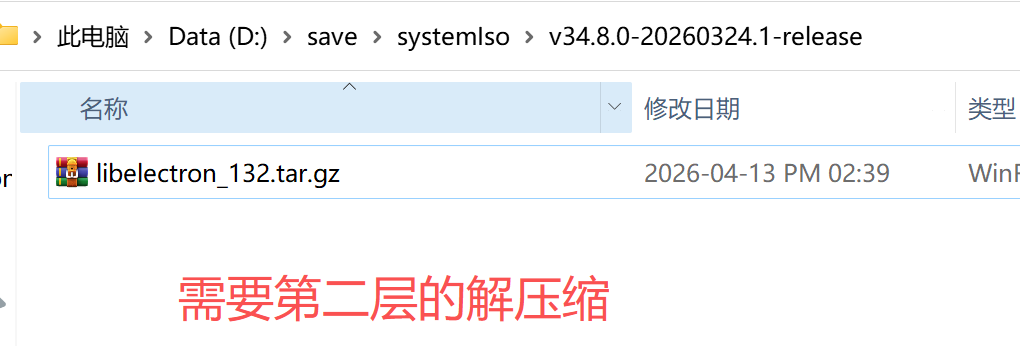
这层需要解压工具了: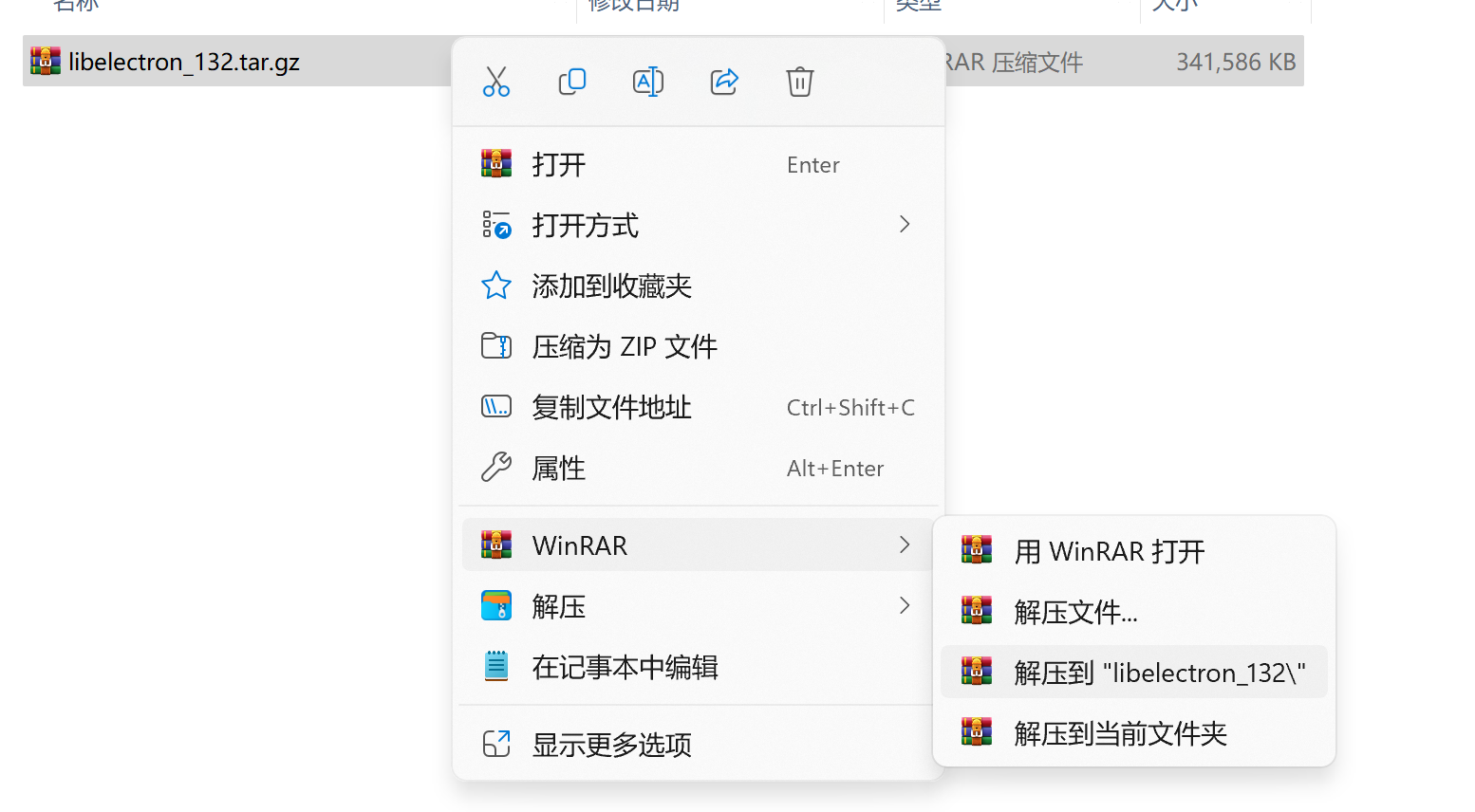
最终剩余两个文件夹,这个有用,直接拿出来用:
| 文件夹名称 | 核心用途 | 存放内容 | 适用阶段 | 体积 |
|---|---|---|---|---|
| lib.unstripped | 原生库调试符号目录,用于 Native 崩溃堆栈解析 | 未剥离调试符号的 .so 动态库 | 开发 / 调试 / 问题定位 | 大 |
| ohos_hap | 鸿蒙应用编译输出目录,存放最终应用安装包 | 编译生成的 .hap 应用安装包 | 构建 / 发布 / 设备安装 | 正常 |
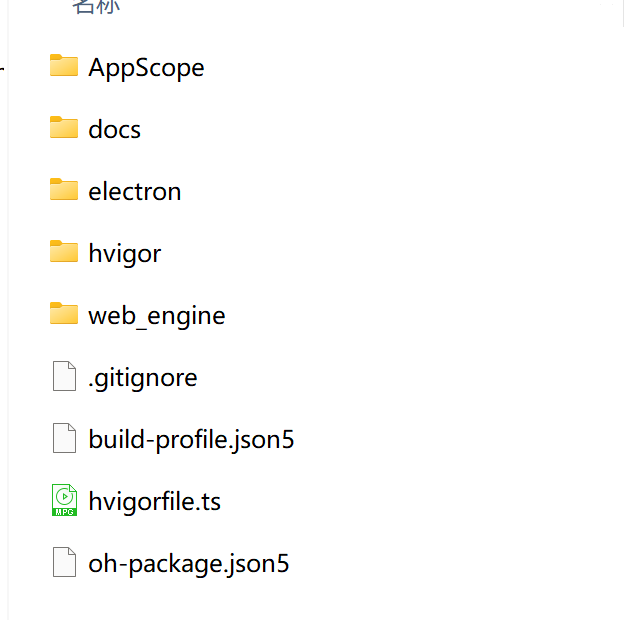
| 名称 | 类型 | 核心作用 | 关键说明 |
|---|---|---|---|
| AppScope | 文件夹 | 应用全局配置与公共资源目录 | 存放应用级别的公共资源(如全局图标、字符串)及核心配置 app.json5,命名不可修改,否则编译报错。 |
| docs | 文件夹 | 项目文档/说明目录 | 用于存放项目开发文档、API文档、使用手册等辅助性说明材料,便于维护与协作。 |
| electron | 文件夹 | Electron 适配/桥接层目录 | 存放鸿蒙与Electron框架的适配层代码、原生桥接库或中间件,用于实现Web技术栈向鸿蒙环境的兼容与能力映射。 |
| hvigor | 文件夹 | Hvigor构建工具核心配置目录 | 包含构建工具的版本配置(hvigor-config.json5)与包装脚本(hvigor-wrapper),是项目构建流程的底层支撑。 |
| web_engine | 文件夹 | Web引擎/渲染核心目录 | 存放Web渲染内核(如Chromium衍生引擎)的相关源码、配置或运行时资源,负责前端页面的渲染与解析。 |
| .gitignore | 配置文件 | Git忽略规则配置 | 定义Git版本控制中需要忽略追踪的文件/目录(如oh_modules、构建产物),防止无关文件提交。 |
| build-profile.json5 | JSON5配置 | 工程级构建配置文件 | 配置项目整体构建流程,包括签名信息、编译SDK版本、目标产物类型(HAP/HSP)、环境变量等核心构建参数。 |
| hvigorfile.ts | TypeScript脚本 | 模块级/工程级构建任务脚本 | Hvigor构建系统的核心配置文件,用于注册插件、定义自定义构建任务、配置编译打包规则,替代传统的Gradle配置。 |
| oh-package.json5 | JSON5配置 | 鸿蒙包管理依赖配置文件 | 类似前端package.json,用于声明项目依赖(HAR/HSP包)、定义模块元信息(包名/版本/入口)、管理OHPM三方库。 |
DevEco Studio工具打开【ohos_hap】文件夹
File->open打开对应的ohos_hap文件夹即可。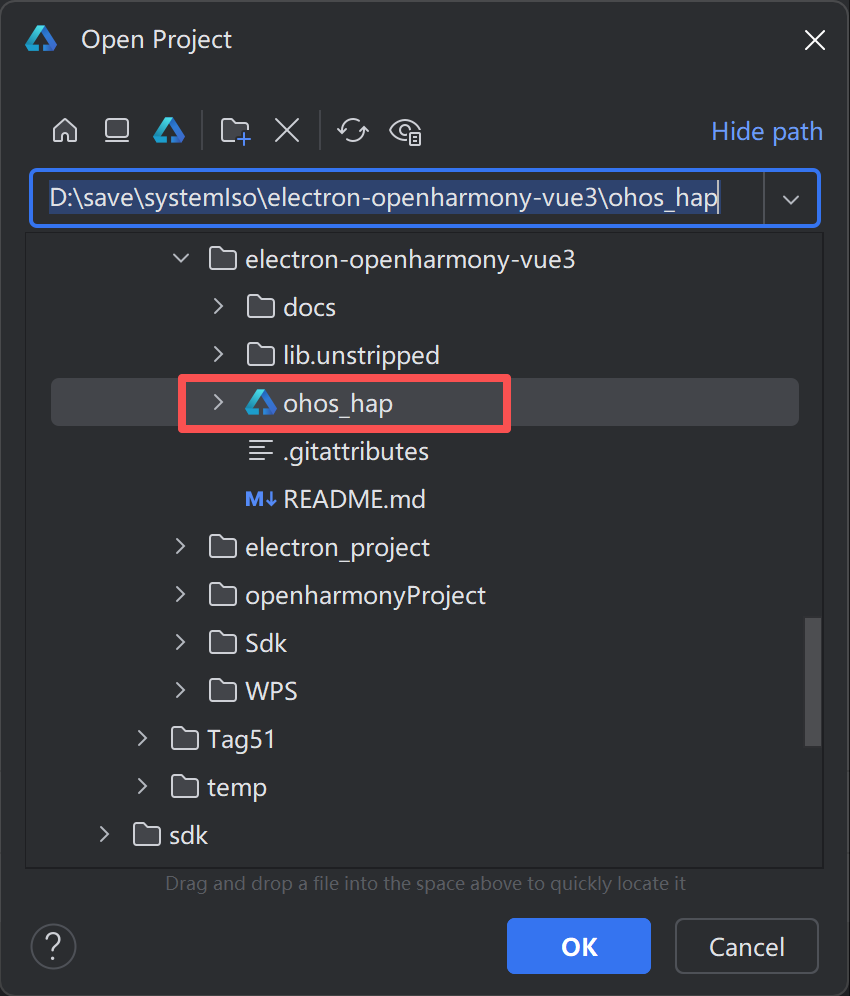
1.2 尝试虚拟机运行
我们自己先去创建一个虚拟机,其实我测试过哈,跑不起来。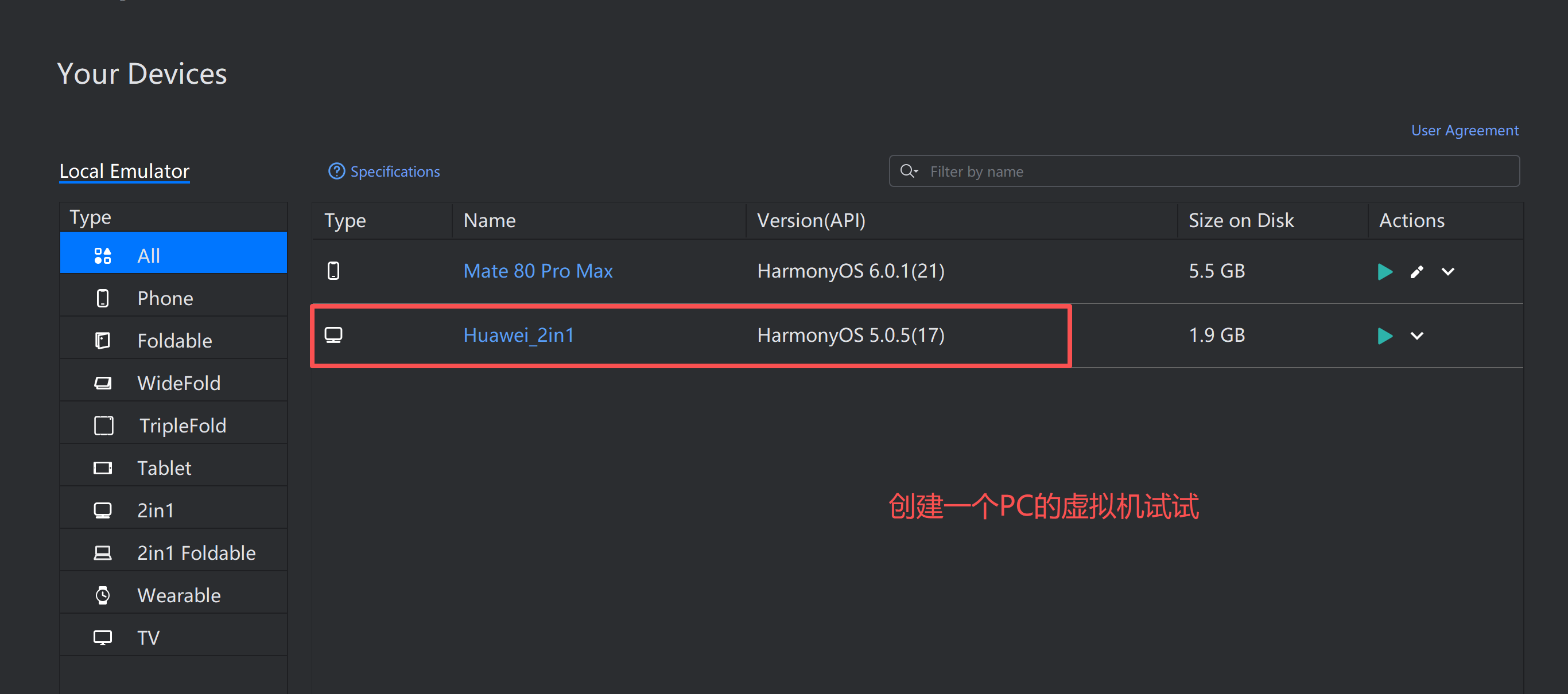
暂时情况: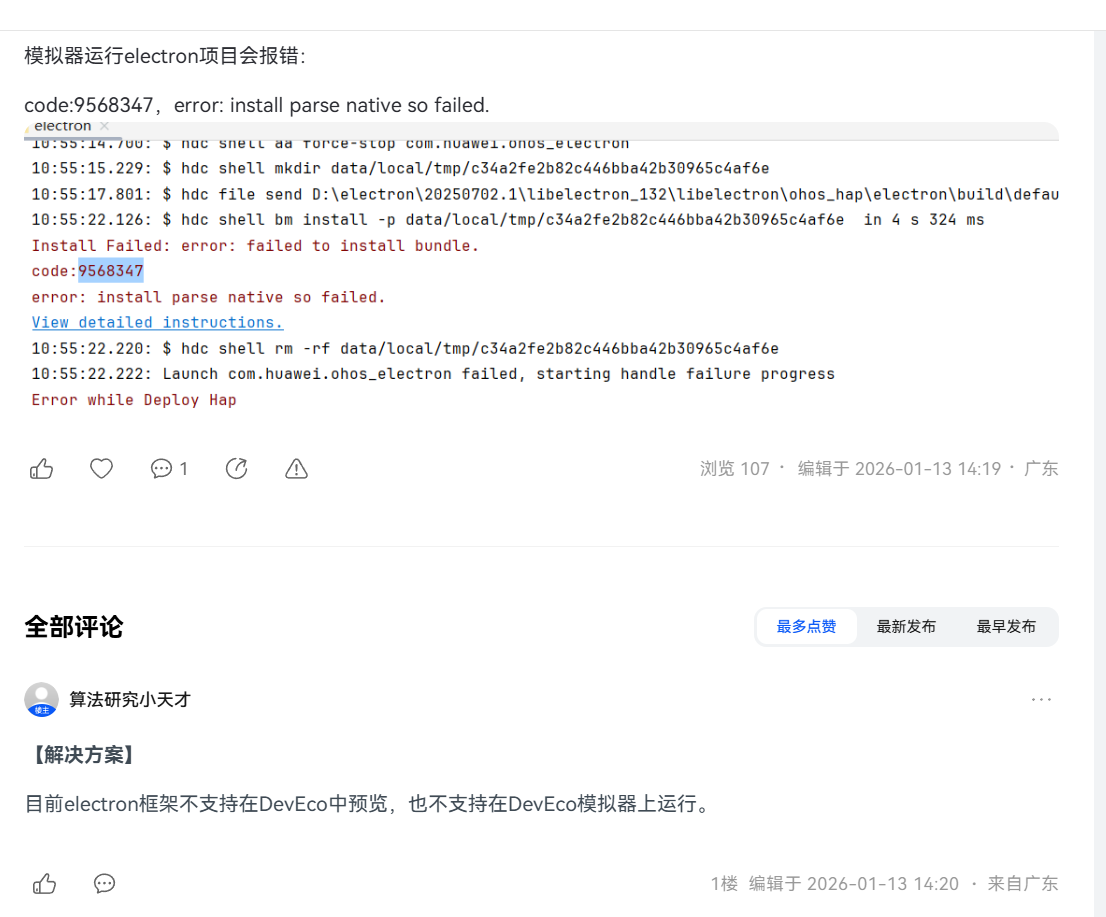
实际测试情况: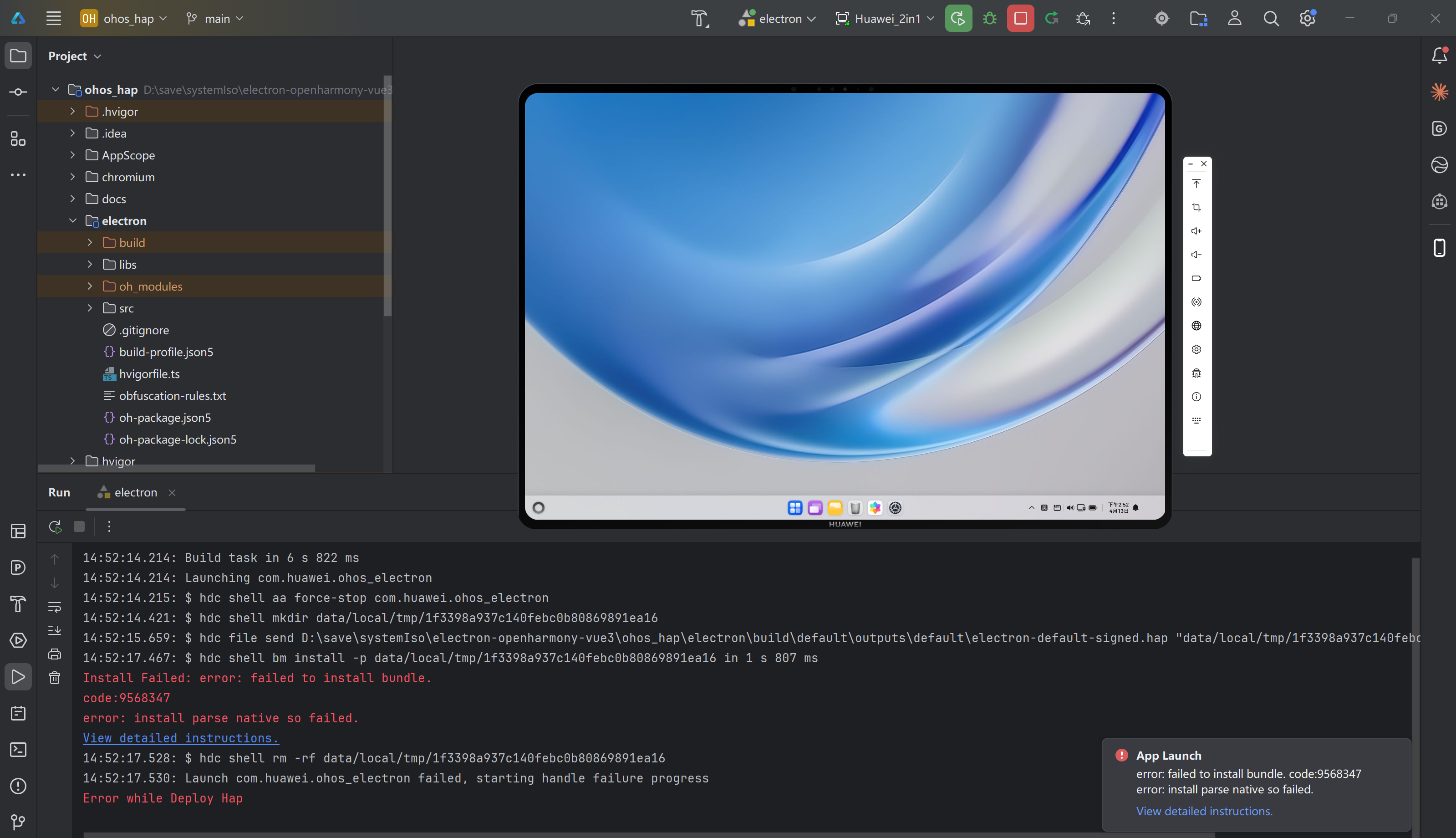
就是跑不起来,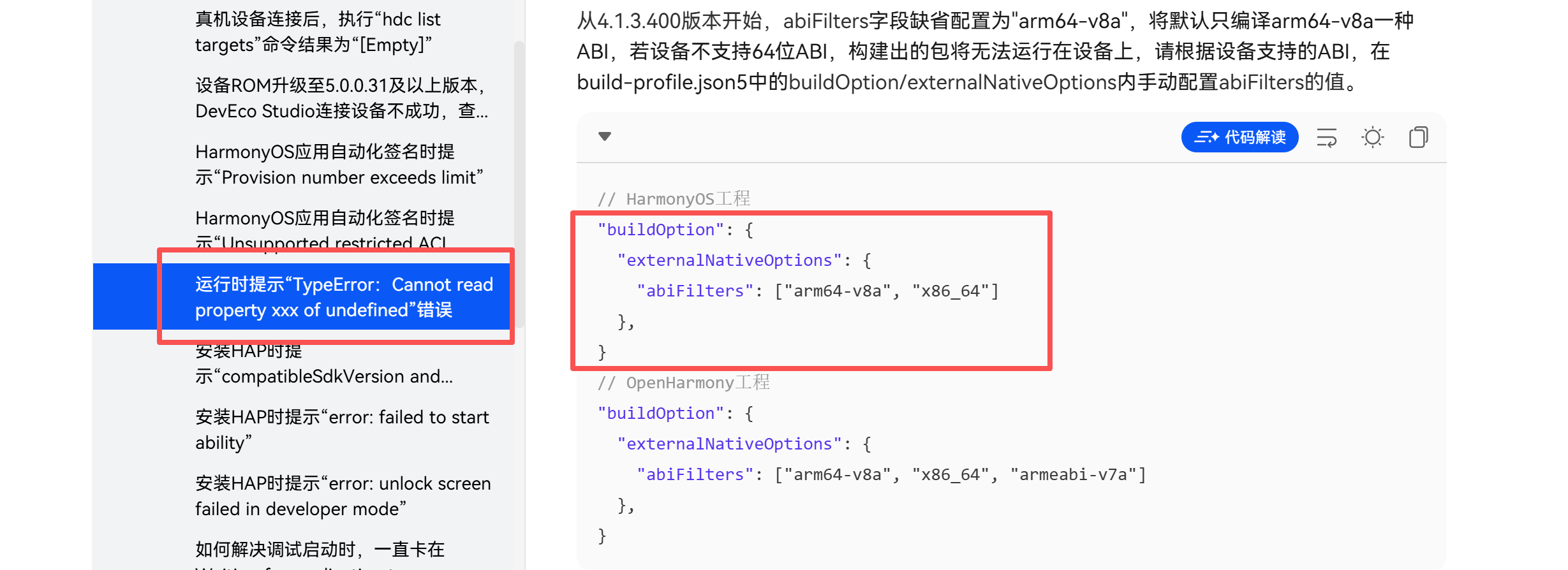
让我们添加一下,我去添加。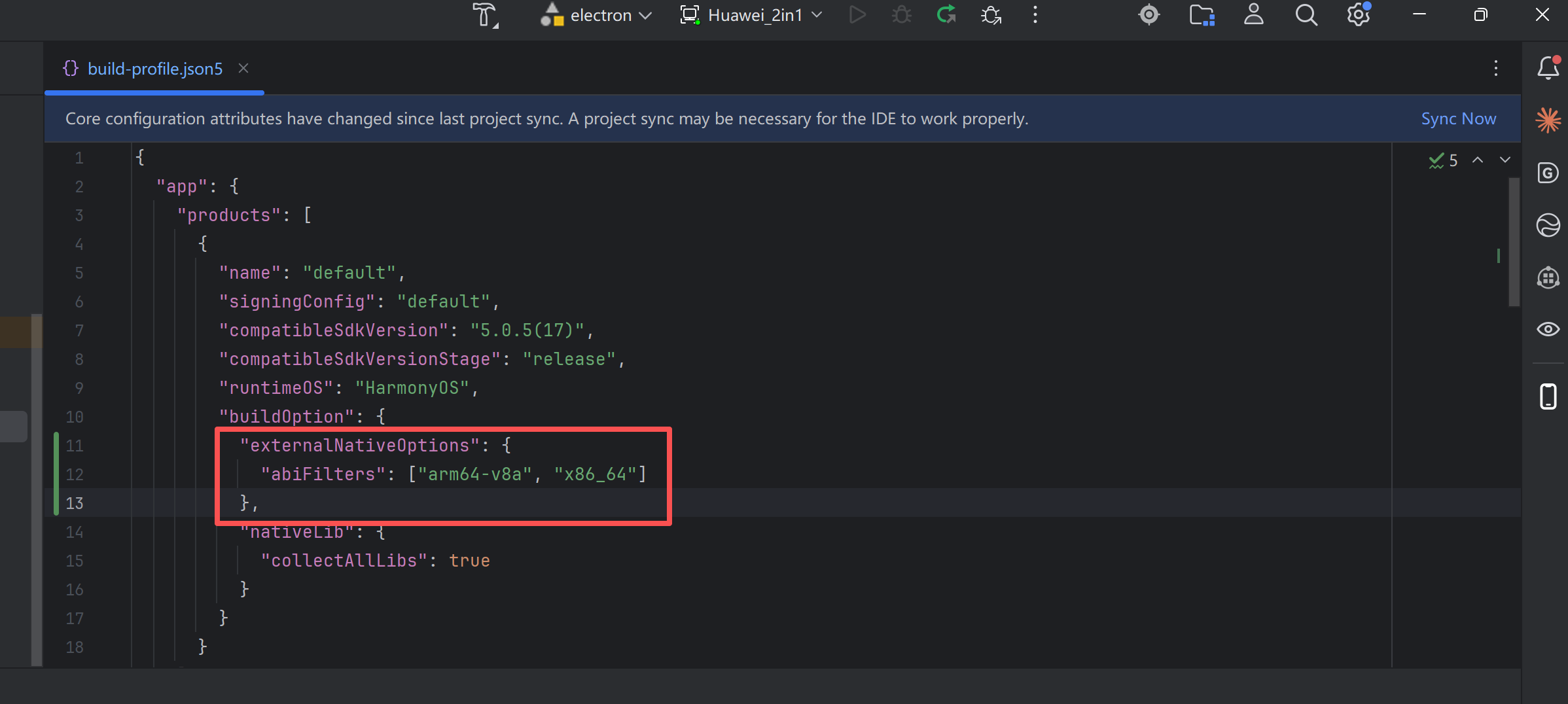
同步看效果,说是Not Found,那就是没有呗。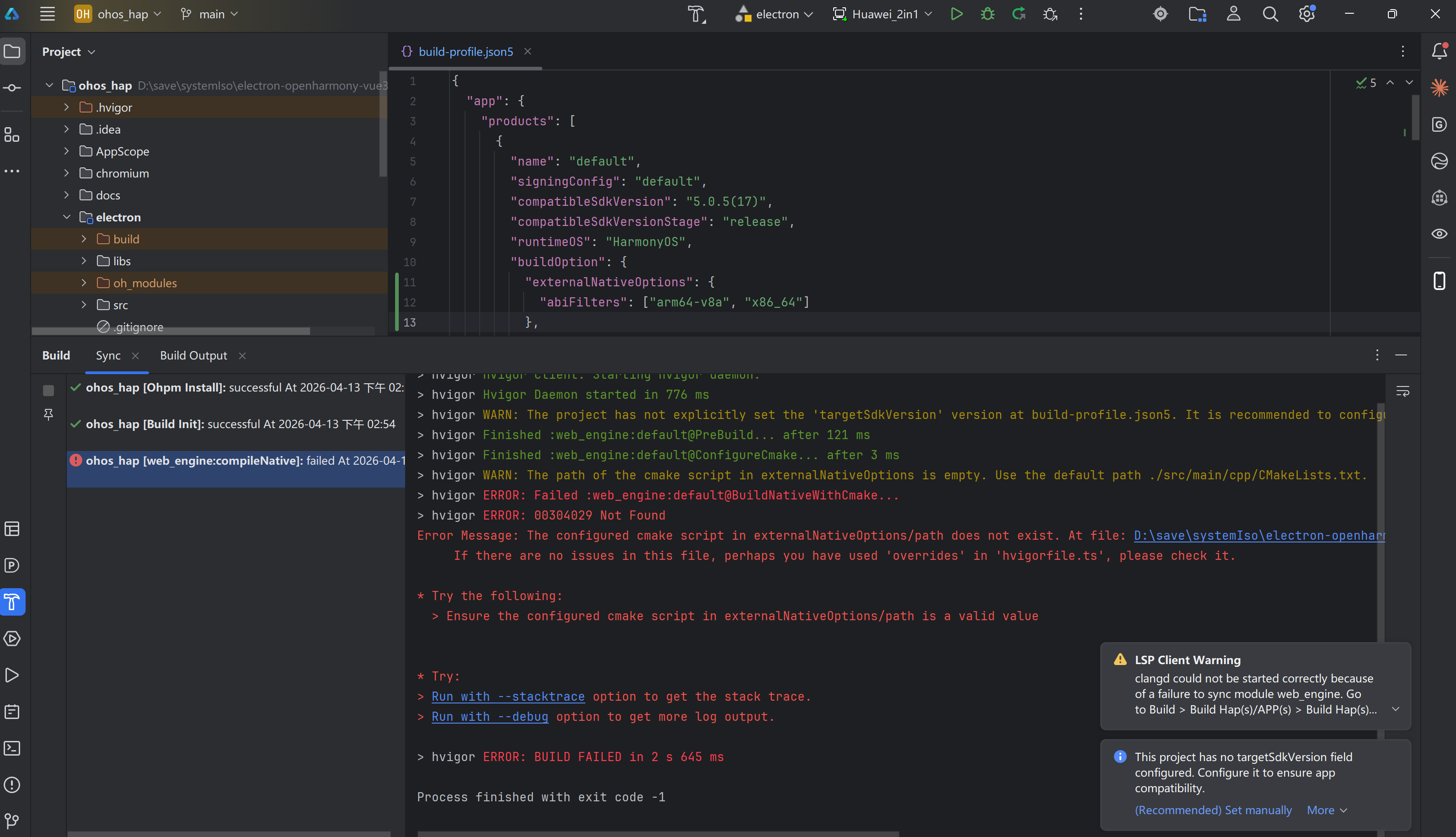
我找人问了,确认暂时是虚拟机不行的。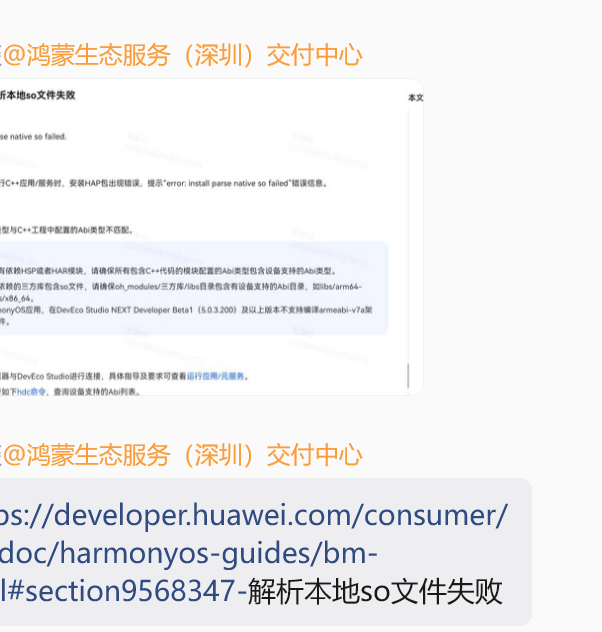
1.3 真机安装测试
这是运行情况直接编译完成安装。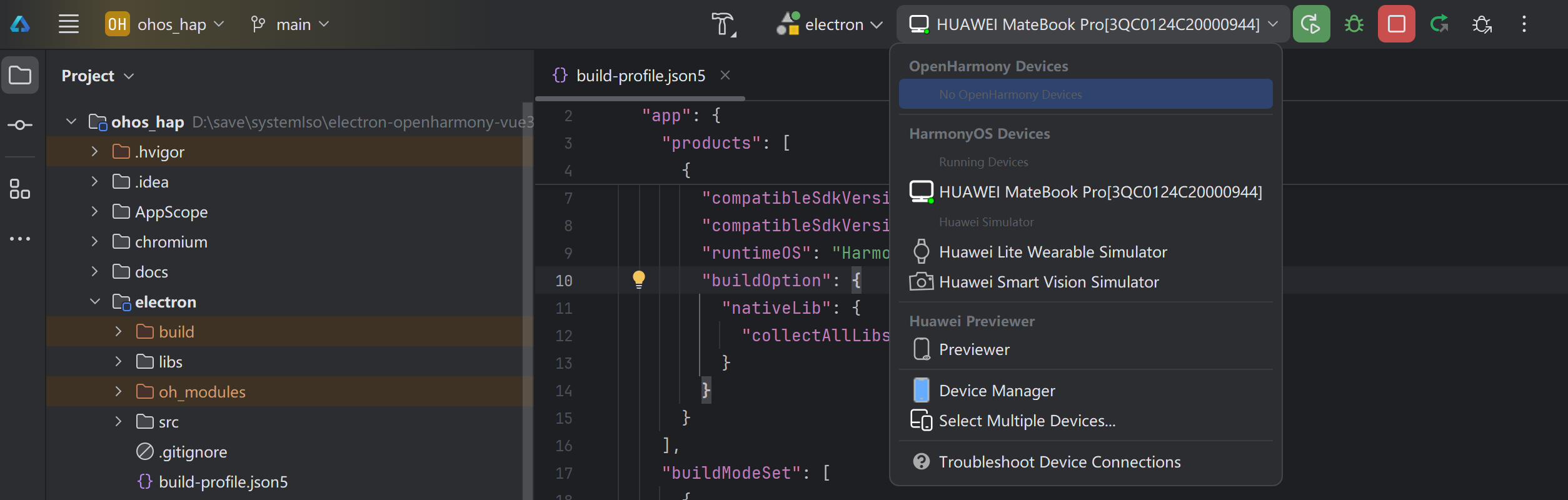
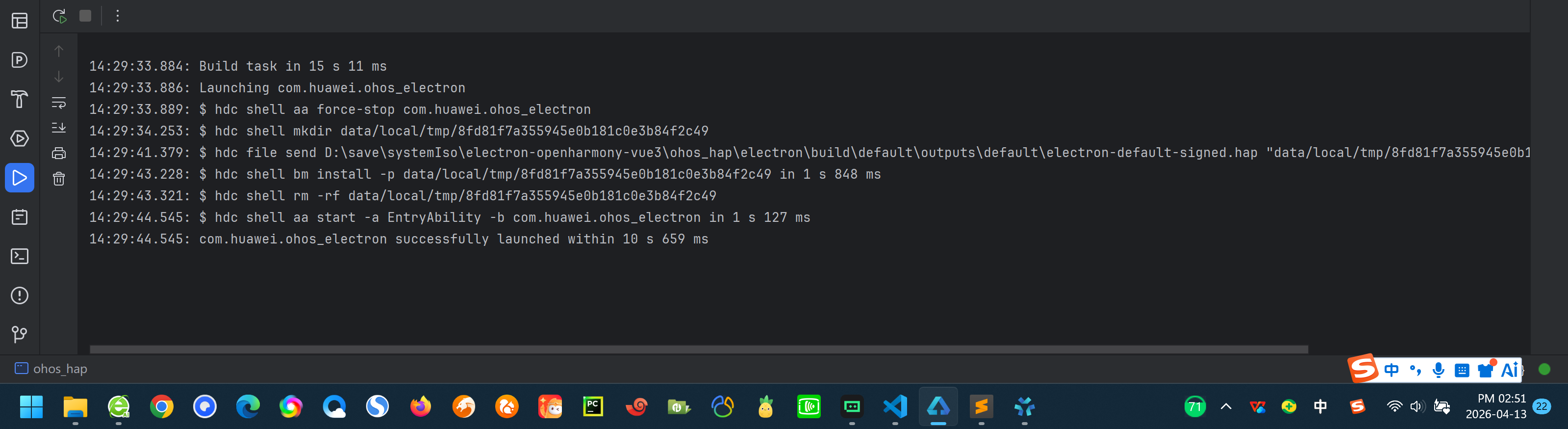
真机运行效果: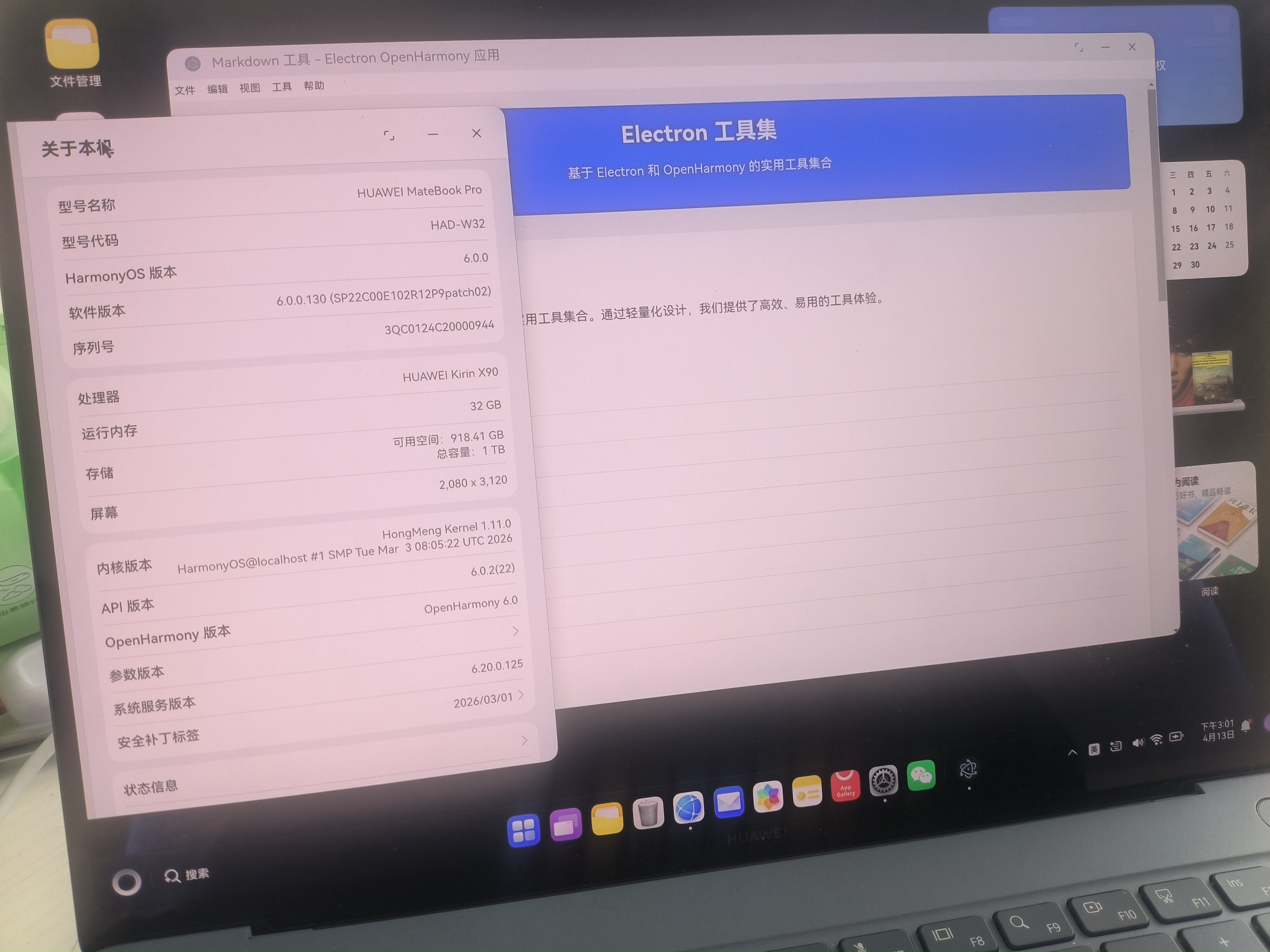
二、英语单词记忆卡实战项目开发
2.1Electron技术栈
| 技术 | 版本 | 用途 |
|---|---|---|
| HTML5 | - | 页面结构 |
| CSS3 | - | 样式设计 |
| JavaScript | ES6+ | 应用逻辑 |
| Electron | HarmonyOS 定制版 | 运行时环境 |
| 本地存储 | localStorage | 存储单词数据 |
| ArkTS | - | 鸿蒙原生能力 |
2.2 核心文件说明
| 文件路径 | 功能 |
|---|---|
ohos_hap/web_engine/src/main/resources/resfile/resources/app/main.js |
Electron 主进程,负责创建窗口、菜单栏等 |
ohos_hap/web_engine/src/main/resources/resfile/resources/app/preload.js |
桥接脚本,用于主进程和渲染进程之间的通信 |
ohos_hap/web_engine/src/main/resources/resfile/resources/app/index.html |
应用主页面 |
ohos_hap/web_engine/src/main/resources/resfile/resources/app/vocabulary.html |
英语单词记忆卡页面 |
ohos_hap/web_engine/src/main/resources/resfile/resources/app/vocabulary.json |
英语4级单词数据,包含分类信息 |
3. 核心功能实现
3.1 中文菜单栏实现
在 main.js 文件中,我们实现了中文菜单栏,包括文件、编辑、视图、工具和帮助五个主要菜单项,并添加了英语单词记忆卡的入口:
文件路径: ohos_hap/web_engine/src/main/resources/resfile/resources/app/main.js
// 创建中文菜单栏
const template = [
    {
        label: '文件',
        submenu: [
            {
                label: '新建',
                accelerator: 'CmdOrCtrl+N',
                click: () => {
                    console.log('新建');
                }
            },
            // 其他菜单项...
        ]
    },
    // 其他菜单项...
    {
        label: '工具',
        submenu: [
            {
                label: 'Markdown 编辑器',
                click: () => {
                    mainWindow?.loadFile(path.join(__dirname, 'markdown.html'));
                }
            },
            {
                label: '英语单词记忆卡',
                click: () => {
                    mainWindow?.loadFile(path.join(__dirname, 'vocabulary.html'));
                }
            }
        ]
    },
    // 帮助菜单项...
];

const menu = Menu.buildFromTemplate(template);
Menu.setApplicationMenu(menu);
3.2 单词数据结构设计
我们创建了一个包含分类信息的英语4级单词数据文件,方便按类别学习:
文件路径: ohos_hap/web_engine/src/main/resources/resfile/resources/app/vocabulary.json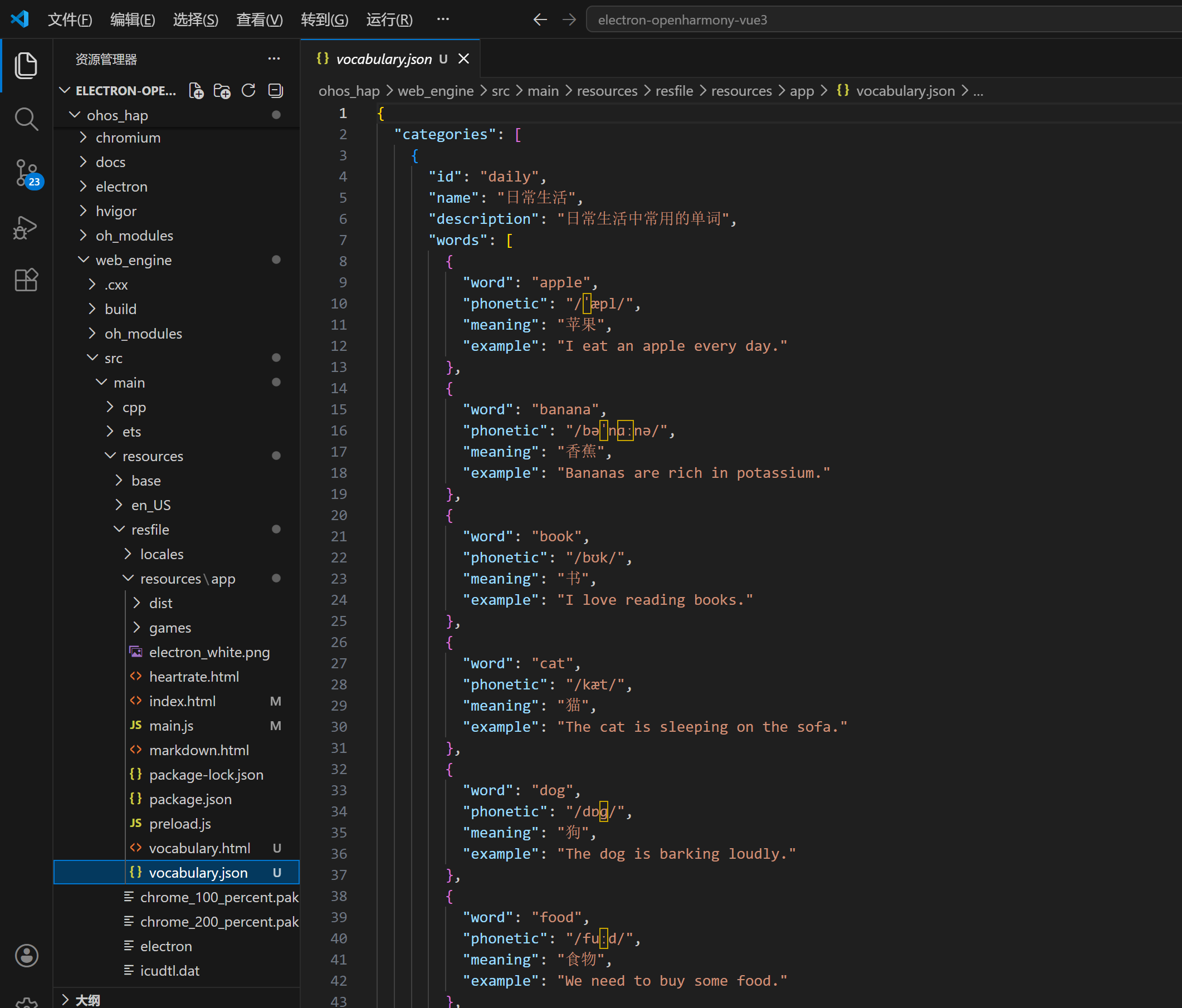
{
  "categories": [
    {
      "id": "daily",
      "name": "日常生活",
      "description": "日常生活中常用的单词",
      "words": [
        {
          "word": "apple",
          "phonetic": "/ˈæpl/",
          "meaning": "苹果",
          "example": "I eat an apple every day."
        },
        // 其他单词...
      ]
    },
    // 其他分类...
  ]
}
3.3 单词卡片翻转动画
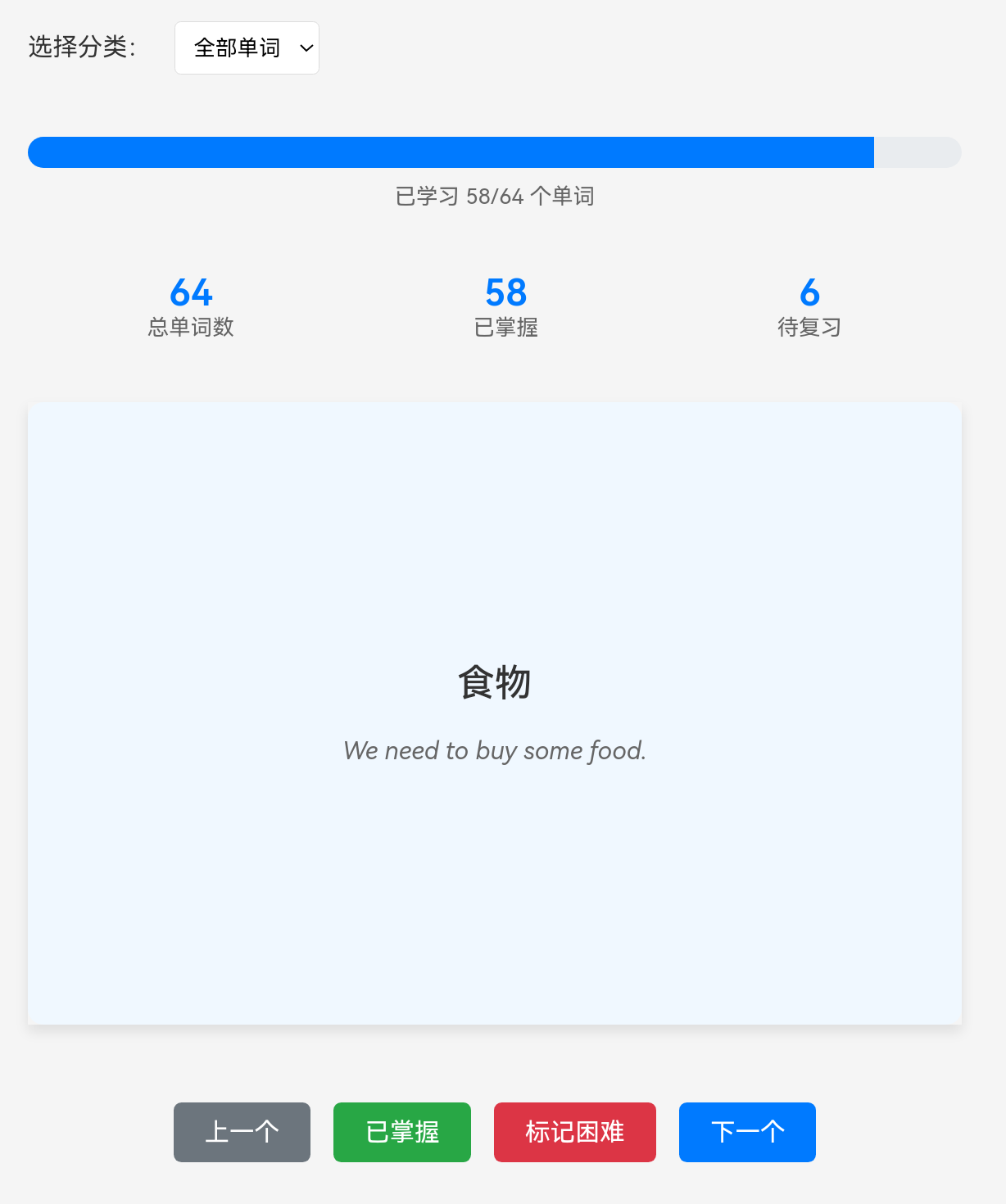
实现了单词卡片的翻转动画,使用 CSS 3D 变换和过渡效果,让用户可以通过点击卡片来翻转查看单词的释义:
文件路径: ohos_hap/web_engine/src/main/resources/resfile/resources/app/vocabulary.html
.card {
    width: 100%;
    height: 100%;
    position: relative;
    transform-style: preserve-3d;
    transition: transform 0.6s;
    cursor: pointer;
    box-shadow: 0 4px 8px rgba(0,0,0,0.1);
}

.card.flipped {
    transform: rotateY(180deg);
}

.card-front,
.card-back {
    width: 100%;
    height: 100%;
    position: absolute;
    backface-visibility: hidden;
    border-radius: 10px;
    display: flex;
    flex-direction: column;
    align-items: center;
    justify-content: center;
    padding: 40px;
}

.card-front {
    background-color: white;
}

.card-back {
    background-color: #f0f8ff;
    transform: rotateY(180deg);
}
// 翻转卡片
function flipCard() {
    const card = document.getElementById('card');
    card.classList.toggle('flipped');
    isFlipped = !isFlipped;
}
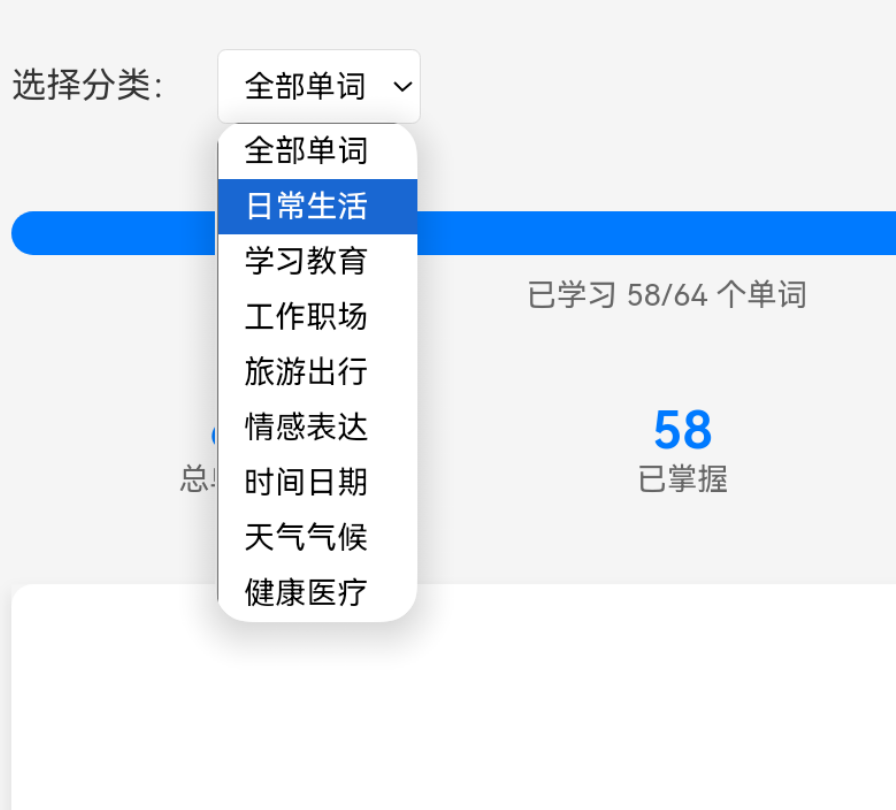
3.4 单词分类功能
实现了单词分类功能,允许用户按类别查看和学习单词:
文件路径: ohos_hap/web_engine/src/main/resources/resfile/resources/app/vocabulary.html
// 加载分类数据
function loadCategories() {
    fetch('vocabulary.json')
        .then(response => response.json())
        .then(data => {
            categories = data.categories;
            // 初始化单词数据
            if (words.length === 0) {
                categories.forEach(category => {
                    category.words.forEach(word => {
                        words.push({
                            ...word,
                            category: category.id,
                            learned: false,
                            difficult: false,
                            lastReviewed: null
                        });
                    });
                });
                saveWords();
            }
            updateCategorySelector();
            selectCategory();
        })
        .catch(error => {
            console.error('加载分类数据失败:', error);
            // 使用默认数据
            // ...
        });
}

// 选择分类
function selectCategory() {
    const categorySelect = document.getElementById('categorySelect');
    currentCategory = categorySelect.value;

    if (currentCategory === 'all') {
        filteredWords = words;
    } else {
        filteredWords = words.filter(word => word.category === currentCategory);
    }

    currentIndex = 0;
    updateStats();
    showCurrentWord();
}
3.5 单词数据管理
实现了单词数据的管理功能,包括添加、编辑、删除单词,以及将单词数据存储到本地存储中:
文件路径: ohos_hap/web_engine/src/main/resources/resfile/resources/app/vocabulary.html
// 添加单词
function addWord() {
    const word = document.getElementById('newWord').value.trim();
    const phonetic = document.getElementById('newPhonetic').value.trim();
    const meaning = document.getElementById('newMeaning').value.trim();
    const example = document.getElementById('newExample').value.trim();
    const category = document.getElementById('newCategory').value;

    if (word && meaning) {
        words.push({
            word,
            phonetic,
            meaning,
            example,
            category,
            learned: false,
            difficult: false,
            lastReviewed: null
        });

        // 清空表单
        document.getElementById('newWord').value = '';
        document.getElementById('newPhonetic').value = '';
        document.getElementById('newMeaning').value = '';
        document.getElementById('newExample').value = '';

        saveWords();
        selectCategory();
    }
}

// 编辑单词
function editWord(wordToEdit, categoryToEdit) {
    const word = words.find(w => w.word === wordToEdit && w.category === categoryToEdit);
    if (word) {
        document.getElementById('newWord').value = word.word;
        document.getElementById('newPhonetic').value = word.phonetic;
        document.getElementById('newMeaning').value = word.meaning;
        document.getElementById('newExample').value = word.example;
        document.getElementById('newCategory').value = word.category;

        // 删除原单词
        const index = words.findIndex(w => w.word === wordToEdit && w.category === categoryToEdit);
        if (index !== -1) {
            words.splice(index, 1);
            saveWords();
            selectCategory();
        }
    }
}

// 删除单词
function deleteWord(wordToDelete, categoryToDelete) {
    if (confirm('确定要删除这个单词吗?')) {
        const index = words.findIndex(w => w.word === wordToDelete && w.category === categoryToDelete);
        if (index !== -1) {
            words.splice(index, 1);
            saveWords();
            selectCategory();
        }
    }
}
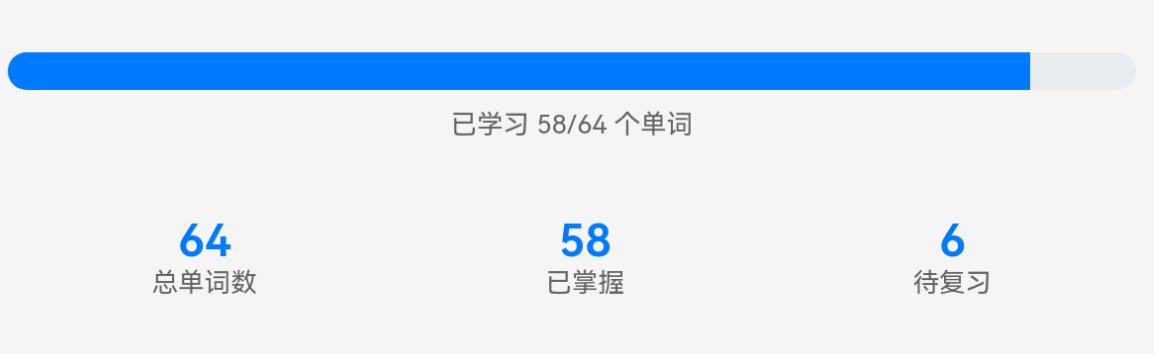
3.6 学习进度跟踪
实现了学习进度的跟踪功能,包括已掌握和困难单词的标记,以及学习统计信息的显示:
文件路径: ohos_hap/web_engine/src/main/resources/resfile/resources/app/vocabulary.html

// 标记为已掌握
function markLearned() {
    if (filteredWords.length === 0) return;

    const currentWord = filteredWords[currentIndex];
    const originalIndex = words.findIndex(word => word.word === currentWord.word && word.category === currentWord.category);
    if (originalIndex !== -1) {
        words[originalIndex].learned = true;
        words[originalIndex].difficult = false;
        words[originalIndex].lastReviewed = new Date().toISOString();
        saveWords();
        updateStats();
        nextCard();
    }
}

// 标记为困难
function markDifficult() {
    if (filteredWords.length === 0) return;

    const currentWord = filteredWords[currentIndex];
    const originalIndex = words.findIndex(word => word.word === currentWord.word && word.category === currentWord.category);
    if (originalIndex !== -1) {
        words[originalIndex].difficult = true;
        words[originalIndex].lastReviewed = new Date().toISOString();
        saveWords();
        updateStats();
        nextCard();
    }
}

// 更新统计信息
function updateStats() {
    const totalWords = filteredWords.length;
    const learnedWords = filteredWords.filter(word => word.learned).length;
    const reviewWords = filteredWords.filter(word => !word.learned).length;

    document.getElementById('totalWords').textContent = totalWords;
    document.getElementById('learnedWords').textContent = learnedWords;
    document.getElementById('reviewWords').textContent = reviewWords;

    // 更新进度条
    const progressPercentage = totalWords > 0 ? (learnedWords / totalWords) * 100 : 0;
    document.querySelector('.progress-fill').style.width = `${progressPercentage}%`;
    document.querySelector('.progress-text').textContent = `已学习 ${learnedWords}/${totalWords} 个单词`;

    // 更新单词列表
    updateWordList();
}
4. Electron 框架使用说明
4.1 Electron 主进程配置
文件路径: ohos_hap/web_engine/src/main/resources/resfile/resources/app/main.js
Electron 主进程负责创建窗口、菜单栏等,是应用的入口点。以下是主要配置:
function createWindow() {
    mainWindow = new BrowserWindow({
        width: 1280,
        height: 800,
        minWidth: 800,
        minHeight: 600,
        webPreferences: {
            preload: path.join(__dirname, 'preload.js'),
            nodeIntegration: false,
            contextIsolation: true
        }
    });

    mainWindow.setWindowButtonVisibility(true);

    // 创建中文菜单栏
    // ... 菜单栏代码 ...

    // 加载默认的HTML文件
    mainWindow.loadFile(path.join(__dirname, 'index.html'));

    mainWindow.on('closed', () => {
        mainWindow = null;
    });
}
4.2 桥接脚本实现
文件路径: ohos_hap/web_engine/src/main/resources/resfile/resources/app/preload.js
桥接脚本用于主进程和渲染进程之间的通信,暴露原生能力给前端代码:
const { contextBridge, ipcRenderer } = require('electron');

// 向渲染进程暴露鸿蒙原生能力
contextBridge.exposeInMainWorld('ohos', {
    // 系统信息
    getSystemInfo: () => ipcRenderer.invoke('ohos:getSystemInfo'),

    // 文件操作
    showOpenDialog: (options) => ipcRenderer.invoke('ohos:showOpenDialog', options),
    showSaveDialog: (options) => ipcRenderer.invoke('ohos:showSaveDialog', options),

    // 通知
    showNotification: (title, body) => ipcRenderer.invoke('ohos:showNotification', { title, body }),

    // 剪贴板
    clipboard: {
        read: () => ipcRenderer.invoke('ohos:clipboard:read'),
        write: (text) => ipcRenderer.invoke('ohos:clipboard:write', text)
    },

    // 窗口控制
    window: {
        minimize: () => ipcRenderer.invoke('ohos:window:minimize'),
        maximize: () => ipcRenderer.invoke('ohos:window:maximize'),
        close: () => ipcRenderer.invoke('ohos:window:close')
    }
});
5.2 单词分类功能
挑战:如何实现单词分类功能,确保用户可以按类别学习单词。
解决方案:
- 创建包含分类信息的 JSON 数据文件
- 实现分类选择器,允许用户选择不同的分类
- 实现按分类过滤单词的功能
- 在单词管理界面添加分类选择功能
5.3 本地存储管理
挑战:如何有效地管理本地存储,确保单词数据的持久化和安全性。
解决方案:
- 使用
localStorage存储单词数据 - 在每次数据变更后调用
saveWords()保存数据 - 在应用启动时调用
loadWords()加载数据 - 确保数据结构的一致性和完整性
5.4 响应式设计
挑战:如何确保应用在不同屏幕尺寸下都能正常显示。
解决方案:
- 使用
flex布局实现响应式设计 - 设置合理的最小和最大宽度
- 确保卡片和控件在不同屏幕尺寸下都能正常显示
- 优化移动端的触摸交互
6. 功能测试
6.1 基本功能测试
| 测试项 | 预期结果 | 实际结果 |
|---|---|---|
| 打开记忆卡 | 成功打开英语单词记忆卡 | ✅ |
| 卡片翻转 | 点击卡片可以翻转查看释义 | ✅ |
| 浏览单词 | 可以切换上一个和下一个单词 | ✅ |
| 标记单词 | 可以标记单词为已掌握或困难 | ✅ |
| 管理单词 | 可以添加、编辑和删除单词 | ✅ |
| 分类功能 | 可以按分类查看和学习单词 | ✅ |
| 统计信息 | 正确显示学习统计信息 | ✅ |
6.2 数据持久化测试
| 测试项 | 预期结果 | 实际结果 |
|---|---|---|
| 数据保存 | 单词数据能够正确保存到本地存储 | ✅ |
| 数据加载 | 应用重启后能够正确加载保存的单词数据 | ✅ |
| 数据完整性 | 数据结构完整,没有丢失 | ✅ |
6.3 界面测试
| 测试项 | 预期结果 | 实际结果 |
|---|---|---|
| 中文界面 | 显示中文菜单项和界面元素 | ✅ |
| 响应式设计 | 在不同屏幕尺寸下正常显示 | ✅ |
| 动画效果 | 卡片翻转动画流畅 | ✅ |
| 交互体验 | 按钮和控件响应及时 | ✅ |
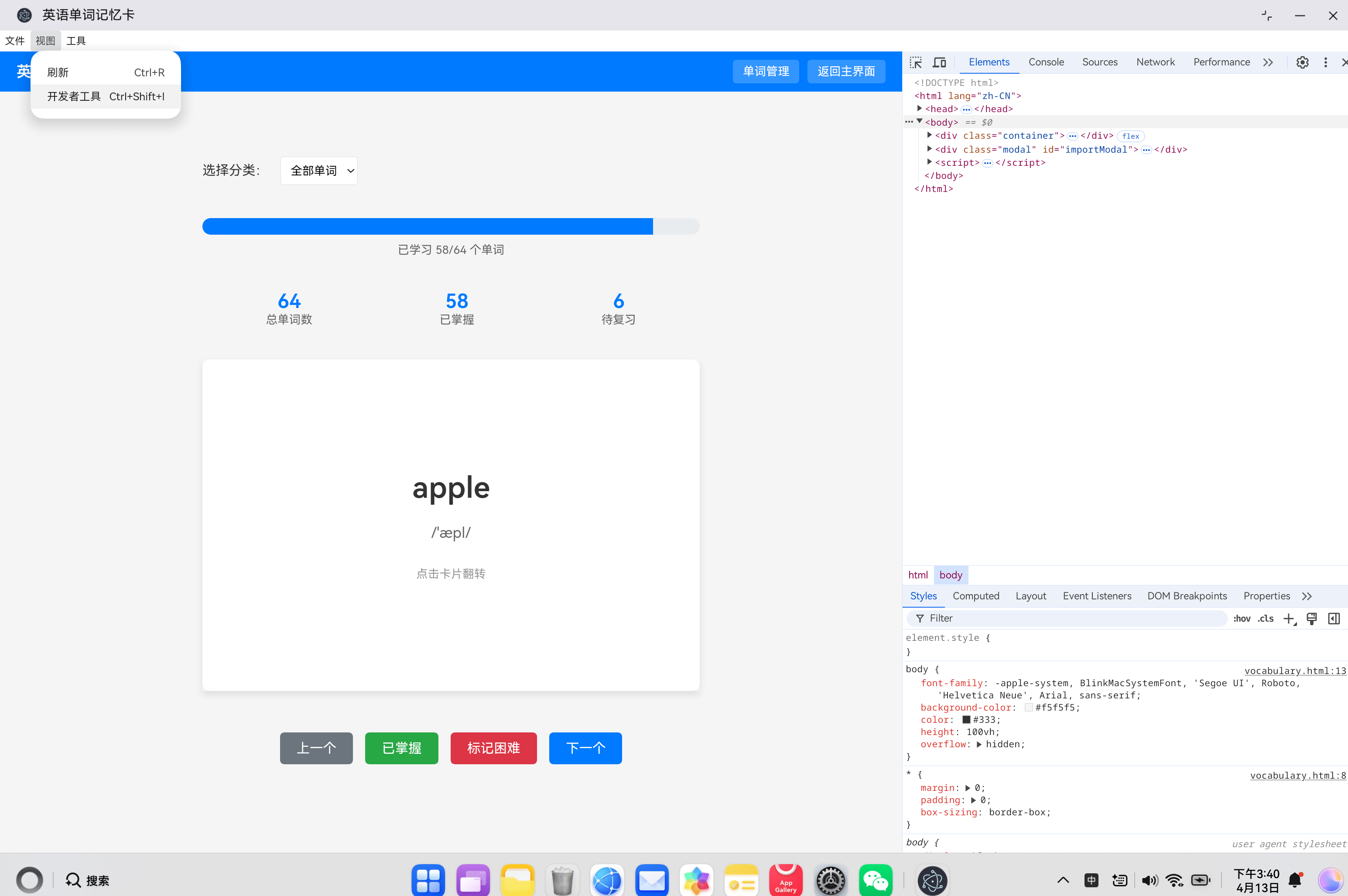
6.4 Electron 框架自带【开发者工具】
7. 未来扩展计划
7.1 功能扩展
- 单词导入/导出:支持从文件导入单词和导出单词到文件
- 单词分类管理:支持添加、编辑和删除单词分类
- 学习计划:添加学习计划功能,设置每日学习目标
- 复习提醒:根据艾宾浩斯遗忘曲线设置复习提醒
- 发音功能:添加单词发音功能,帮助用户学习正确发音
- 测试模式:添加单词测试功能,检验学习效果
- 云同步:支持将单词数据同步到云端,实现多设备同步
- 主题切换:添加深色模式和浅色模式切换功能
8. 总结与优劣分析
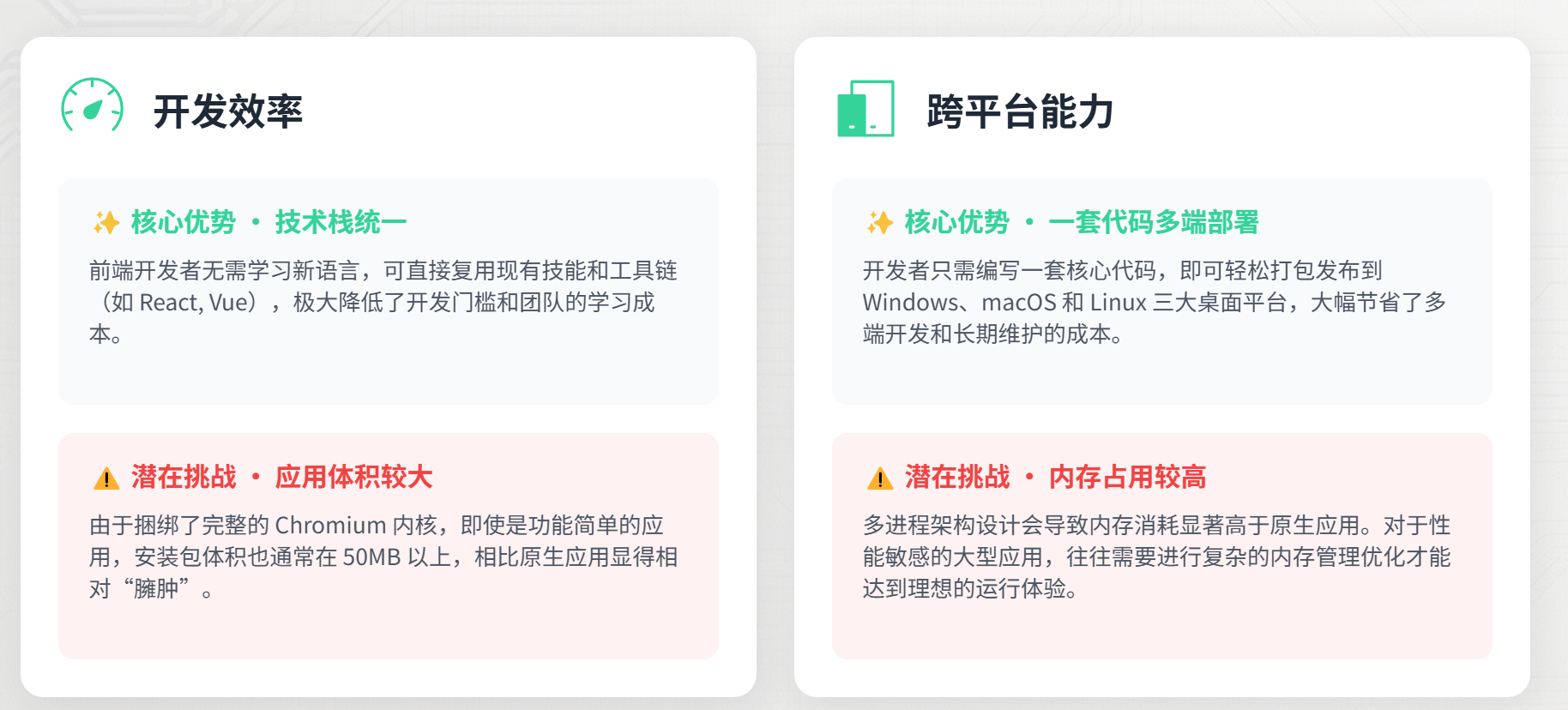
通过本项目的开发,我们成功在鸿蒙平台上实现了一款功能完整、界面美观的英语单词记忆卡应用。项目使用了 HTML5 + CSS3 + JavaScript 技术栈,运行在 Electron (HarmonyOS 真机) 上,支持中文界面和中文菜单栏。
本项目的开发过程中,我们遇到了一些挑战,如卡片翻转动画、单词分类功能、本地存储管理和响应式设计,但通过合理的设计和实现,我们成功解决了这些问题。
未来,我们计划进一步扩展功能,优化技术实现,使工具更加完善和实用。同时,我们也希望通过本项目的开发,为鸿蒙平台的应用开发提供一些参考和借鉴。

作为“人工智能6S店”的官方数字引擎,为AI开发者与企业提供一个覆盖软硬件全栈、一站式门户。
更多推荐


 1
1 0
0- 0


 已为社区贡献37条内容

所有评论(0)