
鸿蒙flutter第三方库适配 - 图片压缩工具
运行效果图图片压缩工具是一款高效实用的图片处理应用,帮助用户批量压缩图片以节省存储空间。应用支持自定义压缩质量、尺寸调整、多格式输出等功能,让用户能够根据不同需求灵活处理图片。压缩后的图片可一键保存到相册或分享给好友,操作简单便捷。应用以清新的青色为主色调,象征高效与简洁。涵盖压缩、批量、历史、设置四大模块。用户可以轻松选择图片、设置压缩参数、批量处理、管理压缩历史,实现图片的高效管理。序号质量名
图片压缩工具应用
欢迎加入开源鸿蒙跨平台社区:
https://openharmonycrossplatform.csdn.net
适配的第三方库地址:
- image_picker - 图片选择
- image - 图片处理(纯Dart库)
- image_gallery_saver - 图片保存
- share_plus - 分享功能
一、项目概述
运行效果图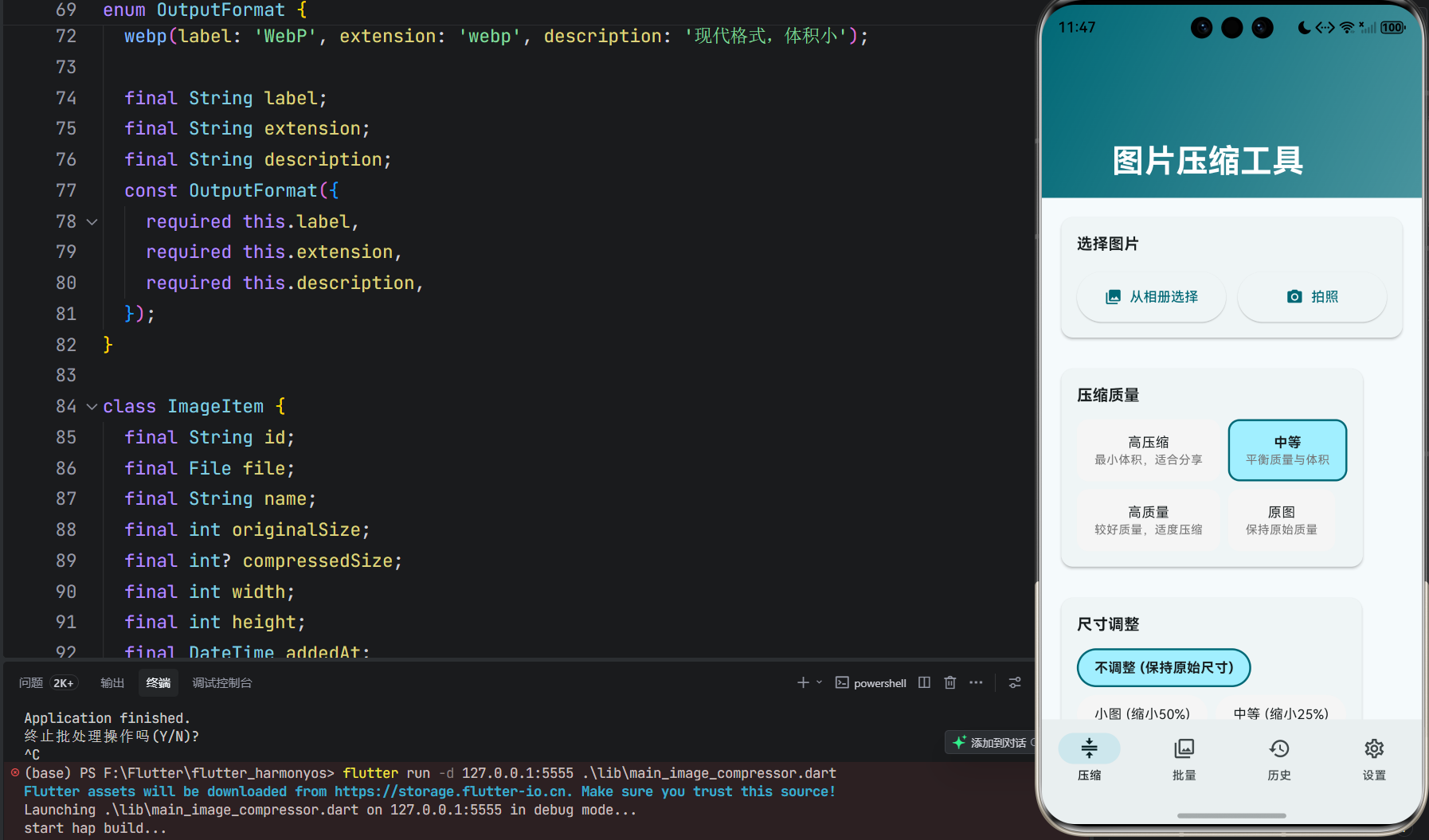
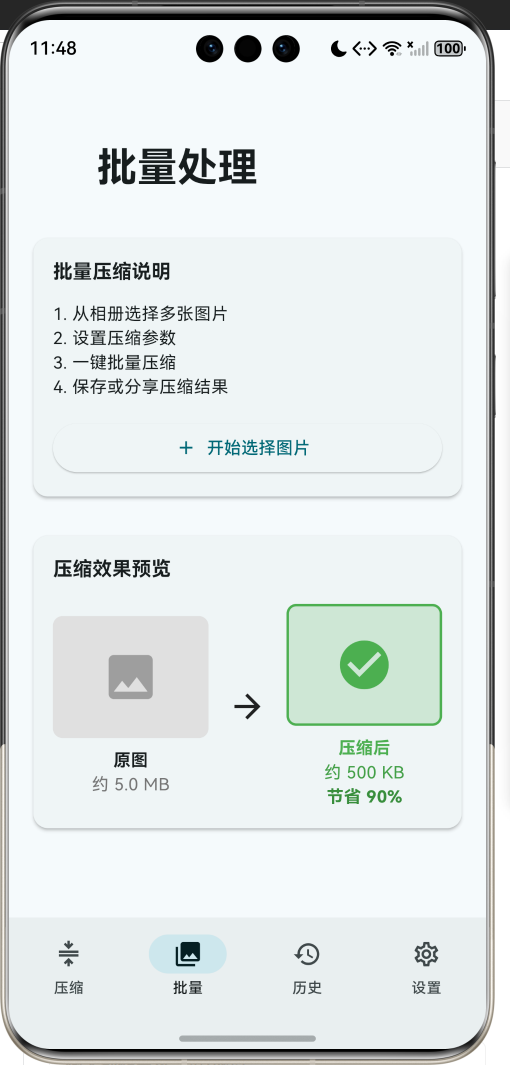
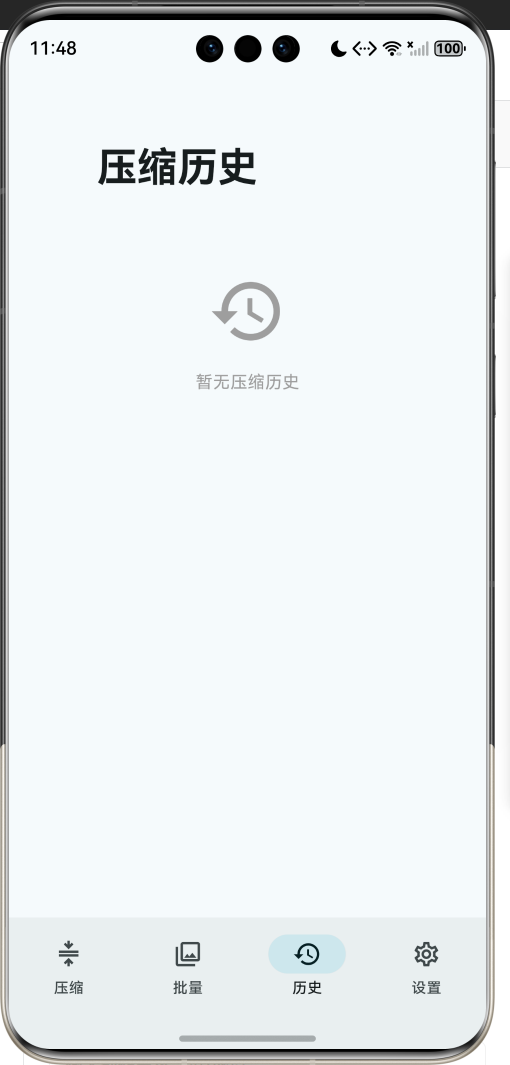
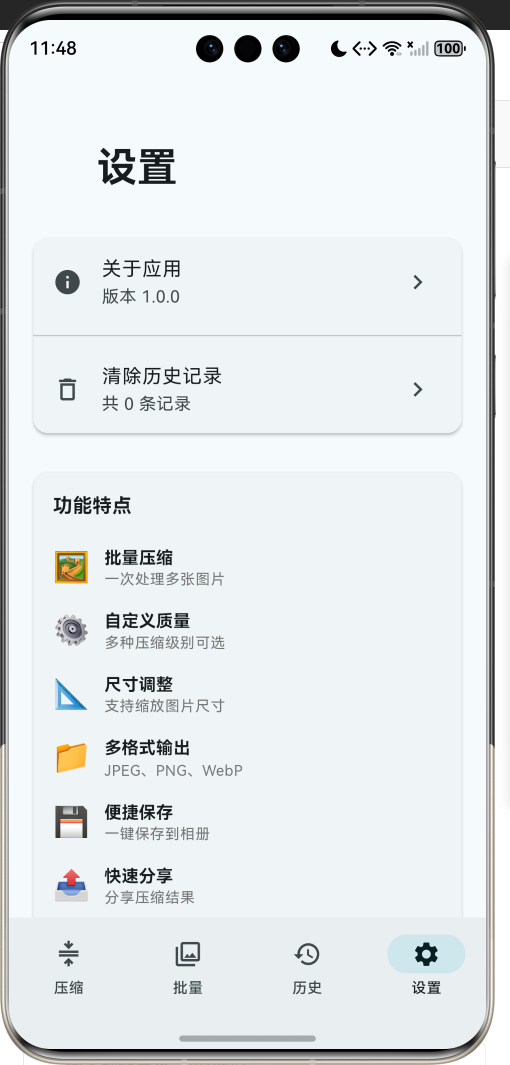
1.1 应用简介
图片压缩工具是一款高效实用的图片处理应用,帮助用户批量压缩图片以节省存储空间。应用支持自定义压缩质量、尺寸调整、多格式输出等功能,让用户能够根据不同需求灵活处理图片。压缩后的图片可一键保存到相册或分享给好友,操作简单便捷。
应用以清新的青色为主色调,象征高效与简洁。涵盖压缩、批量、历史、设置四大模块。用户可以轻松选择图片、设置压缩参数、批量处理、管理压缩历史,实现图片的高效管理。
1.2 核心功能
| 功能模块 | 功能描述 | 实现方式 |
|---|---|---|
| 图片选择 | 从相册选择或拍照获取图片 | image_picker |
| 批量压缩 | 一次处理多张图片 | 批量处理 |
| 质量设置 | 高压缩、中等、高质量、原图 | 质量参数 |
| 尺寸调整 | 不调整、小图、中等、大图 | 缩放比例 |
| 格式转换 | JPEG、PNG、WebP输出 | 格式编码 |
| 保存相册 | 将压缩图片保存到相册 | image_gallery_saver |
| 分享功能 | 分享压缩后的图片 | share_plus |
| 历史记录 | 查看压缩历史和效果 | 本地存储 |
| 压缩统计 | 显示压缩前后大小对比 | 数据计算 |
1.3 压缩质量定义
| 序号 | 质量名称 | 质量值 | 描述 | 适用场景 |
|---|---|---|---|---|
| 1 | 高压缩 | 30 | 最小体积,适合分享 | 社交媒体分享 |
| 2 | 中等 | 60 | 平衡质量与体积 | 日常使用 |
| 3 | 高质量 | 85 | 较好质量,适度压缩 | 保存留念 |
| 4 | 原图 | 100 | 保持原始质量 | 无损备份 |
1.4 尺寸调整模式
| 序号 | 模式名称 | 缩放比例 | 描述 | 适用场景 |
|---|---|---|---|---|
| 1 | 不调整 | 100% | 保持原始尺寸 | 仅压缩质量 |
| 2 | 小图 | 50% | 缩小50% | 缩略图生成 |
| 3 | 中等 | 75% | 缩小25% | 适度缩小 |
| 4 | 大图 | 90% | 缩小10% | 微调尺寸 |
1.5 输出格式定义
| 序号 | 格式名称 | 扩展名 | 描述 | 特点 |
|---|---|---|---|---|
| 1 | JPEG | .jpg | 适合照片 | 压缩率高,有损 |
| 2 | PNG | .png | 适合图标、截图 | 无损,支持透明 |
| 3 | WebP | .webp | 现代格式 | 体积小,质量好 |
1.6 技术栈
| 技术领域 | 技术选型 | 版本要求 |
|---|---|---|
| 开发框架 | Flutter | >= 3.0.0 |
| 编程语言 | Dart | >= 2.17.0 |
| 设计规范 | Material Design 3 | - |
| 图片选择 | image_picker | >= 1.0.4 |
| 图片处理 | image | >= 4.1.7 |
| 图片保存 | image_gallery_saver | >= 2.0.3 |
| 分享功能 | share_plus | >= 7.2.2 |
| 目标平台 | 鸿蒙OS / Android / iOS | API 21+ |
1.7 项目结构
lib/
└── main_image_compressor.dart
    ├── ImageCompressorApp              # 应用入口
    ├── CompressionQuality              # 压缩质量枚举
    ├── ResizeMode                      # 尺寸调整枚举
    ├── OutputFormat                    # 输出格式枚举
    ├── ImageItem                       # 图片信息模型
    ├── ImageCompressorHomePage         # 主页面(底部导航)
    ├── _buildCompressPage              # 压缩页面
    ├── _buildBatchPage                 # 批量处理页
    ├── _buildHistoryPage               # 历史记录页
    ├── _buildSettingsPage              # 设置页
    ├── _compressSingleImage            # 单图压缩
    └── _buildImagePreviewCard          # 图片预览卡片
二、系统架构
2.1 整体架构图
2.2 类图设计
2.3 页面导航流程
2.4 图片压缩流程
三、核心模块设计
3.1 数据模型设计
3.1.1 压缩质量枚举 (CompressionQuality)
enum CompressionQuality {
  low(label: '高压缩', quality: 30, description: '最小体积,适合分享'),
  medium(label: '中等', quality: 60, description: '平衡质量与体积'),
  high(label: '高质量', quality: 85, description: '较好质量,适度压缩'),
  original(label: '原图', quality: 100, description: '保持原始质量');

  final String label;
  final int quality;
  final String description;
  const CompressionQuality({
    required this.label,
    required this.quality,
    required this.description,
  });
}
3.1.2 尺寸调整枚举 (ResizeMode)
enum ResizeMode {
  none(label: '不调整', scale: 1.0, description: '保持原始尺寸'),
  small(label: '小图', scale: 0.5, description: '缩小50%'),
  medium(label: '中等', scale: 0.75, description: '缩小25%'),
  large(label: '大图', scale: 0.9, description: '缩小10%');

  final String label;
  final double scale;
  final String description;
  const ResizeMode({
    required this.label,
    required this.scale,
    required this.description,
  });
}
3.1.3 图片信息模型 (ImageItem)
class ImageItem {
  final String id;
  final File file;
  final String name;
  final int originalSize;
  final int? compressedSize;
  final int width;
  final int height;
  final DateTime addedAt;
  final bool isCompressed;
  final String? compressedPath;

  double get compressionRatio {
    if (compressedSize == null || compressedSize == 0) return 0;
    return ((originalSize - compressedSize!) / originalSize * 100);
  }

  String get formattedOriginalSize => _formatFileSize(originalSize);
  String get formattedCompressedSize =>
      compressedSize != null ? _formatFileSize(compressedSize!) : '';
}
3.1.4 压缩质量使用分布
3.2 页面结构设计
3.2.1 主页面布局
3.2.2 压缩页结构
3.2.3 历史记录页结构
3.3 图片压缩逻辑
3.4 批量处理逻辑
四、UI设计规范
4.1 配色方案
应用以清新的青色为主色调,象征高效与简洁:
| 颜色类型 | 色值 | 用途 |
|---|---|---|
| 主色 | #00BCD4 (Cyan) | 导航、主题元素 |
| 辅助色 | #4DD0E1 | 次要按钮 |
| 第三色 | #B2EBF2 | 背景装饰 |
| 强调色 | #0097A7 | 重要操作 |
| 背景色 | #FAFAFA | 页面背景 |
| 卡片背景 | #FFFFFF | 信息卡片 |
| 成功色 | #4CAF50 | 压缩成功 |
| 警告色 | #FF9800 | 处理中 |
4.2 压缩状态配色
| 状态 | 色值 | 视觉效果 |
|---|---|---|
| 原图 | #F44336 | 红色 |
| 压缩后 | #4CAF50 | 绿色 |
| 节省空间 | #2196F3 | 蓝色 |
| 处理中 | #FF9800 | 橙色 |
4.3 字体规范
| 元素 | 字号 | 字重 | 颜色 |
|---|---|---|---|
| 页面标题 | 24px | Bold | 主色 |
| 文件大小 | 16px | Bold | 主色/绿色 |
| 文件名 | 14px | Bold | 黑色 |
| 描述文字 | 12px | Regular | 灰色 |
| 按钮文字 | 14px | Medium | 白色 |
| 统计数字 | 18px | Bold | 主题色 |
4.4 组件规范
4.4.1 图片选择区
┌─────────────────────────────────────┐
│  选择图片                              │
│                                     │
│  ┌─────────────┐  ┌─────────────┐  │
│  │  📷 从相册   │  │  📸 拍照    │  │
│  │    选择     │  │             │  │
│  └─────────────┘  └─────────────┘  │
│                                     │
│  已选择 3 张图片              [清空] │
└─────────────────────────────────────┘
4.4.2 已选图片预览
┌─────────────────────────────────────┐
│  已选图片                              │
│                                     │
│  ┌───┐ ┌───┐ ┌───┐ ┌───┐           │
│  │ ✕ │ │ ✕ │ │ ✕ │ │ ✕ │           │
│  │   │ │   │ │   │ │   │           │
│  │图片│ │图片│ │图片│ │图片│           │
│  │   │ │   │ │   │ │   │           │
│  └───┘ └───┘ └───┘ └───┘           │
│  2.5MB  1.8MB  3.2MB  1.5MB         │
│                                     │
│  ┌─────────────────────────────┐   │
│  │ 原始大小  压缩后  节省       │   │
│  │  8.0MB  →  2.0MB  75%      │   │
│  └─────────────────────────────┘   │
└─────────────────────────────────────┘
4.4.3 压缩质量选择
┌─────────────────────────────────────┐
│  压缩质量                              │
│                                     │
│  ┌────────┐ ┌────────┐ ┌────────┐  │
│  │ 高压缩 │ │  中等  │ │ 高质量 │  │
│  │最小体积│ │平衡质量│ │较好质量│  │
│  └────────┘ └────────┘ └────────┘  │
│                                     │
│  ┌────────┐                         │
│  │  原图  │                         │
│  │保持原质│                         │
│  └────────┘                         │
└─────────────────────────────────────┘
4.4.4 压缩进度
┌─────────────────────────────────────┐
│  ═══════════════════════════════    │
│  正在压缩 image_001.jpg (2/5)        │
└─────────────────────────────────────┘

┌─────────────────────────────────────┐
│         [🔄 开始压缩]                │
│                                     │
│         [💾 保存全部到相册]          │
└─────────────────────────────────────┘
4.4.5 历史记录卡片
┌─────────────────────────────────────┐
│  [图片]  image_001.jpg      💾  📤  │
│           5.0MB → 500KB             │
│           节省 90.0%                 │
└─────────────────────────────────────┘
五、核心功能实现
5.1 图片选择实现
Future<void> _pickImages() async {
  try {
    final List<XFile> images = await _imagePicker.pickMultiImage();
    if (images.isEmpty) return;

    for (var image in images) {
      final file = File(image.path);
      final bytes = await file.readAsBytes();
      final decodedImage = await decodeImageFromList(bytes);
      final stat = await file.stat();

      final imageItem = ImageItem(
        id: 'img_${DateTime.now().millisecondsSinceEpoch}_${image.name}',
        file: file,
        name: image.name,
        originalSize: stat.size,
        width: decodedImage.width,
        height: decodedImage.height,
        addedAt: DateTime.now(),
      );

      setState(() {
        _selectedImages.add(imageItem);
      });
    }
  } catch (e) {
    ScaffoldMessenger.of(context).showSnackBar(
      SnackBar(content: Text('选择图片失败: $e')),
    );
  }
}
5.2 图片压缩实现
Future<ImageItem> _compressSingleImage(ImageItem item, Directory outputDir) async {
  try {
    final bytes = await item.file.readAsBytes();
    final image = img.decodeImage(bytes);

    if (image == null) {
      throw Exception('无法解码图片');
    }

    img.Image processedImage = image;

    if (_resizeMode != ResizeMode.none) {
      final newWidth = (image.width * _resizeMode.scale).round();
      final newHeight = (image.height * _resizeMode.scale).round();
      processedImage = img.copyResize(image, width: newWidth, height: newHeight);
    }

    List<int> compressedBytes;
    String extension;

    switch (_outputFormat) {
      case OutputFormat.jpeg:
        compressedBytes = img.encodeJpg(processedImage, quality: _compressionQuality.quality);
        extension = 'jpg';
        break;
      case OutputFormat.png:
        compressedBytes = img.encodePng(processedImage, level: _compressionQuality.quality ~/ 10);
        extension = 'png';
        break;
      case OutputFormat.webp:
        compressedBytes = img.encodeJpg(processedImage, quality: _compressionQuality.quality);
        extension = 'webp';
        break;
    }

    final fileName = '${item.name.split('.').first}_compressed_$extension';
    final outputPath = '${outputDir.path}/$fileName';
    final outputFile = File(outputPath);
    await outputFile.writeAsBytes(compressedBytes);

    return item.copyWith(
      compressedSize: compressedBytes.length,
      isCompressed: true,
      compressedPath: outputPath,
    );
  } catch (e) {
    debugPrint('压缩图片失败: $e');
    return item;
  }
}
5.3 批量压缩实现
Future<void> _compressImages() async {
  if (_selectedImages.isEmpty) return;

  setState(() {
    _isProcessing = true;
    _processingProgress = 0;
    _processingStatus = '准备压缩...';
  });

  try {
    final tempDir = await getTemporaryDirectory();
    final outputDir = Directory('${tempDir.path}/compressed_images');
    if (!await outputDir.exists()) {
      await outputDir.create(recursive: true);
    }

    for (int i = 0; i < _selectedImages.length; i++) {
      final imageItem = _selectedImages[i];

      setState(() {
        _processingStatus = '正在压缩 ${imageItem.name} (${i + 1}/${_selectedImages.length})';
        _processingProgress = (i + 1) / _selectedImages.length;
      });

      final compressedItem = await _compressSingleImage(imageItem, outputDir);

      setState(() {
        _selectedImages[i] = compressedItem;
      });
    }

    setState(() {
      _isProcessing = false;
      _processingStatus = null;
      _compressedHistory.insertAll(0, _selectedImages.where((item) => item.isCompressed));
    });
  } catch (e) {
    setState(() {
      _isProcessing = false;
      _processingStatus = null;
    });
  }
}
5.4 保存图片实现
Future<void> _saveImage(ImageItem item) async {
  if (!item.isCompressed || item.compressedPath == null) return;

  try {
    final file = File(item.compressedPath!);
    final bytes = await file.readAsBytes();

    final result = await ImageGallerySaver.saveImage(
      bytes,
      quality: 100,
      name: 'compressed_${DateTime.now().millisecondsSinceEpoch}',
    );

    if (result['isSuccess'] == true) {
      ScaffoldMessenger.of(context).showSnackBar(
        const SnackBar(content: Text('图片已保存到相册')),
      );
    }
  } catch (e) {
    ScaffoldMessenger.of(context).showSnackBar(
      SnackBar(content: Text('保存失败: $e')),
    );
  }
}
5.5 分享图片实现
Future<void> _shareImage(ImageItem item) async {
  if (!item.isCompressed || item.compressedPath == null) return;

  try {
    await Share.shareXFiles(
      [XFile(item.compressedPath!)],
      text: '压缩图片: ${item.name}',
    );
  } catch (e) {
    ScaffoldMessenger.of(context).showSnackBar(
      SnackBar(content: Text('分享失败: $e')),
    );
  }
}
六、交互设计
6.1 图片选择流程
6.2 压缩处理流程
6.3 保存分享流程
七、扩展功能规划
7.1 后续版本规划
7.2 功能扩展建议
7.2.1 图片裁剪
裁剪功能:
- 自由裁剪
- 固定比例裁剪
- 旋转翻转
- 批量裁剪
7.2.2 滤镜效果
滤镜功能:
- 亮度对比度调整
- 色彩饱和度
- 模糊锐化
- 预设滤镜
7.2.3 水印添加
水印功能:
- 文字水印
- 图片水印
- 位置调整
- 透明度设置
八、注意事项
8.1 开发注意事项
-
内存管理:处理大图片时注意内存释放
-
权限申请:确保存储权限、相机权限正确申请
-
文件路径:使用正确的临时目录存储压缩文件
-
压缩质量:根据不同格式选择合适的压缩参数
-
错误处理:处理图片解码失败、文件读写异常
8.2 常见问题
| 问题 | 原因 | 解决方案 |
|---|---|---|
| 图片选择失败 | 权限未授予 | 引导用户授权 |
| 压缩失败 | 格式不支持 | 检查图片格式 |
| 保存失败 | 存储空间不足 | 提示清理空间 |
| 内存溢出 | 图片过大 | 分批处理 |
| 编码失败 | 格式参数错误 | 检查压缩参数 |
8.3 使用技巧
🖼️ 图片压缩工具使用技巧 🖼️
选择技巧
- 批量选择提高效率
- 注意图片格式兼容性
- 检查存储空间充足
- 预览压缩效果
压缩技巧
- 根据用途选择质量
- 社交分享用高压缩
- 保存留念用高质量
- 适当调整尺寸
管理技巧
- 定期清理历史记录
- 及时保存重要图片
- 合理使用批量功能
- 注意备份原图
九、运行说明
9.1 环境要求
| 环境 | 版本要求 |
|---|---|
| Flutter SDK | >= 3.0.0 |
| Dart SDK | >= 2.17.0 |
| 鸿蒙OS | API 21+ |
| Android | API 21+ |
| iOS | 12.0+ |
9.2 依赖配置
在 pubspec.yaml 中添加以下依赖:
dependencies:
  flutter:
    sdk: flutter
  image_picker: ^1.0.4
  image: ^4.1.7
  image_gallery_saver: ^2.0.3
  share_plus: ^7.2.2
  path_provider: ^2.1.4
9.3 运行命令
# 查看可用设备
flutter devices

# 运行到Web服务器
flutter run -d web-server -t lib/main_image_compressor.dart --web-port 8147

# 运行到鸿蒙设备
flutter run -d 127.0.0.1:5555 lib/main_image_compressor.dart

# 运行到Android设备
flutter run -d android lib/main_image_compressor.dart

# 代码分析
flutter analyze lib/main_image_compressor.dart
9.4 权限配置
Android权限 (android/app/src/main/AndroidManifest.xml)
<uses-permission android:name="android.permission.READ_EXTERNAL_STORAGE" />
<uses-permission android:name="android.permission.WRITE_EXTERNAL_STORAGE" />
<uses-permission android:name="android.permission.CAMERA" />
iOS权限 (ios/Runner/Info.plist)
<key>NSPhotoLibraryUsageDescription</key>
<string>需要相册权限选择和保存图片</string>
<key>NSCameraUsageDescription</key>
<string>需要相机权限拍摄照片</string>
<key>NSPhotoLibraryAddUsageDescription</key>
<string>需要相册权限保存压缩后的图片</string>
十、总结
图片压缩工具应用通过整合图片选择、批量压缩、格式转换、保存分享等功能,为用户提供了一站式的图片处理解决方案。应用支持高压缩、中等、高质量、原图四种压缩级别,以及不调整、小图、中等、大图四种尺寸模式,满足不同场景的压缩需求。
核心功能涵盖图片选择、批量压缩、质量设置、尺寸调整、格式转换、保存相册、分享功能、历史记录、压缩统计九大模块。用户可以轻松选择图片、设置压缩参数、批量处理、管理压缩历史,实现图片的高效管理。
应用采用 Material Design 3 设计规范,以清新的青色为主色调,象征高效与简洁。通过本应用,希望能够帮助用户更高效地进行图片压缩处理,节省宝贵的存储空间。
图片压缩工具——让图片管理更轻松

作为“人工智能6S店”的官方数字引擎,为AI开发者与企业提供一个覆盖软硬件全栈、一站式门户。
更多推荐


 11
11 0
0- 0


 已为社区贡献22条内容

所有评论(0)