
星芒便签:鸿蒙Flutter框架 实现的美观便签应用
摘要: 星芒便签是一款基于Flutter开发的跨平台便签应用,支持便签的创建、编辑、删除和星标管理功能。应用提供预设分类(工作、学习、生活、其他)和随机颜色区分,支持按分类和星标过滤便签,并按更新时间排序。采用卡片式UI设计,包含阴影效果和响应式布局,确保在不同设备上的一致体验。核心功能通过StatefulWidget管理状态,使用GridView实现网格布局,并采用Navigator进行页面跳转
·
欢迎加入开源鸿蒙跨平台社区:
https://openharmonycrossplatform.csdn.net
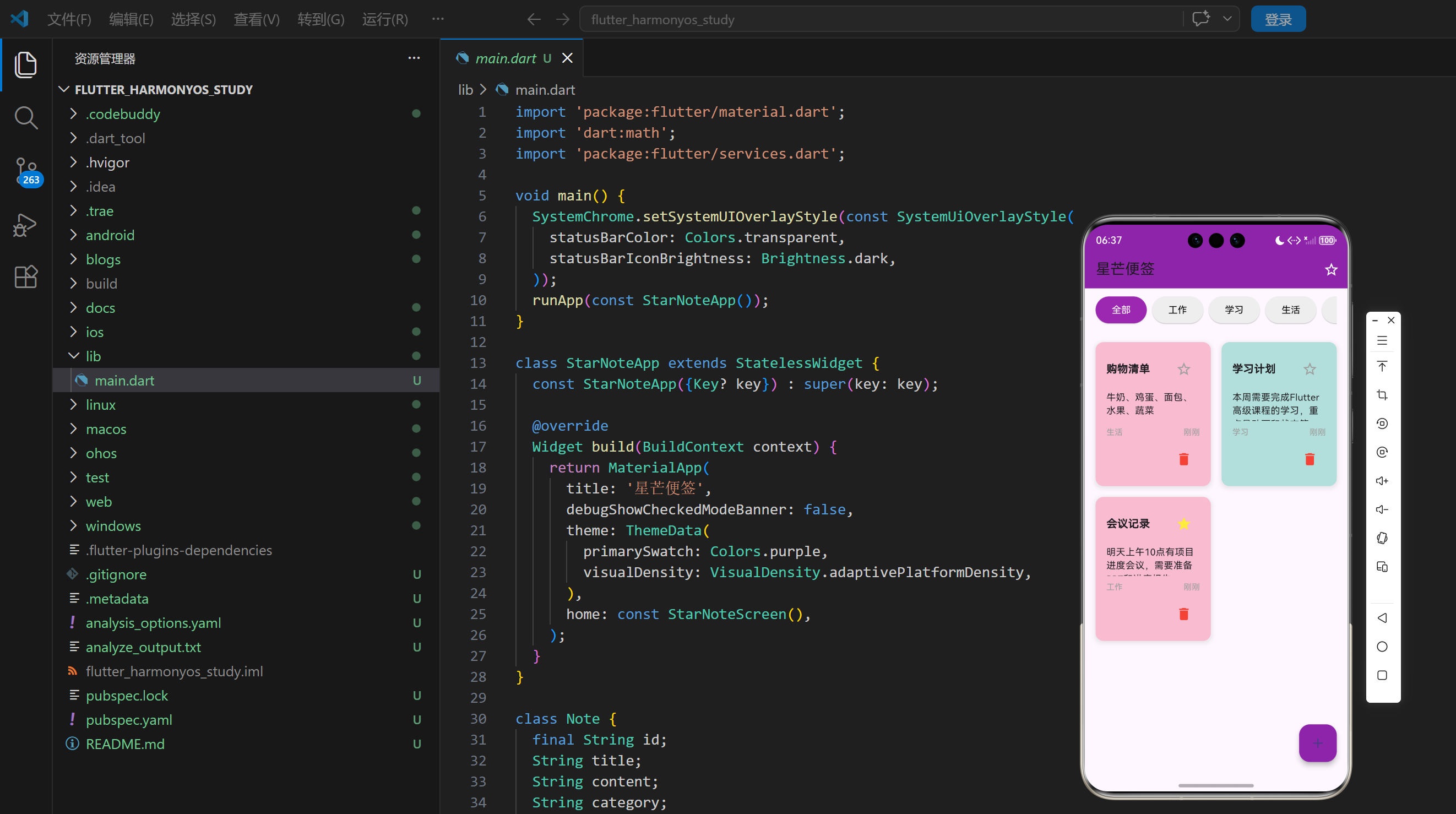
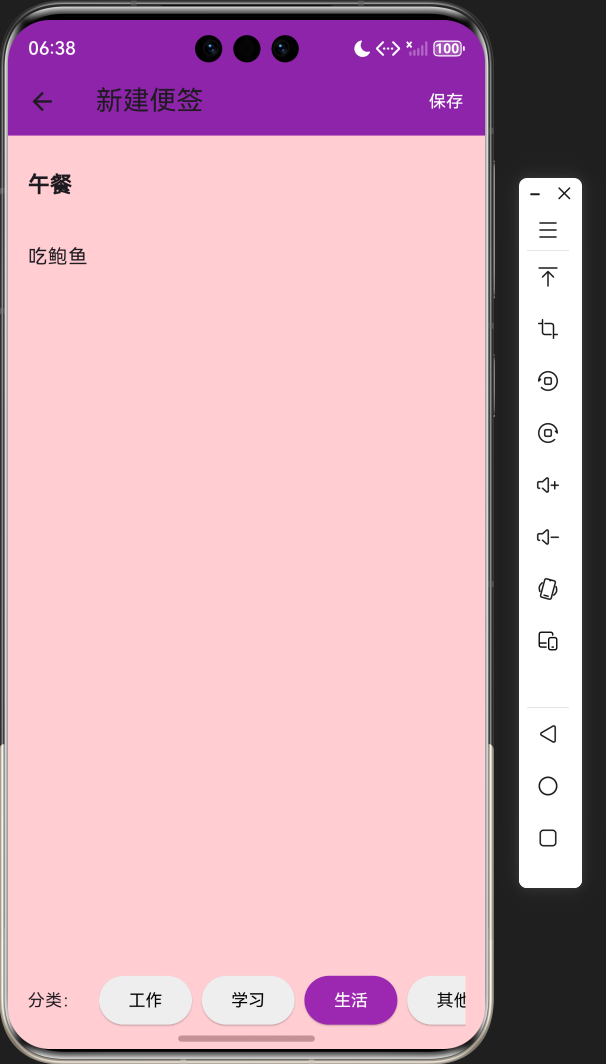
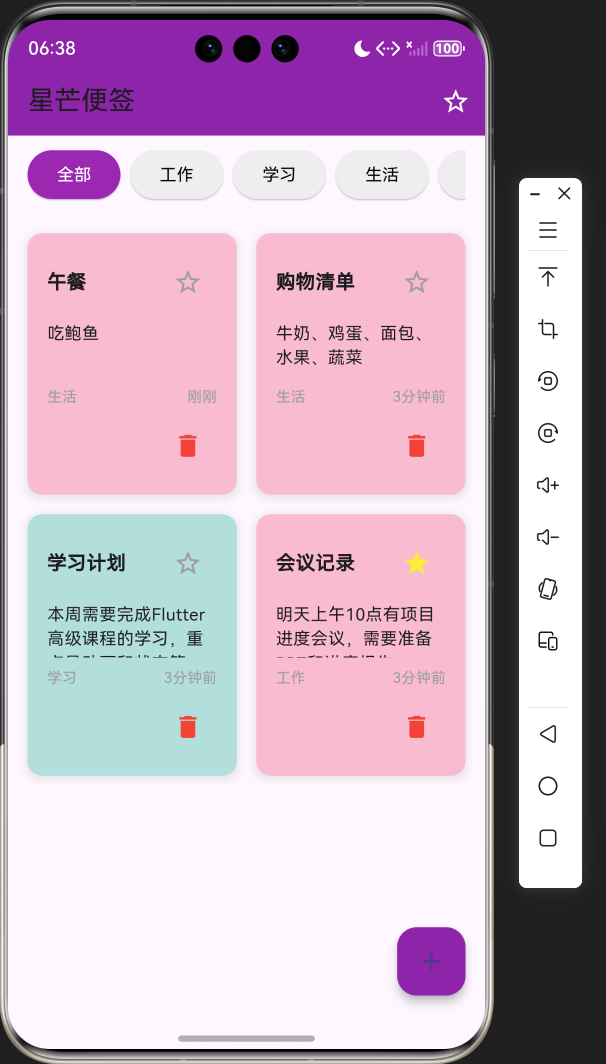
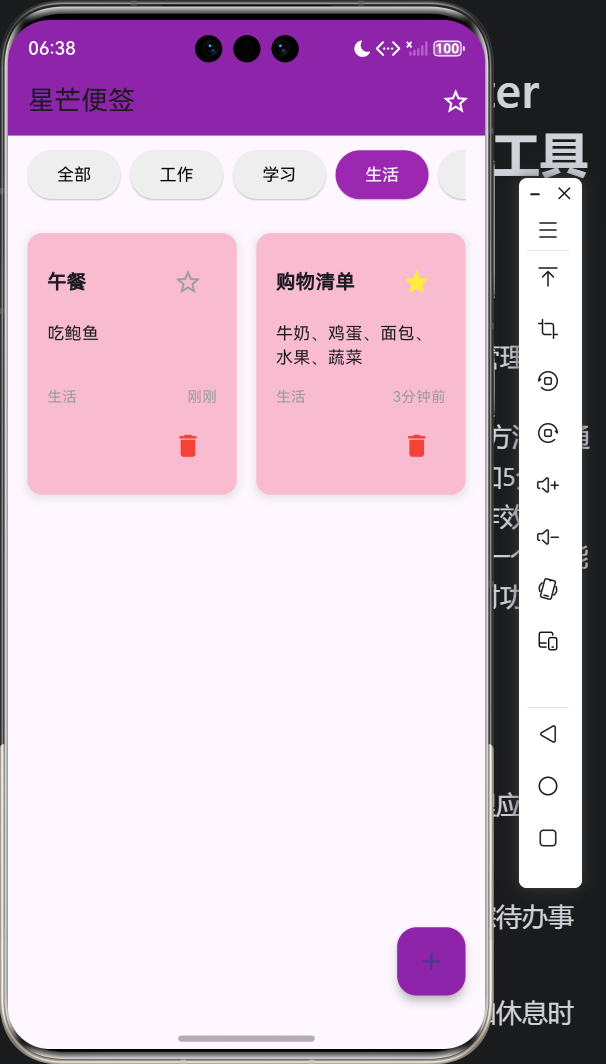
1. 项目介绍
在日常生活和工作中,我们经常需要记录各种信息,如待办事项、会议记录、学习计划等。便签应用作为一种简单高效的信息管理工具,受到了广大用户的喜爱。星芒便签是一个基于 Flutter 开发的美观便签应用,它不仅提供了基本的便签管理功能,还添加了星标、分类、颜色区分等特性,让用户能够更有条理地管理自己的信息。本文将详细介绍如何使用 Flutter 实现这个美观实用的便签应用。
1.1 项目目标
- 实现一个美观实用的便签应用
- 支持便签的创建、编辑和删除
- 提供便签的分类管理功能
- 实现便签的星标功能,方便用户快速找到重要便签
- 为便签随机生成不同颜色,增强视觉区分度
- 支持按分类和星标过滤便签
- 确保在不同平台上的一致性表现
1.2 技术栈
- Flutter:跨平台 UI 框架
- Dart:编程语言
- StatefulWidget:用于管理应用状态
- GridView:用于实现便签的网格布局
- TextField:用于便签的编辑
- Navigator:用于页面跳转
- BoxDecoration:用于实现便签的阴影效果
- Random:用于为便签生成随机颜色
2. 核心功能设计
2.1 便签管理
- 创建便签:用户可以创建新的便签,输入标题和内容
- 编辑便签:用户可以编辑已有便签的标题、内容和分类
- 删除便签:用户可以删除不需要的便签
- 星标便签:用户可以为重要的便签添加星标
2.2 分类管理
- 预设分类:提供工作、学习、生活、其他四个预设分类
- 分类过滤:用户可以按分类查看便签
2.3 视觉设计
- 随机颜色:为每个便签随机生成不同的颜色,增强视觉区分度
- 卡片式设计:便签以卡片形式展示,带有阴影效果
- 响应式布局:适应不同屏幕尺寸
2.4 排序与过滤
- 按更新时间排序:最新更新的便签显示在最前面
- 星标过滤:用户可以只查看已星标的便签
- 分类过滤:用户可以只查看特定分类的便签
3. 技术架构
3.1 项目结构
lib/
└── main.dart          # 主应用文件,包含所有代码
3.2 组件结构
StarNoteApp
└── StarNoteScreen
    ├── State management (notes, selectedCategory, showStarredOnly)
    ├── Note operations (addNote, editNote, deleteNote, toggleStar)
    ├── Filtering and sorting (_getFilteredNotes)
    ├── UI components
    │   ├── Category selection
    │   ├── Note grid
    │   └── Floating action button
    └── NoteEditScreen
        ├── State management (titleController, contentController, selectedCategory)
        └── UI components
            ├── Title input
            ├── Content input
            └── Category selection
3.3 数据模型
class Note {
  final String id;
  String title;
  String content;
  String category;
  DateTime createdTime;
  DateTime updatedTime;
  bool isStarred;
  Color color;

  Note({
    required this.title,
    required this.content,
    required this.category,
    this.isStarred = false,
    Color? color,
  }) :
    id = DateTime.now().millisecondsSinceEpoch.toString(),
    createdTime = DateTime.now(),
    updatedTime = DateTime.now(),
    color = color ?? _getRandomColor();

  static Color _getRandomColor() {
    final colors = [
      Colors.red.shade100,
      Colors.orange.shade100,
      Colors.yellow.shade100,
      Colors.green.shade100,
      Colors.blue.shade100,
      Colors.purple.shade100,
      Colors.pink.shade100,
      Colors.teal.shade100,
    ];
    return colors[Random().nextInt(colors.length)];
  }
}
4. 关键代码解析
4.1 便签管理
void _addNote() {
  Navigator.push(
    context,
    MaterialPageRoute(
      builder: (context) => NoteEditScreen(
        onSave: (title, content, category) {
          setState(() {
            _notes.add(Note(
              title: title,
              content: content,
              category: category,
            ));
          });
        },
      ),
    ),
  );
}

void _editNote(Note note) {
  Navigator.push(
    context,
    MaterialPageRoute(
      builder: (context) => NoteEditScreen(
        note: note,
        onSave: (title, content, category) {
          setState(() {
            note.title = title;
            note.content = content;
            note.category = category;
            note.updatedTime = DateTime.now();
          });
        },
      ),
    ),
  );
}

void _deleteNote(String id) {
  setState(() {
    _notes.removeWhere((note) => note.id == id);
  });
}

void _toggleStar(String id) {
  setState(() {
    final note = _notes.firstWhere((note) => note.id == id);
    note.isStarred = !note.isStarred;
  });
}
代码解析:
_addNote方法:跳转到便签编辑页面,创建新便签_editNote方法:跳转到便签编辑页面,编辑已有便签_deleteNote方法:删除指定ID的便签_toggleStar方法:切换便签的星标状态
4.2 过滤与排序
List<Note> _getFilteredNotes() {
  var filteredNotes = _notes;

  if (_selectedCategory != '全部') {
    filteredNotes = filteredNotes.where((note) => note.category == _selectedCategory).toList();
  }

  if (_showStarredOnly) {
    filteredNotes = filteredNotes.where((note) => note.isStarred).toList();
  }

  // 按更新时间排序,最新的在前
  filteredNotes.sort((a, b) => b.updatedTime.compareTo(a.updatedTime));

  return filteredNotes;
}
代码解析:
_getFilteredNotes方法:根据选择的分类和星标状态过滤便签,并按更新时间排序- 首先获取所有便签
- 如果选择了特定分类,则过滤出该分类的便签
- 如果只显示星标便签,则过滤出已星标的便签
- 最后按更新时间排序,最新的便签显示在前面
4.3 便签卡片
class NoteCard extends StatelessWidget {
final Note note;
final VoidCallback onTap;
final VoidCallback onDelete;
final VoidCallback onToggleStar;
const NoteCard({
Key? key,
required this.note,
required this.onTap,
required this.onDelete,
required this.onToggleStar,
}) : super(key: key);
Widget build(BuildContext context) {
return GestureDetector(
onTap: onTap,
child: Container(
decoration: BoxDecoration(
color: note.color,
borderRadius: BorderRadius.circular(12),
boxShadow: [
BoxShadow(
color: Colors.grey.withOpacity(0.2),
spreadRadius: 2,
blurRadius: 4,
offset: const Offset(0, 2),
),
],
),
padding: const EdgeInsets.all(16),
child: Column(
crossAxisAlignment: CrossAxisAlignment.start,
children: [
Row(
mainAxisAlignment: MainAxisAlignment.spaceBetween,
children: [
Expanded(
child: Text(
note.title,
style: const TextStyle(
fontSize: 16,
fontWeight: FontWeight.bold,
),
maxLines: 1,
overflow: TextOverflow.ellipsis,
),
),
IconButton(
icon: Icon(
note.isStarred ? Icons.star : Icons.star_border,
color: note.isStarred ? Colors.yellow : Colors.grey,
),
onPressed: onToggleStar,
padding: EdgeInsets.zero,
constraints: const BoxConstraints(),
),
],
),
const SizedBox(height: 8),
Expanded(
child: Text(
note.content,
style: const TextStyle(fontSize: 14),
maxLines: 5,
overflow: TextOverflow.ellipsis,
),
),
const SizedBox(height: 8),
Row(
mainAxisAlignment: MainAxisAlignment.spaceBetween,
children: [
Text(
note.category,
style: const TextStyle(
fontSize: 12,
color: Colors.grey,
),
),
Text(
_formatTime(note.updatedTime),
style: const TextStyle(
fontSize: 12,
color: Colors.grey,
),
),
],
),
const SizedBox(height: 8),
Align(
alignment: Alignment.bottomRight,
child: IconButton(
icon: const Icon(Icons.delete, color: Colors.red),
onPressed: onDelete,
padding: EdgeInsets.zero,
constraints: const BoxConstraints(),
),
),
],
),
),
);
}
String _formatTime(DateTime time) {
final now = DateTime.now();
final difference = now.difference(time);
if (difference.inDays > 0) {
return '${difference.inDays}天前';
} else if (difference.inHours > 0) {
return '${difference.inHours}小时前';
} else if (difference.inMinutes > 0) {
return '${difference.inMinutes}分钟前';
} else {
return '刚刚';
}
}
}
代码解析:
NoteCard组件:显示便签的卡片式组件- 使用
GestureDetector实现点击事件 - 使用
Container和BoxDecoration实现卡片效果 - 显示便签的标题、内容、分类、更新时间
- 提供星标和删除按钮
_formatTime方法:将时间格式化为相对时间(如"5分钟前")
4.4 便签编辑页面
class NoteEditScreen extends StatefulWidget {
final Note? note;
final Function(String, String, String) onSave;
const NoteEditScreen({
Key? key,
this.note,
required this.onSave,
}) : super(key: key);
State<NoteEditScreen> createState() => _NoteEditScreenState();
}
class _NoteEditScreenState extends State<NoteEditScreen> {
late TextEditingController _titleController;
late TextEditingController _contentController;
late String _selectedCategory;
late Color _noteColor;
void initState() {
super.initState();
if (widget.note != null) {
_titleController = TextEditingController(text: widget.note!.title);
_contentController = TextEditingController(text: widget.note!.content);
_selectedCategory = widget.note!.category;
_noteColor = widget.note!.color;
} else {
_titleController = TextEditingController();
_contentController = TextEditingController();
_selectedCategory = '工作';
_noteColor = Note._getRandomColor();
}
}
void dispose() {
_titleController.dispose();
_contentController.dispose();
super.dispose();
}
Widget build(BuildContext context) {
return Scaffold(
appBar: AppBar(
title: Text(widget.note != null ? '编辑便签' : '新建便签'),
backgroundColor: Colors.purple.shade600,
actions: [
TextButton(
onPressed: () {
if (_titleController.text.trim().isNotEmpty || _contentController.text.trim().isNotEmpty) {
widget.onSave(
_titleController.text.trim(),
_contentController.text.trim(),
_selectedCategory,
);
Navigator.pop(context);
}
},
child: const Text(
'保存',
style: TextStyle(color: Colors.white),
),
),
],
),
body: Container(
color: _noteColor,
padding: const EdgeInsets.all(16),
child: Column(
children: [
// 标题输入
TextField(
controller: _titleController,
decoration: const InputDecoration(
hintText: '标题',
border: InputBorder.none,
),
style: const TextStyle(
fontSize: 18,
fontWeight: FontWeight.bold,
),
),
const SizedBox(height: 16),
// 内容输入
Expanded(
child: TextField(
controller: _contentController,
decoration: const InputDecoration(
hintText: '内容',
border: InputBorder.none,
),
style: const TextStyle(fontSize: 16),
maxLines: null,
expands: true,
textAlignVertical: TextAlignVertical.top,
),
),
const SizedBox(height: 16),
// 分类选择
Row(
children: [
const Text('分类:'),
const SizedBox(width: 16),
Expanded(
child: SingleChildScrollView(
scrollDirection: Axis.horizontal,
child: Row(
children: ['工作', '学习', '生活', '其他'].map((category) {
return Padding(
padding: const EdgeInsets.only(right: 8),
child: ElevatedButton(
onPressed: () {
setState(() {
_selectedCategory = category;
});
},
style: ElevatedButton.styleFrom(
backgroundColor: _selectedCategory == category
? Colors.purple
: Colors.grey.shade200,
foregroundColor: _selectedCategory == category
? Colors.white
: Colors.black,
),
child: Text(category),
),
);
}).toList(),
),
),
),
],
),
],
),
),
);
}
}
代码解析:
NoteEditScreen组件:用于创建和编辑便签的页面_NoteEditScreenState类:管理编辑页面的状态initState方法:初始化控制器和状态build方法:构建编辑页面的UI- 包含标题输入、内容输入和分类选择
- 保存按钮:点击后调用
onSave回调,保存便签并返回
5. 技术亮点与创新
5.1 视觉设计
- 随机颜色:为每个便签随机生成不同的颜色,增强视觉区分度
- 卡片式设计:便签以卡片形式展示,带有阴影效果,提升视觉层次感
- 响应式布局:使用
GridView实现便签的网格布局,适应不同屏幕尺寸 - 颜色主题:使用紫色作为主色调,营造温馨、优雅的氛围
5.2 功能设计
- 分类管理:提供工作、学习、生活、其他四个预设分类,方便用户对便签进行分类管理
- 星标功能:用户可以为重要的便签添加星标,方便快速找到
- 过滤与排序:支持按分类和星标过滤便签,按更新时间排序,提高信息查找效率
- 相对时间:将便签的更新时间显示为相对时间(如"5分钟前"),更加直观
5.3 交互设计
- 流畅的页面跳转:使用
Navigator实现页面跳转,提供流畅的过渡效果 - 直观的操作:便签卡片支持点击编辑,星标和删除按钮位置合理
- 实时反馈:操作后立即更新UI,提供实时反馈
- 空状态处理:当没有便签时,显示"暂无便签"提示
5.4 技术实现
- 状态管理:使用
StatefulWidget管理应用状态,结构清晰 - 数据模型:设计合理的
Note类,包含所有必要的属性 - 组件化:将便签卡片封装为
NoteCard组件,提高代码复用性 - 性能优化:使用
ListView.builder和GridView.builder实现懒加载,提高性能
6. 应用场景与扩展
6.1 应用场景
- 工作场景:记录会议纪要、项目计划、任务清单等
- 学习场景:记录学习笔记、复习要点、考试计划等
- 生活场景:记录购物清单、待办事项、个人感悟等
- 其他场景:记录灵感、想法、重要信息等
6.2 扩展方向
- 数据持久化:添加本地存储功能,保存便签数据
- 云端同步:支持将便签同步到云端,实现跨设备同步
- 标签功能:添加标签功能,支持为便签添加多个标签
- 搜索功能:添加搜索功能,支持按关键词搜索便签
- 提醒功能:添加提醒功能,为重要便签设置提醒
- 主题切换:支持不同主题风格,满足用户的个性化需求
- 多语言支持:添加多语言支持,扩大应用的适用范围
- 分享功能:支持将便签分享给其他用户
7. 代码优化建议
7.1 性能优化
- 使用 const 构造函数:对于不变的 Widget,使用 const 构造函数,减少不必要的重建
- 优化列表性能:使用
ListView.builder和GridView.builder实现懒加载 - 使用 RepaintBoundary:对于频繁更新的部分,使用
RepaintBoundary包裹,减少不必要的重绘 - 优化状态管理:对于更复杂的应用,可以使用
Provider、Riverpod等状态管理库
7.2 代码结构优化
- 组件化:将 UI 组件拆分为更小的、可复用的组件
- 逻辑分离:将业务逻辑与 UI 逻辑分离,提高代码的可维护性
- 参数化:将颜色、字体大小等参数提取为可配置的常量
- 错误处理:添加适当的错误处理,提高应用的稳定性
7.3 用户体验优化
- 添加动画效果:添加页面跳转、便签添加/删除等动画效果,提升用户体验
- 触觉反馈:在支持的设备上,添加触觉反馈,增强交互体验
- 用户引导:添加首次使用引导,帮助用户了解应用的使用方法
- ** accessibility**:添加无障碍支持,提高应用的可访问性
7.4 功能优化
- 批量操作:支持批量删除、批量星标等操作
- 导入/导出:支持便签的导入/导出功能
- 备份与恢复:支持便签数据的备份与恢复
- 模板功能:提供便签模板,方便用户快速创建特定类型的便签
8. 测试与调试
8.1 测试策略
- 功能测试:测试便签的创建、编辑、删除、分类、星标等核心功能
- 性能测试:测试应用在不同设备上的性能表现
- 兼容性测试:测试在不同平台、不同屏幕尺寸上的表现
- 用户体验测试:测试应用的易用性和用户体验
8.2 调试技巧
- 使用 Flutter DevTools:利用 Flutter DevTools 分析性能瓶颈和调试问题
- 添加日志:在关键位置添加日志,便于调试
- 使用模拟器:在不同尺寸的模拟器上测试,确保适配性
- 用户测试:邀请用户测试,收集反馈,不断改进
9. 总结与展望
9.1 项目总结
本项目成功实现了一个美观实用的星芒便签应用,主要功能包括:
- 便签的创建、编辑和删除
- 便签的分类管理(工作、学习、生活、其他)
- 便签的星标功能
- 便签的颜色随机生成
- 按分类和星标过滤便签
- 按更新时间排序便签
9.2 技术价值
- 学习价值:展示了如何使用 Flutter 实现一个完整的便签应用
- 实用价值:提供了一个可直接使用的便签管理工具
- 参考价值:为类似功能的开发提供了参考方案
9.3 未来展望
- 数据持久化:添加本地存储功能,保存便签数据
- 云端同步:支持将便签同步到云端,实现跨设备同步
- 标签功能:添加标签功能,支持为便签添加多个标签
- 搜索功能:添加搜索功能,支持按关键词搜索便签
- 提醒功能:添加提醒功能,为重要便签设置提醒
- 主题切换:支持不同主题风格,满足用户的个性化需求
10. 附录
10.1 完整代码
import 'package:flutter/material.dart';
import 'dart:math';
import 'package:flutter/services.dart';
void main() {
SystemChrome.setSystemUIOverlayStyle(const SystemUiOverlayStyle(
statusBarColor: Colors.transparent,
statusBarIconBrightness: Brightness.dark,
));
runApp(const StarNoteApp());
}
class StarNoteApp extends StatelessWidget {
const StarNoteApp({Key? key}) : super(key: key);
Widget build(BuildContext context) {
return MaterialApp(
title: '星芒便签',
debugShowCheckedModeBanner: false,
theme: ThemeData(
primarySwatch: Colors.purple,
visualDensity: VisualDensity.adaptivePlatformDensity,
),
home: const StarNoteScreen(),
);
}
}
class Note {
final String id;
String title;
String content;
String category;
DateTime createdTime;
DateTime updatedTime;
bool isStarred;
Color color;
Note({
required this.title,
required this.content,
required this.category,
this.isStarred = false,
Color? color,
}) :
id = DateTime.now().millisecondsSinceEpoch.toString(),
createdTime = DateTime.now(),
updatedTime = DateTime.now(),
color = color ?? _getRandomColor();
static Color _getRandomColor() {
final colors = [
Colors.red.shade100,
Colors.orange.shade100,
Colors.yellow.shade100,
Colors.green.shade100,
Colors.blue.shade100,
Colors.purple.shade100,
Colors.pink.shade100,
Colors.teal.shade100,
];
return colors[Random().nextInt(colors.length)];
}
}
class StarNoteScreen extends StatefulWidget {
const StarNoteScreen({Key? key}) : super(key: key);
State<StarNoteScreen> createState() => _StarNoteScreenState();
}
class _StarNoteScreenState extends State<StarNoteScreen> {
List<Note> _notes = [];
List<String> _categories = ['全部', '工作', '学习', '生活', '其他'];
String _selectedCategory = '全部';
bool _showStarredOnly = false;
void initState() {
super.initState();
// 添加一些示例便签
_addSampleNotes();
}
void _addSampleNotes() {
setState(() {
_notes.add(Note(
title: '会议记录',
content: '明天上午10点有项目进度会议,需要准备PPT和进度报告。',
category: '工作',
isStarred: true,
));
_notes.add(Note(
title: '学习计划',
content: '本周需要完成Flutter高级课程的学习,重点是动画和状态管理。',
category: '学习',
));
_notes.add(Note(
title: '购物清单',
content: '牛奶、鸡蛋、面包、水果、蔬菜',
category: '生活',
));
});
}
void _addNote() {
Navigator.push(
context,
MaterialPageRoute(
builder: (context) => NoteEditScreen(
onSave: (title, content, category) {
setState(() {
_notes.add(Note(
title: title,
content: content,
category: category,
));
});
},
),
),
);
}
void _editNote(Note note) {
Navigator.push(
context,
MaterialPageRoute(
builder: (context) => NoteEditScreen(
note: note,
onSave: (title, content, category) {
setState(() {
note.title = title;
note.content = content;
note.category = category;
note.updatedTime = DateTime.now();
});
},
),
),
);
}
void _deleteNote(String id) {
setState(() {
_notes.removeWhere((note) => note.id == id);
});
}
void _toggleStar(String id) {
setState(() {
final note = _notes.firstWhere((note) => note.id == id);
note.isStarred = !note.isStarred;
});
}
List<Note> _getFilteredNotes() {
var filteredNotes = _notes;
if (_selectedCategory != '全部') {
filteredNotes = filteredNotes.where((note) => note.category == _selectedCategory).toList();
}
if (_showStarredOnly) {
filteredNotes = filteredNotes.where((note) => note.isStarred).toList();
}
// 按更新时间排序,最新的在前
filteredNotes.sort((a, b) => b.updatedTime.compareTo(a.updatedTime));
return filteredNotes;
}
Widget build(BuildContext context) {
final filteredNotes = _getFilteredNotes();
return Scaffold(
appBar: AppBar(
title: const Text('星芒便签'),
backgroundColor: Colors.purple.shade600,
actions: [
IconButton(
icon: Icon(
_showStarredOnly ? Icons.star : Icons.star_border,
color: _showStarredOnly ? Colors.yellow : Colors.white,
),
onPressed: () {
setState(() {
_showStarredOnly = !_showStarredOnly;
});
},
),
],
),
body: Column(
children: [
// 分类选择
Container(
padding: const EdgeInsets.symmetric(horizontal: 16, vertical: 8),
child: SingleChildScrollView(
scrollDirection: Axis.horizontal,
child: Row(
children: _categories.map((category) {
return Padding(
padding: const EdgeInsets.only(right: 8),
child: ElevatedButton(
onPressed: () {
setState(() {
_selectedCategory = category;
});
},
style: ElevatedButton.styleFrom(
backgroundColor: _selectedCategory == category
? Colors.purple
: Colors.grey.shade200,
foregroundColor: _selectedCategory == category
? Colors.white
: Colors.black,
),
child: Text(category),
),
);
}).toList(),
),
),
),
// 便签列表
Expanded(
child: filteredNotes.isEmpty
? const Center(
child: Text('暂无便签'),
)
: GridView.builder(
padding: const EdgeInsets.all(16),
gridDelegate: const SliverGridDelegateWithFixedCrossAxisCount(
crossAxisCount: 2,
crossAxisSpacing: 16,
mainAxisSpacing: 16,
childAspectRatio: 0.8,
),
itemCount: filteredNotes.length,
itemBuilder: (context, index) {
final note = filteredNotes[index];
return NoteCard(
note: note,
onTap: () => _editNote(note),
onDelete: () => _deleteNote(note.id),
onToggleStar: () => _toggleStar(note.id),
);
},
),
),
],
),
floatingActionButton: FloatingActionButton(
onPressed: _addNote,
backgroundColor: Colors.purple.shade600,
child: const Icon(Icons.add),
),
);
}
}
class NoteCard extends StatelessWidget {
final Note note;
final VoidCallback onTap;
final VoidCallback onDelete;
final VoidCallback onToggleStar;
const NoteCard({
Key? key,
required this.note,
required this.onTap,
required this.onDelete,
required this.onToggleStar,
}) : super(key: key);
Widget build(BuildContext context) {
return GestureDetector(
onTap: onTap,
child: Container(
decoration: BoxDecoration(
color: note.color,
borderRadius: BorderRadius.circular(12),
boxShadow: [
BoxShadow(
color: Colors.grey.withOpacity(0.2),
spreadRadius: 2,
blurRadius: 4,
offset: const Offset(0, 2),
),
],
),
padding: const EdgeInsets.all(16),
child: Column(
crossAxisAlignment: CrossAxisAlignment.start,
children: [
Row(
mainAxisAlignment: MainAxisAlignment.spaceBetween,
children: [
Expanded(
child: Text(
note.title,
style: const TextStyle(
fontSize: 16,
fontWeight: FontWeight.bold,
),
maxLines: 1,
overflow: TextOverflow.ellipsis,
),
),
IconButton(
icon: Icon(
note.isStarred ? Icons.star : Icons.star_border,
color: note.isStarred ? Colors.yellow : Colors.grey,
),
onPressed: onToggleStar,
padding: EdgeInsets.zero,
constraints: const BoxConstraints(),
),
],
),
const SizedBox(height: 8),
Expanded(
child: Text(
note.content,
style: const TextStyle(fontSize: 14),
maxLines: 5,
overflow: TextOverflow.ellipsis,
),
),
const SizedBox(height: 8),
Row(
mainAxisAlignment: MainAxisAlignment.spaceBetween,
children: [
Text(
note.category,
style: const TextStyle(
fontSize: 12,
color: Colors.grey,
),
),
Text(
_formatTime(note.updatedTime),
style: const TextStyle(
fontSize: 12,
color: Colors.grey,
),
),
],
),
const SizedBox(height: 8),
Align(
alignment: Alignment.bottomRight,
child: IconButton(
icon: const Icon(Icons.delete, color: Colors.red),
onPressed: onDelete,
padding: EdgeInsets.zero,
constraints: const BoxConstraints(),
),
),
],
),
),
);
}
String _formatTime(DateTime time) {
final now = DateTime.now();
final difference = now.difference(time);
if (difference.inDays > 0) {
return '${difference.inDays}天前';
} else if (difference.inHours > 0) {
return '${difference.inHours}小时前';
} else if (difference.inMinutes > 0) {
return '${difference.inMinutes}分钟前';
} else {
return '刚刚';
}
}
}
class NoteEditScreen extends StatefulWidget {
final Note? note;
final Function(String, String, String) onSave;
const NoteEditScreen({
Key? key,
this.note,
required this.onSave,
}) : super(key: key);
State<NoteEditScreen> createState() => _NoteEditScreenState();
}
class _NoteEditScreenState extends State<NoteEditScreen> {
late TextEditingController _titleController;
late TextEditingController _contentController;
late String _selectedCategory;
late Color _noteColor;
void initState() {
super.initState();
if (widget.note != null) {
_titleController = TextEditingController(text: widget.note!.title);
_contentController = TextEditingController(text: widget.note!.content);
_selectedCategory = widget.note!.category;
_noteColor = widget.note!.color;
} else {
_titleController = TextEditingController();
_contentController = TextEditingController();
_selectedCategory = '工作';
_noteColor = Note._getRandomColor();
}
}
void dispose() {
_titleController.dispose();
_contentController.dispose();
super.dispose();
}
Widget build(BuildContext context) {
return Scaffold(
appBar: AppBar(
title: Text(widget.note != null ? '编辑便签' : '新建便签'),
backgroundColor: Colors.purple.shade600,
actions: [
TextButton(
onPressed: () {
if (_titleController.text.trim().isNotEmpty || _contentController.text.trim().isNotEmpty) {
widget.onSave(
_titleController.text.trim(),
_contentController.text.trim(),
_selectedCategory,
);
Navigator.pop(context);
}
},
child: const Text(
'保存',
style: TextStyle(color: Colors.white),
),
),
],
),
body: Container(
color: _noteColor,
padding: const EdgeInsets.all(16),
child: Column(
children: [
// 标题输入
TextField(
controller: _titleController,
decoration: const InputDecoration(
hintText: '标题',
border: InputBorder.none,
),
style: const TextStyle(
fontSize: 18,
fontWeight: FontWeight.bold,
),
),
const SizedBox(height: 16),
// 内容输入
Expanded(
child: TextField(
controller: _contentController,
decoration: const InputDecoration(
hintText: '内容',
border: InputBorder.none,
),
style: const TextStyle(fontSize: 16),
maxLines: null,
expands: true,
textAlignVertical: TextAlignVertical.top,
),
),
const SizedBox(height: 16),
// 分类选择
Row(
children: [
const Text('分类:'),
const SizedBox(width: 16),
Expanded(
child: SingleChildScrollView(
scrollDirection: Axis.horizontal,
child: Row(
children: ['工作', '学习', '生活', '其他'].map((category) {
return Padding(
padding: const EdgeInsets.only(right: 8),
child: ElevatedButton(
onPressed: () {
setState(() {
_selectedCategory = category;
});
},
style: ElevatedButton.styleFrom(
backgroundColor: _selectedCategory == category
? Colors.purple
: Colors.grey.shade200,
foregroundColor: _selectedCategory == category
? Colors.white
: Colors.black,
),
child: Text(category),
),
);
}).toList(),
),
),
),
],
),
],
),
),
);
}
}
10.2 依赖项
- flutter:Flutter 框架
- dart:math:提供 Random 类,用于为便签生成随机颜色
- flutter/services.dart:提供 SystemChrome 类,用于设置系统 UI 样式
10.3 运行环境
- Flutter SDK:3.0.0 或更高版本
- Dart SDK:2.17.0 或更高版本
- 支持的平台:Android、iOS、Web、Windows、macOS、Linux
10.4 参考资源

作为“人工智能6S店”的官方数字引擎,为AI开发者与企业提供一个覆盖软硬件全栈、一站式门户。
更多推荐
 0
0 0
0- 0


 已为社区贡献17条内容

所有评论(0)