
Flutter 框架跨平台鸿蒙开发 - 随机决定器
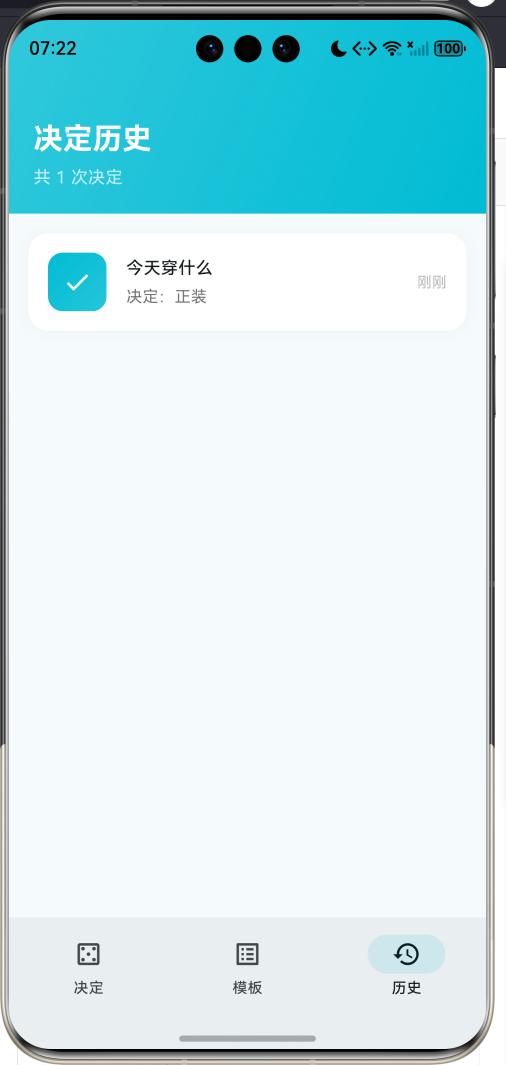
运行效果图随机决定器是一款专为选择困难症患者设计的决策辅助工具,旨在帮助用户快速做出各种日常决策。无论是"今天吃什么"、“穿什么衣服”、“周末去哪里”,还是任何需要选择的事情,只需轻轻一点,让命运替你做决定。应用以青色为主色调,界面清新简洁,操作直观流畅。内置六大决策分类,涵盖衣食住行各个方面,同时支持自定义模板,满足用户个性化需求。每次决定都会记录在历史中,方便回顾和参考。随机决定器通过简洁直观
随机决定器应用
欢迎加入开源鸿蒙跨平台社区:
https://openharmonycrossplatform.csdn.net
一、项目概述
运行效果图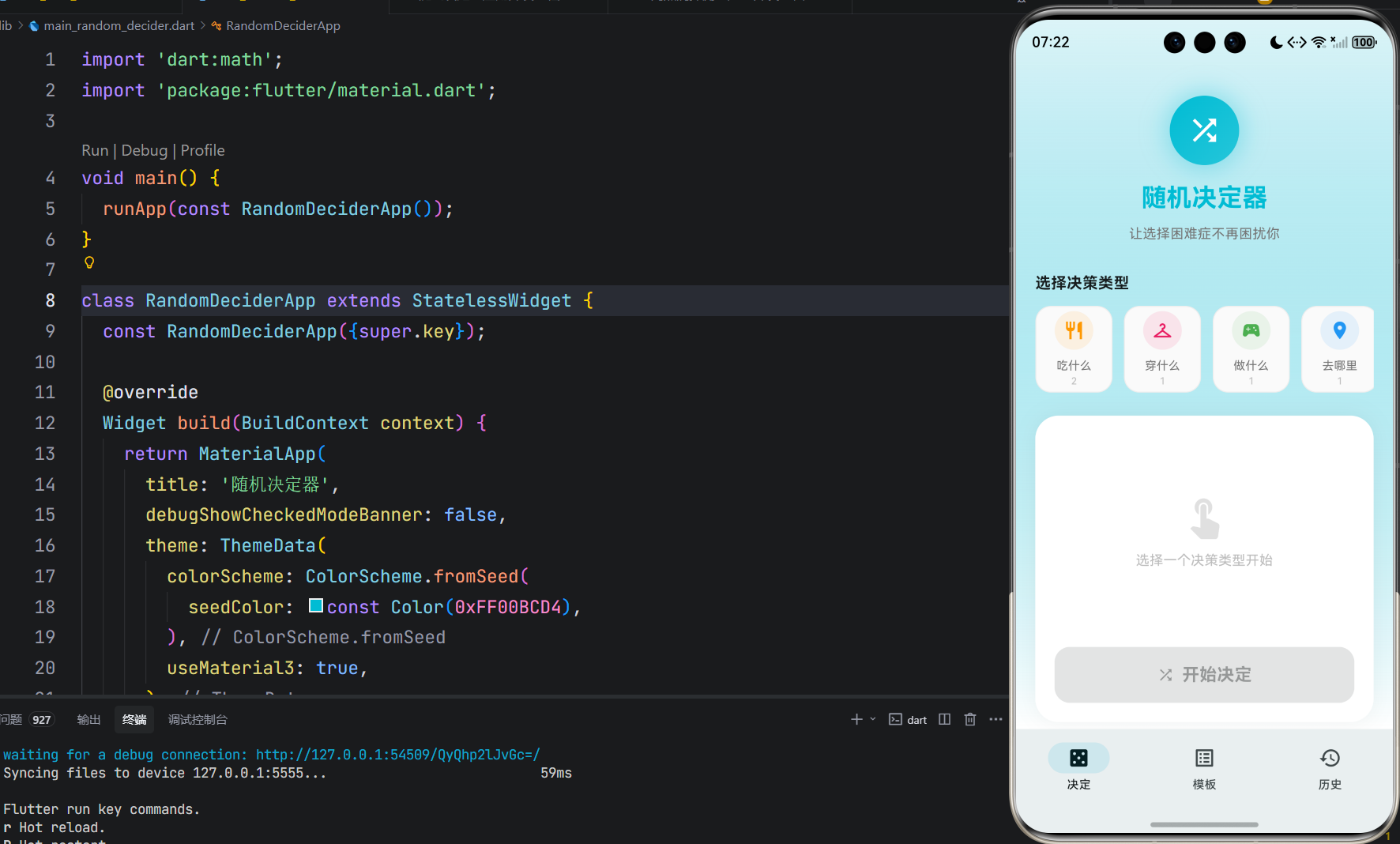
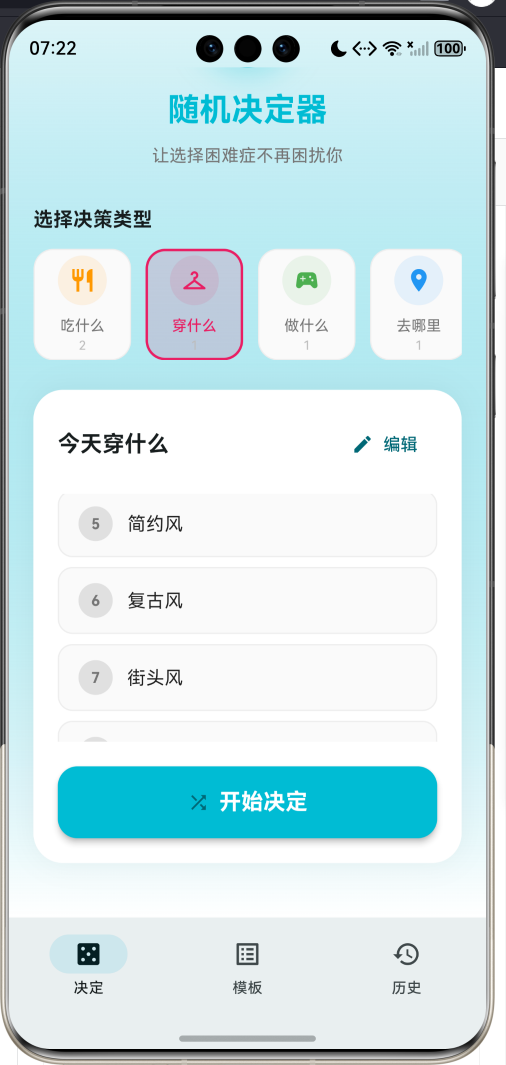
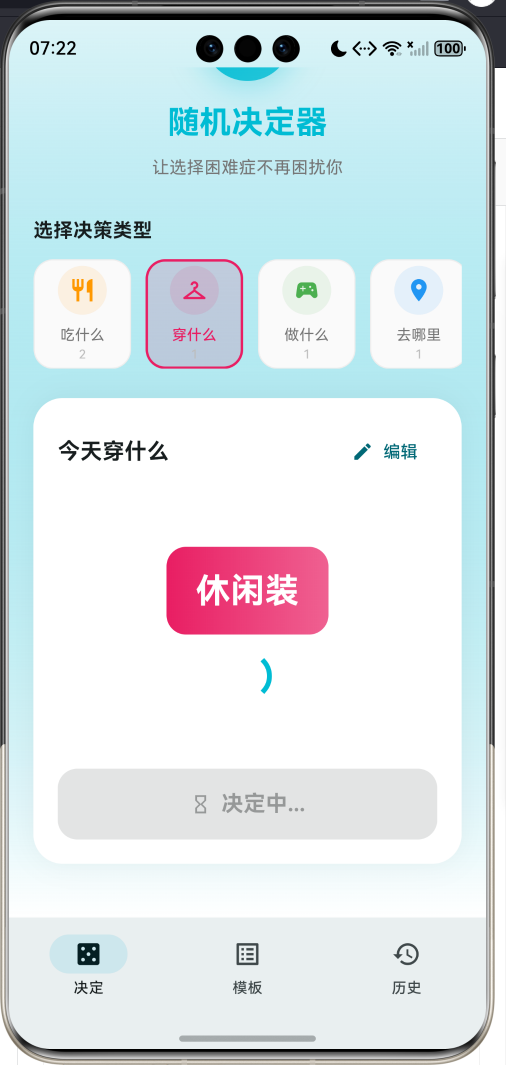
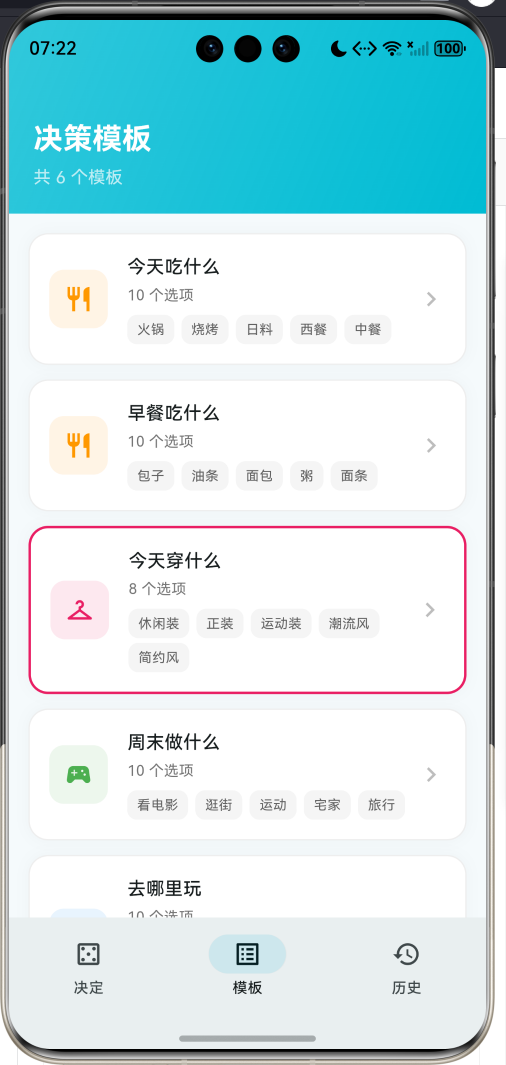
1.1 应用简介
随机决定器是一款专为选择困难症患者设计的决策辅助工具,旨在帮助用户快速做出各种日常决策。无论是"今天吃什么"、“穿什么衣服”、“周末去哪里”,还是任何需要选择的事情,只需轻轻一点,让命运替你做决定。
应用以青色为主色调,界面清新简洁,操作直观流畅。内置六大决策分类,涵盖衣食住行各个方面,同时支持自定义模板,满足用户个性化需求。每次决定都会记录在历史中,方便回顾和参考。
1.2 核心功能
| 功能模块 | 功能描述 | 实现方式 |
|---|---|---|
| 决策转盘 | 随机选择选项 | 动画+随机算法 |
| 分类选择 | 六大决策分类 | 横向滚动卡片 |
| 模板管理 | 创建和管理模板 | 底部弹窗表单 |
| 选项编辑 | 自定义选项内容 | 可编辑文本框 |
| 历史记录 | 查看决策历史 | 时间线列表 |
1.3 决策分类
| 序号 | 分类名称 | 图标 | 颜色 | 典型场景 |
|---|---|---|---|---|
| 1 | 吃什么 | restaurant | #FF9800 | 今天吃什么、早餐吃什么 |
| 2 | 穿什么 | checkroom | #E91E63 | 今天穿什么、约会穿什么 |
| 3 | 做什么 | sports_esports | #4CAF50 | 周末做什么、下班做什么 |
| 4 | 去哪里 | place | #2196F3 | 去哪里玩、去哪里旅游 |
| 5 | 看什么 | movie | #9C27B0 | 看什么电影、看什么剧 |
| 6 | 自定义 | edit | #607D8B | 用户自定义场景 |
1.4 技术栈
| 技术领域 | 技术选型 | 版本要求 |
|---|---|---|
| 开发框架 | Flutter | >= 3.0.0 |
| 编程语言 | Dart | >= 2.17.0 |
| 设计规范 | Material Design 3 | - |
| 状态管理 | setState | - |
| 动画系统 | AnimationController | - |
| 目标平台 | 鸿蒙OS / Web | API 21+ |
1.5 项目结构
lib/
└── main_random_decider.dart
    ├── RandomDeciderApp           # 应用入口
    ├── DecisionCategory           # 决策分类枚举
    ├── DecisionTemplate           # 决策模板模型
    ├── DecisionResult             # 决策结果模型
    ├── RandomDeciderHomePage      # 主页面(底部导航)
    ├── _buildDeciderPage          # 决策页面
    ├── _buildTemplatesPage        # 模板页面
    └── _buildHistoryPage          # 历史页面
二、系统架构
2.1 整体架构图
2.2 类图设计
2.3 页面导航流程
2.4 决策流程时序图
三、核心模块设计
3.1 数据模型设计
3.1.1 决策分类枚举 (DecisionCategory)
enum DecisionCategory {
  food('吃什么', Icons.restaurant, Color(0xFFFF9800)),
  clothing('穿什么', Icons.checkroom, Color(0xFFE91E63)),
  activity('做什么', Icons.sports_esports, Color(0xFF4CAF50)),
  place('去哪里', Icons.place, Color(0xFF2196F3)),
  movie('看什么', Icons.movie, Color(0xFF9C27B0)),
  custom('自定义', Icons.edit, Color(0xFF607D8B));

  final String label;
  final IconData icon;
  final Color color;

  const DecisionCategory(this.label, this.icon, this.color);
}
3.1.2 决策模板模型 (DecisionTemplate)
class DecisionTemplate {
  final String id;              // 唯一标识
  final String name;            // 模板名称
  final DecisionCategory category;  // 所属分类
  final List<String> options;   // 选项列表
  final bool isDefault;         // 是否默认模板
}
3.1.3 决策结果模型 (DecisionResult)
class DecisionResult {
  final String id;              // 唯一标识
  final String templateName;    // 模板名称
  final String selectedOption;  // 选中的选项
  final List<String> allOptions;// 所有选项
  final DateTime createdAt;     // 创建时间

  String get timeAgo {
    // 计算相对时间显示
  }
}
3.1.4 默认模板分布
3.2 页面结构设计
3.2.1 主页面布局
3.2.2 决策页面结构
3.2.3 模板页面结构
3.3 动画系统设计
四、UI设计规范
4.1 配色方案
应用采用青色(Cyan)为主色调,传达清新、轻松的决策体验:
| 颜色类型 | 色值 | 用途 |
|---|---|---|
| 主色 | #00BCD4 (Cyan) | 导航、按钮、强调元素 |
| 渐变起始 | #00BCD4 | 头部渐变 |
| 渐变结束 | #26C6DA | 头部渐变 |
| 分类-吃 | #FF9800 | 橙色 |
| 分类-穿 | #E91E63 | 粉色 |
| 分类-做 | #4CAF50 | 绿色 |
| 分类-去 | #2196F3 | 蓝色 |
| 分类-看 | #9C27B0 | 紫色 |
| 分类-自定义 | #607D8B | 灰色 |
4.2 字体规范
| 元素 | 字号 | 字重 | 颜色 |
|---|---|---|---|
| 应用标题 | 26px | Bold | #00BCD4 |
| 页面标题 | 24px | Bold | #FFFFFF |
| 模板名称 | 18px | Bold | #000000 |
| 选项文字 | 15px | Normal | #000000 |
| 结果文字 | 32px | Bold | #FFFFFF |
| 辅助文字 | 12-14px | Regular | #757575 |
4.3 组件规范
4.3.1 分类卡片
┌─────────────────────┐
│                     │
│    ┌─────────┐     │
│    │   🍽️    │     │
│    └─────────┘     │
│                     │
│     吃什么          │
│       2            │
│                     │
└─────────────────────┘
4.3.2 选项列表项
┌─────────────────────────────────────────────────┐
│ ┌────┐  火锅                              ✓    │
│ │ 1  │                                        │
│ └────┘                                        │
└─────────────────────────────────────────────────┘
4.3.3 结果展示卡片
┌─────────────────────────────────────────────────┐
│                                                 │
│                    🎉                           │
│                                                 │
│                  决定了!                        │
│                                                 │
│                   火锅                          │
│                                                 │
│              [🔄 再选一次]                       │
│                                                 │
└─────────────────────────────────────────────────┘
五、核心功能实现
5.1 随机选择算法
void _startSpin() {
  if (_selectedTemplate == null || _selectedTemplate!.options.isEmpty) {
    ScaffoldMessenger.of(context).showSnackBar(
      const SnackBar(content: Text('请先选择或创建一个决策模板')),
    );
    return;
  }

  setState(() {
    _isSpinning = true;
    _selectedIndex = null;
  });

  _spinController.reset();
  _spinController.forward().then((_) {
    final random = Random();
    final index = random.nextInt(_selectedTemplate!.options.length);

    setState(() {
      _selectedIndex = index;
      _isSpinning = false;
    });

    final result = DecisionResult(
      id: DateTime.now().millisecondsSinceEpoch.toString(),
      templateName: _selectedTemplate!.name,
      selectedOption: _selectedTemplate!.options[index],
      allOptions: _selectedTemplate!.options,
      createdAt: DateTime.now(),
    );

    setState(() {
      _history.insert(0, result);
    });
  });
}
5.2 旋转动画实现
Widget _buildSpinningWheel() {
  return AnimatedBuilder(
    animation: _spinAnimation,
    builder: (context, child) {
      final options = _selectedTemplate!.options;
      final currentIndex = (_spinAnimation.value * options.length * 3).floor() % options.length;

      return Column(
        mainAxisAlignment: MainAxisAlignment.center,
        children: [
          Container(
            padding: const EdgeInsets.symmetric(horizontal: 24, vertical: 16),
            decoration: BoxDecoration(
              gradient: LinearGradient(
                colors: [
                  _selectedTemplate!.category.color,
                  _selectedTemplate!.category.color.withValues(alpha: 0.7),
                ],
              ),
              borderRadius: BorderRadius.circular(16),
            ),
            child: Text(
              options[currentIndex],
              style: const TextStyle(
                fontSize: 28,
                fontWeight: FontWeight.bold,
                color: Colors.white,
              ),
            ),
          ),
          const SizedBox(height: 16),
          const CircularProgressIndicator(
            color: Color(0xFF00BCD4),
          ),
        ],
      );
    },
  );
}
5.3 创建模板弹窗
void _showCreateTemplateSheet() {
  String name = '';
  DecisionCategory category = DecisionCategory.custom;
  String optionsText = '';

  showModalBottomSheet(
    context: context,
    isScrollControlled: true,
    backgroundColor: Colors.transparent,
    builder: (context) => StatefulBuilder(
      builder: (context, setModalState) => DraggableScrollableSheet(
        initialChildSize: 0.9,
        minChildSize: 0.5,
        maxChildSize: 0.95,
        builder: (context, scrollController) => Container(
          decoration: const BoxDecoration(
            color: Colors.white,
            borderRadius: BorderRadius.vertical(top: Radius.circular(20)),
          ),
          child: SingleChildScrollView(
            controller: scrollController,
            child: Padding(
              padding: EdgeInsets.only(
                left: 20,
                right: 20,
                top: 20,
                bottom: MediaQuery.of(context).viewInsets.bottom + 20,
              ),
              child: Column(
                children: [
                  // 表单内容...
                ],
              ),
            ),
          ),
        ),
      ),
    ),
  );
}
5.4 分类选择器实现
Widget _buildCategorySelector() {
  return Column(
    crossAxisAlignment: CrossAxisAlignment.start,
    children: [
      const Text('选择决策类型', style: TextStyle(fontSize: 16, fontWeight: FontWeight.bold)),
      const SizedBox(height: 12),
      SizedBox(
        height: 90,
        child: ListView.builder(
          scrollDirection: Axis.horizontal,
          itemCount: DecisionCategory.values.length,
          itemBuilder: (context, index) {
            final category = DecisionCategory.values[index];
            final categoryTemplates = _templates.where((t) => t.category == category).toList();
            final isSelected = _selectedTemplate != null && _selectedTemplate!.category == category;

            return GestureDetector(
              onTap: () {
                if (categoryTemplates.isNotEmpty) {
                  setState(() {
                    _selectedTemplate = categoryTemplates.first;
                    _selectedIndex = null;
                  });
                }
              },
              child: Container(
                width: 80,
                margin: const EdgeInsets.only(right: 12),
                decoration: BoxDecoration(
                  color: isSelected ? category.color.withValues(alpha: 0.15) : Colors.grey.shade50,
                  borderRadius: BorderRadius.circular(16),
                  border: Border.all(
                    color: isSelected ? category.color : Colors.grey.shade200,
                    width: isSelected ? 2 : 1,
                  ),
                ),
                child: Column(
                  mainAxisAlignment: MainAxisAlignment.center,
                  children: [
                    Container(
                      width: 40,
                      height: 40,
                      decoration: BoxDecoration(
                        color: category.color.withValues(alpha: 0.1),
                        shape: BoxShape.circle,
                      ),
                      child: Icon(category.icon, color: category.color, size: 22),
                    ),
                    const SizedBox(height: 8),
                    Text(category.label, style: TextStyle(fontSize: 12, color: isSelected ? category.color : Colors.grey.shade600)),
                    Text('${categoryTemplates.length}', style: TextStyle(fontSize: 10, color: Colors.grey.shade400)),
                  ],
                ),
              ),
            );
          },
        ),
      ),
    ],
  );
}
5.5 相对时间计算
String get timeAgo {
  final diff = DateTime.now().difference(createdAt);
  if (diff.inMinutes < 1) return '刚刚';
  if (diff.inMinutes < 60) return '${diff.inMinutes}分钟前';
  if (diff.inHours < 24) return '${diff.inHours}小时前';
  return '${createdAt.month}月${createdAt.day}日';
}
六、交互设计
6.1 决策交互流程
6.2 模板创建流程
6.3 页面切换状态
七、扩展功能规划
7.1 后续版本规划
7.2 功能扩展建议
7.2.1 权重设置
为选项设置不同权重:
- 常去的地方权重更高
- 不想选的选项降低权重
- 支持权重可视化
7.2.2 排除功能
临时排除某些选项:
- 今天不想吃火锅
- 已经去过的地方
- 临时排除列表
7.2.3 分享功能
社交分享能力:
- 分享决策结果
- 生成精美图片
- 邀请朋友一起选
八、注意事项
8.1 开发注意事项
-
随机算法:使用dart:math的Random类生成随机数
-
动画控制:AnimationController需要在dispose时释放
-
状态管理:使用setState管理本地状态
-
表单验证:创建模板时验证名称和选项数量
8.2 常见问题
| 问题 | 原因 | 解决方案 |
|---|---|---|
| 动画不播放 | 控制器未初始化 | 检查initState |
| 选项不显示 | 模板未选择 | 检查_selectedTemplate |
| 结果不记录 | 历史列表未更新 | 检查setState调用 |
| 分类数量错误 | 过滤条件问题 | 检查where条件 |
8.3 使用提示
🎲 随机决定器使用小贴士 🎲
选择困难时,让命运替你做决定。
不要纠结,相信第一直觉。
如果不喜欢结果,就再选一次!
记住,决定本身没有对错。
九、运行说明
9.1 环境要求
| 环境 | 版本要求 |
|---|---|
| Flutter SDK | >= 3.0.0 |
| Dart SDK | >= 2.17.0 |
| 鸿蒙OS | API 21+ |
9.2 运行命令
# 查看可用设备
flutter devices

# 运行到Web服务器
flutter run -d web-server -t lib/main_random_decider.dart --web-port 8120

# 运行到鸿蒙设备
flutter run -d 127.0.0.1:5555 lib/main_random_decider.dart

# 运行到Windows
flutter run -d windows -t lib/main_random_decider.dart

# 代码分析
flutter analyze lib/main_random_decider.dart
十、总结
随机决定器通过简洁直观的界面设计,为选择困难症患者提供了一个轻松愉快的决策工具。应用内置六大决策分类,涵盖衣食住行各个方面,同时支持自定义模板,满足用户个性化需求。
核心功能涵盖随机选择、分类展示、模板管理、历史记录四大模块。随机选择采用动画过渡,增加趣味性和仪式感;分类展示以横向滚动卡片形式呈现六大决策类型;模板管理支持创建、编辑自定义模板;历史记录按时间线展示所有决策结果。
应用采用Material Design 3设计规范,以青色为主色调,界面清新简洁。通过本应用,希望能够帮助用户摆脱选择困难,轻松做出各种日常决策。
让选择变得简单

作为“人工智能6S店”的官方数字引擎,为AI开发者与企业提供一个覆盖软硬件全栈、一站式门户。
更多推荐
 0
0 0
0- 0


 已为社区贡献10条内容

所有评论(0)