
ReactNative项目OpenHarmony三方库集成实战:react-native-inappbrowser(也可以考虑WebView)
在移动应用开发中,应用内浏览器是一个常见需求,特别是在OAuth认证、第三方登录、网页内容展示等场景中。是一个功能强大的应用内浏览器库,提供了在应用内打开网页的能力,支持自定义样式、深度链接、认证流程等功能,是实现安全网页浏览的理想选择。库名称版本信息3.7.1支持 RN 0.72 版本,3.8.0支持 RN 0.77 版本官方仓库鸿蒙仓库主要功能🌐 应用内浏览器打开网页🔐 OAuth认证流程
欢迎加入开源鸿蒙跨平台社区:https://openharmonycrossplatform.csdn.net
项目基于 RN 0.72.90 开发
📋 前言
在移动应用开发中,应用内浏览器是一个常见需求,特别是在OAuth认证、第三方登录、网页内容展示等场景中。react-native-inappbrowser 是一个功能强大的应用内浏览器库,提供了在应用内打开网页的能力,支持自定义样式、深度链接、认证流程等功能,是实现安全网页浏览的理想选择。
🎯 库简介
基本信息
- 库名称:
react-native-inappbrowser-reborn - 版本信息:
3.7.1支持 RN 0.72 版本,3.8.0支持 RN 0.77 版本 - 官方仓库: https://github.com/proyecto26/react-native-inappbrowser
- 鸿蒙仓库: https://atomgit.com/openharmony-sig/rntpc_react-native-inappbrowser
- 主要功能:
- 🌐 应用内浏览器打开网页
- 🔐 OAuth认证流程支持
- 🔗 深度链接支持
- 🎨 自定义浏览器样式
- ⚡ 浏览器预热加速
- 📱 跨平台支持(iOS、Android、HarmonyOS)
为什么需要应用内浏览器?
| 特性 | 外部浏览器 | react-native-inappbrowser |
|---|---|---|
| 用户体验 | ⚠️ 跳出应用 | ✅ 应用内体验 |
| OAuth认证 | ⚠️ 体验差 | ✅ 完美支持 |
| 自定义样式 | ❌ 不支持 | ✅ 完全自定义 |
| 深度链接 | ⚠️ 需手动处理 | ✅ 自动处理 |
| 安全性 | ⚠️ 较低 | ✅ 沙盒环境 |
| HarmonyOS 支持 | ⚠️ 需适配 | ✅ 完善适配 |
核心功能
| 功能 | 说明 | HarmonyOS 支持 |
|---|---|---|
| open | 打开网页 | ✅ |
| close | 关闭浏览器 | ✅ |
| openAuth | 打开认证页面 | ✅ |
| closeAuth | 关闭认证会话 | ✅ |
| isAvailable | 检测是否支持 | ✅ |
| warmup | 预热浏览器进程 | ✅ |
| mayLaunchUrl | 预加载URL | ✅ |
兼容性验证
在以下环境验证通过:
- RNOH: 0.72.90; SDK: HarmonyOS 6.0.0 Release SDK; IDE: DevEco Studio 6.0.2; ROM: 6.0.0
📦 安装步骤
1. 安装依赖
# RN 0.72 版本
npm install @react-native-ohos/react-native-inappbrowser-reborn@3.7.1-rc.1

# RN 0.77 版本
npm install @react-native-ohos/react-native-inappbrowser-reborn@3.8.0-rc.1

# 或者使用 yarn
yarn add @react-native-ohos/react-native-inappbrowser-reborn
2. 验证安装

安装完成后,检查 package.json 文件:
{
  "dependencies": {
    "@react-native-ohos/react-native-inappbrowser-reborn": "^3.7.1-rc.1"
  }
}
🔧 HarmonyOS 平台配置 ⭐
1. 引入原生端代码
打开 harmony/entry/oh-package.json5,添加以下依赖:
"dependencies": {
  "@react-native-ohos/react-native-inappbrowser-reborn": "file:../../node_modules/@react-native-ohos/react-native-inappbrowser-reborn/harmony/inappbrowser.har"
}
点击右上角的 sync 按钮,或者在终端执行:
cd entry
ohpm install
2. 配置 CMakeLists
打开 entry/src/main/cpp/CMakeLists.txt,添加:
+ set(OH_MODULES "${CMAKE_CURRENT_SOURCE_DIR}/../../../oh_modules")

# RNOH_BEGIN: manual_package_linking_1
+ add_subdirectory("${OH_MODULES}/@react-native-ohos/react-native-inappbrowser-reborn/src/main/cpp" ./inappbrowser-reborn)
# RNOH_END: manual_package_linking_1

# RNOH_BEGIN: manual_package_linking_2
+ target_link_libraries(rnoh_app PUBLIC rnoh_inappbrowser_reborn)
# RNOH_END: manual_package_linking_2
3. 引入 InappbrowserRebornPackage
打开 entry/src/main/cpp/PackageProvider.cpp,添加:
#include "RNOH/PackageProvider.h"
#include "generated/RNOHGeneratedPackage.h"
+ #include "InappbrowserRebornPackage.h"

using namespace rnoh;

std::vector<std::shared_ptr<Package>> PackageProvider::getPackages(Package::Context ctx) {
    return {
      std::make_shared<RNOHGeneratedPackage>(ctx),
      + std::make_shared<InappbrowserRebornPackage>(ctx)
    };
}
打开 entry/src/main/ets/RNPackagesFactory.ts,添加:
+ import { RNInAppBrowserPackage } from '@react-native-ohos/react-native-inappbrowser-reborn/ts';

export function createRNPackages(ctx: RNPackageContext): RNPackage[] {
  return [
    new SamplePackage(ctx),
    + new RNInAppBrowserPackage(ctx)
  ];
}
4. 创建 BrowserManagerAbility(必须)
步骤 1: 在 entry/src/main/ets/entryability 下创建 BrowserManagerAbility.ets:
import { AbilityConstant, UIAbility, Want } from '@kit.AbilityKit';
import { hilog } from '@kit.PerformanceAnalysisKit';
import { window } from '@kit.ArkUI';

export default class BrowserManagerAbility extends UIAbility {
  onCreate(want: Want, launchParam: AbilityConstant.LaunchParam): void {
    hilog.info(0x0000, 'testTag', '%{public}s', 'Ability onCreate');
  }

  onDestroy(): void {
    hilog.info(0x0000, 'testTag', '%{public}s', 'Ability onDestroy');
  }

  onWindowStageCreate(windowStage: window.WindowStage): void {
    hilog.info(0x0000, 'testTag', '%{public}s', 'Ability onWindowStageCreate');

    windowStage.loadContent('pages/BrowserManagerPage', (err) => {
      if (err.code) {
        hilog.error(0x0000, 'testTag', 'Failed to load the content. Cause: %{public}s', JSON.stringify(err) ?? '');
        return;
      }
      hilog.info(0x0000, 'testTag', 'Succeeded in loading the content.');
    });
  }

  onWindowStageDestroy(): void {
    hilog.info(0x0000, 'testTag', '%{public}s', 'Ability onWindowStageDestroy');
  }

  onForeground(): void {
    hilog.info(0x0000, 'testTag', '%{public}s', 'Ability onForeground');
  }

  onBackground(): void {
    hilog.info(0x0000, 'testTag', '%{public}s', 'Ability onBackground');
  }
}
步骤 2: 在 entry/src/main/module.json5 注册 BrowserManagerAbility:
{
  "module": {
    "abilities": [
      {
        "name": "BrowserManagerAbility",
        "srcEntry": "./ets/entryability/BrowserManagerAbility.ets",
        "description": "$string:EntryAbility_desc",
        "icon": "$media:icon",
        "startWindowIcon": "$media:startIcon",
        "startWindowBackground": "$color:start_window_background",
        "visible": true
      }
    ]
  }
}
步骤 3: 在 entry/src/main/ets/pages 下创建 BrowserManagerPage.ets:
import { BrowserPage } from '@react-native-ohos/react-native-inappbrowser-reborn/Index'

@Entry
@Component
struct BrowserManagerPage {
  build() {
    Row() {
      Column() {
        BrowserPage();
      }
      .width('100%')
    }
    .height('100%')
  }
}
步骤 4: 在 entry/src/main/resources/base/profile/main_pages.json 添加配置:
{
  "src": [
    "pages/Index",
    "pages/BrowserManagerPage"
  ]
}
5. 配置浏览器预热(可选)
如果需要预热应用内浏览器客户端,使启动速度显著加快,可以在 BrowserManagerAbility 中添加:
import { RNInAppBrowserModule } from '@react-native-ohos/react-native-inappbrowser-reborn/ts';

export default class BrowserManagerAbility extends UIAbility {
  onCreate(want: Want, launchParam: AbilityConstant.LaunchParam): void {
    hilog.info(0x0000, 'testTag', '%{public}s', 'Ability onCreate');
    RNInAppBrowserModule.start();
  }
}
📖 API 详解
open - 打开网页
在应用内打开指定URL的网页。
类型:(url: string, options?: InAppBrowserOptions) => Promise<InAppBrowserResult>
参数:
url: 要打开的网页地址options: 浏览器配置选项
iOS/Android 通用选项:
| 属性 | 类型 | 说明 |
|---|---|---|
| dismissButtonStyle | string | 关闭按钮样式(done/close/cancel) |
| preferredBarTintColor | string | 导航栏背景颜色 |
| preferredControlTintColor | string | 导航栏按钮颜色 |
返回值:
| 属性 | 类型 | 说明 |
|---|---|---|
| type | string | 结果类型(cancel/dismiss) |
| url | string | 最终URL |
使用场景:
- 打开外部网页
- 显示隐私政策、用户协议
- 查看帮助文档
import { InAppBrowser } from 'react-native-inappbrowser-reborn';

const openWebPage = async () => {
  try {
    const result = await InAppBrowser.open('https://reactnative.dev', {
      dismissButtonStyle: 'close',
      preferredBarTintColor: '#007AFF',
      preferredControlTintColor: 'white',
    });
    console.log('浏览器关闭:', result.type);
  } catch (error) {
    console.error('打开网页失败:', error);
  }
};
close - 关闭浏览器
手动关闭当前打开的浏览器。
类型:() => void
使用场景:
- 自动关闭浏览器
- 定时关闭
- 条件关闭
import { InAppBrowser } from 'react-native-inappbrowser-reborn';

const openAndClose = async () => {
  await InAppBrowser.open('https://example.com');

  setTimeout(() => {
    InAppBrowser.close();
  }, 5000);
};
openAuth - 打开认证页面
打开用于OAuth认证的网页,支持深度链接回调。
类型:(url: string, redirectUrl: string, options?: InAppBrowserOptions) => Promise<InAppBrowserAuthResult>
参数:
| 参数 | 类型 | 说明 |
|---|---|---|
| url | string | 认证页面URL |
| redirectUrl | string | 回调URL(深度链接) |
| options | object | 浏览器配置选项 |
返回值:
| 属性 | 类型 | 说明 |
|---|---|---|
| type | string | 结果类型(cancel/success) |
| url | string | 回调URL(包含认证信息) |
| message | string | 错误信息(如果有) |
使用场景:
- OAuth 2.0 认证
- 第三方登录(微信、QQ、微博等)
- 统一身份认证
import { InAppBrowser } from 'react-native-inappbrowser-reborn';

const getDeepLink = (path = '') => {
  const scheme = 'myapp';
  return `${scheme}://${path}`;
};

const performOAuth = async () => {
  const loginUrl = 'https://auth.example.com/oauth';
  const redirectUrl = getDeepLink('callback');
  const authUrl = `${loginUrl}?redirect_url=${encodeURIComponent(redirectUrl)}`;

  try {
    if (await InAppBrowser.isAvailable()) {
      const result = await InAppBrowser.openAuth(authUrl, redirectUrl, {
        ephemeralWebSession: false,
      });

      if (result.type === 'success' && result.url) {
        console.log('认证成功,回调URL:', result.url);
        return result.url;
      }
    }
  } catch (error) {
    console.error('认证失败:', error);
  }
};
closeAuth - 关闭认证会话
关闭当前的认证会话。
类型:() => void
import { InAppBrowser } from 'react-native-inappbrowser-reborn';

const cancelAuth = () => {
  InAppBrowser.closeAuth();
};
isAvailable - 检测是否支持
检测设备是否支持应用内浏览器。
类型:() => Promise<boolean>
使用场景:
- 在打开浏览器前检测
- 兼容性处理
import { InAppBrowser } from 'react-native-inappbrowser-reborn';

const checkAvailability = async () => {
  const available = await InAppBrowser.isAvailable();
  if (available) {
    console.log('支持应用内浏览器');
  } else {
    console.log('不支持,请使用外部浏览器');
  }
  return available;
};
warmup - 预热浏览器
预热浏览器进程,加快后续打开速度。
类型:() => void
使用场景:
- 应用启动时预热
- 预计用户会打开网页前预热
import { InAppBrowser } from 'react-native-inappbrowser-reborn';

const warmupBrowser = () => {
  InAppBrowser.warmup();
  console.log('浏览器已预热');
};
mayLaunchUrl - 预加载URL
告诉浏览器可能要加载的URL,进行预加载优化。
类型:(url: string, otherUrls?: string[]) => void
参数:
| 参数 | 类型 | 说明 |
|---|---|---|
| url | string | 最可能加载的URL |
| otherUrls | string[] | 其他可能的URL列表 |
使用场景:
- 列表页预加载详情页
- 提升用户体验
import { InAppBrowser } from 'react-native-inappbrowser-reborn';

const prepareUrl = (url: string) => {
  InAppBrowser.mayLaunchUrl(url, []);
  console.log('URL预加载完成');
};
📋 完整示例

import React, { useState } from 'react';
import {
  View,
  Text,
  StyleSheet,
  ScrollView,
  TouchableOpacity,
  SafeAreaView,
  StatusBar,
  Alert,
  TextInput,
} from 'react-native';
import { InAppBrowser } from 'react-native-inappbrowser-reborn';

const App: React.FC = () => {
  const [url, setUrl] = useState('https://reactnative.dev');
  const [result, setResult] = useState<string>('');

  const getDeepLink = (path = '') => {
    const scheme = 'myapp';
    return `${scheme}://${path}`;
  };

  const openLink = async () => {
    try {
      const available = await InAppBrowser.isAvailable();
      if (!available) {
        Alert.alert('提示', '当前设备不支持应用内浏览器');
        return;
      }

      const response = await InAppBrowser.open(url, {
        dismissButtonStyle: 'close',
        preferredBarTintColor: '#007AFF',
        preferredControlTintColor: '#FFFFFF',
      });

      setResult(JSON.stringify(response, null, 2));
      Alert.alert('结果', `类型: ${response.type}`);
    } catch (error) {
      console.error('打开网页失败:', error);
      Alert.alert('错误', '打开网页失败');
    }
  };

  const openAuth = async () => {
    try {
      const available = await InAppBrowser.isAvailable();
      if (!available) {
        Alert.alert('提示', '当前设备不支持应用内浏览器');
        return;
      }

      const loginUrl = 'https://proyecto26.github.io/react-native-inappbrowser/';
      const redirectUrl = getDeepLink();
      const authUrl = `${loginUrl}?redirect_url=${encodeURIComponent(redirectUrl)}`;

      const response = await InAppBrowser.openAuth(authUrl, redirectUrl, {
        ephemeralWebSession: false,
      });

      setResult(JSON.stringify(response, null, 2));

      if (response.type === 'success' && response.url) {
        Alert.alert('认证成功', `回调URL: ${response.url}`);
      } else {
        Alert.alert('认证取消', `类型: ${response.type}`);
      }
    } catch (error) {
      console.error('认证失败:', error);
      Alert.alert('错误', '认证失败');
    }
  };

  const checkAvailability = async () => {
    try {
      const available = await InAppBrowser.isAvailable();
      setResult(`应用内浏览器可用: ${available}`);
      Alert.alert('检测结果', available ? '支持' : '不支持');
    } catch (error) {
      console.error('检测失败:', error);
    }
  };

  const warmupBrowser = () => {
    InAppBrowser.warmup();
    setResult('浏览器已预热');
    Alert.alert('提示', '浏览器已预热');
  };

  const prepareUrl = () => {
    InAppBrowser.mayLaunchUrl(url, []);
    setResult(`URL预加载完成: ${url}`);
    Alert.alert('提示', 'URL预加载完成');
  };

  const openAndAutoClose = async () => {
    try {
      InAppBrowser.open(url);

      setTimeout(() => {
        InAppBrowser.close();
        setResult('浏览器已自动关闭');
        Alert.alert('提示', '浏览器已自动关闭');
      }, 5000);
    } catch (error) {
      console.error('操作失败:', error);
    }
  };

  return (
    <SafeAreaView style={styles.container}>
      <StatusBar barStyle="dark-content" backgroundColor="#FFFFFF" />
      <View style={styles.header}>
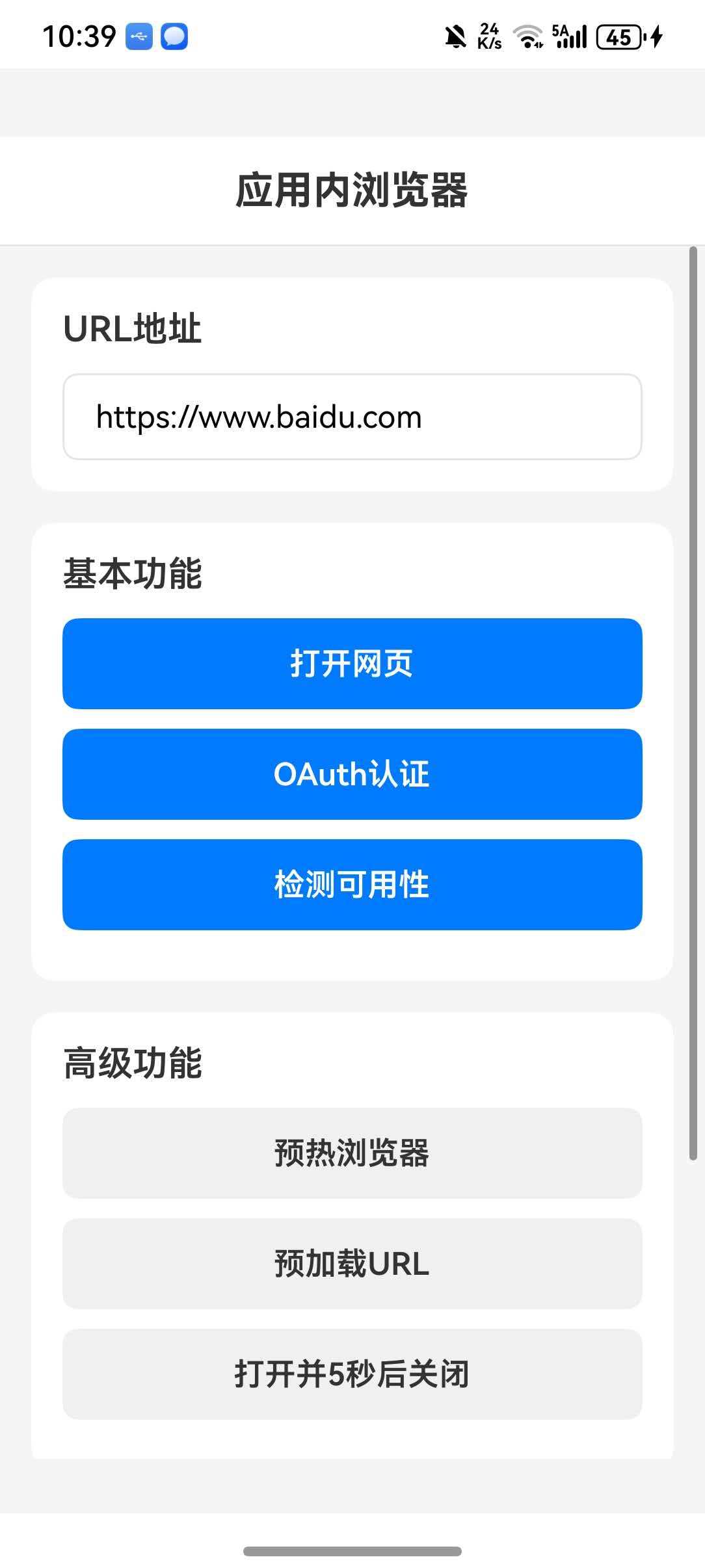
        <Text style={styles.headerTitle}>应用内浏览器</Text>
      </View>

      <ScrollView style={styles.content}>
        <View style={styles.section}>
          <Text style={styles.sectionTitle}>URL地址</Text>
          <TextInput
            style={styles.input}
            value={url}
            onChangeText={setUrl}
            placeholder="请输入URL"
            autoCapitalize="none"
            autoCorrect={false}
          />
        </View>

        <View style={styles.section}>
          <Text style={styles.sectionTitle}>基本功能</Text>

          <TouchableOpacity style={styles.button} onPress={openLink}>
            <Text style={styles.buttonText}>打开网页</Text>
          </TouchableOpacity>

          <TouchableOpacity style={styles.button} onPress={openAuth}>
            <Text style={styles.buttonText}>OAuth认证</Text>
          </TouchableOpacity>

          <TouchableOpacity style={styles.button} onPress={checkAvailability}>
            <Text style={styles.buttonText}>检测可用性</Text>
          </TouchableOpacity>
        </View>

        <View style={styles.section}>
          <Text style={styles.sectionTitle}>高级功能</Text>

          <TouchableOpacity style={[styles.button, styles.secondaryButton]} onPress={warmupBrowser}>
            <Text style={[styles.buttonText, styles.secondaryButtonText]}>预热浏览器</Text>
          </TouchableOpacity>

          <TouchableOpacity style={[styles.button, styles.secondaryButton]} onPress={prepareUrl}>
            <Text style={[styles.buttonText, styles.secondaryButtonText]}>预加载URL</Text>
          </TouchableOpacity>

          <TouchableOpacity style={[styles.button, styles.secondaryButton]} onPress={openAndAutoClose}>
            <Text style={[styles.buttonText, styles.secondaryButtonText]}>打开并5秒后关闭</Text>
          </TouchableOpacity>
        </View>

        <View style={styles.section}>
          <Text style={styles.sectionTitle}>返回结果</Text>
          <View style={styles.resultContainer}>
            <Text style={styles.resultText}>{result || '暂无结果'}</Text>
          </View>
        </View>
      </ScrollView>
    </SafeAreaView>
  );
};

const styles = StyleSheet.create({
  container: {
    flex: 1,
    backgroundColor: '#F5F5F5',
  },
  header: {
    flexDirection: 'row',
    alignItems: 'center',
    justifyContent: 'center',
    padding: 16,
    backgroundColor: '#FFFFFF',
    borderBottomWidth: 1,
    borderBottomColor: '#E5E5EA',
  },
  headerTitle: {
    fontSize: 20,
    fontWeight: '700',
    color: '#333333',
  },
  content: {
    flex: 1,
    padding: 16,
  },
  section: {
    backgroundColor: '#FFFFFF',
    borderRadius: 12,
    padding: 16,
    marginBottom: 16,
  },
  sectionTitle: {
    fontSize: 18,
    fontWeight: '600',
    color: '#333333',
    marginBottom: 12,
  },
  input: {
    borderWidth: 1,
    borderColor: '#E5E5EA',
    borderRadius: 8,
    paddingHorizontal: 16,
    paddingVertical: 12,
    fontSize: 16,
  },
  button: {
    backgroundColor: '#007AFF',
    paddingVertical: 14,
    borderRadius: 8,
    alignItems: 'center',
    marginBottom: 10,
  },
  buttonText: {
    color: '#FFFFFF',
    fontSize: 16,
    fontWeight: '600',
  },
  secondaryButton: {
    backgroundColor: '#F0F0F0',
  },
  secondaryButtonText: {
    color: '#333333',
  },
  resultContainer: {
    backgroundColor: '#F8F8F8',
    borderRadius: 8,
    padding: 12,
    minHeight: 100,
  },
  resultText: {
    fontSize: 14,
    color: '#666666',
    fontFamily: 'monospace',
  },
});

export default App;
⚠️ 注意事项
1. 必须配置 BrowserManagerAbility
本库需要在 HarmonyOS 端配置 BrowserManagerAbility,否则浏览器无法正常工作。请确保:
- 已创建
BrowserManagerAbility.ets - 已在
module.json5中注册 - 已创建
BrowserManagerPage.ets - 已在
main_pages.json中添加页面
2. 深度链接配置
如果使用 openAuth 进行 OAuth 认证,需要配置深度链接:
HarmonyOS: 在 module.json5 中配置 skills
3. HTTPS 要求
出于安全考虑,建议使用 HTTPS 协议的 URL。HTTP 协议可能在某些设备上被阻止。
4. 内存管理
长时间打开浏览器会占用内存,建议在不需要时及时关闭:
useEffect(() => {
  return () => {
    InAppBrowser.close();
  };
}, []);
5. 预热优化
对于需要频繁打开浏览器的场景,建议在应用启动时预热:
useEffect(() => {
  InAppBrowser.warmup();
}, []);
6. 错误处理
始终使用 try-catch 包裹浏览器操作:
try {
  await InAppBrowser.open(url);
} catch (error) {
  console.error('打开失败:', error);
  Alert.alert('错误', '无法打开网页');
}
7. 平台差异
不同平台的浏览器选项支持程度不同:
| 选项 | iOS | Android | HarmonyOS |
|---|---|---|---|
| dismissButtonStyle | ✅ | ✅ | ✅ |
| preferredBarTintColor | ✅ | ✅ | ✅ |
| preferredControlTintColor | ✅ | ✅ | ✅ |
| readerMode | ✅ | ❌ | ❌ |
| animated | ✅ | ❌ | ❌ |
| modalPresentationStyle | ✅ | ❌ | ❌ |

作为“人工智能6S店”的官方数字引擎,为AI开发者与企业提供一个覆盖软硬件全栈、一站式门户。
更多推荐
 0
0 0
0- 0


 已为社区贡献18条内容

所有评论(0)