
ReactNative for OpenHarmony项目鸿蒙化三方库:lottie-react-native — Lottie动画组件
欢迎加入开源鸿蒙跨平台社区:https://openharmonycrossplatform.csdn.net📌:本文基于 React Native 0.72.90 版本进行开发适配。
欢迎加入开源鸿蒙跨平台社区:https://openharmonycrossplatform.csdn.net
📌 开发环境声明:本文基于 React Native 0.72.90 版本进行开发适配
🚀 一、开篇引言
Lottie 是 Airbnb 开发的一款动画库,它可以将 After Effects 制作的动画导出为 JSON 文件,然后在移动端以极小的体积渲染出高质量的矢量动画。lottie-react-native 是 React Native 社区中最流行的 Lottie 动画组件,支持本地 JSON 文件、网络 URL 等多种动画源,广泛应用于启动动画、加载指示、交互反馈等场景。本文将带你深入了解如何在 HarmonyOS 平台上集成和使用这个强大的动画组件。
1.1 你将学到什么?
- ✅ Lottie 的核心概念与工作原理
- ✅ HarmonyOS 平台的完整集成流程
- ✅ 本地与网络动画加载
- ✅ API 属性的深度解析
- ✅ 实际应用场景的最佳实践
1.2 适用人群
- 正在进行 React Native 鸿蒙化迁移的开发者
- 需要实现高质量动画效果的开发者
- 对跨平台动画开发感兴趣的技术爱好者
1.3 为什么选择 Lottie?
| 特点 | 说明 |
|---|---|
| 高质量动画 | 矢量动画,任意缩放不失真 |
| 极小体积 | JSON 文件通常只有几 KB |
| 跨平台一致 | iOS、Android、HarmonyOS 表现一致 |
| 丰富资源 | LottieFiles 有大量免费动画资源 |
| 灵活控制 | 支持播放、暂停、进度控制等 |
📦 二、库概览
2.1 基本信息
| 项目 | 内容 |
|---|---|
| 库名称 | @react-native-ohos/lottie-react-native |
| 原库名称 | lottie-react-native |
| 版本信息 | 6.4.2+ |
| 官方仓库 | https://github.com/lottie-react-native/lottie-react-native |
| 鸿蒙仓库 | https://atomgit.com/openharmony-sig/rntpc_lottie-react-native |
| 开源协议 | Apache-2.0 |
2.2 版本兼容性
| 三方库版本 | 支持RN版本 | 是否支持Autolink |
|---|---|---|
| >= 6.4.2 | 0.72 | Yes |
| <= 6.4.1-0.1.17@deprecated | 0.72 | No |
2.3 核心能力矩阵
| 能力项 | 描述 | HarmonyOS 支持 |
|---|---|---|
| 本地动画加载 | source={require()} | ✅ 完全支持 |
| 网络动画加载 | source={{ uri }} | ✅ 完全支持 |
| 自动播放 | autoPlay | ✅ 完全支持 |
| 循环播放 | loop | ✅ 完全支持 |
| 进度控制 | progress | ✅ 完全支持 |
| 速度控制 | speed | ✅ 完全支持 |
| 动画回调 | onFinish/onLoad | ✅ 完全支持 |
| 颜色滤镜 | colorFilters | ✅ 完全支持 |
2.4 技术架构图
2.5 典型应用场景
| 场景 | 描述 | 示例 |
|---|---|---|
| 启动动画 | 应用启动品牌展示 | 🚀 Logo 动画、品牌展示 |
| 加载指示 | 数据加载等待 | ⏳ 列表加载、页面刷新 |
| 空状态展示 | 无数据时的提示 | 📭 空列表、无搜索结果 |
| 交互反馈 | 操作成功/失败 | ✅ 成功动画、❌ 错误提示 |
| 引导动画 | 功能引导说明 | 📱 操作指引、功能介绍 |
📖 三、安装与配置
3.1 安装依赖
在项目根目录执行以下命令:
npm install @react-native-ohos/lottie-react-native@6.4.2-rc.1
或使用 yarn:
yarn add @react-native-ohos/lottie-react-native@6.4.2-rc.1
3.2 验证安装
安装完成后,检查 package.json 文件中是否包含以下依赖:
{
  "dependencies": {
    "@react-native-ohos/lottie-react-native": "^6.4.2-rc.1"
  }
}
3.3 基本导入
import LottieView from 'lottie-react-native';
🔧 四、原生配置
⚠️ 注意:版本 >= 6.4.2 已支持 Autolink,无需手动配置。以下为手动配置步骤,适用于旧版本。
4.1 配置 oh-package.json5(请根据自己的版本适配)
打开 harmony/oh-package.json5,添加 overrides 配置:
{
  "overrides": {
    "@rnoh/react-native-openharmony": "0.72.90"
  }
}
4.2 配置 entry/oh-package.json5
打开 harmony/entry/oh-package.json5,添加依赖:
{
  "dependencies": {
    "@react-native-ohos/lottie-react-native": "file:../../node_modules/@react-native-ohos/lottie-react-native/harmony/lottie.har"
  }
}
4.3 配置 CMakeLists.txt
打开 harmony/entry/src/main/cpp/CMakeLists.txt,添加:
+ set(OH_MODULES "${CMAKE_CURRENT_SOURCE_DIR}/../../../oh_modules")

# RNOH_BEGIN: manual_package_linking_1
+ add_subdirectory("${OH_MODULES}/@react-native-ohos/lottie-react-native/src/main/cpp" ./lottie)
# RNOH_END: manual_package_linking_1

# RNOH_BEGIN: manual_package_linking_2
+ target_link_libraries(rnoh_app PUBLIC rnoh_lottie)
# RNOH_END: manual_package_linking_2
4.4 配置 PackageProvider.cpp
打开 harmony/entry/src/main/cpp/PackageProvider.cpp,添加:
#include "RNOH/PackageProvider.h"
#include "generated/RNOHGeneratedPackage.h"
+ #include "LottieAnimationViewPackage.h"

using namespace rnoh;

std::vector<std::shared_ptr<Package>> PackageProvider::getPackages(Package::Context ctx) {
    return {
        std::make_shared<RNOHGeneratedPackage>(ctx),
        + std::make_shared<LottieAnimationViewPackage>(ctx),
    };
}
4.5 配置 RNPackagesFactory.ts
打开 harmony/entry/src/main/ets/RNPackagesFactory.ts,添加:
import { LottieAnimationViewPackage } from '@react-native-ohos/lottie-react-native/ts';

export function createRNPackages(ctx: RNPackageContext): RNPackage[] {
  return [
    new LottieAnimationViewPackage(ctx)
  ];
}
4.6 注册组件
打开 harmony/entry/src/main/ets/pages/index.ets 或 LoadBundle.ets:
import { LottieAnimationView, LOTTIE_TYPE } from "@react-native-ohos/lottie-react-native"

@Builder
export function buildCustomRNComponent(ctx: ComponentBuilderContext) {
  if (ctx.componentName === LOTTIE_TYPE) {
    LottieAnimationView({
      ctx: ctx.rnComponentContext,
      tag: ctx.tag
    })
  }
}

const arkTsComponentNames: Array<string> = [
  LOTTIE_TYPE
];
4.7 同步依赖
在 DevEco Studio 中点击右上角的 sync 按钮,或在命令行执行:
cd harmony/entry
ohpm install
📖 五、API 详解
5.1 LottieView 组件
核心组件,用于渲染 Lottie 动画。
基本用法:
import LottieView from 'lottie-react-native';

<LottieView
  source={require('./animation.json')}
  autoPlay
  loop
  style={{ width: 200, height: 200 }}
/>
5.2 属性详解
source - 动画源
动画资源,支持本地文件、网络 URL 或 JSON 对象。
类型: string | AnimationObject | { uri: string }
必填: 是
<LottieView source={require('./animation.json')} autoPlay />

<LottieView source={{ uri: 'https://example.com/animation.json' }} autoPlay />

<LottieView source={animationJsonObject} autoPlay />
autoPlay - 自动播放
是否在组件挂载时自动播放动画。
类型: boolean
默认值: false
<LottieView source={require('./animation.json')} autoPlay={true} />
loop - 循环播放
是否循环播放动画。
类型: boolean
默认值: true
<LottieView source={require('./animation.json')} loop={false} autoPlay />
progress - 播放进度
控制动画的播放进度,值为 0-1 之间的数字。
类型: number
默认值: 0
const [progress, setProgress] = useState(0);

<LottieView
  source={require('./animation.json')}
  progress={progress}
/>
speed - 播放速度
动画播放速度,负值表示反向播放。
类型: number
默认值: 1
<LottieView source={require('./animation.json')} speed={2} autoPlay />

<LottieView source={require('./animation.json')} speed={-1} autoPlay />
duration - 持续时间
动画持续时间(毫秒),设置后会覆盖 speed。
类型: number
<LottieView source={require('./animation.json')} duration={3000} autoPlay />
resizeMode - 缩放模式
动画的缩放模式。
类型: 'cover' | 'contain' | 'center'
默认值: 'contain'
<LottieView source={require('./animation.json')} resizeMode="cover" />
imageAssetsFolder - 图片资源目录
动画中引用的图片资源目录路径。
类型: string
<LottieView
  source={require('./animation.json')}
  imageAssetsFolder="images"
/>
cacheComposition - 缓存动画
是否缓存动画组合,提高性能。
类型: boolean
默认值: true
<LottieView source={require('./animation.json')} cacheComposition={true} />
colorFilters - 颜色滤镜
动态修改动画中指定图层的颜色。
类型: Array<{ keypath: string; color: string }>
<LottieView
  source={require('./animation.json')}
  colorFilters={[
    { keypath: 'layer1', color: '#FF0000' },
    { keypath: 'layer2.Shape 1.Fill 1', color: '#00FF00' }
  ]}
  autoPlay
/>
5.3 回调函数
onAnimationFinish - 动画完成回调
动画播放完成时触发(仅当 loop=false 时)。
类型: (isCancelled: boolean) => void
<LottieView
  source={require('./animation.json')}
  loop={false}
  autoPlay
  onAnimationFinish={(isCancelled) => {
    console.log('动画完成,是否取消:', isCancelled);
  }}
/>
onAnimationLoaded - 动画加载回调
动画加载完成时触发。
类型: () => void
<LottieView
  source={require('./animation.json')}
  onAnimationLoaded={() => {
    console.log('动画加载完成');
  }}
/>
onAnimationFailure - 动画失败回调
动画加载或播放失败时触发。
类型: (error: string) => void
<LottieView
  source={{ uri: 'https://example.com/animation.json' }}
  onAnimationFailure={(error) => {
    console.log('动画加载失败:', error);
  }}
/>
5.4 实例方法
play() - 播放动画
开始或继续播放动画。
const lottieRef = useRef<LottieView>(null);

lottieRef.current?.play();
pause() - 暂停动画
暂停当前播放的动画。
lottieRef.current?.pause();
reset() - 重置动画
重置动画到初始状态。
lottieRef.current?.reset();
💡 六、使用示例
6.1 基础动画播放
最简单的使用方式,自动播放循环动画。
适用场景: 加载指示、等待动画。
import React from 'react';
import { View, StyleSheet } from 'react-native';
import LottieView from 'lottie-react-native';

const BasicLottie = () => {
  return (
    <View style={styles.container}>
      <LottieView
        source={require('./assets/loading.json')}
        autoPlay
        loop
        style={styles.animation}
      />
    </View>
  );
};

const styles = StyleSheet.create({
  container: {
    flex: 1,
    justifyContent: 'center',
    alignItems: 'center',
    backgroundColor: '#f5f5f5',
  },
  animation: {
    width: 200,
    height: 200,
  },
});

export default BasicLottie;
代码解析:
source指定本地 JSON 动画文件autoPlay自动开始播放loop循环播放
6.2 网络动画加载(可能有问题,加载不出来,推荐本地json)
从网络 URL 加载动画。
适用场景: 动态动画、远程资源。
import React from 'react';
import { View, StyleSheet, ActivityIndicator } from 'react-native';
import LottieView from 'lottie-react-native';

const NetworkLottie = () => {
  return (
    <View style={styles.container}>
      <LottieView
        source={{
          uri: 'https://assets2.lottiefiles.com/packages/lf20_UJNc2t.json'
        }}
        autoPlay
        loop
        style={styles.animation}
        onAnimationLoaded={() => console.log('动画加载完成')}
        onAnimationFailure={(error) => console.log('加载失败:', error)}
      />
    </View>
  );
};

const styles = StyleSheet.create({
  container: {
    flex: 1,
    justifyContent: 'center',
    alignItems: 'center',
    backgroundColor: '#1a1a2e',
  },
  animation: {
    width: 300,
    height: 300,
  },
});

export default NetworkLottie;
代码解析:
source={{ uri: '...' }}从网络加载动画- 需要网络权限配置
⚠️ 注意:在 HarmonyOS 平台上,使用网络 URL 加载动画可能存在兼容性问题,建议优先使用本地 JSON 文件。如需使用网络动画,请确保:
- 已配置网络权限
- 使用 HTTPS 协议
- 测试网络动画是否可正常加载,如无法加载请改用本地文件
6.3 手动控制动画
通过 ref 手动控制动画播放。
适用场景: 交互触发动画、条件播放。
import React, { useRef, useState } from 'react';
import { View, Text, TouchableOpacity, StyleSheet } from 'react-native';
import LottieView from 'lottie-react-native';

const ControlledLottie = () => {
  const lottieRef = useRef<LottieView>(null);
  const [isPlaying, setIsPlaying] = useState(false);

  const handlePlay = () => {
    if (isPlaying) {
      lottieRef.current?.pause();
    } else {
      lottieRef.current?.play();
    }
    setIsPlaying(!isPlaying);
  };

  const handleReset = () => {
    lottieRef.current?.reset();
    setIsPlaying(false);
  };

  return (
    <View style={styles.container}>
      <LottieView
        ref={lottieRef}
        source={require('./assets/celebration.json')}
        loop={false}
        style={styles.animation}
      />

      <View style={styles.controls}>
        <TouchableOpacity style={styles.button} onPress={handlePlay}>
          <Text style={styles.buttonText}>{isPlaying ? '暂停' : '播放'}</Text>
        </TouchableOpacity>
        <TouchableOpacity style={[styles.button, styles.resetButton]} onPress={handleReset}>
          <Text style={styles.buttonText}>重置</Text>
        </TouchableOpacity>
      </View>
    </View>
  );
};

const styles = StyleSheet.create({
  container: {
    flex: 1,
    justifyContent: 'center',
    alignItems: 'center',
    backgroundColor: '#f5f5f5',
  },
  animation: {
    width: 250,
    height: 250,
  },
  controls: {
    flexDirection: 'row',
    marginTop: 30,
    gap: 16,
  },
  button: {
    backgroundColor: '#007AFF',
    paddingHorizontal: 32,
    paddingVertical: 14,
    borderRadius: 8,
  },
  resetButton: {
    backgroundColor: '#FF3B30',
  },
  buttonText: {
    color: '#fff',
    fontSize: 16,
    fontWeight: '600',
  },
});

export default ControlledLottie;
代码解析:
useRef获取组件引用play()/pause()控制播放状态reset()重置动画到初始状态
6.4 进度控制动画
通过 progress 属性控制动画进度。
适用场景: 滑动控制、进度展示。
import React, { useState } from 'react';
import { View, Slider, StyleSheet, Text } from 'react-native';
import LottieView from 'lottie-react-native';

const ProgressLottie = () => {
  const [progress, setProgress] = useState(0);

  return (
    <View style={styles.container}>
      <LottieView
        source={require('./assets/progress.json')}
        progress={progress}
        style={styles.animation}
      />

      <View style={styles.sliderContainer}>
        <Text style={styles.label}>进度: {Math.round(progress * 100)}%</Text>
        <Slider
          style={styles.slider}
          minimumValue={0}
          maximumValue={1}
          value={progress}
          onValueChange={setProgress}
          minimumTrackTintColor="#007AFF"
          maximumTrackTintColor="#ddd"
        />
      </View>
    </View>
  );
};

const styles = StyleSheet.create({
  container: {
    flex: 1,
    justifyContent: 'center',
    alignItems: 'center',
    backgroundColor: '#f5f5f5',
    padding: 20,
  },
  animation: {
    width: 200,
    height: 200,
  },
  sliderContainer: {
    width: '100%',
    marginTop: 40,
  },
  label: {
    fontSize: 16,
    color: '#333',
    textAlign: 'center',
    marginBottom: 10,
  },
  slider: {
    width: '100%',
    height: 40,
  },
});

export default ProgressLottie;
代码解析:
progress属性控制动画帧- 值范围 0-1,对应动画开始到结束
- 适合与手势或滑块联动
❓ 八、常见问题
8.1 遗留问题
⚠️ 重要提示:以下属性在 HarmonyOS 平台上暂不支持。
renderMode - 渲染模式
renderMode 属性(‘AUTOMATIC’ | ‘HARDWARE’ | ‘SOFTWARE’)在 HarmonyOS 平台上暂不支持。
onAnimationLoop - 循环回调
onAnimationLoop 回调在 HarmonyOS 平台上暂不支持。
8.2 常见问题解答
Q1: 动画不显示怎么办?
A: 检查以下几点:
- 确保 JSON 文件路径正确
- 网络动画需要添加网络权限
- 检查 style 是否设置了宽高
Q2: 如何获取 Lottie 动画资源?
A: 访问 LottieFiles 获取免费动画资源。
Q3: 动画中的图片不显示?
A: 将图片资源放到 rawfile 目录,并设置 imageAssetsFolder 属性。
Q4: 如何动态修改动画颜色?
A: 使用 colorFilters 属性,通过 keypath 指定要修改的图层。
8.3 最佳实践
- 资源优化:压缩 JSON 文件,移除无用图层
- 缓存策略:保持
cacheComposition={true}提高性能 - 网络动画:优先使用本地资源,减少网络请求
- 内存管理:及时暂停或卸载不可见的动画
💻 九、完整示例代码
综合示例
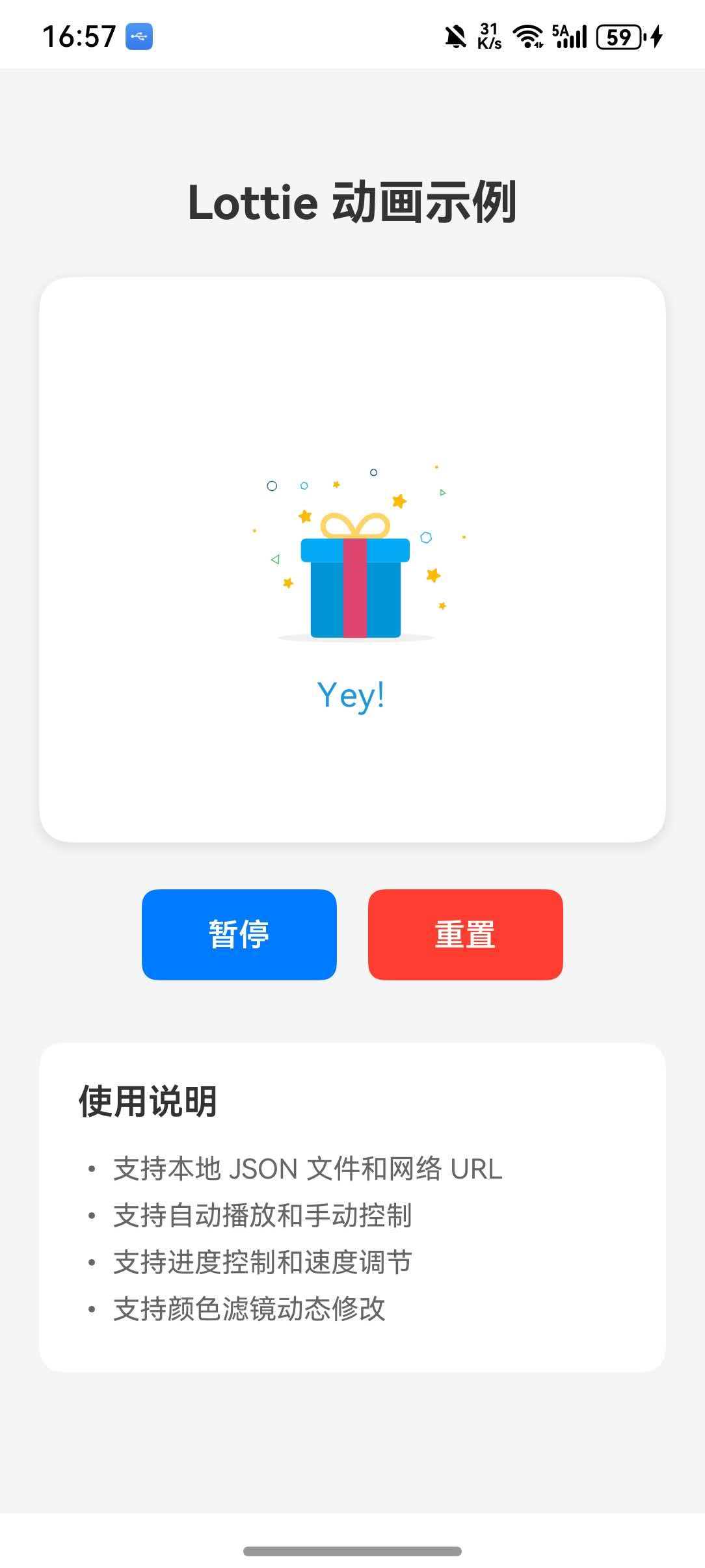
import React, { useRef, useState } from 'react';
import {
  View,
  Text,
  TouchableOpacity,
  StyleSheet,
  SafeAreaView,
  ScrollView,
} from 'react-native';
import LottieView from 'lottie-react-native';

export default function App() {
  const lottieRef = useRef<LottieView>(null);
  const [isPlaying, setIsPlaying] = useState(true);

  const handlePlayPause = () => {
    if (isPlaying) {
      lottieRef.current?.pause();
    } else {
      lottieRef.current?.play();
    }
    setIsPlaying(!isPlaying);
  };

  const handleReset = () => {
    lottieRef.current?.reset();
    setIsPlaying(false);
  };

  return (
    <SafeAreaView style={styles.container}>
      <ScrollView contentContainerStyle={styles.content}>
        <Text style={styles.title}>Lottie 动画示例</Text>

        <View style={styles.animationContainer}>
          <LottieView
            ref={lottieRef}
            source={{
              uri: 'https://assets2.lottiefiles.com/packages/lf20_UJNc2t.json'
            }}
            autoPlay
            loop
            style={styles.animation}
            onAnimationLoaded={() => console.log('动画加载完成')}
          />
        </View>

        <View style={styles.controls}>
          <TouchableOpacity style={styles.button} onPress={handlePlayPause}>
            <Text style={styles.buttonText}>{isPlaying ? '暂停' : '播放'}</Text>
          </TouchableOpacity>
          <TouchableOpacity style={[styles.button, styles.resetButton]} onPress={handleReset}>
            <Text style={styles.buttonText}>重置</Text>
          </TouchableOpacity>
        </View>

        <View style={styles.infoSection}>
          <Text style={styles.infoTitle}>使用说明</Text>
          <Text style={styles.infoText}>• 支持本地 JSON 文件和网络 URL</Text>
          <Text style={styles.infoText}>• 支持自动播放和手动控制</Text>
          <Text style={styles.infoText}>• 支持进度控制和速度调节</Text>
          <Text style={styles.infoText}>• 支持颜色滤镜动态修改</Text>
        </View>
      </ScrollView>
    </SafeAreaView>
  );
}

const styles = StyleSheet.create({
  container: {
    flex: 1,
    backgroundColor: '#f5f5f5',
  },
  content: {
    padding: 20,
  },
  title: {
    fontSize: 24,
    fontWeight: 'bold',
    color: '#333',
    textAlign: 'center',
    marginBottom: 24,
  },
  animationContainer: {
    alignItems: 'center',
    backgroundColor: '#fff',
    borderRadius: 16,
    padding: 20,
    shadowColor: '#000',
    shadowOffset: { width: 0, height: 2 },
    shadowOpacity: 0.1,
    shadowRadius: 8,
    elevation: 4,
  },
  animation: {
    width: 250,
    height: 250,
  },
  controls: {
    flexDirection: 'row',
    justifyContent: 'center',
    marginTop: 24,
    gap: 16,
  },
  button: {
    backgroundColor: '#007AFF',
    paddingHorizontal: 32,
    paddingVertical: 14,
    borderRadius: 8,
    minWidth: 100,
    alignItems: 'center',
  },
  resetButton: {
    backgroundColor: '#FF3B30',
  },
  buttonText: {
    color: '#fff',
    fontSize: 16,
    fontWeight: '600',
  },
  infoSection: {
    marginTop: 32,
    backgroundColor: '#fff',
    borderRadius: 12,
    padding: 20,
  },
  infoTitle: {
    fontSize: 18,
    fontWeight: '600',
    color: '#333',
    marginBottom: 12,
  },
  infoText: {
    fontSize: 14,
    color: '#666',
    lineHeight: 24,
  },
});
🔗 十、相关资源

作为“人工智能6S店”的官方数字引擎,为AI开发者与企业提供一个覆盖软硬件全栈、一站式门户。
更多推荐


 7
7 0
0- 0


 已为社区贡献8条内容

所有评论(0)