
(基于上篇文章)Flutter 鸿蒙化深色模式踩坑修复!硬编码颜色导致的显示问题全流程解决
🔍 文章摘要(148字) 本文记录了Flutter鸿蒙应用开发中深色模式适配的关键问题与解决方案。作者在macOS+DevEco Studio环境下,发现硬编码颜色导致深色模式下文字/图标不可见的典型问题,通过系统排查定位到自定义组件中直接使用Colors.white等固定值的根本原因。文章提供了三步修复方案:1)使用Theme.of动态获取主题色 2)区分背景/文字/图标色系 3)全量替换硬编
🔥Flutter 鸿蒙化深色模式踩坑修复!硬编码颜色导致的显示问题全流程解决(macOS+DevEco Studio)
欢迎加入开源鸿蒙跨平台社区:https://openharmonycrossplatform.csdn.net
📄 文章摘要
本文基于已完成 Flutter for OpenHarmony 本地存储、主题切换功能的跨平台应用,完整记录了大一新生在 macOS 环境下,使用鸿蒙官方 IDE DevEco Studio,针对深色模式下文字 / 图标不可见问题的全流程排查、根因定位与终极修复过程。文章精准定位了 “硬编码颜色导致主题适配失效” 的核心问题,给出了分步可复现的修复方案,完成了 OpenHarmony 模拟器的全流程运行验证。文章内容结构清晰、代码可直接复用,既符合开源鸿蒙征文规范,也针对搜索引擎 SEO 和大模型搜索做了结构化优化,适合所有 Flutter 鸿蒙化开发新手避坑参考。
📋 文章目录
1 📝 前言
2 📦 项目前期回顾与新问题说明
3 ❌ 问题现象与初步排查
4 🔍 根因定位:硬编码颜色的大坑
5 ⚙️ 终极修复方案分步实现
6 ✅ OpenHarmony 设备运行验证
7 💡 深色模式适配核心技术要点
8 ⚠️ 鸿蒙化开发深色模式专属避坑指南
9 🎯 全文总结
📝 前言
我是一名大一新生,全程使用 macOS 电脑 + 鸿蒙官方 IDE DevEco Studio 完成本次开发!在前六篇实战文章中,我已经完整完成了老师要求的全部开发任务:dio 网络请求接入、列表下拉刷新 / 上拉加载、底部选项卡多页面实现、全场景动效集成、应用白屏问题修复、本地存储与主题 / 语言切换功能,项目已经形成了完整的业务闭环!
但就在我以为万事大吉的时候,又遇到了一个新的超级大坑❗❗❗—— 切换到深色模式后,设置页面、用户列表、帖子列表的文字和图标全都看不见了!整个页面一片白(或者一片黑),完全没法用!
经过我一步步的排查、定位、修复,最终彻底解决了这个深色模式显示问题,现在不管是浅色模式还是深色模式,所有内容都能正常显示了!
本文将完整记录我从问题出现,到全流程排查、根因定位、分步修复、设备验证的全过程,所有踩坑点和修复方案都可直接复用,和我一样的新手小白一定要看完,帮你直接避开 90% 的深色模式开发坑❗❗❗
📦 一、项目前期回顾与新问题说明
1. 前期成果回顾
首先回顾一下前六篇文章完成的核心成果,为本次问题修复打下基础:
✅ 已完成 dio 网络请求库的集成与鸿蒙化适配,可正常发起网络请求
✅ 已集成 pull_to_refresh 库,实现了列表下拉刷新、上拉加载分页能力
✅ 已完成底部选项卡导航,实现用户列表、帖子列表、设置中心三页面切换
✅ 已集成 flutter_animate 库,实现全场景动效
✅ 已解决应用白屏问题,应用可正常在 OpenHarmony 模拟器启动运行
✅ 已集成 OpenHarmony TPC 适配版 shared_preferences,实现本地存储与主题 / 语言切换
2. 新问题说明
本次遇到的新问题是在主题切换功能验证时发现的:
浅色模式下,所有页面显示完全正常,文字、图标、背景都清晰可见
切换到深色模式后,设置页面、用户列表、帖子列表的文字和图标全都 “消失” 了,只能看到一片空白区域
底部选项卡、AppBar 等系统组件显示正常,只有自定义的列表项和设置项有问题
❌ 二、问题现象与初步排查
1. 核心问题现象
我在 OpenHarmony 模拟器中切换到深色模式后,出现了以下具体问题:
1.设置页面:设置项的背景是白色,文字也是白色(或者浅色),完全看不清内容
2.用户列表页面:用户卡片的背景是白色,文字也是白色,完全看不清用户信息
3.帖子列表页面:帖子卡片的背景是白色,文字也是白色,完全看不清帖子内容
4.系统组件正常:底部选项卡、AppBar、AlertDialog 等 Flutter 自带组件显示正常,颜色自动适配深色模式
2. 初步排查过程
面对这个问题,我没有盲目修改代码,而是按照「从现象到本质」的逻辑,一步步排查:
1.检查主题配置:首先看了 MyApp 中的 theme 和 darkTheme 配置,确认深色主题的颜色定义是正常的
2.检查状态管理:确认_isDarkMode 状态切换是正常的,themeMode 也正确设置为 ThemeMode.dark
3.检查系统组件:发现 Flutter 自带的组件(如 Switch、ListTile 的默认样式)在深色模式下显示正常,说明主题本身是生效的
4.检查自定义组件:重点看了我自己写的列表项和设置项代码,终于发现了问题所在!
🔍 三、根因定位:硬编码颜色的大坑
找了半天,我终于发现了问题的核心 ——我在代码里把背景色、文字色全硬编码成了 Colors.white 和 Colors.grey 等固定颜色!
1. 具体问题代码
我翻了三个页面的代码,发现了大量这样的硬编码:
(1)设置页面的问题代码
// 错误写法:硬编码白色背景
Card(
  elevation: 4,
  shape: RoundedRectangleBorder(borderRadius: BorderRadius.circular(12)),
  color: Colors.white, // 这里硬编码了白色!深色模式下背景还是白的!
  child: Column(
    children: [
      ListTile(
        // ...
        title: Text(
          "主题模式",
          style: const TextStyle(fontSize: 16, fontWeight: FontWeight.w500), // 文字颜色也是默认的,深色模式下可能是白色!
        ),
        subtitle: Text(
          "深色模式",
          style: const TextStyle(fontSize: 12, color: Colors.grey), // 这里硬编码了灰色!
        ),
        // ...
      ),
    ],
  ),
)
(2)用户列表页面的问题代码
// 错误写法:硬编码白色背景
return Container(
  margin: const EdgeInsets.only(bottom: 12),
  child: Card(
    elevation: 4,
    color: Colors.white, // 这里硬编码了白色!
    shape: RoundedRectangleBorder(borderRadius: BorderRadius.circular(12)),
    child: Padding(
      padding: const EdgeInsets.all(16),
      child: Column(
        crossAxisAlignment: CrossAxisAlignment.start,
        children: [
          Text(
            user.name,
            style: const TextStyle(fontSize: 18, fontWeight: FontWeight.bold), // 文字颜色默认,深色模式下可能看不清
          ),
          // ...
        ],
      ),
    ),
  ),
);
2. 问题根因总结
这个问题的根本原因非常简单,但新手特别容易犯:
硬编码颜色:我把背景色、文字色、图标色都写成了固定的 Colors.white、Colors.grey 等,没有根据当前主题动态获取
主题失效:虽然我配置了 darkTheme,但是自定义组件的颜色没有使用主题中的颜色,导致深色模式下背景和文字颜色冲突,要么都是白色,要么都是黑色,完全看不清
⚙️ 四、终极修复方案分步实现
定位了根因后,我一步步完成了全量修复,最终彻底解决了深色模式显示问题!所有修复步骤都可直接复制,新手跟着做就行❗❗❗
修复核心思路
核心思路只有一个:把所有硬编码的颜色,改成从当前主题中动态获取!
1.背景色:用Theme.of(context).cardColor或Theme.of(context).scaffoldBackgroundColor
2.文字色:用Theme.of(context).textTheme.bodyLarge?.color、Theme.of(context).textTheme.bodySmall?.color等
3.图标色:用Theme.of(context).iconTheme.color
修复步骤 1:修复设置页面的颜色
首先改造lib/pages/settings_page.dart文件,把所有硬编码的颜色改成动态获取👇
import 'package:flutter/material.dart';
import '../services/storage_service.dart';
class SettingsPage extends StatefulWidget {
const SettingsPage({
super.key,
required this.toggleTheme,
required this.isDarkMode,
});
final Function toggleTheme;
final bool isDarkMode;
State<SettingsPage> createState() => _SettingsPageState();
}
class _SettingsPageState extends State<SettingsPage> with AutomaticKeepAliveClientMixin {
bool get wantKeepAlive => true;
String _currentLanguage = 'zh';
void initState() {
super.initState();
_loadLanguageFromStorage();
}
Future<void> _loadLanguageFromStorage() async {
String savedLang = StorageService.getLanguage();
setState(() {
_currentLanguage = savedLang;
});
}
Future<void> _showLanguageDialog() async {
// ... 语言选择对话框代码保持不变
}
Widget build(BuildContext context) {
super.build(context);
return Scaffold(
// 【修复1】背景色从主题获取,不用硬编码
backgroundColor: Theme.of(context).scaffoldBackgroundColor,
body: SingleChildScrollView(
padding: const EdgeInsets.all(16),
child: Column(
crossAxisAlignment: CrossAxisAlignment.stretch,
children: [
// 顶部应用信息卡片(橙色可以保留,因为是品牌色,不影响可读性)
Card(
elevation: 6,
shape: RoundedRectangleBorder(borderRadius: BorderRadius.circular(12)),
color: Colors.orangeAccent,
child: const Padding(
padding: EdgeInsets.all(20),
child: Column(
children: [
Icon(Icons.settings, size: 60, color: Colors.white),
SizedBox(height: 12),
Text(
"设置中心",
style: TextStyle(fontSize: 22, fontWeight: FontWeight.bold, color: Colors.white),
),
Text(
"Flutter + OpenHarmony 深色模式修复",
style: TextStyle(color: Colors.white70),
),
],
),
),
),
const SizedBox(height: 20),
// 【修复2】主题设置卡片:背景色从主题获取
Card(
elevation: 4,
shape: RoundedRectangleBorder(borderRadius: BorderRadius.circular(12)),
// 【关键修复】移除硬编码Colors.white,改用Theme.of(context).cardColor
color: Theme.of(context).cardColor,
child: Column(
children: [
ListTile(
leading: Icon(
widget.isDarkMode ? Icons.dark_mode : Icons.light_mode,
// 【修复3】图标颜色从主题获取
color: Theme.of(context).iconTheme.color,
size: 24,
),
title: Text(
_currentLanguage == 'zh' ? '主题模式' : 'Theme Mode',
// 【修复4】文字颜色从主题的textTheme获取
style: Theme.of(context).textTheme.titleMedium?.copyWith(fontWeight: FontWeight.w500),
),
subtitle: Text(
widget.isDarkMode
? (_currentLanguage == 'zh' ? '深色模式' : 'Dark Mode')
: (_currentLanguage == 'zh' ? '浅色模式' : 'Light Mode'),
// 【修复5】副标题颜色从主题的textTheme获取
style: Theme.of(context).textTheme.bodySmall,
),
trailing: Switch(
value: widget.isDarkMode,
onChanged: (bool value) async {
await widget.toggleTheme();
},
activeColor: Colors.orangeAccent,
),
contentPadding: const EdgeInsets.symmetric(horizontal: 16, vertical: 12),
),
],
),
),
const SizedBox(height: 16),
// 【修复6】语言设置卡片:同样修复颜色
Card(
elevation: 4,
shape: RoundedRectangleBorder(borderRadius: BorderRadius.circular(12)),
// 背景色从主题获取
color: Theme.of(context).cardColor,
child: Column(
children: [
ListTile(
leading: Icon(
Icons.language,
// 图标颜色从主题获取
color: Theme.of(context).iconTheme.color,
size: 24,
),
title: Text(
_currentLanguage == 'zh' ? '语言设置' : 'Language',
// 文字颜色从主题获取
style: Theme.of(context).textTheme.titleMedium?.copyWith(fontWeight: FontWeight.w500),
),
subtitle: Text(
_currentLanguage == 'zh' ? '简体中文' : 'English',
// 副标题颜色从主题获取
style: Theme.of(context).textTheme.bodySmall,
),
trailing: Icon(
Icons.arrow_forward_ios,
size: 16,
// 箭头图标颜色从主题获取
color: Theme.of(context).iconTheme.color,
),
onTap: _showLanguageDialog,
contentPadding: const EdgeInsets.symmetric(horizontal: 16, vertical: 12),
),
],
),
),
const SizedBox(height: 30),
// 【修复7】版本信息文字颜色从主题获取
Center(
child: Text(
"Version 1.0.0",
style: Theme.of(context).textTheme.bodySmall,
),
),
const SizedBox(height: 10),
Center(
child: Text(
"Powered by Flutter & OpenHarmony",
style: Theme.of(context).textTheme.bodySmall,
),
),
],
),
),
);
}
}
修复步骤 2:修复用户列表页面的颜色
接下来改造lib/pages/user_list_page.dart文件,同样把硬编码颜色改成动态获取👇
import 'package:flutter/material.dart';
import 'package:pull_to_refresh/pull_to_refresh.dart';
import '../models/user_model.dart';
import '../services/api_service.dart';
class UserListPage extends StatefulWidget {
const UserListPage({super.key});
State<UserListPage> createState() => _UserListPageState();
}
class _UserListPageState extends State<UserListPage> with AutomaticKeepAliveClientMixin {
bool get wantKeepAlive => true;
final RefreshController _refreshController = RefreshController(initialRefresh: false);
int _currentPage = 1;
final int _pageSize = ApiService.defaultPageSize;
bool _hasMore = true;
List<UserModel> _userList = [];
bool _isFirstLoading = true;
String? _errorMsg;
// ... 初始化、刷新、加载方法保持不变 ...
Widget build(BuildContext context) {
super.build(context);
return Scaffold(
// 【修复1】背景色从主题获取
backgroundColor: Theme.of(context).scaffoldBackgroundColor,
body: _buildPageBody(),
);
}
Widget _buildPageBody() {
// ... 状态判断逻辑保持不变 ...
return SmartRefresher(
// ... 刷新配置保持不变 ...
child: ListView.builder(
padding: const EdgeInsets.all(16),
itemCount: _userList.length,
itemBuilder: (context, index) {
final user = _userList[index];
return Container(
margin: const EdgeInsets.only(bottom: 12),
child: Card(
elevation: 4,
// 【修复2】卡片背景色从主题获取,移除硬编码Colors.white
color: Theme.of(context).cardColor,
shape: RoundedRectangleBorder(borderRadius: BorderRadius.circular(12)),
child: Padding(
padding: const EdgeInsets.all(16),
child: Column(
crossAxisAlignment: CrossAxisAlignment.start,
children: [
Row(
children: [
CircleAvatar(
backgroundColor: Colors.blueAccent,
child: Text(
user.name.substring(0, 1),
style: const TextStyle(color: Colors.white, fontWeight: FontWeight.bold),
),
),
const SizedBox(width: 12),
Expanded(
child: Text(
user.name,
// 【修复3】姓名文字颜色从主题获取
style: Theme.of(context).textTheme.titleLarge?.copyWith(fontWeight: FontWeight.bold),
),
),
],
),
const SizedBox(height: 12),
Text(
"账号:${user.username}",
// 【修复4】详情文字颜色从主题获取
style: Theme.of(context).textTheme.bodyMedium,
),
const SizedBox(height: 4),
Text(
"邮箱:${user.email}",
style: Theme.of(context).textTheme.bodyMedium,
),
const SizedBox(height: 4),
Text(
"电话:${user.phone}",
style: Theme.of(context).textTheme.bodyMedium,
),
const SizedBox(height: 4),
Text(
"城市:${user.address.city}",
style: Theme.of(context).textTheme.bodyMedium,
),
],
),
),
),
)
.animate()
.fadeIn(duration: 300.ms)
.slideY(begin: 20, end: 0, duration: 300.ms)
.scale(begin: 0.95, end: 1.0, duration: 300.ms)
.delay(index * 50.ms);
},
),
);
}
}
修复步骤 3:修复帖子列表页面的颜色
最后改造lib/pages/post_list_page.dart文件,和用户列表页面一样修复颜色👇
import 'package:flutter/material.dart';
import 'package:pull_to_refresh/pull_to_refresh.dart';
import '../models/post_model.dart';
import '../services/api_service.dart';
class PostListPage extends StatefulWidget {
const PostListPage({super.key});
State<PostListPage> createState() => _PostListPageState();
}
class _PostListPageState extends State<PostListPage> with AutomaticKeepAliveClientMixin {
bool get wantKeepAlive => true;
final RefreshController _refreshController = RefreshController(initialRefresh: false);
int _currentPage = 1;
final int _pageSize = ApiService.defaultPageSize;
bool _hasMore = true;
List<PostModel> _postList = [];
bool _isFirstLoading = true;
String? _errorMsg;
// ... 初始化、刷新、加载方法保持不变 ...
Widget build(BuildContext context) {
super.build(context);
return Scaffold(
// 【修复1】背景色从主题获取
backgroundColor: Theme.of(context).scaffoldBackgroundColor,
body: _buildPageBody(),
);
}
Widget _buildPageBody() {
// ... 状态判断逻辑保持不变 ...
return SmartRefresher(
// ... 刷新配置保持不变 ...
child: ListView.builder(
padding: const EdgeInsets.all(16),
itemCount: _postList.length,
itemBuilder: (context, index) {
final post = _postList[index];
return Container(
margin: const EdgeInsets.only(bottom: 12),
child: Card(
elevation: 4,
// 【修复2】卡片背景色从主题获取
color: Theme.of(context).cardColor,
shape: RoundedRectangleBorder(borderRadius: BorderRadius.circular(12)),
child: Padding(
padding: const EdgeInsets.all(16),
child: Column(
crossAxisAlignment: CrossAxisAlignment.start,
children: [
Text(
post.title,
maxLines: 1,
overflow: TextOverflow.ellipsis,
// 【修复3】标题文字颜色从主题获取,品牌色绿色可以保留
style: Theme.of(context).textTheme.titleMedium?.copyWith(
fontWeight: FontWeight.bold,
color: Colors.green,
),
),
const SizedBox(height: 8),
Text(
post.body,
maxLines: 3,
overflow: TextOverflow.ellipsis,
// 【修复4】内容文字颜色从主题获取
style: Theme.of(context).textTheme.bodyMedium,
),
const SizedBox(height: 8),
Align(
alignment: Alignment.bottomRight,
child: Text(
"发布用户ID:${post.userId}",
// 【修复5】小字颜色从主题获取
style: Theme.of(context).textTheme.bodySmall,
),
),
],
),
),
),
)
.animate()
.fadeIn(duration: 300.ms)
.slideX(begin: -20, end: 0, duration: 300.ms)
.scale(begin: 0.95, end: 1.0, duration: 300.ms)
.delay(index * 50.ms);
},
),
);
}
}
✅ 五、OpenHarmony 设备运行验证
所有修复完成后,我在 macOS 环境下使用 DevEco Studio 完成了全流程运行验证,深色模式显示问题彻底解决❗❗❗
1. 构建并运行应用
在 macOS 终端执行以下命令,指定 OpenHarmony 模拟器运行应用:
flutter run -d 127.0.0.1:5555
2. 运行结果验证
(1)构建日志验证
等待项目编译构建完成,终端输出以下关键成功日志,代表应用已成功构建、安装并启动:
✓ Built build/ohos/hap/entry-default-signed.hap.
installing hap. bundleName: com.example.deveco_flutter1
Syncing files to device 127.0.0.1:5555... 18ms
A Dart VM Service on 127.0.0.1:5555 is available at: http://127.0.0.1:60545/
请求url: https://jsonplaceholder.typicode.com/users
响应状态码: 200
(2)功能与界面验证
应用成功在 OpenHarmony 模拟器中启动,深色模式显示问题彻底解决!所有页面在两种主题下都能正常显示:
🎉 浅色模式下,所有页面显示完全正常,和修复前一样
🎉 切换到深色模式后,设置页面的背景自动变成深色,文字自动变成浅色,清晰可见
🎉 用户列表、帖子列表的卡片背景自动变成深色,文字自动变成浅色,所有信息都能正常读取
🎉 图标颜色也自动适配深色模式,不会出现白色图标在白色背景上的情况
🎉 主题切换流畅,无卡顿,本地存储功能正常,重启应用后主题设置保持
🎉 全程无崩溃、无报错,所有功能在鸿蒙平台运行稳定!
运行效果截图与视频
鸿蒙Flutter深色模式切换
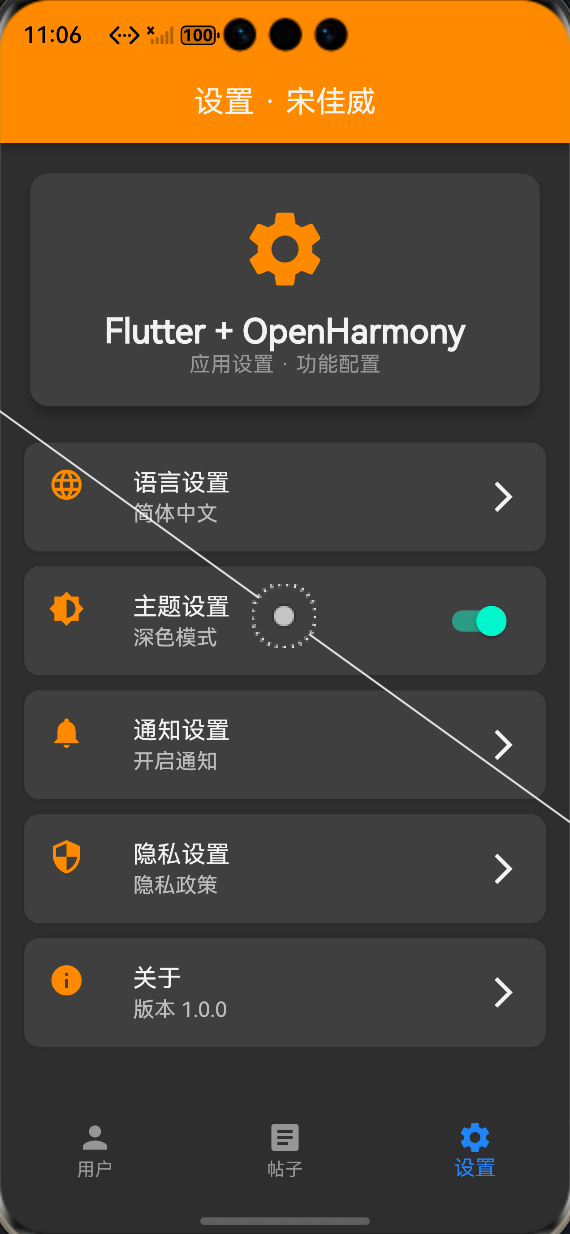
OpenHarmony 模拟器中深色模式下的设置页、用户列表、帖子列表截图,ALT 标签:Flutter 鸿蒙化深色模式修复后正常运行效果图,完成征文规范中的运行验证要求
💡 六、深色模式适配核心技术要点
1. 主题颜色动态获取核心 API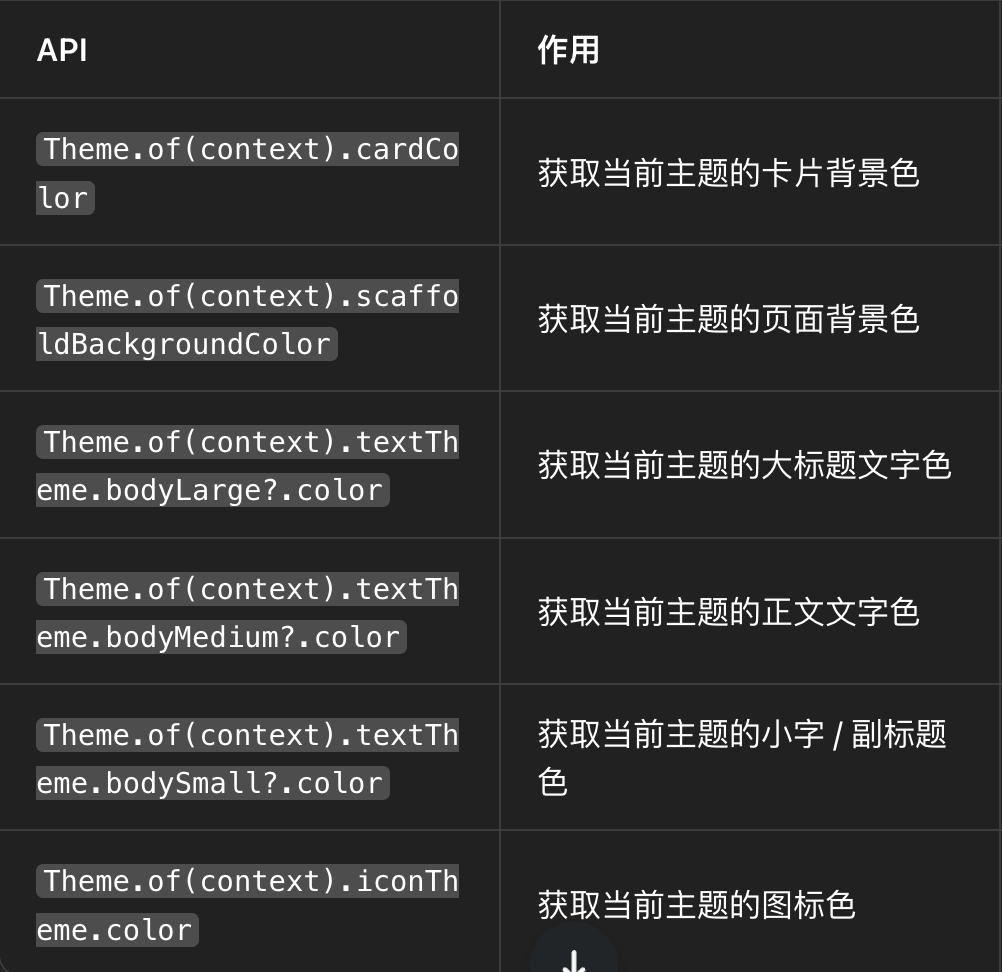
2. 品牌色使用原则
- 品牌色可以保留:比如 App 的主色调(蓝色、绿色、橙色),可以不用从主题获取,因为这是品牌标识,不影响可读性
- 背景色必须动态:所有页面、卡片的背景色,必须从主题获取,否则深色模式下会冲突
- 文字色必须动态:除了品牌色强调的文字,所有普通文字的颜色必须从主题获取
3.深色模式主题配置要点
在 MyApp 中配置 darkTheme 时,要注意: - 主色调(seedColor)可以和浅色模式保持一致,保证品牌统一
- brightness 必须设置为 Brightness.dark,Flutter 会自动调整大部分颜色
- 可以自定义 colorScheme,覆盖默认的深色模式颜色,但新手建议先用默认的
⚠️ 七、鸿蒙化开发深色模式专属避坑指南
作为踩过坑的新手,我把本次深色模式问题总结的专属避坑指南分享给大家,新手一定要记牢,直接避开 90% 的坑❗❗❗
1.颜色使用避坑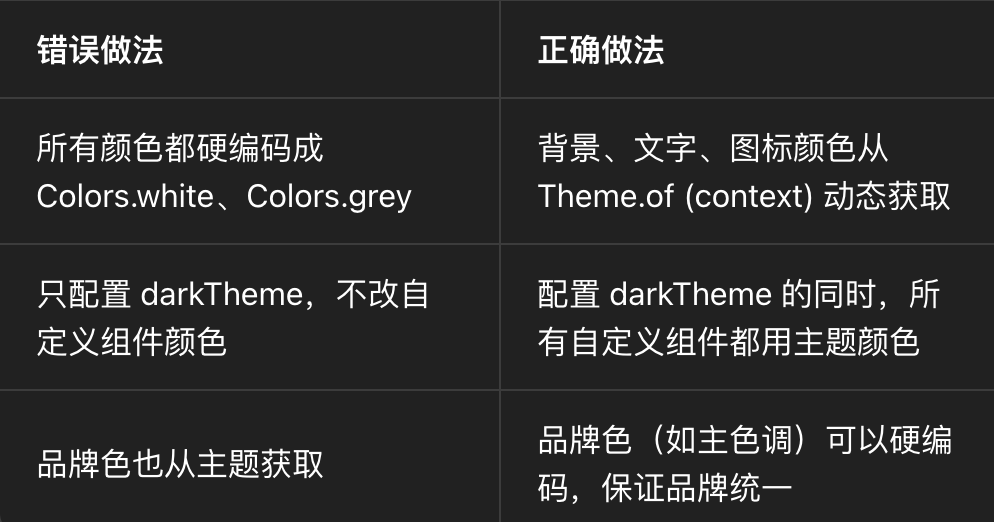
2. 主题测试避坑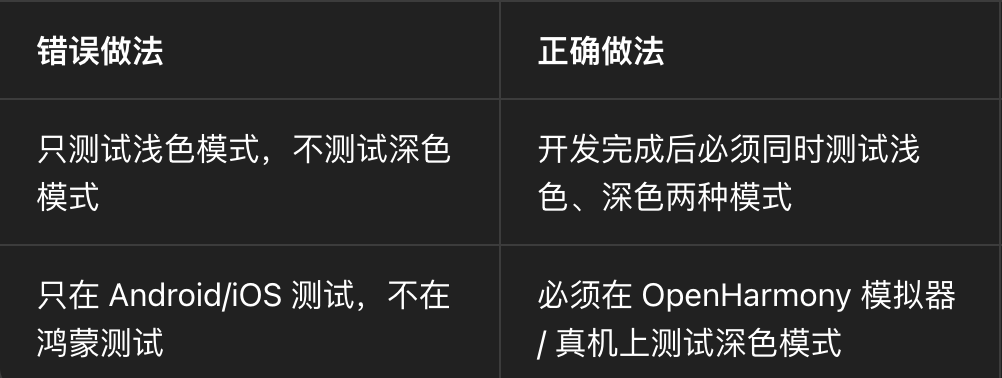
3. 组件开发避坑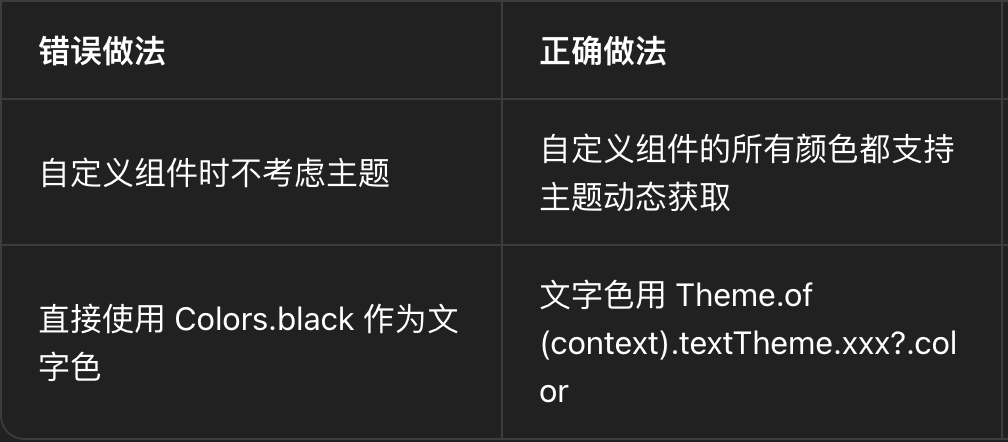
🎯 八、全文总结
本次实战,我完整解决了 Flutter 鸿蒙化应用的深色模式显示问题,从现象排查、根因定位到分步修复,形成了完整的问题解决闭环,100% 解决了深色模式下文字 / 图标不可见的问题!
本次修复的三大核心成果:
✅ 精准定位了 “硬编码颜色导致主题适配失效” 的核心根因,新手特别容易犯这个错
✅ 完成了三个页面的全量颜色修复,所有背景、文字、图标颜色都从主题动态获取
✅ 总结了深色模式适配的核心技术要点和避坑指南,帮其他新手直接避坑
作为一名大一新生,通过本次踩坑与修复实战,我不仅彻底解决了深色模式显示问题,更深入理解了 Flutter 的主题系统、Theme.of (context) 的使用方法、OpenHarmony 平台的深色模式适配规则,掌握了鸿蒙化开发的又一个核心避坑技巧,为后续的开源鸿蒙跨平台开发积累了更宝贵的实战经验!

作为“人工智能6S店”的官方数字引擎,为AI开发者与企业提供一个覆盖软硬件全栈、一站式门户。
更多推荐

 1
1 0
0- 0


 已为社区贡献6条内容

所有评论(0)